DTV22LV - Television VDiGi - Free user manual and instructions
Find the device manual for free DTV22LV VDiGi in PDF.


| Product Type | LED TV |
| Model | DTV22LV |
| Brand | VDiGi |
| Screen Size | 22 inches |
| Resolution | 1366 x 768 pixels |
| Viewing Angle | 85° |
| Brightness | 400 cd/m² |
| Contrast Ratio (Typical) | 800:1 |
| Dynamic Contrast Ratio | 15000:1 |
| Response Time | 5.8 ms |
| TV System | DMB-TH; PAL |
| Audio System | BG, BK, I |
| Power Input | AC 100–240 V, 50/60 Hz |
| Power Consumption | ≤60 W |
| Input Terminals | Tuner In x1, HDMI x2, S-Video x1, YPbPr x1 (with audio), VGA x1, VGA Audio x1, USB x2, Video In x1 (with audio) |
| Output Terminals | Video Out x1 (with audio), Coaxial Out x1 |
| Accessories Included | User Manual, Remote Controller, AV Cable, Power Cable, 2x AAA Batteries, Warranty Card |
| Remote Control | Yes, with full function buttons |
| Media Playback | USB: Photo, Music, Movie, Text |
| Electronic Program Guide (EPG) | Yes (DTV mode) |
| Wall Mountable | Yes (professional installation recommended) |
Frequently Asked Questions - DTV22LV VDiGi
User questions about DTV22LV VDiGi
0 question about this device. Answer the ones you know or ask your own.
Ask a new question about this device
Download the instructions for your Television in PDF format for free! Find your manual DTV22LV - VDiGi and take your electronic device back in hand. On this page are published all the documents necessary for the use of your device. DTV22LV by VDiGi.
USER MANUAL DTV22LV VDiGi
natural_image
Black flat-screen TV displaying a green field under a blue sky with clouds and a full moon, no visible text or symbols on the screen.DTV22LV/DTV26LV/DTV32LV/DTV42LV
目錄
目錄.... 1
安全資訊.... 2
預先注意事項.... 4
遙控器 6
面板功能描述.... 7
後置端子及功能描述....8
基本操作及菜單操作....9
頻道....10
影像....12
聲音及時間....13
選項....14
多媒體....15
圖片 16
音樂....17
電影....18
文本....19
技術規格....20
解決問題....21
natural_image
Back view of a flat-screen TV with a CD and indicator lights, showing no visible text or symbols on the screen or background.
natural_image
Diagram of a rack-mounted computer interface with multiple ports and connectors (no text or labels)DTV26LV/DTV32LV/DTV42LV

natural_image
Line drawing of various electronic devices including a front panel, ports, and connectors (no text or symbols)DTV22LV
natural_image
Close-up of a white flower with detailed petals and stamens against a black background (no text or symbols)音樂
“FWD”鍵:按“FWD”鍵選擇快進模式:X2→X4→X8→X16
“REV”鍵:按“REV”鍵選擇快退模式:X2→X4→X8→X16
Table of Contents....1
Safety Information....2
Precautions....4
Remote Control ....6
Functions of the panel.... 7
Rear Panel and Descriptions....8
Basic Operation 9
Menu Operation 10
Channel Menu.... 11
Picture Menu.... 12
Sound Menu....13
Time Menu.... 14
Option Menu....15
Media Menu.... 16
Photo....17
Music....19
Movie....20
Text....21
Specifications.... 23
Troubleshooting....24
Before operating the TV, please read “Safety Information” and retain this manual for the future reference.
Installation/Set-up
Install and use the TV set in accordance with the instructions below in order to avoid any risk of fire, electrical shock or damage and/or injuries.
Installation
The TV set should be installed near an easily accessible AC power outlet.
Place the TV set on stable, level surface to avoid it form falling down and cause personal injury or damage to the TV.
Only qualified service personnel should carry out wall installations.
For safety reasons, it is strongly recommended that you use V DIGI Accessories.
Transporting
Before transporting the TV set, disconnect all cables.
Two or more people are needed to transport a large TV set
When transport the TV set hand, hold it as shown on the right. Do not put stress on the LCD panel.
When lifting or moving the TV set, hold it firmly from the bottom.
When transporting the TV set, do not subject it to jolts or excessive vibration.
When transporting the TV set for repairs or when moving, pack it using the original carton and packing material.
Ventilation
Never cover the ventilation holes or insert anything in the cabinet.
Leave space around the TV set
To ensure proper ventilation and prevent the collection of dirt or dust:
Do not lay the TV set flat, install upside down, backwards, or sideways.
Do not pace the TV set on a shelf, rug, bed or in a closet.
Do not cover the TV set with a cloth, such as curtains, or item such as newspaper, etc.
AC power cord
Handle the AC power cord and outlet as follows in order to avoid any risk of fire, electrical shock or damage and/or injuries:
Use only V DIGI supplied AC power cords, not those of other brands.
Insert the plug fully into the AC power outlet
Operate the TV set on a 110-240V AC supply only.
When wiring cables, be sure to unplug the AC power cord for you safety and take care not to catch your feet on the cables.
Disconnect the AC power cord form the AC power outlet before working on or moving the TV set.
Keep the AC power cord away form heat sources.
Unplug the AC power plug and clean it regularly. If the plug is covered with dust and it picks up moisture, its insulation may deteriorate, which could result in a fire.
Notes:
Do not use the supplied AC power cord on any other equipment.
Do not pinch, bend, or twist the AC power cord excessively. The core conductors may be exposed or broken.
Do not modify the AC power cord.
Do not put anything heavy on the AC power cord.
Do not pull on the AC power cord itself when disconnecting the AC power cord.
Do not connect too many appliances to the same AC power outlet.
Do not use a poor fitting AC power outlet.
Prohibited Usage
Do not install/use the TV set in locations, environments or situations such as those listed below, or the TV set may malfunction and cause a fire, electrical shock, damage and/or injuries.
Location
Outdoors (in direct sunlight), at the seashore, on a ship or other vessel, inside a vehicle, in medical institutions, unstable locations, near water, rain, moisture or smoke.
Environment
Places that are hot, humid, or excessively dusty; where insects may enter; where it might be exposed to mechanical vibration, near flammable objects (candles, etc). The TV shall not be exposed to dripping or splashing and no objects filled with liquids, such as vases, shall be placed on the TV.
Situation
Do not use when your hands are wet, with the cabinet removed, or with attachments not recommended by the manufacturer. Disconnect the TV set from AC power outlet and antenna during lightning storms.
Broken pieces
Do not throw anything at the TV set. The screen glass may break by the impact and cause serious injury.
If the surface of the TV set cracks, do not touch it until you have unplugged the AC power cord. Otherwise electric shock may result.
When not in use
If you will not be using the TV set for several days, the TV set should be disconnected from the AC power for environmental and safety reasons.
As the TV set is not disconnected from the AC power when the TV set is just turned off, pull the plug from the AC power outlet to disconnect the TV set completely.
However, some TV set may have features that require the TV set to be left in standby to work correctly.
For children
Do not allow children to climb on the TV set.
Keep small accessories out of the reach of children, so that they are not mistakenly swallowed.
If the following problems occur
Turn off the TV set and unplug the AC power cord immediately if any of the following problems occur. Ask your dealer or V DIGI service centre to have it checked by qualified service personnel.
When:
AC power cord is damaged.
Poor fitting of AC power outlet.
TV set is damaged by being dropped, hit or having something thrown at it.
Any liquid or solid object falls through opening in the cabinet.
Precautions
Viewing the TV
View the TV in moderate light, as viewing the TV in poor light or during long period of time, strains your eyes.
When using headphones, adjust the volume so as to avoid excessive levels, as hearing damage may result.
LCD screen
Although the LCD screen is made with high-precision technology and 99.99% or more of the pixels are effective, black dots may appear or bight points of light (red, blue, or green) may appear constantly on the LCD screen. This is a structural property of the LCD screen and is not a malfunction.
Do not push or scratch the front filter, or place object on top of this TV set. The image may be uneven or the LCD screen may be damaged.
If this TV set is used in a cold place, smear may occur in the picture or the picture may become dark. This does not indicate a failure. These phenomena disappear as the temperature rises.
Ghosting may occur when still pictures are displayed continuously. It may disappear after a few moments.
The screen and cabinet get warm when this TV set is in use. This is not a malfunction.
The LCD screen contains a small amount of liquid crystal. Mercury is sometimes contained depending on the kind of fluorescent tubes. Follow your local ordinances and regulations for disposal.
Handing and cleaning the screen surface/cabinet of the TV set
Be sure to unplug the AC power cord connected to the TV set form AC power outlet before cleaning.
Handing and cleaning the screen surface/cabinet of the TV set
Be sure to unplug the AC power cord connected to the TV set form AC power outlet before cleaning.
To avoid material degradation or screen coating degradation, observe the following precautions.
To remove dust form the screen surface/cabinet, wipe gently with a soft cloth of dust is persistent, wipe with a soft cloth slightly moistened with a diluted mild detergent solution.
Never use any type of abrasive pad, alkaline/ acid cleaner, scouring powder, or volatile solvent, such as alcohol, benzene, thinner or insecticide. Using such materials or maintaining prolonged contact with rubber or vinyl materials may result in damage to the screen surface and cabinet material
When adjusting the angle of the TV set, move it slowly so as to prevent the TV set form moving or slipping off from its table stand.
Optional Equipment
Keep optional components or any equipment emitting electromagnetic radiation away from the TV set. Otherwise picture distortion and/or noisy sound may occur.
Description of television of remote control
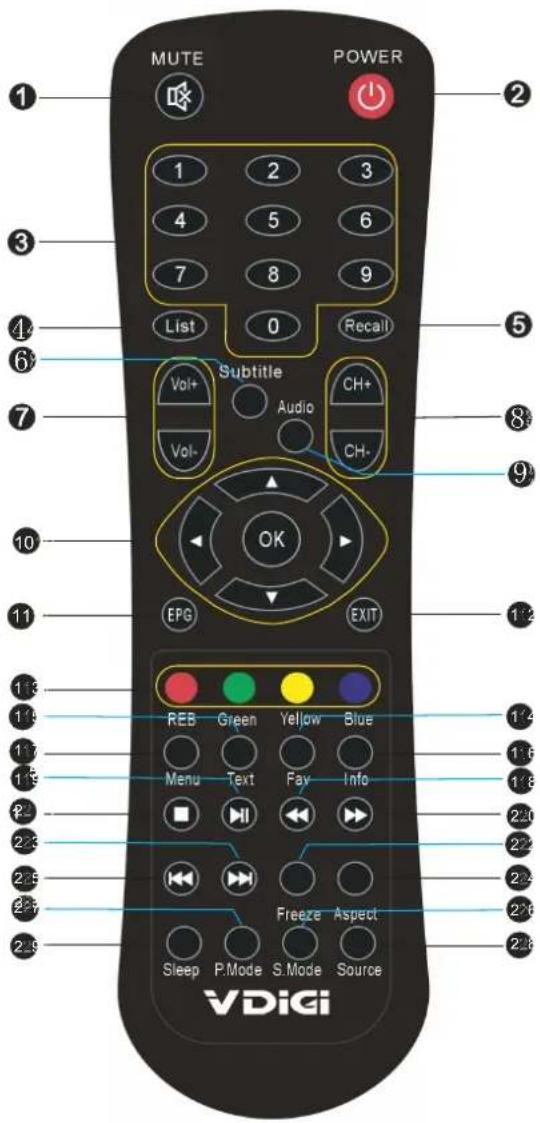
①) Turn on/off audio
② Switch between working status and standby status
③ Press to select channel
④) Display channel list
⑤ Switch to the last channel
⑥ Select language of subtitle
⑦ Change sound volume
⑧ Change channel
⑨) Select audio output
10) OK key: confirm selection
◀/▼: Navigate on menu
11) Show electronic program guide
12) Exit the OSD menu
Use these keys according to indication in menu displaying on TV screen
114) Display/Define favorite channel
Use this key according to indication in menu displaying on TV screen
116 Show channel program information
117 Show main menu
118 Fast backward
119 Play/pause program
22) Fast forward
22 Stop program
2 Freeze the picture
② Skip the program forwards
22 Adjust image display proportion
22 Skip the program backwards
2) Select different sound mode
2 Select different picture mode
22 Input source conversion button
229 Set the sleep time
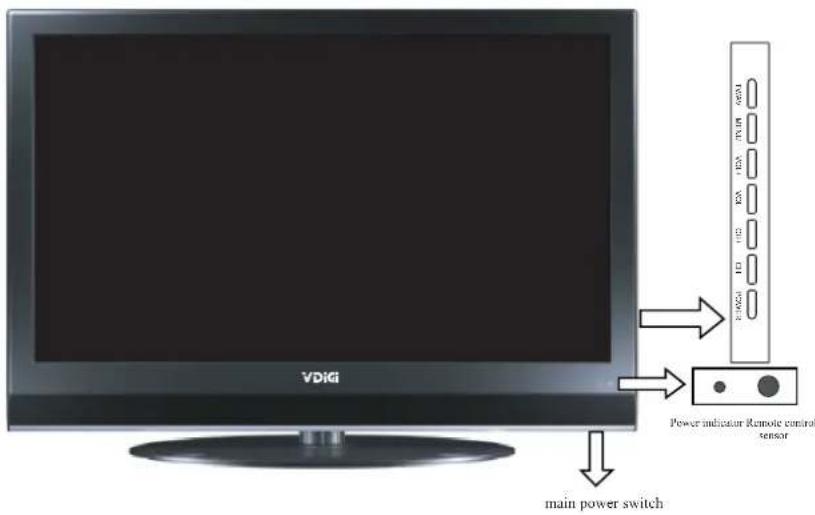
| Button | Description |
| POWER | Switch between working status and standby status |
| TV/AV | Switch signal between TV and AV |
| MENU | Show main menu |
| CH+/CH- | Change channel |
| VOL+/VOL- | Change sound volume |
| Indicator Description | |
| Power indicator | Lights up in red when the TV is in standby mode. Lights up in blue when the TV is on |
| Remote control sensor | Receives IR signals from the remote. (Do not put anything over the sensor, otherwise; the sensor may not operate properly) |
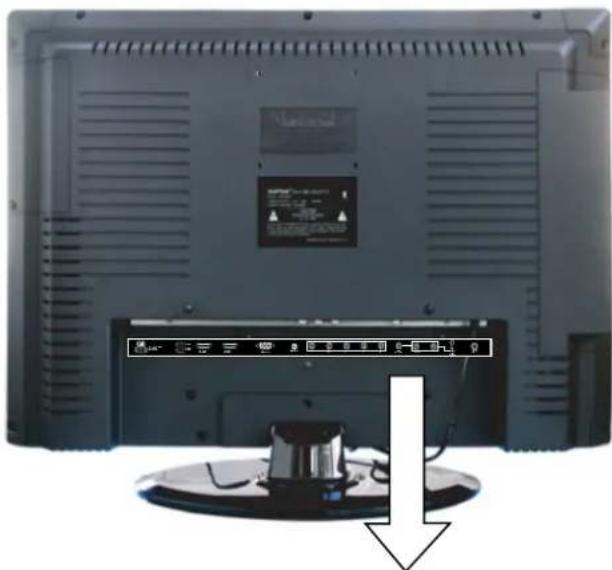
natural_image
Back view of a flat-screen TV or audio device with a control panel and indicator lights, no visible text or symbols on the device itself.
natural_image
Diagram of various electronic devices and connectors arranged in a row, no text or symbols presentDTV26LV/DTV32LV/DTV42LV

natural_image
Line drawing of a multi-chamber electronic device with ports and connectors (no text or symbols)DTV22LV
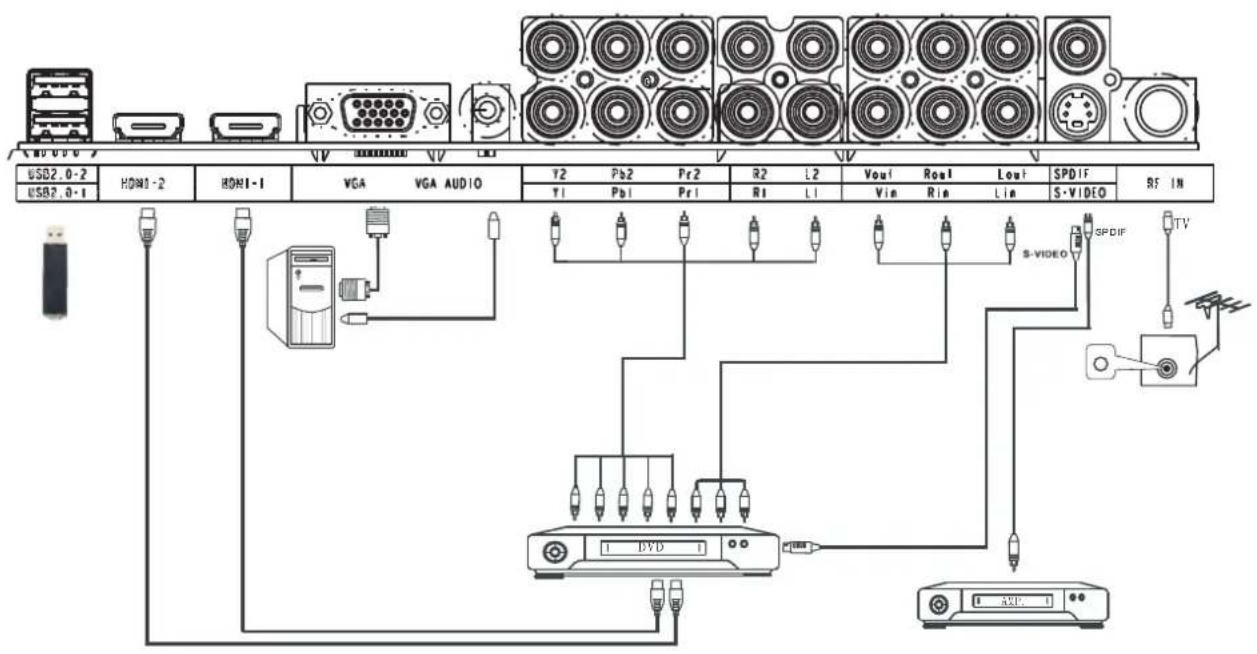
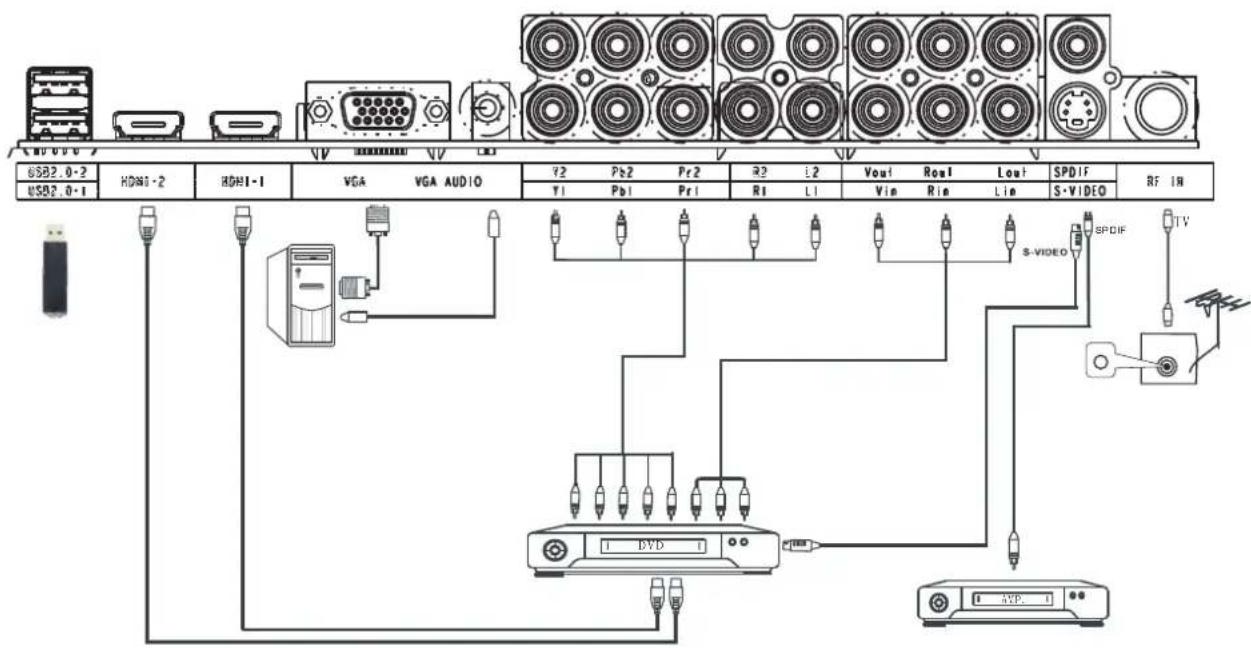
| Name Function Description | |
| USB1,USB2 | Reserve for external USB device |
| HDMI1,HDMI2 | HDMI input |
| VGA | VGA input |
| VGAaudio | VGA audio input |
| YPbPr | Component input |
| VIDEO L/R (in) | Composite video and stereo audio input |
| VIDEO L/R (out) | Composite video and stereo audio output |
| COAXIAL | Coaxial digital audio output |
| S-VIDEO | S-VIDEO input |
| RF IN | Antenna input |
Power On / Off
- Connect the TV unit to power source using power cord.
- When the power indicator is in red, the TV is in standby mode. Now press the "STANDBY" button on remote control or "POWER" button on front panel to turn on the TV. The TV works normally when the power indicator is in blue.
- Switch the TV to standby mode, just press "STANDBY" button on the remote control or the "POWER" button on front panel. Now the indicator will be in red.
- If unused for a long time in standby mode, please disconnect the power cord from the wall outlet.
Note: The TV set can turn off automatically after 5 minutes while there is no signal input.
Select Viewing Source
Press the "SOURCE" button to display the sources list.
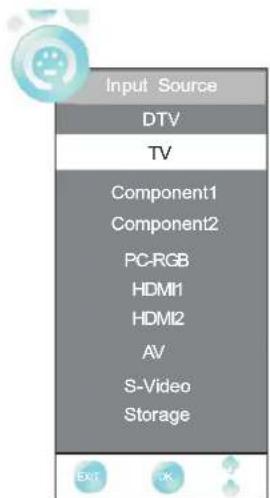
Please use the ▲/▼ buttons to select desired signal, and press "OK" or "◀/▶" button to confirm.
Note:
Please make sure the connection for your choice is available.
If you want to adjust the display settings, please follow the instruction below.
Press the "MENU" and "◀/▶" buttons to browse the CHANNEL Menu, Picture Menu, Sound Menu, Time Menu, Option iMenu and Media
Press "OK" or ▼ button to enter the submenu.
Press "▲/▼" button to select items and "◀/▶" button to adjust it.
Press "MENU" button to return to the previous menu.
Press "EXIT" button to exit "MENU" mode.
Note: When an item in MENU is displayed as gray, it means that the item is not available or can not be adjusted.
Channel Menu
Press "MENU" and "◀/▶" buttons to select the CHANNEL.
Press" OK" or "▼" button to select the items.
Press "►" or "Ok" button to enter the Submenu.
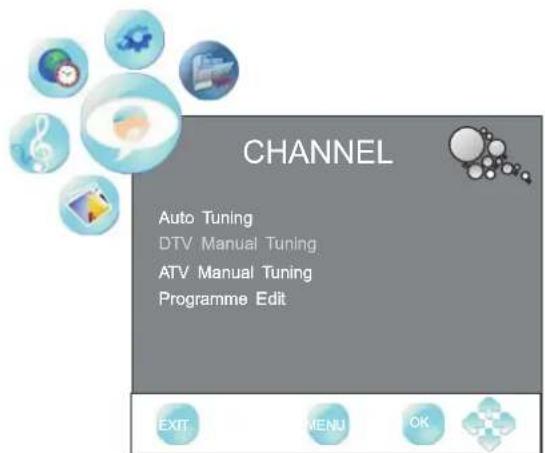
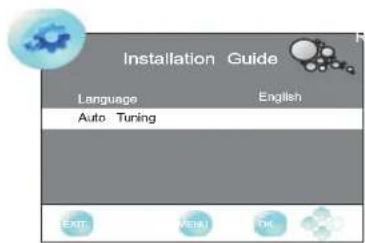
Auto Tuning
Press "◀/▶" buttons to select Start.
Press "OK" button to enter "Auto Tuning", the TV will search channels automatically.
All channels will be saved once searching finished.
In the course of auto searching, you can press "EXIT" to stop the searching process.
Note: If it is the first time installation, it will start with Installation Guide Menu
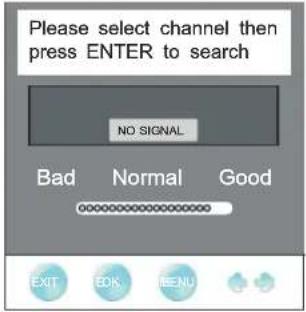
DTV Manual Tuning ( ) only available in DTV mode
You can also set program list again one by one by "DTV Manual Tuning" function.
Press to /▶
." "button select channel
Press "OK" button to search.
When a channel is found, the searching process will stop, the channel will be saved with current channel number
If the program is not your expected one, please press
"◀/▶"button to continue the searching.
Press "Ex button to exit.

DTV Manual Tuning

UHF CH 21 474Hz
ATV Manual Tuning (only available in TV mode)
If you find one channel is a little weak,
you can adjust the frequency of the channel
It might improve the quality of picture and sound.
Storage TO
Press"▲/▼" button to select to storage to channel
NO. from 1 to 100.
Color System
Can't be adjusted.
Audion System
Press◀/▶ "button to select Audion System:I—BG—DK.
Current CH
Press "◀/▶" button to select current channel.
Search
Press◀ "button to seaching channel from high to low, until find the channel.
Press" ▶ "button to searching channel from low to high, until find the channel.
Fine-Tune
Press "◀/▶" button to adjust frequency.
Skip
Press◀/▶"button to turn on/off "SKIP".
Frequency
Display the current channel frequency.
Press "▲/▼" button select items . Press "◀/button to adjust it.
Press the red button to save it. Press "EXIT" button to exit.

ATV Manual Tuning
Storage To 1
Color System PAL
Audio System I
Current CH 1
Search
Fine-Tune
Skip No
Frequency 535.25 MHz


Channel Menu
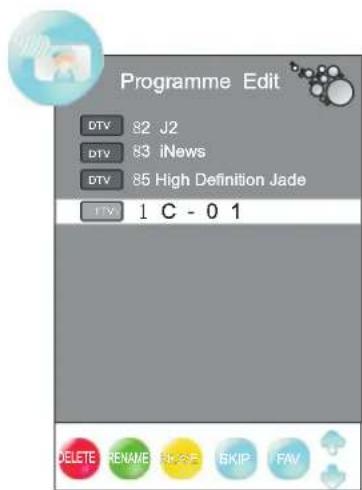
Programme Edit
Press "▲/▼" button to select items.
Press red button to delete the channel.
Press green button to rename the channel.
Note: Only the TV channel can be renamed.
Press "◀/▶" to select the letter and press"▲/▼" to change the letter.
Press yellow button to move the channel.
Note: The list of programs include TV and DTV.
The programs can be moved only among the same kind.
Press "BLUE" button to skip the channel.
Press" FAV." button to set the favorite channel.
Picture Menu
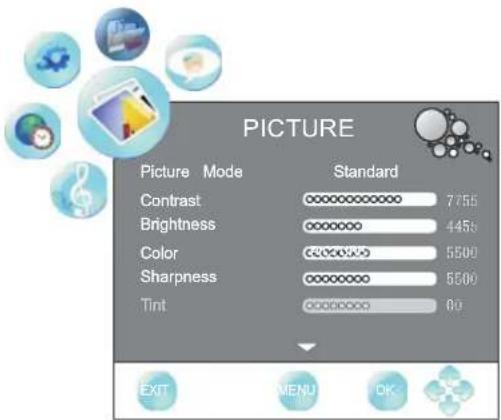
Press "MENU" and "◀/▶" buttons to select the PICTURE MENU
Press "▲/▼" button to select items.
PictureMode
Press "◀/▶" button to select among, Standard, mild, user and dynamic modes.
(The function is not available for "STORAGE" mode.)
Contrast
Press ◀◀/▶"button to adjust the contrast of the picture.
Brightness
Press "◀/▶" button to adjust the brightness of the picture.
Color
Press ◀◀/▶"button to adjust the color saturation.
Sharpness
Press ◀◀/▶ button to adjust the sharpness level of the picture.
Picture Menu
T in t
Press button to adjust the tint of the picture NTSC MODE ONLY. ( )
C o lo r Te m p e ra tu re
Press button to select among normal warm and cold mode.
A s p e c t R a tio
Press ◀◀/▶ button to select the ratio of the screen.
N o is e R e d u c t i o n
Press ◀◀/▶ button to select among Auto,weak,middle and strong.
Sc re (only available in PC-RGB mode)
Press "►" button to enter the submenu.
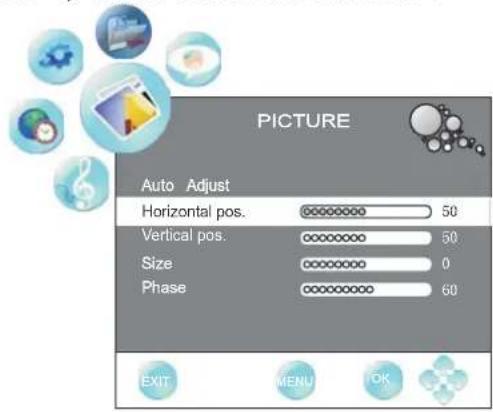
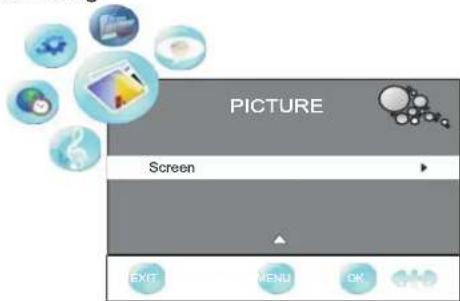
Press "▲/▼" button to select items .
Press "◀/▶" button to adjust it.
Press "EXIT" button to exit.
Sound Menu
Press "MENU" and "◀/▶" buttons to select the SOUND MENU
Press "▲/▼" button to select items
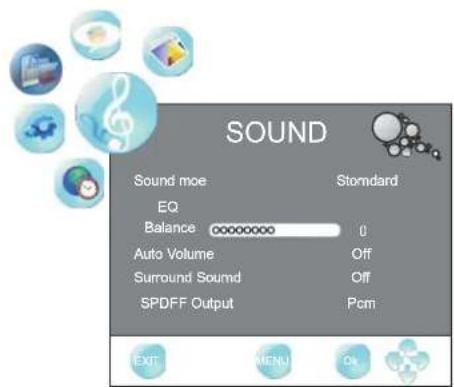
Sound Mode
Press "◀/▶" button to select among Standard, Music, Movie, Sports and User.
(The function is not available for "STORAGE" mode.)
Sound Menu
EQ
Press button to POP-UP the submenu, as follow picture to display:
(Only available in the "USER" sound mode).
Press "◀/▶" to change the value.
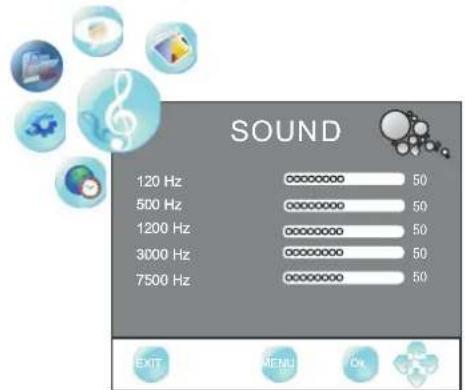
Balance
Press button to adjust the audio output between left and right speakers
Auto Volume
Press button to turn on off the function of auto volume
SurroundSound
Press button to turn on off the function of surround sound
SPDIF output :Press◀/▶" button to select among OFF,PCM,AC3.
(Note: Only in DTV mode, SPDIF can be adjusted.)
Time Menu
Press "MENU" and "◀/▶ buttons to select the TIME MENU
Press "▲/▼" button to select items
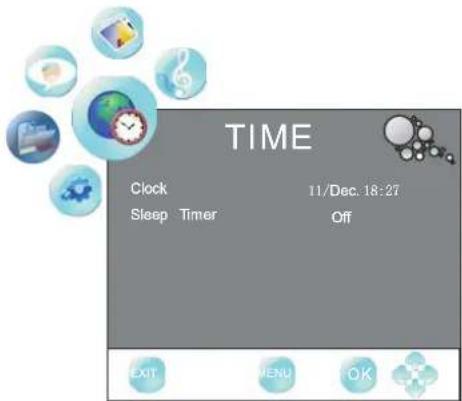
C l o c k
Press "OK" or "button to POP-UP the time submenu, and press "▲/▼" buttons to select among the
"Date", "Month", "Year", "Hour" and "Minute" items. After a good set parameters.
Press "▼" button to select the CLOSE itém, and press OK button to close the menu.
SleepTimer
Press button to set the sleep timer
Option Menu
Press "MENU" and buttons to select the Option MENU
Press "▼" or "Ok" button to enter the Submenu.
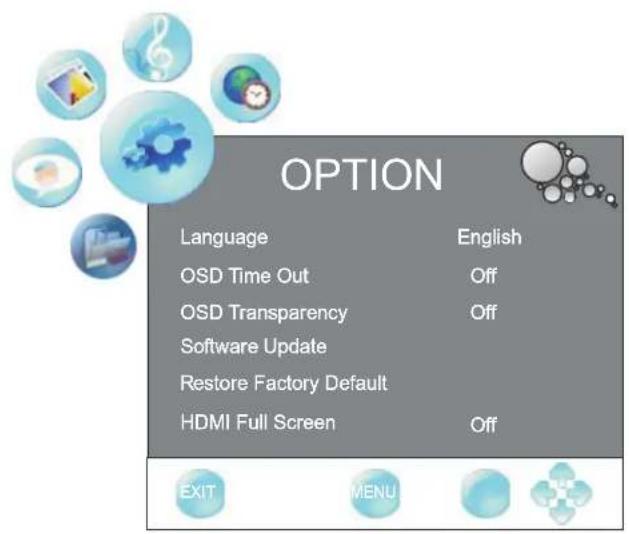
Language
Press button to select between English and Traditional Chinese.
OSD Time Out
Press "◀/▶" button to select among the "OFF", "10SEC", "15SEC", "30SEC", "45SEC" and "60SEC" Parameters.
OSD Transparency
Press "◀/▶" button to select among the "OFF", "25%", "50%", "75%" and "100%" parameters.
Software Update
Press the" ▶ "button or OK button for software update. (Note: No professionals, please do not easily use this function.)
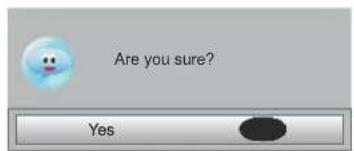
F a c t o r y D e f a u l t
Press"► "button to POP-UP dialogue menu.
Press button to select yes no and press ok button to confirm.
Press"MENU" button to return. Press EXIT button to exit.
Important Unique Button
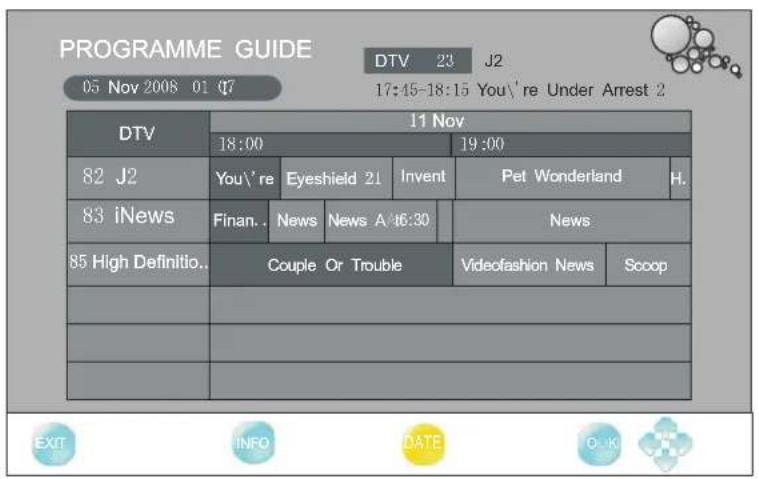
EPG (only available in DTV mode)
Press "EPG" button to display the Electronic Programme Guide.
You can check the program information for the next 7 days
(If the information is available from broadcast)
Press"▲/▼" button to select the channel.
Press "◀/▶" and yellow button to select the time
Press "INFO" button to show the information of the program.
Media Menu
M E D T A
Press "MENU" and "◀/▶" button to select the "MEDIA".
Press "▶" or "OK" button to enter the submenu.
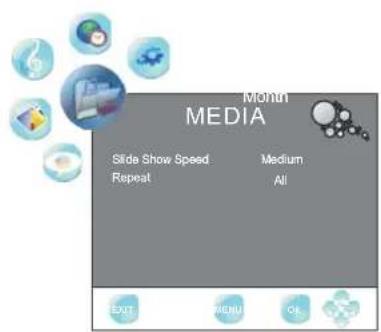
Slide show speed
Slide show speed:Press "◀/▶" button to select among slow,Medium and fast.
R ep ea t:
Press "◀/▶" button to select among the "all", "select" and "none" modes.
Press "SOURCE" button to POP-UP the input source menu.
Press " ▲ / ▼" button to select the "STORAGE", and press " ▶" or "OK" button to enter the interface, as follow display:
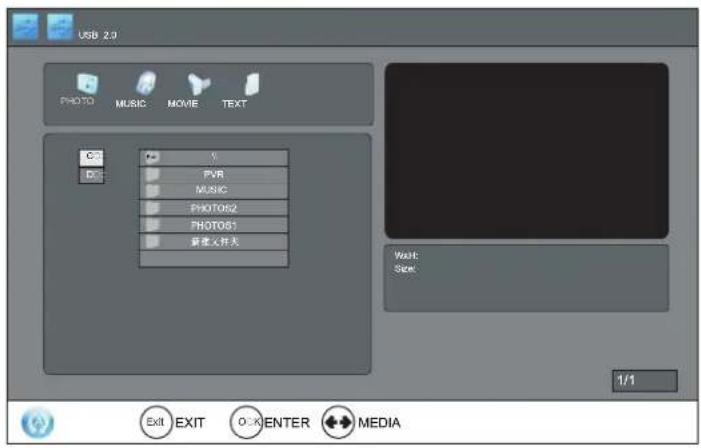
Photo
Press "◀/▶" button to select among the "PHOTO", "MUSIC", "MOVIE" and "TEXT" icons. Press "OK" button to confirm.
PHOTO
- Press "◀/▶" button to select the "PHOTO"
- Press "OK" button to enter the submenu.
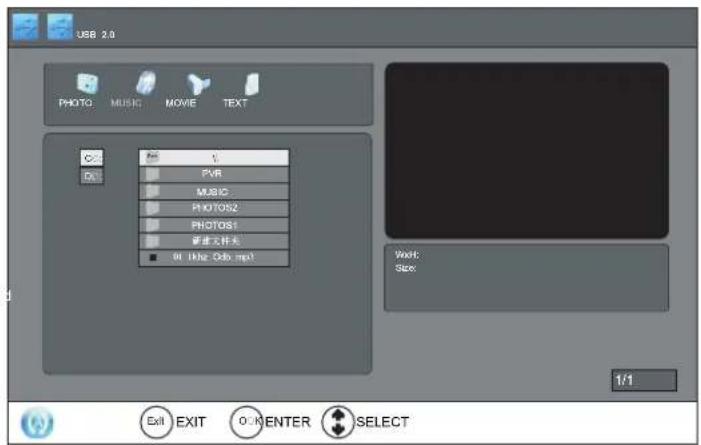
- Press ◀, ▶, ▲, ▼ button to select the files, and Press "OK" button to open the file, and Press "▲/▼ button to select the photo, Press "OK" button to confirm, Press it again to unselect the photo.
4.P ress "▲/▼" button to pre view the photo,as follow display:
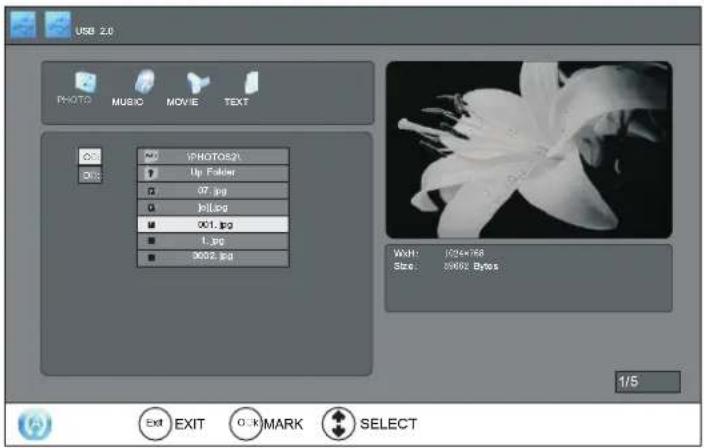
5.P ress "OK button to select the photo,P ress it again to unselect.
- Press "PLAY" button to play the photo, as follow display:
Pau se
Press "PAUSE" button to pause playing the photo.
P lay
Press "PLAY" button to play the selected photo.
S top
Press"STOP" button to stop and return.
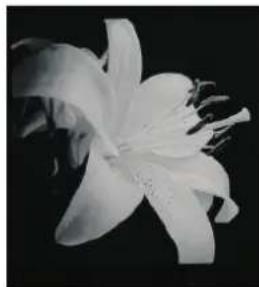
natural_image
Black and white close-up of a blooming lily flower (no text or symbols)Next
Press "NEXT" or "PREV." button to skip to view the photo which are selected the photo.
Exit
Press "EXIT" button to exit.
MUSIC
- Press "◀/▶" button to select the "MUSIC", as follow display :
Music
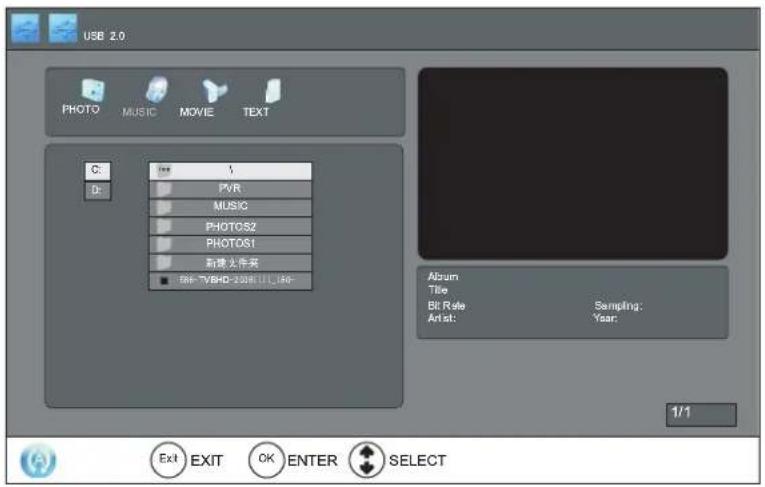
- Press "OK" button into "MUSIC" interface.
- Press "▲/▼" button to select the files.
4.P press OK button to open the file." "
5.P press "▲/▼ button to pre view the music,an d pre ss OK" "
button to confirm to select the music.
(be used for skip in music playe r), and press OK button to unselect."
- Press "PLAY" button into music player and playing the selected music, as follow display :
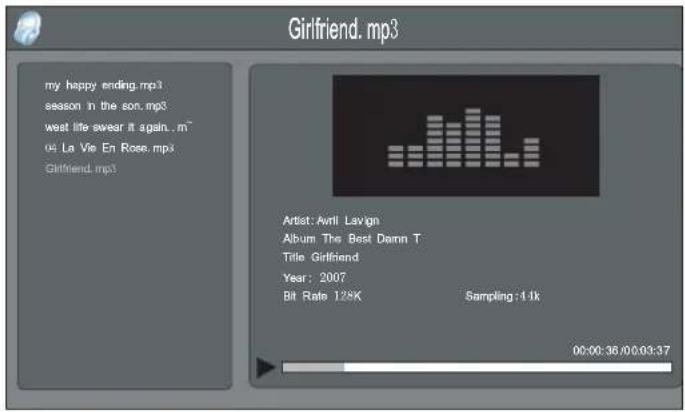
Press "▲/▼" button to select the musics which were selected, and press "OK" button to confirm playing.
Movie
P A U S E
Press "PAUSE" button to pause the playing music.
PLAY
Press "PLAY" button to play the music.
P R E V.
Press "PREV." button to skip the backward music.
N E X T
Press "NEXT" button to skip the forward music.
R E V.
Press "REV." button to fast reverse amongx2, x4, x8, andx16 modes.
F W D .
Press "FWD." button to fast forward amongx2,x4,x8 andx16 modes.
S T O P
Press "STOP" button to stop and return.
E X IT
Press "EXIT" button to exit, and then can select to view the photo at the same time.
M O V 1E
Press ◀, ▶, ▲, ▼ button to select the "MOVIE", Press "OK" button into the "MOVIE" interface. as follow display:
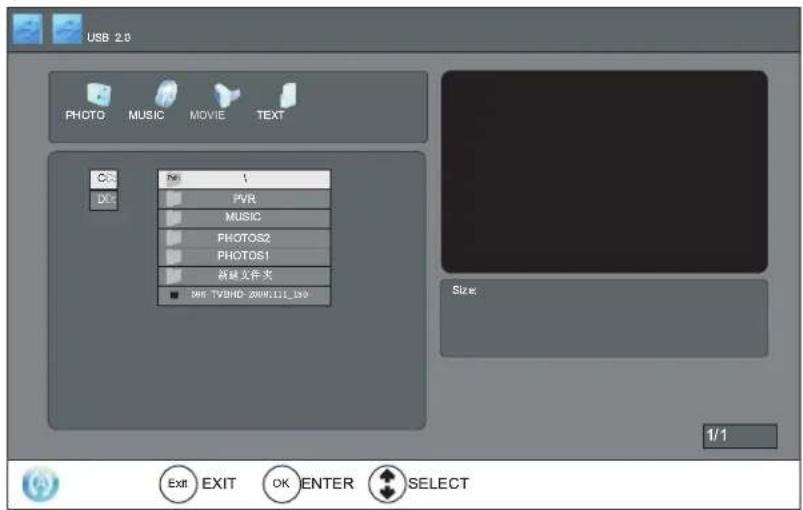
Press "▲/▼" button to select the files, and press "OK" button to confirm, as follow display :
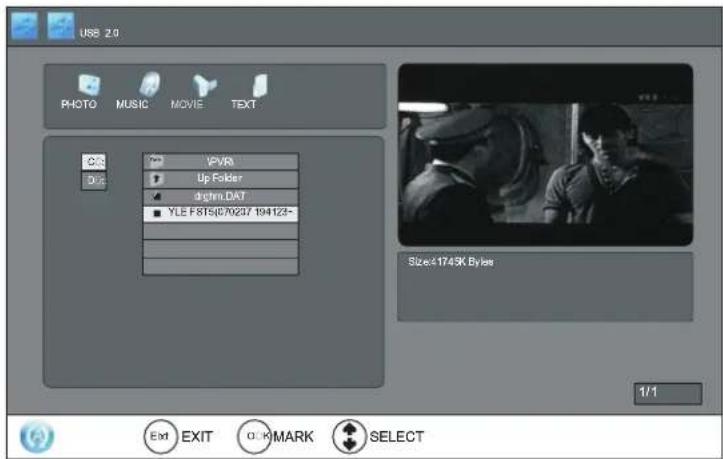
- Select the "PATH" icon, and press "OK" button to POP-UP the submenu, and press "◀7▶ button to select between" SELECT" and "UNSELECT" all files, and press "OK" button to confirm.
- Press "▲/▼" button to select the movie, and press "OK" button to confirm the selected movie, and Press "OK" button again to unselect the movie.
- Press the "PLAY" button to play the movie. Press the "PAUSE" button to pause the playing movie. Press "PREV." or "NEXT" button to skip the backward or forward. Press "REV." or "FWD." button to fast reverse or fast forward, press "STOP" or "EXIT" button to return.
- Select the "UP FOLDER" icon, and press "OK" button to return one level the menu.
- Press "EXIT" button to exit.
Text
T EXT
Press "◀/1▶ button to select the "TEXT" icon, and press "OK" button to enter the "TEXT" interface, as follow display:
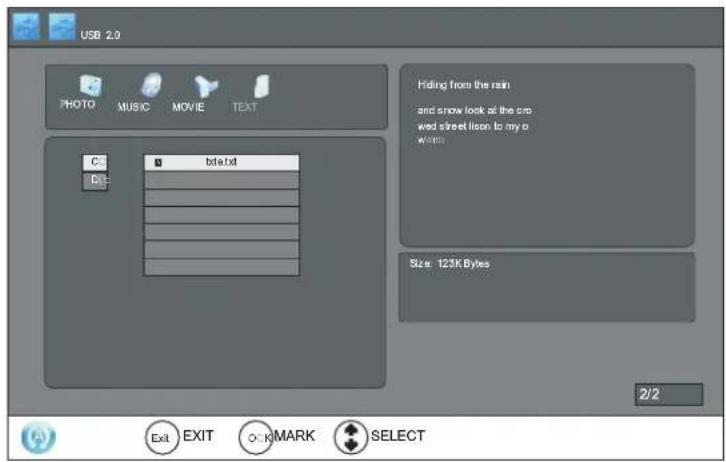
- Press "▲/▼" button to select the "PATH" icon, and press "OK" button to POP-UP the submenu, and Press "◀/▶" button to select between the "SELECT" and "UNSELECT" all files.
- Press "◀/▶" button to select the file, and press "OK" button open the file or select the "UP FOLDER" icon, and press "OK" button to return one level the menu.
- Press the "▲/▼" button to select the file, and press "OK" button to confirm
- Press "PLAY" button to open and play the file, as follow display :
Press "FWD." button to view a next page.
Press "REV." button to view a previous page.
Press "STOP" or "EXIT" button to return. - Press the "EXIT" button to exit.
Hiding from the rain
and snow look at the crowed street lison to my own
heartbeat .so many people around the world
tell me where I find someone like you girl.
tanding on the mountain hight look at the
1/2
- YPbPr/HDMI
| Resolution | Vert.Freq.(Hz) |
| 480i | 60 |
| 480p | 60 |
| 720p | 60 |
| 1080i | 60 |
| 1080P | 60 |
2.VGA
| Resolution Vert.Freq.(Hz) | |
| 14 40 *90 0 | 60 |
| 10 24 *76 8 | 60 |
| 80 0*6 00 | 60 |
| 64 0*4 80 | 60 |
| Model | DTV22LV | DTV26LV | DTV32LV | DTV42LV |
| Panel Size | 22" | 26" | 32" | 42" |
| Resolution | 1366(H) x 768(V) | 1366(H) x 768(V) | 1366(H) x 768(V) | 1920(H) x 1080(V) |
| Viewing Angle | 85° | 80° | 89° | 88° |
| Brightness | 400 cd/m2 | 500 cd/m2 | 500 cd/m2 | 500 cd/m2 |
| Contrast Ratio (Typ.) | 800 : 1 | 800 : 1 | 3000 : 1 | 1500 : 1 |
| Dynamic Contrast Ratio | 15000:1 | 15000:1 | 15000:1 | 15000:1 |
| Response Time | 5.8ms | 8ms | 8ms | 6.5ms |
| TV System | DMB-TH; PAL | |||
| Audio System | BG, BK, I | |||
| Power Input | AC100~240V / Frequency 50/60Hz | |||
| Power Consumption | ≤60W | ≤90W | ≤150W | ≤250W |
| Input Terminal | Tuner In x 1 | Tuner In x 1 | ||
| HDMI x 2 | HDMI x 2 | |||
| S Video x 1 | S Video x 1 | |||
| YPbPr In x 1 (with audio input) | YPbPr In x 2 (with audio input) | |||
| VGA x 1 | VGA x 1 | |||
| VGA Audio x 1 | VGA Audio x 1 | |||
| USB x 2 | USB x 2 | |||
| Video In x 1 (with audio input) | Video In x 1 (with audio input) | |||
| Output Terminal | Video Out x 1 (with audio output) | |||
| Coxial Out x 1 | Coxial Out x 1 | |||
| Accessories | User Manual x 1 | |||
| Remote Controller x 1 | ||||
| AV cable x 1 | ||||
| Power cable x 1 | ||||
| Battery x 2 | ||||
| Warranty Card x 1 | ||||
| Condition | Explanation/Solution | |||
| Picture | ||||
| There is no picture (screen is dark) and no sound. | Check the antenna/cable connection.Connect the TV to the AC power, and open the power supply on the TV.If the indicator lights up in red, press Power button. | |||
| Ghosting occurs, or double images appear. | Check the antenna/cable connection.Check the antenna/cable location and direction. | |||
| Only snow and noise appear on the screen. | Check if the antenna/cable is broken or bent.Check if the antenna/cable has reached the end of its serviceable life (three to five years for normal use, one to two years when used at the seaside). | |||
| The picture is distorted (dotted lines or stripes appear). | Keep the TV away from electrical noise sources such as cars, motorcycles, hair-dryers, or optical equipment.When installing optional equipment, leave some space between the optional equipment and the TV.Check the antenna/cable connections.Keep the antenna/cable TV cable away from other connecting cables. | |||
| There is picture or sound noise when viewing a TV channel. | Check the antenna/cable connection. | |||
| Tiny back points and/or bright points appear on the screen. | The screen is composed of pixels. Tiny black points and/or bright points (pixels) on the screen do not indicate a malfunction. | |||
| The picture from equipment connected to different input ports is not displayed in colour, or is displayed in irregular colours. | Check the connection of different input ports and check if the ports are firmly seated in their respective ports. | |||
| No picture from the connected equipment appears on the screen. | Turn the connected equipment on.Check the cable connection.Press Source to display the list inputs, and then select the desired input.Operations are not guaranteed for all USB devices. Also, operations differ depending on the features of the USB device and the video being played. | |||
| Sound | ||||
| The picture is good, but there is no sound. | Press Vol +/- or Mute key.Check the audio cable L/R connectionWhen using HDMI input with Super Audio CD or DVD-Audio, DIGITAL AUDIO OUT (COAXIAL) may not be able to output audio signal | |||
| Channels | ||||
| You cannot select your desired channel. | Switch between digital and analogue mode, and select the desired digital/analogue channel. | |||
| Some channels are blank. | The channel is for scrambled/subscription service only. Subscribe to a pay TV service.The channel is used only for data (no picture or sound).Contact the broadcaster for transmission details. | |||
| You cannot view digital channels. | Contact a local installer to find out if digital transmissions are provided in your area.Check if the antenna/cable is broken or bentUpgrade to a higher gain antenna. | |||
| General | ||||
| The TV turns off automatically (the TV enters standby mode). | Check if the “Sleep off” is activated. | |||
| The remote does not function. | Replace the batteries. | |||
| HDMI equipment cannot be recognized. | Check that your equipment is compatible with control for HDMI. | |||
| Not all channels are tuned for cable. | Contact the related cable broadcaster | |||
弘毅有限公司
Winning Perfect Limited
Room 506, Tower 2, Cheung Sha Wan Plaza, 833 Cheung Sha Wan Road,
Kowloon, Hong Kong
Tel: 852-28611109
Fax: 852-83437386
Email: info@vdigi.com.hk
Web site: www.vdigi.com.hk
- 目錄
- 音樂
- Installation
- Transporting
- Ventilation
- AC power cord
- Notes:
- Prohibited Usage
- Location
- Environment
- Situation
- Broken pieces
- When not in use
- For children
- If the following problems occur
- Precautions
- Viewing the TV
- LCD screen
- Handing and cleaning the screen surface/cabinet of the TV set
- Optional Equipment
- Description of television of remote control
- Power On / Off
- Select Viewing Source
- Channel Menu
- Auto Tuning
- DTV Manual Tuning ( ) only available in DTV mode
- ATV Manual Tuning (only available in TV mode)
- Programme Edit
- Picture Menu
- Sound Menu
- Time Menu
- Option Menu
- Important Unique Button
- Media Menu
- M E D T A
- Slide show speed
- R ep ea t:
- Photo
- Music
- Movie
- Text
- T EXT
Brand : VDiGi
Model : DTV22LV
Category : Television