
AW568 - Keyboard ALIENWARE - Free user manual and instructions
Find the device manual for free AW568 ALIENWARE in PDF.


| Product Type | Gaming Keyboard |
| Brand | Alienware |
| Model | AW568 |
| Keyboard Layout | Full-size (104 keys) |
| Connectivity | Wired USB 2.0 |
| Switch Type | Mechanical (Cherry MX Blue) |
| Backlighting | RGB Per-Key Lighting |
| Key Rollover | N-Key Rollover |
| Polling Rate | 1000 Hz |
| Dimensions (W x D x H) | 460 x 200 x 40 mm |
| Weight | 1.2 kg |
| Cable Length | 2.0 m |
| Power Source | USB Powered |
| Compatible Operating Systems | Windows 10/11, macOS |
| Software | Alienware Command Center |
| Wrist Rest | Detachable, Magnetic |
| Material | Plastic with Aluminum Top Plate |
| Warranty | 2 Years |
| Cleaning Instructions | Use compressed air for debris; wipe with damp cloth. |
| Spare Parts Availability | Keycaps and cables available via Alienware support. |
Frequently Asked Questions - AW568 ALIENWARE
User questions about AW568 ALIENWARE
0 question about this device. Answer the ones you know or ask your own.
Ask a new question about this device
Download the instructions for your Keyboard in PDF format for free! Find your manual AW568 - ALIENWARE and take your electronic device back in hand. On this page are published all the documents necessary for the use of your device. AW568 by ALIENWARE.
USER MANUAL AW568 ALIENWARE
Notes, cautions, and warnings
NOTE: A NOTE indicates important information that helps you make better use of your computer.
△ CAUTION: A CAUTION indicates potential damage to hardware or loss of data if instructions are not followed.
⚠ WARNING: A WARNING indicates a potential for property damage, personal injury, or death.
Copyright ©2017-2018 Dell Inc. or its subsidiaries. All rights reserved. Dell, EMC, and other trademarks are trademarks of Dell Inc. or its subsidiaries. Other trademarks may be trademarks of their respective owners.
2018 - 08
Rev. A01
Contents
What's in the box....4
Features 5
Setting up your gaming keyboard ....7
Alienware Command Center....8
Installing AWCC through Windows Update....8
Installing AWCC from the Dell Support website ..... 8
Using your gaming keyboard....9
Troubleshooting....11
Specifications....12
Statutory Information....13
Warranty 13
Limited warranty and return polices ..... 13
For U.S. customers: 13
For European, Middle Eastern, and African customers: ..... 13
For non-U.S. customers: 13

1 keyboard 2 documents
NOTE: The documents that shipped with the gaming keyboard may vary based on your region.
Features

Feature Functionality
1 Programmable macro keys (5) Allows you to add a custom keystroke for each macro key with software recording. To change the functionality of each macro key, see Alienware Command Center.
2 Multimedia keys Dedicated audio control buttons. 3 Three-angle adjustable feet Allows you to customize the tilts to three different angles. 4 Alienhead logo Load custom lighting effect for the Alienhead logo. To change the lighting effect of the Alienhead logo, see Alienware Command Center.
5 Alienfx tron lighting Load custom lighting effect for the Alienfx tron lighting. To change the lighting effect of the Alienhead logo, see Alienware Command Center.
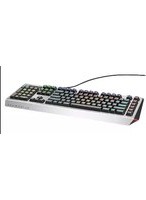
This keyboard's iconic Alienware design brings an added layer of imposing style to your setup. Enhance your gaming experience with AlienFX –an RGB lighting system designed to bring you closer to the worlds you play in with dynamic lighting effects tied directly to the in-game action.
Some additional features of this keyboard include:
- Iconic Alienware design with AlienFX 16.8M RGB ambient lighting
- Brown-mechanical keys
- Tested for durability to a 50 million cycle life
-
45g actuation force
-
60g tactile force
- 2mm actuation distance
- 4mm total travel distance
- Less than 5ms bounce time (during actuation speed of 0.4 ~m / s )
- 1000 Hz (1ms) polling rate
- Anti-Ghosting and N-key rollover on all keys
- All programmable keys
- Optional palm rest (sold separately)
Increased control and accuracy
Smooth, responsive game play:
Anti-ghosting and N-key rollover on all keys, and 5 programmable macro key functions let you learn your keyboard like an instrument, conquering every match with pro-level reaction time.
Bring a competitive edge to every game:
Mechanical-brown switches are designed with all gamers in mind—from novice to expert. They deliver solid tactile feedback with low actuation force and low click noise.
Built for responsiveness, designed for comfort
Game for hours in comfort with durable mechanical switches that boast 50 million keystroke life cycles. Plus, your keyboard comes with adjustable audio controls, three adjustable feet angles and an optional palm rest that attaches magnetically.
Setting up your gaming keyboard
- Connect your keyboard to the USB port on your computer.
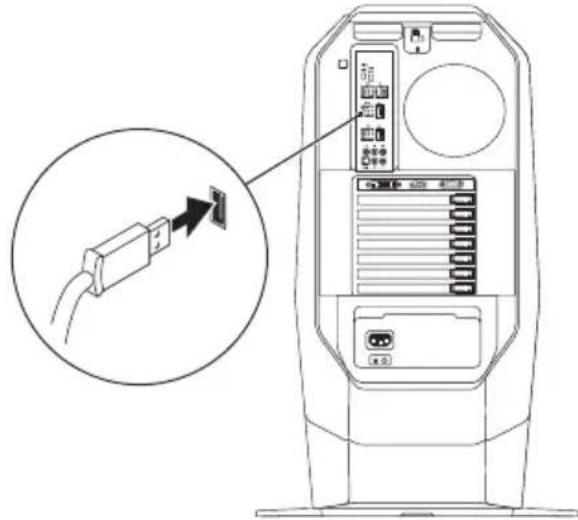
- Download and install the Alienware Command Center.
NOTE: You can use your gaming keyboard as a desktop keyboard without installing the Alienware Command Center.
Alienware Command Center
Alienware Command Center provides a single interface to customize and enhance the gaming experience.
Note: For more information, see Alienware Command Center Online Help.
Installing AWCC through Windows Update
- Connect your Alienware peripheral to your computer through the USB port. The AWCC application is downloaded and installed automatically. AWCC installation may take up to 10 minutes to complete.
- Navigate to the program folder to ensure that the AWCC installation is complete.
- Launch AWCC and perform the following steps to download the additional software components:
-In the Settings window, click Windows Update, and then click Check for updates to check the Alienware driver update progress. -If the driver update is not responding in your computer, install AWCC from the Dell Support website.
Installing AWCC from the Dell Support website
- Download the latest version of the following applications at www.dell.com/support/drivers.
-Alienware Command Center -Alienware Gaming Peripheral driver
- Navigate to the folder where you saved the setup files.
- Double-click the setup file and follow the on-screen instructions to install the application.
Using your gaming keyboard

Keys User action Keyboard behavior
| 1 Fn Lock Press FN + Fn Lock Locks the F1 to F12 media control functions | ||
| 2 Game Mode (disable Windows key) | Press FN + F1 Disables the Windows key function | |
| 3 Ambient-light adjustment | Press FN + F7 Press FN + F8 | FN + F7 decreases the ambient light on your keyboard. FN + F8 decreases the intensity of ambient light strip. |
| 4 Media playback | Press FN + F9 Press FN + F10 Press FN + F11 Press FN + F12 | FN + F9 Play previous track or chapter FN + F10 Play/Pause FN + F11 Stop FN + F12 Play next track or chapter |
| 5 Volume control | Press the volume control keys | Mutes the audio, decreases and increases the volume |
| 6 Alienhead Press the Alienhead Press the Alienhead to turn off/turn on the keyboard lighting for both the Alienhead and AlienFx. | ||
| 7 FN toggle Press and hold FN + F1 to F12 | Toggle different FN functions from F1 to F12 | |
Troubleshooting
Problems Possible solutions
| Keyboard is not functioning | ·Unplug the keyboard and plug it back in to the USB port on your computer.·Plug the keyboard to another USB port.·Restart the system. |
| Keyboard lighting is off | ·Press the Alienhead button on the keyboard. Ensure that the light is on the keyboard.·Unplug the keyboard and plug it back in to the USB port on your computer.·Plug the keyboard to another USB port.·Restart the system. |
| You need more information in using the Alienware Command Center features | ·Open the Alienware Command Center.·Click the Help icon. The Alienware Command Center Online Help appears.·Click the Contents tab.·From the Contents tab, click the required topic to find more details on Alienware Command Center features. |
| The gaming keyboard is not functioning based on the configuration selected in the Alienware Command Center | ·Ensure the Alienware Command Center is running on your computer.·Open the Alienware Command Center and ensure that the configuration for your gaming keyboard is set properly and saved. |
Specifications
General
| Model number AW568 | |
| Connection type USB | |
| Supported operating systems▪ | Microsoft Windows 10 |
Electrical
| Operating voltage 5V |
| Operating power current Maximum up to 300mA |
Physical Characteristics
| Height | 33.5 mm (± 0.5mm); 53.5mm with feet |
| Length | 450 mm (± 0.5mm) |
| Width | 172 mm (± 0.5mm) |
| Weight | 1400g (± 10g) |
Environmental
| Operating temperature 0°C to 40°C |
| Storage temperature -40°C to 65°C |
| Operating humidity 90% maximum relative humidity, non condensing |
| Storage humidity 90% maximum relative humidity, non condensing |
Statutory Information
Warranty
Limited warranty and return polices
Dell-branded products carry a 1-year limited hardware warranty. If purchased together with a Dell system, it will follow the system warranty.
For U.S. customers:
This purchase and your use of this product are subject to Dell's end user agreement, which you can find at Dell.com/terms. This document contains a binding arbitration clause.
For European, Middle Eastern, and African customers:
Dell-branded products that are sold and used are subject to applicable national consumer legal rights, the terms of any retailer sale agreement that you have entered into (which will apply between you and the retailer) and Dell's end user contract terms.
Dell may also provide an additional hardware warranty—full details of the Dell end user contract and warranty terms can be found by going to Dell.com, selecting your country from the list at the bottom of the "home" page and then clicking the "terms and conditions" link for the end user terms or the "support" link for the warranty terms.
For non-U.S. customers:
Dell-branded products that are sold and used are subject to applicable national consumer legal rights, the terms of any retailer sale agreement that you have entered into (which will apply between you and the retailer) and Dell's warranty terms. Dell may also provide an additional hardware warranty
—full details of Dell's warranty terms can be found by going to Dell.com, selecting your country from the list at the bottom of the "home" page and then clicking the "terms and conditions" link or the "support" link for the warranty terms.
- Notes, cautions, and warnings
- Contents
- What's in the box....4
- Features 5
- Setting up your gaming keyboard ....7
- Alienware Command Center....8
- Using your gaming keyboard....9
- Troubleshooting....11
- Specifications....12
- Statutory Information....13
- Features
- Feature Functionality
- Some additional features of this keyboard include:
- Increased control and accuracy
- Built for responsiveness, designed for comfort
- Setting up your gaming keyboard
- Alienware Command Center
- Installing AWCC through Windows Update
- Installing AWCC from the Dell Support website
- Using your gaming keyboard
- Troubleshooting
- Specifications
- Statutory Information
- Warranty
- Limited warranty and return polices
- For U.S. customers:
- For European, Middle Eastern, and African customers:
- For non-U.S. customers:
Brand : ALIENWARE
Model : AW568
Category : Keyboard