
P4 Life - Smartphone Allview - Free user manual and instructions
Find the device manual for free P4 Life Allview in PDF.


| Product Type | Smartphone |
| Brand | Allview |
| Model | P4 Life |
| Dimensions | 145 x 72 x 9 mm |
| Weight | 150 g |
| Display Size | 5.0 inches |
| Display Type | IPS LCD capacitive touchscreen |
| Resolution | 480 x 854 pixels |
| Operating System | Android 6.0 (Marshmallow) |
| Processor | Quad-core 1.3 GHz Cortex-A7 |
| RAM | 1 GB |
| Internal Storage | 8 GB |
| Expandable Storage | microSD, up to 32 GB |
| Rear Camera | 8 MP, autofocus, LED flash |
| Front Camera | 2 MP |
| Battery | Li-Ion 2500 mAh, removable |
| Connectivity | Wi-Fi 802.11 b/g/n, Bluetooth 4.0, GPS, microUSB 2.0 |
| SIM | Dual SIM (Mini-SIM, dual stand-by) |
| Sensors | Accelerometer, proximity |
| Maintenance & Cleaning | Wipe with a soft dry cloth. Avoid water exposure. |
| Safety | Use only approved chargers. Do not disassemble. |
| Spare Parts & Repairability | Battery and SIM tray replaceable. Other repairs by authorized service. |
Frequently Asked Questions - P4 Life Allview
User questions about P4 Life Allview
0 question about this device. Answer the ones you know or ask your own.
Ask a new question about this device
Download the instructions for your Smartphone in PDF format for free! Find your manual P4 Life - Allview and take your electronic device back in hand. On this page are published all the documents necessary for the use of your device. P4 Life by Allview.
USER MANUAL P4 Life Allview
natural_image
Front view of a black smartphone with blank screen and buttons (no text or symbols visible)ALLVIEW®
P4 Life
EN
BG
CZ
DE
HU
NL
PL
RO
SR
USER MANUAL....4
РЪКОВОДСТВО ЗА УПОТРЕБА....17
UŽIVATELSKÁ PŘÍRUČKA....28
EN
1 Power button
2 Speaker
3 Micro USB plug
4 Front camera
5 Volume buttons
6 Earphones jack
7 Led Flash
8 Back camera
NL
1 uit-knop
2 spreker
3 Micro-USB-stekker
4 camera vooraan
5 volumeknoppen
Notices for the use of phone
CAUTION! Please read carefully this instructions and follow them, in the case of dangerous situations.
Driving safety: It is recommended not to use the phone while driving. If you use it however, turn on the Handsfree mode.
Turn off your phone while in an aircraft.
Interference caused by mobile phones affects aviation safety, and thus is illegal to use it on the plane. Please make sure that your mobile phone is turned off when you are on the plane.
In hospital: When using the phone in a hospital must submit to the relevant rules specified by the hospital. Any interference caused by wireless devices may affect the performance of the phone.
Approved service: Only approved repair shops can repair mobile phones. If you open the phone and try to fix it yourself you will void the warranty of the product.
Accessories and batteries: Only accessories and batteries approved by the producer can be used.
Emergency calls: Make sure the phone is turned on and enabled if you wish to make an emergency call, press the call key and confirm the location, explain what happened and do not close the call.
The battery and charging the battery: It is recommended to fully charge before first use of the device. Do not expose the battery to temperatures above 40 °C . Do not dispose the battery in fire or drop anywhere. Return defective batteries in special centers or to the supplier center.
Warning: We take no responsibility for situations where the phone is used other than as provided in the manual. Our company reserves the right to make changes in the content of the manual without making this public. These changes will be posted on the company website to the product it amends.
The contents of this manual may be different from that in the product. In this last case will be considered.
To avoid the problems that might occur with the service shops approved by Visual Fan Ltd. (because Visual Fan reserves the right to stop the collaboration with any service shop which was previously approved and mentioned in
the warranty card on the date on which the product batch was sold on the market), before taking a product to the service shop, please check the updated list of approved service shops on Allview website at the section: "Support&Service – Approved service".
Device power on/off and standby
After inserting the SIM card, memory card and battery, start the phone by holding down the Power button for 3 seconds. To power off, press and hold the same button and confirm. If you press the Power button you will set phone in standby mode, to return shortly press the same button.
Unlocking, idle screen and applications menu
To unlock the screen when resuming from standby, press and hold the lock icon and drag to right. The main screen will be displayed.
Home screen pages can be customized with shortcuts and widgets. At the top of the screen is placed the notification bar that contains information about the mobile network signal, WiFi, Bluetooth, battery level, time and events.
To display the applications menu, touch the Menu icon from the bottom of the main screen. Slide the screen to left to scroll main menu. Touch the desired application icon to access it. Use the Back button to return to the main screen.
Dialing
To call a number, from the main screen open the dialer, dial the number and press the call key.
To answer a call drag the icon to right, and to reject the call drag the icon to left.
You can call numbers directly from Call log, touch the dial symbol from the right side of the desired number.
Messaging
To create and send an SMS, proceed as follows:
- Open the applications menu;
- Open the Messaging application;
- From the bottom-right side of the screen touch Compose new message symbol;
- Write the message;
Note: You create an MMS by touching the attach symbol and adding media content: images, sound or movies.
- In the top text box add the number or the name of the recipient;
- Tap the arrow -> symbol from the right side of the text box to send the message.
Contacts
Access the Contacts from menu applications.
Add new contact:
- Open Contacts from main menu;
-
Tap the + symbol from the bottom-right side of the screen;
-
Select the memory where you will store: account or phone entry;
- Enter contact information;
- Finally, tap Save.
Add new contact from call log:
- From the applications menu, open the Dialer;
- Tap the phone number you want to save;
- Tap New contact button;
- Select the memory where you will store: account or phone entry;
- Enter contact information;
- Finally, tap Save.
Import/export contacts
You can import or export contacts between memories and accounts available, as follows:
- Open Contacts;
- Press the Options button and select Import / Export;
- Choose memory from which to copy contacts;
- Choose in which memory to copy the contacts;
- Select contacts to copy;
- Press the Copy button;
Synchronize contacts with an account
Note: If you don't have an account, you can create one which is also necessary for the Google virtual applications market.
You can synchronize the contacts of an account by following the next steps:
- Open the applications menu -> Settings -> Applications -> ACCOUNTS;
- Touch the desired account; if you don't have already set, you can add a new one by touching the button Add new account;
- Tick the option Sync contact;
Customize contacts with photo
Note: The contacts from SIM card cannot be customized with photo.
To add a photo to one contacts follow the steps:
- Open Contacts;
- Touch the desired contact name;
- On the top-right of the screen touch the contact editing symbol;
- In the left corner of the screen touch the symbol to add image;
- Select the input method of image: photo shoot or from gallery.
Virtual application market
Applications market provides a multitude of applications from various categories: games, business, communication, shopping, travel, entertainment, books, education, finance, photography, tools, media, social, sports, news.
The first time you open the market, you will be prompted to authenticate. If you already have a Google account, enter the data. If not, click the Create button to create a new account and follow the steps on the screen.
Settings
Your service provider may default some device settings, so you may not be able to change these settings.
Dual SIM setting
You can choose the default SIM card for Voice call, Video call, Messaging, Data connection.
Note: the Gemini is a built-in technology that allows you to receive a phone call on a SIM card when you are making data transfer from the other SIM card.
WLAN
Touch Wi-Fi switch to activate. Open Wi-Fi to search for available networks automatically. Networks without password can be used directly, for others you need to enter the password first.
Bluetooth
Touch Bluetooth switch to activate. Touch Bluetooth to enter the device searching screen. You can modify settings by pressing the Menu button.
Data usage
Here you can activate or deactivate the data connection and see a chart of data usage status. You can also set the data mobile limit for each SIM.
More
Airplane mode
Virtual Private Networks(VPN) Settings.
Tethering & portable hotspot
Wifi Direct
Mobile network
3G service: here you can enable/disable the 3G service.
Preferred networks
Access point names: add or modify the access points.
Network operators.
Sounds
This option allows you to set audio tones for incoming calls, e-mail alerts and SMS notifications. Settings include: Vibration, Volume, Tone Audio, Reviews
Select General / Silent / Meeting / Outdoor profile by touching the right side circle.
Power Saving (optional)
You can choose one of the three power schemes:
-Closed
-Normal: calling and messaging are available; data connection remains the same state
-Super-long standby: calling and messaging services remains in the same state.
Display
a. Brightness: adjust the brightness
b. Wallpaper: change the wallpaper picture for idle screen, lock screen and main menu
c. Auto rotating screen: rotate phone to change direction
d. Alert missed call & sms: blink screen backlight on missed call or unread sms. You will also receive notifications about missed calls and unread messages in the form of animated icons in the lock screen;
e. Sleep: adjust the delay before the screen automatically locks
f. Font size
Storage
1) View SD Card and Phone Memory.
2) Uninstall or Format SD Card.
Battery
Displays information about the charging status and usage of the battery.
Applications
Shows the list of the installed and downloaded applications, which of them are installed on SD CARD.
Location
Access to my location: enable applications to use your location information.
GPS satellites: switch on/off the GPS receiver.
Google location service: let applications to use the WiFi or mobile network connection to get localization.
Security
1) Set up screen locks: you can choose slide, pattern, PIN or password to unlock the screen.
2) Set up SIM card lock: enter 4-8numbers PIN to set the lock of SIM.
If you enter 10 times wrong PUK code, the SIM card will be permanently locked.
3) Password visible: password visible when enter it
4) Select device administration: add or delete device manager.
5) Unknown sources: install apps from unknown sources
6) Trusted credentials: show the trusted credentials
7) Install from SD card: install the encrypted certificate from SD card.
Languages and input
1) Selecting Language: include all the languages on the phone and totally amount of 12 kinds.
2) Spell checker
3) Personal Dictionary: add words to custom dictionary or delete.
4) Input method : you can select Android keyboard or MultiLing keyboard input method.
5) Text to speech settings
6) Pointer speed
Reset to factory settings
Backup my data: backup my settings and data of other applications.
Factory data reset: clear all data stored on the phone.
Accounts
Add, manage and change synchronization options for the used accounts.
Date and Time
1) Automatic date & time: use date and time provided by network or by GPS
2) Automatic time zone: check to use network-provided time zone
3) Set Date / Set time: touch to set date / time.
4) Selecting time zone Select Time Zone according to where you are.
4) Use 24 hour time format : ON/OFF
5) Select date format.
Schedule power on/off
You can set time of boot or shutdown the phone.
Schedule airplane on/off
You can set the time of activating or deactivating the plane mode.
Accessibility
-
Power button end call
-
Touch and hold delay
-
Install web scripts
Developer options
Set options dedicated to the Android software developers
About phone
You can check the information about: phone status, legal information, software version.
13 En
Activate your Sygic GPS Navigation (Optional)

bringing life to maps
The world's most popular offline GPS navigation app from Sygic is preinstalled on this device. Enjoy navigation in 90 countries around the globe for 30 days for free.
- Click on Sygic icon and launch application.
- The application will download necessary files.
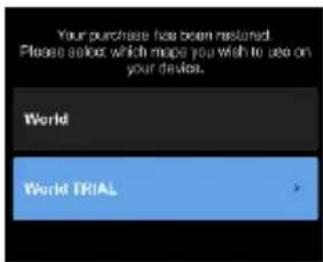
- Select "Start TRIAL" button.
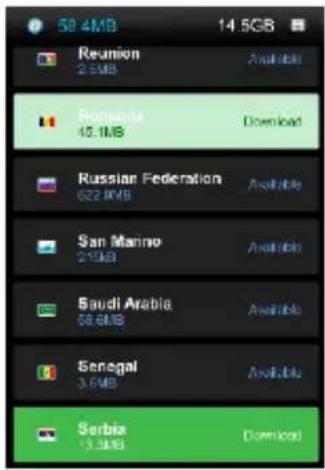
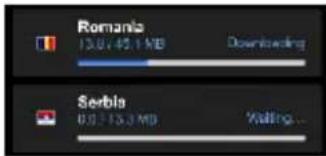
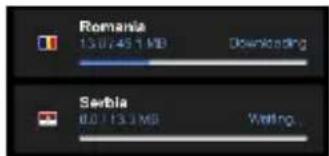
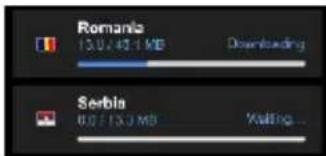
- Choose one or more maps and click "Proceed" to download.
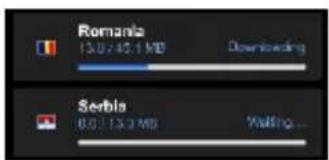
- Please don't close the application and wait until the end of the download.
- Select "Continue trial" to use Sygic GPS navigation for 30 days for free. Or purchase the full lifetime license of the navigation. If you choose trial you can purchase full lifetime license later in
"My Sygic" menu.
-
Select the navigation voice.
-
You can join to Sygic community by entering your email.
-
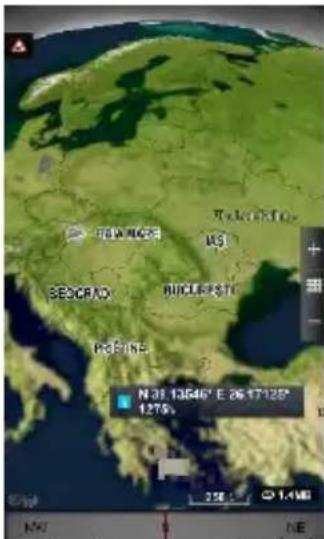
Enjoy all your journeys with Sygic GPS navigation!
For more information and support, please visit our website http://help.sygic.com/.
15 En
DECLARATION OF CONFORMITY
№ 1318 22.09.2014
We, SC VISUAL FAN SRL, importer located in Brasov, 61 Brazilor STR., registered at the Commerce Chamber Brasov no. J08/818/2002, CUI 14724950, assures, guarantee and declare on our own responsibility, in accordance with art.4 from HG nr. 1.022/2002 regarding the statute of the products and services that can jeopardize life, health, work security and environmental protection, that:
The product P4 Life – mobile phone ALLVIEW brand - and the accessories that came with the product: 220V charger, headphones and battery don't jeopardize life, health, work security and environmental protection and they are according to:
-Directive. 2011/65/EU regarding the restriction of use of certain substances in electrical and electronic equipment.
- The Stipulations of HG nr.982/2007 witch transpose the essential requirements specified in Direction 2004/108/CE, regarding electromagnetically compatibility;
- The Direction regarding the low voltage equipment users assurance 73/32/CEE, modified by Direction 93/68/CEE (HG 457/2003) and tests EN 55013:2001+A1:2003+A2:2006, EN 55020:2007, EN 610000-3-2:2006, EN 61000-3-3:1995+A1:2001+A2:2005;
- The Direction regarding the radio and telecommunication equipments R&TTE 1999/5/CE (HG 88/303).
- The safety requirements of the European Directive 2001/95/EC and of EN standards 60065:2002/A12:2011 and EN 60950-1:2006/A12:2011, EN62209-1 (2006 r.), EN62311 (2008) of the decibels level emitted by the sold devices.
The Product described upstairs in this Declaration and all the accessories are according to the next standards:
- Health EN 50360, EN 50361;
- Safety EN 60950-1;
- EMC EN 301 489-1-7/17;
- Radio spectrum EN 301511 EN 300328;
After the performed tests emerge that the samples comply with the upstairs specification, as the test results show. Documentation is stored on VISUAL FAN LTD - Brasov, 61 Brazilor STR.
Also available on web:"www.allviewmobile.com"
CE 0700
SAR: 0,862 W/kg
COTUNA GHEORGHE
Director

bringing life to maps
bringing life to maps
bringing life to maps
bringing life to maps
Schedule airplane on/off
bringing life to maps
76 NI
VERKLARING VAN CONFORMITEIT
№ 1318 22.09.2014
bringing life to maps
bringing life to maps
bringing life to maps
-
Selektirajte glas za navigaciju.
-
Možete se udružiti zajednicom Sygic unošenjem e-mail adrese.
-
Uživajte svim putovanjima sa navigacijom putem GPS Sygic!
- ALLVIEW®
- P4 Life
- EN
- NL
- Notices for the use of phone
- Device power on/off and standby
- Unlocking, idle screen and applications menu
- Dialing
- Messaging
- Contacts
- Add new contact:
- Add new contact from call log:
- Import/export contacts
- Synchronize contacts with an account
- Customize contacts with photo
- Virtual application market
- Settings
- Dual SIM setting
- WLAN
- Bluetooth
- Data usage
- More
- Sounds
- Power Saving (optional)
- Display
- Storage
- Battery
- Applications
- Location
- Security
- Languages and input
- Reset to factory settings
- Accounts
- Date and Time
- Schedule power on/off
- Schedule airplane on/off
- Accessibility
- Developer options
- About phone
- Activate your Sygic GPS Navigation (Optional)
- DECLARATION OF CONFORMITY
- VERKLARING VAN CONFORMITEIT
Brand : Allview
Model : P4 Life
Category : Smartphone