
Tyon LC2220AIO - Desktop computer LC-Power - Free user manual and instructions
Find the device manual for free Tyon LC2220AIO LC-Power in PDF.


| Product Type | All-In-One Desktop Computer |
| Brand | LC-Power |
| Model | Tyon LC2220AIO |
| Power Supply | 120W, 110-240V AC, 50/60Hz, 2A |
| Operating System | Pre-installed Linux (GNU General Public License) |
| Working Temperature | 10-35°C |
| Storage Temperature | -40-55°C |
| Working Humidity | 35-80% |
| Storage Humidity | 20-93% (at 40°C) |
| Air Pressure | 86-106kPa |
| Front Controls | Microphone, Speakers, Auto Regulation, Volume, Brightness, Contrast, Power Button |
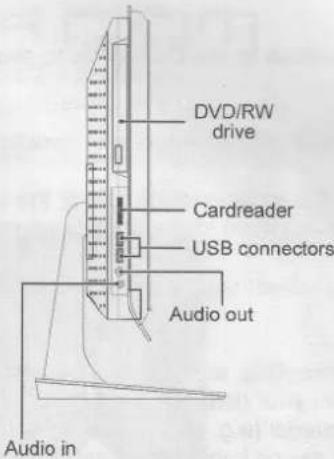
| Side I/O Ports | DVD/RW Drive, Card Reader, USB, Audio Out, Audio In |
| Bottom I/O Ports | Power Connector, USB, RJ45 Ethernet |
| Included Accessories | 120W Power Supply, Power Cable, User Manual, Driver CD, Linux License, Keyboard and Mouse (USB or Wireless) |
| Input Devices | USB or Wireless Keyboard and Mouse (depending on model) |
| Warranty | Repair or replacement within warranty period; void if seal broken, misuse, or unauthorized upgrades |
| Safety Precautions | Do not cover ventilation, avoid humidity and direct sunlight, use original PSU, unplug during thunderstorms, do not repair yourself |
| Maintenance and Cleaning | Clean with a dry cloth, avoid liquids; keep away from dust and magnetism |
| Spare Parts and Repairability | Contact dealer for repairs; do not attempt self-repair; use only original power supply |
| Driver Support | Windows 2000/XP/Vista via included driver CD; latest drivers from manufacturer website |
Frequently Asked Questions - Tyon LC2220AIO LC-Power
User questions about Tyon LC2220AIO LC-Power
0 question about this device. Answer the ones you know or ask your own.
Ask a new question about this device
Download the instructions for your Desktop computer in PDF format for free! Find your manual Tyon LC2220AIO - LC-Power and take your electronic device back in hand. On this page are published all the documents necessary for the use of your device. Tyon LC2220AIO by LC-Power.
USER MANUAL Tyon LC2220AIO LC-Power
natural_image
Black-and-white photo of a flat-screen computer monitor with a stand (no visible text or symbols)natural_image
Diagram of a computer monitor with an attached cable and connector, showing no text or symbols.natural_image
Illustration of a computer keyboard connected to a mouse via cable, with a connector inserted into the screen (no text or symbols present)

Thank you for choosing LC-Power. We hope that your new All-In-One computer will be a source of much enjoyment.
IMPORTANT:
If you face any trouble connecting your devices or feel unsure how to connect them, please refer to your local dealer to avoid any personal damage or damage on your hardware. After installing the power supply, its fan must face downwards to the inner of the computer case.
WARRANTY NOTICE:
Within the warranty period LC-Power will repair or replace your device if a damage occurs due to a mistake in manufacturing.
We will not be able to provide service if:
- a 'sealed sticker' has been removed, damaged, replicated or mistreated in any other form.
- the product has been installed in a wrong way, altered or misused in any other way than its original purpose of use.
- you upgrade to new components which are not supported by this product.
- damages occur due to natural disasters or force majeure.
Please contact your dealer about his servicing method, he will take care of the product exchange or repair within the warranty period. A direct exchange by us is unfortunately not possible, service cases will always be handled by your dealer.
NOTES ON SAFETY:
Please read this manual carefully before using your All-In-One computer (from now on referred to as AIO). This helps with installation and and to prevent unintentional damage.
▶ Don't use the AlO in dirty or humid environments. Don't expose your AlO to direct sunlight or magnetism.
▶ Don't cover the ventilation slots on the housing of the AIO. Don't place the AIO close to a radiator or on spots without proper ventilation.
▶We recommend to unplug the power cable if a thunderstorm moves on respectively to operate the device with a safety multiple socket outlet.
▶ Don't hold your face close to the DVD drive to avoid injuries from being hit when its tray moves out when opening the drive.
▶ Handle the housing and its connectors with care to avoid damages to the interfaces.
▶ Don't use the AIO if the power supply unit or the current supply in your household are instable. Using the AIO with an instable power supply can cause irreparable damages on the internal components of your AIO.
▶ Use only the original power supply included in delivery. If you need a replacement power supply, please contact your dealer.
▶If you realise an overheating, an unnatural odour or smoke, turn off the device immediately and unplug the power cable from the socket. Contact your dealer regarding repair possibilities.
▶ Avoid any foreign material (e.g. paper clips) to enter the inner of the AIO housing, this can cause a short circuit. In case it happens, turn off the device immediately and unplug the power cable from the socket. Contact your dealer regarding repair possibilities.
▶ Don't try to repair the device on your own. This can cause additional damages and leads to a loss of warranty.
▶If you don't use the computer for a longer time (e.g. holidays), unplug the power cable from the socket.
UNPACKING OF THE DEVICE:
Please make sure that you have completely received your device and the accessories, without any transport damage. In case there is a problem, please contact your dealer immediately.
- Tyon All-In-One computer
- 120W power supply and power cable
3.User manual - Driver CD
- Linux license
MODEL IDENTIFICATION:
There is a sticker on the retail box that identifies the according model and its individual specifications. If you have any call back about your model, please tell us the serial number in order to identify your device. In this way we can improve our service.
WORKING ENVIRONMENT AND TRANSPORT:
| Working temperature: | 10-35°C |
| Transport and storing temperature: | -40-55°C |
| Working humidity: | 35-80% |
| Transport and storing humidity: | 20-93% (40°C) |
| Air pressure: | 86-106kPa |
| Power supply: | 110-240V AC, 50/60Hz, 2A |
CONTROL ELEMENTS AND CONNECTORS:
Front view

Side view (left)

NOTES ON LAUNCH:
Never cover the ventilation slots of the housing.
The blue light on the lower left side shines continuously if the computer is in use.

natural_image
Diagram of a computer monitor connected to a cable with an attached plug, showing no text or symbols.- Connect the power supply to your computer.
- Plug the power cable to the socket (110V-240V).
- Press the power button on the front panel to start the computer.

natural_image
Illustration of a computer setup with a keyboard, mouse, and cable (no text or symbols)Connection of USB Keyboard and USB Mouse
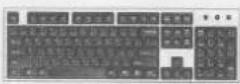

Back View of Wireless Keyboard and Mouse
Installation Position of the keyboard Battery

Connection of Wireless Keyboard and Mouse (USB Interface)
AS SHOWN IN THE FIGURE:
If the keyboard and mouse provided for the model you purchased are USB keyboard and mouse, they may be inserted in any USB interface on the host.
If the computer is equipped with wireless keyboard and mouse, After the power button of the keyboard and mouse is on, you can boot the computer for normal use.
START THE COMPUTER:
Push the power button on the computer, it will execute the POST program. Some status information of the internal component tests will be displayed. Press the DEL button to enter the BIOS. If you establish a boot password, it must be entered correctly upon any future start of the computer in order to execute the operating system.
As a free service for you, LC-Power delivers the computer with an pre-installed Linux operating system. This is a free operating system distributed under the GNU General Public License. Please note that this service is excluded from any support requests to LC-Power. If you need support regarding Linux, please contact your dealer or consult the existing support forums on the internet.
SHUTDOWN THE COMPUTER:
If you want to shutdown the computer, please follow the according instructions of your operating system. In that way you can avoid a loss of data or damaged programs. Never shutdown the computer by unplugging the power cable from the socket.
.\$94:
If you shutdown the computer, the power supply will be in standby mode still using energy. To reduce the consumption to zero Watt, you must unplug the power cable from the socket or use an according multiple socket outlet.
NOTES ON OPERATING SYSTEM AND DRIVER INSTALLATION:
If you want to install a new operating system (e.g. Windows), please insert the software CD or DVD to your DVD/RW drive and follow the instructions of the new operating system. Please note that you might lose your existing data, so we recommend to make a backup before executing major alterations.
If your operating system has not installed all needed drivers, insert the LC-Power driver CD and choose "Intelligent Driver Installation". Choose the needed drivers and start the automatic installation. Reboot your computer. The driver CD is currently supported by Windows 2000/XP/Vista. If certain models or components shall be updated, you might need to get the latest drivers directly from the manufacturer (e.g. from the homepage).
ADDITIONAL NOTES:
If you insert a CD/DVD and it does not start automatically, go to "My Computer", choose the drive and start the file manually by double-clicking it with your mouse. If you try to install an already existing driver with the same or an older version, the system will indicate that you have already installed the latest version.
LCPOWER.COM
www.lc-power.com, support@lc-power.com
All company names, logos and trademarks are the property of their respective owners.
Brand : LC-Power
Model : Tyon LC2220AIO
Category : Desktop computer