CP3000 - Calculator Soennecken - Free user manual and instructions
Find the device manual for free CP3000 Soennecken in PDF.


User questions about CP3000 Soennecken
0 question about this device. Answer the ones you know or ask your own.
Ask a new question about this device
Download the instructions for your Calculator in PDF format for free! Find your manual CP3000 - Soennecken and take your electronic device back in hand. On this page are published all the documents necessary for the use of your device. CP3000 by Soennecken.
USER MANUAL CP3000 Soennecken
text_image
F 6 4 3 2 1 0 A DECIMALnatural_image
Line drawing of scissors cutting a piece of paper with a roll (no text or symbols)Abb.2

natural_image
Line drawing of a portable electronic device with grid keypad and cylindrical battery (no text or symbols)Abb.3
text_image
FEEDAbb.4
natural_image
Line drawing of a mechanical device with grid layout and roller (no text or symbols)natural_image
Line drawing of a vintage calculator with multiple keypad units (no text or symbols)Abb.B
natural_image
Line drawing of a hand inserting a small electronic component into a digital calculator (no text or symbols)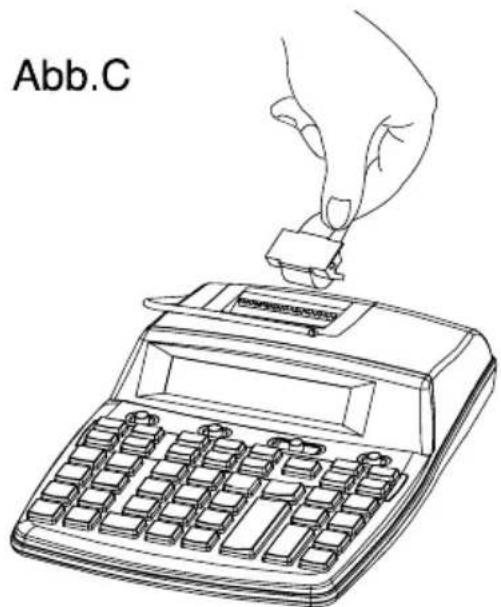
text_image
Abb.C5. Technische Daten
Anzeige
: 12 Ziffern
Dezimalkomma
Non printing 0.01W Printing 2.4W
POWER :
Input: 100-240V - 50/60 Hz, 0,3A
AC ADAPTOR 6V 400mA
Soennecken eG
Soennecken-Platz
51491 Overath
CN 422015



MADE IN CHINA
$$ 1 \boxed {0 9} 1 0 0 + 1 0 0. + $$
$$ 4 \boxed {0 0} + 5 0 0. + $$

500.x 500.x
$$ 1 \boxed {0 9} 1 0 0 = 5 0 ^ {\prime} 0 0 0. = $$
50'000. *
"PRINT""0", "5/4", GT-OFF
$$ 3 9 6 0 0 \div 1 6 0 0 $$
$$ = 2 5 \quad 3 9 6 \quad 3 9. 6 0 0. \div \quad 3 9 ^ {\prime} 6 0 0. \div $$
$$ 1 6 \boxed {0 0} 1. 6 0 0. = 2 5. = $$
25.
• Never try to take the calculator apart.
- Handle the calculator carefully, and avoid dropping it.
- Do not operate the keys roughly. As you operate the keys, monitor your input by watching the display to make sure that values are being input correctly.
- Avoid using the calculator in very hot or cold areas (below 32^ F / 0^ C, or above 104^ F / 40^ C). Also avoid heavy dust and moisture.
- When using paper, be sure that you install it correctly.
- To clean the calculator, wipe it off with a soft cloth. You can also clean the exterior by wiping it with a soft cloth that has been moistened with a weak solution of water and a neutral detergent.
- Never use volatile fluids such as lacquer thinner or benzine, etc. when cleaning the calculator.
- Be sure to switch the power off after you finish using the calculator or if you do not plan to use it for a long period. As with all electrical appliances, it is also a good idea to unplug the power cord from the AC outlet if you are not going to use the calculator for a long time.
• Always make sure that roll paper is installed in the calculator before using any of the Function Selector settings that activates the printer.
- The product function maybe reset when it is subjected to electrostatic discharges. Just follow the instruction described in this manual to set the function again for normal operation.
- If your computer is not working properly, or something unusual should be displayed, it is recommended that switch off the power supply (disconnect from the mains) and switch off the calculator.
- This article has been produced for calculating. It is not a toy and was not designed as such. It is intended for private use. Soennecken eG will not be liable nor responsible for any incidental or consequential economic or property damage caused by misuse and/or malfunctions of this product and its peripherals, unless such liability is acknowledged by law.
- In no event will the manufacturer and its suppliers be liable to you or any other person for any damages, including any incidental or consequential expenses, lost profits, lost savings or any other damages arising out of use of this product.
- The information provided in this manual is subject to change without notice.
About the input buffer
An input buffer is a place where key operations are temporarily collected until the calculator can finish the operation it is performing now and start on the next one. The input buffer of this calculator can hold up to 12 key operations (both number entries and function commands), so you can continue key input even while another operation is being processed.
IMPORTANT!
Please keep your manual and all information handy for future reference.
2. About the Selectors

text_image
ON/ OFF REPLAY PRINT POWER/PRINTOFF : Power is off.
ON/REPLAY : Power is on but printer is disabled.
Also enables Replay mode.
PRINT : Print mode and disable the Replay mode.
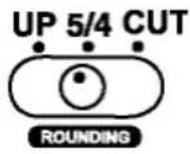
UP : Round-up mode
5/4 : Round-off mode
CUT : Cut-off mode.
text_image
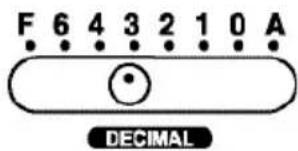
F 6 4 3 2 1 0 A DECIMALF : Floating mode
6 \~ 0 : Sets the specified decimal point.
A : Add mode.
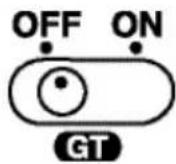
Grand total memory switch.
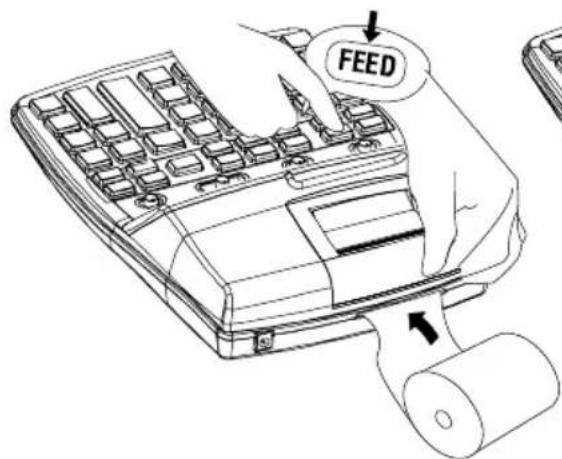
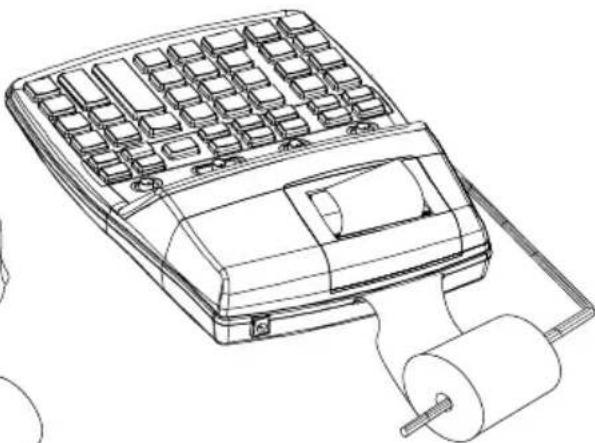
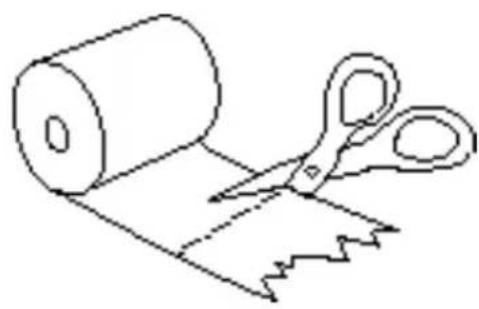
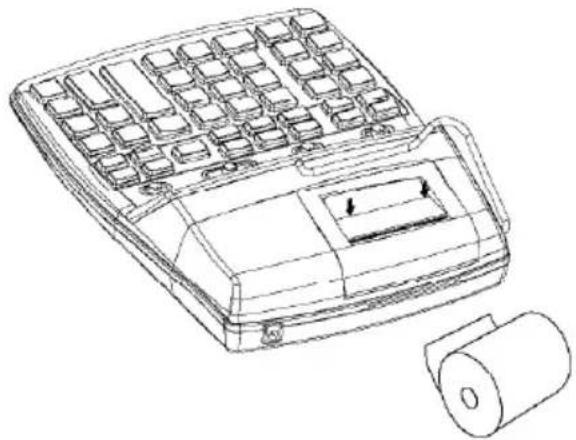
3. Loading the Paper Roll
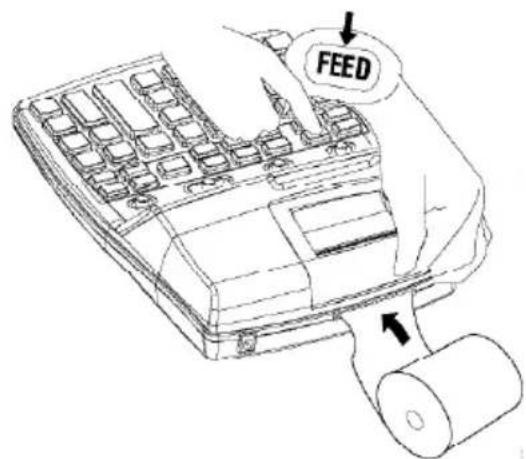
Switch ON the calculator, follow the procedure illustrated below.
- Always use the FEED key to advance the paper. Never pull on the paper by hand.
• We recommend dustless type paper (58mm wide X 80mm or less diameter).
Fig.1
natural_image
Line drawing of scissors cutting a piece of paper with torn edges (no text or symbols)Fig.2
natural_image
Line drawing of a portable electronic device with grid layout and cylindrical body (no text or symbols)Fig.4
Fig.3
text_image
FEED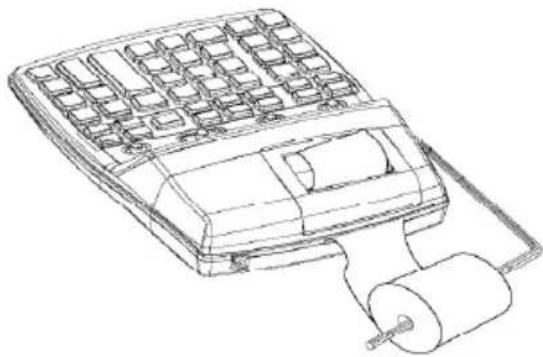
natural_image
Line drawing of a mechanical device with grid array and roller (no text or symbols)4. Replacing the Ink Roller
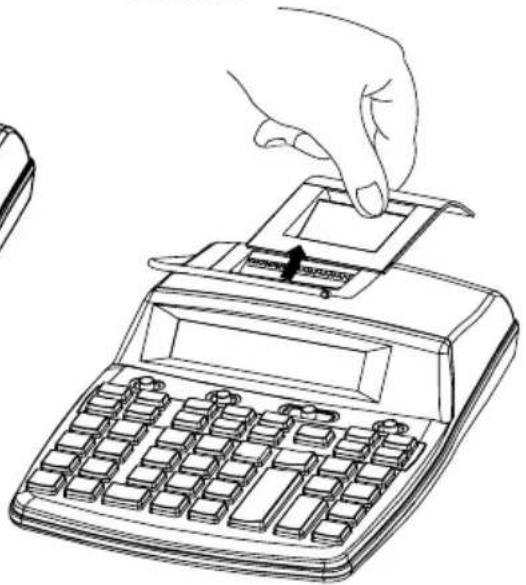
The printer in this model uses a disposable ink roller (cartridge type). If impressions are too light or illegible, replace the ink roller with a new one.
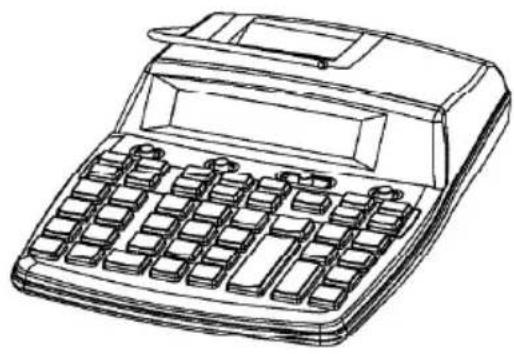
1) Open the printer cover (Fig.A).
2) Remove the ink roller by pulling it up (Fig.B).
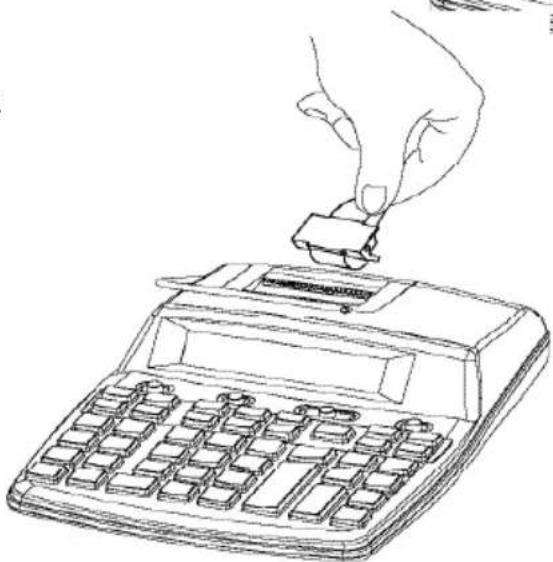
3) Install a new ink roller (Fig.C).
4) Make sure the ink roller is in place, and replace the cover.
Note : Never fill the ink roller with fluid ink as it may run or clog the printer. Use only compatible with IR-40T (Black and Red).
Fig.A
natural_image
Line drawing of a vintage calculator with no visible text or symbolsFig.B

natural_image
Line drawing of a hand inserting a card into a digital calculator (no text or symbols)Fig.C
natural_image
Line drawing of a hand inserting a small object into a calculator (no text or symbols)5. Specifications
Capacity
: 12 digits
Decimal point
: Full floating, and fixed (0 \~ 6)
with round-up, round-off or cut-off.
ADD mode
: Decimal point is fixed at 2 position.
Display
: LCD.
Ambient temperature range
: 0^ C to 40^ C
32^ F to 104^ F
Power supply: Adaptor 6V/400mA

Input: 100-240 V - 50/60 Hz, 0,3A
WARNING
THE VOLTAGE USED MUST BE THE SAME AS SPECIFIED ON THIS CALCULATOR, USING THIS CALCULATOR WITH A HIGHER VOLTAGE THAN THAT WHICH IS SPECIFIED IS DANGEROUS AND MAY RESULT IN A FIRE OR OTHER TYPE OF ACCIDENT CAUSING DAMAGE. WE ARE NOT RESPONSIBLE FOR ANY DAMAGE RESULTING FROM USE OF THIS CALCULATOR WITH A VOLTAGE OTHER THAN THAT WHICH IS SPECIFIED.
CP3000
Best.-№ 701212890 PRINTING CALCULATOR
6V = (DC)
Non printing 0.01W Printing 2.4W
POWER :
Input: 100-240V - 50/60 Hz, 0,3A
AC ADAPTOR 6V 400mA
Soennecken eG
Soennecken-Platz
51491 Overath
CN 422015



MADE IN CHINA
6. Performing Addition and Subtraction
The following keys are used for addition and subtraction operations.
- Press this key after entering a value to specify that the value should be added to a total.
Press this key after entering a value to specify that the value should be subtracted from a total.
Press this key after the + or - keys to print and display the subtotal up to that point and keep the result in the register.
Press this key after the + or - keys to print and display the result of addition / subtraction. The result will be cleared in the register.
PRINT Press this key to print displayed contents, and does not affect calculation.
Example Operation Printout Display
| "PRINT", "F", GT-OFF | ||
| 100 | AC | 0. c 0. |
| 100 | ||
| 300 1 | 00 + | 100. + 100.+ |
| -200 | + | 100. + 200.+ |
| (300) (Subtotal) 3 | 00 + | 300. + 500.+ |
| 600 2 | 00 - | 200. - 300.- |
| √900 (Total) | ◇ | |
| 30 (Total) 300 . 300. | ◇ | |
| 6 00 + | 600. + 900.+ | |
| * | 900. 900. | |
| √ | 900. | |
| 30. 30. | ||
| 500 | ||
| 200 | ||
| -400 5 | 00 + | 500. + 500.+ |
| (300) (Subtotal) 2 | 00 + | 200. + 700.+ |
| 700 4 | 00 - | 400. - 300.- |
| 1000 (Total) | ◇ | 300. 300. |
| 7 000 + 1 | '000.+ | |
| * | 1,000. * 1 '000. | |
Addition / Subtraction using the repeat operation
Example Operation Printout Display
| "PRINT", "F",GT-OFF | ||
| Quantity | Unit price | Amount |
| 2 | 300 | 600 |
| 1 | 480 | 480 |
| 1 | 250 | 250 |
| 3 | 400 | 1,200 |
Total quantity : 7
Total amount : \$ 2,530
7. Performing Multiplication and Division
The following keys are used for multiplication and division operations.
X Press this key after entering a value to specify that the value should be multiplied by the next value entered.
÷ Press this key after entering a value to specify that the value should be divided by the next value entered.
= Press this key following a multiplication or division operation to obtain the result.
To perform multiplication and division
Example Operation Printout Display
"PRINT", "F", GT-OFF
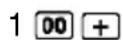
(100 + 400) X100

- c 0.
$$ = 5 0 0 0 0 $$
-
- 100.+
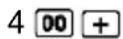
-
- 500.+

500.x 500.x

- = 50'000.=
50'000. *
"PRINT", "0", "5/4", GT-OFF
39600 ÷ 1600
$$ = 2 5 \quad 3 9 6 $$

39,600. ÷ 39'600.÷

1,600. = 25.=
- *
To use constants in multiplication and division
■ The value input before the ☑r keys will be registered as a constant in multiplication and division.
■ Each press of ☐ multiplies or divides the displayed value (whether it's a result or a newly entered value) by the constant.
- Pressing X or cancels the constant. Constants are also cancelled when you perform a normal (non-constant) multiplication or division operation.
Example Operation Printout Display
"PRINT", "F", GT-OFF
$$ \begin{array}{l} 3 6 \times 2 8. 3 5 = 1 0 2 0. 6 \quad 2 8 \quad 3 5 \quad 2 8 \boxed {3 5} \times \boxed {\times} 2 8. 3 5 \times \ 2 5. 4 \times 2 8. 3 5 = 7 2 0. 0 9 \end{array} $$
$$ 3 6 \boxed {=} \quad 3 6. = 1 ^ {\prime} 0 2 0. 6 = $$
$$ 1, 0 2 0. 6 \quad * $$
$$ 2 5 \boxed {\bullet} 4 \boxed {=} \quad 2 5. 4 = 7 2 0. 0 9 = $$
$$ 7 2 0. 0 9 * $$
8. About "A" Mode Calculations
■ 2 decimal places are assumed for entries and results of all addition and subtraction operations. Entering 2 only results in a value of 0.02 for the entry. If you use the key during entry of a value, the decimal point is included at the place you specify. This mode has no effect on multiplication and division operations.
Example Operation Printout Display
"PRINT", "A", GT-OFF
| 23.25 | 0 . c | 0. | AC | |
| 45.75 | ||||
| - 12.50 2325 | + | 23.25 + 23.25 + | ||
| 96.25 4575 | + | 45.75 + 69.00 + | ||
| 152.75 | 12 • 50 12.50 - 56.50 - | |||
| 9625 + | 96.25 + 152.75 + | |||
| * | 152.75 152.75 | |||
9. Using the Independent Memory
M+ Press this key in place of + at the end of a multiplication or division operation to add the result of the operation to memory contents. Pressing this key at any other time adds the displayed value to memory contents.
M- Press this key in place of + at the end of a multiplication or division operation to subtract the result of the operation from memory contents. Pressing this key at any other time subtracts the displayed value from memory contents.
Press this key to display memory contents.
Press this key to clear memory contents.
To store and recall values
Example Operation Printout Display
"PRINT", "F", GT-OFF
| 140 0.M 0. | M* | |
| 250 | AC | 0.c 0. |
| -90 140 | + | 140.+ 140.+ |
| 300 (Total) 250 | + | 250.+ 390.+ |
| 90 - | 90.- 300.- | |
| * | 300.800. | |
| 950 | M+ | 300.M+ M300. |
| 750 950 | + | 950.+ M 950.+ |
| 1700 (Total) | 750 + | 750.+ M1'700.+ |
| * | 1,700.* M1'700. | |
| 550 | M+ | 1,700.M+ M 1'700. |
| 650 | 550 + | 550.+ M 550.+ |
| (1200) (Subtotal) | 650 + | 650.+ M 1'200.+ |
| 300 | ◇ | 1,200.◇ M1'200. |
| 1500 (Total) | ||
| 3500 (Accumulated total) | 3 00 + | 300.+ M 1'500.+ |
| * | 1,500.* M 1'500. | |
| M+ | 1,500.M+ M 1'500. | |
| M◇ | 3,500.M◇ M 3'500. | |
| M* | 3,500.M* 3'500. |
10. Calculating Percentages
% Use this key for regular percentage, add-on, discount, ratio, and increase / decrease calculations.
Use this key to find the percent change between two values.
To calculate regular percentages, add-ons, and discounts
Example Operation Printout Display
"PRINT", "2", "5/4", GT-OFF
12% of 3574 3574 3,574.x 3,574.x
12 12. % 428.88%
428.88 *
"PRINT", "2", "5/4" GT-OFF
6% of 1590 6 6. x x 6. x
6% of 3698
1590 % 1,590. % 95.40 %
95.40 *
3698 3,698. % 221.88 %
221,88 *
"PRINT", "F", GT-OFF
15% add-on of 1500 15 00 X 1,500. x 1'500. x
15 % 15. % 225.%
- *
1,725. + % 1,725.+
38
"PRINT", "F", GT-OFF
25% discount of 1950 1950
- x 1'950. x
25 %
- % 487.5 %
487.5 *

1,462.5 - % 1'462.5 -
To calculate ratios, increases, and decreases
Example Operation Printout Display
"PRINT", "2", "5/4", GT-OFF
Percentage of 654 654
against 852 852
- ÷ 654. ÷

- % 76.76%
76.76 *
"PRINT", "2", "5/4", GT-OFF
If you earned \$110 last
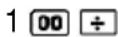
- ÷ 100. ÷
week and \$100 this week,
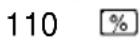
- % 90.91%
what percentage did your
90.91 *
income decrease ?
Note
Whenever you perform a regular percentage or ratio calculation, the result is automatically transferred to the total memory used for accumulation of totals.
Delta percent calculation
Example Operation Printout Display
"PRINT", "F", GT-OFF
The profit for the previous 15 00 △%1,500. 1'500. %
year was \$1500. The profit 18 00 =1,800. = 20. =
for this year is \$1800. 300. △*
What's the increased 20. %
percentage?
11. Calculating Cost, Sell, Margin.
COST
: Use this key to input cost.
SELL
: Use this key to input Selling price.
MGN
: Use this key to input profit rate.
To calculate mark-up and mark-down
Example Operation Printout Display
"PRINT", "F", GT-OFF
What will the selling price and profit be when the purchasing price of an item is \$480 and the profit rate of the selling price is 40% ?
480 COST
40 MGN
-
C+
-
MG
-
*
-
COST
-
SELL
(Selling price)
"PRINT", "F", GT-OFF
What will the selling price
130 COST
-
C+
-
COST
and loss be when selling a
4 +/- MGN
- 4. MG
- SELL
\$130 item at a 4% loss rate ?
- *
(Selling price)
Determine the Cost.
Example Operation Printout Display
"PRINT", "F", GT-OFF
If the selling price of an item is \36.55 and the margin is 20%, find the cost of item.(=\29.24)
36.55 SEB 6.55 c- 36.55 SELL
20 MGN 20. MG 29.24 COST
29.24 *
Determine the margin.
Example Operation Printout Display
"PRINT", "F", GT-OFF

If the cost of an item is \380 and the selling price is \400, find the margin(=5%)
380 COST 380. C+ 380 COST
400 SELL 400. C- 5 MGN%
5 *
12. Grand total Calculation
GT : Display and print the contents of the grand total memory and clears it.
Example Operation Printout Display
"PRINT", "F", GT-ON
| 456 | 0. C | 0. | AC | |
| 254 | 456 | + | 456. + 456.+ | |
| 710 (Total) | 254 | + | 254. + 710.+ | |
| * | 710. G+ 710. GT | |||


| 773 | 773 | 773. + | 773. +GT | + | ||
| 1048 | 1048 | + | 1048. + | 1821. +GT | ||
| (2000) | 2000 | - | 2000. - | -179. -GT | ||
| -179 (Total) | * | -179. G+ | -179. GT |
| 531 (Grand total) | GT | 531.G ◇ | 531.GT |
| GT | 531.G * | 531. |
13. TAX Calculation

Calculate amount including TAX with TAX rate preset by(TAX) key.

Calculate amount excluding TAX with TAX rate preset by (TAX) key.

Used to enter TAX rate.
Setting the TAX rate (eg.17%).
Operation Printout Display
"PRINT", "F", GT-OFF

- c0.
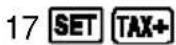
17.% 17.TAX%
Recall the TAX rate
Operation Printout Display
"PRINT", "F", GT-OFF

- c 0.

17.% 17.TAX%
Example Operation Printout Display
"PRINT", "F", GT-OFF

- c 0.

- 234 TAX+
Price=\$ 200, TAX=17%, Calculate the price after TAX.
17.%
-
+
-
*
"PRINT", "F", GT-OFF
Price after TAX=\$56.5, TAX=17%, calculate the price before TAX.

- c 0.
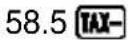
58.5 58.5 TAX-
17.%
-8.5 +
- *
14. Conversion
C1, Use these keys to make conversions
SET Used to enter conversion rate.
Setting the conversion rate as 8.65 (C1=8.65 C2)
Operation Printout Display
"PRINT", "F", GT-OFF
| AC | 0 . c 0. |
| 8.65 SET C1 | 8.65.% 8.65 C1 % |
Recall the conversion rate
| Operation Printout Display | |
| "PRINT", "F", GT-OFF | |
| AC | 0. c 0. |
| SET C2 | 8.65.% 8.65 C1 % |
| Operation Printout Display | |
| "PRINT", "F", GT-OFF | |
| AC | 0. c 0. |
| 5 5.13.25 | C1 |
To convert 5 C2 TO C1. 8.65 x
43.25 *
15. Making Corrections in Input
▶ Use this key to delete digits from the right of the displayed value. Each press deletes 1 digit. Note that you can change a numeric entry with this key only if you have not yet input the incorrect value by pressing one of the calculation keys (such as , + etc.)
C/CE Use this key to delete a numeric entry with this key only if you have not yet input the incorrect value by pressing one of the calculation keys (such as +, X, etc.) Using for clearing registered amount (memory contents are not cleared.
AC Clears all pending calculation including memory contents.
If you have already input the incorrect value by pressing one of the calculation keys (such as ,+etc) the entire operation will be deleted.
Example Operation Printout Display
"PRINT", "F", GT-OFF
$$ \begin{array}{l l} 1 2 3 \times 4 5 6 \times 7 8 & 1 2 3 \ = 4 3 7 4 8 6 4 (\text {Mistake}) & 4 4 7 \end{array} \quad \begin{array}{l l} 1 2 8. x & 1 2 3. x \ 4 4 7. \end{array} $$
(To correct) 0. C/CE
456 x 456. x 56'088. x
(Mistake) 789 789.
(To drop off "9") 78.
- = 4'374'864.=
4,374,864. *
If you find you made a wrong entry in the current operation but have not yet pressed, else or to clear the error or adjust it before pressing.
Example
If you enter : 2 + 3 + 5 + 5 + 6, and wish to change the first 5 to 4, enter - 5 followed by + 4 before pressing .
16. Replay for correction
This unit contains 100 steps check function.

Recalls automatically all calculation made in "ON/REPLAY" mode.

Checks each calculation step by step. Performs quick replay by continuous press.

Enables correction for each calculation step.
Example Operation Display
| “ON/REPLAY”, “F”, GT-OFF | ||
| AC | 0. | |
| 138 138 | + | 138. + |
| (65.7) 65.7 | - | 72.3 - |
| 26 26 98.3 + | + | |
| 26 124.3+ | + | |
| 76 76 200.3 + | + | |
| 76 276.3 + | + | |
| 76 | + | 352.3 + |
| 352.3 (Total) | * | 352.3 |
| Recall | CHECK | REPLAY 138.+ |
| CHECK | REPLAY 65.7- | |
| Correct (65.7) to (20) 20 20. | CORRECT | |
| The new answer is 398. 398. | CORRECT | |
| Auto Replay | AUTO REPLAY | REPLAY 138.+ |
Press again to pause the replay.
17. About Calculation Capacity
Any of the following condition will cause the "E" indicator to appear on the display to indicate that the capacity of the calculator is exceeded.
- Whenever the integer part of a result (whether intermediate or final) is longer than 12 digits. In this case, the display shows the 12 most significant digits of the result. The true decimal point of the result is 12 places to the right of the decimal position shown in this display. Clear the entire calculation by pressing AC or C/CE.
Herewith we declare that this pocket calculator is according to the constitutional requirements and other relevant regulations of the EU-directives 2004/108/EC and 2011/65/EU. The EU-Declaration of conformity can be found at www.soennecken.de.

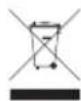
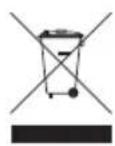
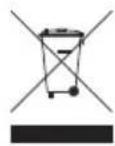
Guideline 2012/19/EU concerning the handling, collection, recycling and disposal of electrical and electronic equipment and their components (waste electrical and electronic equipment -WEEE). The crossed symbol on a rubbish container indicates that the machine or device is not allowed to be disposed of but it must be handed over to a suitably equipment collection centre for proper recycling or disposal.

This device complies with the requirements of the EU Directive 2004/108/EC "Electromagnetic compatibility, 2006/95/EC" Low Voltage Directive * and 2011/65/EU "RoHS Directive".

Supply all packing materials of an environmentally sensitive disposal.
Soennecken eG
Soennecken-Platz
51491 Overath
www.soennecken.de
