
CM5 - Mobile Phone CYRUS - Free user manual and instructions
Find the device manual for free CM5 CYRUS in PDF.


User questions about CM5 CYRUS
0 question about this device. Answer the ones you know or ask your own.
Ask a new question about this device
Download the instructions for your Mobile Phone in PDF format for free! Find your manual CM5 - CYRUS and take your electronic device back in hand. On this page are published all the documents necessary for the use of your device. CM5 by CYRUS.
USER MANUAL CM5 CYRUS
» Cyrus has the final interpretation of this manual.
Cyrus reserves the right to modify the technical product specifications without prior notice.
» Cyrus reserves the right to modify the contents of this manual without priornotice.
- Without the prior written permission of Cyrus, it is strictly prohibited to copy, use, published any content in this manual in any form.
In any case, Cyrus disclaims responsible for any loss of data or income which caused by mobile phone reasons.
CYRUS
CM 5 - THE SOLID ONE
MANUAL PROFILE
Thank you for purchasing CM 5 mobile phone, a Series of Cyrus. This mobile phone is designed for shockproof, waterproof and dustproof. This instruction manual special used to guide you to understand the functions and features of Series of Cyrus phone.
In addition to common call functions, CM 5 also provides you Messages, MP3 player, Video player, EBook, and Bluetooth, etc. It will bring you more convenience and pleasure for your work and life.
CM 5 provides including rechargeable batteries, charges and many kinds of special accessories for your choosing to use. Unauthorized charger may cause danger, and this would violate the recognition for this phone and guarantee clauses.
Such as described in this manual is incompatible with your phone, please refer to the mobile phone.
The manufacturer has the final interpretation of this manual. The manufacturer reserves the right to modify technical regulations without prior notice. The company reserves the right to modify the contents of this manual without prior notice. The manufacturer reserves the right to modify the technical product specifications without prior notice.
CONTENTS
01
-
Safty and Performance 03
-
Your CM 5 11
-
Preparing for Use 14
3.1 Install the SIM Card 14
3.2 Install the Memory Card (T-Flash Card) 15
3.3 USB Usage 15
3.4 Security Password Usage 15
3.4 Connect to the Network 18
3.5 Charge the Battery 18
3.6 On/Off the Phone 19
3.7 Headset 20
- Basic Function 20
4.1 Dial Call 20
4.2 Adjust Volume 21
4.3 Answer the Incoming Call 21
4.4 Call Process 22
- Main Menu 23
5.1 Call Center 23
5.1.1 Call Records 24
5.1.2 Call Setting 25
5.2 Phonebook 27
5.3 File Management 30
5.4 Organizer 31
5.5 Message 33
5.6 Multimedia 38
5.7 Internet Service 42
5.8 Camera 43
5.9 Settings 44
-
Input Method 50
-
Appendix 51
Common Problems & Solutions 51
Term Explanation 53
02
1. SAFETY AND PERFORMANCE
EMERGENCY SERVICE
Dial the emergency call in any country, you can directly dial 112 (or other emergency services call). You need to confirm the mobile power supply has been opened, and in the service area. Enter the emergency services number (112 or other numbers) and press dial key to call. Any digital network has 112 emergency call services. In UK, you can also use 999 standby emergency number, but you must insert a valid SIM card.
Note: Due to the nature of cellular network, it can't guarantee the emergency call can success.
03 04
PERSONAL
Interference might be caused by poor shielding performance of medical devices such as hearing aids and heart pacemakers in the use of radio frequency devices including mobile phones. Consult medical device manufacturer or your doctor before using mobile phone.
Please turn off the phone in which place posted notice required to. These places include hospitals and rest homes and other medical establishments. Because these facilities may be using equipments sensitive to external RF signal.
If you are using personal medical devices, please consult the manufacturer of these devices, to confirm that they are adequately shielded from around the RF signal. You can also ask your doctor the relevant information.
» For users with heart disease, you must pay special attention to phone
ring volume and vibrating alert Settings.
» In oil storages, chemical factories and so on, which have explosive gases, or the location of explosive production process, we should pay close attention to the RP devices use restrictions. In standby state, your mobile phone sill launches the electromagnetic signal. If requested, you should turn off the phone.
To pay attention to traffic safety. Do not use mobile phones while driving. And to use, you should park your car first.
If your phone is lost or stolen, please immediately notify the telecommunications sector, in order to disable the SIM card. It will protect you from the economic losses caused others to take the call.
When you contact the telecommunications department or distributor, they need to know your phone's IMEI number. It's printed on the label on the back of the phone (or input " * # 06 #" to check the IMEI number). Please put the number down and keep, for the future needs.
In order to make your mobile phone is not misused, please take preventive measures, such as: set up mobile phone SIM card PIN code or personal security code, and modify in a timely manner when others know.
» Do not remove the battery in standby state mode, it will result in the loss of user data.
» When you leave your car, please do not put the phone on easy to be seen. It is best to carry or locked in the trunk
» Do not let the children play with mobile phone, charger or battery.
MOBILE PHONE
Mobile phone contains sophisticated electronic circuitry, magnets and battery systems, it should be handle with care. In particular, you should pay attention to the following points:
Your mobile phone will generate electromagnetic fields, please do not place it with magnetic storage media, such as computer disk.
Using mobile phone near the TV, telephone, radio and personal computers and other electrical equipments may cause interference, thus affecting the performance of the phone.
» Whenever, do not keep the mobile phone and its accessories come into contact with the liquid or in a damp environment.
» Please do not put the mobile phone on the temperature is too high or too low.
» Please do not place the mobile phone on fire or near the lit cigarette.
» Please do not scribble on the mobile phone.
» Please do not place any objects within a slide phone.
» Please do not put the mobile phone and computer disks, credit cards, travel cards or other magnetic objects together. Otherwise, the information stored in the disk or credit card, may be affected by the mobilephone.
» Please do not put the mobile phone or battery in the temperature more than 60°C, such as car dashboard, windowsill, or direct sunlight of glass windows, etc. Do not attempt to remove the mobile phone or any other accessories.
» Can only use a damp or anti-static cloth to wipe the mobile phone. Do not use dry cloth with static electricity to wipe the phone. Do not use chemical reagents or abrasive cleanser, otherwise it may damage
thecabinet.
» The headset may be hot during normal using, and mobile phone may be hot when charging.
» Please remember to recycle, the carton packing of this mobile phone is well suited for recycling.
» Please do not keep the mobile phone not to install battery for a long time or the battery power is empty, otherwise, some data may be lost.
» Mobile phone contains some metallic substances, it may let you produce allergic phenomenon, it depends on your body and health.
If you turn on the vibration function, please keep the mobile phone away from the heat source (such as radiator). And to avoid the phone slipped from the desktop due to vibration.
» Please try to avoid scratch the touch screen. Do not use the common pen or other sharp objects to write on the touch screen.
BATTERY
» Please do not short circuit battery equipment, it will damage the battery and generate heat, and may cause fire.
» Banned to put the battery into fire, lest cause an explosion. Used batteries should be returned to the supplier, or put it in the designated collection points, do not put in the household waste.
» Please do not use metal objects (such as coins or key ring) to contact with the battery endpoint, and make the short circuit.
» Please do not remove the phone battery in the boot state.
» Please do not put the phone battery in the mouth, because after swallow, the electrolyte can lead to poisoning.
The internal components of the mobile phone battery can only be replaced by professional maintenance engineer. If you use wrong type of battery may cause explosion. Be sure to deal with the used batteries according to the manufacturer's instructions.
Use any non-phone manufacturer specify battery, charger, there will be a potential danger, which caused by the damage to the mobile phone out of warranty.
Note: If the battery is damaged, you should avoid touching the things inside. If it contact with the skin, please use a lot of water to wash. In the necessary circumstances, you should seek medical help.
ON THE ROAD
» Must always safety control the car. Please focus on driving.
» Please comply with all the requirements of the local traffic safety regulations.
» Before dialing or receiving calls, you should pay close attention to local legal system for mobile wireless phone using, and pay attention inusing.
» According to the requirements of driving conditions, please stop the car, and then dial or receive the call.
» Unless in case of emergency, banned to stop at the isolation pier place in the highway to receive or dial a call.
Airbag inflation aroused the strong force, please don't install or place the wireless communication equipment above the airbag, or the area that the airbag launch can touch. If the on-board wireless communication equipment is not properly installed, once the airbag inflation, it will cause serious damage.
» Please turn off your mobile phone when refueling, the same situation applies to ban the use of a two-way radio equipment. Please do not take any hazardous material which is inflammable, explosive with mobile phone together or handling, the internal spark may causeburns.
The electronic system of the car, such as locked braking, speed control and fuel injection systems, generally, they do not suffer the effects of the radio waves. The manufacturers of such kind of equipment will tell whether these devices have a good shield function. If you suspect that radio waves cause the car broke down, please contact your dealer. Do not boot without qualified professional installer checks.
ON THE PLANE
Please turn off the phone while you are in the plane or near the plane. It is illegal to use a mobile phone in the plane, it could have dangerous aircraft operating, it may also disrupt mobile phone networks.
» In an emergency situation, should according to safety regulations, and consent the crew's permission to use the phone.
OTHER MANUFACTURERS' EQUIPMENTS
Use unauthorized equipments, cables or accessories of other manufacturers may lead to the phone's warranty failure, and it will also affect the normal use of the mobile phones. Please be sure to use the rationing cable.
09 10
MAINTENANCE SERVICE
No user-serviceable parts inside of the mobile phone, battery and charger. Recommend to send your phone to designated repair facility for service.
NON-IONIC RADIATION
Radio equipment should be connected to the antenna by non-radiating cables, such as coaxial cable. Antenna should not device in close to human body, unless both have metal shield, such as metal roof. You can only use the antenna specifically design for the mobile phone. Use of unauthorized antennas, unauthorized alterations or additions may damage the phone or in violation of the relevant provisions, resulting in reduced performance or cause the radiation level does not meet the standard.
EFFECTIVE USE
Please note that the following provisions in order to get the best performance with minimum power consumption: In communication, do not hand cover the built-in antenna place, otherwise it may affect call quality, and led to the phone to beyond normal level of output, shorten the battery call time and standby time.
RADIO FREQUENCY ENERGY
Your mobile phone is a low power radio transmitter and receiver. Once the boot, it will periodically receive and send radio signal. Network system will control the transmitted power of the mobile phone.
2. YOUR CM 5
PHONE LAYOUT
| NR. | KEY NOTE FUNCTION DESCRIPTION | |
| 1 | OK Key Confirm Key | |
| 2 | Left Key Press to enter to main menu in standby mode, items operating fun-ctions or confirming functions.Long g press Left Key to turn on/off the flashlight. | |
| 3 | Right Key | Enter to phonebook in standby mode. Press this key in menu to re-turn to previous page, and cancel. |
| 4 | Shortcuts Inbox | Press to quickly enter the message inbox. |
| 5 | Shortcuts Camera | Press to quickly enter the Camera. |
| 6 | Dial Key | Press to enter the call re-cords. Input the number in standby mode, and press this key to dial. |
| 7 | End Key | Long press to power on or off this phone. Terminate a call or refused a call. Return to standby state. |
| 8 | Number Key | Input numbers or characters |
| 9 | USB Port USB Port | |
| 10 | Earphone jack | Earphone jack |
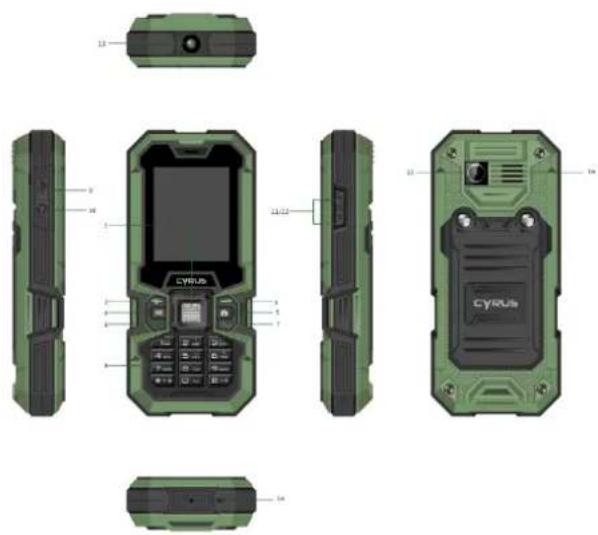
text_image
CYRUS CYRUS| Vertical bars indicate the signal strength of the GSM network signal. four bars indicate that your current position has the best reception. | |
| Indicates your phone is locked. | |
| Indicates music playing | |
| Indicates the alarm clock is set | |
| Headset-Mode | |
| Connected network service | |
| New missed call | |
| New SMS | |
| New MMS | |
| Ring Mode | |
| Mute Mode | |
| New Multi Message | |
| Call Transfer | |
| Bluetooth | |
| Battery Icon |
Charger usage instruction: The charger connection interface end insert the mobile phone charging jack, when the battery icon flashes that the phone has been achieved for the charging.
3. PREPARING FOR USE
3.1 INSTALL SIM CARD
The SIM card contains your private information, there is your phone number, PIN (personal identification code), PIN2, PUK (PIN unlock code), PUK2 (PIN2 unlock code) and the IMSI (International Mobile Subscriber Identity) number and network information, phonebook data and short message data, etc.
The SIM card slot is located inside the phone, when installation, open the back cover, take out the battery and turn the phone to back, find the SIM card slot position.
Put the SIM card metal face down, gently insert to the card slot, and fixed it; you must turn the phone off first, open the phone back cover, then take out SIM card.
- Open the back cover to take out the battery, insert SIM card to the SIM card slot.
Please carefully operate SIM card, friction or bend easily damaged SIMcard.
Please pay attention to save the mobile phone and its accessories such as the SIM card small parts, and placed out of the reach of children.
3.2 INSTALL MEMORY CARD (T-FLASH CARD)
It is located in the phone's internal and it is a pluggable mobile memory card. When the phone is enable USB memory function and computer connected, transmission of the data files from the computer to mobile phone can be stored in T - FLASH card.
INSTALL METHOD
Turn off the phone, open the back cover and other external power supply, turn the phone to the back to find the location of the memory card slot. Put the memory card metal face down, gently insert to the card slot, and fixed it; you must turn the phone off first, open the phone back cover, then take out the memory card.
15 16
Note: Because of the phone memory is lesser, in the need to use the storage function, please try to store files in the memory card, so as not to affect the use of your phone.
3.3 USB USAGE
This mobile phone supports USB1.0 port. You can connect the phone to the computer through USB cable to copy\move files and some other operations. You can also browse the photos\sound records\video, etc through the computer which saved on the phone. Using USB cable: Insert one side of USB cable to USB interface on the PC, and connect the other side to the "USB/Charging interface" on the left of phone.
3.4 SECURITY PASSWORD USAGE
Your mobile phone and SIM card has a variety of passwords. These passwords can help prevent unauthorized use of your mobile phone and SIM cards. When requested for any of the code explained below, key in the appropriate code and press the OK key. If the input error, press the „Clear" key to delete the incorrect input, and then enter the correct number. You can use menu "Settings -> Security Settings -> Change Password" to modify PIN Code, PIN2 Code and Phone Password.
PHONE PASSWORD
The phone password helps you to protect the phone against unauthorized use. The phone password is usually provided by the manufacturer with the phone. Manufacturer preset phone password is „0000”. If the mobile phone has been locked, you will be required to enter the phone password when boot.
PIN CODE
PIN Code (Personal Identification Code, 4-8digits) protects your SIM card against unauthorized use. The PIN comes with the SIM card. If you start the PIN check function, then you will be required to input PIN code each boot. If you enter an incorrect PIN three times in succession, the SIM card will be locked, the unlock method is as follows:
» According to the screen prompt to enter the correct PUK code, then unlock the SIM card.
» Enter the new PIN code and press "OK Key".
» Prompted to re-enter the new PIN code, re-enter the new PIN code and press „OK Key“
» PUK code is correct, then unlock the SIM card, and the PIN code is reset.
Note: If you enter the wrong PIN in three times, SIM card will be locked, and you should use the PUK code to unlock. PUK code is usually stored in the network operators.
Note: If you enter the wrong PIN in three times, SIM card will be locked, and you should use the PUK code to unlock. PUK code is usually stored in the network operators.
PUK-CODE
Enter the PUK code (Personal unlock code) to unlock the PIN code. PUK code is provided from manufacturer with SIM card. In case you have not it, please contact your network operator. If you enter an incorrect PUK ten times in succession, the SIM card becomes invalid. Please contact your network operator for a new card.
PIN2-CODE
PIN2 code (4-8 digits) is provided with SIM card. Enter the "Call costs" and "Fixed dial", please contact with the network operator to make sure if your SIM card support to these functions. If wrong PIN code is entered for three times, PIN2 code will be automatically locked. You have to enter the correct PUK2 code to unlock PIN2 code. The unlock method is as below:
» According to the screen prompt to enter the correct PUK2 code, then unlock.
» Enter the new PIN2 code, and press "OK Key"
» Prompted to re-enter the new PIN2 code, re-enter the new PIN2 code and press „OK Key”.
PUK2-CODE
PUK2 code (unlock PIN2 code, 8 digits) is used to unlock the locked PIN2 code. PUK2 code is provided from manufacturer with SIM card. If you enter an incorrect PUK ten times in succession, you will not be able to use PIN2 code function. Please contact your network operator for a new card.
PROHIBIT PASSWORD
You will use the prohibit password when you start the Call barring. When you apply for this network function, the password can be obtained from the network operator.
3.4 CONNECT TO NETWORK
After unlocked SIM card and mobile phone successfully, the mobile phone will automatically search available network. After search to the network, the phone gets into standby state. You can dial and receive calls, and you can also make the following operation:
» Press Left Soft Key to enter main menu.
» Press Right Soft Key to enter Phonebook.
» Press Dial Key to enter the call records list.
Note: If the screen prompts „emergency call only“, and you can only make emergency calls.
3.5 CHARGE THE BATTERY
The battery charge indicator: your phone can monitor and display information about the battery.
» Normally you can see the rest of the battery power from the battery
power of icons on the top right corner of the screen.
When the battery power appears low, the screen shows "low power". If you choose warning tone in any mode of the scene mode, it still can sound alarm warning tone.
» When the battery is on charge, it displays charging animation. When charging animation stop, it means charging finish.
Note: The actual standby time and call time are concerned mobile phone usage and local network environment, SIM card and the actual settings.
» Travel Charger: Travel charger can charge the battery through the phone. When charge the battery, put the battery into the phone:
- Connect the travel charger adapter and the slot of the top of phone.
- Plug travel charger into the right main power supply socket.
» When charging, the electricity grid number of battery icon is a state of flux until fully charged.
» At the end of the charging, the battery icon stops change.
Note: if the battery voltage low to can't allow the boot, when charging, it needs a long time for the battery icon change.
Warning: You must ensure that the local standard voltage and frequency match with your travel charger voltage and power ratings.
3.6 ON/OFF THE PHONE
» Long press the End key, boot the phone. The screen displays boot animation
» If the phone asks to input the phone password, key in the password and press the „OK“ soft key. Phone password is preset to 0000
If the phone asks for PIN code, key in the PIN code and press "OK" soft key. New account SIM card, PIN code is provided by the network operator.
» Enter the standby screen, the mobile phone will search network, when find the network, the current date and time will appear in the screen, now, you can dial or answer the call.
» Long press the End key to turn off the phone.
3.7 HEADSET
When you insert the headset into the headset slot, it automatically get into the headset mode, the headset plays the role of the earpiece and microphone.
4. BASIC FUNCTION
4.1 DIAL CALL
In the standby screen, directly to press the number keys, key in the area code and phone number, tap the dial-up icon or press the call button to dial. Press the End key to end the call.
» International call: Press the * key twice, enter „+“ sign. Key in the country code, area code and phone number, press the call button.
Dial extension telephone: after key in the exchange number, press the * key three or four times, appear „p“ or „w“, input „p“ or „w“, and then key in the extension number and press call button.
To correct typing errors: Press the right soft key to delete the last cha
racter in the screen. To clear all the input, long press the right soft key, or directly press the end key
» Make phonebook call: press the right soft key to access the phonebook in standby screen, queries to the call records, press the up or down key to find the call records to call.
» Input number and press call button, the mobile phone will automatically dial the corresponding number.
» Redial the last number: in the standby screen, press the call button to display the dialed calls list of records. The phone displays the dialed number, press the up or down key to select the number the call, and press the call button.
Speed Dial Phone calls: edit the speed dial number in speed dial list "the phonebook -> the phonebook settings -> Speed Dial list", and confirm its status is set to "ON".
4.2 ADJUST VOLUME
During a call, press the up and down navigation key to adjust the call volume.
4.3 Answer the incoming call
» Press the call button or left soft key to answer. When the call „shock“, it says your phone is the on call.
» Press the End key to end the call.
» Directly press End key or right soft key to refuse an incoming call.
Note: If the phone can identify dialing, it will display calling phone number (if mobile phone has storage calling phone records, then it displays cal-
ling name and number). If the phone can't identify dialing, it will display calling number. You can also answer the call when you use the menu or phonebook.
4.4 CALL PROCESS
During a call, you can click the options menu to achieve reserve, end single calls, phonebook, call records, message, sound recording, mute, and other functions. Please see the next chapter "menu function".
» Reserve: Retain the current call, the current call on hold, both side cannot hear each other's voice.
If network support call reserve function, you can start another call while you during a call in at the same time:
A:
1) Direct input number or press left soft key to find the call number in the phonebook, or press left soft key to choose new call and key in number, press the dial key to have the second call.
2) The first call is automatically reserved.
B:
1) Press left soft key to open mute to reserve the current call.
2) Then start to dial another call. Once connected, one is in a call, another is on hold, you can convert these two call state, press switch keep to switch between these two calls.
» End single call: end the current call.
» Phonebook: view the phonebook while calling.
» Call records: view the call records while calling.
» Message: view or send message while calling.
» Sound recording: recording while calling.
» Mute: This function can be turned off or turned on the microphone of the mobile phone and connect the other microphone. „Mute“ function can let the other side cannot hear you.
5. MAIN MENU
Please read the following guidelines carefully, so as to better grasp the functions.
5.1 CALL CENTER
5.1.1 CALL RECORDS
» Missed Call
» You can view the last 20 missed calls. Press the left soft key to proceed asfollows:
» View: view the details of the phone number.
» Call: call the phone number.
» Send SMS: send SMS to the phone number.
» Send MMS: send MMS to the phone number.
» Save to phonebook: save the phone number to phonebook.
» Edit before calling: edit the phone number before call it.
» Delete: delete the phone number.
» Dialed Call
» You can view the last 20 dialed calls. You can view, call, send SMS/MMS, save to phonebook, edit before calling and delete. Such as "Missed Call".
» Received Call
» You can view the last 20 received calls. You can view, call, send SMS/
MMS, save to phonebook, edit before calling and delete. Such as "MissedCall".
5.3.2 DELETE THE CALL RECORDS
Delete the records of Missed Call, Dialed Call and Received Call or delete all the Call Records.
Note: If you change SIM Card, the phone numbers of Call Record will be automatically cleared.
5.1.2 CALL SETTING
» Start the „call waiting“ function, you in the communication if anyone call you, the other party can still come in. The network will provide you with alarm, and display another call on the screen.
- Close: if you cancelled call waiting function, you have set up one call, if another one call you, that the other party will not be able to call in.
» Inquiry: used to query the current state to the network.
CALL TRANSFER
This function allows the incoming call is transferred to another phone you specify. Into the call settings, select call transfer, press the "OK" soft key to enter this function.
Transfer all the voice call: this function used to transfer all the voice call.
» Transfer when cannot connect: transfer the incoming call when turn off
the phone or not in service area.
» Transfer when no answer: transfer the incoming call when you no answer.
» Transfer in the busy: when the phone is in communication transfer the incomingcall.
» Transfer all data calls: need to network operators support to transfer all the data call.
» Cancel the transfer: this function is used to cancel the transfer function.
CALL BARRING
This function allows you to restrict your calls. Set this function, you first need to network operator to provide network banning password. If the password is incorrect, an error message will be prompted. After you selected the option, continue to select on or off, the phone will require to key in the barring password. Then the phone will connect to network. Later, the network will respond and inform the operating result.
BAN TO DIAL
» All voice calls: this banning is on, you cannot dial all calls.
» International voice calls: this banning is on, you only cannot dial the international calls.
» International voice calls except domestic calls: this banning is on, in the foreign country, you could only call local phone or homewards (i.e. ownership network provider host country) phone.
BAN THE INCOMING CALL
» All voice calls: this banning is on, you cannot receive all the incoming
calls.
» Roaming voice call: this banning is on, when using the phone outside of the own ship service area, you cannot receive the calls.
» Start: key in the banning password to start.
» Close: cancel this banning function.
» Inquiry: used to query the current state of the barring to the network.
» Cancel all:
» Cancel the restrictions to call, cancel the restrictions also need to network operators to provide the restriction network password.
CHANGE PASSWORD
This function is used to modify the banning password. You should key in the original banning password before modifying.
Note: Some settings need network support. Call barring setting effective by local network and SIM card to open this function.
LINE SWITCHING
Switching between line1 and line2. The default state is line1.
Note: If you choose line2, you can dial out or not, it is related to the network operator.
SIM2 card call settings are referring to SIM1 card call settings.
5.1.2.3 SENIOR SETTINGS
AUTO REDIAL
Turn on or off auto redial, start or close the auto redial call. Select to start, in the dialing process, if the other party does not respond, the phone will automatically redial over a period of time. Automatic redial cannot exceed 10 ten times. In the meantime, users cannot dial any other call. To end automatic redial, press the End key.
CONVERSATION TIME PROMPT
This function can make a prompt to the user. The alternative prompt types are for close, one sound or cycle.
27 28
CALL CONNECTION PROMPT
Open the call connection prompt, there will be a prompt tone after call connection.
ANSWER MODE
you can set any key to answer or automatic answer via headset mode.
5.2 PHONEBOOK
5.2.1 SEARCHING
QUICK SEARCH
You can enter the name or telephone number, and other related information to quickly find the contacts in the phonebook. Press the # key to switch "abc" or "123" in the phonebook interface to switch the input method.
Press the left soft key, select „Searching“, the phonebook to find out all the records that meet the requirements in the phonebook. Press the up or down key to browse the records, press the dial button to call.
5.2.2 ADD NEW CONTACT
Add a new contact to SIM Card or mobile phone. The specific operation is as follows: in the phonebook menu, select "Add New Contact", prompt to select "to the SIM card" or "to the phone".
5.2.3 OPTIONS OF THE CONTACT
Press left soft key in contact of phonebook, enter to the options of the contact, you can view, send SMS, send MMS, call, edit, delete, copy and check the call group.
» View: view the details of contact.
» Send SMS: send the SMS to the selected contact.
» Send MMS: send the MMS to the selected contact.
» Call: call the selected contact.
» Edit: edit the selected contact.
» Delete: delete the selected contact.
» Copy: allow to copy the record to the phone, SIM1 or SIM2.
» Calls group: to classify the phonebook information in different group. Set up the call ring.
5.2.4 PHONEBOOK SETTINGS
STORAGE POSITION
Set the phonebook display the contact storage position. You can select to
save it in SIM1, SIM2, mobile phone and all the above. If the phone only has SIM1, this option will only display SIM1.
SPEED DIAL
On/Off. When this function is set to open, a total of eight groups speed dial number can be set (the corresponding number key 2 \~ key 9). In standby state, long press the corresponding number key, you can dial the corresponding phone number.
OTHER NUMBERS
Can set the fixed dial (open fixed number need PIN2 code password, whether to support the fixed number need to consult the local operator).
29 30
STORAGE STATE
Display the phonebook and SIM card phone book's already storage contact and can store contact number.
COPY THE CONTACT
You can copy the phonebook from SIM1\SIM2 to the phone or from phone to SIM1\SIM2.
MOVE THE CONTACT
You can move the phonebook from SIM1/SIM2 to the phone, or from phone to SIM1\SIM2.
DELETE ALL THE CONTACTS
You can delete all the contacts in phonebook and SIM card.
Note: boot and search the network, immediately check the phonebook if it shows „please wait“, the tip is refers to the phonebook is initializing, please check it later.
5.3 FILE MANAGEMENT
You can use this function easily to manage the directories and files which stored in the or extended memory card (T-Flash card). Open: use this function into the memory root directory, the root directory will list the system default folder, set up a folder and user files.
» Open the file management, press left soft key to enter "options", you can proceed as follows:
» Open: open the specified folder.
» New folder: create a new folder in the specified folder.
» Rename: rename the specified folder.
» Delete: delete the specified folder.
» Sort: sort the storage file, you can select to sort by name, type, time andsize.
» You can operate the specified file as follows:
» View(Play): view or play the specified file.
» Image information: list date and size of the specified file.
» Send: send the file via MMS or Bluetooth.
» Used as: the file can be selected for wallpaper, boot animation and shutdownanimation.
» New folder: create a new folder in the specified folder.
» Rename: rename the specified file.
» Delete: delete the specified file.
» Sort: sort the storage file, you can select to sort by name, type, time and
size.
» Copy: copy the specified file to specified position. Press the „back“ cancel to this command. If the remaining space is not enough to complete copy operation, the mobile phone will give prompt information.
» Move: move the specified file to specified position.
» Detail information: view the date and size of the file.
» Format: use this function can be formatted all data, the system will re-establish the default folder.
Note: you can move the specified file or all the files and images of T-Flash card.
5.4 ORGANIZER
5.4.1 CALENDAR
Display the calendar from January 1970 to December 2030 (Gregorian and Lunar), show the date of the memo event. You can edit and view the specified date memo event. Select Calendar, press left soft key, the functions as below:
» View: view the current date.
» View all: view the all events.
» Add event: add the new event.
» Delete: delete event and all the time.
» Skip to a specified date: Skip to a specific date to view or edit the memo event.
» Switch to today: when you view the other date of calendar, you can choose this function to return the setting date
5.4.2 ALARM
This phone offers five alarm clocks for the user to use, users can set according to their own needs. If the alarm clock doesn't open, the screen has no alarm clock signs show that, the screen display sign after opening.
» Press OK Key to select open or close.
» Set the alarm clock.
» Select the desired alarm clock ring: once a day, every day, custom choose a day or some days in one week.
» Prompt type: set to „vibration and ringing, only ring, only vibrate“.
» Press "saves" to complete the settings.
Note: when a alarm clock ring, if you choose to sleep or no any operation to prevent the ring, this alarm clock will default that the user has not heard the ring, 5 minutes later, the alarm clock will ring again. No any operation, the alarm clock will shut down automatically after ring 10 times.
5.4.3 WORLD CLOCK
This function can help to view the local time all over the world.
5.4.4 CALCULATOR
The calculator applies simple calculate functions such as addition, subtraction, multiplication and division. Use the calculator, follow these steps:
» EInput the first number: input the first number when the screen displays "0".
» Input operator: press the according +, -, *, / and symbol keys.
» Input the second number.
» Results: press OK Key, the screen will display the calculation results.
» Continue the calculation: if you want to use the existing calculation results, you can continue to input operator, and input the third number to calculate.
» Clear: press left soft key.
» Exit: press right soft key "back" to exit.
5.5 Message
SMS
Message function is a network service. You you may need to apply to the network operator to send and receive messages. Each SMS capacity is up to 268 characters. When you write a message, you can press # key to switch input method or select the input method in options. Press "clear" to delete one word front of cursor. Long press "clear" to delete all the characters. Click End Key to back to standby state. Left or right key to select the character, press the * key to select the input symbols.
MMS
MMS is multimedia message. Its biggest feature is supporting multimedia function, it can transfer text, images, sound, etc, various kinds of multimedia format information. Multimedia message service is the need to network operators' supporting, before use, please confirm if your SIM card supports the service or consulting related network operators. Your phone supports MMS. Set the necessary MMS settings, you can send and receive MMS.
5.5.1 SET UP MESSAGE
Edit new SMS or MMS to send.
SMS
Edit the SMS in the SMS interface, press # key to switch the input method. After editing, you can click "options" to operate the following functions:
» Send to: send the SMS.
» Punctuation: Select which punctuation you want to insert.
» Input method: select which input method you want to edit.
Insert template: insert information template to the SMS.
» Senior options: can insert number and name.
» Save: save the SMS to the draft box.
MMS
Edit the MMS in MMS interface. You can also add image, sound and video file in MMS to send. The contents of MMS file cannot be exceeded 100k. You can click "options" to operate the following functions:
» Edit text: edit the text you want to input.
» Insert slide: insert a new page.
» Insert image: add the image which you want to send out.
Insert video: add the video which you want to send out.
» Insert sound: add the sound which you want to send out.
» Insert attachment: add the documents which save in memory card or phone.
5.5.2 INBOX
The Inbox save the SMS and MMS in it. In message list, press left soft key to operate the following operations:
Note: The screen will show the icon when you receive new message. If the
short message is full already, you will not be able to receive new message, please delete unnecessary short messages.
» View: view the message.
» Reply via SMS: reply via SMS.
» Reply via MMS: reply via MMS.
» Call the sender: dial to the sender.
» Transfer: transfer the message.
» Delete: delete the message.
» Delete all: delete all the messages in inbox.
» Save to phonebook: save the number to phonebook.
In the view message interface, you can also complete the following operations in "Options":
» Reply via SMS: reply via SMS.
» Reply via MMS: reply via MMS.
» Call the sender: dial to the sender.
» Transfer: transfer the message.
» Delete: delete the message.
SENIOR OPTIONS
» Use number: extract all phone number of the message, save them to SIM card or phone.
» Use website: extract the website of the message.
» Use USSD: extract the USSA of the message.
5.5.3 DRAFT BOX
Draft box storage the not yet ready to send message to prepare for modify again and send. Press OK key to enter draft box, you can view, edit, delete, delete all, move, copy to the phone or SIM card, etc.
MMS
» View: view the MMS.
» Edit: edit the MMS.
» Delete: delete the MMS.
» Delete all: delete all MMS in draft box.
» Move to the phone or SIM card: move the message to the phone or SIMcard.
» Copy to the phone or SIM card: copy the message to the phone or SIMcard.
» Details of MMS: view the details of the MMS.
SMS
» View: view the SMS.
» Send: send the SMS.
» Edit: edit the SMS.
» Delete: delete the SMS.
» Delete all: delete all SMS in draft box.
5.5.4 OUTBOX
Select "outbox", press OK Key to enter outbox. Select "Options", you can select the following options:
» Send: re-send the message.
» Edit: edit the message. After you complete to edition, select the receiver to send the message.
» Delete: delete the message.
» Delete all: delete all the messages of outbox.
5.5.5 SENT MESSAGE
USent message is stored messages sent successfully. Click OK Key, enter to Sent Message list, click "options", you can select the following options:
» View: view the message.
» Transfer: transfer the message.
» Delete: delete the message.
» Delete all: delete all the messages of Sent Message.
5.5.6 MESSAGE SETTINGS
SMS
SIM1/SIM2 Card: enter this menu, you can set Message Center number, SMS validity, sent format, send report, reply path, preferred connection, voice mail, etc.
» Storage State: check the percentage of the SMS which saved in SIM card and phone. Specific capacity is based on message content, the phone and the SIM card itself.
» Save the sent SMS: open this function, the sent message will automatically save in Sent Message.
» Preferred save position: set the SMS storage mode. You can save the SMS in phone or SIM card.
MMS
» Data account: Choose the service provider that you need to connect and view network parameters.
» General Settings:
» Send Settings: You can set the send the report, read report, priority, send time, send and save.
» Receive Settings: You can set the local network, roaming network, anonymous sender, advertising message, send report and read report.
» Preferred save position: set the message storage mode. You can save the MMS in phone or SIM card.
» Storage State: check the MMS usage rate in phone and memory card.
» Service Message:
» Service Message Settings: you can select receive all and close all.
» Message loaded: can choose to ask, automatic implementation and close.
Note: boot and search the network, immediately check the message if it shows „Message is not able to use“, the tip is refers to the message is initializing, please check it later.
5.6 MULTIMEDIA
5.6.1 IMAGE VIEWER
Press left soft key to enter the menu:
» View: to view the images.
» Image information: view the details of image.
» Browse mode: to choose to view the images in List style or Matrix style.
» Send: to send the images via MMS or Bluetooth.
» Used as: Images can be selected for wallpaper, boot animation and shutdownanimation.
» Rename: modify the image's name.
» Delete: delete the image.
» Storage: select to save the image's position.
Enter to Video Recorder, in the camera preview state, press the OK key to start camera, the right soft key to stop. Press left soft key after enter to the camcorder function, the operations as below:
» Switch to camera: you can switch Video Recorder to camera.
» Camcorder settings: you can set the exposure compensation, night shooting mode and avoid flicking.
» Video Quality: Normal, better, high.
» Video Settings: you can choose to share video.
» White Balance: You can choose automatic, solar light, incandescent lamp, fluorescent lamp, cloudy and white light.
» Effect Settings: You can select normal, grayscale, sepia, sepia green, sepia blue and negative film, etc.
» Storage: Allows you to save the videos on phone or memory card.
» Restore Default: Allows you to restore to the camcorder's default settings.
In addition to set the video parameters in options, you can also use:
» Left and Right Key: Can choose exposure compensation parameters.
» Up and Down Key: Adjust video focus.
5.6.3 VIDEO-PLAYER
The phone supports 3GP, MP4 and AVI format video files. Press OK Key to enter to Video Player list, in this mode, you can also:
Note: Videos can only be on the „videos“ directory, in order to generate a file in the video player
» Play: play the specified video file.
» Send: send the file via MMS or Bluetooth.
» Rename: modify the video name.
» Delete: delete the video.
» Sort: Sort the video as name, type, time and size.
» Storage: select to save in phone or memory card.
» Video Play:
» Press the side key to adjust the volume, press the left or right key to support fast forward and rewind, press the up key to switch between full-screen and half-screen, press OK key to pause.
5.6.4 AUDIO PLAYER
Press left key to enter to Music Player list, press right key to return. Press side key to control volume, press left or right key to switch last one or next one. Press OK Key to pause or continue. Press left soft key to enter the playlist, click "options" to complete the following operations:
» Play: play the specified music.
» Detail information: to view the size, time, music name and player of this file.
» Update playlist: update playlist of memory card or phone. When the
automatic generation of list is set to open, provide the function.
Note: when the „automatic generation list" of „Settings" for closing, the other options as below:
» Settings:
» Preferred List: choose music of memory card or phone.
» List Auto: open or close automatic generation list
» Repeat: you can specify shut, single music, all the way to a play.
» Shuffle: you can select random play on and off states
» Background play: If you choose the open state, exit the music player interface, music can still play. Otherwise, music will automatic stop to play.
» Energy display style: There are two kinds of energy style optional, also can choose to shut down.
Sound Recorder file the default stored in the root directory "Audio" of T - Flash card. Select one sound recorder file, then press left soft key. You can set the "play, append, rename, delete, used as and send" options.
» Play: to play the specified sound record. Press up and down key to adjust the volume.
» Append: to allow to record in same file.
» Rename: to amend the file's name.
» Delete: to delete the selected sound record.
» Used as: used the sound record file as call ring.
» Send: send the file via Bluetooth or MMS.
5.6.6 FM RADIO
Before use FM radio, please insert the headset first. Enter radio interface, you can operate the following functions: turn on/off radio, forward search, backward search, increase volume and decrease volume. You also can selection the following options in option menu:
» Channel List: This phone has 30 channels for setting, you can switch to your favorite channel.
» Manual input: Key in the specified channel frequency.
» Auto search: Auto search the radio channel by phone.
SETTINGS
» Background Play: You can set to open or close the background play.
» Loud speaker: You can open or close loud speaker play.
5.7 NETWORK SERVICE
5.7.1 INTERNET SERVICE
You can surf the internet, browse the relevant Web by WAP browser. For more information, please contact the nearest network service provider. Open this menu to enter the following operations
» Homepage: Internet's default website.
» Bookmark: store the commonly used website.
» Search or input the website: input the website which you want to visit, click OK to enter the website.
» Website history: the preservation record after browsed the web.
SETTINGS
» Homepage: choose the default web page or user defined page as
homepage.
» Data account: Select the network connection data account. If you select automatic, the phone will automatically according to the SIM card operators to select the data account.
» Browse options: you can clear your online web cache, cookies and authentication information in this menu.
» Favorites settings: you can set the online waiting time, whether to display the image in the page in this menu.
5.7.2 DATA CONNECT WITH SIM CARD
Choose SIM1 card 1 or SIM2 card as a network connection, also can choose to ask to use SIM1 card or SIM2 card connection every time.
43 44
5.7.3 SIM APPLICATION TOOLKIT (STK)
This function is provided by network operator, according to the different services provided by different mobile manufacturers, there will be new menu options appearing.
5.8 CAMERA
Use the camera application, you can shoot and camera for around people or events any time. Photo will be stored in the „Album“. Camera generated photos are in JPG format.
Tip: JPG is a standard image compression format, you can use some of the most commonly used image viewer, image editor to see JPG format files. The files' extension names are JPG.
Note: please comply with all local laws and regulations on taking photographs. Please don't illegal use this function.
When the camera application open, you can see the scene that you want to shoot on the screen.
» Switch to video: you can switch camera to video.
» Album: browse the images (for details, please refer to the Image Viewer of Multimedia.)
» Camera Settings: You can set the shutter sound, exposure compensation, contrast, avoid flicking, delayed firming and continuous shooting settings.
» Image Settings: you can set the image size and quality.
» White Balance: You can choose automatic, solar light, incandescent lamp, fluorescent lamp, cloudy and white light.
» Scene Mode: You can select auto or night mode settings.
» Effect Settings: You can select normal, grayscale, sepia, sepia green, sepia blue and negative film, etc.
Storage: Allows you to save the images on phone or memory card.
» Restore Default: Allows you to restore to the camera's default settings.
5.9 SETTINGS
5.9.1 MODE SETTINGS
The user can refer to the SIM card usage to set the corresponding operation, this function in the double card insertion condition can choose:
» Open two modes: open two SIM cards at the meantime.
» SIM1 card only: open SIM1 card only.
» IM2 card only: open SIM2 card only.
Note: if the user only insert SIM1 card, the bar just show only SIM1 card open.
» Standard Mode
» Start: start Standard Mode.
» Personal Settings: you can set ring type, alert type, incoming call ring, ring volume, message ring, message ring volume, key sound, boot ring, shutdown ring and system prompt on/off.
» Alert type: you can choose ring, vibration, vibration and ring, vibration thenring.
» Ring type: ringing and ring once.
» Incoming call ring: system provides 10 types ringtone for your selection, and one custom ringtones.
» Ring Volume: sent the ring volume, it has 1-7 levels.
» Message: system provides 5 types ringtone.
» Message ringtone volume: set the message ringtone volume, it has 1-7 levels.
Key Sound: you can choose mute, tap and tone as key sound.
Key sound volume: set the key sound volume, it has 1-7 levels.
» Boot ring: system provides 5 types ringtone and mute.
» Shutdown ring: system provides 5 types ringtone and mute.
» System prompt: turn on or off system prompt.
» Reset: after choose reset, the scene mode will restore the initial value.
» Mute mode: all mute after boot.
» Meeting mode: Please refer to "Standard Mode".
» Outdoor mode: Please refer to "Standard Mode"
Note: Suggest that you can set your phone as meeting or mute mode in quiet public places. Long press “#” key to switch the mode to standard mode and mute mode in standby state.
5.9.3 PHONE SETTINGS
5.9.3.1 TIME AND DATE
» Set local city: you can set 77 cities of all over the world.
Time and date: Let you set time, date and daylight saving time. Press the arrow keys to move the cursor to the complete the operation, when daylight saving time is set to open, it displays the time delayed one hour.
» Format Setting: you can set the time in 12-hour or 24-hour format. Chronological arrangement and date separator choice.
5.9.2.2 SCHEDULE POWER ON/OFF
There are four group timing function. You can set the time of automatically power on and off. Before using the schedule power on/off function, you must first set its status to open. Then set the option of power on/off, last, set the time.
5.9.2.3 LANGUAGE
Display the language menu for your selection. You can choose English or simplified Chinese. Selected language, menu and prompt information will change accordingly
5.9.2.4 PREFERRED INPUT METHOD
Choose your commonly used input method as the default input method.
5.9.2.5 STANDBY MENU DISPLAY
» Wallpaper: system provides 1 default image. You can download other images by yourself.
» Automatic lock screen: you can set the keyboard lock time according to your own needs.
» Boot animation: system provides 2 groups boot animation, you can set other animations by yourself.
» Shutdown animation: system provides 2 groups shutdown animation, you can set other animations by yourself.
» Display date and time: click open or close to said whether display date and time in standby.
5.9.2.6 FLIGHT MODE
» Normal mode: if your phone is in flight mode, this option will switch to normalmode.
» Flight Mode: When set to this mode, the phone is no signal, you cannot dial and receive and send message.
5.9.2.7 MISC SETTINGS
LCD Backlight: set LCD backlight brightness and backlight time.
5.9.4 NETWORK SETTINGS
To obtain the following network services, please contact your network operator. Available set on the SIM card network settings, priority mode, GPRS transmission priority mode settings.
5.9.5 SECURITY SETTINGS
This function provides the safe use of mobile phones and related some Settings.
SIM1/SIM2 CARD SECURITY SETTINGS
Ask to input the PIN code. You need to input PIN code when the phone is startup each time, otherwise, you cannot use SIM card. If wrong PIN code is entered for three times, you will have to enter PUK code to unlock it. PUK code is used to unlock and revise the locked PIN code. If the PUK code have been provided or missed, please contact with your network operator
PHONE SECURITY SETTINGS
Using this function can be locked or unlocked the phone. Enter a password to turn on or off the phone lock operation. When the phone is locked and if you replace SIM card, you will be asked to enter the phone password when boot. Phone password is for 4 to 8 digit.
PRIVACY PROTECTION
Privacy protection functions, privacy phonebook, messages, call records, protect your privacy. Key in "0000" to enter to Privacy Protection, you can set the function.
5.9.6 CONNECTIVITY
5.9.5.1 BLUETOOTH
You can activate Bluetooth function in this menu, including start Bluetooth, search hands free device, my device, connectivity device, settings, my Bluetooth. Start Bluetooth, you can transfer the files to the matched Bluetooth. And it can be paired with a Bluetooth headset to make a call.
» Activate Bluetooth: You can choose "activate" or "close" Bluetooth as yourdemand.
This phone can be searched: select to close this function, other Blue tooth devices cannot search your Bluetooth.
» My device: Used to search for new device or display already pairing successful device list record.
» Search hands free device: search hands free device with Bluetooth function.
» My Bluetooth name: display this phone's Bluetooth name, and you can also modify your phone's Bluetooth name.
SENIOR OPTIONS
» Sound path: set sound path to save as your phone or Bluetooth hands freedevice.
» Storage: set the storage position for Bluetooth files. You can install the files in phone or memory card.
» My Address: Display this phone's Bluetooth address.
5.9.5.2 DATA ACCOUNT
Select the corresponding data account according to your needed connection network services. You can edit, add, delete and change default account.
5.9.7. RESTORE FACTORY SETTINGS
This feature would reset parts of functions as those configured at the factory. The factory default password is 0000.
6. Input Method
This mobile phone provides intelligent input method, including Intelligent Pinyin input, Intelligent English uppercase, Intelligent English lowercase, stroke input, uppercase letters, lowercase letters, digital input.
6.1 ICON OF THE INPUT METHOD
Into the various editing windows (including edit phonebook, edit message, memos, etc.), the icon of the input method will display:
Intelligent Pinyin input shows "Pin".
Stroke input shows "Bi".
Digital input shows "123".
Uppercase letters show "ABC".
Lowercase letters show "abc".
SPECIAL CHARACTER INPUT METHOD
-
In the inputting text message, you can click „*“ to input symbol
-
Click "Left" or "Right" to select the inserting symbol.
-
Press Left soft key to confirm the input.
SWITCH INPUT METHOD
In the editing window, press the # key to switch input methods.
7. APPENDIX
Carry on the following simple examination before you contact with after-sales service, perhaps can help you avoid the redundant maintenance time and expense to waste.
COMMON PROBLEMS AND SOLUTIONS
Unable to boot
-
Check whether the battery power is exhausted, please charge the battery.
-
Check whether the battery is bad contact. Please remove it first and reinstall, then retry boot.
SIM card error
-
Check on the signal strength indicator of the screen, 5 bars indicate a strongsignal
-
Less than 2 bars indicate a weak signal
Poor signal
-
Check on the signal strength indicator of the screen, 5 bars indicate a strongsignal
-
Less than 2 bars indicate a weak signal
Unable to dial out
-
You may set to hide your phone number, but your network operator does not provide the service.
-
Surrounding environment may have a strong interference signal
-
You may activate call barring function.
-
You may activate the line2, but your network operator does not provide the service.
Unable to charge
-
Battery may have over-discharge, it need to connect the charger after a period of time to charge
-
Battery performance have been worse
Unable to connect the network
-
The signal is weak, or around the radio interference.
-
SIM card is invalid, please contact with your network operator.
Unable to enter to service menu
-
Your SIM card may not support the service function
-
Parameters of GPRS were changed.
TERM EXPLANATION
SMS Short Message Service
EMS Enhanced Message Service
SIM Subscriber Identity Module)
GSM Global System for Mobile Communication
PIN Personal Identity Number
PUK PIN Unblocking Key
IMEI International Mobile Equipment Identity