
DCS-2210L/EP - Security Camera D-LINK - Free user manual and instructions
Find the device manual for free DCS-2210L/EP D-LINK in PDF.


| Product Type | Full HD PoE Day/Night Network Camera |
| Brand | D-Link |
| Model | DCS-2210L |
| Image Sensor | 1/2.7" 2 Megapixel Progressive Scan CMOS |
| Resolution | Full HD 1920 x 1080 (16:9) up to 30 fps; 1440 x 1080 (4:3) up to 30 fps |
| Lens | 2.8 mm, F1.8, angle view: 103° (H) x 55° (V) x 118° (D) |
| Night Vision | Built-in IR LED for up to 5 meters (16 ft) with IR-cut filter |
| Power Supply | IEEE 802.3af PoE or DC 5V, 1.2A adapter |
| Power Consumption | Max. 3.5 W |
| Ethernet Port | 10/100 BASE-T Fast Ethernet with PoE |
| Audio | Built-in microphone and speaker for two-way audio |
| Storage | microSD/SDHC card slot (Class 6 or above) and network storage (Samba) |
| Video Compression | Simultaneous H.264 and MJPEG, JPEG for still images |
| DI/DO Port | Digital input and output for external alarm devices |
| PIR Sensor | Passive Infrared sensor for motion detection (up to 5 m) |
| ePTZ | Electronic pan, tilt and zoom within viewable area |
| Weight | 80 g |
| Operating Temperature | 0 to 40 °C (32 to 104 °F) |
| Certifications | CE, FCC, C-Tick, CE LVD |
| Cloud Support | mydlink web portal and mobile apps (iOS/Android) |
| Software Bundle | D-ViewCam for multi-camera recording and management |
Frequently Asked Questions - DCS-2210L/EP D-LINK
User questions about DCS-2210L/EP D-LINK
0 question about this device. Answer the ones you know or ask your own.
Ask a new question about this device
Download the instructions for your Security Camera in PDF format for free! Find your manual DCS-2210L/EP - D-LINK and take your electronic device back in hand. On this page are published all the documents necessary for the use of your device. DCS-2210L/EP by D-LINK.
USER MANUAL DCS-2210L/EP D-LINK
natural_image
White D-Link remote camera with control buttons and a green indicator light (no text or symbols on device body)User Manual
Full HD PoE Day/Night Network Camera
DCS-2210L
Preface
D-Link reserves the right to revise this publication and to make changes in the content hereof without obligation to notify any person or organization of such revisions or changes. Information in this document may become obsolete as our services and websites develop and change. Please refer to the www.mydlink.com website for the most current information.
Manual Revisions
| Revision Date Description | |
| 1.0 October 21, 2014 Version A1 with | firmware version 1.00 |
Trademarks
D-Link and the D-Link logo are trademarks or registered trademarks of D-Link Corporation or its subsidiaries in the United States or other countries. All other company or product names mentioned herein are trademarks or registered trademarks of their respective companies.
Copyright © 2014 by D-Link Corporation, Inc.
All rights reserved. This publication may not be reproduced, in whole or in part, without prior expressed written permission from D-Link Corporation, Inc.
Table of Contents
Product Overview......4
Package Contents......4
System Requirements 5
Introduction......6
Features....7
Hardware Overview 8
Front View 8
Rear View 9
Side View....10
Installation....11
Zero Configuration Setup....11
Camera Setup Wizard....14
Windows Users 14
Mac Users....15
Manual Hardware Installation....17
Mount the Camera 18
mydlink....19
Configuration....20
Using the Configuration Interface....20
Live Video 21
Setup....23
Setup Wizard 23
Network Setup....29
Dynamic DNS 32
Image Setup 33
Audio and Video....35
Preset....37
Motion Detection 39
Time and Date....40
Event Setup....41
SD Card....50
Advanced 51
Digital Input/Output....51
ICR and IR....52
HTTPS....53
Access List....54
SNMP 55
Maintenance ....56
Admin....56
System 57
Firmware Upgrade....58
Status....59
Device Info 59
Logs 60
Help....61
DI/DO Specifications 62
Technical Specifications....63
Safety Statements ......66
Product Overview Package Contents

DCS-2210L Full HD PoE Day/Night Network Camera

CAT5 Ethernet cable

Power adapter

CD-ROM with User Manual and software

Quick Installation Guide
If any of the above items are missing, please contact your reseller.
Note: Using a power supply with a different voltage than the one included with your product will cause damage and void the warranty for this product.
System Requirements
| Hardware Requirements | A microSD memory card (optional) is required for recording to onboard storage. SDHC Class 6 or above is recommended. |
| Network Requirements | An Ethernet-based cable or DSL modemIEEE 802.11n/g wireless clients10/100 EthernetBroadband Internet connection |
| Web-based Configuration Utility Requirements | Computer with the following:Windows® XP/Vista/7/8, Linux-based, or Mac with OS X 10.6 or higherAn installed Ethernet adapterBrowser Requirements:Internet Explorer 7.0 or higherFirefox 12 or higherSafari 6.0 or higher (with Java installed and enabled)Chrome 20 or higherWindows® Users: Make sure you have the latest version of Java installed. Visitwww.java.comto download the latest version. |
Introduction
Congratulations on your purchase of the DCS-2210L Full HD PoE Day/Night Network Camera. The DCS-2210L is a versatile surveillance solution for your small office or home. The full HD 1920 x 1080 resolution 2 megapixel progressive scan CMOS sensor lets you capture details like never before – especially important for face recognition. A built-in IR-cut filter and IR LED makes sure you don't miss an event no matter how bright or dark your surroundings are. To make things convenient, support for Power over Ethernet (PoE) means you won't have to worry about available power outlets when setting up your camera on location.
Unlike a standard webcam, the DCS-2210L is a complete system with a built-in CPU and web server that transmits high quality video images for security and surveillance. The DCS-2210L can be accessed remotely, and controlled from any PC over your local network or through the Internet via a web browser. It also comes with the D-Link D-ViewCam ^™ software bundle that allows you to manage multiple network cameras using remote monitoring, scheduling, recording, motion detection, and notifications for a complete and cost-effective home security solution.
Features
Full HD Resolution
The DCS-2210L Full HD PoE Day/Night Network Camera is equipped with a 2 megapixel progressive scan CMOS sensor that provides full HD 1920x1080 resolution, the video stream captures a larger scene and provides more details than an analog CCTV camera – so you can identify criminals more easily in critical surveillance applications.
Power over Ethernet for Convenience
The DCS-2210L supports 802.3af Power over Ethernet (PoE), which lets you power your camera with any Ethernet cable. This feature lets you set up your camera easily without worrying about available power outlets at your location.
IR LED for Day and Night Functionality
The built-in IR-cut filter and IR LED enable night time viewing or recording in dark environments at ranges up to 16 feet (5 meters).
DI/DO for Connecting External Devices
Rounding out the flexibility of the DCS-2210L, you can connect an alarm or trigger to its DI/DO port for integration into a surveillance solution.
Remote Monitoring Utility
The D-ViewCam™ application adds enhanced features and functionality for the DCS-2210L and allows administrators to configure and access the DCS-2210L from a remote site via Intranet or Internet. Other features include image monitoring, recording images to a hard drive, viewing up to 32 cameras on one screen, and taking snapshots.
Built-in Mic and Speaker
Covering all the visual components, the DCS-2210L also has a built-in microphone and speaker, so you can transmit two-way audio easily.
mydlink Support
Embrace the power of the cloud by adding your DCS-2210L to the list of devices manageable via the free mydlink web portal.
Web Configuration
Using a standard web browser, administrators can configure and manage the DCS-2210L directly from its own web page via Intranet or Internet. This means you can access your DCS-2210L anytime, anywhere in the world.
Broad Range of Applications
With today's high-speed Internet services, the DCS-2210L can provide the ideal solution for delivering live video images over the Intranet and Internet for remote monitoring. The DCS-2210L allows remote access using a web browser for live image viewing, and allows the administrator to manage and control the DCS-2210L anytime, anywhere in the world.
Hardware Overview
Front View
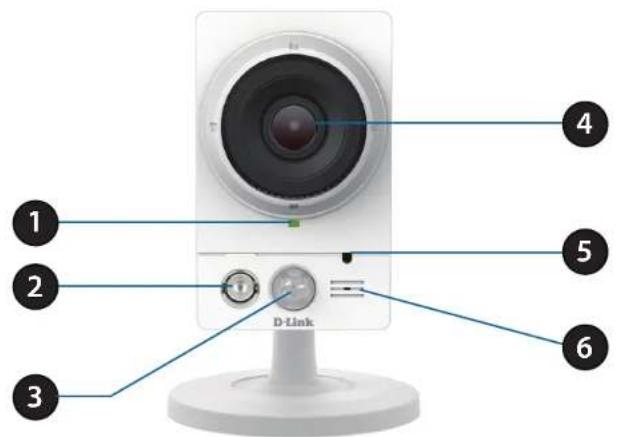
| 1 Status LED | Indicates the camera's current status |
| 2 Infrared LED | Used to illuminate the camera's field of view at night |
| 3 PIR Sensor | Passive Infrared sensor for motion detection |
| 4 Camera Lens Records video of the surrounding area | |
| 5 Light Sensor | The light sensor helps switch the camera between day and night modes. Night mode activates the IR LED and toggles the IR-Cut-Removable filter. |
| 6 Microphone Records audio from the surrounding area | |
Rear View
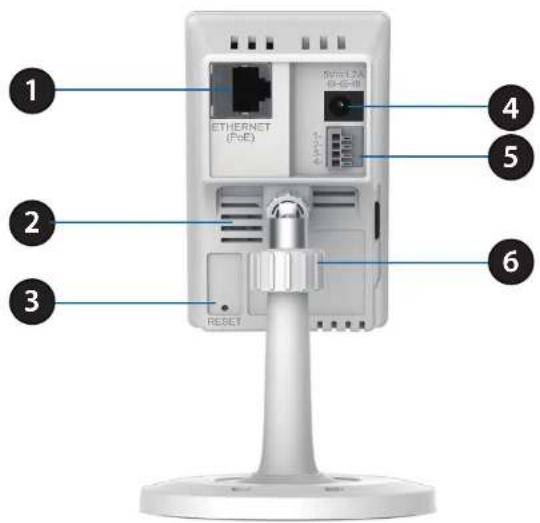
| 1 Ethernet Port | RJ45 connector for Ethernet |
| 2 Speaker Audio output | |
| 3 Reset Button | Press and hold this button for 10 seconds to reset the camera |
| 4 Power Connector | Connects to the DC 5 V power adapter |
| 5 DI/DO Connector | I/O connectors for external devices |
| 6 Adjustment Ring | Tighten or loosen the adjustment ring to adjust the camera's position |
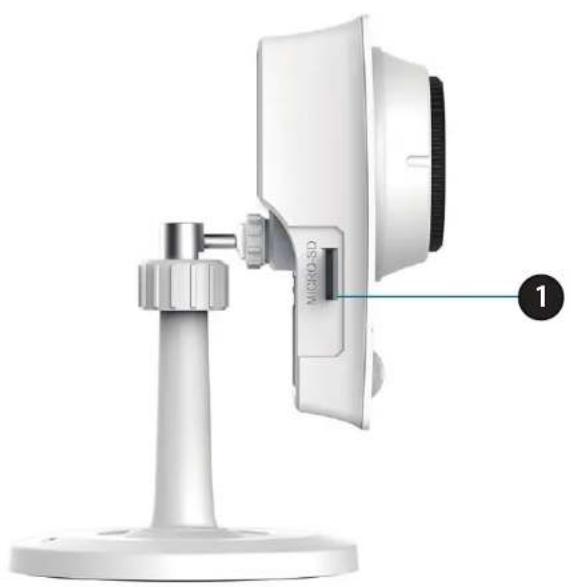
Side View
natural_image
Diagram of a device mounted on a stand with a label pointing to a component (no readable text or symbols)1 microSD Card Slot
Insert a microSD card for Local storage for storing recorded image and video
Zero Configuration Setup
If you have a D-Link Cloud Router, you can take advantage of Zero Configuration Setup. Zero Configuration automatically configures your camera's settings for you, and adds it to your mydlink account automatically. This type of setup allows you to set up your camera by simply plugging it in and connecting it to your router.
Connect your camera to your mydlink-enabled Cloud Router and Zero Configuration will automatically configure your DCS-2210L and automatically add the camera to your mydlink account. You can now remotely access your camera from the mydlink.com website to manage and monitor your DCS-2210L.
Connect the Ethernet Cable
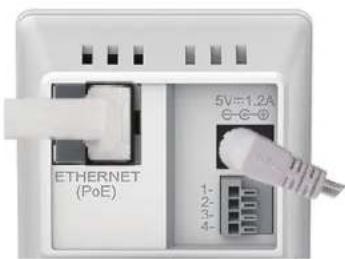
If using a Power over Ethernet (PoE) connection: Connect the included Ethernet cable to the Ethernet port located on the back of the DCS-2210L and connect it to your router.
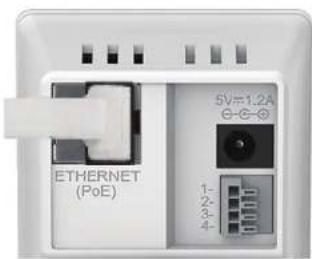
Attach the External Power Supply (optional)
Attach the external power supply to the DC Power receptor located on the rear panel of the DCS-2210L and connect it to your wall outlet or power strip.
Section 2: Installation
Check Your mydlink Account
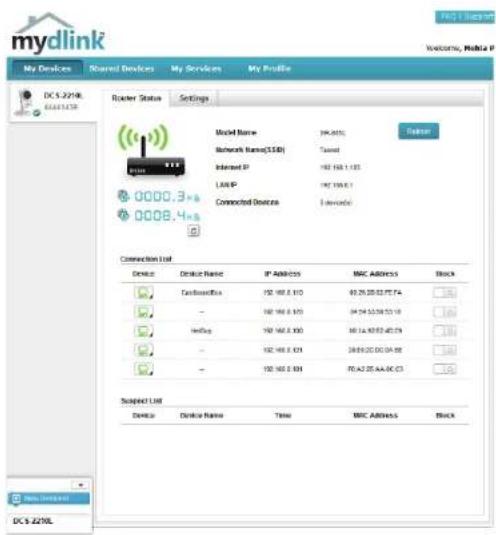
From any computer, open a web browser, go to http://www.mydlink.com and log into your account. Once mydlink detects your camera, a New Device Found! notice will appear in the bottom-left corner. Click on the device name to continue.
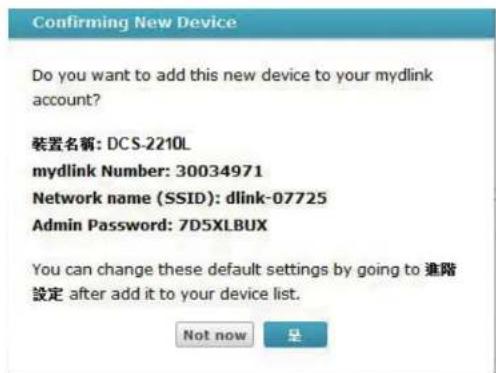
A summary and confirmation notification will appear with the automatically configured details. Make a note of the details and click OK to add the camera to your account.
Section 2: Installation
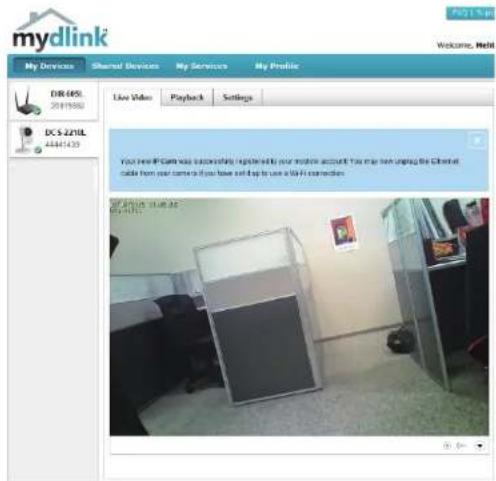
Zero Configuration is now complete and your camera has been added to your mydlink account. You can now view your camera on the mydlink Live View tab.
Your camera is now set up, and you can skip to mydlink on page 19 to learn more about the mydlink features of this camera, or to Configuration on page 20 for advanced configuration of your camera.
Camera Setup Wizard Windows Users
Insert the Installation CD-ROM into your computer's optical drive to start the autorun program.
Simply click Set up your Cloud Camera to go through the Setup Wizard, which will guide you step-by-step through the installation process from connecting your hardware to configuring your camera and registering it with your mydlink account.
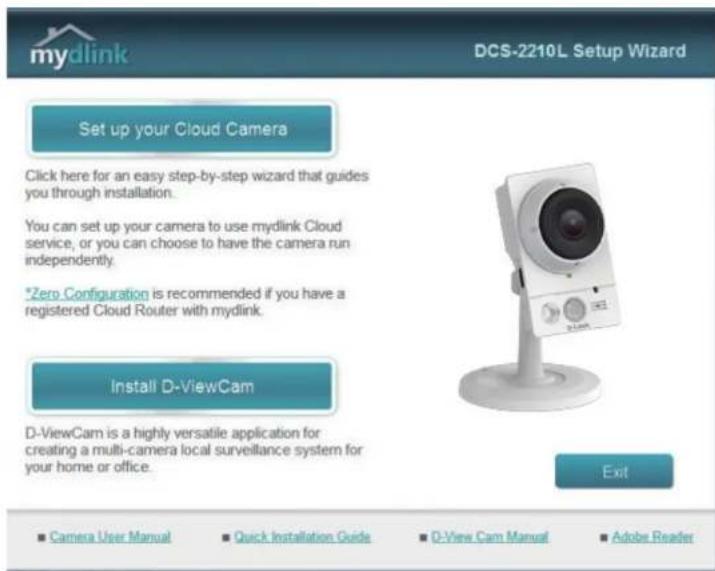
Note: If the autorun program does not open, go to My Computer, browse to your CD drive, and double-click on the autorun.exe file.
Mac Users
Insert the Installation CD-ROM into your computer's CD drive. On the desktop, open your CD drive and double-click on the SetupWizard file.

SETUP_WIZARD
Within 20-30 seconds, the Setup Wizard will open, which will guide you step-by-step through the installation process from connecting your hardware to configuring your camera and registering it with your mydlink account.
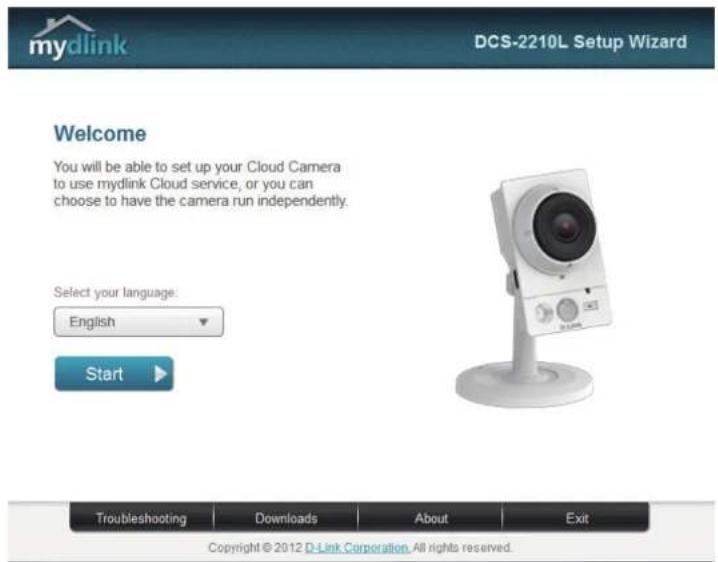
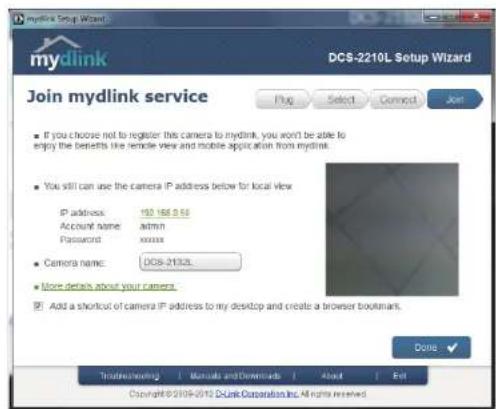
Confirm your camera login details and IP address details and click Done.
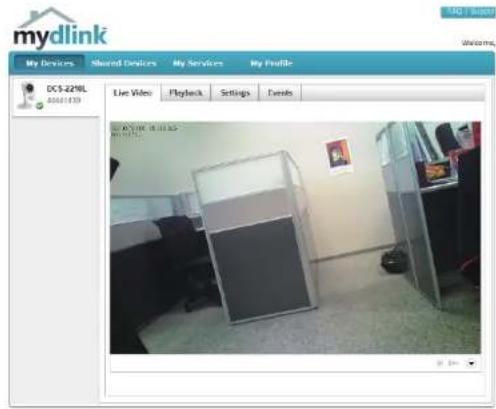
Your DCS-2210L camera is now set up. Log on to your mydlink account and explore the exciting benefits available to you.
Your camera is now set up, and you can skip to mydlink on page 19 to learn more about the mydlink features of this camera, or go to Configuration on page 20 for advanced configuration of your camera.
Manual Hardware Installation
If you wish to set up your camera without using the Camera Setup Wizard, please follow these steps.
Note: In order to use the mydlink features of this product, you will need to go through the Camera Setup Wizard.
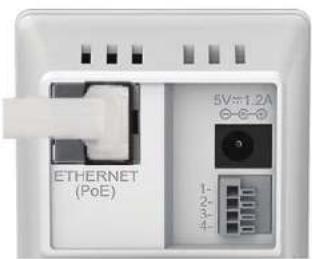
Connect the Ethernet Cable
If using a Power over Ethernet (PoE) connection: Connect the included Ethernet cable to the Ethernet port located on the back of the DCS-2210L and connect it to your router.
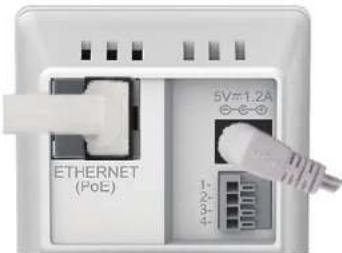
Attach the External Power Supply (optional)
Attach the external power supply to the DC Power receptor located on the rear panel of the DCS-2210L and connect it to your wall outlet or power strip.
Mount the Camera
Please refer to the steps below to assist you with mounting the camera.

We suggest that you configure the camera before mounting.
-
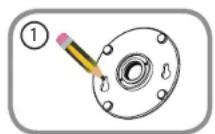
Place the mounting base where you want to position the camera and use a pencil to mark the holes.
-
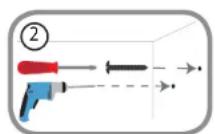
Depending on the material of the wall or ceiling, use proper tools to drill two holes or screws where you marked. If the wall is made out of concrete, drill the holes first, insert the plastic anchors and then the screws.

The space between the camera and the screwheads should be 3mm.
-
Place the mounting base over the screw that is mounted on the wall. Make sure to fit the screw-heads over the big holes and slide it downward to lock firmly. Lightly pull the base forward to make sure that it is locked.
-
Place the base cover on the base and screw the camera stem clockwise into the mounting base.
-
Adjust the angle of the camera as desired, then tighten the collar on the camera stem to lock it in place.
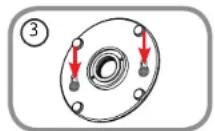
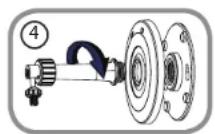
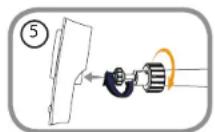
mydlink
After registering your DCS-2210L camera with a mydlink account in the Camera Installation Wizard. You will be able to remotely access your camera from the www.mydlink.com website. After signing in to your mydlink account, you will see a screen similar to the following:
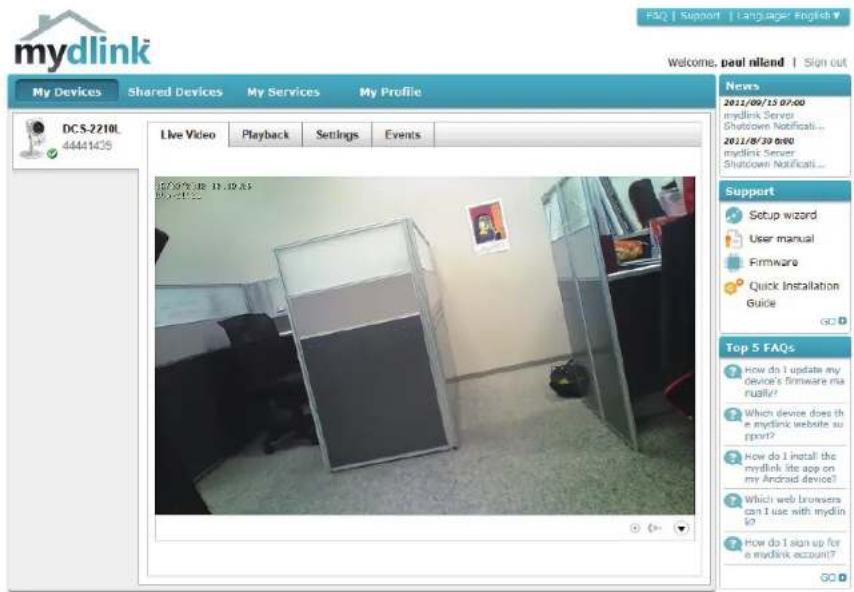
Global D-Link | About mydlink | Terms of Use | Privacy Policy | Contact Us Copyright © 2008-2012 D-Link Corp. All rights reserved
For more details on using your camera with mydlink, go to the Support section of the mydlink website and check the User Manual section for your product to find the latest instruction guide for your camera's mydlink features.
Configuration Using the Configuration Interface
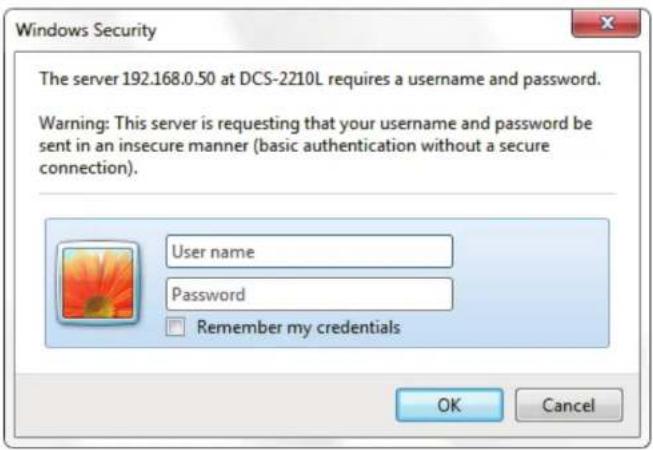
After completing the Camera Installation Wizard, you are ready to use your camera. The camera's built-in web configuration utility is designed to allow you to easily access and configure your DCS-2210L. At the end of the wizard, enter the IP address of your camera into a web browser, such as Mozilla Firefox. To log in, use the username admin and the password you created in the Installation Wizard. If you did not create a password, the default password is blank. After entering your password, click OK.
Live Video
This section shows your camera's live video. You may select any of the available icons listed below to operate the camera. You may also select your language using the drop-down menu on the left side of the screen.
You can zoom in and out on the live video image using your mouse. Right-click to zoom out or left-click to zoom in on the image.
SD Status: This option displays the status of the SD card. If no SD card has been inserted, this screen will display the message "Card Invalid."
IO Status: This option displays the status of your I/O device if a device has been connected.
| Digital Input Indicator | This indicator will change color when a digital input signal is detected. | |
| Motion Trigger Indicator | This indicator will change color when a trigger event occurs.Note:The video motion feature for your camera must be enabled. | |
| Recording Indicator | When a recording is in progress, this indicator will change color. | |
| Control Pad | This control pad can be used to electronically pan, tilt, and zoom (ePTZ) within the camera's predefined view area, if one has been defined. | |
| Auto Pan Starts the automatic panning function. The ROI will pan from back and forth within the FOV. | ||
| Stop Stops automatic panning. | ||
| Preset Path Starts the camera's motion along the predefined path. | ||
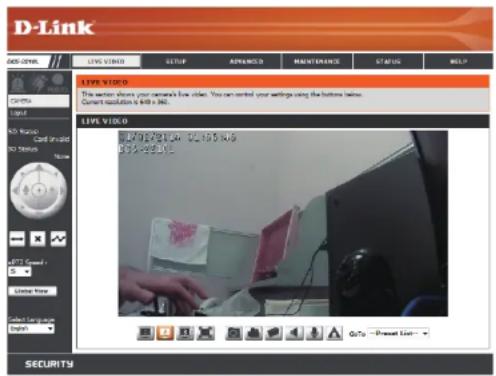
ePTZ Speed: You may select a value between 0 and 64.0 is the slowest and 64 is the fastest.
Global View: This window indicates the total field of view (FOV) of the camera. The red box indicates the visible region of interest (ROI).
Language: You may select the interface language using this menu.

Video Profile 1

Video Profile 2

Video Profile 3

Full screen mode

Taking a Snapshot

Record a Video Clip

Set a Storage Folder

Listen/Stop Audio In (from microphone)

Start/Stop Audio Out (to speaker)

Start/Stop Digital Output
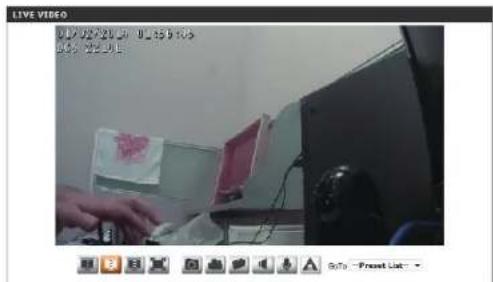
Go To: If any presets have been defined, selecting a preset from this list will (Preset List) display it.
Setup Setup Wizard
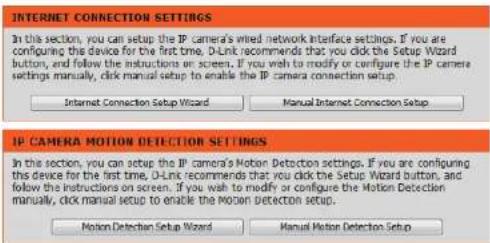
To configure your DCS-2210L, click Internet Connection Setup Wizard. Alternatively, you may click Manual Internet Connection Setup to manually configure your DCS-2210L and skip to Network Setup on page 29.
To quickly configure your DCS-2210L's motion detection settings, click Motion Detection Setup Wizard. If you want to enter your settings without running the wizard, click Manual Motion Detection Setup and skip to Motion Detection on page 39.
Internet Connection Setup Wizard
This wizard will guide you through a step-by-step process to configure your new D-Link Camera and connect the camera to the Internet. Click Next to continue.
Note: Select DHCP if you are unsure of which settings to choose.
Click Next to continue.
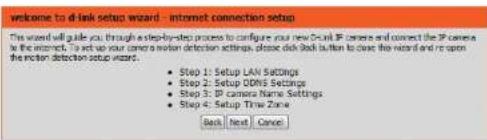
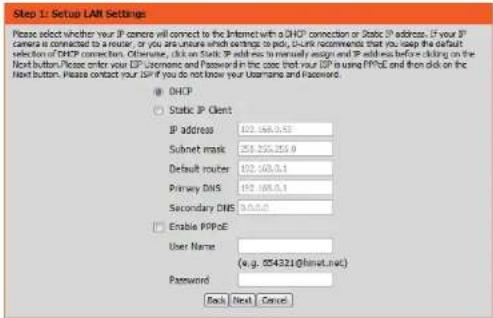
Section 4: Configuration
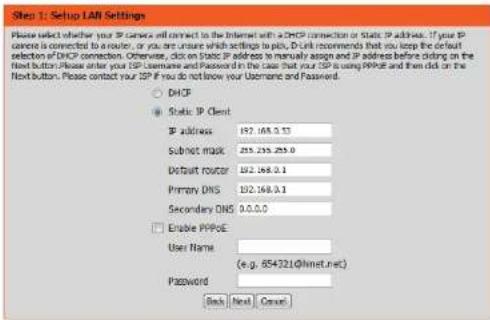
Select Static IP if your Internet Service Provider has provided you with connection settings, or if you wish to set a static address within your home network. Enter the correct configuration information and click Next to continue.
If you are using PPPoE, select Enable PPPoE and enter your User Name and Password, otherwise click Next to continue.
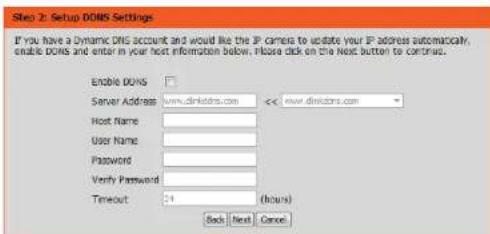
If you have a Dynamic DNS account and would like the camera to update your IP address automatically, Select Enable DDNS and enter your host information. Click Next to continue.
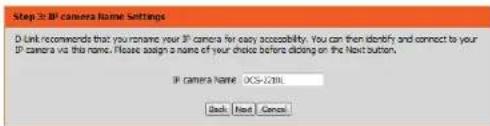
Enter a name for your camera and click Next to continue.
Section 4: Configuration
Configure the correct time to ensure that all events will be triggered as scheduled. Click Next to continue.
![Step 4 Setup Time Zone Please configure the correct time to ensure that all events are triggered, captured and scheduled at the correct time and day and then click on the Next button. Time Zone [NET-ORDER] TAGN Enable Daylight Saving Back Next Cancel](/content/2026/05/773935/images/1e8e3f0721de0a9464e47034d71c9b717840e46517bf8f1da5a1081544d18e53.jpg)
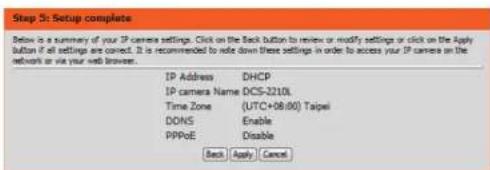
If you have selected DHCP, you will see a summary of your settings, including the camera's IP address. Please write down all of this information as you will need it in order to access your camera.
Click Apply to save your settings.
Motion Detection Setup Wizard
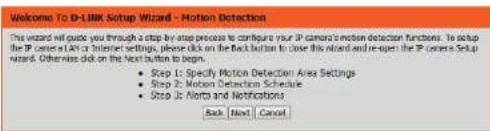
This wizard will guide you through a step-by-step process to configure your camera's motion detection functions.
Click Next to continue.
Step 1
This step will allow you to enable or disable motion detection, specify the detection sensitivity, and adjust the camera's ability to detect movement.
You may specify whether the camera should capture a snapshot or a video clip when motion is detected.
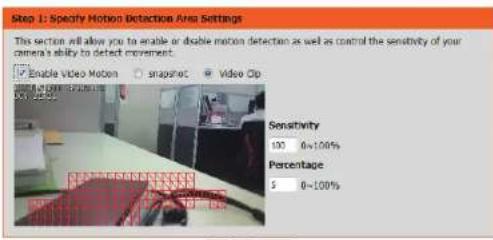
Please see the Motion Detection section on Motion Detection on page 39 for information about how to configure motion detection.
Back Next Cancel
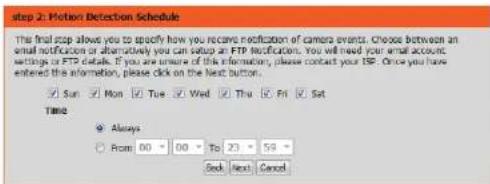
Step 2
This step allows you to enable motion detection based on a customized schedule. Specify the day and hours. You may also choose to always record whenever motion is detected.
Section 4: Configuration
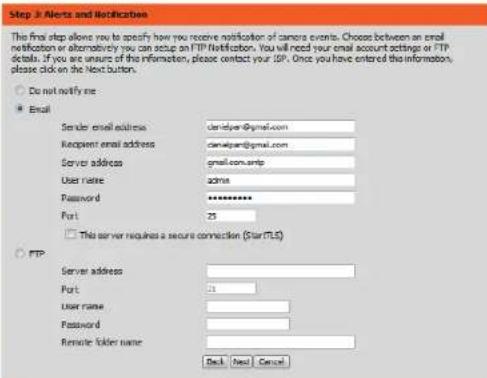
Step 3
This step allows you to specify how you will receive event notifications from your camera. You may choose not to receive notifications, or to receive notifications via e-mail or FTP.
Please enter the relevant information for your e-mail or FTP account.
Click Next to continue.
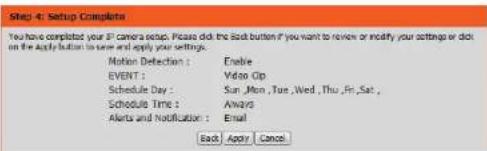
Step 4
You have completed the Motion Detection Wizard.
Please verify your settings and click Apply to save them.
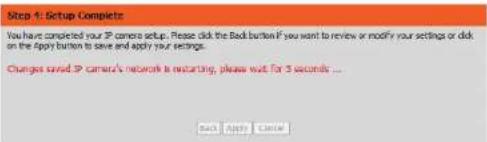
Please wait a few moments while the camera saves your settings and restarts.
Network Setup
Use this section to configure the network connections for your camera. All relevant information must be entered accurately. After making any changes, click the Save Settings button to save your changes.
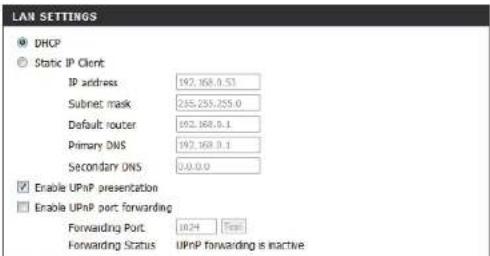
LAN Settings: This section lets you configure settings for your local area network.
DHCP: Select this connection if you have a DHCP server running on your network and would like your camera to obtain an IP address automatically.
If you choose DHCP, you do not need to fill out the IP address settings.
Static IP Address: You may obtain a static or fixed IP address and other network information from your network administrator for your camera. A static IP address may simplify access to your camera in the future.
IP Address: Enter the fixed IP address in this field.
Subnet Mask: This number is used to determine if the destination is in the same subnet. The default value is 255.255.255.0.
Default Gateway: The gateway used to forward frames to destinations in a different subnet. Invalid gateway settings may cause the failure of transmissions to a different subnet.
Primary DNS: The primary domain name server translates names to IP addresses.
Secondary DNS: The secondary DNS acts as a backup to the primary DNS.
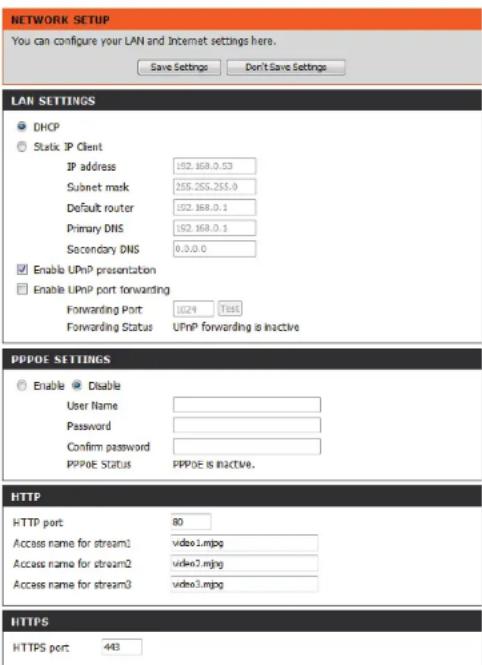
Enable UPnP Presentation: Enabling this setting allows your camera to be configured as a UPnP device on your network.
Enable UPnP Port Forwarding: Enabling this setting allows the camera to add port forwarding entries into the router automatically on a UPnP capable network.
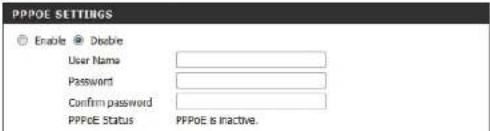
Enable PPPoE: Enable this setting if your network uses PPPoE.
User Name / Password: Enter the username and password for your PPPoE account. Re-enter your password in the Confirm Password field. You may obtain this information from your ISP.
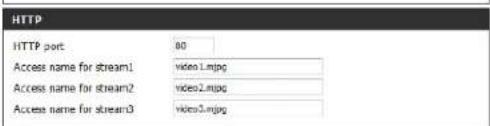
HTTP Port: The default port number is 80.
Access Name for Stream 1\~3: The default name is video#.mjpg, where # is the number of the stream.
HTTPS Port: You may use a PC with a secure browser to connect to the HTTPS port of the camera. The default port number is 443.
RTSP Port: The port number that you use for RTSP streaming to mobile devices, such as mobile phones or PDAs. The default port number is 554. You may specify the address of a particular stream. For instance, live1.sdp can be accessed at rtsp://x.x.x.x/video1.sdp where the x.x.x.x represents the IP address of your camera.
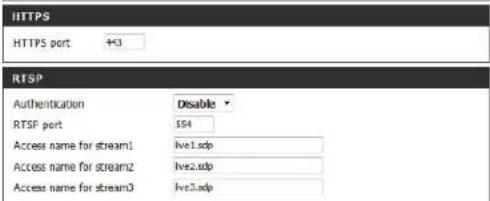
Enable CoS: Enabling the Class of Service setting implements a best-effort policy without making any bandwidth reservations.
Enable QoS: Enabling QoS allows you to specify a traffic priority policy to ensure a consistent Quality of Service during busy periods. If the DCS-2210L is connected to a router that itself implements QoS, the router's settings will override the QoS settings of the camera.
Enable IPV6: Enable the IPv6 setting to use the IPv6 protocol. Enabling the option allows you to manually set up the address, specify an optional IP address, specify an optional router and an optional primary DNS.
Enable Multicast for stream: The DCS-2210L allows you to multicast each of the available streams via group address and specify the TTL value for each stream. Enter the port and TTL settings you wish to use if you do not want to use the defaults.
Enable Bonjour: Enable Bonjour to broadcast to network devices (such as iPhones) using this protocol. You can enter a custom Bonjour Name for the router in the text box for identification.
![COS SETTINGS Enable CoS VLAN ID 1 [0~4095] Live video 0 Live audio 0 Event/Alarm 0 Management 0 QOS SETTINGS Enable QoS Live video 0 Live audio 0 Event/Alarm 0 Management 0 IPVG Enable IPv6 IPv6 Information Manually setup the IP address Optional IP address / Prefix length / 54 Optional default router Optional primary DNS MULTICAST Enable multicast for stream 1 Multicast group address 239.1.1.1 Multicast video port 6550 Multicast RTCP video port 6551 Multicast audio port 6552 Multicast RTCP audio port 6553 Multicast TTL [1~255] 94 BONJOUR SETTINGS Enable Bourjour Bonjour Name DC3-2210_CACA08 32 characters maximum (Characters you may use in a Bourjour Name: "upper or lower case letters", "numbers" and "hyphens".)](/content/2026/05/773935/images/f7b2c1e0690a92d6738d7bb5a28ed8f9d9825f2318a365a3ad23f12a6e3316b3.jpg)
Dynamic DNS
DDNS (Dynamic Domain Name Server) will hold a DNS host name and synchronize the public IP address of the modem when it has been modified. A user name and password are required when using the DDNS service. After making any changes, click the Save Settings button to save your changes.
Enable DDNS: Select this checkbox to enable the DDNS function.
Server Address: Select your Dynamic DNS provider from the pull down menu or enter the server address manually.
Host Name: Enter the host name of the DDNS server.
User Name: Enter the user name or e-mail used to connect to your DDNS account.
Password: Enter the password used to connect to your DDNS server account.
Timeout: Enter the DNS timeout values you wish to use.
Status: Indicates the connection status, which is automatically determined by the system.
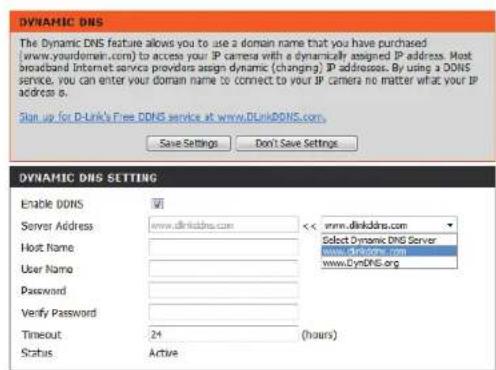
Image Setup
In this section, you may configure the video image settings for your camera. A preview of the image will be shown in Live Video.
Enable Privacy Mask: The Privacy Mask setting allows you to specify up to 3 rectangular areas on the camera's image to be blocked/excluded from recordings and snapshots.
You may click and drag the mouse cursor over the camera image to draw a mask area. Right clicking on the camera image brings up the following menu options:
Disable All: Disables all mask areas Enable All: Enables all mask areas Reset All: Clears all mask areas.
Click Save for the mask to take effect.
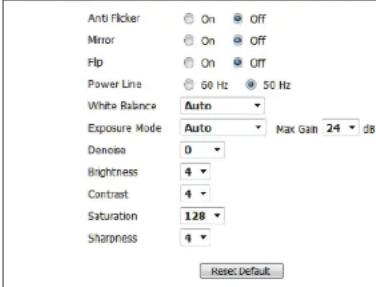
Anti Flicker: If the video flickers, try enabling this setting.
Mirror: This will mirror the image horizontally.
Flip: This will flip the image vertically. When turning Flip on, you may want to consider turning Mirror on as well.
Power Line: Select the frequency used by your power lines to avoid interference or distortion.
White Balance: Use the drop-down box to change white balance settings to help balance colors for different environments. You can choose from Auto, Outdoor, Indoor, Fluorescent, and Push Hold.
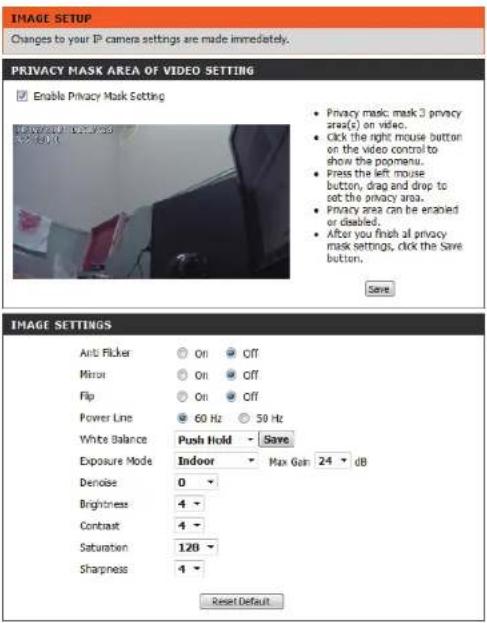
Exposure Mode: Changes the exposure mode. Use the drop-down box to set the camera for Indoor, Outdoor, or Night environments, or to Moving to capture moving objects. The Low Noise option will focus on creating a high-quality picture without noise. You can also create 3 different custom exposure modes. The Max Gain setting will allow you to control the maximum amount of gain to apply to brighten the picture.
Denoise: This setting controls the amount of noise reduction that will be applied to the picture.
Brightness: Adjust this setting to compensate for backlit subjects.
Contrast: Adjust this setting to alter the color intensity/strength.
Saturation: This setting controls the amount of coloration, from grayscale to fully saturated.
Sharpness: Specify a value from 0 to 8 to specify how much sharpening to apply to the image.
Reset Default: Click this button to reset the image to factory default settings.
IMAGE SETTINGS
Audio and Video
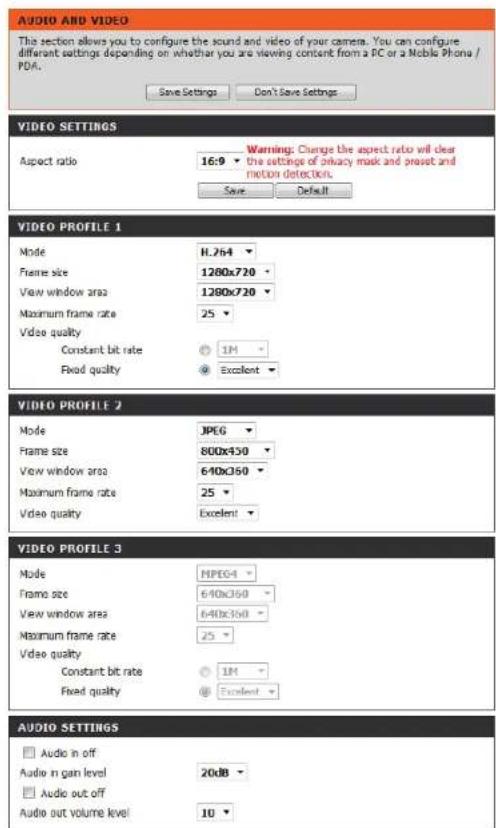
You may configure up to 2 video profiles with different settings for your camera. Hence, you may set up different profiles for your computer and mobile display. In addition, you may also configure the two-way audio settings for your camera. After making any changes, click the Save Settings button to save your changes.
Aspect ratio: Set the aspect ratio of the video to 4:3 standard or 16:9 widescreen.
Mode: Set the video codec to be used to MJPEG or H.264. JPEG can be selected for image mode.
Frame size / View window area: Frame size determines the total capture resolution, and View window area determines the Live Video viewing window size. If the Frame size is larger than the Live Video size, you can use the ePTZ controls to look around.
16:9 1920x1080, 1280x720, 800x450, 640x360, 480x270, 320x176
4:3 1920x1080, 1280x720, 800x450, 640x360, 480x270, 320x176
Note: If your View window area is the same as your Frame size, you will not be able to use the ePTZ function.
Maximum frame rate: A higher frame rate provides smoother motion for videos, and requires more bandwidth. Lower frame rates will result in stuttering motion, and requires less bandwidth.
Section 4: Configuration
Video Quality: This limits the maximum frame rate, which can be combined with the "Fixed quality" option to optimize the bandwidth utilization and video quality. If fixed bandwidth utilization is desired regardless of the video quality, choose "Constant bit rate" and select the desired bandwidth.
Constant bit rate: The bps will affect the bit rate of the video recorded by the camera. Higher bit rates result in higher video quality.
Fixed quality: Select the image quality level for the camera to try to maintain. High quality levels will result in increased bit rates.
Audio in off: Selecting this checkbox will mute incoming audio.
Audio in gain level: This setting controls the amount of gain applied to incoming audio to increase its volume.
Audio out off: Selecting this checkbox will mute outgoing audio.
Audio out volume level: This setting controls the amount of gain applied to outgoing audio to increase its volume.
VIDEO PROFILE 1
| Mode | 11.264 |
| Frame size | 1280x720 |
| View window area | 1280x720 |
| Maximum frame rate | 25 |
| Video quality | |
| Constant bit rate | 1M |
| Fixed quality | Excellent |
VIDEO PROFILE 2
| Mode | JPEG |
| Frame size | 800x150 |
| View window area | 640x360 |
| Maximum frame rate | 25 |
| Video quality | Excellent |
VIDEO PROFILE 3
| Mode | MPEG4 |
| Frame size | 640x360 |
| View window area | 640x360 |
| Maximum frame rate | 25 |
| Video quality | |
| Constant bit rate | 114 |
| Fixed quality | Excellent |
AUDIO SETTINGS
| Audio in off | |
| Audio in gain level | 20dB |
| Audio out off | |
| Audio out volume level | 10 |

Preset
This screen allows you to set preset points for the ePTZ function of the camera, which allows you to look around the camera's viewable area by using a zoomed view. Presets allow you to quickly go to and view a specific part of the area your camera is covering, and you can create preset sequences, which will automatically change the camera's view between the different presets according to a defined order and timing you can set.
Note: If your View window area is the same as your Frame size, you will not be able to use the ePTZ function.
Video Profile: This selects which video profile to use.
ePTZ Speed: You may select a value between 1 and 10.0 is the slowest and 10 is the fastest.
Arrow Buttons and Home Button: Use these buttons to move to a specific part of the viewing area, which you can then set as a preset. Click the Home button to return to the center of the viewing area.
Input Preset Name: Enter the name of the preset you want to create, then click the Add button to make a new preset. If an existing preset has been selected from the Preset List, you can change its name by typing in a new name, then clicking the Rename button.
Preset List: Click this drop-down box to see a list of all the presets that have been created. You can select one, then click the GoTo button to change the displayed camera view to the preset. Clicking the Remove button will delete the currently selected preset.
Preset Sequence: This section allows you to create a preset sequence, which automatically moves the camera's view between a set of preset views.
![PRESET CONTROL Using the Pan and Tilt controls, move the camera view to the required position. There are provides the tools for creating and saving Preset positions & Preset Sequence. PRESET CONTROL VIDEO PROFILE : 1 ePTZ Speed : 5 ↑ ← → ↓ PRESET Input Preset Name : Add Rename Support(0-9,A-Z,a-z,-,*/_) Preset List : -Preset List - GoTo Remove PRESET SEQUENCE Preset Name : Dwell time ↑ ↓ Preset List : -Preset List - Add Dwell time : 10 Update Second(×)[3-30]](/content/2026/05/773935/images/dc62609bbb9a3db48246f9650e619aaaba7ad6eed5121b53220eb8d1209cd7da.jpg)
Preset List: To add a preset to the sequence, select it from the dropdown box at the bottom of this window, set the Dwell time to determine how long the camera view will stay at that preset, then click the Add button. The preset name will appear in the list, followed by the dwell time to view that preset for.
You can rearrange your presets in the sequence by selecting a preset in the sequence, then clicking the arrow buttons to move it higher or lower in the current sequence.
Clicking the trash can button will remove the currently selected preset from the sequence.
If you want to change the dwell time for a preset, select it from the list, enter a new dwell time, then click the Update button.
![PRESET SEQUENCE Preset Name : Dwell time Pan_Sequence: 10 Privacy_Sequences: 10 Irregular_Sequence: 10 Work_Area: 10 Pan_slow_area: 10 Preset List : Preset List Add Dwell time : 10 Update Second(s)[3~30]](/content/2026/05/773935/images/64f0f4018db3f2633b3db3d6c5d4da3480030f4c10c9d753cf4f82a31c756f82.jpg)
Motion Detection
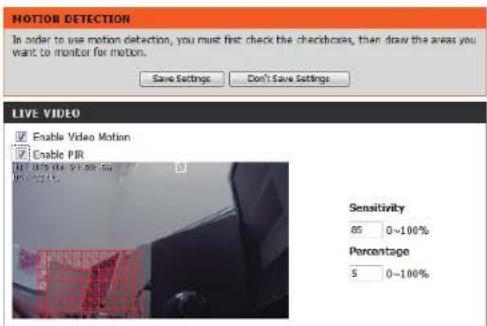
Enabling Video Motion will allow your camera to use the motion detection feature. You may draw a finite motion area that will be used for monitoring. After making any changes, click the Save Settings button to save your changes.
Enable Video Motion: Select this box to enable the motion detection feature of your camera.
Enable PIR: Select this box to enable Passive Infrared detection.
Sensitivity: Specifies the measurable difference between two sequential images that would indicate motion. Please enter a value between 0 and 100.
Percentage: Specifies the amount of motion in the window being monitored that is required to initiate an alert. If this is set to 100%, motion is detected within the whole window will trigger a snapshot.
Draw Motion Area: Draw the motion detection area by dragging your mouse in the window (indicated by the red square).
Erase Motion Area: To erase a motion detection area, simply click on the red square that you wish to remove.
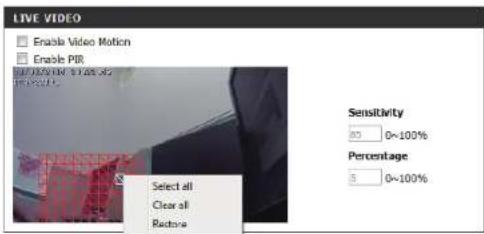
Right clicking on the camera image brings up the following menu options:
Select All: Draws a motion detection area over the entire screen.
Clear All: Clears any motion detection areas that have been drawn.
Restore: Restores the previously specified motion detection areas.
Time and Date
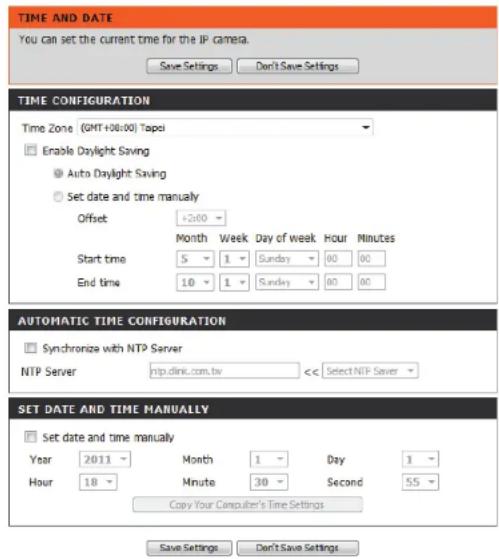
This section allows you to automatically or manually configure, update, and maintain the internal system clock for your camera. After making any changes, click the Save Settings button to save your changes.
Time Zone: Select your time zone from the drop-down menu.
Enable Daylight Saving: Select this to enable Daylight Saving Time.
Auto Daylight Saving: Select this option to allow your camera to configure the Daylight Saving settings automatically.
Set Date and Time Manually: Selecting this option allows you to configure the Daylight Saving date and time manually.
Offset: Sets the amount of time to be added or removed when Daylight Saving is enabled.
Synchronize with NTP Server: Enable this feature to obtain time automatically from an NTP server.
NTP Server: Network Time Protocol (NTP) synchronizes the DCS-2210L with an Internet time server. Choose the one that is closest to your location.
Set the Date and Time Manually: This option allows you to set the time and date manually.
Copy Your Computer's Time This will synchronize the time information from your PC. Settings:
Event Setup
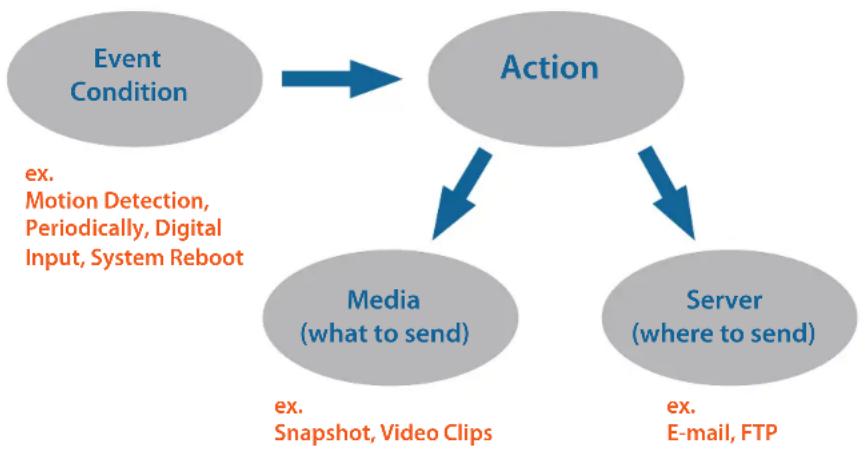
In a typical application, when motion is detected, the DCS-2210L sends images to a FTP server or via e-mail as notifications. As shown in the illustration below, an event can be triggered by many sources, such as motion detection or external digital input devices. When an event is triggered, a specified action will be performed. You can configure the DCS-2210L to send snapshots or videos to your e-mail address or FTP site.
flowchart
graph TD
    A["Event Condition"] --> B["Action"]
    B --> C["Media (what to send)"]
    B --> D["Server (where to send)"]
    C -->|ex. Motion Detection, Periodically, Digital Input, System Reboot| A
    D -->|ex. E-mail, FTP| B
    C -->|ex. Snapshot, Video Clips| B
To start plotting an event, it is suggested to configure server and media columns first so that the DCS-2210L will know what action shall be performed when a trigger is activated.
Section 4: Configuration
The Event Setup page includes 4 different sections:
- Server
• Media - Event
-
Recording
-
To add a new item - "event, server or media," click Add. A screen will appear and allow you to update the fields accordingly.
- To delete the selected item from the pull-down menu of event, server or media, click Delete.
- Click on the item name to pop up a window for modifying.
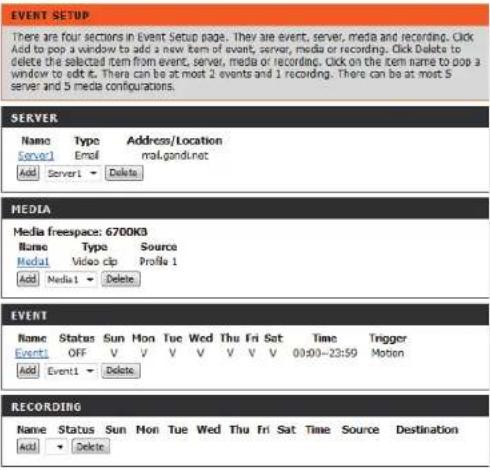
Add Server
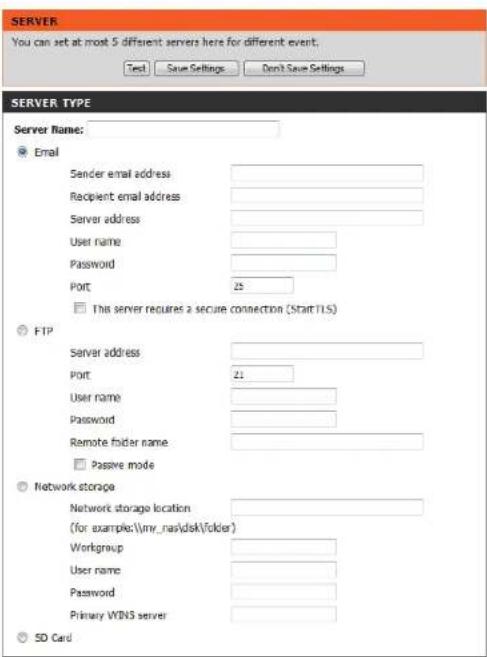
You can configure up to 5 servers to save snapshots and/or video to. After making any changes, click the Save Settings button to save your changes. You can click Test to test your configurations.
Server Name: Enter the unique name of your server.
E-mail: Enter the configuration for the target e-mail server account.
FTP: Enter the configuration for the target FTP server account.
Network Storage: Specify a network storage device. Only one network storage device is supported.
SD Card: Use the camera's onboard SD card storage.
Test Save Settings Don't Save Settings
Add Media
There are three types of media, Snapshot, Video Clip, and System Log. After making any changes, click the Save Settings button to save your changes.
Media Name: Enter a unique name for media type you want to create.
Snapshot: Select this option to set the media type to snapshots.
Source: Set the video profile to use as the media source. Refer to Audio and Video on Audio and Video on page 35 for more information on video profiles.
Send pre-event image(s) [0\~4]: Set the number of pre-event images to take. Pre-event images are images taken before the main event snapshot is taken.
Send post-event image(s) [0\~7]: Set the number of post-event images to take. Post-event images are images taken after the main event snapshot is taken. You can set up to 7 post-event images to be taken.
File name prefix: The prefix name will be added on the file name.
Add date and time suffix to file Check it to add timing information as file name suffix.
name:
![MEDIA You can set at most 5 different media here for different event. Save Settings Don't Save Settings MEDIA TYPE Media name: Snapshot Source: Profile 1 Send 1 pre-event image(s) [0~4] Send 1 post-event image(s) [0~7] File Name Prefix: Add date and time suffix to file name Video Clip Source: Profile 1 Pre-event recording: Second(s) [0~4] Maximum duration: Second(s) [1~100] Maximum file size: Kbytes [100~5000] File Name Prefix: Systeming Save Settings Don't Save Settings](/content/2026/05/773935/images/f78abfed84c1016bbf7bb2522e9f62e71187d819faa9e380e642f7262e8d1410.jpg)
Section 4: Configuration
Video clip: Select this option to set the media type to video clips.
Source: Set the video profile to use as the media source. Refer to Audio and Video on page 35 for more information on video profiles.
Pre-event recording: This sets how many seconds to record before the main event video clip starts. You can record up to 4 seconds of pre-event video.
Maximum duration: Set the maximum length of video to record for your video clips.
Maximum file size: Set the maximum file size to record for your video clips.
File name prefix: This is the prefix that will be added to the filename of saved video clips.
System log: Select this option to set the media type to system logs. This will save the event to the camera system log, but will not record any snapshots or video.
![MEDIA You can set at most 5 different media here for different event. Save Settings Don't Save Settings MEDIA TYPE Media name: Snapshot Source: Profile 1 Send 1 pre-event image(s) [0~4] Send 1 post-event image(s) [0~7] File Name Prefix: Add date and time suffix to file name Video Clip Source: Profile 1 Pre-event recording: Second(s) [0~4] Maximum duration: Second(s) [1~190] Maximum file size: Kbytes [100~5000] File Name Prefix: System log](/content/2026/05/773935/images/1e854f59be309381c2c0f184a054713252c3468bd8ef14fb6a9e5424d9e54928.jpg)
Save Settings Don't Save Settings
Add Event
Create and schedule up to 3 events with their own settings here. After making any changes, click the Save Settings button to save your changes.
Event name: Enter a name for the event.
Enable this event: Select this box to activate this event.
Priority: Set the priority for this event. The event with higher priority will be executed first.
Delay: Select the delay time before checking the next event. It is being used for events of motion detection, digital input, and PIR triggers.
Video Motion Detection: Motion is detected during live video monitoring. Select the window that needs to be monitored.
Periodic: The event is triggered in specified intervals. The trigger interval unit is in minutes.
Digital input: The external trigger input to the camera.
System Boot: Triggers an event when the system boots up.
Network Lost: Triggers an event when the network connection is lost.
Passive Infrared Sensor: Triggers an event when the PIR sensor is activated by moving infrared objects even in dark environment. Select Always or enter the time interval.
Time: Select the days and times when events will be detected.
![EVENT You can set at most 2 events like motion detection or digital input trigger here and arrange the detection schedule at the same time. Save Settings Don't Save Settings EVENT Event name: Enable this event Priority: normal Delay for 10 seconds before detecting next event [For motion detection and digital input and Passive Infrared sensor] TRIGGER Video motion detection Periodic Trigger every 1 minutes Digital input System boot Network last Passive Infrared sensor EVENT SCHEDULE Sun Mon Tue Wed Thu Fri Sat Time Always From 00 To 23 59 ACTION Trigger D/O for 1 seconds Server1 Attached media: Model1 Save Settings Don't Save Settings](/content/2026/05/773935/images/6300354a3ee31d809c4f15cf9342503394e5300376b119cdb27433bc7985f623.jpg)
Section 4: Configuration
Trigger D/O: Select to trigger the digital output for a specific number of seconds when an event occurs.
Server: Specify the location where the event information should be saved to.
![EVENT Event name: Enable this event Priority: normal Delay for 10 seconds before detecting next event [For motion detection and digital nout and Passive Infrared sensor] TRIGGER Video motion detection Periodic Trigger every 1 minutes Digital nout System boot Network lost Passive Infrared sensor EVENT SCHEDULE Sun Mon Tue Wed Thu Fri Sat Time Always From 00 00 To 23 59 ACTION Trigger D/O for 1 seconds Server1 Attached media: Media1 Save Settings Don't Save Settings](/content/2026/05/773935/images/7a355d22391d36b317aeeb15810256f2c12392f56cb5efb6d2e15c3cbc4bc2f9.jpg)
Add Recording
Here you can configure and schedule the recording settings. After making any changes, click the Save Settings button to save your changes.
Recording entry name: The unique name of the entry.
Enable this recording: Select this to enable the recording function.
Priority: Set the priority for this entry. The entry with a higher priority value will be executed first.
Source: The source of the stream.
Recording schedule: Schedule the recording entry via days and times.
Recording settings: Configuring the setting for the recording.
Destination: Select the folder where the recording file will be stored.
Total cycling recording size: Please input a HDD volume between 200 MB and 2 TB for recording space. The recording data will replace the oldest record when the total recording size exceeds this value. For example, if each recording file is 6MB, and the total cyclical recording size is 600MB, then the camera will record 100 files in the specified location (folder) and then will delete the oldest file and create a new file for cyclical recording.
Please note that if the free HDD space is not enough, the recording will stop. Before you set up this option please make sure your HDD has enough space, and it is better to not save other files in the same folder as recording files.
![RECORDING You can setup schedule recording to network storage with your specify week day and time period. Save Settings Don't Save Settings RECORDING Recording entry name: Enable this recording Priority: normal Source: Profile 1 RECORDING SCHEDULE Sun Mon Tue Wed Thu Fri Sat Time Always From 00 00 To 23 59 RECORDING SETTINGS Destination None Total cycling recording size: 1000 Mbytes [200~2060000] Size of each file for recording: 10 Mbytes Time of each file for recording: 10 seconds File Name Prefix: Save Settings Don't Save Settings](/content/2026/05/773935/images/c426d4da98ad8ad8f99753dfee2b3cf45d1d5f0b6481380bdea9d42423d4acd4.jpg)
Section 4: Configuration
Size of each file for recording: If this is selected, files will be separated based on the file size you specify.
Time of each file for recording: If this is selected, files will be separated based on the maximum length you specify.
File Name Prefix: The prefix name will be added on the file name of the recording file(s).
![RECORDING Recording entry name: Enable this recording Priority: normal Source: Prefix 1 RECORDING SCHEDULE Sun Mon Tue Wed Thu Fri Sat Time Always From 00 00 To 23 59 RECORDING SETTINGS Destination None Total cycling recording size: 1000 Mbytes [200~2000000] Size of each file for recording: 10 Mbytes Time of each file for recording: 10 seconds File Name Prefix: Save Settings Don't Save Settings](/content/2026/05/773935/images/e6911642122674f8ef08a8fd1f4c5e8cabd8eb9d6081f5b82057119a3f4eb68b.jpg)
SD Card
Here you may browse and manage the recorded files which are stored on the SD card.
Format SD Card: Click this icon to automatically format the SD card and create "picture" & "video" folders.
View Recorded Picture: If the picture files are stored on the SD card, click on the picture folder and choose the picture file you would like to view.
Playback Recorded Video: If video files are stored on the SD card, click on the video folder and choose the video file you would like to view.
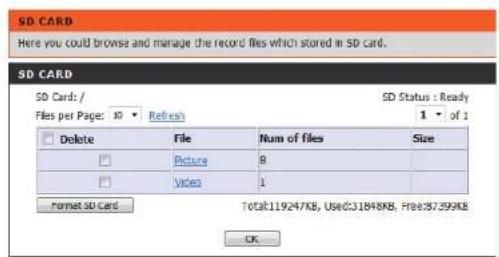
Refresh: Reloads the file and folder information from the SD card.
Advanced Digital Input/Output
This screen allows you to control the behavior of digital input and digital output devices. The I/O connector provides the physical interface for digital output (DO) and digital input (DI) that is used for connecting a variety of external alarm devices such as IR sensors and alarm relays. The digital input is used for connecting external alarm devices and once triggered images will be taken and e-mailed. After making any changes, click the Save Settings button to save your changes.
Select D/I or D/O Mode: The camera will send a signal when an event is triggered, depending upon the type of device connected to the DI circuit.
N.C. stands for Normally Closed. This means that the normal state of the circuit is closed. Therefore events are triggered when the device status changes to "Open."
N.O. stands for Normally Open. This means that the normal state of the circuit is open. Therefore events are triggered when the device status changes to "Closed."
![DI AND DO The 1/2 connector provides the physical interface for digital output (DO) and digital input: [01] that is used for connecting a diversity of external alarm devices such as IR-Sensors and alarm reays. The digital input is used for connecting external alarm devices and once triggered images will be taken and e-mailed. Save Settings Don't Save Settings DI AND DO Digital input 1: The active state is N.O. ; the current state detected is Normal Open Digital Output: The active state is N.O.](/content/2026/05/773935/images/6cd9acd420714580613035ecf3a48cd250167eb35a3a2e085c6a4fe6e70cf481.jpg)
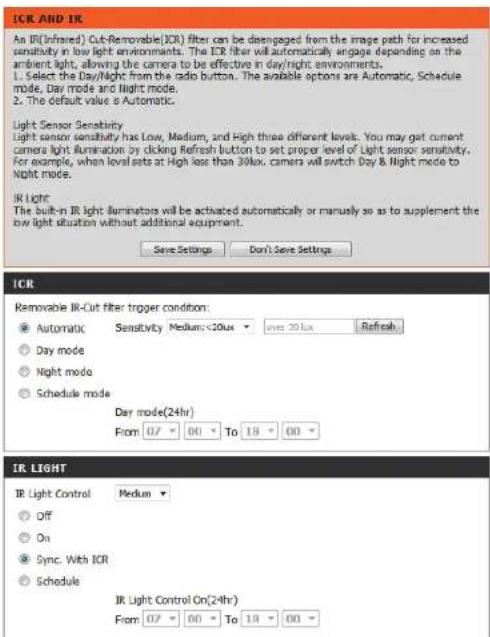
ICR and IR
Here you can configure the ICR and IR settings. An IR(Infrared) Cut-Removable(ICR) filter can be disengaged for increased sensitivity in low light environments.
Automatic: The Day/Night mode is set automatically. Generally, the camera uses Day mode and switches to Night mode when needed. Select the desired sensitivity level from the drop-down menu.
Day Mode: Day mode enables the IR Cut Filter.
Night Mode: Night mode disables the IR Cut Filter.
Schedule Mode: Setup the Day/Night mode using a schedule. The camera will enter Day mode at the starting time and return to Night mode at the ending time.
IR Light Control: The camera can enable or disable the IR (infrared) light according to your preferences. This setting lets you adjust IR strength depending on your specific application.
Off: The IR light will always be off.
On: The IR light will always be on.
Sync: The IR light will turn on when the ICR sensor is on.
Schedule: The IR light will turn on or off according to the schedule that you specify below.
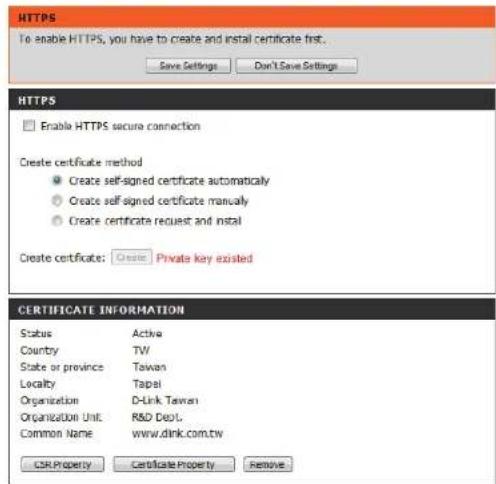
HTTPS
This page allows you to install and activate an SSL certificate for secure HTTPS access to your camera. After making any changes, click the Save Settings button to save your changes.
Enable HTTPS Secure Connection: Enable the HTTPS service.
Create Certificate Method: Choose the way the certificate should be created. Three options are available:
■ Create a self-signed certificate automatically
■ Create a self-signed certificate manually
■ Create a certificate request and install
Certificate Information: Displays the status and details of the certificate. Click on CSR Property and Certificate Property to view details of the certificates.
Note: The certificate cannot be removed while the HTTPS is still enabled. To remove the certificate, you must first uncheck Enable HTTPS secure connection.
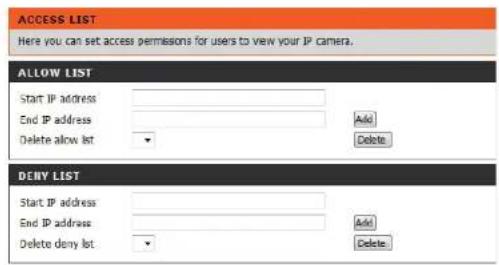
Access List
Here you can set access permissions for users to view your DCS-2210L.
Allow list: The list of IP addresses that have the right to access the camera.
Start IP address: The starting IP Address of the devices (such as a computer) that have permission to access the video of the camera.
Note: A total of seven lists can be configured for both columns.
End IP address: The ending IP Address of the devices (such as a computer) that have permission to access the video of the camera. Click Add to save the changes made.
Delete allow list: Remove the customized setting from the Allow List.
Deny list: The list of IP addresses that have no access rights to the camera.
Delete deny list: Remove the customized setting from the Delete List.
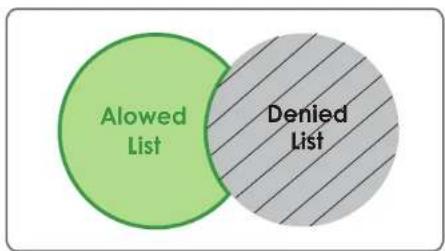
For example:
When the range of the Allowed List is set from 1.1.1.0 to 192.255.255.255 and the range of the Denied List is set from 1.1.1.0 to 170.255.255.255. Only users with IPs located between 171.0.0.0 and 192.255.255.255 can access the DCS-2210L.
SNMP
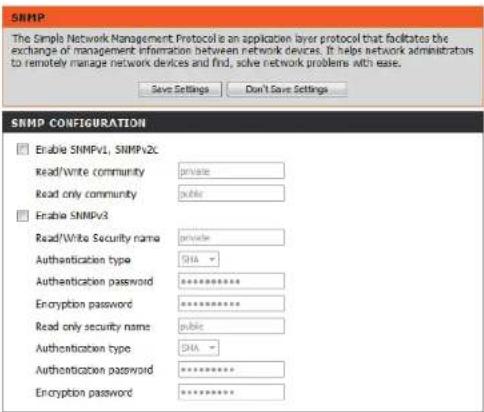
The Simple Network Management Protocol is an application layer protocol that facilitates the exchange of management information between network devices. It helps network administrators to remotely manage network devices and find, solve network problems with ease.
Enable SNMPv1, SNMPv2c: Select this to enable SNMPv1 and 2.
Read/Write Community: Enter a name for the read community of your SNMP server.
Read Only Community: Enter a name for the write community of your SNMP server.
Enable SNMPv3: Select this to enable SNMPv3. You will need to ask your network administrator for the SNMP authentication information and input them into the fields below.
Read/Write and Read Only Enter custom names for your read/write and read only Security Names: SNMP accounts in the text boxes.
Authentication Type: Select the authentication protocol used for SNMP exchanges between this user and the local SNMP engine. SHA and MD5 protocols are supported.
Authentication/Encryption Enter the authentication and encryption passwords for Password: your read/write and read only SNMP accounts in these boxes.
Maintenance
Admin
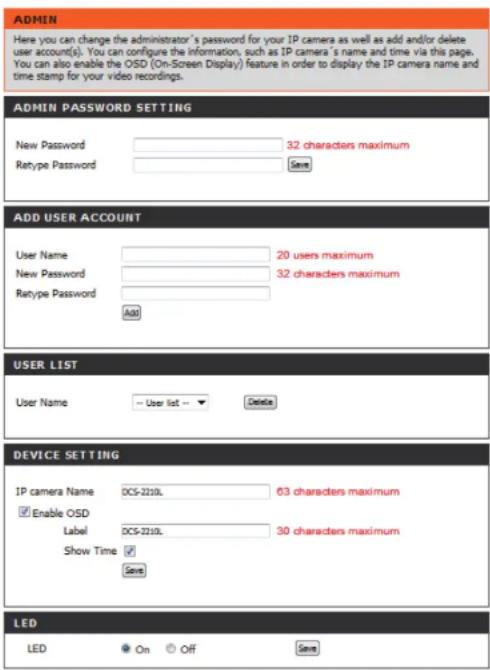
You may modify the name and administrator's password of your camera, as well as add and manage the user accounts for accessing the camera. You may also use this section to create a unique name and configure the OSD settings for your camera.
Admin Password Setting: Set a new password for the administrator's account. Retype it and click Save for it to take effect.
Add User Account: Add new user account. Click Add to save the account.
User Name: The user name for the new account.
Password: The password for the new account.
User List: All the existing user accounts will be displayed here. You may delete accounts included in the list, but you may want to reserve at least one as a guest account.
IP Camera Name: Create a unique name for your camera that will be added to the file name prefix when creating a snapshot or a video clip.
Enable OSD: Select this option to enable the On-Screen Display feature for your camera.
Label: Enter a label for the camera, which will be shown on the OSD when it is enabled.
Show Time: Select this option to enable the time-stamp display on the video screen. Click Save when you are done.
LED: You may specify whether or not to illuminate the status LED on the camera. Click Save when you are done.
System
In this section, you may backup, restore and reset the camera configuration, or reboot the camera.
Save To Local Hard Drive: You may save your current camera configuration as a file on your computer.
Load From Local Hard Drive: Locate a pre-saved configuration by clicking Browse and then restore the pre-defined settings to your camera by clicking Load Configuration.
Restore to Factory Defaults: You may reset your camera and restore the factory settings by clicking Restore Factory Defaults.
Reboot Device: This will restart your camera.
Enable Schedule Reboot: Check to enable this feature and select the days and times your DCS-2210L will automatically reboot. Click Save for it to take effect.
![SYSTEM Here you may backup, restore, and reboot your IP camera. SYSTEM Save To Local Hard Drive Save Configuration... Load From Local Hard Drive Browse... Load Configuration Restore To Factory Defaults Restore Factory Defaults REBOOT Reboot Device Reboot Device Enable Schedule Reboot Sun Mon Tue Wed Thu Fri Sat Time 00 : 00 [hhmm] Save](/content/2026/05/773935/images/bb234dc8f5486a6a24a6ea155aabac57aa3673607c150b0cbed083976e6aaf0a.jpg)
Firmware Upgrade
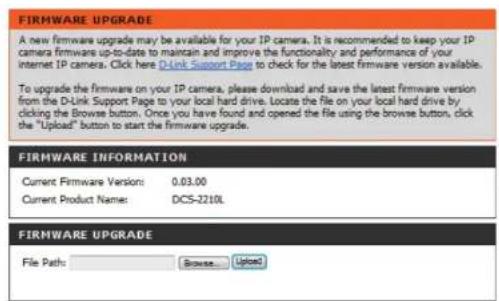
The camera's current firmware version will be displayed on this screen. You may visit the D-Link Support Website to check for the latest available firmware version.
To upgrade the firmware on your DCS-2210L, please download and save the latest firmware version from the D-Link Support Page to your local hard drive. Locate the file on your local hard drive by clicking the Browse button. Select the file and click the Upload button to start upgrading the firmware.
Current Firmware Version: Displays the detected firmware version.
Current Product Name: Displays the camera model name.
File Path: Locate the file (upgraded firmware) on your hard drive by clicking Browse.
Upload: Uploads the new firmware to your camera.
Status
Device Info
This page displays detailed information about your device and network connection.
DEVICE INFO
All of your network connection details are displayed on this page. The firmware version is also displayed here.
INFORMATION
IP camera Name DCS-2210L
Time & Date Wed Jan 1 20:32:56 2014
MAC Address 0A:CA:CA:22:10:14
IP Address 192.168.0.101
IP Subnet Mask 255.255.255.0
Default Gateway 192.168.0.2
Primary DNS 192.168.0.2
Secondary DNS 0.0.0.0
PPPoE Disable
DDNS Enable
Agent Version 2.0.17-b76
Logs
This page displays the log information of your camera. You may download the information by clicking Download. You may also click Clear to delete the saved log information.
SYSTEM LOG
The system log records IP camera events that have occurred.
CURRENT LOG
- 2011-01-01 19:01:11 Someone Create Certificate
- 2011-01-01 18:47:55 admin LOGIN OK FROM 192.168.0.51
- 2011-01-01 17:56:08 admin FROM 192.168.0.51 SET EVENT MEDIA 1 ; Name : Media1, Type : Video Clip
- 2011-01-01 17:56:08 admin FROM 192.168.0.51 SET EVENT TYPE 1 ; Trigger : Motion Detection
- 2011-01-01 17:55:47 admin FROM 192.168.0.51 SET EVENT SERVER 1 ; Name : Server1, Type : Email
- 2011-01-01 17:55:47 admin FROM 192.168.0.51 SET EVENT TYPE 1 ; Trigger : Motion Detection
- 2011-01-01 17:55:47 admin FROM 192.168.0.51 SET EVENT MEDIA 1 ; Name : Media1, Type : Video Clip
- 2011-01-01 17:33:37 admin LOGIN OK FROM 192.168.0.51
- 2011-01-01 17:32:45 SYSTEM SET IR LIGHT OFF
- 2011-01-01 17:32:21 IP CAMERA ACQUIRE DHCP IP 192.168.0.53
- 2011-01-01 17:32:17 NETWORK RECONNECT
- 2011-01-01 17:30:18 SYSTEM SET IR LIGHT ON
- 2011-01-01 17:28:51 NETWORK LOSS
- 2011-01-01 17:28:50 SYSTEM SET IR LIGHT OFF
- 2011-01-01 17:28:50 SYSTEM BOOTING
- 2011-01-01 14:51:44 SYSTEM SET IR LIGHT OFF
- 2011-01-01 08:35:12 SYSTEM SET IR LIGHT ON
- 2011-01-01 07:36:18 admin LOGIN OK FROM 172.17.5.125
- 2011-01-01 07:25:36 SYSTEM SET IR LIGHT OFF
- 2011-01-01 07:25:33 IP CAMERA ACQUIRE DHCP IP 172.17.5.143

Help
This page provides helpful information regarding camera operation.
| HELP |
| LIVE VIDEO SETUP MAINTENANCE ADVANCED STATUS |
| LIVE VIDEO |
| Camera |
| SETUP |
| Setup Wizard Network Setup Dynamic DNS Image Setup Audio and Video Preset Motion Detection Time and Date Event Setup SD Card |
| ADVANCED |
| DI and DO ICR and IR HTTPS Access List SNMP |
| MAINTENANCE |
| Admin System Firmware Upgrade |
| STATUS |
| Device Info Log |
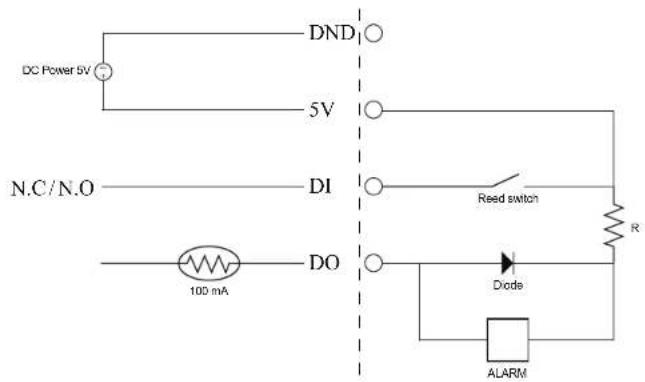
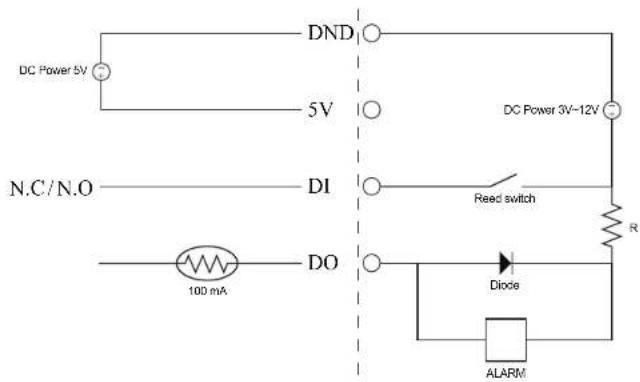
DI/DO Specifications
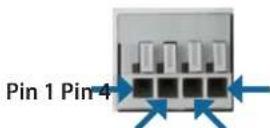
Pin 3Pin 2
| PIN FUNCTION | NOTE | |
| 1 | Digital Out (DO) | Uses an open-drain NFET transistor with the source connected to GND in camera. If used with an external relay, a diode must be connected in parallel with the load for protection against voltage transients. Max loading is 100 mA. |
| 2 | Digital In (DI) A switch from DI to DC 5 V, activated by setting NO. or NC. | |
| 3 | DC5V OUTPUT DC 5 V Output / Max. 100 mA | |
| 4 | GND GND | |
Internal 5V Power External 3\~12V Power
Technical Specifications
| Camera Camera | Hardware Profile | 1/2.7" 2 Megapixel CMOS sensor5 meter IR illumination distanceMinimum illumination: 0 lux with IR LED onBuilt-in Infrared-Cut Removable (ICR) Filter moduleBuilt-in PIR sensor (5 meter)Built-in microphone and speaker10x digital zoom | Focal length: 2.8 mmAperture: F1.8Angle of view:(H) 103°(V) 55°(D) 118° |
| Image Features | Configurable image size, quality, frame rate, and bit rateTime stamp and text overlaysConfigurable motion detection windows | Configurable privacy mask zonesConfigurable shutter speed, brightness, saturation, contrast, and sharpness | |
| Video Compression | Simultaneous H.264/MJPEG format compressionH.264 multicast streaming | JPEG for still images | |
| Video Resolution 16:9 | -Up to 30 fps at 1920 x 1080, 1280 x 720, 800 x 450, 640 x 360, 480 x 270 | 4:3 - Up to 30 fps at 1440 x 1080, 1280 x 960, 1024 x 768, 800 x 600, 600 x 480, 320 x 240 | |
| Audio Support G.711, | AAC | ||
| External Device Interface | 10/100 BASE-T Fast Ethernet port802.3af PoE (DCS-2210L only)IEEE 802.11n/b/g wireless with WPS (DCS-2230L only) | DI/DO portmicroSD/SDHC card slot | |
| Network Network Protocols | IPv6 / IPv4TCP/IPUDPICMPDHCP clientNTP client (D-Link)DNS clientDDNS client (D-Link)SMTP clientFTP clientBonjour | HTTP / HTTPSSamba clientPPPoEUPnP port forwardingRTP / RTSP/ RTCPIP filteringQoSCoSMulticastIGMPONVIF compliant | |
| Security | Administrator and user group protectionPassword authentication | ||
Appendix B: Technical Specifications
| System Management | System Requirements for Web Interface | ▪ Operating System: Microsoft Windows 8/7 (32/64-bit)/Vista (32/64-bit)/XP, Mac OS X 10.5 or above | ▪ Browser: Internet Explorer 7, Firefox 12, Safari 7 or above |
| Event Management | ▪ Motion detection, Periodic, Digital Input, System Boot, Network Lost, PIR▪ Event notification and saving/uploading of snapshots/video clips via e-mail, FTP, network storage, or SD card | ▪ Supports multiple SMTP and FTP servers▪ Multiple event notifications▪ Multiple recording methods for easy backup | |
| Remote Management | ▪ Take snapshots/video clips and save to local hard drive or NAS via web browser | ▪ Configuration interface accessible via web browser | |
| Mobile Support mydlink mobile app for iOS and Android mobile devices | |||
| D-ViewCamTM System Requirements | ▪ Operating System: Microsoft Windows 8/7 (32/64-bit)/Vista (32/64-bit)/XP | ▪ Protocol: Standard TCP/IP | |
| D-ViewCamTM Software Functions | ▪ Remote management/control of up to 32 cameras▪ Viewing of up to 32 cameras on one screen | ▪ Supports all management functions provided in web interface▪ Scheduled motion triggered, or manual recording options | |
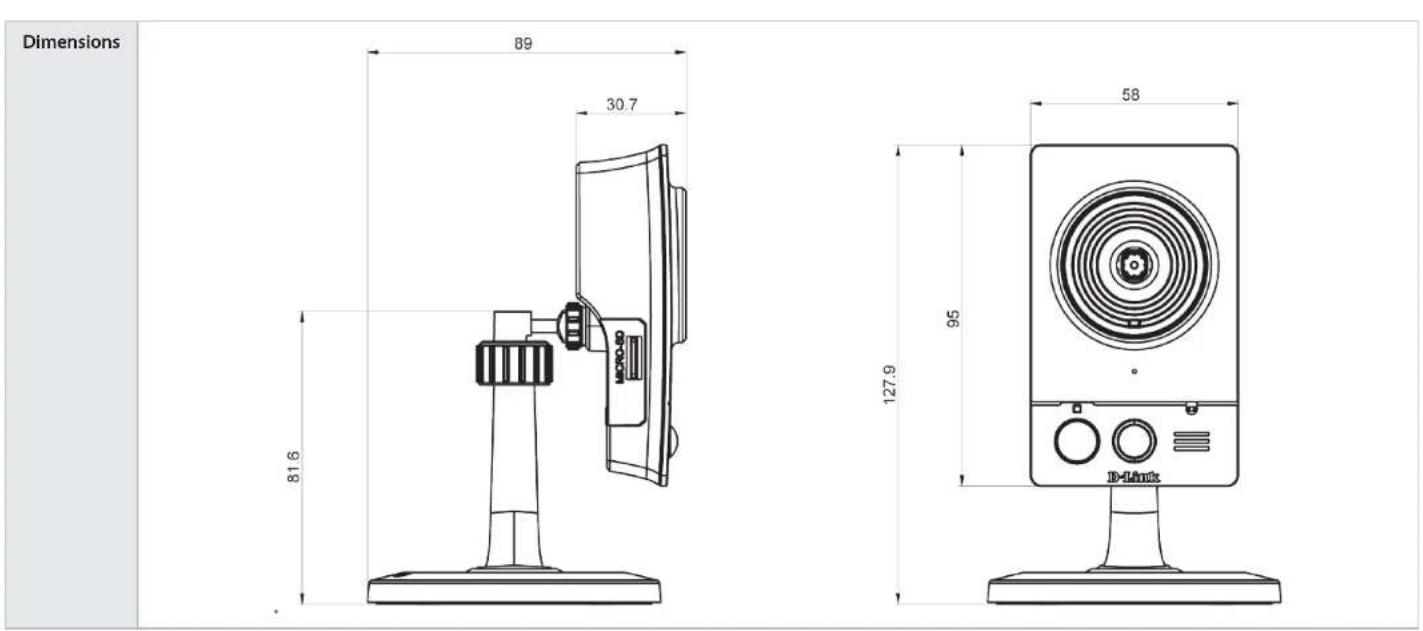
| General Weight | DCS-2210L: 80 g | DCS-2230L: 75 g | |
| External Power Adaptor | Input: 100 to 240 V AC, 50/60 Hz Output: 5 V DC, 1.2 A, 50/60 Hz | ||
| Power Consumption | DCS-2210L: Max. 3.5 WDCS-2230L: Max. 4 W | ||
| Temperature | Operating: 0 to 40 °C (32 to 104 °F) Storage: -20 to 70 °C (-4 to 158 °F) | ||
| Humidity Operating: 20% to 80% non-condensing Storage: 5% to 95% non-condensing | |||
| Certifications | CECE LVD | FCCC-Tick | |
Appendix B: Technical Specifications
Safety Statements
CE Mark Warning:
This is a Class B product. In a domestic environment, this product may cause radio interference, in which case the user may be required to take adequate measures.
FCC Statement:
This equipment has been tested and found to comply with the limits for a Class B digital device, pursuant to part 15 of the FCC Rules. These limits are designed to provide reasonable protection against harmful interference in a residential installation. This equipment generates, uses, and can radiate radio frequency energy and, if not installed and used in accordance with the instructions, may cause harmful interference to radio communication. However, there is no guarantee that interference will not occur in a particular installation. If this equipment does cause harmful interference to radio or television reception, which can be determined by turning the equipment off and on, the user is encouraged to try to correct the interference by one or more of the following measures:
- Reorient or relocate the receiving antenna.
- Increase the separation between the equipment and receiver.
- Connect the equipment into an outlet on a circuit different from that to which the receiver is connected.
- Consult the dealer or an experienced radio/TV technician for help.
FCC Caution:
Any changes or modifications not expressly approved by the party responsible for compliance could void the user's authority to operate this equipment.
This device complies with Part 15 of the FCC Rules. Operation is subject to the following two conditions:
(1) This device may not cause harmful interference, and (2) this device must accept any interference received, including interference that may cause undesired operation.
IMPORTANT NOTICE:
FCC Radiation Exposure Statement:
This equipment complies with FCC radiation exposure limits set forth for an uncontrolled environment. This equipment should be installed and operated with minimum distance 20cm between the radiator & your body. This transmitter must not be co-located or operating in conjunction with any other antenna or transmitter.
The availability of some specific channels and/or operational frequency bands are country dependent and are firmware programmed at the factory to match the intended destination. The firmware setting is not accessible by the end user.
For detailed warranty information applicable to products purchased outside the United States, please contact the corresponding local D-Link office.
Industry Canada Notice:
This device complies with RSS-210 of the Industry Canada Rules. Operation is subject to the following two conditions:
(1) This device may not cause harmful interference, and (2) this device must accept any interference received, including interference that may cause undesired operation.
IMPORTANT NOTE:
Radiation Exposure Statement:
This equipment complies with IC radiation exposure limits set forth for an uncontrolled environment. This equipment should be installed and operated with minimum distance 20cm between the radiator & your body.
This device has been designed to operate with an antenna having a maximum gain of 2 dB. Antenna having a higher gain is strictly prohibited per regulations of Industry Canada. The required antenna impedance is 50 ohms.