
XV-EXA10 - Hi-Fi System JVC - Free user manual and instructions
Find the device manual for free XV-EXA10 JVC in PDF.


| Product type | Hi-Fi System (Receiver, DVD player, 2 speakers) |
| Model | JVC XV-EXA10 (includes RX-EXA10 receiver, SP-EXA10 speakers, XV-EXA10 DVD player) |
| Receiver dimensions (W x H x D) | 245 mm x 80 mm x 297 mm |
| Receiver weight | 2.7 kg |
| DVD player dimensions (W x H x D) | 245 mm x 80 mm x 270 mm |
| DVD player weight | 2.2 kg |
| Speaker dimensions (W x H x D) | 143 mm x 257 mm x 243 mm |
| Speaker weight (per unit) | 3.5 kg |
| Power supply | AC 230 V, 50 Hz |
| Power consumption (receiver) | 30 W (operation), 0.9 W (standby) |
| Power consumption (DVD player) | 9 W (operation), 0.9 W (standby) |
| Main functions | CD/DVD/MP3/WMA/JPEG/DivX playback, FM/AM tuner, 3D Phonic, CC Converter, programmable timer, sleep timer |
| Amplifier output power (tweeter) | 20 W + 20 W at 6 Ω (10 kHz, THD 10%) |
| Amplifier output power (woofer) | 30 W + 30 W at 6 Ω (1 kHz, THD 10%) |
| Speaker impedance | 6 Ω |
| Frequency response (FM) | 87.50 MHz – 108.00 MHz |
| Frequency response (AM) | 522 kHz – 1629 kHz |
| Care and cleaning | Use a soft cloth; do not use benzene, thinner, or organic solvents |
| Safety precautions | Do not expose to rain or moisture; do not open cover; keep ventilation clear |
| Spare parts and repairability | No user-serviceable parts; contact qualified service personnel; disposal must follow local regulations |
| Accessories included | Remote control, batteries, FM antenna, AM loop antenna, speaker cords (4), audio cord, optical digital cord, synchronization cord |
Frequently Asked Questions - XV-EXA10 JVC
User questions about XV-EXA10 JVC
0 question about this device. Answer the ones you know or ask your own.
Ask a new question about this device
Download the instructions for your Hi-Fi System in PDF format for free! Find your manual XV-EXA10 - JVC and take your electronic device back in hand. On this page are published all the documents necessary for the use of your device. XV-EXA10 by JVC.
USER MANUAL XV-EXA10 JVC
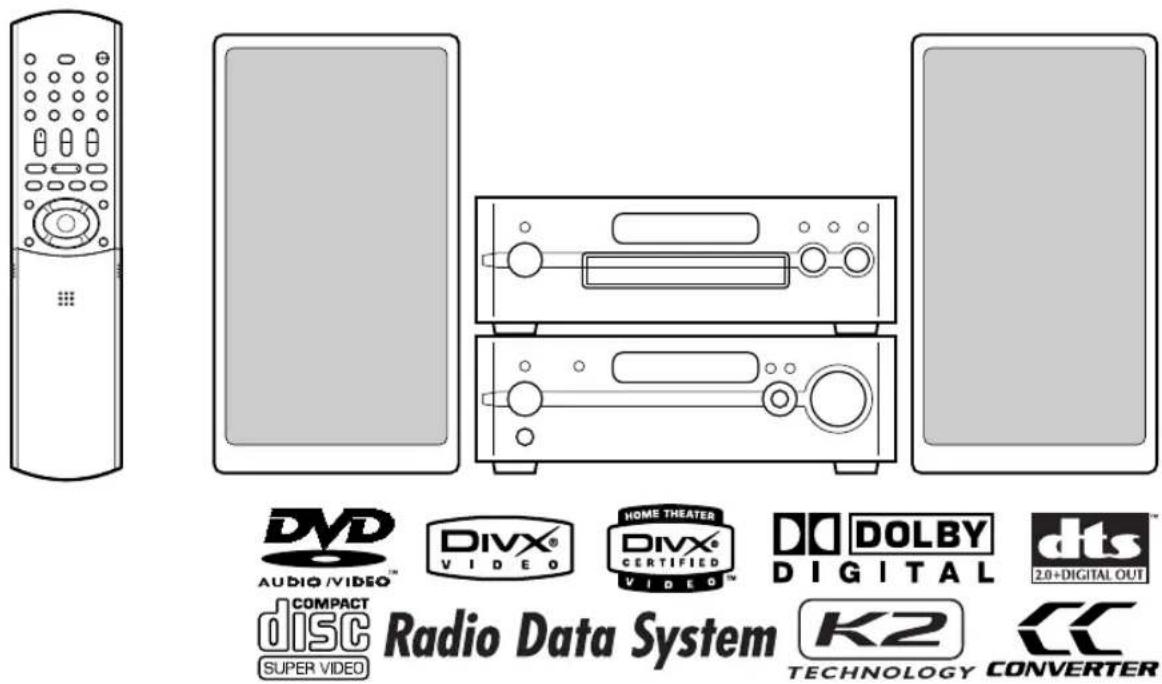
Consists of RX-EXA10, SP-EXA10 and XV-EXA10

natural_image
Abstract geometric pattern with diagonal black and white stripes on white background (no text or symbols)INSTRUCTIONS
CAUTION
To reduce the risk of electrical shocks, fire, etc.:
- Do not remove screws, covers or cabinet.
- Do not expose this appliance to rain or moisture.
CAUTION - ⏻/1 button!
Disconnect the mains plug to shut the power off completely (the STANDBY lamp goes off).
The ⏻/1 button in any position does not disconnect the mains line.
- When the system is on standby, the STANDBY lamp lights red.
- When the system is turned on, the STANDBY lamp goes off. The power can be remote controlled.
CAUTION
- Do not block the ventilation openings or holes. (If the ventilation openings or holes are blocked by a newspaper or cloth, etc., the heat may not be able to get out.)
- Do not place any naked flame sources, such as lighted candles, on the apparatus.
- When discarding batteries, environmental problems must be considered and local rules or laws governing the disposal of these batteries must be followed strictly.
- Do not expose this apparatus to rain, moisture, dripping or splashing and that no objects filled with liquids, such as vases, shall be placed on the apparatus.
IMPORTANT FOR LASER PRODUCTS
- CLASS 1 LASER PRODUCT
- CAUTION: Do not open the top cover. There are no user serviceable parts inside the unit; leave all servicing to qualified service personnel.
- CAUTION: Visible and invisible laser radiation when open and interlock failed or defeated. Avoid direct exposure to beam.
- REPRODUCTION OF LABEL: CAUTION LABEL, PLACED INSIDE THE UNIT.
CAUTION : Visible and invisible laser radiation when open and interlock failed or defeated. AVOID DIRECT EXPOSURE TO BEAM. (e)
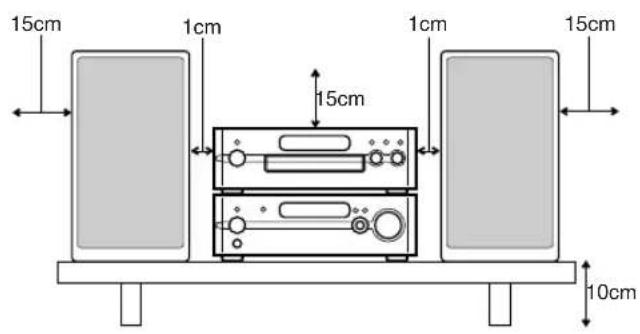
To avoid risk of electric shock and fire and to protect from damage, locate the apparatus as follows: Top/Front/Back/Sides: No obstructions should be placed in the areas shown by the dimensions below. Bottom: Place on the level surface. Maintain adequate air path for ventilation by placing on a stand with a height of 10 cm more.
In addition, maintain the best possible air circulation.
Front view
Side view
IMPORTANT for the U.K.
DO NOT cut off the mains plug from this equipment. If the plug fitted is not suitable for the power points in your home or the cable is too short to reach a power point, then obtain an appropriate safety approved extension lead or consult your dealer.
BE SURE to replace the fuse only with an identical approved type, as originally fitted.
If nonetheless the mains plug is cut off ensure to remove the fuse and dispose of the plug immediately, to avoid a possible shock hazard by inadvertent connection to the mains supply.
If this product is not supplied fitted with a mains plug then follow the instructions given below:
IMPORTANT:
DO NOT make any connection to the terminal which is marked with the letter E or by the safety earth symbol or coloured green or green-and-yellow.
The wires in the mains lead on this product are coloured in accordance with the following code:
Blue: Neutral
Brown: Live
As these colours may not correspond with the coloured markings identifying the terminals in your plug proceed as follows:
The wire which is coloured blue must be connected to the terminal which is marked with the letter N or coloured black.
The wire which is coloured brown must be connected to the terminal which is marked with the letter L or coloured red.
IF IN DOUBT - CONSULT A COMPETENT ELECTRICIAN.
Information for Users on Disposal of Old Equipment
[European Union]
![JVC XV-EXA10 - [European Union] - 1](/content/2026/05/770337/images/ca707a213e04007c07edfe3ebe49a6393868b5d92ee5ffdcfc97c8241d32b3b6.jpg)
natural_image
Symbol of a trash bin crossed with no text or numbers, representing waste sorting or disposal (no text present)Attention:
This symbol is only valid in the European Union.
This symbol indicates that the electrical and electronic equipment should not be disposed as general household waste at its end-of-life. Instead, the product should be handed over to the applicable collection point for the recycling of electrical and electronic equipment for proper treatment, recovery and recycling in accordance with your national legislation.
By disposing of this product correctly, you will help to conserve natural resources and will help prevent potential negative effects on the environment and human health which could otherwise be caused by inappropriate waste handling of this product. For more information about collection point and recycling of this product, please contact your local municipal office, your household waste disposal service or the shop where you purchased the product.
Penalties may be applicable for incorrect disposal of this waste, in accordance with national legislation.
(Business users)
If you wish to dispose of this product, please visit our web page www.jvc-europe.com to obtain information about the take-back of the product.
[Other Countries outside the European Union]
If you wish to dispose of this product, please do so in accordance with applicable national legislation or other rules in your country for the treatment of old electrical and electronic equipment.
SAFETY INSTRUCTIONS "SOME DOS AND DON'TS ON THE SAFE USE OF EQUIPMENT"
This equipment has been designed and manufactured to meet international safety standards but, like any electrical equipment, care must be taken if you are to obtain the best results and safety is to be assured.
Do read the operating instructions before you attempt to use the equipment.
Do ensure that all electrical connections (including the mains plug, extension leads and interconnections between pieces of equipment) are properly made and in accordance with the manufacturer's instructions. Switch off and withdraw the mains plug when making or changing connections.
Do consult your dealer if you are ever in doubt about the installation, operation or safety of your equipment.
Do be careful with glass panels or doors on equipment.
DON'T continue to operate the equipment if you are in any doubt about it working normally, or if it is damaged in any way — switch off, withdraw the mains plug and consult your dealer.
DON'T remove any fixed cover as this may expose dangerous voltages.
DON'T leave equipment switched on when it is unattended unless it is specifically stated that it is designed for unattended operation or has a standby mode.
Switch off using the switch on the equipment and make sure that your family know how to do this.
Special arrangements may need to be made for infirm or handicapped people.
DON'T use equipment such as personal stereos or radios so that you are distracted from the requirements of traffic safety. It is illegal to watch television whilst driving.
DON'T listen to headphones at high volume as such use can permanently damage your hearing.
DON'T obstruct the ventilation of the equipment, for example with curtains or soft furnishings.
Overheating will cause damage and shorten the life of the equipment.
DON'T use makeshift stands and NEVER fix legs with wood screws — to ensure complete safety always fit the manufacturer's approved stand or legs with the fixings provided according to the instructions.
DON'T allow electrical equipment to be exposed to rain or moisture.
ABOVE ALL
— NEVER let anyone, especially children, push anything into holes, slots or any other opening in the case. — this could result in a fatal electrical shock.
— NEVER guess or take chances with electrical equipment of any kind — it is better to be safe than sorry!
E43486-340B
Introduction
Supplied accessories ....2
Part description ....3
DVD player 3
Receiver.... 4
Using the remote control ....5
Inserting batteries into the remote control ..... 5
Operating the TV using the remote control...... 6
Preparation
Connections 7
Standard setup 7
Connecting the antennas.... 7
Connecting the speakers....9
Connecting the receiver and the DVD player ... 10
Connecting other equipment.... 11
Connecting a TV.... 12
Connecting the power cords.... 13
Basic operations
Basic operations....14
Turning on/off the system 14
Setting the clock 15
Dimmer 16
Adjusting the volume 16
Turning off the sound temporarily (MUTING) ... 16
Adjusting the sound quality.... 16
Adjusting the bass sound.... 17
Enhancing the playback sound (CC CONVERTER) 17
Listening to radio
Listening to radio broadcasts ....18
Selecting a radio station 18
Tuning in to a preset radio station 18
Radio Data System.... 19
Playing back DVDs/CDs
Basic operations of the DVD player .....23
Playing back a DVD/CD 23
Changing the display in the display window.....26
Selecting a chapter/track using the number buttons ....26
Stopping playback 26
Pausing playback 27
Advancing the picture frame by frame....27
Fast reverse/fast forward search .....27
Playing back from a position 10 seconds before (One touch replay)....28
Slow motion playback....28
Skipping to the beginning of a chapter/track/file....28
Skipping at about 5 minute intervals....29
Resuming playback 29
Selecting a track from the menu screen ......30
Convenient functions of the DVD player .....31
Locking DVD/CD ejection 31
Playing back a DVD/CD in the desired order (Program playback)....31
Playing back a DVD/CD in a random order (Random playback)....33
Playing back a DVD/CD repeatedly (Repeat playback)....33
Playing back a specified part repeatedly (A-B repeat playback) ....34
Saving the playback settings for next time .....34
Selecting the subtitles....35
Selecting the audio language ....35
Selecting the view angle....36
Magnifying the picture (ZOOM) 36
Adjusting the picture quality (VFP) ......37
Playing back the bonus group ....37
Browsable still pictures (B.S.P.) 38
Creating realistic sound (3D PHONIC)......38
Using the status bar and the menu bar ......39
Changing the initial settings with the preference screen ....41
Basic operations ....41
LANGUAGE....41
PICTURE....42
AUDIO 42
OTHERS....42
Supplied accessories
Listening to the sound of other audio equipment
Listening to the sound of other audio equipment ....44
Timer
Timer ....45 Using the playback timer ....45 Using the sleep timer....47
Reference
Special cautions ....48
Notes on handling....48
About DVDs/CDs....49
Playable DVD/CD types....49
Disc structure....51
Troubleshooting....52
Language codes....53
Specifications ....54
Check to be sure you have all of the supplied accessories.
The number in parentheses is the quantity of the items supplied. If anything is missing, contact your dealer immediately.
- Remote control (1)
- Batteries (2)
- FM antenna (1)
• AM loop antenna (1) - Speaker cords (4)
- Audio cord (1)
• Optical digital cord (1)
• Synchronization cord (1)
CAUTION
- Do not fold the optical digital cord as this may damage the inner wire.
How to read this manual
- This manual explains the operations assuming that you will use the remote control. Some buttons on the receiver or the DVD player are the same as those on the remote control. You can use either button in this case.
- Some diagrams in this manual are simplified or exaggerated for the purpose of explanation.
- You can operate some functions differently from the explanation given in this manual.
- The following marks refer to the usable discs for the explained function.
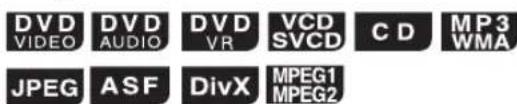
- "DVD VR" means a DVD recorded in DVD Video Recording (DVD VR) format.
• "VCD" stands for "Video Compact Disc". - "SVCD" stands for "Super Video Compact Disc".
- An "ASF" disc means a disc recorded in "Advanced Systems Format".
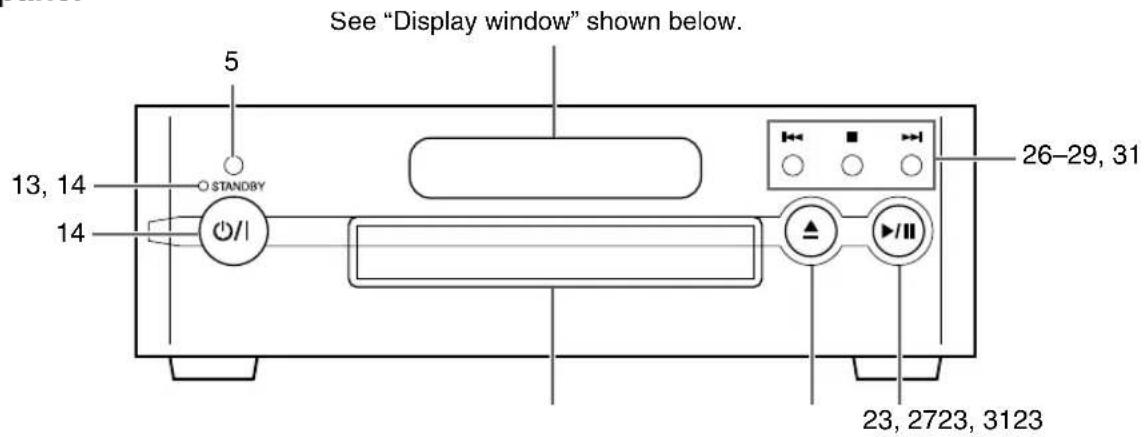
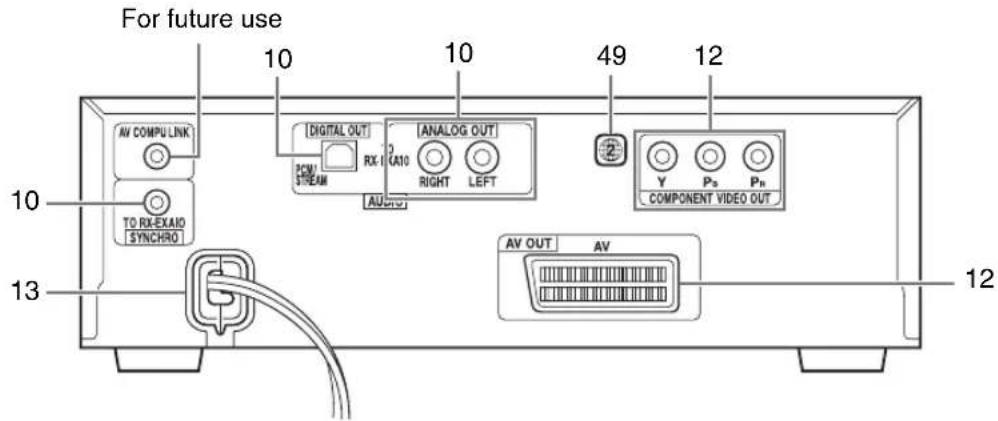
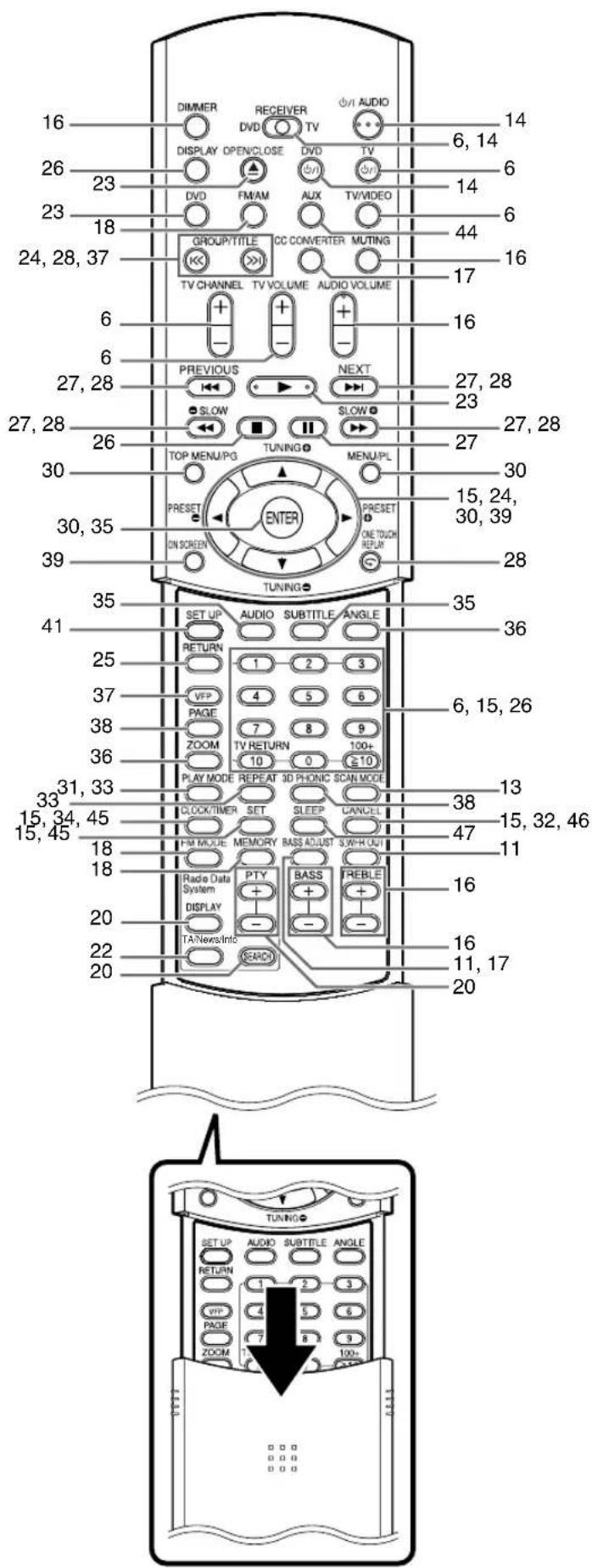
The numbers refer to the pages in which the parts are explained.
DVD player
Front panel
Rear panel
Display window
The receiver and the DVD player use the same design for their display windows.
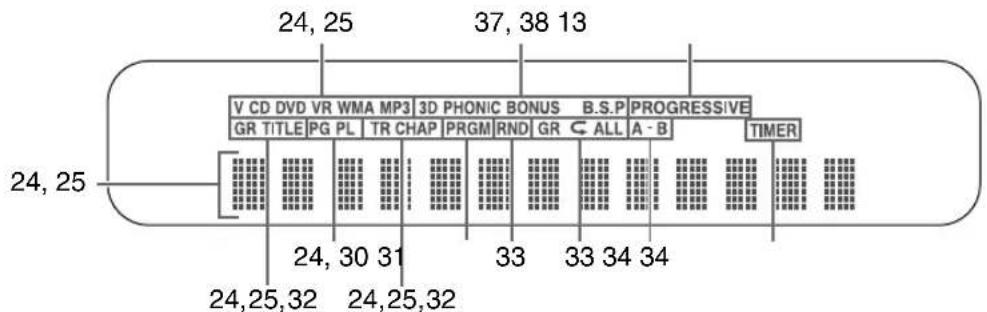
The numbers refer to the pages in which the parts are explained.
Receiver
Front panel
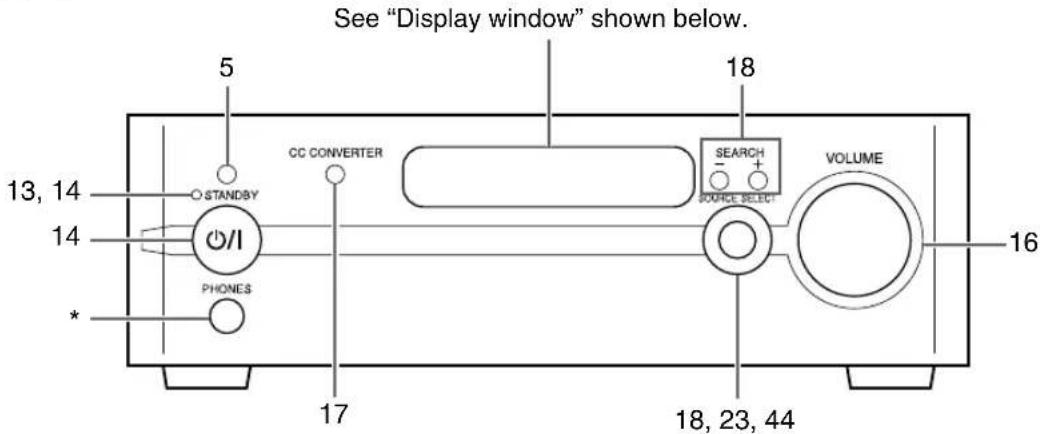
* This terminal is for connecting a pair of headphones equipped with a stereo plug (not supplied). When the headphones are connected, the speakers do not produce any sound.
Rear panel
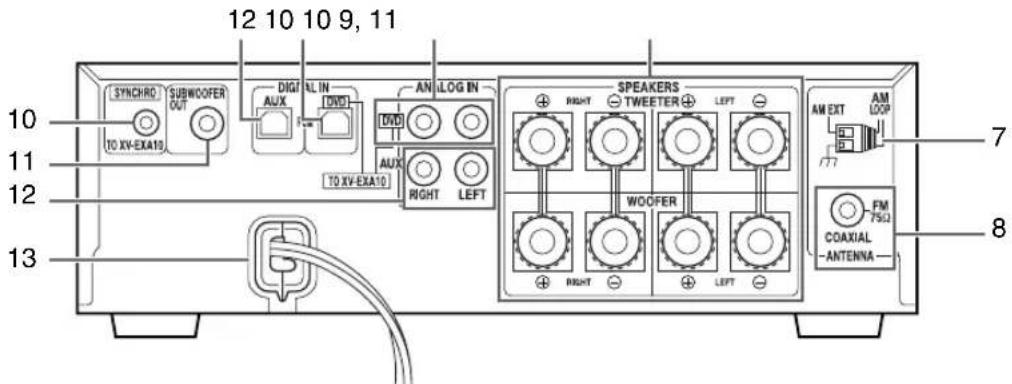
Display window
The receiver and the DVD player use the same design for their display windows.
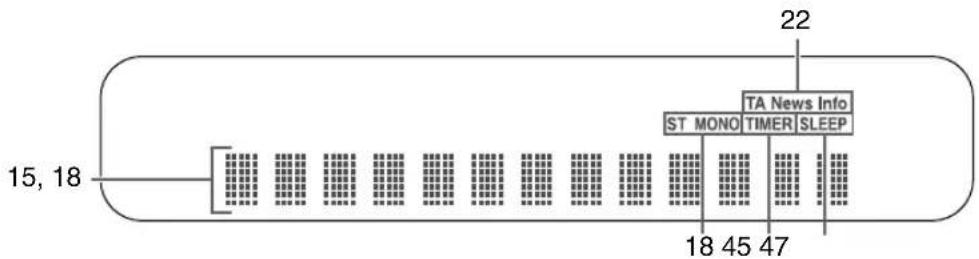
The numbers refer to the pages in which the parts are explained.
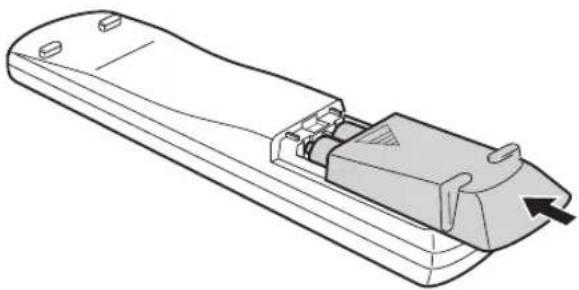
Inserting batteries into the remote control
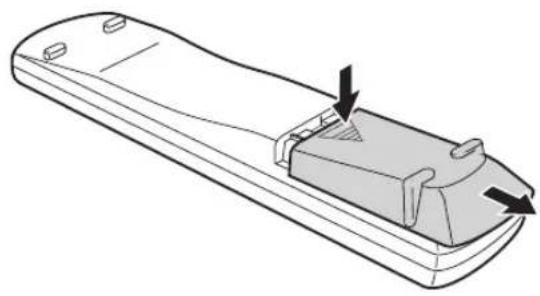
natural_image
Line drawing of a remote control casing with arrows indicating internal components (no text or symbols)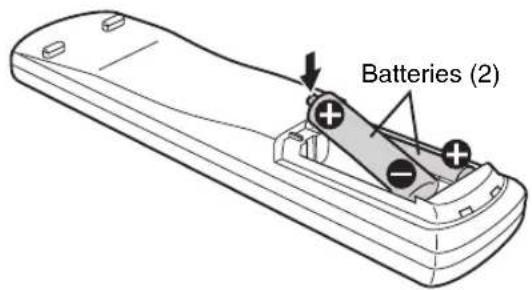
natural_image
Line drawing of a remote control device with a handle and scroll (no text or symbols)If the effective distance between the remote control and remote control sensor on the receiver or the DVD player decreases, replace the batteries. Use two R6P (SUM-3)/AA(15F) type dry-cell batteries.
CAUTION
- Do not use a used battery and a new battery together.
- Do not use different types of batteries at the same time.
• Take out the batteries if the remote control is not to be used for a long time. Otherwise it may cause a leakage.
Remote control operation
When operating the remote control, point it at the front panel of the receiver or the DVD player. If the remote control is operated from a direction that is extremely oblique or when there is an obstacle in the way, signals may not be transmitted.
If the remote control sensor is exposed to a strong light such as direct sunlight, correct operation may not be carried out.
Operating the TV using the remote control
You can operate your TV using the remote control of this system.
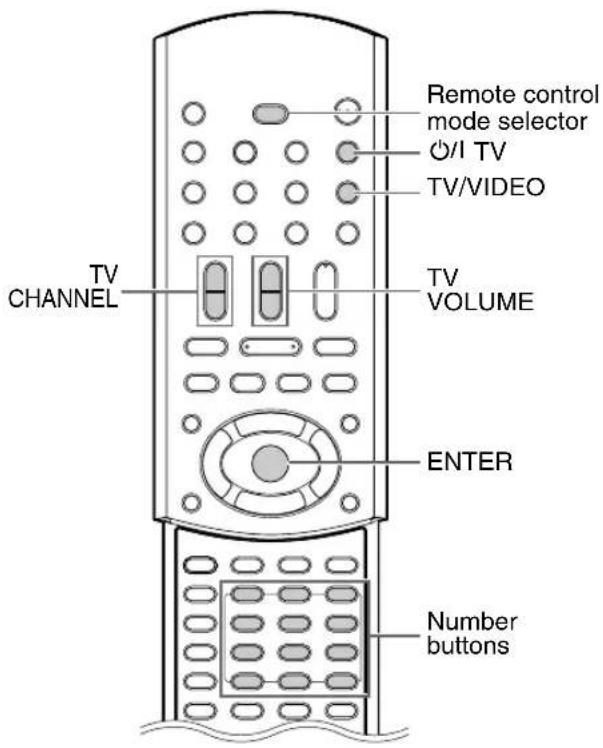
Setting the manufacturer code
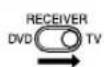
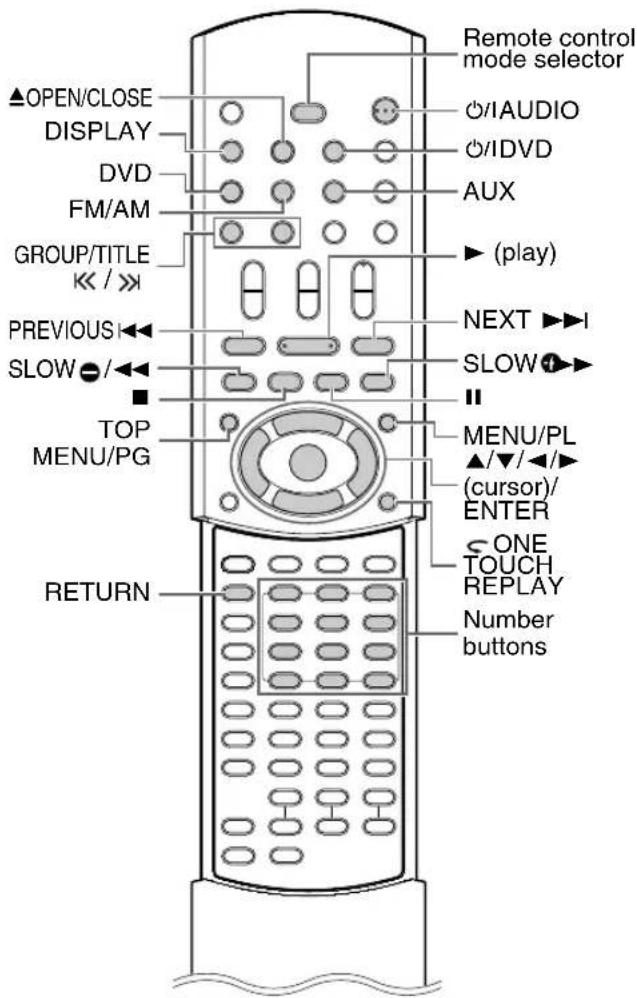
1 Slide the remote control mode selector to TV.
2Hold down ⏻/ITV.
- Hold down Ⓗ/TV until you finish step 4.
3Press ENTER and release.
4Press number buttons (1-9, 0).
- Refer to "Using the number buttons" (page 15).
Examples:
For a Hitachi TV: Press 0, then 7.
For a Toshiba TV: Press 2, then 9.
When the manufacturer of your TV has two or more codes, select the manufacturer codes in turn and find the one that operates the TV and the remote control properly.
| Manufacturer Code Manufacturer Code | |||
| JVC 01 Nordmende | 13, 14, 18,26-28 | ||
| Akai 02, 05 | Okano | 09 | |
| Blaupunkt | 03 Orion | 15 | |
| Daewoo | 10, 31, 32 | Panasonic | 16, 17 |
| Fenner | 04, 31, 32 | Philips | 10 |
| Fisher | 05 Saba | 13, 14, 18,26-28 | |
| Grundig | 06 Samsung | 10, 19, | 32 |
| Hitachi | 07, 08 | Sanyo | 05 |
| Inno-Hit | 09 Schneider | 02, 05 | |
| Irradio | 02, 05 | Sharp | 20 |
| Magnavox | 10 Sony | 21-25 | |
| Mitsubishi | 11, 33 | Telefunken | 13, 14, 18,26-28 |
| Miver | 03 Thomson | 13, 14, 18,26-28, 30 | |
| Nokia | 12, 34 | Toshiba 29 | |
NOTE
- A manufacturer code is subject to change without notice. You may not be able to operate the TV produced by the manufacturer.
5Release ⏻/TV.
Using the remote control for the TV operation
Operate the remote control by pointing it at the TV.
| Turns on/off the TV. | ||
| TV CHANNEL | Changes the channels. | |
| TV VOLUME | Adjusts the volume. | |
| RECEIVER DVD TV *1 | Selects the channels. | |
| TV RETURN | Switches the previously selected channel and the current channel. | |
| TVVIDEO | Switches the TV and video input. | |
*1 Make sure to slide the remote control mode selector to TV in advance.
NOTE
• After replacing the batteries of the remote control, set the manufacturer code again.
- When the remote control mode selector is slid to TV, some buttons may not work.
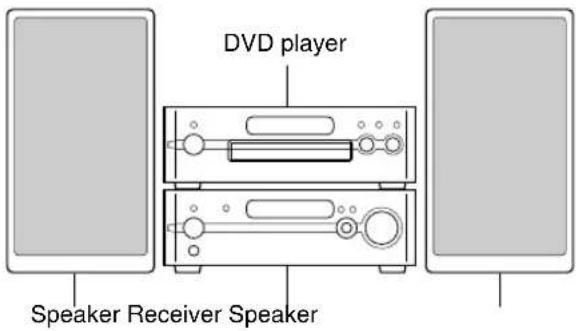
Standard setup
Connecting the antennas
Connecting the AM loop antenna (supplied)
1 Set up the AM loop antenna.
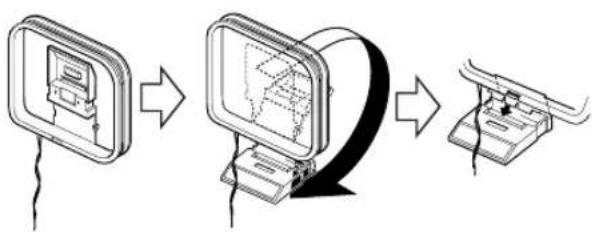
flowchart
graph LR
    A["Device with antenna"] --> B["Computer with network diagram"]
    B --> C["Product with base and cable"]
2 Connect the antenna cord.
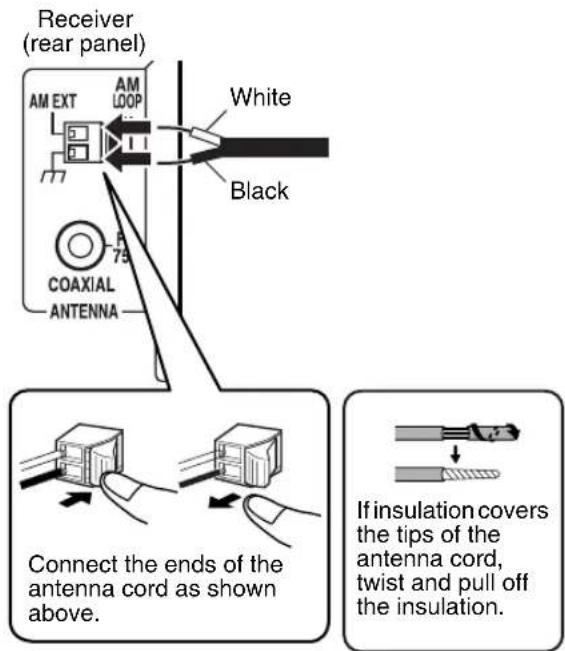
3 Turn the AM loop antenna to find the best position for radio reception.
Place the AM loop antenna as far from the receiver as possible.
- Do not place the AM loop antenna on a metallic table or close to a TV, computer, or other electric appliances. Doing so may affect radio reception.
■When radio reception with the supplied AM loop antenna is poor
Electric wire: 3 - 5 m (not supplied)
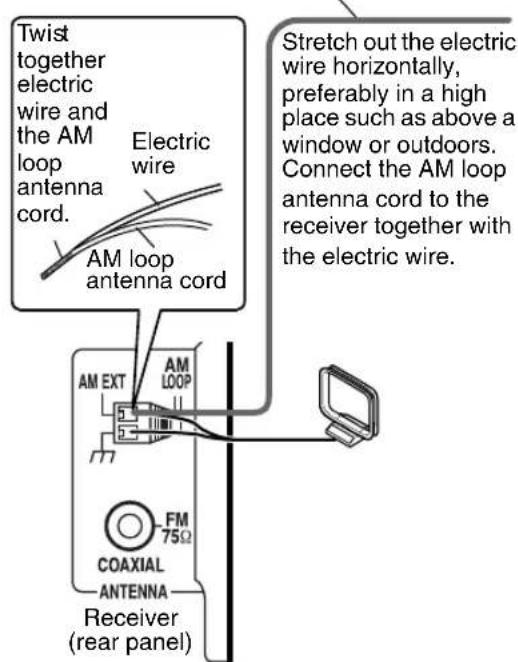
When positioning the antennas, find the best position for reception while listening to an actual radio program (refer to "Listening to radio broadcasts" (page 18)).
Connecting the FM antenna (supplied)
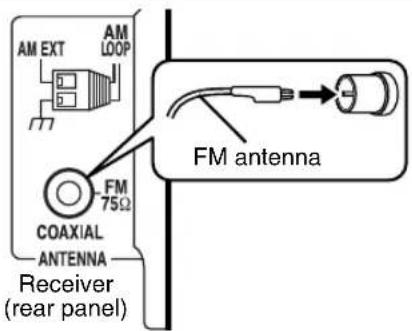
Stretch out the FM antenna to the best position for radio reception, and then fix the FM antenna with adhesive tape.
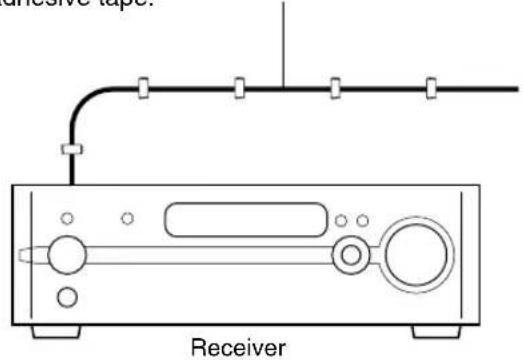
■ When radio reception with the supplied FM antenna is poor, or when using a communal antenna
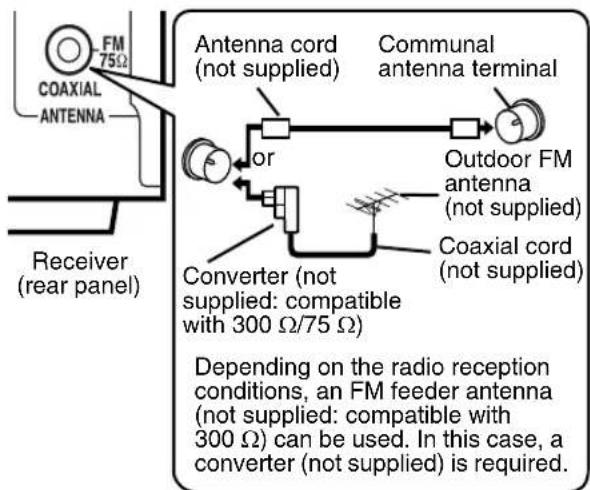
When using an antenna other than those supplied with this system, refer to the operation manuals for the antenna and converter for details of connection.
When positioning the antennas, find the best position for reception while listening to an actual radio program (refer to "Listening to radio broadcasts" (page 18)).
Connecting the speakers
There is no difference between the left and right speakers.
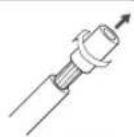
Before connecting the speaker cords, twist and pull off the insulation.
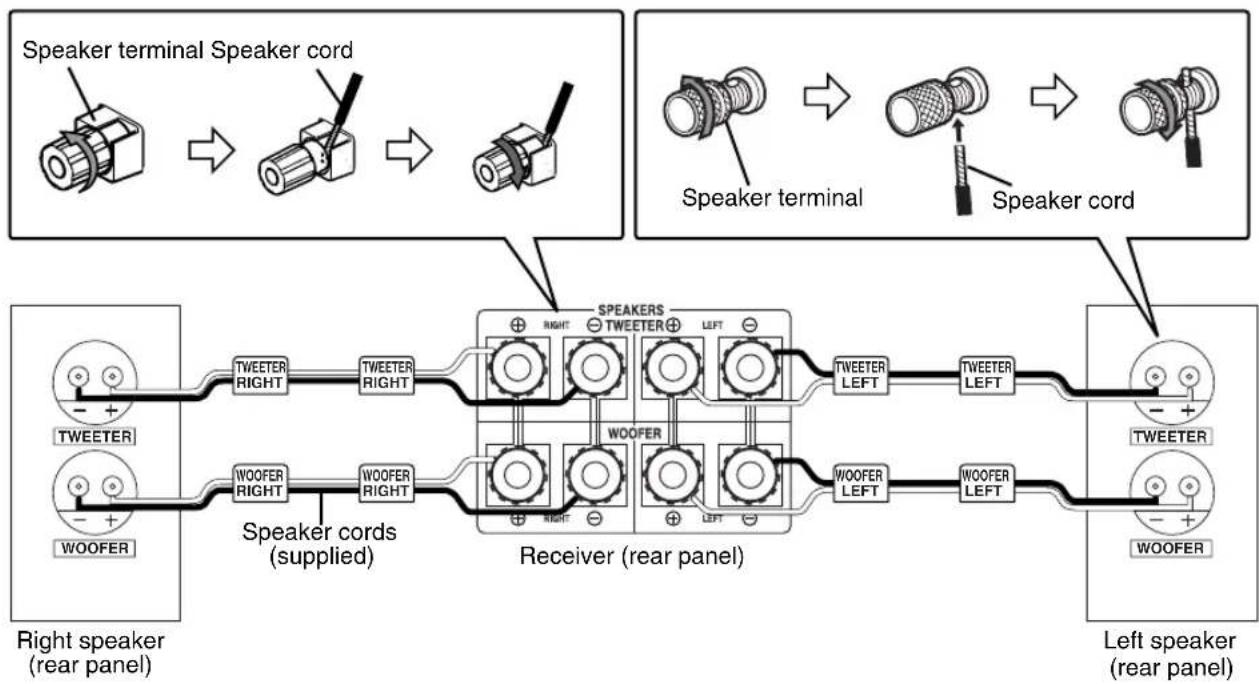
flowchart
graph LR
    subgraph RightSpeaker
        A["Speaker terminal Speaker cord"] --> B["Speaker terminal"]
        B --> C["Speaker terminal"]
    end

    subgraph Receiver
        D["TWEETER"] --> E["TWEETER RIGHT"]
        F["WOOFER"] --> G["WOOFER RIGHT"]
        H["Speaker cords (supplied)"] --> I["Receiver (rear panel)"]
        J["Left speaker (rear panel)"] --> K["Left speaker (rear panel)"]
    end

    style RightSpeaker fill:#f9f,stroke:#333
    style Receiver fill:#ccf,stroke:#333
    style Receiver fill:#cfc,stroke:#333
- An incorrect connection may damage the speakers.
- The supplied speakers are dedicated to the supplied receiver as parts of the EX-A10 system. Do not connect the supplied speakers to equipment other than the supplied receiver. Doing so may damage the speakers.
CAUTION
- Do not short-circuit the ⊕ and ⊖ speaker terminals. Doing so may damage the receiver.
- Do not connect other speakers together with the supplied speakers. The change in impedance may damage the receiver and the speakers.
- Improper speaker cord connection spoils the stereo effect and sound quality.
-
The supplied speakers are magnetically shielded, but color irregularity may occur on the TV depending on some conditions. To prevent color irregularity, set up the speakers following the instructions below.
-
Turn off the main power of the TV before setting up the speakers.
- Place the speakers enough distance from the TV so that they do not cause color irregularity on the TV.
- Wait for about 30 minutes before turning on the main power of the TV again.
The speakers employ natural wood for the diaphragm and the cabinet in order to reproduce the original sound faithfully. The appearance will therefore be different for each system.
You can detach the speaker cover.
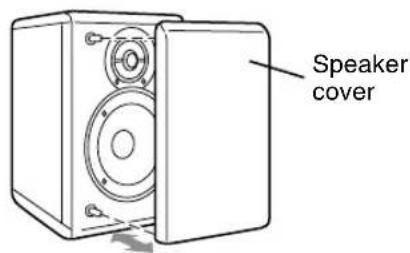
NOTE
- To allow the receiver and the DVD player to emit generated heat, leave a space of at least 1 cm between the receiver or the DVD player and the speakers or other objects.
Connecting the receiver and the DVD player
Make sure to connect the three supplied cords.
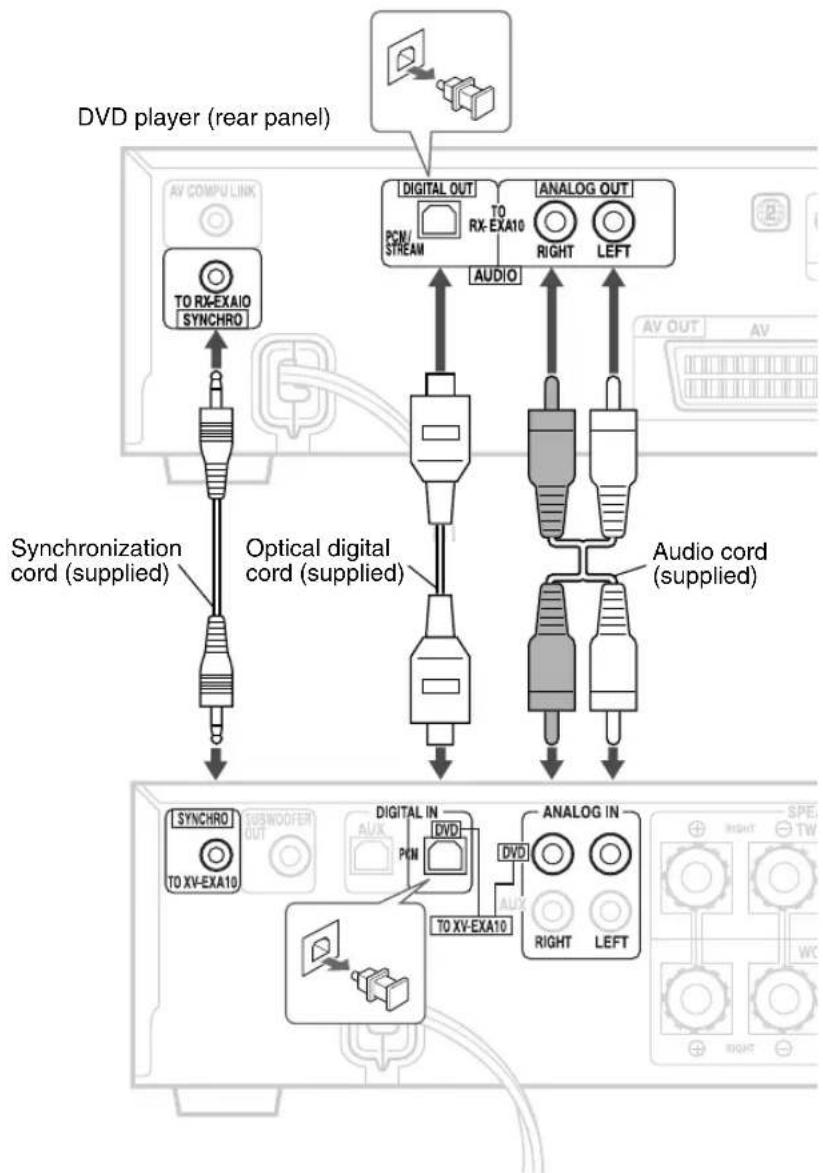
flowchart
graph TD
    A["DVD player (rear panel)"] --> B["TO RX-EXAIO SYNCHRO"]
    A --> C["Digital OUT PCN/STREAM TO RX-EXA10"]
    A --> D["ANALOG OUT RIGHT LEFT"]
    B --> E["Synchronization cord (supplied)"]
    C --> F["Optical digital cord (supplied)"]
    D --> G["Audio cord (supplied)"]
    E --> H["SYNCHRO TO XV-EXA10"]
    F --> I["DIGITAL IN DVD"]
    G --> J["ANALOG IN RIGHT LEFT"]
    H --> K["TO XV-EXA10"]
    I --> L["TO XV-EXA10"]
    J --> M["TO XV-EXA10"]
CAUTION
- Do not fold the optical digital cord as this may damage the inner wire.
If protection caps cover the tips of the optical digital cord, pull off the protection caps before connecting.
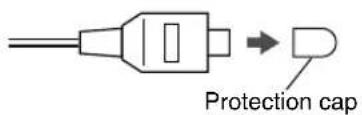
Connecting other equipment
Connecting the subwoofer
When you connect this system with an amplifier-built-in subwoofer (not supplied), you can enjoy a more dynamic bass sound. Refer to the manual of the subwoofer for details.
Audio cord (not supplied)
(If an audio cord comes with the amplifier-built-in subwoofer, you can use the audio cord.)
Amplifier-built-in subwoofer (not supplied)
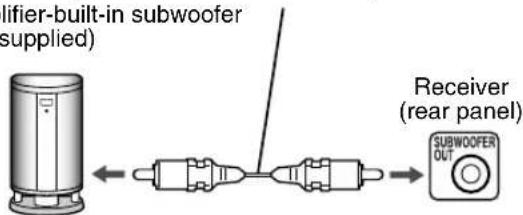
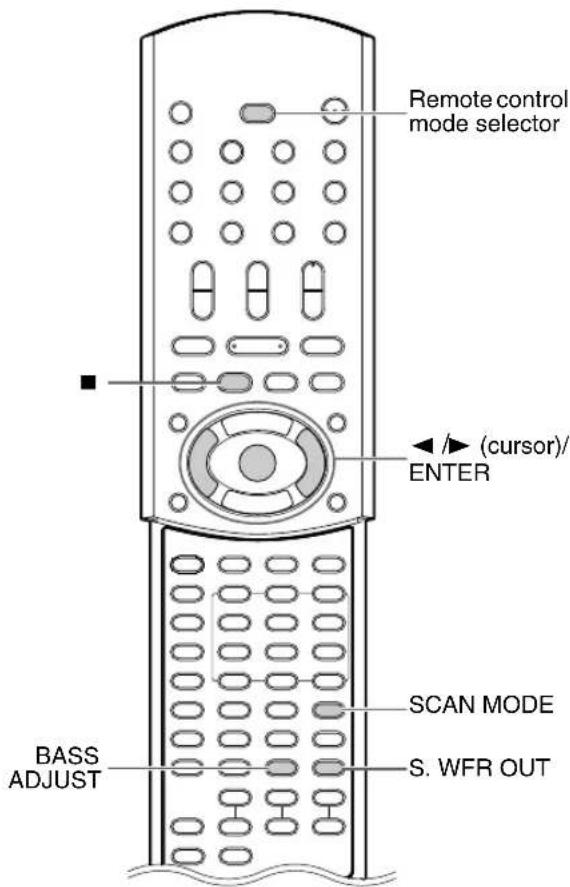
To produce sound from the subwoofer, press
S.WFR OUT on the remote control to display "S. WOOFER ON" (Subwoofer on) in the display window on the receiver. Each time you press S.WFR OUT, the display toggles between "S. WOOFER ON" and "S. WOOFER OFF".
NOTE
- When "S. WOOFER ON" is selected, bass sound from the left and right speakers will be automatically turned down and the bass sound will be emitted mainly from the subwoofer.
Connecting other speakers
To connect speakers other than the ones supplied, follow the operations shown below.
1 Slide the remote control mode selector to RECEIVER.
2Connect the speakers to the SPEAKERS WOOFER LEFT and RIGHT terminals on the receiver.
3Hold down BASS ADJUST for 2 or more seconds.
- "Single Amp" is displayed in the display window on the receiver, and no audio signal is sent to the SPEAKERS TWEETER LEFT and RIGHT terminals.
Display on the receiver
Single Amp
NOTE
- The impedance of speakers connected to this system must be within the range 6 Ω to 16 Ω.
- When connecting the supplied speakers to the receiver, hold down BASS ADJUST on the remote control for 2 or more seconds once again to select "Bi-Amp" in the display window on the receiver.
Connecting other audio equipment
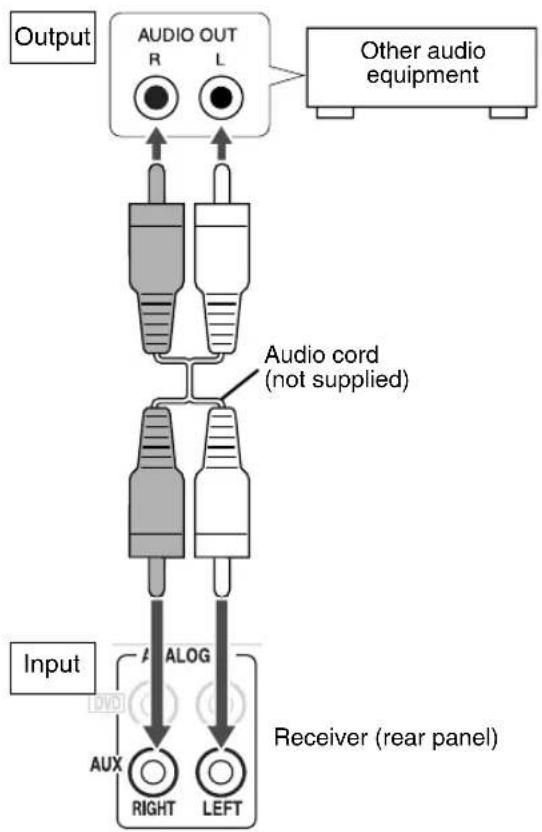
flowchart
graph TD
    A["OUTPUT"] --> B["AUDIO OUT R L"]
    B --> C["Other audio equipment"]
    B --> D["Audio cord (not supplied)"]
    D --> E["Input"]
    E --> F["Receiver (rear panel)"]
    F --> G["AUX RIGHT LEFT"]
    F --> H["ALOG"]
    style A fill:#f9f,stroke:#333
    style B fill:#ccf,stroke:#333
    style C fill:#cfc,stroke:#333
    style D fill:#fcc,stroke:#333
    style E fill:#ffc,stroke:#333
    style F fill:#cfc,stroke:#333
    style G fill:#fff,stroke:#333
    style H fill:#fff,stroke:#333
Connecting digital equipment with an optical output terminal
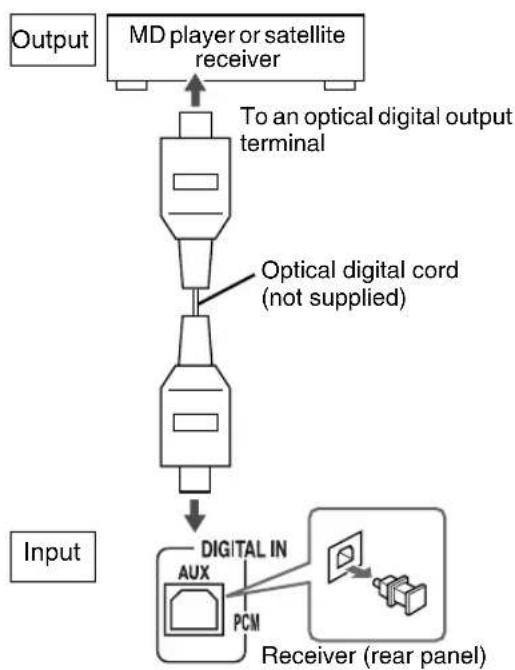
flowchart
graph TD
    A["Output"] --> B["MD player or satellite receiver"]
    B --> C["To an optical digital output terminal"]
    C --> D["Optical digital cord (not supplied)"]
    D --> E["Input"]
    E --> F["DIGITAL IN AUX PCM Receiver (rear panel)"]
Connecting a TV
Connecting a TV with the AV OUT terminal
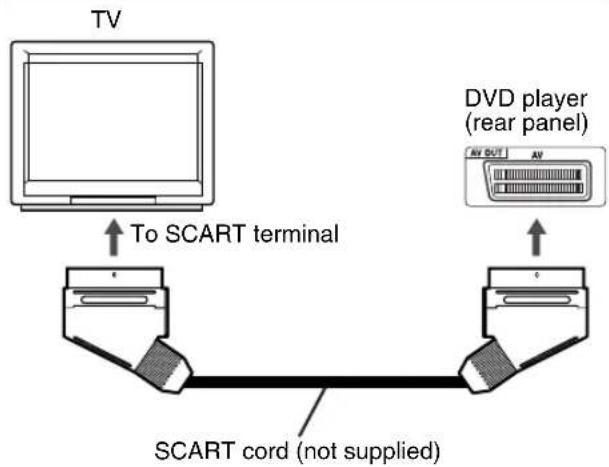
Connecting a TV with the COMPONENT VIDEO OUT terminals
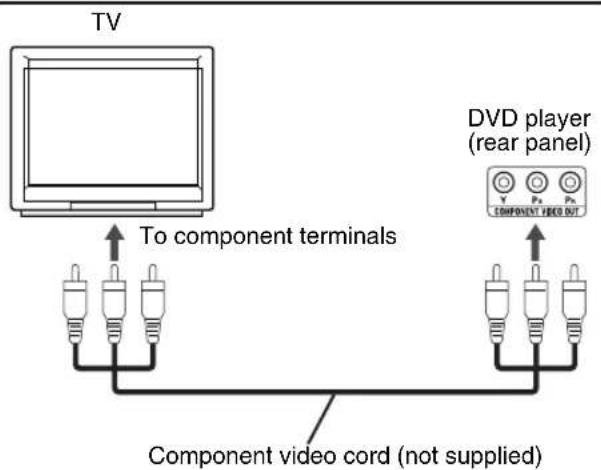
After connecting the DVD player to the TV, select the video signal type correctly according to the TV.
1 Slide the remote control mode selector to DVD.
2 Make sure that playback stops. (If a disc is being played back, press ■ to stop playback.)
(Continued on the next page)
3 Press SCAN MODE.
- The current video signal type will flash.
4 Press ◀, ▶ (cursor) or SCAN MODE repeatedly to select the video signal type suitable for the TV.
- You can select "RGB", "Y/C" or "PROGRESSIVE".
- Select "RGB" when a TV compatible with composite video signals is connected to the AV OUT terminal.
- Select "Y/C" when a TV compatible with S-video signals is connected to the AV OUT terminal.
- Select "PROGRESSIVE" when a TV compatible with progressive scanning is connected to the COMPONENT VIDEO OUT terminals.
5Press ENTER.
- The selected video signal type is displayed for a short time.
NOTE
- Even if the power cord of the DVD player is disconnected from the AC outlet or the power is interrupted, the video signal type setting is stored.
CAUTION
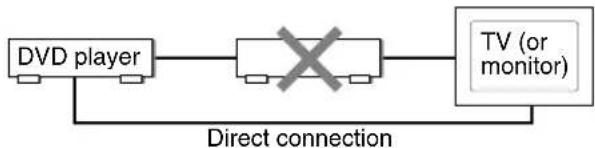
- Connect the DVD player directly to a TV (or a monitor) without routing through a video cassette recorder (VCR). Otherwise picture distortion may occur during playback.
flowchart
graph LR
    A["DVD player"] --> B["×"]
    B --> C["TV (or monitor)"]
    C --> D["Direct connection"]
    D --> A
- Connecting the DVD player to a VCR-built-in-TV may also cause picture distortion during playback.
Connecting the power cords
Receiver
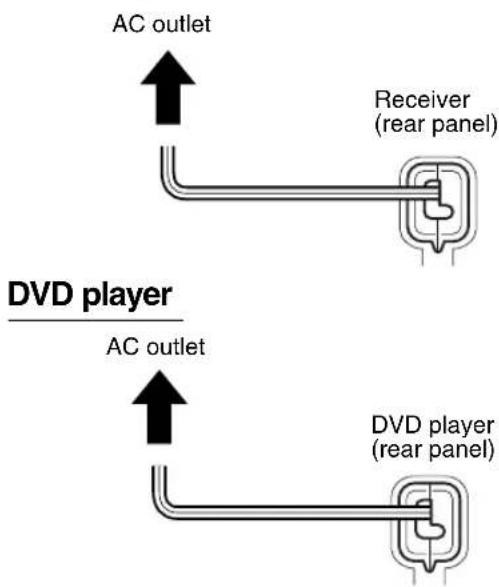
- Connect the power cords after you complete the other connections.
- The STANDBY lamps on the front panels of the receiver and the DVD player will light up.
Turning on/off the system
Receiver
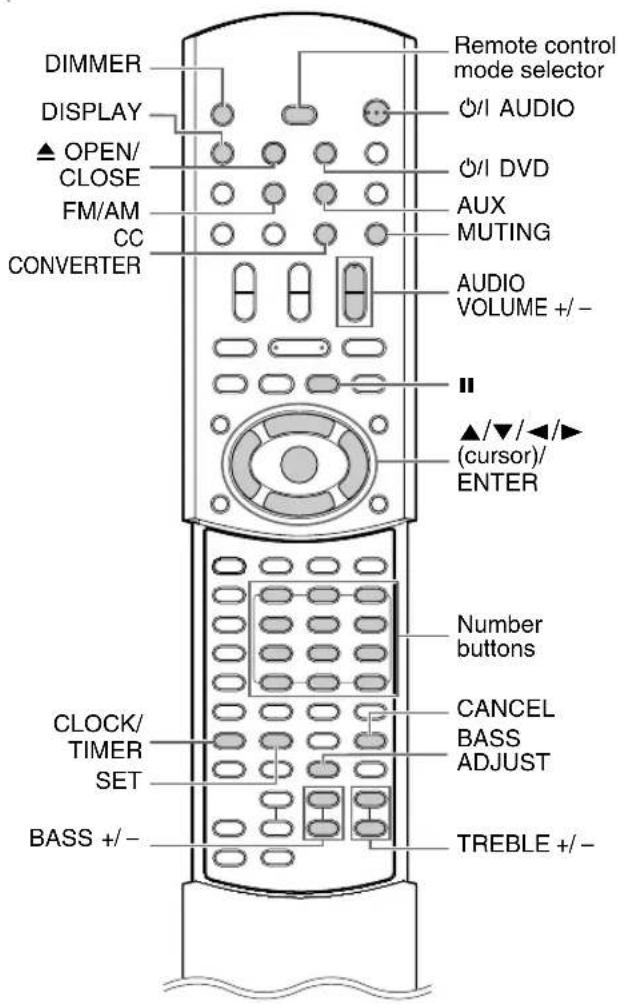
1 Slide the remote control mode selector to RECEIVER.
2 Press ⏻/1 AUDIO (or ⏻/1 on the receiver).
- The power of the receiver will turn on and the STANDBY lamp on the receiver will turn off.
- Press Ⓗ/1 AUDIO again to turn off the power of the receiver.
-
With the power off, pressing any of the following buttons also turns on the receiver.
-
DVD, FM/AM or AUX on the remote control
- ▶/Ⅱ on the DVD player
The function assigned to the button starts working at the same time.
DVD player
1 Slide the remote control mode selector to DVD.
2Press ⏻/1 DVD (or ⏻/1 on the DVD player).
- The power of the DVD player will turn on and the STANDBY lamp on the DVD player will turn off.
- Press Ⓗ/1 DVD again to turn off the power of the DVD player.
- With the power off, pressing any of the following buttons also turns on the DVD player.
- DVD or ▲ OPEN/CLOSE on the remote control
- ▲ or ▶/■ on the DVD player
The function assigned to the button starts working at the same time.
(When you press DVD on the remote control or ▶/Ⅱ on the DVD player, if a disc has been loaded, playback starts automatically.)
Setting the clock
You can set the clock when the receiver is turned either on or off.
Example:
To set the clock to 10:30 a.m. on Wednesday
1 Slide the remote control mode selector to RECEIVER.
2Press CLOCK/TIMER.
Display on the receiver
0:00 Sun.
3 Press ◀ or ▶ (cursor) to select the hour.
- Hold down the button to incrementally increase the hour setting.
- You can also use the number buttons to specify the hour. Refer to "Using the number buttons" shown on the right.
10:00 Sun.
4Press SET.
10:00 Sun.
5 Press ◀ or ▶ (cursor) to select the minute.
- Hold down the button to incrementally increase the minute setting.
- You can also use the number buttons to specify the minute. Press SET.
6Press SET.
7 Press ◀ or ▶ (cursor) to select the day of the week.
- Hold down the button to change the setting for the day of the week.
10:30 Wed.
- Abbreviations are used for the days of the week.
Sun. →Sunday Mon.→Monday Tue. →Tuesday Wed.→Wednesday Thu. →Thursday Fri. →Friday Sat. →Saturday
8Press SET.
- The clock starts from 0 seconds in the minute you set.
NOTE
- While setting the clock, you can return to the previous step by pressing CANCEL.
- The time display on the receiver is a 24-hour clock.
- The clock will gain or lose about 1 minute per month.
- If the power cord of the receiver is disconnected from the AC outlet or the power is interrupted, the clock setting is stored for about 1 minute.
- You cannot set the clock when "DISPLAY OFF" is selected. ( page 16)
Adjusting the clock
Press CLOCK/TIMER twice to display the clock, and then adjust the clock starting from step 3.
Displaying the clock when using the receiver
Press DISPLAY.
- Refer to "Changing the display in the display window". (page 26)
Using the number buttons
Examples:
5: 5
15: ≥1015
150: ≥10≥10150
Dimmer
Changing the brightness of the display windows on the receiver and the DVD player
You can set the brightness of the display windows on the receiver and the DVD player respectively.
■ When the receiver/DVD player is turned on
1 Slide the remote control mode selector to RECEIVER or DVD.
2 Press DIMMER repeatedly.
• Each time you press DIMMER, the setting changes on the receiver/DVD player.

flowchart
graph LR
    A["DIMMER 1"] --> B["DIMMER 2"]
    B --> C["DIMMER OFF"]
    C --> D["DIMMER AUTO"]
- For a disc containing video, when you select "DIMMER AUTO", "DIMMER 2" is automatically selected during video playback and is canceled when the playback stops.
- For a disc containing no video, when you select "DIMMER AUTO", "DIMMER OFF" is automatically selected during playback and is canceled when the playback stops.
Turning off the display on the receiver
You can also turn off the display on the receiver when the receiver is turned off.
■ When the receiver is turned off
1 Slide the remote control mode selector to RECEIVER.
2 Press DIMMER repeatedly.
• Each time you press DIMMER, the setting changes on the receiver. DISPLAY ON ◀ DISPLAY OFF
Adjusting the volume
1 Slide the remote control mode selector to RECEIVER.
2 Press AUDIO VOLUME +/-.
- The volume can also be adjusted by turning the VOLUME control on the receiver.
Turning off the sound temporarily (MUTING)
1 Slide the remote control mode selector to RECEIVER.
2 Press MUTING.
- No sound will come out from the speakers, headphones and the subwoofer. - Press MUTING again to restore the sound. When the power is turned off once and turned on again, the sound will also be restored.
Adjusting the sound quality
1 Slide the remote control mode selector to RECEIVER.
2 Bass: Press BASS +/-. Treble: Press TREBLE +/-.
Adjusting the bass sound
1 Slide the remote control mode selector to RECEIVER.
2Press BASS ADJUST.
Display on the receiver
100Hz Q:1
3While the selectable values are flashing, press ◀ or ▶ (cursor) to select the value of the bass frequency.
- You can select "100 Hz", "120 Hz" or "140 Hz".
- The initial setting is "100 Hz". Select the value for your desired bass sound.
4While the selectable values are flashing, press ▲ or ▼ (cursor) to select the value of “Q” in the display window.
- You can select "0.75", "1" or "1.25".
- The initial setting is "1". Select the value for your desired bass sound.
5Press ENTER.
- The selected values are displayed for a short time.
NOTE
- The adjustment of the bass sound does not change the treble and bass sound level adjustments.
Enhancing the playback sound (CC CONVERTER)
The CC CONVERTER function is designed to provide natural sound by improving the playback sound from low-bit-rate digital sources.
The function compensates for sound waves dissipated during digital recording compression to approximate the original analog sound. Sound is reproduced with more bits (24 bit) and a wider range of frequency (128 kHz, 176.4 kHz or 192 kHz).
1 Slide the remote control mode selector to RECEIVER.
2Press CC CONVERTER.
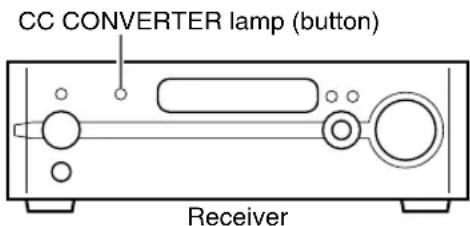
- When the CC CONVERTER function is activated, the CC CONVERTER lamp (button) on the front panel of the receiver lights up.
• Each time you press CC CONVERTER, the display changes as follows. - "CC CNVRTR 1":
Plays back a digital source with non-compressed sound signals (linear PCM). - "CC CNVRTR 2":
Plays back a digital source with compressed sound signals (Dolby digital, DTS, MP3 or WMA). - "CC CNVRTR OFF":
Cancels the CC CONVERTER function.
NOTE
- The initial setting is "CC CNVRTR 1".
- The CC CONVERTER function does not work when analog sound is selected as the sound source or when 3D PHONIC is activated ( page 38). In such cases, pressing CC CONVERTER only displays "ANALOG SOURCE".
- The original range of frequency is automatically detected and extended to a specific range. When the original range is 32 kHz, 44.1 kHz or 48 kHz, the range is extended to 128 kHz, 176.4 kHz or 192 kHz respectively.
Selecting a radio station
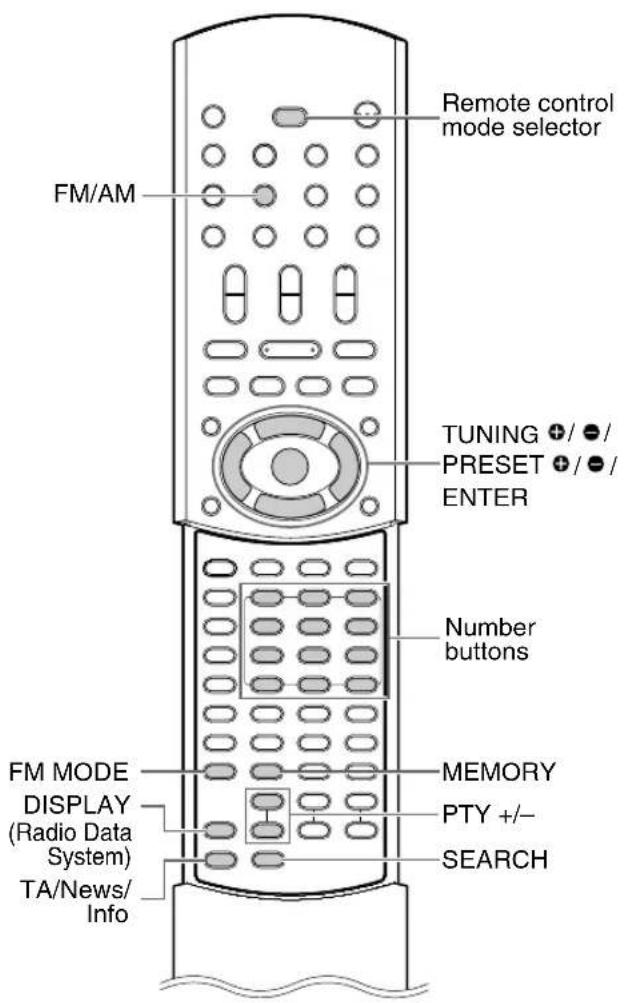
This receiver can receive FM and AM radio broadcasts.
1 Slide the remote control mode selector to RECEIVER.
2 Press FM/AM to select "FM" or "AM".
- Pressing FM/AM selects a radio broadcast as the sound source.
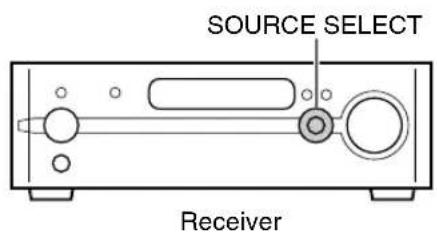
- You can also use SOURCE SELECT on the receiver to select a radio broadcast as the sound source.
• Each time you press FM/AM, the band will toggle between "FM" and "AM".
Example: Display on the receiver
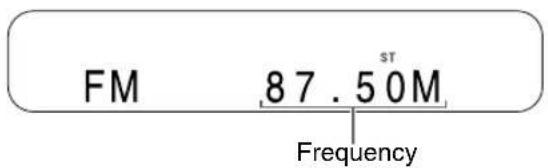
3 Press TUNING & TUNING repeatedly to select a radio station (frequency).
- When the receiver has received an FM stereo broadcast, "ST" (stereo) indicator lights up.
- You can also select a radio station using the automatic tuning.
Automatic tuning:
Hold down TUNING ⊕ or TUNING ⊖ until the frequency starts changing, and then release the button.
When the receiver has received a broadcast, the frequency automatically stops changing.
To quit the function while searching for a broadcast, press TUNING ⊕ or TUNING ⊖.
NOTE
- Pressing SEARCH – or SEARCH + on the receiver also enables you to select the radio station.
- If an FM stereo broadcast is difficult to hear because of noise, you may be able to hear the broadcast more easily by pressing FM MODE to switch the sound to monaural reception. In this case, "MONO" lights up. To return the sound to stereo reception, press FM MODE again.
Tuning in to a preset radio station
Presetting radio stations in the receiver allows you to easily tune in to a radio station.
Presetting radio stations
You can store up to 30 FM radio stations and up to 15 AM radio stations.
1 Select a radio station you want to store (“Selecting a radio station”).
2 Press MEMORY.
- The preset number flashes in the display window on the receiver for about 5 seconds.
3 While the preset number is flashing, press PRESET or PRESET ● to select the preset number you want to use.
- You can also select the preset number by using the number buttons. (Refer to "Using the number buttons". (page 15))
4 Press MEMORY or ENTER while the selected number is flashing.
- "STORED" will appear and the selected radio station will be stored.
NOTE
- When you store a radio station to a preset number to which another radio station has previously been stored, the newly set radio station replaces the previously stored radio station.
Tuning in to a preset radio station
1 Slide the remote control mode selector to RECEIVER.
2 Press FM/AM repeatedly to select "FM" or "AM".
3 Press the number buttons to select the preset number of the radio station to which you want to tune in.
- Refer to "Using the number buttons" (page 15).
Radio Data System
Receiving FM radio broadcasts with Radio Data System
Radio Data System allows FM radio stations to send an additional signal along with their regular program signals.
For example, a radio station send its radio station name or information on the types of broadcasted programs such as sports or music.
You can receive the following types of Radio Data System signals.
PS (Program Service):
Shows commonly known radio station names.
PTY (Program Type):
Shows types of broadcasted programs.
RT (Radio Text):
Shows text messages sent by the radio station.
Enhanced Other Networks:
page 22
NOTE
- Radio Data System may not work correctly if the radio station is not transmitting the signals properly or if the signal is weak.
Alarm function
If an “Alarm!” (Emergency) signal is received from a radio station while you are listening to an FM radio broadcast with Radio Data System, the receiver automatically switches to the radio broadcast sending the “Alarm!” signal. (No AM and only some FM radio stations send broadcasts with Radio Data System.)
Changing the Radio Data System information
You can refer to Radio Data System information in the display window on the receiver while listening to an FM radio broadcast.
■ When listening to an FM radio broadcast
1 Slide the remote control mode selector to RECEIVER.
2 Press DISPLAY (Radio Data System) repeatedly.
PS (Program Service):
While the receiver is searching for Radio Data System information, "WAIT PS" appears and then the radio station names will be displayed. "NO PS" appears if no signal is received.
PTY (Program Type):
While the receiver is searching for Radio Data System information, "WAIT PTY" appears and then the type of the broadcasted program will be displayed. "NO PTY" appears if no signal is received.
RT (Radio Text):
While the receiver is searching for Radio Data System information, "WAIT RT" appears and then text messages sent by the radio station will be displayed. "NO RT" appears if no signal is received.
NOTE
- If the receiver takes time to show the Radio Data System information received from a radio station, "PS", "PTY" or "RT" may appear in the display window on the receiver.
- When PS, PTY or RT signals appear in the display window on the receiver, irregular characters and marks may not be displayed correctly.
Searching for programs by PTY codes (PTY search)
You can locate a type of radio program by specifying the corresponding PTY code.
- The PTY search is applicable only to the preset radio stations.
■ When an FM radio broadcast is selected as the sound source
1 Slide the remote control mode selector to RECEIVER.
2 Press SEARCH.
Display on the receiver
PTY SELECT
3 Press PTY + or PTY – repeatedly to select a PTY code while “PTY SELECT” is flashing.
Example:
When "Document" is selected as a PTY code
Document
- Refer to page 21 for the PTY codes.
4 Press SEARCH.
- While the receiver is searching for a radio program, "SEARCH" and the selected PTY codes will be displayed.
Example:
When "Document" is selected as a PTY code
SEARCH

Document
- The receiver searches 30 preset FM radio stations, and stops when the receiver finds the one you have selected. At this time the selected frequency and PTY code flash. When SEARCH is pressed while the selected frequency and PTY code are flashing, the receiver automatically starts searching for the next radio station. After the frequency and PTY code stop flashing or if a button is pressed, the receiver automatically tunes in to the radio station.
• To stop searching, press SEARCH. - If no program is found, "NOT FOUND" appears in the display window on the receiver and the receiver returns to the last received radio station.
PTY codes:
| None: | Undefined. |
| News: | News. |
| Affairs: | Topical program expanding or enlarging upon news-debate or analysis. |
| Info: | Programs the purpose of which is to impart advice in the widest sense. |
| Sport: | Programs concerned with any aspect of sports. |
| Educate: | Educational programs. |
| Drama: | All radio plays and serials. |
| Culture: | Programs concerning any aspect of nationalor regional culture, including language and theater. |
| Science: | Programs about natural sciences and technology. |
| Varied: | Used for mainly speech-based programs such as quizzes, panel games and personality interviews. |
| Pop M: | Commercial music of current popular appeal. |
| Rock M: | Rock music. |
| Easy M: | Current contemporary music considered to be “easy-listening”. |
| Light M: | Instrumental music, and vocal or choral works. |
| Classics: | Performances of major orchestral works, symphonies and chamber music. |
| Other M: | Music not fitting into any of the other categories. |
| Weather: | Weather reports and forecasts. |
| Finance: | Stock market reports, commerce and trading. |
| Children: | Programs targeted at a young audience. |
| Social: | Programs about sociology, history, geography, psychology and society. |
| Religion: | Religious programs. |
| Phone In: | Involving members of the public expressing their views either by phone or at a public forum. |
| Travel: | Travel information. |
| Leisure: | Programs about recreational activities. |
| Jazz: | Jazz music. |
| Country: | Songs which originate from, or continue the musical tradition of the American Southern States. |
| Nation M: | Current popular music of the nation or region. |
| Oldies: | Music from the so-called “golden age” of popular music. |
| Folk M: | Music which has its roots in the musical culture of a particular nation. |
| Document: | Programs concerning factual matters, presented in an investigative style. |
| TEST: | Broadcasts for testing emergency broadcast equipment or receiver. |
| Alarm !: | Emergency announcement. |
| Classification of the PTY codes for some FM radio stations may be different from the list shown above. | |
Switching to a program type of your choice temporarily
The Enhanced Other Networks function allows the receiver to switch temporarily to a broadcast program of your choice (TA, News, or Info) from a different radio station when you are listening to a Radio Data System radio station.
- Enhanced Other Networks function is applicable only to the preset radio stations.
1 Slide the remote control mode selector to RECEIVER.
2Press TA/News/Info repeatedly until the indicator of your desired program type (TA/News/Info) appears in the display window on the receiver.
• Each time you press TA/News/Info, the indicator in the display window changes.
Example:
Display on the receiver
TA
TA: Traffic announcement
News: News
Info: Programs the purpose of which is to impart advice in the widest sense.
NOTE
- To cancel the Enhanced Other Networks function, press TA/News/Info repeatedly until the program type indicator (TA/News/Info) turns off in the display window on the receiver. Changing the sound source or turning off the receiver also cancels the Enhanced Other Networks function.
- The Enhanced Other Networks data sent from some radio stations may not be compatible with this receiver.
- While listening to a program tuned in with the Enhanced Other Networks function, the radio station does not change even if another network radio station starts broadcasting the same Enhanced Other Networks program.
- While listening to a program tuned in with the Enhanced Other Networks function, you can only use TA/News/Info and DISPLAY (Radio Data System) as the tuner operation buttons. If you press any other button, "LOCKED!" appears in the display window on the receiver.
- If the radio stations toggle intermittently between the radio station tuned in to by the Enhanced Other Networks function and the currently tuned radio station, press TA/News/Info to cancel the Enhanced Other Networks function.
How the Enhanced Other Networks function actually works:
If there is no radio station broadcasting the program you have selected:
The receiver continues tuning in to the current radio station.

When a radio station starts broadcasting the program you have selected, the receiver automatically switches to the radio station. The program type starts flashing in the display window.

When the program is over, the receiver goes back to the previously tuned radio station, but the Enhanced Other Networks function still remains activated.
CASE 2 CASE 1
If there is a radio station broadcasting the program you have selected:
The receiver tunes in to the program. The program type starts flashing in the display window.

When the program is over, the receiver goes back to the previously tuned radio station, but the Enhanced Other Networks function still remains activated.
Playing back a DVD/CD
DVD VIDEO DVD AUDIO DVD VR VCD SVCD CD
1 Slide the remote control mode selector to DVD.
2Press ▲ OPEN/CLOSE.
- The disc tray ejects.
3Place a disc.
Letter-printed surface
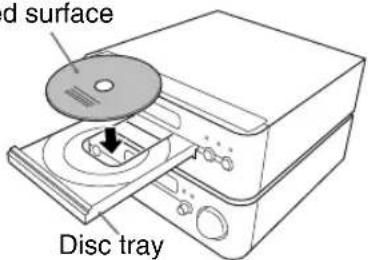
• To listen to an 8 cm disc, place it on the inner hollow of the disc tray.
4Press ▶ (play) or DVD.
NOTE
- You can also use SOURCE SELECT on the receiver to select a loaded disc as the sound source.
- A menu screen may be displayed after starting playback of a DVD. In this case, select a desired item to playback by using the following buttons on the remote control.
- Select a desired item using ▲/▼/◄/► (cursor) and press ENTER.
- You can also select a desired item using the number buttons. Refer to "Using the number buttons" (page 15).
- When a DVD AUDIO is played back, signals are converted into analog signals. Beginning playback of a DVD AUDIO displays "DVD-ANALOG" for a short time. When you take the disc out of the disc tray, the display returns to "DVD-DIGITAL" automatically.
- When using a DVD player other than the supplied XV-EXA10, select "DVD-DIGITAL" playback or "DVD-ANALOG" playback according to your usage. Each time you hold down DVD, the playback changes among "DVD-DIGITAL", "DVD-ANALOG" and "DVD-AUTO". Return to the initial setting ("DVD-AUTO") when using the XV-EXA10.
- Depending on the disc, the actual operation may be different from the description.
- When you select a source other than a DVD during playback, the loaded disc stops automatically, and "DVD OFF" is displayed in the display window on the DVD player.
MP3 WMA JPEG ASF DivX MPEG1 MPEG2
This part explains the operation with displays of an MP3 disc as examples.
For a JPEG disc, read "track" as "file".
NOTE
- When files of different types are recorded on a disc, select the file type to be played back. (“FILE TYPE” on page 42)
1 Slide the remote control mode selector to DVD.
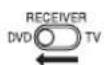
2Load a disc.
![Numbers of the current group and total groups recorded on the loaded disc Numbers of the current track (file) and total tracks (files) included in the current group Elapsed playback time of the current track (MP3/WMA/ASF disc only) Playback status File Time 00:03:08 Group: 1/10 spring summer fall winter sea Track Information Title flower Artist earth Album nature Track 1/6 [cta 28] 01-begonia.mp3 02-german chamomile.mp3 03-kiwi fruit.mp3 04-orchard grass.mp3 05-petunia.mp3 06-north pole.mp3 Current group Tag information (MP3/WMA disc only) Current track (file) Number of the total tracks (files) recorded on the loaded disc](/content/2026/05/770337/images/1ba70cb531980e6a25662bf76f1c06b66c975fd5cbbc88e2d243ba27754891c7.jpg)
3 Press ▲/▼ (cursor) to select a group.
4 Press ▶ (cursor) to move to the track list.
- Press ◀ (cursor) to go back to the group list.
5 Press ▲/▼ (cursor) to select a track.
6Press ▶ (play) or ENTER.
NOTE
- You can also use GROUP/TITLE « or » in step 3 and PREVIOUS |◀◀ or NEXT ▶▶| in step 5. In this case, you can skip step 4.
- The number buttons can also be used in step 5. In this case, you can skip steps 4 and 6. (Refer to "Using the number buttons". (E7 page 15))
Slide-show playback JPEG
- In step 6, for a JPEG disc, when ▶ (play) is pressed, files will be continuously played back from the selected file (slide-show playback), and when ENTER is pressed, only a selected file will be played back.
- Display time for a file in slide-show playback is about 3 seconds.
Display window on the DVD player
■DVD VIDEO/DVD AUDIO/DVD VR When a disc is played back
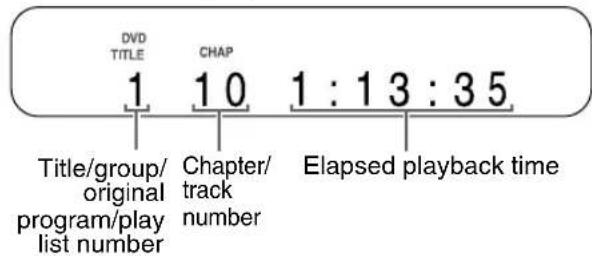
- When a DVD AUDIO is played back, "GR" and "TR" are displayed instead of "TITLE" and "CHAP".
- When a DVD VR is played back, "VR" is displayed and "PG" (original program) or "PL" (play list) is displayed instead of "TITLE".
- If "BONUS" or "B.S.P." is displayed during DVD AUDIO playback, refer to pages 37 and 38.
When a disc is stopped
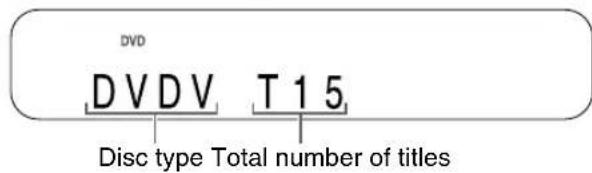
- When a DVD AUDIO is loaded; "DVDA" is displayed instead of "DVDV", and the total numbers of groups and the tracks are displayed instead of the total numbers of the titles.
- When a DVD VR is loaded; "VR" is displayed instead of "DVDV", the total number of original programs or the play lists is displayed instead of the total number of titles, and "DVD VR" is displayed instead of "DVD".
■VCD/SVCD
When a disc is played back
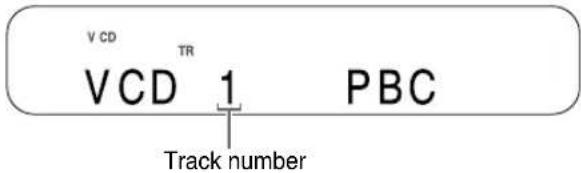
- PBC (Play Back Control) is a signal recorded in a VCD (version 2.0) for controlling playback. You can enjoy interactive software or software with a search function using a menu screen recorded in a PBC compatible VCD. To play back a disc without the PBC function, follow the instructions below.
- Specify the track number using the number buttons when the disc is stopped. Refer to "Using the number buttons" (15 page 15).
- Specify the track number using PREVIOUS ◀◀◀ or NEXT ▶▶ when the disc is stopped, and then press ▶ (play).
- Press RETURN to go back to the upper layer during PBC playback of a VCD or SVCD.
When a disc is stopped
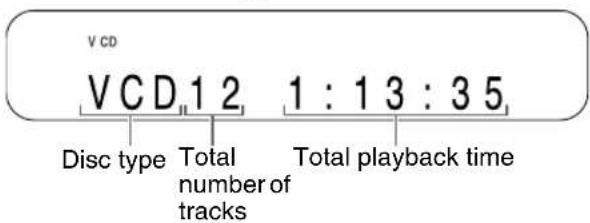
- When the PBC function is activated, the display below appears after the display above is displayed for a short time.
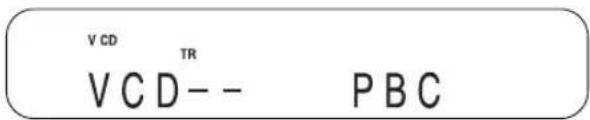
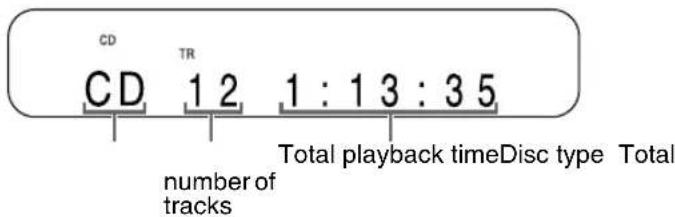
CD
When a disc is played back
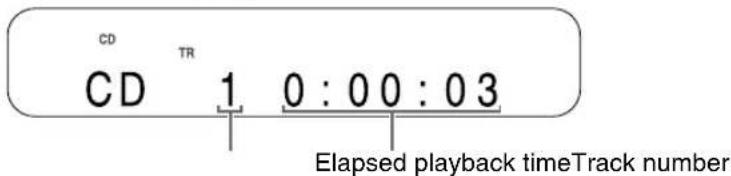
When a disc is stopped
■MP3/WMA/ASF/DivX/MPEG1/MPEG2 disc
When a disc is played back
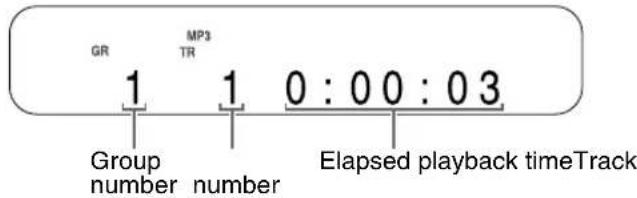
- When a WMA disc is played back, "WMA" is displayed instead of "MP3".
- When an ASF/DivX/MPEG1/MPEG2 disc is played back, no disc type indicator is displayed.
When a disc is stopped
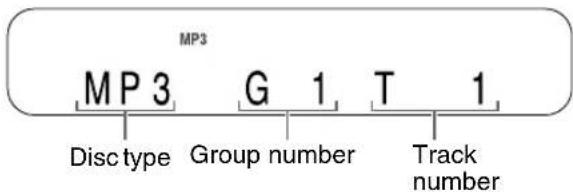
- When a WMA disc is loaded, "WMA" is displayed instead of "MP3" in the upper indicator and the lower display.
- When an ASF disc is loaded; "MP3" disappears in the upper indicator, and "ASF" is displayed instead of "MP3" in the lower display.
- When a DivX disc is loaded; "MP3" disappears in the upper indicator, and "DivX" is displayed instead of "MP3" in the lower display.
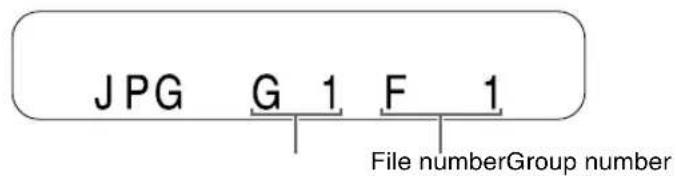
■JPEG disc
When a disc is played back or stopped
Changing the display in the display window
Receiver
1 Slide the remote control mode selector to RECEIVER.
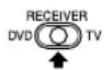
2Press DISPLAY repeatedly.
• Each time you press DISPLAY, the display toggles between the current source (DVD, FM, AM, AUX-DIGITAL or AUX) and the clock.
DVD player


1 Slide the remote control mode selector to DVD.
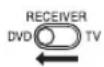
2Press DISPLAY repeatedly during playback.
• Each time you press DISPLAY, the display changes.
■DVD VIDEO
Normal display (as shown on page 24)

Disc type/title number/chapter number
■DVD AUDIO
Normal display (as shown on page 24)

Disc type/group number/track number
■ DVD VR
Normal display (as shown on page 24)

Disc type/original program (play list) number/chapter number
■MP3/WMA disc
Normal display (as shown on page 25)

File type/group number/track number

Text*
* When text, such as a file name, has been recorded in the loaded MP3/WMA disc, the text appears and scrolls in the display window on the DVD player.
■ASF/DivX/MPEG1/MPEG2 disc
Normal display (as shown on page 25)

File type/group number/track number
Selecting a chapter/track using the number buttons


L(PBC off)
■ When a disc is played back
1 Slide the remote control mode selector to DVD.
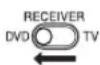
2 Use the number buttons to select the chapter number or track number.
- Refer to "Using the number buttons" (page 15).
NOTE
- You cannot use this function for some discs.
Stopping playback


■ When a disc is played back
1 Slide the remote control mode selector to DVD.
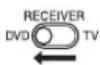
2Press ■.
Pausing playback


■ When a disc is played back
1 Slide the remote control mode selector to DVD.
2 Press II.
- To return to normal playback, press ▶ (play).
Advancing the picture frame by frame


(only for moving image)
■ When a disc is paused
1 Slide the remote control mode selector to DVD.
2 Press II repeatedly.
Fast reverse/fast forward search


■ When a disc is played back
1 Slide the remote control mode selector to DVD.
There are two methods in step 2.
2 Press ◀◀ or ▶▶.
• Each time you press the button, the speed increases. To restore the normal speed, press ▶ (play).
Hold down PREVIOUS ◀◀◀ or NEXT▶▶.
- Fast reverse/fast forward search can be used only while the button is pressed.
NOTE
- For some discs, sound is intermittent or no sound will be produced during fast reverse/fast forward search.
- The selectable speeds and displays vary by the disc type.
JVC
Messages displayed on the TV when the power is turned on
The following messages appear depending on the status of the DVD player.
| NOW READING | Appears when the DVD player is reading the disc information. Wait for a while. |
| REGION CODE ERROR! | Appears when the Region Code of the DVD does not match the code the DVD player supports. (page 49) |
| NO DISC | Appears when no disc is loaded. |
| OPEN | Appears when the disc tray is opening. |
| CLOSE | Appears when the disc tray is closing. |
| CANNOT PLAY THIS DISC | Appears when an unplayable disc is attempted to be played back. |
Playing back from a position 10 seconds before (One touch replay)
■ When a disc is played back
1 Slide the remote control mode selector to DVD.
2Press ONE TOUCH REPLAY.
NOTE
- This operation may not be used for some discs.
- You cannot go back to the previous title.
Slow motion playback

(only for moving image)
■When a disc is paused
1 Slide the remote control mode selector to DVD.
2Press SLOW ⊕SLOW.
• Each time you press the button, the speed increases.
- Press to pause playback, and press (play) to return to normal playback.
NOTE
- No sound will be produced.
- The picture motion in the reverse direction may not be smooth.
- For a VCD, SVCD or DVD VR, slow motion playback can be used in the forward direction only.
Skipping to the beginning of a chapter/ track/file
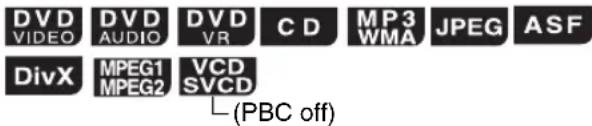
■ When a disc is played back
1 Slide the remote control mode selector to DVD.
2 Press PREVIOUS |◀◀ or NEXT ▶▶|.
• Each time you press the button, the playback position skips to the beginning of the previous or next chapter/track/file.
- Press PREVIOUS to skip back to the beginning of the chapter or track currently being played back (except for JPEG).
- Press GROUP/TITLE or to select the title or group.
- During playback of an MP3/WMA/JPEG/ASF/Divx disc, press NEXT ▶▶ or ▼ (cursor) to play back the next file, or press PREVIOUS ◀◀ or ▲ (cursor) to play back the previous file.
NOTE
- You can use this function while the disc is stopped except for a DVD VIDEO. You can use ▲ or ▼ (cursor) to skip to the beginning of a track while you are viewing the TV screen.
- You cannot use this function for some discs.
natural_image
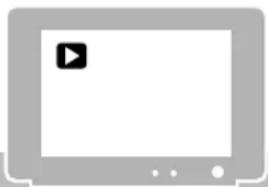
Generic icon of a computer monitor with a play button, no text or symbols presentGuide icons displayed on the TV screen (on-screen guide)

Play

Pause


Fast reverse/fast forward search


Slow motion playback (reverse/forward directions)

Containing multi-view angles (page 36)

Containing multi-audio languages (page 35)

Containing multi-subtitle languages (page 35)

The disc cannot accept the operation you have attempted.
Skipping at about 5 minute intervals
DivX
MPEG1 MPEG2
You can skip within a file at about 5 minute intervals.
This is useful especially when you want to skip within a long file.
■ When a disc is played back
1 Slide the remote control mode selector to DVD.
2 Press ◀ or ▶ (cursor).
• Each time you press the button, the playback position skips to the beginning of the previous or next interval. Each interval is about 5 minutes.
NOTE
- Intervals are automatically assigned from the beginning of a file.
- You can use this function only within the same file.
- You cannot use this function for some discs.
Resuming playback


MPEG1 MPEG2
When playback is stopped in the middle, playback can be started from the stopped position.
Temporarily stopping playback
■ When a disc is played back
1 Slide the remote control mode selector to DVD.
2Follow any of the operations below.
| Press ■ once.*1 *2 |
| Press ⬤/IAUDIO to turn off the power of the receiver. |
| Press ⬤/IDVD to turn off the power of the DVD player. |
| Change the source to FM/AM or AUX.*2 |
*1 "RESUME" will be displayed. If ■ is pressed again at this time, "RESUME" will disappear and the stored information will be cleared.
*2 After playback is stopped, even if the receiver or the DVD player is turned off by pressing Ⓗ/1 AUDIO or Ⓗ/1 DVD, the position where playback has been stopped will be stored.
Starting playback from the stored position
1 Slide the remote control mode selector to DVD.
2Press ▶ (play).
NOTE
- This function does not work in program playback or random playback.
- The position where playback starts again may be a little different from the stopped position.
- When the menu screen is displayed, the resume playback function may not work.
- The audio language, the subtitle language and the angle at that time are stored together with the stopped position.
- The stored position will be cleared if the disc tray is opened.
- The resume playback function is activated as the initial setting. You can disable the resume playback function. (“RESUME” on page 42)
Selecting a track from the menu screen


(PBC off)
■ When a disc is stopped or played back
1 Slide the remote control mode selector to DVD.
2Press MENU/PL or TOP MENU/PG.
- The menu screen will be displayed.
- Only TOP MENU/PG can be used for DVD AUDIOs.
3 Press ▲/▼/◄/► (cursor) (only for a DVD VIDEO or DVD AUDIO) or the number buttons to select the desired track.
- Refer to "Using the number buttons" (page 15).
- When the menu screen has a couple of pages, press PREVIOUS ◀◀◀ or NEXT ▶▶▶ to change the page (only for a VCD and SVCD).
4Press ENTER.
NOTE
- You cannot use this function for a disc without a menu screen.
- Playback may start for some discs without pressing ENTER.

■ When a disc is stopped or played back
1 Slide the remote control mode selector to DVD.
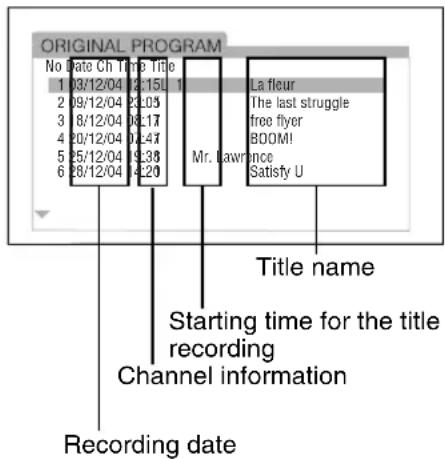
2Press TOP MENU/PG to display the original program or press MENU/PL to display the play list.
■Original program
■Play list
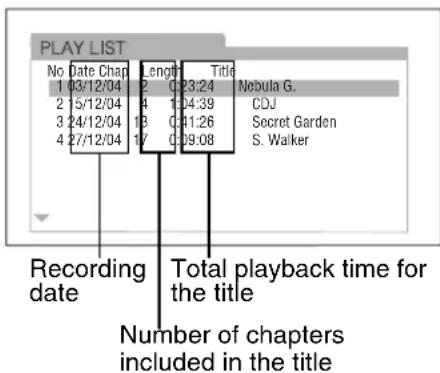
- The play list will not appear when a play list has not been recorded to the disc.
3 Press ▲/▼ (cursor) to select the desired title.
4Press ENTER.
- When you have selected the original program by pressing TOP MENU/PG in step 2, playback will start from the selected title to the following titles.
- When you have selected the play list by pressing MENU/PL in step 2, only the selected title will be played back.
Locking DVD/CD ejection
You can lock the disc tray to prevent the disc from being ejected.
Setting
Turn off the DVD player. And while holding down ■ on the DVD player, press ▲ on the DVD player.
- "LOCKED" appears in the display window on the DVD player.
Releasing
Follow the same instructions as those for setting.
- "UNLOCKED" appears in the display window on the DVD player.
Playing back a DVD/CD in the desired order (Program playback)

You can program a maximum of 99 tracks or chapters. The same track or chapter can be programmed more than once.
■ When a disc is stopped
1 Slide the remote control mode selector to DVD.
2Press PLAY MODE repeatedly to display "PROGRAM" in the display window on the DVD player.
Example: Display on the DVD player for a DVD VIDEO

Example: TV screen for a DVD VIDEO (Program screen)
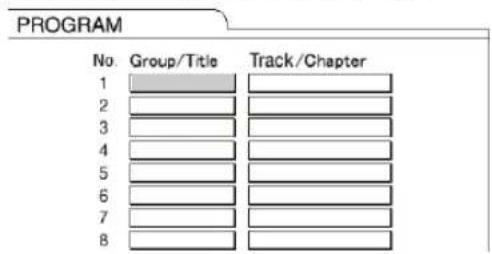
3Press the number buttons to program chapters/tracks.
- Refer to "Using the number buttons" (page 15).
■Display on the DVD player for DVD VIDEO
- Select a title number, and then a chapter number.
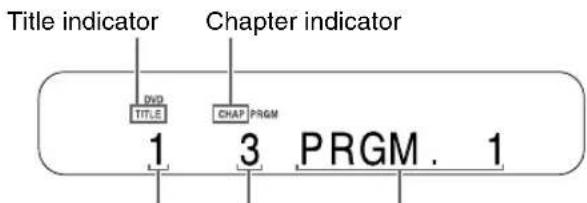
Title number Chapter number Program number
■Display on the DVD player for DVD AUDIO/MP3/WMA
- Select a group number, and then a track number.
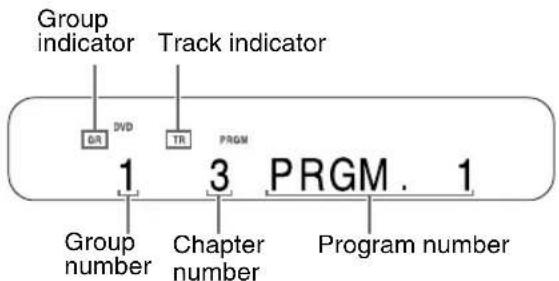
■ Display on the DVD player for VCD/SVCD/CD
- Select a track number.
- As you finish the track selection, the total time for the program playback will be displayed.
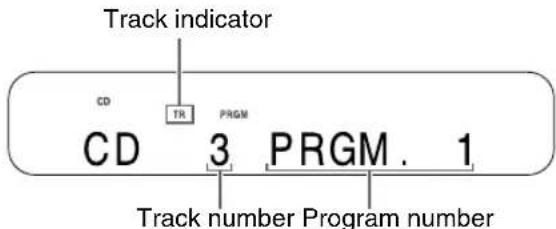
Example:
TV screen for a DVD VIDEO (Program screen)
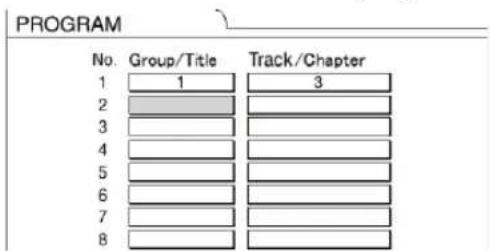
- Before selecting a bonus group of a DVD AUDIO, cancel the "BONUS" display as explained in "Playing back the bonus group" on page 37.
- When you try to enter more than 99 chapters or tracks, "MEMORY FULL" appears.
- In the case of a VCD, SVCD or CD, when the total playback time reaches 9 hours 59 minutes 59 seconds, “--:--” will be displayed in the display window on the DVD player.
NOTE
- Only for a DVD VIDEO, DVD AUDIO, MP3, WMA disc, if you press ENTER instead of specifying a track/chapter number, "ALL" is displayed and all of the tracks/chapters included in the selected group/title are programmed.
4Press ▶ (play).
- To return to normal playback, press PLAY MODE repeatedly to turn off "PRGM" (the upper indicator) in the display window on the DVD player while the disc is stopped. The program content will not be erased.
- The following operations erase the program content.
- Hold down CANCEL until "ALL CLEAR!" appears in the display window while the program screen is displayed on the TV screen (if CANCEL is pressed and released quickly, programs will be erased one by one).
- Open the disc tray.
- Turn off the power. (Only when the setting save function (page 34) is not being used)
Playing back a DVD/CD in a random order (Random playback)


■ When a disc is stopped
1 Slide the remote control mode selector to DVD.
2Press PLAY MODE repeatedly to display “RANDOM” in the display window on the DVD player.
- "RANDOM" will also be displayed on the TV screen.
3Press ▶ (play).
- The same chapter or track will not be played back twice.
- To return to normal playback, press PLAY MODE repeatedly to turn off "RND" (the upper indicator) in the display window on the DVD player while the disc is stopped.
- The following operations also cancel random playback.
- Open the disc tray.
- Turn off the power. (Only when the setting save function (page 34) is not being used)
- The previous track will not be returned to even if PREVIOUS is pressed repeatedly during random playback. (Playback will be returned to the beginning of the current chapter or track.)
NOTE
- You cannot use the random playback function for some DVD VIDEOS.
Playing back a DVD/CD repeatedly (Repeat playback)


(PBC off)
■ When a disc is played back
1 Slide the remote control mode selector to DVD.
2Press REPEAT.
• Each time you press the button, the repeat mode changes.
| Display on the TV screen | Display in the display window on the DVD player | Usage for the repeat mode |
[7BW8]  |  REPEAT TITLE REPEAT TITLE | Repeats the current title. |
 [X65X]or REPEAT ALL [X65X]or REPEAT ALL |  REPEAT ALL REPEAT ALL | Repeats the whole disc ^1 . |
| [XHTK] [WBT3]or REPEAT GROUP |  REPEAT GROUP ^2 REPEAT GROUP ^2 | Repeats the current group ^3 . |
  | [DDSH]REPEAT CHAP ^4 | Repeats the current chapter. |
  or REPEAT TRACK or REPEAT TRACK |  REPEAT TRACK ^4 REPEAT TRACK ^4 | Repeats the current track. |
  or no display or no display | REPEAT OFF Repeat off | |
*1 Repeats the whole program during program playback.
*2 For a DVD VR, "PG" is displayed during original program playback, and "PL" is displayed during play list playback.
*3 Repeats the current original program or the current play list for a DVD VR.
*4 "STEP" is displayed during program/random playback.
NOTE
- The repeat playback can also be set on the menu bar. (“Playing back a specified part repeatedly (A-B repeat playback)” on page 34)
- For a DVD VIDEO, DVD AUDIO and DVD VR, if the source is switched to FM/AM or AUX, the repeat mode will be cancelled.
- The repeat mode will be automatically cancelled if there is a file that cannot be played back (page 49 and 50).
Playing back a specified part repeatedly (A-B repeat playback)


(PBC off)
You can play back the desired part repeatedly by specifying a start point (A) and an end point (B).
■ When a disc is played back
1 Slide the remote control mode selector to DVD.
2Press ON SCREEN twice.
- The menu bar (page 39) will be displayed.
3 Press ◀/▶ (cursor) to select OFF.
4Press ENTER.
5 Press ▲/▼ (cursor) to display
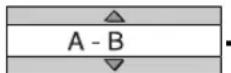
- Other repeat modes can be selected in this step. For other repeat modes, refer to "Playing back a DVD/CD repeatedly (Repeat playback)" (page 33).
6Press ENTER at the start point of the part to be repeated (specifying point A).
- The icon on the menu bar will be .
7 Press ENTER at the end point of the part to be repeated (specifying point B).
- The icon on the menu bar will be . A-B will appear in the display window on the DVD player and the part between points A and B will be played back repeatedly.
- A-B repeat playback can be cancelled by following the operations below.
- Press ■.
• Select (Select OFF)
and press
NOTE
- You can use A-B repeat playback only within the same title or track.
- You cannot use A-B repeat playback during program playback, random playback or repeat playback.
- You cannot use the A-B repeat playback function for some DVD VIDEOS.
Saving the playback settings for next time


You can save the settings for program playback, random playback or repeat playback so that the settings are activated even after the DVD player is turned off and then on again.
Combining this function with the playback timer ( page 45), you can make a variety of playback settings.
1 Slide the remote control mode selector to DVD.
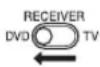
2Press CLOCK/TIMER.
- The current settings for program/random/repeat playback will be stored. Display on the DVD player
TIMER PLAY
NOTE
- To cancel the setting save function, press CLOCK/TIMER again.
TIMER CANCEL
- Opening the disc tray also cancels the setting save function.
- Resume playback does not work when the settings for program/random/repeat playback are saved. For example, if the program playback settings are saved and Ⓗ/IDVD is pressed to turn off the DVD player during playback, pressing Ⓗ/IDVD to turn on the DVD player again and pressing ▶ (play) starts playback of the first programmed track/chapter. Conversely, if the program playback settings are not saved and ▶ (play) is pressed after the DVD player is turned on, the resume playback function operates and playback starts from the point where the disc was stopped.
- For a JPEG/ASF/DivX/MPEG1/MPEG2 disc, you can use the setting save function for repeat preyback twice.
Selecting the subtitles


(only for moving image)
This part explains the operation with displays of a DVD VIDEO as examples.
You can use discs of other types in almost the same manner.
■ When a disc contains subtitles and is played back
1 Slide the remote control mode selector to DVD.
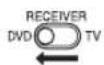
2Press SUBTITLE.
Example:
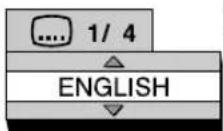
TV screen
• Each time you press the button, the subtitle will toggle between on and off.
3 Press ▲/▼ (cursor) to select a subtitle language.
4Press ENTER.
- The subtitle language setting will change automatically in a few seconds even if ENTER is not pressed.
NOTE
- You can use this function with the menu bar (page 39).
- For a language code such as "AA", refer to "Language codes" (page 53).
Selecting the audio language

■ When a disc contains multiple audio languages and is played back
1 Slide the remote control mode selector to DVD.
2Press AUDIO.
Example:
TV screen
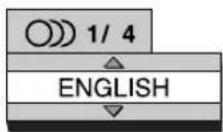
• Each time you press the button, the audio language will be changed. Also, the audio language can be changed by pressing ▲/▼ (cursor).
3Press ENTER.
- The audio language setting will change automatically in a few seconds even if ENTER is not pressed.
NOTE
- You can use this function with the menu bar (page 39).
- For a language code such as "AA", refer to "Language codes" (page 53).
- "ST", "L" and "R" displayed when playing back a VCD, SVCD or DVD VR respectively represent "Stereo", "Left sound" and "Right sound".
- For a DivX disc, only the number of the language is displayed on the TV screen.
Selecting the view angle


(only for moving image)
■ When a scene containing multi-view angles is played back
1 Slide the remote control mode selector to DVD.
2Press ANGLE.
Example:
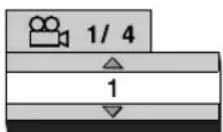
TV screen
• Each time you press the button, the angle will be changed. Also, the angle can be changed by pressing ▲ /▼ (cursor).
3Press ENTER.
- The angle setting will change automatically in a few seconds even if ENTER is not pressed.
NOTE
- You can use this function with the menu bar (page 39).
Magnifying the picture (ZOOM)


-only for moving image)
■ When a disc is played back or paused
1 Slide the remote control mode selector to DVD.
2Press ZOOM.
• Each time you press the button, the picture magnification will be changed.
3Select the portion you want to magnify by using ▲/▼/◄/► (cursor).
- To return to normal playback, select "ZOOM OFF" in step 2.
NOTE
- For a JPEG, you cannot change the picture magnification during slide-show playback.
- During ASF playback, there may be a case where /// (cursor) does not work in step 3.
NOTE
- If no operation is made for several seconds during the procedure, the settings made so far will be automatically stored.
- "VFP" stands for "Video Fine Processor".
■ When a disc is played back or paused
1 Slide the remote control mode selector to DVD.
2Press VFP.
- The current setting will appear on the TV screen.
- The “GAMMA” setting adjusts the brightness of neutral tints while maintaining the brightness of dark and bright portions. - The “SHARPNESS” setting adjusts the screen sharpness.
3 Press ◀/▶ (cursor) to select VFP mode.
- Selecting "NORMAL" is suitable for normal usage, and selecting "CINEMA" is suitable for a dark room. When selecting "NORMAL" or "CINEMA", proceed to step 8. - Selecting "USER1" or "USER2" enables you to make detailed adjustment in step 4 and the later steps.
4 Press ▲/▼ (cursor) to select an item to be adjusted.
5Press ENTER.
Example:
TV screen
GAMMA
6 Press ▲/▼ (cursor) to change the value.
7 Press ENTER.
- To adjust other items, go back to step 4.
8Press VFP.
There are some DVD AUDIOs with a special group, called “bonus group”, recorded.
NOTE
- You can use this function when "BONUS" lights up in the display window on the DVD player.
■ When a disc is played back
1 Slide the remote control mode selector to DVD.
2Press GROUP/TITLE repeatedly to select a bonus group.
- "KEY____" appears on the TV screen, and in the display window on the DVD player.
3Press the number buttons to enter the pin code (4 digits).
- The method of obtaining a pin code differs depending on the disc.
4Press ENTER.
- When the correct pin code is entered, "BONUS" disappears and the playback of the bonus group starts. - If an incorrect pin code is entered, try entering the correct pin code again.
Browsable still pictures (B.S.P.)
DVD AUDIO
Some DVD AUDIOs may have pictures called B.S.P. (Browsable Still Pictures). The pictures can be viewed as if you are turning pages.
NOTE
- You can use this function when "B.S.P." lights up in the display window on the DVD player.
■ When a disc is played back
1 Slide the remote control mode selector to DVD.
2Press PAGE.
• Each time you press the button, the still picture will be changed. You can also switch the picture using ▲/▼ (cursor).
Example:
TV screen
3Press ENTER.
- The picture setting will change automatically in a few seconds even if ENTER is not pressed.
NOTE
- You can use this function with the menu bar (page 39).
Creating realistic sound (3D PHONIC)

The two speakers produce an effect resembling surround-sound.
■ When a disc is played back
1 Slide the remote control mode selector to DVD.
2Press 3D PHONIC repeatedly to select the desired sound effect.
Example:
Display on the DVD player
This indicator lights up when 3D PHONIC is activated.
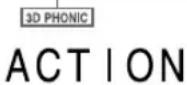
- "ACTION" is suitable for action movies, sport programs or other lively programs.
- Select "DRAMA" to enjoy a sound effect with a relaxing, natural atmosphere.
- Select "THEATER" to enjoy a sound effect as if you were watching the movie in a theater.
- Select "3D PHONIC OFF" to cancel 3D PHONIC. (initial setting)
NOTE
- 3D PHONIC is effective for both the speakers and headphones.
- If noise is produced or sound is distorted, select "3D PHONIC OFF".
- When 3D PHONIC is activated, analog playback is selected automatically, and "DVD-ANALOG" is displayed in the display window on the receiver. Canceling 3D PHONIC returns to "DVD-DIGITAL" automatically. When a DVD AUDIO is played back, signals are converted into analog signals regardless of whether 3D PHONIC is activated or canceled.
- You cannot use this function for some DVD AUDIOs.
- When 3D PHONIC is activated, the CC CONVERTER function will be cancelled automatically. ( page 17)
- For an ASF/DivX/MPEG1/MPEG2 disc, 3D PHONIC does not work and creates no sound effect even when “ACTION”, “DRAMA” or “THEATER” is displayed.
Using the status bar and the menu bar

■ When a disc is played back
1 Slide the remote control mode selector to DVD.
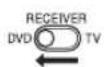
2Press ON SCREEN twice.
- "ON SCREEN" will appear in the display window on the DVD player. The status bar and the menu bar will appear on the TV screen.
Example:
When a DVD VIDEO is loaded
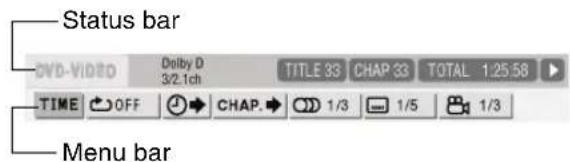
3 Press ◀/▶ (cursor) to select an item to be operated.
4Press ENTER.
- The selected function can be set. For the setting content, refer to "Function list". ( page 40)
- The currently active function is shown in blue.
• To turn off the menu bar, press ON SCREEN.
Information displayed on the status bar
DVD VIDEO/DVD AUDIO/DVD VR (the example below is for a DVD VIDEO)
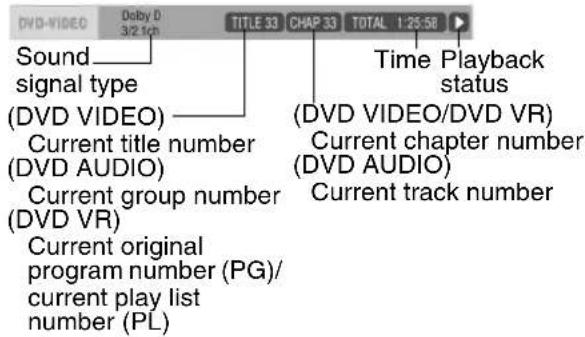
VCD/SVCD/CD/ASF/DivX/MPEG1/MPEG2 disc (the example below is for a CD)
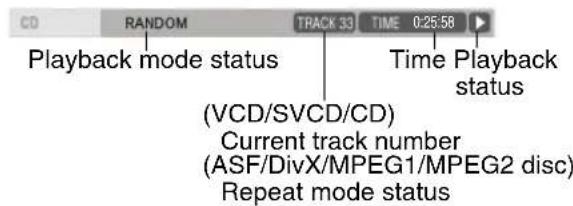
NOTE
- The playback status has the same meaning of the mark on the on-screen guide ( page 28).
Function list
For functions with no description of the operation, press ▲/▼ (cursor) to select and press ENTER to determine the function.
| TIMETime display selection | Changes the time information in the display window on the DVD player and the status bar. Each time ENTER is pressed, the display will be changed.DVD VIDEO/DVD AUDIO (operating during playback)TOTAL: Elapsed playback time of the current title/group.T.REM: Remaining time of the current title/group.TIME : Elapsed playback time of the current chapter/track.REM : Remaining time of the current chapter/track.DVD VR (operating during playback)TOTAL: Elapsed playback time of the current title/group.T.REM: Remaining time of the current title/group.CD (operating during playback)/VCD/SVCDTIME : Elapsed playback time of the current track.REM : Remaining time of the current track.TOTAL: Elapsed playback time of the disc.T.REM: Remaining time of the disc. |
| Repeat mode | page 33 |
| Time search | on the right |
| CHAP /TRACK Chapter search (DVD VIDEO/DVD VR)/Track search (DVD AUDIO) | Selects a chapter/track. Press the number buttons to input the chapter/track number and press ENTER.Examples:5: 5 24: 2 → 4 |
| Audio language/Audio (DVD VIDEO/DVD AUDIO/VCD/SVCD) | page 35 |
| Subtitle language (DVD VIDEO/DVD VR/SVCD) | page 35 |
| 1/3View angle (DVD VIDEO/DVD AUDIO) | page 36 |
| PAGE -/-Page switch (DVD AUDIO) | Switches the browsable still pictures (B.S.P.) recorded on a DVD AUDIO.(page 38) |
Designating the time (Time search)
■When a disc is played back
1 Slide the remote control mode selector to DVD.
2Press ON SCREEN twice.
- The menu bar will appear (page 39).
3 Press ◀/▶ (cursor) to select
4Press ENTER.
5Input the time using the number buttons (1-9, 0).
Example:
When you want to play back a DVD VIDEO from the position of (0 hour) 23 minutes 45 seconds, press the buttons in the order:

- You can skip the minute and second setting.
- If the incorrect value is input, press ◀ (cursor) to delete the values and input values again.
6Press ENTER.
• To turn off the menu bar, press ON SCREEN.
NOTE
- This function does not work for a DVD VIDEO with no time information recorded.
- This function does not work during program playback or random playback.
- For a CD, you can use this function any time.
- For a VCD or SVCD, you can use this function during playback without the PBC function.
- Time search for a DVD VIDEO is from the beginning of the title. Time search for a DVD AUDIO is from the beginning of the track being played back. Time search for a VCD, an SVCD and a CD is as follows:
- When the disc is stopped, time search is from the beginning of the disc.
- When the disc is being played back, time search is within the track currently being played back.
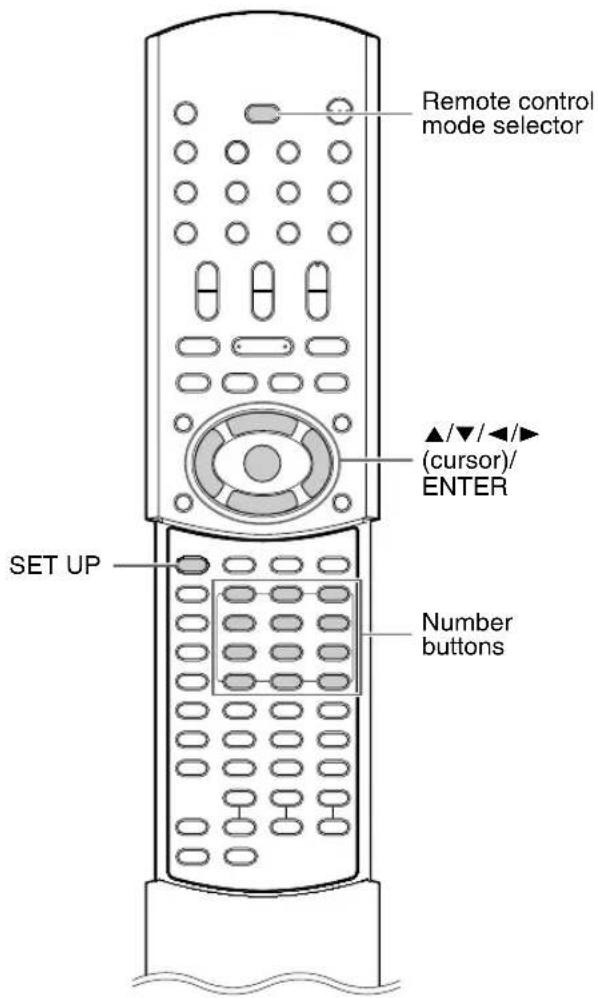
The initial settings of the DVD player can be changed with the preference screen according to the environment where the DVD player is used.
NOTE
- The top and bottom of the preference screen may not be displayed on a wide TV. Adjust the picture size on the TV.
Basic operations
■ When a disc is stopped or no disc is loaded ("NO DISC" is displayed)
1 Slide the remote control mode selector to DVD.
2 Press SET UP.
- The following screen will be displayed on the TV.
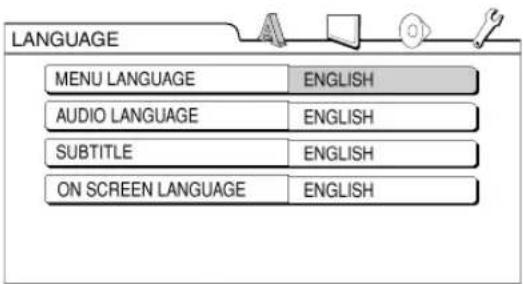
• Proceed with operations by following the description on the TV screen.

LANGUAGE
NOTE
- If the selected language is not recorded on the disc, the optimum language set for the disc will be displayed.
- For a language code such as "AA", refer to the "Language codes" (page 53).
| Items Contents | |
| MENU LANGUAGE | Selects the language for the DVD VIDEO menu screen. |
| AUDIO LANGUAGE | Selects the audio language for the DVD VIDEO. |
| SUBTITLE | Selects the subtitle language for the DVD VIDEO. |
| ON SCREEN LANGUAGE | Selects the language displayed on the preference screens. |

PICTURE
| Items Contents ( : initial setting) | |
| MONITOR TYPE | 16:9:For an ordinary wide TV. 4:3 LB (Letterbox):For a TV with conventional 4:3 aspect ratio.When a wide screen picture is input, the black bars appear on the top and bottom of the screen. 4:3 LB (Letterbox):For a TV with conventional 4:3 aspect ratio.When a wide screen picture is input, the black bars appear on the top and bottom of the screen. 4:3 PS (Pan Scan):For a TV with conventional 4:3 aspect ratio.When a wide screen picture is input, the left and right edges of the picture will not be shown on the screen. (If the disc is not compatible with Pan Scan, the picture will be displayed at the Letterbox ratio.) 4:3 PS (Pan Scan):For a TV with conventional 4:3 aspect ratio.When a wide screen picture is input, the left and right edges of the picture will not be shown on the screen. (If the disc is not compatible with Pan Scan, the picture will be displayed at the Letterbox ratio.) |
| PICTURE SOURCE | Select an item suitable to the video source.AUTO:The video source type (a video or film) is automatically selected.FILM:To view a film or video recorded with the progressive scan method.VIDEO:To view a normal video. |
| SCREEN SAVER | Select the Screen Saver mode between ON OFF (Screen Saver activates when there is no operation made for about 5 minutes since a still picture was last displayed). |
| FILE TYPE Select an item suitable to the file typeAUDIO:For MP3/WMA files.STILL PICTURE:For JPEG files.VIDEO:For ASF/DivX/MPEG1/MPEG2 files. | |

AUDIO
| Items Contents | ( : initial setting) |
| DIGITAL AUDIO OUTPUT* | Select the output signal type suitable to the equipment connected to the DIGITAL OUT terminal (a decoder-built-in amplifier or other digital equipment with an optical input terminal). Refer to “List of relationships of DIGITAL AUDIO OUTPUT preference items and output signal” (17 page 43).PCM ONLY:Equipment corresponding only to linear PCM.DOLBY DIGITAL/PCM:Dolby digital decoder or equipment having the same function.STREAM/PCM:DTS/Dolby digital decoder or equipment having the same function. |
| DOWN MIX Select the signal suitable to the equipment connected to the DIGITAL OUT terminal. Set “DOWN MIX” only when “DIGITAL AUDIO OUTPUT” is set to “PCM ONLY”.DOLBY SURROUND:Dolby Pro Logic decoder-built-in equipment.STEREO:Ordinary audio equipment. | |
| D (Dynamic). RANGE COMPRESSION | To correct the difference between high volume and low volume when playing back with low volume (only for a DVD recorded with Dolby digital).AUTO:The D. RANGE COMPRESSION function automatically works.ON:The D. RANGE COMPRESSION function always works. |
* When using the supplied XV-EXA10, make sure that "DIGITAL AUDIO OUTPUT" is set to "PCM ONLY".

OTHERS
| Items Contents ( : initial setting) | |
| RESUME Select ON /OFF. (17page 29) | |
| ON SCREEN GUIDE | Select ON /OFF. (17page 28) |
| AV COMPULINK MODE | This item is currently not used. (This is provided for future use.) |
| DivX REGISTRATION | The DVD player has its own registration code. You can confirm the registration code, when necessary. Once you have played back a disc in which the registration code is recorded, the registration code of the DVD player is overwritten for copyright protection. |
List of relationships of DIGITAL AUDIO OUTPUT preference items and output signal
| Playback disc | DIGITAL AUDIO OUTPUT preference | ||
| PCM ONLY DOLBY DIGITAL/PCM STREAM/PCM | |||
| 48 kHz, 16/20/24 bitLinear PCM DVD VIDEO96 kHz linear PCM DVD VIDEO | 48 kHz, 16 bit stereo linear PCM | ||
| 48/96/192 kHz,16/20/24 bit linear PCM DVD AUDIO* | 48 kHz, 16 bit stereo linear PCM | ||
| 44.1/88.2/176.4 kHz,16/20/24 bit linear PCM DVD AUDIO* | 44.1 kHz, 16 bit stereo linear PCM | ||
| DTS DVD VIDEO/DVD AUDIO* 48 kHz, 16 bit stereo linear PCM DTS bit stream | |||
| DOLBY DIGITAL DVD VIDEO/DVDAUDIO* | 48 kHz, 16 bit stereo linearPCM | DOLBY DIGITAL bit stream | |
| VCD/SVCD/CD | 44.1 kHz, 16 bit stereo linear PCM/48 kHz, 16 bit linear PCM | ||
| DTS CD 44.1 kHz, 16 bit linear PCM | DTS bit stream | ||
| MP3/WMA/DivX disc 32/44.1/48 kHz, 16 bit linear PCM | |||
NOTE
* Copyright-protected DVD AUDIOs do not output signals.
- Among DVD VIDEOs without copyright protection, there may be some DVD VIDEOs that output a 20 or 24 bit signal through the digital audio output terminals.
- To produce the sound from the loaded disc in the DVD player, select "PCM ONLY". Otherwise the receiver does not detect the signal and no sound is produced. (The initial setting is "PCM ONLY".)
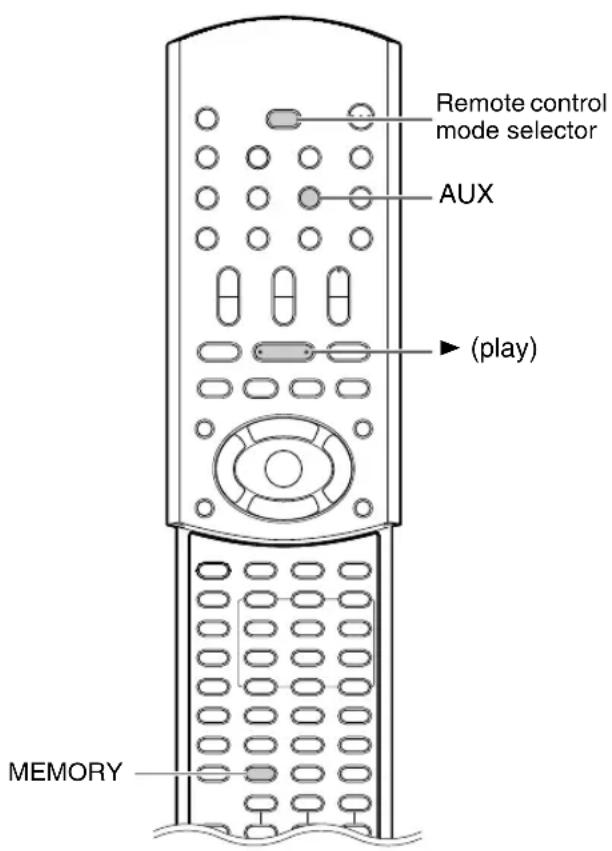
Connect the other audio equipment to this system in advance (page 12).
1 Slide the remote control mode selector to RECEIVER.
2 Press AUX to select "AUX-DIGITAL" or "AUX".
- Each time you press AUX, the display on the receiver toggles between "AUX-DIGITAL" and "AUX".
- The source changes to the signal from the AUX terminals.
- You can also use SOURCE SELECT on the receiver to select the signal from the AUX terminals as the sound source.
3 Begin playback on the other audio equipment.
- For details on beginning playback, refer to the manual of the connected equipment.
4 Adjust the volume and the sound quality of the system (page 16).
NOTE
- When no equipment is connected to the DIGITAL IN AUX terminal or the power of the connected equipment is off, after “AUX-DIGITAL” is selected, the display changes to “AUX-D UNLOCK”.
Adjust the sound input level of the audio equipment
You can adjust the sound input level of audio equipment connected to the AUX terminals.
1 Slide the remote control mode selector to RECEIVER.
2 Press AUX to select "AUX".
- Each time you press AUX, the display on the receiver toggles between "AUX-DIGITAL" and "AUX".
- The source changes to the signal from the AUX terminals.
3 Hold down MEMORY until the input level is displayed.
• Each time you hold down the button, the input level switches as follows:
LEVEL1 STORED: For normal use.

(initial
setting)
LEVEL2 STORED: To correct distorted sound caused by an extremely high input level from other equipment.
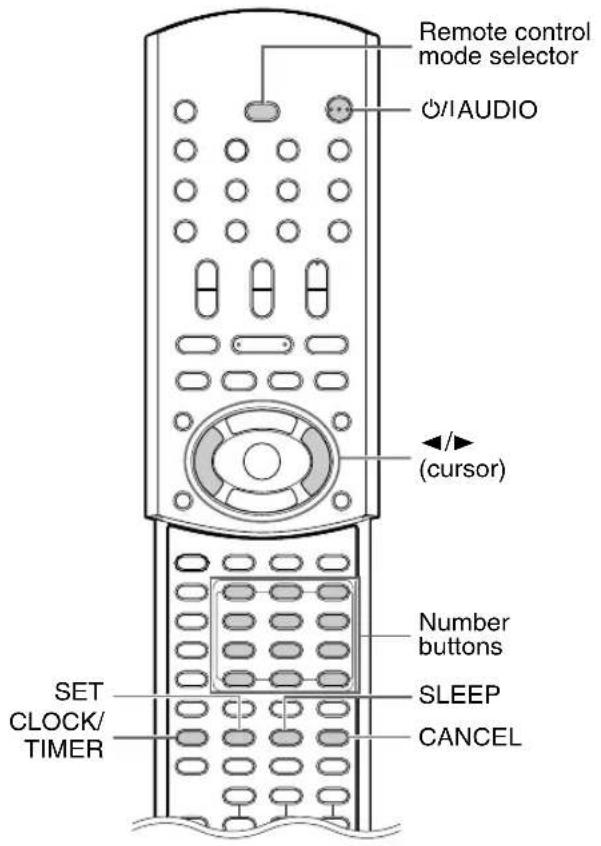
Using the playback timer
Set the clock beforehand. ( page 15)
1 Slide the remote control mode selector to RECEIVER.
2Press CLOCK/TIMER.
Display on the receiver
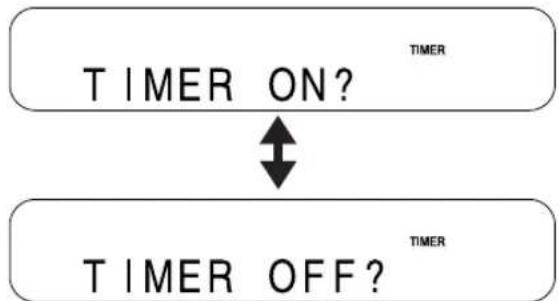
flowchart
graph TD
    A["TIMER ON?"] -->|↓| B["TIMER OFF?"]
- If you accidentally pressed CLOCK/TIMER twice or more, press CLOCK/TIMER repeatedly until the display shown above is displayed.
3Press SET.
4 Set the starting time and ending time with ◀, ▶ (cursor), and then press SET.
Example:
Display on the receiver when setting the starting time to 8:45
ON
8:45
Display on the receiver when setting the ending time to 9:45
OFF
9:45
- Press ◀ or ▶ (cursor) to select the value and press SET to set the value.
- You can use the number buttons instead of ◀ or ▶ (cursor). Refer to "Using the number buttons" (page 15).
5 Press ◀ or ▶ (cursor) to select "ONCE" or "WEEKLY", and then press SET.
ONCE The playback timer works once. WEEKLY The playback timer works weekly or every day.
6 Press ◀ or ▶ (cursor) to select the desired day of the week, and then press SET.
• Each time you press ◀ or ▶ (cursor), the display changes as follows.
When "ONCE" is selected

flowchart
graph LR
    A["Sun."] --> B["Mon."]
    B --> C["Tue."]
    C --> D["Wed."]
    D --> E["Thu."]
    E --> F["Sat."]
    F --> G["Fri."]
When "WEEKLY" is selected
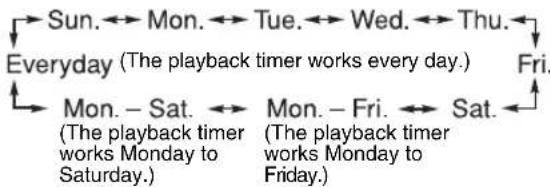
flowchart
graph TD
    A["Sun. ↔ Mon. ↔ Tue. ↔ Wed. ↔ Thu."] --> B["Everyday (The playback timer works every day.)"]
    B --> C["Mon. – Sat. ↔ Mon. – Fri. ↔ Sat. ↔"]
    C --> D["(The playback timer works Monday to Saturday.) (The playback timer works Monday to Friday.)"]
    D --> E["Fri. ↑"]
7 Press ◀ or ▶ (cursor) to select the desired sound source, and then press SET.
- If you have selected “FM” or “AM” in this step, press ◀, ▶ (cursor) or the number buttons to select the preset number of the radio station whose broadcast you want to listen to (Refer to “Using the number buttons” (page 15)), and then press SET.
8 Press ◀ or ▶ (cursor) to adjust the playback volume, and then press SET.
- You can use the number buttons to specify the volume. - The settings will appear in the display window on the receiver.
9Press ⏻/IAUDIO to turn off the receiver.
- The playback timer is available only when the receiver is off.
This indicator lights up when the playback timer is activated.
Standby
NOTE
- Complete the playback timer setting at least 1 minute prior to the starting time you have selected in step 4.
- While setting the playback timer, you can return to the previous step by pressing CANCEL or you can stop the setting by pressing CLOCK/TIMER.
- When the playback starts, the volume gradually increases to the selected level.
- You can make a variety of playback settings by combining the playback timer and saving the settings for program playback, random playback or repeat playback. ( page 34)
Canceling the playback timer
Press CANCEL after following steps 1 and 2 on page 45.
TIMER OFF
NOTE
- Even after you canceled the playback timer, the setting remains stored.
Activating the playback timer again
After following steps 1 and 2 on page 45, press ENTER. Then press ⏻/IAUDIO to turn off the receiver.
NOTE
- When the power cord of the receiver is disconnected from the AC outlet or the power is interrupted, the clock and the playback timer settings may be lost. If the settings are lost, set the clock and playback timer again.
Confirming the playback timer settings
Press SET repeatedly after following steps 1, 2 and 3 on page 45.
- To return to the normal display while confirming the settings, press CLOCK/TIMER.
Changing the playback timer settings
Set the playback timer again from step 1 on page 45.
Using the sleep timer
When the time you specify elapses, the system will be turned off automatically.
1 Slide the remote control mode selector to RECEIVER.
2 Press SLEEP.
• Each time you press the button, the time indicated in the display window on the receiver changes (in minutes).
Example:
Display on the receiver when the sleep timer is set to 60 minutes
SLEEP
60
SLEEP
The sleep timer will be automatically set in a few seconds, and the indication will disappear.
NOTE
When the sleep timer is set, the display window darkens automatically.
Changing the time
Select the time again by pressing SLEEP repeatedly in step 2.
Confirming the time
Press SLEEP once in step 2 while the sleep timer is set.
Canceling the sleep timer
Press SLEEP repeatedly in step 2 until "SLEEP OFF" appears.
NOTE
- The sleep timer will also be cancelled when the power is turned off.
Notes on handling
■ Important cautions
Installation of the system
- Select a place which is level, dry and neither too hot nor too cold; between 5^ and 35^ .
- Leave sufficient distance between the system and the TV.
- Do not use the system in a place subject to vibration.
Power cord
- Do not handle the power cord with wet hands!
- A small amount of power is always consumed while the power cord is connected to the wall outlet.
- When unplugging the power cord from the wall outlet, always pull on the plug, not the power cord.
To prevent malfunctions of the system
- There are no user-serviceable parts inside. If anything goes wrong, unplug the power cord and consult your dealer.
- Do not insert any metallic object into the system.
- Do not use any non-standard shape disc (like a heart, flower or credit card, etc.) available on the market, because it may damage the system.
- Do not use a disc with tape, stickers, or paste on it, because it may damage the system.
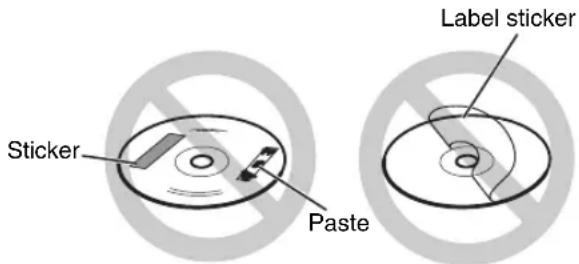
Note about copyright laws
Check the copyright laws in your country before recording from DVDs, VCDs, SVCDs and CDs. Recording of copyrighted material may infringe copyright laws.
Note about copy guard system
DVDs are protected by copy guard system. When you connect the system to your VCR directly, the copy guard system activates and the picture may not be played back correctly.
■ Safety precautions
Avoid moisture, water and dust
Do not place the system in moist or dusty places.
Avoid high temperatures
Do not expose the system to direct sunlight and do not place it near a heat source.
When you are away
When away on travel or for other reasons for an extended period of time, disconnect the power cord plug from the wall outlet.
Care of the cabinet
When cleaning the system, use a soft cloth and follow the relevant instructions on the use of chemically-coated cloths. Do not use benzene, thinner or other organic solvents including disinfectants. These may cause deformation or discoloring.
Care of the disc tray
When cleaning the disc tray, gently wipe the dirt off the surface with a soft cloth dampened with a small amount of a neutral detergent diluted with water, preventing the discoloration and damage to its surface.
If water gets inside the system
Turn the system off and disconnect the power cord plug from the wall outlet, then call the store where you made your purchase. Using the system in this condition may cause fire or electrical shock.
■ When condensation or water drops adhere to the lens
In any of the following cases, condensation or water drops may adhere to the lens, preventing the system from working properly:
- Immediately after room heating starts
- When the system is installed in a steamy or damp space
- When the system is suddenly moved from a cold place to a warm space
In any of these cases, leave the system turned on for 1 or 2 hours before use.
- Manufactured under license from Dolby Laboratories. "Dolby", "MLP Lossless", and the double-D symbol are trademarks of Dolby Laboratories.
• "DTS" and "DTS 2.0+DIGITAL OUT" are registered trademarks of Digital Theater Systems, Inc. - This product incorporates copyright protection technology that is protected by method claims of certain U.S. patents and other intellectual property rights owned by Macrovision Corporation and other rights owners. Use of this copyright protection technology must be authorized by Macrovision Corporation, and is intended for home and other limited viewing uses only unless otherwise authorized by Macrovision Corporation. Reverse engineering or disassembly is prohibited.
- "Official DivX Certified™ product", "Plays DivX® 5, DivX® 4, DivX® 3, and DivX® VOD video content (in compliance with DivX Certified™ technical requirements)", "DivX, DivX Certified", and associated logos are trademarks of DivXNetworks, Inc. and are used under license.
playable DVD/CD types
| CD-R/CD-RW | DVD-R ^1 | DVD-RW | |
| Audio CD format | Playable | — | — |
| VCD/SVCD format | Playable | — | — |
| MP3/WMA/JPEG format | Playable | Playable^4 | Playable^4 |
| DVD Video format | — | Playable | Playable |
| DVD VR format | — | Playable^2 | Playable |
| DivX format | Playable | Playable^3 | Playable |
| ASF (Advanced Systems Format) | Playable | Playable | Playable |
| MPEG1/MPEG2 format | Playable | Playable | Playable |
• Discs should be finalized before being played back.
1 A DVD-R recorded in multi-border format is also playable (except for dual layer discs).
2 Only when a DVD-R is compatible with CPRM (Content Protection for Recordable Media), DVD VR format can be used.
3 A DivX formatted DVD-ROM is also playable.
4 Among MP3/WMA/JPEG discs, only discs formatted with a combination of Universal Disc Format and ISO 9660 (known as UDF Bridge) are playable.
Some discs may not be played back because of their disc characteristics, recording conditions, or damage or stains on them.
It is possible to play back finalized +R/+RW (DVD Video Format only) discs. "DVD" lights on the front display panel when a +R/+RW disc is loaded.
Only sounds can be played back from the following discs:
MIX-MODE CD CD-G
CD-EXTRA CD TEXT
This system accommodates the PAL system, and also can play discs recorded with NTSC system. Note that an NTSC video signal on a disc is converted to the PAL60 signal and output.
Region code of DVD VIDEO
DVD VIDEO players and DVD VIDEO discs have their own Region Code numbers. This system can play back DVD VIDEO discs whose Region Code numbers include the system's Region Code, which is indicated on the rear panel.
Examples:


If a DVD VIDEO with an improper Region Code
number is loaded, "REGION CODE ERROR!" appears on the TV screen and playback cannot start.
- On some DVD VIDEOS, DVD AUDIOs, VCDs, SVCDs or DivX discs, their actual operation may be different from what is explained in this manual.
This is due to the disc programming and disc
structure, not a malfunction of this system.
Discs you can play back:
| Disc Type Mark (Logo) | ||
| DVD VIDEO |  |  |
| DVD AUDIO |  |  |
| VCD |  |  |
| SVCD |  |  |
| CD |  | |
| CD-R |  | |
| CD-RW |  | |
| DivX |  |  |
Discs that cannot be played back
- The following discs cannot be played back:
DVD-ROM (except for MP3/WMA/JPEG/ASF/DivX/MPEG1/MPEG2 format), DVD-RAM, CD-ROM, CD-I (CD-I Ready), Photo CD, SACD, etc.
Playing back these discs will generate noise and damage the speakers.
Damaged discs and discs in an extraordinary shape (other than a disc of 12 cm or 8 cm in diameter) cannot be played back.
About MP3/WMA/JPEG/ASF/DivX/MPEG1/MPEG2 discs
playable MP3/WMA/JPEG/ASF/DivX/MPEG1/MPEG2 discs and files
- CDs recorded in the ISO 9660 format are playable (except CDs recorded in the "packet write" format (UDF format)).
• CDs recorded with multiple sessions are also playable. - Files with an extension of “.mp3”, “.wma”, “.jpg”, “.jpeg”, “.asf”, “.divx”, “.div”, “.avi”, “.mpg” or “.mpeg” (extensions with uppercase and lowercase letters mixed are also acceptable) are playable.
Notes on MP3/WMA/JPEG/ASF discs and files
- A disc may not be played back, or reading it may take a long time depending on its recording conditions or properties.
- The time needed for reading varies with the number of groups or tracks (files) recorded on the disc.
- If a character other than single byte English characters is used in the file name of an MP3/WMA/JPEG/ASF file, the track/file name will not be displayed correctly.
- The order of tracks/groups displayed on the MP3/WMA control screen, and the order of files/groups displayed on the JPEG control screen may be different from that of files/folders displayed on a computer monitor screen.
- A commercially available MP3/WMA disc may be played back in an order different from that indicated on the label attached to the disc.
- Playing back an MP3/WMA/JPEG/ASF disc a long time. The elapsed time is not displayed until playback starts. The elapsed time may also not be displayed correctly.
- For an MP3/WMA file, a disc with a sampling frequency of 44.1 kHz and transmission rate of 128 kbps is recommended.
- This system can play back a baseline JPEG file, excluding monochromatic JPEG files.
- This system can play back JPEG data taken with a digital camera conforming to the DCF (Design Rule for Camera File System) standard (when a function such as the automatic image rotation function of a digital camera is applied, the data no longer complies with the DCF standard, so the image may not be displayed).
- If data has been processed, edited and restored with computer image editing software, the data may not be displayed.
- This system cannot play back animations such as MOTION JPEG, still images (TIFF etc.) other than JPEG, or image data with sound.
- The resolution of 640 x 480 pixels is recommended for JPEG files. If a file has been recorded at a resolution of more than 640 x 480 pixels, display may take a long time. An image with a resolution of more than 8 192 x 7 680 pixels cannot be displayed.
- The system supports ASF files recorded with the maximum bit rate of 384 kbps and an audio coder decoder of G.726.
- The maximum size of the playback picture is 352 x 288 pixels (CIF).
Notes on DivX discs and files
• The system supports DivX 5.x, 4.x and 3.11.
- The system supports DivX files with a resolution of 720 x 480 pixels or less (30 fps) and 720 x 576 pixels or less (25 fps).
- Audio stream should conform to MPEG1 Audio Layer-2 or MPEG Audio Layer-3 (MP3).
- The system does not support GMC (Global Motion Compression).
- Files encoded in the interlaced scanning mode may not be played back correctly.
- Playing back a DivX disc may take a long time. The elapsed time is not displayed until playback starts. The elapsed time may also not be displayed correctly.
Notes on MPEG1/MPEG2 discs and files
- The stream structure of MPEG1/MPEG2 discs and files should conform to MPEG system/program stream.
- 720 x 576 pixels (25 fps)/720 x 480 pixels (30 fps) is recommended for the highest resolution.
- This system also supports the resolutions of 352 x 576/480 x 576/352 x 288 pixels (25 fps) and 352 x 480/480 x 480/352 x 240 pixels (30 fps).
- The profile and level should be MP@ML (Main Profile at Main Level)/SP@ML (Simple Profile at Main Level)/MP@LL (Main Profile at Low Level).
- Audio streams should conform to MPEG1 Audio Layer-2 or MPEG2 Audio Layer-2.
Caution for DualDisc playback:
The Non-DVD side of a "DualDisc" does not comply with the "Compact Disc Digital Audio" standard. Therefore, the use of Non-DVD side of a DualDisc on this product may not be recommended.
Disc structure
DVD VIDEO/DVD VR
A DVD VIDEO consists of "titles" and each title may be divided into "chapters".
A DVD VR consists of “original programs” or “play lists” and each original program/play list may be divided into “chapters”.
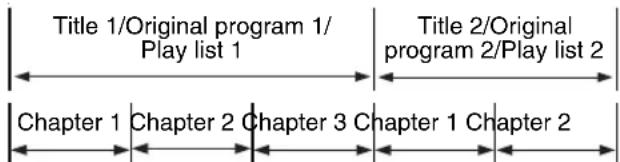
flowchart
graph LR
    A["Title 1/Original program 1/Play list 1"] --> B["Chapter 1"]
    C["Title 2/Original program 2/Play list 2"] --> D["Chapter 2"]
    E["Chapter 3"] --> F["Chapter 3"]
    B --> G["Chapter 1"]
    D --> H["Chapter 2"]
    F --> I["Chapter 3"]
DVD AUDIO
A DVD AUDIO consists of "groups" and each group may be divided into "tracks".
Some discs include a "bonus group" that requires a password for playback (page 37).
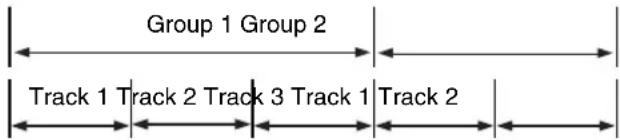
flowchart
graph LR
    A["Group 1 Group 2"] --> B["Track 1 Track 2 Track 3 Track 1"]
    B --> C["Track 2"]
VCD/SVCD/CD
VCD, SVCD and CD consist of "tracks".
In general, each track has its own track number. (On some discs, each track may also be further divided by indexes.)

MP3/WMA/JPEG/ASF/DivX/MPEG1/MPEG2 discs
On an MP3/WMA/JPEG/ASF/DivX/MPEG1/MPEG2 disc, each still picture (material) is recorded as a track/file. Tracks/files are usually grouped into a folder. Folders can also include other folders, creating hierarchical folder layers.
This system simplifies the hierarchical construction of a disc and manages folders by "groups".
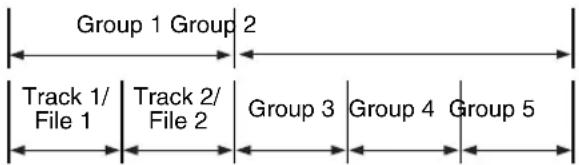
flowchart
graph LR
    A["Group 1 Group 2"] --> B["Track 1/ File 1"]
    C["Group 2"] --> D["Track 2/ File 2"]
    E["Group 3"] --> F["Group 4"]
    G["Group 4"] --> H["Group 5"]
This system can recognize up to 4 000 tracks/files in a disc. Also, the system can recognize up to 150 tracks/files per group and up to 99 groups in a disc. Since the system ignores tracks/files with numbers exceeding 150 and groups with numbers exceeding 99, these cannot be played back.
- If there is any type of files other than MP3/WMA/JPEG/ASF/DivX/MPEG1/MPEG2 files in a folder, those files are also counted in the total file number.
When you encounter a problem that seems to be a fault, check the following points before contacting the JVC service center:
Power source
■ Power does not come on.
- The power cord of the receiver or the DVD player is not connected to an AC outlet. →Connect the power cord correctly. ( page 13)
Operation
■ You cannot operate any button.
- Some specific operations may be restricted for some discs.
■ The remote control does not work.
- The batteries have run out. → Replace the batteries. ( page 5 ) - The remote control mode selector is slid to wrong position. →Most of the buttons on the remote control are assigned to specific remote control modes. Slide the remote control selector to the proper position referring to the explanation of each function.
■ A disc cannot be played back.
- In the case of DVD VIDEOS →Check the Region Code number of the disc. (page 49) - “PLAYABLE Err” is displayed in the display window. The disc cannot be played back on this DVD player. → Check the disc type. (pages 49 and 50)
■ MP3, WMA, JPEG, ASF, DivX, MPEG1 or MPEG2 files cannot be played back.
- The loaded disc may include files of different types (MP3, WMA, JPEG, ASF, DivX, MPEG1 or MPEG2). You can play back only the files of the types selected with "FILE TYPE". (page 42)
Images
■ No picture appears.
- The SCART cord is not connected correctly. → page 12
■The picture is distorted.
- A video cassette recorder is connected between the DVD player and the TV. →Connect the DVD player directly to the TV. ( page 13)
■ The screen size is abnormal.
- The screen size is not set correctly. →Set "MONITOR TYPE" according to the TV you are using. ( page 42)
■The TV screen darkens.
- "SCREEN SAVER" is set to "ON". → Press any button. ( page 42)
Sound
■ There is no sound.
- Speakers are not connected correctly. → page 9 - The receiver and the DVD player are not connected correctly. → page 10 - The sound is muted. → page 16 - "NO AUDIO" is displayed in the display window. The disc may have been produced through illegal copying. → Check the disc at the store where you bought the disc.
■The sound is distorted.
- The volume is turned up too high. → Turn down the volume. ( page 16)
■ No sound comes out of the subwoofer.
- "S. WOOFER OFF" is selected. → Press S.WFR OUT repeatedly until "S. WOOFER ON" appears. ( page 11)
Radio
■The sound has a lot of static./You cannot receive a radio broadcast.
- The antenna is not connected correctly. →Connect the antenna correctly. (https pages 7 and 8)
Other
■ You cannot switch audio or subtitles between languages.
- The disc does not contain multiple languages.
→ If only a single language is recorded on the disc, you cannot switch the current language to another language. ( page 35)
■ No subtitle is displayed.
- The disc does not contain any subtitles. → A DVD VIDEO without subtitles cannot display any subtitles.
- The subtitle language is set to "OFF". Specify a language. ( page 41)
- Before or after point A or B in A-B repeat playback, no subtitle may be displayed.
■ The disc cannot be ejected.
• DVD/CD ejection is locked.
→ page 31
■ “LR ONLY” is displayed in the display window (for a DVD AUDIO).
- This is not a malfunction. When a down mix prohibited track is played back for multi-channel sound, the left and right sounds are output directly as they are.
■ The tweeters produce no sound.
- "Single Amp" is selected on the receiver.
→ Select "Bi-Amp". (page 11)
If the system does not work properly despite correction measures aforementioned
Many functions of this system are controlled by microprocessors that can be reset by recycling the power supply. If pressing any button does not result in the normal action, disconnect the power cord from the outlet, wait for a while, and connect the power cord again.
| Code | Language | Code | Language |
| AA Afar MK Macedonian | |||
| AB Abkhazian ML Malayalam | |||
| AF Afrikaans MN Mongolian | |||
| AM Ameharic MO Moldavian | |||
| AR Arabic MR Marathi | |||
| AS Assamese MS Malay (MAY) | |||
| AY | Aymara | MT | Maltese |
| AZ Azerbaijani MY | Burmese | ||
| BA Bashkir NA | Nauru | ||
| BE Byelorussian NE | Nepali | ||
| BG | Bulgarian | NL Dutch | |
| BH Bihari NO | Norwegian | ||
| BI | Bislama | OC Occitan | |
| BN Bengali, Bangla OM | (Afan) Oromo | ||
| BO | Tibetan | OR Oriya | |
| BR Breton PA | Panjabi | ||
| CA Catalan PL | Polish | ||
| CO Corsican PS | Pashto, Pushto | ||
| CS Czech PT | Portuguese | ||
| CY Welsh QU | Quechua | ||
| DA Danish RM | Rhaeto-Romance | ||
| DZ Bhutani RN | Kirundi | ||
| EL Greek | RO Rumanian | ||
| EO Esperanto | RU Russian | ||
| ET Estonian RW | Kinyarwanda | ||
| EU Basque SA | Sanskrit | ||
| FA Persian | SD | Sindhi | |
| FI Finnish | SG | Sangho | |
| FJ Fiji | SH Serbo-Croatian | ||
| FO Faroese SI | Singhalese | ||
| FY Frisian SK | Slovak | ||
| GA Irish | SL | Slovenian | |
| GD Scots Gaelic SM | Samoan | ||
| GL Galician SN | Shona | ||
| GN Guarani SO | Somali | ||
| GU Gujarati SQ | Albanian | ||
| HA Hausa SR | Serbian | ||
| HI Hindi | SS Siswati | ||
| HR Croatian | ST Sesotho | ||
| HU Hungarian | SU Sundanese | ||
| HY Armenian SV | Swedish | ||
| IA Interlingua SW Swahili | |||
| IE Interlingue TA Tamil | |||
| IK Inupiak | TE Telugu | ||
| IN Indonesian | TG Tajik | ||
| IS Icelandic | TH Thai | ||
| IW Hebrew | TI | Tigrinya | |
| JI Yiddish | TK Turkmen | ||
| JW Javanese TL Tagalog | |||
| KA Georgian TN | Setswana | ||
| KK Kazakh TO | Tonga | ||
| KL Greenlandic | TR Turkish | ||
| KM Cambodian TS | Tsonga | ||
| KN Kannada TT | Tatar | ||
| KO Korean (KOR) TW | Twi | ||
| KS Kashmiri UK | Ukrainian | ||
| KU Kurdish UR | Urdu | ||
| KY Kirghiz UZ | Uzbek | ||
| LA Latin | VI | Vietnamese | |
| LN Lingala VO | Volapuk | ||
| LO Laothian WO | Wolof | ||
| LT Lithuanian | XH Xhosa | ||
| LV Latvian, Lettish | YO Yoruba | ||
| MG Malagasy | ZU Zulu | ||
| MI Maori | |||
Receiver (RX-EXA10)
Tuner
FM frequency: 87.50 MHz - 108.00 MHz
AM frequency: 522 kHz - 1 629 kHz
Amplifier
Output power (Tweeter): 20 W + 20 W
at 6 Ω (10 kHz, THD 10 %)
Output power (Woofer): 30 W + 30 W
at 6 Ω (1 kHz, THD 10 %)
Terminal
- Synchronization terminal x 1 (for connecting XV-EXA10)
- Optical digital input terminal x 1 (for connecting XV-EXA10) -21 dBm to -15 dBm
- Audio input terminals (2) x 1 (for connecting XV-EXA10) 500 mV/50 k Ω
- Audio output speaker terminals (2) x 4 Impedance: 6 Ω
• FM antenna terminal x 1
• AM antenna terminal x 1
• Audio output subwoofer terminal x 1500 mVrms/10 k Ω
- Optical digital input terminal x 1 (for connecting other equipment) -21 dBm to -15 dBm
- Audio input terminals (2) x 1 (for connecting other equipment)
Level 1: 500 mV/50 k Ω
Level 2: 250 mV/50 k Ω
• Audio output headphone terminal x 1 11 mW/32 Ω (Impedance: 16 Ω to 1 k Ω)
General
Power source: AC 230 V, 50 Hz
Power consumption: 30 W (in operation)
0.9 W (on standby)
Dimensions (W x H x D): 245 mm x 80 mm x 297 mm
Weight (1 unit): 2.7 kg
Speakers (SP-EXA10)
Type: 2-way bass-reflex type
Magnetically shielded type
Tweeter: 2 cm wood dome
Woofer: 10.5 cm wood cone
Power handling capacity: 20 W
(Tweeter)
Power handling capacity: 30 W
(Woofer)
Impedance: 6 Ω
Sound pressure level: 82 dB/W·m
Dimensions (W x H x D): 143 mm x 257 mm x 243 mm
Weight (1 unit): 3.5 kg
DVD player (XV-EXA10)
playable DVDs/CDs
DVD VIDEO/DVD AUDIO
VCD/SVCD/CD
CD-R/RW (VCD/SVCD/CD/MP3/WMA/JPEG/DivX/
ASF/MPEG1/MPEG2 format)
DVD-R (MP3/WMA/JPEG/DVD VIDEO/DVD VR
[CPRM]/DivX/ASF/MPEG1/MPEG2 format)
DVD-RW (MP3/WMA/JPEG/DVD VIDEO/DVD VR
[CPRM]/DivX/ASF/MPEG1/MPEG2 format)
Terminal
- Synchronization terminal x 1 (for connecting RX-EXA10)
- Optical digital output terminal x 1 (for connecting RX-EXA10)
-21 dBm to -15 dBm
• Audio output terminals (2) x 1 (for connecting RX-EXA10)
- SCART terminal x 1
- Component video output terminals (3)
Y: 1.0 Vp-p, sync negative, 75 Ω terminated
P_B : 0.7 Vp-p, 75 Ω terminated
PR: 0.7 Vp-p, 75 Ω terminated
• AV COMPU LINK terminal x 1 (for future use)
General
Power source: AC 230 V, 50 Hz
Power consumption: 9 W (in operation)
0.9 W (on standby)
Dimensions (W x H x D): 245 mm x 80 mm x 270 mm
Weight (1 unit): 2.2 kg
Designs and specifications are subject to change without notice.

natural_image
Abstract geometric pattern with diagonal black and white stripes on white background (no text or symbols)JVC
- CAUTION
- CAUTION - ⏻/1 button!
- IMPORTANT FOR LASER PRODUCTS
- IMPORTANT for the U.K.
- IMPORTANT:
- Information for Users on Disposal of Old Equipment
- [European Union]
- Attention:
- (Business users)
- [Other Countries outside the European Union]
- SAFETY INSTRUCTIONS "SOME DOS AND DON'TS ON THE SAFE USE OF EQUIPMENT"
- ABOVE ALL
- Introduction
- Preparation
- Basic operations
- Listening to radio
- Playing back DVDs/CDs
- Supplied accessories
- Listening to the sound of other audio equipment
- Timer
- Reference
- How to read this manual
- DVD player
- Display window
- Receiver
- Remote control operation
- Operating the TV using the remote control
- Setting the manufacturer code
- Examples:
- NOTE
- 5Release ⏻/TV.
- Using the remote control for the TV operation
- Standard setup
- Connecting the antennas
- Connecting the AM loop antenna (supplied)
- Connecting the FM antenna (supplied)
- Connecting the speakers
- Connecting the receiver and the DVD player
- Connecting other equipment
- Connecting the subwoofer
- Connecting other speakers
- Connecting a TV
- Press SCAN MODE.
- Press ◀, ▶ (cursor) or SCAN MODE repeatedly to select the video signal type suitable for the TV.
- 5Press ENTER.
- Connecting the power cords
- Turning on/off the system
- Setting the clock
- Example:
- Adjusting the clock
- Dimmer
- Changing the brightness of the display windows on the receiver and the DVD player
- Turning off the display on the receiver
- Adjusting the volume
- Turning off the sound temporarily (MUTING)
- Adjusting the sound quality
- Adjusting the bass sound
- Slide the remote control mode selector to RECEIVER.
- 2Press BASS ADJUST.
- 3While the selectable values are flashing, press ◀ or ▶ (cursor) to select the value of the bass frequency.
- 4While the selectable values are flashing, press ▲ or ▼ (cursor) to select the value of “Q” in the display window.
- Enhancing the playback sound (CC CONVERTER)
- 2Press CC CONVERTER.
- Selecting a radio station
- Automatic tuning:
- Tuning in to a preset radio station
- Presetting radio stations
- Radio Data System
- Receiving FM radio broadcasts with Radio Data System
- Alarm function
- Changing the Radio Data System information
- Press DISPLAY (Radio Data System) repeatedly.
- PS (Program Service):
- PTY (Program Type):
- RT (Radio Text):
- Searching for programs by PTY codes (PTY search)
- ■ When an FM radio broadcast is selected as the sound source
- Press SEARCH.
- Press PTY + or PTY – repeatedly to select a PTY code while “PTY SELECT” is flashing.
- Press SEARCH.
- Document
- Switching to a program type of your choice temporarily
- 2Press TA/News/Info repeatedly until the indicator of your desired program type (TA/News/Info) appears in the display window on the receiver.
- How the Enhanced Other Networks function actually works:
- If there is no radio station broadcasting the program you have selected:
- CASE 2 CASE 1
- If there is a radio station broadcasting the program you have selected:
- Playing back a DVD/CD
- MP3 WMA JPEG ASF DivX MPEG1 MPEG2
- Slide the remote control mode selector to DVD.
- 2Load a disc.
- Slide-show playback JPEG
- Display window on the DVD player
- ■DVD VIDEO/DVD AUDIO/DVD VR When a disc is played back
- When a disc is stopped
- ■VCD/SVCD
- When a disc is played back
- CD
- ■MP3/WMA/ASF/DivX/MPEG1/MPEG2 disc
- ■JPEG disc
- When a disc is played back or stopped
- Changing the display in the display window
- 2Press DISPLAY repeatedly.
- 2Press DISPLAY repeatedly during playback.
- ■DVD VIDEO
- ■DVD AUDIO
- ■ DVD VR
- ■MP3/WMA disc
- ■ASF/DivX/MPEG1/MPEG2 disc
- Selecting a chapter/track using the number buttons
- ■ When a disc is played back
- Use the number buttons to select the chapter number or track number.
- Stopping playback
- 2Press ■.
- Pausing playback
- Advancing the picture frame by frame
- Fast reverse/fast forward search
- Playing back from a position 10 seconds before (One touch replay)
- Slow motion playback
- Skipping to the beginning of a chapter/ track/file
- Guide icons displayed on the TV screen (on-screen guide)
- Skipping at about 5 minute intervals
- DivX
- MPEG1 MPEG2
- Press ◀ or ▶ (cursor).
- Resuming playback
- Temporarily stopping playback
- 2Follow any of the operations below.
- Starting playback from the stored position
- 2Press ▶ (play).
- Selecting a track from the menu screen
- Locking DVD/CD ejection
- Setting
- Releasing
- Playing back a DVD/CD in the desired order (Program playback)
- 3Press the number buttons to program chapters/tracks.
- ■Display on the DVD player for DVD VIDEO
- ■Display on the DVD player for DVD AUDIO/MP3/WMA
- ■ Display on the DVD player for VCD/SVCD/CD
- 4Press ▶ (play).
- Playing back a DVD/CD in a random order (Random playback)
- ■ When a disc is stopped
- Playing back a DVD/CD repeatedly (Repeat playback)
- Playing back a specified part repeatedly (A-B repeat playback)
- Saving the playback settings for next time
- TIMER CANCEL
- Selecting the subtitles
- Selecting the audio language
- Selecting the view angle
- Magnifying the picture (ZOOM)
- Browsable still pictures (B.S.P.)
- DVD AUDIO
- 2Press PAGE.
- 3Press ENTER.
- Creating realistic sound (3D PHONIC)
- 2Press 3D PHONIC repeatedly to select the desired sound effect.
- Using the status bar and the menu bar
- 2Press ON SCREEN twice.
- Press ◀/▶ (cursor) to select an item to be operated.
- 4Press ENTER.
- Information displayed on the status bar
- Function list
- Designating the time (Time search)
- LANGUAGE
- PICTURE
- AUDIO
- OTHERS
- List of relationships of DIGITAL AUDIO OUTPUT preference items and output signal
- Adjust the sound input level of the audio equipment
- Using the playback timer
- Press ◀ or ▶ (cursor) to select the desired sound source, and then press SET.
- Press ◀ or ▶ (cursor) to adjust the playback volume, and then press SET.
- 9Press ⏻/IAUDIO to turn off the receiver.
- Canceling the playback timer
- Press CANCEL after following steps 1 and 2 on page 45.
- TIMER OFF
- Activating the playback timer again
- After following steps 1 and 2 on page 45, press ENTER. Then press ⏻/IAUDIO to turn off the receiver.
- Confirming the playback timer settings
- Press SET repeatedly after following steps 1, 2 and 3 on page 45.
- Changing the playback timer settings
- Set the playback timer again from step 1 on page 45.
- Using the sleep timer
- Press SLEEP.
- Changing the time
- Confirming the time
- Canceling the sleep timer
- Notes on handling
- ■ Important cautions
- Installation of the system
- Power cord
- To prevent malfunctions of the system
- Note about copyright laws
- Note about copy guard system
- ■ Safety precautions
- Avoid moisture, water and dust
- Avoid high temperatures
- When you are away
- Care of the cabinet
- Care of the disc tray
- If water gets inside the system
- ■ When condensation or water drops adhere to the lens
- Region code of DVD VIDEO
- Discs that cannot be played back
- About MP3/WMA/JPEG/ASF/DivX/MPEG1/MPEG2 discs
- Notes on MP3/WMA/JPEG/ASF discs and files
- Notes on DivX discs and files
- Notes on MPEG1/MPEG2 discs and files
- Caution for DualDisc playback:
- Disc structure
- DVD VIDEO/DVD VR
- VCD/SVCD/CD
- MP3/WMA/JPEG/ASF/DivX/MPEG1/MPEG2 discs
- Power source
- ■ Power does not come on.
- Operation
- ■ You cannot operate any button.
- ■ The remote control does not work.
- ■ A disc cannot be played back.
- ■ MP3, WMA, JPEG, ASF, DivX, MPEG1 or MPEG2 files cannot be played back.
- Images
- ■ No picture appears.
- ■The picture is distorted.
- ■ The screen size is abnormal.
- ■The TV screen darkens.
- Sound
- ■ There is no sound.
- ■The sound is distorted.
- ■ No sound comes out of the subwoofer.
- Radio
- ■The sound has a lot of static./You cannot receive a radio broadcast.
- Other
- ■ You cannot switch audio or subtitles between languages.
- ■ No subtitle is displayed.
- ■ The disc cannot be ejected.
- ■ “LR ONLY” is displayed in the display window (for a DVD AUDIO).
- ■ The tweeters produce no sound.
- If the system does not work properly despite correction measures aforementioned
- Receiver (RX-EXA10)
- Tuner
- Amplifier
- Terminal
- General
- Speakers (SP-EXA10)
- DVD player (XV-EXA10)
- playable DVDs/CDs
- JVC
Brand : JVC
Model : XV-EXA10
Category : Hi-Fi System