
SDF 1271 - Digital photo frame SENCOR - Free user manual and instructions
Find the device manual for free SDF 1271 SENCOR in PDF.


| Product Type | Digital Photo Frame |
| Brand | Sencor |
| Model | SDF 1271 |
| Screen Size | 7 inches |
| Display Resolution | 1024 x 600 pixels |
| Aspect Ratio | 16:9 |
| Supported Memory Cards | SD, SDHC, MMC |
| USB Port | USB 2.0 for external drives |
| Supported Image Formats | JPEG, BMP |
| Supported Video Formats | AVI, MPEG4 |
| Audio Playback | MP3 |
| Power Supply | AC/DC adapter (5V, 1A) |
| Power Consumption | 5W |
| Dimensions (without stand) | 190 x 130 x 25 mm |
| Weight | 320 g |
| Built-in Memory | 512 MB |
| Calendar and Clock | Yes |
| Slideshow Modes | Random, sequential, with transition effects |
| Remote Control | Included |
| Cleaning Instructions | Wipe with soft dry cloth; avoid solvents |
| Safety Features | Overheat protection, CE certified |
Frequently Asked Questions - SDF 1271 SENCOR
User questions about SDF 1271 SENCOR
0 question about this device. Answer the ones you know or ask your own.
Ask a new question about this device
Download the instructions for your Digital photo frame in PDF format for free! Find your manual SDF 1271 - SENCOR and take your electronic device back in hand. On this page are published all the documents necessary for the use of your device. SDF 1271 by SENCOR.
USER MANUAL SDF 1271 SENCOR
INSTRUCTION MANUAL DIGITAL PHOTO FRAME
NÁVOD K OBSLUZE DIGITÁLNÍ FOTORÁMEČEK
NÁVOD NA OBSLUHU DIGITÁLNY FOTORÁMČEK
FELHASZNÁLÓI KÉZIKÖNYV DIGITÁLIS FOTÓKERET
INSTRUKCJA OBSŁUGI FOTORAMKA CYFROWA
UPUTSTVA ZA UPOTREBU DIGITALNI FOTO RAM
PRIRUČNIK S UPUTAMA DIGITALNI OKVIR ZA FOTOGRAFIJE
• Supports JPG, PNG and BMP format picture browsing; supports image rotation, scaling; supports auto play with multiple special effects, supports background music playback;
- Clock and calendar display: supports calendar, month calendar and clock display; supports MP3, FLAC and APE audio fi le format playback; supports FLV, MP4, AVI, MKV, MOV and RMVB video fi le format playback;
- Can set for system parameters and functions;
• Supports a large variety of cards, including: SD, MMC, etc., and supports software upgrading via SD card;
- Supports USB2.0, can be configured as USB OTG; supports a large variety of U disk, MP3 and other USB devices;
• Support infrared remote control.
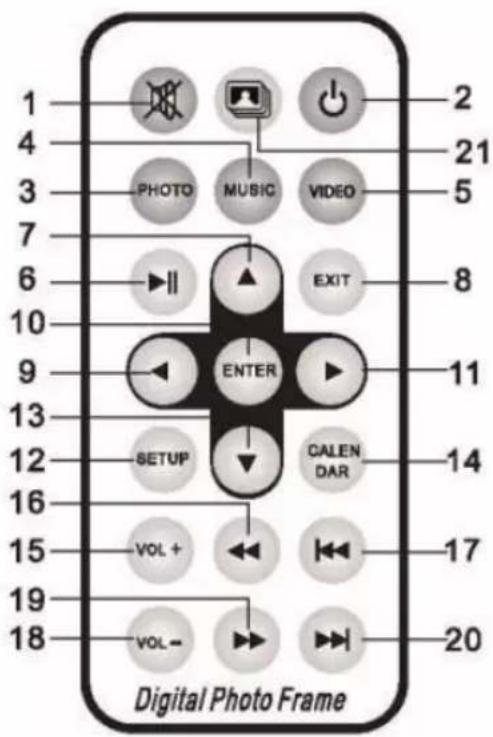
2. KEY DEFINITIONS IN THE REMOTE CONTROL
Users can use the remote control to achieve full functions. Key definitions in the remote control are as below:
- MUTE: Press to turn off the sound when playing; press again to re-open the sound
- STANDBY: Press to enter into standby mode when playing; press again to return
- PHOTO: Picture playback shortcuts
- MUSIC: Music playback shortcuts
- VIDEO: Video Playback shortcuts
- PLAY/PAUSE: Play / Pause
- UP: Cursor up key
- EXIT: Return key
- LEFT: Cursor left key
- ENTER: Confi rm key
- RIGHT: Cursor right key
- SETUP: Setting Shortcuts
- DOWN: Cursor down key
- CALENDAR: Clock and calendar shortcuts
- VOL+: The button to increase the sound volume
- ◀◀: Rewind key
- PREVIOUS: Move to previous picture, song or video
- VOL-: The button to decrease the sound volume
- ▶▶: Fast forward key
- NEXT: Move to next picture, song or video
- Slid show: Play photos+music
3. INSTRUCTIONS
3.1 Power On / Off
After plug in, it shows the main menu screen, as shown below:
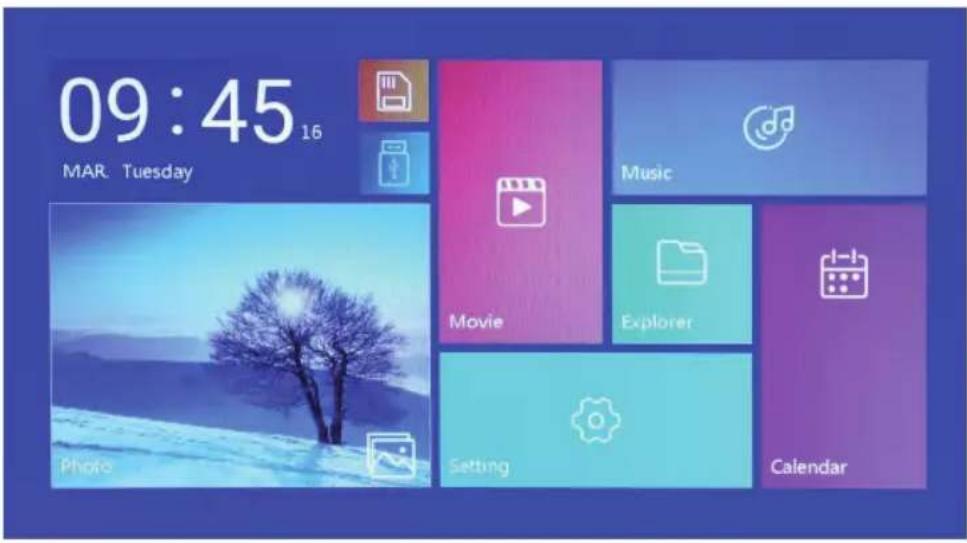
Press "POWER" button for 2 second to turn off the power. Or switch the button on the machine "ON/OFF" to power on/off
3.2 Main Menu Screen
Main menu screen consists six icons: Movie, Photo, Music, Explorer, Calendar and Setting. Press "◀" "▶" cursor to select the icon and confirm with ENTER.
In the main interface, if the product has no external storage device or SD card is inserted, the "SD" icon will light up, if USB flash drive inserted, "USB" will light up. Press "▲" or "▼" key to select U disk or SD card, and press the "ENTER" button to enter the listed file in USB flash drive or SD card.
4. MOVIE PLAYBACK
4.1 Auto play when power on
If "Autoplay" option of the Main Menu is designated for "Off", or with no SD and USB inserting, it will show the main menu screen when power on.
If "Autoplay" option of the Main Menu is designated for other options, and with USB or SD inserting, it will auto play the designed options. When SD and USB are inserted simultaneously, it will play the connect in USB by default.
4.2 Video browsing and playback screen
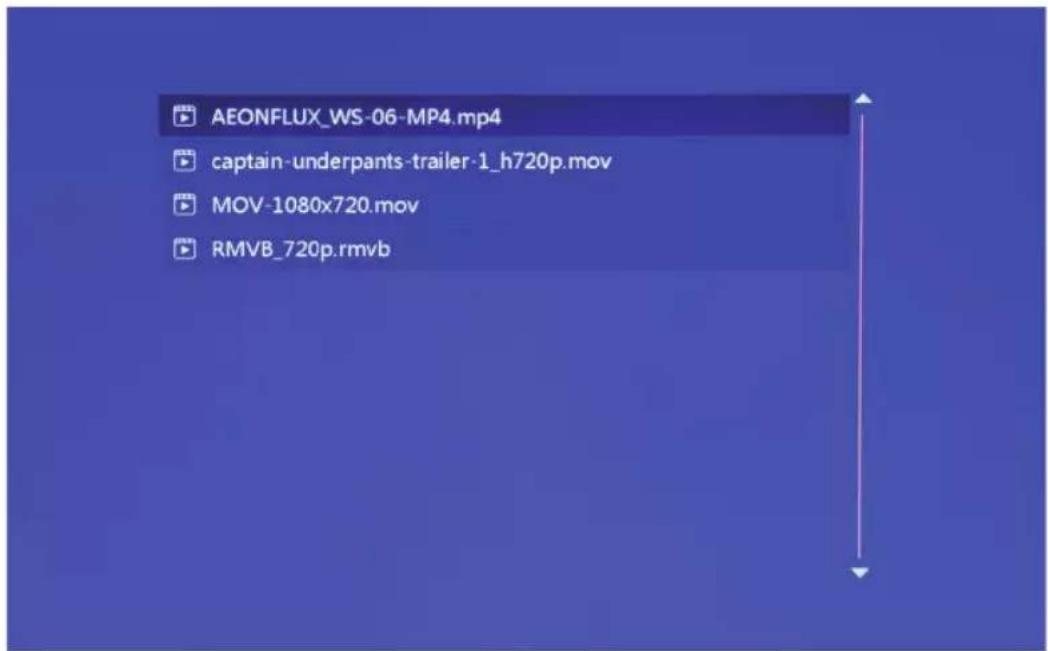
- Select "movie" icon in the main menu screen to enter info video playlist. Move "▲" or "▼" cursor key to select video file, then press the "ENTER" for confirm and start playing.
- Press "MOVIE" button in the remote control, fast and directly start the video playback.
- If in system setting "Autoplay" is designated for "Movie", screen will auto play the videos kept in the internal memory, USB device or SD card when power on.
- During video playback, the user can select to play previous or next video fi les by pressing "▲" or "▼" key in the remote control or button behind the machine. Volume can be adjusted by pressing "◀" or "▶" key in the remote control or button behind the machine. Press "◀◀" or "▶▶" key in the remote control to achieve fast forward or rewind of the video playback.
Press "EXIT" key in the remote control to return to the previous menu; press again to return to the main menu screen.
5. PHOTO BROWSING AND PLAYBACK
natural_image
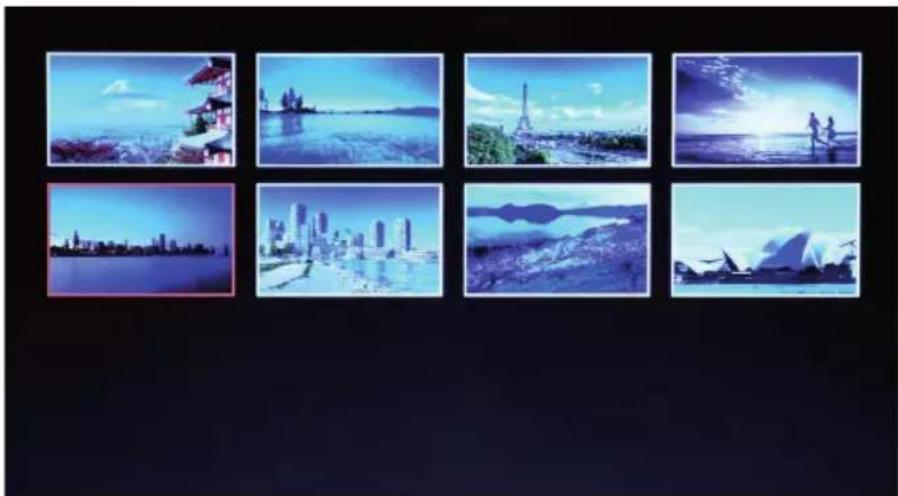
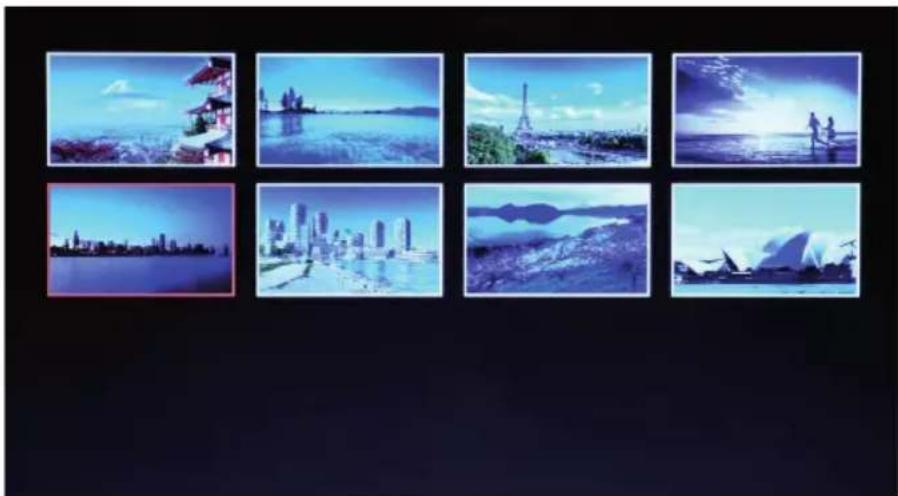
Collage of seven scenic and natural photos including a city skyline, Sydney skyline, Eiffel Tower, and Sydney Opera House under blue sky (no text or symbols)- Select "photo" icon in the main menu screen to enter into photo playlist. Press "▲" or "▼" cursor key to select the photo fi fe, then press "ENTER" for confi rm and start playing.
- Press "PHOTO" button in the remote control, fast and directly start the photo playback.
- If the system setting "Autoplay" is designated for "Photo", screen will auto play the photos kept in the internal memory, USB device or SD card when power on.
5.1 Special effect settings for photo playback
natural_image
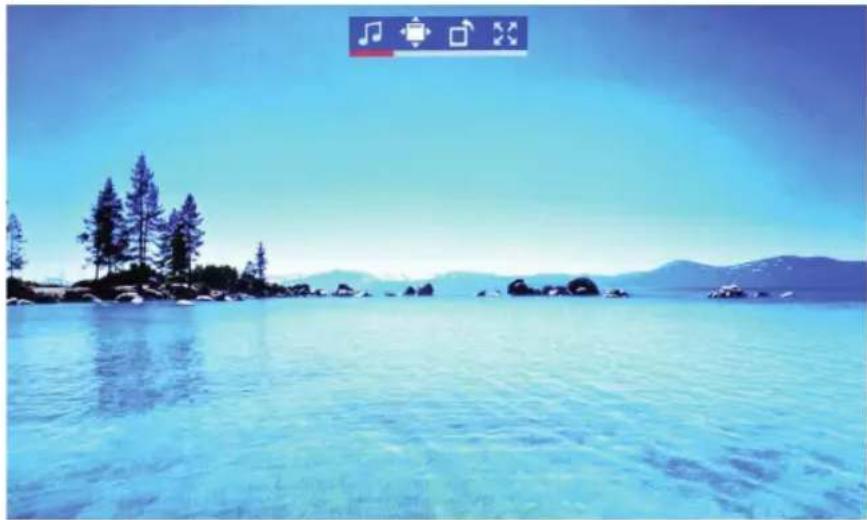
Scenic view of a calm blue lake with distant mountains and trees under a clear sky (no text or symbols visible)During photo playback, long press "EXIT" key in the remote control or "EXIT" button behind the machine will pop up a dialog box for special effect settings of the photo slideshow, as shown above
BG Music: Means the background music, can be set by press "ENTER" button.
Zoom: Press "ENTER" to zoom the picture.
Rotate: Press "ENTER" to rotate the picture with 90°,180°,270° and then recovery.
Scale: Refers to the photo display ratio. There are four ratio options:
Auto, Original, Crop, Stretch. Select the display ratio, then press "ENTER" to save the setting. The system defaults "Auto".
6. MUSIC PLAYBACK
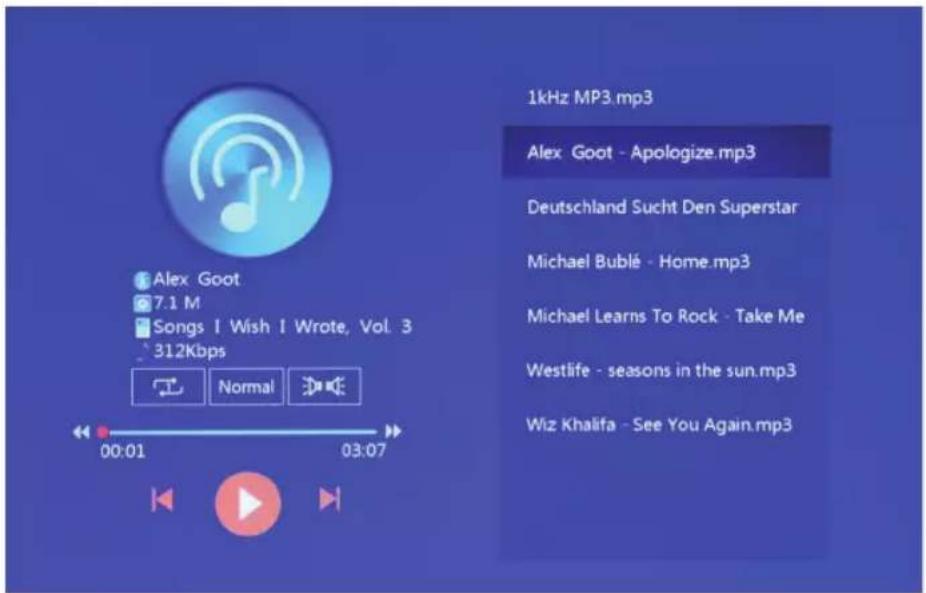
- Select "music" icon in the main menu to enter into music playlist. Move "▲" or "▼" cursor key to select music file, then press the "ENTER" for confirm and start playing.
Press "MUSIC" button in the remote control, fast and directly start the music playback. - Through "Playback Settings" in Setting, it can choose music playback order, sound effect and channel.
- If in system setting "Auto play" is designated for "Music", screen will auto play the music kept in the internal memory, USB device or SD card when power on.
7. CALENDAR
natural_image
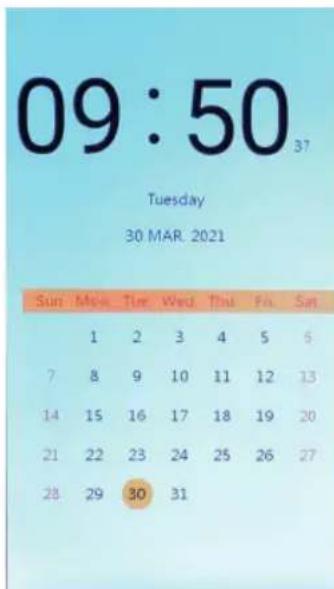
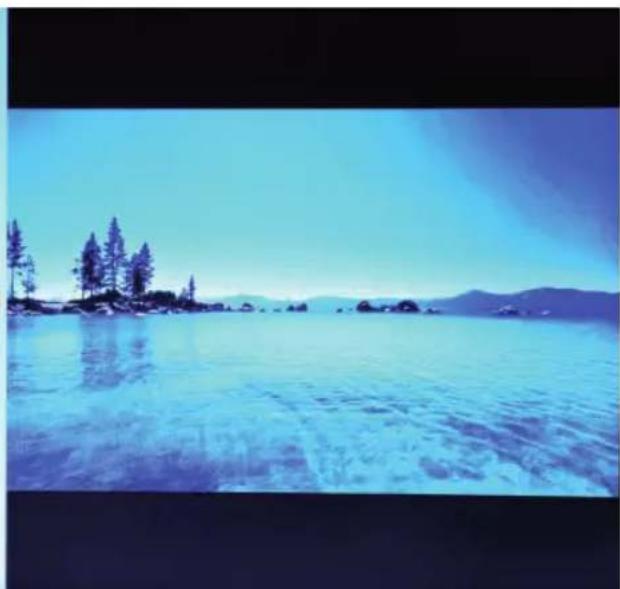
Scenic view of a calm lake with clear water, surrounded by trees and distant mountains under a clear sky (no text or symbols visible)Select "Calendar" icon in main menu screen or press the "CALENDAR" button in the remote control to enter into clock and calendar screen directly.
7.1 Clock setting:
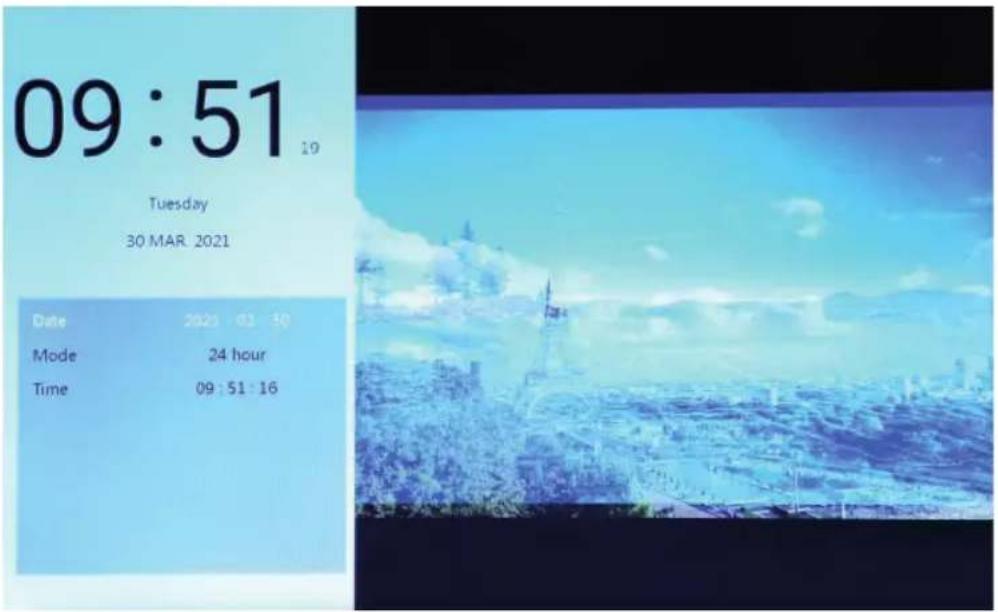
Press the “◀” button, the clock setting display box will pop up. Move the “◀” ”▶” “▲” ”▼” cursor keys to select or set year/month/date/12-hour/24-hour/time, as shown above.
-
Date setting: move “◀” ”▶” cursor key to switch between year/month/date. Move “▲” ”▼” cursor key to adjust the data for increasing or decreasing. Then press “ENTER” to confirm the setting and press EXIT save the setting.
-
Mode setting: move "◀" "▶" cursor key to switch between 12-hour and 24-hour. After select, press "ENTER" to confirm the setting and press EXIT save the setting.
-
Time setting: move “◀” ”▶” cursor key to switch between hours and minutes. Move “▲” ”▼” cursor key to adjust the data for increasing or decreasing. Then press “ENTER” to confirm the setting and press EXIT save the setting.
7.2 Alarm clock setting:
EN - 7
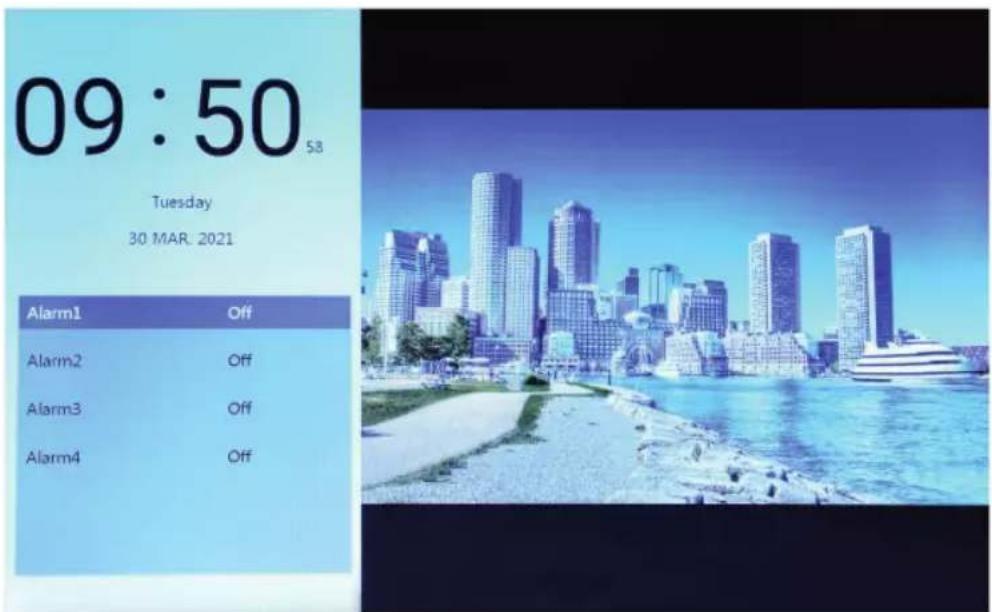
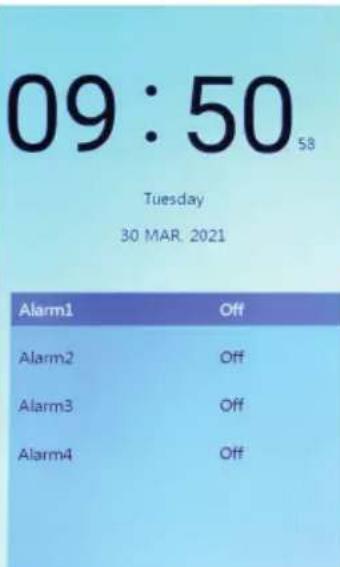
Press the “▶” button, an alarm clock setting display box will pop up, and four groups of time schedule reminders can be made, as shown above.
- Alarm clock switch: to turn on/off the alarm clock function by choosing "ON" and "OFF".
- Alarm time setting: Move the “◀” “▶” “▲” “▼” cursor keys to select time.
- Frequency setting: Move “◀” ”▶” cursor to set frequency of alarm clock, it includes once, every day, Monday to Friday and weekend.
- Alarm volume: Move “◀” ”▶” cursor to set the volume of alarm clock, ranges 0 to 30, the default is 20.
- Alarm clock run time: Move “◀” ”▶” cursor to set the length of time for ringing, there are 20 seconds, 30 seconds and 50 seconds.
- Alarm clock delay: Move “◀” ”▶” cursor to set the time for reminding again, there are 3 minutes, 5 minutes and 10 minutes.
8. EXPLORER
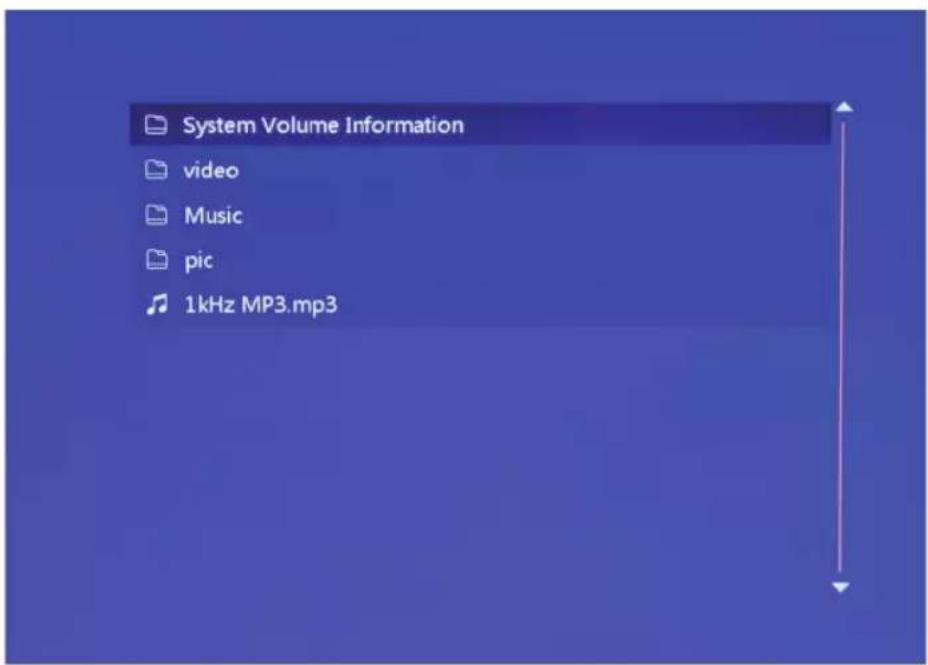
- Select "Explorer" icon in the main menu screen to enter info fi le management. You can look through the fi les kept in the internal memory, USB or SD card.
- Move “▲” ”▼” cursor to select the fi le, Press “ENTER” to start playing the fi le.
- Press the "Exit" button to exit the current playback, return to the file list or the main interface.
9. SETTING
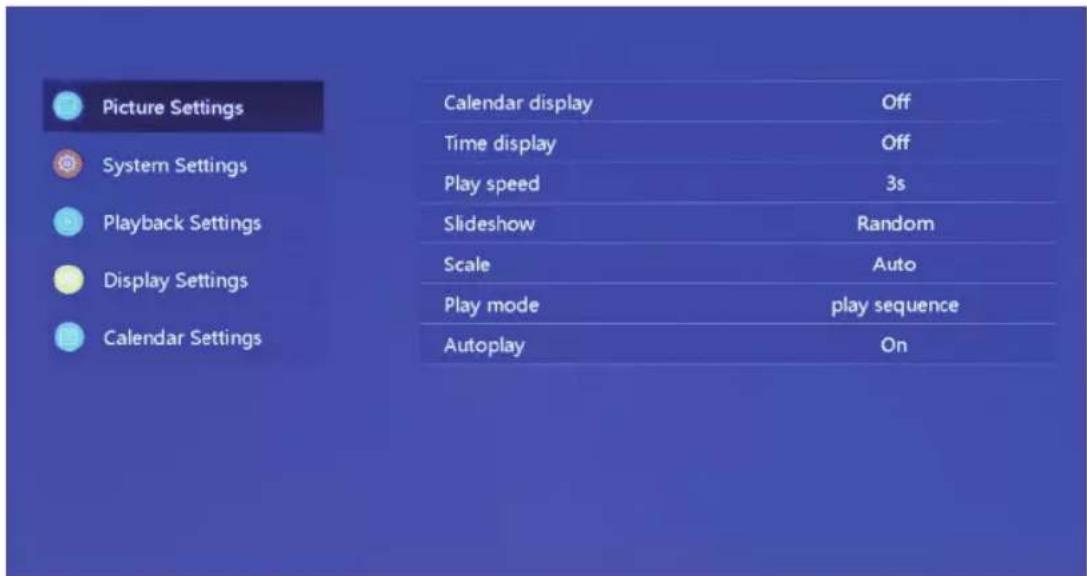
Select "Setting" icon in the main menu screen or press the "SETUP" button in the remote control to manage picture, system, playback, display and calendar settings.
Move “▲” ”▼” cursor to highlight your selection. Press ENTER to access the sub-menu items.
Press “◀” ”▶” cursor to select the available options and confirm with ENTER.
Press EXIT to go back.
10. TECHNICAL SPECIFICATION
| Model: SDF1271 | |
| AC power adapter: AC100–240 V~50/60 Hz | |
| Working temperature: 0°~40° | |
| Resolution: 1280 × 800 pixel | |
| Connect Port: USB 2.0, mini USB, SD, earphone | |
| Support format | Picture: JPEG, PNG, BMPAudio: MP3, FLAC, APEVideo: FLV, MP4, AVI, MKV, MOV, RMVB |
| Built-in speaker: 2 × 2 W | |
| Panel Size: 12 inch | |
| Body size: 34 × 25 × 3cm | |
| Weight: 600 g (without packing) | |
| Power supply: DC 12 V/1 A | |
| Model: SDF1371 | |
| AC power adapter: AC100–240 V~50/60 Hz | |
| Working temperature: 0°~40° | |
| Resolution: 1280 × 800 pixel | |
| Connect Port: USB 2.0, mini USB, SD, earphone | |
| Support format | Picture: JPEG, PNG, BMPAudio: MP3, FLAC, APEVideo: FLV, MP4, AVI, MKV, MOV, RMVB |
| Built-in speaker: 2 × 2 W | |
| Panel Size: 13.3 inch | |
| Body size: 318 × 224 × 25 mm | |
| Weight: 700 g (without packing) | |
| Power supply: DC 12 V/1 A | |
INSTRUCTIONS AND INFORMATION REGARDING THE DISPOSAL OF USED PACKAGING MATERIALS
Dispose of packaging material at a public waste disposal site.
DISPOSAL OF USED ELECTRICAL AND ELECTRONIC APPLIANCES

The meaning of the symbol on the product, its accessory or packaging indicates that this product shall not be treated as household waste. Please, dispose of this product at your applicable collection point for the recycling of electrical & electronic equipment waste. Alternatively in some states of the European Union or other European states you may return your products to your local retailer when buying an equivalent new product. The correct disposal of this product will help save valuable natural resources and help in preventing the potential negative impact on the environment and human health, which could be caused as a result of improper liquidation of waste. Please ask your local authorities or the nearest waste collection centre for further details. The improper disposal of this type of waste may fall subject to national regulations for fi nes.
For business entities in the European Union
If you wish to dispose of an electrical or electronic device, request the necessary information from your seller or supplier.
Disposal in other countries outside the European Union
If you wish to dispose of this product, request the necessary information about the correct disposal method from local government departments or from your seller.
CE
The product meets EU requirements.
Changes to the text, design and technical specifications may occur without prior notice and we reserve the right to make these changes.
Address of the manufacturer: FAST ČR, a.s., U Sanitasu 1621, Ríčany CZ-251 01
SENCOR®
EN Warranty conditions
Warranty card is not a part of the device packaging.
This product is warranted for the period of 24 months from the date of purchase to the end-user. Warranty is limited to the following conditions. Warranty is referred only to the customer goods using for common domestic use. The claim for service can be applied either at dealer's shop where the product was bought, or at below mentioned authorized service shops. The end-user is obligated to set up a claim immediately when the defects appeared but only till the end of warranty period. The end user is obligated to cooperate to certify the claiming defects. Only completed and clean (according to hygienic standards) product will be accepted. In case of eligible warranty claim the warranty period will be prolonged by the period from the date of claim application till the date of taking over the product by end-user, or the date the end-user is obligated to take it over. To obtain the service under this warranty, end-user is obligated to certify his claim with duly completed following documents: receipt, certificate of warranty, certificate of installation.
This warranty is void especially if apply as follows:
■ Defects which were put on sale.
■ Wear-out or damage caused by common use.
The product was damaged by unprofessional or wrong installation, used in contrary to the applicable instruction manual, used in contrary to legal enactment and common process of use or used for another purpose which has been designed for.
■ The product was damaged by uncared-for or insufficient maintenance.
The product was damaged by dirt, accident of force majeure (natural disaster, fire, and flood).
■ Defects on functionality caused by low duality of signal, electromagnetic field interference etc.
■ The product was mechanically damaged (e.g. broken button, fall).
■ Damage caused by use of unsuitable media, fillings, expendable supplies (batteries) or by unsuitable working conditions (e.g. high temperatures, high humidity, quakes).
■ Repair, modification or other failure action to the product by unauthorized person.
■ End-user did not prove enough his right to claim (time and place of purchase).
■ Data on presented documents differs from data on products.
Cases when the claiming product cannot be identified according to the presented documents (e.g. the serial number or the warranty seal has been damaged).
Authorized service centers
Visit www.sencor. for detailed information about authorized service centers. com
natural_image
Collage of seven scenic and urban photos including a city skyline, Sydney skyline, Eiffel Tower, and Sydney Opera House under a blue sky (no text or symbols)natural_image
Scenic lakeside view with clear blue sky, distant mountains, and trees under a blue sky (no text or symbols)natural_image
Scenic view of a calm lake with scattered trees and distant mountains under a clear blue sky (no text or symbols visible)natural_image
Exterior view of a cityscape with trees and a distant tower under a blue sky (no signage or text visible)natural_image
Collage of seven scenic and natural photos including a city skyline, Sydney skyline, Eiffel Tower, Sydney Opera House, and a traditional Chinese pavilion (no text or symbols)natural_image
Scenic lakeside view with trees, rocks, and distant mountains under a clear blue sky (no text or symbols)natural_image
Scenic view of a calm lake with scattered trees and distant mountains under a clear blue sky (no text or symbols visible)natural_image
Cityscape with a prominent tower and surrounding greenery under a blue sky (no visible text or symbols)natural_image
Collage of seven scenic and urban photos including a city skyline, Sydney skyline, Eiffel Tower, and Sydney Opera House under blue sky (no text or symbols)natural_image
Scenic lakeside view with clear blue water, distant mountains, and trees under a clear sky (no text or symbols)natural_image
Scenic view of a calm lake with scattered trees and distant mountains under a clear blue sky (no text or symbols visible)natural_image
Exterior view of a cityscape with trees and a distant tower under a blue sky (no signage or text visible)natural_image
Collage of seven scenic and urban photos including a city skyline, Sydney skyline, Eiffel Tower, and Sydney Opera House under a blue sky (no text or symbols)natural_image
Scenic lakeside view with clear blue water, distant mountains, and trees under a clear sky (no text or symbols)natural_image
Scenic view of a calm lake with scattered trees and distant mountains under a clear blue sky (no text or symbols visible)natural_image
Cityscape with a prominent tower and surrounding greenery under a blue sky (no visible text or symbols)natural_image
City skyline with modern skyscrapers along a waterfront promenade under a clear blue sky (no visible text or signage)-
Na ekranu glavnog menija izaberite ikonu "fi lm" za ulazak u informacije plejliste za video snimke. Za izbor video datoteke pomerajte kursor pomoću tastera "▲" ili "▼", zatim pritisnite na taster "ENTER" za potvrdu i početak reprodukcije.
-
Pritisak dugmeta "MOVIE" na daljinskom upravljaču direktno i brzo pokreće reprodukciju video snimka.
-
Ako je sistemsko podešenje "Automatska reprodukcija" postavljeno na "Film", onda ekran automatski reprodukuje video snimke sačuvane u internoj memoriji, USB uređaju ili SD kartici prilikom uključivanja.
-
Tokom reprodukcije video snimka korisnik može odabrati reprodukcije prethodne ili sledeće video datoteke pritiskom na taster "▲" ili "▼" na daljinskom upravljaču ili dugmetu iza mašine. Jačina zvuka može da se podešava pritiskom na tasteru "◀" ili "▶" na daljinskom upravljaču ili dugmetu iza mašine. Pritisnite taster "◀◀" ili "▶▶" na daljinskom upravljaču za brzo premotavanje reprodukcije video snimka unapred ili unazad.
Pritisnite taster "EXIT" na daljinskom upravljaču za povratak u prethodni meni; pritisnite ponovo za povratak na ekran glavnog menija.
5. PREGLEDANJE I REPRODUKCIJA FOTOGRAFIJE
natural_image
Collage of seven scenic and urban photos including a city skyline, Sydney skyline, Eiffel Tower, and Sydney Opera House under blue sky (no text or symbols)- Na ekranu glavnog menija izaberite ikonu "photo" za ulazak u informacije plejliste za fotografi je. Za izbor foto datoteke pritisnite taster kursora "▲" ili "▼", zatim pritisnite na taster "ENTER" za potvrdu i početak reprodukcije.
- Pritisak dugmeta "PHOTO" na daljinskom upravljaču direktno i brzo pokreće reprodukciju fotografi je.
- Ako je sistemsko podešenje "Automatska reprodukcija" postavljeno na "Fotografi ja", onda ekran automatski reprodukuje fotografi je sačuvane u internoj memoriji, USB uređaju ili SD kartici prilikom uključivanja.
natural_image
Scenic lakeside view with clear blue sky, distant mountains, and trees under a blue sky (no text or symbols)Tokom reprodukcije fotografi ja dug pritisak na taster "EXIT" na daljinskom upravljaču ili na dugme "EXIT" iza mašine prouzrokuje iskačanje okvira s dijalogom za podešavanje specijalnih efekata projekcije slajda s fotografi jama, kao što je prikazano ispod
natural_image
Scenic view of a calm lake with scattered trees and distant hills under a clear blue sky (no text or symbols visible)Izaberite ikocnu "Calendar" na ekranu glavnog menija ili pritisnite d ugme "CALENDAR" na daljinskom upravljaču za direktan ulazak u ekran sa satom i kalendarom.
natural_image
Exterior view of a cityscape with trees and a distant tower under a blue sky (no signage or text visible)Pritisnite dugme "◀", iskočiće okvir za prikaz podešavanje sata. Koristite tastere kursora "◀" "▶" "▲" "▼" za izbor ili podešavanje godine/meseca/datuma/12-sati/24-sati/vreme, kao što je prikazano iznad.
- Podešavanje datuma: koristite tastere kursora "◀" "▶" za prebacivanje između godine/meseca/datuma. Koristite tastere kursora "▲" "▼" za podešavanje podataka za uvećavanje ili smanjivanje. Zatim pritisnite na "ENTER" za potvrđivanje podešenje i pritisnite na EXIT da sačuvate podešenje.
-
Podešavanje režima rada: koristite tastere kursora "◀" "▶" za prebacivanje između prikaza od 12-sati i 24-sati. Zatim pritisnite na "ENTER" za potvrđivanje podešenje i pritisnite na EXIT da sačuvate podešenje.
-
Podešavanje vremena: koristite tastere kursora "◀" "▶" za prebacivanje između sati i minuta. Koristite tastere kursora "▲" "▼" za podešavanje podataka za uvećavanje ili smanjivanje. Zatim pritisnite na "ENTER" za potvrđivanje podešenje i pritisnite na EXIT da sačuvate podešenje.
7.2 Podešavanje budilnika:
natural_image
City skyline with modern skyscrapers along a waterfront promenade under a clear blue sky (no visible text or signage)Pritisnite dugme "▶", pojavljuje se okvir za prikaz podešavanje budilnika, i postoji mogućnost da napravite četiri grupe vremenskih podsetnika, kao što je prikazano iznad.
- Prekidač budilnika za uključivanje/isključivanje funkcije budilnika izaberite "ON" i "OFF".
- Podešavanje vreme alarma: Koristite tastere kursora "◀" "▶" "▲" "▼" za izbor vremena.
- Podešavanej učestalosti: Koristite tastere kursora "◀" "▶" za pdešavanje učestalosti budulnika, u to spada jednom, svaki dan, od ponedeljak do petak i vikendom.
- Jačina alarma: Koristite taster kursora "◀" "▶" za podešavanje jačine budilnika, opseg je od 0 do 30, podrazumevano je 20.
- Vreme rada budilnika: Koristite tastere kursora "◀" "▶" za podešavanje dužine trajanja budilnika, postoji 20 sekundi, 30 sekundi i 50 sekundi.
- Odlaganje alarma: Koristite tastere kursora "◀" "▶" za podešavanje ponovnog uključivanja, postoji 3 minuta, 5 minuta i 10 minuta.
8. ISTRAŽIVAČ
System Volume Information
video
Music
pic
1kHz MP3.mp3
9. PODEŠAVANJE
- Na ekranu glavnog menija izaberite ikonu "Istraživač" za ulazak u upravljanje datotekom s informacijama. Možete pregledati datoteke sačuvane u internoj memoriji, USB ili SD kartici.
- Koristite taster kursora "▲" "▼" za izbor datoteke, pritisnite "ENTER" za pokretanje reprodukcije datoteke.
- Pritisnite dugme "Exit" za izlazak iz trenutne reprodukcije, povratak u spisak s datotekama ili glavnom interfejsu.
Picture Settings
Calendar display Off
System Settings
Time display Off
Playback Settings
Play speed 3s
Display Settings
Slideshow Random
Calendar Settings
Scale Auto
Play mode play sequence
Autoplay On
Izaberite ikonu "Setting" na ekranu glavnog menija ili pritisnite dugme "SETUP" na daljinskom upravljaču za upravljenje podešenjima za sliku, sistem, reprodukciju, prikaz i kalendar.
Koristite tastere kursora "▲" "▼" da istaknete vaš izbor. Pritisnite ENTER za pristup stavkama podmenija.
Pritisnite kursor “◀” ”▶” za izbor dostupnih opcija i potvrdite sa ENTER.
Pritisnite EXIT za povratak nazad.
- TEHNIČKE SPECIFIKACIJE
| Model: SDF1271 | |
| AC adapter za napajanje: AC100–240 | V~50/60 Hz |
| Radna temperatura: 0°~40° | |
| Rezolucija: 1280 × 800 piksela | |
| Port za priključivanje: USB 2.0, mini USB, SD, slušalice | |
| Podržani formati | Slika: JPEG, PNG, BMPAudio: MP3, FLAC, APEVideo: FLV, MP4, AVI, MKV, MOV, RMVB |
| Ugrađen zvučnik: 2 × 2 W | |
| Veličina panela: 12 inch | |
| Veličina kućišta: 34 × 25 × 3 cm | |
| Težina: 600 g (bez ambalaže) | |
| Električno napajanje: DC 12V/1A | |
| Model: SDF1371 | |
| AC adapter za napajanje: AC100–240 | V~50/60 Hz |
| Radna temperatura: 0°~40° | |
| Rezolucija: 1280 × 800 piksela | |
| Port za priključivanje: USB 2.0, mini USB, SD, slušalice | |
| Podržani formati | Slika: JPEG, PNG, BMPAudio: MP3, FLAC, APEVideo: FLV, MP4, AVI, MKV, MOV, RMVB |
| Ugrađen zvučnik: 2 × 2 W | |
| Veličina panela: 13,3 inch | |
| Veličina kućišta: 318 × 224 × 25 mm | |
| Težina: 700 g (bez ambalaže) | |
| Električno napajanje: DC 12V/1A | |
UPUTSTVA I INFORMACIJE U VEZI ODLAGANJA KORIŠĆENOG MATERIJALA ZA PAKOVANJE
Odložite materijal za pakovanje na mestu za javno odlaganje otpada.
ODLAGANJE KORIŠĆENIH ELEKTRIČNIH I ELEKTRONSKIH UREĐAJA

Značenje simbola na proizvodu, njegovom priboru ili pakovanju označava da ovaj proizvod ne treba tretirati kao kućni otpad. Odložite ovaj proizvod kod lokalnog mesta za sakupljanje radi recikliranja električnog i elektronskog otpada. Alternativno u nekim državama Evropske unije ili evropskim državama možete vratiti vaše proizvode lokalnom prodavcu prilikom kupovine sličnog i novog proizvoda. Pravilno odlaganje ovog proizvoda pomaže u očuvanju vrednih prirodnih sirovina i pomaže u sprečavanju potencijalno negativnog uticaja na životnu sredinu i ljudsko zdravlje, što može da bude prouzrokovano kao rezultat nepravilne obrade otpada. Pitajte svoje lokalne nadležne organe ili najbliži centar za sakupljanje otpada za više detalja. Nepravilno odlaganje ove vrste otpada može da bude predmet nacionalnim propisima i kažnjivo.
Za poslovne subjekte u Evropskoj uniji
Ako želite da odložite električni ili elektronski uređaj, onda potražite neophodne informacije od vašeg prodavca ili dobavljača.
natural_image
Six-panel collage of scenic and urban landscapes featuring modern skyscrapers, a traditional Chinese pavilion, Eiffel Tower, Sydney skyline, and Sydney Opera House under blue sky (no text or symbols)natural_image
Scenic lakeside view with clear blue water, distant mountains, and trees under a clear sky (no text or symbols)natural_image
Scenic view of a calm lake with scattered trees and distant hills under a clear blue sky (no text or symbols visible)natural_image
Exterior view of a cityscape with trees and a distant tower under a blue sky (no signage or text visible)Play mode play sequence
Autoplay On
natural_image
Collage of seven scenic and urban photos including a city skyline, Sydney skyline, Eiffel Tower, and Sydney Opera House under blue sky (no text or symbols)natural_image
Scenic lakeside view with clear blue sky, distant mountains, and trees under a blue sky (no text or symbols)natural_image
Two gray rectangular shapes with crosshair markers at corners, no text or symbols present.


- KEY DEFINITIONS IN THE REMOTE CONTROL
- INSTRUCTIONS
- Power On / Off
- Main Menu Screen
- MOVIE PLAYBACK
- Auto play when power on
- Video browsing and playback screen
- PHOTO BROWSING AND PLAYBACK
- Special effect settings for photo playback
- MUSIC PLAYBACK
- CALENDAR
- Clock setting:
- Alarm clock setting:
- EXPLORER
- SETTING
- TECHNICAL SPECIFICATION
- INSTRUCTIONS AND INFORMATION REGARDING THE DISPOSAL OF USED PACKAGING MATERIALS
- DISPOSAL OF USED ELECTRICAL AND ELECTRONIC APPLIANCES
- For business entities in the European Union
- Disposal in other countries outside the European Union
- SENCOR®
- EN Warranty conditions
- This warranty is void especially if apply as follows:
- Authorized service centers
- PREGLEDANJE I REPRODUKCIJA FOTOGRAFIJE
- Podešavanje budilnika:
- ISTRAŽIVAČ
- PODEŠAVANJE
- UPUTSTVA I INFORMACIJE U VEZI ODLAGANJA KORIŠĆENOG MATERIJALA ZA PAKOVANJE
- ODLAGANJE KORIŠĆENIH ELEKTRIČNIH I ELEKTRONSKIH UREĐAJA
- Za poslovne subjekte u Evropskoj uniji
Brand : SENCOR
Model : SDF 1271
Category : Digital photo frame