
SDF 782 - Digital photo frame SENCOR - Free user manual and instructions
Find the device manual for free SDF 782 SENCOR in PDF.


| Product Type | Digital Photo Frame |
| Brand | Sencor |
| Model | SDF 782 |
| Display Size | 7 inches |
| Display Resolution | 800 x 480 pixels |
| Supported Image Formats | JPEG, BMP, PNG |
| Supported Video Formats | AVI, MPEG4, MOV |
| Supported Audio Formats | MP3, WMA |
| Memory Card Slots | SD/SDHC/MMC, USB |
| Internal Memory | None (external media only) |
| Slideshow Modes | Random, sequential, fade, zoom |
| Clock and Calendar | Yes, with alarm function |
| Remote Control | Included (IR) |
| Power Supply | AC adapter 100-240V, 50/60Hz |
| Power Consumption | Approx. 5W |
| Dimensions (W x H x D) | 19.5 x 14.5 x 3.5 cm |
| Net Weight | 0.35 kg |
| Mounting Options | Tabletop stand, wall-mountable (VESA 75) |
| Cleaning Instructions | Wipe with a soft, dry cloth. Do not use liquids. |
| Safety Warnings | Keep away from moisture and heat sources. |
| Spare Parts Availability | AC adapter and remote control available separately. |
| Repairability | Not user-serviceable. Contact Sencor support. |
Frequently Asked Questions - SDF 782 SENCOR
User questions about SDF 782 SENCOR
0 question about this device. Answer the ones you know or ask your own.
Ask a new question about this device
Download the instructions for your Digital photo frame in PDF format for free! Find your manual SDF 782 - SENCOR and take your electronic device back in hand. On this page are published all the documents necessary for the use of your device. SDF 782 by SENCOR.
USER MANUAL SDF 782 SENCOR
Thank you for purchasing this Digital Photo Frame.
Before using the unit, please read this manual thoroughly, and retain it for future reference. This manual will help you use many of the useful features that will make using your Digital Photo Frame viewing more enjoyable.
1. Safety
1.1 Intended use
The digital photo album display photos.
Due to the great variety of products with external memory connection (USB, SD/MMC, etc.) and their sometimes quite manufacturer-specific functions we can neither guarantee that all devices will be recognized, nor that all operating options that are possible in theory will actually work.
1.2 General safety instruction
WARNING
Do not force on the appliance. It will damage the appliance.
CAUTION
Do not spill any liquid on the appliance.
2. Preparation for use
2.1 Unpacking
Unpack the appliance carefully.
Check the package contents as described below. If any item is missing Please contact your reseller.
Remove the label from the front panel carefully if present.
2.2 Package contents
The following items are including in the received package:
1 Digital photo frame
1 AC/DC adaptor+cable
1 Instruction manual
2.3 Connecting to the mains
Connect the adaptor plug on the adaptor cable to the DC connection. Connect the mains plug to a wall socket.
3. Functions Description
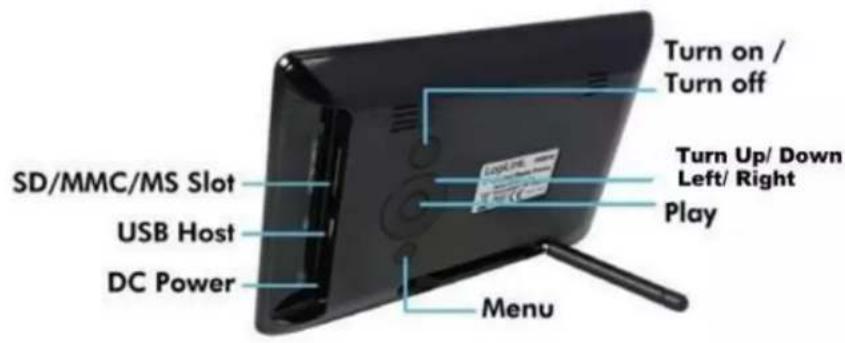
4. Operation
4.1 Photo
1) When the digital photo frame is powered on a slideshow of the pictures on the inserted memory card or USB (if available) will start automatically. (The screen will show initial screen, then go to calendar first and after 1-2 seconds going to slideshow the picture)
2) If no memory card is inserted, the screen will show the Calendar mode.
3) DPF will start the picture slideshow when the USB flash with pictures is inserted (same as SD card) and if the SD card or USB flash is inserted later, then also automatically start the presentation switching from the calendar mode.
4.2 Calendar
Select the calendar in the main menu.
Press the PLAY button (5) to enter the calendar of "Monthly Calendar". (if not press play button, 15 seconds after will going to slideshow picture)
Left screen display the calendar& date and right screen show the photos and times.(please insert the card or USB device first and ensure have picture inside it) Or press PLAY button to "Digital clock" left screen display clock & date time and right screen show the photos too and press PLAY button again to "Analog Clock" will just display analogy clock& time.
4.3 Set up setting
To enter the setting menu, press the PLAY button
To select a menu item, press the UP button or the DOWN button
To adjust a setting, press the LEFT and RIGHT button
To exit to the menu, press the Menu button.
4.3.1 Photo setup
Display Mode: Slideshow, Thumbnail, Browse mode
Slideshow mode
Select the Slideshow in the display mode.
Exit and return to main menu and press the PLAY button (5) to enter to the PHOTO and then going to Slideshow picture. (after 15 seconds will going to automatically slideshow picture if not press PLAY button) (Effective with inserted Card or USB).
In slideshow model it displays picture automatically and also can press left or right button to see the previous or next picture.
Thumbnail mode
Select the Thumbnail in the menu.
To exit the menu, return to main menu and press the PLAY button (5) to enter the PHOTO and going to display the Thumbnail photos. (Effective with inserted Card or USB)
15 pieces of thumbnail photos can be displayed in one page and will show the picture information at bottom line.
Browse mode
Select the Browse mode in the menu.
Exit and return to main menu and press the PLAY Button (5) to enter to the PHOTO (Effective with inserted Card or USB)
Just show the current picture if not press left & right button.
Display Ratio: Full Screen, Fit to Screen, Crop to Fill
Slide show time: 5Sec. 15Sec. 30.Sec. 60Sec. 5Min.15Min.
Slideshow Repeat: Repeat, Once,
Slideshow effect: Offers you following Options for the Transition between two Photos: Random, Snake, Partition, Erase, Blinds, Random lines, Grid, Cross, Rect, Spiral, Close
4.3.2 Calendar Setup
Display Mode: Monthly Calendar, Digital clock, Analog Clock
Set Date: press the Left or Right button to change the date and year and press the button of up and down to previous or next setup.
Clock Mode: 24hr, 12hr
Set time: press the Left or Right button to change the time and press the button of up and down to previous or next setup.
4.3.3 System Setup
Language: EN/CZ/SL/HU/PL
Backlight: Settings from 1-5
Brightness: Settings from 0-5
Contrast: Settings from 0-5
Saturation: Settings from 0-5
Power on: setting automatically turn on: ON/OFF
Auto boot time: setting auto turn on time
Power off: setting automatically turn off: ON/OFF
Auto Shut Time: setting auto turn off time
Auto-Power Frequency: Setting from Mon to Fri. Weekend, Once, Everyday
Default: Back to Factory settings
Version: Software version
System upgrade: Software update
5. Technical Data
Parameter Value
DPF voltage 5V-1A
Power voltage 100-240V/50-60Hz
USB connection USB 2.0 compatible
Flash memory connection SD/MMC/MS
Supported media formats JPEG
Screen size 7" (17,8 cm)
Aspect ratio 16 : 9
Resolution 800*480 pixels
Brightness 250 Cd/m2
EN Disposal of Used Electrical & Electronic Equipment
The meaning of the symbol on the product, its accessory or packaging indicates that this product shall not be treated as household waste. Please, dispose of this equipment at your applicable collection point for the recycling of electrical & electronic equipments waste. In the European Union and Other European countries which there are separate collection systems for used electrical and electronic product. By ensuring the correct disposal of this product, you will help prevent potentially hazardous to the environment and to human health, which could otherwise be caused by unsuitable waste handling of this product. The recycling of materials will help conserve natural resources. Please do not therefore dispose of your old electrical and electronic equipment with your household waste. For more detailed information about recycling of this product, please contact your local city office, your household waste disposal service or the shop where you purchased the product.
CE
This Product complies with basic relevant requirements of the EU Regulations.
Changes in design, technical specification are reserved and can be done without notice.
Manufacturer : Fast CR, a.s., Černokostelecká 1621, CZ-251 01 Říčany


- Thank you for purchasing this Digital Photo Frame.
- Safety
- Intended use
- General safety instruction
- WARNING
- CAUTION
- Preparation for use
- Unpacking
- Package contents
- Connecting to the mains
- Functions Description
- Operation
- Photo
- Calendar
- Set up setting
- Photo setup
- Slideshow mode
- Thumbnail mode
- Browse mode
- Calendar Setup
- System Setup
- Technical Data
- Parameter Value
- EN Disposal of Used Electrical & Electronic Equipment
- CE
Brand : SENCOR
Model : SDF 782
Category : Digital photo frame