
SEC 160 - Calculator SENCOR - Free user manual and instructions
Find the device manual for free SEC 160 SENCOR in PDF.


| Product Type | Scientific Calculator |
| Brand | Sencor |
| Model | SEC 160 |
| Display Type | Two-line alphanumeric LCD |
| Digit Capacity | 10-digit mantissa + 2-digit exponent |
| Input Capacity | 79 steps |
| Replay Memory | 128 bytes |
| Variables | 9 (A-F, M, X, Y) |
| Independent Memory | Yes (M) |
| Answer Memory | Yes |
| Modes | COMP (basic), SD (standard deviation), REG (regression) |
| Angle Units | Degrees, Radians, Grads |
| Functions | Arithmetic, fractions, percentages, sexagesimal, trigonometric, inverse trig, hyperbolic, log/antilog, powers/roots, factorials, permutations/combinations, coordinate conversion, engineering notation |
| Statistical Calculations | Standard deviation, linear/logarithmic/exponential/power/inverse/quadratic regression |
| Display Formats | Norm1, Norm2, Fix (decimal places), Sci (significant digits) |
| Decimal Separator | Selectable dot or comma |
| Power Source | 2 x LR44 (or equivalent) button cells |
| Dimensions | Approx. 16.5 x 8.5 x 2.1 cm |
| Weight | Approx. 150 g (with batteries) |
| Warranty | 24 months |
| Languages | Multilingual manual (EN, CS, SK, HU, PL) |
Frequently Asked Questions - SEC 160 SENCOR
User questions about SEC 160 SENCOR
0 question about this device. Answer the ones you know or ask your own.
Ask a new question about this device
Download the instructions for your Calculator in PDF format for free! Find your manual SEC 160 - SENCOR and take your electronic device back in hand. On this page are published all the documents necessary for the use of your device. SEC 160 by SENCOR.
USER MANUAL SEC 160 SENCOR
SEC 102 SEC 150 SEC 160 SEC 183
SCIENTIFIC CALCULATOR USER'S MANUAL
ELEKTRONICKÝ KALKULÁTOR S VĚDECKÝMI FUNKCEMI PŘÍRUČKA UŽIVATELE
ELEKTRONICKÝ KALKULÁTOR S VEDECKÝMI FUNKCIAMI PRÍRUČKA UŽÍVATELA
TUDOMÁNYOS SZÁMOLÓGÉP, TUDOMÁNYOS FUNKCIÓVAL HASZNÁLATI ÚTMUTATÓ
KALKULATOR ELEKTRONICZNY INSTRUKCJA OBSŁUGI
www.sencor.eu
Contents
Two-line Display 2
Before getting started 2
KModes....2
Input Capacity 3
Making Corrections During Input 3
Replay Function ....3
Error Locator 3
KMulti-statements....3
Exponential Display Formats 4
Decimal Point and Separator Symbols 4
Initializing the Calculator....4
Basic Calculations....5
Arithmetic Calculations ....5
Fraction Operations ....5
Percentage Calculations 6
Degrees, Minutes, Seconds Calculations ......7
FIX, SCI, RND 7
Memory Calculations....8
Answer Memory 8
Consecutive Calculations ......9
Variables 9
Scientific Function Calculations....9
Trigonometric/Inverse Trigonometric Functions 10
Hyperbolic/Inverse Hyperbolic Functions 10
Common and Natural Logarithms/Antilogarithms 10
Square Roots, Cube Roots, Roots, Squares, Cubes. Reciprocals, Factorials. Random
Numbers, vv, and Permutation/Combination 11
Angle Unit Conversion 11
Coordinate Conversion (Pol (x, y), Rec (r, zzz)) 12
Engineering Notation Calculations 12
Statistical Calculations.... 12
Standard Deviation 12
Regression Calculations ....14
Technical Information....17
When you have a problem 17
Error Messages 28
Order of Operations 19
Stacks....19
Input Ranges 20
Two-line Display
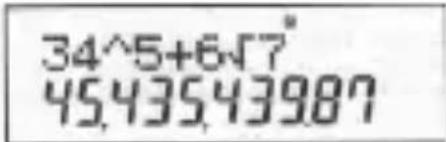
The two-line display makes it possible to view both the calculation formula and its result at the same time.
• The upper line shows the calculation formula.
• The lower line shows the result.
A separator symbol is displayed every three digits when the integer part of the mantissa has more than digits.
Before getting started
Modes
Before starting a calculation, you must first enter the correct mode as indicated in the table below.
| To perform this type of calculation: | Perform this key operation: To enter this mode: |
| Basic arithmetic calculations MODE a 1 COMP | |
| Standard deviation MODE a 2 SD | |
| Regression calculations MODE a 3 REG |
- Pressing the MODE key more than once displays additional setup screens. Setup screens are described in the sections of this manual where they are actually used to change the calculator setup.
- In this manual, the name of the mode you need to enter in order to perform the calculations being described is indicated in the main tills of each section
Example:
Statistical Calculations
Note!
- To return the calculation mode and setup to the initial defaults shown below,

Calculation Mode: ...... COMP
Angle Unit: ......Deg
Exponential Display Format: ...... Norm 1
Fraction Display Format: ......a b/c
Decimal Point Character .... Dot
- Mode indicators appear in the upper part of the display. - Be sure to check the current calculation mode (SD.REG, COMP) and angle unit setting (Dog, Rad, Gra) before beginning a calculation.
Input Capacity
- The memory area used for calculation input can hold 79 “steps,” One step Is taken up each time you press a number key or arithmetic operator key ( + - × + ). A SHIFT or ALPHA key operation does not take up a step, so inputting SHIFT or √. for example, takes up only one step.
- You can input up to 79 steps for a single calculation. Whenever you input the 73rd step of any calculation, the cursor changes from “_” to “■” to let you know memory is running low. If you need to input more than 79 steps, you should divide you calculation into two or more parts.
- Pressing the Ans key recalls the last result obtained, which you can use in a subsequent calculation. see “Answer Memory” for more information about using the Ans key.
Making Corrections During Input
- Use ◀ and ▶ to move the cursor to the location you want.
- Press DEL to delete the number or function at the current cursor position.
- Press SHIFT INS to change to an insert cursor kkk. Inputting something while the insert cursor is o the display insert the input at the insert cursor position,
- Pressing SHIFT INS, or = return to the normal cursor from the insert cursor.
Replay Function
- Every time you perform a calculation, the replay function stores the calculation formula and its result in replay memory. Pressing the ▲ key displays the formula and result of the calculation you last performed. Pressing ▲ again back steps sequentially (new-to-old) through past calculations.
- Pressing the ◀ or ▶ key while a replay memory calculation is on the display changes to the editing screen.
- Pressing the ◀ or ▶ key immediately after you finish a calculation display the editing screen for that calculation.
- Pressing AC does not clear replay memory, so you can recall the last calculation even after you press AC.
- Replay memory capacity is 128 bytes for storage of both expressions and results.
- Replay memory is cleared by any of the following actions.
When you press the ON key
When you initialize modes and settings by pressing SHIFT CLR 2 (or 3) =.
When you change from one calculation mode to another.
When you turn off the calculator.
Error Locator
- Pressing ◀ or ▶ after an error occurs displays the calculation with the cursor positioned at the location where the error occurred.
Multi-statements
A multi-statement is an expression that is made up of two or more smaller expressions, which are joined using a colon ( :).
• Example: To add 2 + 3 and then multiply the result by 4
![2 + 3 [ ] [ ] [ ] 4 = 2+3 5.mu = Ans×4 20.](/content/2026/05/764139/images/ba5bc458a9a0eb00ee17ba9eeefe16ed6e936b71b9e1c18742199dd5f3ce261d.jpg)
Exponential Display Formats
This calculator can display up to 10 digits. Larger values are automatically displayed using exponential notation. In the case of decimal values, you can select between two formats that determine at what point exponential notation is used.
- To change the exponential display format, press the MODE key a number of times until you reach the exponential display format setup screen shown below.
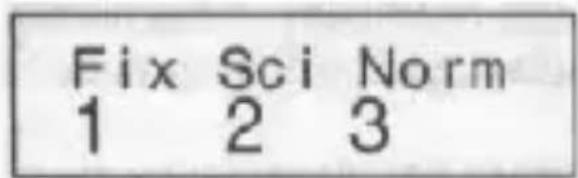
- Press 3. On the format selection screen that appears, press 1 to select Norm 1 or 2 for Norm 2.
NORM 1
With Norm 1, exponential notation is automatically used for integer values with more than 10 digits and decimal values with more than two decimal places.
NORM 2
With Norm 2, exponential notation is automatically used for integer values with more than 10 digits and decimal values with more than nine decimal places.
- All of the examples in this manual show calculation results using the Norm 1 format.
Decimal Point and Separator Symbols
You can use the display setup (Disp) screen to specify the symbols you want for the decimal point and 3-dlqlt separator.
- To change the decimal point and separator symbol setting, press the MODE key a number of times until you reach the setup screen shown below.
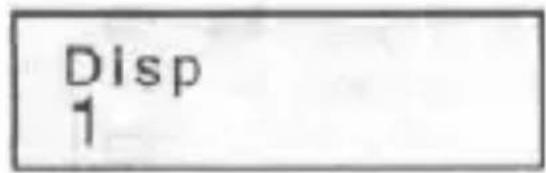
• Display the selection screen.
1 ▶
- Press the number key 1 or 2 that corresponds to the setting you want to use.
1 (Dot): Period decimal point, comma separator
2 (Comma): Comma decimal point, period separator.
Initializing the Calculator
- Perform the following key operation when you want to initialize the calculation mode and setup, and clear replay memory and variables.

Basic Calculations
Arithmetic Calculations
Use the MODE key to enter the COMP Mode when you want to perform Basic calculations. COMP ...... MODE 1
- Negative values inside of calculations must be enclosed within parentheses.
$$ \sin - 1. 2 3 \rightarrow \boxed {\sin} \boxed {(-)} 1. 2 3 \boxed {)} $$
- It is not necessary to enclose a negative exponent within parentheses.
$$ \sin 2. 3 4 \times 1 0 ^ {- 6} \rightarrow \text { 珔 } 2. 3 4 \boxed {\mathrm{EXP}} (-) 5 $$
• Example 1: 3 × (5 × 10^-6) = 1.5 × 10^-8

Example 2:×(9+7) = 80 5 ✗ 9 + 7 □
Fraction Operations
Fraction Calculations
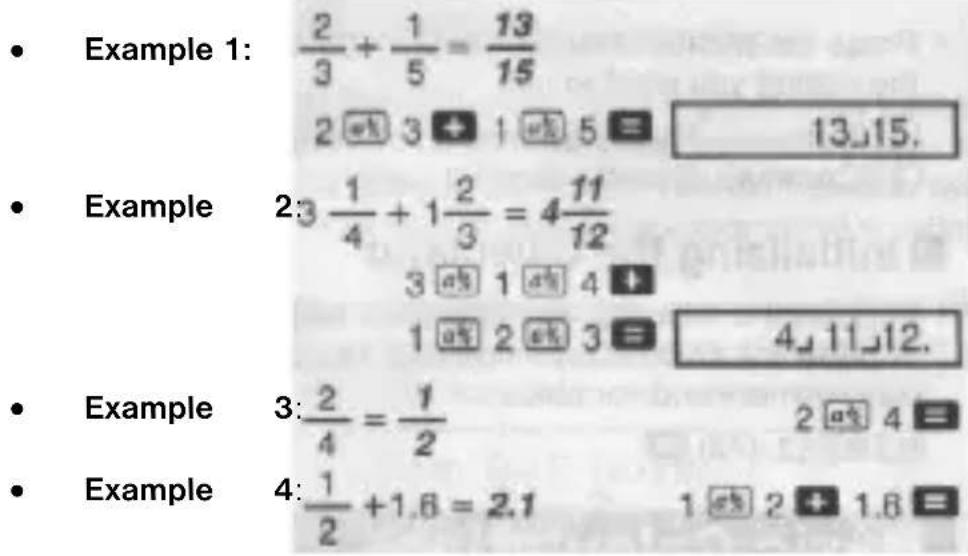
- Values are displayed in decimal format automatically whenever the total number of digits of a fractional value (integer + numerator + denominator + separator marks) exceeds 10.
- Results of calculations that mix fraction and decimal values are always decimal.
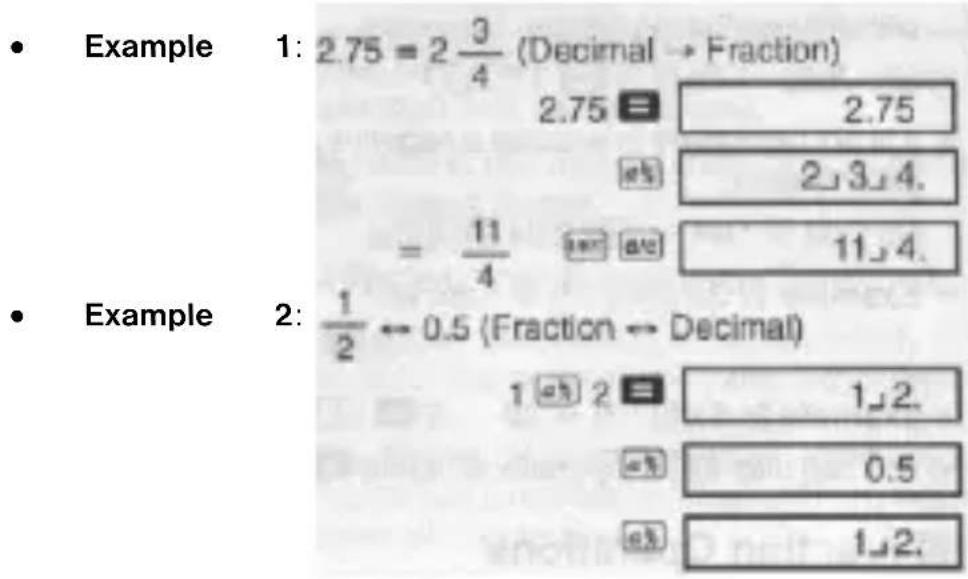
• Decimal Fraction Conversion - Use the operation shown below to convert calculation results between decimal values and fraction values
• Note that conversion can take as long as two seconds to perform.
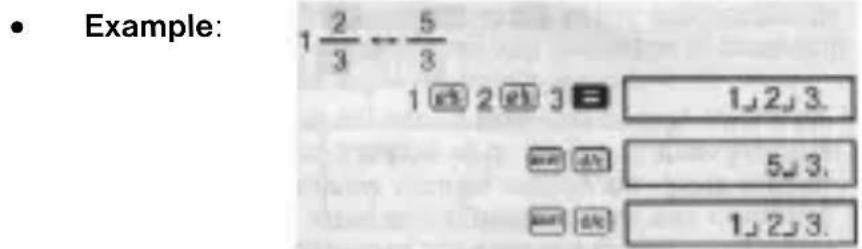
• Mixed Fraction rrr Improper Fraction Conversion
- You can use the display setup (Disp) screen 10 specify the display format when a fraction calculation result is greater than one.
- To change the fraction display format, press the MODE key a number of times until you reach the setup screen shown below.
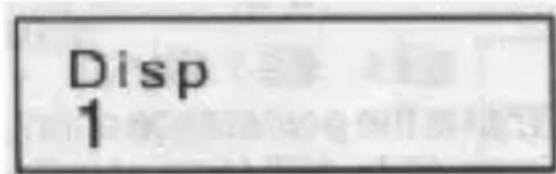
- Display the selection screen.
1
- Press the number key (1 or 2) that corresponds to the setting you want to use.
1 (a ^b/_c ): Mixed fraction
2 (d/c): Improper fraction.
• An error occurs if you try to input a mixed fraction while the d/c display format is selected.
Percentage Calculations
• Example 1: To calculate 12% of 1500 (180) 1500 × 12 mm %
• Example 2: To calculate what percentage of 880 is 660 (75%)
• Example 3: To add 15% onto 2500 (2875) 2500 ✗ 15 📋 [+]
• Example 4: To discount 3500 by 25% (2625) 3500 X 25 HHF %
• Example 5: To discount the sum of 168, 98, and 734 by 20% (800)
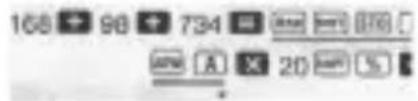
- As shown here, if you want to use the current Answer Memory value in a mark up or discount calculation, you need to assign the Answer Memory value into a variable and then use the variable in the mark up/discount calculation. This is because the calculation performed when % is pressed stores a result to Answer Memory before the - key is pressed.
- Example 6: If 300 grams are added to a test sample originally weighing 500 grams, what is the percentage increase in weight? (160%)

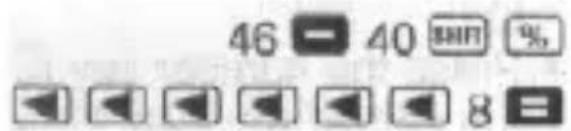
• Example 7: What is the percentage change when a value is increased from 40 to 46? How about to 48? (15%, 20%)
Degrees, Minutes, Seconds Calculations
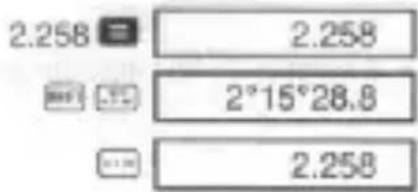
- You can perform sexagesimal calculations using degrees (hours), minutes, and seconds, and convert between sexagesimal and decimal values.
• Example 1: To convert the decimal value 2.258 to a sexagesimal value and then back to a decimal value
• Example 2: To perform the following calculation:

FIX, SCI, RND
- To change the setting for the number of decimal places, the number of significant digits, or the exponential display format, press MODE key a number of times until you reach the setup screen shown below
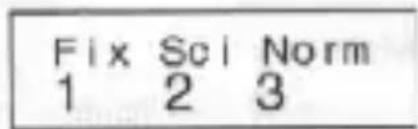
- Press the number key (1, 2, or 3) that corresponds to the setup item you want to change.
1 (Fix): Number of decimal places
2 (Sci): Number of significant digits
3 (Norm): Exponential display format
• Example 1: 200: 7x14 =
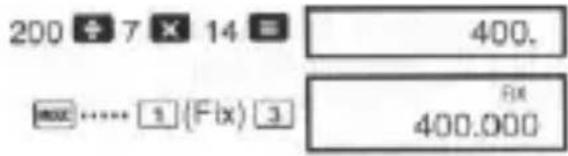
(Specifies there decimal places).
(Internal calculation continues using 12 digits).
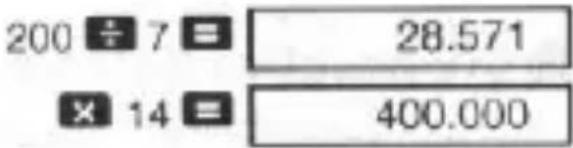
The following performs the same calculation using the specified number of decimal places.
(internal rounding)
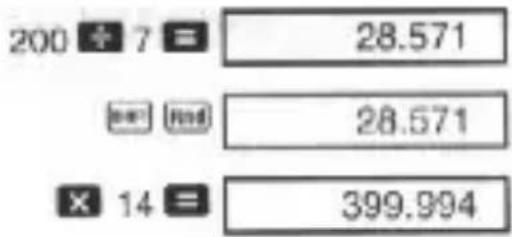
- Press MODE .... 3 (Norm) 1 to clear the Fix specification.
• Example 2: 1 ÷ 3 , displaying result with two significant digits (Sci 2)
![……2[50] 1 3 3.3-4](/content/2026/05/764139/images/ace11260c192bd9c963bd2fe1071048668b9a097c528e26687f4acceab8cc315.jpg)
- Press ^maul ... to clear the Sci specification.
Memory Calculations
Use the key to enter the MODE COMP Mode when you want to perform a calculation using memory.
COMP ...... MODE 1
Answer Memory
- Whenever you press = after inputting values or an expression, the calculated result automatically updates Answer Memory contents by storing the result.
- In addition to = , Answer Memory contents are also updated with result whenever you press SHIFT %, M+, SHIFT M- or SHIFT STO followed by a letter (A through F, or M, X, or Y).
- You can recall Answer Memory contents by pressing Ans.
• Answer Memory can store up to 12 digits for the mantissa and two digits for the exponent. - Answer Memory contents are not updated if the operation performed by any of the above key operations results in an error.
Consecutive Calculations
- You can use the calculation result that is currently on the display (and also stored in Answer Memory) as the first value of your next calculation. Note that pressing an operator key while a result Is displayed causes the displayed value to change to Ans, indicating it is the value that Is currently stored in Answer Memory.
- The result of a calculation can also be used with a subsequent Type A function
(x^2, x^0, x^-1, x|, DRG), +, -, (x^2), -, ×, -, nPr and nCr. and nCr.
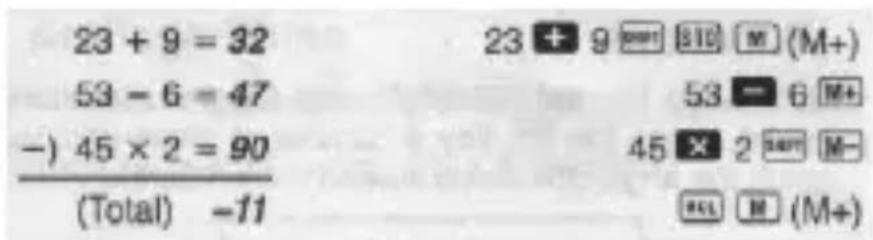
Independent Memory
- Values can be input directly into memory, added to memory, or subtracted from memory. Independent memory is convenient for calculating cumulative totals.
- Independent memory uses the same memory area as variable N.
• To clear independent memory (M), input 0 SHIFT STO M (M+).
Variables
- There are nine variables (A through F, M, X and Y), which can be used to store data, constants, results, and other values.
- Use the following operation to delete data assigned to a particular variable; 0 SHIFT STO A. This operation deletes the data assigned to variable A.
- Perform the following key operation when you want to clear the values assigned to all of the variables.
SHIFT CLR 1 (Mcl) =
![193.2 ÷ 23 = 8.4 193.2 ÷ 28 = 6.9 193.2 [RENT] [STO] [A] ÷ 23 = [UNM] [A] ÷ 28 =](/content/2026/05/764139/images/282c81d6ba650dba22344554ae7300518f642d2515b664ed58696034d7e3cba3.jpg)
Specific Function Calculations
Use the MODE key to enter the COMP Mode when you want to perform basic arithmetic calculations.
COMP ...... MODE 1
- Certain types of calculations may take a long time to complete. - Wait for the result to appear on the display before starting the next calculation.
π=3.14159265359
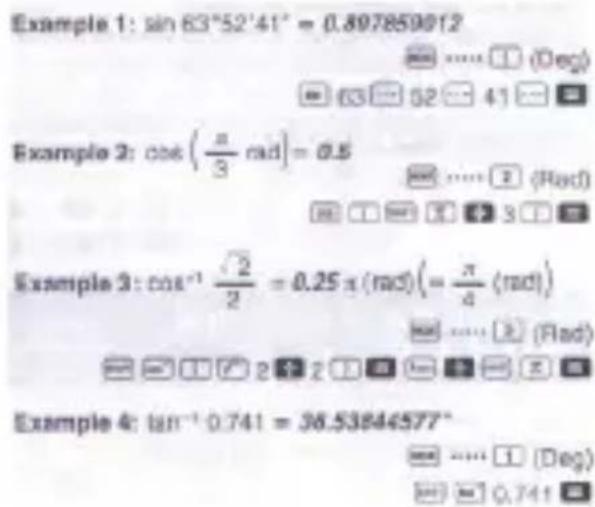
Trigonometric/Inverse Trigonometric Functions
- To change the default angle unit (degrees, radians, grads), press the MODE key a number of times until you reach the angle unit setup screen shown below.
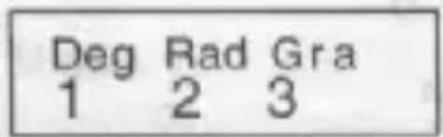
- Press the number key (1, 2, or 3) that corresponds to the angle unit you want to use.
$$ (9 0 ^ {\circ} = \frac {\pi}{2} \text { radians } = 1 0 0 \text { grads }) $$
- Example:
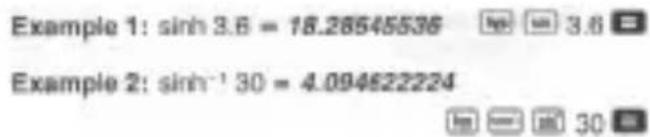
Hyperbolic/Inverse Hyperbolic Functions
Example:
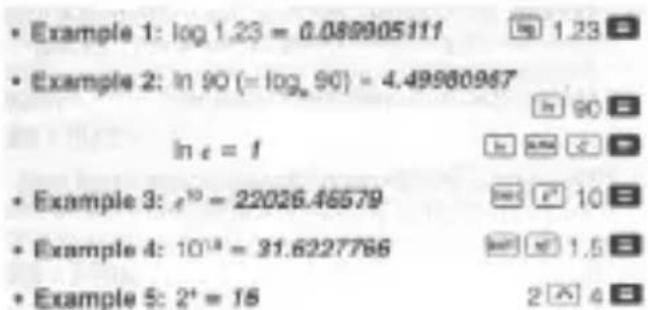
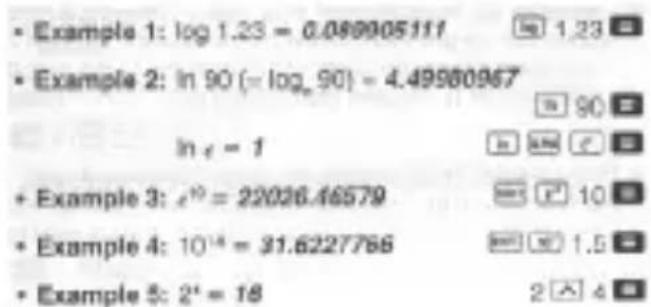
Common and Natural Logarithms/Antilogarithms
Example:
Square Roots, Cube Roots, Roots, Squares, Cubes, Reciprocals, Factorials, Random Numbers, , and Permutation/Combination
• Example:
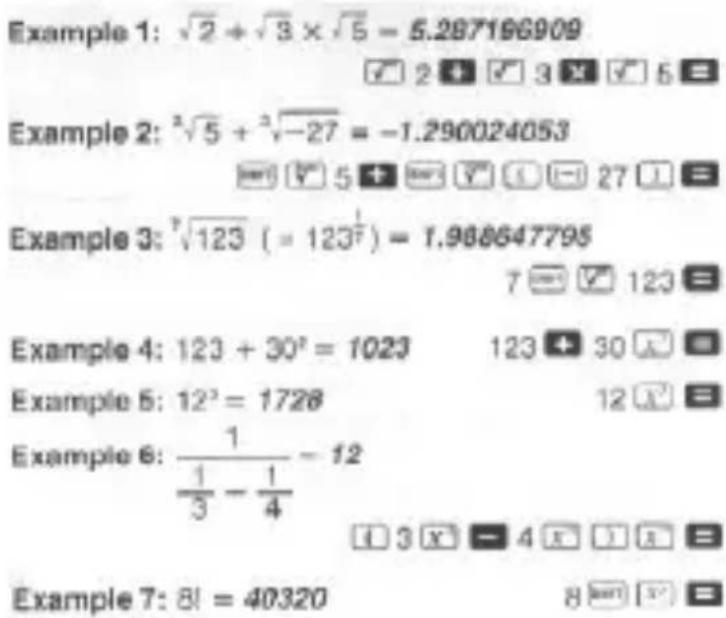
• Example 8: To generate a random number between 0,000 and 0.999

(The above value is a sample only. Results differ each time)
• Example 9: 3π = 9.424777961
• Example 10: To determine how many different 4-digit values can be produced using the numbers 1 through 7. Numbers cannot be duplicated within the same 4-digit value (1234 is allowed, but 1123 Is not). (840)
• Example 11: To determine how many different 4-member groups can be organized in a group of 10 individuals (210)
Angle Unit Conversion
- Press to display the following menu.
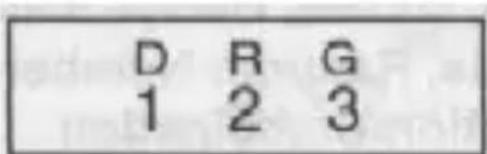
- Pressing 1, 2, or 3 converts the displayed value to the corresponding angle unit.
• Example: To convert 4.25 radians to degrees
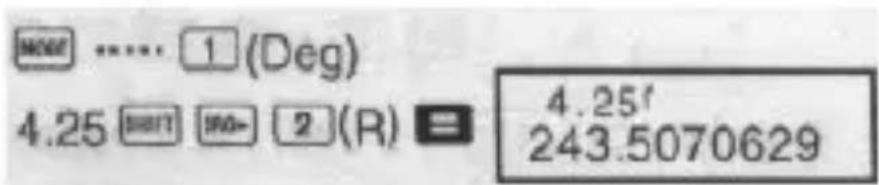
Coordinate Conversion (Pol (x, y), Rec (r, Θ))
- Calculation results are automatically assigned to variables E and F.
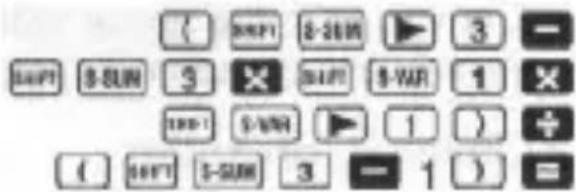
• Example 1: To convert polar coordinates (r=2, θ=60°) to rectangular coordinates (x,y] (Deg)

- Press RCL E to display the value of x, or RCL F to display the value of y.
• Example 2: To convert rectangular coordinates ( 1,3 ) to polar coordinates ( |e(Rad) ) (Rad)

- Press RCL E to display the value of r , or RCL F to display the value of .
Engineering Notation Calculations
• Example 1: To convert 56,086 meters to kilometers
![- 56.088 × 10³ (km) 56088 = [RE]](/content/2026/05/764139/images/a7098079e5b15d715e09d33ac9c8acefa172e7626d3e37f70f84caaab66eab5a.jpg)
• Example 2: To convert 0.08125 grams to milligrams

Statistical Calculations
Standard Deviation
Use the MODE key to enter the 3D Mode when you want to perform statistical calculations using standard deviation.
SD ...... MODE 2
- Always start data input with SHIFT CLR 1 (Scl) = to clear statistical memory.
- Input data using the key sequence shown below.
- Input data is used to calculate values for n , you can recall using the key operations noted nearby.
| To recall this type of value: | Perform this key operation: |
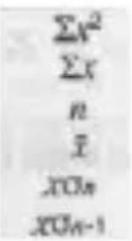 | 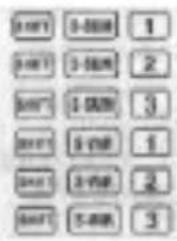 |
• Example: To calculate _n-1 , _n , , n, x and for the following data: 55, .54, 51, 55, 53, 53, 54, 52
In the SD Mode:

Each time you press DT to register your input, the number of data input up to that point is indicated on the display (n value)
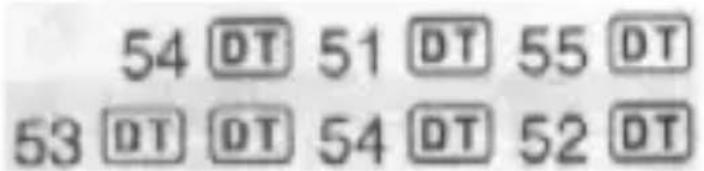
Sample Standard Deviation ( _n-1 ) = 1,407885953
Population Standard Deviation (_n) = 1,316956719
Arithmetic Mean ( ) = 53,375
Number of Data (n) = 8
Sum of Values (Σx) = 427
Sum of Squares of Values ( x^2) = 22805






Data Input Precautions
• DT DT inputs the same data twice.
- You can also input multiple entries of the same data using SHIFT ; . To input the data 110 ten times, for example, press 110 SHIFT ; 10 DT .
• You can perform the above Key operations in any order, and not necessarily that shown above.
- While inputting data or after inputting data is complete, you can use the ▲ and ▼ keys to scroll through data you have input. If you input multiple entries if the same data using SHIFT; to specify the data frequency (number of data items) as described above, scrolling through data shows both the data item and a separate screen for the data frequency (Fraq).
- You can then edit the displayed data, if you want. Input the new value and then press the = key to replace the old value with the new one. This also means that if you want to perform some other operation (calculation, recall of statistical calculation results, etc.), you should always press the AC key first to exit data display.
- Pressing the DT key Instead of = after changing a value on the display registers the value you input as a new data item, and leaves the old value as it is.
- You can delete a data value displayed using ▲ and ▼ by pressing SHIFT CL. Deleting a data value causes all values following it to be shifted up.
- Data values you register are normally stored in calculator memory. The message "Data Full" appears and you will not be able to input any more data. If there is no memory left for data storage. If this happens, press the = key to display the screen shown below.
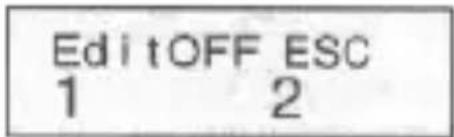
Press 2 to exit data input without registering the value you just input.
Press 1 if you want to register the value you just input, without saving it in memory. If you do this, however, you will not be able to display or edit any of the data you have input.
• To delete data you have just input, press SHIFT CL.
- After inputting statistical data in the SD Mode or REG Mode, you will be unable to display or edit individual data items any longer alter perform either the following operations.
Changing to another mode
Changing the regression type (Lin, Log, Exp, Pwr, Inv. Quad).
Regression Calculations
Use the MODE key to enter the REG Mode what you want to perform statistical calculations using regression.
REG ...... MODE 3
- Entering the REG Mode displays screens like the ones shown below.
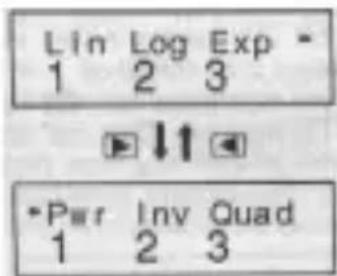
- Press the number key (1, 2, or 3) that corresponds to the type of regression you want to use
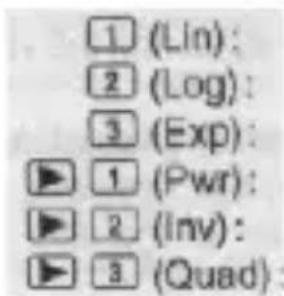
Linear regression
Logarithmic regression
Exponential regression
Power regression
Inverse regression
Quadratic regression
- Always start data input with (SHIFT CLR 1 (Scl) = ) to clear statistical memory.
- Input data using the key sequence shown below,
- The values produced by a regression calculation depend on the values input, and results can be recalled using the key operations shown in the table below.
| To recall this type of value: Perform | this key operation: |
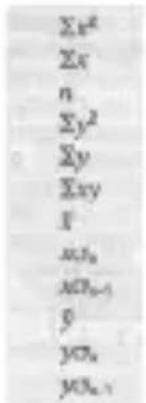 Regression coefficient ARegression coefficient B Regression coefficient ARegression coefficient B | 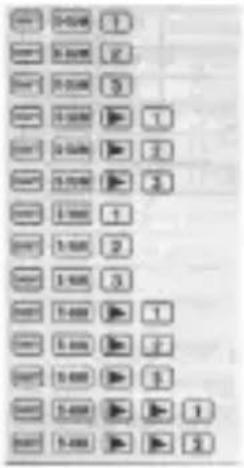 |
| Regression calculation other than quadratic regression | |
| Correlation coefficient r[ABWW] | 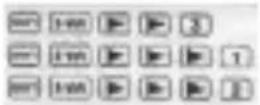 |
- The following table shows the key operations you should use to recall results in the case of quadratic regression.
| To recall this type of value: Perform | this key operation: |
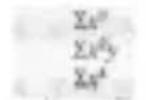 Regression coefficient C Regression coefficient C | 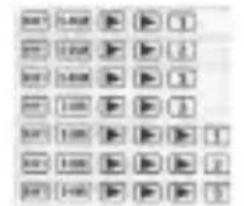 |
- The values In the above tables can be used inside of expressions the same way you use variables.
• Linear Regression - The regression formula for linear regression is:
$$ y = A + B x. $$
• Example: Atmospheric Pressure vs. Temperature
| Temperature | Atmospheric Pressure |
| 10° | 1003 hPa |
| 15° | 1005 hPa |
| 20° | 1010 hPa |
| 25° | 1011 hPa |
| 30° | 1014 hPa |
Perform linear regression to determine the regression formula terms and correlation coefficient for the data nearby. Next, use the regression formula to estimate atmospheric pressure at 18^ C and temperature at 1000 hPa. Finally, calculate the coefficient of determination ( r^2 ) and sample covariance
$$ \left(\frac {\Sigma x y - n \cdot \bar {x} \cdot \bar {y}}{n - 1}\right). $$
In the REG Mode:
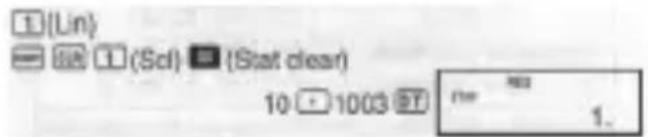
Each time you press DT to register you input, the number of data input up to that point is indicated on the display (n value)
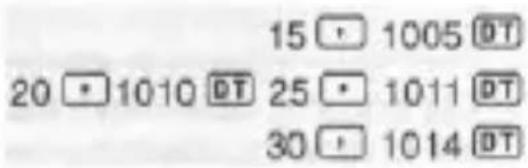
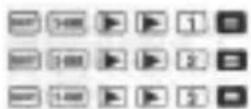
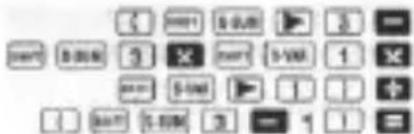
Registration Coefficient A = 997.4
Registration Coefficient B = 0.56
Correlation Coefficient r = 0.982607368
Atmosphere Pressure at 18^ C = 1007.48
Temperature at 1000 hPa = 4.642857143
Coefficient of Determination = 0.955517241
Sample Covariance = 35



• Logarithmic, Exponential, Power, and Inverse Regression
• Use the same key operations as linear regression to recall results for these types of regression.
- The following shows the regression formulas to reach type of regression
| Logarithmic Regression y = A + | B · ln x |
| Exponential Regression | y = A · e ^B · x (ln y = ln A + Bx) |
| Power Regression y = A | · x ^B (ln y = ln A + B in x) |
| Inverse Regression y = A + B | · 1/x |
• Quadratic Regression
- The regression formula for quadratic regression is:
$$ y = A + B x + C x ^ {2}. $$
• Example:
| x_i | y_i |
| 29 1.6 | |
| 50 23.5 | |
| 74 38.0 | |
| 103 46.4 | |
| 118 48.0 |
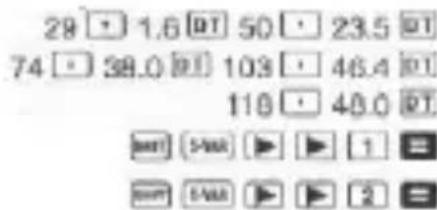
Perform quadratic regression to determine the regression formula terms for the data nearby. Next, use the regression formula to estimate the values for (estimated value of y) for xi = 16 and (estimated value of x) for yi = 20.
In the REG Mode:

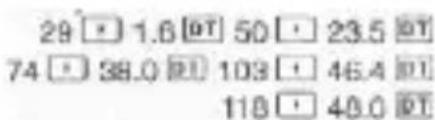
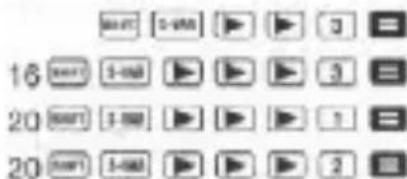
Registration Coefficient A = -35.59856934
Registration Coefficient B = 1.495939413


Registration Coefficient C = -6.71629667x 10 ^-9
y ha xi 16 = -13,38291067
x1 ha yi 20 = 47,14556728
x2 ha yi 20 = 175,5872105




Data Input Precautions
• DT DT inputs the same data twice.
- You can also input multiple entries of the same data using SHIFT : . To input the data “20 and 30” five times, for example, press 20 - 30 SHIFT : 5 DT.
• The above results can be obtained in any order, and not necessarily trial shown above,
- Precautions when editing data input for standard deviation also apply for regression calculations.
Technical Information
When you have a problem......
If calculation results are not what you expect or if an error occurs, perform the following steps.
- Press SHIFT CLR 2 (Mode) = to Initialize all modes and settings.
- Check the formula you are working with to confirm it is correct.
- Enter the correct mode and try performing the calculation again.
If the above steps do not correct the problem, press the [[ON]] key. The calculator performs a self-check operation and deletes. Make sure you always keep written copies of all important data.
Error Messages
The calculator is locked up while an error message is on the display, Press AC to clear the error, or press uuu or www to display the calculation and correct the problem. See “Error Locator” for details.
Math ERROR
- Causes
- Calculation result is outside the allowable calculation range,
- An attempt to perform a function calculation using a value that exceeds the allowable Input range.
- An attempt to perform an in logical operation (division by zero, etc.).
Action - Check your input values and make sure they are all within the allowable ranges. Pay special attention to values in any memory areas you are using.
Stack ERROR
- Cause
- The capacity of the numeric stack or operator stack is exceeded.
Action - Simplify the calculation. The numeric stack has 10 levels and the operator stack has 24 levels.
- Divide your calculation into two or more separate parts.
Syntax ERROR
- Cause
- An attempt to perform an illegal mathematical operation.
Action - Press ◀ or ▶ to display the calculation with the cursor located at the location of the error and make required corrections.
Arg ERROR
- Cause
- Improper use of argument
Action - Press ◀ or ▶ to display the location or the cause of the error and make required corrections.
Order of Operations
Calculations are performed in the following order of precedence,
-
Coordinate transformation; Pol (x, y). Rec (r, θ)
-
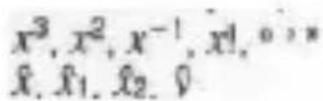
Type A functions;
With these functions, the value is entered and then the function key is pressed.
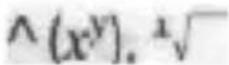
- Powers and roots:
-
a^b/_c
-
Abbreviated multiplication format in front of -t, e (natural logarithm base), memory name, or variable name: 2 , 3e , 5A , A , etc.
-
Type B functions:
With these functions, the function key is pressed and then the value is entered
2 , 3 , log, in, e^x , 10^x , sin, cos, tan, ^-1 , ^-1 , ^-1 , sinh, cosh, tanh, ^-1 , ^-1 , ^-1 , (−)
- Abbreviated multiplication format in front of Type B functions: etc.
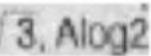
-
Permutation and combination: nPr, nCr
-
x, ÷
-
+, -
• Operations of the same precedence are performed from right to left
$$ e ^ {x} \ln {\sqrt {- 1 2 0}} \rightarrow e ^ {x} (\ln (\sqrt {- 1 2 0})) $$
- Other operations are performed from left to right.
- Operations enclose din parentheses are performed first.
- When a calculation contains an argument that is a negative number, the negative number must be an closed within parentheses. The negative sign (-) is treated as a Type B function, so particular care is required when the calculation includes a high-priority Type A function, or power or root operations.
Example: (-2) ^4 = 16
$$ - 2 ^ {4} = - 1 6 $$
Stacks
This calculator uses memory areas, called “stacks,” to temporarily store values (numeric stack) and commands (command stack) according to their precedence during calculations. The numeric stack has 10 levels and the command stack has 24 levels. A stack error (Stack ERROR) occurs whenever you try to perform a calculation that is so complex that the capacity of a stack is exceeded.
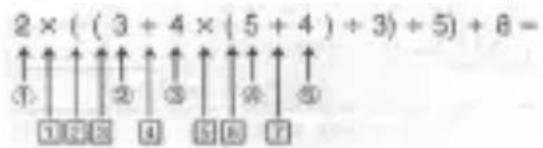
Numeric Stack Command Stack
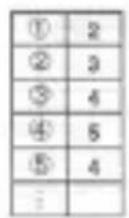
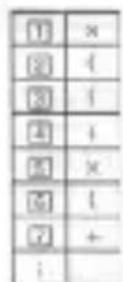
- Calculations are performed in sequence according to „Order of Operations“. Commands and values are deleted from the stack as the calculation is performed.
Input Ranges
Internal digits: 12
Accuracy*: As a rule, accuracy is +1 at the 10th digit.
Functions Input Range
| sinx | DEG | 0≤|x|≤4.4999999999×10¹⁰ |
| RAD | 0≤|x|≤785398163.3 | |
| GRA | 0≤|x|≤4.999999999×10¹⁰ | |
| cosx | DEG | 0≤|x|≤4.500000008×10¹⁰ |
| RAD | 0≤|x|≤785398164.9 | |
| GRA | 0≤|x|≤5.000000009×10¹⁰ | |
| tanx | DEG | Same as sinx, except when |x|= (2n-1)×90. |
| RAD | Same as sinx, except when |x|= (2n-1)×π/2. | |
| GRA | Same as sinx, except when |x|= (2n-1)×100. | |
| sin-1x | 0≤|x|≤1 | |
| cos-1x | ||
| tan-1x | 0≤|x|≤9.9999999999×10²⁰ | |
| sinhx | 0≤|x|≤230.2585092 | |
| coshx | ||
| sinh-1x | 0≤|x|≤4.9999999999×10²⁰ | |
| cosh-1x | 1≤x≤4.9999999999×10²⁰ | |
| tanhx | 0≤|x|≤9.9999999999×10²⁰ | |
| tanh-1x | 0≤|x|≤9.9999999999×10⁻¹ | |
| logx/lnx | 0< x ≤9.9999999999×10²⁰ | |
| 10^x | -9.9999999999×10²⁰≤ x ≤ 99.99999999 | |
| e^x | -9.9999999999×10²⁰≤ x ≤ 230.2585092 | |
| √x | 0≤ x < 1 × 10100 | |
| x2 | |x|< 1 × 10²⁰ | |
| 1/x | |x|< 1 × 10100; x ≠ 0 | |
| 3√x | |x|< 1 × 10100 | |
| x! | 0≤ x ≤ 69 (x is an integer) | |
| nP_r | 0≤ n < 1 × 10¹⁰, 0≤ r ≤ n (n, r are integers)1≤ {n!(n-r)!} < 1 × 10100 | |
Functions Input Range
| nCr | 0≤n<1×10¹⁰, 0≤r≤n (n,r are integers)1≤[n|{r!(n-r)!}] < 1×10100 |
| Pol(x,y) | |x|, |y| ≤9.9999999999×1049(x2+y2) ≤9.9999999999×1060 |
| Rec(r,θ) | 0≤r≤9.9999999999×1099θ: Same as sinx |
| a=b | |a|, b, c < 1×101000 ≤ b, c |
| = | |x|<1×10100Decimal ↔ Sexagesimal Conversions0°0°0°≤ |x| ≤9999999°59° |
| ^(x2) | x>0: -1×10100 |
| x=0: y>0 1x<0: y=n, 2n+1 (n is an integer)However: -1×10100 | |
| x√y | y>0: x≠0-1×10100<1/x logy<100y=0: x>0y<0: x=2n+1, 1/n (n≠0; n is an integer)However: -1×10100<1/x log|y|<100 |
| ab/c | Total of Integer, numerator, and denominator must be 10 digits or less (including division marks). |
| SD(REG) | |x|<1×1060 xσn, yσn, x, y: n≠0|y|<1×1060 xσn-1, yσn-1, A, B, r:|n|<1×10100 n≠0, 1 |
- For a single calculation, calculation error is ± 1 at the 10th digit. (In the case of exponential display, calculation error is ± 1 at the last significant digit.) Errors are cumulative in the case of consecutive calculations, which can also cause them to become large. (This is also true of internal consecutive calculations that are performed in the case
$$ \wedge (x ^ {2}), \sqrt [ 3 ]{y}, x!, \sqrt [ 3 ]{-}, n P r, n C r \text { etc) } $$
In the vicinity of a function's singular point and point of inflection, errors are cumulative and may become large.
Příručka uživatele
Tlačitky 📂 🐎 🐎 🐎 🐎 🐎 🐎 🐎 🐎 🐎 🐎 🐎 🐎 🐎 🐎 🐎 🐎 🐎 🐎 🐎 🐎 🐎 🐎 🐎 🐎 🐎 🐎 🐎 🐎 🐎 🐎 🐎 🐎 🐎 🐎
Statistické výpočty
| To recall this type of value: | Perform this key operation: |
| Σx² | |
| Σx | |
| n | |
| x | |
| XCIa | |
| XCIa-1 |
lineární regrese
| In recall this type of value: | Perform this key operation |
| Σx² | |
| Σx | |
| AI | |
| Σy² | |
| Σy | |
| Σxy | |
| i | |
| xΩs | |
| xΩs-1 | |
| y | |
| ycs | |
| ycs-1 | |
| Regression coefficient A | |
| Regression coefficient B | |
| Regression calculation other than quadratic regression | |
| Correlation coefficient r | |
| i | |
| j | |
koeficient regrese A
koeficient regrese B
koeficient regrese C
y pri xi = 16
x1 při y1 = 20
X2 při y2 = 20
Dekadické a prirodzené logaritmy / antilogaritmy
• Priklady (Example):
Na zobrazenie hodnoty x stlačte tlačidlá, na zobrazenie hodnoty y stlačte tlačidlá
- Na zobrazenie hodnoty r stlačte tlačidlá na zobrazenie hodnoty tlačidlami
Štatistické výpočty
| To recall this type of value: | Perform this key operation: |
| Σx² | |
| Σx | |
| n | |
| T | |
| XCIa | |
| XCIa-1 |
To recall ... = na vyvolanie hodnoty tohto typu;
Perform this key ... = použite tieto tlačidlá
55.54.51.55.53.53.54.52
V režime SD:

lineárna funkcia
| To result this type of value: | Perform this key operation: |
| Σx² | |
| Σx | |
| η | |
| Σy² | |
| Σy | |
| Σxy | |
| ξ | |
| xξ, | |
| xξ,1 | |
| ξ | |
| yξ, | |
| yξ,1 | |
| Regression coefficient A. | |
| Regression coefficient B. | |
| Regression calculation other than quadratic regression | |
| Correlation coefficient r | |
| ξ | |
| ξ | |
To recall ... = na vyvolanie hodnoty tohto typu;
Perform this key ... = použite tieto tlačidlá
koeficient funkcie A (B)
| To recall this type of value: | Perform this key operation: |
| Σx³ | 1 |
| Σx²y | 2 |
| Σx⁴ | 3 |
| Regression coefficient C | 3 |
| x̂₁ | 1 |
| x̂₂ | 2 |
| ŷ | 3 |

tlačidlá: [SWF] [CLR] [2] (Mode)
![2 [Su] 1 3 92 3.3-01](/content/2026/05/764139/images/79e806d50b9f5f8f7347bb4243642c1799be752455e35fb7624855ae4cbd6741.jpg)
lineáris regresszió
55, 54, 51, 55, 53, 53, 54, 52
W trybie SD:

regresja liniowa
| To recall this type of value: | Perform this key operation: |
| Σx³ Σx²y Σx⁴ Regression coefficient C x̂₁ x̂₂ ŷ | 1 2 3 3 1 2 3 |
same as sinx = takie samo jak sinx;
EN: The manufacturer reserves the rights to errors and changes in this user's manual without prior notice.
EN – Disposal of Used Electrical & Electronic Equipment
The meaning of the symbol on the product, its accessory or packaging indicates that this product shall not be treated as household waste. Please, dispose of this equipment at your applicable collection point for the recycling of electrical & electronic equipments waste. In the European Union and Other European countries which there are separate collection systems for used electrical and electronic product. By ensuring the correct disposal of this product, you will help prevent potentially hazardous to the environment and to human health, which could otherwise be caused by unsuitable waste handling of this product. The recycling of materials will help conserve natural resources. Please do not therefore dispose of your old electrical and electronic equipment with your household waste. For more detailed information about recycling of this product, please contact your local city office, your household waste disposal service or the shop where you purchased the product.

EN: This symbol on the product, its accessories or packaging indicates that it conforms to European requirements for equipment operated at low voltages and requirements for electromagnetic compatibility.
Conditions of guarantee
This product is warranted for the period of 24 months from the date of purchase to the end-user. Warranty is limited to the following conditions. Warranty is referred only to the customer goods using for common domestic use. The claim for service can be applied either at dealer's shop where the product was bought, or at below mentioned authorized service shops. The end-user is obligated to set up a claim immediately when the defects appeared but only till the end of warranty period. The end-user is obligated to cooperate to certify the claiming defects. Only completed and clean (according to hygienic standards) product will be accepted. In case of eligible warranty claim the warranty period will be prolonged by the period from the date of claim application till the date of taking over the product by end-user, or the date the end-user is obligated to take it over. To obtain the service under this warranty, end-user is obligated to certify his claim with duly completed following documents: receipt, certificate of warranty, certificate of installation... This warranty is void especially if apply as follows: Defects which were put on sale. Near-out or damage caused by common use. The product was damaged by unprofessional or wrong installation, used in contrary to the applicable instruction manual, used in contrary to legal enactment and common process of use or used for another purpose which has been designed for. The product was damaged by uncared-for or insufficient maintenance. The product was damaged by dirt, accident of force majeure (natural disaster, fire, flood, ...). Defects on functionality caused by low duality of signal, electromagnetic field interference etc. The product was mechanically damaged (e.g. broken button, fall...). Damage caused by use of unsuitable media, fillings, expendable supplies (batteries) or by unsuitable working conditions (e.g. high temperatures, high humidity, quakes,...). Repair, modification or other failure action to the product by unauthorized person. End-user did not prove enough his right to claim (time and place of purchase). Data on presented documents differs from data on products. Cases when the claiming product can not be identified according to the presented documents (e.g. the serial number or the warranty seal has been damaged).
Záruční podmínky



- SEC 102 SEC 150 SEC 160 SEC 183
- Contents
- Two-line Display 2
- Before getting started 2
- Basic Calculations....5
- Memory Calculations....8
- Scientific Function Calculations....9
- Statistical Calculations.... 12
- Technical Information....17
- Two-line Display
- Before getting started
- Modes
- Example:
- Statistical Calculations
- Note!
- Input Capacity
- Making Corrections During Input
- Replay Function
- Error Locator
- Multi-statements
- Exponential Display Formats
- NORM 1
- NORM 2
- Decimal Point and Separator Symbols
- Initializing the Calculator
- Basic Calculations
- Arithmetic Calculations
- Fraction Operations
- Fraction Calculations
- Percentage Calculations
- Degrees, Minutes, Seconds Calculations
- FIX, SCI, RND
- 28.571
- Memory Calculations
- Answer Memory
- Consecutive Calculations
- Independent Memory
- Variables
- Specific Function Calculations
- Trigonometric/Inverse Trigonometric Functions
- Hyperbolic/Inverse Hyperbolic Functions
- Common and Natural Logarithms/Antilogarithms
- Square Roots, Cube Roots, Roots, Squares, Cubes, Reciprocals, Factorials, Random Numbers, , and Permutation/Combination
- • Example:
- Angle Unit Conversion
- Coordinate Conversion (Pol (x, y), Rec (r, Θ))
- Engineering Notation Calculations
- Standard Deviation
- Data Input Precautions
- Regression Calculations
- Technical Information
- When you have a problem......
- Error Messages
- Math ERROR
- Stack ERROR
- Syntax ERROR
- Arg ERROR
- Order of Operations
- Stacks
- Numeric Stack Command Stack
- Input Ranges
- Functions Input Range
- Příručka uživatele
- mm 28.571
- Statistické výpočty
- Dekadické a prirodzené logaritmy / antilogaritmy
- Štatistické výpočty
- EN – Disposal of Used Electrical & Electronic Equipment
- Conditions of guarantee
- Záruční podmínky
Brand : SENCOR
Model : SEC 160
Category : Calculator