
MultiMedia Stick Y2 - USB Drive Evolveo - Free user manual and instructions
Find the device manual for free MultiMedia Stick Y2 Evolveo in PDF.


| Product Type | Multimedia Stick (Android TV Stick) |
| Brand | Evolveo |
| Model | MultiMedia Stick Y2 |
| CPU | 4-Core Cortex-A53, 1.8 GHz |
| GPU | Penta-Core Mali-G31 MP2, 850 MHz |
| RAM | 2 GB DDR4 |
| Storage | 8 GB eMMC 5.0 |
| Operating System | Android 9.0 |
| Video Decoding | FHD 1080p 60fps, H.265 10-bit, H.264, VC-1, MPEG1/2/4 |
| Audio Decoding | MP3, AAC, WMA, RM, FLAC, OGG |
| Photo Decoding | JPG, JPEG, MJPEG, PNG |
| Output | HDMI |
| USB Port | 1 x USB 3.0 |
| Card Slot | TF Card |
| Power Supply | 5V/1A via Micro USB |
| Power Consumption | Max. 6W |
| Dimensions (approx.) | 100 x 30 x 15 mm |
| Weight (approx.) | 50 g |
| Connectivity | Wi-Fi 802.11 b/g/n |
| Remote Control | IR Sensor (cable included) |
| DLNA Support | DLNA DMP and DMR |
| Manufacturer | Naxya Limited, Hong Kong |
| Importer | Abacus Electric, s.r.o., Czech Republic |
Frequently Asked Questions - MultiMedia Stick Y2 Evolveo
User questions about MultiMedia Stick Y2 Evolveo
0 question about this device. Answer the ones you know or ask your own.
Ask a new question about this device
Download the instructions for your USB Drive in PDF format for free! Find your manual MultiMedia Stick Y2 - Evolveo and take your electronic device back in hand. On this page are published all the documents necessary for the use of your device. MultiMedia Stick Y2 by Evolveo.
USER MANUAL MultiMedia Stick Y2 Evolveo
natural_image
Black cylindrical device with a curved black line on its side (no visible text or symbols)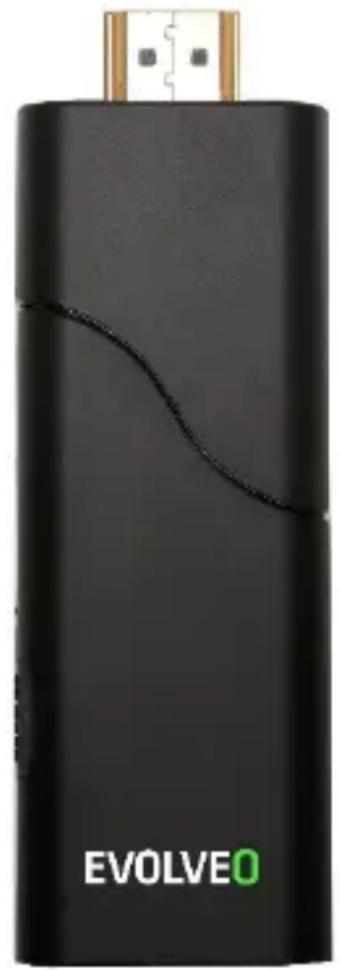
natural_image
Black EVOLVE0 device with a gold connector and a wavy black line on its body (no readable text or symbols beyond branding)www.evolveo.com
Vážený zákazníku,
Nastavení jazyka
Naxya Limited / No. 5, 17/F, Strand 50, 50 Bonham Strand, Sheung Wan, Hong Kong
Dovozce
Abacus Electric, s.r.o.
Copyright © Abacus Electric, s.r.o.
www.evolveo.com
www.facebook.com/EvolveoCZ
Nastavte dátum a čas.
Nastavenie jazyka
No. 5, 17/F, Strand 50, 50 Bonham Strand, Sheung Wan, Hongkong
Dovozca
Abacus Electric, s.r.o.
Copyright © Abacus Electric, s.r.o.
www.evolveo.com
www.facebook.com/EvolveoCZ
Thank you for choosing the EVOLVEO MultiMedia Stick Y2. We believe it will bring you a lot of fun and satisfaction. Please do read user manual before you operate the device.
Initial configuration
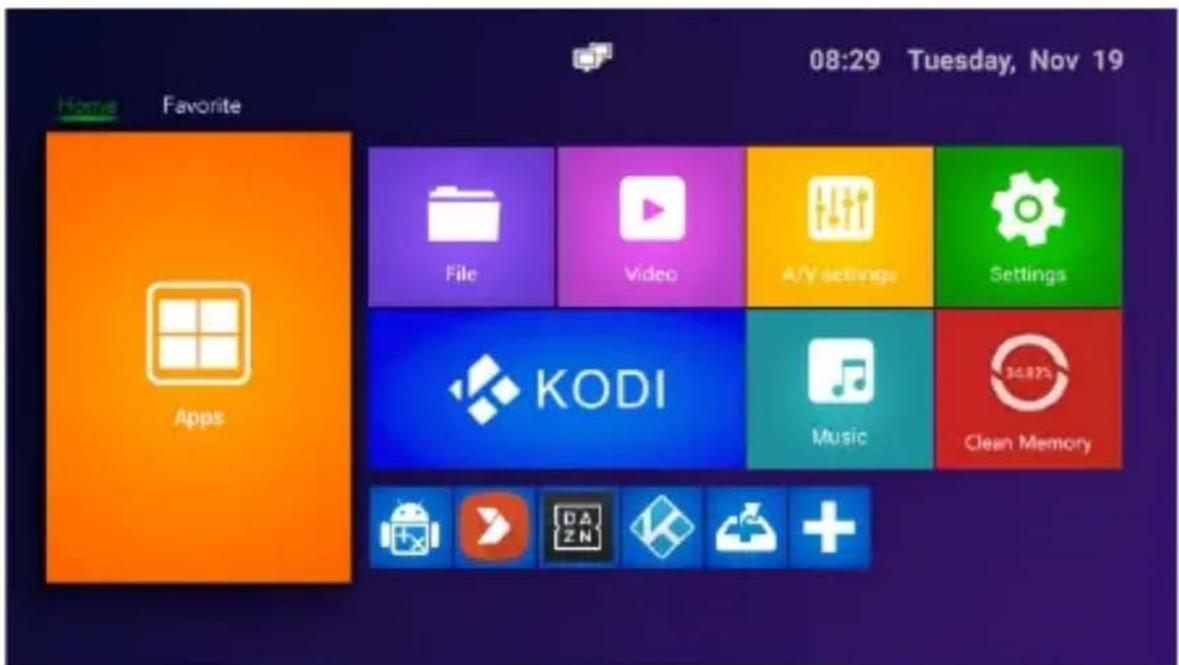
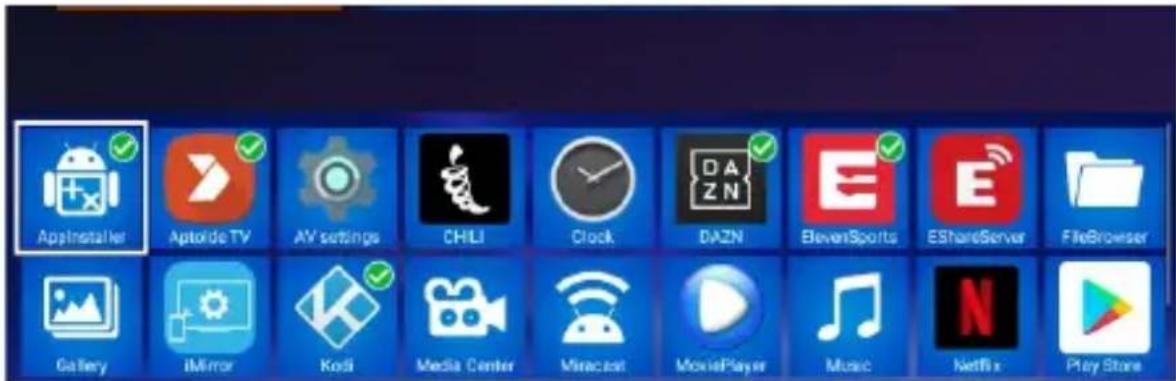
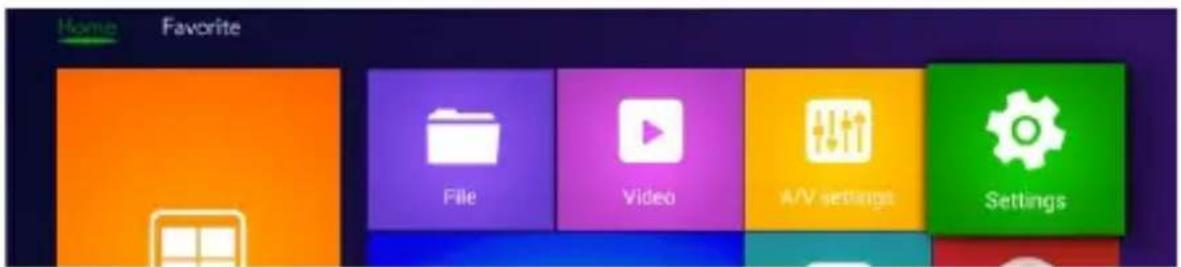
• Power on, enter into main menu.
- Click + to install or delete your favourite app.
- Click 📋 APP, enter into the settings interface.
- Click ⚙ SETTINGS, enter into the whole applications' interface.
Application
Press “+” to add your favourite apps as a new shortcut, long press can delete the shortcut in your favourite app.
DLNA
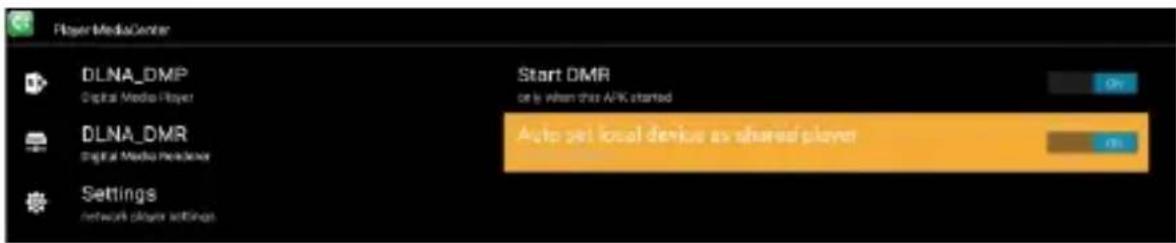
- Click "Media Center" in Apps list.
- Turn on DLNA DMP" and "DLNA DMR".
- Turn on DLNA in your android mobile device.
- Start playing the video, music and photo in your android mobile device.
Settings
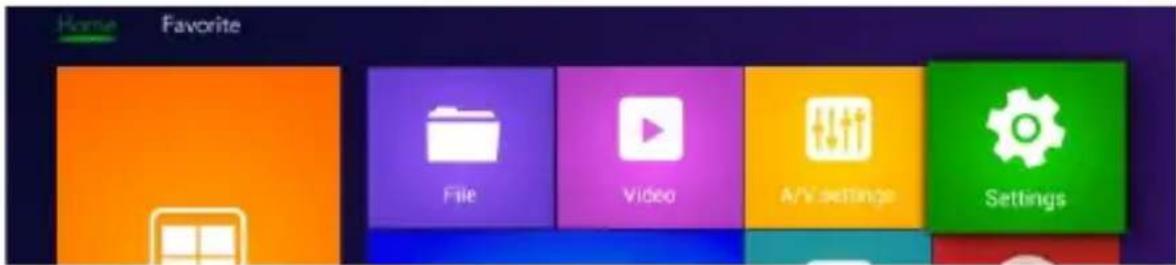
You can use setting to re-configure your network, display, language and etc.
Wi-Fi Network Setting
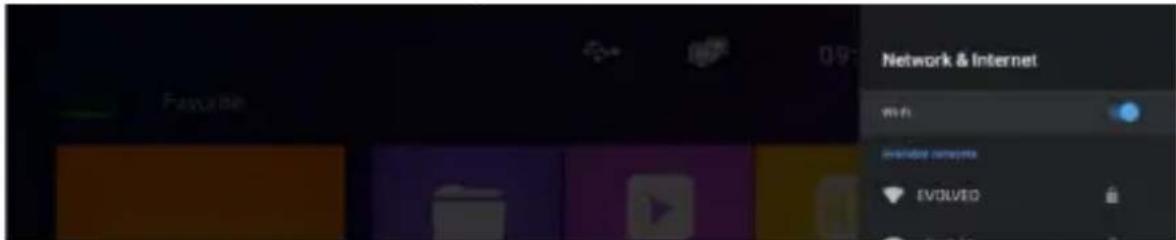
In settings select Network & Internet, turn on Wi-Fi. Choose your SSID network name and press connect.
Sound settings
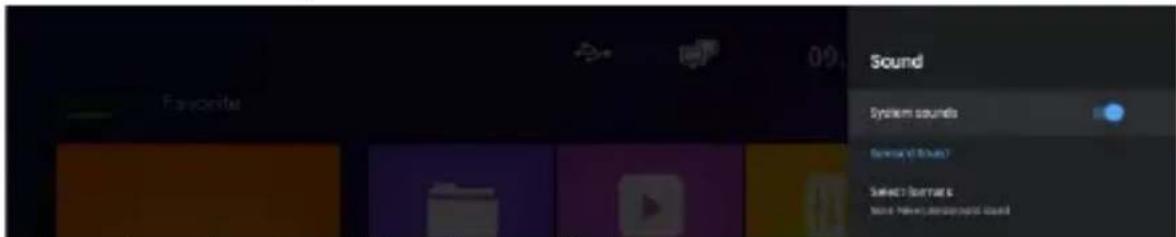
The standard setting is switch on.
Click "Surround sound", there are (Auto/Always/Never) 3 options for choosing.
Time settings / Language

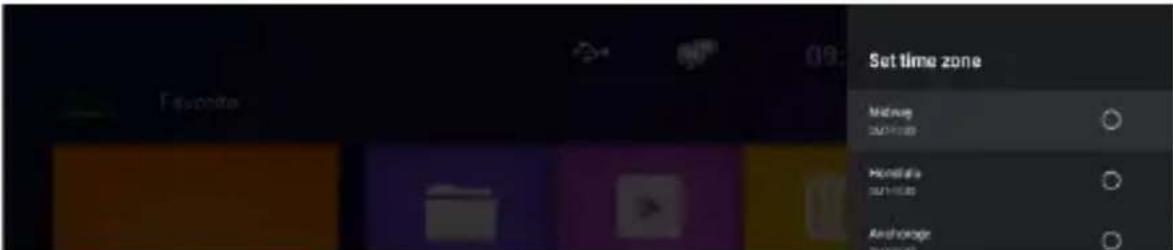
Set date and time.
Set time zone
Language settings
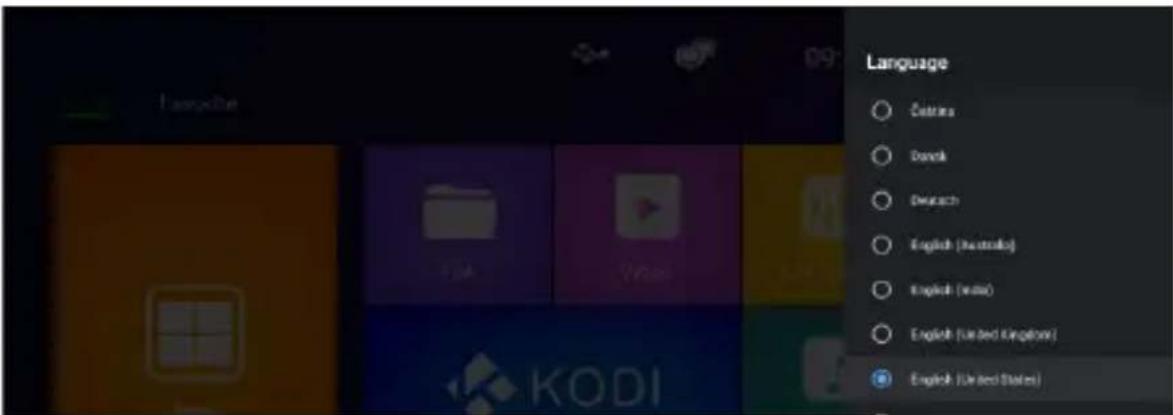
In settings click “Device preferences”, select the language, click “ok” to save and back.
Keyboard & Auto fill
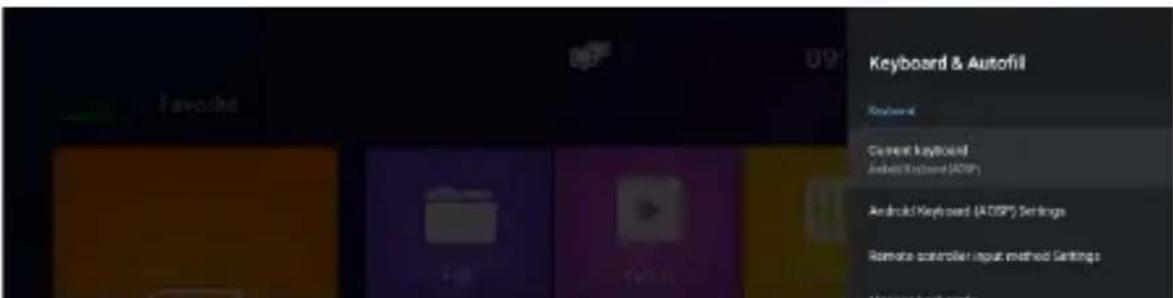
Click "Input Settings", input method from the list, click "OK" to save and back, then you can use new input method.
System upgrade

- Select "Setting" in main menu, click "System Upgrade".
- Select "Local Update", click "OK" to enter.
- Click "Select" button, select the new software, press "OK" to back.
- Select "Wipe Data" and "Wipe Media".
- Click "Update" to start update.
Specification
| CPU | 4-CORE CORTEX-A53,1.8GHz |
| GPU | PENTA-CORE Mali-G31 MP2 850MHz |
| MEMORY | 2G DDR48G eMMC 5.0 |
| OS | ANDROID 9.0 |
| VIDEO DECODER | FHD 1080P 60 FPS H.265 10-BIT, H.264, VC-1, MPEG1/2/4 |
| AUDIO DECODER | MP3, AAC, WMA, RM, FLAC, OGG |
| PHOTO DECODER | JPG, JPEG, MJPEG, PNG |
| VIDEO FORMATS | HDMI |
| MAIN POWER CABLE DATA PORT HDMI MICRO USB RESETIR PORT | FIXED TYPE1×USB3.0 / 1× TF CARDHDMI OUTPUT5V, 1ARESET KEYIR SENSOR CABLE |
| INPUT VOLTAGE POWER CONSUMPTION | 5V/1AMAX. 6W |
Do you still need an advice after reading this guide?
First read “Frequently Asked Questions” at www.evolveo.com or contact the EVOLVEO technical support.
Warranty and post-warranty service
Repairs and servicing may only be carried out in an authorized service centres for EVOLVEO products (see www.evolveo.com),
otherwise you may damage your mobile phone and lose the warranty.
The warranty DOESN'T APPLY to:
• using the device for other purposes than it was designed to
- installation of another firmware then the one that was installed as the original from the factory or firmware that can be downloaded manually or automatically from the device menu
• mechanical damage of caused by inappropriate using
- damage caused by the natural elements as fire, water, static electricity, overvoltage and so on
• damage caused by unauthorized repair
- damage of the guarantee seal or unreadable serial number of the device

Disposal: The symbol of crossed out container on the product, in the literature or on the wrapping means that in the European Union all the electric and electronic products, batteries and accumulators must be placed into the separate salvage after finishing their lifetime. Do not throw these products into the unsorted municipal waste

DECLARATION OF CONFORMITY
Hereby, the company Abacus Electric, s.r.o. declares that the EVOLVEO MultiMedia Stick Y2 is in compliance with the requirements of
the standards and regulations, relevant for the given type of device.
Find the complete text of Declaration of Conformity at www.evolveo.com/ftp/ce/
Manufacturer
Naxya Limited, No. 5, 17/F, Strand 50, 50 Bonham Strand, Sheung Wan, Hong Kong
Importer
Abacus Electric, s.r.o.
Planá 2, 370 01, Czech Republic
Copyright © Abacus Electric, s.r.o.
www.evolveo.com
www.facebook.com/EvolveoCZ
All rights reserved.
Design and specification may be changed without prior notice.
Tisztelt Vásárló!
Beállítások
Naxya Limited / No. 5, 17/F, Strand 50, 50 Bonham Strand, Sheung Wan, Hong Kong
Forgalmazza
Abacus Electric, s.r.o.
Copyright © ABACUS Electric, s.r.o.
www.evolveo.com
www.facebook.com/EvolveoCZ
Minden jog fenntartva.

- Vážený zákazníku,
- Nastavení jazyka
- Dovozce
- Nastavenie jazyka
- Dovozca
- Application
- DLNA
- Settings
- Wi-Fi Network Setting
- Sound settings
- Time settings / Language
- Set time zone
- Language settings
- Keyboard & Auto fill
- System upgrade
- Do you still need an advice after reading this guide?
- Warranty and post-warranty service
- The warranty DOESN'T APPLY to:
- DECLARATION OF CONFORMITY
- Manufacturer
- Importer
- Tisztelt Vásárló!
- Beállítások
- Forgalmazza
Brand : Evolveo
Model : MultiMedia Stick Y2
Category : USB Drive