
M50Vc - Laptop ASUS - Free user manual and instructions
Find the device manual for free M50Vc ASUS in PDF.


| Product Type | Laptop (Notebook PC) |
| Brand | ASUS |
| Model | M50Vc |
| Keyboard | Full-sized keys with numeric keypad, hot keys, and multimedia keys |
| Pointing Device | Touchpad with left/right buttons and scroll area |
| Display | Ultra-clear flat panel, adjustable brightness, light sensor on selected models |
| Processor | Intel Core 2 Duo (specific model not indicated) |
| Memory | Expandable RAM, DDR2, up to 4GB (estimated) |
| Storage | Hard disk drive (SATA), replaceable |
| Optical Drive | DVD±RW or Blu-ray (depending on model), with emergency eject |
| Expansion Slots | ExpressCard/34 or /54, flash memory card reader (SD, MMC, MS, xD) |
| Ports | USB 2.0 (×4), VGA, HDMI, eSATA, IEEE 1394, RJ-11 modem, RJ-45 LAN, audio jacks, S/PDIF |
| Wireless Connectivity | 802.11a/b/g/n Wi-Fi, Bluetooth (optional), 3G (optional) |
| Battery | Removable Li-ion, smart battery, capacity varies |
| Power Adapter | Input: 100-240V AC, 50/60Hz; Output: 19V DC (estimated) |
| Operating System | Windows Vista (pre-installed) |
| Security | Kensington lock slot, TPM (optional), fingerprint scanner (optional) |
| Cleaning Instructions | Use a soft cloth dampened with water or mild detergent; avoid solvents |
| Operating Temperature | 5°C to 35°C (41°F to 95°F) |
| Regulatory Compliance | FCC Class B, CE, UL, etc. |
Frequently Asked Questions - M50Vc ASUS
User questions about M50Vc ASUS
0 question about this device. Answer the ones you know or ask your own.
Ask a new question about this device
Download the instructions for your Laptop in PDF format for free! Find your manual M50Vc - ASUS and take your electronic device back in hand. On this page are published all the documents necessary for the use of your device. M50Vc by ASUS.
USER MANUAL M50Vc ASUS
Notebook PC Hardware User's Manual
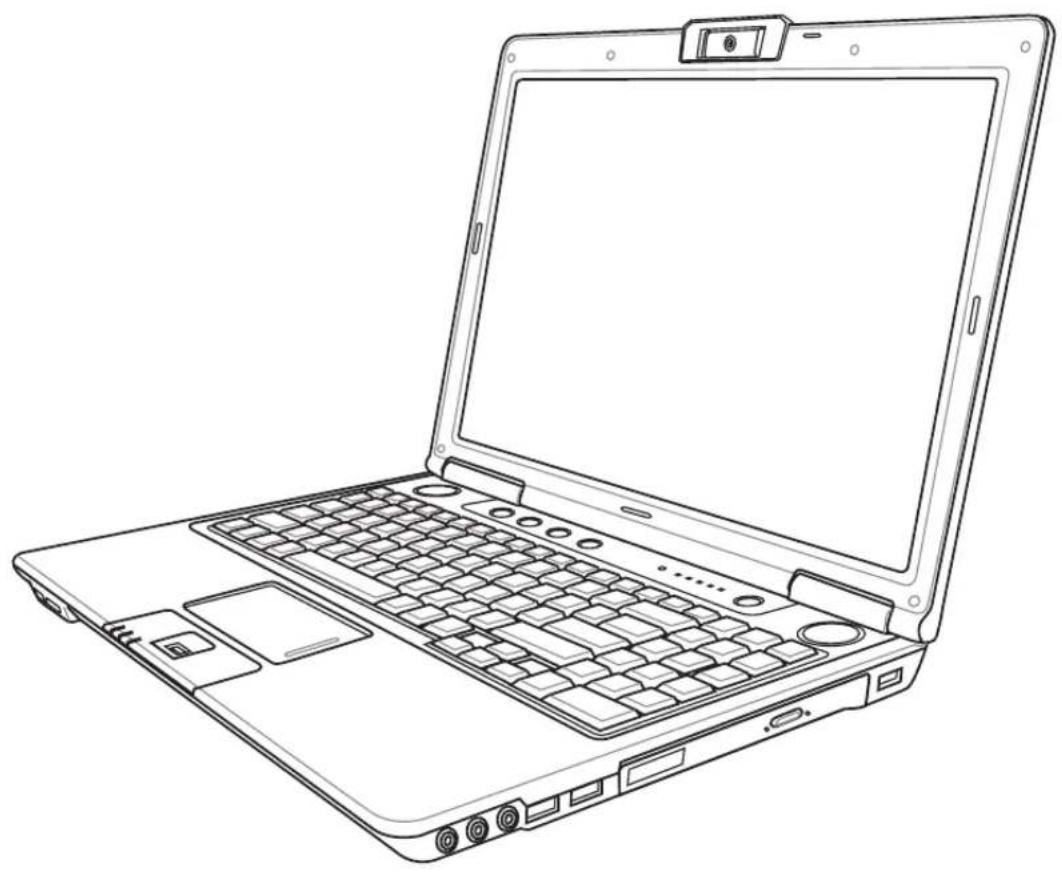
Table of Contents
1. Introducing the Notebook PC
About This User's Manual 6
Notes For This Manual 6
Preparing your Notebook PC....9
2. Knowing the Parts
Top Side....12
Bottom Side....14
Left Side 16
Right Side....18
Front Side....20
Rear Side....21
3. Getting Started
Power System 24
Using AC Power 24
Using Battery Power 25
Battery Care 25
Powering ON the Notebook PC 26
The Power-On Self Test (POST) 26
Checking Battery Power 27
Charging the Battery Pack 27
Power Options 28
Power Management Modes 29
Sleep and Hibernate 29
Thermal Power Control 29
Special Keyboard Functions 30
Colored Hot Keys 30
Microsoft Windows Keys 32
Keyboard as a Numeric Keypad 32
Keyboard as Cursors ....32
Switches and Status Indicators 33
Switches....33
Table of Contents (Cont.)
Status Indicators 34
Multimedia Control Keys (on selected models) 35
4. Using the Notebook PC
Pointing Device....38
Using the Touchpad 38
Touchpad Usage Illustrations 39
Multimedia Touchpad (on selected models) 40
Caring for the Touchpad 41
Automatic Touchpad Disabling 41
Storage Devices 42
Expansion Card 42
Optical Drive 43
Flash Memory Card Reader 45
Hard Disk Drive 46
Memory (RAM) 47
Connections 48
Modem Connection 48
Network Connection 49
Wireless LAN Connection (on selected models) 50
Windows Wireless Network Connection 51
Bluetooth Wireless Connection (on selected models) 52
Antenna Connections (on selected models) 53
Trusted Platform Module (TPM) (on selected models) 54
Fingerprint Registration (on selected models) 55
3G Watcher Software (on selected models) 57
Media Center Remote Controller (on selected models) 60
Table of Contents (Cont.)
Appendix
Optional Accessories....2
Optional Connections ....3
Bluetooth Mouse Setup (optional) 4
Operating System and Software.... 6
System BIOS Settings 7
Common Problems and Solutions 9
Windows Vista Software Recovery 15
Glossary 17
Declarations and Safety Statements 21
Notebook PC Information 32
1. Introducing the Notebook PC
About This User's Manual
Notes For This Manual
Safety Precautions
Preparing your Notebook PC

NOTE: Photos and icons in this manual are used for artistic purposes only and do not show what is actually used in the product itself.
1
Introducing the Notebook PC
About This User's Manual
You are reading the Notebook PC User's Manual. This User's Manual provides information on the various components in the Notebook PC and how to use them. The following are major sections of this User's Manual:

- Introducing the Notebook PC
Introduces you to the Notebook PC and this User's Manual.
- Knowing the Parts
Gives you information on the Notebook PC's components.
- Getting Started
Gives you information on getting started with the Notebook PC.
- Using the Notebook PC
Gives you information on using the Notebook PC's components.
- Appendix
Introduces you to optional accessories and gives additional information.
Notes For This Manual
A few notes and warnings in bold are used throughout this guide that you should be aware of in order to complete certain tasks safely and completely. These notes have different degrees of importance as described below:

NOTE: Tips and information for special situations.

TIP: Tips and useful information for completing tasks.

IMPORTANT! Vital information that must be followed to prevent damage to data, components, or persons.

WARNING! Important information that must be followed for safe operation.
<> Text enclosed in <> or [ ] represents a key on the keyboard; do not actually type the [ ] <> or [ ] and the enclosed letters.
Safety Precautions
The following safety precautions will increase the life of the Notebook PC. Follow all precautions and instructions. Except as described in this manual, refer all servicing to qualified personnel. Do not use damaged power cords, accessories, or other peripherals. Do not use strong solvents such as thinners, benzene, or other chemicals on or near the surface.

IMPORTANT! Disconnect the AC power and remove the battery pack(s) before cleaning. Wipe the Notebook PC using a clean cellulose sponge or chamois cloth dampened with a solution of nonabrasive detergent and a few drops of warm water and remove any extra moisture with a dry cloth.
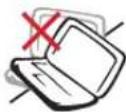
DO NOT place on uneven or unstable work surfaces. Seek servicing if the casing has been damaged.
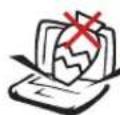
DO NOT place or drop objects on top and do not shove any foreign objects into the Notebook PC.
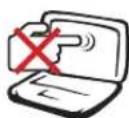
DO NOT press or touch the display panel. Do not place together with small items that may scratch or enter the Notebook PC.
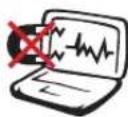
DO NOT expose to strong magnetic or electrical fields.
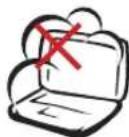
DO NOT expose to dirty or dusty environments. DO NOT operate during a gas leak.
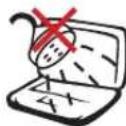
DO NOT expose to or use near liquids, rain, or moisture. DO NOT use the modem during an electrical storm.
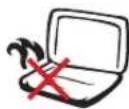
DO NOT leave the Notebook PC on your lap or any part of the body in order to prevent discomfort or injury from heat exposure.
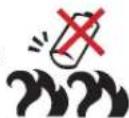
Battery safety warnings: DO NOT throw the battery in fire. DO NOT short circuit the contacts. DO NOT disassemble the battery.
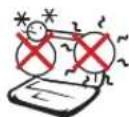
SAFE TEMP: This Notebook PC should only be used in environments with ambient temperatures between 5°C (41°F) and 35°C (95°F)
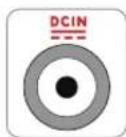
INPUT RATING: Refer to the rating label on the bottom of the Notebook PC and be sure that your power adapter complies with the rating.

DO NOT throw the Notebook PC in municipal waste. Check local regulations for disposal of electronic products.

DO NOT carry or cover a Notebook PC that is powered ON with any materials that will reduce air circulation such as a carrying bag.
Models with 3G: Produces radio wave emissions that may cause electrical interferences and must be used in places that do not prohibit such devices. Take precautions while using.

WARNING! The 3G function needs to be switched OFF in areas with potentially explosive atmospheres such as petrol (gas) stations, chemical storage depots, and blasting operations.
1
Introducing the Notebook PC

Transportation Precautions
To prepare the Notebook PC for transport, you should turn it OFF and disconnect all external peripherals to prevent damage to the connectors. The hard disk drive's head retracts when the power is turned OFF to prevent scratching of the hard disk surface during transport. Therefore, you should not transport the Notebook PC while the power is still ON. Close the display panel and check that it is latched securely in the closed position to protect the keyboard and display panel.

CAUTION: The Notebook PC's surface is easily dulled if not properly cared for. Be careful not to rub or scrape the Notebook PC surfaces.

Cover Your Notebook PC
Purchase a carrying bag to protect the Notebook PC from dirt, water, shock, and scratches.

Charge Your Batteries
If you intend to use battery power, be sure to fully charge your battery pack and any optional battery packs before going on long trips. Remember that the power adapter charges the battery pack as long as it is plugged into the computer and an AC power source. Be aware that it takes much longer to charge the battery pack when the Notebook PC is in use.

Airplane Precautions
Contact your airline if you want to use the Notebook PC on the airplane. Most airlines will have restrictions for using electronic devices. Most airlines will allow electronic use only between and not during takeoffs and landings.

CAUTION! There are three main types of airport security devices: X-ray machines (used on items placed on conveyor belts), magnetic detectors (used on people walking through security checks), and magnetic wands (hand-held devices used on people or individual items). You can send your Notebook PC and diskettes through airport X-ray machines. However, it is recommended that you do not send your Notebook PC or diskettes through airport magnetic detectors or expose them to magnetic wands.
Preparing your Notebook PC
These are only quick instructions for using your Notebook PC. Read the later pages for detailed information on using your Notebook PC.
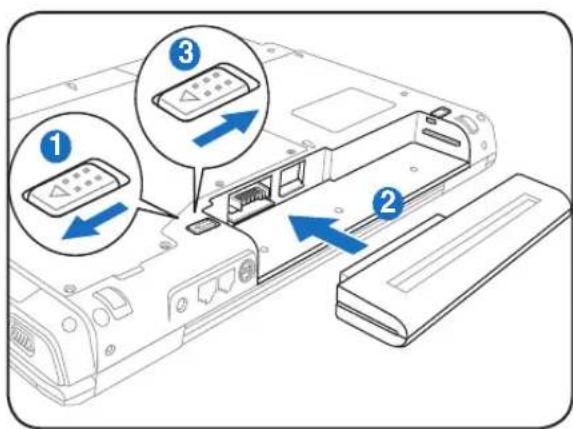
- Install the battery pack
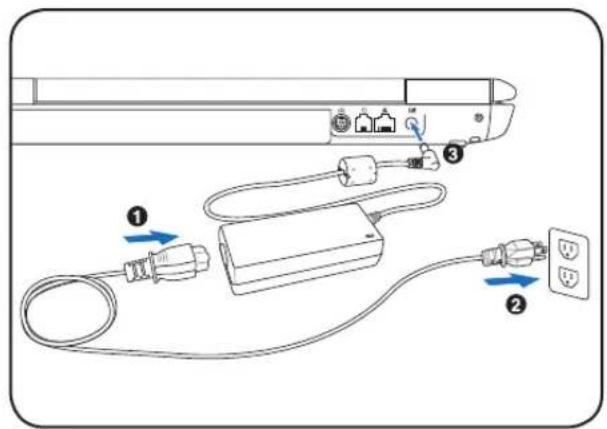
- Connect the AC Power Adapter
- Open the Display Panel 4. Turn ON the Notebook PC
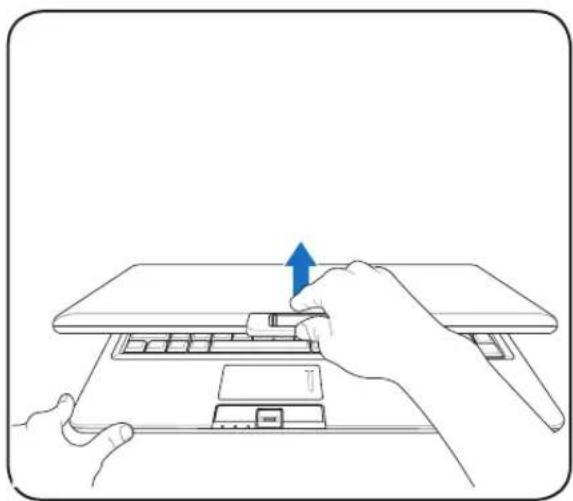
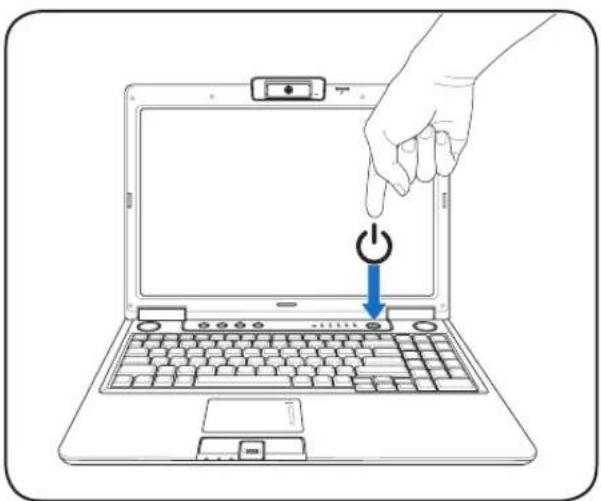

IMPORTANT! When opening, do not force the display panel down to the table or else the hinges may break! Never lift the Notebook PC by the display panel!
The power switch turns ON and OFF the Notebook PC or putting the Notebook PC into sleep or hibernation modes. Actual behavior of the power switch can be customized in Windows Control Panel > Power Options > System Settings.
Introducing the Notebook PC
2. Knowing the Parts
Basic sides of the Notebook PC

NOTE: Photos and icons in this manual are used for artistic purposes only and do not show what is actually used in the product itself.
2
Knowing the Parts
Top Side
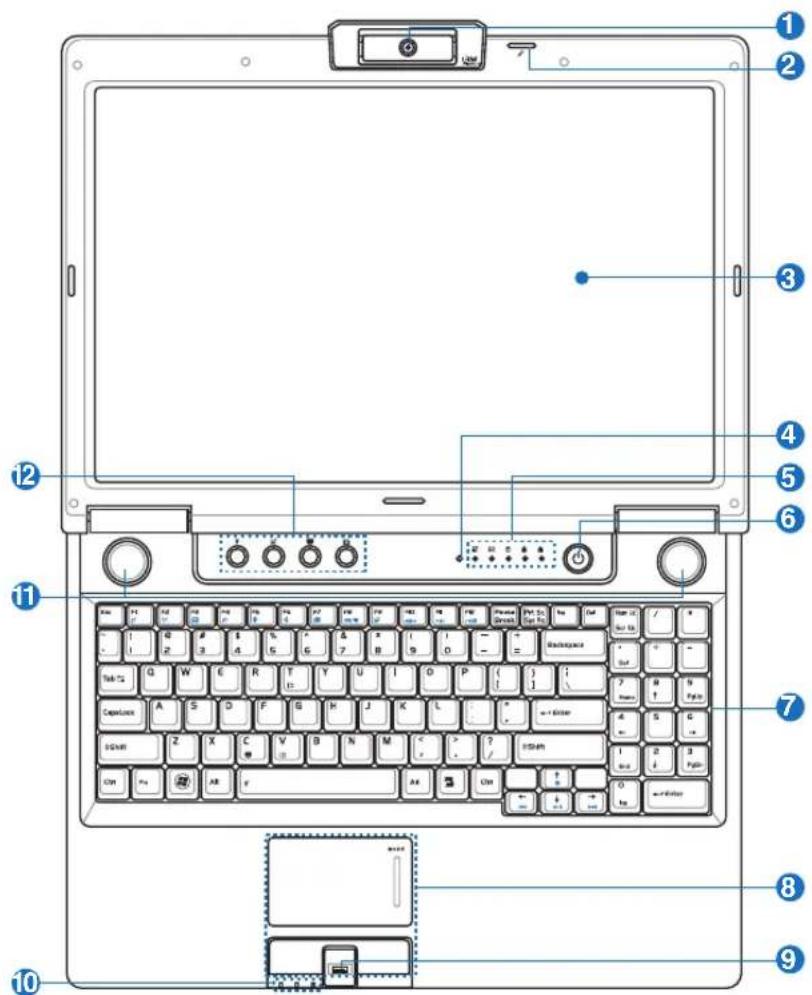
Refer to the diagram below to identify the components on this side of the Notebook PC.

NOTE: The keyboard will be different for each territory.
1

Multi-Position or Fixed Camera (depending on model)
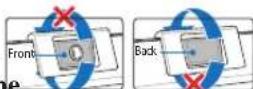
The built-in camera allows picture taking or video recording. Can be used with video conferencing and other interactive applications. CAUTION: On multi-position models, the lens can be adjusted facing forward or facing backward but the lens can only flip through the bottom. Do not rotate the lens upward past 35 degrees.
2

Microphone (Built-in mono or array depending on model)
The built-in microphone can be used for video conferencing, voice narrations, or simple audio recordings. Some models feature an array of microphones for much higher-quality and echo reduction.
3 Display Panel
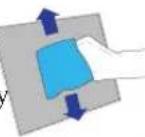
The Notebook PC uses an ultra-clear flat panel which provides excellent viewing like that of desktop monitors without any harmful radiation or flickering, so it is easier on the eyes. Use a soft cloth without chemical liquids (use plain water if necessary) to clean the display panel. WARNING: The display panel is fragile. Do not bend or press the panel.
4 Light Sensor (on selected models)
The light sensor will detect the amount of light in your environment and automatically adjust the brightness of the display panel to provide better viewing.
5 Status Indicators (top)
Status indicators represent various hardware/software conditions. See indicator details in section 3.

6 Power Switch
The power switch turns ON and OFF the Notebook PC or puts the Notebook PC into sleep or hibernation modes. Actual behavior of the power switch can be customized in Windows Control Panel "Power Options."
7 Keyboard
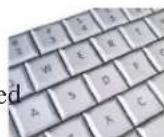
The keyboard provides full-sized keys with comfortable travel (depth at which the keys can be depressed) and palm rest for both hands. Two Windows function keys are provided to help ease navigation in the Windows operating system.
8 Touchpad and Buttons
The touchpad with its buttons is a pointing device that provides the same functions as a desktop mouse. A software-controlled scrolling function is available after setting up the included touchpad utility to allow easy Windows or web navigation.
9 Fingerprint Scanner (on selected models)
The built-in fingerprint scanner allows use of security software using your fingerprint as your identification key.
10 Status Indicators (front) (on selected models)
Status indicators represent various hardware/software conditions. See indicator details in section 3.

11 Audio Speaker System (on selected models)
The built-in stereo speaker system allows you to hear audio without additional attachments. The multimedia sound system features an integrated digital audio controller that produces rich, vibrant sound (results improved with external stereo headphones or speakers). Audio features are software controlled.
12 Instant Keys
Instant keys allow you to launch frequently used applications with one push of a button. Details are described in section 3.
2
Knowing the Parts
Bottom Side
Refer to the diagram below to identify the components on this side of the Notebook PC.

NOTE: The bottom side may vary in appearance depending on model.

NOTE: The battery pack size will vary depending on model.
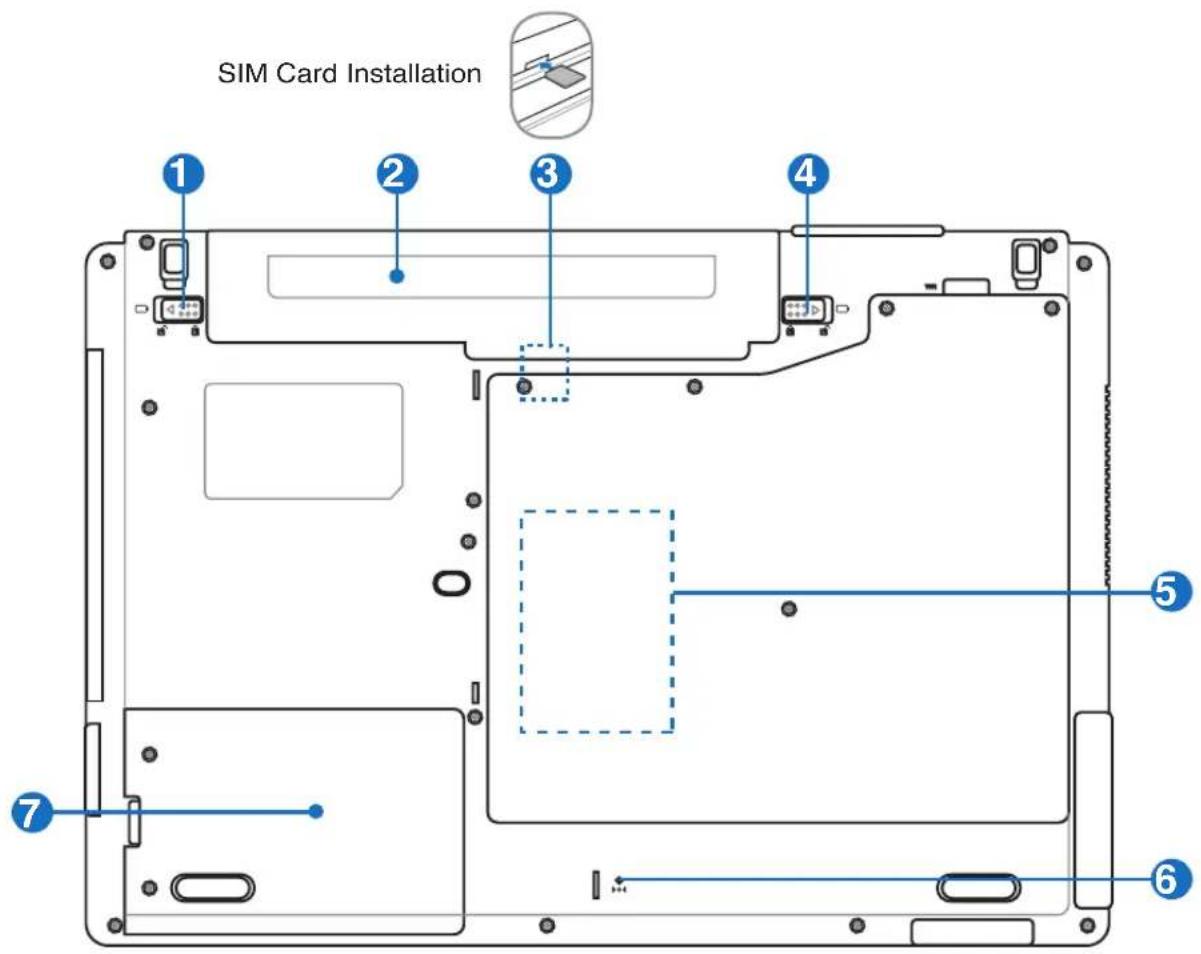

WARNING! The bottom of the Notebook PC can get very hot. Be careful when handling the Notebook PC while it is in operation or recently been in operation. High temperatures are normal during charging or operation. Do not use on soft surfaces such as beds or sofas which may block the vents. DO NOT PUT THE NOTEBOOK PC ON YOUR LAP OR OTHER PARTS OF THE BODY TO AVOID INJURY FROM THE HEAT.
Battery Lock - Spring
The spring battery lock is used to keep the battery pack secured. When the battery pack is inserted, it will automatically lock. To remove the battery pack, this spring lock must be held in the unlocked position.
② Battery Pack
The battery pack is automatically charged when the Notebook PC is connected to an AC power source and maintains power to the Notebook PC when AC power is not connected. This allows use when moving temporarily between locations. Battery time varies by usage and by the specifications for the Notebook PC. The battery pack cannot be disassembled and must be purchased as a single unit.
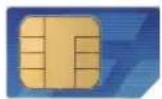
③ SIM Card Compartment (on selected models)
The SIM card compartment allows insertion of a mobile SIM card for 3G functions.
④ Battery Lock - Manual
The manual battery lock is used to keep the battery pack secured. Move the manual lock to the unlocked position to insert or remove the battery pack. Move the manual lock to the locked position after inserting the battery pack.

⑤ Memory (RAM) Compartment
The memory compartment provides expansion capabilities for additional memory. Additional memory will increase application performance by decreasing hard disk access. The BIOS automatically detects the amount of memory in the system and configures accordingly. There is no hardware or software (including BIOS) setup required after the memory is installed. Visit an authorized service center or retailer for information on memory upgrades for your Notebook PC. Only purchase expansion modules from authorized retailers of this Notebook PC to ensure maximum compatibility and reliability.
⑥ Shutdown Button (Emergency)
In case your operating system cannot properly turn OFF or restart, the shutdown button can be pressed with a straightened paper clip to shutdown the Notebook PC.
⑦ Hard Disk Drive Compartment
The hard disk drive is secured in a compartment. Visit an authorized service center or retailer for information on hard disk drive upgrades for your Notebook PC. Only purchase hard disk drives from authorized retailers of this Notebook PC to ensure maximum compatibility and reliability.
2 Knowing the Parts
Left Side
Refer to the diagram below to identify the components on this side of the Notebook PC.

1 □ Display (Monitor) Output
The 15-pin D-sub monitor port supports a standard VGA-compatible device such as a monitor or projector to allow viewing on a larger external display.
2 Air Vents
The air vents allow cool air to enter and warm air to exit the Notebook PC.

IMPORTANT! Make sure that paper, books, clothing, cables, or other objects do not block any of the air vents or else overheating may occur.
3 [5] Audio Video Input (AV/S-Video In) (on selected models)
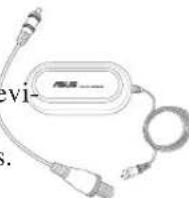
The audio video input is featured on selected models and provide a way of inputting audio and video signals through RCA jacks or S-Video (requires the 1/8" to RCA adapter included with selected models). This function only works when purchased with the TV tuner hardware and software package.
![ASUS M50Vc - [5] Audio Video Input (AV/S-Video In) (on selected models) - 1](/content/2026/05/762944/images/6229e127a801e310dca695990ec32ba4478389f0be4f21495749b045b0fef3d7.jpg)
4 Antenna Input (on selected models)
The antenna input is for TV or FM Radio (on selected models) frequency signal and allows for use with the provided digital TV/FM antenna or input from subscription television services. The provided antenna can receive digital TV or FM radio. Cable service connection can receive digital TV, analog TV, or FM radio depending on paid services.
Note: Use the provided adapter for use with coaxial connectors.
5 1394 IEEE1394 Port
IEEE1394 is a high speed serial bus like SCSI but has simple connections and hot-plugging capabilities like USB. The interface IEEE1394 has a bandwidth of 100-400 Mbits/sec and can handle up to 63 units on the same bus. IEEE1394 is also used in high-end digital equipment and should be marked "DV" for Digital Video port.
6 E-SATAE-SATA & USB (2.0/1.1) Combo Port
External SATA or eSATA allows external connection of Serial-ATA devices originally designed for use inside the computer. It is up to six times faster than existing USB 2.0, & 1394 for external storage solutions and is also hot pluggable using shielded cables and connectors up to two meters. (See "USB Port" on other sides for description.)
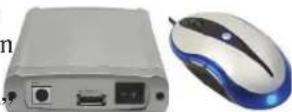
7 HDMI HDMI Port (on selected models)
HDMI (High-Definition Multimedia Interface) is an uncompressed all-digital audio/video interface between any audio/video source, such as a set-top box, DVD player, and A/V receiver and an audio and/or video monitor, such as a digital television (DTV). Supports standard, enhanced, or high-definition video, plus multi-channel digital audio on a single cable. It transmits all ATSC HDTV standards and supports 8-channel digital audio, with bandwidth to spare to accommodate future enhancements or requirements.
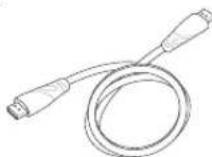
8 Flash Memory Slot
Normally an external memory card reader must be purchased separately in order to use memory cards from devices such as digital cameras, MP3 players, mobile phones, and PDAs. This Notebook PC has a built-in high-speed memory card reader that can conveniently read from and write to many flash memory cards as mentioned later in this manual.
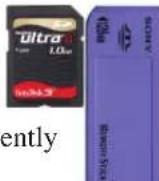
9 ExpressCard Slot
One 26pin Express card slot is available to support one ExpressCard/34mm or one ExpressCard/54mm expansion card. This new interface is faster by using a serial bus supporting USB 2.0 and PCI Express instead of the slower parallel bus used in the PC card slot. (Not compatible with previous PCMCIA cards.)
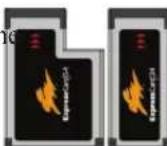
2
Knowing the Parts
Right Side
Refer to the diagram below to identify the components on this side of the Notebook PC.

1

Microphone Input Jack
The mono microphone jack (1/8 inch) can be used to connect an external microphone or output signals from audio devices. Using this jack automatically disables the built-in microphone. Use this feature for video conferencing, voice narrations, or simple audio recordings.

2

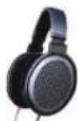
Headphone Output Jack
The stereo headphone jack (1/8 inch) is used to connect the Notebook PC's audio out signal to amplified speakers or headphones. Using this jack automatically disables the built-in speakers.
3

SPDIF Output Jack
S/PDIF
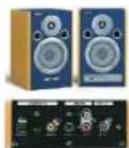
This jack provides connection to S/PDIF (Sony/Philips Digital Interface) compliant devices for digital audio output. Use this feature to turn the Notebook PC into a hi-fi home entertainment system.
4

USB Port (2.0/1.1)
The USB (Universal Serial Bus) port is compatible with USB 2.0 or USB 1.1 devices such as keyboards, pointing devices, cameras, hard disk drives, printers, and scanners connected in a series up to 12Mbits/sec (USB 1.1) and 480Mbits/sec (USB 2.0). USB allows many devices to run simultaneously on a single computer, with some peripherals acting as additional plug-in sites or hubs. USB supports hot-swapping of devices so that most peripherals can be connected or disconnected without restarting the computer.
5

Optical Drive
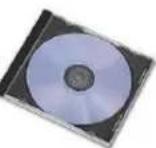
The Notebook PC comes in various models with different optical drives. The Notebook PC's optical drive may support compact discs (CD) and/or digital video discs (DVD) and may have recordable (R) or re-writable (RW) capabilities. See the marketing specifications for details on each model.
Right Side (cont.)
6 ☐ Optical Drive Activity Indicator (location varies by model)
The optical drive activity indicator shows when data is being transferred by the optical disk drive. This indicator will light in proportion to the data size transferred.

7 Optical Drive Electronic Eject
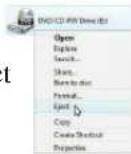
The optical drive eject has an electronic eject button for opening the tray. You can also eject the optical drive tray through any software player or by right clicking the optical drive in Windows “Computer” and selecting Eject.
8 Optical Drive Emergency Eject (location varies by model)
The emergency eject is used to eject the optical drive tray in case the electronic eject does not work. Do not use the emergency eject in place of the electronic eject.
2
Knowing the Parts
Front Side
Refer to the diagram below to identify the components on this side of the Notebook PC.

1

CIR (Consumer Infrared) Port
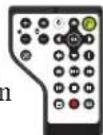
The consumer infrared (IrDA) communication port allows convenient wireless control of the provided multimedia software in selected models using the provided wireless remote control in selected models.
2

Wireless Switch
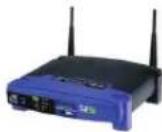
Enables or disables the built-in wireless LAN and Bluetooth (selected models). When enabled, the wireless status indicator will light. Windows software settings are necessary before use.
3

Status Indicators (front) (on selected models)

Status indicators represent various hardware/software conditions. See indicator details in section 3.
Rear Side
Refer to the diagram below to identify the components on this side of the Notebook PC.

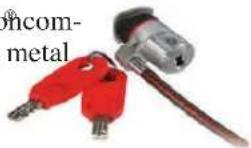
1 Kensington® Lock Port
The Kensington® lock port allows the Notebook PC to be secured using Kensington-compatible Notebook PC security products. These security products usually include a metal cable and lock that prevent the Notebook PC from being removed from a fixed object. Some may also include a motion detector to sound an alarm when moved.
2 Battery Pack
The battery pack is automatically charged when the Notebook PC is connected to an AC power source and maintains power to the Notebook PC when AC power is not connected. This allows use when moving temporarily between locations. Battery time varies by usage and by the specifications for this Notebook PC. The battery pack cannot be disassembled and must be purchased as a single unit.
3 Modem Port
The RJ-11 modem port with two pins is smaller than the RJ-45 LAN port and supports a standard telephone cable. The internal modem supports up to 56K V.90 transfers. The built-in connector allows convenient use without additional adapters.
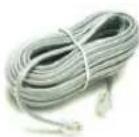

IMPORTANT! The built-in modem does not support the voltage used in digital phone systems. Do not connect the modem port to a digital phone system or else damage will occur to the Notebook PC.
4 LAN Port
The RJ-45 LAN port with eight pins is larger than the RJ-11 modem port and supports a standard Ethernet cable for connection to a local network. The built-in connector allows convenient use without additional adapters.
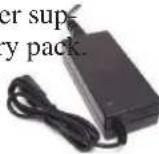
5 DCIN Power (DC) Input
The supplied power adapter converts AC power to DC power for use with this jack. Power supplied through this jack supplies power to the Notebook PC and charges the internal battery pack. To prevent damage to the Notebook PC and battery pack, always use the supplied power adapter. CAUTION: MAY BECOME WARM TO HOT WHEN IN USE. BE SURE NOT TO COVER THE ADAPTER AND KEEP IT AWAY FROM YOUR BODY.
2 Knowing the Parts
3. Getting Started
Using AC Power
Using Battery Power
Powering ON the Notebook PC
Checking Battery Power
Powering Options
Power Management Modes
Special Keyboard Functions
Switches and Status Indicators

NOTE: Photos and icons in this manual are used for artistic purposes only and do not show what is actually used in the product itself.
Power System

Using AC Power
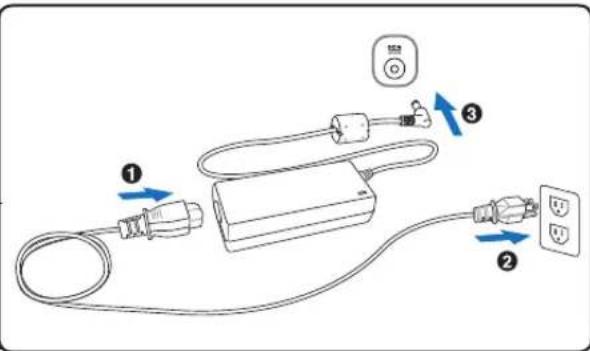
The Notebook PC power is comprised of two parts, the power adapter and the battery power system. The power adapter converts AC power from a wall outlet to the DC power required by the Notebook PC. Your Notebook PC comes with a universal AC-DC adapter. That means that you may connect the power cord to any 100V-120V as well as 220V-240V outlets without setting switches or using power converters. Different countries may require that an adapter be used to connect the provided US-standard AC power cord to a different standard. Most hotels will provide universal outlets to support different power cords as well as voltages. It is always best to ask an experienced traveler about AC outlet voltages when bringing power adapters to another country.

TIP: You can buy travel kits for the Notebook PC that include power and modem adapters for almost every country.
With the AC power cord connected to the AC-DC converter, connect the AC power cord to an AC outlet (preferably with surge-protection) and then connect the DC plug to the Notebook PC. Connecting the AC-DC adapter to the AC outlet first allows you to test the AC outlet's power and the AC-DC converter itself for compatibility problems before connecting the DC power to the Notebook PC. The power indicator on the adapter (if available) will light if the power is within accepted ranges.

IMPORTANT! Damage may occur if you use a different adapter to power the Notebook PC or use the Notebook PC's adapter to power other electrical devices. If there is smoke, burning scent, or extreme heat coming from the AC-DC adapter, seek servicing. Seek servicing if you suspect a faulty AC-DC adapter. You may damage both your battery pack(s) and the Notebook PC with a faulty AC-DC adapter.

NOTE: This Notebook PC may come with either a two or three-prong plug depending on territory. If a three-prong plug is provided, you must use a grounded AC outlet or use a properly grounded adapter to ensure safe operation of the Notebook PC.

WARNING! THE POWER ADAPTER MAY BECOME WARM TO HOT WHEN IN USE. BE SURE NOT TO COVER THE ADAPTER AND KEEP IT AWAY FROM YOUR BODY.

Using Battery Power
The Notebook PC is designed to work with a removable battery pack. The battery pack consists of a set of battery cells housed together. A fully charged pack will provide several hours of battery life, which can be further extended by using power management features through the BIOS setup. Additional battery packs are optional and can be purchased separately through a Notebook PC retailer.

Installing and Removing the Battery Pack
Your Notebook PC may or may not have its battery pack installed. If your Notebook PC does not have its battery pack installed, use the following procedures to install the battery pack.

IMPORTANT! Never attempt to remove the battery pack while the Notebook PC is turned ON, as this may result in the loss of working data.
To install the battery pack: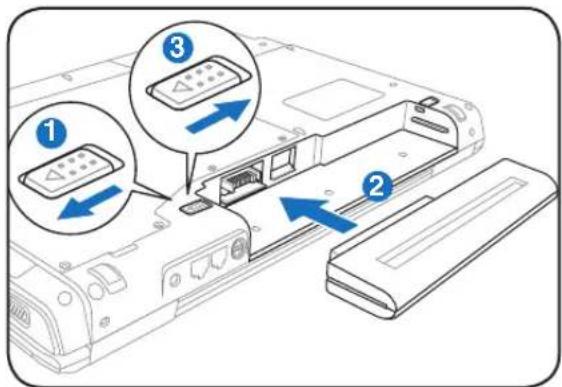
To remove the battery pack: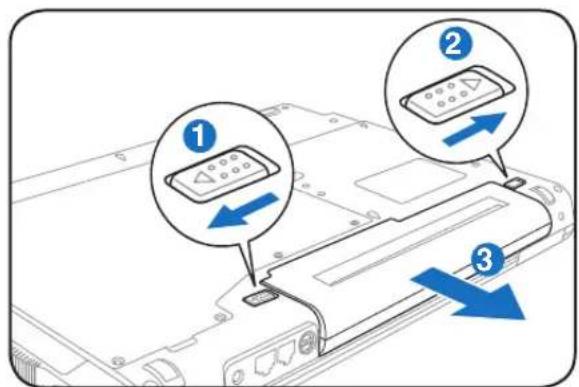

IMPORTANT! Only use battery packs and power adapters supplied with this Notebook PC or specifically approved by the manufacturer or retailer for use with this model or else damage may occur to the Notebook PC.

Battery Care
The Notebook PC's battery pack, like all rechargeable batteries, has a limit on the number times it can be recharged. The battery pack's useful life will depend on your environment temperature, humidity, and how your Notebook PC is used. It is ideal that the battery be used in a temperature range between 5°C and 35°C (41°F and 95°F). You must also take into account that the Notebook PC's internal temperature is higher than the outside temperature. Any temperatures above or below this range will shorten the life of the battery. But in any case, the battery pack's usage time will eventually decrease and a new battery pack must be purchased from an authorized dealer for this Notebook PC. Because batteries also have a shelf life, it is not recommended to buy extras for storing.

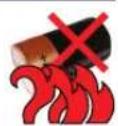
WARNING! For safety reasons, DO NOT throw the battery in fire, DO NOT short circuit the contacts, and DO NOT disassemble the battery. If there is any abnormal operation or damage to the battery pack caused by impact, turn OFF the Notebook PC and contact an authorized service center.
Powering ON the Notebook PC
The Notebook PC's power-ON message appears on the screen when you turn it ON. If necessary, you may adjust the brightness by using the hot keys. If you need to run the BIOS Setup to set or modify the system configuration, press [F2] upon bootup to enter the BIOS Setup. If you press [Tab] during the splash screen, standard boot information such as the BIOS version can be seen. Press [ESC] and you will be presented with a boot menu with selections to boot from your available drives.

NOTE: Before bootup, the display panel flashes when the power is turned ON. This is part of the Notebook PC's test routine and is not a problem with the display.

IMPORTANT! To protect the hard disk drive, always wait at least 5 seconds after turning OFF your Notebook PC before turning it back ON.

WARNING! DO NOT carry or cover a Notebook PC that is powered ON with any materials that will reduce air circulation such as a carrying bag.

The Power-On Self Test (POST)
When you turn ON the Notebook PC, it will first run through a series of software-controlled diagnostic tests called the Power-On Self Test (POST). The software that controls the POST is installed as a permanent part of the Notebook PC's architecture. The POST includes a record of the Notebook PC's hardware configuration, which is used to make a diagnostic check of the system. This record is created by using the BIOS Setup program. If the POST discovers a difference between the record and the existing hardware, it will display a message on the screen prompting you to correct the conflict by running BIOS Setup. In most cases the record should be correct when you receive the Notebook PC. When the test is finished, you may get a message reporting “No operating system found” if the hard disk was not preloaded with an operating system. This indicates that the hard disk is correctly detected and ready for the installation of a new operating system.

Self Monitoring and Reporting Technology
The S.M.A.R.T. (Self Monitoring and Reporting Technology) checks the hard disk drive during POST and gives a warning message if the hard disk drive requires servicing. If any critical hard disk drive warning is given during bootup, backup your data immediately and run Windows disk checking program. To run Windows disk checking program: click Start > select Computer > right-click a hard disk drive icon > choose Properties > click the Tools tab > click Check Now > click Start. You can also select “Scan ... sectors” for more effective scan and repair but the process will run slower.
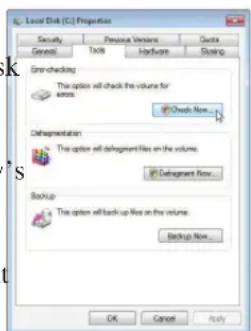

IMPORTANT! If warnings are still given during bootup after running a software disk checking utility, you should take your Notebook PC in for servicing. Continued use may result in data loss.
Checking Battery Power
The battery system implements the Smart Battery standard under the Windows environment, which allows the battery to accurately report the amount of charge left in the battery. A fully-charged battery pack provides the Notebook PC a few hours of working power. But the actual figure varies depending on how you use the power saving features, your general work habits, the CPU, system memory size, and the size of the display panel.

Note: Screen captures shown here are examples only and may not reflect what you see in your system.
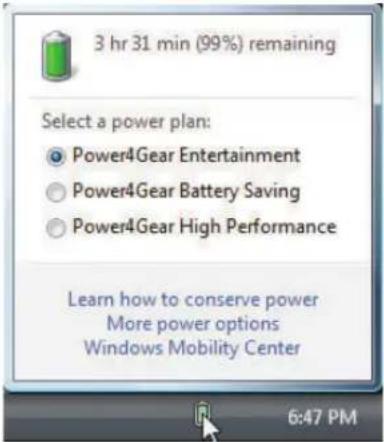
Left-click the battery icon
Right-click the battery icon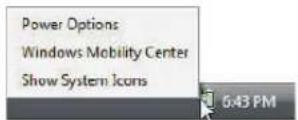
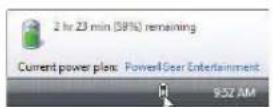
Cursor over the battery icon without power adapter. Cursor over the battery icon with power adapter.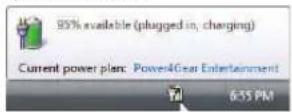

NOTE: You will be warned when battery power is low. If you continue to ignore the low battery warnings, the Notebook PC eventually enters suspend mode (Windows default uses STR).

WARNING! Suspend-to-RAM (STR) does not last long when the battery power is depleted. Suspend-to-Disk (STD) is not the same as power OFF. STD requires a small amount of power and will fail if no power is available due to complete battery depletion or no power supply (e.g. removing both the power adapter and battery pack).
Charging the Battery Pack
Before you use your Notebook PC on the road, you will have to charge the battery pack. The battery pack begins to charge as soon as the Notebook PC is connected to external power using the power adapter. Fully charge the battery pack before using it for the first time. A new battery pack must completely charge before the Notebook PC is disconnected from external power. It takes a few hours to fully charge the battery when the Notebook PC is turned OFF and may take twice the time when the Notebook PC is turned ON. The battery status indicator on the Notebook PC turns OFF when the battery pack is charged.

NOTE: The battery stops charging if the temperature is too high or the battery voltage is too high.

WARNING! Do not leave the battery pack discharged. The battery pack will discharge over time. If not using a battery pack, it must continued to be charged every three months to extend recovery capacity or else it may fail to charge in the future.
Getting Started
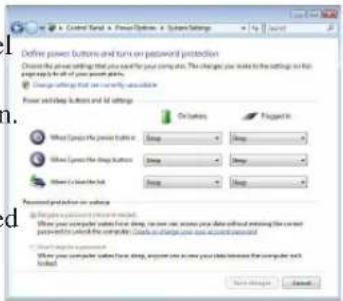
Power Options
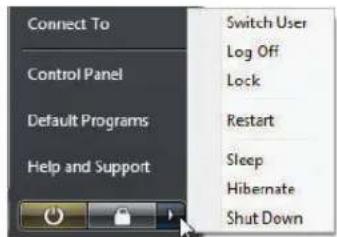
The power switch turns ON and OFF the Notebook PC or putting the Notebook PC into sleep or hibernation modes. Actual behavior of the power switch can be customized in Windows Control Panel "Power Options."
For other options, such as "Switch User, Restart, Sleep, or Shut Down," click the arrowhead next to the lock icon.
Restarting or Rebooting
After making changes to your operating system, you may be prompted to restart the system. Some installation processes will provide a dialog box to allow restart. To restart the system manually, choose Restart.

IMPORTANT! To protect the hard drive, wait at least 5 seconds after turning OFF your Notebook PC before turning it back ON.
Emergency Shutdown
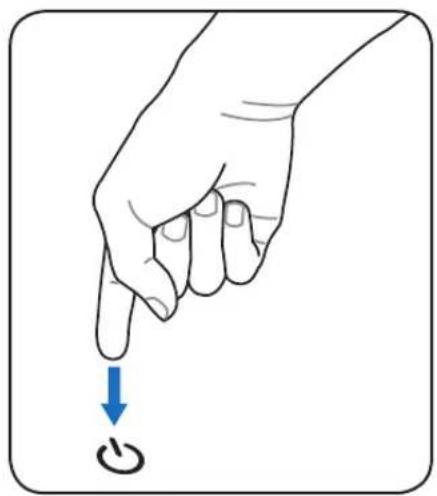
In case your operating system cannot properly turn OFF or restart, there are two additional ways to shutdown your Notebook PC:
(1) Hold the power button over 4 seconds, or
(2) Press the shutdown button on the bottom.
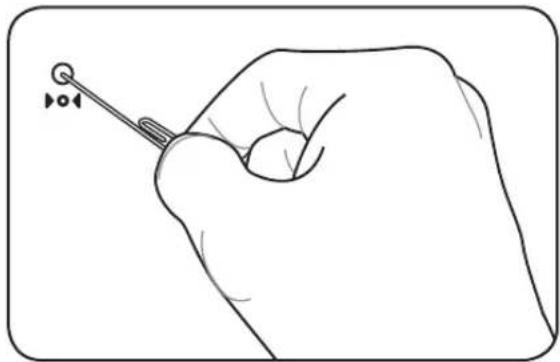

TIP: Use a straightened paper clip to press the shutdown button.

IMPORTANT! Do not use emergency shutdown while data is being written; doing so can result in loss or destruction of your data.

Power
Options
Power Management Modes
The Notebook PC has a number of automatic or adjustable power saving features that you can use to maximize battery life and lower Total Cost of Ownership (TCO). You can control some of these features through the Power menu in the BIOS Setup. ACPI power management settings are made through the operating system. The power management features are designed to save as much electricity as possible by putting components into a low power consumption mode as often as possible but also allow full operation on demand.

Sleep and Hibernate
Power management settings can be found in the Windows > Control Panel > Power Options. In System Settings, you can define "Sleep/Hibernate" or "Shut Down" for closing the display panel or pressing the power button. "Sleep" and "Hibernate" save power when your Notebook PC is not in use by turning OFF certain components. When you resume your work, your last status (such as a document scrolled down half way or email typed half way) will reappear as if you never left. "Shut Down" will close all applications and ask if you want to save your work if any are not saved.
Sleep is the same as Suspend-to-RAM (STR). This function stores your current data and status in RAM while many components are turned OFF. Because RAM is volatile, it requires power to keep (refresh) the data. Click the Start button and the arrowhead next to the lock icon to see this option. You can also use the keyboard shortcut [Fn F1] to activate this mode. Recover by pressing any keyboard key except [Fn]. (NOTE: The power indicator will blink in this mode.)
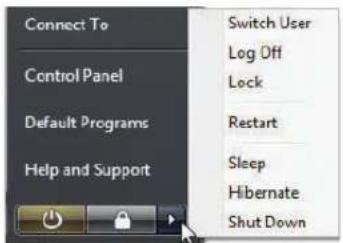
Hibernate is the same as Suspend-to-Disk (STD) and stores your current data and status on the hard disk drive. By doing this, RAM does not have to be periodically refreshed and power consumption is greatly reduced but not completely eliminated because certain wake-up components like LAN needs to remain powered. "Hibernate" saves more power compared to "Sleep". Click the Start button and the arrowhead next to the lock icon to see this option. Recover by pressing the power button. (NOTE: The power indicator will be OFF in this mode.)

Thermal Power Control
There are three power control methods for controlling the Notebook PC's thermal state. These power control cannot be configured by the user and should be known in case the Notebook PC should enter these states. The following temperatures represent the chassis temperature (not CPU).
- The fan turns ON for active cooling when the temperature reaches the safe upper limit.
- The CPU decreases speed for passive cooling when the temperature exceeds the safe upper limit.
- The system shut down for critical cooling when temperature exceeds the maximum safe upper limit.
Special Keyboard Functions
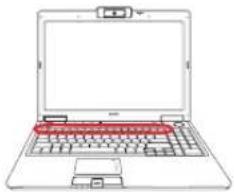
Colored Hot Keys
The following defines the colored hot keys on the Notebook PC's keyboard. The colored commands can only be accessed by first pressing and holding the function key while pressing a key with a colored command.
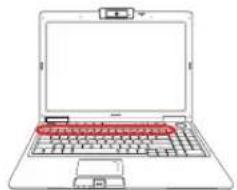

NOTE: The Hot Key locations on the function keys may vary depending on model but the functions should remain the same.


"Zz" Icon (F1): Places the Notebook PC in suspend mode (either Save-to-RAM or Save-to-Disk depending on sleep button setting in power management setup).


Radio Tower (F2): Wireless Models Only: Toggles the internal wireless LAN or Bluetooth (on selected models)


ON or OFF with an on-screen-display. When enabled, the corresponding wireless indicator will light. Windows software settings are necessary to use the wireless LAN or Bluetooth.


Envelope Icon (F3): Pressing this button will launch your Email application while Windows is running.


"e" Icon (F4): Pressing this button will launch your Internet browser application while Windows is running.


Filled Sun Icon (F5):

Decreases the display brightness


Open Sun Icon (F6):

Increases the display brightness


LCD Icon (F7): Toggles the display panel ON and OFF. (On certain models; stretched the screen area to fill the entire display when using low resolution modes.)


LCD/Monitor Icons (F8): Toggles between the Notebook PC's LCD display and an external monitor in this series: Notebook PC LCD -> External Monitor -> Both. (The function does not work in 256 Colors, select High Color in Display Property Setting). NOTE: Must connect an external monitor "before" booting up.


Crossed-out Touchpad (F9): Toggles the built-in touchpad LOCKED (disabled) and UNLOCKED (enabled). Locking the touchpad will prevent you from accidentally moving the cursor while typing and is best used with an external pointing device such as a mouse. NOTE: Selected models have an indicator between the touchpad buttons will light when the touchpad is UNLOCKED (enabled) and not light when the touchpad is LOCKED (disabled).
Colored Hot Keys (cont.)


Speaker Icons (F10):
Toggles the speakers ON and OFF (only in Windows OS)


Speaker Down Icon (F11):
Decreases the speaker volume (only in Windows OS)


Speaker Up Icon (F12):
Increases the speaker volume (only in Windows OS)


Num Lk (Ins): Toggles the numeric keypad (number lock) ON and OFF. Allows you to use a larger portion of the keyboard for number entering.


Scr Lk (Del): Toggles the "Scroll Lock" ON and OFF. Allows you to use a larger portion of the keyboard for cell navigation.


[Fn]+[C]: Toggles "Splendid Video Intelligent Technology" function ON and OFF. This allows switching between different display color enhancement


My Profile
ment modes in order to improve contrast, brightness, skin tone, and color saturation for red, green, and blue independently. You can see the current mode through the on-screen display (OSD).


[Fn]+[V]: Toggles "Life Frame" software application.


[Fn]+[T]: Toggles "Power For Phone" software application.


Power4Gear eXtreme [Fn]+[Space Bar]: This
key toggles power savings between various power saving modes. The power saving modes control
many aspects of the Notebook PC to maximize performance versus battery time. Applying or removing the power adapter will automatically switch the system between AC mode and battery mode. You can see the current mode through the on-screen display (OSD).
![ASUS M50Vc - Power4Gear eXtreme [Fn]+[Space Bar]: This - 1](/content/2026/05/762944/images/17c5dd128740abc40968d6eec58699ca35a10fb27f0bc96ba34a50e9f38c5c3a.jpg)
![ASUS M50Vc - Power4Gear eXtreme [Fn]+[Space Bar]: This - 2](/content/2026/05/762944/images/b924bcd6dbfb9055596faed964a7b0973f3cfeb4ebc9a90da0705bb79d6861c4.jpg)
[Fn]+[A]: Toggles the environment light sensor (above keyboard) ON/OFF. (Light sensor on selected models.)
![ASUS M50Vc - Power4Gear eXtreme [Fn]+[Space Bar]: This - 3](/content/2026/05/762944/images/443a7397bc12cdffbcaf9fd4960731ac08fc06926311bb60b9a5d352236f0e66.jpg)
Microsoft Windows Keys
There are two special Windows keys on the keyboard as described below.

The key with the Windows Logo activates the Start menu located at the bottom left of the Windows desktop.

The other key, which looks like a Windows menu with a small cursor, activates the properties menu and is equivalent to pressing the right mouse button on a Windows object.
Keyboard as a Numeric Keypad
The numeric keypad is embedded in the keyboard and consists of 15 keys that make number intensive input more convenient. These dual-purpose keys are labeled in orange on the key caps. Numeric assignments are located at the upper right hand corner of each key as shown in the figure. When the numeric keypad is engaged by pressing [Fn][Ins/Num LK], the number lock LED lights up. If an external keyboard is connected, pressing the [Ins/Num LK] on the external keyboard enables/disables the NumLock on both keyboards simultaneously. To disable the numeric keypad while keeping the keypad on an external keyboard activated, press the [Fn][Ins/Num LK].
![& 7, 7, * 8, 8, ( 9 ), 9, ) •, 0, U 4, I 5, O 6, P -, J 1, K 2, L 3, : +, ;, M 0, > •, . ? /, /, s, nts, [K], h key-, oring](/content/2026/05/762944/images/09343e72f8cb29c1147e1970d4a084b30376469bb22a51ecac6de2478e7a3349.jpg)
Keyboard as Cursors
The keyboard can be used as cursors while Number Lock is ON or OFF in order to increase navigation ease while entering numeric data in spreadsheets or similar applications.
With Number Lock OFF, press [Fn] and one of the cursor keys shown below. For example [Fn][8] for up, [Fn][K] for down, [Fn][U] for left, and [Fn][O] for right.
With Number Lock ON, use [Shift] and one of the cursor keys shown below. For example [Shift][8] for up, [Shift][K] for down, [Shift][U] for left, and [Shift][O] for right.
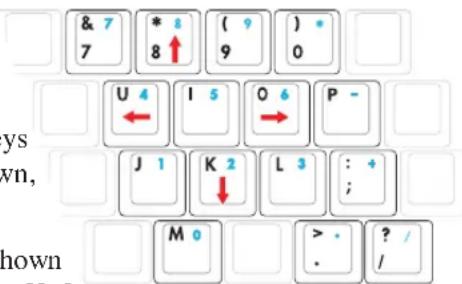

NOTE: The red arrows are illustrated here for your reference. They are not labeled on the keyboard as shown here.
Switches and Status Indicators
Switches
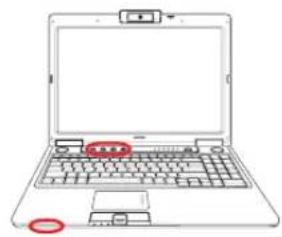
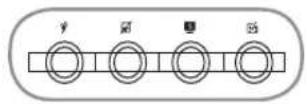
ASUS LifeFrame
Launches ASUS LifeFrame software application which allows you to capture, store, edit, and manage photos with ease. LifeFrame features “Face Tracking,” “Emotion Icons,” “Face Compare,” “Face Match,” “Face Symmetry,” “Slide Show”, “Custom Frame”, and “Name Editor” for use with the built-in camera.
Power4Gear eXtreme Key
The Power4Gear eXtreme key toggles power savings between various power saving modes. The power saving modes control many aspects of the Notebook PC to maximize performance versus battery time. Applying or removing the power adapter will automatically switch the system between AC mode and battery mode. The selected mode is shown on the display.
8. Contact
The quick brown fox jumps over the lazy dog.
Zouai 104926
(1) January 1, 2023
Power Switch
The power switch turns ON and OFF the Notebook PC or putting the Notebook PC into sleep or hibernation modes. Actual behavior of the power switch can be customized in Windows Control Panel "Power Options."
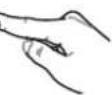
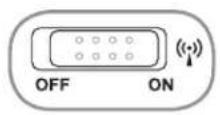
Wireless Switch
Wireless Models Only: Toggles the internal wireless LAN or Bluetooth (on selected models) ON or OFF with an on-screen display. When enabled, the corresponding wireless indicator will light. Windows software settings are necessary to use the wireless LAN or Bluetooth.
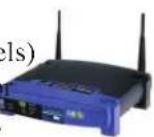
Switches and Status Indicators (cont.)
Status Indicators
Top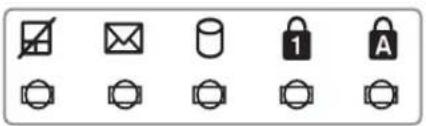
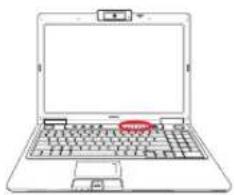

Power Indicator
The power indicator lights when the Notebook PC is turned ON and blinks slowly when the Notebook PC is in the Suspend-to-RAM (Sleep) mode. This indicator is OFF when the Notebook PC is turned OFF or in the Suspend-to-Disk (Hibernation) mode.


Battery Charge Indicator
The battery charge indicator shows the status of the battery's power as follows:
ON: The Notebook PC's battery is charging when AC power is connected.
OFF: The Notebook PC's battery is charged or completely drained.
Blinking: Battery power is less than 10% and the AC power is not connected.

Wireless Indicator
This is only applicable on models with built-in wireless LAN and/or built-in Bluetooth. When the built-in wireless LAN and/or built-in Bluetooth is enabled, this indicator will light. (Windows software settings are necessary.)

Drive Activity Indicator
Indicates that the Notebook PC is accessing one or more storage device(s) such as the hard disk. The light flashes proportional to the access time.

Capital Lock Indicator
Indicates that capital lock [Caps Lock] is activated when lighted. Capital lock allows some of the keyboard letters to type using capitalized letters (e.g. A, B, C). When the capital lock light is OFF, the typed letters will be in the lower case form (e.g. a,b,c).

Multimedia Control Keys (on selected models)
The multimedia control keys allows for convenient controlling of the multimedia application. The following defines the meaning of each multimedia control key on the Notebook PC with Windows Media Player. Results may differ with other multimedia applications.
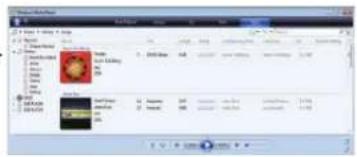

Note: Some control key functions may defer depending on Notebook PC model.

Note: Use the [Fn] key in combination with the arrow keys for CD control functions.

Using audio disc or movie disc with Windows Media Player

CD Play/Pause
When stopped, begins disc play.
When playing, pauses disc play.

CD Stop
When playing: Stops disc play.

CD Skip to Previous Track (Rewind)
When playing: Skips to the previous audio track/movie chapter.

CD Skip to Next Track (Fast Forward)
When playing: Skips to the next audio track/movie chapter.

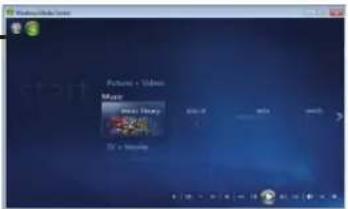
Note: When Windows Media Center is opened (may run automatically), these multimedia control keys have no function. You must use a Windows Media Center remote controller or touchpad/mouse and direction keys.
4
Using the Notebook PC
4. Using the Notebook PC
Pointing Device
Storage Devices
Expansion Card
Optical drive
Flash memory card reader
Hard disk drive
Memory (RAM)
Connections
Modem Connection
Network Connection
Wireless LAN Connection (on selected models)
Bluetooth Wireless Connection (on selected models)
Antenna Connections (on selected models)
Trusted Platform Module (TPM) (on selected models)
Fingerprint Scanner (on selected models)
3G Watcher Software (on selected models)
Media Center Remote Controllers (on selected models)

NOTE: Photos and icons in this manual are used for artistic purposes only and do not show what is actually used in the product itself.

Pointing Device
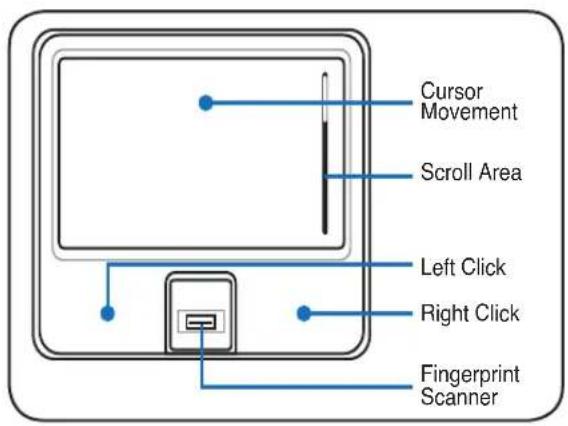
The Notebook PC's integrated touchpad pointing device is fully compatible with all two/three-button and scrolling knob PS/2 mice. The touchpad is pressure sensitive and contains no moving parts; therefore, mechanical failures can be avoided. A device driver is still required for working with some application software.

IMPORTANT! Do not use any objects in place of your finger to operate the touchpad or else damage may occur to the touchpad's surface.
Using the Touchpad
Light pressure with the tip of your finger is all that is required to operate the touchpad. Because the touchpad is electrostatic sensitive, objects cannot be used in place of your fingers. The touchpad's primary function is to move the cursor around or select items displayed on the screen with the use of your fingertip instead of a standard desktop mouse. The following illustrations demonstrate proper use of the touchpad.
Moving The Cursor
Place your finger in the center of the touchpad and slide in a direction to move the cursor.
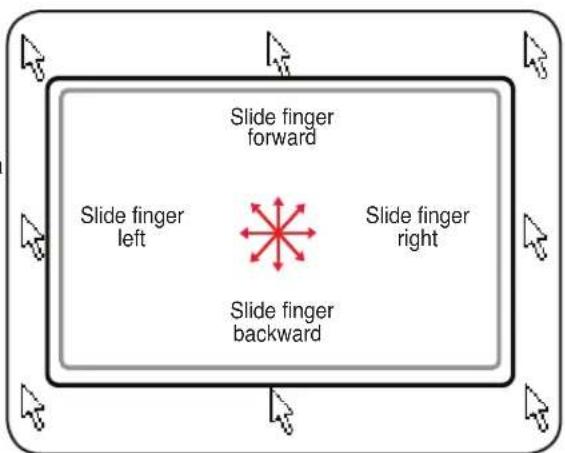
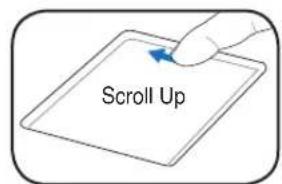
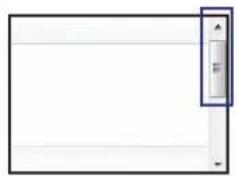
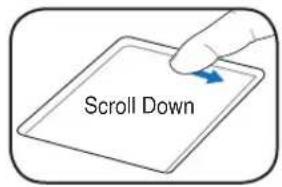
Scrolling (on selected models)
Slide your finger up or down on the right side to scroll a window up or down.
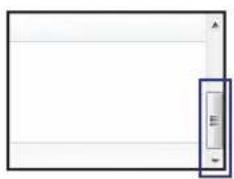

Touchpad Usage Illustrations
Clicking/Tapping - With the cursor over an item, press the left button or use your fingertip to touch the touchpad lightly, keeping your finger on the touchpad until the item is selected. The selected item will change color. The following 2 examples produce the same results.
Clicking
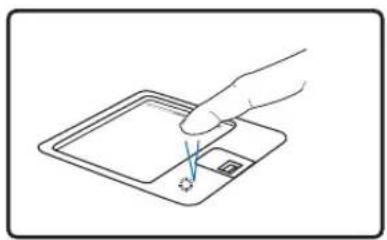
Press the left cursor button and release.
Tapping
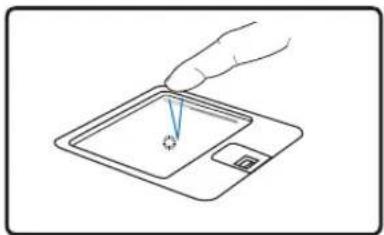
Lightly but rapidly strike the touchpad.
Double-clicking/Double-tapping - This is a common skill for launching a program directly from the corresponding icon you select. Move the cursor over the icon you wish to execute, press the left button or tap the pad twice in rapid succession, and the system launches the corresponding program. If the interval between the clicks or taps is too long, the operation will not be executed. You can set the double-click speed using the Windows Control Panel "Mouse." The following 2 examples produce the same results.
Double-Clicking
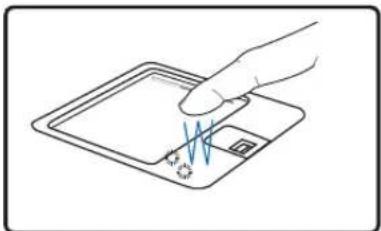
Press the left button twice and release.
Double-Tapping
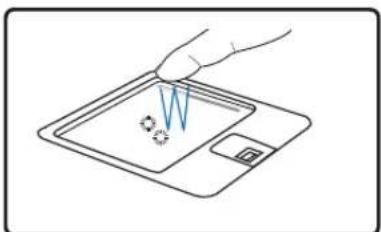
Lightly but rapidly strike the touchpad twice.
Dragging - Dragging means to pick up an item and place it anywhere on the screen you wish. You can move the cursor over the item you select, and while keeping the left button depressed, moving the cursor to the desired location, then release the button. Or, you can simply double-tap on the item and hold while dragging the item with your fingertip. The following illustrations produce the same results.
Dragging Clicking
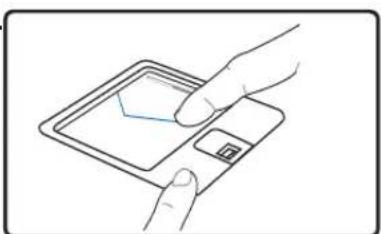
Hold left button and slide finger on touchpad.
Dragging-Tapping
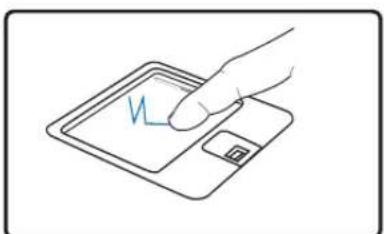
Lightly strike the touchpad twice, sliding finger on touchpad during second strike.

Multimedia Touchpad (on selected models)
The multimedia touchpad controls commonly used multimedia functions when listening to music or watching a movie. Press MODE to enable the multimedia mode.
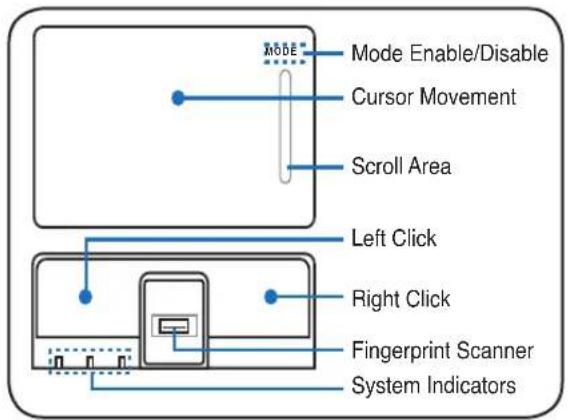
Multimedia Mode (disabled) Multimedia Mode (enabled)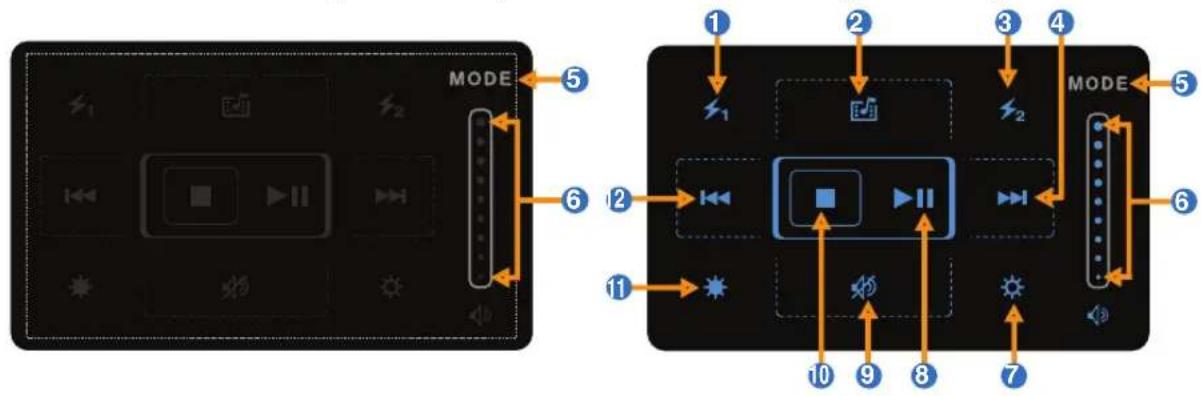
1 User define function #1 2 Start Direct Media software application 3 User define function #2 4 Go to next song/chapter Fast forward (when playing) 5 Mode switch ⑥ Cursor scroll up-down (when disabled) Volume up-down (when enabled)
7 Brighten the backlight 8 Play / Pause (when playing) 9 Mute volume 10 Stop playing Darken the backlight 12 Go to previous song/chapter Rewind (go backwards) (when playing)
Caring for the Touchpad
The touchpad is pressure sensitive. If not properly cared for, it can be easily damaged. Take note of the following precautions.
- Make sure the touchpad does not come into contact with dirt, liquids or grease.
- Do not touch the touchpad if your fingers are dirty or wet.
- Do not rest heavy objects on the touchpad or the touchpad buttons.
- Do not scratch the touchpad with your finger nails or any hard objects.

NOTE: The touchpad responds to movement not to force. There is no need to tap the surface too hard. Tapping too hard does not increase the responsiveness of the touchpad. The touchpad responds best to light pressure.
Automatic Touchpad Disabling
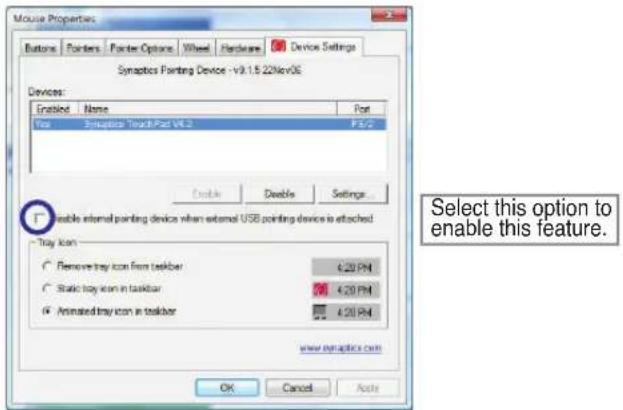
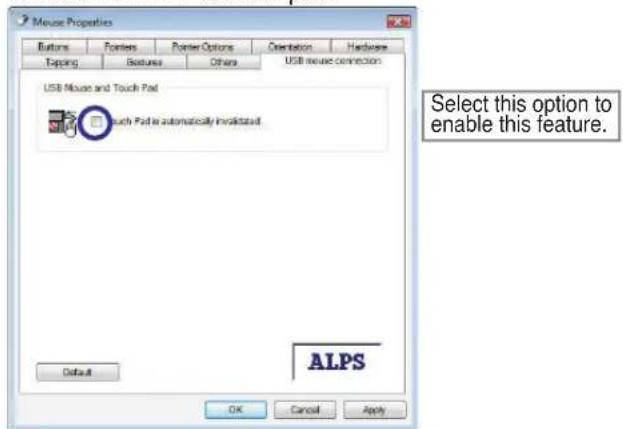
Windows can automatically disable the Notebook PC's touchpad when an external USB mouse is attached. This feature is normally OFF, to turn ON this feature, select the option in Windows Control Panel > Mouse Properties > Device Settings.
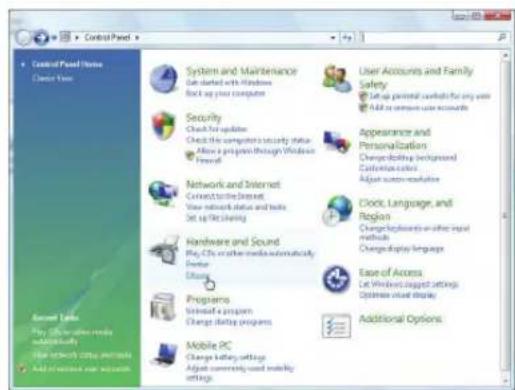
Find Mouse properties in the "Control Panel".
Models with Synaptics touchpad.
Models with ALPS touchpad.
Storage Devices
Storage devices allow the Notebook PC to read or write documents, pictures, and other files to various data storage devices. This Notebook PC has the following storage devices:
- Expansion Card
- Optical drive
- Flash memory reader
- Hard disk drive
Expansion Card
One 26-pin Express card slot is available to support one ExpressCard/34mm or ExpressCard/54mm expansion card. This new interface is faster by using a serial bus supporting USB 2.0 and PCI Express instead of the slower parallel bus used in the PC card slot. (Not compatible with previous PCMCIA cards.)
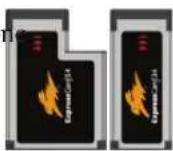
Inserting an Expansion Card
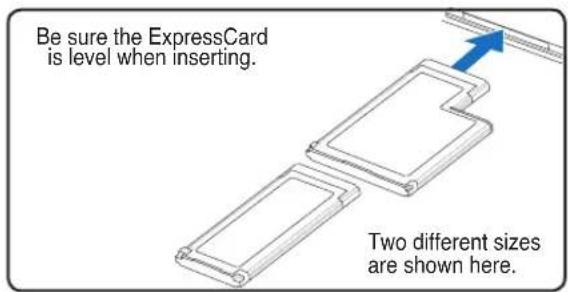

- If there is an ExpressCard socket protector, remove it using the "Removing an ExpressCard" instructions below.
- Insert the ExpressCard with the connector side first and label side up. Standard ExpressCards will be flush with the Notebook PC when fully inserted.
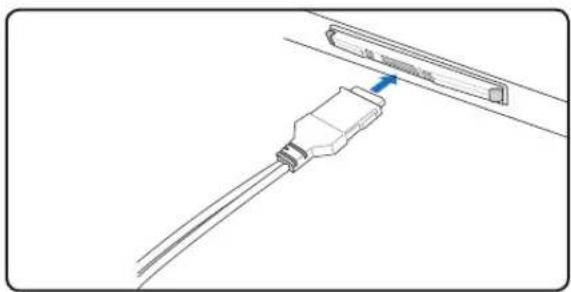
- Carefully connect any cables or adapters needed by the ExpressCard. Usually connectors can only be inserted in one orientation. Look for a sticker, icon, or marking on one side of the connector representing the top side.
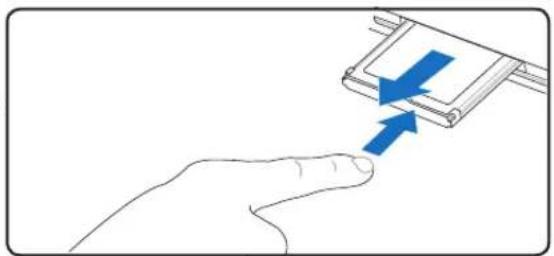
Removing an Expansion Card
The ExpressCard slot does not have an eject button. Press the ExpressCard inwards and release to eject the ExpressCard. Carefully pull the ejected ExpressCard out of the socket.
Optical Drive Inserting an optical disc
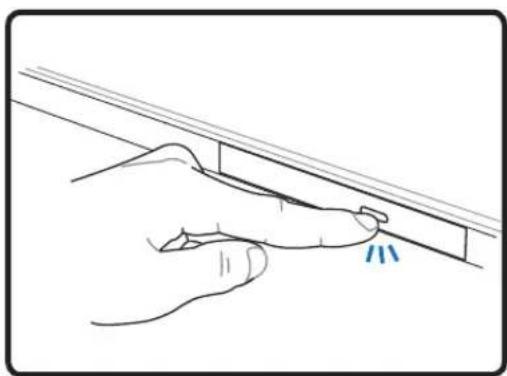
- While the Notebook PC's power is ON, press the drive's eject button and the tray will eject out partially.
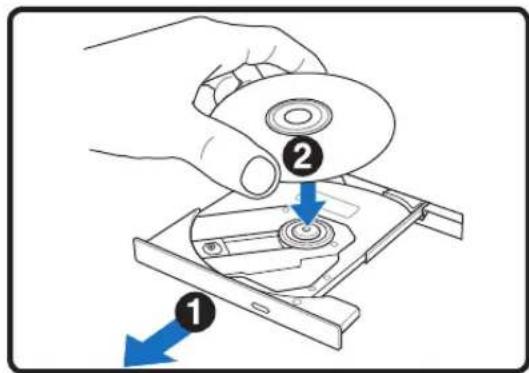
Gently pull on the drive's front panel and slide the tray completely out. Be careful not to touch the CD drive lens and other mechanisms. Make sure there are no obstructions that may get jammed under the drive's tray.
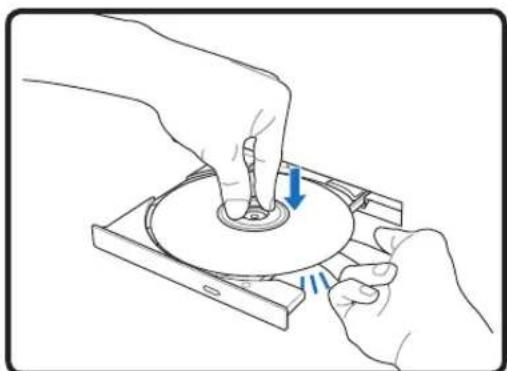
- Hold the disc by the edge and face the disc's printed side up. Push down on both sides of the disc's center until the disc snaps onto the hub. The hub should be higher than the disc when correctly mounted.
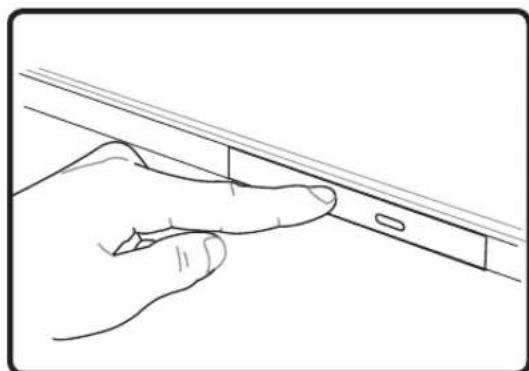
- Slowly push the drive's tray back in. The drive will begin reading the table of contents (TOC) on the disc. When the drive stops, the disc is ready to be used.
NOTE: It is normal to hear as well as feel the CD spinning with great intensity in the CD drive while data is read.
Optical Drive (Cont.)
Removing an optical disc
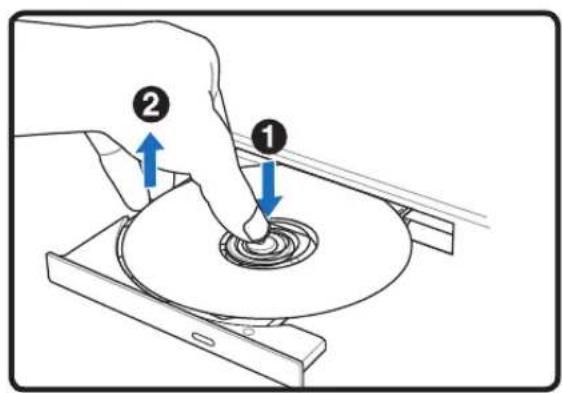
Eject the tray and gently pry the edge of the disc upwards at an angle to remove the disc from the hub.
Emergency eject
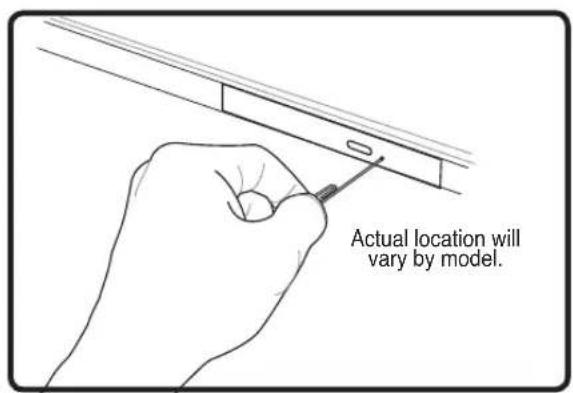
The emergency eject is located in a hole on the optical drive and is used to eject the optical drive tray in case the electronic eject does not work. Do not use the emergency eject in place of the electronic eject. Note: Make sure not to stab the activity indicator located in the same area.
Using the Optical Drive
Optical discs and equipment must be handled with care because of the precise mechanics involved. Keep in mind the important safety instructions from your CD suppliers. Unlike desktop optical drives, the Notebook PC uses a hub to hold the CD in place regardless of the angle. When inserting a CD, it is important that the CD be pressed onto the center hub or else the optical drive tray will scratch the CD.

WARNING! If the CD disc is not properly locked onto the center hub, the CD can be damaged when the tray is closed. Always watch the CD closely while closing the tray slowly to prevent damage.
A CD drive letter should be present regardless of the presence of a CD disc in the drive. After the CD is properly inserted, data can be accessed just like with hard disk drives; except that nothing can be written to or changed on the CD. Using the proper software, a CD-RW drive or DVD+CD-RW drive can allow CD-RW discs to be used like a hard drive with writing, deleting, and editing capabilities.
Vibration is normal for all high-speed optical drives due to unbalanced CDs or CD print. To decrease vibration, use the Notebook PC on an even surface and do not place labels on the CD.
Listening to Audio CD
The optical drives can play audio CDs, but only the DVD-ROM drive can play DVD audio. Insert the audio CD and Windows automatically opens an audio player and begins playing. Depending on the DVD audio disc and installed software, it may require that you open a DVD player to listen to DVD audio.
You can adjust the volume using hotkeys or the Windows speaker icon on the taskbar.

Flash Memory Card Reader
Normally a memory card reader must be purchased separately in order to use memory cards from devices such as digital cameras, MP3 players, mobile phones, and PDAs. This Notebook PC has a single built-in memory card reader that can use many flash memory cards as shown in the example below. The built-in memory card reader is not only convenient, but also faster than most other forms of memory card readers because it utilizes the internal high-bandwidth PCI bus.

IMPORTANT! Flash memory card compatibility varies depending on Notebook PC model and flash memory card specifications. Flash memory card specifications constantly change so compatibility may change without warning.
Flash Memory Card Examples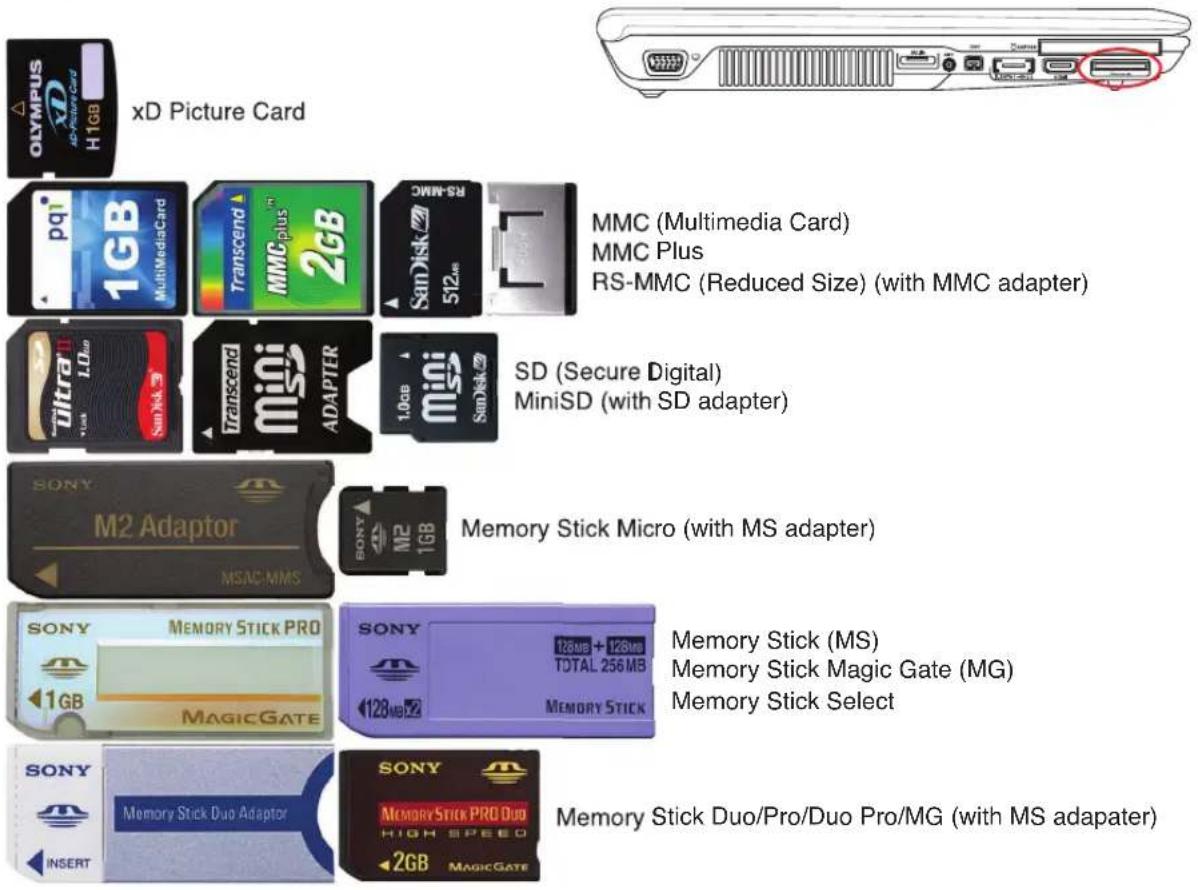

IMPORTANT! Never remove cards while or immediately after reading, copying, formatting, or deleting data on the card or else data loss may occur.

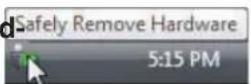
WARNING! To prevent data loss, use "Windows Safely Remove Hardware" on the taskbar before removing the flash memory card.

Hard Disk Drive
Hard disk drives have higher capacities and operate at much faster speeds than floppy disk drives and optical drives. The Notebook PC comes with a replaceable hard disk drive. Current hard drives support S.M.A.R.T. (Self Monitoring and Reporting Technology) to detect hard disk errors or failures before they happen. When replacing or upgrading the hard drive, always visit an authorized service center or retailer for this Notebook PC.
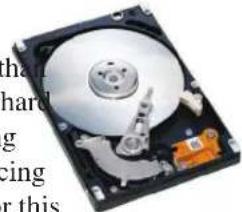

IMPORTANT! Poor handling of the Notebook PC may damage the hard disk drive. Handle the Notebook PC gently and keep it away from static electricity and strong vibrations or impact. The hard disk drive is the most delicate component and will likely be the first or only component that is damaged if the Notebook PC is dropped.
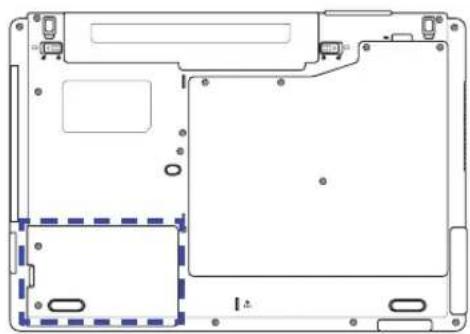
Hard Disk Drive Compartment
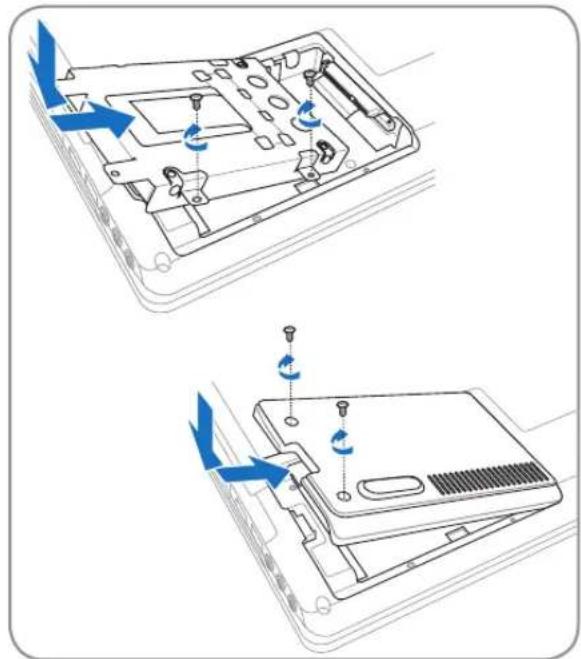
The hard disk drive is secured in a compartment. Visit an authorized service center or retailer for information on hard disk drive upgrades for your Notebook PC. Only purchase hard disk drives from authorized retailers of this Notebook PC to ensure maximum compatibility and reliability.
Removing the hard disk drive: Installing the hard disk drive: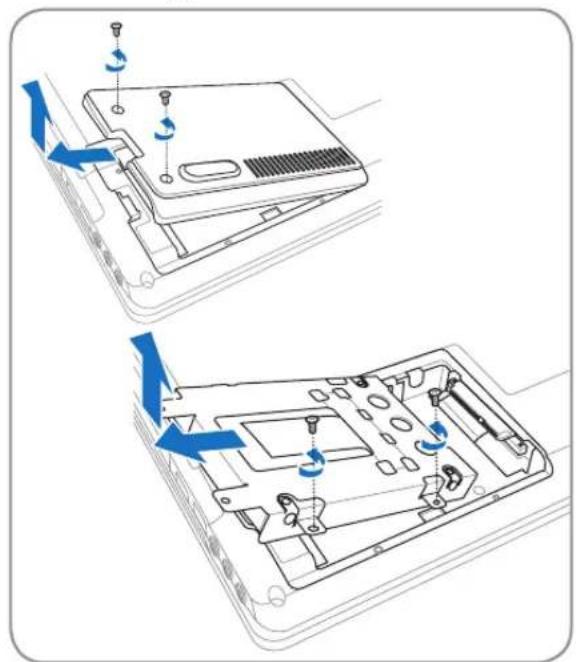
Memory (RAM)
Additional memory will increase application performance by decreasing hard disk access. The BIOS automatically detects the amount of memory in the system and configures CMOS accordingly during the POST (Power-On-Self-Test) process. There is no hardware or software (including BIOS) setup required after the memory is installed.
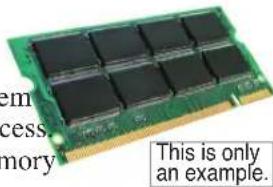
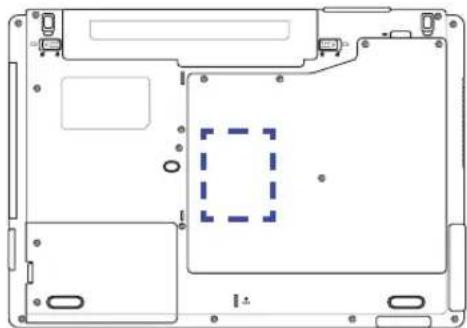
Memory Compartment
The memory compartment provides expansion capabilities for additional memory. Visit an authorized service center or retailer for information on memory upgrades for your Notebook PC. Only purchase expansion modules from authorized retailers of this Notebook PC to ensure maximum compatibility and reliability.
Installing a Memory Card: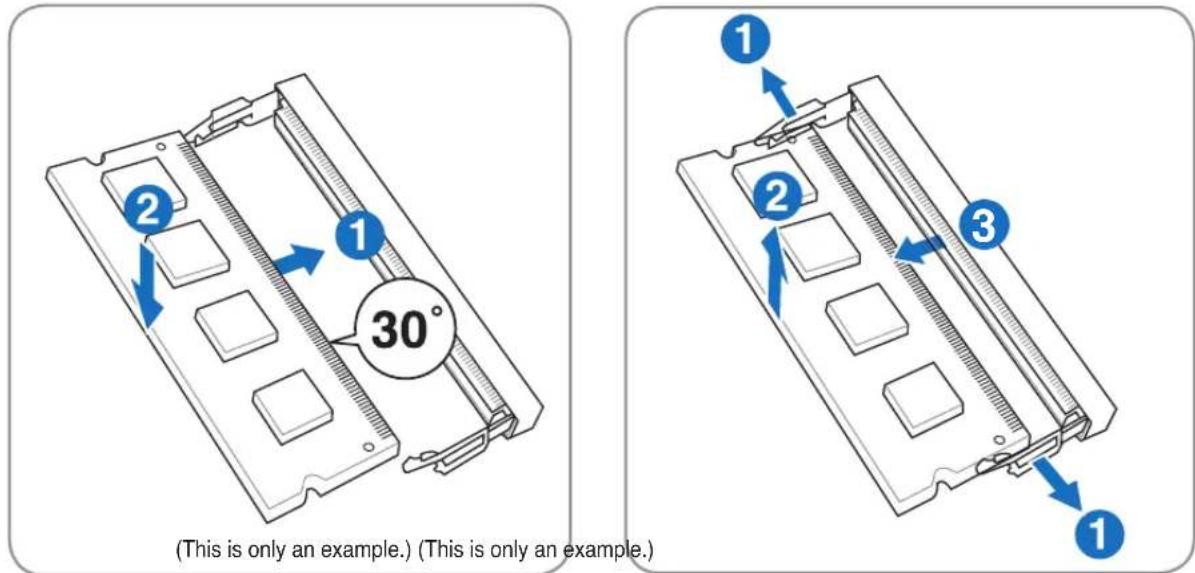
Removing a Memory Card:
Connections

NOTE: The built-in modem and network cannot be installed later as an upgrade. After purchase, modem and/or network can be installed as an expansion card.
Modem Connection
The telephone wire used to connect the Notebook PC's internal modem should have either two or four wires (only two wires (telephone line #1) is used by the modem) and should have an RJ-11 connector on both ends. Connect one end to the modem port and the other end to an analog telephone wall socket (the ones found in residential buildings). Once the driver is setup, the modem is ready to use.
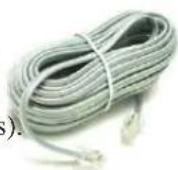

NOTE: When you are connected to an online service, do not place the Notebook PC in suspend (or sleep mode) or else you will disconnect the modem connection.

WARNING! Only use analog telephone outlets. The built-in modem does not support the voltage used in digital phone systems. Do not connect the RJ-11 to digital phone systems found in many commercial buildings or else damage will occur!

CAUTION: For electrical safety concerns, only use telephone cables rated 26AWG or higher. (see Glossary for more information)

Example of the Notebook PC connected to a telephone jack for use with the built-in modem:
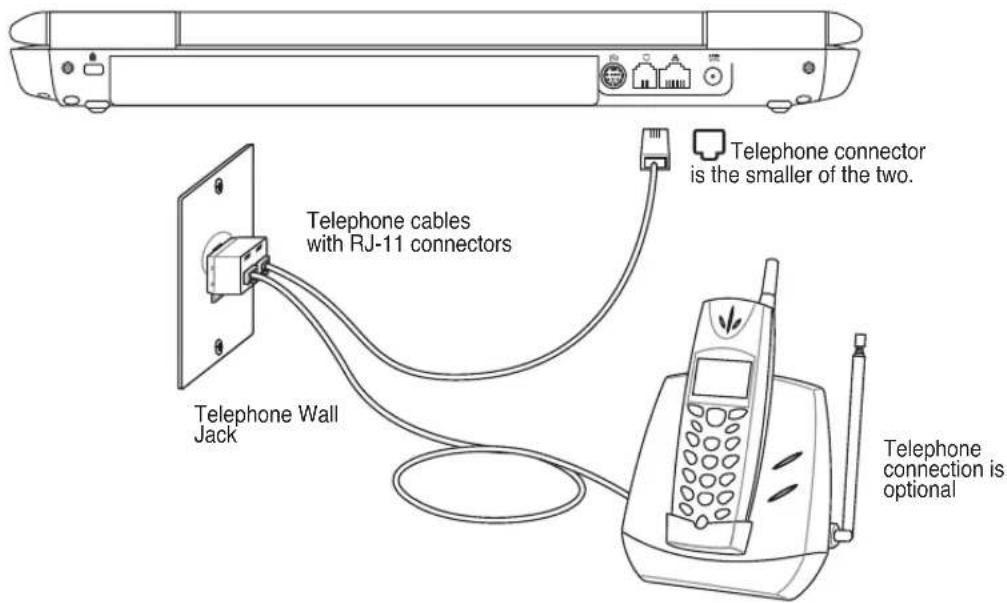

Network Connection
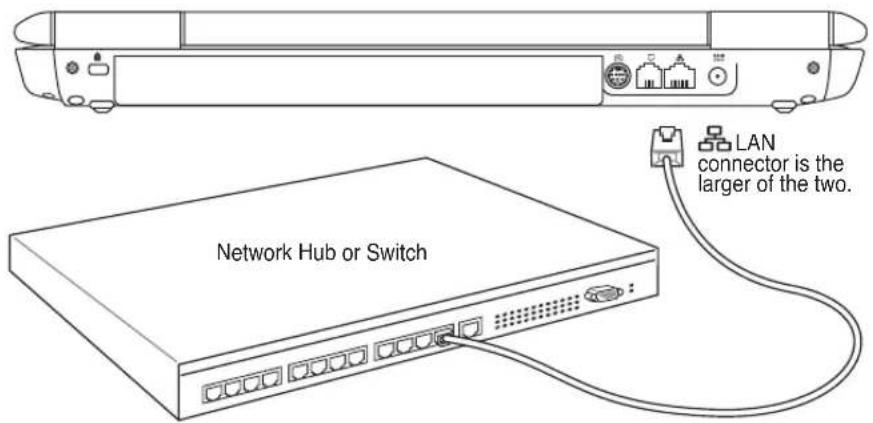
Connect a network cable, with RJ-45 connectors on each end, to the modem/network port on the Notebook PC and the other end to a hub or switch. For 100 BASE-TX / 1000 BASE-T speeds, your network cable must be category 5 or better (not category 3) with twisted-pair wiring. If you plan on running the interface at 100/1000Mbps, it must be connected to a 100 BASE-TX / 1000 BASE-T hub (not a BASE-T4 hub). For 10Base-T, use category 3, 4, or 5 twisted-pair wiring. 10/100 Mbps Full-Duplex is supported on this Notebook PC but requires connection to a network switching hub with “duplex” enabled. The software default is to use the fastest setting so no user-intervention is required.

1000BASE-T (or Gigabit) is only supported on selected models.
Twisted-Pair Cable
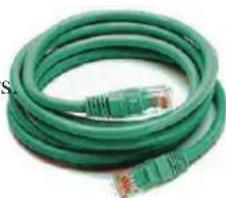
The cable used to connect the Ethernet card to a host (generally a Hub or Switch) is called a straight-through Twisted Pair Ethernet (TPE). The end connectors are called RJ-45 connectors, which are not compatible with RJ-11 telephone connectors. If connecting two computers together without a hub in between, a crossover LAN cable is required (Fast-Ethernet model). (Gigabit models support auto-crossover so a crossover LAN cable is optional.)

Example of the Notebook PC connected to a Network Hub or Switch for use with the built-in Ethernet controller.
Network cable with RJ-45 connectors
Wireless LAN Connection (on selected models)
The optional built-in wireless LAN is a compact easy-to-use wireless Ethernet adapter. Implementing the IEEE 802.11 standard for wireless LAN (WLAN), the optional built-in wireless LAN is capable of fast data transmission rates using Direct Sequence Spread Spectrum (DSSS) and Orthogonal Frequency Division Multiplexing (OFDM) technologies on 2.4GHz/5GHz frequencies. The optional built-in wireless LAN is backward compatible with the earlier IEEE 802.11 standards allowing seamless interfacing of wireless LAN standards.
The optional built-in wireless LAN is a client adapter that supports Infrastructure and Ad-hoc modes giving you flexibility on your existing or future wireless network configurations for distances up to 40 meters between the client and the access point.
To provide efficient security to your wireless communication, the optional built-in wireless LAN comes with a 64-bit/128-bit Wired Equivalent Privacy (WEP) encryption and Wi-Fi Protected Access (WPA) features.
Ad-hoc mode
The Ad-hoc mode allows the Notebook PC to connect to another wireless device. No access point (AP) is required in this wireless environment.
(All devices must install optional 802.11 wireless LAN adapters.)
These are examples of the Notebook PC connected to a Wireless Network.
Notebook PC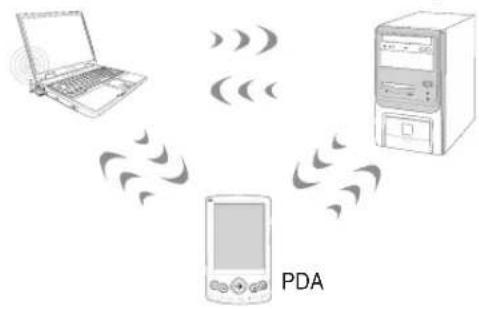
Desktop PC
Infrastructure mode
The Infrastructure mode allows the Notebook PC and other wireless devices to join a wireless network created by an Access Point (AP) (sold separately) that provides a central link for wireless clients to communicate with each other or with a wired network.
(All devices must install optional 802.11 wireless LAN adapters.)
Notebook PC![graph TD A["Laptop"] --> B["Central Device"] C["Desktop"] --> B D["PDA"] --> B B -->|Access Point| A B -->|Access Point| C B -->|Access Point| D](/content/2026/05/762944/images/bfd3e762479231d9b915c879dd785be8a7ec0f8ce746ddb17ccf19fb9dd1cd49.jpg)

Windows Wireless Network Connection Connecting to a network
- Switch ON the Wireless function if necessary for your model (see switches in Section 3).
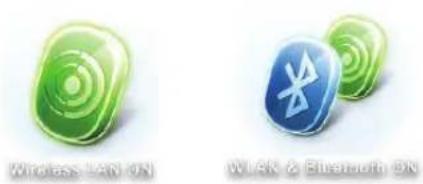
- Press [FN F2] repeatedly until Wireless LAN ON or WLAN & Bluetooth ON is shown.
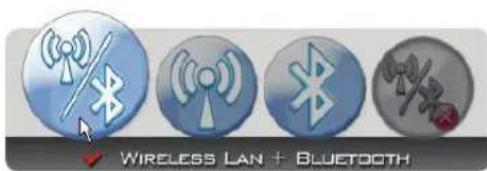
2b. Or double click the Wireless Console icon on the taskbar and select either the Wireless LAN + Bluetooth or just the Bluetooth.
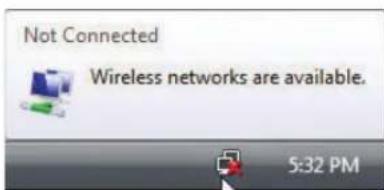
- You should see the "Not Connected" network icon.
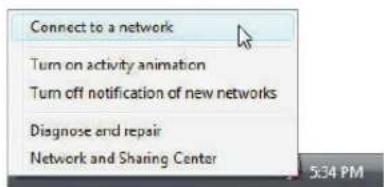
- Right click on the network icon and select Connect to a network.
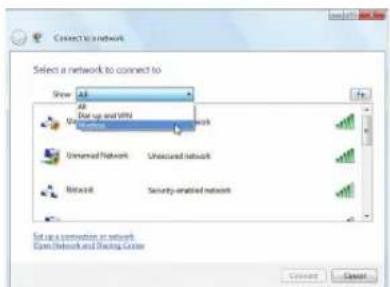
- Select "Show Wireless" if you have many networks in your area.
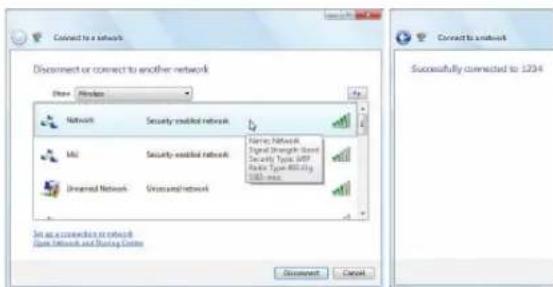
- Select the wireless network you want to connect to.
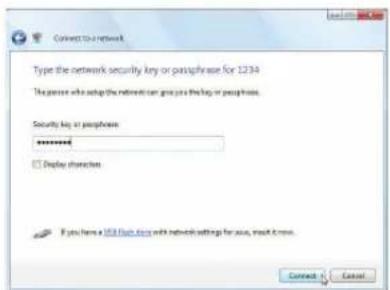
- When connecting, you may have to enter a password.
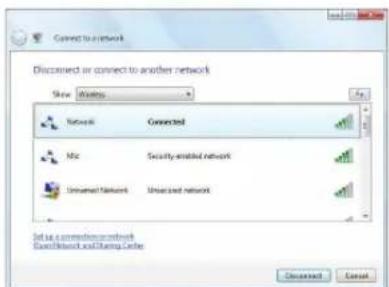
- After connection has been established, "Connected" will be shown.

Bluetooth Wireless Connection (on selected models)
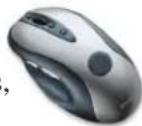
Notebook PCs with Bluetooth technology eliminate the need for cables for connecting Bluetooth-enabled devices. Examples of Bluetooth-enabled devices may include Notebook PCs, Desktop PCs, mobile phones, and PDAs.

Note: If your Notebook PC did not come with built-in Bluetooth, you need to connect a USB or ExpressCard Bluetooth module in order to use Bluetooth.
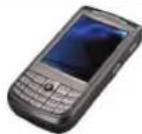
Bluetooth-enabled mobile phones
You can wirelessly connect to your mobile phone. Depending on your mobile phone's capabilities, you can transfer phone book data, photos, sound files, etc., or use it as a modem to connect to the Internet. You may also use it for SMS messaging.
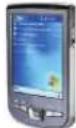
Bluetooth-enabled computers or PDAs
You can wirelessly connect to another computer or PDA and exchange files, share peripherals, or share Internet or network connections. You may also make use of a Bluetooth-enabled wireless keyboard or mouse.

Turning ON and Launching Bluetooth Utility
This process can be used to add most Bluetooth devices. See Appendix for the complete process.
- Switch ON the Wireless function if necessary for your model (see switches in Section 3).
- Press [FN F2] repeatedly until Wireless LAN ON or WLAN & Bluetooth ON is shown.
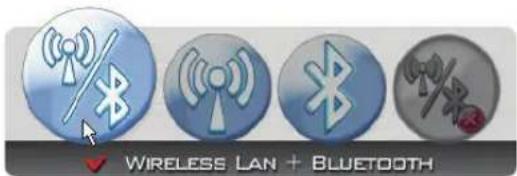
2b. Or double-click the Wireless Console icon on the taskbar and select either Wireless LAN + Bluetooth or just Bluetooth.
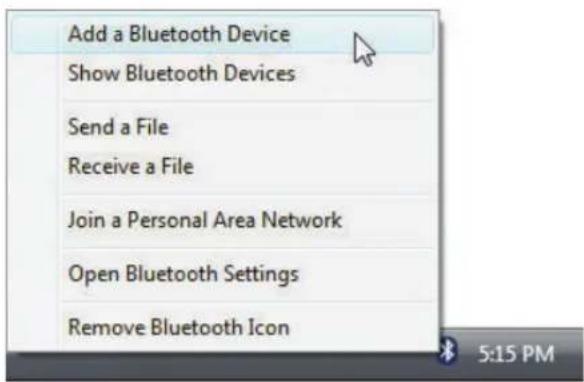
- Select Add a Bluetooth Device from the taskbar menu.
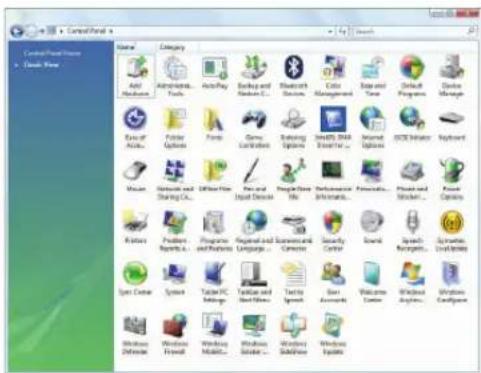
3b. Or Launch Bluetooth Devices from the Windows Control Panel.
Antenna Connections (on selected models)
This page shows multimedia connections for TV Tuner and/or FM Radio Models. TV and radio features require built-in modules only on selected models.

IMPORTANT: The Notebook PC must be used indoors when using the antenna.
Cable connection
Connect the coaxial cable from a paid television service, roof-mounted aerial antenna, or indoor "rabbit ears" to the cable adapter. Cable service connection can receive analog TV depending on paid services. The provided adapter is necessary to change the coaxial plug to fit the slim Notebook PC. Attach an NTSC to PAL adapter if necessary.
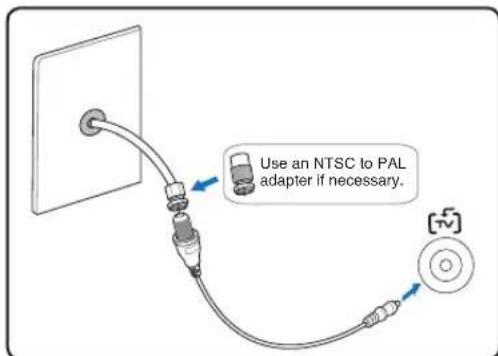

IMPORTANT: Cable distribution system should be grounded (earthed) in accordance with ANSI/NFPA 70, the National Electrical Code (NEC), in particular Section 820.93, Grounding of Outer Conductive Shield of a Coaxial Cable – installation should include bonding the screen of the coaxial cable to the earth at the building entrance.
DTV/FM antenna connection
Connect the provided digital TV/FM radio antenna to the Notebook PC using the cable adapter. The digital TV/FM radio antenna can only receive digital TV signals or FM radio broadcasted in selected regions.

Note: Digital television reception is available on selected models only and will vary by location depending on distance from transmission towers and obstructions.
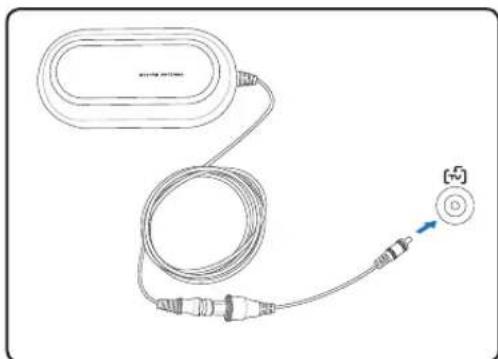
Antenna placement
Horizontal: Can be safely placed on flat surfaces such as table tops, cabinets, and shelves.
Vertical: Magnets in base allows attachment to metallic surfaces such as partitions or cabinets.
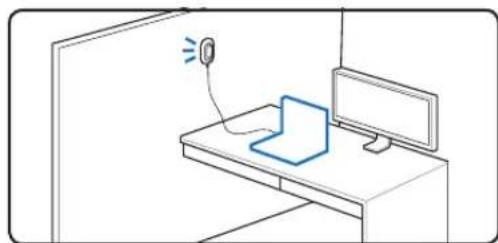

Trusted Platform Module (TPM) (on selected models)
The TPM, or Trusted Platform Module, is a security hardware device on the system board that will hold computer-generated keys for encryption. It is a hardware-based solution that can help avoid attacks by hackers looking to capture passwords and encryption keys to sensitive data. The TPM provides the ability to the PC or notebook to run applications more secure and to make transactions and communication more trustworthy.
The security features provided by the TPM are internally supported by the following cryptographic capabilities of each TPM: hashing, random number generation, asymmetric key generation, and asymmetric encryption/decryption. Each individual TPM on each individual computer system has a unique signature initialized during the silicon manufacturing process that further enhances its trust/security effectiveness. Each individual TPM must have an Owner before it is useful as a security device.
TPM Applications
TPM is useful for any customer that is interested in providing an additional layer of security to the computer system. The TPM, when bundled with an optional security software package, can provide overall system security, file protection capabilities and protect against email/privacy concerns. TPM helps provide security that can be stronger than that contained in the system BIOS, operating system, or any non-TPM application.

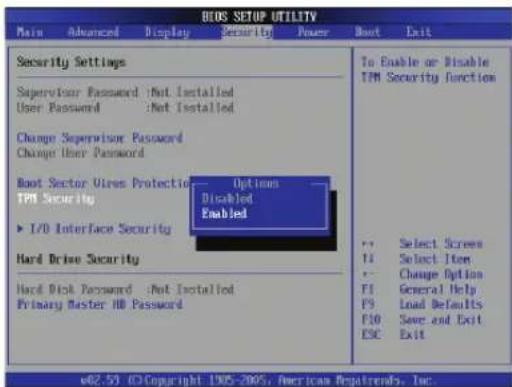
Note: The TPM is disabled by default. Use BIOS setup to enable it.

Enabling TPM Security
Enter BIOS Setup (press [F2] on system startup). On Security page, set TPM Security to [Enabled]

Important: Use your TPM application's "Restore" or "Migration" function to backup your TPM security data.
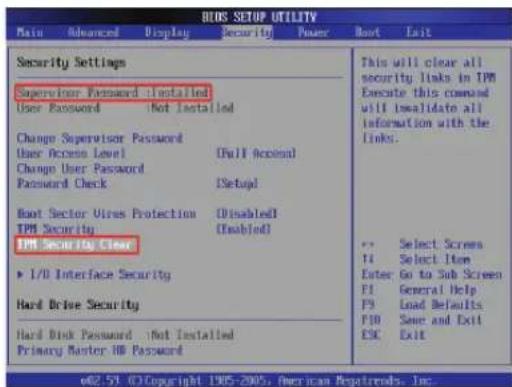
Clearing TPM Secured Data
When Supervisor Password is installed, TPM Security Clear will appear. Use this item to clear all data secured by TPM. (You have to restart the Notebook PC after setting the password to see the security clear option.)

Important: Use should routinely backup your TPM secured data.
Fingerprint Registration (on selected models)
The fingerprint scanner can be used for instant and secure user authentication. These instructions will show you how to setup the fingerprint registration.
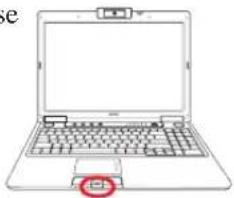
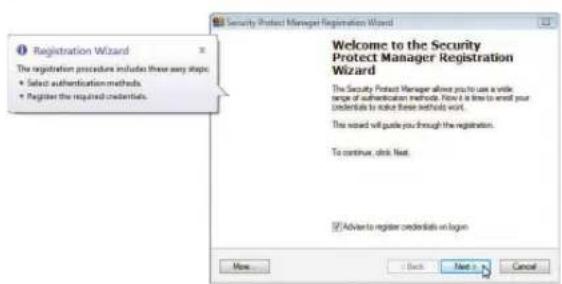
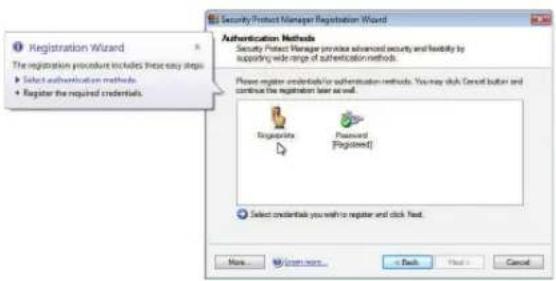
- This wizard will automatically start when TPM is enabled in BIOS (see Appendix). Click Next. Select "Fingerprints" and click Next.
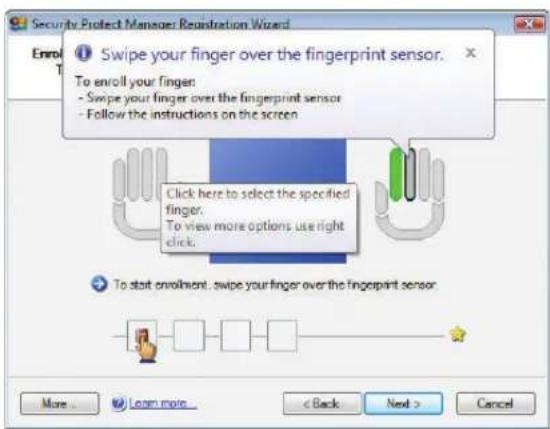
- Select a finger on the diagram. Swipe the corresponding finger on the scanner slowly. You must swipe your finger multiple times for verification.
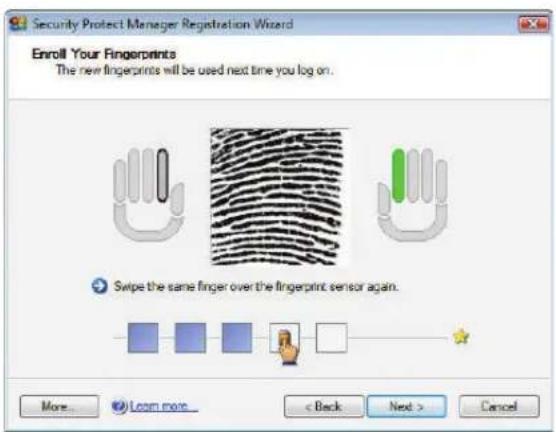
- You must register at least two fingers to decrease the chance of problems.

Fingerprint Registration (on selected models) cont.
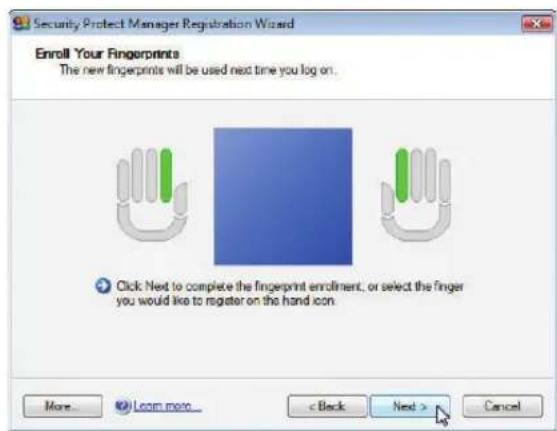
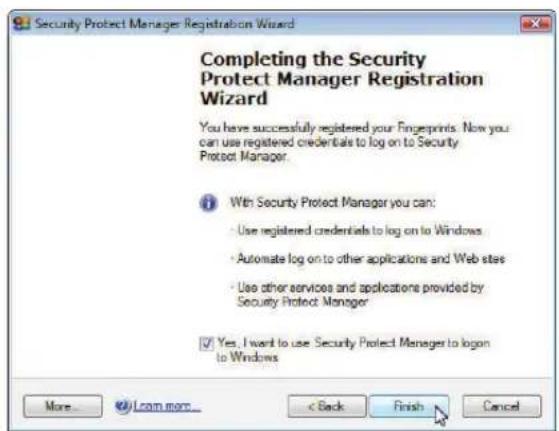
- Select a finger on the diagram and swipe the corresponding finger on the scanner slowly. You must swipe your finger multiple times for verification. You must register at least two fingers to decrease the chance of any problems.
- Click Finish when done.
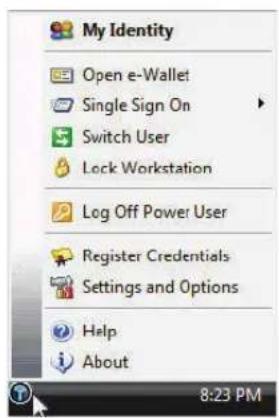
- Right-click the icon on the taskbar and select "Settings and Options".
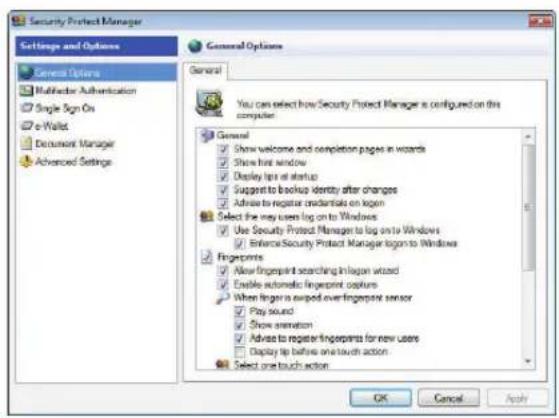
- Select "General Options" and "Single Sign On" and configure your preferences.

3G Watcher Software (on selected models)
The 3G Watcher software application will allow your Notebook PC to connect to 3G wireless networks normally used by 3G mobile phones. When connected, your Notebook PC can connect to the Internet just like using a wireless network. A shortcut to the 3G Watcher application will be placed on your desktop. Double-click it to launch the 3G Watcher software application.

3G Watcher
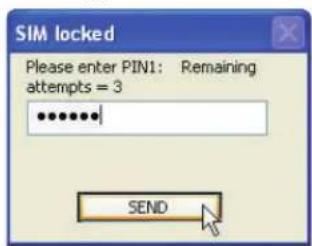
Launch the 3G Watcher application and your SIM card password (PIN1) will be asked if you have set one.
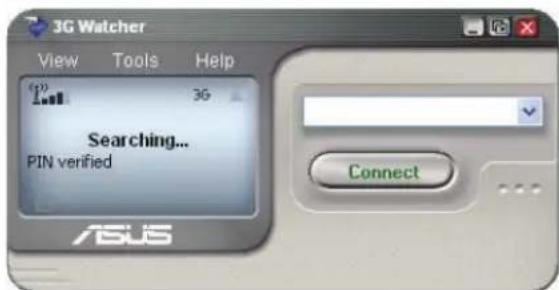
Once your PIN has been verified, searching for a 3G network will begin.
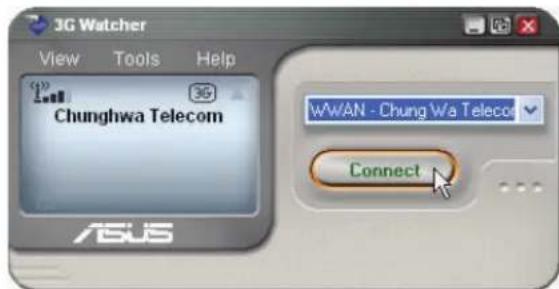
Once a 3G network has been discovered, click Connect to make a wireless network connection.
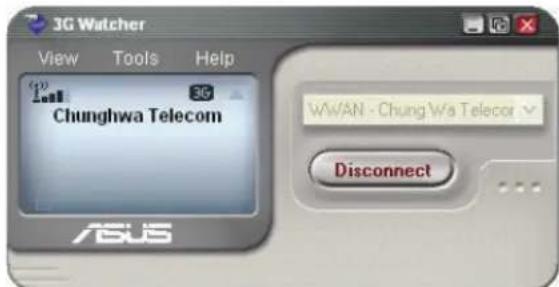
Once connected, the Connect button will show Disconnect instead.
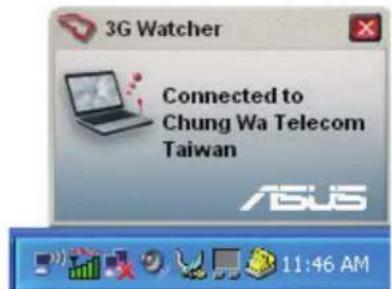
Once connected, a message will appear with the network name.
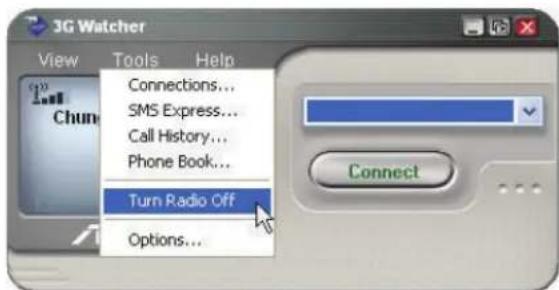
When you are in an area that prohibits wireless transmissions (such as on an airplane), you can select Turn Radio Off from the "Tools" pull down menu.
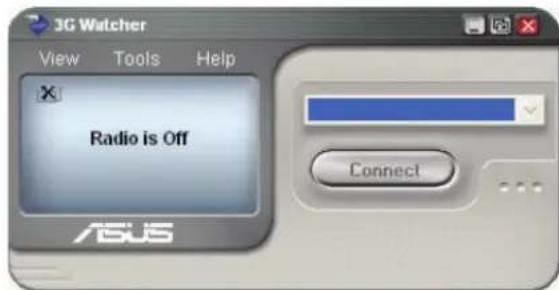
Once the radio is turned OFF, an "x" will appear over the signal strength indicator.
(1) (See end of Section 4 for definition)
3G Watcher Software (on selected models) cont.

Watcher window
Icons and indicators on the main window
The main Watcher window provides status information and allows you to initiate and monitor data connections or make and receive phone calls (if voice is supported by your 3G modem and your service provider). The main window uses these indicators:
| Device status. If an icon of the 3G modem with an “X” is displayed, Watcher is unable to detect the 3G modem. This indicates that the 3G modem is not fully inserted into the PC Card slot (in the case of non-embedded modems) or it is powered down. You may be able to resolve this problem by:• Ejecting the 3G modem and re-inserting it• Turning the WWAN switch on your PC off and on | |
| Signal strength and service status. The number of bars beside the antenna increases as signal strength increases, to a maximum of five bars. The ToolTip that displays when you position the mouse pointer over this indicator shows the RSSI (Received Signal Strength Indication) in dBm.An antenna with a line through it indicates no service is available (Not in Service). You are outside of the coverage area or have insufficient signal strength to maintain a GSM data connection. | |
| Coverage. The icon shows the fastest service available:JPRS GPRS • GPRS icon - GPRS is the fastest service available in your current coverage area.EDGE icon - EDGE is the fastest service available in your current coverage area. (supported on EDGE 3G modems)3G 3G • 3G icon - UMTS is the fastest service available in your current coverage area. (supported on UMTS 3G modems)HS HS • HS icon - HSDPA is the fastest service available in your current coverage area. (supported on HSDPA 3G modems)When only the letters are displayed, (for example edge), you are within the coverage area, but have not yet acquired the service.When the indicator has an outline (edge), you have acquired service and are able to establish a data connection.When the indicator is filled (edge), you have a data connection on the wireless service. |
3G Watcher Software (on selected models) cont.
| Roaming. You are connected to a network other than your local service provider's. There may be a surcharge for roaming service. (This service may not be available.) | |
| New SMS message. Click the icon to open the SMS Express window and read your messages. When your SIM becomes full, this icon flashes and turns red. (Supported only on selected devices.) | |
| Data transmission. When the modem is connected to the network, the main Watcher window shows the amount of data received and sent. |
If your service provider asks you to enter a GSM command (otherwise called a code or procedure), type the command from the main window.
System Tray Icons
Anytime Watcher is running, the Watcher icon appears in the system tray, indicating the connection status:
| Watcher cannot detect the 3G modem. Ensure that the 3G modem is powered on. | |
| You do not have an active high-speed connection. | |
| You have an active high-speed connection. | |
| You have new (unread) SMS messages. |

3G (or 3-G) (on selected models)
Short for third-generation technology. It is used in the context of mobile phone standards. The services associated with 3G provide the ability to transfer simultaneously both voice data (a telephone call) and non-voice data (such as downloading information, exchanging email, and instant messaging). In marketing 3G services, video telephony has often been used as the main-stream application for 3G. Selected models integrate a SIM card slot for insertion of a 3G SIM card which is required to use 3G applications.
Media Center Remote Controller (on selected models)
A wireless remote controller is included with TV tuner models to control the Notebook PC's multimedia functions (the included software must be installed).
The Media Center on-screen menus are designed for remote control interaction, providing users with a convenient and engaging way to access digital media from across the room. A Media Center remote control functions like a remote control for any other consumer electronics device, such as an audio/video receiver or DVD player. A Media Center remote control includes the following features:
• Media Center Start button enables quick launch of Media Center - Transport controls Play, Pause, Rewind, Fast Forward, Skip (moves forward 29 seconds)—allows for recorded and time-shifted TV, DVD content, music, and photo slide-shows. - Navigation controls up, down, left, right—let you browse lists and menus. - Shortcut buttons offer one-step access to Media Center experiences. - More Info/Details button displays details about the media currently-playing. - A/V controls include channel up/down, volume up/down, and mute.
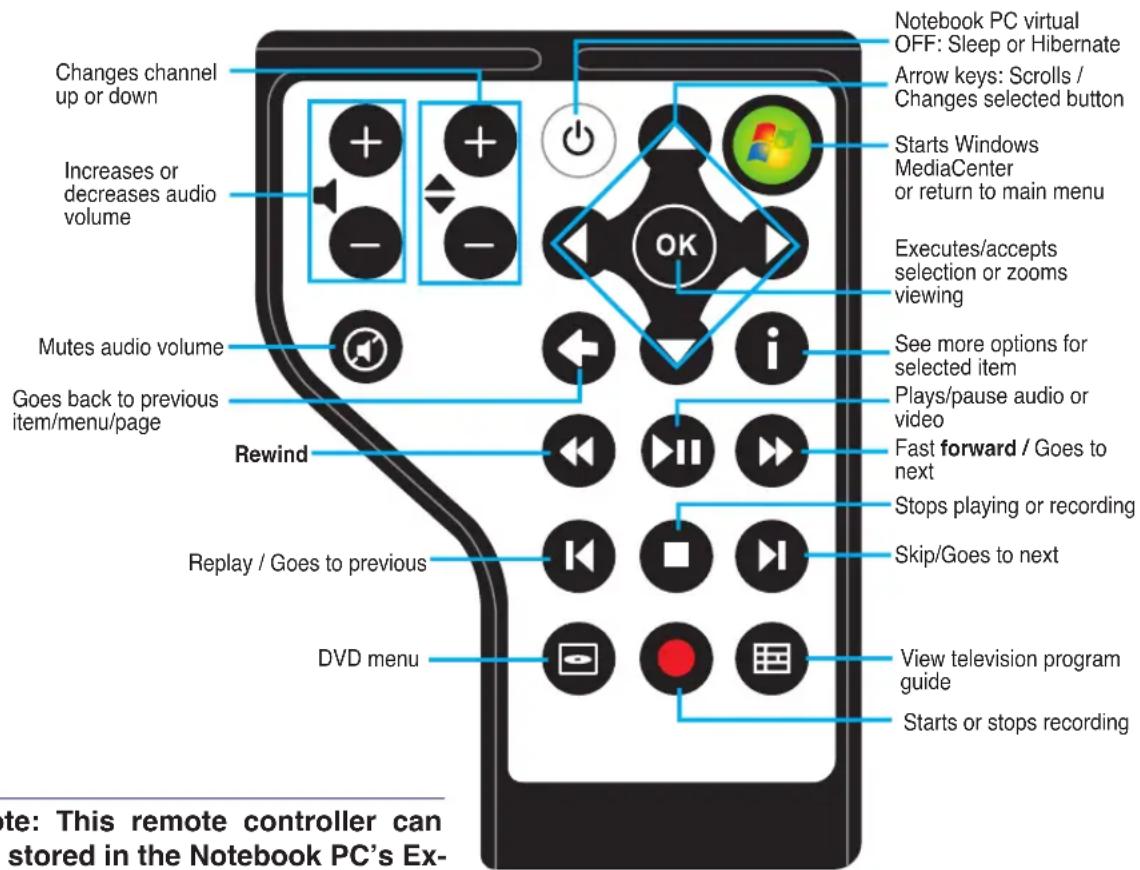
This side inserts first when storing in the Notebook ExpressCard slot
Note: This remote controller can be stored in the Notebook PC's ExpressCard slot when not in use.
Media Center Remote Controller (on selected models)
(Full-sized model)
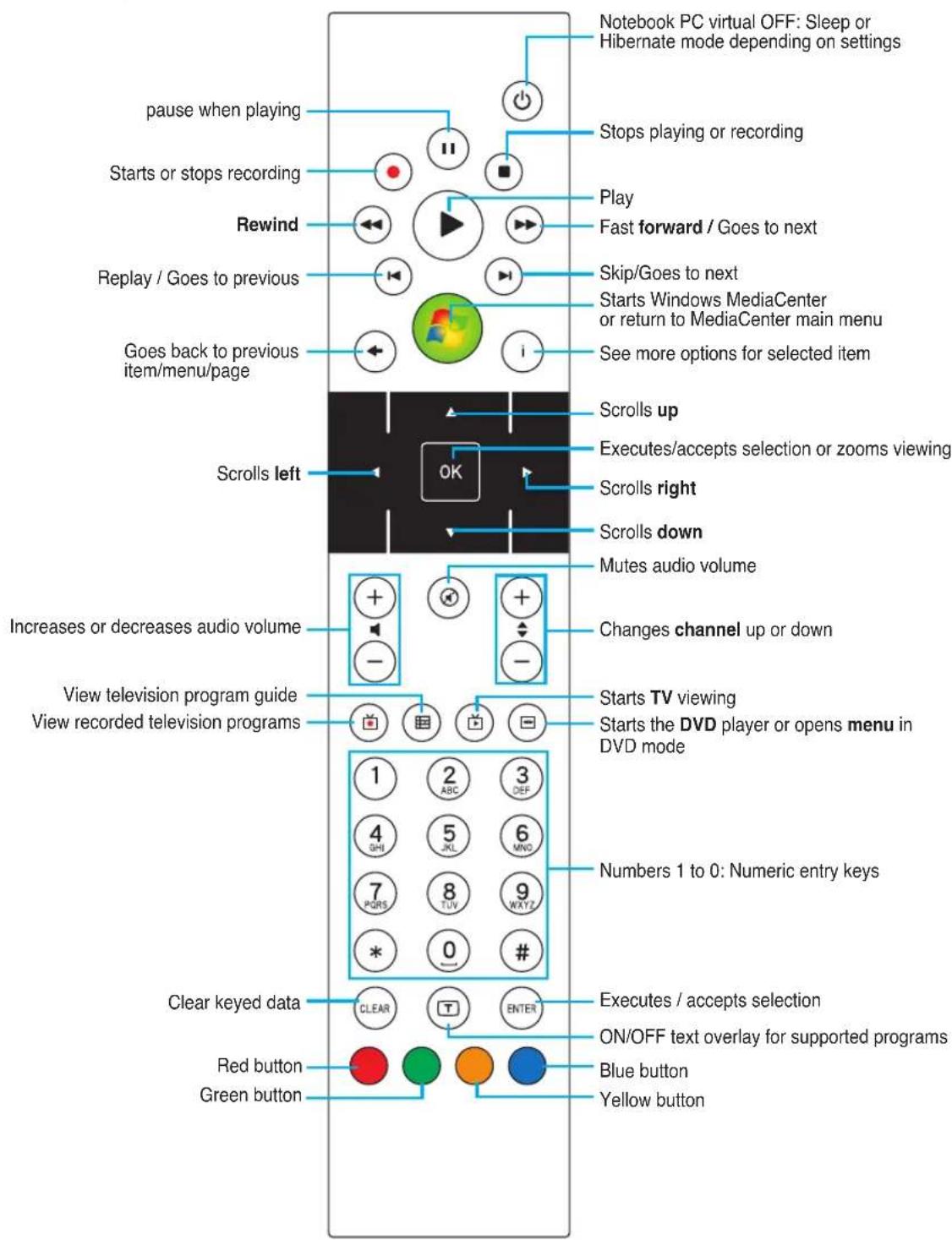
4
Using the Notebook PC
Appendix
Optional Accessories & Connections
Operating System and Software
System BIOS Settings
Common Problems and Solutions
Windows Software Recovery
Glossary
Declarations and Safety Statements
Notebook PC Information

NOTE: Photos and icons in this manual are used for artistic purposes only and do not show what is actually used in the product itself.
Optional Accessories
These items, if desired, come as optional items to complement your Notebook PC.

USB Hub (Optional)

Attaching an optional USB hub will increase your USB ports and allow you to quickly connect or disconnect many USB peripherals through a single cable.
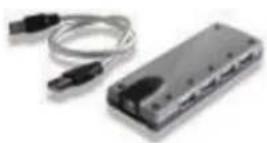

USB Flash Memory Disk

A USB flash memory disk is an optional item that can replace the 1.44MB floppy disk and provide storage up to several hundred megabytes, higher transfer speeds, and greater durability. When used in current operating systems, no drivers are necessary.
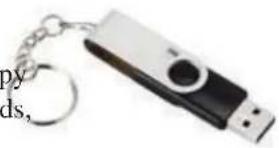

USB Floppy Disk Drive

An optional USB-interface floppy disk drive can accept a standard 1.44MB (or 720KB) 3.5-inch floppy diskette.

WARNING! To prevent system failures, use Windows "Safely Remove Hardware" on the taskbar before disconnecting the USB floppy disk drive. Eject the floppy disk before transporting the Notebook PC to prevent damage from shock.
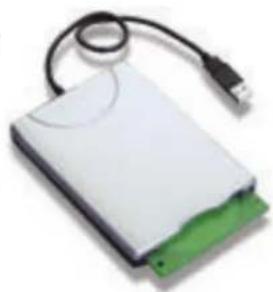

Optional Connections
These items, if desired, may be purchased from third-parties.

USB Keyboard and Mouse

Attaching an external USB keyboard will allow data entry to be more comfortable. Attaching an external USB mouse will allow Windows navigation to be more comfortable. Both the external USB keyboard and mouse will work simultaneously with the Notebook PC's built-in keyboard and touchpad.
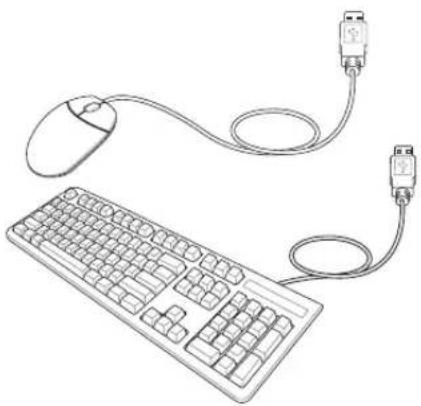

Printer Connection

One or more USB printers can be simultaneously used on any USB port or USB hub.
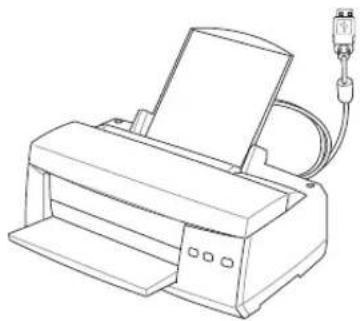
Bluetooth Mouse Setup (optional)
This process can be used to add most Bluetooth devices in Windows operating system.
- Switch ON the Wireless function if necessary for your model (see switches in Section 3).
- Press [FN F2] repeatedly until Bluetooth ON or WLAN & Bluetooth ON is shown.
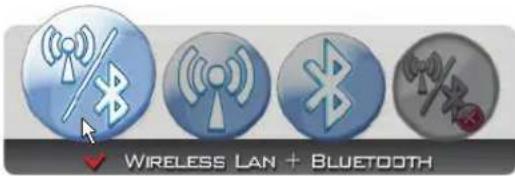
2b. Or double click the Wireless Console icon on the taskbar and select either the Wireless LAN + Bluetooth or just the Bluetooth.
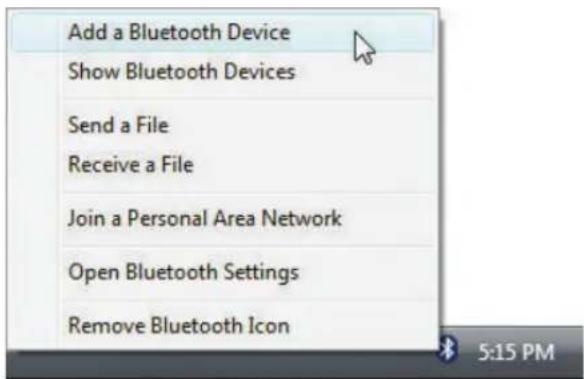
- Select Add a Bluetooth Device on the taskbar menu.
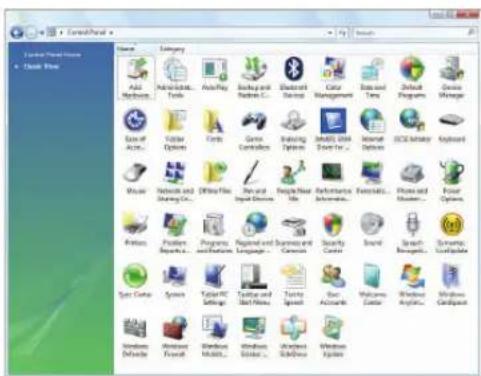
3b. Or Launch Bluetooth Devices from the Windows Control Panel.
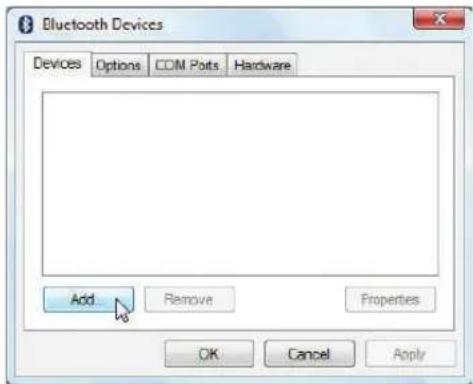
3c. If launched from the Control Panel, click Add from this screen.
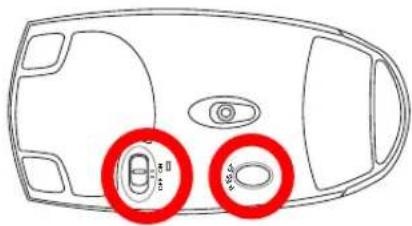
- Prepare the Bluetooth mouse.
• Install two "AA" batteries. - Turn ON the power switch on the bottom of the mouse. The bottom sensor should glow red. - Push the "RESET" button on the bottom of the Bluetooth mouse.
Bluetooth Mouse Setup (optional) cont.
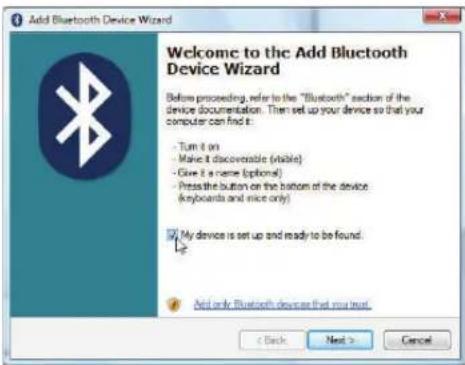
- Click Next when the Bluetooth mouse is ready.
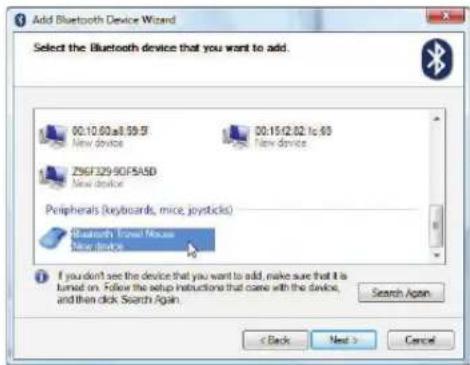
- A list of nearby Bluetooth devices will be shown. Select the Bluetooth mouse and click Next.
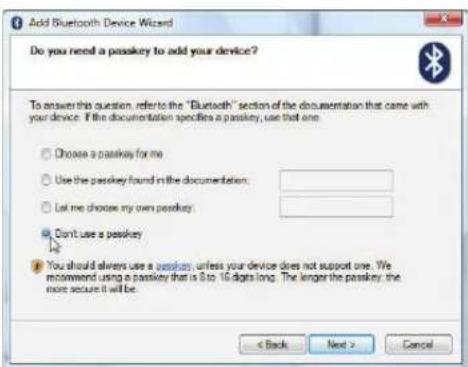
- Select "Don't use a passkey" and click Next.
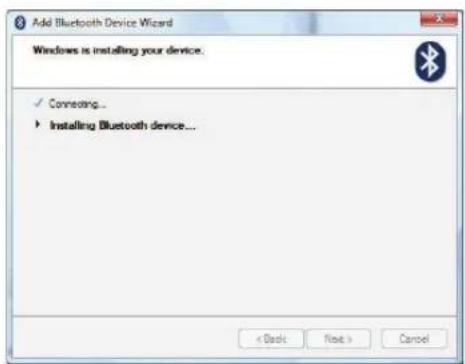
- Wait while the Bluetooth mouse is being added.
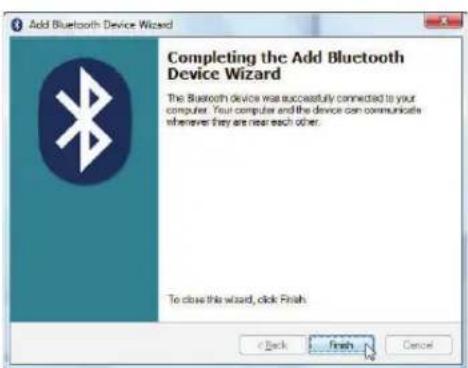
- Click Finish when adding is complete.
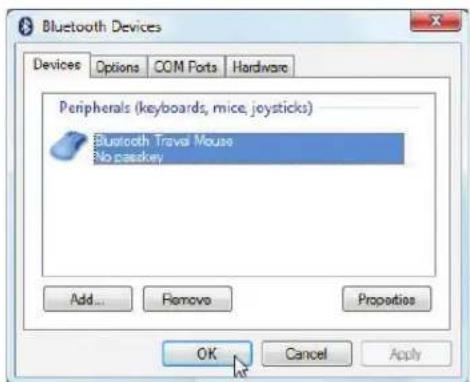
- You will see your device in the window. You can also add or remove Bluetooth devices here.

Note: "RESET" may be necessary after changing batteries. Repeat steps if necessary.
Operating System and Software
This Notebook PC may offer (depending on territory) its customers the choice of a pre-installed Microsoft Windows operating system. The choices and languages will depend on the territory. The levels of hardware and software support may vary depending on the installed operating system. The stability and compatibility of other operating systems cannot be guaranteed.

Support Software
This Notebook PC comes with a support disc that provides BIOS, drivers and applications to enable hardware features, extend functionality, help manage your Notebook PC, or add functionality not provided by the native operating system. If updates or replacement of the support disc is necessary, contact your dealer for web sites to download individual software drivers and utilities.
The support disc contains all drivers, utilities and software for all popular operating systems including those that have been pre-installed. The support disc does not include the operating system itself. The support disc is necessary even if your Notebook PC came pre-configured in order to provide additional software not included as part of the factory pre-install.
A recovery disc is optional and includes an image of the original operating system installed on the hard drive at the factory. The recovery disc provides a comprehensive recovery solution that quickly restores the Notebook PC's operating system to its original working state provided that your hard disk drive is in good working order. Contact your retailer if you require such a solution.

Note: Some of the Notebook PC's components and features may not work until the device drivers and utilities are installed.
System BIOS Settings
Boot Device
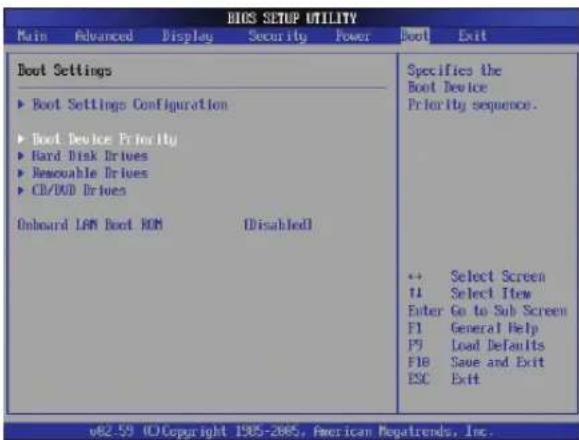
- On the Boot screen, select Boot Device Priority.
![BIOS SETUP UTILITY Boot Boot Device Priority 1st Boot Device 2nd Boot Device 3rd Boot Device 4th Boot Device [Renewable Device] [Hard Drivel] [CD/IV/D] [Network] Specifies the boot sequence from the available devices. A device enclosed in parenthesis has been disabled in the corresponding type mean.…](/content/2026/05/762944/images/62bff81ddd95ac6afbcdebfef927fd6c634d525e31b520a54d1e308ddf16b469.jpg)
- Select each item and press [Enter] to select a device.
Security Setting
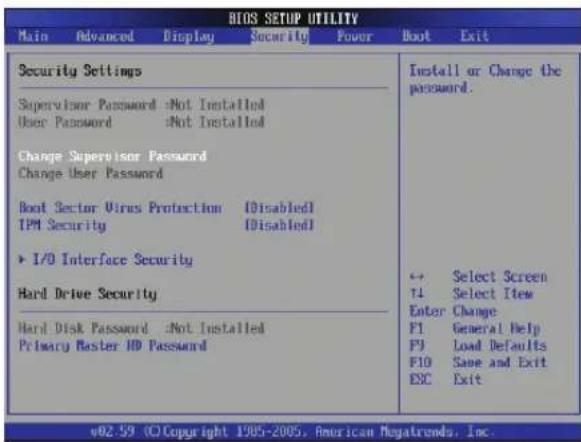
- On the Security screen, select Change Supervisor or Change User Password.
![Enter New Password **** 2. Type in a password and press [Enter]. Confirm New Password **** 3. Re-type the password and press [Enter]. Password installed. OK! 4. Password is then set.](/content/2026/05/762944/images/ac844288f7f1ca91a75ddfc1a2b99987fe6fa5f2fbd16048ed05781f477c3706.jpg)
To clear the password:
![Enter New Password 1. Leave the password field blank and press [Enter]. Password uninstalled. OK!](/content/2026/05/762944/images/b5d40eba02dd5765800a5f3b3535ff4c4f94000a6079dbeea5c4e1107213dfd2.jpg)
- Password is then cleared.
System BIOS Settings (cont.)
Password Check![BIOS SETUP UTILITY Main Advanced Display Security Power Boot Exit Security Settings Supervisor Password :Installed User Password :Not Installed Change Supervisor Password User Access Level [Full Access] Change User Password Password Check Options Setup Always Boot Sector Virus Protection TPM Securit…](/content/2026/05/762944/images/25bc7d7a96a94d660b844ac603d64a1c98f3cbbee10f75e9b9396bd93511c12a.jpg)
Select whether to ask for a password during bootup (Always) or only when entering the BIOS setup utility (Setup).
User Access Level![BIOS SETUP UTILITY Main Advanced Display Security Power Boot Exit Security Settings Supervisor Password :Installed User Password :Not Installed Change Supervisor Password User Access Level [Null Access] Change User Password Options Password Check No access Boot Sector Virus Protection View Only TPM…](/content/2026/05/762944/images/4dfe12d446b0e4905ea15b12b62fd0dc09e856bd83831e736c567ec43b34f6e8.jpg)
Select the level of access to allow the "User Password" to have in the BIOS setup utility.
Save Changes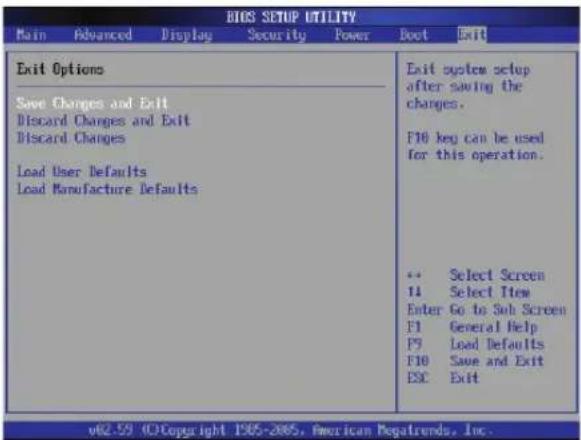
If you want to keep your configuration settings, you must save changes before exiting the BIOS setup utility.
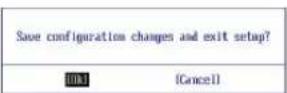
If you want to restore default settings, choose Load Manufacture Defaults. You must then save changes to keep the manufacture default settings.
![Load Manufacture Defaults? [OK] [Cancel]](/content/2026/05/762944/images/c86b6deddb31f3b122032cb35e9ccbc5a7a6c2d0bace68e6f53404556eb7d526.jpg)
Common Problems and Solutions
Hardware Problem - Optical Disc
The optical disc drive is not able to read or write discs.
- Update the BIOS to the latest version and try again.
- If updating the BIOS does not help, try better quality discs and try again.
- If the problem still exists, contact your local service center and ask an engineer for assistance.
Unknown Reason - System Unstable
Cannot wake up from hibernation.
- Remove upgraded parts (RAM, HDD, WLAN, BT) if they were installed after purchase.
- If not the case, try MS System Restore to an earlier date.
- If the problem still persists, try restoring your system using the recovery partition or DVD. (NOTE: You must backup all your data to another location before recovering.)
- If the problem still exists, contact your local service center and ask an engineer for assistance.
Hardware Problem - Keyboard / Hotkey
The Hotkey (FN) is disabled.
A. Reinstall the "ATK0100" driver from the driver CD or download it from the ASUS website.
Hardware Problem - Built-in Camera
The built-in camera does not work correctly.
- Check "Device Manager" to see if there are any problems.
- Try reinstalling the webcam driver to solve the problem.
- If the problem is not solved, update the BIOS to the latest version and try again.
- If the problem still exists, contact your local service center and ask an engineer for assistance.
Hardware Problem - Battery
Battery maintenance.
- Register the Notebook PC for a one-year warranty using the following website: http://member.asus.com/login.aspx?SLanguage=en-us
- Do NOT remove the battery pack while using the Notebook PC with the AC adaptor to prevent damage caused by accidental power loss. The ASUS battery pack has protection circuitry to prevent over-charging, so it will not damage the battery pack if it is left in the Notebook PC.
- Store the battery pack in a dry location with temperatures between 10°C and 30°C if you will not be using it for a long time. It is strongly recommended that you charge the battery pack every three months.
Common Problems and Solutions (Cont.)
Hardware Problem - Power ON/OFF Error
I cannot power ON the Notebook PC.
Diagnostics:
- Power On by Battery only? (Y = 2, N = 4)
- Able to see BIOS (ASUS Logo)? (Y = 3, N = A)
- Able to load the OS? (Y = B, N = A)
- Adapter power LED ON? (Y = 5, N = C)
- Power ON by Adapter only? (Y = 6, N = A)
- Able to see BIOS (ASUS Logo)? (Y = 7, N = A)
- Able to load the OS? (Y = D, N = A)
Symptom & Solutions:
A. Problem might be in the MB, HDD, or NB; visit a local service center for assistance. B. Problem caused by the operating system, try restoring your system using the recovery partition or disc. (IMPORTANT: You must backup all your data to another location before recovering.) C. Adapter problem; check the power cord connections, otherwise visit a local service center for replacement. D. Battery problem; please check the battery contacts, otherwise visit a local service center for repair.
Mechanical Problem - FAN / Thermal
Why is the cooling fan always ON and the temperature high?
- Make sure that the FAN works when the CPU temperature is high and check whether there is air flow from the main air vent.
- If you have many applications running (see taskbar), close them to decrease system load.
- The problem may also be caused by some viruses, use anti-virus software to detect them.
- If none of the above help, try restoring your system using the recovery partition or DVD. (IMPORTANT: You must backup all your data to another location before recovering.) (CAUTION: Do not connect to the Internet before you have installed an anti-virus software and Internet firewall to protect yourself from viruses.)
Service - Specification, function, price
How to check whether a Notebook PC is equipped with a wireless card?
A. Enter Control Panel -> Device Manager. You will see whether the Notebook PC has a WLAN card under the “Network Adapter” item.
Common Problems and Solutions (Cont.)
Software Problem - ASUS bundled software
When I power ON the Notebook PC, there will be an “Open policy file error” message.
A. Reinstall the latest version “Power4 Gear” utility to solve your problem. It is available on the ASUS website.
Unknown Reason - Blue screen with white text
A blue screen with white text appears after system bootup.
- Remove additional memory. If additional memory was installed after purchase, power OFF, remove the additional memory, and power ON to see if the problem is due to incompatible memory.
- Un-install software applications. If you have installed software applications recently, they may not be compatible with your system. Try to un-install them in Windows Safe Mode.
- Check your system for viruses.
- Update the BIOS to the latest version with WINFLASH in Windows or AFLASH in DOS mode. These utilities and BIOS files can be downloaded from the ASUS website. (WARNING: Make sure your Notebook PC does not lose power during the BIOS flashing process.)
- If problem still cannot be solved, use the recovery process to reinstall your entire system. (IMPORTANT: You must backup all your data to another location before recovering.) (CAUTION: Do not connect to the Internet before you have installed an anti-virus software and Internet firewall to protect yourself from viruses.) (NOTE: Make sure that you install the “Intel INF Update” and “ATKACPI” drivers first so that hardware devices can be recognized.)
- If the problem still exists, contact your local service center and ask an engineer for assistance.
Software Problem - BIOS
Updating the BIOS.
- Please verify the Notebook PC's exact model and download the latest BIOS file for your model from the ASUS website.
- Use the "WINFLASH" utility to update your BIOS. The utility can be found in the Driver & Utility CD that came with your Notebook PC.
- Extract the BIOS file to a temporary location (such as the root of C:).
- Click Start | All Programs | ASUS Utility | WINFLASH | WINFLASH.
a. Select the new BIOS image file.
b. Confirm the selected BIOS information. Check the model, version, and date. c. Click Flash to initialize the BIOS updating procedure. d. Click Exit when the procedure completes. e. Reboot the system. Assuming that you have successfully flashed the BIOS file, press [F2] to enter the BIOS setup page when the ASUS logo appears during system boot-up.
f. After entering the BIOS setup page, go to the Exit page and choose Load Manufacture Defaults. Then select Save and Exit and reboot the system again.
g. The BIOS flash procedure is now complete.
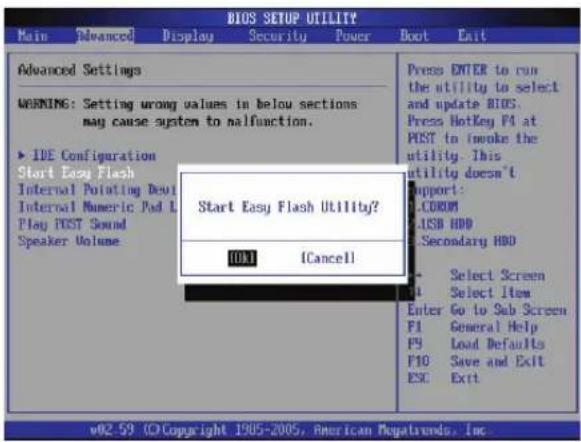
You can also use the "Easy Flash" function on the Advanced page of the BIOS Setup Utility. Follow the instructions shown.
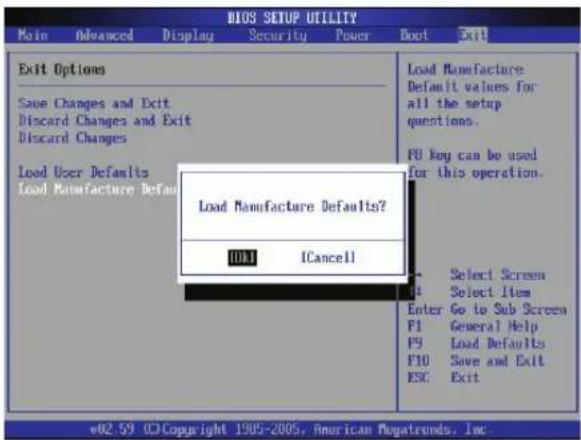
You must "Load Manufacture Defaults" after updating (flashing) the BIOS.
Common Problems and Solutions (Cont.)

Norton Internet Security

Symantec's Norton Internet Security (NIS)
- Sometimes NIS will show an alert to stop a Trojan virus from a local IP address.
This problem can be solved by making sure the virus definition file is the latest one and regularly updating the virus definition file.
- Reinstalling fails at the "Information Wizard" after uninstalling Norton Antivirus.
Make sure NIS has been uninstalled from your computer, reboot your system, install NIS again, use "Live Update" and update the virus definition file.
- Norton accidentally blocks desired web pages or reduces download speeds.
Change the security configuration to a lower level. NIS scans virus while downloading data so network speed will be decreased.
- Cannot login to MSN or Yahoo messenger services.
Make sure NIS has been updated and also update the Windows system by using “Windows Update”. If the problem still exist, try:
- Open NIS 200x by clicking on the NIS icon in your system tray.
- Open "Norton AntiVirus" in "Options" menu.
- Click on “Instant Messenger” uncheck “MSN/Windows Messenger” from “Which Instant messengers to protect.”
- NIS is damaged and need reinstalling.
NIS is located in the provided disc in the “NIS200x” folder (x is the version number).
- The "Start firewall when system is booted" option is selected but it takes about one minute to startup the firewall every time I enter Windows. Windows is not responsive during this time.
If NIS firewall reduces your system speed to an intolerable level, deselect that option.
- Much of my system speed has been reduced by NIS.
NIS will reduce your system speed (both booting and running performance) if you are using NIS's full protection functions, NIS scans and tracks all data in the background. You can speed up your system by stopping NIS's auto scan functions in system bootup. You can then scan virus manually when your computer is not in use.
- Cannot uninstall NIS.
Go to Control Panel | Add or Remove Programs. Look for “Norton Internet Security 200x (Symantec Corporation)”. Click Change/Remove and choose Remove All to uninstall NIS.
Common Problems and Solutions (Cont.)
- Windows Firewall must be stopped before installing “Norton Internet Security” or “Norton Personal Firewall”. How to stop Windows Firewall:
- Click Start and then Control Panel.
- You will have one of two control panels. Click on the Security Center icon.
- Click on the Windows Firewall icon beneath the status updates.
- Click Off and then click OK.
- Why is the “Privacy Control” icon showing ‘x’?
Turn off Privacy Control from "Status & Settings".
- Insufficient privilege message.
Many settings, including disabling or uninstalling NIS, require you to be logged into Windows with Administrator privileges. Log Off and switch to a user account with Administrator privileges.
Windows Vista Software Recovery Using Hard Disk Partition
The Recovery Partition includes an image of the operating system, drivers, and utilities installed on your Notebook PC at the factory. The Recovery Partition provides a comprehensive recovery solution that quickly restores your Notebook PC's software to its original working state, provided that your hard disk drive is in good working order. Before using the Recovery Partition, copy your data files (such as Outlook PST files) to floppy disks or to a network drive and make note of any customized configuration settings (such as network settings).
About the Recovery Partition
The Recovery Partition is a space reserved on your hard disk drive used to restore the operating system, drivers, and utilities installed on your Notebook PC at the factory.

IMPORTANT: Do not delete the partition named "RE-COVERY". The Recovery Partition is created at the factory and cannot be restored by the user if deleted. Take your Notebook PC to an authorized ASUS service center if you have problems with the recovery process.
Using the Recovery Partition:
- Press [F9] during bootup (requires a Recovery Partition)
- Press [Enter] to select Windows Setup [EMS Enabled]
- Read the "ASUS Preload Wizard" screen and click Next.
- Select a partition option and click Next. Partition options:
Recover Windows to first partition only.
This option will delete only the first partition, allowing you to keep other partitions, and create a new system partition as drive "C".
Recover Windows to entire HD.
This option will delete all partitions from your hard disk drive and create a new system partition as drive "C".
Recover Windows to entire HD with 2 partition.
This option will delete all partitions from your hard drive and create two new partitions “C” (60%) and “D” (40%).
- Follow the on-screen instructions to complete the recovery process.

NOTE: Please visit www.asus.com for updated drivers and utilities.
Windows Vista Software Recovery (Cont.) Using DVD (on selected models)
The Recovery DVD includes an image of the operating system, drivers, and utilities installed on your Notebook PC at the factory. The Recovery DVD provides a comprehensive recovery solution that quickly restores your Notebook PC's software to its original working state, provided that your hard disk drive is in good working order. Before using the Recovery DVD, copy your data files (such as Outlook PST files) to floppy disks or to a network drive and make note of any customized configuration settings (such as network settings).
Using the Recovery DVD:
- Insert the Recovery DVD into the optical drive (Notebook PC needs to be powered ON).
- Restart the Notebook PC and press on bootup and select the optical drive (may be labeled as "CD/DVD") using the down cursor and press to boot from the Recovery DVD.
- Select a partition option and click Next. Partition options:
Recover Windows to first partition only.
This option will delete only the first partition, allowing you to keep other partitions, and create a new system partition as drive "C".
Recover Windows to entire HD.
This option will delete all partitions from your hard disk drive and create a new system partition as drive "C".
Recover Windows to entire HD with 2 partition.
This option will delete all partitions from your hard drive and create two new partitions “C” (60%) and “D” (40%).
- Follow the on-screen instructions to complete the recovery process.

WARNING: Do not remove the Recovery CD (unless instructed to do so) during the recovery process or else your partitions will be unusable.

NOTE: Please visit www.asus.com for updated drivers and utilities.
Glossary
ACPI (Advanced Configuration and Power Management Interface)
Modern standard for reducing power usage in computers.
APM (Advanced Power Management)
Modern standard for reducing power usage in computers.
AWG (American Wire Gauge)
NOTE: This table is for general reference only and should not be used as a source of the American Wire Gauge standard as this table may not be current or complete.
| Gauge Diam Area R I@3A/mm2AWG (mm) (mm2) (ohm/km) (mA) | Gauge Diam Area R I@3A/mm2AWG (mm) (mm2) (ohm/km) (mA) |
| 33 0.18 0.026 676 75 | 24 0.50 0.20 87.5 588 |
| 0.19 0.028 605 85 | 0.55 0.24 72.3 715 |
| 32 0.20 0.031 547 93 | 0.60 0.28 60.7 850 |
| 30 0.25 0.049 351 147 | 22 0.65 0.33 51.7 1.0 A |
| 29 0.30 0.071 243 212 | 0.70 0.39 44.6 1.16 A |
| 27 0.35 0.096 178 288 | 0.75 0.44 38.9 1.32 A |
| 26 0.40 0.13 137 378 | 20 0.80 0.50 34.1 1.51 A |
| 25 0.45 0.16 108 477 | 0.85 0.57 30.2 1.70 A |
BIOS (Basic Input/Output System)
BIOS is a set of routines that affect how the computer transfers data between computer components, such as memory, disks, and the display adapter. The BIOS instructions are built into the computer's read-only memory. BIOS parameters can be configured by the user through the BIOS Setup program. The BIOS can be updated using the provided utility to copy a new BIOS file into the EEPROM.
Bit (Binary Digit)
Represents the smallest unit of data used by the computer. A bit can have one of two values: 0 or 1.
Boot
Boot means to start the computer operating system by loading it into system memory. When the manual instructs you to “boot” your system (or computer), it means to turn ON your computer. “Reboot” means to restart your computer. When using Windows 95 or later, selecting “Restart” from “Start | Shut Down...” will reboot your computer.
Byte (Binary Term)
One byte is a group of eight contiguous bits. A byte is used to represent a single alphanumeric character, punctuation mark, or other symbol.
Clock Throttling
Chipset function which allows the processor's clock to be stopped and started at a known duty cycle. Clock throttling is used for power savings, thermal management, and reducing processing speed.
Glossary (Cont.)
CPU (Central Processing Unit)
The CPU, sometimes called “Processor,” actually functions as the “brain” of the computer. It interprets and executes program commands and processes data stored in memory.
Device Driver
A device driver is a special set of instructions that allows the computer's operating system to communicate with devices such as VGA, audio, Ethernet, printer, or modem.
DVD
DVD is essentially a bigger, faster CD that can hold video as well as audio and computer data. With these capacities and access rates, DVD discs can provide you with dramatically-enhanced high-color, full-motion videos, better graphics, sharper pictures, and digital audio for a theater-like experience. DVD aims to encompass home entertainment, computers, and business information with a single digital format, eventually replacing audio CD, videotape, laserdisc, CD-ROM, and video game cartridges.
ExpressCard
ExpressCard slot is 26 pins and support one ExpressCard/34mm or one ExpressCard/54mm expansion card. This new interface is faster by using a serial bus supporting USB 2.0 and PCI Express instead of the slower parallel bus used in the PC card slot. (Not compatible with previous PCMCIA cards.)
Hardware
Hardware is a general term referring to the physical components of a computer system, including peripherals such as printers, modems, and pointing devices.
IDE (Integrated Drive Electronics)
IDE devices integrate the drive control circuitry directly on the drive itself, eliminating the need for a separate adapter card (in the case for SCSI devices). UltraDMA/66 or 100 IDE devices can achieve up to 33MB/Sec transfer.
IEEE1394 (1394)
Also known as iLINK (Sony) or FireWire (Apple). 1394 is a high speed serial bus like SCSI but has simple connections and hot-plugging capabilities like USB. The popular 1394a interface has a bandwidth of 400Mbits/sec and can handle up to 63 units on the same bus. The newer 1394b interface can support twice the speed and will appear in future models when peripherals support higher speeds. 1394 is also used in high-end digital equipment and should be marked “DV” for Digital Video port.
Kensington ® Locks
Kensington ® locks (or compatible) allow the Notebook PC to be secured usually using a metal cable and lock that prevent the Notebook PC to be removed from a fixed object. Some security products may also include a motion detector to sound an alarm when moved.
Glossary (Cont.)
Laser Classifications
As lasers became more numerous and more widely used, the need to warn users of laser hazards became apparent. To meet this need, laser classifications were established. Current classification levels vary from optically safe, requiring no controls (Class 1) to very hazardous, requiring strict controls (Class 4).
CLASS 1: A Class 1 laser or laser system emits levels of optical energy that are eye-safe and consequently require no controls. An example of this class of laser system is the checkout scanning device found in most grocery stores or lasers used in optical drives.
CLASS 2 & CLASS 3A: Class 2 and Class 3A lasers emit visible, continuous-wave (CW) optical radiation levels slightly above the maximum permissible exposure (MPE) level. Although these lasers can cause eye damage, their brightness usually causes observers to look away or blink before eye damage occurs. These lasers have strict administrative controls requiring placement of signs warning personnel not to stare directly into the beam. Class 3A lasers must not be viewed with optically-aided devices.
CLASS 3B: Class 3B lasers, and Class 3A lasers with outputs of 2.5mW, are hazardous to personnel who are within the beam path and look at the beam source directly or by specular reflection. These lasers cannot produce hazardous diffuse reflections. Personnel working with these lasers should wear appropriate protective eye wear during any operation of the laser. Class 3B lasers have both administrative and physical controls to protect personnel. Physical controls include limited access work areas. Administrative controls include special warning signs posted outside the entrances to the laser work spaces and lights outside the entrances that warn personnel when the lasers are in use.
CLASS 4: Class 4 lasers are high-power lasers that will cause damage to unprotected eyes and skin through intra-beam viewing and specular or diffuse reflections. Consequently, no personnel should be in a room where a Class 4 laser is operating without proper eye protection.
PCI Bus (Peripheral Component Interconnect Local Bus)
PCI bus is a specification that defines a 32-bit data bus interface. PCI is a standard widely used by expansion card manufacturers.
POST (Power On Self Test)
When you turn on the computer, it will first run through the POST, a series of software-controlled diagnostic tests. The POST checks system memory, the motherboard circuitry, the display, the keyboard, the diskette drive, and other I/O devices.
RAM (Random Access Memory)
RAM (usually just called memory) is the place in a computer where the operating system, application programs, and data in current use are temporarily kept so that they can be quickly reached by the computer's processor instead of having to read from and write to slower storage such as the hard disk or optical disc.

Glossary (Cont.)
Suspend Mode
In Save-to-RAM (STR) and Save-to-Disk (STD), the CPU clock is stopped and most of the Notebook PC devices are put in their lowest active state. The Notebook PC enters Suspend when the system remains idle for a specified amount of time or manually using the function keys. The time-out setting of both Hard Disk and Video can be set by the BIOS Setup. The Power LED blinks when the Notebook PC is in STR mode. In STD mode, the Notebook PC will appear to be powered OFF.
System Disk
A system disk contains the core file of an operating system and is used to boot up the operating system.
TPM (Trusted Platform Module) (on selected models)
The TPM is a security hardware device on the system board that will hold computer-generated keys for encryption. It is a hardware-based solution that can help avoid attacks by hackers looking to capture passwords and encryption keys to sensitive data. The TPM provides the ability to the PC or Notebook PC to run applications more secure and to make transactions and communication more trustworthy.
Twisted-Pair Cable
The cable used to connect the Ethernet card to a host (generally a Hub or Switch) is called a straight-through Twisted Pair Ethernet (TPE). The end connectors are called RJ-45 connectors, which are not compatible with RJ-11 telephone connectors. If connecting two computers together without a hub in between, a crossover twisted-pair is required.
UltraDMA/66 or 100
UltraDMA/66 or 100 are new specifications to improve IDE transfer rates. Unlike traditional PIO mode, which only uses the rising edge of IDE command signal to transfer data, UltraDMA/66 or 100 uses both rising edge and falling edge.
USB (Universal Serial Bus)
A 4-pin serial peripheral bus that allows plug and play computer peripherals such as keyboard, mouse, joystick, scanner, printer and modem/ISDN to be automatically configured when they are attached physically without having to install drivers or reboot. With USB, the traditional complex cables from back panel of your PC can be eliminated.
Declarations and Safety Statements

DVD-ROM Drive Information
The Notebook PC comes with an optional DVD-ROM drive or a CD-ROM drive. In order to view DVD titles, you must install your own DVD viewer software. Optional DVD viewer software may be purchased with this Notebook PC. The DVD-ROM drive allows the use of both CD and DVD discs.
Regional Playback Information
Playback of DVD movie titles involves decoding MPEG2 video, digital AC3 audio and decryption of CSS protected content. CSS (sometimes called copy guard) is the name given to the content protection scheme adopted by the motion picture industry to satisfy a need to protect against unlawful content duplication.
Although the design rules imposed on CSS licensors are many, one rule that is most relevant is playback restrictions on regionalized content. In order to facilitate geographically staggered movie releases, DVD video titles are released for specific geographic regions as defined in “Region Definitions” below. Copyright laws require that all DVD movies be limited to a particular region (usually coded to the region at which it is sold). While DVD movie content may be released for multiple regions, CSS design rules require that any system capable of playing CSS encrypted content must only be capable of playing one region.

NOTE: The region setting may be changed up to five times using the viewer software, then it can only play DVD movies for the last region setting. Changing the region code after that will require factory resetting which is not covered by warranty. If resetting is desired, shipping and resetting costs will be at the expense of the user.
Region Definitions
Region 1
Canada, US, US Territories
Region 2
Czech, Egypt, Finland, France, Germany, Gulf States, Hungary, Iceland, Iran, Iraq, Ireland, Italy, Japan, Netherlands, Norway, Poland, Portugal, Saudi Arabia, Scotland, South Africa, Spain, Sweden, Switzerland, Syria, Turkey, UK, Greece, Former Yugoslav Republics, Slovakia
Region 3
Burma, Indonesia, South Korea, Malaysia, Philippines, Singapore, Taiwan, Thailand, Vietnam
Region 4
Australia, Caribbean (Except US Territories), Central America, New Zealand, Pacific Islands, South America
Region 5
CIS, India, Pakistan, Rest of Africa, Russia, North Korea
Region 6
China
Internal Modem Compliancy
The Notebook PC with internal modem model complies with JATE (Japan), FCC (US, Canada, Korea, Taiwan), and CTR21. The internal modem has been approved in accordance with Council Decision 98/482/EC for pan-European single terminal connection to the public switched telephone network (PSTN). However, due to differences between the individual PSTNs provided in different countries, the approval does not, of itself, give an unconditional assurance of successful operation on every PSTN network termination point. In the event of problems, you should contact your equipment supplier in the first instance.
Overview
On 4th August 1998, the European Council Decision regarding the CTR 21 has been published in the Official Journal of the EC. The CTR 21 applies to all non-voice terminal equipment with DTMF-dialling which is intended to be connected to the analogue PSTN (Public Switched Telephone Network).
CTR 21 (Common Technical Regulation) for the attachment requirements for connection to the analogue public switched telephone networks of terminal equipment (excluding terminal equipment supporting the voice telephony justified case service) in which network addressing, if provided, is by means of dual tone multifrequency signalling.
Network Compatibility Declaration
Statement to be made by the manufacturer to the Notified Body and the vendor: “This declaration will indicate the networks with which the equipment is designed to work and any notified networks with which the equipment may have inter-working difficulties”
Network Compatibility Declaration
Statement to be made by the manufacturer to the user: “This declaration will indicate the networks with which the equipment is designed to work and any notified networks with which the equipment may have inter-working difficulties. The manufacturer shall also associate a statement to make it clear where network compatibility is dependent on physical and software switch settings. It will also advise the user to contact the vendor if it is desired to use the equipment on another network.”
Up to now, the Notified Body of CETECOM issued several pan-European approvals using CTR 21. The results are Europe's first modems which do not require regulatory approvals in each individual European country.
Non-Voice Equipment
Answering machines and loud-speaking telephones can be eligible as well as modems, fax machines, auto-dialers and alarm systems. Equipment in which the end-to-end quality of speech is controlled by regulations (e.g. handset telephones and in some countries also cordless telephones) is excluded.
Internal Modem Compliancy (Cont.)
This table shows the countries currently under the CTR21 standard.
| Country | Applied | More Testing | |
| Austria1 | Yes | No | |
| Belgium | Yes | No | |
| Czech Republic | No | Not Applicable | |
| Denmark1 | Yes | Yes | |
| Finland | Yes | No | |
| France | Yes | No | |
| Germany | Yes | No | |
| Greece | Yes | No | |
| Hungary | No | Not Applicable | |
| Iceland | Yes | No | |
| Ireland | Yes | No | |
| Italy | Still Pending | Still Pending | |
| Israel | No | No | |
| Lichtenstein | Yes | No | |
| Luxemburg | Yes | No | |
| The Netherlands1 | Yes | Yes | |
| Norway | Yes | No | |
| Poland | No | Not Applicable | |
| Portugal | No | Not Applicable | |
| Spain | No | Not Applicable | |
| Sweden | Yes | No | |
| Switzerland | Yes | No | |
| United Kingdom | Yes | No | |
This information was copied from CETECOM and is supplied without liability. For updates to this table, you may visit http://www.cetecom.de/technologies/ctr_21.html
National requirements will apply only if the equipment may use pulse dialling (manufacturers may state in the user guide that the equipment is only intended to support DTMF signalling, which would make any additional testing superfluous).
In The Netherlands additional testing is required for series connection and caller ID facilities.
FC Federal Communications Commission Statement
This device complies with FCC Rules Part 15. Operation is subject to the following two conditions:
• This device may not cause harmful interference, and - This device must accept any interference received, including interference that may cause undesired operation.
This equipment has been tested and found to comply with the limits for a class B digital device, pursuant to Part 15 of the Federal Communications Commission (FCC) rules. These limits are designed to provide reasonable protection against harmful interference in a residential installation. This equipment generates, uses, and can radiate radio frequency energy and, if not installed and used in accordance with the instructions, may cause harmful interference to radio communications. However, there is no guarantee that interference will not occur in a particular installation. If this equipment does cause harmful interference to radio or television reception, which can be determined by turning the equipment off and on, the user is encouraged to try to correct the interference by one or more of the following measures:
- Reorient or relocate the receiving antenna.
- Increase the separation between the equipment and receiver.
- Connect the equipment into an outlet on a circuit different from that to which the receiver is connected.
- Consult the dealer or an experienced radio/TV technician for help.

WARNING! The use of a shielded-type power cord is required in order to meet FCC emission limits and to prevent interference to the nearby radio and television reception. It is essential that only the supplied power cord be used. Use only shielded cables to connect I/O devices to this equipment. You are cautioned that changes or modifications not expressly approved by the party responsible for compliance could void your authority to operate the equipment.
(Reprinted from the Code of Federal Regulations #47, part 15.193, 1993. Washington DC: Office of the Federal Register, National Archives and Records Administration, U.S. Government Printing Office.)
FCC Radio Frequency Interference Requirements
This device is restricted to INDOOR USE due to its operation in the 5.15 to 5.25GHz frequency range. FCC requires this product to be used indoors for the frequency range 5.15 to 5.25GHz to reduce the potential for harmful interference to co-channel of the Mobile Satellite Systems.
High power radars are allocated as primary users of the 5.25 to 5.35 GHz and 5.65 to 5.85 GHz bands. These radar stations can cause interference with and/or damage this device.

IMPORTANT: This device and its antenna(s) must not be co-located or operating in conjunction with any other antenna or transmitter.
FCC Radio Frequency (RF) Exposure Caution Statement
This equipment complies with FCC RF exposure limits set forth for an uncontrolled environment. To maintain compliance with FCC RF exposure compliance requirements, please follow operation instructions in the user's manual. This equipment is for operation within 5.15 GHz and 5.25 GHz frequency ranges and is restricted to indoor environments only.

FCC Caution: Any changes or modifications not expressly approved by the party responsible for compliance could void the user's authority to operate this equipment. "The manufacturer declares that this device is limited to Channels 1 through 11 in the 2.4 GHz frequency by specified firmware controlled in the USA."
FCC RF Exposure Guidelines (Wireless Clients)
This device has been tested for compliance with FCC RF Exposure (SAR) limits in typical portable configurations. In order to comply with SAR limits established in the ANSI C95.1 standards, it is recommended when using a wireless LAN adapter that the integrated antenna is positioned more than 20 cm from your body or nearby persons during extended periods of operation. If the antenna is positioned less than 20 cm from the user, it is recommended that the user limit the exposure time.
R&TTE Directive (1999/5/EC)
The following items were completed and are considered relevant and sufficient for the R&TTE (Radio & Telecommunications Terminal Equipment) directive:
• Essential requirements as in [Article 3] - Protection requirements for health and safety as in [Article 3.1a] - Testing for electric safety according to [EN 60950] - Protection requirements for electromagnetic compatibility in [Article 3.1b] - Testing for electromagnetic compatibility in [EN 301 489-1] & [EN 301] - Testing according to [489-17] • Effective use of the radio spectrum as in [Article 3.2] • Radio test suites according to [EN 300 328-2]
CE Mark Warning
This is a Class B product. In a domestic environment, this product may cause radio interference, in which case the user may be required to take adequate measures.

Wireless Operation Channel for Different Domains
N. America 2.412-2.462 GHz Ch01 through CH11
Japan 2.412-2.484 GHz Ch01 through Ch14
Europe ETSI 2.412-2.472 GHz Ch01 through Ch13

France Restricted Wireless Frequency Bands
Some areas of France have a restricted frequency band. The worst case maximum authorized power indoors are:
- 10mW for the entire 2.4 GHz band (2400 MHz–2483.5 MHz) • 100mW for frequencies between 2446.5 MHz and 2483.5 MHz

NOTE: Channels 10 through 13 inclusive operate in the band 2446.6 MHz to 2483.5 MHz.
There are few possibilities for outdoor use: On private property or on the private property of public persons, use is subject to a preliminary authorization procedure by the Ministry of Defense, with maximum authorized power of 100mW in the 2446.5–2483.5 MHz band. Use outdoors on public property is not permitted.
In the departments listed below, for the entire 2.4 GHz band:
• Maximum authorized power indoors is 100mW • Maximum authorized power outdoors is 10mW
Departments in which the use of the 2400–2483.5 MHz band is permitted with an EIRP of less than 100mW indoors and less than 10mW outdoors:
01 Ain Orientales 02 Aisne 03 Allier 05 Hautes Alpes 08 Ardennes 09 Ariège 11 Aude 12 Aveyron 16 Charente 24 Dordogne 25 Doubs 26 Drôme 32 Gers 36 Indre 37 Indre et Loire 41 Loir et Cher 45 Loiret 50 Manche 55 Meuse 58 Nièvre 59 Nord 60 Oise 61 Orne 63 Puy du Dôme 64 Pyrénées Atlantique 66 Pyrénées 67 Bas Rhin 68 Haut Rhin 70 Haute Saône 71 Saône et Loire 75 Paris 82 Tarn et Garonne 84 Vaucluse 88 Vosges 89 Yonne 90 Territoire de Belfort 94 Val de Marne
This requirement is likely to change over time, allowing you to use your wireless LAN card in more areas within France. Please check with ART for the latest information (www.art-telecom.fr)

NOTE: Your WLAN Card transmits less than 100mW, but more than 10mW.

UL Safety Notices
Required for UL 1459 covering telecommunications (telephone) equipment intended to be electrically connected to a telecommunication network that has an operating voltage to ground that does not exceed 200V peak, 300V peak-to-peak, and 105V rms, and installed or used in accordance with the National Electrical Code (NFPA 70).
When using the Notebook PC modem, basic safety precautions should always be followed to reduce the risk of fire, electric shock, and injury to persons, including the following:
- Do not use the Notebook PC near water, for example, near a bathtub, washbowl, kitchen sink, or laundry tub, in a wet basement, or near a swimming pool.
- Do not use the Notebook PC during an electrical storm. There may be a remote risk of electric shock from lightning.
- Do not use the Notebook PC in the vicinity of a gas leak.
Required for UL 1642 covering primary (non-rechargeable) and secondary (rechargeable) lithium batteries for use as power sources in products. These batteries contain metallic lithium, a lithium alloy, or lithium ions, and may consist of a single electrochemical cell or two or more cells connected in series, parallel, or both, that convert chemical energy into electrical energy by an irreversible or reversible chemical reaction.
- Do not dispose of the Notebook PC battery pack in a fire, as it may explode. Check with local codes for possible special disposal instructions to reduce the risk of injury to persons due to fire or explosion.
- Do not use power adapters or batteries from other devices to reduce the risk of injury to persons due to fire or explosion. Use only UL certified power adapters or batteries supplied by the manufacturer or authorized retailers.

Power Safety Requirement
Products with electrical current ratings up to 6A and weighing more than 3Kg must use approved power cords greater than or equal to: H05VV-F, 3G, 0.75mm² or H05VV-F, 2G, 0.75mm².

Nordic Lithium Cautions (for lithium-ion batteries)

CAUTION! Danger of explosion if battery is incorrectly replaced. Replace only with the same or equivalent type recommended by the manufacturer. Dispose of used batteries according to the manufacturer's instructions.
IMPORTANT: Depending on model, components used in the Notebook PC display panel may contain mercury. Recycle or dispose according to local, state, and federal laws.

Optical Drive Safety Information

Laser Safety Information
Internal or external optical drives sold with this Notebook PC contain a CLASS 1 LASER PRODUCT. Laser classifications can be found in the glossary at the end of this user's manual.

WARNING: Making adjustments or performing procedures other than those specified in the user's manual may result in hazardous laser exposure. Do not attempt to disassemble the optical drive. For your safety, have the optical drive serviced only by an authorized service provider.
Service warning label

CAUTION: INVISIBLE LASER RADIATION WHEN OPEN. DO NOT STARE INTO BEAM OR VIEW DIRECTLY WITH OPTICAL INSTRUMENTS.
CDRH Regulations
The Center for Devices and Radiological Health (CDRH) of the U.S. Food and Drug Administration implemented regulations for laser products on August 2, 1976. These regulations apply to laser products manufactured from August 1, 1976. Compliance is mandatory for products marketed in the United States.

WARNING: Use of controls or adjustments or performance of procedures other than those specified herein or in the laser product installation guide may result in hazardous radiation exposure.

Macrovision Corporation Product Notice
This product incorporates copyright protection technology that is protected by method claims of certain U.S.A. patents and other intellectual property rights owned by Macrovision Corporation and other rights owners. Use of this copyright protection technology must be authorized by Macrovision Corporation, and is intended for home and other limited viewing uses only unless otherwise authorized by Macrovision Corporation. Reverse engineering or disassembly is prohibited.
CTR 21 Approval (for Notebook PC with built-in Modem)
| Danish | •Udstyret er i henhold til Rådets beslutning 98/482/EF EU-godkendt til at blive opkoblet på de offentlige telefonnet som enkeltforbundet terminal. På grund af forskelle mellem de offentlige telefonnet i de forskellige lande giver godkendelsen dog ikke i sig selv ubetinget garanti for, at udstyret kan fungere korrekt på samtlige nettermineringspunkter på de offentlige telefonnet.I tilfælde af problemer bør De i første omgang henvende Dem til leverandøren af udstyret. |
| Dutch | „Dir apparaat is goedgekeurd volgens Beschikking 98/482/EG van de Raad voor de pan-Europese aansluiting van enkelvoudige cindapparatuur op het openbare geschakelde telefoonnetwerk (PSTN). Gezien de verschillen tussen de individuele PSTN’s in de verschillende landen, biedt deze goedkeuring op zichzelf geen onvoorwaardelijke garantie voor een succesvolle werking op elk PSTN-netwerkaansluitpunt.Neem bij problemen in eerste instantie contact op met de leverancier van het apparaat.“ |
| English | 'The equipment has been approved in accordance with Council Decision 98/482/EC for pan-European single terminal connection to the public switched telephone network (PSTN). However, due to differences between the individual PSTNs provided in different countries, the approval does not, of itself, give an unconditional assurance of successful operation on every PSTN network termination point.In the event of problems, you should contact your equipment supplier in the first instance.' |
| Finnish | “Tämä laite on hyväksytty neuvoston päätöksen 98/482/EY mukaisesti liitettäväksi yksittäisenä laitteena yleiseen kytkentaïseen puhelinverkkoon (PSTN) EU:n jäsenvaltoissa. Eri maiden yleisten kytkentaïsten puhelinverkkojen välillä on kuitenkin eroja, joten hyväksyntä ei sellaisenaan takaa häiriötöntä toimintaa kaikkien yleisten kytkentaïsten puhelinverkkojen liityntäpisteissä.Ongelmien ilmetessä ottakaa viipymättä yhteyttä laiteen toimittajaan.” |
| French | •Cet équipement a reçu l’agrément, conformément à la décision 98/482/CE du Conseil, concernant la connexion paneuropéenne de terminal unique aux réseaux téléphoniques publics commutés (RTPC). Toutefois, comme il existe des différences d’un pays à l’autre entre les RTPC, l’agrément en soi ne constitue pas une garantie absolue de fonctionnement optimal à chaque point de terminaison du réseau RTPC.En cas de problème, vous devez contacter en premier lieu votre fournisseur. |
| German | „Dieses Gerät wurde gemäß der Entscheidung 98/482/EG des Rates europaeit zur Anschaltung als einzelne Endeinrichtung an das öffentliche Fernsprechnetz zugelassen. Aufgrund der zwischen den öffentlichen Fernsprechnetzen verschiedener Staaten bestehenden Unterschiede stellt diese Zulassung an sich jedoch keine unbedingte Gewähr für einen erfolgreichen Betrieb des Geräts an jedem Netzabschlußpunkt dar.Falls beim Betrieb Probleme auftreten, sollten Sie sich zunächst an ihren Fachhändler wenden.“ |
| Greek | «O εξπλισμός έχει εγκριδεί για παντυρωστική στύνδοση μεμονομέου τερμετικού με το δημόσιο τηλερονικό δικτιο μεταγεγής (PSTN), σύφωνα νε την απόραση 98/482/EK του Συμβολλιον αστόσο, επειδή υπάρχουν διαφορές μεταζεί των επιμέρους PSTN του παρέχουται σε διώφορες χώρες η έγροση τεν παρέχα αφ’ αυτής ανεταφύλοκτη εξωσφώλιση επιτυχούς λειτουργίας σε κάλε σημείο απόληξης του δικτίου PSTN.Eåv ανικύψουν προβλήματα, θα πρέται κατ’ αρχάς να απαυθόνιστι στων προμηθευτή του εξπλισμού σας» |
| Italian | •La presente apparecchiatura terminale è stata approvata in conformità della decisione 98/482/CE del Consiglio per la connessione paneuropea come terminale singolo ad una rete analogica PSTN. A causa delle differenze tra le reti dei differenti paesi, l’approvazione non garantisce però di per sé il funzionamento corretto in tutti i punti di terminazione di rete PSTN.In caso di problemi contattare in primo luogo il fornitore del prodotto. |
| Portuguese | •Este equipamento foi aprovado para ligação pan-europeia de um único terminal à rede telefónica pública comutada (RTPC) nos termos da Decisão 98/482/CE. No entanto, devido às diferenças existentes entre as RTPC dos diversos países, a aprovação não garante incondicionalmente, por si só, um funcionamento correcto em todos os pontos terminais da rede da RTPC.Em caso de problemas, deve entrar-se em contacto, em primeiro lugar, com o fornecedor do equipamento. |
| Spanish | •Este equipo ha sido homologado de conformidad con la Decisión 98/482/CE del Consejo para la conexión paneuropea de un terminal simple a la red telefónica pública conmutada (RTPC). No obstante, a la vista de las diferencias que existen entre las RTPC que se ofrecen en diferentes países, la homologación no constituye por sí sola una garantía incondicional de funcionamiento satisfactorio en todos los puntos de terminación de la red de una RTPC.En caso de surgir algún problema, procede ponerse en contacto en primer lugar con el proveedor del equipo. |
| Swedish | “Utrustningen har godkänts i enlighet med rådets beslut 98/482/EG för alleuropeisk anslutning som enskild terminal till det allmänt tillgängliga kopplade telenätet (PSTN). På grund av de skillnader som finns mellan telenätet i olika länder utgör godkännandet emellertid inte i sig självt en absolut garanti för att utrustningen kommer att fungera tillfredställande vid varje telenätsanslutningspunkt.Om problem uppstår bör ni i första hand kontakta leverantören av utrustningen.” |
Notebook PC Information
This page is provided for recording information concerning your Notebook PC for future reference or for technical support. Keep this User's Manual in a secured location if passwords are filled out.
Owner's Name: ____ Owner's Telephone: ____
Manufacturer: ____ Model: ____ Serial Number: ____
Display Size: ____ Resolution: ____ Memory Size: ____
Retailer: ____ Location: ____ Purchase Date: ____
Hard Drive Manufacturer: ____ Capacity: ____
Optical Drive Manufacturer: ____ Type: ____
BIOS Version: Date:
Accessories:
Accessories:
Software
Operating System: ____ Version: ____ Serial Number: ____
Software: ____ Version: ____ Serial Number: ____
Software: ____ Version: ____ Serial Number: ____
Security
Supervisor Name: ____ Supervisor Password: ____
User Name: ____ User Password: ____
Network
User Name: ____ Password: ____ Domain: ____
User Name: ____ Password: ____ Domain: ____
Copyright Information
No part of this manual, including the products and software described in it, may be reproduced, transmitted, transcribed, stored in a retrieval system, or translated into any language in any form or by any means, except documentation kept by the purchaser for backup purposes, without the express written permission of ASUSTeK COMPUTER INC. (“ASUS”).
ASUS PROVIDES THIS MANUAL “AS IS” WITHOUT WARRANTY OF ANY KIND, EITHER EXPRESS OR IMPLIED, INCLUDING BUT NOT LIMITED TO THE IMPLIED WARRANTIES OR CONDITIONS OF MERCHANTABILITY OR FITNESS FOR A PARTICULAR PURPOSE. IN NO EVENT SHALL ASUS, ITS DIRECTORS, OFFICERS, EMPLOYEES OR AGENTS BE LIABLE FOR ANY INDIRECT, SPECIAL, INCIDENTAL, OR CONSEQUENTIAL DAMAGES (INCLUDING DAMAGES FOR LOSS OF PROFITS, LOSS OF BUSINESS, LOSS OF USE OR DATA, INTERRUPTION OF BUSINESS AND THE LIKE), EVEN IF ASUS HAS BEEN ADVISED OF THE POSSIBILITY OF SUCH DAMAGES ARISING FROM ANY DEFECT OR ERROR IN THIS MANUAL OR PRODUCT.
Products and corporate names appearing in this manual may or may not be registered trademarks or copyrights of their respective companies, and are used only for identification or explanation and to the owners' benefit, without intent to infringe.
SPECIFICATIONS AND INFORMATION CONTAINED IN THIS MANUAL ARE FURNISHED FOR INFORMATIONAL USE ONLY, AND ARE SUBJECT TO CHANGE AT ANY TIME WITHOUT NOTICE, AND SHOULD NOT BE CONSTRUED AS A COMMITMENT BY ASUS. ASUS ASSUMES NO RESPONSIBILITY OR LIABILITY FOR ANY ERRORS OR INACCURACIES THAT MAY APPEAR IN THIS MANUAL, INCLUDING THE PRODUCTS AND SOFTWARE DESCRIBED IN IT.
Copyright © 2007 ASUSTeK COMPUTER INC. All Rights Reserved.
Limitation of Liability
Circumstances may arise where because of a default on ASUS' part or other liability, you are entitled to recover damages from ASUS. In each such instance, regardless of the basis on which you are entitled to claim damages from ASUS, ASUS is liable for no more than damages for bodily injury (including death) and damage to real property and tangible personal property; or any other actual and direct damages resulted from omission or failure of performing legal duties under this Warranty Statement, up to the listed contract price of each product.
ASUS will only be responsible for or indemnify you for loss, damages or claims based in contract, tort or infringement under this Warranty Statement.
This limit also applies to ASUS' suppliers and its reseller. It is the maximum for which ASUS, its suppliers, and your reseller are collectively responsible.
UNDER NO CIRCUMSTANCES IS ASUS LIABLE FOR ANY OF THE FOLLOWING: (1) THIRD-PARTY CLAIMS AGAINST YOU FOR DAMAGES; (2) LOSS OF, OR DAMAGE TO, YOUR RECORDS OR DATA; OR (3) SPECIAL, INCIDENTAL, OR INDIRECT DAMAGES OR FOR ANY ECONOMIC CONSEQUENTIAL DAMAGES (INCLUDING LOST PROFITS OR SAVINGS), EVEN IF ASUS, ITS SUPPLIERS OR YOUR RESELLER IS INFORMED OF THEIR POSSIBILITY.
Service and Support
Visit our multi-language web site at http://support.asus.com
- NOTEBOOK PC HARDWARE USER'S MANUAL
- TABLE OF CONTENTS
- INTRODUCING THE NOTEBOOK PC
- KNOWING THE PARTS
- GETTING STARTED
- TABLE OF CONTENTS (CONT.)
- USING THE NOTEBOOK PC
- APPENDIX
- ABOUT THIS USER'S MANUAL
- NOTES FOR THIS MANUAL
- SAFETY PRECAUTIONS
- TRANSPORTATION PRECAUTIONS
- COVER YOUR NOTEBOOK PC
- CHARGE YOUR BATTERIES
- AIRPLANE PRECAUTIONS
- PREPARING YOUR NOTEBOOK PC
- TOP SIDE
- MULTI-POSITION OR FIXED CAMERA (DEPENDING ON MODEL)
- MICROPHONE (BUILT-IN MONO OR ARRAY DEPENDING ON MODEL)
- DISPLAY PANEL
- LIGHT SENSOR (ON SELECTED MODELS)
- STATUS INDICATORS (TOP)
- POWER SWITCH
- KEYBOARD
- TOUCHPAD AND BUTTONS
- FINGERPRINT SCANNER (ON SELECTED MODELS)
- STATUS INDICATORS (FRONT) (ON SELECTED MODELS)
- AUDIO SPEAKER SYSTEM (ON SELECTED MODELS)
- INSTANT KEYS
- BOTTOM SIDE
- BATTERY LOCK - SPRING
- ② BATTERY PACK
- ③ SIM CARD COMPARTMENT (ON SELECTED MODELS)
- ④ BATTERY LOCK - MANUAL
- ⑤ MEMORY (RAM) COMPARTMENT
- ⑥ SHUTDOWN BUTTON (EMERGENCY)
- ⑦ HARD DISK DRIVE COMPARTMENT
- LEFT SIDE
- DISPLAY (MONITOR) OUTPUT
- AIR VENTS
- [5] AUDIO VIDEO INPUT (AV/S-VIDEO IN) (ON SELECTED MODELS)
- ANTENNA INPUT (ON SELECTED MODELS)
- IEEE1394 PORT
- E-SATAE-SATA & USB (2.0/1.1) COMBO PORT
- HDMI HDMI PORT (ON SELECTED MODELS)
- FLASH MEMORY SLOT
- EXPRESSCARD SLOT
- RIGHT SIDE
- MICROPHONE INPUT JACK
- HEADPHONE OUTPUT JACK
- SPDIF OUTPUT JACK
- USB PORT (2.0/1.1)
- OPTICAL DRIVE
- RIGHT SIDE (CONT.)
- ☐ OPTICAL DRIVE ACTIVITY INDICATOR (LOCATION VARIES BY MODEL)
- OPTICAL DRIVE ELECTRONIC EJECT
- OPTICAL DRIVE EMERGENCY EJECT (LOCATION VARIES BY MODEL)
- FRONT SIDE
- CIR (CONSUMER INFRARED) PORT
- WIRELESS SWITCH
- REAR SIDE
- KENSINGTON® LOCK PORT
- BATTERY PACK
- MODEM PORT
- LAN PORT
- DCIN POWER (DC) INPUT
- POWER SYSTEM
- USING AC POWER
- USING BATTERY POWER
- INSTALLING AND REMOVING THE BATTERY PACK
- BATTERY CARE
- POWERING ON THE NOTEBOOK PC
- THE POWER-ON SELF TEST (POST)
- SELF MONITORING AND REPORTING TECHNOLOGY
- CHECKING BATTERY POWER
- CHARGING THE BATTERY PACK
- POWER OPTIONS
- RESTARTING OR REBOOTING
- EMERGENCY SHUTDOWN
- POWER MANAGEMENT MODES
- SLEEP AND HIBERNATE
- THERMAL POWER CONTROL
- SPECIAL KEYBOARD FUNCTIONS
- COLORED HOT KEYS
- COLORED HOT KEYS (CONT.)
- SPEAKER ICONS (F10)
- SPEAKER DOWN ICON (F11)
- SPEAKER UP ICON (F12)
- POWER4GEAR EXTREME [FN]+[SPACE BAR]: THIS
- MICROSOFT WINDOWS KEYS
- KEYBOARD AS A NUMERIC KEYPAD
- KEYBOARD AS CURSORS
- SWITCHES AND STATUS INDICATORS
- SWITCHES
- ASUS LIFEFRAME
- POWER4GEAR EXTREME KEY
- SWITCHES AND STATUS INDICATORS (CONT.)
- STATUS INDICATORS
- POWER INDICATOR
- BATTERY CHARGE INDICATOR
- WIRELESS INDICATOR
- DRIVE ACTIVITY INDICATOR
- CAPITAL LOCK INDICATOR
- MULTIMEDIA CONTROL KEYS (ON SELECTED MODELS)
- CD PLAY/PAUSE
- CD STOP
- CD SKIP TO PREVIOUS TRACK (REWIND)
- CD SKIP TO NEXT TRACK (FAST FORWARD)
- POINTING DEVICE
- USING THE TOUCHPAD
- MOVING THE CURSOR
- SCROLLING (ON SELECTED MODELS)
- TOUCHPAD USAGE ILLUSTRATIONS
- CLICKING
- TAPPING
- DOUBLE-CLICKING
- DOUBLE-TAPPING
- DRAGGING CLICKING
- DRAGGING-TAPPING
- MULTIMEDIA TOUCHPAD (ON SELECTED MODELS)
- CARING FOR THE TOUCHPAD
- AUTOMATIC TOUCHPAD DISABLING
- STORAGE DEVICES
- EXPANSION CARD
- INSERTING AN EXPANSION CARD
- REMOVING AN EXPANSION CARD
- OPTICAL DRIVE INSERTING AN OPTICAL DISC
- NOTE: IT IS NORMAL TO HEAR AS WELL AS FEEL THE CD SPINNING WITH GREAT INTENSITY IN THE CD DRIVE WHILE DATA IS READ
- OPTICAL DRIVE (CONT.)
- REMOVING AN OPTICAL DISC
- EMERGENCY EJECT
- USING THE OPTICAL DRIVE
- LISTENING TO AUDIO CD
- FLASH MEMORY CARD READER
- HARD DISK DRIVE
- HARD DISK DRIVE COMPARTMENT
- MEMORY (RAM)
- MEMORY COMPARTMENT
- CONNECTIONS
- MODEM CONNECTION
- NETWORK CONNECTION
- TWISTED-PAIR CABLE
- WIRELESS LAN CONNECTION (ON SELECTED MODELS)
- AD-HOC MODE
- INFRASTRUCTURE MODE
- WINDOWS WIRELESS NETWORK CONNECTION CONNECTING TO A NETWORK
- BLUETOOTH WIRELESS CONNECTION (ON SELECTED MODELS)
- BLUETOOTH-ENABLED MOBILE PHONES
- BLUETOOTH-ENABLED COMPUTERS OR PDAS
- TURNING ON AND LAUNCHING BLUETOOTH UTILITY
- ANTENNA CONNECTIONS (ON SELECTED MODELS)
- CABLE CONNECTION
- DTV/FM ANTENNA CONNECTION
- ANTENNA PLACEMENT
- TRUSTED PLATFORM MODULE (TPM) (ON SELECTED MODELS)
- TPM APPLICATIONS
- ENABLING TPM SECURITY
- CLEARING TPM SECURED DATA
- FINGERPRINT REGISTRATION (ON SELECTED MODELS)
- FINGERPRINT REGISTRATION (ON SELECTED MODELS) CONT
- G WATCHER SOFTWARE (ON SELECTED MODELS)
- G WATCHER SOFTWARE (ON SELECTED MODELS) CONT
- WATCHER WINDOW
- ICONS AND INDICATORS ON THE MAIN WINDOW
- SYSTEM TRAY ICONS
- G (OR 3-G) (ON SELECTED MODELS)
- MEDIA CENTER REMOTE CONTROLLER (ON SELECTED MODELS)
- OPTIONAL ACCESSORIES
- USB HUB (OPTIONAL)
- USB FLASH MEMORY DISK
- USB FLOPPY DISK DRIVE
- OPTIONAL CONNECTIONS
- USB KEYBOARD AND MOUSE
- PRINTER CONNECTION
- BLUETOOTH MOUSE SETUP (OPTIONAL)
- BLUETOOTH MOUSE SETUP (OPTIONAL) CONT
- OPERATING SYSTEM AND SOFTWARE
- SUPPORT SOFTWARE
- SYSTEM BIOS SETTINGS
- BOOT DEVICE
- SECURITY SETTING
- TO CLEAR THE PASSWORD
- SYSTEM BIOS SETTINGS (CONT.)
- COMMON PROBLEMS AND SOLUTIONS
- HARDWARE PROBLEM - OPTICAL DISC
- UNKNOWN REASON - SYSTEM UNSTABLE
- HARDWARE PROBLEM - KEYBOARD / HOTKEY
- HARDWARE PROBLEM - BUILT-IN CAMERA
- HARDWARE PROBLEM - BATTERY
- COMMON PROBLEMS AND SOLUTIONS (CONT.)
- HARDWARE PROBLEM - POWER ON/OFF ERROR
- MECHANICAL PROBLEM - FAN / THERMAL
- SERVICE - SPECIFICATION, FUNCTION, PRICE
- SOFTWARE PROBLEM - ASUS BUNDLED SOFTWARE
- UNKNOWN REASON - BLUE SCREEN WITH WHITE TEXT
- SOFTWARE PROBLEM - BIOS
- UPDATING THE BIOS
- SYMANTEC'S NORTON INTERNET SECURITY (NIS)
- WINDOWS VISTA SOFTWARE RECOVERY USING HARD DISK PARTITION
- ABOUT THE RECOVERY PARTITION
- USING THE RECOVERY PARTITION
- WINDOWS VISTA SOFTWARE RECOVERY (CONT.) USING DVD (ON SELECTED MODELS)
- USING THE RECOVERY DVD
- RECOVER WINDOWS TO FIRST PARTITION ONLY
- RECOVER WINDOWS TO ENTIRE HD
- RECOVER WINDOWS TO ENTIRE HD WITH 2 PARTITION
- GLOSSARY
- ACPI (ADVANCED CONFIGURATION AND POWER MANAGEMENT INTERFACE)
- APM (ADVANCED POWER MANAGEMENT)
- AWG (AMERICAN WIRE GAUGE)
- BIOS (BASIC INPUT/OUTPUT SYSTEM)
- BIT (BINARY DIGIT)
- BOOT
- BYTE (BINARY TERM)
- CLOCK THROTTLING
- GLOSSARY (CONT.)
- CPU (CENTRAL PROCESSING UNIT)
- DEVICE DRIVER
- DVD
- EXPRESSCARD
- HARDWARE
- IDE (INTEGRATED DRIVE ELECTRONICS)
- IEEE1394 (1394)
- KENSINGTON ® LOCKS
- LASER CLASSIFICATIONS
- PCI BUS (PERIPHERAL COMPONENT INTERCONNECT LOCAL BUS)
- POST (POWER ON SELF TEST)
- RAM (RANDOM ACCESS MEMORY)
- SUSPEND MODE
- SYSTEM DISK
- TPM (TRUSTED PLATFORM MODULE) (ON SELECTED MODELS)
- ULTRADMA/66 OR
- USB (UNIVERSAL SERIAL BUS)
- DECLARATIONS AND SAFETY STATEMENTS
- DVD-ROM DRIVE INFORMATION
- REGIONAL PLAYBACK INFORMATION
- REGION DEFINITIONS
- REGION
- INTERNAL MODEM COMPLIANCY
- OVERVIEW
- NETWORK COMPATIBILITY DECLARATION
- NON-VOICE EQUIPMENT
- INTERNAL MODEM COMPLIANCY (CONT.)
- FC FEDERAL COMMUNICATIONS COMMISSION STATEMENT
- FCC RADIO FREQUENCY INTERFERENCE REQUIREMENTS
- FCC RADIO FREQUENCY (RF) EXPOSURE CAUTION STATEMENT
- FCC RF EXPOSURE GUIDELINES (WIRELESS CLIENTS)
- R&TTE DIRECTIVE (1999/5/EC)
- CE MARK WARNING
- WIRELESS OPERATION CHANNEL FOR DIFFERENT DOMAINS
- FRANCE RESTRICTED WIRELESS FREQUENCY BANDS
- NOTE: CHANNELS 10 THROUGH 13 INCLUSIVE OPERATE IN THE BAND 2446.6 MHZ TO 2483.5 MHZ
- NOTE: YOUR WLAN CARD TRANSMITS LESS THAN 100MW, BUT MORE THAN 10MW
- UL SAFETY NOTICES
- POWER SAFETY REQUIREMENT
- NORDIC LITHIUM CAUTIONS (FOR LITHIUM-ION BATTERIES)
- OPTICAL DRIVE SAFETY INFORMATION
- LASER SAFETY INFORMATION
- SERVICE WARNING LABEL
- CDRH REGULATIONS
- MACROVISION CORPORATION PRODUCT NOTICE
- NOTEBOOK PC INFORMATION
- SOFTWARE
- SECURITY
- NETWORK
- COPYRIGHT INFORMATION
- LIMITATION OF LIABILITY
- SERVICE AND SUPPORT
Brand : ASUS
Model : M50Vc
Category : Laptop