SmarterHome - Humidifier Kogan - Free user manual and instructions
Find the device manual for free SmarterHome Kogan in PDF.


User questions about SmarterHome Kogan
0 question about this device. Answer the ones you know or ask your own.
Ask a new question about this device
Download the instructions for your Humidifier in PDF format for free! Find your manual SmarterHome - Kogan and take your electronic device back in hand. On this page are published all the documents necessary for the use of your device. SmarterHome by Kogan.
USER MANUAL SmarterHome Kogan
natural_image
White electric air purifier with digital display and control buttons (no visible text or symbols)KOGAN SMARTERHOME™ 4-STAGE AIR PURIFIER 1S
WITH H13 FILTER (90 CADR)
KAIRPRFR1SA
Ensure to read and understand the contents of the user guide before using the product. Retain these instructions for future reference.
Warning
- To avoid electric shock and fire, do not allow water, liquid, or any flammable detergent to get into or to clean the product.
- Do not spray any flammable materials such as pesticides or perfumes around the product.
- Before connecting the power supply, check whether the voltage of the product is consistent with the local power supply voltage.
• If the power cord is damaged, to avoid danger, it must be replaced by Kogan.com. - Discontinue use if the plug, power cord or product is damaged.
- Keep the air inlet/outlet free from obstruction.
- The appliance can be used by children aged from 8 years and above and persons with reduced physical, sensory or mental capabilities or lack of experience and knowledge if they have been given supervision or instruction concerning use of the appliance in a safe way and understand the hazards involved.
- This product cannot replace normal ventilation, daily dust collection or oil exhaust when cooking.
- Ensure all electrical connections are tight and secure to avoid the risk of fire or shock.
- Do not place any items on or above the product.
- Be sure to place and use the product on a firm, flat and stable surface.
- Leave at least 30cm of space on the back and sides of the product and at least 50cm of space above the product when in use.
- Do not place the product under an air conditioner to prevent condensation or water dropping into the product.
- Ensure both the filter and the back cover are properly installed before connecting power.
• Only use filters specially designed for this product. - Do not insert fingers or objects into the air outlet/inlet to prevent physical damage or trouble.
- Do not use this product when using an indoor spray repellent, or in areas containing grease, flammable gas, or chemical fumes.
- Ensure the product is unplugged before moving, cleaning, maintaining, and replacing the filter.
OVERVIEW
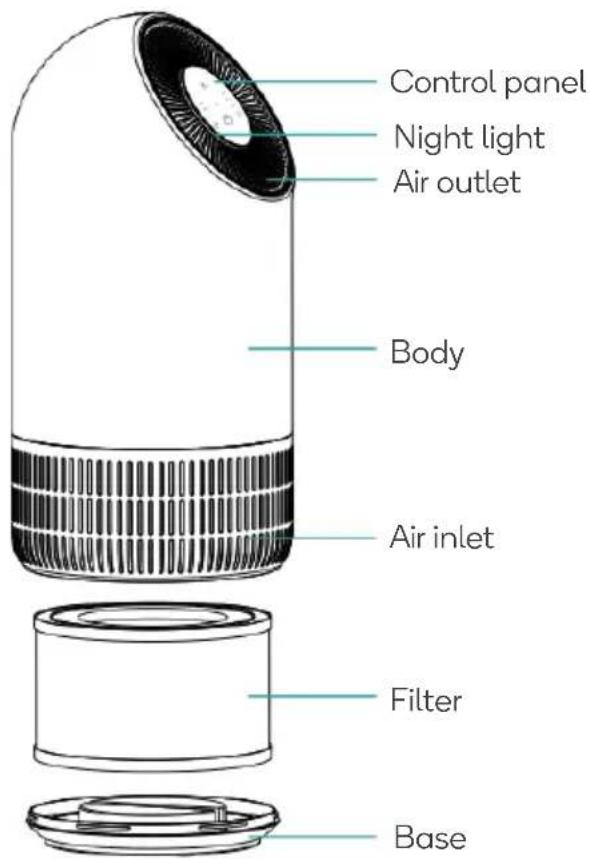
Components
text_image
Control panel Night light Air outlet Body Air inlet Filter BaseControl panel
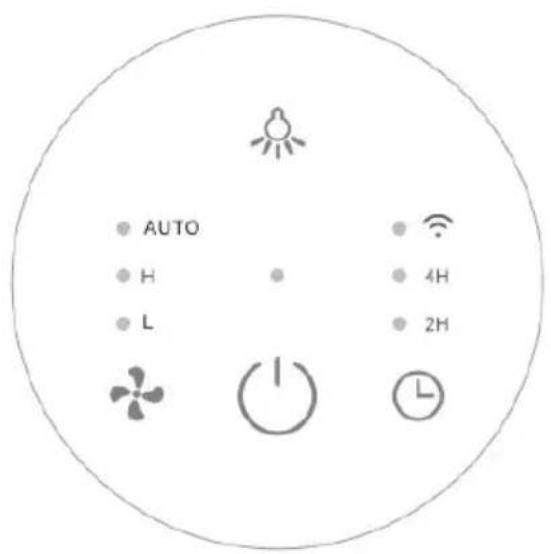
text_image
AUTO H L 4H 2H
Power Button

Timer Button

Fan Speed Button

Light Control Button

Indicator light
INSTALLATION
- Remove the packaging of the filter before using for the first time.
- Ensure the machine is unplugged before removing or installing the filter.
- When the power indicator continually flashes red, the filter should be replaced.
- Please wipe the dust on the filter regularly, do not wash or use it repeatedly.
-
Please use the filter specially designed for this product.
-
Invert the machine and rotate the base along the direction marked "OPEN".
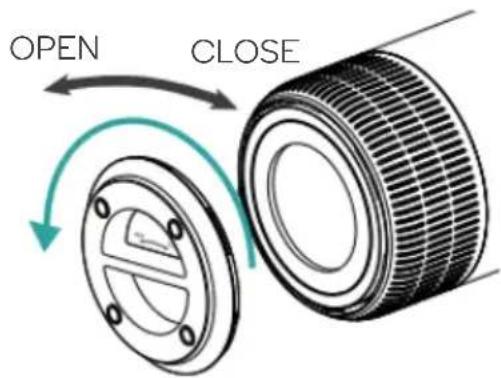
text_image
OPEN CLOSE- Remove the filter from the machine.
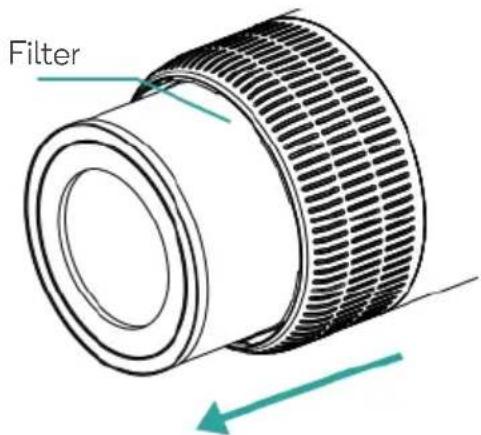
text_image
Filter- Remove the packaging from the filter.
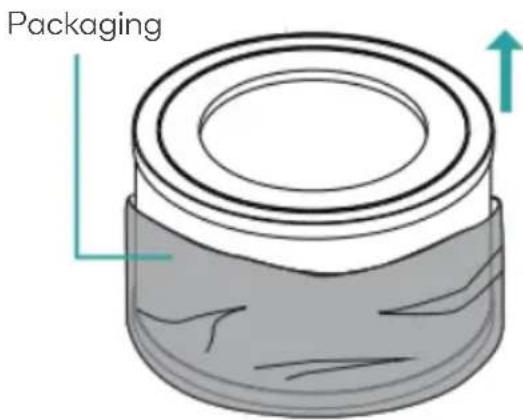
text_image
Packaging- Install the filter into the machine.
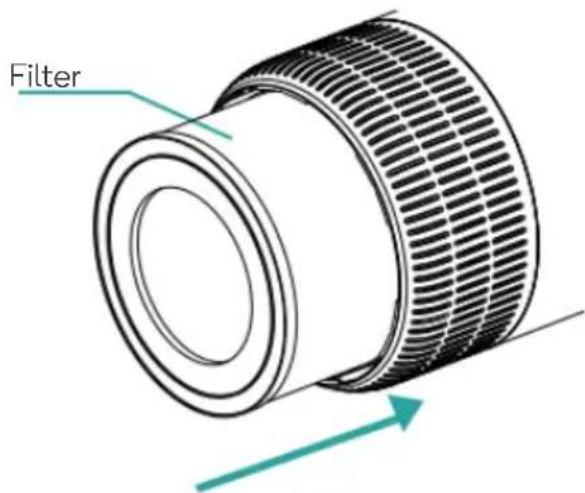
text_image
Filter- Install the base. Rotate and tighten the base along the direction marked "CLOSE".
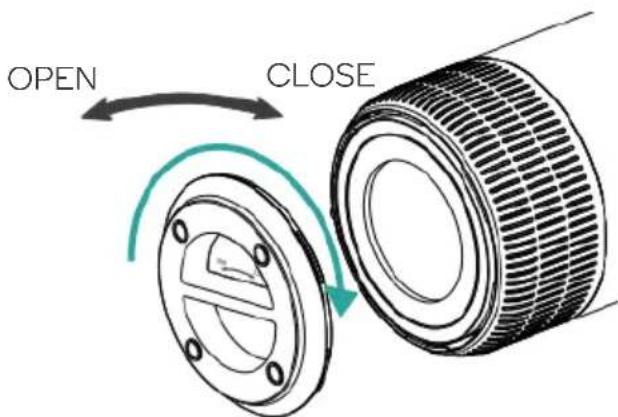
text_image
OPEN CLOSECONNECT TO SMARTERHOME™ APP
Install App
Download the "Kogan SmarterHome" app from the Play Store (Android) or App Store (iOS).
Register
If you do not have a Kogan SmarterHome™ account, register or sign in with a verification code sent by SMS.
To register:
- Tap to enter registration page.
- The system automatically recognises your country/area. You can also select your country code manually. Enter your email address and tap 'Next.'
- Alternatively, you can select 'Register by mobile number' and enter the verification code sent to you by SMS.
- Create a profile on the next page to define your location and room.


Register by Email
Register by Mobile Number
text_image
Australia +61 0412345678Get Verification Code
Get Verification Code
Set device in pairing mode
When the device is first turned on, it may automatically enter pairing mode (the indicator light will be flashing rapidly).
If not automatically in pairing mode when powered on, you can manually set the device in pairing mode by holding the Timer button for 7 seconds, until a beep is heard and the indicator light begins to flash quickly.
Add device through network
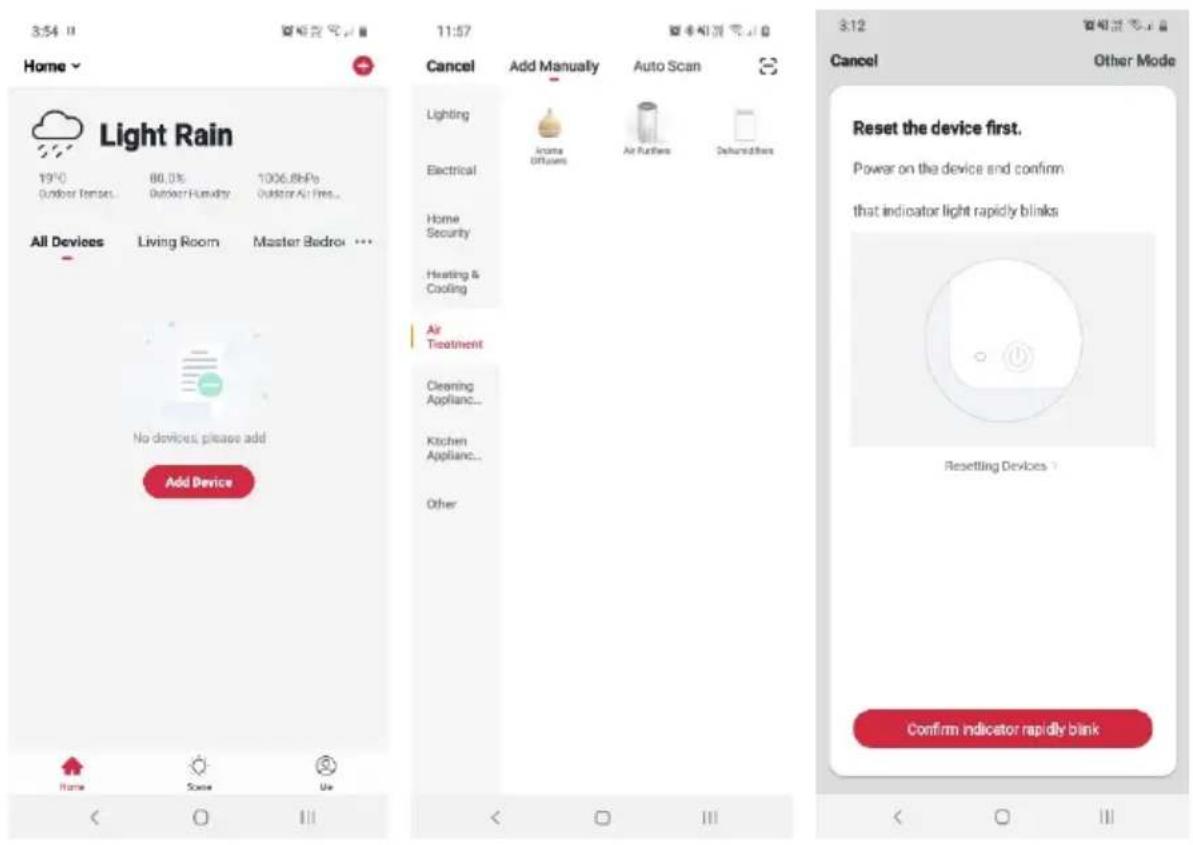
- Once registered, tap "+" in the upper right corner of the app's home page to add a new device through the network.
- Select the product type from the list of options in the app (Air Treatment > Air Purifiers).
- Ensure that the device is in pairing mode, with the example of indicator, and tap "Confirm light is rapidly flashing".
text_image
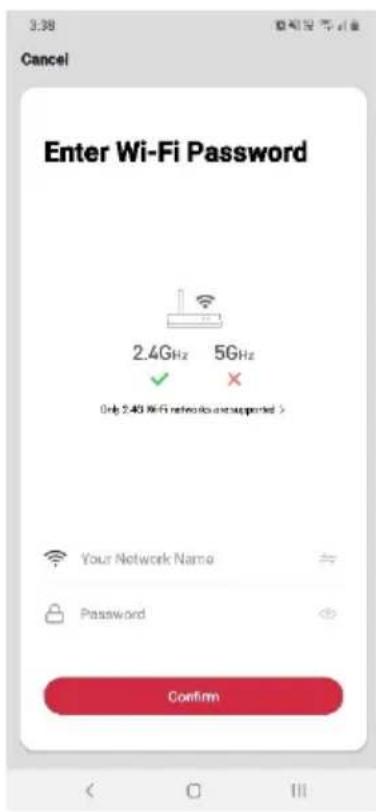
3:54 II Home Light Rain 19%0 Outdoor Temperature 80.0% Outdoor Humidity 1006.8hPo Outdoor Air Fees... All Devices Living Room Master Bedroom ... No devices please add Add Device Cancel Add Manually Auto Scan Lighting Electrical Home Security Heating & Cooling Air Treatment Cleaning Appliance... Kitchen Appliance... Other 3:12 Cancel Other Mode Reset the device first. Power on the device and confirm that indicator light rapidly blinks Resetting Devices > Confirm indicator rapidly blank- Upon successfully confirming pairing mode, enter your Wi-Fi details. It is important that your SmarterHome™ device and the app are connected to the same Wi-Fi network during setup.
- The device will commence the pairing process and connect to the app. Ensure your Wi-Fi router, mobile phone, and the SmarterHome™ device are kept close until connection is complete.
- After successfully being added, you will have the option to rename the device and assign it to a location. It will now be listed on the app's home page. Tap the device listing to enter its control page.
text_image
3:38 Cancel Enter Wi-Fi Password 2.4GHz 5GHz ✓ ✗ Only 2.40 Wi-Fi networks are supported > Your Network Name Password Confirm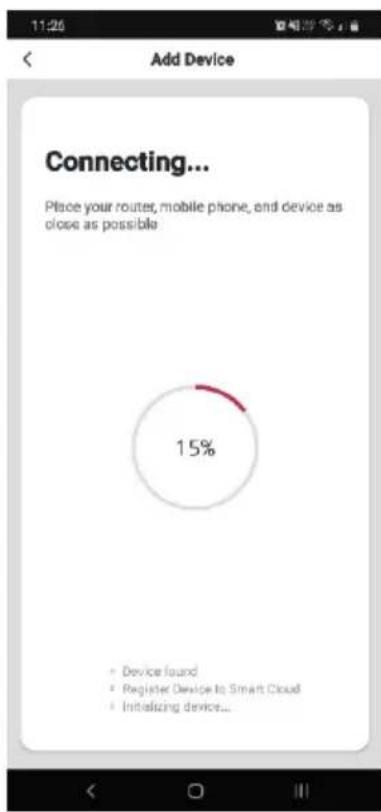
text_image
11:26 Add Device Connecting... Place your router, mobile phone, and device as close as possible 15% • Device found • Register Device to Smart Cloud • Initializing device...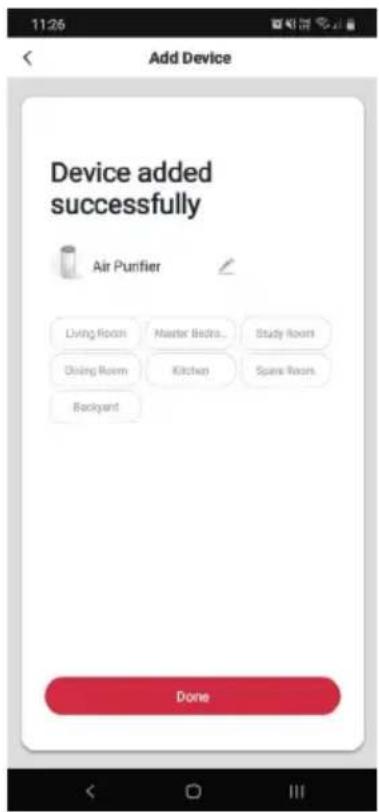
text_image
11:26 Add Device Device added successfully Air Purifier Living Room Master Beds... Study Room Olsing Room Kitchen Spine Room Backyard DoneNotes:
• The device and the app have to use the same Wi-Fi network.
• The device is only compatible with 2.4Ghz networks.
GOOGLE HOME CONTROL
Note:
You will need to have set up a Google Home account prior to linking your Kogan SmarterHome™ device.
Adding "SmarterHome" to the Google Home app
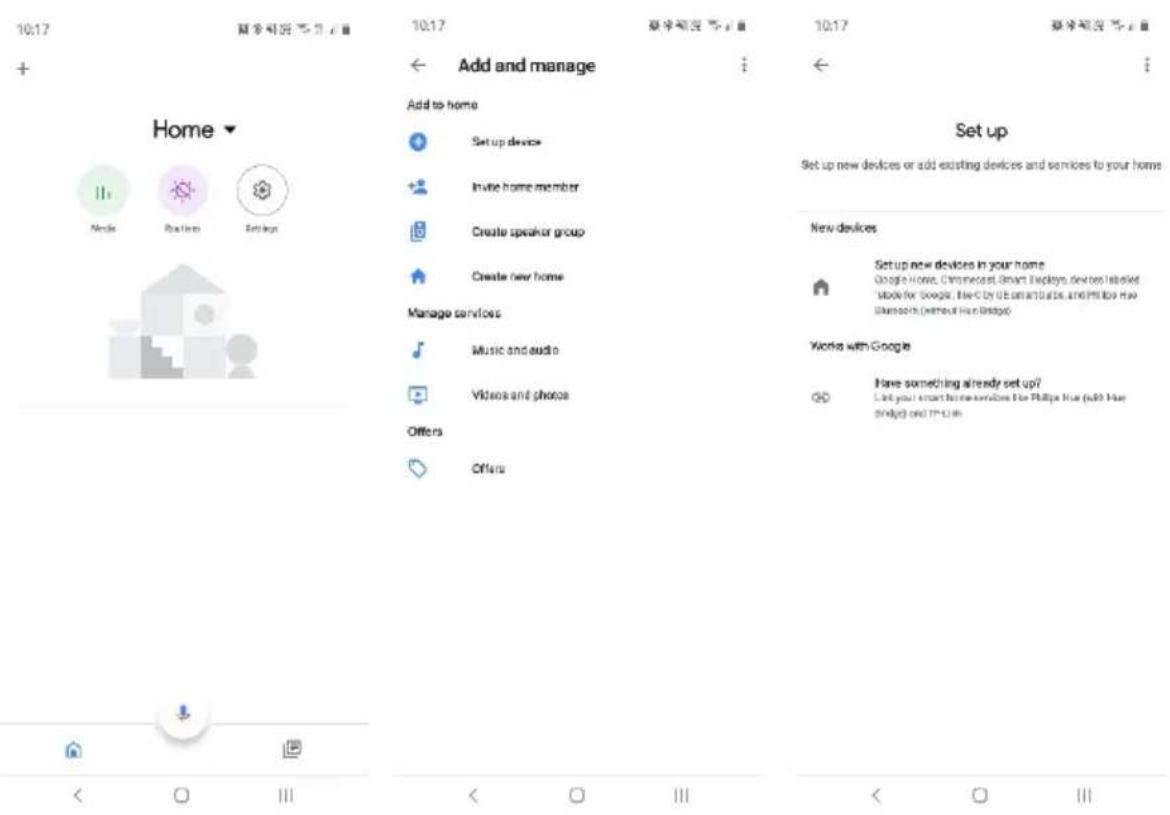
- From the home page of the Google Home app, select the "+" icon to access the 'Add and manage' page.
- Select 'Set up device', then under the Works with Google banner, select 'Have something already set up?'
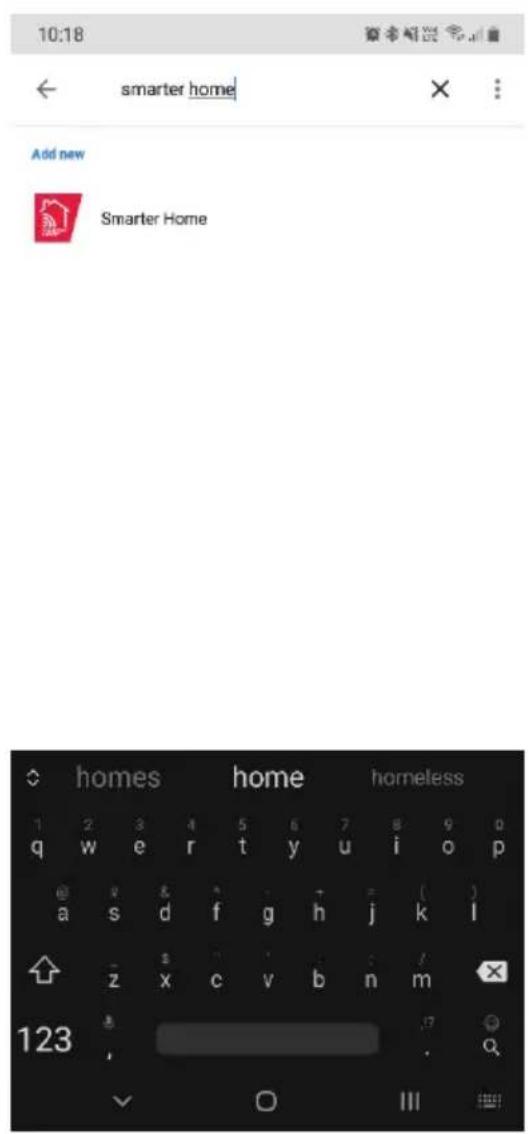
- Select the search bar and type 'Smarter Home' to locate the Kogan SmarterHome™ service.
text_image
10:17 帮您可选 5个主页 + Home ▼ Node Platform Settings 10:17 Add and manage Add to home Set up device Invite home member Create speaker group Create new home Manage services Music and audio Videos and photos Offers Offers 10:17 帮您可选 5个主页 + Set up Set up new devices or add existing devices and services to your home New devices Setup new devices in your home Google Home, Commencent Smart Displays devices installed store for Google, Live by us and buys, and Phillips Web https (without Web Bridge) Works with Google Have something already set up? Link your smart home services for Phillips Web (all New bridge) and IP-U in- Tap 'Authorise' to grant Google permission to access the SmarterHome™ app and your devices.
- From here, you will be prompted to sign into your SmarterHome™ account using either your email or mobile phone number, depending on which method you used to register your account.
text_image
10:18 ← smarter home Add new Smarter Home homes home homeless 1 2 3 4 5 6 7 8 9 0 q w e r t y u i o p e ? & * - ( ) a s d f g h j k l z x c v b n m 123 , . ? ✓ O III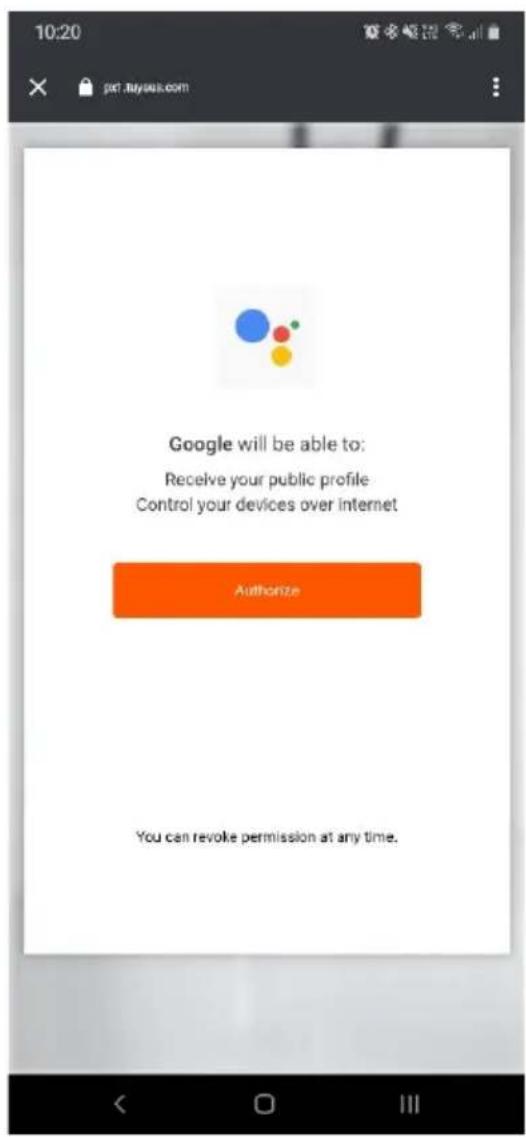
text_image
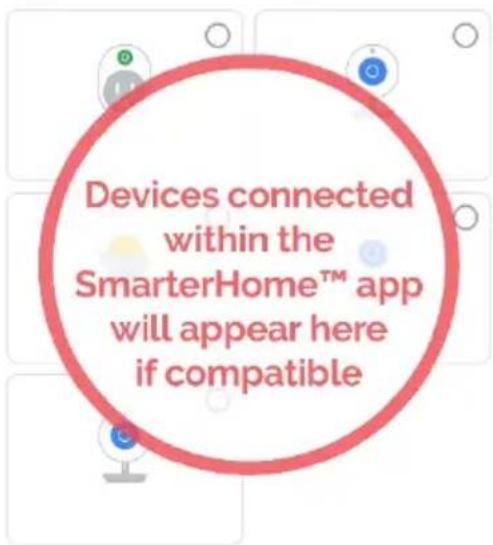
10:20 GOOGLE will be able to: Receive your public profile Control your devices over internet Authorize You can revoke permission at any time.- Once connected, the app will display any compatible devices linked to your SmarterHome™ account. From here you can assign them to rooms and set up any routines.
- Tap on any of the devices to view a list of available commands.
10:21
×
查者解题答案
10:23
夏多斯国家
+
Add smart home devices
Select devices and add to a room
text_image
Devices connected within the SmarterHome™ app will appear here if compatibleHome

Media

Routines

Settings
Back garden
2 devices

Dog Cam (Backyard)

Dog Cam (Undercover)
Kitchen
1 device

Cat Cam (Kitchen)
ADD TO A ROOM
<
□
III
Other cast devices
8 devices


□


|||
Note:
Please note that Google Home can only control the base/core functions of any compatible SmarterHome™ devices. To make full use of this product's smart functionality, please use the Kogan SmarterHome™ app.
AMAZON ALEXA CONTROL
Note:
You will need to have set up an Alexa account prior to linking your Kogan SmarterHome™ device.
Adding "SmarterHome" to the Alexa app
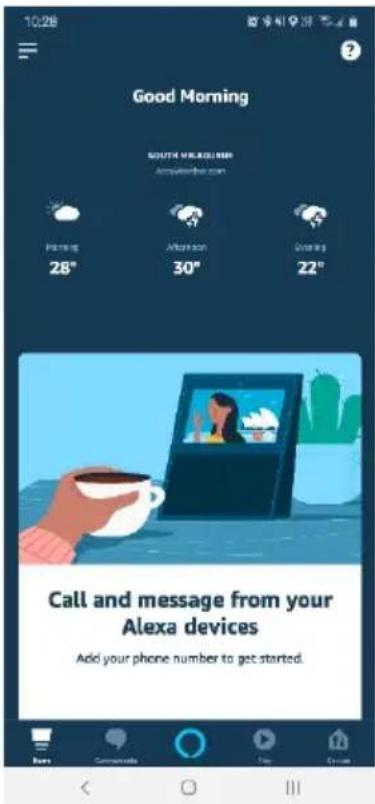
- From the home page of the Alexa app, select the “≡” icon in the top-right and select Skills & Games from the sidebar.
- Select the search bar and type 'Smarter Home' to locate the Kogan SmarterHome™ skill.
text_image
10:28 Good Morning SOUTH MELONBER Amsterdam.com Morning 28° Afternoon 30° Evening 22° Call and message from your Alexa devices Add your phone number to get started.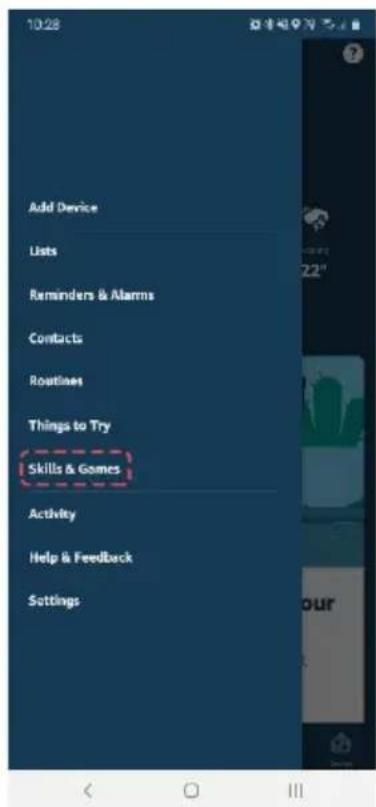
text_image
Add Device Lists Reminders & Alarms Contacts Routines Things to Try Skills & Games Activity Help & Feedback Settings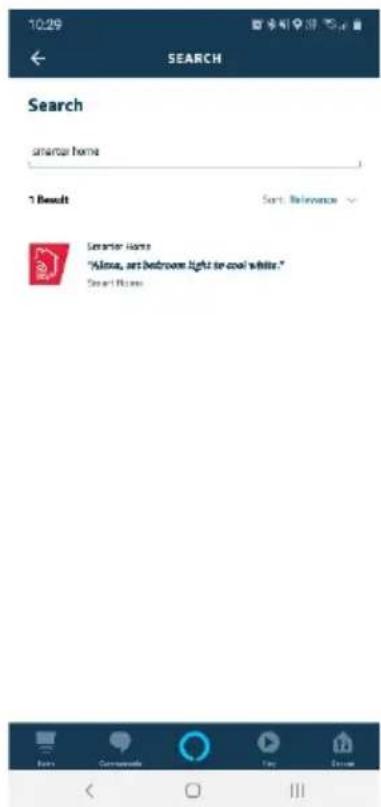
text_image
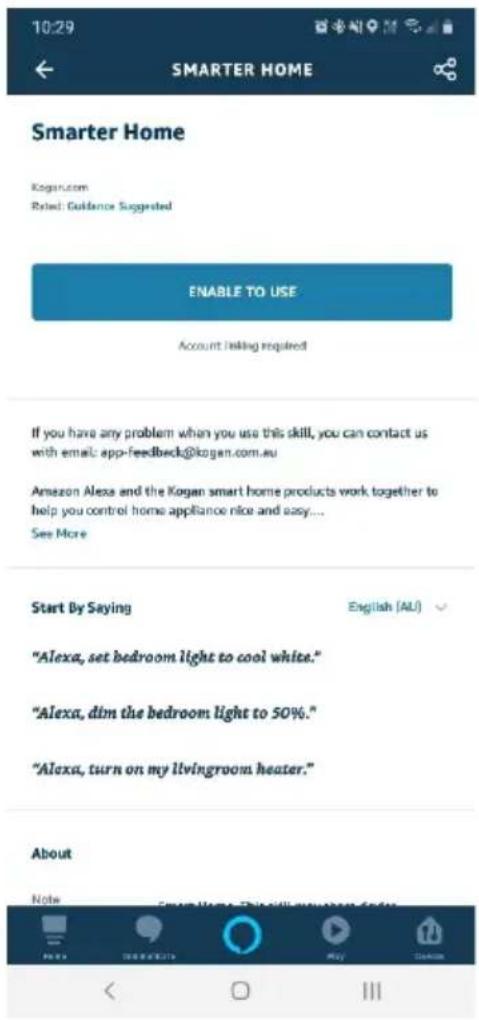
10:29 SEARCH Search smart home 1 Result Sort Relevance Smart Home "Alcoa, art bedroom light or cool white." Smart Home- Tap 'Enable to Use' to add the Kogan SmarterHome™ skill to Alexa.
- From here, you will be prompted to sign into your SmarterHome™ account using either your email or mobile phone number, depending on which method you used to register your account.
- Tap 'Authorise' to grant Alexa permission to access the SmarterHome™ app and your devices.
text_image
10:29 SMARTER HOME Smarter Home Kogan.com Rated: Guidance Suggested ENABLE TO USE Account Taking Required If you have any problem when you use this skill, you can contact us with email: app-feedback@kogan.com.eu Amazon Alexa and the Kogan smart home products work together to help you control home appliance nice and easy.... See More Start By Saying English (AU) "Alexa, set bedroom light to cool white." "Alexa, dim the bedroom light to 50%." "Alexa, turn on my livingroom heater." About Note Search Home This will open your home.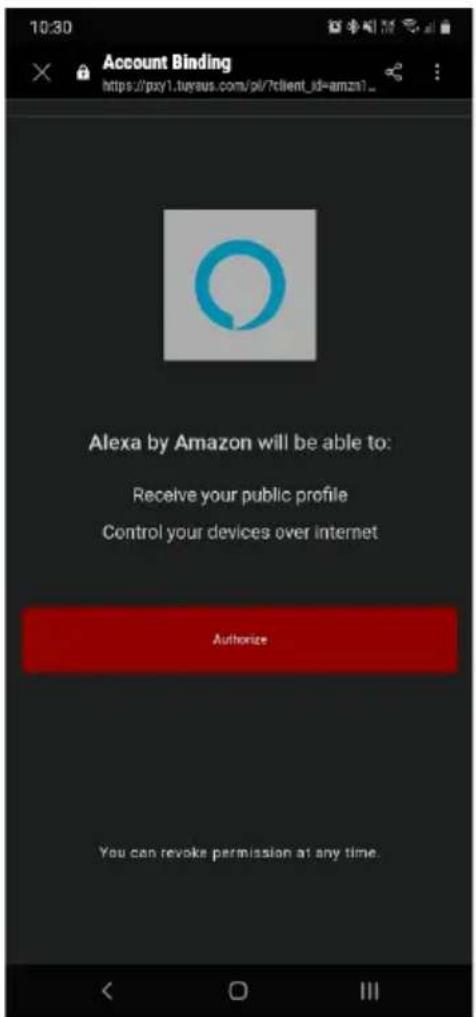
text_image
10:30 Account Binding https://pxyl.tuyous.com/pl/?client_id=amza1_ Alexa by Amazon will be able to: Receive your public profile Control your devices over internet Authorize You can revoke permission at any time.-
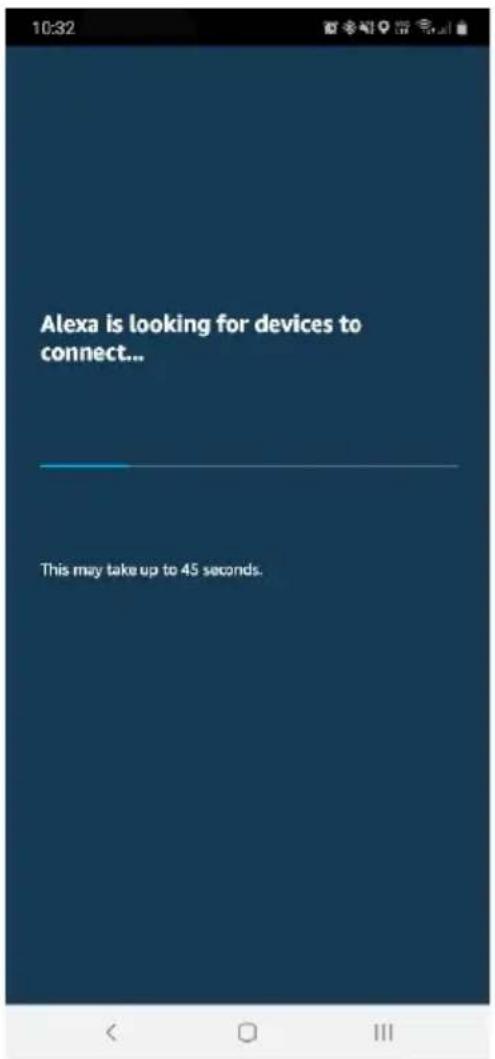
Once connected, the app will perform a search and display the devices linked to your SmarterHome™ account.
-
When your devices have successfully connected to the Alexa app, you will be able to control your Kogan SmarterHome™ devices via Alexa's voice commands.
text_image
Alexa is looking for devices to connect... This may take up to 45 seconds.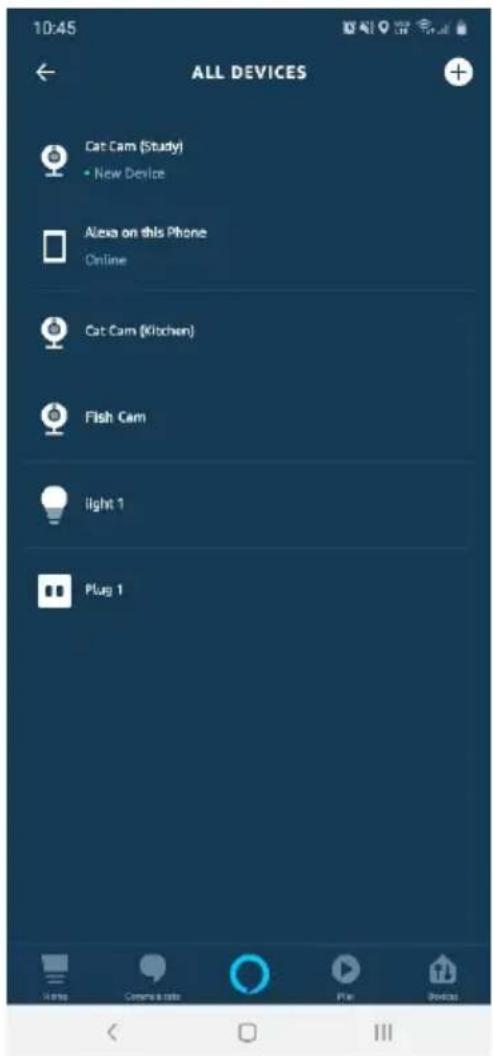
text_image
10:45 ALL DEVICES Cat Cam (Study) • New Device Alexa on this Phone Online Cat Cam (Kitchen) Fish Cam Light 1 Plug 1Note:
Please note that Alexa can only control the base/core functions of any compatible SmarterHome™ devices. To make full use of this product's smart functionality, please use the Kogan SmarterHome™ app.
OPERATION
When connecting to power, the device will beep/buzz for 1 second.

Power Button
- Touch the power button to turn on the machine; the buzzer will sound once, and the power indicator and the low fan speed indicator light turn green.
- Touch the button again; the buzzer will sound once more, and the machine will turn off.
- When the power is on, indicator light may flash rapidly – this means the device is ready for Wi-Fi pairing. Refer to the “Connecting to SmarterHome™ App” section above.
Note:
The machine will retain the working mode when turned off, providing the unit is not unplugged from the power socket.

Timer Button
- Once powered on, press the timer button to set circulation time to 2 or 4 hours. The buzzer will sound and the corresponding
- Press the timer button again; the timer indicator turns off and the machine will work continuously without the timer.
- If the timer is active, the machine begins to count down. When set time has elapsed, the fan will stop working and all lights will be off.
Note:
The timer function cannot operate if the appliance is powered off.

Fan Speed Button
-
During operation, press the fan speed button and the buzzer will sound.
-
Press again to adjust the fan speed between Low mode, High mode, and Auto mode. For each press, the buzzer will sound, and the corresponding indicator will illuminate.
Note:
The fan speed adjustment cannot be operated if the unit is powered off.

Light Control Button
-
During operation, touch the light control button to cycle between soft light and standard light mode with accompanying buzzer sounds.
-
Touch again and the LED light turns off.
Note:
The light control button cannot be operated if the unit is powered off.
CLEANING & CARE
Note:
- Ensure the machine is unplugged before maintenance.
- Do not immerse the air purifier into water or any liquid.
- Do not use abrasive, corrosive, or flammable cleaners (such as bleach or alcohol) to clean any part of the unit.
- Clean the filter regularly. Do not wash or reuse the filter.
- Ensure the machine is unplugged before replacing the filter.
• Sterilise the filter under sunlight regularly. - Do not use a vacuum cleaner to clean the filter or wash it directly.
Cleaning and Storage
- Ensure the machine is power-off and unplugged.
- Take out the filter to clean any dust from the surface of it.
- Use a soft cloth with neutral cleanser to clean away any dust or debris from the surface of the machine.
- After the filter is dried, install it into the air purifier to restart.
- If the machine is not in use for a long time, ensure the machine is dried out, put on the dust cover bag, and place it in a cool and well-ventilated place.
- To ensure optimum performance of the machine, turn on the machine for a few minutes from time to time when not in constant use.
Note:
Be sure not to drop any water into the machine when cleaning the air outlet.
SPECIFICATIONS
| Size | 195 x 195 x 403mm |
| Net weight | 2.3kg |
| Input | AC220-240V 50/60Hz |
| Power | 35W |
| CARD | 90m.sq/h |
| Coverage Area | ≤11m.sq |
TROUBLESHOOTING
| Situation | Reason |
| Will not power on | Is it plugged into a power socket? Is there a power outage?Is the home leakage switch or fuse cut off?Is the filter replacing indicator keep flashing? |
| Poor performance | Is there any dust in the surface of the primary filter?Is there any obstacle blocking the air inlet/outlet? |
| Significant noise | Is anything obstructing the fan in the air outlet?Is the machine tilted?Set a lower grade of fan speed if the noise is too loud. |
| Unpleasant odour | It is normal that the machine may emit the smell of plastic during the first use.The machine will emit an unpleasant smell if the filter is dusty. In this case, clean or replace the filter.If a burning smell emits from the machine, unplug the power socket and contact Kogan.com. |
| The replace filter reminder is still flashing after replacement | Press and hold the Filter button for 7 seconds to reset the life counter of the filter and the machine. |
Note:
If you require further assistance, contact help.kogan.com for support.
Do not disassemble the machine to attempt maintenance or repairs.
Need more information?
We hope that this user guide has given you the assistance needed for a simple set-up.
For the most up-to-date guide for your product, as well as any additional assistance you may require, head online to help.kogan.com
kogan