
NV-HV55 - VCR PANASONIC - Free user manual and instructions
Find the device manual for free NV-HV55 PANASONIC in PDF.


| Type | Video Cassette Recorder (VCR) |
| Brand | Panasonic |
| Model | NV-HV55 |
| Power Supply | 220-240 V AC, 50/60 Hz |
| Power Consumption (Operation) | 18 W |
| Power Consumption (Power Save) | 3 W |
| Dimensions (W x H x D) | 430 x 87 x 282 mm |
| Weight | 3.5 kg |
| Tape Speeds | SP, LP, EP |
| Video System | PAL |
| Audio System | Hi-Fi stereo (2 heads) |
| Video Heads | 4 heads (Super Ferrite Head) |
| Remote Control | Multifunctional (VCR and Panasonic TV) |
| Special Features | CVC Super, 3D DNR, ShowView, Intelligent Timer, JET SEARCH |
| Recording | Timer recording (up to 16 programs, 1 month), VPS/PDC, external control |
| Connections | SCART (AV1, AV2), RF coaxial in/out, audio out (L/R) |
| Accessories Included | Remote control unit, AC mains lead |
Frequently Asked Questions - NV-HV55 PANASONIC
User questions about NV-HV55 PANASONIC
0 question about this device. Answer the ones you know or ask your own.
Ask a new question about this device
Download the instructions for your VCR in PDF format for free! Find your manual NV-HV55 - PANASONIC and take your electronic device back in hand. On this page are published all the documents necessary for the use of your device. NV-HV55 by PANASONIC.
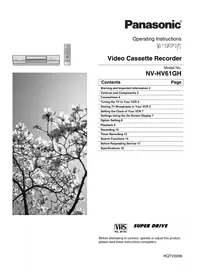
USER MANUAL NV-HV55 PANASONIC
NV-HV60 Series (Hi-Fi) / NV-HV65 Series (Hi-Fi) NV-HV55 Series (Hi-Fi) / NV-HV50 Series (Hi-Fi) NV-MV20 Series (Mono) / NV-MV15 Series (Mono)
PAL
NV-SV120 Series (S-VHS, Hi-Fi) S VHS 625 VHS PAL
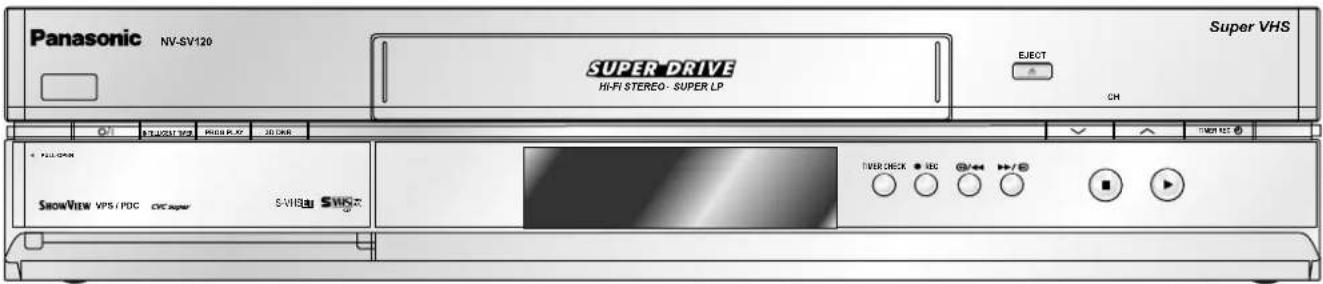
Operating Instructions
Contents page
| Precautions 2 | |
| Warning 3 | |
| Remote control functions 4 - 5 | |
| Front Panel 6 | |
| Rear Panel 7 | |
| Connections / Settings 8 | |
| Auto Setup 9 | |
| Recording | 10 |
| Timer recording | |
| Automatic SP/LP selection | 11 |
| VPS/PDC function | 11 |
| Timer recording | 12-13 |
| ShowView | 14 |
| INTELLIGENT TIMER | 15 |
| General functions | 16-17 |
| Menu Overview | 18 |
| Manual Setup | |
| Setting a new Channel | 19 |
| Changing the name of TV stations | 20 |
| Changing the order of TV stations | 20 |
| Creating a new station table | 21 |
| Shipping condition, factory defaults | 21 |
| Menu Others | 22-23 |
| Decoder | 24 |
| External recording control | 25 |
| Amplifier, NICAM sound system | 26 |
| NTSC playback | 26 |
| Batteries, Cassette erasure protection | 27 |
| Before requesting service | 28-29 |
| Specifications | 30-31 |
| Index | 32 |
Dear customer
Thank you for purchasing this product. For optimum performance and safety, please read these instructions carefully. Please keep this manual for future reference.
Precautions
Voltage: Only use power sources complying with the specifications (220-240 VAC, 50/60 Hz). You may otherwise overload the unit and cause fire. Do not use DC power sources. Check the source carefully when setting up the unit on a ship or other place where DC is used.
AC mains lead protection: Ensure the AC mains lead is connected correctly and not damaged. Poor connection and lead damage can cause fire or electric shock.
Service: Do not attempt to repair this unit by yourself. If the sound fails, the display is off, smoke escapes from the unit or any other problem occurs that is not described in these operating instructions, disconnect the power supply and contact your dealer or an authorised aftersales service centre.
Accessories Included (Remote control unit depends on the model)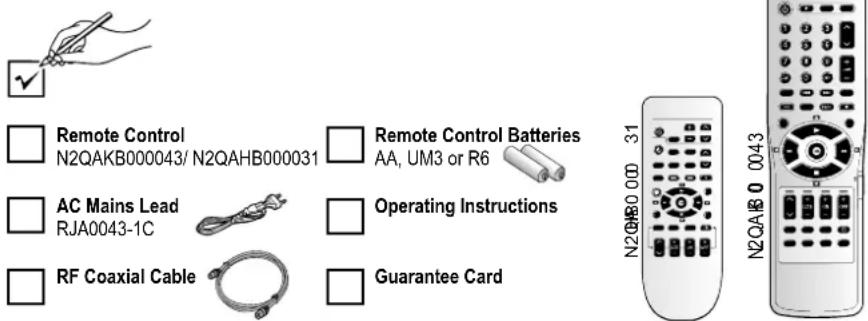
Warning
NORSK
WARNING:
TO REDUCE THE RISK OF FIRE, ELECTRIC SHOCK OR PRODUCT DAMAGE, DO NOT EXPOSE THIS APPARATUS TO RAIN, MOISTURE, DRIPPING OR SPLASHING AND ENSURE THAT NO OBJECTS FILLED WITH LIQUIDS, SUCH AS VASES, SHALL BE PLACED ON THE APPARATUS.
WARNING:
TO REDUCE THE RISK OF FIRE, ELECTRIC SHOCK, OR DAMAGE TO THE PRODUCT, THIS APPARATUS MUST NOT BE EXPOSED TO RAIN, MOISTURE, WATER DROPS, OR WATER SPLASH. OBJECTS FILLED WITH WATER, SUCH AS FLOWER VASES, MUST NOT BE PLACED ON TOP OF THE APPARATUS.
CAUTION!
- DO NOT INSTALL OR PLACE THIS UNIT IN A BOOKCASE, BUILT-IN CABINET OR IN ANOTHER CONFINED SPACE. ENSURE THE UNIT IS WELL VENTILATED. TO PREVENT RISK OF ELECTRIC SHOCK OR FIRE HAZARD DUE TO OVERHEATING, ENSURE THAT CURTAINS AND ANY OTHER MATERIALS DO NOT OBSTRUCT THE VENTILATION VENTS.
- DO NOT OBSTRUCT THE UNIT'S VENTILATION OPENINGS WITH NEWSPAPERS, TABLECLOTHS, CURTAINS, AND SIMILAR ITEMS.
- DO NOT PLACE SOURCES OF NAKED FLAMES, SUCH AS LIGHTED CANDLES, ON THE UNIT.
- DISPOSE OF BATTERIES IN AN ENVIRONMENTALLY FRIENDLY MANNER.
WARNING!
- DO NOT PLACE THE APPARATUS IN A BOOKCASE, BUILT-IN CABINET OR ANY OTHER ENCLOSED SPACE WITH INSUFFICIENT VENTILATION. ENSURE THAT CURTAINS OR SIMILAR DO NOT IMPAIR VENTILATION, SO AS TO AVOID THE RISK OF ELECTRIC SHOCK OR FIRE CAUSED BY OVERHEATING.
- APPARATUS AND VENTILATION OPENINGS MUST NOT BE COVERED WITH NEWSPAPERS, TABLECLOTHS, CURTAINS, AND THE LIKE.
- DO NOT PLACE OPEN FLAMES, SUCH AS LIGHTED CANDLES, ON THE APPARATUS.
- USED BATTERIES MUST BE DISPOSED OF WITHOUT HARMING THE ENVIRONMENT.
THIS UNIT IS INTENDED FOR USE IN MODERATE CLIMATES.
THIS APPARATUS IS INTENDED FOR USE IN MODERATE CLIMATIC CONDITIONS.
This product may receive radio interference caused by mobile telephones during use. If such interference is apparent, please increase separation between the product and the mobile telephone.
Remote control functions
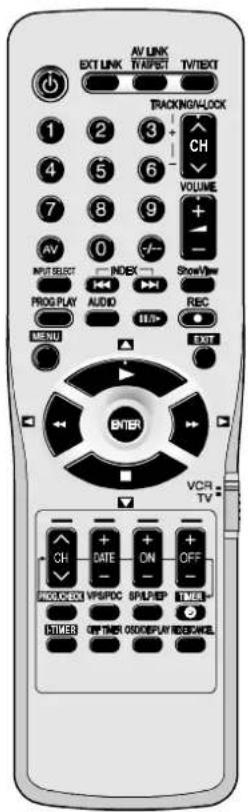
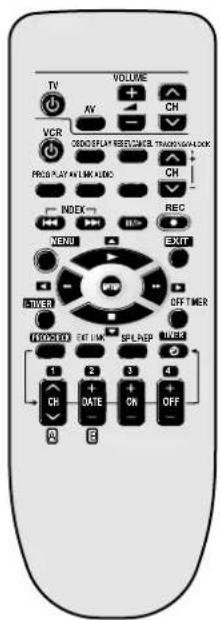
Some Panasonic TV sets accept control signals from the video recorder's remote control unit. In the table, the TV buttons are marked with 'TV', the video recorder buttons with 'VCR'.
Control menu
| OSD menu selection buttons. | VCR | |
| MENU | Displays the menu. | VCR |
| EXIT | Quits a menu. | VCR |
| ENTER | Selects or saves a setting. | VCR |
Playback functions
 | Playback | VCR |
 | Fast winding / Forward and backward searchGoes from Stop into Fast Forward or Fast Rewind mode.Starts the search for a frame during playback. Press button twice to increase the speed of search (JET SEARCH).Press the Playback button ▶ to quit the Search mode.The unit keeps searching while the button is pressed. | VCRP.17 |
 | PressStopto stop recording, playing back or winding.To eject a cassette: Press button for more than 3 seconds. | VCR |
 | Still Playback: In Playback mode.Press button again or press the Playback button ▶ to quit.Slow Playback: Press for more than 2 seconds while in Playback mode. Press the Playback button to quit ▶. | VCRP.17 |
 | Stand-by/on switch ⒽIPress to switch the unit from on to stand-by mode or vice versa. In stand-by mode, the unit is still consuming a small amount of power. | VCR TV |
 | Activates the recording timer for externally controlled recording. | VCR P.25 |
 | Toggles between TV reception and video playback channel. | VCR TV |
| Changes the screen format. | ||
 | Toggles between TV reception and video text reception. | TV |
 | Selects a programme memory location and inputs the ShowView number. Example: 18= ↗ 1 8 | VCR TV |
 | Selects the TV set's AV port. | TV |
  | Channel selectorTracking control of disturbed VCR image. | VCR TV |
| [0K2T] | Volume control. | TV |
  | Toggles between AV inputs A1, A2 and A3. | VCR |
 | Finds the start of a programme. | VCR P.16 |
 | Displays the ShowView menu. | VCR P.14 |
  | Plays back programmed recordings. | VCR P.13 |
 | Audio mode | VCR P. 16 |
 | Record | VCR P. 10 |
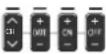 | TV : Selects the AV input and navigates in the teletext menu.VCR: Menu entries. | VCR TV |
  | Displays the Timer menu. | VCR P. 12 |
 | Controls the beginning and end of a recording session by a special signal. | VCR P. 11 |
 | Sets the tape speed. | VCR P. 10 |
 | Activates the recording timer. | VCR P. 12 |
  | Defines programmes transmitted to the same program memory location at the same time. | VCR P. 15 |
  | Switches the unit into stand-by mode after the set time of recording, playback or in Stop mode. | VCR P. 17 |
  | Press the button repeatedly to display the time, tape counter or remaining tape. | VCR P. 10 |
RE  | RESET : Resets the counter to 0:00.00.CANCEL: Clears an entry you made. | VCR |
 | VCR / TV switch | VCR TV |
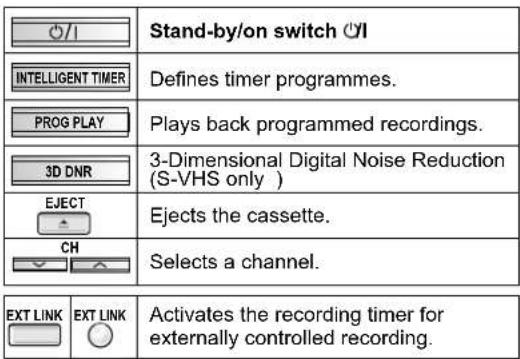
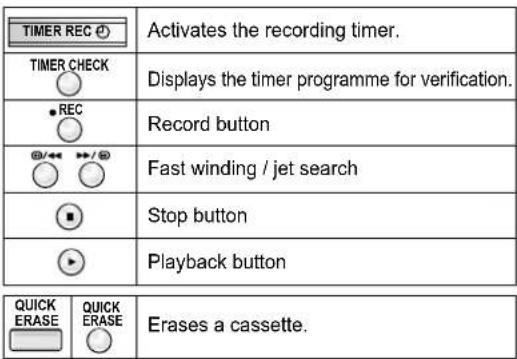
Front Panel
NV-HV60, NV-HV65, NV-HV55, NV-HV50, NV-MV20, NV-MV15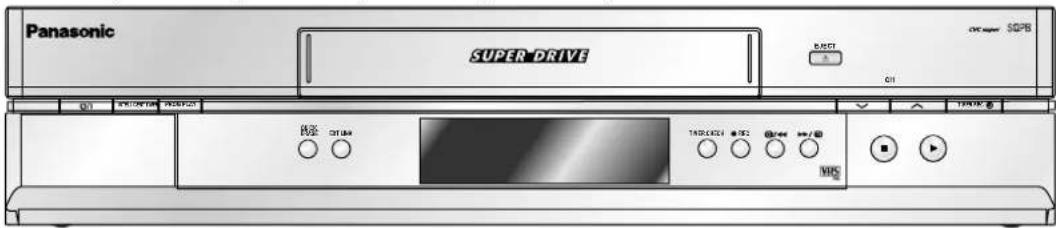
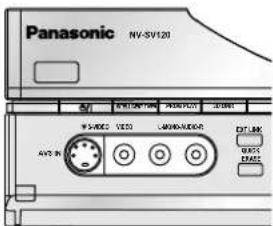
NV-SV120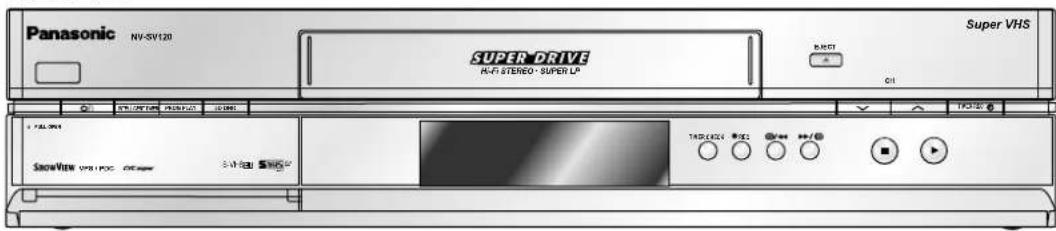
CVC Super
The CVC function provides a picture of perfect quality. The picture is automatically rendered as clear and sharp as possible.
3D DNR
To ensure high playback picture quality with less noise.
Rear Panel
AC IN~ = Power supply
SECTEUR~
AV2 (DECODER/DECODER/EXT)
AV1 (TV)
L/G = AUDIO output left channel
R/D = AUDIO output right channel
IN/ = Antenna input
ENT
OUT/ = Antenna output
OUTPUT
NV-SV120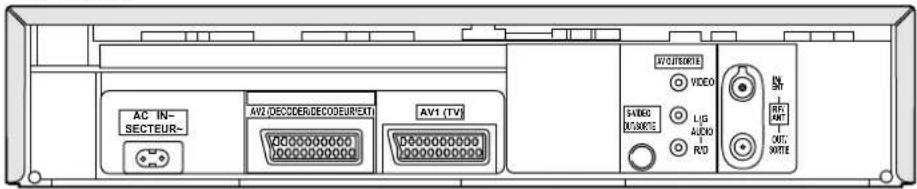
NV-HV60, NV-HV65, NV-HV55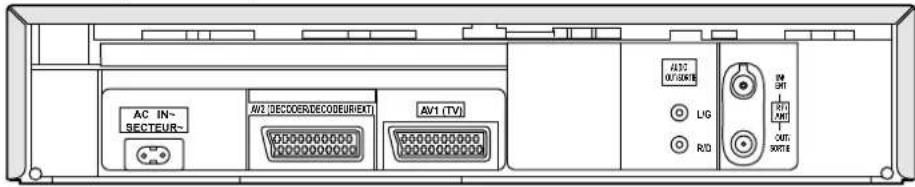
NV-HV50EC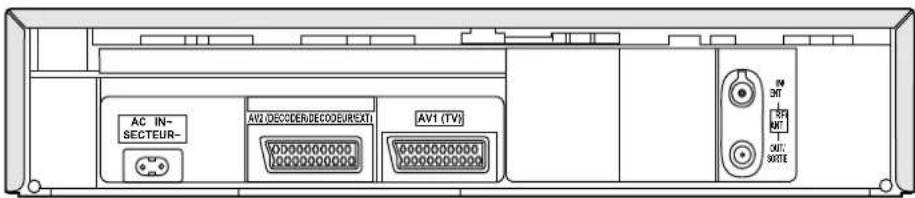
NV-MV20, NV-MV15, NV-HV50EG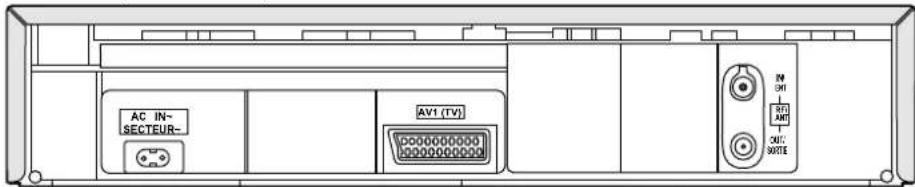
Connections / Settings
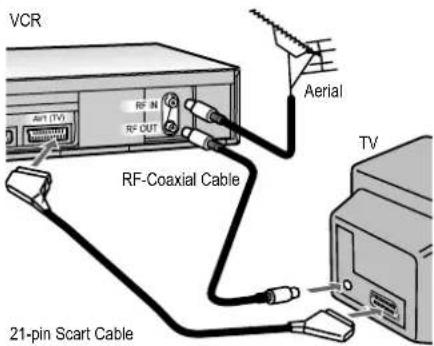
Connect all the cables as shown in the illustration, then connect the AC Mains lead (part of the package) to an AC wall outlet.
To be able to receive TV programmes it is mandatory to connect the RF-Coaxial Cable even if the video recorder is connected by a 21-pin scart cable.
If you decide to just use the RF-Coaxial Cable to connect the TV set, you must adjust the video output channel with the TV set's input channel.
- Switch on the video recorder.
- Press the MENU button for approx. 7 seconds. The preset channel appears on the display.
- Tune the TV set until the test pattern appears. If there is any interference, select another channel for the TV set and video recorder.
- Press the CH button to change the channel (e.g., to 39).
- Tune the TV set until the test pattern appears.
- Press ENTER to confirm.

Auto Setup
| Country | ||
| Belgien | Italia | Sverige |
| Belgique | Nederland | Schweiz |
| België | Norge | Suisse |
| Danmark | Österreich | Svizzera |
| España | Deutschland | others |
| Ελλάδα | Portugal | |
| France | Suomi | |
| Clock set | |
| AUTO | |
| Time : 12:00:00 | |
| Date : 11. 6.03 | |
| ◄►:select ENTER : accessMENUm : exit |
SV120 HV60 HV65 HV55 HV50 MV20 MV15
The VCR starts the automatic tuning.
(The search will take approx. 5 minutes to be completed.)
- Switch on the video recorder. The Country menu will be displayed.
- Select a country.
- ENTER
If the Country menu does not appear after switching on, you can restart Automatic Tuning (page 21). You can afterwards set date and time either automatically or manually.
Manually setting Time / Date
• AUTO - MANUAL ◀ - ENTER - Set Time and Date ◀▶▲▼, ▶ - ENTER - Press MENU to return to the Menu screen. * Mind that a wrong date or time will influence the programmed recording of TV programmes (don't forget to change summer- and wintertime).
After running the automatic tuning, you must manually set the date and time.
- Set Time and Date ◀▶▲▼, ▶
- ENTER
Recording
Set the TV set to the video channel and insert a cassette into the video recorder; make sure that the cassette's protection tab is still in.
- Select a channel to record from. Select the AV channel if you are recording via the 21-pin scart cable.
- Press REstart recording.
- Press the Stop button ■to stop recording.
- To pause recording: III/) The function will switch itself off after approx. 5 minutes to protect the video heads.
• To resume recording:
* Recordings in the S-VHS or S-VHS ET REC mode are supported by the PAL TV system only. (Only SV120, page 23)
SV120 HV60 HV65 HV55 HV50 MV20 MV15
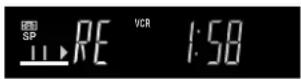
OSD/DISPLAY
Tape Remain counter/indicator
The display of the video recorder shows: time - counter - tape remain. The start of a cassette is indicated as ----.
- Press OSD/DISPLAY. RE'
SV120 HV60 HV65 HV55 HV50 MV20 MV15
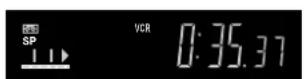
SP/LP/EP
- Prior to starting the recording session, press SP/LP/EP to set the tape speed. SP : normal recording time - optimal picture quality LP : double recording time - simple picture quality EP : triple recording time - reduced picture quality
* When you play back LP or EP recordings, some cassettes (e.g. E-300 type) may produce interference. This is not indicative of a malfunction.
Timer recording
SV120 HV60 HV65 HV55 HV50
MV20 MV1
Automatic
selectionSP/LP
A: If, at the beginning of a timer programme, there is not enough tape remaining to complete it, the SP/LP function will automatically run the tape at LP speed. This ensures that the entire programme will be recorded. If the LP mode is not enough to 'stretch' the remaining tape to fit, you will not be able to record all of the TV programmes.
* It is not possible to automatically activate the EP mode.
SV120 HV60 HV65 HV55 MV20
HV50 MV
VPS/PDC function
This setting defines how a special signal controls the beginning and end of a recording session. If a TV programme begins or ends earlier or later than planned, this function synchronises the beginning and end of the recording session with the actual beginning and end of the TV programme.
ON : The station transmits VPS/PDC signals. You must set the timer to the time specified in the TV magazines. Use the special VPS time the TV magazine may indicate.
- - - : The station does not transmit VPS/PDC signals. Try to set the start and stop times such that the entire film can be recorded even if a programme begins or ends earlier or later than planned.

Timer recording
SV120 HV60 HV65 HV55 HV50 MV20 MV15
PROG/CHECK
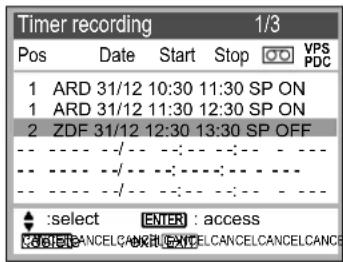
The Timer recording allows you to programme the recording time of TV programmes up to 1 month in advance. Use the on-screen menu to programme a maximum of 16 recordings.
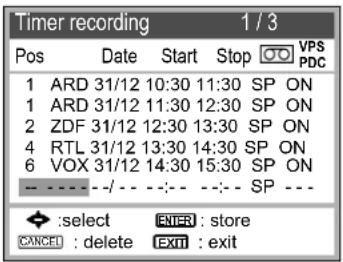
• PROG/CHECK - ENTER
Use the cursor keys or to make the next entries.
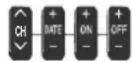
- Select a station ▲▼, ▶ or press CH
- Set the date, week or day of week ▲▼ ▶ or press DATE
- Enter the start time: ▲▼ ▶ or press ON
- Enter the stop time: ▲▼ ▶ or press OFF Keep the buttons pressed to change the time in 30-minute steps.
- Set the tape speed: A (Automatic), SP, LP, EP ▲▼, ▶ (does not apply to MV20, MV15)
- Press ▲▼ or the VPS/PDC button to change the VPS/PDC setting (does not apply to HV50, MV15).
- Press ENTER to save the timer programme.
- Repeat these steps for further recordings you may wish to programme.
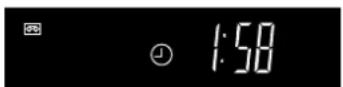
- Press TIMER to activate the recorder's timer mode. Ensure that the video recorder symbol ⏻ is displayed.

* Do not forget to verify that there is enough tape remaining. The length of the recording must not exceed the time remaining on the video cassette.
Timer recording
SV120 HV60 HV65 HV55 HV50 MV20 MV15

Quitting the timer mode
- Press TIMER, the video recorder symbol ⏻ turns off. You can now play back a cassette or make a manual recording. Press TIMER again to reactivate the timer program you entered previously.

Displays the timer programmes for verification (button on the unit only). Repeatedly press the button to view the details of the timer programmes on the video recorder's display panel.

Checking the timer programme
- Press PROG/CHECK, the Timer Recording menu will appear. - Press PROG/CHECK again or EXIT to quit the menu.
Changing or cancelling a timer programme
- Press PROG/CHECK to display the Timer Recording menu.
- Press ▲▼ to select the entry you wish to edit.
- ENTER • To change the entries: ◀▶▲▼
- ENTER
- Press RESET/CANCEL to cancel the timer programme.

Playing back programmed recordings
The unit will rewind to the beginning of the programmed recording and automatically start playing it back.
* You can also play back programmed recordings manually.
ShowView

SV120 HV60 HV65 HV55 HV50 MV20 MV15
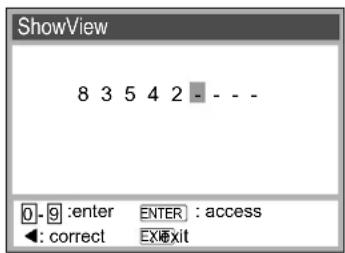
- Press the ShowView button.
- Enter the ShowView number (press ◀ to correct any mistakes)
- ENTER
The Timer recording screen is displayed.
- Press TIMER to activate the timer mode. Ensure that the video recorder symbol ⏻ is displayed.

If the unit fails to automatically detect the station, press ▲▼ or CH to enter it manually. The video recorder will store the information so that you will not have to enter it again later.
Editing the Timer recording data
- ENTER
- Select a station ▲▼, ► or press CH
- Set the date, week or day of week ▲▼, ▶ or press DATE
- Enter the start time: ▲▼, ▶ or press ON
- Enter the stop time: ▲▼, ▶ or press OFF
- Set the tape speed: A (Automatic), SP, LP, EP ▲▼, ▶ (does not apply to MV20)
- ENTER
- Press TIMER to activate the timer mode.

* ShowView is a trademark of Gemstar Development Corporation. The ShowView system is manufactured under licence from Gemstar Development Corporation.
INTELLIGENT TIMER
SV120 HV60 HV65 HV55 HV50 MV20 MV15
I-TIMER
This function makes it easier for you to time the recording of programmes transmitted by the same station at the same time but on different days. You can fully modify the programmes once they have been transferred to the Timer recording menu. The INTELLIGENT TIMER menu lists the information of the last 5 timer programmes.
To use the INTELLIGENT TIMER function you must first programme at least one normal timer programme.
Pos Date Start Stop VPS PDC
1 ARD 25/10 10:30 11:30 SP ON 1 ARD 25/10 18:30 19:30 SP OFF 2 ZDF 25/10 12:30 13:30 A ON
I:select : store TIMER ENTER : edit : unlock : lock
CANDETE : exit EXIT
Pos Date Start Stop VPS PDC
The oldest programmes will be cancelled automatically.
- Press RESET/CANCEL to cancel a programme.
• To protect the data press, the symbol is displayed. • To unprotect the data press
Editing a programme
- Press I-TIMER.
- Press or I-TIMER to select a programme.
- Press ENTER to display the Timer recording screen. • To change any of the data press
- Press ENTER to store a change.
- Press TIMER to activate the timer mode.
General functions


SV120 HV60 HV65 HV55 HV50 MV20 MV15
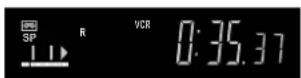
Repeat playback
The video recorder repeats playback from beginning to the end of the recording.
- In Stop or Playback mode, press the Playback button ▶ for longer than 5 seconds. The video recorder displays an 'R'.
- Press Stop ■ to stop playing back.
SV120 HV60 HV65 HV55 HV50 MV20 MV15
AUDIO settings
At each press of the AUDIO button, the selected sound output is indicated with L (Left) and R (Right).
Stereo: Display: LR
Left channel: Display: L -
Right channel: Display: - R
Mono: Display: - -
SV120 HV60 HV65 HV55 HV50 MV20 MV15

Finding the start of a recording
Quickly finds the start of a recording during playback or in Stop mode.
- Fast forward / ◀ Rewind Every time you press the button (max. 20 times) the video recorder will find the start of the next recording. Playback will start automatically.
- Press Stop ■ to exit the Search function.

General functions
SV120 HV60 HV65 HV55 HV50 MV20 MV15
Forward/backward search, JET SEARCH, still playback, slow playback
To protect the video heads, the unit automatically quits the Forward/Backward search, JET SEARCH, Still Playback, Slow Playback functions after 5-10 minutes. Interference and motor noise are not indicative of a malfunction.
SV120 HV60 HV65 HV55 HV50 MV20 MV15
Erasing a cassette
Press the QUICK ERASE button on the unit to remove all recordings from a cassette. It takes approx. 30 minutes to erase an E-180 cassette. Erasing avoids problems that may occur at the beginning and end of a recording taken straight over an existing one.
SV120 HV60 HV65 HV55 HV50 MV20 MV15
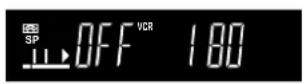

Limiting the recording and playback time
Switches the unit into stand-by mode after the set time of recording, playback or in Stop mode.
Press the button repeatedly to extend the switch-off time from 30 to 60, 120, 180 or 240 minutes. The timer setting appears on the display of the video recorder.
SV120 HV60 HV65 HV55 HV50 MV20 MV15
3D DNR, 3-Dimensional Digital Noise Reduction
Press the 3D DNR button on the unit to activate the function.
The setting of this function is displayed on the TV screen.
Menu Overview
EXIT
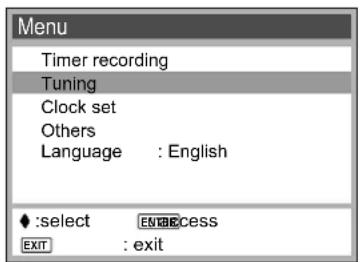
The cursor keys of the remote control unit ◀◀◀◀▼ you to move between menus and to change settings.
- Press MENU to display the Menu screen.
- Select an entry by pressing ▲▼
- ENTER
The selected menu is displayed.
- Select the item you wish to edit ▲▼
- ENTER
- Make the changes as appropriate. Follow the on-screen instructions.
- Press MENU to return to the previous menu.
- Press EXIT to quit the menu.
Manual Setup
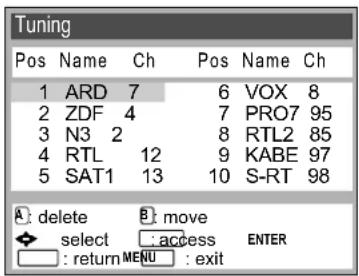
EXIT
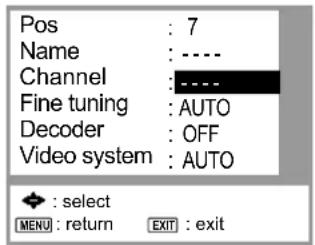
Options available for fine-tuning the channels (Not every model supports all of the functions.)
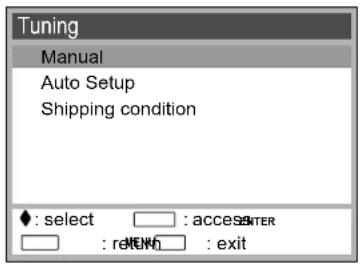
Setting a new Channel
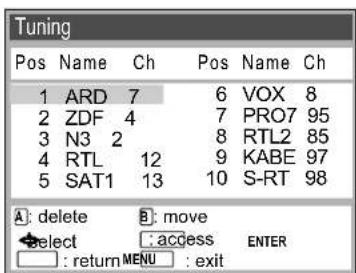
- Tuning ▼
- ENTER
- Manual
- ENTER
- Select a free line down the list ◀▶▲▼
- ENTER
- Press ◀ or the numeric keys to enter the channel number. Channel tuning will start. Wait until the desired station has been set. 'Fine tuning' may help to minimise any interference.
- Press MENU to return to the Tuning screen.
| Pos | Station position setting. | |
| Name | Station name setting. | |
| Channel | Channel setting. | |
| Fine tuning | AUTO / MAN. | Fine-tuning of disturbed picture. |
| Decoder | ON / OFF | If a decoder is attached. |
| Video System | AUTO / PAL / MESECAM | TV system set-up. |
| Mono | ON / OFF | Stereo-to-mono toggle. |
Manual Setup
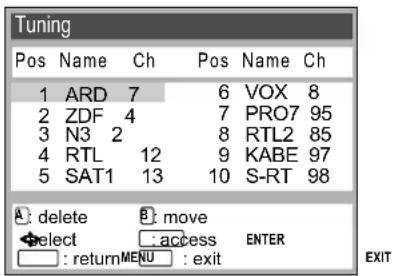
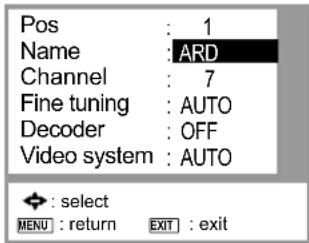
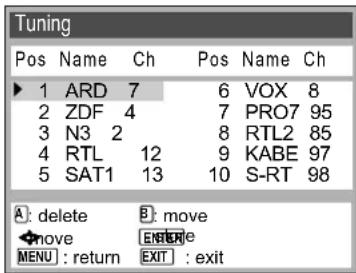
Changing the name of TV stations
- Tuning ▼
- ENTER
- Manual
- ENTER
- Select a TV station ◀▶▲▼
- ENTER
- Select the Name entry ◀.
The cursor will mark the first letter ARD.
- Change that letter ▲▼
- Next letter ▶, ARD
- MENU
The new name will be stored in the station table.
Changing the order of TV stations or deleting a station
- Tuning ▼
- ENTER
- Manual
- ENTER
- B /Green, an arrow at the left edge indicates which field has been selected.
- You can now move the station to any other location ◀▲▼.
- ENTER • A /Red to delete the station.
Manual Setup
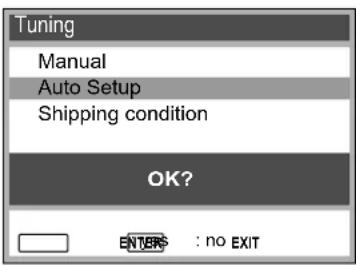
Creating a new station table
- Tuning ▼
- ENTER
- Auto Setup ▼
- ENTER
The Country menu will be displayed.
- Select a country ◀▶▲▼
- ENTER
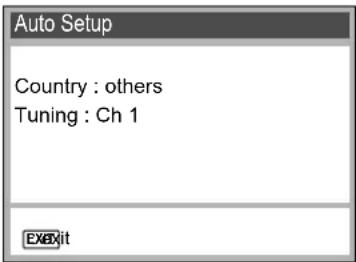
The Auto Setup menu will be displayed.
The Automatic Tuning will start.
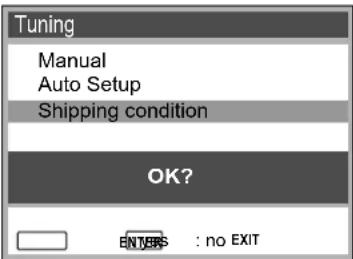
Shipping condition / restoring factory defaults
- Tuning ▼
- ENTER
- Shipping condition ▼
- ENTER
* To restore the factory defaults (shipping condition) briefly unplug the AC Mains lead.
Menu Others
SV120
| Others 1/2 | |
| Tape length: AUTO ( E-240) | |
| AV2 : | DECODER |
| AV2 IN:VIDEO | |
| AV1 OUT:VIDEO | |
| TV system: AUTO | |
| S-VHS playback: AUTO | |
| OSD : | 4:3 |
| : select | |
| MENU: return EXIT: exit | |
HV60/55/65 HV50EC
| Others | 1 / 2 |
| Tape length : AUTO( E-240) | |
| AV2 | : DECODER |
| TV system : AUTO | |
| SQPB : AUTO | |
| OSD | : 4:3 |
| Power save : OFF | |
| VCR display : ON | |
MV15 MV20 HV50EG
| Others | 1 / 2 |
| Tape length: AUTO( E-240) | |
| TV system: AUTO | |
| SQPB: AUTO | |
| OSD : | 4:3 |
| Power save: OFF | |
| VCR display: ON | |
| EXT LINK: 2 |
| Tape length | Sets the tape length of the cassette you use.AUTO ( ◀E - 240), E - 195, E - 260, E - 300 |
| AV2 | Selects the type of external unit connected to the video recorder's AV2 outlet.DECODER: If a decoder is connected.EXT : If another video recorder or satellite receiver is connected. |
| AV2 IN | Allows you to record the S-Video signal of an external unit connected to the video recorder's AV2 outlet.VIDEO : If the unit does not support S-VIDEO.S-VIDEO : If the unit support S-VIDEO.To connect use a 21-pin scart cable. |
| AV1 OUT | VIDEO : Video signal via the 21-pin scart cable.S-VIDEO : S-Video signal via the 21-pin scart cable. |
| TV system | AUTO : Automatically detects PAL or MESECAM.PAL : If you are using the PAL system.MESECAM: If you are using the MESECAM system. |
| S-VHS playback | AUTO : The VCR automatically detects the type of recordingON : Plays back S-VHS format cassettes in the S-VHS format.OFF : Plays back cassettes recorded in VHS format only. |
| OSD | 4:3 : Displays appear at the edge of the screen (displays not visible on 16:9 format screens).WIDE : Displays appear at the edge of the screen (displays appear in the middle on 4:3 format screens).OFF : No on-screen displays |
| SQPB | AUTO : The VCR automatically detects the type of recording.ON : Plays back S-VHS format cassettes in quasi S-VHS format.OFF : Plays back cassettes recorded in VHS format only. |
Menu Others
SV120
| Others | 2 / 2 |
| Power save : OFF | |
| VCR display : DIMMED | |
| S-VHS REC : ON | |
| S-VHS ET REC : OFF | |
| EXT LINK : 2 |
HV60/55/65 HV50EC
| Others 2/2 |
| EXT LINK: 2 |
| : selectMENU: return Extexit |
Press ▲▼ to display the 2nd screen.
| Power save(only in stand-by mode) | ON : The video recorder's display unit is off. In Power Save mode, you cannot change the VCR display setting.OFF : Factory setting; you can change the VCR display setting. |
| VCR display(only in stand-by mode) | Available only if the unit is not in Power save mode.DIMMED : The video recorder's display is dimmed.ON : The video recorder's display unit is on at normal brightness. |
| S-VHS REC | In conjunction with the PAL TV system only.ON : For S-VHS format recordings on a S-VHS type cassette.OFF : For VHS format recordings on a S-VHS type cassette. |
| S-VHS ET RECLn SP mode only | In conjunction with the PAL TV system only.ON : Takes recordings at a higher picture quality on VHS-HG cassettes.OFF : Takes standard quality recordings. |
| EXT LINK | 2 : External recording control by satellite receivers or digital receivers (video signal).1 : For digital receivers transmitting a special recording control signal, e.g. the F.U.N. receiver (TU-DSF31). |
Decoder
| Others | |
| Tape length | AUTO(←E - 240) |
| AV2 | DECODER |
| AV2 IN | VIDEO |
| AV1 OUT | VIDEO |
| TV system | AUTO |
| S-VHS playback | AUTO |
| OSD | 4:3 |
| Tuning | |||||
| Pos | Name | Ch | Pos | Name | Ch |
| 1 | ARD 7 | 6 | VOX | 8 | |
| 2 | ZDF 4 | 7 | PRO7 | 95 | |
| 3 | N3 2 | 8 | RTL2 | 85 | |
| 4 | RTL 12 | 9 | PREM | 97 | |
| 5 | SAT1 13 | 10 | S-RT | 98 | |
SV120 HV60 HV65 HV55 HV50EC HV50EG/EP MV20 MV15
Connecting a decoder
Use a 21-pin scart cable to connect the decoder to the video recorder's AV2 socket.
- Others ▼
- Set AV2 to DECODER▼
This setting does not allow you to change option AV2 IN.
- Press MENU to return to the Menu screen.
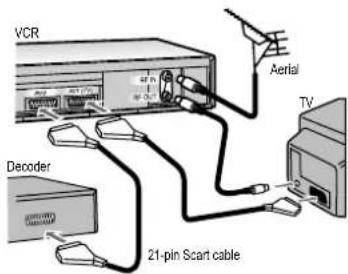
DECODER : If a decoder is connected.
EXT : If an external unit is connected, e.g. a second recorder or satellite receiver.
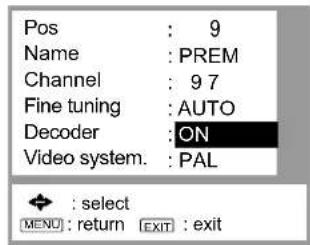
Setting the channel to Decoder
- Tuning▼ • ENTER
- Manual
- ENTER
- Select a coded channel ▲▼
- ENTER
- Set Decoder to ON ▼, ◀
- Press MENU to return to the station table.
External recording control
SV120 HV60 HV65 HV55 HV50 MV20 MV15
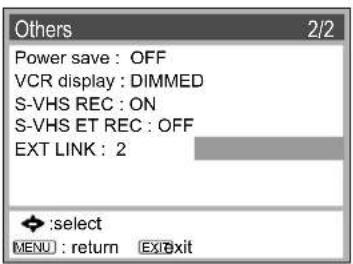
External recording control
- Others ▼
- Select EXT LINK 2 or 1
- Press MENU to return to the Menu screen.
EXT LINK 2: External recording control of some satellite- or digital receivers (video signal).
EXT LINK 1: For digital receivers transmitting a special recording control signal, e.g. the F.U.N. receiver (TU-DSF31).
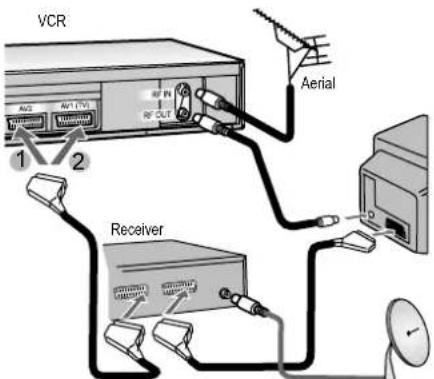
1 NV-SV120, NV-HV60, NV-HV65, NV-HV55, NV-HV50EC 2 NV-MV20, NV-MV15, NV-HV50EG

- Press EXT LINK to activate the recorder's recording stand-by mode. The video recorder will record all video output transmitted by the satellite or digital receiver.
The following screen will be shown if you selected EXT LINK 2:
EXT LINK recording in progress ENTER: yes EXT LINK: cancel
- Press ENTER to hide the message.
- Press EXT LINK to stop recording. * Be sure that the timer programs stored by your video recorder do not overlap the ones of the satellite or digital receiver.
Amplifier
SV120 HV60 HV65 HV55 HV50 MV20 MV15
Connect an amplifier
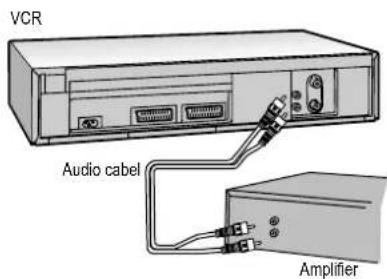
Use an audio cable to connect your video recorder to a stereo amplifier. Left = white (L/G) Right = red (R/D) If you have a scart adapter cable you can also connect the video recorder's AV socket to an amplifier.
NICAM sound system
EXIT
NTSC playback
SV120EC HV60EC HV65EC HV55EC
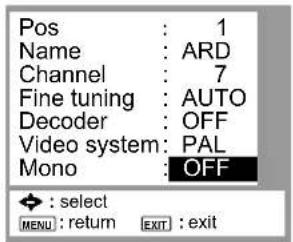
Select Mono: ON to record mono sound on the Hi-Fi-Audio tracks of the video recorder or if the quality of stereo sound reception is bad.
- Tuning ▼
- ENTER
- Manual
- ENTER
- Select a channel ◀▶▲▼
- ENTER
- Mono to ON or OFF
SV120 HV60 HV65 HV55 HV50 MV20 MV15
Playing back NTSC video cassettes
You can play back NTSC video cassettes for viewing on a PAL system (PAL 60) TV set. You cannot record on or copy video cassettes to NTSC-format cassettes.
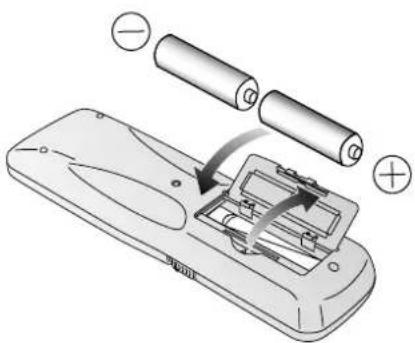
Inserting batteries into the remote control unit:
The batteries last for about a year, depending on how often you use the RC unit.
- Do not mix old with new batteries or batteries of different types.
- Only use batteries without any harmful substances (such as lead, cadmium, mercury).
- Do not use rechargeable type batteries.
- Remove the batteries if the remote control unit will remain unused for longer periods of time.
- Do not heat or short-circuit the batteries.
- Immediately remove used-up batteries and replace with batteries of type AA, UM3 or R6.
- Be sure to put in the batteries the right way round (+ and -).
Dispose of batteries, packaging material and the unit according to statutory regulations.
They must not be thrown into the household refuse.

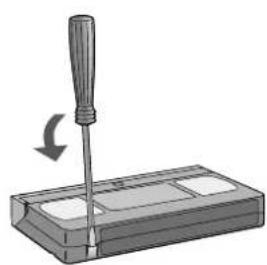
Cassette erasure protection
Break out the erasure protection tab to protect the cassette against accidental erasure of recordings you wish to keep. Stick adhesive tape over the gap if you wish to re-record a protected cassette.
Before requesting service
| Manual correction of a bad picture: | ·If you notice interference or a shift of the picture during normal, still or slow motion playback, press the TRACKN4dsV+LOCK to correct the picture.·Press + and - together to actuate automatic correction. Some video cassettes do not support tracking control. This is not indicative of a malfunction. |
| The display of the VCR does not light up: | ·Verify that the AC mains lead is properly attached.·Check your tting (page 23).Power save se |
| The display of the VCR is on but the unit does not respond to any input: | ·There is an active timer programme. Press the TIMER button to deactivate it. |
| Noise from the transport mechanism: | ·The unit's transport mechanism produces some noise when winding the tape fast forward or backward. This is not indicative of a malfunction. |
| The automatic clock does not set correctly: | ·Set Clock set to AUTO (page 9).·Set Time and Date manually if the unit does not find a station emitting the time signal.·Check your Power save setting (page 23). |
Before requesting service
| Bad picture or sound: | The use of E-300 cassettes may cause problems if the recordings were taken at slow tape speeds (LP or EP).Check the settings for PAL, MESECAM (page 22), NTSC (page 26).Verify that the aerial and/or scart cables are attached and work properly.Check the SQPB setting for S-VHS cassettes (page 22).Faulty recordings taken at slow tape speed (EP) in MESECAM are not indicative of a malfunction.Please contact your service technician if the video heads are dirty or worn out.Having a technical service shop clean the video heads is not covered by the guarantee. |
| The remote control unit does not work properly: | Check the distance between the RC unit and the VCR (max. 7 metres).Check the batteries in the remote control unit (page 27). |
| The recording functions do not work properly: | If crashes on the unit, check if the protection tab of the video cassette is still in.Check the Check (page 9).Check the start and stop time of the timer programme (page 12).Check if the TIMER has been pressed to put the unit into timer mode after programming a recording (page 12).Check the start and stop time of a VERSDING (page 11). |
Please contact our aftersales service if you fail to remove problems yourself (see the Guarantee Information)
The model number and serial number of this product can be found on the back of the unit. Please note them and keep for future reference.
Model No.
Serial No.
Specifications
| SV120 | HV60 HV65 | HV55 | HV50 MV20 MV15 | ||||
| Power consumption | |||||||
| Power consumption in operation | 20W 18W | 18W 18W | 18W 16W | 16W | |||
| in Power save | 3W | 3W 3W | 3W 3W | 3W 3W | |||
| Playback functions | |||||||
| Video TV system | PAL | PAL | PAL | PAL | PAL | PAL | PAL |
| NTSC Playback on PAL TV | X | X | X | - | - | X | - |
| Record/ Playback time | SP/LP/EP | SP/LP/EP | SP/LP/EP | SP/LP/EP | SP/LP/EP | SP | SP |
| S-VHS Quasi Playback (SQPB) | - | X | X | X | X | X | X |
| S-VHS | X | - | - | - | - | - | - |
| S-VHS ET | X | - | - | - | - | - | - |

This equipment complies with European conformity requirements, in accordance with the conditions of electromagnetic compatibility and product safety.

This equipment complies with the requirements of protection class 2.

This equipment complies with the safety requirements of the VDE (German Association of Electrical Engineers).
Matsushita Electric Industrial Co., Ltd.
| Power supply | 220-240 V AC, 50/60 Hz |
| Controls | multifunctional remote control (VCR and Panasonic TV) / VCR direct controls (main functions) |
| Video and Audio heads (helical scanning system)Tape speedRecord and playback time (E-240 cassette) SP:Fast forward or fast rewind time (E-180 cassette) | 4 heads (Super Ferrite Head) / 2 heads Hi-Fi, Mono: 2 headsSP: 23.39 mm/s , LP: 11.7 mm/s240 min, LP: 480 minapprox. 60 s |
| Video TV Colour systemVideo input and output levelRF modulated UHF channel (21-69), 75 Ohm | PAL colour signal1.0 V peak-to-peak, 75 Ohm, terminated |
| Audio Input levelAudio Output level -6 dBV, less than 1 kOhm | -6 dBV, more than 10 kOhm |
| Horizontal resolution (colour)Signal-to-noise ratio video (colour) more than 43 dB (SP)Signal-to-noise ratio audioDynamic range audioAudio frequency response | more than 240 lines (VHS, SP), 400 lines (S-VHS/ S-VHS-ET, SP)more than 43 dB (SP, normal)more than 90 dB (Hi-Fi sound tracks)80 Hz to 8 kHz (SP, normal)20 Hz to 20 kHz (Hi-Fi sound tracks) |
| Operating temperature / humidity | 5°C to 40°C / 35-80% relative humidity |
| Weight and Dimensions (approximate value) | 3.5 kg / 430 (width) x 87 (height) x 282 mm (depth) |
* These specifications are subject to change without notice.
Index
| Page | Page Page | ||
| 3D DNR 6,17 MESECAM 22,29 | Tape length 22 | ||
| AC mains lead protection 2 NICAM 26 Tape speed 5,10Antenna IN/OUT 7 NTSC 26,29 Time 9,28,29AUDIO 5,16 TIMER CHECK | 6,13 | ||
| AUDIO output | 7 | OFF TIMER | 5,17 |
| AV LINK | 5 | OSD | 22 |
| AV1 OUT | 22 | TV system | 22 |
| AV1(TV) | 7 | PAL | 22,29 |
| AV2 | 22,24 | Power save | 23,28 |
| AV2 IN | 22 | Power supply | 7 |
| AV2(DECODER) | 7 | VIDEO output | 7 |
| QUICK ERASE | 17 | ||
| Channel 8,19,24 VOLUME | 5 | ||
| Country | 9 | Remote | 4,5 |
| CVC Super | 6 | RF-Coaxial Cable | 8 |
| Date | 9,28,29 | Satellite Receiver | 22,23,25 |
| DECODER | 22,24 | Scart Cable | 8,10,24,29 |
| Digital Receiver | 23,25 | Screen format | 5 |
| Service | 2 | ||
| Erasure protection | 10,27,29 | ShowView | 5,14 |
| EXT | 22,24 | Slow playback | 4,17 |
| EXT LINK | 5,23,25 | SQPB | 22,29 |
| Still playback | 4,17 | ||
| Factory defaults | 21 | S-VHS ET REC | 23 |
| S-VHS playback | 22 | ||
| INDEX | 16 | S-VHS REC | 23 |
| INTELLIGENT TIMER | 15 | S-VIDEO 22 | |
| S-VIDEO output | 7 | ||
| JET SEARCH | 4,17 | ||
Tape remain 5,10
- DEAR CUSTOMER
- PRECAUTIONS
- WARNING
- NORSK
- CAUTION
- REMOTE CONTROL FUNCTIONS
- FRONT PANEL
- CVC SUPER
- D DNR
- REAR PANEL
- CONNECTIONS / SETTINGS
- AUTO SETUP
- SV120 HV60 HV65 HV55 HV50 MV20 MV
- MANUALLY SETTING TIME / DATE
- RECORDING
- TAPE REMAIN COUNTER/INDICATOR
- TIMER RECORDING
- AUTOMATIC
- SELECTIONSP/LP
- VPS/PDC FUNCTION
- PROG/CHECK
- QUITTING THE TIMER MODE
- CHECKING THE TIMER PROGRAMME
- CHANGING OR CANCELLING A TIMER PROGRAMME
- PLAYING BACK PROGRAMMED RECORDINGS
- SHOWVIEW
- EDITING THE TIMER RECORDING DATA
- INTELLIGENT TIMER
- I-TIMER
- EDITING A PROGRAMME
- GENERAL FUNCTIONS
- REPEAT PLAYBACK
- AUDIO SETTINGS
- FINDING THE START OF A RECORDING
- FORWARD/BACKWARD SEARCH, JET SEARCH, STILL PLAYBACK, SLOW PLAYBACK
- ERASING A CASSETTE
- LIMITING THE RECORDING AND PLAYBACK TIME
- D DNR, 3-DIMENSIONAL DIGITAL NOISE REDUCTION
- MENU OVERVIEW
- THE SELECTED MENU IS DISPLAYED
- MANUAL SETUP
- SETTING A NEW CHANNEL
- CHANGING THE NAME OF TV STATIONS
- CHANGING THE ORDER OF TV STATIONS OR DELETING A STATION
- CREATING A NEW STATION TABLE
- SHIPPING CONDITION / RESTORING FACTORY DEFAULTS
- MENU OTHERS
- DECODER
- SV120 HV60 HV65 HV55 HV50EC HV50EG/EP MV20 MV
- CONNECTING A DECODER
- SETTING THE CHANNEL TO DECODER
- EXTERNAL RECORDING CONTROL
- AMPLIFIER
- CONNECT AN AMPLIFIER
- NICAM SOUND SYSTEM
- NTSC PLAYBACK
- PLAYING BACK NTSC VIDEO CASSETTES
- INSERTING BATTERIES INTO THE REMOTE CONTROL UNIT
- CASSETTE ERASURE PROTECTION
- SPECIFICATIONS
- INDEX
Brand : PANASONIC
Model : NV-HV55
Category : VCR