
K18 - Mp3 player MEMUP - Free user manual and instructions
Find the device manual for free K18 MEMUP in PDF.


| Product Type | MP3 Player |
| Brand | Memup |
| Model | K18 |
| Display | 1.8-inch TFT color screen |
| Storage Capacity | 8 GB internal memory (expandable via microSD up to 32 GB) |
| Audio Formats | MP3, WMA, WAV, FLAC, APE |
| Battery Type | Built-in rechargeable lithium-ion battery |
| Battery Life | Up to 10 hours of music playback |
| Charging | USB 2.0 charging, approximately 2 hours for full charge |
| Dimensions | 90 x 40 x 8 mm |
| Weight | 40 g |
| Connectivity | USB 2.0, 3.5 mm headphone jack |
| Main Functions | Music playback, voice recording, FM radio, photo viewer, e-book reader |
| Support | Windows and Mac compatible |
| Package Contents | MP3 player, USB cable, earphones, user manual |
| Maintenance | Clean with a soft, dry cloth. Do not use liquids or abrasives. |
| Safety | Keep away from water and extreme temperatures. Do not disassemble. |
| Spare Parts | Replacement batteries and earphones available from Memup service center. |
| Repairability | Battery and screen replacement possible by qualified technician. |
| Warranty | 1 year limited warranty |
Frequently Asked Questions - K18 MEMUP
User questions about K18 MEMUP
0 question about this device. Answer the ones you know or ask your own.
Ask a new question about this device
Download the instructions for your Mp3 player in PDF format for free! Find your manual K18 - MEMUP and take your electronic device back in hand. On this page are published all the documents necessary for the use of your device. K18 by MEMUP.
USER MANUAL K18 MEMUP
text_image
K18 User manual
Photo Player
Album Photo
- Download latest user manual from www.memup.com if there is a difference in the instructions given in this manual.
- Do not disconnect the player when it is being formatted or uploading /downloading data.
- Do not subject the device to severe impact or drop it from high position.
- Do not use the player in extreme hot or cold, dusty or damp field. Do not expose it to direct sunshine.
- Back up the data frequently in case of accident data loss.
- Avoid using the player in strong magnetic field.
- Keep the device away from water or other liquids. In the event that water or other liquids enter the device, power off the product immediately, and clean the device.
- Do not use chemical solution to clean the device in order to avoid corrosion. Clean it with a dry cloth.
- Do not attempt to disassemble, repair or modify the product. This will invalidate guarantee.
TABLE OF CONTENTS
| D | e | s | c | r | i | p | t | i | o | n |
| 1. | Display | 2 | ||||||||
| 2 | . | U | s | e | ||||||
| 3. | Main | menu | 4 | |||||||
| 3.1. | Music | mode | 4-5 | |||||||
| 3.2. | Video | mode | 5-6 | |||||||
| 3.3. | Record | 6 | ||||||||
| 3.4. | Voice | 7 | ||||||||
| 3.5. | E-Book | 8 | ||||||||
| 3.6. | Photo | 8-9 | ||||||||
| 3.7. | Games | 8 | ||||||||
| 3.8. | System | setup | 9-10 | |||||||
| Specifications | 11 | |||||||||
Introduction
The high integration reduces the device weight and the dimensions and the use is comfortable. The big display with TFT technology offers clear and sharp information and the USB 2.0 High Speed interface make easier the data transfer operation from/to the computer. The K18 MP3 Player has built-in a Lithium battery rechargeable by computer USB port. By the microphone inside it is possible to record voice messages and play them directly with the device or by computer.
Before using this product, please read this manual and retain the instruction for future reference.
Description
Here below you will find a product description
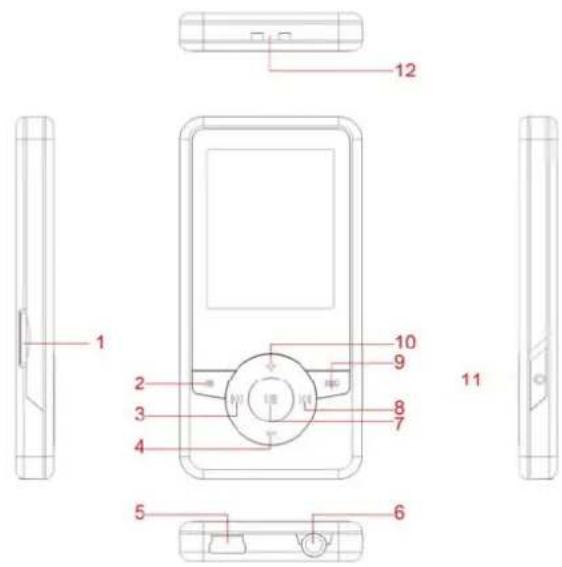
text_image
12 1 2 3 4 5 6 7 8 9 10 11- MICRO SD Card slot
- Menu
- Previous [◀] / Backward[◀]
- VOL-(Decrease the Volume)
- USB Connector
- Earphone Connector
- Play [▶] / Pause [II]
- Next [▶] / Forward [▶]
9: Record
10: VOL +(Increase the Volume)
11: Power ON/OFF
12: Strap eyelet
1. Display
Here below you will find a display description
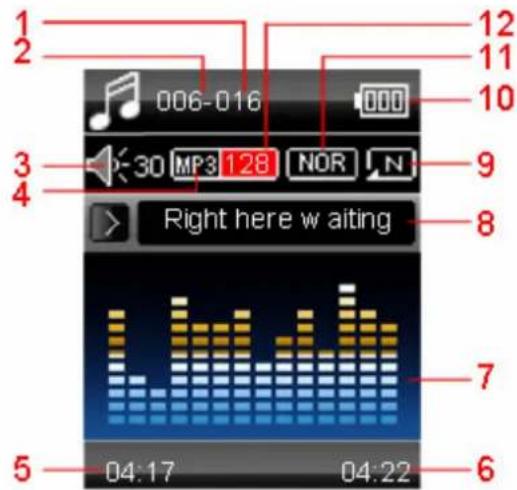
text_image
1 2 3 4 006-016 12 11 10 30 MP3 128 NOR N Right here w aiting 5 04:17 04:22 6 7 8 9- Total Number of Songs
- Current Song Location
- Volume
- File Format
- Elapsed Time
- Total Time
- EQ Animation
- Song Name
- Repeat Mode
- Battery Life
- EQ Mode
- Play Rate
2. Use
2.1 Power ON/OFF
The MP3 player has built-in a rechargeable battery. At the first use we suggest to recharge the battery for a long period (around 8 hours). To recharge the battery please connect the MP3 player to USB computer port.
Powering On:
Turn on On/Off button to On position
Powering Off:
Hold the Play [▶] / Pause [II] key until the power-off animation begins
Then, turn the On/Off button to Off position.
2.2 Recharge the Player
natural_image
Illustration of a computer monitor with a magnifying glass on top, set against a blue gradient background (no text or symbols)The player can be recharged by the provided USB cable by connecting to the PC. During charging, an icon on the right will show. You should first turn on you PC, and then connect the player to the PC through the USB cable. The player should be fully charged in 3 to 4 hours.
3. Main Menu
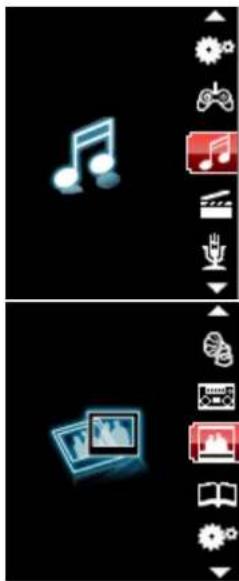
After powering on the MP3 player, you can see the main menu with 8 submenus (optional), which allow you to select different functions and options.
By using the [◀] or [▶] buttons, you can select the desire option, and then press Play button to confirm the selection.
To access at the main menu while you are inside any of these submenus, press and hold MENU [M] switch for a few seconds. (Short pressing the MENU [M] switch usually opens the submenu option of each submenu)
natural_image
Two-panel interface showing music and video icons with control buttons (no text or symbols)
natural_image
Two-panel image showing a clapperboard icon and an open book with icons, no readable text or symbols present.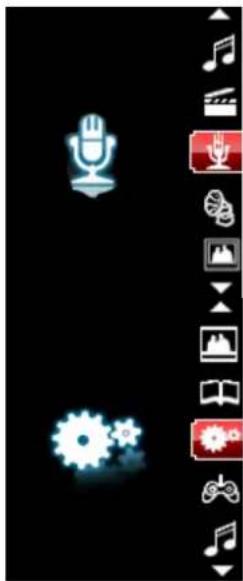
natural_image
Vertical navigation bar with icons for music, gear, and audio (no text or symbols)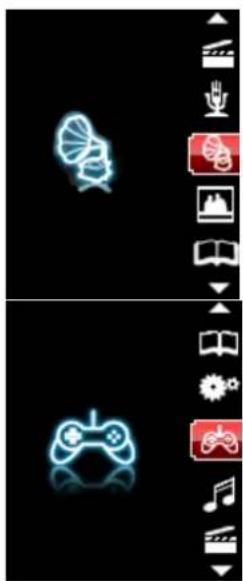
natural_image
Two-panel interface showing neon-line icons: a brain silhouette and a game controller, each with a play button icon (no text or symbols on the icons themselves)The available options are:
Music: Select this option to play song.
AMV Mode: Select this option to play AMV video.
Record: Select this option to record voice messages by the microphone inside.
Voice: Select this option to play recorded voice message.
E-Book: Select this option to read text.
Games: Select this option to play game.
Album: Select this option to browse and see photos.
System: Select this option to access at system setup.
3.1 Music Mode
The music player option allows playing songs. To activate this option please follow here below instruction:
- Power ON the MP3 Player, the screen will display the main menu
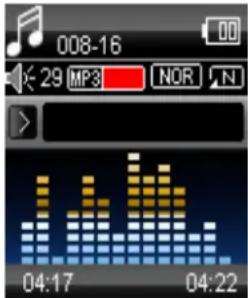
- By using [◀] or [▶] buttons, select MUSIC PLAY option then press [PLAY] button.
- Press PLAY [▶ II] button to start to play the first song available.
text_image
008-16 29 MP3 NOR N 04:17 04:223.1.1 Key Function at Music Mode
During the song play it is possible to activate the following controls.
PLAY [▶ II]:
Press the play [▶ II] to start to play a song. Press the play button again to pause the song. To restart to play the song press play button again. Hold the play button for longer time will eventually turn off the player
REW & FFWD [◀▶]
Press [◀] or [▶] to select the previous or the next song. Press and Hold the [◀] or [▶] buttons to rewind or fast forward the song.
Volume (VOL+ and VOL-):
Press [VOL+] button to increase the volume and press [VOL-] button to decrease the volume.
3.1.2 Music Submenu
By short pressing the MENU [M] button, you can find the following music submenus. Press [◀] or [▶] to choose, and then press PLAY [▶ II] key to confirm each submenus. Use the same technique to navigate inside each of the submenus.
| Status | Submenu Options |
| While Music is paused | Local Folder RepeatDelete File EqualizerDelete All Tempo Rate |
| Status | Submenu |
| While music is on | |
| Replay | |
| Replay | |
| Replay Gap |
Times
- Local Folder
Under this directory, you can choose to go up a folder level by pressing PLAY [▶ II] to confirm.
And then you can choose the folder you want to play
- Delete File:
Delete specific song you want.
- Delete All
Delete all music files using this option.
- Repeat:
Seven repeat modes are listed including Normal, Repeat One, Folder, Repeat Folder, Repeat All, Random and Intro.
- Equalizer
With preset 7 equalizers including Natural, Rock, Pop, Classic, Soft, Jazz and DBB
- Tempo Rate
You can alter the Tempo Rate of the Song(not WMA format).
3.1.3 A-B Repeat Function
The player can loop-playing a specified music interval of a song. While Playing Music, Press RECORD [REC] button to set repeat start point A, and then press RECORD [REC] again to set repeat end point B. The player will then loop-play the content between point A and B.
3.1.4 Lyric Display
The Player supports Lyrics Display, in which the lyrics would be shown synchronizing with the actually lyrics of the song. The file format should be ".lrc", and the file name should be exactly the same with the song's file name and place within the same folder with the song. To activate this option, please follow here below instruction:
- While playing song, press and hold MENU [M] to activate lyrics display
- Short press MENU [M] button again to de-activate the lyrics display and return to music play menu.
3.2 Video Mode
Supported formats:
• AVI format (.avi)
• Windows Media format (.asf, .wmv & .wma)
• MPEG 1 format (.mpg, mpeg &.dat)
• Real player format (.rm)
• Quicktime format (.mov)
- MPEG 2 format (.vob)
NOTE: to convert some formats it is necessary to have installed the related codec (for example Quicktime for ".mov" files or DivX Codec for some ".avi" files)
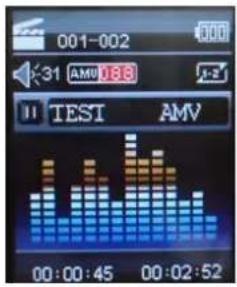
The AMV MODE allows to play movies in AMV Format. To activate this option please follow here below instruction:
text_image
001-002 31 AMV 18.6 TEST AMV 00:00:45 00:02:52- Power ON the MP3 Player, the screen will display the main menu.
- By using [◀] or [▶] buttons, select AMV MODE option then press PLAY [▶ II] button.
- Press PLAY [▶ II] button to start to play the first movie available.
Note
- The Movie Player only plays AMV files, you need conversion from other file format in order to watch the movie you like.
3.2.1 Key Function at AMV Mode
During the song play it is possible to activate the following controls.
PLAY [▶ II]: Press the PLAY [▶ II] to start to play a movie. Press the play button again to make a pause. To restart to play the movie press play button again. Hold the play button for longer time will eventually turn off the player
REW & FFWD [◀▶] Press [◀] or [▶] to select the previous or the next movie. Press and Hold the [◀] or [▶] buttons to rewind or fast forward the movie.
Volume (VOL+ and VOL-): Press [VOL+] button to increase the volume and press [VOL-] button to decrease the volume.
3.2.2 AMV Submenu
By short pressing the MENU [M] button, you can find the following AMV submenus. Press [◀] or [▶] to choose, and then press PLAY [▶ II] key to confirm each submenus. Use the same technique to navigate inside each of the submenus.
| Status | Submenu | Options |
| While Video is paused | Local Folder | |
| Delete File | ||
| Delete All |
- Local Folder:
Under this directory, you can choose to go up a folder level by pressing PLAY [▶ II] to confirm.
And then you can choose the folder you want to play
- Delete File:
Delete specific video you want.
- Delete All
Delete all videos using this option.
3.3 Record (Voice messages recorder)
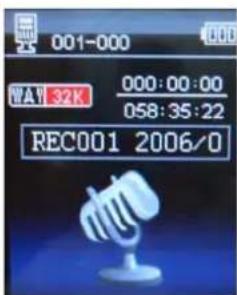
This option allows to record voice messages by using the microphone inside. To record voice message, please follow here below instruction:
- Power ON the MP3 Player, the screen will display the main menu.
- By using [◀] or [▶] buttons, select RECORD option then press PLAY [▶ II] button.
- Press PLAY [▶ II] or RECORD [REC] button to start to recording.
- You can listen to your way file under the VOICE submenu.
text_image
001-000 WAV 32K 000:00:00 058:35:22 REC001 2006/0During recording, Press the PLAY [▶ II] or RECORD [REC] to start recording. Press the play button again to make a pause. Hold the PLAY [▶ II] / or RECORD [REC] button for longer time will eventually stop recording.
By short pressing the MENU [M] button, you can find the LOCAL FOLDER and REC TYPE. Press [◀] or [▶] to choose, and then press PLAY [▶ II ] key to confirm each submenus. Use the same technique to navigate inside each of the submenus.
- Under the LOCAL FOLDER submenu, you can choose to go up a folder level by pressing PLAY [▶ II] to confirm. And then you can choose the folder you want to play
- Under the REC TYPE submenu, you can choose the recording quality including FINE and LONG.
3.4 Voice (Voice Messages Player)
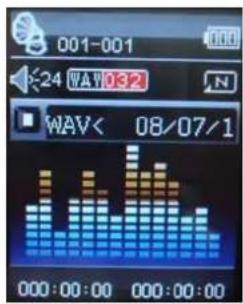
The voice option allows to play the voice messages recorded by the MP3 Player. To activate this option, please follow here below instruction:
- Power ON the MP3 Player, the screen will display the main menu.
- By using [◀] or [▶] buttons, select VOICE option then press PLAY [▶ II] button.
- Press PLAY [▶ II] button to start to play the first recording available.
text_image
001-001 24 WAV 0:2 WAV< 08/07/1 000:00:00 000:00:003.4.1 Key Function at VOICE Mode
During the recording play it is possible to activate the following controls.
PLAY [▶ II]: Press the PLAY [▶ II] to start to play a recording. Press the play button again to pause the recording. To restart to play the recording press play button again. Hold the play button for longer time will eventually turn off the player
Press [◀] or [▶] to select the previous or the next recording. Press and Hold the [◀] or [▶] buttons to rewind or fast forward the recording. REW & FFWD [◀▶]
Press [VOL+] button to increase the volume and press [VOL-] button to decrease the volume. Volume (VOL+ and VOL-):
3.4.2 VOICE Submenu
By short pressing the MENU [M] button, you can find the following music submenus. Press [◀] and [▶] to choose, and then press PLAY [▶ II] key to confirm each submenus. Use the same technique to navigate inside each of the submenus.
| Status | Submenu | Options | Status Options | |
| While Music is paused | Local Folder | While music is on Repeat | ||
| Delete File | Tempo Rate | |||
| Delete All | Replay | |||
Submenu
- Local Folder: Under this directory, you can choose to go up a folder level by pressing PLAY [▶ II] to confirm. And then you can choose the folder you want to play
- Delete File:
Delete specific voice file you want.
- Delete All
Delete all voice files using this option.
- Repeat:
Seven repeat modes are listed including Normal, Repeat One, Folder, Repeat Folder, Repeat All, Random
and Intro.
- Tempo Rate
You can alter the Tempo Rate of the Song.
3.5 E-Book
The Ebook option allows reading text file. To activate this option please follow here below instruction
1: Power ON the MP3 Player, the screen will display the main menu.
2: By using the [◀] or [▶] buttons select E-book, and then press PLAY
[▶ II] button to confirm
3: Use [◀] or [▶] buttons to choose the file
4: Press PLAY [▶ II] button to start reading the file

text_image
C'A Dog's Tale3.5.1 E-Book Submenu
By short pressing the MENU [M] button, you can find the following music submenus. Press [◀◀] or [▶◀] to choose, and then press PLAY [▶ II ] key to confirm each submenus. Use the same technique to navigate inside each of the submenus.
| Status | Submenu Options |
| While Video is paused | Local Folder |
| Play Set | |
| Delete File | |
| Delete All |
- Local Folder:
Under this directory, you can choose to go up a folder level by pressing PLAY [▶ II] to confirm. And then you can choose to folder you want to play
- Play Set:
You can choose between manual play and auto play. For auto play, you can set the playing time from 1 to 10 seconds for each page of the E-book.
- Delete File:
Delete specific text file you want.
- Delete All
Delete all text files using this option.
3.6 PHOTO
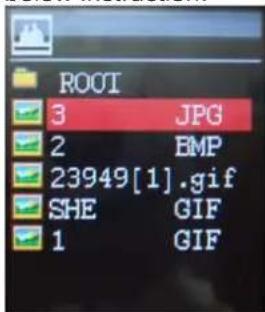
The Photo option allows browsing JPG file. To activate this option please follow here below instruction:
- Power ON the MP3 Player, the screen will display the main menu.
- By using the [◀] or [▶] buttons select PHOTO, and then press PLAY [▶ II] button to confirm
- Use [◀◀] or [▶▶] buttons to choose the file
- Press PLAY [▶ II] button to start browsing the file
text_image
ROOT 3.JPG 2 BMP 23949[1].gif SHE.GIF 1.GIF3.6.1 PHOTO Submenu
By short pressing the MENU [M] button, you can find the following music submenus. Press [◀] or [▶] to choose, and then press PLAY [▶ II] key to confirm each submenus. Use the same technique to navigate inside each of the submenus.
| Status | Submenu Options |
| While Video is paused | Local Folder |
| Play Set | |
| Delete File | |
| Delete All |
- Local Folder
Under this directory, you can choose to go up a folder level by pressing PLAY [▶ II] to confirm.
And then you can choose to folder you want to play
- Play Set:
You can choose between manual play and auto play. For auto play, you can set the playing time from 1 to 10 seconds for each picture.
- Delete File:
Delete specific photo file you want.
- Delete : All
Delete all Photos using this option.
3.7 GAMES
The GAMES option allows playing games. To activate this option please follow here below instruction:
- Power ON the MP3 Player, the screen will display the main menu.
- By using the [◀] or [▶] buttons to select GAMES, and then press PLAY [▶ II] button to enter the GAME MENU.
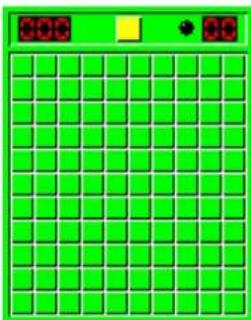
Inside the game menu, there are three games for you to choose including Mine, Hungry Snake and Russia Brick (OPTIONAL). By using the [◀] or [▶] buttons to select the game you want to play, and then press PLAY [▶ II] button to confirm
text_image
300 303.8 System Set (Setup)
The SETTING option allows to access to MP3 Player setup system. To access at system setup please follow here below instruction:
- Power ON the MP3 player, button, the screen will display the main menu.
- By using the [◀] or [▶] select SYSTEM option then press PLAY [▶ II] button to enter the SYSTEM MENU.
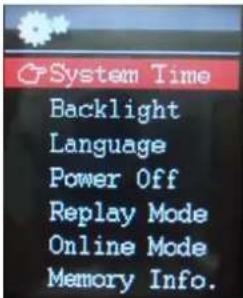
- By using the [◀] or [▶] select the system setup parameter and press PLAY [▶ II] button.
text_image
System Time Backlight Language Power Off Replay Mode Online Mode Memory Info.The parameters available in the setup system are:
System Time: This option allows setting of the system date and time.
LCD set: This option allows setting the brightness, darkly and black screen of the LCD panel.
Language: This option allows setting the Language of the User Interface.
Power Off: This option allows setting the off time and sleep time.
Memory Info: This option allows checking the memory usage.
Firmware Ver: This option allows checking the firmware version.
Firmware Upg: This option allows to upgrade the firmware.
3.8.1 System Time Set
This option allows setting of the system date and time. The upper case displays the date in Year : Month : Day Format, and the lower case displays the Time in Hour : Minute : Second format. To change the Date and time, please follow here below instruction:
- Under the SYSTEM MENU, choose SYSTEM TIME by pressing [◀] or [▶] and press PLAY [▶ II] to confirm
- Press [VOL+] and [VOL-] to choose the parameter you want to adjust
- Press [◀] or [▶] to change the value. Press MENU [M] to confirm.
3.8.2 Power Off Set
This option allows setting the off time and sleep time. By setting Off Time, it is possible to enable (30s, 60s, 90s and 120s) or disable the power management features to automatically shut down your player if it is not used. By setting Sleep Time, it is possible to set power off the unit after a specified time (30s, 60s, 90s, 120s) from the moment you confirm about this selection.
To modify this parameter please follow here below instruction:
- Under the SYSTEM MENU, choose POWER OFF by pressing [◀] or [▶] and press PLAY [▶ II].
- By using the [◀] or [▶] buttons, select OFF TIME or SLEEP TIME and press PLAY [▶ II] button.
- Choose the desired OFF TIME or SLEEP TIME (30s, 60s, 90s, 120s) and press PLAY [▶ II] to confirm.
Memory info
The figure presents the total volume of the disc, the percentage present the percentage between used space and total space.
Specification
| Size | 80X40X8.5MM | |
| Screen Full color | display, 1.8 inch screen, 262K color | |
| Computer connection | High-speed USB 2.0 (FS) Flash disk | |
| Build-in memory 4GB | ||
| Supply power | The longest playing time is 12hours | |
| REC | Sample ratio 8KHz | |
| Recording format | WAV (32K bps)、ACT (8K bps) | |
| Recording time | 35hours (ACT, 128M Flash) | |
| MP3、WMA、WMV、ASF | The biggest outputting ratio | (L) 10mW + (R) 10mW (32Ohm) |
| MP3 bit rate 8K bps – 320K bps | ||
| WMA、WMV、ASF bit rate | 5K bps – 384K bps | |
| Frequency corresponding | 20Hz-20KHz | |
| SNR | 85dB | |
| Lack fidelity | <+_0.05 | |
| FM radio | Frequency scope 76 MHz-90MHz/87MHz-108MHz | |
| Radio stations 20+20 | ||
| The biggest output rate of earphone (L) 10mW +(R) 10mW (320) | ||
| SNR | 45dB | |
| Music format | MP1、MP2、MP3、WMA、WAV,APE | |
| Temperature -5 to 40 | degree centigrade | |
| Multi languages | Traditional Chinese, English, simple Chinese, German, French, Italian and Spanish etc | |
| Operation system | Windows98/SE/ME/2K/XP、Mac OS 10、Linux 2.4.2 | |
LIMITATION OF LIABILITY AND DAMAGES.
IN NO EVENT WILL MANUFACTURER AND MANUFACTURER'S RESELLERS (COLLECTIVELY REFERRED TO AS "THE SELLERS") BE LIABLE FOR DAMAGES OR LOSS, INCLUDING BUT NOT LIMITED TO DIRECT, INDIRECT, SPECIAL WILLFUL, PUNITIVE, INCIDENTAL, EXEMPLARY, OR CONSEQUENTIAL, DAMAGES, DAMAGES FOR LOSS OF BUSINESS PROFITS, OR DAMAGES FOR LOSS OF BUSINESS OF ANY CUSTOMER OR ANY THIRD PARTY ARISING OUT OF THE USE OR THE INABILITY TO USE THE PRODUCT OR THE SOFTWARES, INCLUDING BUT NOT LIMITED TO THOSE RESULTING FROM DEFECTS IN THE PRODUCT OR SOFTWARE OR DOCUMENTATION, OR LOSS OR INACCURACY OF DATA OF ANY KIND, WHETHER BASED ON CONTRACT, TORT OR ANY OTHER LEGAL THEORY, EVEN IF THE PARTIES HAVE BEEN ADVISED OF THE POSSIBILITY OF SUCH DAMAGES. BECAUSE SOME STATES DO NOT ALLOW THE EXCLUSION OR LIMITATION OF LIABILITY FOR DAMAGES, THE ABOVE LIMITATION MAY NOT APPLY TO THE PARTIES. IN NO EVENT WILL THE SELLERS' TOTAL CUMULATIVE LIABILITY OF EACH AND EVERY KIND IN RELATION TO THE PRODUCT OR ITS SOFTWRE EXCEED THE AMOUNT PAID BY CUSTOMER FOR THE PRODUCT.