
Flight Throttle Quadrant - Manette de commande LOGITECH - Free user manual and instructions
Find the device manual for free Flight Throttle Quadrant LOGITECH in PDF.


| Product Type | Flight Throttle Quadrant |
| Brand | Logitech |
| Model | Flight Throttle Quadrant |
| Connectivity Technology | Wired |
| Interface | USB Type-A |
| Compatible Operating Systems | Windows 7, Windows 8.1, Windows 10 |
| Number of Levers | 3 |
| Lever Knobs | Detachable, configurable for throttle, flaps, mixture, or prop pitch |
| Rocker Switches | Three 2-way rocker switches |
| Mounting Type | Clamp (table mount, front or top) |
| Cable Length | Approx. 1.8 m (6 ft) |
| Weight | Approx. 0.5 kg (1.1 lb) |
| Dimensions (L x W x H) | Approx. 20 x 15 x 8 cm (7.9 x 5.9 x 3.1 in) |
| Power Source | USB bus-powered |
| Included Accessories | Clamp, additional lever knobs (including 4-way throttle knob), USB cable |
| Software | Logitech Gaming Software (Profile Editor) available for download |
| Additional Features | Ability to link multiple quadrants for multi-engine aircraft; smooth-travel levers with button detent |
| Application | Flight simulation (e.g., Microsoft Flight Simulator, FSX, FS2004) |
| Warranty | Limited hardware warranty (check Logitech support for details) |
Frequently Asked Questions - Flight Throttle Quadrant LOGITECH
User questions about Flight Throttle Quadrant LOGITECH
0 question about this device. Answer the ones you know or ask your own.
Ask a new question about this device
Download the instructions for your Manette de commande in PDF format for free! Find your manual Flight Throttle Quadrant - LOGITECH and take your electronic device back in hand. On this page are published all the documents necessary for the use of your device. Flight Throttle Quadrant by LOGITECH.
USER MANUAL Flight Throttle Quadrant LOGITECH
natural_image
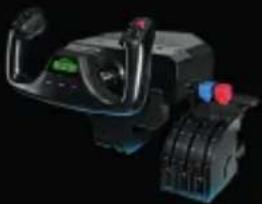
Interior view of an aircraft cockpit with instrument panels and control buttons (no visible text or symbols)YOKE SYSTEM MANCHE À VOLANT SISTEMA DE PALANCA DE MANDOS SISTEMA DE MANCHE DE VOO
natural_image
Close-up of a black industrial control device with visible buttons and no text or symbolsMULTI PANEL BOÎTIER D'INSTRUMENTS PANEL MÚLTIPLE PAINEL MÚLTIPLO
RUDDER PEDALS PALONNIER TIMÓN/PEDALES PEDAIS DO LEME
natural_image
3D rendered mechanical component with no visible text or symbolsRADIO PANEL PANNEAU RADIO PANEL DE RADIO PAINEL DE RÁDIO NAVEGAÇÃO
INSTRUMENT PANEL PANNEAU D'INSTRUMENTS PANEL DE INSTRUMENTOS PAINEL DE INSTRUMENTOS
SWITCH PANEL PANNEAU DE COMMUTATEURS PANEL DE CONMUTADORES PAINEL DE INTERRUPTORES
Build your whole cockpit with our modular, interchangeable system. Recréez un cockpit complet grâce à notre système modulaire interchangeable. Crea tu cabina completa con nuestro sistema intercambiable modular. Construa sua cabine completa com nosso sistema modular e intercambiável.
GETTING STARTED : QUADRANT
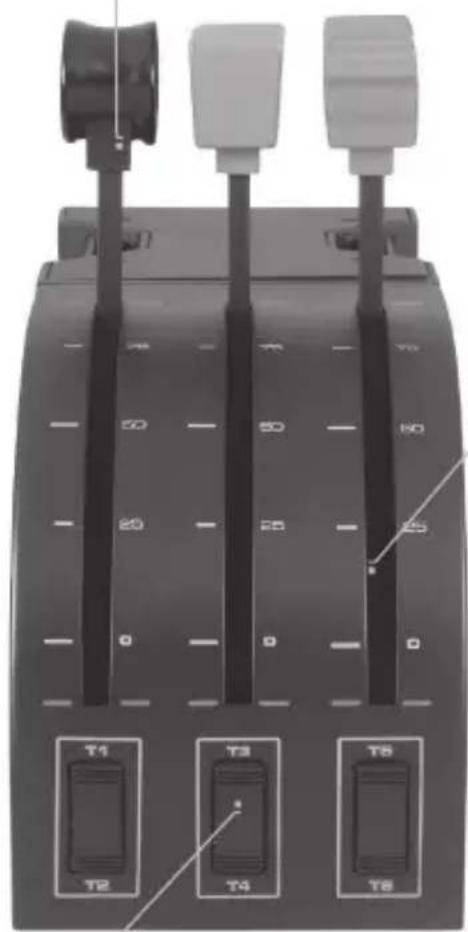
LEVER KNOBS
Detachable lever knobs to configure any combination of throttle, flaps, mixture or prop pitch
natural_image
Close-up of a black industrial control panel with three labeled buttons (T1, T2, T3, T4, T5, T6) and two connectors on top (no text or symbols on the panel itself)LEVERS
Smooth-travel levers with 0 button detent
THREE 2-WAY ROCKER SWITCHES
4 English
INTRODUCTION
Congratulations on buying the Logitech G Flight Throttle Quadrant. The Flight Quadrant features realistic controls configurable for all the major flight simulation software to make your flying experiences more realistic.
INSTALLING THE THROTTLE QUADRANT
natural_image
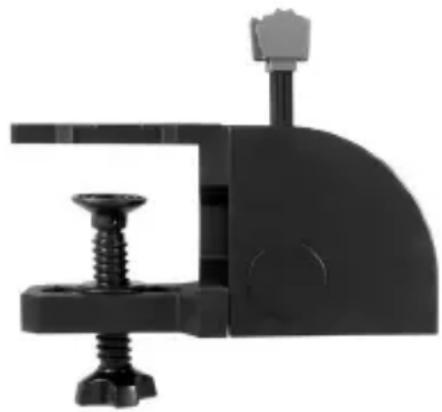
Close-up of a black mechanical clamp or bracket component with a screw and mounting bracket (no text or symbols visible)First, screw the clamp to the throttle quadrant using the four screws provided. You can screw the clamp to one of two sides of the quadrant depending on how you want to mount the quadrant - either in front and below your table or on top of it. Please note that whichever way you choose to mount the quadrant, ensure that as you look at the unit the rocker switches are at the bottom. Now tighten the throttle unit clamp screw mechanism until it is firmly attached to your table (be careful not to overtighten the screw as you may damage the clamp).
Plug the throttle quadrant's USB cable into one of your PC's free USB ports (or Logitech G Flight Yoke USB Hub).
Your throttle quadrant comes supplied with additional lever knobs to configure any combination of throttle, flaps, mixture or prop pitch. You can also buy additional quadrants to link together for more complex multi-engined aeroplane configurations and we have included a 4-way throttle knob which links 4 quadrant levers for control of 4-engined aircraft.
INSTALLATION FOR WINDOWS® 10, WINDOWS® 8.1 AND WINDOWS® 7
DRIVER INSTALLATION
1 Visit logitech.com/support/throttle-quadrant to download the latest drivers and software for your operating system.
2 With device disconnected, follow the onscreen instructions to complete the installation.
3 At the Driver Setup screen, only when prompted, insert USB cable into one of your computer's USB ports, then click Next.
4 At the Driver Setup screen, click Next to test your controller.
5 When the Logitech Controller screen appears, test the controls to verify device operation. After the test, click OK.
SOFTWARE INSTALLATION
1 In the Software Setup screen, click Next and a pop-up box will ask if you "want to trust software from Logitech." Click yes, then click Next.
2 After installation, you have the option to Run Profile Editor, which will show you the programming environment. To skip the Profile Editor now, uncheck the box and click Finish to complete installation.
IMPORTANT INFORMATION
DRIVER UPDATES
From time to time there may be updates to the driver and programming software for this product. You can check for the latest software updates by visiting the Logitech website (support.logitech.com)
ENABLING YOUR CONTROLLER IN THE GAME
Most games support game controllers, but typically default to the mouse and keyboard until you go into the option menu within the game. The first time you start a game after installing your controller, go to the options menu within the main menu of the game and make sure your controller is set up correctly. If you are having trouble working out how to do this, or if you're unsure whether the game itself supports game controllers, then please refer to the user manual of that game for more help.
HOW TO ASSIGN QUADRANT CONTROLS TO FLIGHT SIMULATOR FUNCTIONS
As you will normally be using the Pro Flight Quadrant alongside another controller in Flight Simulator, you will need to ensure that you set the levers up correctly within the game. By default, Flight Simulator will assign them to control the ailerons, elevator and throttle, which will normally be in addition to that which your other controller is already controlling; this will cause problems!
To reassign the levers correctly, you must use the Assignments (Flight Simulator 2004) or Controls (Flight Simulator X) screen within the game. This is accessed from the Settings menu within the game.
When you access the Assignments/Controls screen in Flight Simulator, ensure that the Logitech G Flight Throttle Quadrant is selected in the option labeled Joystick Type. Now select Joystick Axes (Flight Simulator 2004) or Control Axes (Flight Simulator X) at the top of the window.
Once you have done this, simply find the command that you want to assign to your controller from the list of commands, click it and then click the Change Assignment button. A window will appear asking you to move the part of your controller that you want to assign to that command - move the axis that you want to assign to that command and then click OK.
Tip: You must ensure that none of the levers are assigned to the Aileron Axis or Elevator Axis commands, otherwise they will interfere with your other controller that you are using alongside the Logitech G Flight Throttle Quadrant.
If you wish to reassign the toggle switches on the Quadrant to other functions then you must use the Buttons/Keys tab at the top of the Assignments/Controls window.
For more information to programming and using your Throttle Quadrant go to: logitech.com/support/throttle-quadrant
TECHNICAL SUPPORT
Online Support: support.logitech.com

- GETTING STARTED : QUADRANT
- LEVER KNOBS
- LEVERS
- THREE 2-WAY ROCKER SWITCHES
- INTRODUCTION
- INSTALLING THE THROTTLE QUADRANT
- INSTALLATION FOR WINDOWS® 10, WINDOWS® 8.1 AND WINDOWS® 7
- DRIVER INSTALLATION
- SOFTWARE INSTALLATION
- IMPORTANT INFORMATION
- DRIVER UPDATES
- ENABLING YOUR CONTROLLER IN THE GAME
- HOW TO ASSIGN QUADRANT CONTROLS TO FLIGHT SIMULATOR FUNCTIONS
- TECHNICAL SUPPORT
Brand : LOGITECH
Model : Flight Throttle Quadrant
Category : Manette de commande