CLP1060 - Radio MOTOROLA - Free user manual and instructions
Find the device manual for free CLP1060 MOTOROLA in PDF.


| Product type | Professional two-way radio (walkie-talkie) |
| Brand | Motorola Solutions |
| Model | CLP1060 (CLP series) |
| Frequency band | UHF (458-470 MHz) |
| Transmission power | 1 Watt |
| Number of channels | 6 programmable channels |
| Bluetooth technology | Yes (for CLP1063 models, compatible Bluetooth earpiece) |
| Power supply | Rechargeable lithium-ion battery (standard or long-life) |
| Battery life (standard/long-life) | Up to 8 h / 12 h (depending on battery and usage) |
| Dimensions (approx.) | 109 x 53 x 28 mm |
| Weight (approx.) | 145 g (with standard battery) |
| Main functions | Channel scanning, permanent listening (monitor), call tone, quick mute, radio cloning, software programming (LP), dynamic conversation mode scanning |
| Audio connectivity | Wired audio accessory port + Bluetooth (depending on model) |
| Status indicator | Intelligent LED indicator (color per channel, battery status, Bluetooth) |
| Installation and transport | Swivel holster with belt clip included, compatible with optional transport accessories |
| Maintenance and cleaning | Clean with a soft, damp cloth. Do not submerge in water, do not use alcohol or solvents. |
| Safety | Follow RF exposure guidelines (professional use). Use only Motorola Solutions approved accessories and chargers. Do not disassemble the charger. |
| Spare parts and repairability | Batteries, earpieces, chargers and cables available as accessories. Repair by an authorized Motorola Solutions service center. |
| General information | Limited 2-year warranty on the radio (1 year on accessories). Free programming software available for download. |
Frequently Asked Questions - CLP1060 MOTOROLA
User questions about CLP1060 MOTOROLA
0 question about this device. Answer the ones you know or ask your own.
Ask a new question about this device
Download the instructions for your Radio in PDF format for free! Find your manual CLP1060 - MOTOROLA and take your electronic device back in hand. On this page are published all the documents necessary for the use of your device. CLP1060 by MOTOROLA.
USER MANUAL CLP1060 MOTOROLA
CLP Series Two-Way Radio™ User Guide

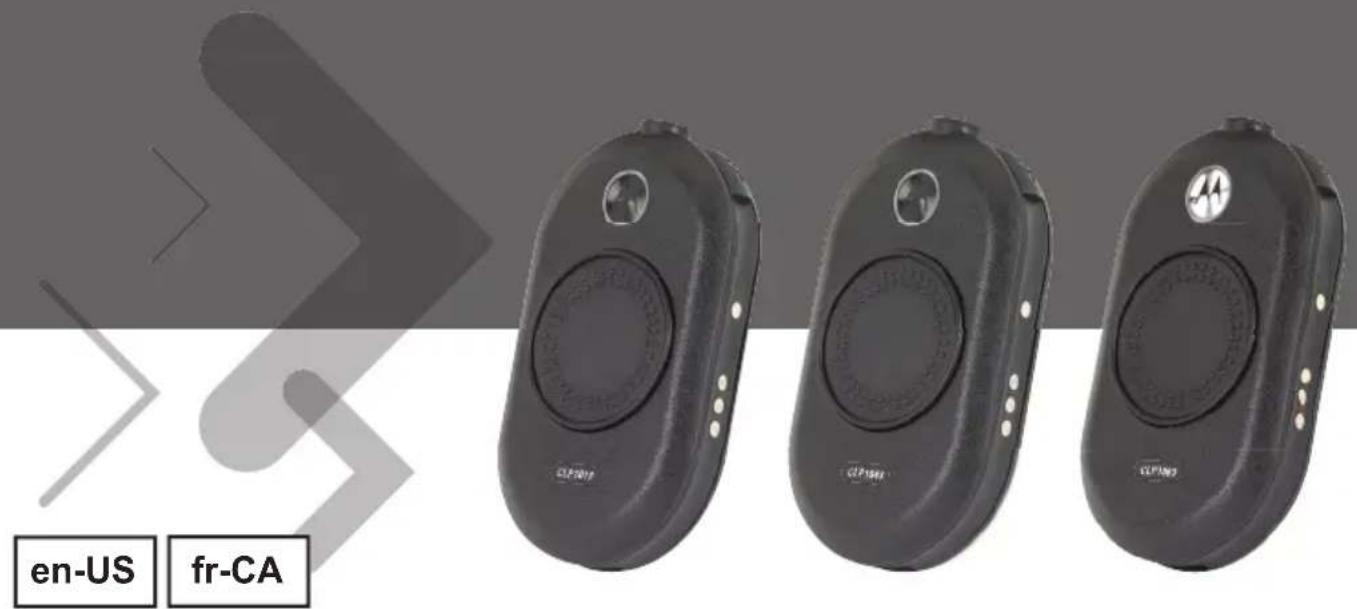
Model CLP1013, CLP1043, and CLP1063 (with Bluetooth® Wireless Technology)
Document Copyrights
No duplication or distribution of this document or any portion thereof shall take place without the express written permission of Motorola Solutions. No part of this manual may be reproduced, distributed, or transmitted in any form or by any means, electronic or mechanical, for any purpose without the express written permission of Motorola Solutions.
Disclaimer
The information in this document is carefully examined, and is believed to be entirely reliable. However, no responsibility is assumed for inaccuracies. Furthermore, Motorola Solutions reserves the right to make changes to any products herein to improve readability, function, or design. Motorola Solutions does not assume any liability arising out of the applications or use of any product or circuit described herein; nor does it cover any license under its patent rights nor the rights of others.
CONTENTS
Computer Software Copyrights ..... iii
Radio Frequency (RF) Exposure Safety
Standards....iv
Product Safety and RF Exposure
Compliance iv
Canada Licensing Information.....v
Notice to Users (Industry Canada) .....v
The License Application .....v
Introduction....1
Package Contents....1
Radio Overview....2
Radio Controls. 2
Getting Started ....3
Install The Battery ....3
Connecting a Wired Audio
Accessory 4
Connecting a Bluetooth Wireless
Accessory (Select Models Only) .....5
Adding Bluetooth Headset
(Initial Pairing) 5
Reconnecting to Last Connected
Bluetooth Headset 5
Erasing Bluetooth Headset History
and Add Bluetooth Headset. 5
Turning the Radio On and Off . . . . . . . 6
Adjusting the Volume. 6
Installing and Removing the Swivel
Belt Clip Holster 6
Transmitting and Receiving ..... 7
Operation with Menu Settings 8
Selecting a Channel. 9
Monitoring a Channel. 10
Scanning 10
Dynamic Talkaround Scan (*) ..... 11
Sending Call Tone (enabled through
CPS) 11
Mute Feature (*). 11
Talk Permit Tone (*). 11
Battery and Charger Features.....12
Battery Features....12
About the Li-Ion Battery .....12
Battery Recycling and Disposal .....13
Removing the Lithium-Ion (Li-Ion)
Battery....14
Power Supply, Adapter and Drop-in Tray
Charger....14
Charging a Standalone Battery.....15
Charging the Bluetooth Headset.....18
Checking Battery Status .....18
Batteries and Chargers Safety
Information....19
Operational Safety Guidelines .....20
Programming the Radio through
the CPS....21
Downloading the (Customer
Programming Software) CPS .....21
Radio Cloning .....24
Cloning Radio Settings .....24
Cloning Instructions....24
Cloning Radios using the CLP Series
Cloning Cable Kit P/N HKKN4026 (optional
accessory)....24
Cloning Radios using the CLP Series
Multi-Unit Charger (MUC) Kit P/N
HKPN4007 (optional accessory) ..... 27
Advanced Radio Configuration (\*) ..... 28
Entering Advanced Radio
Configuration Mode 28
Troubleshooting....29
Use and Care 33
Radio Frequency and Code Charts ..... 34
Motorola Solutions Limited Warranty for the
United States and Canada. 37
Accessories 42
Audio Accessories 42
Batteries 42
Carry Accessories 42
Chargers 43
Programming Cables 43
COMPUTER SOFTWARE COPYRIGHTS
The Motorola Solutions products described in this manual may include copyrighted Motorola Solutions computer programs stored in semiconductor memories or other media. Laws in the United States and other countries preserve for Motorola Solutions certain exclusive rights for copyrighted computer programs, including, but not limited to, the exclusive right to copy or reproduce in any form the copyrighted computer program. Accordingly, any copyrighted Motorola Solutions computer programs contained in the Motorola Solutions products described in this manual may not be copied, reproduced, modified, reverse-engineered, or distributed in any manner without the express written permission of Motorola Solutions.
Furthermore, the purchase of Motorola Solutions products shall not be deemed to grant either directly or by implication, estoppels, or otherwise, any license under the copyrights, patents or patent applications of Motorola Solutions, except for the normal non-exclusive license to use that arises by operation of law in the sale of a product.
RADIO FREQUENCY (RF) EXPOSURE SAFETY STANDARDS
Product Safety and RF Exposure Compliance
Caution
Before using this product, read the operating instructions for safe usage contained in the Product Safety and RF Exposure booklet contained with your radio.
For a list of Motorola Solutions-approved antennas, batteries, and other accessories, visit the following website: www.motorolasolutions.com/CLP
ATTENTION!
This radio is restricted to occupational use only to satisfy FCC RF energy exposure requirements.
Before using this product, read the RF energy awareness information and operating instructions in the Product Safety and RF Exposure booklet enclosed with your radio (Motorola Solutions Publication part number 6881095C98) to ensure compliance with RF energy exposure limits.
CANADA LICENSING INFORMATION
NOTICE TO USERS (INDUSTRY CANADA)
This device complies with Industry Canada's license-exempt RSS's per the following conditions:
- This device may not cause harmful interference.
- This device must accept any interference received, including interference that may cause undesired operation.
- Changes or modifications made to this device, not expressly approved by Motorola Solutions, could void the authority of the user to operate this equipment.
THE LICENSE APPLICATION
General Instructions
- Fill in the items as per the instructions. If you need additional space for any item use the reverse side of the application.
- Be sure to print legibly.
- Make a copy for your files.
- Prepare a cheque or money order made out to the “Receiver General for Canada”, for an amount, which is on the following schedule, for each radio purchased. (License is renewed on April 1st of each year, and issued for a period of 12 months).
- Mail your completed application, along with your cheque or money order to the closest Industry Canada District office, according to the list on pages.
To obtain the latest Canadian License Application form, please go to: http://www.ic.gc.ca/ic_wp-pa.htm
Notes
English
INTRODUCTION
Thank you for purchasing a Motorola Solutions CLP Series Two-Way Radio™. Your radio is a product of Motorola Solutions' 80 plus years of experience as a world leader in designing and manufacturing communications equipment. The CLP Series radios provide cost-effective efficient communications for businesses such as retail stores, restaurants, hotels, and schools. Motorola Solutions professional two-way radios are the perfect communications solution for all of today's fast-paced industries. Please read this guide carefully so you know how to properly operate the radio before use.
PACKAGE CONTENTS
Your product package contains the following products and manuals:
• CLP Series Two-way Radio™
• Swivel Belt Clip Holster
• Lithium Ion Battery and Battery Door
- Drop-In Tray Charger with Transformer
- Audio Accessory
- User Quick Reference, Chargers Instructions
Leaflet, RF Safety Booklet
- Warranty Card
For product information, visit us at: www.motorolasolutions.com/CLP
For product-related questions, contact:
1-800-448-6686 in the USA
1-800-461-4575 in Canada
1-866-522-5210 on your TTY (Text Telephone)
This user guide covers the following CLP Series™ models (*):
| Model | Frequency Band | Transmit Power | No. of Channels | Bluetooth | Repeater Capability |
| CLP1013 U | HF 1W 1 No Yes | ||||
| CLP1043 U | HF 1W 4 No Yes | ||||
| CLP1063 U | HF 1W 6 Yes Yes |
Note: Certain models may or may not be available at the time of purchase.
RADIO OVERVIEW
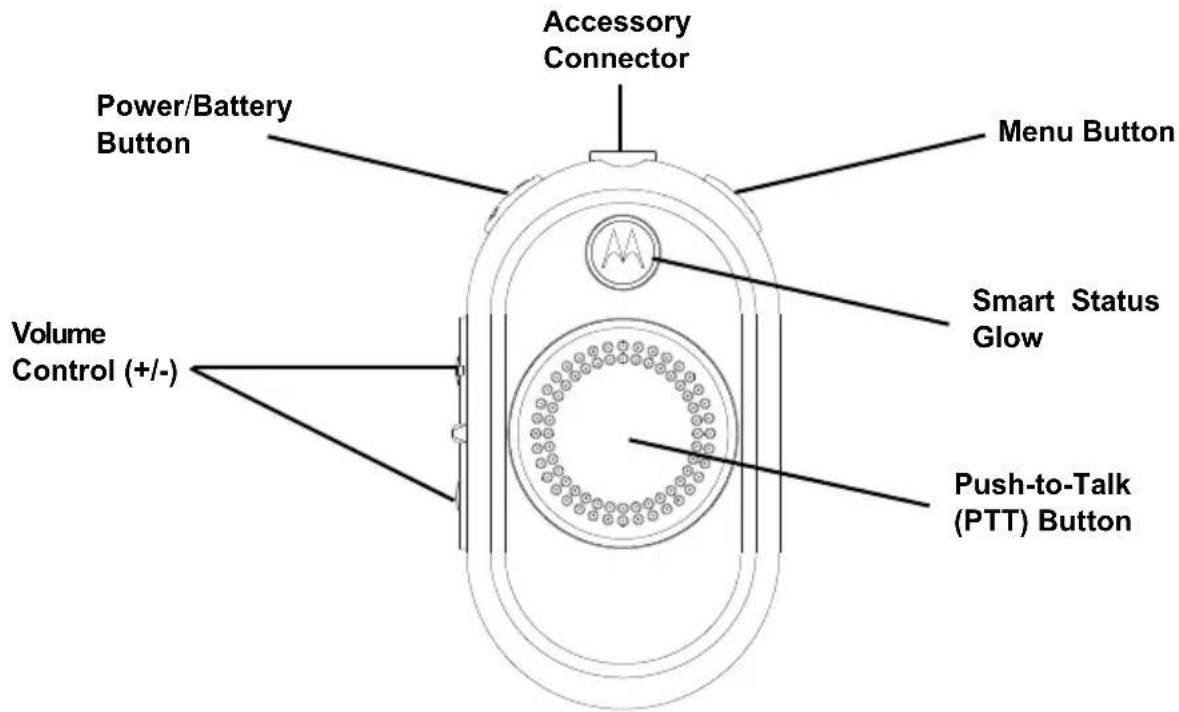
RADIO CONTROLS
GETTING STARTED
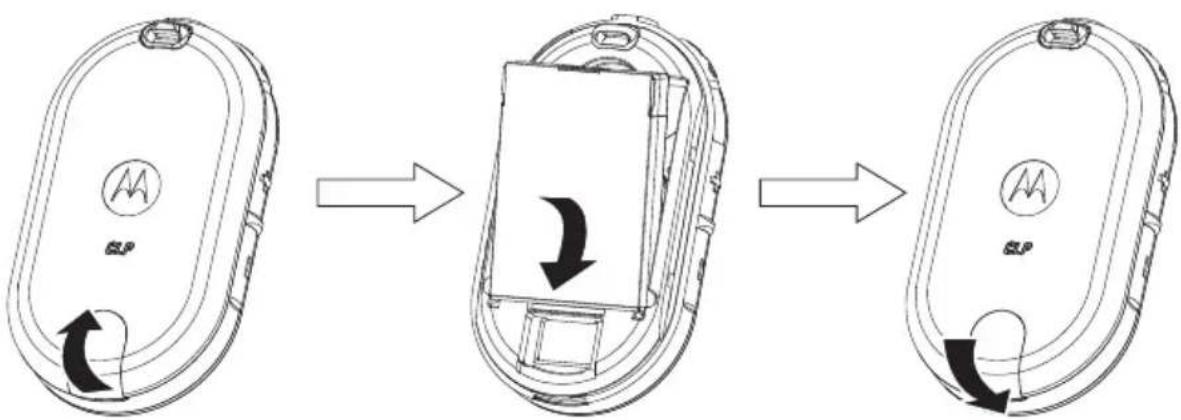
INSTALL THE BATTERY
-
Push up the latch at the bottom of the battery door and lift the battery door off the radio.
-
Align the battery contacts with tabs in the battery compartment. Insert the contact side of the battery first, then press the battery down to secure in place.
-
Put the battery door back on the radio. Push down the latch to lock.
flowchart
graph TD
    A["Device with M and S"] --> B["Internal Structure with Rotation Arrow"]
    B --> C["Final Assembly with M and S"]
Note: The CLP Series radios' standard packaged models come with standard Lithium Ion battery and the standard Lithium Ion battery door. For option, customers can order Hi-capacity Lithium Ion battery (P/N HKNN4013) and the Hi-capacity Lithium Ion battery door (P/N HKLN4440).
Connecting a Wired Audio Accessory
To connect the wired audio accessory:
natural_image
Technical line drawing of a mechanical component with a central circular core and attached pin (no text or symbols)- Turn the radio OFF.
-
Remove the accessory connector cover (applicable on bluetooth enabled models only).
-
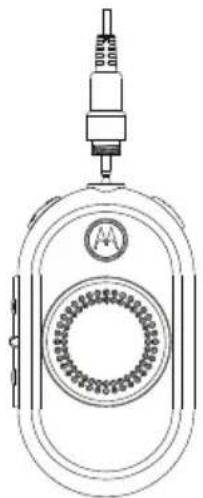
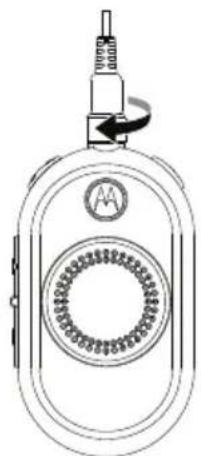
Plug the audio accessory straight into the accessory connector on the radio. Screw the audio accessory plug into the connector until it is tight and fully engaged with the connector.
natural_image
Line drawing of a handheld device with a circular button and mechanical component (no text or symbols)- Turn the radio ON. Press either the Battery Status, Menu or Volume Control button to check for audio through the audio accessory.
Note: The CLP Series radios offer a variety of audio accessories. For detailed Audio Accessories List, please refer to www.motorolasolutions.com/CLP for information on approved accessories. Lower the radio volume BEFORE placing the audio accessory in or near your ear.
CONNECTING A BLUETOOTH WIRELESS ACCESSORY (SELECT MODELS ONLY)
Adding Bluetooth Headset (Initial Pairing)
- Turn the radio OFF.
- Put Bluetooth headset in pairing mode. Refer to your Bluetooth headset instructions leaflet.
- Press and hold the PTT button and power button simultaneously until radio shows the blue LED.
| LED Configuration | ||
| User Mode LED Status Color | ||
| Bluetooth Pairing Mode | • Last connection – Fast blinking blue• Add or erase/add – Solid blue | [IMAGE] |
| Pairing Successfully | Blue/purple blinks for 5 seconds |  |
| Bluetooth Disconnected | Red/purple blinks until the radio reconnects |  |
| Pairing Fail/Timeout | Red/purple blinks until radio reconnects | [XXGB] |
Note: The Bluetooth feature is disabled when the wired audio accessory is plugged into the accessory connector on the CLP radio.
Reconnecting to Last Connected Bluetooth Headset
- Turn the radio OFF.
- Press the power button to turn the radio ON. (Make sure the Bluetooth headset is turned ON).
Erasing Bluetooth Headset History and Add Bluetooth Headset
- Turn the radio OFF.
- Put the Bluetooth headset in pairing mode. Refer to your Bluetooth headset instructions leaflet.
- Press and hold the Menu button and power button simultaneously until radio shows the blue LED.
Note: (*) The CLP radio uses proximity pairing. Make sure the headset is close enough to the CLP radio. Pairing process takes about 14 seconds.
Turning the Radio On and Off
• To turn the radio ON, press and hold the Power/Battery button until you hear a short tone and the Smart Status Glow lights up.
• To turn it OFF, press and hold the button until you hear a short tone and the Smart Status Glow (red) indicator blinks once.
Adjusting the Volume
Turn the radio ON and set volume level by pressing volume control (+/- button). A total of 16 volume levels are available.
Installing and Removing the Swivel Belt Clip Holster
- Slide the bottom of the radio into the holster.
- Snap the top of the holster into the radio around the accessory connector.
- To remove the holster, pull either the top or bottom tab(s) and pull the radio from the holster.
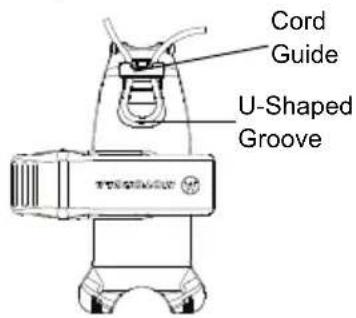
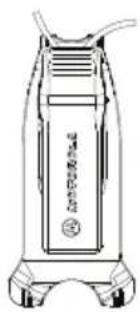
Note: When using a corded audio accessory, loop the cord into the recess in the rear of the holster for optimal plug retention.
- Make a small loop in the cord. Pass the cord through the cord guide, nest the cord in the U-shaped groove. Pull tight to lock the cord in place.
natural_image
Line drawing of a portable vacuum cleaner with control panel and wheels (no text or symbols)- Turn the belt clip to the position as needed.
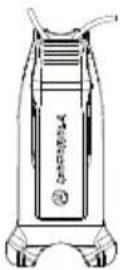
Note: The CLP Series radios offer a variety of flexible carrying accessories. For detailed Carrying Accessories List, please refer to www.motorolasolutions.com/CLP for information on approved accessories.
TRANSMITTING AND RECEIVING
-
To talk, press and hold the PTT button on the front of the radio (or on select wired audio accessories with an inline PTT). Speak clearly into the microphone on the audio accessory. When finished talking, release the PTT to listen.
-
To receive, listen through the earpiece at the volume level you have set. Press the PTT to respond.
Note: The CLP Series radios always require the use of an audio accessory with microphone and speaker.
Talk Range
| Industrial Multi-Level | ||
| Application | Inside steel/concrete industrial buildings | Inside Multi-Level Buildings |
| Unit to Unit Up | to 100,000 square feet | Up to 10 floors |
| With Repeater | Up to 250,000 square feet | Up to 20 floors |
OPERATION WITH MENU SETTINGS
Press Menu button to navigate through the Menu settings. Voice Assisted Operation feature may not be available on certain previous shipping models. At any time in Menu mode, short press PTT or wait 3 seconds to exit the menu.
| HOW TO... STEP 1 | STEP 2 | |
| Change Channel | Press Menu button to navigate to Channel. | Press +/- button to change channel. |
| Enter Monitor Mode | Press Menu button to navigate to Monitor. | Press +/- button to activate or deactivate Monitor. |
| Enter Scan Mode | Press Menu button to navigate to Scan. | Press +/- button to activate or deactivate Scan. |
| Send Call Tone (enabled through CPS) | Press Menu button to navigate to Call Tone. | Press +/- button to send Call Tone. |
Quick Tip: It is not necessary to wait for the voice prompt to be completed before continuing with next button press.
Note: For single channel models, Monitor, Scan Mode and Call Tone are supported. Single channel models support Scan Mode when the user enables “Dynamic Talkaround Scan” on a repeater channel via the customer programming software.
Selecting a Channel
For CLP multi-channel models only:
- When powered ON, press the Menu button, you will hear the voice prompt:
- [Color] "Channel" – [Channel#] – "To change" – "press +/-"
- Select the channel you want. The LED will reflect the color of the new channel. Press PTT button to confirm or it is activated after a 3 second hang time.
| CLP1013 Single-Channel Models CLP1043 Multi-Channel Models | CLP1063 Multi-Channel Models | |||||||
| Channel LED | Status | Color | Channel | LED Status | Color Channel | LED Status | Color | |
| 1 | Red | 1 | Red | 1 | ||||
| 2 | Green 2 Green | |||||||
| 3 | Yellow | 3 | ||||||
| 4 | Blue | 4 | ||||||
| 5 Purple | ||||||||
| 6 White | ||||||||
Monitoring a Channel
- To activate, press the Menu button to navigate to Monitor mode.
- When Monitor is OFF, you will hear the voice prompt: "Monitor" – "To activate" – "press +/-".
- Press either "+/-" button to activate the Monitor; press either "+/-" button again to deactivate.
Note: When Monitor is ON, you will hear static if no activity is present or audio if channel activity is present. - To engage the Monitor mode, enable Monitor via the menu and let the menu time out.
- To deactivate, press PTT during Monitor Menu mode.
Scanning
(*) For multi-channel models only
You can scan up to 4 channels on CLP 1043 models and scan up to 6 channels on CLP1063 models. When the radio detects activity, it stops scanning and locks in on the active channel.
This allows you to talk and listen to the person transmitting without changing channels.
-
Press the Menu button to navigate to Scan mode.
-
When Scan is OFF, you will hear the voice prompt: "Scan" – "To activate" – "press +/-".
-
Press either “+/-” button to activate the Scan; press either “+/-” button again to deactivate.
-
When Scan is on, you will hear the voice prompt: "Scan" – "To deactivate" – "press +/-" button.
Dynamic Talkaround Scan (\*)
"Dynamic Talkaround Scan" is a simple but effective method for an on-site repeater enabled two-way radio systems to maximize communication coverage. This feature can be enabled on a repeater channel via the Customer Programming Software (CPS). The Dynamic Talkaround Scan gives the radio the ability to scan both the transmit and receive frequencies of a repeater channel.
Note: (*) Enhancement feature on CLP Radios. May not be available on previous shipping radios. The Dynamic Talkaround Scan is given higher priority then the Scan Mode. If the Dynamic Talkaround Scan and Scan is enabled on the home channel, then the radio can only support the Dynamic Talkaround Scan.
Sending Call Tone (enabled through CPS)
- Press the Menu button to navigate to Call Tone.
- Press either "+/-" button to transmit selected Call Tone.
Note: There are 4 Call Tones available.
Mute Feature (\*)
You can quickly lower the headset volume using the Mute feature.
- Press and hold + or - button while receiving audio to quickly lower the headset volume to "Mute Headset Volume" setting (configurable via CPS). You can hear the voice prompt: "Mute"
- To switch back to the previous headset volume setting, press and hold + or - button again. You can hear the voice prompt: "Unmute".
Note: (*) Enhancement feature on CLP radios. May not available on previous shipping radios. The enhanced CLP does not support the volume scroll like the previous CLP models.
Talk Permit Tone (\*)
In mixed fleet situations (CLP1013 or CLP1043 and CLP1063), Bluetooth users may miss some words due to the Bluetooth connection not being established. Talk Permit Tone allocates some time so that the link between the radio and headset gets reestablished thus minimizing the lost words. (The Talk Permit Tone is disabled by default on CPS on the Bluetooth models).
Note: (*) Enhancement feature on CLP radios may not be available on previous shipping radios.
BATTERY AND CHARGER FEATURES
BATTERY FEATURES
The CLP Series radio provides Lithium-Ion batteries that come in different capacities that will define the battery life.
About the Li-Ion Battery
The CLP Series radio comes equipped with a rechargeable Li-Ion battery. This battery should be charged before initial use to ensure optimum capacity and performance.
Battery life is determined by several factors.
Among the more critical are the regular overcharge of batteries and the average depth of discharge with each cycle. Typically, the greater the overcharge and the deeper the average discharge, the fewer cycles a battery will last. For example, a battery which is overcharged and discharged 100% several times a day, lasts fewer cycles than a battery that receives less of an overcharge and is discharged to 50% per day. Further, a battery which receives minimal overcharging and averages only 25% discharge, lasts even longer.
Motorola Solutions batteries are designed specifically to be used with a Motorola Solutions charger and vice versa. Charging in non-Motorola Solutions equipment may lead to battery damage and void the battery warranty. The battery should be at about 77 °F (25 °C) (room temperature), whenever possible. Charging a cold battery (below 50 °F [10 °C]) may result in leakage of electrolyte and ultimately in failure of the battery. Charging a hot battery (above 95 °F [35 °C]) results in reduced discharge capacity, affecting the performance of the radio. Motorola Solutions rapid-rate battery chargers contain a temperature-sensing circuit to ensure that batteries are charged within the temperature limits stated above.
Battery Life
Based on 5% transmit, 5% receive, 90% standby (standard duty cycle):
| Estimated Battery Life | ||
| Charging Solution | Battery Type | |
| Standard Li-Ion Battery | High Capacity Li-Ion Battery | |
| CLP1013, CLP1043 9 hours | 14 hours | |
| CLP1063 8 hours | 12 hours | |
English
Battery Recycling and Disposal
Li-Ion rechargeable batteries can be recycled. However, recycling facilities may not be available in all areas. Under various U.S. state laws and the laws of several other countries, batteries must be recycled and cannot be disposed of in landfills or incinerators. Contact your local waste management agency for specific requirements and information in your area. Motorola Solutions fully endorses and encourages the recycling of Li-Ion batteries. In the U.S. and Canada, Motorola Solutions participates in the nationwide Rechargeable Battery Recycling Corporation (RBRC) program for Li-Ion battery collection and recycling.
Many retailers and dealers participate in this program. For the location of the drop-off facility closest to you, access RBRC's Internet web site at: http://www.call2recycle.org or call:1-877-723-1297.
This internet site and telephone number also provides other useful information concerning recycling options for consumers, businesses and governmental agencies.
Removing the Lithium-Ion (Li-Ion) Battery
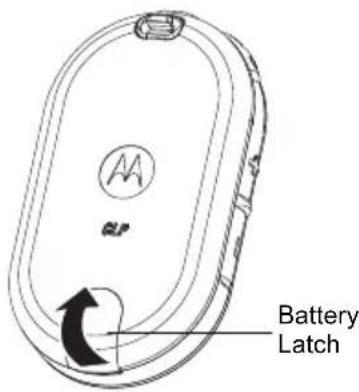
- Turn OFF the radio.
- Push up the latch at the bottom of the battery door and lift the battery door off the radio.
- Pull the battery away from the radio.
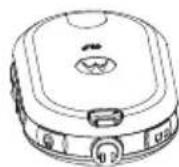
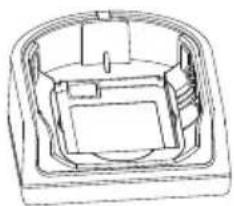
Power Supply, Adapter and Drop-in Tray Charger
natural_image
Cross-sectional diagram of a mechanical or architectural component with no visible text or symbolsThe radio is packaged with one Drop-in Tray Charger with transformer. For details, see "Chargers" Section on page 42.
Charging a Standalone Battery
For your convenience the battery on the CLP radios can be charged as a stand alone battery using either a Single Unit Charger (SUC) or a Multi-Unit Charger (MUC).
Note: When acquiring additional chargers or power supplies, make sure you have similar drop-in tray chargers and power supplies sets. For part number details, refer to "Chargers" Section on page 44.
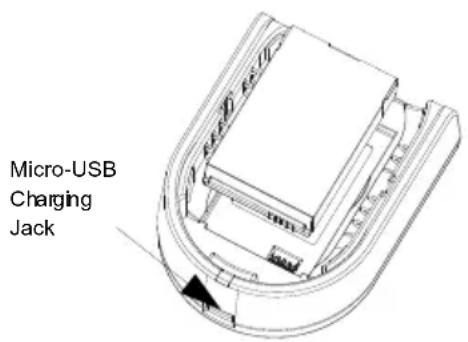
To charge only the battery:
-
Insert the connector of the power supply into the Micro USB port on the front of the drop-in tray charger.
-
Connect the CLP power supply to a proper AC outlet.
- Insert the battery into the tray, with the inside surface of the battery facing the front of the charger, as shown.
- Ensure the slots in the battery correctly engage in the charger.
Estimated Charging Time
The following table provides the estimated charging time of the battery.
| Estimated Charging Time | ||
| Charging Solution | Battery Type | |
| Standard Li-Ion Battery | High Capacity Li-Ion Battery | |
| Single Unit Charger | 4 hours 5.5 hours | |
| Multi Unit Charger | 2.5 hours 4 hours | |
- For further details, see "Batteries" Section on page 43.
Charging the Radio with the Drop-in Tray Single Unit Charger (SUC)
natural_image
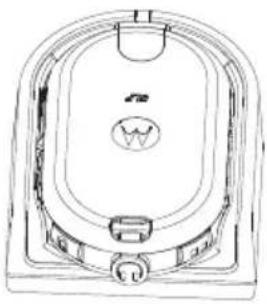
Line drawing of a stylized open bathtub with a circular logo and handle (no text or symbols)- Place the drop-in tray charger on a flat surface.
- Insert the connector of the power supply into the Micro USB port on the front of the drop-in tray charger.
- Connect the correct power supply to a proper AC outlet.
- Insert the radio (with battery installed) into the tray, facing down and making sure the charging contacts on the charger are aligned with the contacts on the radio.
Note: When charging a battery attached to a radio, turn the radio OFF to ensure a full charge. The radio will fit in the charger with the holster attached when placed face down in the tray.
Charging with the Drop-In Tray Multi-Unit Charger (Optional Accessory)
natural_image
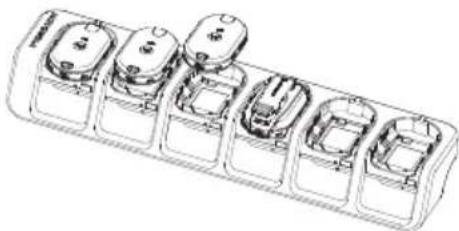
Technical line drawing of a multi-cylinder battery pack with multiple compartments (no text or symbols)The Multi-Unit Charger (MUC) allows drop-in charging of up to 6 radios. Each of the 6 charging pockets can hold a radio (with battery installed). The Multi-Unit Charger provides pockets for headset storage.
- Place the charger on a flat surface or mount it on the wall.
-
Insert the power cord plug into the jack on the MUC.
-
Plug the cord into an AC outlet and then into charger.
- Turn the radio OFF.
Note: If the radio is ON while charging, it will take longer to fully charge.
- Insert the radio facing down (with battery installed) into the charging pocket, making sure the radio contacts are aligned with the MUC contacts.
Note: The battery can be charged by itself using the slot on the flat surface of the charging pocket.
Charging Status LEDs
On the drop-in charger, the radio charging pocket has an LED Charger.
On the MUC, each of the 6 charging pockets has an LED. The LEDs are grouped into pairs to show which charging pockets are paired. The LED is red when the battery is charging. It turns to green once the battery is fully charged.
Note: This Multi Unit Charger allows you to clone up to 2 radios (2 Source radios and 2 Target radios). For more details, refer to "Radio Cloning" Section on page 24.
- For part number details, refer to the "Accessories" Section on page 42.
| Charger LED Indicator | |||
| Status LED | Status Comments | ||
| Charging SteadyRedIndication | The charger is currently charging. | ||
| Charge Complete | Steady Green Indication | Battery is fully charged. | |
| Battery Fault (*) | Blinking Red | Battery was faulty when inserted. | |
| Note: The LED is red when the battery is charging. It turns to green once the battery is fully charged.Note: (*) Re-seating the battery pack will likely correct this issue. | |||
Charging the Bluetooth Headset
Refer to your Bluetooth headset leaflet for charging instruction.
Charging Bluetooth Headset with CLP Series Drop-In Tray Multi-Unit Charger and Cloning Cable (Optional Accessory)
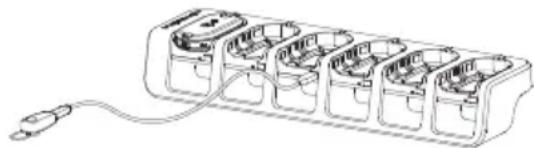
You can also charge your Bluetooth headset with CLP Series Multi Unit Charger (MUC) P/N HKPN4007 (optional accessory) and Cloning Cable P/N HKKN4026 (optional accessory).
natural_image
Line drawing of a multi-cylinder engine housing with a cable, no text or symbols present- Plug one side of the cloning cable microconnector to the USB port of the Multi-Unit Charger (there are 6 USB port on top of the accessory pockets)
- Plug the other end of the cloning cable to the USB port of the Bluetooth headset for charging
Note: Refer to the charging status light on your Bluetooth headset leaflet.
Checking Battery Status
When powered on, short press and release the Power/Battery button, the Smart Status Glow and Voice Assisted Operation features ^* will give you the battery status of the radio.
| Battery Status | ||
| Level | LED Status | Color |
| Battery Level High (70 –100%) Green | ||
| Battery Level Medium (30 – 70%) Yellow | ||
| Battery Level Low (10 – 30%) Red | ||
| Battery Level Critical (0 – 10%) | Blinking Red | |
After the Smart Status Glow and Voice Assisted Operation features ^(*) indicate the BATTERY STATUS, it will return to the current channel color.
Note: (*) May not be available on certain previous shipping radios.
BATTERIES AND CHARGERS SAFETY INFORMATION
This document contains important safety and operating instructions. Read these instructions carefully and save them for future reference. Before using the battery charger, read all the instructions and cautionary markings on
- the charger,
-
the battery, and
• the radio using the battery -
To reduce risk of injury, charge only the rechargeable Motorola Solutions-authorized batteries. Other batteries may explode, causing personal injury and damage.
-
Use of accessories not recommended by Motorola Solutions may result in risk of fire, electric shock, or injury.
-
To reduce risk of damage to the electric plug and cord, pull by the plug rather than the cord when disconnecting the charger.
- An extension cord should not be used unless absolutely necessary. Use of an improper extension cord could result in risk of fire and electric shock. If an extension cord must be used, make sure that the cord size is 18 AWG for lengths up to 6.5 feet (2.0 m), and 16 AWG for lengths up to 9.8 feet (3.0 m).
- To reduce risk of fire, electric shock, or injury, do not operate the charger if it has been broken or damaged in any way. Take it to a qualified Motorola Solutions service representative.
- Do not disassemble the charger; it is not repairable and replacement parts are not available. Disassembly of the charger may result in risk of electrical shock or fire.
- To reduce risk of electric shock, unplug the charger from the AC outlet before attempting any maintenance or cleaning
OPERATIONAL SAFETY GUIDELINES
- Turn the radio OFF when charging battery.
- The charger is not suitable for outdoor use. Use only in dry locations/conditions.
- Connect charger only to an appropriately fused and wired supply of the correct voltage (as specified on the product).
- Disconnect charger from line voltage by removing main plug.
- The outlet to which this equipment is connected should be nearby and easily accessible.
• Maximum ambient temperature around the power supply equipment must not exceed 40 °C ( 104 °F ). - Make sure that the cord is located where it will not be stepped on, tripped over, or subjected to water, damage, or stress.
PROGRAMMING THE RADIO THROUGH THE CPS
RADIO PROGRAMMING OVERVIEW
Downloading the (Customer Programming Software) CPS
You can program or change features on your CLP radios by using the Computer Programming Software (CPS) and the CPS Programming Cable (*). CPS software is available for free as web based downloadable software at: www.motorolasolutions.com/CLP
After downloading the CPS, install the software to your computer.
Programming the Radio
To program the radio:
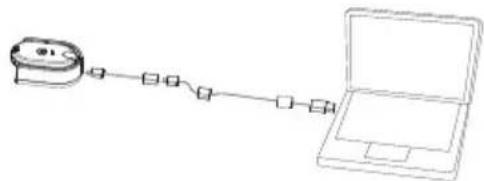
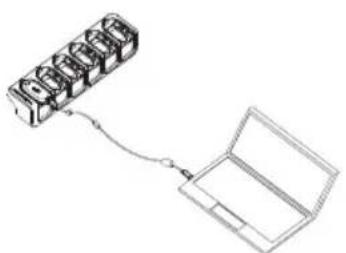
- Connect the radio via the Drop-in Charger Tray or the Charging Pocket with "PROG" label on the Multi-Unit Charger and CPS Programming Cable.
natural_image
Simple line drawing of a device connected to a laptop (no text or symbols)Programming the Radio through a Single Unit Charger
natural_image
Line drawing of a laptop connected to a series of 3D blocks (no text or symbols)Programming the Radio through a Multi-Unit Charger
- Make sure the radio is turned ON.
- Once the radio is connected, open the CPS and select "Read" on the toolbar to get the radio profile. The CPS allows the user to change settings, such as General, Audio, Menu, Channels, Scan List, Customized PL/DPL, Bluetooth ^(*) , as well as select frequencies, PL/DPL codes on each channel.
- After you change the settings, press "Write" on the toolbar to save the settings.
For more information on the Computer Programming Software, please refer to Help menu on the CPS.
Note: (*) CPS Programming Cable (P/N HKKN4025) is an accessory sold separately. Please contact your Motorola Solutions Point of Purchase for more information. (*) Bluetooth is available on selected models only.
Factory Default Settings
Your radio is programmed at the factory to the following settings:
| CLP1013 1W UHF 1 CH Radios Default Settings - BRCAN | ||||
| Channel # | Frequency # | Frequency Setting | Code Value (Hz) | Band width (kHz) |
| 1 1 458. | 6625 67.0 12.5 | |||
| CLP1043 1W UHF 4 CH Radios Default Settings - BRCAN | ||||
| Channel # | Frequency # | Frequency Settings | Code Value (Hz) | Band width (kHz) |
| 1 1 458 | 6625 67.0 12.5 | |||
| 2 2 469 | 2625 67.0 12.5 | |||
| 3 1 458 | 6625 71.9 12.5 | |||
| 4 2 459 | 2625 71.9 12.5 | |||
| CLP1063 1W UHF 6 CH Radios Default Settings - BRCAN | ||||
| Channel # | Frequency # | Frequency Settings | Code Value (Hz) | Band width (kHz) |
| 1 1 458. | 6625 67.0 12.5 | |||
| 2 2 469. | 2625 67.0 12.5 | |||
| 3 1 458. | 6625 71.9 12.5 | |||
| 4 2 469. | 2625 71.9 12.5 | |||
| 5 1 458. | 6625 74.4 12.5 | |||
| 6 2 469. | 2625 74.4 12.5 | |||
RADIO CLONING
CLONING RADIO SETTINGS
You can copy the CLP Series radio settings from one radio (the source) to a second radio using the CLP Series Single Unit Charger (SUC) Kit P/N HKPN4008 and CLP Series Cloning Cable Kit P/N HKKN4026 (optional accessory) or CLP Series Multi-Unit Charger (MUC) Kit P/N HKPN4007 (optional accessory).
A multi-channel radio can be cloned to a single-channel radio BUT only the first channel is cloned. The Multi-Unit Charger (MUC) does not have to be plugged in for cloning, but both radios require charged batteries.
CLONING INSTRUCTIONS
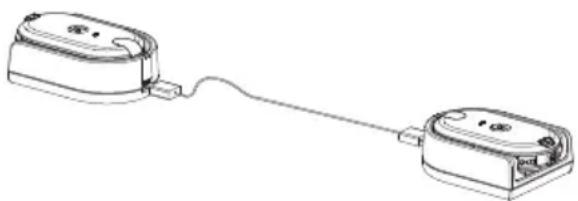
Cloning Radios using the CLP Series Cloning Cable Kit P/N HKKN4026 (optional accessory)
natural_image
Line drawing of two electronic devices connected by a cable (no text or symbols)Cloning the Radio through a Single Unit Charger
Source Radio: Radio to be cloned
Target Radio: Radio to which the configuration of the "Source Radio" will be copied.
Before beginning the cloning process, make sure you have:
- A fully charged battery on each one of the radios
- Two CLP Series Single Unit Charger (SUC) Kits
- Both radios are turned OFF
- Unplug any cables (power supply or USB cables) from the Single Unit Chargers.
English
- Plug one side of the cloning cable microconnector to one Single Unit Charger. Plug the other end to the second Single Unit Charger.
Note: During the cloning process no power is being applied to the Single Unit Charger. The batteries will not be charged. A data communication is being established between the two radios. - Turn ON the "Target Radio" and place it into one of the Single Unit Chargers.
-
On the "Source Radio", power the radio following the sequence below: Press and hold the Push-to-Talk (PTT) and the "-" Button simultaneously while turning the radio ON until you hear the Cloning Tone and Double Blinking Yellow on the Smart Status Glow.
-
Place the "Source Radio" in its Single Unit Charger with an Audio accessory, then press and release Menu Button to start the cloning process.
- After cloning is completed, the "Source Radio" will sound either a "pass" tone (cloning was successful) or a "fail" tone (cloning process has failed). The pass tone sounds like a good key "chirp" whereas the "fail" tone sounds similar to a "bonk" tone. (A tone will be heard in no more than 5 seconds).
- Once you have completed the cloning process, you should turn the radios "OFF" and "ON" to bring them to normal user mode (exit "clone" mode).
What to do if cloning fails
The radio will emit an audible “bonk” indicating that the cloning process has failed. In the event that cloning fails, try performing each of the following before trying to start the cloning process again.
- Make sure that the radio batteries on both radios are fully charged.
- Verify the cloning cable connection on both Single Unit Chargers.
- Make sure that the battery is engaged properly on to the radio.
- Make sure that there is no debris in the charging tray or on the radio contacts.
- Verify that the source radio is in cloning mode.
-
Make sure that the radio to be cloned is turned ON.
-
Make sure that radios are both from the same type (same frequency band, same region and same transmission power).
Note: This cloning cable is designed to operate only with compatible Motorola Solutions Drop-in Tray Single Unit Charger. When ordering the cloning cable, please refer to CLP Series Cloning Cable Kit P/N HKKN4026. For details about accessories, refer to "Accessories" Section on page 42.
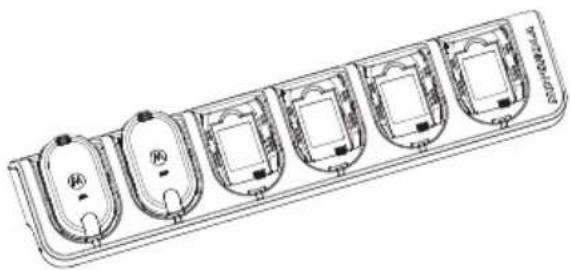
Cloning Radios using the CLP Series Multi-Unit Charger (MUC) Kit P/N HKPN4007 (optional accessory)
natural_image
Line drawing of a multi-tiered electronic device with four rounded ports and a central display (no text or symbols)Cloning the Radio through a Multi-Unit Charger
-
To put the source radio into clone mode, press and hold PTT and the "-" button while turning the radio ON until you hear the Cloning Tone and Double Blinking Yellow on the Smart Status Glow.
-
Place the source radio into one of the charging pockets that has the "CLONE" label.
-
Turn the target radio ON and place it in the pairing charging pocket that has the "CLONE" label and start the cloning process.
- Press the "Menu" button on the source radio to start the cloning process. The source radio generates the start clone tone.
- Once the cloning is completed, turn the target radio OFF and back ON again in order to activate the radio.
- To clone another radio, repeat steps 3, 4 and 5.
- To exit clone mode on the source radio, turn the radio OFF.
(*) Enhancement feature on CLP radios. May not be available on previous shipping radios.
Advanced Radio Configuration provides you with the ability to configure the following settings from a pre-programmed list without the need to use a computer.
- Channels
- Frequencies
- Codes (CTCC/DPL)
Frequencies allows the user to select frequencies for each channel. Codes helps minimize interference by providing the user with a choice of code combinations that filter out static, noise, and unwanted messages.
Entering Advanced Radio Configuration Mode
Before starting, make sure the device is powered OFF.
Note: For Bluetooth models, make sure the wired accessory is connected or the Bluetooth headset is paired before entering Advanced Radio Configuration Mode.
- Press the PTT, “+” button and Power button at the same time and hold for 3 to 5 seconds until you hear a “chirp” sound and the voice prompt “Programming Mode”.
Note: The LED Indicator should start blinking a green heartbeat. - Press the Menu button to select the settings you want to change:
- Channel (for multi-channel models)
- Frequency
• C o d e - The voice announcements indicate the menu items and their current settings. To change, press “+/-” buttons; to go to the next menu item, press Menu button.
- To exit the Advanced Radio Configuration Mode, press and hold the PTT button until you hear a "beep" sound.
- Resume normal radio operation.
TROUBLESHOOTING
| Symptom Try this | |
| No Power Recharge or replace Li-Ion battery. Extreme operating temperatures affect battery life. Refer to “About the Li-Ion Battery” Section on page 12. | |
| Hearing other noises or conversation on a channel | Confirm Interference Eliminator Code is set. Frequency or Interference Eliminator Code may be in use. Change settings: either change frequencies or codes on all radios. Make sure radio is at the right frequency and code when transmitting. |
| Message Scrambled Scramble Code might be ON, and/or setting does not match other radios' settings. Use CPS to change settings. | |
| Audio quality not good enough Radio settings might not be matching up correctly. Double check frequencies, codes and bandwidths to ensure they are identical in all radios. | |
| Limited talk range Steel and/or con | crete structures, heavy foliage, buildings or vehicles decrease range. Check for clear line of sight to improve transmission.Change location of radio. To increase range and coverage, you can either reduce obstructions or increase power.UHF radios provide greater coverage in industrial and commercial buildings.Increasing power provides greater signal range and increased penetration through obstructions. |
| Message not transmitted/received | Make sure the PTT button is completely pressed when transmitting.Confirm that the radios have the same Channel, Frequency, Interference Eliminator Code and Scramble Code settings.Refer to “Transmitting and Receiving” Section on page 7.Recharge, replace and/or reposition batteries. Refer to “About the Li-Ion Battery” Section on page 12.Obstructions and operating indoors, or in vehicles, may interfere. Change location.Verify that the radio is not in Scan mode. Refer to “Scanning” Section on page 10. |
| Heavy static or interference Radios | are too close, they must be at least five feet apart. Radios are too far apart or obstacles are interfering with transmission. |
| Low batteries Recharge or replace | Li-Ion battery. Extreme operating temperatures affect battery life. Refer to “About the Li-Ion Battery” Section on page 12. |
| Drop-in Charger LED light does not blink | Check radio/battery is properly inserted and check battery/ charger contacts to ensure they are clean and the charging pin is inserted correctly. Refer to “Charging a Standalone Battery” Section on page 15 and “Charger LED Indicator” Section on page 17. |
| Cannot activate VOX VOX feature | might be OFF.Use the CPS to ensure that the VOX Sensitivity Level is not set to “0”.Accessory not working or not compatible. |
| Battery doesn't charge although it has been placed in the drop-in charger for a while | Check drop-in charger is connected and correspond to a compatible power supply.Refer to “Charging a Standalone Battery” Section on page 15.Check the charger LEDs indicators to see if battery has a problem. Refer to “Charger LED Indicator” Section on page 17. |
| Unable to pair a Bluetooth headset | Make sure the target Bluetooth headset is not connected to another device. |
| Unable to connect to a Bluetooth headset | Make sure the target Bluetooth headset is not connected to another device. |
| Pairing with wrong Bluetooth headset | Don’t perform pairing procedures next to other Bluetooth headset devices.CLP Bluetooth uses proximity pairing. Make sure the headset is placed next to the CLP radio. |
| Note: Whenever a feature in your radio seems to not correspond to the default or preprogrammed values, check if your radio have been programmed using CPS with a customized profile. | |
USE AND CARE
natural_image
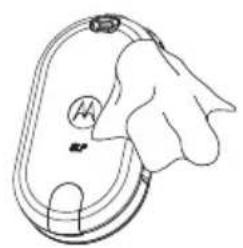
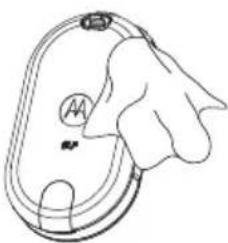
Simple line drawing of a medical device with a handle and circular components (no text or symbols)Use a soft damp cloth to clean the exterior.
natural_image
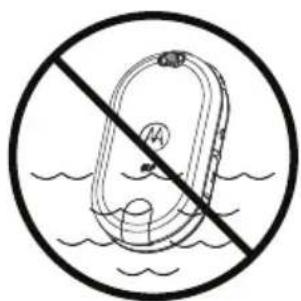
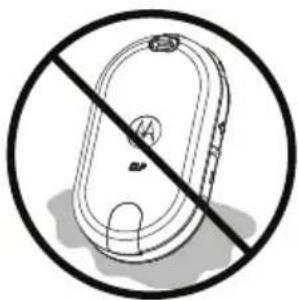
Symbolic illustration of a lifebuoy floating on water with no text or symbolsDo not immerse in water. Do not use alcohol or
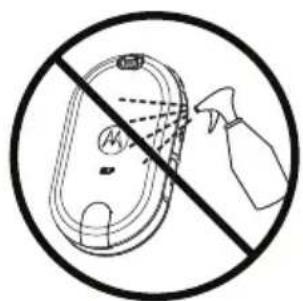
cleaning solutions.
If the portable is submerged in water...
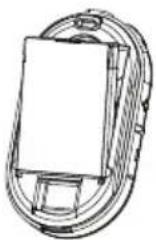
Turn OFF and remove batteries.
natural_image
Simple line drawing of a hand holding a small object inside a curved container (no text or symbols)Dry with soft cloth. Do not use until
completely dry.
RADIO FREQUENCY AND CODE CHARTS
These charts provide frequency information and are useful when using Motorola Solutions CLP Series Two-Way Radios with other business radios. Most of the frequency positions are the same as Spirit M, GT, S, XTN, RDX and CLS Series frequency positions (where applicable), the bandwidths are different.
CLP UHF Frequencies
| Freq. # Frequency (MHz) | Band width (kHz) |
| 1 458.6625 12.5 | |
| 2 469.2625 12.5 |
English
CTCSS/DPL Interference Eliminator Codes
| CTCSS | Code | CTCSS/DPL | Code | DPL | Code | DPL | Code | DPL | Code |
| 0 Disabled 24 151.4 47 | 54 71 243 95 445 | ||||||||
| 1 | 67 | 25 156.7 48 65 72 244 96 464 | |||||||
| 2 | 71.9 | 26 162.2 49 71 73 245 97 465 | |||||||
| 3 | 74.4 | 27 167.9 50 72 74 251 98 466 | |||||||
| 4 | 77 | 28 173.8 51 73 75 261 99 503 | |||||||
| 5 | 79.7 | 29 | 179.9 | 52 | 74 | 76 | 263 | 100 | 506 |
| 6 | 82.5 | 30 | 186.2 | 53 | 114 | 77 | 265 | 101 | 516 |
| 7 | 85.4 | 31 | 192.8 | 54 | 115 | 78 | 271 | 102 | 532 |
| 8 | 88.5 | 32 | 203.5 | 55 | 116 | 79 | 306 | 103 | 546 |
| 9 | 91.5 | 33 | 210.7 | 56 | 125 | 80 | 311 | 104 | 565 |
| 10 | 94.8 | 34 | 218.1 | 57 | 131 | 81 | 315 | 105 | 606 |
| 11 | 97.4 | 35 | 225.7 | 58 | 132 | 82 | 331 | 106 | 612 |
| 12 | 100 | 36 | 233.6 | 59 | 134 | 83 | 343 | 107 | 624 |
| 13 | 103.5 | 37 | 241.8 | 60 | 143 | 84 | 346 | 108 | 627 |
| 14 | 107.2 | 38 | 250.3 | 61 | 152 | 85 | 351 | 109 | 631 |
| 15 | 110.9 | 122 | 69.3 | 62 | 155 | 86 | 364 | 110 | 632 |
| 16 | 114.8 | 39 | 23 | 63 | 156 | 87 | 365 | 111 | 654 |
| 17 | 118.8 | 40 | 25 | 64 | 162 | 88 | 371 | 112 | 662 |
| 18 | 123 | 41 | 26 | 65 | 165 | 89 | 411 | 113 | 664 |
| 19 | 127.3 | 42 | 31 | 66 | 172 | 90 | 412 | 114 | 703 |
| 20 | 131.8 | 43 | 32 | 67 | 174 | 91 | 413 | 115 | 712 |
| 21 | 136.5 | 44 | 43 | 68 | 205 | 92 | 423 | 116 | 723 |
| 22 | 141.3 | 45 | 47 | 69 | 223 | 93 | 431 | 117 | 731 |
| 23 | 146.2 | 46 | 51 | 70 | 226 | 94 | 432 | 118 | 732 |
| 119 | 734 | ||||||||
CTCSS/DPL Interference Eliminator Codes (cont'd)
| DPL Code | DPL Code DPL | Code DPL Code | |||||
| 120 | 743 | 146 | Inverted DPL 55 | 171 | Inverted DPL 80 | 195 | Inverted DPL 104 |
| 121 | 754 | 147 | Inverted DPL 56 | 172 | Inverted DPL 81 | 196 | Inverted DPL 105 |
| 123 | 645 | 148 | Inverted DPL 57 | 173 | Inverted DPL 82 | 197 | Inverted DPL 106 |
| 124 | Customized PL | 149 | Inverted DPL 58 | 174 | Inverted DPL 83 | 198 | Inverted DPL 107 |
| 125 | Customized PL | 150 | Inverted DPL 59 | 175 | Inverted DPL 84 | 199 | Inverted DPL 108 |
| 126 | Customized PL | 151 | Inverted DPL 60 | 176 | Inverted DPL 85 | 200 | Inverted DPL 109 |
| 127 | Customized PL | 152 | Inverted DPL 61 | 177 | Inverted DPL 86 | 201 | Inverted DPL 110 |
| 128 | Customized PL | 153 | Inverted DPL 62 | 178 | Inverted DPL 87 | 202 | Inverted DPL 111 |
| 129 | Customized PL | 154 | Inverted DPL 63 | 179 | Inverted DPL 88 | 203 | Inverted DPL 112 |
| 130 | Inverted DPL 39 | 155 | Inverted DPL 64 | 180 | Inverted DPL 89 | 204 | Inverted DPL 113 |
| 131 | Inverted DPL 40 | 156 | Inverted DPL 65 | 181 | Inverted DPL 90 | 205 | Inverted DPL 114 |
| 132 | Inverted DPL 41 | 157 | Inverted DPL 66 | 181 | Inverted DPL 90 | 206 | Inverted DPL 115 |
| 133 | Inverted DPL 42 | 158 | Inverted DPL 67 | 182 | Inverted DPL 91 | 207 | Inverted DPL 116 |
| 134 | Inverted DPL 43 | 159 | Inverted DPL 68 | 183 | Inverted DPL 92 | 208 | Inverted DPL 117 |
| 135 | Inverted DPL 44 | 160 | Inverted DPL 69 | 184 | Inverted DPL 93 | 209 | Inverted DPL 118 |
| 136 | Inverted DPL 45 | 161 | Inverted DPL 70 | 185 | Inverted DPL 94 | 210 | Inverted DPL 119 |
| 137 | Inverted DPL 46 | 162 | Inverted DPL 71 | 186 | Inverted DPL 95 | 211 | Inverted DPL 120 |
| 138 | Inverted DPL 47 | 163 | Inverted DPL 72 | 187 | Inverted DPL 96 | 212 | Inverted DPL 121 |
| 139 | Inverted DPL 48 | 164 | Inverted DPL 73 | 188 | Inverted DPL 97 | 213 | Inverted DPL 123 |
| 140 | Inverted DPL 49 | 165 | Inverted DPL 74 | 189 | Inverted DPL 98 | 214 | Customized DPL |
| 141 | Inverted DPL 50 | 166 | Inverted DPL 75 | 190 | Inverted DPL 99 | 215 | Customized DPL |
| 142 | Inverted DPL 51 | 167 | Inverted DPL 76 | 191 | Inverted DPL 100 | 216 | Customized DPL |
| 143 | Inverted DPL 52 | 168 | Inverted DPL 77 | 192 | Inverted DPL 101 | 217 | Customized DPL |
| 144 | Inverted DPL 53 | 169 | Inverted DPL 78 | 193 | Inverted DPL 102 | 218 | Customized DPL |
| 145 | Inverted DPL 54 | 170 | Inverted DPL 79 | 194 | Inverted DPL 103 | 219 | Customized DPL |
MOTOROLA SOLUTIONS LIMITED WARRANTY FOR THE UNITED STATES AND CANADA
What Does this Warranty Cover?
Subject to the exclusions contained below, Motorola Solutions, Inc. warrants its telephones, pagers, and consumer and business two-way radios (excluding commercial, government or industrial radios) that operate via Family Radio Service or General Mobile Radio Service, Motorola Solutions-branded or certified accessories sold for use with these Products (“Accessories”) and Motorola Solutions software contained on CD-ROMs or other tangible media and sold for use with these Products (“Software”) to be free from defects in materials and workmanship under normal consumer usage for the period(s) outlined below.
This limited warranty is a consumer's exclusive remedy, and applies as follows to new Motorola Solutions Products, Accessories and Software purchased by consumers in the United States and
Canada, which are accompanied by this written warranty.
Products and Accessories
| Products Covered Length of Coverage | |
| Products and Accessories as defined above, unless otherwise provided for below. | One (1) year from the date of purchase by the first consumer purchaser of the product unless otherwise provided for below. |
| Decorative Accessories and Cases. Decorative covers, bezels, PhoneWrap^TM covers and cases. | Limited lifetime warranty for the lifetime of ownership by the first consumer purchaser of the product. |
| Business Two-way Radio Accessories | One (1) year from the date of purchase by the first consumer purchaser of the product. |
| Products and Accessories that are Repaired or Replaced. | The balance of the original warranty or for ninety (90) days from the date returned to the consumer, whichever is longer. |
| Two-way Radio | Two (2) years from the date of purchase by the first consumer purchaser of the product. |
Exclusions
Normal Wear and Tear. Periodic maintenance, repair and replacement of parts due to normal wear and tear are excluded from coverage.
Batteries. Only batteries whose fully charged capacity falls below 80% of their rated capacity and batteries that leak are covered by this limited warranty.
Abuse & Misuse. Defects or damage that result from: (a) improper operation, storage, misuse or abuse, accident or neglect, such as physical damage (cracks, scratches, etc.) to the surface of the product resulting from misuse; (b) contact with liquid, water, rain, extreme humidity or heavy perspiration, sand, dirt or the like, extreme heat, or food; (c) use of the Products or Accessories for commercial purposes or subjecting the Product or Accessory to abnormal usage or conditions; or (d) other acts which are not the fault of Motorola Solutions, are excluded from coverage.
Use of Non-Motorola Solutions Products and Accessories. Defects or damage that result from the use of Non-Motorola Solutions branded or certified Products, Accessories, Software or other peripheral equipment are excluded from coverage.
Unauthorized Service or Modification. Defects or damages resulting from service, testing, adjustment, installation, maintenance, alteration, or modification in any way by someone other than Motorola Solutions, or its authorized service centers, are excluded from coverage.
Altered Products. Products or Accessories with (a) serial numbers or date tags that have been removed, altered or obliterated; (b) broken seals or that show evidence of tampering; (c) mismatched board serial numbers; or (d) nonconforming or non-Motorola Solutions housings, or parts, are excluded form coverage.
Communication Services. Defects, damages, or the failure of Products, Accessories or Software due to any communication service or signal you may subscribe to or use with the Products Accessories or Software is excluded from coverage.
Software
| Products Covered Length of Coverage | |
| Software. Applies only to physical defects in the media that embodies the copy of the software (e.g. CD-ROM, or floppy disk). | Ninety (90) days from the date of purchase. |
Exclusions
Software Embodied in Physical Media. No warranty is made that the software will meet your requirements or will work in combination with any hardware or software applications provided by third parties, that the operation of the software products will be uninterrupted or error free, or that all defects in the software products will be corrected.
Software NOT Embodied in Physical Media. Software that is not embodied in physical media (e.g. software that is downloaded from the internet), is provided “as is” and without warranty.
WHO IS COVERED?
This warranty extends only to the first consumer purchaser, and is not transferable.
WHAT WE WILL DO TO CORRECT WARRANTY PROBLEMS
At no charge to you, we have the option to repair or replace the Products or software that do not conform to the warranty, or to refund the Products' purchase price. We may use functionally equivalent reconditioned/refurbished/pre-owned or new Products or parts. No software updates are provided.
HOW TO OBTAIN WARRANTY SERVICE OR OTHER INFORMATION?
Contact your Motorola Solutions point of purchase.
You will receive instructions on how to ship the Products to Motorola Solutions. You must ship the Products to us with freight, duties and insurance prepaid. Along with the Products you must include:
(a) a copy of your receipt, bill of sale or other comparable proof of purchase;
(b) a written description of the problem;
(c) the name of your service provider (if this Product requires subscription service);
(d) the name and location of the installation facility (if applicable) and, most importantly;
(e) your address and telephone number. If requested, you must also return all detachable parts such as antennas, batteries and chargers.
RETAIN YOUR ORIGINAL PROOF OF PURCHASE.
We will ship repaired or replacement Products at our expense for the freight and insurance, but at your expense for any duties. If additional information is needed, please contact us at the telephone number listed above.
SOFTWARE COPYRIGHT NOTICE
The Motorola Solutions products described in this manual may include copyrighted Motorola Solutions and third party software stored in semiconductor memories or other media. Laws in the United States and other countries preserve for Motorola Solutions and third party software providers certain exclusive rights for copyrighted software, such as the exclusive rights to distribute or reproduce the copyrighted software.
Accordingly, any copyrighted software contained in the Motorola Solutions products may not be modified, reverse-engineered, distributed, or reproduced in any manner to the extent allowed by law.
Furthermore, the purchase of the Motorola Solutions products shall not be deemed to grant either directly or by implication, estoppel, or otherwise, any license under the copyrights, patents, or patent applications of Motorola Solutions or any third party software provider, except for the normal, non-exclusive, royalty-free license to use that arises by operation of law in the sale of a product.
PATENT NOTICE
This product is covered by one or more of the following United States patents. 5896277 5894292 5864752 5699006 5742484 D408396 D399821 D387758 D389158 5894592 5893027 5789098 5734975 5861850 D395882 D383745 D389827 D389139 5929825 5926514 5953640 6071640 D413022 D416252 D416893 D433001.
EXPORT LAW ASSURANCES
This product is controlled under the export regulations of the United States of America. The Governments of the United States of America may restrict the exportation or re-exportation of this product to certain destinations. For further information contact the U.S. Department of Commerce.
ACCESSORIES
AUDIO ACCESSORIES
| Part No. Description | |
| HKLN4529_ | CLP Single Pin Short Cord Earpiece |
| HKLN4455_/ HKLN4602_ | CLP Single Pin Non-Adjustable PTT Earpiece |
| HKLN4487_/ HKLN4603_ | CLP Single Pin Surveillance Earpiece |
BATTERIES
| Part No. Description | |
| HKNN4013_CL | P Series High Capacity Li-Ion Battery Kit |
| HKNN4014_CL | P Series Standard Li-Ion Battery Kit |
| HKLN4440_CL | P High Capacity Li-Ion Battery Door Kit |
| HKLN4441_CL | P Standard Li-Ion Battery Door Kit |
CARRY ACCESSORIES
| Part No. Description | |
| HKLN4433_CLP | Series Magnetic Case |
| HKLN4438_ | CLP Series Swivel Belt Clip Holster |
CHARGERS
| Part No. Description | |
| HKPN4007_ | CLP Series Multi Unit Charger (MUC) Kit |
| HKPN4008_ | CLP Series Single Unit Charger (SUC) Kit |
PROGRAMMING CABLES
| Part No. Description | |
| HKKN4025_CLP | Series CPS Cable Kit |
| HKKN4026_CLP | Series Cloning Cable Kit |
Note: (*) Certain accessories may be or may not be available at the time of purchase. For latest information on accessories, contact your Motorola point of purchase or visit: www.motorolasolutions.com/CLP
For product-related questions, contact:
1-800-448-6686 in the USA
1-800-461-4575 in Canada
1-866-522-5210 on your TTY (Text Telephone)
Notes
MOTOROLA, MOTO, MOTOROLA SOLUTIONS and the Stylized M logo are trademarks or registered trademarks of Motorola Trademark Holdings, LLC and are used under license. All other trademarks are the property of their respective owners.
© 2010 and 2018 Motorola Solutions, Inc. All rights reserved.
CLP Series Two-Way Radio™
User Guide

natural_image
Three black handheld devices labeled 'CLP018', 'CLP019', and 'CLP020' with circular buttons and a small circular top (no visible text beyond labels)fr-CA
Model CLP1013, CLP1043, and CLP1063 (with Bluetooth® Wireless Technology)
Instructions de clonage .....25
INFORMATIONS SUR L'OBTENTION DE PERMIS AU CANADA
AVIS AUX UTILISATEURS (INDUSTRIE CANADA)
flowchart
graph LR
    A["Device with circular head and 'M' label"] --> B["Internal component with arrow indicating rotation"]
    B --> C["Final state with circular head and 'M' label"]
natural_image
Technical line drawing of a mechanical device with a central circular component and a vertical shaft (no text or symbols)natural_image
Line drawing of a handheld device with a circular component and a knob, no text or symbols presentnatural_image
Technical line drawing of a handheld device with a handle and base mount (no text or symbols)natural_image
Line drawing of a vacuum cleaner with control panel and base mount (no text or symbols)Français Canadien
natural_image
Line drawing of a vacuum cleaner with attached fan and base (no text or symbols)natural_image
Technical line drawing of a mechanical housing or enclosure with internal compartments (no text or symbols)natural_image
Line drawing of a portable electric stove with control panel and buttons (no text or symbols)natural_image
Technical line drawing of a multi-pin computer control panel with multiple buttons and ports (no text or symbols)natural_image
Technical line drawing of a multi-cylinder battery pack with a terminal plug (no text or symbols)natural_image
Simple line drawing of a device connected to a laptop (no text or symbols)natural_image
Technical line drawing of a mechanical component with internal cavities and a separate open view (no text or symbols)natural_image
Line drawing of two electronic devices connected by a cable (no text or symbols)natural_image
Line drawing of a multi-tiered electronic device with five rounded ports and a central control panel (no text or symbols)natural_image
Simple line drawing of a hand holding a small object inside a rounded rectangular container (no text or symbols)natural_image
Symbolic illustration of a lifebuoy with a circular crosshair, no text or numbers presentnatural_image
Simple line drawing of a hand holding a small object, resembling a stylized letter 'M' or icon (no text or symbols present)Motorola Solutions, Inc.
500 W. Monroe Street,
Chicago, IL 60661 U.S.A

68012000084-DA