
Mini MX - Tripod Moza - Free user manual and instructions
Find the device manual for free Mini MX Moza in PDF.


| Product Type | Smartphone Gimbal |
| Brand | Moza |
| Model | Mini MX |
| Weight | 412 g |
| Payload | 280 g |
| Unfolded Dimensions (L×W×H) | 120 × 120 × 265 mm |
| Folded Dimensions (L×W×H) | 145 × 50 × 180 mm |
| Supported Phone Width | 60 – 88 mm |
| Supported Phone Weight | 143 – 280 g |
| Battery Capacity | 2000 mAh |
| Working Voltage | 7.4 V |
| Battery Life | 24 hours (reference, well-balanced) |
| Charging Time | 2.5 hours |
| Charging Specification | 5 V / 2 A (Type-C, not fast charging) |
| Mechanical Range – Pan | 340° |
| Mechanical Range – Roll | 300° |
| Mechanical Range – Tilt | 140° |
| Connectivity | Bluetooth |
| App Required for Full Functions | MOZA Genie (iOS & Android) |
| Key Functions | Shutter, joystick control, zoom, mode switching (FPV, Inception, Sport Gear), smart trigger, object tracking |
| Battery Level Indicators | 4 blue LEDs: 0-100% (blinking <20%) |
| Firmware Upgrade | Via app, manual mode (hold Zoom- + Fn) |
| Warranty / Support | Contact after-sale service if issues persist |
Frequently Asked Questions - Mini MX Moza
User questions about Mini MX Moza
0 question about this device. Answer the ones you know or ask your own.
Ask a new question about this device
Download the instructions for your Tripod in PDF format for free! Find your manual Mini MX - Moza and take your electronic device back in hand. On this page are published all the documents necessary for the use of your device. Mini MX by Moza.
USER MANUAL Mini MX Moza
natural_image
Line drawing of a handheld device with articulated arm and handle (no text or symbols)Mini MX
User Manual 用户手册
Mini MX Overview
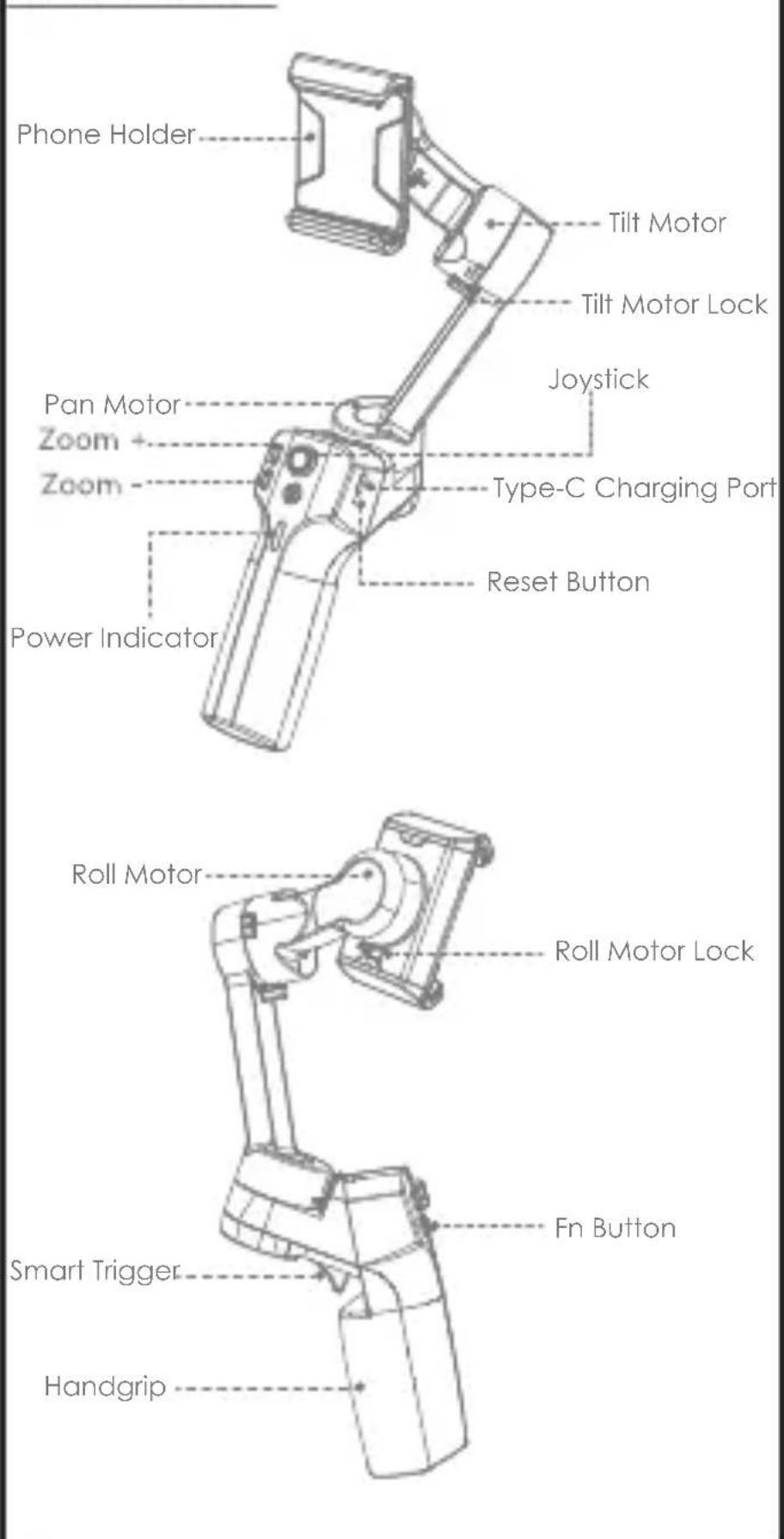

Note: Please activate MOZA Mini MX with MOZA
Genie App before the first use. Otherwise, normal working functions may be limited.
Download APP
You can scan the QR code to download the "MOZA Genie" directly, or you can search the "MOZA Genie" in the APP store & Google Play to download it.(scan the QR code below to download the APP)

- The customized "MOZA Genie" APP for Mini MX can help you make better use of the various functions of the gimbal.
- Please routinely check for the latest version of the MOZA Genie app. Make sure you have set to automatic update on your mobile smartphone.
Mounting and Balancing
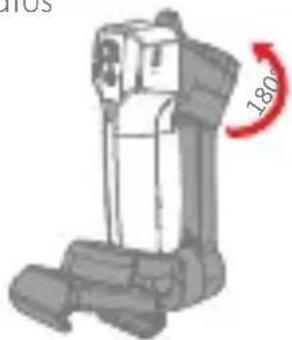
Folded Status
natural_image
Illustration of a robotic device with a red curved arrow indicating 180 degrees (no text or symbols present)
natural_image
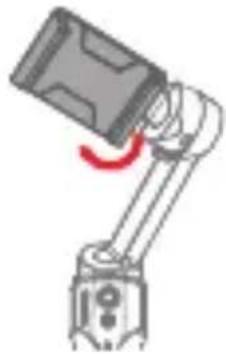
Mechanical robotic arm diagram showing articulated joints and a red curved motion indicator (no text or symbols)Unlock the gimbal as shown in illustration Place the mobile phone in the phone holder with its camera facing outwards. Adjust the phone holder to keep the phone leveled in a natural state.
natural_image
Mechanical arm joint with a red curved motion indicator (no text or symbols)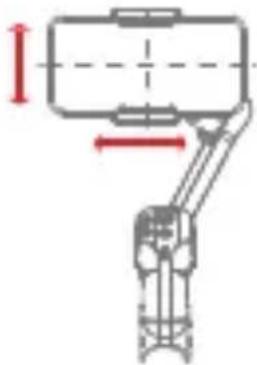
natural_image
Mechanical assembly diagram showing a robotic arm with no visible text or symbolsCharging
- The MOZA Mini MX has a built-in lithium battery. Before first use, fully charge it to condition the battery to ensure smooth operation.
- When the power indicator starts flashing, the battery level is less than 20%. Please charge it in time.
-
With a universal Type-C port, Mini MX can be charged by both phone charger and power bank.
-
The battery will automatically stop charging when it gets fully charged. The blue indicator light will turn off. Please disconnect the charger.
Battery Level Indicators
- All blue LEDs on: 70%-100% battery level
- Two blue LEDs on: 40%-70% battery level
• One blue LED on: 20%-40% battery level - Blinking: below 20% battery level
• Blue light blinks: Charging - Blue light off: Charging completed
natural_image
Close-up of a gray medical or surgical device with white circular and circular features, no visible text or symbols.Connecting to the MOZA Genie App
Refer to the illustration on page P2, installing the phone and balancing the gimbal.
Long press the function button for 3s to power on the gimbal, turn on the Bluetooth of the phone, launch the MOZA Genie App. Click the Bluetooth icon in the main interface of MOZA Genie App to search for connectable devices, select the device with the connection prefix as Mini MX. After successful connection, the gimbal will automatically enter the shooting interface.
Mini MX Activation
Enter the APP main interface to select the gimbal to be connected, the activation prompt box will pops up, click Activate. After the activation is completed, the gimbal will work normally. If activation fails, please try to reactivate, if it fails again, please follow the prompts to contact customer service.
Button function (MOZA Genie App Control)
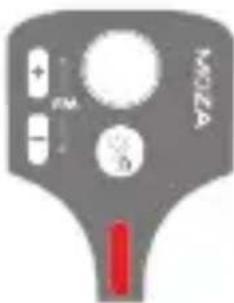
In button
Long press: on/off
Power on and enter standby mode (phone not clipped/unlocked)
single press: shutter; record / stop
Wake up (gimbal in standby mode)
Double press: switch to video mode/photo mode
triple press: Horizontal and vertical mode switching
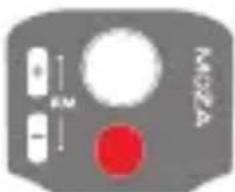
Joystick
Move upwards: phone camera goes up
Move downwards: phone camera goes down
Move leftwards: phone camera goes left
Move rightwards: phone camera goes right
Inception mode: Move leftwards, roll axis rotates counterclockwise
Move rightwards, roll axis rotates clockwise
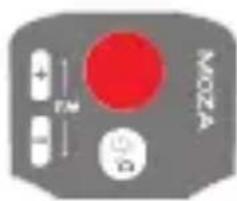
Zoom +
Click and hold: Zoom in
Single press: Pan-tilt follow
Double click: Automatically zoom in to maximum

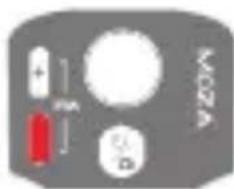
Zoom -
Press and hold: Zoom out
Single press: FPV Mode
Double click: Automatically zoom out to minimum
natural_image
Gray-scale product display with battery, red liquid, white circular cap, and white D-shaped button (no text or symbols)Inception Mode: Push the joystick left and right in FPV mode to control the rotation direction
Smart Trigger
Click and hold: All Lock Mode
Double click and hold: Sport Gear Mode
Click: Follow the center of the shot intelligently

Double click: Re-center and exit the current mode Triple Click: Switch between the rear and front-facing camera
Note: Mini MX is able to use your smartphone's original camera to take photos, record/stop. However, featured modes of the above functions cannot be controlled without the app. It is recommended to use the MOZA Genie App.
When connected to the app, a notification will appear to let you know which mode was switched to.
Firmware upgrade
Hold the ZOOM- button then click the Fn button at the same time, the indicator flashes from top to bottom. Then the stabilizer enters, the stabilizer enters the firmware upgrade mode, connect the APP, and click firmware upgrade.
Bluetooth reset
When you cannot search for Mini MX Bluetooth on your phone, please power on the gimbal, hold + button, then press the power button at the same time until the power
| Indicator flashes. Then the Bluetooth reset is successful.Product Specification | |
| Payload 280g | |
| Weight | 412g |
| Gimbal Dimensions (L*W*H mm) | UnFolded:120*120*265 |
| Folded:145*50*180 | |
| Supported Phone | Width:60 ~ 88mm |
| Weight:143~280g | |
| Battery Life | 24 h(Reference battery life under test with gimbal well balanced.) |
| Battery Specs | Working votage: 7.4V |
| Battery capacity: 2000mAh | |
| Charging Time | 2.5-Hours |
| Mechanical Range | Pan: 340° |
| Roll: 300° | |
| Tilt: 140° | |
| FAQ | |
| 1. Why does my gimbal automatically enters sleep mode after a short while of usage? | 1. Make sure you've installed your phone, and check whether the mobile phone is well balanced.Serious unbalance will cause motor overload and goes to sleep to protect it.2. Please have a check whether the indicator flashes quickly, if it does, it means low battery and the gimbal can not work. |
| 2. Does the gimbal support fast charging? | Fast charging is not supported, the charging specification is 5V/2A |
| 3. What can I do if there is a delay in the movement and video in my App? | 1. Check whether the anti-shake function is turned on in the App, if it is, please turn off the anti-shake function.2. If the delay still exists after you turned off the anti-shake function, please uninstall the App and download it again. If the problem still exists, please contact our after-sale service. |
| 4. What should I do if × appears after I opened the App and searched Bluetooth? | Close Bluetooth search box in the MOZA genie app, then re-open the search box and search again the Bluetooth device, try to connect again. |
| 5. What should I do if the Object Tracking fails? | 1. Please try to select a target of a suitable size in a single background environment. the screen and be clearly visible without any foreground objects.2. If it still doesn't work, please try to upgrade the App and gimbal firmware. |
| 6. What is Magic Mode? | 1. The Magic Mode in MOZA Genie App provides some cool short clips filming templates, you can easily shoot several clips by following the templates.2. The Magic Mode guide you record and filming from three aspects including "camera movement", "transition", "sound effect" to achieve "one step filming".3. You just need to hold a button to start shooting, the gimbal will automatically move according to the scene's requirements, and some may provide tips to users on following the camera movement. |
| 7. What should I do if the indicator light is not on and I can't turn the gimbal on due to upgrade failure? | When upgrade failure happens, please force your gimbal enter firmware upgrade mode (also called boot mode, hold zoom-button then press fn button) and upgrade firmware again. |
| 8. How to operate the Inception Mode? | 1. Press Zoom- to switch to FPV Mode2. Move the joystick left and right to proceed the operation for Inception Mode. |


Brand : Moza
Model : Mini MX
Category : Tripod