
OT-E105C - Mobile Phone ALCATEL - Free user manual and instructions
Find the device manual for free OT-E105C ALCATEL in PDF.


User questions about OT-E105C ALCATEL
0 question about this device. Answer the ones you know or ask your own.
Ask a new question about this device
Download the instructions for your Mobile Phone in PDF format for free! Find your manual OT-E105C - ALCATEL and take your electronic device back in hand. On this page are published all the documents necessary for the use of your device. OT-E105C by ALCATEL.
USER MANUAL OT-E105C ALCATEL
Operation instruction of input methods 25
Appendix I Troubleshooting 26
Appendix II Abbreviations and explanations 27
Safety and Use
T&A Mobile Phones would like to thank you for purchasing this mobile phone. We recommend that you read this chapter carefully before using your phone. The manufacturer disclaims any liability for damage, which may result as a consequence of improper use or use contrary to the instructions contained herein.
- TRAFFIC SAFETY:
Given studies, which show that using a mobile phone while driving a vehicle constitutes a real risk, even when the hands-free kit is used (car kit, headset...), drivers are requested to refrain from using their mobile when the vehicle is not parked.
When switched on, your phone emits electromagnetic waves that can interfere with the vehicle's electronic systems such as ABS anti-lock brakes or airbags. To ensure that there is no problem:
- do not place your phone on top of the dashboard or within an airbag deployment area,
- check with your car dealer or the car manufacturer to make sure that the dashboard is adequately shielded from mobile phone RF energy.
• CONDITIONS OF USE:
◆ Switch the phone off before boarding an aircraft to avoid prosecution.
◆ Switch the phone off when you are in health care facilities, except in designated areas. As with many other types of equipment now in regular use, mobile telephones can interfere with other electrical or electronic devices, or equipment using radio frequency.
◆ Switch the phone off when you are near gas or flammable liquids. Strictly obey all signs and instructions posted in a fuel depot, petrol station, or chemical plant, or in any potentially explosive atmosphere.
When the phone is switched on, it should be kept at least 15 cm from any medical devices such as a pacemaker, a hearing aid or insulin pump, etc. In particular when using the phone, you should hold it against the ear on the opposite side to the device, if any.
◆ Do not let small children use the phone without supervision.
When replacing the cover please note that your phone may contain substances that could create an allergic reaction.
◆ Always handle your phone with care and keep it in a clean and dust-free place.
◆ You are advised to switch off the telephone from time to time to optimise its performance.
Do not allow your phone to be exposed to adverse weather or environmental conditions (moisture, humidity, rain, infiltration of liquids, dust, sea air, etc).
◆ Do not open or attempt to repair your mobile phone yourself.
◆ Do not drop, throw or bend your mobile phone.
◆ Do not paint it.
Use only Alcatel batteries, battery chargers, and accessories that are compatible with your phone model. T&A Mobile Phones Limited and its affiliates disclaim any liability for damage caused by the use of other chargers or batteries.
◆ Your phone should not be disposed of in a municipal waste. Please check local regulations for disposal of electronic products.
Remember to make back-up copies or keep a written record of all important information stored in your phone.
When you play games on your phone, you may experience occasional discomfort in your hands, arms, shoulders, neck, or other parts of your body. Follow these instructions to avoid problems such as tendinitis, carpal tunnel syndrome, or other musculoskeletal disorders:
- Take a minimum of a 15 minute-break every hour of game playing.
- If your hands, wrists, or arms become tired or sore while playing, stop and rest for several hours before playing again.
- If you continue to have sore hands, wrists, or arms during or after playing, stop the game and see a doctor.
◆ Recharge of the phone without battery being installed is prohibited.
◆ Charge the phone in well-ventilated environment, and keep it away from inflammable and high explosive articles.
◆ To avoid demagnetization, keep the handset away from magnetic substances such as magnetic discs or credit cards.
◆ Ensure to keep the handset away from liquid. Take the battery off and contact the authorized service center if the handset gets soaked or erosion can happen.
◆ Do not use liquids or damp cloth with strong detergents to clean the handset.
◆ Description on UIM card in this manual is only effective for the phone with UIM card. The menus and operations related to UIM, such as PIN code, are for reference only. Please refer to the real one for detailed information.
This symbol on your telephone, the battery and the accessories means that these products must be taken to collection points at the end of their life:
- Municipal waste disposal centres with specific bins for these items
of equipment
- Collection bins at points of sale.
They will then be recycled, preventing substances being disposed of in the environment, so that their components can be reused.


In European Union countries:
These collection points are accessible free of charge. All products with this sign must be brought to these collection points.
In non European Union countries:
Items of equipment with this symbol are not be thrown into ordinary bins if your country or your region has suitable recycling and collection facilities; instead they are to be taken to collection points for them to be recycled.
- BATTERY:
Before removing the battery from your phone, please make sure that the phone is switched off.
Observe the following precautions for battery use:
- Do not attempt to open the battery (due to the risk of toxic fumes and burns).
- Do not puncture, disassemble or cause a short-circuit in a battery,
- Do not burn or dispose of a used battery in household rubbish or store it at temperatures above 60 °C .
Batteries must be disposed of in accordance with locally applicable environmental regulations. Only use the battery for the purpose for which it was designed. Never use damaged batteries or those not recommended by T&A Mobile Phones Limited and/or its affiliates.
- CHARGERS:
Mains powered chargers will operate within the temperature range of: 0 °C to 40 °C. The chargers designed for your mobile phone meet with the standard for safety of information technology equipment and office equipment use. They should be used for this purpose only.
- RADIO WAVES:
SAR standard value: 2.0W/Kg, the max measured value of this phone: 1.3 W/Kg
- Disclaimer:
There may be certain differences between the user manualdescription and the phone's operation, depending on the software release of your telephone or specific operator services.
Phone Layout
This phone has totally 18 keys on the keypad, equipped with a 1.4' STN screen, a recharge jack and an audio jack.
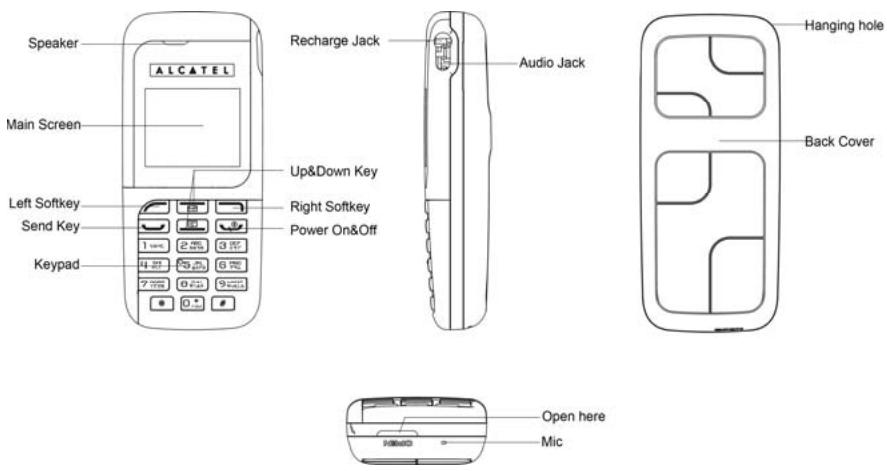
text_image
Speaker ALCATEL Main Screen Up&Down Key Left Softkey Send Key Keypad 1 2 3 4 5 6 7 8 9 10 11 12 13 14 15 16 17 18 19 20 21 22 23 24 25 26 27 28 29 30 31 32 33 34 35 36 37 38 39 40 41 42 43 44 45 46 47 48 49 50 51 52 53 54 55 56 57 58 59 60 61 62 63 64 65 66 67 68 69 70 71 72 73 74 75 76 77 78 79 80 Recharge Jack Audio Jack Hanging hole Back Cover Open here MicID spec
Note: The phone's ID spec is for reference only. Pls refer to the real phone for the detailed definition.
Note: Functions marked with “*” require network or UIM card support.
Specifications list
| Commercial NameSpecification | OT-E105C |
| Dimensions | 96.7×42.5×19.7 mm |
| Weight | 72g |
| Screen display resolution | 102×80 pixels, B&W with color film |
| Accessories | Travele charger, standard battery |
| Card type* | UIM card |
| Applicable system | CDMA 2000 1X 800MHz |
| Contact capacity* | UIM card dependent and 100 contacts in the phone |
| SMS capacity* | UIM card dependent and 50 SMS for inbox and 50 for outbox in the phone |
| Preformats | 10 |
| Call records | 10 each for missed, answered and dialed calls |
| Receiving call vibration | Support |
| Preset ringtone type | 10 ringtones |
| Main wallpaper | 6 built-in |
| Call time | Support |
| Speed Dial | Support |
| Date and time display | Support |
| Alarm / Calculator | Support |
| Receiving/Sending SMS | Support |
| Games | 3 |
| Caller number display* | Support |
| Divert Calls* | Support |
| Call Restrict* | Support |
| Call Waiting* | Support |
General Features
Communication control keys
The key is used for making a call (after a number has been entered); or for checking recently dialed phone numbers. Maximum 10 numbers can be displayed.
The key is used for ending a call (during dialing and communication status), or for exiting menu back to idle screen. Long press this key can switch on or off the phone.
Functional keys and softkeys
Up and down keys are used for menu browsing, options or content creation. In idle screen, the left key is a shortcut for SMS; the down key for Contact; the left softkey for Menu and then you can use up and down keys to choose; the right softkey is for Profiles. Press key can hide or show the idle screen. In normal status the key functions are closely related to the current menu.
Standard keypad
Keys from 0 to 9, and key * and # are used for dialing, inputting password, English letters, symbols etc.
For International calls press key 0 twice in idle screen to input +
The keypad can be locked by pressing key * for 2 seconds in idle screen and unlock by pressing 123. You can also change the profile to Vibrate ( ^10 ) and change back by pressing key # for 2 seconds.
If speed dial is activated, press key 1 to 9 for 2 seconds to call a predefined number (you can define the speed dial number in Contact->Speed dial)
Note: The phone will turn off the screen backlight to save power after being in idle mode for a while. You can activate the backlight by pressing any key.
Display icons
In idle screen or calling status, you can find the following icons displayed in the top of the screen:
| Level of network reception | |
| Alarm clock | |
| There is (are) unread message(s). | |
| This icon flickering means that current mailbox is full. | |
| Battery charge level | |
| Vibrator mode | |
| Ring mode | |
| Vibrate first then ring | |
| Mute mode | |
Language and input method
You can check languages supported here: [Settings]-→[Phone Settings] -→[Language]
You can press the key * to change input methods and press the key # to change to symbol input method. For detailed operation please refer to relevant chapters of “Operation Instruction of Input Methods”.
Call Alert Mode
In any mode, if there is an incoming call, the backlight will be activated with predefined incoming call ringtone (depends on user's setting).
There are four modes for your option: Ring, Vibrate, Vibrate first then ring, Off ([Settings] -> [Sound Settings] -> [Call Alert Mode]).
SMS alert modes
Four modes “Ring, Vibrate, Vibrate first then ring, Off” are available for your option by [Settings]→[Sound Settings] →[SMS Alert Mode].
Term description
(Domestic long-distance call)
To call a fixed number, please enter the city code first and then the number you want to call. You can call the number directly if it is a mobile phone.
(International call)
Enter 00 first and then country code + city code + phone number.
(ESN)
Electronic Serial Number. Switch off the phone and take out the battery, you can see a label of this number printed in the back of the phone.
Getting started
What's UIM card?
When register your mobile phone number, you will get a UIM card (User Identity Module) provided by the network operator.
With this UIM card, which stores many parameters required for communications, you can use the various functions of the phone and save personal information, including PIN (Personal Identification Number), contact, SMS and other system services. Please use the UIM card carefully. Twisting or pressing it may cause damage. If it is lost, please contact your network operator immediately for help.
(Note): The UIM card shall be placed beyond the range of children.
Inserting and removing your UIM card
Switch off your phone before inserting the UIM card
Open the back cover and take out the battery.
Place the UIM card with the chip facing downwards and slide it into its housing.
Make sure that it is correctly inserted.
To remove the card, press it and slide it out.
PIN code
PIN (Personal Identification Number) code is used to access the UIM card. If PIN code protection function has been enabled, you'll be asked to "Enter PIN:" when switch on. You must input correct PIN code before you can use it.
You can get the PIN code when you buy the UIM card from your network operator. Usually the PIN code is 4 digits. When enter the PIN code, * will be displayed to substitute the input content to ensure confidentiality.
Charging your battery
The battery used in the phone is rechargeable. When using your phone for the first time, charge the battery fully. Only after several times of charging and discharging can the battery's efficiency made the best of.
For optimal use you are advised to fully discharge the battery at least once a month by consuming the power until the phone is switched off automatically.
When charging, it is normal to find the battery and the phone slightly heat-up. The phone will automatically protect itself when battery temperature rises so as to control temperature variation.
The handset will give you off alert if the battery is running out. When the power has runned out the handset will be switched off automatically.
| Battery type | Standby time | Talk time |
| Li-ion battery | 60-120 hours | 60—170 minutes |
Note: Actual time of usage of the battery varies according to different operation modes and settings of network base station. If you use the phone when battery is quite low, the phone may restart or switch off automatically. Please recharge in time.
Battery charging
◆ Connect the charger to a main socket and insert the charging plug into the right top jack of the phone.
When the phone starts charging, the battery icon will indicate the charge level.
You may choose to charge the battery in power-off or standby status. If the phone is charged in power-off status with UIM card inserted, you'll see the following in the screen Charging. To start,
◆ The charge is complete when the animation stops. (☐)
- For safety, pls don't change any part of the battery by yourself or take off the battery outer case.
- Only use Alcatel chargers. T&A Mobile Phones Limited and its affiliates disclaim any liability for damage caused by the use of other chargers
Basic operations
Switching on
Long press the key ____ can switch on the phone. It will automatically search available networks if the UIM card and the phone have no password protection. After the phone registered to CDMA network, network signal will be displayed at the top left corner of the screen. The phone is now in standby and you can make or answer a call.
Your phone remains searching if it fails to find an available network.
If the screen displays No UIM card after it is switched on, please switch off the phone by long pressing the key and check whether your UIM card is correctly inserted.
If a password or PIN code (if with UIM card) for the phone is required after switch on, please enter the correct one, and * will be displayed on the screen as the content during the entry, then press left softkey to confirm. After unlocked, the phone will display the network status.
Please contact your network operator if you do not know the PIN code.
Switching off
Press the key for 2 seconds to switch off the phone.
Note: If you switch off the phone directly by taking off the battery, some information saved in UIM card and phone may possibly get lost.
Making a call
In standby status, enter number directly, in case it is an international call, press 0 twice to input 00 first and then input the complete number, then press the key L to make the call.
If you want to call a fixed line in a different city, please enter city code first.
When dialing, you can hear ringtones from the party you are calling and after the call is connected, you can see a call timer on the screen. If the call fails, possible reasons would be:
◆ Line Busy means the called party is busy or there is no available line in the network.
◆ Rejected means this call is barred, or you have enabled call barring. Please check your security setting.
If the called party's phone is power-off or out of service or unreachable, the network system will inform you.
◆ If the called party is in a conversation, please press the key and redial later.
If the dialed number has been saved in the phonebook his name will be displayed on the screen.
To end a call, you can press the key. After a call is ended, the call timer stops and Call ends is displayed on the screen.
Saving a number by dialing
You may save the other party's number in phonebook directly, or by dialing in standby status as following:
Enter the other party's phone number in standby status.
◆ To enter the number in standby status
◆ Press left softkey to go to More for operation (possible operations here: New, To Existing, To UIM, Find, Pause, Timer)
Adjusting the volume of earpiece
During a conversation, you may press the up and down key to adjust the volume of earpiece.
Answering a call
When there is an incoming, the phone will remind you according to the incoming call alert mode you set.
◆ To answer a call, press the key L to answer the call directly.
◆ To reject a call, press the key and the other party will hear a busy tone.
If you have enabled the auto answer function and the earphone is connected to the phone when a call is incoming, the phone will answer the call automatically after a certain period of time if you don't reject the call.
If you have registered the caller number identity service, then during the conversation caller number will be displayed on the screen. If this number had already been saved in the phonebook the caller's name will also be displayed on the screen.
◆ To end a conversation, press the key
Note: If you have registered the following additional services, incoming call may be diverted to the specified number automatically:
◆ Divert If Busy
◆ Divert If No Answer
◆ Divert If Unreachable
◆ Divert All Calls
Silent mode
When there's an incoming call, Silence will be displayed at the bottom of the main screen and your phone will remind you according to incoming call alert mode. IF ring or vibrate is enabled and you can press left softkey to mute the ring or vibrate.
Call recording / Mic mute
When the phone is in conversation status, Mute and Menu are displayed at the bottom of the main screen. Press the left and right softkey to switch between these two options.
When you select Mute and press the left softkey, you can turn off the mic in order that the other party cannot hear you but you can still hear him (the mic is still on). At this time, Unmute is shown at the bottom of the screen to indicate mute function is on. Select Unmute and press the left softkey again to turn off the mute function.
When you select Menu and press the right softkey, you can access the phone's main menu for other operations and press the right softkey again to return.
Recent dialed-out numbers
This phone can save 10 recent dialed-out numbers. In standby status, press the key ____ to display recent dialed-out numbers. You can press up and down keys to check the called numbers and press the key ____ to call directly the selected number.
You can also go to the call record menu to view the recent dialed-out numbers.
Missed call
If there is missed call (s), Missed N Call(s) will be displayed on the main screen. You can access the call record menu to check missed calls.
Using the menu
In standby status, press the left softkey to access the main menu.
The main menu covers 7 functions (the last function is provided by UIM card. The display for each function is different based on different UIM card). Each function is further divided. Thanks to refer to the below menu tree for detailed functions:
◆ Press up and down keys to select. Press the left softkey to go to the sub-menu. Then press up and down keys to select and press the left softkey to confirm or go to next menu.
◆ Press the right softkey to return to the previous menu. Press the key ____ to back to the standby status.
In editing mode, press right softkey to delete. Press it once to delete one character and hold it to delete all the input characters.
◆ (on) or (enabled) is to enable this function and (off) or (disabled) is to disable this function.
◆ The last line on the screen is function description to remind you the available functions
Note: This menu treee only lists the main menu of this phone and for detailed feature please refer to the phone.
Menu Tree
| Option | Description | ||
| SNS | Text Messages | Write Messages | The new message can be edited in three modes:Nothing, Preformats and The Last Edit |
| Inbox | Message in phoneUp to 50 pieces of messages can be stored in the phone. | ||
| UIM | Messages in UIM: number of message is UIM dependent | ||
| Outbox | Up to 50 pieces of messages can be stored. | ||
| Erase Messages | Entire Outbox, Entire Inbox, Entire UIM, All Messages | ||
| Message Settings | Storage Location: Phone or UIM | ||
| Check Capacity | Check the memory status of UIM card and the phone. | ||
| Voic Messages | Voice Mail | Indicate the quantity of voice messages in Voice Mail box | |
| Call voice Mailbox | Call voice mail box to listen to the voice message | ||
| Voive Mail Number | Set Voive Mail Box number | ||
| Contact | Detail | To check the details of the number | |
| Find | find a contact | ||
| Grouping View | No Partition Group, VIP Group, Home Group, Work Group, Friends Group, Personal Group, Business Group | ||
| Delete | Delete the selected contact | ||
| Add New Record | To add a new record in Phone or R-UIM | ||
| Edit | Edit Name, Add Number, Add E-Mail, Add URL, Select Groups, Add Notes | ||
| Copy/Move | Copy To R-UIM , Move To R-UIM (Records are stored in the phone)Copy To Phone, Move To Phone (Records are stored in the UIM card) | ||
| Copy All | Copy To R-UIM, Copy To Phone | ||
| Check capacity | To check the memory capacity of phonebook and UIM card | ||
| Setting | Save Mode, View Mode, Set Lock | ||
| Speed Dial | One Dial, Smart Dial | ||
| Tools | Stop Watch | for timing | |
| Alarm | set alarm clocI | ||
| Calculator | for calculating | ||
| World Time | to check the local time of the big cities in the world | ||
| Setting | Call Settings | Any Key Answer, 50 Senconds Alert, Auto Answer, Network Settings | |
| Audio Profiles | Normal,Silent, Meeting, Outdoor, In car | ||
| Phone Settings | Language, Auto Key Guard, Banner | ||
| Display Settings | Main Wallpaper, Backlight Time, Brightness, | ||
| Sound Settings | Volume, Ring Tone, SMS Tone, Alarm Tone, Call Alert Mode, SMS Alert Mode, Missed Call Alert | ||
| Security Settings | Phone Lock, PIN Setting (if with UIM card), Call Barrings, reset setting | ||
| Recent Calls | Missed Calls | Up to 10 missed calls can be displayed. | |
| Received Calls | Up to 10 received calls can be displayed. | ||
| Dialed Calls | Up to 10 dialed calls can be displayed. | ||
| Call Times | Received Calls, Dialed Calls, All Calls, Reset Timer | ||
| Delete All | Delete Missed Calls, Delete Received Calls, Delete Dialed Calls, Delete All | ||
| Games | Brick Attack, Blackjack, Video Poker | ||
| UTK | This service is UIM dependent | ||
SMS
You can input 160 characters at most for one message. The message is sent to the SMS center of the network, then to the targeted receiver by the network. If the targeted receiver does not switch on his phone, the network will store the message temporarily.
When the phone receives a new SMS, you will be reminded as per the setting and the icon will appear at the top of the main screen.
Press the up and down keys to page up and down.
Write Message
You can send the message to more than one receiver, as well as save it. 3 editing modes are provided:
(Nothing): Select the input method you required to edit your SMS.
(Preformats): 10 commonly used SMS are available for your selection.
(The Last Edit): Continue to edit the recently edited SMS.
Inbox/UIM
All the SMS received are saved here. The phone can save up to 50 SMS. The capacity of UIM card is operator dependant. You may press up and down keys to check the list and scroll pages. For each SMS the following functions are available:
◆ Erase: Delete the SMS you are reading.
◆ Reply: Reply the SMS you are reading.
◆ Forward: Forward the SMS to others.
◆ Call Sender: Call the one who send you the SMS.
◆ Move To UIM (Phone): Move the SMS to UIM card (phone).
◆ Save Number: ->Phone: Save the number to phone.
->R-UIM : Save the number to UIM card.
Outbox
You can save up to 50 SMS you have saved or sent.
Erase Messages
(Entire OutBox): Delete all SMS saved in outbox.
(Entire InBox): Delete all SMS saved in inbox in the phone.
(Entire UIM): Delete all SMS saved in inbox in the UIM card.
(All Messages): Delete all SMS saved in outbox and inbox.
Message Settings
(Storage Location): Save the received SMS to phone or R-UIM card.
Check Capacity
To check the memory status of phone and R-UIM card.
Voile Messages
(Voice Mail)
Total quantity of all the voicemails
(Call Voice Mailbox)
Call the predefined voicemail number.
(Voice Mail Number)
Display or edit the redefined voicemail number
Contact
In standby status, press down key to access the contact. After access to the phonebook, press up and down keys to view records. When the cursor stops at a certain record, press left softkey to access sub menu for this record.
Note: The maximum length for the name record in the phone is 16 characters and the length for name record in UIM card depends on the UIM card. When you Copy/Move records to UIM card, some names may be cut off due to shorter length of name record that can be stored in UIM card. Such phenomenon will only be incarnated after the phone is restarted.
Detail
To display name, number and other information of this record.
Find
This handset provides a way to search for phone number by name. Input the name to be searched correctly and press left softkey to confirm the screen will display the record you are searching for.
Grouping View
You can view the records in the phonebook by group.
Delete
Delete the record you select.
Add New Record
In this menu, you can select to add a record to your phone or the UIM card.
Enter the name and number after selecting storage location to add the record and choose “Edit” to add other information to this record.
Edit
(Edit Name): Edit the name of current record.
(Add Number): Input number of the record. You can classify numbers as follows: Preference Number, Generic Number, Work Number, Home Number, Mobile Number and Fax Number.
(Add E-Mail): Input the email address of this record.
(Add URL): Input the personal homepage to this record.
(Select Groups): You may classify the record into groups. The phone provides 6 groups: VIP Group, Home Group, Work Group, Friends Group, Personal Group and Business Group.
(Add Notes): Input remark for this record.
Copy/Move
If the current record is stored in the phone, it may be copied to the UIM card, or moved to the UIM card and vice versa
Copy All
(Copy To R-UIM): Copy all the records in phone to UIM card.
(Copy To Phone): Copy all the records in UIM card to phone.
Check Capacity
Inform you the memory status of the contacts in UIM card and the phone.
Setting
(Save Mode): Set the storage mode of records. (3 modes: Phone, UIM card or choose when save)
(View Mode): Set the browsing mode after accessing "Contact" menu.(3 modes: UIM and Phone, Phone, UIM)
(Set Lock): When Set Lock is enabled, you are required to input the correct password before accessing Contact menu.
Speed Dial
(One Dial): If a number in the Contact is set for a certain single-key dialing, you can call this number by pressing the key for 2 seconds.
(Smart Dial): If Smart Dial is On, you may perform speed-dialing according to the initial letter of the name.
Note: When the length of a record is 4 characters (or more than 4 characters), you cannot make smart dial.
Tools
Stop Watch
This handset offers you stopwatch function. Press left softkey to start timing and press the key again to stop timing. Then you can choose to continue timing or press right softkey to reset the timer.
Alarm
You may set 6 alarm clocks as required.
Operation tips:
◆ (Tools) →(Alarms): press up and down keys to choose any alarm and left softkey to access alarm settings.
◆ Press up and down key to select and leftsoft key to confirm the items and then you can set the following item: status (close or open), time, mode, alert.
Note: for state setting, press up and down keys to select open or close; for time setting, you can enter the time directly; for mode setting, press up and down keys to select alarm mode; for alert content setting, you can input the alert content directly with key # to change the input methods. For all the above settings press left softkey to confirm.
Calculator
Calculator can perform four fundamental operations (plus, minus, multiply, divide).
Use keys 0-9 to input a value. Press the key * to input minus symbol. Press key # to get the result. Press up and down keys select among plus, minus, multiply and divide. Press numeric keys to input the second operation value and then select equal mark. The result will be displayed on the screen.
World Time
You can check the current time of big cities worldwide using this function.
Settings
Call Settings
(Any Key Answer): If Any Key Answer is set On, when there's an incoming call, you can press any key to answer the call.
(50 Seconds Alert): If the 50 Seconds Alert is set as On, during the call, the phone will give you a tick tone to remind you 10 seconds before one full minute; or no alert if set as off.
(Auto Answer): You can set auto answer as off, 5 Seconds or 10 Seconds. When there's an incoming call and the phone is connected to a headset the phone will answer the call automatically as per the setting.
(Network Settings):
◆ Divert Calls: Divert Calls is a value added service provided by operators, which can divert incoming calls under conditions to a predefined number. Please check with your operators for the availability of the following services:
Busy: When you are on another line
No Answer: When you can't answer the incoming call
Unreachable: When you can't be reached, including your phone is power-off or out of service
All Calls: Divert all incoming calls.
Cancel All: Cancel all call diverting.
Press up or down keys to select the right item in the list and press the left softkey to confirm (then input the number you want to divert to) or cancel. Press right softkey to return to higher-level menu.
◆ Call Waiting: If a second call comes in while you are already on line, you will be notified by a tone. You can then accept the call. Your current call will be automatically put on hold. You can then switch between your two correspondents
Audio Profiles
The phone provides you 5 profiles for your option (Normal, Silent, Meeting, Outdoor and In car). For each profile you can choose predefined setting or personalise it according to your needs:
(Activate): activate the current profile.
(Personalise): to edit the current profile.
◆ Sound Settings:
Ring: to adjust the volume for incoming rington
Headset: to adjust the volume of the headset when answering calls
Key sound: to adjust the volume when pressing keys
◆ Ring Tone: to choose ring tone for incoming calls
◆ SMS Tone: to choose ring tone for SMS
◆ Alarm Tone: to choose ring tone for Alarms
◆ Call Alert Mode: to choose call alert mode as Off, Ring, Vibrate and Vibrate First Then Ring
◆ SMS Alert Mode: to choose call alert mode as Off, Ring, Vibrate and Vibrate First Then Ring
Missed Call Alert: to choose missed call alert as On or Off
◆ Auto Answer: to set auto anser as Off, 5 Second or 10 Seconds
(Resume Default): Resume default settings of these profiles.
Phone Settings
(Language): List of languages supported.
(Auto Key Guard): Keypad can't be automatically locked if set as Off. If set as on the phone will be automatically locked according to the setting (30 seconds, 2 minutes, 5 minutes). You can still answer incoming calls even the keypad is locked. Press “123” to unlock the keypad.
(Banner): Once the phone is switched on, this banner will be displayed on the screen. You can input the greetings as you like.
Display Settings
(Main Wallpaper): This option provides you different standby pictures. Press up and down keys to select and left softkey to confirm, right softkey to cancel and return to the previous menu.
(Backlight Time): This option provides you the time periods to turn off the backlight.
(Brightness): This option has seven degrees of backlight brightness for your option.
Sound Settings
This menu offers you various functions relevant to sound (including volume, ringtone, SMS tone, Alarm tone, call alert mode, SMS alert modes and missed call alert).
Security Settings
(Phone Lock)
◆ Phone Enable: If Phone Enable is set on, you can only use the phone after input the right password for every time you power on. The default password is 0000.
Change Password: You can modify the phone's password using this option. Enter the same new password twice and press the left softkey to confirm then the new password will become effective or you can also press the right softkey to cancel the modification and return to previous menu.
(PIN Setting)
PIN code is provided by network operator and used to protect the UIM card. You may set the PIN code verification on to prevent illegal user to use your UIM card. The default PIN code is 1234 and you can also change it.
◆ PIN Enable: If PIN Enable is set on, you will be required to enter the right PIN code every time you power on the phone before you can use it.
Change PIN: You can modify the phone's PIN code using this option. Enter the new PIN code twice and press the left softkey to confirm then the new PIN code will become effective. Or you can also press right softkey to cancel the modification at any time and return to previous menu.
Note: In order to protect your benefits, if the PIN code is entered incorrectly for three consecutive times, the UIM will be locked and cann't work normally. PIs contact your network operator to unlock it.
(Call Barrings)
You may restrict outgoing calls and incoming calls via call barring function.
◆ Restrict Outgoing: If Restrict Outgoing is enabled, you will not be able to call the numbers in the user group you selected.
◆ Restrict Incoming: If Restrict Incoming is enabled, you will not be able to receive the calls barred.
(Reset Settings): Reset to the default factory setting.
Recent Calls
Missed Calls
If there is (are) missed call (s), Missed N Call(s) will be displayed on the standby screen. You can check the detailed information of the missed calls in recent calls /missed calls. Each record covers number or name (if the
number is already in the phonebook), date, time etc. Press the up and down key to select the number you want to call and then press the key 📁 to dial out. Press the right softkey to return to the previous menu. For the numbers of missed calls:
- If the number hasn't been saved in the phone or UIM card, the phone number will be displayed in the missed call list. Select one of the numbers and press left softkey to access the sub-menu:
◆ Save To New Location: Save this number as a new record to the phone.
◆ Save To UIM : Save this number to the UIM card.
◆ Save To Existing Location: Save this number to an existing record.
◆ Send Message: Send SMS to this number.
◆ Delete Entry: Delete this missed call record.
- If this number has already been saved in phone or UIM card, the caller's name will be displayed in the missed call list. Select one of the names and press left softkey to send message and delete entry.
Received Calls
Save 10 recently received calls automatically. Functional operation and display mode is the same as those of missed calls.
Dialed Calls
Save 10 recently dialed calls automatically. Functional operation and display mode is the same as those of missed calls.
Call Timer
(Received Calls): total time for all received calls since the timer was reset last time.
(Dialed Calls): total time for all dialed calls since the timer was reset last time.
(All Calls): total time for all calls since the timer was reset last time.
(Reset Timer): Reset all the above-mentioned time.
Delete All
(Delete Missed Calls): Delete all records of missed calls.
(Delete Received Calls): Delete all records of received calls.
(Delete Dialed Calls): Delete all records of dialed calls.
(Delete All): Delete all records of recent calls.
Games
This handset offers three games: Brick Attack, Black Jack and Video Poker to enjoy yourself.
Select Games from the main menu and press the left softkey to access the game list. Press up and down keys to
select and left softkey to confirm. When the game interface appears press left softkey to start the game.
(Brick Attack)
Target: Use number keys 4 and 6 to move the baffle place at the bottom of the screen to bounce back the ball and hit off all bricks quickly.
Game rules: You will pass a level after hitting off all bricks. If you fail to bounce the ball with the baffle plate, you will lose one life. There are totally three lives.
Operation tips:
◆ Use number keys 4 and 6 to move the baffle plate.
◆ Press right softkey to pause.
◆ Press left softkey to resume the game.
(Black Jack)
Target: To get a point closer to but not over 21 than the banker.
Game rules:
The point for each card is respectively: A: 1 or 11; J, Q and K: 10 for each; points for other cards are the same as the number shown on them.
The winner will be the one whose card point is closer to 21 between you and the banker.
If card points of both sides are equal, it will be a draw game and no loser and winner.
Operation tips:
◆ Use up and down keys to move the cursor to deal or hold the card. Press left softkey to confirm.
◆ Press left softkey to start a new game.
◆ Press right softkey to exit the game.
(Video Poker)
Target: The amount you win is based on the combination of 5 cards.
Game rules:
◆ Each round you are dealt 5 cards and you can discard one or all of them..
◆ You may discard up to all of them. For each discarded card, you’ll be dealt a new one.
◆ The amount you win is then based on your new hand.
◆ After entering the game, you can get detail information about awards from “Payout”.
Operation tips:
◆ Use up and down keys to move the cursor to deal or hold the card. Press left softkey to confirm.
◆ Discard by pressing the number directly above the undesired card and then press left softkey to confirm.
UTK
UTK (UIM Tool Kit):
It is network dependent.
Operation instruction of input methods
This handset supports full English.Input methods for SMS input, name input in the phonebook, standby greetings etc. This handset provides many input methods (depending on countries): Numbers, Multitap, EzText, Symbol etc. Multitap and EzText input method are used for inputting English; Numbers input method is used for inputting numbers; Symbol input method is used for inputting various symbols and special characters. Short press the key * to switch among these input methods; short press the key # for symbol input and long press # for space.
Numbers input method
Number input method is used for inputting numbers. Press the keys 0-9 on the keypad to input any number you want.
Multitap input method
Multitap input method is to input letters by pressing corresponding keys with letters on the keypad. Normally it is used to input English. Wait a second after inputting a letter for the black strip on the letter to disappear and then you can continue to input the next letter. Press the right softkey once to delete the last letter and long press delete all input.
Each key corresponds to 3 to 4 letters and press the same key quickly for several times to switch among these letters.
Note: Press key * for 2 seconds to switch between capital letter and small letter
EzText input method
EzText input method is used to input English. The system will give the most possible word you require according to your key strokes.
An example:
If you want to input “all”, you only need to press the keys 2, 5, 5 in sequence and an “all” with black background will appear on the screen. Then you only need to press left softkey to confirm and continue to input the next word.
Symbol input method
Symbol input is used for inputting some special symbols and punctuations. In text editing status, press the key # to change to symbol input method. There are 9 special symbols on the screen for your option. Press the numeric key before the symbol to select the symbol and return to text editing status. If the symbol you need is not displayed on the screen, please press up and down keys on the keypad to scroll the page until you find the symbol you need.
Appendix I Troubleshooting
| Trouble | Possible reasons |
| The phone cannot be switched on | 1. Any power in battery?2. Battery is installed properly? |
| Battery cannot be charged | 1.Check whether the charger is connected to the phone correctly or not.2.Check whethr the charger is connected to the power plug correctly or not.3.Is the battery usable? The performance of the battery will degrade after used for several years. |
| Fail to register to the network | 1.The signal is too weak, or there may be some radio interference around. View the signal indicator on the screen to see whether it is empty.2.Is the UIM card installed properly, poorly contacted or damaged? If the UIM card is damaged, please ask your network operator for replacement. |
| Can not make a call | 1.Is the UIM card registered to the network? Check whether the signal indicator is emtry or not..2.Is the “bar outgoing” function enabled?3.Calling prohibited due to call charges not paid? |
| Cannot answer a call | 1.Is the UIM card registered to the network?2.Incoming call prohibited due to call charges not paid?3.Is the “call diverting” function enabled?4.Is the “bar incoming” function enabled? |
| Unable to use some functions | Consult your network operator for whether they can support these functions and registration is required or not. |
| PIN locked | Input the PUK code provided by the UIM card to unlock or contact your network operator. |
Appendix II Abbreviations and explanations
| CDMA | Code Division Multiple Access |
| SMS | Short Message Service |
| ESN | Electronic Serial Number |
| UIM | User Identity Module |
| PIN | Personal Identity Number. Usually refers to PIN1. Supplied together with UIM card. Used to unlock the UIM card. |
| PUK | Personal Unlock Code. Supplied together with UIM card. It is used to unlock the UIM card if you input wrong PIN code three times and UIM card is locked. You can also use it to modify PIN code. |
| MCC | Mobile Country Code |
| Call waiting | A service provided by the network, which allows you to answer another incoming call without interrupting the active call, but it is different from Multiparty. You can only talk to one party while another party is held at the same time. |
| Call diverting | A service provided by the network, which allows you to divert an incoming call to a specified number in different circumstances. Normally divided into: divert all, divert if busy, divert if no answer and diver if not connected. |
| Divert all | All incoming calls will be diverted by the network unconditionally. |
| Divert if busy | Divert the incoming call while you are already on line. |
| Divert if no answer | The network will divert the incoming call if the phone rings or vibrates for a specific time and you haven't answered it. |
| Divert if not connected | The network will divert the incoming call when the network fails to find your phone(switched off or out of the service range). |
| Roaming | Refer to the phone not used in the range of its local registered network. It includes international and domestic roaming. In this manual it refers to international roaming only. |
Alcatel logo and Alcatel name are trademarks of Alcatel used under license by T&A Mobile Phones Limited.
All rights reserved. © Copyright 2007
T & A Mobile Phones Limited
T&A Mobile Phones Limited reserves the right, in the customer's interest, to alter material or technical specification without prior notice.