
OT-C551A - Mobile Phone ALCATEL - Free user manual and instructions
Find the device manual for free OT-C551A ALCATEL in PDF.


User questions about OT-C551A ALCATEL
0 question about this device. Answer the ones you know or ask your own.
Ask a new question about this device
Download the instructions for your Mobile Phone in PDF format for free! Find your manual OT-C551A - ALCATEL and take your electronic device back in hand. On this page are published all the documents necessary for the use of your device. OT-C551A by ALCATEL.
USER MANUAL OT-C551A ALCATEL
T&A Mobile Phones would like to thank you for purchasing this mobile.
Your handset boasts a wide quality 65k colour display, in a stylish compact design, an embedded VGA camera, video shooting and playback, java games, IM/Chat (Instant message/Chat) (1), E-mail (1), Remote Synchronisation (1) etc.
Share
Just 3 clicks and your images and voice messages will be sent to your friends. It's so simple!
Music and lights (1)
Want to see the backlight of your phone dancing to the music? Every time your phone rings, the backlight will be synchronized aswell. Fantastic!
Panorama (1)
Have you ever thought that your viewfinder was too narrow to take in everything you wanted to capture? We can help you. Panorama can provide up to 3 pictures in QVGA format. Capture the whole scene. Unbelievable!
Video & Video tone (1)
Do you want to capture laughter, music and greetings in your video? It's all in your phone. You can also set any video clip as the incoming melody. We call it Videotone!
Depends on the product.
Table of contents
Introduction
Safety and Use 5
General Information 9
- Your mobile 10
1.1 Keys 12
1.2 Main screen icons 13
1.3 External screen icons 14
- Getting started 15
2.1 Set-up 15
2.2 Switching on your telephone 18
2.3 Start-up wizard 19
2.4 Switching off your telephone 19
- Calls 20
3.1 Making a call 20
3.2 Calling your voicemail 21
3.3 Receiving a call 21
3.4 During the call 22
3.5 Conference calls 24
3.6 Double line (ALS) 24
- Call log 25
4.1 Call memory 25
4.2 My Numbers 25
4.3 My e-mail address 26
4.4 Billing 26
4.5 Call settings 27
-
Menu 30
-
Directory 32
6.1 Consulting your directory 32
6.2 Creating a file 34
6.3 Available options 35
6.4 Creating a new directory 36
6.5 Voice recognition 36
6.6Assigning a ringtone to a directory 37
6.7Assigning an image, an animation or a video to a file 37
6.8 Privacy 37
7. Messages: SMS, MMS, e-mail 38
7.1 Creating SMS/MMS/e-mail 39
7.2 Inbox 41
7.3 Sent messages 42
7.4 Unsent messages 42
7.5 Drafts 42
7.6 IM (Instant messaging) 42
7.7 Archives 42
7.8 Templates 42
7.9 Voicemail 43
7.10 WAP alerts 43
7.11 Settings 43
7.12 Distribution list 45
7.13 My favourite 45
8. IM/Chat (Instant Messaging) 46
8.1 Presence 46
8.2 Always on 47
8.3 Send and IM (Instant Message) 47
8.4 Receiving and reading IM 48
8.5 IM parameters 48
9. My settings 49
9.1 Ringtones 49
9.2Sound interface 50
9.3 Display 51
9.4Clock 54
9.5 Network time 54
9.6 Music & lights 54
9.7 Keys 55
9.8 More settings 56
10. My Shortcuts 61
II. Extras 62
11.1 Alarms 62
11.2 Calculator 63
11.3 Converter 63
11.4 Memory 64
11.5 Infrared 65
11.6 Data synchronisation: Remote synchronisation 66
11.7 Melody composer 68
11.8 Voice memo 69
11.9 Voice recognition 69
11.10 Alarms list 70
12 Diary 71
13.WAP 74
13.1 Access WAP menu 74
13.2 Programming your access 74
13.3 Direct access/profile access 76
13.4 GPRS function 76
13.5 WAP browser options.. 77
14. Media Album 78
14.1 My Images 79
14.2 My Videos 80
14.3 My Sounds 80
14.4 Managing sounds, images and videos 81
14.5 Download new videos, photos, sounds, 82
14.6 Formats and compatibility 82
14.7 Games & Applications 82
14.8 Memory 82
15. Photo/Video/Panorama 83
15.1 Access 83
15.2 Photo 84
15.3 Video 84
15.4 Panorama 86
15.5 Settings (photos, videos, panorama) 87
15.6 3Share
16. Games & Applications 92
16.1 Launch an application 92
16.2 Available options 93
16.3 Download an application 93
16.4 JavaTM Push 94
16.5 Settings 94
17. Making the most of your mobile 96
17.1 "My One Touch" services by T&A Mobile Phones 96
17.2 Alcatel PC suite 96
18. Latin input mode/character table 97
19. Telephone warranty 101
20. Accessories 103
21. Troubleshooting 104
Safety and Use
We recommend that you read this chapter carefully before using your phone. The manufacturer disclaims any liability for damage, which may result as a consequence of improper use or use contrary to the instructions contained herein.
- TRAFFIC SAFETY:
Given that studies show that using a mobile phone while driving a vehicle constitutes a real risk, even when the hands-free kit is used (car kit, headset...), drivers are requested to refrain from using their mobile when the vehicle is not parked.
When switched on, your phone emits electromagnetic waves that can interfere with the vehicle's electronic systems such as ABS anti-lock brakes or airbags. To ensure that there is no problem:
- do not place your phone on top of the dashboard or within an airbag deployment area,
- check with your car dealer or the car manufacturer to make sure that the dashboard is adequately shielded from mobile phone RF energy.
CONDITIONS OF USE:
You are advised to switch off the telephone from time to time to optimise its performance.
Switch the phone off before boarding an aircraft to avoid prosecution.
Switch the phone off when you are in health care facilities, except in designated areas. As with many other types of equipment now in regular use, mobile telephones can interfere with other electrical or electronic devices, or equipment using radio frequency.
Switch the phone off when you are near gas or flammable liquids. Strictly obey all signs and instructions posted in a fuel depot, petrol station, or chemical plant, or in any potentially explosive atmosphere.
When the phone is switched on, it should be kept at least 15cm from any medical device such as a pacemaker, a hearing aid or insulin pump, etc. In particular when using the phone, you should hold it against the ear on the opposite side to the device, if any.
To avoid hearing impairment, pick up the call before holding your phone to your ear. Also move the handset away from your ear while using the "hands-free" mode because the amplified volume might cause hearing damage.
Do not let children use the phone without supervision.
When replacing the cover please note that your phone may contain substances that could create an allergic reaction.
Always handle your phone with care and keep it in a clean and dust-free place.
Do not allow your phone to be exposed to adverse weather or environmental conditions (moisture, humidity, rain, infiltration of liquids, dust, sea air, etc). The manufacturer's recommended operating temperature range is -10^ to +55^ .
Over 55^ the legibility of the phone's display may be impaired, though this is temporary and not serious.
Do not open or attempt to repair your mobile phone yourself.
Do not drop, throw or bend your mobile phone.
Do not paint it.
Use only Alcatel batteries, battery chargers, and accessories that are compatible with your phone model. (See Accessories list, page 103). T&A
Mobile Phones Limited and its affiliates disclaim any liability for damage caused by the use of other chargers or batteries.
Your phone should not be disposed of in a municipal waste. Please check local regulations for disposal of electronic products.
Remember to make back-up copies or keep a written record of all important information stored in your phone.
Some people may suffer epileptic seizures or blackouts when exposed to flashing lights, or when playing video games. These seizures or blackouts may occur even if a person never had a previous seizure or blackout. If you have experienced seizures or blackouts, or if you have a family history of such occurrences, please consult your doctor before playing video games on your phone or enabling a flashing lights feature on your phone. Parents should monitor their children's use of video games or other features that incorporate flashing lights on the phones. All persons should discontinue use and consult a doctor if any of the following symptoms occur: convulsion, eye or muscle twitching, loss of awareness, involuntary movements, or disorientation. To limit the likelihood of such symptoms, please take the following safety precautions:
- Do not play or use a flashing-lights feature if you are tired or need sleep.
- Take a minimum of a 15-minute break hourly.
- Play in a room in which all lights are on.
- Play at the farthest distance possible from the screen.
When you play games on your phone, you may experience occasional discomfort in your hands, arms, shoulders, neck, or other parts of your body. Follow these instructions to avoid problems such as tendinitis, carpal tunnel syndrome, or other musculoskeletal disorders:
- Take a minimum of a 15 minute-break every hour of game playing.
- If your hands, wrists, or arms become tired or sore while playing, stop and rest for several hours before playing again.
- If you continue to have sore hands, wrists, or arms during or after playing, stop the game and see a doctor.
PRIVACY:
Please note that you must respect the laws and regulations in force in your country regarding taking photographs and recording sounds with your mobile telephone. Pursuant to such laws and regulations, it may be strictly forbidden to take photographs and/or to record the voices of other people or any of their personal attributes, and duplicate or distribute them, as this may be considered to be an invasion of privacy. It is the user's sole responsibility to ensure that prior authorisation be obtained, if necessary, in order to record private or confidential conversations or take a photograph of another person; the manufacturer, the seller or vendor of your mobile phone (including the operator) disclaim any liability which may result from the improper use of the mobile phone.
BATTERY:
Before removing the battery from your phone, please make sure that the phone is switched off.
Observe the following precautions for battery use:
- Do not attempt to open the battery (due to the risk of toxic fumes and burns).
- Do not puncture, disassemble or cause a short-circuit in a battery,
- Do not burn or dispose of a used battery in household rubbish or store it at temperatures above 60^ .
Batteries must be disposed of in accordance with locally applicable environmental regulations. Only use the battery for the purpose for which it was designed. Never use damaged batteries or those not recommended by T&A Mobile Phones Limited and/or its affiliates.

This symbol means that your phone, the battery and the accessories must be taken to collection points at the end of their life:
- Municipal waste disposal centres with specific bins for these items
- Collection bins at points of sale.
They will then be recycled, preventing substances being disposed of in the environment.
In European Union countries:
These collection points are accessible free of charge.
All products with this sign must be brought to these collection points.
In non European Union countries:
Items of equipment with this symbol are not to be thrown into ordinary bins if your country or your region has suitable recycling and collection facilities. They are to be taken to collection points for them to be recycled.
CHARGERS:
Mains powered chargers will operate within the temperature range of: 0^ to 40^ .
The chargers designed for your mobile phone meet with the standard for safety of information technology equipment and office equipment use. They should be used for this purpose only.
RADIO WAVES:
Proof of compliance with international standards (ICNIRP) or with European Directive 1999/5/EC (R&TTE) is required of all mobile phone models before they can be put on the market. The protection of the health and safety for the user and any other person is an essential requirement of these standards and this directive.
THIS MOBILE PHONE COMPLIES WITH INTERNATIONAL AND EUROPEAN REQUIREMENTS REGARDING EXPOSURE TO RADIO WAVES.
Your mobile phone is a radio transmitter/receiver. It was designed and manufactured to comply with the radiofrequency (RF) exposure thresholds recommended by international requirements (ICNIRP) (1) and by the Council of the European Union (Recommendation 1999/519/EC) (2).
These limits are part of a set of requirements and establish authorised radiofrequency levels for the public. These limits were established by independent groups of experts on the basis of regular and detailed scientific assessments. They include a significant safety margin intended to ensure the safety of all, regardless of age or state of health.
The exposure standard for mobile phones is determined by a measurement unit known as the Specific Absorption Rate or "SAR". The SAR limit is set by international requirements or by the Council of the European Union at 2 watts/kilogram (W / kg) averaged over 10 grams of body tissue. The tests used to determine SAR levels were carried out on the basis of standard usage modes with the phones transmitting at their maximum power level over the entire range of frequency bands.
Although the SAR was established at the highest certified level, the actual SAR level for the mobile phone during use is generally much lower than the maximum values. In fact, since mobile phones are designed to operate at many different power levels, they only use the minimum level of power required to provide a connection to the network. In theory, the closer you are to a base station antenna, the lower the power level required by the mobile phone.
The highest tested SAR value for this mobile phone for use at the ear is compliant with the standard is 0.78 W/kg for OT-C551/OT-C552 and 0.75 W/kg for OT-C652. While there may be differences between the SAR levels on various phones and at various positions, they all meet the relevant International guidelines and EU requirements for RF (radio-waves) exposure.
The World Health Organisation (WHO) considers that present scientific information does not indicate the need for any special precautions for use of mobile phones. If individuals are concerned, they might choose to limit their own or their children's RF exposure by limiting the length of calls, or using "hands-free" devices to keep mobile phones away from the head and body (fact sheet n° 193). Additional information about electromagnetic fields and public health are available on the following site: http://www.who.int/peh-emf.
Your telephone is equipped with a built-in antenna. For optimal operation, you should avoid touching it or degrading it.
LICENCES:

T9 Text Input is licensed under one or more of the following: U.S. Pat. Nos. 5,187,480, 5,818,437, 5,945,928, 5,953,541, 6,011,554, 6,286,064, 6,307,548, 6,307,549, and 6,636,162, 6,646,573; European Pat. Nos. 0 842 463 (96927260.8), 1 010 057 (98903671.0), I 018 069 (98950708.2); and additional patents are pending worldwide.


The Wap navigator is the exclusive property of Openwave. For this reason, it is forbidden to modify, translate, disassemble or even decompile all or part of the software that makes up the navigator.

Java™ and all Java™ based trademarks and logos are trademarks or registered trademarks of Sun Microsystems, Inc. in the U.S. and other countries.

Powered by JBlend™ - Copyright 1997-2003 - Aplix Corporation. All rights reserved. JBlend™ and all JBlend™-based trademarks and logos are trademarks or registered trademarks of Apix Corporation in Japan and other countries.
General Information
- Internet address: www.tcl-ta.com - WAP address: wap.my-onetouch.com
Hot Line Number: see "T&A Mobile Phones Services" leaflet or go to our Internet site.
On our Internet site, you will find our FAQ (Frequently Asked Questions) section. You can also contact us by e-mail to ask any questions you may have.
Your telephone is a transceiver that operates on GSM networks with 900 MHz and 1800 MHz bands.
The CE marking indicates that your telephone complies with "1999/5/EC (R&TTE)" directive and that the accessories concerned comply with current EC directives. The entire copy of the Declaration of Conformity for your telephone can be obtained through our website: www.tcl-ta.com.
Protection against theft
Your telephone is identified by an IMEI (phone serial number) shown on the packaging label and in the product's memory. We recommend that you note the number the first time you use your telephone by entering *, #, 0, 6, # and keep it in a safe place. It may be requested by the police or your operator if your telephone is stolen. This number allows your mobile telephone to be blocked preventing a third person from using it, even with a different SIM card.
Disclaimer
There may be certain differences between the user manual description and the phone's operation, depending on the software release of your telephone or specific operator services.
February 2005
Your mobile
OT-C551/OT-C552
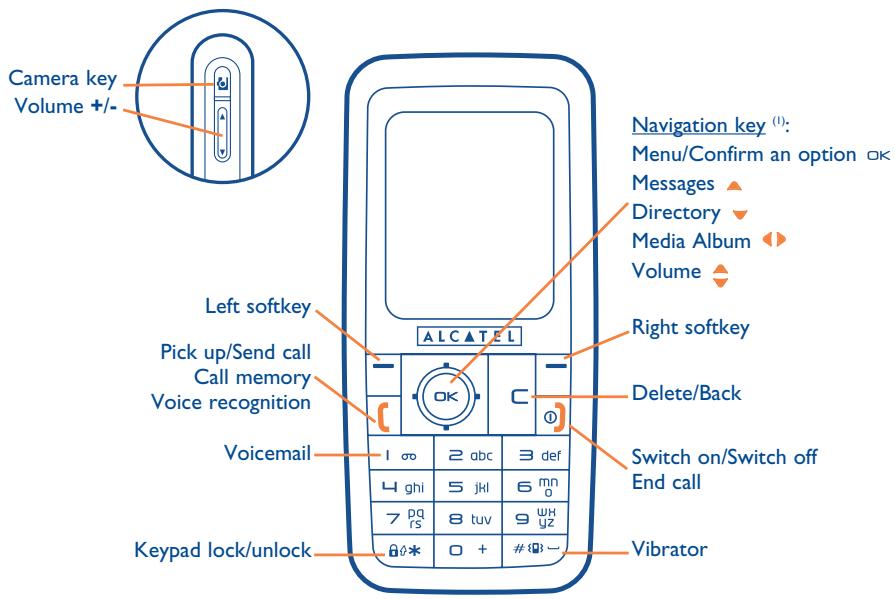
(1) Depending on your network operator.
OT-C652
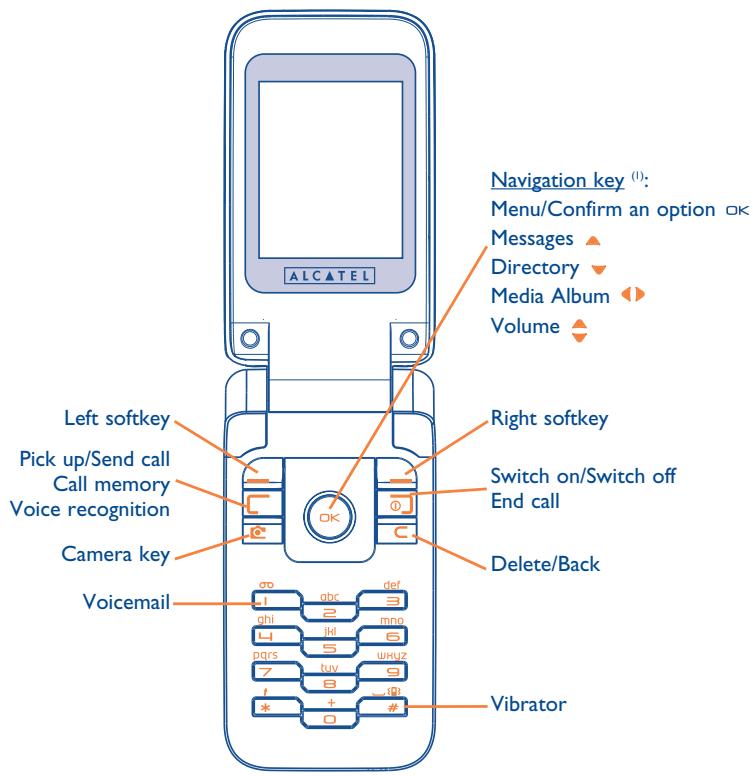
(1) Depending on your network operator.
1.1 Keys
(1)
Navigation key
Confirm an option (press the middle of the key)
C
Delete/Back (short keypress)
C
Pick up
Send a call
Access call memory (Redial) (short keypress)
Use voice recognition features (long keypress)
(1)
Switch on/Switch off the telephone (long keypress)
End call
Return to the main screen
Left softkey
一
Right softkey
1
Consult your voicemail (long keypress)
From main screen:
Keypad lock/unlock (long keypress) (1)
In Edit mode:
- Short keypress: switch the current mode into: Ab -> AB -> ab
- Switch from mode T9 predictive to Normal mode
- Long keypress: access the Symbols table
From main screen
- Short keypress: #
- Long keypress: activate/deactivate the vibrator.

Side keys (1):
Camera key
+:Volume up
Volume down
(1) OT-C551/552 only.
1.2 Main screen icons (1)
Vibrator mode: your phone vibrates, but neither rings nor beeps except for the alarms (see page 50).
Battery charge level
Infrared: infrared link activated.
Keypad locked.
Push To Talk presence status (PTT)
Call forwarding activated: your calls are forwarded (see page 27).
Timer or Alarm clock programmed (see page 62).
Level of network reception.
Voicemail message arrived.
Unanswered calls.
WAP alerts (2).
Roaming within your country of subscription.
Instant messaging.
Double line (1): indicates the selected line.
GPRS GPRS context activated.
Message reception in progress.
Message sending in progress.
Silence mode: your phone neither rings, beeps nor vibrates except for the alarms (see page 50).
Message unread
Message list is full: your terminal cannot accept any new messages. You must access the message list and delete at least one message on your SIM card.
Preferred tariff areas (1).
1.3 External screen (2) icons
Almost main screen icons can be found with different size and colour on the external screen.
2 Getting started
2.1 Set-up
Inserting and removing the SIM card (1)
You must insert your SIM card in order to use your phone.
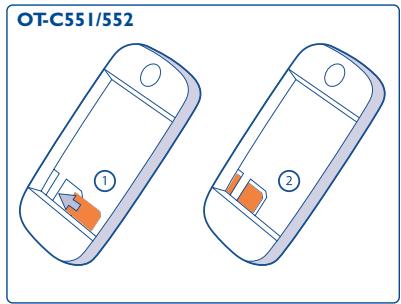
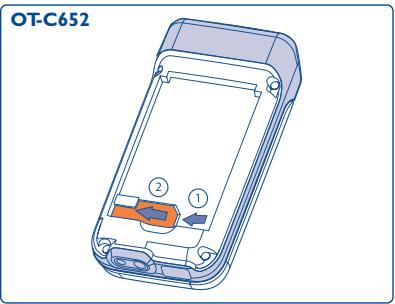
Place the SIM card with the chip facing downwards and slide it into its housing.
Make sure that it is correctly inserted.
To remove the card, press it and slide it out.
Inserting the battery
OT-C551/552
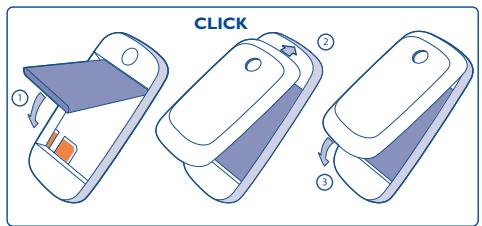
OT-C652
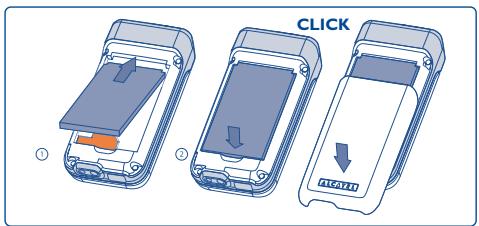
Insert and click the battery into place, then close the telephone cover.
Removing the battery
OT-C551/552
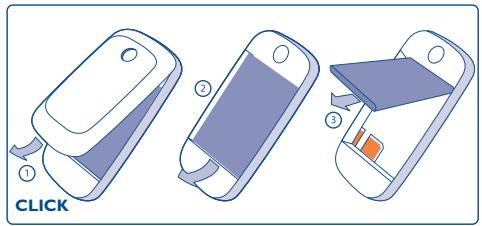
OT-C652
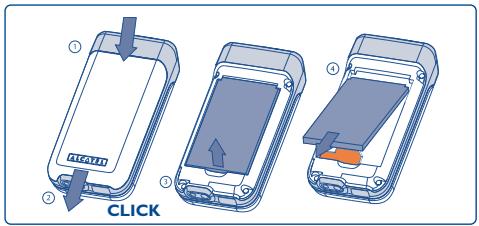
Unclip the cover, then the battery and remove it.
Charging the battery
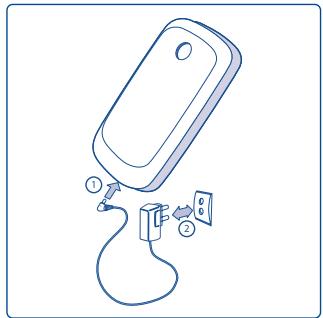
OT-C551/552
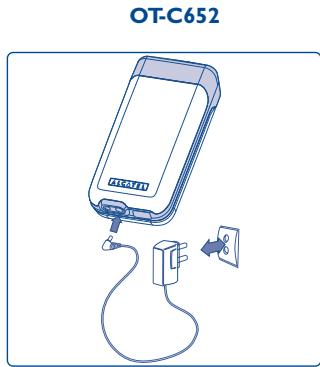
Connect the battery charger
A short beep will sound when charging begins.
- The animation may take several minutes to start and may emit a slight whistling sound if the battery is flat.
- Be careful not to force the plug into the socket.
- The battery icon will take 2 minutes to indicate the correct charge level.
- Make sure the battery is correctly inserted before connecting the charger.
- The mains socket must be near to the phone and easily accessible (avoid electric extension cables).
- When using your telephone for the first time, charge the battery fully (approximately 3 hours). It is recommended that you charge the telephone every day for optimal use. You are advised to fully charge the battery ( ).

The charge is complete when the animation stops. Only use Alcatel chargers.
Precautions during use
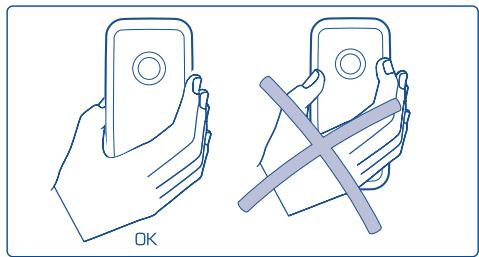
OT-C551/552
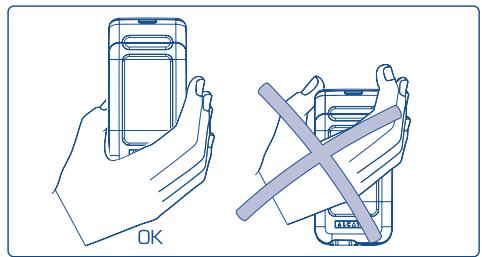
OT-C652
Do not place your hand on the upper part of the mobile phone.
Your telephone is equipped with a built-in antenna. For optimal operation, you should avoid touching it or damaging it.
For better radio reception and optimum operation, do not touch the upper part of your telephone.
2.2 Switching on your telephone
Hold down the ① key until the telephone comes on, type in your PIN code if necessary and then confirm with the 0 ~ k ~ key. The main screen is displayed.

If you don't know your PIN code or if you have forgotten it, contact your network operator. Do not leave your PIN code near your telephone and store your card in a safe place when not in use.
If cell broadcast messages are displayed, use the key to browse through them in full or press the key to return to the main screen.
While the phone is searching for a network, the << - >> symbol is displayed (???-????) is displayed if your SIM card is rejected by the network. In this case please contact your operator).
In the switch ON screen, you also have access to "Video" clip list: select the left icon or Media Album with the navigation key . You can browse the images, videos and sounds in the media album even if the SIM card has not been inserted.
2.3 Start-up wizard
Once the PIN has been accepted, access the Start-up Wizard (you will be asked to set up the language, date, time).
2.4 Switching off your telephone
Press the ① key from the main screen (long keystress).
3 Calls
3.1 Making a call
Dial the desired number then press the key to place the call. If you make a mistake, you can delete the incorrect digits by pressing the key.
To hang up the call, press the ⑨ key or close the flip (1) (except if the headset is plugged in).
To enter characters “+” or “P” (pause), hold down the + key (the following characters will scroll by: 0, +, P, * ).
Making an emergency call
If your phone is covered by the network, dial 112 and press the key to make an emergency call (or any other number provided by your operator). This works even without a SIM card and without typing the PIN code or unblocking the keypad.
Making a call with a prefix
To access the various prefixes, hold down the + key, stop at the "+" sign and use the key.
- To make an international call, go to * ,select the country, code, prefix, finish dialling the number and send the call.
- If you already know the prefix to dial, go to the icon and enter the prefix directly followed by the number of the person you are calling.
- In some companies, telephone numbers all begin with the same digits. By using the "Prefix" feature 1 , you can save the shared digits, but you will need to dial the variable part. You must create the prefixes yourself.
(1) OT-C652 only.
Automatic radial
If this feature is activated and supported by the network (see page 29), the person you called will be called back automatically until they can be reached.
3.2 Calling your voicemail (1)
Your voicemail is provided by your network to avoid missing calls. It works like an answering machine that you can consult at any time. To access your voicemail, hold down the 10 key.
If the access number for your operator's voicemail service does not work, dial the number that you were given. To change this number at a later date, refer to "My Numbers" (see page 25).

To use your voicemail service from abroad, contact your network operator before leaving.
3.3 Receiving a call
When you receive an incoming call, press the (key to talk and then hang up using the ① key.
When you have an incoming call, your telephone rings quietly at first and then gets louder. If the icon is displayed, the vibrator is activated and there is no ringtone. If the icon is displayed, the phone neither rings nor vibrates.
If the flip is open (1)
- To pick up a call, press the key.
If the flip is closed (1)
- To pick up a call, open the flip (Flip pick up option is activated by default, see page 56)

The caller's number is displayed if it is transmitted by the network (contact your network operator to check service availability).
Muting the ringtone
Press the key once while the telephone is ringing. Answer the call by pressing the key.
Rejecting a call
Press the ① key once or the C key twice.
3.4 During the call
Available functions
During a call, you can use your directory, your diary, messages, etc. without losing your correspondent by pressing the key.
Call on hold
Ongoing call
Handsfree
WARNING: move the handset away from your ear while using the "handsfree" option because the amplified volume might cause hearing damage.
Directory
Messages
Diary
Services (1)
Voice memo (record your current call).
Display notes
Adjusting the volume
You can adjust the sound level during a call using the navigation key or the side keys (2).
Handling two calls
- Call waiting (1)
If a second call comes in while you are already on line, you will be notified by a tone. You can then accept the call by pressing the key.
Your current call will be automatically put on hold. You can then switch between your two correspondents using the key and then OK.
Making a second call
To call a second party during a call, dial the number directly.
3.5 Conference calls (1)
Your phone allows you to talk to several people at the same time (up to 5). If you are on a double call, press "Options" and select "Conference" then confirm with the OK key. If a third call comes in, answer it by pressing the key and speak with your new correspondent.
This correspondent becomes a member of the conference if you press "Options" and select "Add conf.", and then confirm by pressing OK. Pressing ① disconnects the current call.
To end the conference call, press "Options" and select "End conf."

Headset plugged in: Closing the flip during the call or the conference call will not end any of your calls but you will not be able to manage them as long as your phone remains closed.
3.6 Double line (ALS) (1)
Your SIM card can contain two distinct telephone numbers. Under "Call log", choose "Double line" and then select a default line; all your outgoing calls will be made from this number. Incoming calls, however, will continue to use the two lines.

The services programmed on the default line do not impact those selected on the other line.
4 Call log
CALL LOG
CALL MEMORY
- Unanswered
Outgoing calls - Answered calls
MY NUMBERS
My Number
Voicemail
MY E-MAIL (1)
BILLING
Amount
Total cost
Available credit
Maximum credit
- Reset
Unit cost
Duration
Total duration
Avail. duration
- Set duration
- Reset
GPRS counters
Cost summary
Last call
Total cost
- Beep duration
(1) Contact your network operator to check service availability. Depends on product.
4.1 Call memory
You can access your call memory by pressing the key from the main screen. Choose the icon of the desired list:
Unanswered calls
Outgoing calls (Redial)
Answered calls
The icon that may be displayed to the left of the person's name shows the type of telephone number recorded in the directory (Home, Office, Mobile Phone).
Select a number of the call memory and press the "Options" softkey to View call details, Write message, Save or delete the selected number (Delete number), or clear the entire list (Clear list).
4.2 My Numbers
Type in or modify your telephone number or the number to access your voicemail and confirm by pressing OK. Your telephone number is usually written on your SIM card.
4.3 My e-mail address (1)
Enter your own e-mail address to send pictures, images, video clips, sounds... by MMS to your PC. You can do it also via the options while writing an MMS.
4.4 Billing
You can access different items with this option:
Amount: you can view the total cost of charged calls, the available credit, set a credit limit beyond which any billable call is barred, modify it or reset it and enter the cost of a Telecom Unit in the currency of your choice.
Duration: you can view the total duration of all outgoing calls, set a duration beyond which any billable call is barred, modify it or reset it.
GPRS counters: management of the volume of data communications charged for (in kilobytes).
Cost summary: you can display the duration and cost of the last call or all calls made.
Beep duration: you can activate or cancel the beep emitted during a call with a specified frequency (enter the frequency and confirm by OK).
(1) Contact your network operator to check service availability. Depends on product.
CALL LOG
CALL SETTINGS (1)
Call forward
Voice
Data
Fax
Status
- Cancel all
- Call barring
Outgoing calls
- Incoming calls
Status
4.5 Call settings (1)
You can access a number of items with this option:
Call forward: you can activate, cancel or verify the status of the call forwarding (Voice, Fax or Data) to the voicemail or to a specified number (type in the number or select the name and confirm by pressing ). The following configurations are possible:
- Unconditional: systematic forwarding of all your calls. The icon is displayed.
- Conditional: if your line is busy, if you don't answer or if you are outside the network range.
If busy, no reply or unreachable.
Call barring: you can activate or deactivate the call barring for outgoing and incoming calls. The various options are:
Outgoing calls Activate/deactivate the call barring. This option is applied as follows:
- Except SIM Dir. Outgoing calls to numbers not included in your directory are barred.
All (^1) All outgoing calls are barred. - International (1) Outgoing international calls are barred.
- Except->Home Outgoing international calls except those to your country of subscription are barred.
Except FDN Barring of outgoing calls in accordance with a specific "FDN" directory contained in Dir. (1) the SIM card.
Activate/ All calls not beginning with one of the numbers recorded in the "FDN" directory are Deactivate barred.
Change You can update the "FDN" directory if the "Except FDN dir." feature has been activated, after entering PIN2 (update "FDN" directory by pressing OK).
Incoming calls Activate/deactivate the barring of incoming calls. The following configurations are possible:
- Except SIM Dir. All calls from numbers not in your directory are barred.
All (1) All incoming calls are barred. - If abroad (1) Incoming calls are barred when you are abroad.
Status List of incoming call barring options activated on this phone.

If you cannot send or receive calls, a call forward or a call barring option could be activated. Please check.
(1) Contact your network operator to check service availability.
(1) Contact your network operator to check service availability.
CALLLOG
Calls
Call waiting
- Conceal ID
- Caller ID
Pick up
Network autoredial
Automatic radial
Activate
See list
Clear list
Double line
Calls
Call waiting (1) Activate/deactivate the notification of a second incoming call by a beep.
Conceal ID (1) Activate/deactivate the option making your calls (CLIR) anonymous (your number is no longer transmitted by the network to the party you are calling).
Activate/deactivate the display of your caller's number (or name if found in the directory) for each call.
Pick up (1) Choose your pick up mode: [key or any key.
Network auto Enables automatic callback by the network of the radial (1) last dialled busy number.
Automatic redial: you can activate or deactivate the automatic callback of your party for calls that do not get through the first time. You can also display the list of the 10 numbers for which automatic callback was not successful and delete it.
Double line (1): your SIM card can contain two distinct telephone numbers. Choose "Double line" and then select a default line; all your outgoing calls will be made from this number. Incoming calls, however, will continue to use the two lines.

The services programmed on the default line do not impact those selected on the other line.
5 Menu (1)
-
GAMES & APPS
MEDIA ALBUM -
My Images
My Videos - My Sounds
- Games & Apps
- Memory
EXTRAS
- Alarms
- Calculator
- Converter
- Memory
- Infrared
Remote synchro. - Melody composer
Voice memo
Voice recognition -
Alarms list
-
PHOTO/VIDEO
-
Take a picture
- Record a video
- Panorama
-
My Images
My Videos -
DIRECTORY
- MESSAGES
-Create message
- Inbox
- Sent
- Unsent
Drafts
-IM/InstantMsg
- Archives
- Templates
Voicemail
- WAP alerts
- Settings
Distribution list
- My favourite
Memory
CALLLOG
- Call memory
- My Numbers
- My e-mail (1)
- Billing
- Call settings
MY SETTINGS
- Ringtones
Sound interface - Display
- Clock
Network time - Music & lights
- Keys
-
More settings...
-
MY SHORTCUTS
-
SERVICES
WAP
- Homepage
- Bookmarks
- Profiles
- Enter address
DIARY
(1) Contact your network operator to check service availability. Depends on product.
6 Directory
6.1 Consulting your directory
To access the directory from the main screen, press the key (1) downwards or press the key and select the icon from the menu.
You can also customise a quick access to your contact with the keypad customisation (see page 55).
You have 4 directories:

SIM directory

Personal directory

General directory

Professional directory
In addition to the directories already provided, you can create your own directories (see page 36).
Searching for a name by its first letter
You can search for the person's name by pressing the key associated with the first letter of his/her name.

For some languages that have a specific entry mode, you should use the "Search name" option.
Read a file
Select a name from your directory, then press OK to read the file.
(1) Depending on your network operator.
Sending your directory file via InfraRed
I. Select the file you wish to transfer.
2. Place your phone or PDA opposite the other phone's InfraRed port.
3. Select "Options/Send/Infrared".
The transfer will take place.
Receiving the file
You must activate the infrared via "Menu/Extras/Infrared".
Once you have selected the option, the icon will appear on the screen (you will be disconnected if there is an incoming call).
A message will inform you of the data's reception. Save the data by pressing OK.
Making the call
Press the key once the name is selected. If several numbers are associated with the name to be called, you must first choose the number from the list (Mobile, Home, Office, etc.) using the key. Press the key to make the call.

Information in the directory and the diary may be sent to and received from a computer using the Alcatel PC suite (see page 96).
6.2 Creating a file
Select the directory in which you wish to create a file, press the "Options" softkey, select "Create file" then OK. You can save the data you have entered at any time by pressing the "Options" softkey and choosing "Save & quit". Go to the following field using the navigation key .
When you create a new contact in the product directory, at least one of the following fields must be filled in: Identity card, Birthday, Nickname, URL Address, Numbers, Image, E-mail, Address, Notes, Persona. Info. You can move from one field to another using the key.
When the field "Birthday" is filled in, an alarm is automatically created in the Diary.

If you use your phone abroad, store the numbers in your directories in international format “+” followed by the country code (see page 20).
6.3 Available options
From the list of names in your directories, you can access the following options via the left softmax:
| View | ·View a complete file: name, address, e-mail, etc. | Create dir. | ·Create your own directory. |
| Empty dir. | ·Empty the contents of a directory. | ||
| Create file | ·Create a file (name, numbers, address, e-mail, etc.) in the desired directory. | Delete dir. | ·This directory and its files will be completely erased (created directory only). |
| Call | ·Once you have entered the number, you can call directly from the directory. | Copy all-> SIM/Phone | ·Copy the whole directory to the SIM or telephone directory in one go if there is sufficient memory. |
| Write message | ·Send an SMS/MMS/VMS/IM/e-mail to a contact from the directory. | Voice reco. | ·Record a voice recognition command except in the SIM. |
| Modify | ·Modify the contents of a file. | ||
| Image | ·Select a video/photo/image in the Album and assign it to the current file (not valid for the SIM directory). | Send | ·Exchange data via infrared (see page 65) or Multimedia/MMS. |
| Remote synchro. | ·The files in the directory may be synchronised with a network store (see page 66) (1). | ||
| Delete | ·Delete the selected file. | ||
| Classify file | ·Move a file from one directory to another. | Default num. | ·Select the telephone number in your contact file that you want to be displayed under the name of the contact. |
| Dir. ringtone | ·Assign a melody to the current directory. |
6.4 Creating a new directory
From the product directory, press the "Options" softkey and select "Create dir.", confirm using the key, then name your new directory. You can create up to 13 new directories. You can delete only those directories that you created, by selecting "Delete dir".
6.5 Voice recognition
Voice recognition allows you to place your call by pronouncing the party's name without using your directory.
Select a file from the product directory and confirm with the "Options" softkey. Then select "Voice reco." and confirm once again. Three different beeps will signal the start of recording, its failure or its success. After recording, you can "Listen to", "Replace" or "Delete" a recorded voice recognition command.
The files for which a voice recognition command has been recorded are indicated by the icon. The number of names accessible through voice recognition is limited. This feature can be used in all directories except the SIM card directory.
Activate voice recognition by holding down the key from the main screen, then follow the instructions on the screen.
6.6 Assigning a ringtone to a directory
Select a file from the product directory, press the "Options" softkey and select "Dir. ringtone". This ring tone can be one of your videotones.
When you receive a call from a contact classified in the product directory, the ringtone will be the one assigned to that directory.
6.7 Assigning an image, an animation or a video to a file
Select a file from the product directory, press the "Options" softkey and select "Image".
When you receive a call, the picture, animation or video clip that you have chosen will be displayed on the screen. It is possible to assign either an image or a video but not both for the same contact.
6.8 Privacy
The data of your directory can be protected (see option "Privacy" page 59).
"Activate" this option in order to protect your diary or directory data. This option is useful if you use PC synchronisation.
7 Messages: SMS, MMS, e-mail
From your telephone, you can read, write, send messages and share them with other devices: "Text/SMS", "Multimedia/MMS", "E-mail (1)" and "IM/Instant Msg. (2)".
Multimedia messages are messages whereby you can send video clips, images, photos, animations, sounds, voice messages (or "Voice/Vox MMS" that allows you to send a voice memo as a message) to other compatible mobiles and e-mail addresses.
Mobile e-mail offers the possibility of sending and receiving e-mail with your phone wherever you are. You may configure several e-mail accounts: professional e-mails, personal e-mails (3).
The multimedia/MMS, e-mail and IM functions can only be used if the service is provided by your operator, if your contract includes the option, and if all the appropriate parameters have been entered (see page 44 for MMS, page 45 for e-mails and page 48 for IM).
(1) E-mail for electronic mail.
(2) See Chapter 8 for IM.
Depends on whether your e-mail provider supplies "Pop3" access.
To access the messages from the main screen, press the top of the key. You can also access the menu by pressing the key and selecting "Messages" with the navigation key and then confirming with the key.
-Create message
-Inbox
- Sent
- Unsent
Drafts
-IM/InstantMsg.
- Archives
- Templates
- Voicemail
- WAP alerts
- Settings
- Distribution list
- My favourite
- Memory
7.1 Creating SMS/MMS/e-mail (2)
From the main menu select "Messages/Create message".
You can type a message but you can also modify a predefined message or customise your message, by adding pictures, photos, sounds, title, etc. While writing, select "Options" to access to all the messages options.
You can save your message as a Draft or a Template.
By selecting "Preview" you can view the contents of your message.
(1) Depending on your network operator.
(2) E-mail for electronic mail. Depends on product and operator.
The message will be sent as either an SMS or an MMS, depending on the type of content (with or without images, photos).
An SMS message of more than 160 characters will be charged as several SMS. An MMS message containing photos and/or sounds may also be billed as more than one message.
The person receiving your MMS must be equipped with a compatible phone in order to display the objects or listen to the sounds in your message.
You can create an e-mail as a text message with or without attachments. You must however fill in the e-mail parameters beforehand in "Messages/Settings/Advanced/E-mail".
Creating Vox MMS (Voice memo)
From the main menu, select "Messages/Create message/Voice/Vox MMS". This function allows you to send a vocal message quickly without having to write. The recipient is not disturbed and simply receives a normal MMS (1).
You can Send the message:
- Manually by entering the number of the recipient
To a person stored in one of your directories
To your favourite number - To several different people by specifying a distribution list (choose the "Distribution list" option).
(1) To compose a text you can use the normal text input or T9 predictive input (see page 97).
7.2 Inbox
All received messages (read and unread) are stored in the same Inbox.
When viewing your messages, you will find the following status icons, depending on the type of message: unread text message (SMS/MMS/e-mail), read text message (SMS/MMS/e-mail), unread e-mail with attachment, read e-mail with attachment, message reception in progress, message sending in progress.
The following icons are added to the master icons according to type: attachment, MMS attachment, sound attachment, copyrighted data.
Receiving and reading SMS/MMS/e-mail
When you receive a new message, the following message is displayed: "You have received a new message!", or you may have a specific alert for each type of message received (E-mail, Message), a beep sounds, the icon shows up, a line with the number of messages appears on the screen. Select this line and press OK to read it directly from the main screen. To modify or deactivate the audible signal, see page 50.
You have two ways of managing the reception of MMS:
- National (in your network)
- International (if abroad)
For both, you can choose to "Always download" or "Always defer" (we recommend choosing "Always defer" when abroad).
Once you have read the message, the following options are given: delete, reply, forward the message to another person, archive the message, save the animation, sound, pictures, etc... save the sender's number.
You can reply to any message using a "Voice/Vox MMS".
7.3 Sent messages
All sent messages.
7.4 Unsent messages
All messages to be sent or failed messages. If you type an MMS while on the phone, you must go to "Messages/Unsent" after hanging up in order to send it.
7.5 Drafts
All drafts messages.
7.6 IM (Instant messaging)
As IM includes Presence whereas the other messaging services don't, IM is described separately on page 46.
7.7 Archives
All archived messages.
7.8 Templates
A list of predefined messages are available. Select one, edit it if required, and then send it. You can also create your own predefined messages.
7.9 Voicemail
All vocal messages received.
7.10 WAP alerts
All WAP notifications received.
7.11 Settings
7.11.1 Message sending parameters
- Expiration: request a deletion of undelivered messages from server (never delete, after 30 minutes, 1 hour, 6 hours, 1 day, 1 week). You can select or cancel this option.
Delay delivery: you can delay a message delivery by 30 minutes, I hour, 6 hours, I day, I week or never. - Message type: SMS/MMS.
- Receipt: - delivery status report Yes/no - read status report Yes/No
7.11.2 Message receiving parameters
Request for downloading new messages: always, always defer, defer if 1,10, or 50kb.
-
Reception:
-
National: Reception mode depending on operator.
-
International: If roaming you can always download, always defer, or download or not depending on the size.
-
Anonymous senders: You have the possibility to reject or not the messages from anonymous senders
- Receipt: - request for acknowledgement of delivery report Yes/no
- request for acknowledgement of reading receipt Yes/No
7.11.3 Look & Feel
- Emoticons: graphical display of emoticons.
- Slide duration: page display duration in seconds.
- Personalisation: insert signature and/or add an introduction: always, never, only on e-mail.
7.11.4 IM parameters
Set up Instant Messaging (IM/Chat) parameters, see page 48.
7.11.5 Advanced parameters
You can program specific parameters for SMS/MMS or e-mail.
SMS: Format (to be used for delivery to recipient: Fax, SMS, etc.), Reply path, Service centre (name and number of your operator's service centre, which may be provided automatically).
MMS: To set up your MMS profile, follow the same procedure as for setting up your WAP connection.
E-mail (1)
Accounts Enter your e-mail account parameters.
Active account Choose the e-mail account you want to use.
Check for mail To select an automatic check for new e-mail on the server (every 15 minutes, hour, 4 hours, every day or week or never).
- The number of e-mails you want to retrieve at one time.
- To select the maximum size of e-mail you want to open or the header only.
- While deleting the message, you can choose whether to delete it from the server or keep a copy on the server.
7.12 Distribution list
Create and manage distribution lists: predefined list of recipients.
7.13 My favourite
Enter the number or e-mail of your favourite contact. Then, when you want to send a message, select "Send" and "My favourite" directly without searching in the directory.
IM/Chat (Instant Messaging) (1) ……
Instant Messaging (IM, also called "Chat") is one of the most popular services on the Internet after e-mails. The presence feature allows users to check when their friends are online and communicate with them in near real-time.
You can now "chat" with your mobile phone.
8.1 Presence
IM enables a user to see the connection status or presence of other users.
The presence includes a combination of network status information (online or offline) and user specified status information (available or busy).
An important privacy protection feature of Instant Messaging is the ability to block another user at any time. Restricted users cannot see your presence neither send you unsolicited IM (SPIM: the word for IM spam).
In one glance you can know the presence of your friends thanks to the IM buddy list: it is the list of contacts with whom you may chat. You can manage your IM buddy list: add a new contact (using a mobile phone number or the messenger ID), or search for a contact.
IM buddy list and directory: You can link your IM buddy list and your directory, meaning that you can place a call from the IM application, or send an IM from a contact in the directory. There is a specific IM field in the directory.
8.2 Always on
Mobile IM works the same way as on a PC: you can still receive IM messages, even if the IM application is not on the screen. An IM icon in the status bar shows you whether IM is on or off. The icon shows:
- if you are online and available,
- if you are online and busy,
- if there are unread IM
No icon means that you are not connected.
8.3 Send an IM (Instant Message)
If an IM buddy list (list of contacts for IM) has already been created, you can send an IM and start a chat simply by pressing or selecting a "buddy".
You can also send an IM from your directory by going to "Directory/Writemessage/IM".
Depending on your operator, you may use the same IM buddy list as on your PC
I. See if your contacts are present
2. Start the IM chat, with the online buddy.
8.4 Receiving and reading IM
When you receive a new IM notification (a new IM, an information message...),
- an IM message is displayed: "You have received an IM message from...", "You have received an invitation from..."
- you have a specific sound alert for IM (to modify or deactivate the audible signal, refer to IM parameters below),
- in the status bar, the IM icon is updated,
- a line with the number of conversations with different friends (whatever the number of IMs) or information messages appears on the idle screen. Select this line and press OK to access it from the main screen.
8.5 IM parameters
You can choose:
I. to assign a specific melody to an IM notification.
2. to automatically launch IM in the background at mobile switch on.
You can update the IM network profile parameters in the same way as for a WAP profile, see page 74.

My settings
From the main screen, select the icon menu and select the function of your choice in order to customise your telephone.
MY SETTINGS
RINGTONES
- SOUND INTERFACE
9.1 Ringtones
9.1.1 Available functions
To modify the sound settings, select an option using the key:

Select a melody from the list using the key then confirm by pressing OK. You can also select from this list the random melody function called "Surprise melody" (see page 50), or you can select a Videotone.

Mode (normal, discreet, vibrate...).

Adjust the volume using the key.

Select the type of key beep.

Select a sound for opening the flip and on for closing it (1).

Select a melody for a new incoming message.

Select a melody for a new incoming appointment.

Activate/deactivate the network beep (2).
9.1.2 Mode
You may set your phone ringtone to Normal, Discreet (ring with beep), Vibrate (all sounds are replaced by vibrations), Vibrate and ring, Vibrate then ring, Beep and vibrate, Silence (no sounds except for alarms, the icon will be displayed).

Ringtones sound with increasing volume.
9.1.3 Surprise melody
At the top of the list of melodies, access the item "Surprise melody"; choose up to 20 melodies. Then, each time you receive a call, one of the melodies you have chosen will be played at random.
9.1.4 Videotone
You can select a video as a melody (with both audio and visual effects).
9.2 Sound interface
Specific sounds assigned to each menu icon are emitted.
MY SETTINGS
DISPLAY
- Main screen
General
Photos
Pictures - Icons
-
Frames
-
Screen saver
Videos -
Slideshow
Image
None -
Colours
- Atmospheres
- On/Off screen
- Switch On
-
Switch Off
-
Zoom
Battery saver - Contrast
9.3 Display
9.3.1 Main screen/External screen
The main screen is displayed when you switch on your telephone and/or when no functions have been used for a short time (calls, sending of short messages...).
You can access the main functions from the main screen either with the navigation key or by selecting the icons displayed on the screen (1).
Select "Main screen" to customise it by replacing the default image or animation displayed on your telephone.

When you receive an event (incoming call, SMS/MMS, notifications, etc.) the icon, type and number of events will be displayed on your main screen allowing you to consult them directly.
9.3.2 Screen saver
If you activate this option, the screen saver will be displayed a little while after the main screen. You can choose a picture, an animation, a slideshow, or a videoclip as your screen saver.

For both Main screen and Screen saver, the eco-mode screen will appear after a little while: only the battery and network levels and the time or an envelope (for incoming event) will be displayed.
9.3.3 Colours
This function enables you to customise the graphic style and the colours of your telephone (menu screens, entry screens, etc.)
9.3.4 Atmospheres
The "Atmospheres" menu allows you to customise your telephone to suit your own taste. You can modify seven customizable items at the same time.
When using the telephone for the first time, a default Atmosphere is activated.
Even if you choose an Atmosphere, you can still modify the elements in it one by one. You can reactivate an Atmosphere at any time.
When changing an Atmosphere, an installation screen appears until the seven elements are installed.

The installation of the Atmosphere can be stopped and cancelled if you receive an incoming call or if you press the key ; the previous choice of Atmosphere is kept.
9.3.5 On/Off screens (1)
You can customise your welcome message, animation, melody or image that appears when you switch on your telephone.
You can also customise your OFF screen with an image, animation and melody.
9.3.6 Zoom (2)
Two character sizes are available for your telephone screen. Large characters are selected by default. If you wish to display more information select "Zoom".
9.3.7 Battery saver
- High: turns off the screen
- Medium: only displays clock, battery charge level, events

When your phone returns to idle mode, if the battery saver is set to High, your backlight will be switch off. Press any key to reactivate the backlight. But do not remove the battery!
9.3.8 Contrast
Set the contrast of your main screen.
MY SETTINGS
CLOCK
NETWORK TIME
MUSIC & LIGHTS
- KEYS
Softkeys
- Left softkey
-
Right softkey
-
Keypad
-
Contacts list
- Custom keys
MORE SETTINGS
- Keypad lock
- Languages
Dictionary
9.4Clock
You can display two clocks (local and remote) at the same time on the main screen.
Go first to the "Clock type" icon and select the "2 clocks" option. Then go back to the "Clock set up", select "Local clock", choose a city and confirm. The automatic transition to daylight saving time is activated. Repeat the same operation for the "Remote clock".
Display format
You can display your clock in analog or digital format and the date in the following formats: day/month/year, month/day/year or year/month/day in digits or using the first three letters for the day and month.
9.5 Network time (1)
Activate/deactivate the automatic update of your clock with network time.
9.6 Music & lights
Activate/deactivate the backlight and vibrator of your phone dancing to the rhythm of the music when you receive a call.
9.7 Keys (1)
9.7.1 Softkeys/ key (1)
These keys have predefined functions, which vary from one model to another (operator services, games access, or Games & Applications, ...). You can customise (1) them, assigning the functions you wish to each key. For example, they can be used as a shortcut to access the Diary, to write a message,...
9.7.2 Keypad
By customising your keys, you can call someone or access a function directly from the main screen.
To programme a key on your keypad, select "Keypad" and choose the key that you wish to programme. Then select:
- "Contacts list" activate this option to access a contact in the directory whose first letter corresponds to the letter on the key, for instance _rs^pq key for "PETERSON John".
- "Custom keys": activate this option to access the numbers or functions that you have already programmed. If you want to change them, press the "Options" softkey, select "Modify" and choose the first key you want to program.
You will then access these shortcuts directly from the main menu in the "My Shortcuts" item.
9.8 More settings...
9.8.1 Keypad lock (1)
Activate/deactivate the automatic keypad lock by pressing on the 空 * key.

If the telephone is plugged in using a car kit accessory or the charger, it will be unlocked automatically on receiving a call.
9.8.2 Flip answer (OT-C652 only)
Activate/deactivate the flip pick-up.
9.8.3 Languages (2)
Display language for messages (select using ). The "Automatic" option selects the language according to the home network (if available).
9.8.4 Dictionary
You have a dictionary to which you can add your own words in addition to those suggested by the predictive input system. When you consult your dictionary, you can add, modify or erase words by using the "Options" softkey.
(1) Depending on your network operator.
(1) Not available on OT-C652.
(2) Contact your network operator to check service availability.
MY SETTINGS
- Start wizard
- Input mode
- Extensions
- Displayed
Not displayed
WAP/GPRS
WAP access - Access modem
GPRS attachment
Security
PIN code
PIN2code
Network code - Menu code
Telephone code - Privacy
Networks
SMS CB
Search - Accessories
- Headset
Car kit - Codec
9.8.5 Start-up wizard
You can use this tutorial start-up as a help to define your basic parameters (time/date settings).
9.8.6 Input mode (1)
Please see chapter "latin input mode", page 97. In addition to the specific characters table for Cyrillic and Chinese, other data input modes are also available in your telephone. This feature allows you to write short messages and add names with special characters to your directory.
9.8.7 Extensions display
This function allows you to choose whether to display the extensions of your photos, videos, sounds, files in your Album.
9.8.8 WAP access features
(See page 77).
9.8.9 Security
PIN code (1) The SIM card protection code is requested each time the phone is switched on if this code is activated.
Activate/ Activate/deactivate this code.
Deactivate
Change Update code (between 4 and 8 digits).
PIN 2 code (1) A protection code for certain SIM card features (Billing/Cost/FDN, etc.) will be requested if you attempt to access it, if the code is activated.
Change Update code (between 4 and 8 digits).
Network Code (1) Password requested for network "Call Barring" options.
Menu code A protection code for certain MENU options (services, settings, language) will be requested if you attempt to access it, if the code is activated.
Activate/ Activate (or cancel) this code.
Deactivate
Change Update code (between 4 and 8 digits).
Telephone A telephone protection code will be requested each time the phone is switched on, if code this code is activated.
Activate/ Activate (or cancel) this code.
Deactivate
Change Update code (between 4 and 8 digits).
(1) Depending on the language.
(1) Contact your network operator.
9.8.10 Privacy
"Activate" this option in order to protect your diary or directory data. This option is useful if you use PC synchronisation.
9.8.11 Networks
SMS CB (1) Messages broadcast over the network (weather forecast, traffic conditions, etc.) are automatically displayed on the main screen.
- CB list List of codes for messages to be displayed.
- Reception Depending on the option selected, the phone will display messages broadcast over the network.
Partial The phone receives messages intermittently and will display them according to your list (see “CB list” option).
Complete The phone continually receives messages and will display them according to your list (see "CB list" option).
None The phone will not receive any messages.
Search Search for a network connection.
Available List of networks available in your radio environment.
- Search mode Depending on the option selected, the network search mode will be:
Automatic The first network searched for is the network you used last.
Manual The choice of the connection network is left up to the user.
- Preferred list List of networks to which you wish to be connected in order of priority (update this list using ).
9.8.12 Accessories
Headset
A predefined melody will be played if the ringtone you selected is not an .amr file.
If the headset is plugged in, closing the flip will not hang up the call.
Pick up
Key Only by pressing the key.
Automatic Automatically without any keypress, after approximately 2 ringtones (this option is operational only if your mobile phone is connected to an audio kit or handsfree kit).
- Any key By pressing any key from the keypad (except side keys).
Audio mode Choose to ring in headset, or both in telephone and headset.
Car kit
Headset pick up Choose the pick up mode: key, automatic or any key.
Melodies A default melody is assigned as the ringtone of your phone when connected to the car kit. You can select a new one from a predefined list.
9.8.13 Codes
List of all file formats (visual and sound) supported by the telephone.
I0 My Shortcuts
A shortcut is a quick access to a function, a telephone number or a WAP bookmark.
Program your own shortcuts to functions that you will choose from a list, via the "My shortcuts" menu.
Extras
EXTRAS
- ALARMS
CALCULATOR
CONVERTER
11.1 Alarms
Access this feature by selecting "Extras" from the main menu, then "Alarms".
Alarm clock
First set the alarm frequency (daily or only once), then enter the time and date and confirm by pressing the OK key. You can also enter the purpose of the alarm and then confirm with the OK key.
Timer
Set the amount of time desired before the alarm is to sound and confirm with the key.
Settings
When the alarm is set, the icon is displayed on the main screen. The alarm will sound whether the handset is switched on or off and can be switch off by pressing any key. If the flip is closed (1), opening the flip will stop the ringing and take you directly to the alarm menu for a few seconds before going back to the previous screen.
If you have chosen the "Snoopze" option, the alarm will go off at regular intervals.
You can select a melody for a new alarm by selecting the icon.
(1) OT-C652 only.
11.2 Calculator
Access this feature by selecting "Extras" from the main menu, then "Calculator".
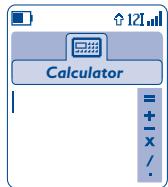
Enter a number and confirm with the OK key, then select the type of operation to be performed using the key and confirm again.
Enter the second number and press OK.
Select the "==" sign to display the result.
To return to the main screen, press the "Back" softkey.
11.3 Converter
Access this feature by selecting "Extras" from the main menu, then "Converter".
The currency converter allows you to:
- Convert a currency directly into euros and vice versa (1).
- Convert a sum of money into another currency (e.g. dollars to pounds).
For a conversion into euros, you can modify the default currency by selecting "Set up".
If converting between international currencies, both currencies must be selected. You must also enter the appropriate exchange rate.
An exchange rate value is pre-set for each currency. You can change this value by selecting "Set up".

From the main screen, enter the amount in euros to be converted into the programmed currency, then press the "Options" softkey and select "Converter".
(1) For the former European national currencies, the currency converter uses the final Euro conversion rates set on 31/12/1998, which are used in accordance with official conversion rules.
EXTRAS
- MEMORY
- INFRARED
- REMOTE SYNCHRO.
11.4 Memory
Access this feature by selecting "Extras" from the main menu, then "Memory".
View available memory space.
Your telephone's memory is shared between several functions: directory, diary, messages, voice messages, voice recognition, images and melodies, games and applications, video clips. For example, if you use a lot of memory for your voice memos, you will have less memory available for the directory.

Do not forget to delete large items such as voice memos, MMSs, images, photos, recorded sounds, applications, video clips..., in order to free up memory space, otherwise the performance of your terminal may be affected. You can also delete certain items included in your telephone on purchase.
11.5 Infrared
Access this feature by selecting "Extras" from the main menu, then "Infrared".
Your phone's infrared feature allows you to exchange contacts, diary data, images, videos, melodies via an infrared link with an other mobile or a PC. The infrared port is located at the top (OT-C551/552) or at the bottom (OT-C652) of your telephone.
Sending data
To send data, select the file, then select the "Send" option. It is not necessary to activate the infrared feature before sending.
Receiving data
To receive data, you must activate the infrared feature. A message will advise you of the arrival of data; you will have to save the data by pressing the "Yes" softkey.
Once you have selected the option, the icon appears on your screen. The infrared will be deactivated automatically after a short while (1). The connection will cut off if you have an incoming call.
To use the PC suite (see page 96) you must first activate the infrared to have the phone recognised by the PC. See instructions while installing the PC suite for further details.
(1) If you use infrared often, we recommend that you set a quick access to it from the keypad (see page 55).
11.6 Data synchronisation: Remote synchronisation (1)
Your mobile phone allows you to synchronise the data stored in your phone (i.e. directory files, diary entries and to-do lists), either with your PC, or over the mobile network:
I. PC Synchronisation: with the Alcatel PC suite, you can synchronise your data between your mobile and your PC, see page 96.
2. Remote synchronisation (SyncML): when a user is mobile, data can be synchronised over the mobile network, giving the user up-to-date access to his/her directory files, diary data and to-do lists.
What are the benefits of Data Synchronisation?
- thanks to synchronization, backup data can be restored (use the download feature from server function), if you lose your phone or change it,
- no need to maintain several databases: your PC and your mobile keep the same information, the changes on one side are automatically updated on the other side.
Remote synchronisation
The default synchronisation is the "fastest synchronisation". Before any synchronisation, you must set the server parameters.
(1) Contact your network operator to check service availability.
You can start a remote synchronisation in several ways:
- From "Extras" select "Remote synchro." and then select "Sync".
- From "Directory/Options/Remote synchro." for directory files only: Directory synchronisation begins.
- From "Diary/Options/Remote synchro." for diary files only: Diary synchronisation begins.
- From "To-Do/Options/Remote synchro." for To-do files only: To do synchronisation begins.
The SyncML parameters can be changed using the Settings menu (Extras, Remote synchro., Settings):
SyncType
- Fastest (update only, default synchronisation), Full (complete synchronisation), Upload to server (all data from phone to server, this is for the 1st Synchronisation), Download from server (update all data from server, if you lose your phone, for example).
Schedule
- You can start synchronisation manually (default) or program an automatic one: Daily, Weekly or Monthly.
Applications
Background
- Directory, Diary, To-do list.
- Decide whether to perform the automatic Synchronisation in the background or not.
- Choose the account you want to use, fill in the following parameters: server name, server address, user name, and password.

When in remote synchronisation mode, access to other functions is blocked. If you answer an incoming call, synchronisation will stop.
EXTRAS
MELODY COMPOSER
- Compose
Record
VOICE MEMO
VOICE RECOGNITION
- ALARMS LIST
11.7 Melody composer
Access this feature by selecting "Extras" from the main menu, then "Melody composer".
11.7.1 Compose
Select "Compose" then use the keypad as shown below:
OK Select an instrument
"Options" softkey: Go to the options
Delete a note
Key I to 7: basic notes of an octave (C, D, E, F, G, A, B)
Buv Change the length of a note or a pause
和 * Change the octave
Add a pause
Q3 Add a sharp
11.7.2 Record
Select "Record" to record a sound of your own.
In both cases, you can use a sound as a melody. If you want to listen to a sound (composed or recorded), select the desired one and press the "Options" softkey.
11.8 Voice memo
Access this feature by selecting "Extras" from the main menu, then "Voice memo".
The voice memo feature enables you to record personal messages. To record a voice memo, select "Voice memo", then "Record", and begin speaking after the beep. Once the voice memo has been created, you can access the following options:
Listen to
- Listen to a recorded voice memo.
Send
- Send your memo by MMS or infrared.
Handsfree/ Discreet
- Switch between handsfree and discreet mode.
Title
- Modify the name of the memo.
Memo-album Copy the memo to your sound album (to send it by MMS or use it as a ringtone).
Delete
- Delete the selected memo.
11.9 Voice recognition
Access this feature by selecting "Extras" from the main menu, then "Voice reco".
Voice recognitions allow you to access one of the menu functions by pronouncing the name of that function.
Recording a voice recognition
In order to record a voice recognition for one of the menu functions, select "Voice reco." and the desired function and then follow the instructions.
The functions for which a voice recognition has been recorded are indicated by the icon. There are 10 functions accessible through voice recognition.
Using voice recognition
You activate "voice reco." by holding down the key from the main screen. To use voice recognition, follow the instructions on the screen.
After recording, you can "Listen to", "Replace" or "Delete" a recorded voice recognition.
11.10 Alarms list
Access this feature by selecting "Extras" from the main menu, then "Alarms list".
You can view all the alarms that you have set. The icon will appear on your main screen if the alarm clock or the timer has been set, or if the alarm is set for the current day or the following day.
12 Diary
Your phone has a sophisticated diary that will help you to manage your daily schedule. You can also save "To Do" lists.
Consulting your diary
Three views are possible. You must first choose the appropriate icon:
Daily view
Weekly view
Monthly view
"To Do" list.
Parameters
You can scroll through the dates by pressing the key.
According to the view you can read, create, modify or send an item.

Information in the directory and Diary data may be shared with a computer using the Alcatel PC suite (see page 96) or synchronised with a distant server using the SyncML (Synchronisation feature) (1).
(1) Depending on your operator and product.
Creating an appointment and programming an alarm
When you create an appointment ("Create" option), you can also activate an alarm. You can set the desired alarm activation time to coincide with your appointment time.
Creating a task
Scroll to the icon using the key, and confirm using the key. Select "Select type", then confirm once again using the key and enter the type of task to be performed ("to do" or call appointment), then enter the purpose.
This list can be arranged by deadline or by priority. To do this, scroll to the icon using the key, then confirm using the key.
You can set an alarm for a task for which you have set a due date. This alarm will sound on the chosen day at the time that you entered.
Configure the diary
Scroll to the icon using the key, to access the following options:
Alarm
- Set a default time for the alarm to sound before the scheduled appointment.
"To Do"
- Sort your tasks by priority or by due date.
Diary
Programme the start time for your day, your first day of the week and your first week of the year.
Delete
- Delete all tasks or diary items or only those items that have expired.
Synchronise
- Your appointments and your "To Do" tasks in your diary can be synchronised with a network database (1) (see page 66).

Privacy:
The data of your diary can be protected (see option "Privacy" page 59).
(1) Depending on your network operator.
Activate or deactivate a setting by pressing . Exit the configuration function by pressing C.
More about your diary
Graphic view
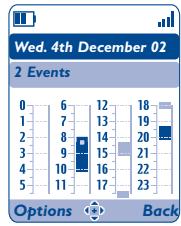
Daily view
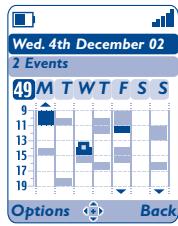
Weekly view
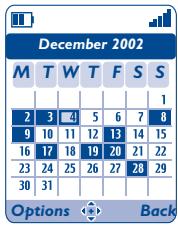
Monthly view
A single appointment recorded.
Two or more appointments recorded during this time slot.
49 Week number.
An appointment was recorded prior to this time slot.
An appointment was recorded after this time slot.
Monthly view
Blue background Meeting scheduled
White background No meeting scheduled
The current day, week and month views will flash.
13 WAP

13.1 Access WAP menu (1)
WAP (Wireless Application Protocol) is a service that allows you to access the mobile Internet, where you can obtain information such as weather conditions, stock market information, traffic information, etc.
- " Homepage" launches the WAP browser on the homepage of the default profile.
- "Bookmarks" gives access to the list of your favourite sites or adds new sites to them.
- "Profiles" lists the WAP profiles.
- "Enter address" allows you to directly access the WAP page for which you enter the URL address.
13.2 Programming your access (2)
Select a profile from the "Profiles" list and press the "Options" softkey:
Launch Launch WAP with this profile even if another one has been selected as the default.
Create
- Enter the parameters of a new profile.
Activate - Select the current profile as the default (this option is not displayed if it is already selected).
Modify
- Modify the parameters of a profile.
Delete
- Delete the selected profile.
(1) Contact your network operator to check service availability.
(2) Enter the information supplied by your access provider.
To "Create" or "Modify" a profile, you are required to enter the following parameters:
- Profile name
- Homepage
- IP address
- Profile type: connection mode (secure, normal, http)
- Bearer choice
- Confirm
In the "Bearer choice" item you can choose the transmission mode: GPRS/GSM, GPRS or GSM.

When you select the GPRS/GSM transmission mode, GSM mode is activated if GPRS mode is not available.
If you select the GPRS transmission mode, select a GPRS bearer and then fill in the following parameters:
- Authentication (user name and password)
-APN
If you select the GSM transmission mode, select a GSM bearer and then fill in the following parameters:
-User name
- Password
- Telephone number
- Access type
If you select the GPRS/GSM transmission mode, select a GPRS bearer and then a GSM bearer; fill in the required parameters for each one (1).
(1) Enter the information supplied by your access provider.
13.3 Direct access/profile access
From the main screen, select "My Settings/More settings.../WAP/GPRS/WAP access", to change the launch access:
- Direct access: when you launch WAP from the main menu, you go directly to the homepage of your default WAP profile.
- Profile Access: when you launch WAP from the main menu, you will have the following items: Homepage, Bookmarks, Profiles, Enter address.
13.4 GPRS function (1)
Your mobile phone has an efficient high-speed modem based on GPRS technology (1). With this modem you will be able to surf faster on the WAP and send your MMS more quickly. This service may be billed at a different rate (contact your operator for more information).
You can use the GPRS function if:
- the service is supplied by your operator,
- your subscription includes the GPRS option,
- the profiles have been configured and the corresponding bearer selected (GPRS or GPRS/GSM (see page 75); the GPRS icon appears when the GPRS context is active.
(1) Contact your network operator to check service availability.
13.5 WAP browser options
Once you have launched the WAP browser, while reading a page, you can access the options by selecting the icon on the top left of the screen, or press the "Options" softkey, or press # (long keypress).
Home
- Access the homepage directly.
Bookmarks
- Access your favourite sites (bookmarked sites).
Alert Inbox
View information sent over WAP.
Snapshot
- Save the whole of your screen.
Save Items
- Save images or sounds.
Send Link
- Send an SMS with the URL address of the visited page.
GoToURL
Show URL
Reload
Settings
About...
History
Exit
- Access the WAP site directly by entering the address.
- Display the URL address of the current page.
- Refresh the current page.
- Customise your WAP access.
- Display the browser version.
- Display the list of the last visited URL.
End your WAP session and return to the main screen.

At any time during your navigation, hold down the key allows you to exit the WAP mode.
Media Album
To access the Album from the main screen, press the navigation key to the left or to the right (1) or press OK and select the icon. The Album is a function that groups together all visual and sound items in your telephone, regardless of whether they are embedded, downloaded, recorded or composed.
Three types of Album are available:
- : "My Images" album, containing images, icons, photos etc...
- : "My Videos" album, containing videos.
- : "My Sounds" album, containing sounds and melodies.
In each of these three types, you can create new folders with the option "Create folder".
(1) Depending on your network operator.
MEDIA ALBUM
MY IMAGES
General
- Photos
Pictures
- Icons
- Frames
MY VIDEOS
General
- Recorded
- Crazy clips
Video trailers
- MY SOUNDS
General
Melodies
- Crazy sounds
- Recorded
- Composed
- GAMES & APPS
- MEMORY
14.1 My Images
You can select an image or a photo and use it as the main screen or the ON/OFF screen. You may change it, send it by MMS or assign it to a contact in the directory using the "Image" option (see page 37).
The "My Images" Album is made up of the following folders:

General: list of all images (built-in or created) from all album folders.

Photos: default folder for pictures taken with the camera.

Pictures: contains all images not belonging to one of the other folders.

Icons: contains icons, stamps...

Frames: contains frames for enhancing your images.
To make searching easier, thumbnail images are displayed on the screen. To view one image at a time, select an image, then press the "View" softkey.
Then, from this view you can scroll through the images by making a short keypress on . Holding down the key will start the slide show (or press the "Options" softkey then "Slideshow").
(1) The embedded folder names cannot be modified. However, in certain cases, you can modify, delete and add items included in these folders.
14.2 My Videos
The "My Videos" Album contains the following folders:

General, contains all the items from all the folders (created and embedded),

Recorded, contains the video clips you have recorded,

Crazy clips,

Video trailers.

You can search any Image, Sound or Video files by pressing the key bearing the first character of the filename.
14.3 My Sounds
Choose a sound for the ON/OFF screen, for an incoming call, a message alert or an alarm (see page 49).
The "My Sounds" Album contains the following folders:

General, contains all sound items (built-in or created) from all album folders,

Melodies,

Crazy sounds,

Recorded sounds or videotone (only contains recordings made with the "Record" function),

Composed sounds (only contains compositions made using "Compose").

DRM: Digital Rights Management feature allows sounds and images to be broadcast while protecting the associated copyright.
(1) The embedded folder names cannot be modified. However, in certain cases, you can modify, delete and add items included in these folders.
14.4 Managing sounds, images and videos
According to the item chosen, you can access some of the functions below:
| View | ·View the selected image. If you want to view all the pictures in your folder in a slideshow press on the current picture. | Modify | ·Modify a sound/image (2). |
| Download | ·Access your bookmark sites to download new items. | ||
| Listen to Play Send (1) Delete | ·Listen to the selected sound. ·Play the selected video. ·Send the sound/image/video. ·Delete the image/sound/video selected (Not applicable for embedded items). | Rename Classify file | ·Rename the sound/image/video. ·Move an image from one folder to another. |
| Create folder | ·Create folders grouping together a series of images or sounds (for example: “Holidays” or “Birthday”). | ||
| Set as | ·- Image->main screen, switch ON/OFF, assign it to a contact. - Sound->ringtone, switch ON/OFF, assign it to a contact. - Video->Screen saver or assign it to a contact, - Videotone, select a sound video as a ringtone. | Delete folder | ·Delete a folder. |
| Rename folder | ·Rename a folder that you created. | ||
| Empty folder | ·Empty the contents of a folder. | ||
| Sort by size/name/copyright | ·Sort the images by size, by alphabetical order or by copyright. | ||
| Ringtones | ·Choose a melody for an incoming call ringtone. | Capture | ·Access the “Photo” function directly. |
(1) Files marked with cannot be forwarded.
(2) Only applies to composed sounds and images that can be cleared.
14.5 Download new videos, photos, sounds, ...
With the "Download" option, you can access your favourite sites saved in your bookmarks list, and download new items that you will be able to save in your Album.
14.6 Formats and compatibility
List of audio, image and video formats compatible with your telephone:
- Audio: AMR (.amr) (1); Midi (.mid); AAC (depends on product and operator).
- Image: JPEG (.jpg) (2); GIF (.gif); PNG (.png); BMP (.bmp)
Video: 3GP (.3gp) (H263 (^3) + AMR (^1) or MPEG-4 (^4) MP4 (.mp4) (MPEG-4 (^4) - You can convert large image and sound files using the PC software suite so that they are compatible with your terminal.
14.7 Games & Applications
See page 92.
14.8 Memory
See page 64.
(1) AMR-NB.
Except for progressive Jpeg. The telephone uses the "Independent Jpeg Group" code.
(3) H263 profile 0, level 10.
(4) MPEG-4 simple visual profile, level 0.
15 Photo/Video/Panorama (1)
Your telephone is fitted with a camera for taking photos, shooting videos and creating panoramic photos that you can use in different ways:
- store them in your "Media Album",
- send them in a multimedia message (MMS) to a mobile phone or an e-mail address,
- customise your main screen (see page 51),
- assign them to a contact in your directory (see page 37),
- transfer them by Infrared to your computer,
- modify your photos adding frames, stamps, etc (see page 90).
15.1 Access
To access the function from the main screen:
- press the key (landscape (2) mode),
- press the k key to access the menu and select the icon (portrait mode).
If you access the camera via the menu, you will be in Portrait mode. If you access it via the key, you will be in landscape mode.
Pressing the key will take you to a selection screen. You can change the capture mode by pressing the key again. To confirm, either press OK or wait a few seconds.
PHOTO/VIDEO
- TAKE A PICTURE
RECORD A VIDEO -
PANORAMA
MY IMAGES -
General
- Photos
Pictures
-Icons - Frames
MY VIDEOS
General
- Recorded
- Crazy clips
Video trailers
15.2 Photo
Access this function from the main screen by pressing the key (on the left hand side of the phone), or by going via the "Camera" menu.
15.2.1 Taking a photo
The screen acts as the viewfinder. Position the object or landscape in the viewfinder and press OK or to take the picture. Avoid touching the lens situated on the back of the phone.
15.2.2 Taking a talking photo
Liven up the photo by adding comments to it. To do so, hold down the key or the key when taking the photo. The recording will stop when you release the key. Press to return to the photo shot screen.
15.3 Video
You can choose from 2 video clip lengths:
- 10 seconds that you can send by MMS,
- 30 seconds that you can transfer via Infrared or e-mail (1).

Self portrait (2): you can take a self portrait.
If the flip is open, you have to press the key, then take the photo or video.
If you close the flip, the camera remains active.
Video settings (direct access):
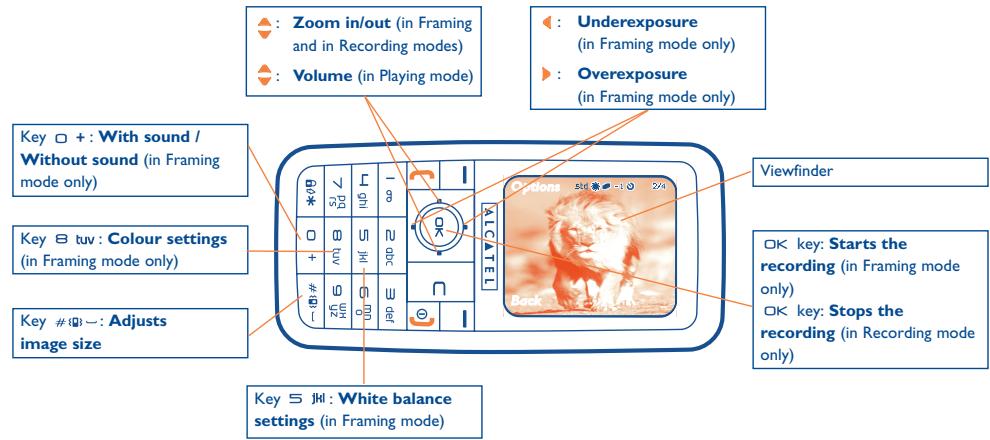
IFA BILDERTEAM@Agenceimages.com
15.3.1 Framing mode
When you enter the "Video" function, you are in Framing mode. Use the telephone screen as a viewfinder and press the "Options" softkey to set the white balance, to activate or deactivate the sound, to choose the colour, to access the Video Album or the "Camera", and to change the default folder.
Memory space
A 10-second video clip takes about 100kB of memory space.
15.3.2 Recording mode
Once you have chosen your settings, you can launch the recording of your video-clip by pressing the key; a short beep is emitted.
During the recording, you can use the and keys to zoom in or out.

In Recording mode with sound, you cannot receive any calls or messages.
In Recording mode without sound, if you receive a call, recording is stopped and lost.
15.3.3 Playing mode
After recording the video sequence, press the key to play the video and choose to Save, Play, Send, Save and send, Cancel the video, assign it (Set as) to a contact or to the Main screen, and choose a different folder (Default folder) to save your videos.
15.4 Panorama (1)
You can create a panoramic photo by merging a series of two or three photos. For best results, ensure that the photos overlap slightly when creating a panoramic photo. Take the first photo, pan across, take the second photo and repeat for the third photo. A panoramic photo can only be created in landscape mode.
15.5 Settings (photos, videos, panorama)
15.5.1 Before taking the photo, you can adjust a number of settings.
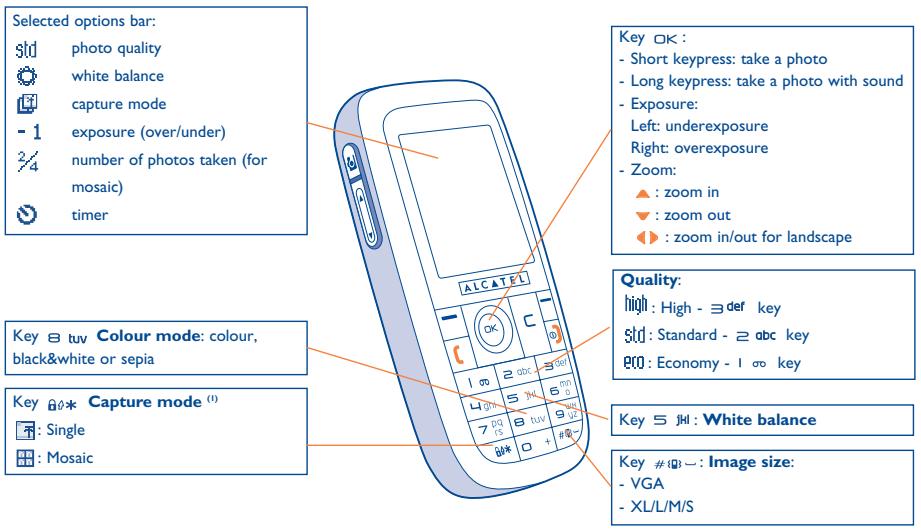
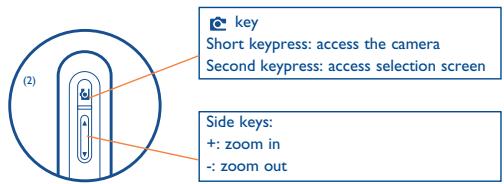
(1) Not available in Panorama format.
(2) Camera and side keys are not available on OT-C652.
From the photo shot screen, press the "Options" softkey to access the following:
Image size
Select "Image size" in the list of options or press the # 43一 key until you reach the required size: VGA (640x480), XL (360x640), L (128x160), M (64x64) and S (32x32).
Capture mode
Select "Capture mode" in the options list or press the * key to choose one from the following modes:
Single: a single photo; this is the default mode.
Mosaic: in this mode, you will get an image made up of 4 thumbnails.
Frame
Select the frame that will be placed on your photo. You will also find this option in the "Modify" function (see page 90).
Quality
Select "Quality" in the list of options or access it directly by pressing the 1 , abc, def keys:
Eco: Economy quality: memory space is optimised.
Std: Standard quality: compromise between size and quality,
High: High quality: excellent quality to be sent to a PC,

Warning: the higher the quality, the more memory is required. For example, you may store the following number of photos:
| Format | High quality | Low quality |
| VGA | 10 photos* | 20 photos* |
| 128 × 160 | 146 photos* | 340 photos* |
Timer
The photo will be taken 10 seconds after pressing . A sound will be emitted when you take a photo.
White balance
By pressing the "Options" function key, you can choose from 5 settings:
Auto: the settings adjust automatically (no icon will be displayed on your screen),
Sunny,
Cloudy,
Night: when selected, exposure time is increased for a sharper picture.
Indoor/artificial light.
- These estimations are only given as an indication for product with I Megabyte of memory.
Colour
You can choose the colour effects. You can access this option directly from the photo shot screen by pressing the key.
Other direct access options from the photo shot screen
Exposure: adjust the contrast of your photo with the navigation key: : underexposure, : overexposure.
Zoom (1): activate the zoom with the navigation key: : zoom in, : zoom out (portrait). For landscape, use the keys or side keys +/-.
You can also access video, panorama, change the default folder and store your photos.
15.5.2 Options available after taking the photo
Once you have taken a photo or an animation, you can Send your photo, Save and Send your photo, Save it, Discard it, Modify it (see below), Attach sound to it, access your Image album, or assign (Set as) it to a contact or a main screen, etc.
Just after taking the photo, you can rotate the image with the key or reduce the image size with the key (for certain formats).
15.5.3 Modifying images
Access the "Media Album" or the "Camera" menu (2) and select "Modify". You can Reduce the size of the image, Add stamp or Add frame to it. More frames are available from www.myonetouch.com
(1) Zoom is not available for VGA and XL formats.
(2) The multimedia content (melodies, images, drawings, etc.) in this telephone is for private use only, and may not be used for commercial purposes. Violators will be subject to prosecution.
15.6 Share
This exclusive feature allows you to send an MMS with photo and sound or video with only three clicks on the key:
Press the key to select the camera mode,
Press the key to shoot your photo or video,
Share Press the key to send it to "My favourite".

Please use your camera sensibly. Respect others and observe current regulations in your country.
16 Games & Applications
Your Alcatel phone may include (1) some Java™ applications and games. You can also download new applications and games to your phone from other service providers (2).
The "Games & Apps" menu allows you to manage the Java™ applications installed in your phone. It includes three directories and one configuration folder:
General: contains all applications and games,
Games: contains the games,
Applications: contains the other applications,
Settings: contains your sound, backlighting and network settings.
16.1 Launch an application
Select the application. Press OK to "Launch".
(1) Depending on your country or your operator.
(2) Requires access to WAP services (see page 74).
16.2 Available options
Launch - Launch the application.
Information This option gives information on the application.
Download Download an application.
Delete - Deletes the application. If you delete a pre-installed application in your phone, you may, depending on the application:
- download it again from the www.tcl-ta.com server.
- download it again from your operator's Website. Contact your operator for further information.
However, some applications cannot be re-download.
Classify Classify in "Games" or "Applications".
16.3 Download an application
You can download new Java™ applications in 2 ways:
- Either, in the "Games & Apps" menu by selecting the "Downld" softkey. The list of available WAP bookmarks dedicated to the application download will then be displayed. Select the appropriate bookmark to go to the desired WAP page.

You can download a Java™ application only if the WAP profile is activated (1) (see page 74).
- Or, from the main screen by selecting "WAP" then "Bookmarks" and choosing "My One Touch".
The downloaded applications can be saved either in the Games folder or Application folder.
16.4 Java™ Push
Depending on your server/operator, you may receive Java™ Push messages inviting you to launch new applications they propose.
16.5 Settings
- Sound Switch sound ON/OFF for all applications.
- Backlight Activate or deactivate the backlight.
- Network access List of network profiles available for Games & Applications. This list comprises the current WAP profiles and specific profiles for Games & Applications. To select a profile, go to the list, press OK and select "Confirm". To modify a specific profile for Games & Applications, go to the list, press OK and select "Modify". To create a profile, go to the list, press OK and select "Create". For the options available, see page 74.
- Memory View memory available. Applications use shared memory (see page 64).
While an application is running
- Short keypress on : pause
- Hold down the key: exit the application
Authorisation for network access: some applications require network access or the sending of an SMS. In this case, select the authorisation profile required with the navigation key , press OK then validate the selection then press "Confirm" to validate everything.
Disclaimer
Downloading or running applications will not damage or alter any software already in your mobile telephone designed to support Java™ technology.
T&A Mobile Phones Limited and its affiliates waive any responsibility and refuse to guarantee applications that are subsequently used, as well as for all applications not embedded in the handset upon purchase.
The purchaser alone bears the risk of loss, damage or defect of the handset, or of applications/software, and generally of any damage or consequence resulting from the use of the said applications/software. In the event that the said applications/software, or the subsequent setup of any function are lost due to technical reasons resulting from the handset being replaced/ repaired, the mobile phone owner should repeat the operation and download or set up again. T&A Mobile Phones Limited and its affiliates grant no guarantee and disclaim any responsibility if the operation cannot be repeated or cannot be performed without incurring some cost.
17 Making the most of your mobile............
17.1 “My One Touch” services by T&A Mobile Phones
On the website you will find all the services available to make the most of your mobile telephone.
Go to "www.tcl-ta.com" or simply choose the "My One Touch" option in your mobile telephone. Access this by selecting "Services" or "My Settings/Ringtones" or "Media Album/My Images/Download" from the main menu.
17.2 Alcatel PC suite
Depending on your model, your packaging box may contain a PC suite. Otherwise, you can download it for free from the website. The PC suite includes:
Multimedia Studio:
- customise your mobile with sounds, melodies, images, animations and videos.
-
transfer to your PC the photos and videos taken with your camera.
-
One Touch Sync:
-
synchronise your mobile phone with: MS Outlook 98 / 2000 / 2002 / 2003, Outlook Express 5.0 / 6.0, Lotus Notes 4.6 / 5.0 / 6.0 / 6.5, Lotus Organiser 5.0 / 6.0
-
Data Connection Wizard:
- use your mobile phone to connect your PC to the internet.
Supported Operating Systems
- Windows 2000 with Service Pack 4 (SP4) or later
- Windows XP with Service Pack I (SPI) or later
Latin input mode/character table (1)
To write messages or an e-mail, there are two writing methods:
Normal
Predictive with the T9 mode
Normal
This mode allows you to type a text by choosing a letter or a sequence of characters associated with a key. Press the key several times until the desired letter is highlighted.
When you release the key the highlight character is inserted into the text.
Predictive T9 mode
This mode speeds up the writing of your text.
Write the word by pressing a key between abc and w.h. Press the key once and the word will be modified each time you press a key. As you go on, the word will keep changing.
Example: For "Tomorrow", press on the following keys:
8 tuv, 6 mn, 6 mn = Too -> 6 mn -> tomorrow
By pressing the "Options" softkey, you can access the following options at any time: switch between normal/predictive/T9 modes ("Normal/Predictive"), access the symbols ("Symbols"), access the digits ("Add numbers"), launch T9 help ("T9 Help"), view the list of the available languages ("Languages"), add a word to the user database ("My words"), complete the word or not ("End word ON/OFF") and complete the sentence or not ("End phrase").
| Latin uppercase | Latin lower case | |
| I∞ | .,-?!’@:1 | .,-?!’@:1 |
| ≥abc | A B C 2 A A A A E C | a b c 2 a a a e c |
| ∃def | D E F 3 E E E E D | d e f 3 e e e d |
| ∅ghi | G H I 4 G G G I I I | g h i 4 g g i i i |
| ≤jkl | J K L K L L L | j k l k l l l |
| ∅mn0 | M N O 6 N N O O O | m n o 6 n n o o o |
| ✗pqrs | P Q R S 7 R R S S | p q r s 7 β r s s |
| ∃tuv | T U V 8 T T U U U | t u v 8 t t u u |
| ∅wyz | W X Y Z 9 Y Z Z Z | w x y z 9 y z z z |
100key
- Short press: insert a Smart punctuation as , -
- Long press: insert I
Keypad
- Short press: alpha input (a, b)
- Long press: numeric input (1, 2, 3)
@*key
- Short press: switch the current mode into: Ab AB ab
-
Switch from T9 predictive mode to Normal mode
-
Long press: access the Symbols table
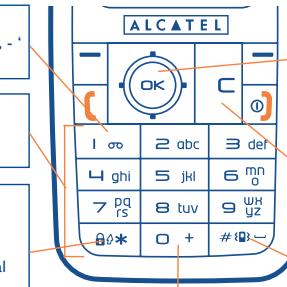
Navigation key:
RIGHT/LEFT: Validate the words.
UP: Previous word
DOWN: Next word
C key
- Short press: DELETE character by character
- Long press: DELETE the entire word
key
- Short press: Valid the displayed word in predictive mode and/or insert a space
- Long press: Add word
□+key
Short press: Access the language list
- Long press: Enter zero
This character table is generic. All available characters are not displayed. The candidate letters may vary according to the languages.
Symbol table
Hold down the a^0* key to display the symbols table; the cursor is positioned in the centre. Use the navigation key to move it.
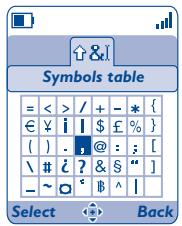
19 Telephone warranty
Congratulations on choosing this mobile phone - we hope that you will be completely satisfied with it.
Your phone is guaranteed against any deviation from technical specifications for a period of twelve (12) months from the date specified on your original invoice (1).
The warranty terms defined in the manual also apply to the battery and accessories but for a period of six (6) months from the date of purchase shown on your original invoice.
Under the terms of this warranty, you must inform your vendor (or any maintenance centre approved by T&A Mobile Phones Limited or its affiliates, which are listed on our website www.tcl-ta.com) without delay, of any defect and present the invoice given to you at the time of purchase. The vendor or maintenance centre will decide whether to replace or repair, as appropriate, all or any part of the telephone or accessory found to be defective; this warranty covers the cost of parts and labour but excludes any other costs. Repair or replacement may be carried out using reconditioned components offering equivalent functionality.
Servicing under the terms of this warranty, especially repair, modification or replacement of products, shall entitle to a THREE (3) month warranty unless there are statutory provisions to the contrary.
This warranty shall not apply to damage or defects to your telephone and/or accessory caused by:
1) failure to follow the instructions for use or installation,
2) failure to comply with technical and safety standards applicable in the geographical area where the equipment is used,
3) improper maintenance of batteries and other sources of energy, and of the overall electric installation,
4) accidents or consequences of theft of the vehicle in which the telephone is transported, acts of vandalism, lightning, fire, humidity, infiltration of liquids, inclement weather,
5) connecting or integrating the phone into equipment not supplied or not recommended by T&A Mobile Phones Limited or its affiliates, without their express written consent for such,
(1) The warranty period may vary if overriding statutory provisions are applicable in your country.
(2) The life of a rechargeable Alcatel telephone battery in terms of conversation time, standby time, and total service life, will depend on the conditions of use and network configuration. Batteries being considered expendable supplies, the specifications state that you should obtain optimal performance for your Alcatel phone during the first six months after purchase and for approximately 200 more recharges.
6) any servicing, modification or repair performed by individuals not authorised by T&A Mobile Phones Limited or its affiliates, the vendor or the approved maintenance centre,
7) use of the equipment for a purpose other than that for which it was designed,
8) normal wear,
9) malfunctions caused by external causes (e.g., radio interference from other equipment, power or telephone line voltage fluctuations),
10)modifications made to the equipment even if required by changes in regulations and/or modification of network parameters,
[1] faulty connections resulting from unsatisfactory radio transmission or caused by the absence of radio relay coverage. In accordance with the applicable law, T&A Mobile Phones Limited or its affiliates guarantee your product against hidden defects (defects inherent in the design, manufacture, etc.).
The above provisions constitute the only claims enforceable against the manufacturer and vendor in the event of defects in the phone or accessory.
20 Accessories (1)
The latest generation of Alcatel GSM mobile phones offers a built-in handsfree feature that allows you to use the telephone from a distance, placed on a table for example. For those who prefer to keep their conversations confidential, an earpiece is also available known as the headset.
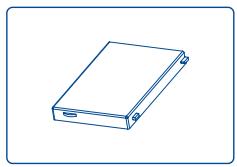
Battery BC-10744
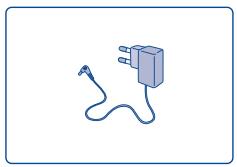
Multi-voltage charger C58XX Single-voltage charger C55XX
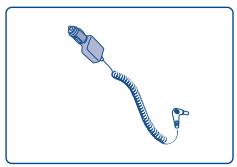
Cigar lighter charger C56
Single-voltage charger C55XX
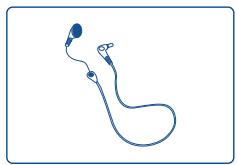
Headset M13
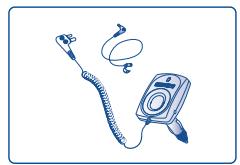
Basic car kit MP79
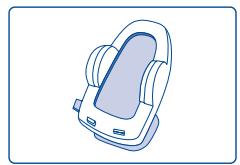
Universal car craddle (2) CC-11161

Only use your telephone with Alcatel batteries, chargers and accessories compatible with your model.
(1) Depending on product and availability.
(2) Not available on OT-C652.
2 | Troubleshooting

Before contacting the aftersales department, you are advised to follow the instructions below:
- You are advised to switch off the telephone from time to time to optimise its performance.
- You are advised to fully charge (■) the battery for optimal operation.
- Avoid storing large amounts of data in your telephone as this may affect the performance of your telephone.
and carry out the following checks:
My mobile phone will not switch on
Press ① until the screen comes on
- Check the battery charge level
- Check the battery contacts, remove and reinstall your battery, then turn your telephone back on
My phone has not responded for several minutes
Press the ① key
- Remove the battery and re-insert it, then switch the phone back on
My screen is difficult to read
- Clean your screen
- Use your mobile phone in accordance with the recommended conditions of use
My mobile phone turns off by itself
- Check that your keypad is locked when you are not using your mobile phone
- Check the battery charge level
My mobile phone has a low level of autonomy
Make sure you respected the complete charge timing (minimum 3 hours)
- After a partial charge, the battery level indicator may not be exact. Wait for at least 20 minutes after removing the charger to obtain an exact indication
My mobile phone will not charge properly
- Make sure that your battery is not completely discharged; the battery charge indicator can take several minutes and may be accompanied by a quiet whistling sound
Make sure charging is carried out under normal conditions (0^ + 40^) - Make sure your battery is inserted. It must be inserted before plugging in the charger
Make sure you are using an Alcatel battery and charger - When abroad, check that the electrical current is compatible
My mobile phone will not connect to a network
Try connecting in another location
- Verify the network coverage with your operator
- Check with your operator that your SIM card is valid
Try selecting the available network(s) manually (see page 59)
Try connecting at a later time if the network is overloaded
SIM card error
- Make sure the SIM card has been correctly inserted (see page 15)
- Verify with your operator that your SIM card is 3V compatible; the old 5V SIM cards cannot be used
- Make sure the chip on your SIM card is not damaged or scratched
Unable to make outgoing calls
Make sure you have dialled a valid number and press the key
- For international calls, check the country and area codes
- Make sure your mobile phone is connected to a network, and that the network is not overloaded or unavailable
- Check your subscription status with your operator (credit, SIM card valid, etc.)
Make sure you have not barred outgoing calls (see page 27)
Unable to receive incoming calls
- Make sure your mobile phone is switched on and connected to a network (check for overloaded or unavailable network)
- Check your subscription status with your operator (credit, SIM card valid, etc.)
Make sure you have not forwarded incoming calls (see page 27) - Make sure that you have not barred certain calls
The caller's name does not appear when a call is received.
- Check that you have subscribed to this service with your operator
- Your caller has concealed his/her number
The sound quality of the calls is not optimal
- You can adjust the volume during a call by means of the key
- Check the radio reception icon level
I am unable to use the features described in the manual
- Check with your operator to make sure that your subscription includes this service
- Make sure this feature does not require an Alcatel accessory
When I select a number from my directory, the number is not dialled.
- Make sure that you have correctly recorded the number in your file
Make sure that you have selected the country prefix when calling a foreign country
I am unable to create a file in my directory
- Make sure that your SIM card directory is not full; delete some files or save the files in the product directory (i.e. your professional or personal directories)
- Check the "Call barring" option for "Incoming calls" to be sure that the "Except SIM Dir." feature is not activated
My callers are unable to leave messages on my voicemail
- Contact your network operator to check service availability
I cannot access my voicemail
- Make sure your operator's voicemail number is correctly entered in "My Numbers"
Try later if the network is busy
I am unable to send and receive messages MMS,Vox MMS
- Check your phone memory available as it might be full
- Contact your network operator to check service availability and check MMS parameters (see page 44)
- Verify the server centre number or your MMS profile with your operator
The server centre may be saturated; try again later
The icon is displayed on my standby screen
You have saved too many short messages on your SIM card; delete some of them or archive them in the product memory
The << - >> icon is displayed
- You are outside of the network coverage area
I have already entered 3 incorrect PIN codes
- Contact your network operator to obtain the PUK code (Personal Unblocking Key)
I am unable to connect my telephone to my computer
Install first of all Alcatel's PC suite
- Use "Install the connection" and perform the installation
- If you use the infrared port, check that it is correctly activated (see page 65)
- If you use infrared often, we advise you to set a quick access to it from the keypad (see page 55)
- Check that your computer meets the requirements for Alcatel's PC Suite installation
Alcatel logo and Alcatel name are trademarks of Alcatel used under license by T&A Mobile Phones Limited.
All rights reserved © Copyright 2005
T&A Mobile Phones Limited.
T&A Mobile Phones Limited reserves the right, in the customer's interest, to alter material or technical specification without prior notice.