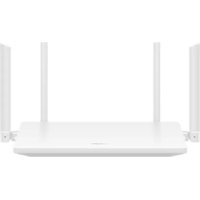
WiFi AX1 - Router HUAWEI - Free user manual and instructions
Find the device manual for free WiFi AX1 HUAWEI in PDF.


| Product Type | WiFi Router |
| Brand | Huawei |
| Model | WiFi AX1 (WS5203) |
| WiFi Standards | IEEE 802.11ax/ac/n/g/b/a |
| Frequency Bands | 2.4 GHz and 5 GHz |
| Maximum Theoretical Speed | Up to 1,200 Mbps (estimated) |
| Antennas | 4 external antennas (estimated) |
| Ports | 1 auto-adaptive WAN/LAN port |
| Button | WPS/RESET |
| LED Indicator | Status indicator (green/red) |
| Power Supply | 5V/1A power adapter (estimated) |
| Operating Temperature | 0 °C to 40 °C |
| Storage Temperature | -40 °C to 70 °C |
| Maintenance and Cleaning | Clean with a dry cloth. Do not use chemicals. |
| Safety | Minimum distance of 20 cm from body; avoid dusty, humid environments and magnetic fields. |
| App | Huawei AI Life |
| Special Features | 5 GHz priority, WPS, Reset, HarmonyOS Mesh+ |
| Included Accessories | Power adapter, Ethernet cable, quick start guide |
| Certifications | CE, RoHS, REACH |
| General Information | Brand: Huawei, Model: WiFi AX1, Category: Router |
Frequently Asked Questions - WiFi AX1 HUAWEI
User questions about WiFi AX1 HUAWEI
0 question about this device. Answer the ones you know or ask your own.
Ask a new question about this device
Download the instructions for your Router in PDF format for free! Find your manual WiFi AX1 - HUAWEI and take your electronic device back in hand. On this page are published all the documents necessary for the use of your device. WiFi AX1 by HUAWEI.
USER MANUAL WiFi AX1 HUAWEI
natural_image
Pure schematic diagram of a rectangular component with four corner ports and a central vertical line, no text or symbols present.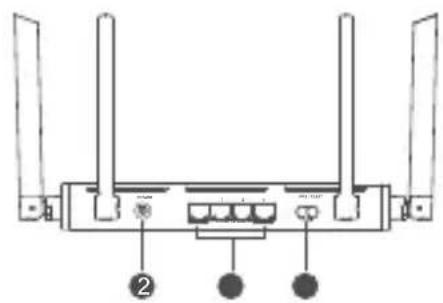
1
2
Power portIndicator
3
WAN/LAN auto-adaptation ports: Connect to the Internet (such as optical modem, broadband modems, etc.) and wired network devices such as a computer.
4
WPS/RESET button: Provide the functions of both the WPS button and the RESET button.
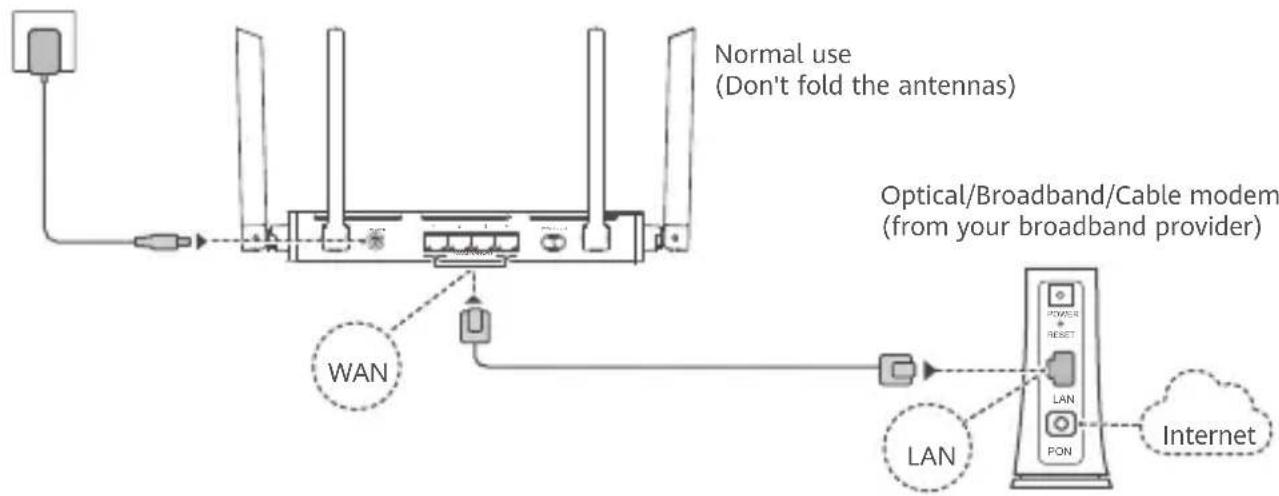
Step 1: Connecting the cables
flowchart
graph TD
    A["Power"] --> B["Switch"]
    B --> C["Antenna 1"]
    C --> D["Antenna 2"]
    D --> E["Antenna 3"]
    E --> F["Antenna 4"]
    F --> G["Antenna 5"]
    G --> H["Antenna 6"]
    H --> I["Antenna 7"]
    I --> J["Antenna 8"]
    J --> K["Antenna 9"]
    K --> L["Antenna 10"]
    L --> M["Antenna 11"]
    M --> N["Antenna 12"]
    N --> O["Antenna 13"]
    O --> P["Antenna 14"]
    P --> Q["Antenna 15"]
    Q --> R["Antenna 16"]
    R --> S["Antenna 17"]
    S --> T["Antenna 18"]
    T --> U["Antenna 19"]
    U --> V["Antenna 20"]
    V --> W["Antenna 21"]
    W --> X["Antenna 22"]
    X --> Y["Antenna 23"]
    Y --> Z["Antenna 24"]
    Z --> AA["Antenna 25"]
    AA --> AB["Antenna 26"]
    AB --> AC["Antenna 27"]
    AC --> AD["Antenna 28"]
    AD --> AE["Antenna 29"]
    AE --> AF["Antenna 30"]
    AF --> AG["Antenna 31"]
    AG --> AH["Antenna 32"]
    AH --> AI["Antenna 33"]
    AI --> AJ["Antenna 34"]
    AJ --> AK["Antenna 35"]
    AK --> AL["Antenna 36"]
    AL --> AM["Antenna 37"]
    AM --> AN["Antenna 38"]
    AN --> AO["Antenna 39"]
    AO --> AP["Antenna 40"]
    AP --> AQ["Antenna 41"]
    AQ --> AR["Antenna 42"]
    AR --> AS["Antenna 43"]
    AS --> AT["Antenna 44"]
    AT --> AU["Antenna 45"]
    AU --> AV["Antenna 46"]
    AV --> AW["Antenna 47"]
    AW --> AX["Antenna 48"]
    AX --> AY["Antenna 49"]
    AY --> AZ["Antenna 50"]
    AZ --> BA["Antenna 51"]
    BA --> BB["Antenna 52"]
    BB --> BC["Antenna 53"]
    BC --> BD["Antenna 54"]
    BD --> BE["Antenna 55"]
    BE --> BF["Antenna 56"]
    BF --> BG["Antenna 57"]
    BG --> BH["Antenna 58"]
    BH --> BI["Antenna 59"]
    BI --> BJ["Antenna 60"]
    BJ --> BK["Antenna 61"]
    BK --> BL["Antenna 62"]
    BL --> BM["Antenna 63"]
    BM --> BN["Antenna 64"]
    BN --> BO["Antenna 65"]
    BO --> BP["Antenna 66"]
    BP --> BQ["Antenna 67"]
    BQ --> BR["Antenna 68"]
    BR --> BS["Antenna 69"]
    BS --> BT["Antenna 70"]
    BT --> BU["Antenna 71"]
    BU --> BV["Antenna 72"]
    BV --> BW["Antenna 73"]
    BW --> BX["Antenna 74"]
    BX --> BY["Antenna 75"]
    BY --> BZ["Antenna 76"]
    BZ --> CA["Antenna 77"]
    CA --> CB["Antenna 78"]
    CB --> CC["Antenna 79"]
    CC --> CD["Antenna 80"]
    CD --> CE["Antenna 81"]
    CE --> CF["Antenna 82"]
    CF --> CG["Antenna 83"]
    CG --> CH["Antenna 84"]
    CH --> CI["Antenna 85"]
    CI --> CJ["Antenna 86"]
    CJ --> CK["Antenna 87"]
    CK --> CL["Antenna 88"]
    CL --> CM["Antenna 89"]
    CM --> CN["Antenna 90"]
    CN --> CO["Antenna 91"]
    CO --> CP["Antenna 92"]
    CP --> CQ["Antenna 93"]
    CQ --> CR["Antenna 94"]
    CR --> CS["Antenna 95"]
    CS --> CT["Antenna 96"]
    CT --> CU["Antenna 97"]
    CU --> CV["Antenna 98"]
    CV --> CW["Antenna 99"]

- Erect all antennas upright to ensure optimized Wi-Fi® signals.
- If the indicator stays red, this indicates that the router is not connected to the Internet. Please refer to "Step 2: Configuring the network settings".
- For routers that support WAN/LAN auto-adaptation, the network ports are WAN/LAN combo ports. You can also specify a fixed WAN port on the router's web-based management page.
Step 2: Configuring the network settings
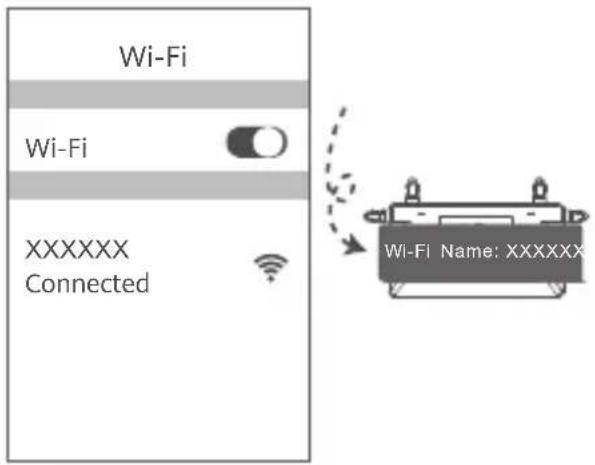
1 Connect your mobile phone or computer to the router's Wi-Fi network (no password required).
Check for the Wi-Fi name on the bottom of the new router.
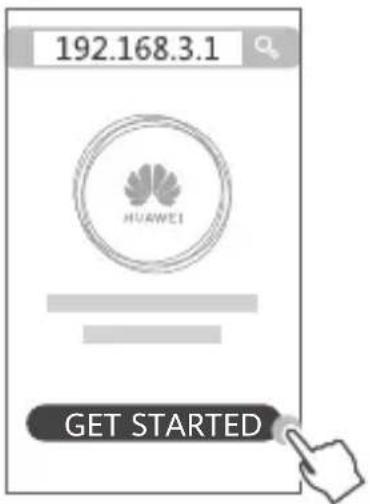
2 Open the browser, then you will be automatically redirected. (If the page is not displayed automatically, enter 192.168.3.1). Touch GET STARTED and choose Create a Wi-Fi network (skip this step if you cannot find such an option).
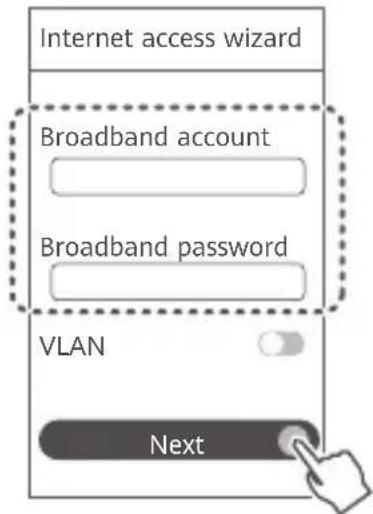
3 Enter your broadband account and password.
If your Internet connection does not require an account and password, please skip to the next step.
i
- If you have forgotten your broadband account and password, contact your broadband carrier to obtain a broadband account and password.
- If you need to configure VLAN on your network, contact your broadband carrier to confirm the VLAN parameters, and enable the VLAN switch on the screen.
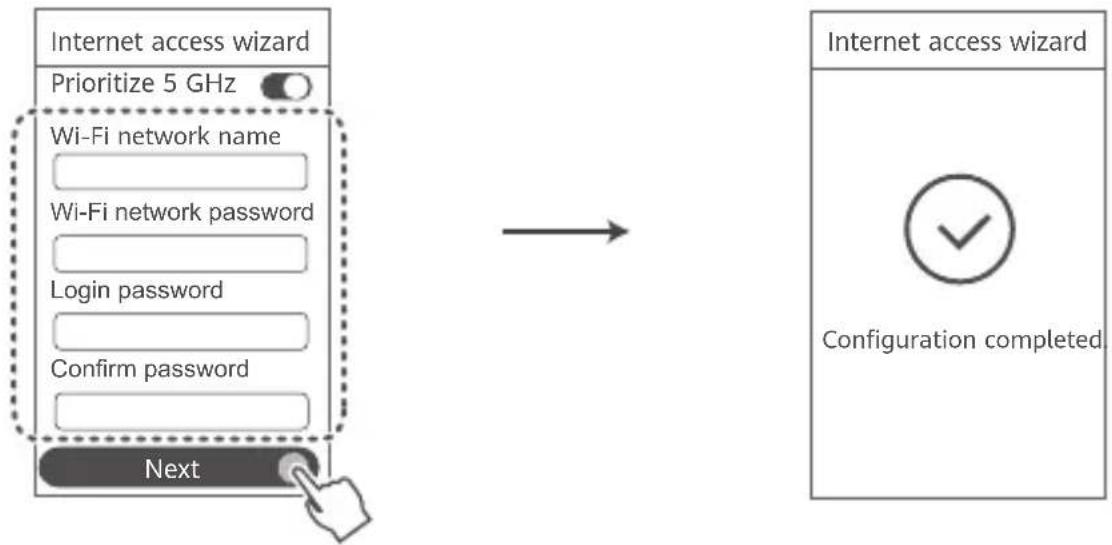
4 Set a new Wi-Fi name, Wi-Fi password, and admin password for the new router.
flowchart
graph LR
    A["Internet access wizard\nPrioritize 5 GHz"] --> B["Next"]
    C["Wi-Fi network name\nWi-Fi network password\nLogin password\nConfirm password"] --> B
    D["Configuration completed"] --> E["Internet access wizard"]
Enable Prioritize 5 GHz: Prioritize usage of 5 GHz Wi-Fi band over 2.4 GHz band when signal strength is equal to increase connection speeds.
Manage the router with our mobile app
Scan the QR code to download and install the HUAWEI AI Life App on your mobile phone or tablet. You can use the app to manage your router.

Indicator
| Steady green | Connected to the network |
| Steady red | Not connected to the networkLoose cable or connect error. Check the cable connection.A broadband network error occurs. Contact your broadband carrier. |
| Flashing | The router has detected a pairable device.When other HUAWEI devices (support HarmonyOS Connect) are detected, the indicator on the HUAWEI WiFi AX1 will flash. When this happens, press the HUAWEI WiFi AX1's WPS/RESET button. The indicator should flash quickly, indicating that the pairable device is connecting to the HUAWEI WiFi AX1. The connection process is completed when the indicator stops flashing.If you touched the WPS/RESET button by accident, wait for 2 minutes till the indicator returns to normal. |
Frequently Asked Questions (FAQs)
Q1: What can I do if I encounter any of the following issues when configuring the router?
- If your device did not detect the router's Wi-Fi network: Ensure that the router is powered on. Wait for a moment (till the router is started) and try to search again on your device.
- If you cannot visit the router's configuration page on your device: Ensure that your device is connected to the router's Wi-Fi network, and then enter 192.168.3.1 in the browser to visit this page on your device.
- If the page displays "Cable disconnected": Ensure that the router's WAN port is connected to the modem's LAN port, and the modem has Internet access. Check that all joints are securely connected and in good contact, and the network cables are in good condition.
If the issue persists, restore the router to the factory settings, and follow the guide to reconnect the cables and configure the router.
Q2: How do I restore the router to its factory settings?
Connect the router to the power supply and wait until the router completes the startup process. Press the WPS/RESET button on the router for more than 8 seconds until the indicator light turns off. Wait for the router to complete the restart process. When the indicator turns red, this indicates that the router has been restored to its factory settings.
You need to configure the router again after a factory reset.
Q3: How do I connect an add-on HUAWEI router to my HUAWEI WiFi AX1's network?
You can connect the router in either of the following ways:
- Wired connection. Connect the WAN port of the add-on router (new or restored to factory settings) to the LAN port of the configured HUAWEI WiFi AX1 using an Ethernet cable.
- Wireless connection. Step 1: Place the add-on router (new or restored to factory settings) within one meter of the configured HUAWEI WiFi AX1 and connect it to the power supply. Step 2: When the indicator on the HUAWEI WiFi AX1 starts to flash, press the WPS/RESET button on it. Wait until the indicator on the add-on router shows it is connected to the network.
"HUAWEI router" refers to routers that support HarmonyOS Mesh+. Please check if your device supports such feature.
Q4: How do I connect a Wi-Fi device to my router using WPS?
When your router is powered on, press its WPS/RESET button, and then touch the WPS button on the Wi-Fi device (such as a phone) within two minutes, to initiate standard WPS negotiation and connect the Wi-Fi device to the router's Wi-Fi network.
Q5: What should I do if I forget my login password for the app or the router's web-based management page?
Try using the router's Wi-Fi password to log in. If the issue persists, restore the router to the factory settings.
Safety information
Operation and safety

[Warning] Please read all of the safety information carefully before using your device to ensure its safe and proper operation and to learn how to dispose of your device
properly.
- Do not use your device if using the device is prohibited. Do not use the device if doing so causes danger or interference with other electronic devices.
- Pacemaker manufacturers recommend that a minimum distance of 15 cm be maintained between a device and a pacemaker to prevent potential interference with the pacemaker. If using a pacemaker, hold the device on the side opposite the pacemaker and do not carry the device in your front pocket.
- Avoid dusty, damp, or dirty environments. Avoid magnetic fields. Using the device in these environments may result in circuit malfunctions.
- Ideal operating temperatures are 0 °C to 40 °C. Ideal storage temperatures are -40 °C to +70 °C. Extreme heat or cold may damage your device or accessories.
- Keep the device and accessories in a well-ventilated and cool area away from direct sunlight. Do not enclose or cover your device with towels or other objects. Do not place the device in a container with poor heat dissipation, such as a box or bag.
- The device should be installed and operated with a minimum distance of 20 cm between
the radiator and your body.
- Using an unapproved or incompatible power adapter, charger, or battery may damage your device, shorten its lifespan, or cause a fire, explosion, or other hazards.
- For pluggable devices, the socket-outlet shall be installed near the devices and shall be easily accessible.
- Unplug the power adapter from electrical outlets and the device when not in use.
- Do not touch the device or the power adapter with wet hands. Doing so may lead to short circuits, malfunctions, or electric shocks.
- Ensure that the power adapter meets the requirements of IEC/EN 62368-1 and has been tested and approved according to national or local standards.
- The device should be installed at a position no more than 2 m from the ground.
Disposal and recycling information
The symbol on the product, battery, literature, or packaging means that the products and batteries should be taken to separate waste collection points designated by local authorities at the end of the lifespan. This will ensure that EEE waste is recycled and treated in a manner that conserves valuable materials and protects human health and the environment.
For more information, please contact your local authorities, retailer, or household waste disposal service or visit the website https://consumer.huawei.com/en/.
Reduction of hazardous substances
This device and its electrical accessories comply with local applicable rules on the restriction of the use of certain hazardous substances in electrical and electronic equipment, such as EU REACH regulation, RoHS and Batteries (where included) directive. For declarations of conformity about REACH and RoHS, please visit the website https://consumer.huawei.com/certification.
Legal Notice
Copyright © 2024 Huawei Device Co., Ltd. All Rights Reserved
THIS DOCUMENT IS FOR INFORMATION PURPOSE ONLY, AND DOES NOT CONSTITUTE ANY KIND OF WARRANTIES.
Trademarks and Permissions
Wi-Fi ^® , the Wi-Fi CERTIFIED logo, and the Wi-Fi logo are trademarks of Wi-Fi Alliance.
Other trademarks, product, service and company names mentioned may be the property of their respective owners.
Version Update
In order to improve the security of the product and provide you with a better user experience, we will push version update information to you on a regular basis when an important update is released.
Privacy Policy
To better understand how we use and protect your personal information, please see the privacy policy at https://consumer.huawei.com/privacy-policy.
End User License Agreement
Please read and agree to the End User License Agreement (HUAWEI EULA) on the product's management page before using the product.
For More Help
Please visit https://consumer.huawei.com/en/support/hotline for recently updated hotline and email address in your country or region.
natural_image
Pure technical diagram of a rectangular component with mounting flanges and a vertical dimension line, no text or symbols present.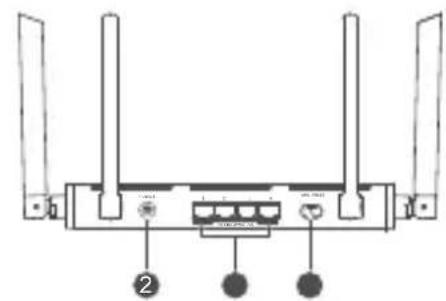
1
2
Indicador
natural_image
Pure schematic diagram of a rectangular component with four corner connectors and a central axis line, no text or symbols present.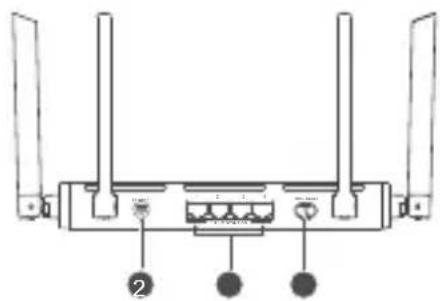
1
2
Voyant