
W40D91 - Humidifier TCL - Free user manual and instructions
Find the device manual for free W40D91 TCL in PDF.


| Product Type | Dehumidifier |
| Brand | TCL |
| Model | W40D91 |
| Dimensions (small size) | 370 mm x 505 mm x 270 mm |
| Dimensions (large size) | 382 mm x 640 mm x 305 mm |
| Power supply | 115 V, 60 Hz, 12 A |
| Required outlet | 3-prong grounded outlet |
| Bucket capacity | Not specified, manual or pump drain |
| Adjustable humidity range | 35% to 80% RH, or continuous mode (CO) |
| Fan speeds | High, Medium, Low |
| Timer | 0.5 to 24 hours, on/off |
| Preset modes | Bedroom (55% RH), Basement (45% RH) |
| Child lock | Yes, by holding Timer button for 3 seconds |
| Internal pump | On some models, drain hose provided |
| WiFi connectivity | On WiFi models, TCL Home+ app, 2.4 GHz band |
| Filter cleaning | Every 250 hours of use, with warm soapy water |
| Minimum operating temperature | 5 °C (41 °F) |
| Protection | 3-minute delay after power outage |
| Included accessories | Casters (4), bucket, filter, pump hose (depending on model) |
Frequently Asked Questions - W40D91 TCL
User questions about W40D91 TCL
0 question about this device. Answer the ones you know or ask your own.
Ask a new question about this device
Download the instructions for your Humidifier in PDF format for free! Find your manual W40D91 - TCL and take your electronic device back in hand. On this page are published all the documents necessary for the use of your device. W40D91 by TCL.
USER MANUAL W40D91 TCL
Hi! Let's Get Started.
natural_image
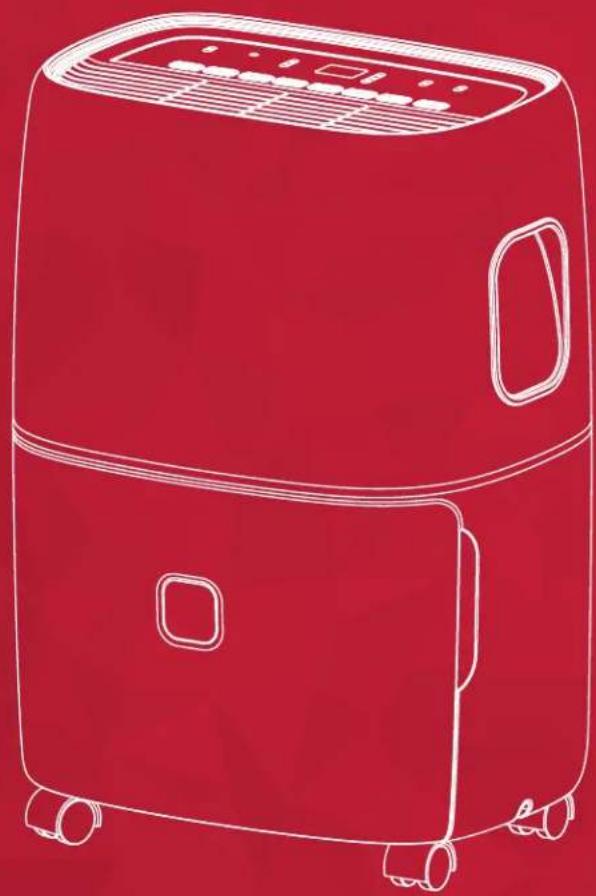
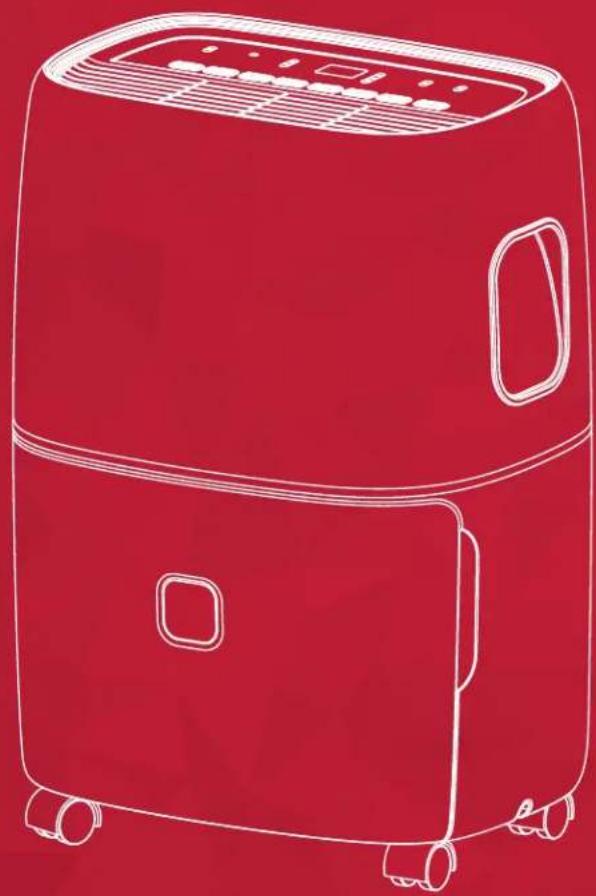
Line drawing of a red air fryer with control panel and wheels (no text or symbols)Dehumidifier
English / Spanish / French
Table of Contents
Register and protect your purchase....3
English
Important Safety Instructions....4
What's in the Box....5
Let's get started! 6
How to Control Your Dehumidifier....7
Troubleshooting....9
WiFi App Installation....10
Spanish
Register and protect your purchase

Text to Register
Text a photo of the camera icon to 71403
Or register online at register.tcl.com
Need help? Visit photoregister.com/help or text HELP to 71403
Enjoy exclusive benefits with registration:

Expedited support and service Insider tips on your appliance

Exclusive offers and promotions Verification of ownership
Add a TCL Protection Plan when you register your product and be covered from life's mishaps
Thank you for choosing TCL. We want your ownership experience to bring you as much joy as the appliance you purchased does, so we're offering you a special price on TCL Protection Plans when you purchase during registration. Add a TCL Protection Plan within your first 30 days of ownership to receive the best value at the best price.
IMPORTANT SAFETY INSTRUCTIONS
Before installing and using your dehumidifier, please read this owner's manual carefully. Store this manual in a safe place for future reference. Your safety and the safety of others is very important to us. Please pay attention to all safety messages outlined in this owner's manual.
WARNING: To reduce the risk of fire, electrical shock or injury when using your dehumidifier, follow the following basic precautions:
ELECTRICAL REQUIREMENTS
The electrical ratings for your dehumidifier are listed on the model and serial number label located on the on the back side (when facing the front).
REGISTER YOUR APPLIANCE
You can register your appliance online by going to register.tcl.com
Be sure to retain your original sales receipt. A valid proof of purchase is required for all warranty claims.
Document your model and serial numbers here:
Model #
Serial #
You can locate your 20 digit serial number underneath the bar code (on the back side)
WARNING
Electrical Shock Hazard
Plug into a grounded 3 prong outlet.
Do not remove the ground prong.
Do not use an adapter.
Do not use an extension cord.
Failure to follow these instructions can result in death, fire, or electrical shock.
Specific electrical requirements are shown in the diagram below. Follow the requirements below for the type of plug on the power supply cord.
Wiring Requirements Power Supply Cord
60Hz, 115V AC outlet protected by a 15 amp time delay fuse or circuit breaker.
PREFERRED GROUNDING METHOD
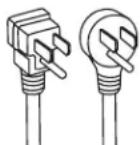

Ensure proper ground exist s before use.
RECOMMENDED GROUND METHOD
For your personal safety, this air conditioner must be grounded. This dehumidifer is equipped with a 3 prong power supply cord with a grounded plug. To minimize the possibility of electrical shock, the cord must be plugged into a 3 prong outlet and grounded in accordance with all local codes and ordinances. If a 3 prong outlet is not available, it is the customer's responsibility to have a properly grounded 3 prong outlet installed by a qualified electrician.
DO NOT RETURN TO STORE
WE ARE
READY TO
HELP
contact us first with any questions

TCL SUPPORT:
support.tcl.com
1-800-825-6747

TAKE CARE WHEN REMOVING
Note: Some accessories are not in bucket, please find it in packaging.
| NO. APPEARANCE PART NAME QUANTITY | ||||
| 1 | 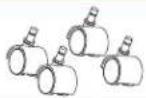 | Wheels(may be pre-installed) | 4 pcs | |
| 2 | 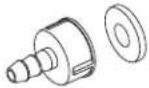 | Pump Drain Connector(pump model only) | 1 set | |
| 3 |  | Pump Drain Hose(about 5m, 16.4ft)(pump model only) | 1 set | |
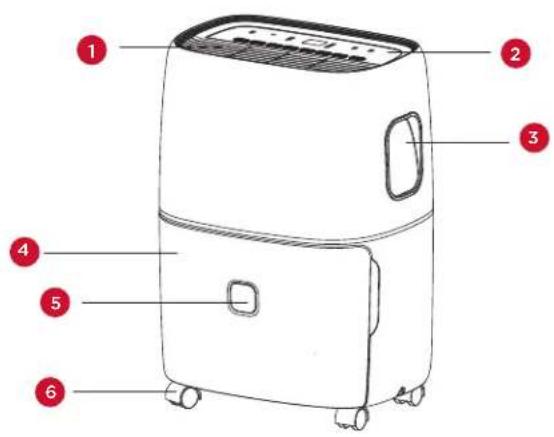
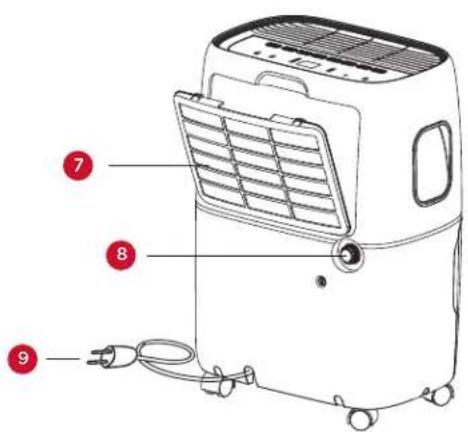
| NO. COMPONENT DESCRIPTION | |
| 1 | Air outlet |
| 2 | Control panel |
| 3 | Handle |
| 4 | Bucket |
| 5 | Water level view window |
| 6 | Wheels |
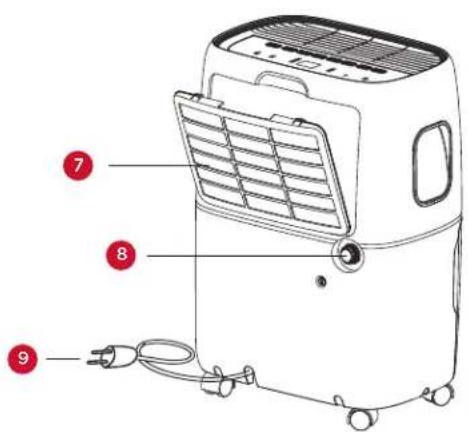
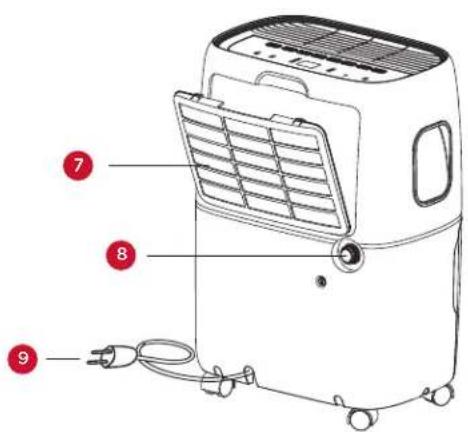
| 7 | Air intake grille |
| 8 | Drainage holes |
| 9 | Power cord |
Note: All the illustrations in this manual are for explanatory purposes only. Your appliance may be slightly different
Let's get started!
Step1: Testing
- Do not use outdoors.
- Place the unit on a smooth level surface.
- Allow at least 12 -18 inches of clearance on all sides of the unit.
- Place the unit in a space where the temperature will not fall below 41 degrees Fahrenheit.
• The dehumidifier must be operated in an enclosed area to be most effective, such as a basement. - Close all doors, windows, and other outside openings to the room.
Step 2: Installation
There are two sizes of cabinet
| Smaller cabinet size (WxHxD) Bigger cabinet size (WxHxD) | |
| 370mm x 505mm x 270mm14.57in x 19.88in x 10.63in | 382mm x 640mm x 305mm15.04in x 25.20in x 12.01in |
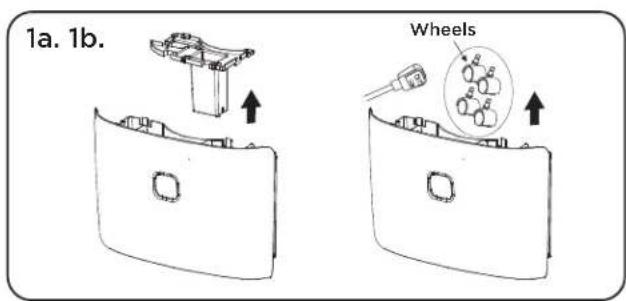
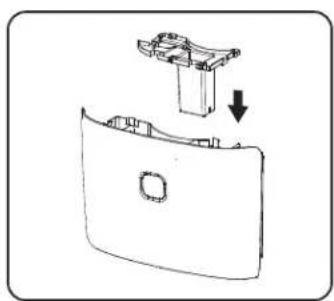
For the smaller cabinet:
Before use, please remove the accessories from the bucket
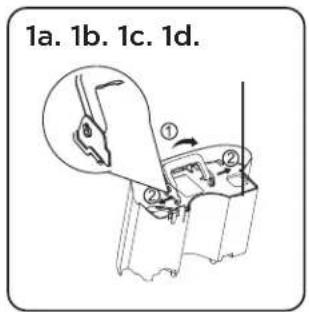
1a. Remove the bucket from appliance.
1b. Open the cover, take out the accessories. (Fig 1a).
1c. Reinstall the cover, correctly put the bucket back into the appliance (Fig 1b).
natural_image
Technical line drawing of a mechanical component with an arrow indicating assembly or transformation (no text or symbols present)For the bigger cabinet:
Before use, please remove the accessories from the bucket
1a. Remove the bucket from appliance. Note: Not all models have handles (Fig 1a).
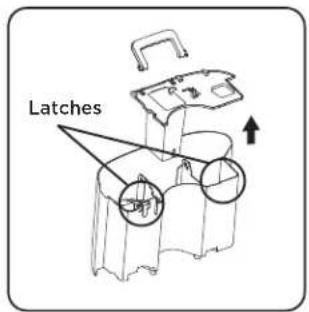
1b. Make sure to release the cover by pushing in the two latches at the top of the bucket(Fig 1b).
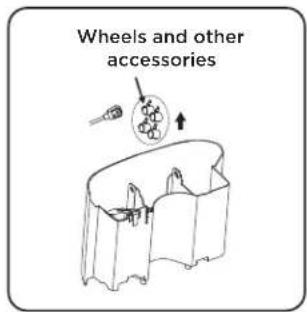
1c. Open the cover, take out the accessories. (Fig 1c).
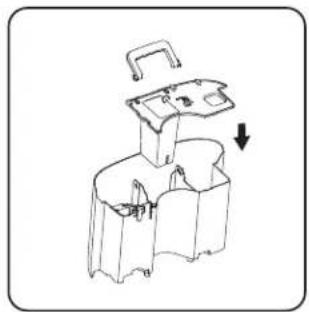
1d. Reinstall the cover, correctly put the bucket back into the appliance (Fig 1d).
natural_image
Diagram of a mechanical device with a handle and internal compartments, showing a downward arrow indicating motion (no text or symbols present)Step 3: Install the Wheels
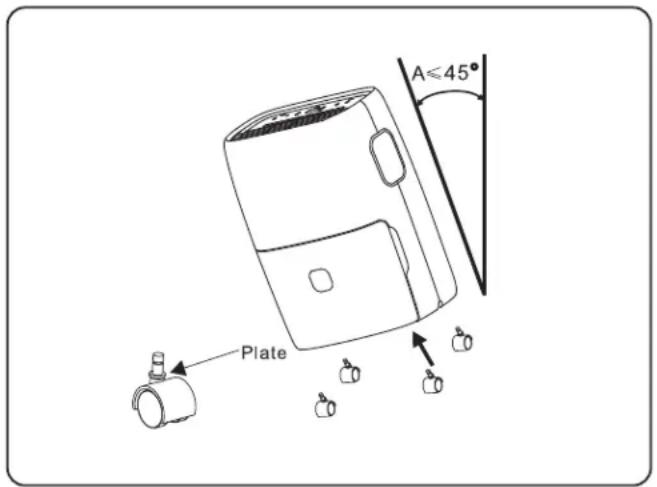
Tilt the unit no more than 45^ and forcibly insert the wheels. Make sure the plate of the wheels is flush against the bottom of the unit. If the appliance has pre-installed wheels, this step can be skipped.
How to Control Your Dehumidifier
All the basics you need to know!
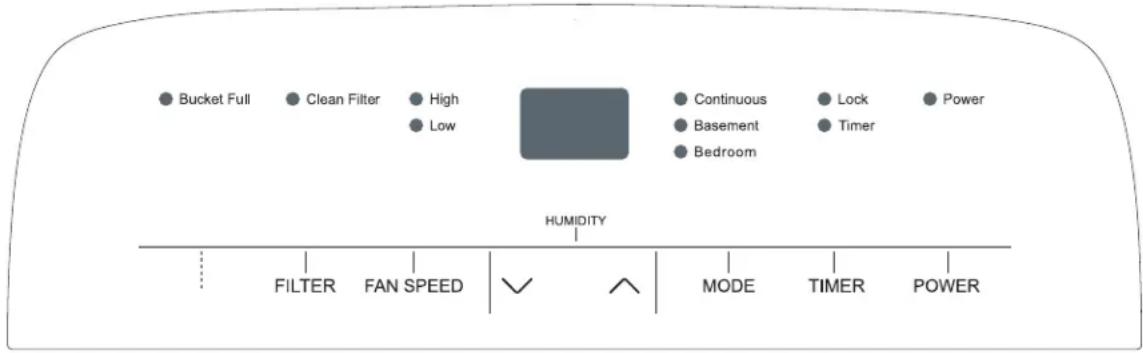
- When first operating the dehumidifier, run it in Continuous mode for 24 hours.
- Press the Power button once to manually turn the unit on. Press the Power button once more to turn the unit off.
- Humidity Selection – Press the “down” or “up” buttons to choose the desired relative humidity. Once the preferred humidity is selected, the display will show the actual room % humidity. Each press of the same button will change the desired room humidity by 5%. The room humidity is selectable from 35% - 80%, or continuous. The until will cycle on and off to maintain the humidity level chosen on the digital display. If you want the dehumidifier to operate continuously regardless of the room humidity, press the mode button until you see “CO” on the digital display. This will enable continuous operation and the “Continuous” indicator will light up on the control panel.
-
Fan Speed - press the Fan Speed button to cycle through the different fan speeds (High, Low). The fan speed can be visually distinguished by the fan speed indicators on the control panel.
-
Timer Auto On - Press the Timer button. Once the Timer indicator begins to flash, press the up and down arrows to choose how long the unit waits before turning on (set time from 0.5 to 24 hours). When you have the desired time displayed on the screen, wait 5 seconds for the command to register and the timer light to turn on. Press the Timer button again to cancel the Timer, and the light will disappear
- Timer Shut Off – When the appliance is running, select the Timer button. Once the Timer indicator begins to flash, press the up and down arrows to choose how long the unit waits before turning off (set time from 0.5 to 24 hours). When you have the desired time displayed on the screen, wait 5 seconds for the command to register and the timer light to turn on.
- Bucket Full - When the water bucket is full, the unit will automatically shut off, make a beeping noise and the bucket full indicator will light up. The dehumidifier will not function until the water bucket is emptied and placed back in the unit.
- Child Lock Mode - To lock the control panel, press and hold the timer button for 3 seconds when the unit is ON. When locked, the lock indicator will light up. Press and hold the TIMER button for 3 seconds to unlock the control panel.
- Pre-Set Mode - Press the Mode button to choose from the preset options of Bedroom (55% RH), Basement (45% RH), or Continuous Mode.
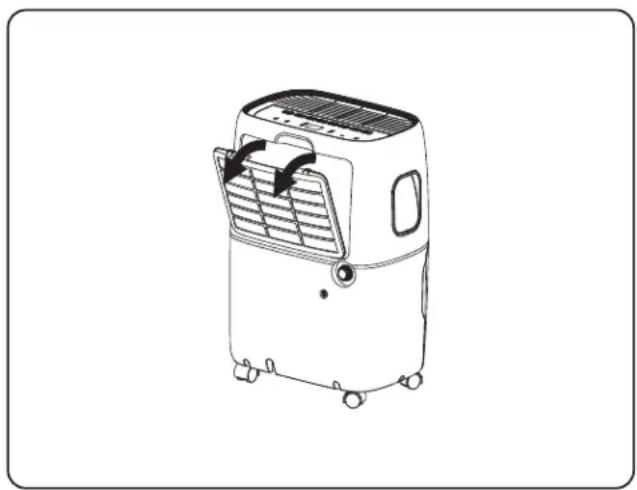
- Clean Filter - The Clean Filter LED will light up after 250 hours of use as a reminder to clean the filter. Remove the filter from the back of the unit by using your thumbs to press down on the filter tabs directly above the filter. Clean the filter with warm, soapy water. Dry thoroughly before replacing the filter. Once the filter is completely dry, place the filter back in the unit and press the FILTER button to reset the filter indicators.
natural_image
Line drawing of a portable air conditioner unit with airflow direction arrows (no text or symbols)For model(s) with PUMP
Internal Pump Mode – The internal pump allows the unit to operate without having to empty the bucket and requires the installation of the included pump drain hose kit (do not use a garden hose). While the unit is Off, to install the hose, remove the drain cap on the back of the unit. The pump mode operation will pump water up to 16 feet lengthwise using the hose included. Force the hose on to the pump adapter and turn the adapter clockwise on to the threaded connection on the back of the unit. Once securely installed, lead the drain hose to a nearby drain, sink, or out of a window. Turn on the dehumidifier and press the Pump button to activate the internal pump. The "Pump" LED indicator should illuminate.
Note: The pump will not engage until the bucket is almost full of water.
Troubleshooting
Having trouble completing installation? Don't worry, it's usually an easy fix.
| PROBLEM POSSIBLE | CAUSES SOLUTIONS | |
| Dehumidifier does not start | The dehumidifier is unplugged. | Make sure the dehumidifier plug is pushed completely into the outlet. |
| The fuse is blown/circuit breaker is tripped | Check the house fuse/circuit breaker box and replace the fuse or reset the breaker. | |
| Dehumidifier has reached its pre-set level or the bucket is full | The dehumidifier automatically turns off when either condition occurs. Change to a lower setting or empty the water bucket. The bucket must be replaced properly for the dehumidifier to operate. | |
| Bucket is not in the proper position | The bucket must be in place and securely inserted for the dehumidifier to operate. | |
| Power failure | There is a protective time delay (up to 3 min.) to prevent tripping of the compressor overload. For this reason, the unit may not start normal dehumidification for 3 min. after it is powered back on. | |
| Dehumidifier does not dry the air as it should | Not enough time allowed for unit to remove moisture | When first installed, allow at least 24 hours to reach the desired dryness/humidity level. |
| Airflow is restricted | Make sure there are no curtains, blinds , or furniture blocking the front or back of the dehumidifier. | |
| Dirty filter | Clean the filter. See the Cleaning and Care Section of the manual. | |
| The Humidity Control may not be set low enough | For drier air, press the v button to lower the humidity setting percentage in the room set the dehumidifier to CO for maximum dehumidification. | |
| Doors and windows may not be closed tightly | Check that all doors, windows, and other openings are securely closed. | |
| Clothes dryer may be blowing moist air into the room | Install the dehumidifier away from the dryer. The dryer should be vented outside. | |
| Room temperature is too low | Moisture removal is best at higher room temperatures. Lower room temperatures will reduce the moisture removal rate. This model is designed to operate at temperatures above 41° F (5°C). |
WiFi App Installation
(for WiFi models only)
Step 1: Download and Install the TCL Home+ App
Using the camera function on your smartphone, please scan the QR code below to be directed to the TCL Home+ page. If your phone does not have a QR scanner, download one from the app store or manually type in the URL below in your smartphone's web browser. Then, download and launch the app.


https://tcl.link/homeplusapp
Note: The App only supports the 2.4 GHz WiFi channel (all routers have a 2.4 GHz band).
Please connect to the 2.4 GHz band before you begin the app setup process.
Step 2: Create an Account
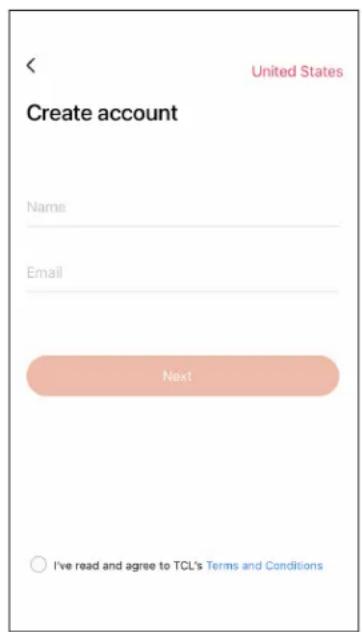
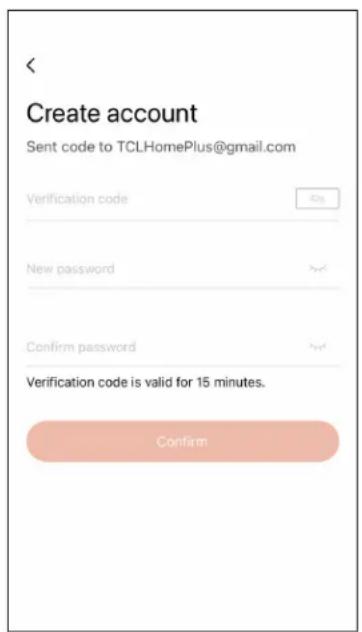
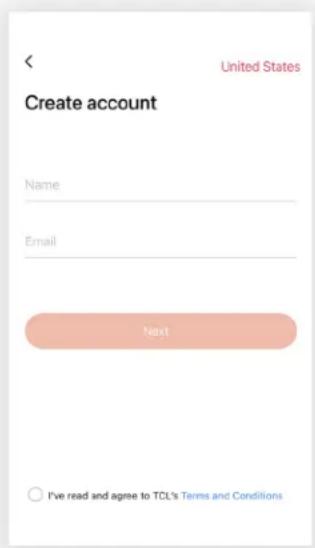
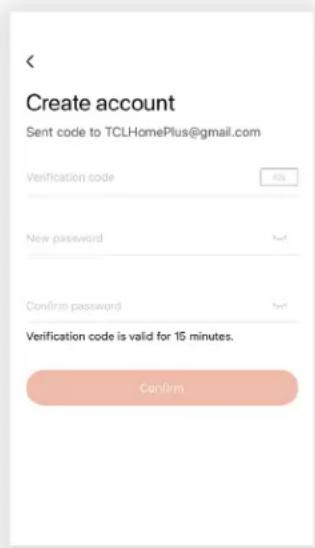
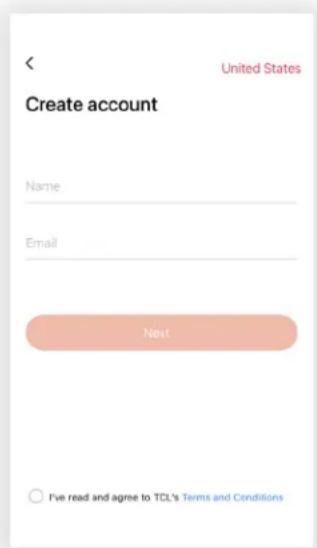
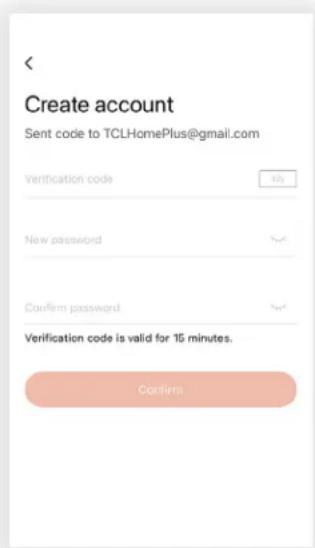
Once you have opened the app, select "Create account." You will then be sent a verification code to your email. Input the code and continue.
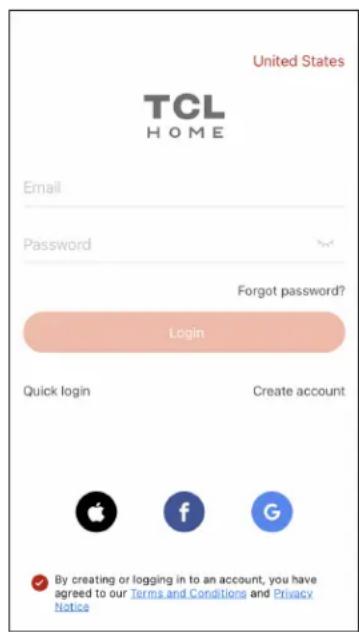
Step 3: Add Your Device
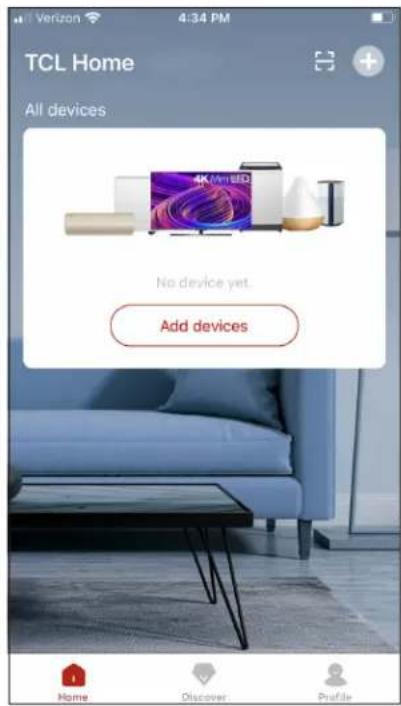
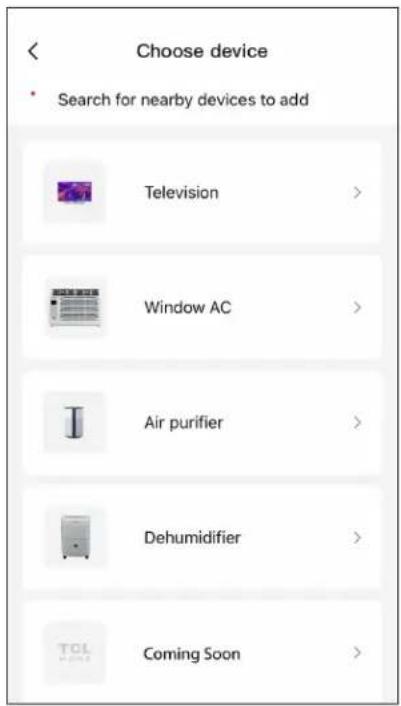
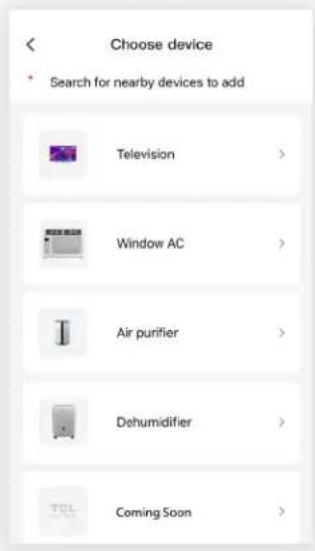
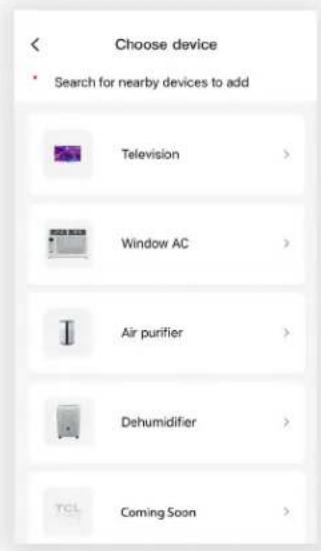
Select the "Add Device" button and follow the in-app instructions to complete the setup.
Troubleshooting
Having trouble completing installation? Don't worry, it's usually an easy fix.
| PROBLEM POSSIBLE CAUSES SOLUTIONS | ||
| TCL Home+ App loses connectivity to AC during setup | Wireless router may be too far from AC | • Relocate wireless router closer to AC. |
| Network error • Restart wireless router, | AC, and mobile device | |
| TCL Home+ App cannot find AC | Network error • Restart wireless router, | AC, and mobile device |
| App & AC are not on the same 2.4GHz channel | • Confirm your device is connected to the 2.4GHz channel. | |
| Router blocking TCL Home+ App | • Verify App is not being blocked by the router's firewall. | |
| Incorrect WiFi Password • Reinput and | verify WiFi password. | |
| Unable to find or connect to Wireless Network | App may need permission to location | • Give TCL Home+ App permission to Location in phone settings. |
¡Hola! Comencemos.
natural_image
Line drawing of a red electric air fryer with control panel and wheels (no text or symbols)Deshumidificador
natural_image
Diagram of a mechanical component with an arrow indicating downward motion, showing internal structure and part (no text or symbols)natural_image
Diagram of a mechanical device with a handle and internal compartments, showing a downward arrow indicating motion (no text or symbols present)natural_image
Line drawing of a white air conditioner unit with control panel and wheels (no text or symbols)
https://tcl.link/homeplusapp
Troubleshooting
Having trouble completing installation? Don't worry, it's usually an easy fix.
| PROBLEM POSSIBLE CAUSES SOLUTIONS | ||
| TCL Home+ App loses connectivity to AC during setup | Wireless router may be too far from AC | • Relocate wireless router closer to AC. |
| Network error • Restart wireless router, | AC, and mobile device | |
| TCL Home+ App cannot find AC | Network error • Restart wireless router, | AC, and mobile device |
| App & AC are not on the same 2.4GHz channel | • Confirm your device is connected to the 2.4GHz channel. | |
| Router blocking TCL Home+ App | • Verify App is not being blocked by the router's firewall. | |
| Incorrect WiFi Password • Reinput and | verify WiFi password. | |
| Unable to find or connect to Wireless Network | App may need permission to location | • Give TCL Home+ App permission to Location in phone settings. |
natural_image
Line drawing of a red air fryer with wheels and control panel (no text or symbols)Déshumidificateur
CONSIGNES DE SÉCURITÉ IMPORTANTES
No. DESCRIPTION DU COMPOSANT
natural_image
Diagram of a mechanical component with an arrow indicating downward motion (no text or symbols present)natural_image
Diagram of a mechanical device with an open lid and internal compartments, showing a downward arrow indicating motion (no text or symbols present)natural_image
Line drawing of a portable air conditioner unit with control panel and wheels (no text or symbols)
https://tcl.link/homeplusapp
www.TCLUSA.com/support
1-800-825-6747
TCL
Copyright © 2019 by TCL. All rights reserved.
TCL and the TCL Logo are owned by TCL
Corporation and under license to TTE Technology, Inc.
Part No.:XXXXX