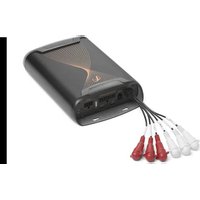
DSP6840 - Receiver INFINITY - Free user manual and instructions
Find the device manual for free DSP6840 INFINITY in PDF.


| Brand | Infinity |
| Model | DSP6840 |
| Product type | 8-channel audio processor and amplifier |
| Dimensions (L x W x H) | 237.5 x 144 x 49.5 mm |
| Weight | Approximately 1000 g |
| Power supply | 8 V to 16 V DC, 40 A fuse |
| Number of audio inputs | 6 channels (line level or speaker level) |
| Number of audio outputs | 8 channels (speaker wires) |
| Output power (2 ohms) | 60 W x 8 channels RMS |
| Output power (4 ohms) | 40 W x 8 channels RMS |
| Frequency response | 10 Hz – 22 kHz (-3 dB) |
| Signal-to-noise ratio | 90 dB (CEA-2006: 75 dB) |
| Distortion (THD+N) | < 1% at 4 ohms |
| Input sensitivity | Low level: 680 mV – 6 V; high level: 1.6 V – 15 V |
| Crossover filters | High-pass, low-pass, band-pass; slope 0–48 dB selectable |
| Equalizer | Parametric or graphic 31-band per channel |
| PC connectivity | USB for tuning software (Windows) |
| Turn-on modes | REM wire (12 V), audio detection, DC offset |
| Bass remote | Included, adjustment -30 dB to +6 dB for channels 7/8 |
| Presets | Up to 10 saveable configurations |
| Protections | Over/under voltage, short circuit, overheating, DC |
| Maintenance | Clean with a dry cloth; avoid moisture |
| Installation | Disconnect the battery; mounting with screws; observe polarity |
| Warranty | See the included warranty card |
Frequently Asked Questions - DSP6840 INFINITY
User questions about DSP6840 INFINITY
0 question about this device. Answer the ones you know or ask your own.
Ask a new question about this device
Download the instructions for your Receiver in PDF format for free! Find your manual DSP6840 - INFINITY and take your electronic device back in hand. On this page are published all the documents necessary for the use of your device. DSP6840 by INFINITY.
USER MANUAL DSP6840 INFINITY
natural_image
Diagram of an hourglass-shaped object with internal flow lines and a central spiral (no text or symbols)| Owner's Manual | EN |
| Mode d'emploi | FR |
| Manual de propietario | ES |
| Руководство пользователя | RU |
| 用户手册 | ZH-CH |
| Panduan Pengguna | ID |
| 取扱説明書 | JP |
| 사용자 설명서 | KO |
THANK YOU FOR YOUR PURCHASE ...
Your product has been designed to provide you the performance and ease of operation you expect from Infinity. Take time to read this manual before operating or installing your amplifier. This manual describes general installation guidelines and operation instructions. Please note that proper installation of mobile audio components requires qualified experience with mechanical and electrical procedures. If you do not have the knowledge and tools to perform this installation, we strongly recommend consulting an authorized Infinity dealer about your installation options.
TABLE OF CONTENTS
PRODUCT DESCRIPTION 2
WHAT'S IN THE BOX 2
INSTALLATION AND WIRING....2
SETTING THE SOUND 4
SPECIFICATIONS....6
TROUBLESHOOTING 6
PRODUCT DESCRIPTION
The Infinity DSP Amplifier is an audio processor for fine-tuning of aftermarket audio systems. It is a self-contained audio system with 6-channel audio inputs, 8-channel powered audio outputs, an easy-to-use tuning interface a novice can understand, and detailed tuning capabilities to satisfy even experienced installers. With a USB connection to access the tuning interface using a Windows PC, you can control fully variable crossovers, selectable 0-to-48 dB slopes, time delay, 31-band parametric or graphic EQ adjustment, assignable input-to-output mixer with input channel summing, channel gain, master volume control, clipping indicator to ensure the audio output is not distorted, and ability to save up to 10 presets.
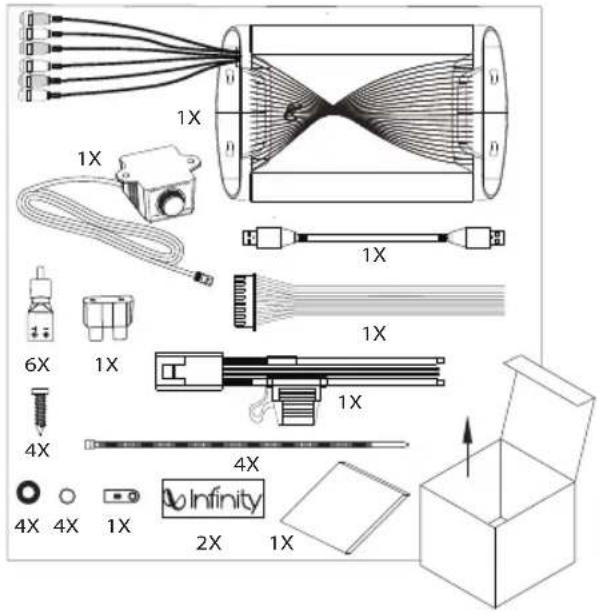
WHAT'S IN THE BOX
INSTALLATION AND WIRING
IMPORTANT: Disconnect the vehicle's negative (−) battery terminal before beginning the installation.
- Wear protective eyewear when using tools.
- Choose a safe mounting location. Check clearances on both sides of the location. Be sure that screws will not puncture brake or fuel lines or wiring harnesses, and that wire routing will not interfere with vehicle operation. Use caution when drilling or cutting.
- When making electrical connections, make sure they are secure and properly insulated.
- Do not mount the amplifier with the heat sink facing downward, as this interferes with cooling.
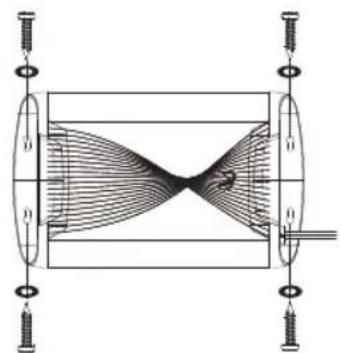
- Using the amplifier as a template, mark the locations of the holes on the mounting surface.
- Drill pilot holes in the mounting surface.
- Attach the amplifier to the mounting surface with the included sheet metal screws and washers.
natural_image
Diagram of a symmetrical hourglass-shaped object with internal curved flow lines, mounted on a rectangular base (no text or symbols)EN
Power and Ground Connections
- Power: Connect the +12V power wire to the positive terminal of the vehicle's battery. Make sure the fuse and fuse holder are within 18" (457mm) of the battery.
- Ground: Connect the GND wire to the negative terminal of the vehicle's battery, or to the vehicle's chassis near the battery with a screw. NOTE: If possible, remove any paint from the chassis for best contact. It is recommended to use a star washer below the ring connector for a secure connection.
- Remote-In: Connect the remote turn-on wire to the "Remote Out" lead of the source unit, if using low-level signal inputs with an aftermarket stereo. NOTE: If you are using high-level signal inputs (your vehicle's speaker wires), you can choose to have the 12-volt DC offset feature turn the amplifier on when you turn on the vehicle power, or the audio-sensing feature turn on the amplifier when it detects audio signal. In either case, you will not have to connect the remote turn-on wire and can tape or cap it off to prevent the introduction of noise.
- Remote-Out: Connect the remote-out wire to external devices that require 12V turn-on after the Infinity DSP Amplifier. This connection will allow turn-on of 12V devices after the amplifier wakes from turn-on by 12V remote-in, DC offset or audio signal sensing input.
Power/Protect indicators
The power light will illuminate in green when the amplifier is getting power and playing. The light will illuminate in red if the amp enters protect mode in the event of conditions such as over/under voltage, short circuit, amplifier output circuit failure, or excessive heat.

2
Signal input
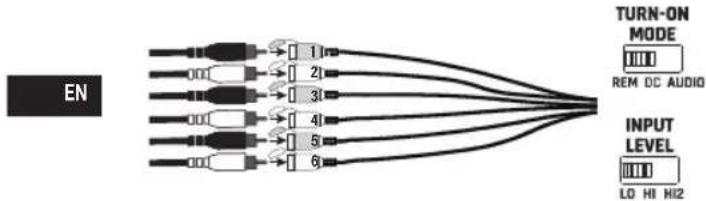
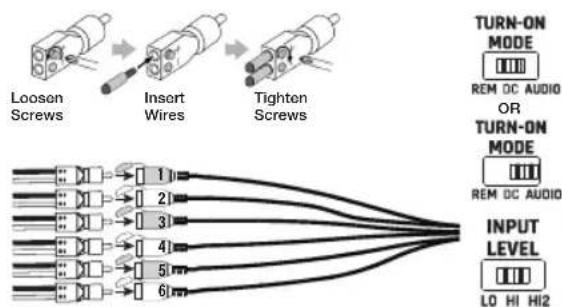
- Line-level inputs: If your source unit offers preamp outputs, connect the front outputs to inputs 1 and 2 on the amplifier, the rear outputs to inputs 3 and 4, and the subwoofer outputs to inputs 5 and 6 using RCA patch cables.
Note: when using low-level signals and remote turn-on lead, set the "Turn-on Mode" switch to "REM" and the "Input Level" switch to "LO".
flowchart
graph LR
    A["EN"] --> B["1"]
    A --> C["2"]
    A --> D["3"]
    A --> E["4"]
    A --> F["5"]
    A --> G["6"]
    B --> H["TURN-ON MODE"]
    C --> H
    D --> H
    E --> H
    F --> H
    G --> H
    H --> I["REM DC AUDIO"]
    H --> J["INPUT LEVEL"]
    J --> K["LO HI HI2"]
- High-level inputs: If your audio system's source unit does not have line-level outputs, use the supplied high-level input adapters to connect to the speaker output wires of your source unit to the RCA inputs of the amplifier. The 12-volt DC offset feature will turn the amplifier on when it senses signal.
NOTE: You can connect the wires from as many as six of your vehicle's speakers to the amplifier. For example, these can include front left and right tweeters to inputs 1 and 2, front left and right woofers to inputs 3 and 4, and rear left and right full-range speakers to inputs 5 and 6. The signals from each of these speakers can be summed to create a full-range output, if necessary, and assigned to any of the amplifier output wires. See "Setting the Sound" for more details.
NOTE: When using high-level signals, set the "Turn-on Mode" switch to "DC" (to turn on when it receives battery power) or "AUDIO" (to turn on when it senses signal from your source unit), and the "Input Level" switch to "HI". If no sound plays, change the "Input Level" switch to "HI2".
flowchart
graph LR
    A["Loosen Screws"] --> B["Insert Wires"]
    B --> C["Tighten Screws"]
    D["1"] --> E["2"]
    F["3"] --> G["4"]
    H["5"] --> I["6"]
    J["7"] --> K["8"]
    L["9"] --> M["10"]
    N["11"] --> O["12"]
    P["13"] --> Q["14"]
    R["15"] --> S["16"]
    T["17"] --> U["18"]
    V["19"] --> W["20"]
    X["21"] --> Y["22"]
    Z["23"] --> AA["24"]
    AB["25"] --> AC["26"]
    AD["27"] --> AE["28"]
    AF["29"] --> AG["29"]
    AH["30"] --> AI["30"]
    AJ["31"] --> AK["31"]
    AL["32"] --> AM["32"]
    AN["33"] --> AO["33"]
    AP["34"] --> AQ["34"]
    AR["35"] --> AS["35"]
    AT["36"] --> AU["36"]
    AV["37"] --> AW["37"]
    AX["38"] --> AY["38"]
    AZ["39"] --> BA["39"]
    BB["40"] --> BC["40"]
    BD["41"] --> BE["41"]
    BF["42"] --> BG["42"]
    BH["43"] --> BI["43"]
    BJ["44"] --> BK["44"]
    BL["45"] --> BM["45"]
    BN["46"] --> BO["46"]
    BP["47"] --> BQ["47"]
    BR["48"] --> BS["48"]
    BT["49"] --> BU["49"]
    BV["50"] --> BW["50"]
    BX["51"] --> BY["51"]
    BZ["52"] --> BQ
    CA["53"] --> BQ
    CB["54"] --> BQ
    CC["55"] --> BQ
    DD["56"] --> BQ
    DX["57"] --> BQ
    DB["58"] --> BQ
    BEX --> DC["TURN-ON MODE"]
    BEX --> DUT["TURN-ON MODE"]
    BEX --> EAV["TURN-ON MODE"]
    BEX --> FAV["TURN-ON MODE"]
    BEX --> GAV["TURN-ON MODE"]
    BEX --> HAV["TURN-ON MODE"]
    BEX --> IAV["TURN-ON MODE"]
    BEX --> JAV["TURN-ON MODE"]
    BEX --> KAV["TURN-ON MODE"]
    BEX --> LAV["TURN-ON MODE"]
    BEX --> MAV["TURN-ON MODE"]
    BEX --> NAV["TURN-ON MODE"]
    BEX --> OAV["TURN-ON MODE"]
    BEX --> PAV["TURN-ON MODE"]
    BEX --> QAV["TURN-ON MODE"]
    BEX --> RAV["TURN-ON MODE"]
    BEX --> SAV["TURN-ON MODE"]
    BEX --> TAV["TURN-ON MODE"]
    BEX --> UAV["TURN-ON MODE"]
    BEX --> VAV["TURN-ON MODE"]
    BEX --> WAV["TURN-ON MODE"]
    BEX --> XAV["TURN-ON MODE"]
    BEX --> YAV["TURN-ON MODE"]
    BEX --> ZAV["TURN-ON MODE"]
    BEX --> AAV["TURN-ON MODE"]
    BEX --> ABV["TURN-ON MODE"]
    BEX --> ACV["TURN-ON MODE"]
    BEX --> ADV["TURN-ON MODE"]
    BEX --> AEV["TURN-ON MODE"]
    BEX --> AFV["TURN-ON MODE"]
    BEX --> AGV["TURN-ON MODE"]
    BEX --> AHV["TURN-ON MODE"]
    BEX --> AIV["TURN-ON MODE"]
    BEX --> AJV["TURN-ON MODE"]
    BEX --> AKV["TURN-ON MODE"]
    BEX --> ALV["TURN-ON MODE"]
    BEX --> AMV["TURN-ON MODE"]
    BEX --> ANV["TURN-ON MODE"]
    BEX --> AOV["TURN-ON MODE"]
    BEX --> APV["TURN-ON MODE"]
    BEX --> AQV["TURN-ON MODE"]
    BEX --> ARV["TURN-ON MODE"]
    BEX --> ASV["TURN-ON MODE"]
    BEX --> ATV["TURN-ON MODE"]
    BEX --> AUV["TURN-ON MODE"]
    BEX --> AVV["TURN-ON MODE"]
    BEX --> AWV["TURN-ON MODE"]
Speaker Output Connections
Connect your speakers to the wires of the speaker output wiring harness, observing proper polarity: connect each positive (+) lead to the appropriate positive (+) speaker terminal, and negative (-) lead to the appropriate negative (-) speaker terminal. Then plug the speaker output wiring harness into the DSP Amplifier.
NOTE: You can connect up to 8 speakers to the Infinity DSP Amplifier, then specify the frequencies the amplifiers sends to each one with the Infinity tuning software. See "Setting the Sound" for details.
NOTE: If you decide you need more power in your system, you can use two or more of the speaker output wires to connect one or more additional amplifiers. Connect the desired number of speaker output wires to the high-level inputs of the new amplifier(s). IMPORTANT: make sure to adjust the output levels of the channels you are connecting to the extra amplifier(s) to ensure that you do not overdrive the external amplifier(s) and reduce noise, if present.
IMPORTANT: None of the speaker output channels can be bridged.
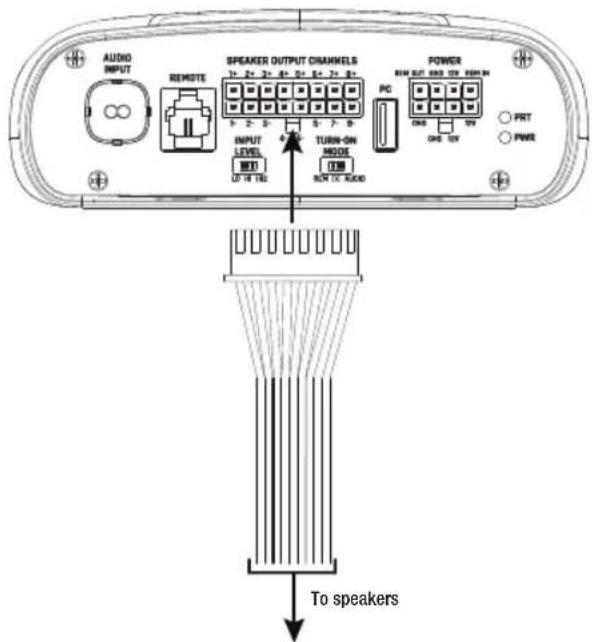
| Wire color Channel designation | |
| White Channel 1 + | |
| White/Black Channel 1 - | |
| Gray Channel 2 + | |
| Gray/Black Channel 2 - | |
| Green Channel 3 + | |
| Green/Black Channel 3 - | |
| Purple Channel 4 + | |
| Purple/Black Channel 4 - | |
| Orange Channel 5 + | |
| Orange/Black | Channel 5 - |
| Blue | Channel 6 + |
| Blue/Black Channel 6 - | |
| Red | Channel 7 + |
| Red/Black Channel 7 - | |
| Yellow | Channel 8 + |
| Yellow/Black | Channel 8 - |
Connecting the remote bass control
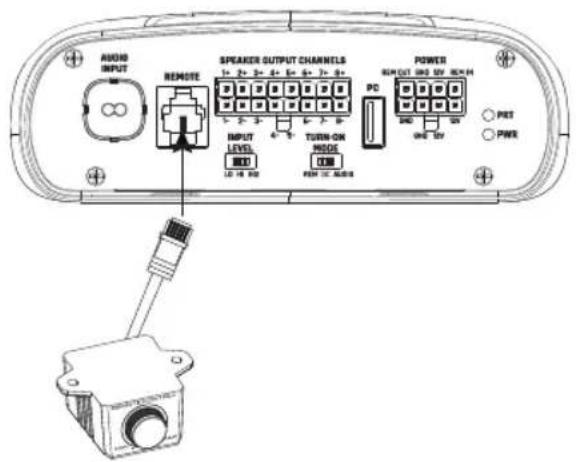
Plug the remote bass controller into the appropriate input on the control panel of the DSP Amplifier. Mount the remote in a convenient location, such as under the dash, using sheet metal screws.
NOTE: The remote bass control is capable of controlling the subwoofer output level from channel 7 or 8 when assigned as a "sub" channel. This will allow adjustment of subwoofer level from -30dB to +6db in the tuning software. It is not a bass boost control. We expect that you will use the remote bass control from an external subwoofer amplifier should you want to control bass boost.
SETTING THE SOUND
Download the tuning software from infinityspeakers.com
- Connect to the internet with your Windows PC or laptop and go to infinityspeakers.com to download the most current Graphic User Interface for the DSP6840 Amplifier, or use the included USB flash drive.
- Complete the software installation setup wizard before you connect your computer to your Infinity DSP Amplifier.
- Double-click "Infinity DSP software" from its saved location.
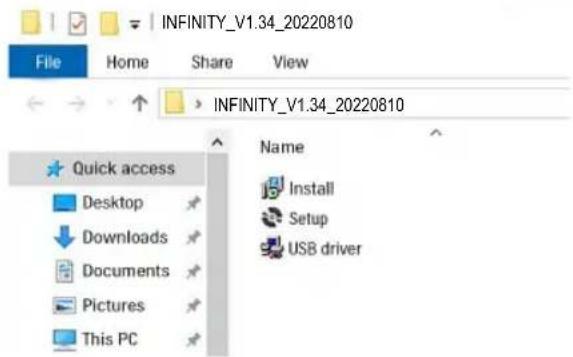
- Double-click "USB driver" and click install
NOTE: Make sure to allow it to make changes to your computer if your anti-virus software requests it.
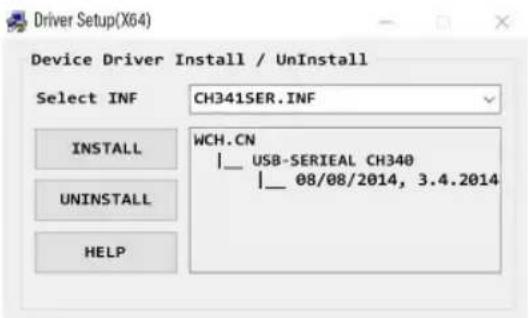
- Double-click "setup.exe".
NOTE: Make sure to allow it to make changes to your computer if your anti-virus software requests it.
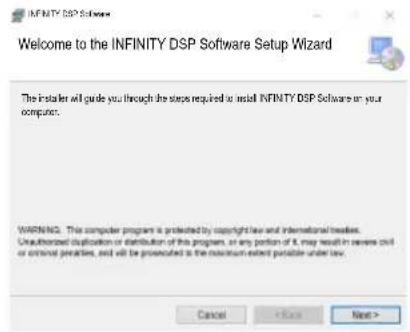
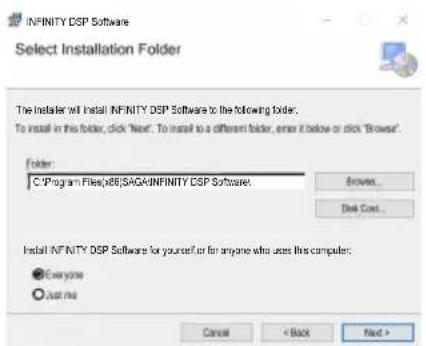
- Click "Next" in the Infinity DSP Software Setup Wizard.
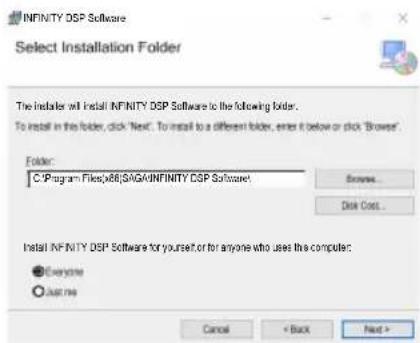
- Select preferred installation folder, or click "next" to choose the default location.
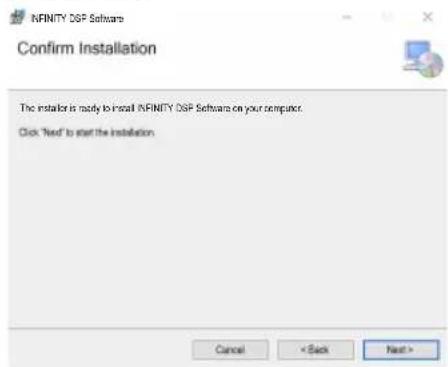
- Click "Next" to confirm installation. Again, make sure that your anti-virus protection allows installation to be completed.
- Sit back and wait while software installation completes...
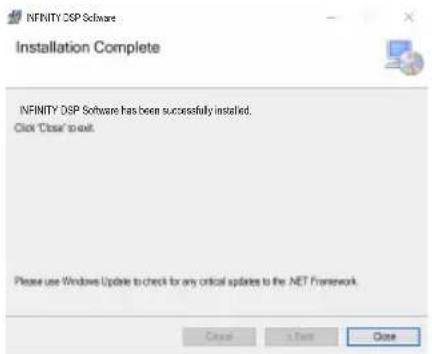
- Installation Complete! Close setup wizard and continue to next section. You should see this icon on your computer screen.

Connecting Infinity DSP Amplifier to your Windows PC
- Connect your Windows PC to the DSP Amplifier with the included USB cable.
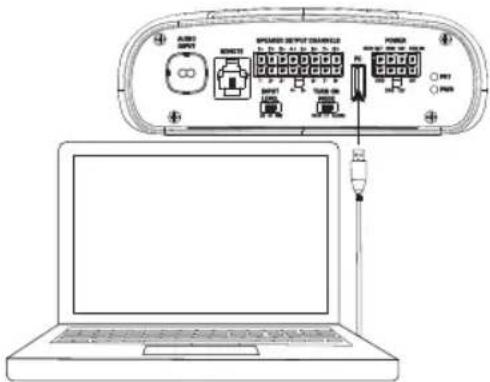
- Make sure to turn your audio source down to a low volume level before powering your Infinity DSP Amplifier.
- Activate/power your audio system and make sure all parts are operating.
NOTE: The DSP Amplifier will come with pre-flashed EQ profile that will act as "EQ Off" or preset 1.
- With your PC connected to the Infinity DSP Amplifier, double-click Infinity software icon on your PC and open DSP tuning software.

NOTE: If the software appears with a window showing "No Comm Port Available", close the software, disconnect the USB cable from your computer, and return to step 4. Otherwise, proceed to step 5. The DSP software will function when not connected to the amplifier if you would like to familiarize yourself with the software and create a pre-configured audio system setup.
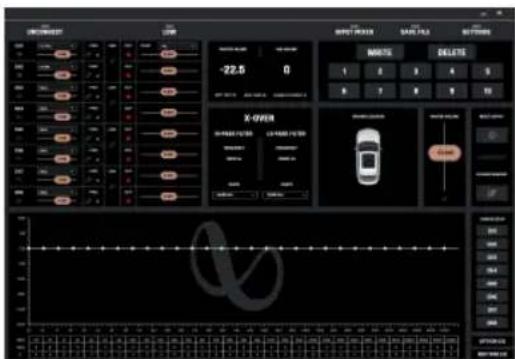
- Connection complete! Continue on to Tuning Procedure...
User Interface Functions

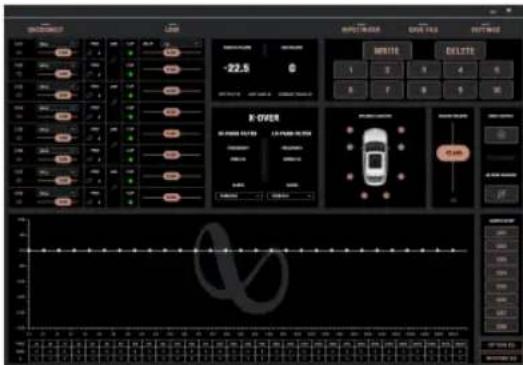
The Infinity tuning software features the following controls:
- Assign speaker locations to channels. With this feature, you can designate the type of speaker and location in the car each output channel of the DSP is connected to.
- Individual channel volume control and muting. You can raise and lower the relative volume level of each channel individually to ensure perfect level-matching and output.
- 0°/180° phase adjustment. You can set the phase of each channel individually for balanced, dynamic performance.
- Linking of paired channels. You can link paired channels to apply volume and tone controls evenly.
- Clipping indicator. Each channel features a clipping indicator to let you know if 10% or greater distortion is present. If it is, lower the volume level of the clipping channel until the indicator turns off. For best results, measure with a 100Hz and 1kHz @ 0dB sine wave.
- Time delay. With time delay, you can adjust the focal point of the sound field to your desired location in the car. The closer a speaker is to your desired focal-point location, the longer its delay should be. To adjust, drag the slider to the right to increase the delay, and to the left to decrease it.
- Information display. This display shows you the following statistics:
a. The master volume value
b. The current subwoofer volume level for channel 7 or 8, and adjustable from -30dB to +6dB when using the remote bass control.
c. The voltage the amplifier is reading at the power input
d. The amplifier's current operating temperature
e. Your current system configuration.
-
X-OVER. You can adjust the crossover points of the high-pass and low-pass crossovers for each channel to maximize the performance efficiency of each speaker connected to the DSP Amplifier. The selectable crossover slope for each channel can be set to 0/6/12/18/24/30/36/42/48dB.
-
Speaker location view. This shows which amplifier channels are in use, and the locations of the corresponding speakers in the vehicle.
- Master Volume. You can raise or lower the volume of the entire system, or mute the entire system. Drag the slider up to raise the volume, and down to lower it. Click the speaker icon to mute the audio system.
- Write/Delete. "Write" lets you save up to 10 preferred audio settings as presets, which you can apply to the amplifier. Click "write", then click a preset number to save a preset. Click "delete", then click a preset number to delete a preset.
- Input Mixer. The Input Mixer feature lets you assign the audio signal from an input channel to a specific output channel. You can also sum the signals of multiple input channels and apply the resulting signal to a specific output channel, usually to allow a speaker to play the widest range of frequencies possible when using speaker-level input signals.
EXAMPLE: If you have connected a tweeter (high-frequency response only) to input channel 1 and a midrange speaker (midrange-frequency response only) to channel 2, you can sum the signals of each of these inputs, and assign the new, full-range signal to a full-range speaker you have connected to output channel 1.
- Save File. This allows you to save saving a preferred audio system configuration to a folder on your computer for use later. It also allows you to retrieve a previous configuration from your computer and apply it to your connected amplifier.
- Settings. You can control the following options in the "Settings" menu:
a. Language selection for the software: choose from English, Spanish, French, Chinese, and Japanese
b. Power settings for delaying the amplifier turn-on/off should your vehicle require either option
c. Firmware upgrades and resetting the software to original factory settings
- Reset EQ. This button lets you reset the type of speaker, and location in the vehicle, of each output channel.
- EQ Mode. This lets you choose either a 31 band parametric or graphic EQ to adjust for each channel.
- Parametric or graphic EQ. You can apply custom EQ curves to each channel you have connected. To increase the level of a given frequency, drag the slider up. To lower it, drag the slider down.
- EQ Setup. This EQ setup feature lets you click to select the channels to which you want to apply EQ curves.
NOTE: The FREQ, GAIN, and Q fields shows the values of the changes made by moving the EQ sliders. Only Gain is adjustable when in Graphic EQ Mode. Frequency, Gain, and Q are all adjustable in Parametric EQ Mode. These adjustments can be made using the sliders or entering specific values in the F, G, and Q fields.
- Bypass EQ and Restore EQ. "Bypass EQ" allow you to return your EQ settings to flat so you can hear the differences made during your tuning. "Restore EQ" returns all EQ adjustments to the previous settings.
SPECIFICATIONS
• RMS Power Output (Watts x Channel) @ 2-ohm: 60W x 8
• RMS Power Output (Watts x Channel) @ 4-ohm: 40W x 8
- Amplifier Class: Class D
- Battery Voltage Range (Volts): 8V to 16V
- Selectable Turn-on Modes: 12V, Audio Signal Sense, DC Offset, 12V remote output
• LED Indicator: red/green
• Frequency Response: 10Hz to 22kHz @ -3dB
• Signal-to-Noise Ratio: 90dB
• Signal-to-Noise Ratio (CEA-2006): 75dB
• THD+N @ 4-ohm: <1%
- Input Sensitivity, selectable: High-level or low-level
- Input Sensitivity - Low Level: 680mV to 6V
- Input Sensitivity - High Level: 1.6V to 15V
- Variable Crossovers: All Channels: HPF, LPF, Band-pass w/ selectable 0 to 48dB slope
• Gain, variable: All Channels with PC
- Subwoofer level, variable: Channels 7 & 8 in PC software or using accessory remote control from -30dB to +6dB
- Fuse Rating: 40A
• Minimum Recommended Power/Ground Wire Gauge: 8awg
- Speaker Level Inputs: Yes (RCA adapter)
- Remote Bass Control: Included
• Length : 9-3/8" (237.5mm)
• Width: 5-11/16" (144mm)
• Height: 1-15/16" (49.5mm)
• Weight: Approx. 1000g
• Protection: DC, OVP, UVP, OCP, OTP
TROUBLESHOOTING
No audio and POWER INDICATOR is off.
- No voltage at BATT+ and/or REM terminals, or bad or no ground connection. Check voltages at amplifier terminals with VOM.
No audio and PROTECT INDICATOR flashes.
- DC voltage on amplifier output. Amplifier may need service; see enclosed warranty card for service information.
No audio and PROTECT and POWER INDICATORS flash.
- Voltage less than 9V on BATT+ connection. Check vehicle charging system.
No audio and PROTECT INDICATOR is on.
- Amplifier is overheated. Make sure amplifier cooling is not blocked at mounting location. Verify that speaker-system impedance is within specified limits. Or, there may be voltage greater than 16V (or less than 8V) on BATT+ connection. Check vehicle charging system.
Amplifier fuse keeps blowing.
- The wiring is connected incorrectly or there is a short circuit. Review installation precautions and procedures. Check wiring connections.
Distorted audio.
- Gain is not set properly. Check Individual Channel Volume and/or Mater Volume settings. Check speaker wires for shorts or grounds. Amplifier or source unit may be defective.
Distorted audio and PROTECT INDICATOR flashes.
- Short circuit in speaker or wire. Remove speaker leads one at a time to locate shorted speaker or wire, and repair.
Music lacks dynamics or "punch."
- Speakers are not connected properly. Use 0^ / 180^ phase adjustment, and check speaker connections at amplifier and speaker.
MERCI POUR VOTRE ACHAT...
natural_image
Diagram of a symmetrical hourglass-shaped structure with internal curved flow lines, no text or symbols presentnatural_image
Line drawing of a laptop connected to an electronic device with ports and connectors (no text or symbols visible)natural_image
Diagram of a symmetrical optical or mechanical system with central lens and surrounding components (no text or symbols)ES
natural_image
Diagram of a symmetric optical setup with lenses and a central lens, no text or symbols presentnatural_image
Diagram of a symmetrical hourglass-shaped object with internal curved flow lines, mounted on a rectangular base (no text or symbols)电源和接地连接
natural_image
Line drawing of a laptop connected to an external electronic device (no text or symbols visible)- 连接完成!继续执行调谐程序……
用户界面功能
natural_image
Diagram of a symmetrical hourglass-shaped object with internal curved flow lines, mounted on a rectangular base (no text or symbols)- Klik dua kali "USB driver" lalu klik instal
- Klik "Next" dalam Wizard Penyiapan Perangkat Lunak Infinity DSP.
- BypassEQ and Restore EQ
- THD+N @ 4-ohm: <1%
natural_image
Optical diagram showing light rays converging through a lens system with lenses and a central aperture (no text or labels)電力接続とアース接続
- Connected and Disconnected.
natural_image
Diagram of a symmetrical hourglass-shaped object with internal curved flow lines, mounted on a rectangular base (no text or symbols)전원 및 접지 연결
47
- THANK YOU FOR YOUR PURCHASE ...
- TABLE OF CONTENTS
- PRODUCT DESCRIPTION
- INSTALLATION AND WIRING
- Power and Ground Connections
- Power/Protect indicators
- Signal input
- Speaker Output Connections
- Connecting the remote bass control
- SETTING THE SOUND
- Download the tuning software from infinityspeakers.com
- Connecting Infinity DSP Amplifier to your Windows PC
- User Interface Functions
- SPECIFICATIONS
- TROUBLESHOOTING
- No audio and POWER INDICATOR is off.
- No audio and PROTECT INDICATOR flashes.
- No audio and PROTECT and POWER INDICATORS flash.
- No audio and PROTECT INDICATOR is on.
- Amplifier fuse keeps blowing.
- Distorted audio.
- Distorted audio and PROTECT INDICATOR flashes.
- Music lacks dynamics or "punch."
- MERCI POUR VOTRE ACHAT...
- ES
- 电源和接地连接
- 用户界面功能
- 電力接続とアース接続
- 전원 및 접지 연결
Brand : INFINITY
Model : DSP6840
Category : Receiver