
MFC-J6920DW, MFCJ6920DW - Multifunction Printer BROTHER - Free user manual and instructions
Find the device manual for free MFC-J6920DW, MFCJ6920DW BROTHER in PDF.


| Product Type | Color inkjet multifunction printer (A3) |
| Main Functions | Print, copy, scan, fax, PhotoCapture Center |
| Display | 3.7-inch (93.4 mm) LCD touchscreen |
| Supported Paper Sizes | A3, A4, A5, Letter, Legal, Ledger, 10x15 cm, envelopes |
| Paper Input | Standard paper tray + optional tray (tray #2), automatic document feeder (ADF) |
| Duplex Printing | Automatic (duplex copy and fax) |
| Connectivity | USB 2.0, Ethernet 10/100 Base-TX, Wi-Fi 802.11b/g/n, Wi-Fi Direct |
| Fax Features | Broadcasting (up to 250 numbers), delayed send, polling, real-time transmission, overseas mode, call restriction |
| Security Functions | Secure Function Lock 2.0 (restrict functions by user, administrator password) |
| Copy | N in 1 (2 in 1, 4 in 1), poster, ID copy, reduce/enlarge (25-400%), auto fit |
| Scan | To PC, email, memory media (memory card, USB flash drive), and mobile device via Brother iPrint&Scan |
| Photo Printing | Direct from PictBridge camera, memory card, USB flash drive, and retouch (crop, date, border) |
| Consumables Management | Innobella ink cartridges (CMYK), ink level check via display or PC |
| Cleaning and Maintenance | Cleaning of feed rollers, print platen, packing for transportation (with orange protective parts) |
| Reports | Transmission report, fax journal, directory list, network configuration, WLAN report |
Frequently Asked Questions - MFC-J6920DW, MFCJ6920DW BROTHER
User questions about MFC-J6920DW, MFCJ6920DW BROTHER
0 question about this device. Answer the ones you know or ask your own.
Ask a new question about this device
Download the instructions for your Multifunction Printer in PDF format for free! Find your manual MFC-J6920DW, MFCJ6920DW - BROTHER and take your electronic device back in hand. On this page are published all the documents necessary for the use of your device. MFC-J6920DW, MFCJ6920DW by BROTHER.
USER MANUAL MFC-J6920DW, MFCJ6920DW BROTHER
Advanced User's Guide
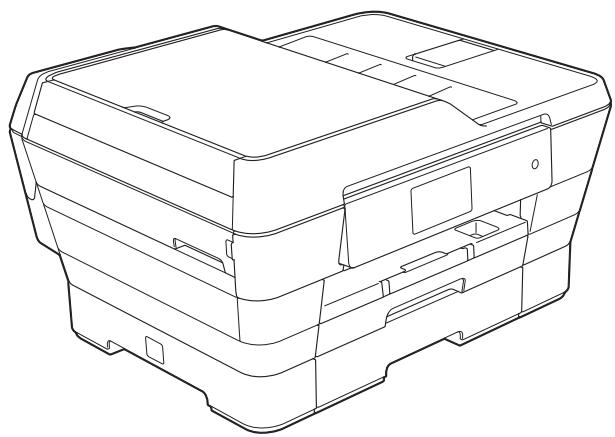
MFC-J6920DW
natural_image
Line drawing of a mechanical device casing with internal compartments and mounting holes (no text or symbols)
User's Guides and where do I find them?
| Which Guide? | What's in it? | Where is it? |
| Product Safety Guide | Read this Guide first. Please read the Safety Instructions before you set up your machine. See this Guide for trademarks and legal limitations. | Printed / In the box |
| Quick Setup Guide | Follow the instructions for setting up your machine, and installing the drivers and software for the operating system and connection type you are using. | Printed / In the box |
| Basic User's Guide | Learn the basic Fax, Copy, Scan and PhotoCapture CenterTM operations and how to replace supplies. See troubleshooting tips. | Printed / In the box1 |
| Advanced User's Guide | Learn more advanced operations: Fax, Copy, security features, printing reports and performing routine maintenance. | PDF file / CD-ROM |
| Software and Network User's Guide | This Guide provides instructions for Scanning, Printing, PC-Fax and other operations that can be performed by connecting your Brother machine to a computer. You can also find useful information about using the Brother ControlCenter utility, using your machine in a network environment, and frequently used terms. | HTML file / CD-ROM |
| Web Connect Guide | This Guide provides useful information about accessing Internet services from the Brother machine, as well as downloading images, printing data and uploading files directly to Internet services. | PDF file / Brother Solutions Center2 |
| AirPrint Guide | This Guide provides information for using AirPrint to print from OS X v10.7.x, 10.8.x and your iPhone, iPod touch, iPad, or other iOS device to your Brother machine without installing a printer driver. | PDF file / Brother Solutions Center2 |
| Google Cloud Print Guide | This Guide provides details on how to use Google Cloud PrintTM services for printing over the Internet. | PDF file / Brother Solutions Center2 |
| Wi-Fi DirectTM Guide | This Guide provides details on how to configure and use your Brother machine for wireless printing directly from a mobile device supporting the Wi-Fi DirectTM standard. | PDF file / Brother Solutions Center2 |
| Mobile Print/Scan Guide for Brother iPrint&Scan | This Guide provides useful information about printing from your mobile device and scanning from your Brother machine to your mobile device when connected to a Wi-Fi network. | PDF file / Brother Solutions Center2 |
1 This may differ depending on your country.
2 Visit us at http://solutions.brother.com/.
Table of Contents
1 General setup 1
Memory Storage 1
Automatic Daylight Saving Time....1
Sleep Mode 2
Touchscreen LCD 2
Setting the Dim Timer for the backlight 2
2 Security features 3
Secure Function Lock 2.0....3
Before you begin to use Secure Function Lock 2.0....3
Setting and changing the Administrator Password....4
Setting up restricted users....5
Turning Secure Function Lock on/off....5
Switching users 6
Changing to the Public mode 6
Restricting dialling....6
Dial pad restriction....7
Address Book restriction....7
Shortcut restriction....7
LDAP Server restriction....7
3 Sending a fax 8
Additional sending options....8
Sending faxes using multiple settings 8
Stop faxing....8
Contrast 9
Changing fax resolution....9
Setting your changes as a new default....10
Restoring fax options to the factory default 11
Saving fax options as a Shortcut 11
Additional sending operations....12
Sending a 2-sided fax from the ADF (Automatic Document Feeder) ...... 12
Sending a fax manually 12
Sending a fax at the end of a conversation 13
Dual Access (Monochrome only)....13
Broadcasting (Monochrome only)....13
Real Time Transmission....15
Overseas Mode 16
Delayed Faxing (Monochrome only)....16
Delayed Batch Transmission (Monochrome only)....17
Checking and cancelling waiting jobs....17
Polling 18
Polled Transmit (Monochrome only)....18
4 Receiving a fax
20
Memory Receive (Monochrome only)....20
Fax Forwarding....20
Fax Storage 21
Printing a fax from the memory 21
Turning off Memory Receive operations....21
Changing Memory Receive operations 22
Remote Retrieval 23
Setting a Remote Access Code....23
Using your Remote Access Code....23
Remote Fax commands 24
Retrieving fax messages 25
Changing your Fax Forwarding number 25
Additional receiving operations....26
Out of Paper Reception 26
Printing a reduced incoming fax 26
Receiving a fax at the end of a conversation....26
Polling 27
Polling receive 27
5 Dialling and storing numbers
30
Voice operations....30
BT Call Sign (U.K. only)....30
Additional dialling operations 31
Combining Address Book numbers 31
Additional ways to store numbers....32
Storing Address Book numbers from the Outgoing Call history ......32
Storing Address Book numbers from the Caller ID history 32
Setting up Groups for Broadcasting 33
6 Printing reports
35
Fax reports....35
Transmission Verification Report....35
Fax Journal (activity report) 35
Reports 36
How to print a report 36
7 Making copies
37
Copy options....37
Stop copying....37
Improving copy speed and quality 37
Enlarging or reducing copies 38
Making N in 1 copies or a poster (Page Layout) 39
2 in 1 ID Copy (Page Layout) 42
Sorting copies using the ADF 43
Adjusting Density 43
Ink Save Mode....44
Thin Paper Copy 45
Auto Deskew 45
Book Copy 46
Watermark Copy 46
Remove Background Colour ....47
2-sided copying 48
Saving copy options as a Shortcut 50
A3 Copy Shortcuts....50
A3 Copy Shortcut ....50
8 Printing photos from a memory card or USB Flash drive 53
PhotoCapture Center™ operations 53
Memory cards, USB Flash drives and folder structures ....53
Movie printing 54
Print Images....54
Print Index (Thumbnails) 54
Printing Photos 55
Enhance Photos 55
ID photo print 57
Slide Show....58
DPOF printing....59
PhotoCapture Center™ print settings....60
Print Quality 60
Paper options 60
Auto Correct 62
Adjusting Brightness, Contrast and Colour....62
Cropping 64
Borderless printing....65
Date Print....65
Setting your changes as a new default....66
Restoring all settings to the factory default....66
Scan to a memory card or USB Flash drive 67
Auto Crop 67
How to set a new default 68
How to reset to the factory default....69
Saving scan options as a Shortcut 69
9 Printing photos from a camera 70
Printing photos directly from a PictBridge camera....70
PictBridge requirements ....70
Setting your digital camera 70
Printing Images....71
DPOF printing 72
Printing photos directly from a digital camera (without PictBridge)....72
Printing Images....73
A Routine maintenance 74
Cleaning and checking the machine....74
Cleaning the outside of the machine 74
Cleaning the machine's printer platen 75
Cleaning the paper feed rollers 76
Cleaning the paper pick-up rollers....77
Cleaning the paper pick-up rollers for paper tray #2 78
Checking the ink volume 79
Packing and shipping the machine 79
B Glossary 82
C Index 86
1 General setup
Memory Storage
Your menu settings are stored permanently, and, in the event of a power failure, will not be lost. Temporary settings (for example, Overseas Mode) will be lost. If you have chosen Set New Default for your Fax, Scan and Photo preferred settings, those settings will not be lost. Also, during a power failure, the machine will retain the date and time and programmed fax timer jobs (for example, Delayed Fax) for up to 24 hours.
Automatic Daylight Saving Time
You can set the machine to change automatically for daylight saving time. It will reset itself forward one hour in the Spring and backward one hour in the Autumn. Make sure you have set the correct date and time in the Date & Time setting.
1 Press
2 Press
3 Press Auto Daylight.
4 Press Off (or On).
5 Press
Sleep Mode
You can choose how long the machine will remain idle before it goes into Sleep Mode (up to 60 minutes). The timer will restart if any operation is carried out on the machine.
1
Press

2
Press All Settings.
3
Swipe up or down, or press ▲ or ▼ to display General Setup.
4
Press General Setup.
5
Swipe up or down, or press ▲ or ▼ to display Sleep Mode.
6
Press Sleep Mode.
7
Swipe up or down, or press ▲ or ▼ to display 1Min, 2Mins, 3Mins, 5Mins, 10Mins, 30Mins or 60Mins which is the length of time the machine must be idle before entering Sleep Mode. Press the option you want to set.
8
Press

Touchscreen LCD
Setting the Dim Timer for the backlight
You can set how long the Touchscreen LCD backlight stays on after the last finger press.
1
Press

2
Press All Settings.
3
Swipe up or down, or press ▲ or ▼ to display General Setup.
4
Press General Setup.
5
Swipe up or down, or press ▲ or ▼ to display LCD Settings.
6
Press LCD Settings.
7
Press Dim Timer.
8
Press 10Secs, 20Secs, 30Secs or Off.
9
Press
2
Security features
Secure Function Lock 2.0
Secure Function Lock lets you restrict public access to certain machine functions:
Fax Send
Fax Receive
Copy
Scan
■ Print from Media
■ Scan to Media
PC Print
Colour Print
Page Limit
■ Web Upload
■ Web Download
This feature also prevents users from changing the default settings of the machine by limiting access to the menu settings.
Before using the security features, you must first enter an administrator password.
Access to restricted operations can be enabled by creating a restricted user. Restricted users must enter a password to use the machine.
Make a careful note of your password. If you forget it, please contact Brother customer service for support.
NOTE
- Only administrators can set limitations and make changes for each user.
- If Fax Tx is disabled, you cannot use any functions in the Fax menu.
- Polled Transmit and Polling Receive are enabled only when both Fax Tx and Fax Rx are enabled.
- You cannot edit or delete a Shortcut when Secure Function Lock is set to On.
Before you begin to use Secure Function Lock 2.0
You can configure Secure Function Lock 2.0 settings using a Web browser. Before configuration, the following preparations are required.
1 Start your Web browser.
2 Type "http://machine's IP address/" into your browser's address bar (where "machine's IP address" is the Brother machine's IP address).
■ For example:
http://192.168.1.2/
NOTE
You can find the machine's IP address in the Network Configuration List.
(See Software and Network User's Guide.)
3 Enter a password in the Login box. (This is a password to log into the machine's Web page, not the administrator password for Secure Function Lock.) Click →.
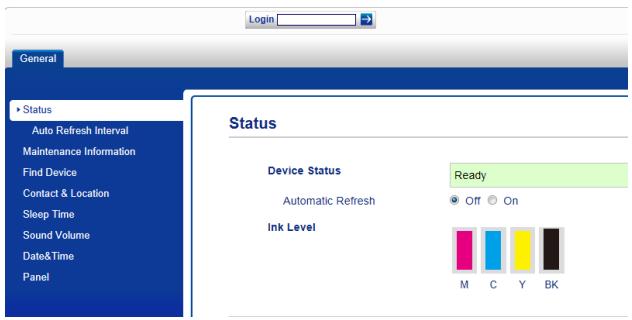
NOTE
If you are using a Web browser to configure the machine's settings for the first time, set a password.
1 Click
Please configure the password.
2 Enter a password you want to use (up to 32 characters).
3 Re-enter the password in the Confirm New Password box.
4 Click Submit.
Setting and changing the Administrator Password
You can configure these settings using a Web browser. To set up the Web page, see Before you begin to use Secure Function Lock 2.0 on page 3. Then follow the instructions below.
Setting the administrator password
The password you set in these steps is for the administrator. This password is used to set up users and to turn Secure Function Lock on or off. (See Setting up restricted users on page 5 and Turning Secure Function Lock on/off on page 5.)
1 Click Administrator.
2 Click Secure Function Lock.
3 Enter a four-digit number for the password in the New Password box.
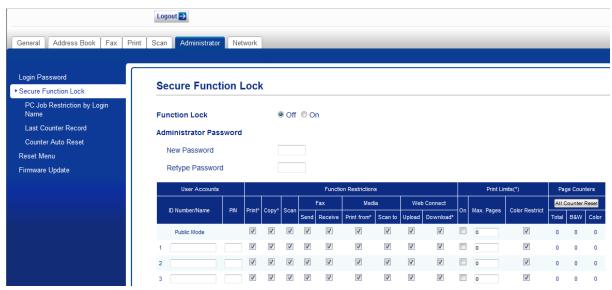
4 Re-enter the password in the Retype Password box.
5 Click Submit.
Changing the administrator password
1 Click Administrator.
2 Click Secure Function Lock.
3 Enter a four-digit number for the new password in the New Password box.
4 Re-enter the new password in the Retype Password box.
5 Click Submit.
Setting up restricted users
You can set up users with restrictions and a password. You can set up to 10 users.
You can configure these settings using a Web browser.
To set up the Web page, see Before you begin to use Secure Function Lock 2.0 on page 3. Then follow the instructions below.
1 Click Administrator.
2 Click Secure Function Lock.
3 Enter an alphanumeric Group name or User name (up to 15 characters) in the ID Number/Name box and then enter a four-digit password in the PIN box.
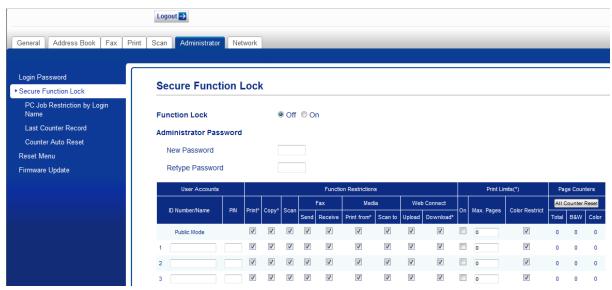
4 Uncheck the functions that you want to restrict in the Function Restrictions boxes. If you want to configure the maximum page count, check the On box in Print Limits, and then enter the number in the Max.Pages box. Then click Submit.
NOTE
- You cannot use the same password as another user's password.
- You can set up one Public user. Public users do not need to enter a password.
For more information, see Software and Network User's Guide.
Turning Secure Function Lock on/off
NOTE
If you enter the wrong password, the Touchscreen will show
Wrong Password. Enter the correct password. If you forget it, please contact Brother customer service for support.
Turning Secure Function Lock on
1 Press
2 Press All Settings.
3 Swipe up or down, or press ▲ or ▼ to display General Setup.
4 Press General Setup.
5 Swipe up or down, or press ▲ or ▼ to display Function Lock.
6 Press Function Lock.
7 Press Lock Off→On.
8 Enter your four-digit administrator password using the keyboard on the Touchscreen.
Press OK.
NOTE
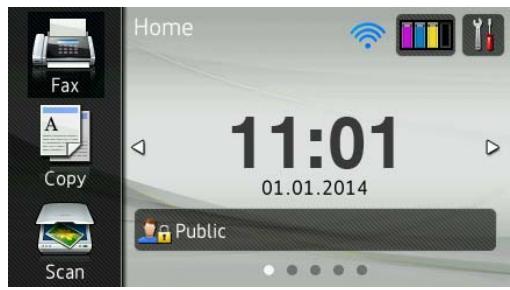
The Secure Function Lock icon is prominently displayed in the Home screen.
Turning Secure Function Lock off
1 Press Public or
XXXXX (where xxxx is the user's name).
2 Press Lock On→Off.
3 Enter your four-digit administrator password using the keyboard on the Touchscreen.
Press OK.
Switching users
This setting allows a restricted user to log on to the machine when the Secure Function Lock is turned on.
1 On the Touchscreen, press
Public or XXXXX (where xxxx is
the user's name).
2 Press Change User.
3 Swipe up or down, or press ▲ or ▼ to display your user name.
4 Press your user name.
5 Enter your four-digit user password using the keyboard on the Touchscreen. Press OK.
Changing to the Public mode
1 Press XXXXX (where xxxx is the user's name).
2 Press Go to Public.
Restricting dialling
This feature prevents users from sending a fax or call to a wrong number by mistake. You can set the machine to restrict dialling when you use the dial pad, Address Book, Shortcut and LDAP search.
If you choose Off, the machine does not restrict the dialling method.
If you choose Enter # Twice, the machine will prompt you to re-enter the number, and will start dialling after you re-enter the same number correctly. If you re-enter the wrong number, the Touchscreen will show an error message.
If you choose On, the machine will restrict all fax sending and outbound calls for that dialling method.
NOTE
- The Enter # Twice setting will not work if you lift an external handset before entering the number. You will not be asked to re-enter the number.
- If you chose On or Enter # Twice, you cannot use the Broadcasting feature.
Dial pad restriction

Press


Press All Settings.

Swipe up or down, or press ▲ or ▼ to display Fax.

Press Fax.

Swipe up or down, or press ▲ or ▼ to display Dial Restriction.

Press Dial Restriction.

Press Dial Pad.

Press Enter # Twice, On or Off.

Press
Address Book restriction

Press


Press All Settings.

Swipe up or down, or press ▲ or ▼ to display Fax.

Press Fax.

Swipe up or down, or press ▲ or ▼ to display Dial Restriction.

Press Dial Restriction.

Press Address Book.

Press Enter # Twice, On or Off.

Press

NOTE
If you combine Address Book numbers when dialling, the address will be recognized as dial pad input and will not be restricted.
Shortcut restriction

Press


Press All Settings.

Swipe up or down, or press ▲ or ▼ to display Fax.

Press Fax.

Swipe up or down, or press ▲ or ▼ to display Dial Restriction.

Press Dial Restriction.

Press Shortcuts.

Press Enter # Twice, On or Off.

Press
LDAP Server restriction

Press


Press All Settings.

Swipe up or down, or press ▲ or ▼ to display Fax.

Press Fax.

Swipe up or down, or press ▲ or ▼ to display Dial Restriction.

Press Dial Restriction.

Press LDAP Server.

Press Enter # Twice, On or Off.

Press
3
Sending a fax
Additional sending options
Sending faxes using multiple settings
When you send a fax, you can choose a combination of settings, such as
Fax Resolution, 2-sided Fax, Contrast, Glass Scan Size, and Real Time TX.
You can also choose Call History,
Address Book, Broadcasting, Preview, Colour Setting, Delayed Fax, Batch TX, Polled TX, Polling RX, Overseas Mode, Set New Default, and Factory Reset.
Some settings are only available when sending mono faxes.
1 Load your document.
2 Do one of the following:
■ When Fax Preview is set to Off,
press

(Fax).
■ When Fax Preview is set to On, press

(Fax) and then

(Sending Faxes).
The Touchscreen shows:
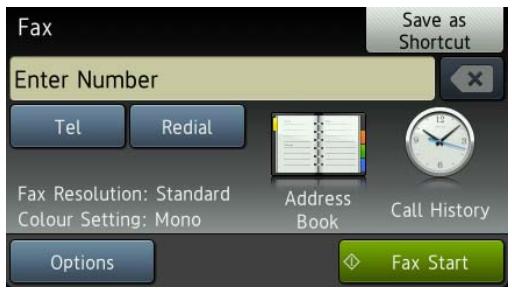
3 Press Options.
4 Swipe up or down, or press ▲ or ▼ to display the setting you want to change. When the setting is displayed, press it.
5 Press the option you want to set.
6 Go back to step 4 to change additional settings.
7 Press OK when you have finished changing settings.
8 Enter the fax number.
9 Press Fax Start.
NOTE
- Most settings are temporary, and the machine returns to its default settings after you send a fax.
- You can save some of the settings you use most often by making them the default settings. These settings will remain until you change them again. (See Setting your changes as a new default on page 10.)
- You can also save some of the settings you use most often by setting them as a Shortcut. (See Saving fax options as a Shortcut on page 11.)
Stop faxing
To stop faxing, press ✗.
Contrast
If your document is very light or very dark, you may want to change the contrast. For most documents, the factory setting Auto can be used. Auto chooses the suitable contrast for your document.
Choose Light when sending a light document. Choose Dark when sending a dark document.
1 Load your document.
2 Do one of the following:
■ When Fax Preview is set to Off,
press (Fax).
■ When Fax Preview is set to On, press

(Fax) and then

(Sending Faxes).
3 Press Options.
4 Swipe up or down, or press ▲ or ▼ to display Contrast.
5 Press Contrast.
6 Press Auto, Light or Dark.
7 Press OK.
8 Enter the fax number.
9 Press Fax Start.
NOTE
Even if you choose Light or Dark, the machine will send the fax using the Auto setting in the following conditions:
- When you send a colour fax.
- When you choose Photo as the Fax Resolution.
Changing fax resolution
The quality of a fax can be improved by changing the fax resolution.
1 Load your document.
2 Do one of the following:
■ When Fax Preview is set to Off,
press (Fax).
■ When Fax Preview is set to On, press

(Fax) and then

(Sending Faxes).
3 Press Options.
4 Swipe up or down, or press ▲ or ▼ to display Fax Resolution.
5 Press Fax Resolution.
6 Press Standard, Fine, S. Fine or Photo.
7 Press OK.
8 Enter the fax number.
9 Press Fax Start.
NOTE
You can choose four different resolution settings for monochrome faxes, and two for colour.
| Monochrome | |
| Standard | Suitable for most typed documents. |
| Fine | Good for small print and transmits a little slower than Standard resolution. |
| S.Fine | Good for small print or artwork and transmits slower than Fine resolution. |
| Photo | Use when the document has varying shades of grey or is a photograph. Photo has the slowest transmission. |
| Colour | |
| Standard | Suitable for most typed documents. |
| Fine | Use when the document is a photograph. The transmission time is slower than Standard resolution. |
If you choose S. Fine or Photo and then send a colour fax (choosing Colour in Colour Setting), the machine will send the fax using the Fine setting.
Setting your changes as a new default
You can save the settings for the fax options you use most often by setting them as the default settings, such as Fax Resolution, Contrast, Glass Scan Size, Preview, Real Time TX and Colour Setting. These settings will remain until you change them again.
1 Do one of the following:
■ When Fax Preview is set to Off,
press (Fax).
■ When Fax Preview is set to On, press

(Fax) and then

(Sending Faxes).
2 Press Options.
3 Swipe up or down, or press ▲ or ▼ to choose the menu option that you want to change. Press your new option.
Repeat this step for each setting you want to change.
4 After changing the last setting to your preferred option, swipe up or down, or press ▲ or ▼ to display
Set New Default.
5 Press Set New Default.
6 The Touchscreen asks you to confirm the change to the new default settings. Press Yes to confirm.
7 Press
Restoring fax options to the factory default
You can restore all the fax options you have changed back to the factory default. These settings will remain until you change them again.
1 Do one of the following:
■ When Fax Preview is set to Off,
press (Fax).
■ When Fax Preview is set to On, press

(Fax) and then

(Sending Faxes).
2 Press Options.
3 Swipe up or down, or press ▲ or ▼ to display Factory Reset.
4 Press Factory Reset.
5 The Touchscreen asks you to confirm to change back to the factory default. Press Yes to confirm.
6 Press
Saving fax options as a Shortcut
You can store all the new fax options you use frequently by saving them as a Shortcut.
1 Do one of the following:
■ When Fax Preview is set to Off, press (Fax).
■ When Fax Preview is set to On, press (Fax) and then (Sending Faxes).
2 Enter the fax number.
NOTE
If the Shortcut is to be used for broadcasting, press Options and choose Broadcasting in step ④ before entering the fax number in step ②.
(See Broadcasting (Monochrome only) on page 13.)
3 Press Options.
4 Swipe up or down, or press ▲ or ▼ to display Fax Resolution,
2-sided Fax, Contrast,
Glass Scan Size, Preview,
Colour Setting, Real Time TX or
Overseas Mode, and then press the
setting you want to change. Then press
the new option you want to set.
Repeat this step for each setting you
want to change.
5 When you have finished choosing new options, press OK.
6 Press Save as Shortcut.
7 Confirm the displayed list of options you have chosen for the Shortcut, and then press OK.
8 Enter a name for the Shortcut using the keyboard on the Touchscreen. (For help entering letters, see Basic User's Guide: Entering Text.) Press OK.
9 Press OK to save your Shortcut.
Additional sending operations
Sending a 2-sided fax from the ADF (Automatic Document Feeder)
You can send 2-sided documents up to Legal size from the ADF.
1 Load your document in the ADF.
2 Do one of the following:
■ When Fax Preview is set to Off,
press (Fax).
■ When Fax Preview is set to On, press
(Fax) and then
(Sending Faxes).
3 Press Options.
4 Swipe up or down, or press ▲ or ▼ to display 2-sided Fax.
5 Press 2-sided Fax.
6 Do one of the following:
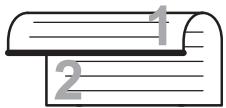
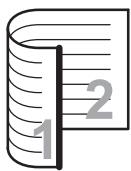
■ If your document is flipped on the Long edge, press
2-sided Scan: Long Edge.
| Long edge | |
| Portrait | Landscape |
 |  |
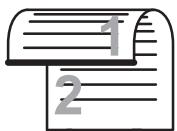
■ If your document is flipped on the Short edge, press
2-sided Scan: Short Edge.
| Short edge | |
| Portrait | Landscape |
 |  |
7 Press OK.
8 Enter the fax number.
9 Press Fax Start.
The machine will now scan and send your document.
Sending a fax manually
Manual transmission lets you hear the dialling, ringing and fax-receiving tones while sending a fax.
NOTE
To send a multi-page fax, use the ADF.
1 Load your document.
2 To listen for a dial tone, pick up the handset of the external telephone.
3 Dial the fax number using the external telephone.
4 When you hear the fax tones, press Fax Start.
If you are using the scanner glass, press Send on the Touchscreen to send the fax.
5 Replace the handset of the external phone.
Sending a fax at the end of a conversation
At the end of a conversation, you can send a fax to the other party before you both hang up.
1 Ask the other party to wait for fax tones (beeps) and then to press the Start or Send key before hanging up.
2 Load your document.
3 Press Fax Start.
If you are using the scanner glass,
press Send to send the fax.
4 Replace the handset of the external phone.
Dual Access (Monochrome only)
You can dial a number and start scanning the fax into memory—even when the machine is sending from memory, receiving faxes or printing PC data. The Touchscreen shows the new job number.
The number of pages you can scan into the memory will vary depending on the data that is printed on them.
NOTE
If the Out of Memory message
appears, press ✗ or Quit to cancel or Send Now to send the pages scanned so far.
Broadcasting (Monochrome only)
Broadcasting is automatically sending the same fax message to more than one fax number. You can include Groups, Address Book numbers, and up to 50 manually dialled numbers in the same broadcast.
After the broadcast is finished, a Broadcast Report will be printed.
Before you begin the broadcast
Address Book numbers must be stored in the machine's memory before they can be used in a broadcast. (See Basic User's Guide: Storing Address Book numbers.)
Group numbers must also be stored in the machine's memory before they can be used in a broadcast. Group numbers include many stored Address Book numbers for easier dialling. (See Setting up Groups for Broadcasting on page 33.)
How to broadcast a fax
1 Load your document.
2 Do one of the following:
■ When Fax Preview is set to Off,
(Fax).
■ When Fax Preview is set to On, press
(Fax) and then
(Sending Faxes).


3 Press Options.
4 Swipe up or down, or press ▲ or ▼ to display Broadcasting.
5 Press Broadcasting.
6 Press Add Number.
7 You can add numbers to the broadcast in the following ways:
■ Press Add Number and enter a number using the keyboard on the Touchscreen.
Press OK.
NOTE
If you downloaded Internet Fax:
If you want to broadcast using an E-mail address, press 📊, enter the E-mail address, and press OK. (For help entering letters, see Basic User's Guide: Entering Text.)
■ Press Add from Address book. Swipe up or down, or press ▲ or ▼ to display the number you want to add to the broadcast.
Press the check boxes of the numbers you want to add to the broadcast.
After you have checked all the numbers you want, press OK.
Press
Search in Address book.
Enter the first letter of the name and press OK.
Press the name, and then press the number you want to add to the broadcast.
8 After you have entered all the fax numbers by repeating steps ⑥ and ⑦, press OK.
9 Press Fax Start.
NOTE
Broadcasting is not available when you select Colour in Colour Setting.
Faxing from the ADF
■ The machine starts scanning the document.
Faxing from the scanner glass
When the Touchscreen asks you Next page?, do one of the following:
■ To send a single page, press No.
The machine starts sending the document.
■ To send more than one page, press Yes and place the next page on the scanner glass.
Press OK.
The machine starts scanning the page. (Repeat this step for each page.)
NOTE
- If you did not use up any of the numbers for Groups, you can “broadcast” faxes to as many as 250 different numbers.
- The machine's available memory will vary depending on the types of jobs in the memory and the numbers used for broadcasting. If you broadcast to the maximum amount of numbers available, you will not be able to use dual access and delayed fax.
- If the Out of Memory message appears, press ✗ or Quit to cancel or Send Now to send the pages scanned so far.
Cancelling a Broadcast in progress

Press


Do one of the following:
■ To cancel the entire broadcast, press Entire Broadcast. Go to step ③.
■ To cancel the current job, press the name or number being dialled on the Touchscreen. Go to step ④.
■ To exit without cancelling, press ✗

When the Touchscreen asks if you want to cancel the entire broadcast, do one of the following:
■ Press Yes to confirm.
■ To exit without cancelling, press No.

Do one of the following:
■ To cancel the current job, press Yes.
■ To exit without cancelling, press No.
Real Time Transmission
When you are sending a fax, the machine will scan the documents into the memory before sending. Then, as soon as the telephone line is free, the machine will start dialling and sending.
Sometimes, you may want to send an important document immediately, without waiting the machine to scan it into memory. You can do this by turning on Real Time TX.

Load your document.

Do one of the following:
■ When Fax Preview is set to Off,
(Fax).
■ When Fax Preview is set to On, press

(Fax) and then

(Sending Faxes).

Press Options.

Swipe up or down, or press ▲ or ▼ to display Real Time TX.

Press Real Time TX.

Press On (or Off).

Press OK.

Enter the fax number.

Press Fax Start.
NOTE
- If you are sending a colour fax or if the memory is full and you are sending a monochrome fax from the ADF, the machine will send the document in real time (even if Real Time TX is set to Off).
- In Real Time Transmission, the automatic redial feature does not work when you are using the scanner glass.
Overseas Mode
If you are having difficulty sending a fax overseas due to possible interference on the telephone line, we recommend that you turn on Overseas Mode. After you send a fax using this feature, the feature will automatically turn itself off.
1 Load your document.
2 Do one of the following:
■ When Fax Preview is set to Off,

■ When Fax Preview is set to On, press
3 Press Options.
4 Swipe up or down, or press ▲ or ▼ to display Overseas Mode.
5 Press Overseas Mode.
6 Press On (or Off).
7 Press OK.
8 Enter the fax number.
9 Press Fax Start.
Delayed Faxing (Monochrome only)
You can store up to 50 faxes in the memory to be sent within 24 hours. These faxes will be sent at the time of day you enter in step ⑨.
1 Load your document.
2 Do one of the following:
■ When Fax Preview is set to Off, press (Fax).
■ When Fax Preview is set to On, press

3 Press Options.
4 Swipe up or down, or press ▲ or ▼ to display Delayed Fax.
5 Press Delayed Fax.
6 Press Delayed Fax.
7 Press On (or Off).
8 Press Set Time.
9 Enter the time you want the fax to be sent (in 24-hour format) using the keyboard on the Touchscreen. (For example, enter 19:45 for 7:45 PM.) Press OK.
NOTE
The number of pages you can scan into the memory depends on the amount of data that is printed on each page.
10 Press OK.
11 Enter the fax number.
12 Press Fax Start.
NOTE
Delayed Fax is not available when you select Colour in Colour Setting.
Delayed Batch Transmission (Monochrome only)
Before sending the delayed faxes, your machine will help you economize by sorting all the faxes in the memory by destination and scheduled time. All delayed faxes that are scheduled to be sent at the same time to the same fax number will be sent as one fax to save transmission time.
1 Do one of the following:
■ When Fax Preview is set to Off,
press (Fax).
■ When Fax Preview is set to On, press

(Fax) and then

(Sending Faxes).
2 Press Options.
3 Swipe up or down, or press ▲ or ▼ to display Batch TX.
4 Press Batch TX.
5 Press On (or Off).
6 Press
Checking and cancelling waiting jobs
You can check which jobs are still waiting in the memory to be sent, or cancel a job. (If there are no jobs, the Touchscreen shows No Jobs Waiting.)
1 Press

2 Press All Settings.
3 Swipe up or down, or press ▲ or ▼ to display Fax.
4 Press Fax.
5 Swipe up or down, or press ▲ or ▼ to display Remaining Jobs.
6 Press Remaining Jobs. Any waiting jobs appear on the Touchscreen.
7 Swipe up or down, or press ▲ or ▼ to scroll through the jobs and press the job you want to cancel.
Press Cancel.
8 Do one of the following:
■ To cancel, press Yes.
If you want to cancel another job, go to step ⑦.
■ To exit without cancelling, press No.
9 When you have finished, press
Polling
Polling lets you set up your machine so other people can receive faxes from you, but they pay for the call. It also lets you call somebody else's fax machine and receive a fax from it, so you pay for the call. The polling feature needs to be set up on both machines for this to work. Not all fax machines support polling.
Polled Transmit (Monochrome only)
Polled Transmit lets you set up your machine to wait with a document so another fax machine can call and retrieve it.
The document will be stored and can be retrieved by any other fax machine until you delete it from the memory. (See Checking and cancelling waiting jobs on page 17.)
Setup for polled transmit
1 Load your document.
2 Do one of the following:
■ When Fax Preview is set to Off,
press (Fax).
■ When Fax Preview is set to On, press

3 Press Options.
4 Swipe up or down, or press ▲ or ▼ to display Polled TX.
5 Press Polled TX.
6 Press Standard.
7 Press Fax Start.
8 If you are using the scanner glass, the Touchscreen will prompt you to choose one of the following options:
■ Press Yes to scan another page. Go to step ⑨.
■ Press No to store the document in the memory. Other fax machines can now call your machine and retrieve the document.
9 Place the next page on the scanner glass and press OK. Repeat steps ⑧ and ⑨ for each page. The document will be stored in the memory and will be sent when it is polled.
Setup for polled transmit with secure code
Secure Polling lets you restrict who can get the documents you set up to be polled.
Secure Polling only works with Brother fax machines. If another person wants to retrieve a fax from your machine, they will have to enter the secure code.
1 Load your document.
2 Do one of the following:
■ When Fax Preview is set to Off, press (Fax).
■ When Fax Preview is set to On, press

(Fax) and then

(Sending Faxes).
3 Press Options.
4 Swipe up or down, or press ▲ or ▼ to display Polled TX.
5 Press Polled TX.
6 Press Secure.
7 Enter a four-digit number.
Press OK.
8 Press Fax Start.
9 If you are using the scanner glass, the Touchscreen will prompt you to choose one of the following options:
■ Press Yes to scan another page. Go to step 10.
■ Press No to store the document in the memory. Other fax machines can now call your machine and retrieve the document.
10 Place the next page on the scanner glass and press OK.
11 Repeat steps ⑨ and ⑩ for each additional page.
The document will be stored in the memory and will be sent when it is polled.
4
Receiving a fax
Memory Receive (Monochrome only)
Memory Receive lets you receive faxes while you are away from the machine.
You can only use one Memory Receive operation at a time:
Fax Forwarding
Fax Storage
■ PC-Fax Receive
Off
You can change your selection at any time. If received faxes are still in the machine's memory when you change the Memory Receive operation, a message will appear on the Touchscreen. (See Changing Memory Receive operations on page 22.)
Fax Forwarding
When you choose Fax Forward, your machine stores the received fax in the memory. The machine will then dial the fax number you have programmed and forward the fax message.

1 Press
2 Press All Settings.
3 Swipe up or down, or press ▲ or ▼ to display Fax.
4 Press Fax.
5 Swipe up or down, or press ▲ or ▼ to display Setup Receive.
6 Press Setup Receive.
7 Swipe up or down, or press ▲ or ▼ to display Memory Receive.
8 Press Memory Receive.
9 Press Fax Forward.
10 Enter the forwarding number (up to 20 digits) using the keyboard on the Touchscreen.
Press OK.
11 If Fax Preview is set to Off, press
Backup Print: On or
Backup Print: Off.
IMPORTANT
- If you choose Backup Print: On, the machine will also print the fax at your machine so you will have a copy. This is a safety feature in case there is a power failure before the fax is forwarded or a problem at the receiving machine.
- When you receive a colour fax, your machine prints the colour fax at your machine but does not forward the fax to the Fax Forwarding number you programmed.
12 Press
Fax Storage
If you choose Fax Storage, your machine stores received faxes in the memory. You will be able to retrieve fax messages from another location using the Remote Retrieval commands.
If you have turned on Fax Storage, a backup copy will be printed at the machine.
1 Press
2 Press All Settings.
3 Swipe up or down, or press ▲ or ▼ to display Fax.
4 Press Fax.
5 Swipe up or down, or press ▲ or ▼ to display Setup Receive.
6 Press Setup Receive.
7 Swipe up or down, or press ▲ or ▼ to display Memory Receive.
8 Press Memory Receive.
9 Press Fax Storage.
10 Press
NOTE
Colour faxes cannot be stored in the memory. When you receive a colour fax, your machine prints the colour fax at your machine.
Printing a fax from the memory
If you have chosen Fax Storage, you can still print a fax from the memory when you are at your machine.
1 Press
2 Press All Settings.
3 Swipe up or down, or press ▲ or ▼ to display Fax.
4 Press Fax.
5 Swipe up or down, or press ▲ or ▼ to display Print Document.
6 Press Print Document.
7 Press OK.
8 Press
NOTE
- (When Fax Preview is set to Off.) You can also print a fax from the memory by pressing Print on the Touchscreen.
- When you print a fax from the memory, the fax data will be erased from your machine.
Turning off Memory Receive operations
1 Press
2 Press All Settings.
3 Swipe up or down, or press ▲ or ▼ to display Fax.
4 Press Fax.
5 Swipe up or down, or press ▲ or ▼ to display Setup Receive.
6 Press Setup Receive.
7 Swipe up or down, or press ▲ or ▼ to display Memory Receive.
8 Press Memory Receive.
9 Press Off.
10 Press
NOTE
The Touchscreen will show you more options if there are still received faxes in the machine's memory. (See Changing Memory Receive operations on page 22.)
Changing Memory Receive operations
If there are received faxes in your machine's memory when you change the Memory Receive operations, the Touchscreen will ask you one of the following questions:
If all the received faxes have already been printed
■ Erase all documents?
- If you press Yes, faxes in the memory will be erased before the setting changes.
- If you press No, faxes in the memory will not be erased and the setting will be unchanged.
If unprinted faxes remain in the memory
■ Print all faxes?
- If you press Yes, faxes in the memory will be printed before the setting changes. If a backup copy has already been printed, it will not be printed again.
- If you press No, faxes in the memory will not be printed and the setting will be unchanged.
If received faxes are left in the machine's memory when you change to PC Fax Receive from another option [Fax Forward or Fax Storage], press
Press OK.
The Touchscreen will ask you the following question:
■ Send Fax to PC?
- If you press Yes, faxes in the memory will be sent to your PC before the setting changes. You will be asked if you want to turn on Backup Print. (See Basic User's Guide: PC-FAX Receiving (Windows®).)
- If you press No, faxes in the memory will not be erased or transferred to your PC and the setting will be unchanged.
Remote Retrieval
You can call your machine from any touch-tone telephone or fax machine and then use the Remote Access Code and remote commands to retrieve fax messages.
Setting a Remote Access Code
The Remote Access Code lets you access the Remote Retrieval features when you are away from your machine. Before you can use the Remote Access and Retrieval features, you have to set up your own code. The factory default code is the inactive code (---*).
1 Press

2 Press All Settings.
3 Swipe up or down, or press ▲ or ▼ to display Fax.
4 Press Fax.
5 Swipe up or down, or press ▲ or ▼ to display Remote Access.
6 Press Remote Access.
7 Enter a three-digit code using numbers 0 to 9, *, or # using the keyboard on the Touchscreen. Press OK. (The preset ‘*’ cannot be changed.)
NOTE
Do not use the same code as your Remote Activation Code (* 5 1) or Remote Deactivation Code (# 5 1). (See Basic User's Guide: Operation from external and extension telephones.)
8 Press

NOTE
You can change your code at any time by entering a new one. If you want to make your code inactive, press and hold ✗ in step ⑦ to restore the inactive setting (---*) and press OK.
Using your Remote Access Code
1 Dial your fax number from a touch-tone telephone or another fax machine.
2 When your machine answers, enter your Remote Access Code (3 digits followed by *) at once.
3 The machine signals if it has received messages:
■ 1 long beep — Fax messages
■ No beeps — No messages
4 When the machine gives two short beeps, enter a command.
The machine will hang up if you wait longer than 30 seconds to enter a command.
The machine will beep three times if you enter an invalid command.
5 Press 9 0 to stop Remote Access when you have finished.
6 Hang up.
NOTE
- If your machine is set to Manual mode and you want to use the Remote Retrieval features, wait for about 100 seconds after it starts ringing, and then enter the Remote Access Code within 30 seconds.
- In some countries this function may not be available or supported by local telephone companies.
Remote Fax commands
Follow the commands in the table to access features when you are away from the machine. When you call the machine and enter your Remote Access Code (3 digits followed by * ), the system will give two short beeps and you must enter a remote command.
| Remote commands | Operation details | |
| 95 | Change the Fax Forwarding or Fax Storage settings | |
| 1 OFF | You can choose Off after you have retrieved or erased all your messages. | |
| 2 Fax Forwarding | One long beep means the change is accepted. If you hear three short beeps, the change was not accepted because something has not been set up (for example, a Fax Forwarding number has not been registered). You can register your Fax Forwarding number by entering 4. (See Changing your Fax Forwarding number on page 25.) Once you have registered the number, Fax Forwarding will work. | |
| 4 Fax Forwarding number | ||
| 6 Fax Storage | ||
| 96 | Retrieve a fax | |
| 2 Retrieve all faxes | Enter the number of a remote fax machine to receive stored fax messages. (See Retrieving fax messages on page 25.) | |
| 3 Erase faxes from the memory | If you hear one long beep, fax messages have been erased from the memory. | |
| 97 | Check the receiving status | |
| 1 Fax | You can check whether your machine has received any faxes. If yes, you will hear one long beep. If no, you will hear three short beeps. | |
| 98 | Change the Receive Mode | |
| 1 External TAD | If you hear one long beep, your change has been accepted. | |
| 2 Fax/Tel | ||
| 3 Fax Only | ||
| 90 | Exit | Pressing 9 0 allows you to exit Remote Retrieval. Wait for the long beep, then replace the handset. |
Retrieving fax messages
You can call your machine from any touch-tone telephone and have your fax messages sent to another machine. Before you use this feature, you have to turn on Fax Storage or Fax Preview. (See Fax Storage on page 21 or see Basic User's Guide: Fax Preview (Monochrome faxes only).)
1 Dial your fax number.
2 When your machine answers, enter your Remote Access Code (3 digits followed by *) at once. If you hear one long beep, you have messages.
3 When you hear two short beeps, press 9 6 2.
4 Wait for a long beep, and then use the dial pad to enter the number of the remote fax machine where you want your fax messages sent, followed by # # (up to 20 digits).
NOTE
You cannot use * and # as dial numbers. However, press # if you want to create a pause.
5 Hang up after you hear your machine beep. Your machine will call the other fax machine, which will then print your fax messages.
Changing your Fax Forwarding number
You can change the default setting of your Fax Forwarding number from another touch-tone telephone or fax machine.
1 Dial your fax number.
2 When your machine answers, enter your Remote Access Code (3 digits followed by *) at once. If you hear one long beep, you have messages.
3 When you hear two short beeps, press 9 5 4.
4 Wait for the long beep, enter the new number (up to 20 digits) of the remote fax machine you want your fax messages forwarded to using the dial pad, then enter # #.
NOTE
You cannot use * and # as dial numbers. However, press # if you want to create a pause.
5 Press 9 0 to stop Remote Access when you have finished.
6 Hang up after you hear your machine beep.
Additional receiving operations
Out of Paper Reception
As soon as the paper tray becomes empty during fax reception, the Touchscreen shows No Paper Fed. Put some paper in the paper tray. (See Basic User's Guide: Loading paper and other print media.)
If you don't put paper in the paper tray, the machine will continue receiving the fax. The remaining pages will be stored in the memory, if enough memory is available.
Further incoming faxes will also be stored in memory until the memory is full. To print the faxes, put fresh paper in the tray. When the memory is full, the machine will stop answering calls.
Printing a reduced incoming fax
If you choose On, the machine reduces each page of an incoming fax to fit on one sheet of Letter, Legal, Ledger, A4 or A3 size paper. The machine calculates the reduction ratio by using the page size of the fax and your Paper Size setting.
(See Basic User's Guide: Paper Size and Type.)
1 Press

2 Press All Settings.
3 Swipe up or down, or press ▲ or ▼ to display Fax.
4 Press Fax.
5 Swipe up or down, or press ▲ or ▼ to display Setup Receive.
6 Press Setup Receive.
7 Swipe up or down, or press ▲ or ▼ to display Auto Reduction.
8 Press Auto Reduction.
9 Press On (or Off).
10 Press
Receiving a fax at the end of a conversation
At the end of a conversation, you can ask the other party to fax you information before you both hang up. Make sure the ADF is empty.
1 Ask the other party to place the document in their machine and to press the Start or Send key.
2 When you hear the other machine's CNG tones (slowly repeating beeps), press Fax Start.
NOTE
If the Touchscreen is dark for Sleep mode, touch it to display Fax Start.
3 Press Receive to receive the fax.
4 Replace the handset of the external telephone.
Polling
Polling lets you set up your machine so other people can receive faxes from you, but they pay for the call. It also lets you call somebody else's fax machine and receive a fax from it, so you pay for the call. The polling feature needs to be set up on both machines for this to work. Not all fax machines support polling.
Polling receive
Polling receive lets you call another fax machine to receive a fax.
Setup to receive polling
1 Do one of the following:
■ When Fax Preview is set to Off, press (Fax).
■ When Fax Preview is set to On, press

(Fax) and then

(Sending Faxes).
2 Press Options.
3 Swipe up or down, or press ▲ or ▼ to display Polling RX.
4 Press Polling RX.
5 Press Standard.
6 Enter the fax number you are polling using Address Book or the dial pad on the Touchpanel.
7 Press Fax Start.
Setup to receive polling with secure code
Secure Polling lets you restrict who can get the documents you set up to be polled.
Secure Polling only works with Brother fax machines. If you want to get a fax from a secured Brother machine you have to enter the secure code.
1 Do one of the following:
■ When Fax Preview is set to Off, press (Fax).
■ When Fax Preview is set to On, press (Fax) and then (Sending Faxes).
2 Press Options.
3 Swipe up or down, or press ▲ or ▼ to display Polling RX.
4 Press Polling RX.
5 Press Secure.
6 Enter a four-digit secure code using the keyboard on the Touchscreen. This is the same as the security code of the fax machine you are polling. Press OK.
7 Enter the fax number you are polling by either using Address Book or the dial pad on the Touchpanel.
8 Press Fax Start.
Setup to receive delayed polling
Delayed polling lets you set the machine to begin polling receive at a later time. You can only set up one delayed polling operation.
1 Do one of the following:
■ When Fax Preview is set to Off, press (Fax).
■ When Fax Preview is set to On, press
2 Press Options.
3 Swipe up or down, or press ▲ or ▼ to display Polling RX.
4 Press Polling RX.
5 Press Timer.
6 Enter the time (in 24-hour format) you want to start polling.
For example, enter 21:45 for 9:45 PM.
Press OK.
7 Enter the fax number you are polling by either using Address Book or the dial pad on the Touchpanel.
8 Press Fax Start.
The machine makes the polling call at the time you entered.
Sequential polling (Monochrome only)
Sequential polling lets you request documents from several fax machines in one operation.
1 Do one of the following:
■ When Fax Preview is set to Off, press (Fax).
■ When Fax Preview is set to On, press (Fax) and then (Sending Faxes).
2 Press Options.
3 Swipe up or down, or press ▲ or ▼ to display Polling RX.
4 Press Polling RX.
5 Press Standard, Secure or Timer.
6 Do one of the following:
■ If you chose Standard, go to step ⑦.
If you chose Secure, enter a four-digit number, press OK, go to step 7.
If you chose Timer, enter the time (24-hour format) you want to begin polling and press OK, go to step ⑦.
7 Press Options. Swipe up or down, or press ▲ or ▼ to display Broadcasting.
8 Press Broadcasting.
9 Press Add Number.
10 You can add numbers to the broadcast in the following ways:
■ Press Add Number and enter a number using the keyboard on the Touchscreen. Press OK.
■ Press Add from Address book. Swipe up or down, or press ▲ or ▼ to display the number you want to add to the broadcast.
Press the check boxes of the numbers you want to add to the broadcast.
After you have checked all the numbers you want, press OK.
Press
Search in Address book.
Enter the first letter of the name and press OK.
Press the name, and then press the number you want to add to the broadcast.
11 After you have entered all the fax numbers by repeating steps ⑨ and ⑩, press OK.
12 Press Fax Start.
The machine polls each number or group in turn for a document.
Press ✗ while the machine is dialling to cancel the polling process.
To cancel all sequential polling receive jobs, see Cancelling a Sequential Polling Job on page 29.
Cancelling a Sequential Polling Job
1 Press ✗.
2 Do one of the following:
■ To cancel the entire sequential polling job, press Entire Seq. Poll. Go to step ③.
■ To cancel the current job, press the name or number being dialled on the Touchscreen. Go to step ④.
■ To exit without cancelling, press ✗.
3 When the Touchscreen asks if you want to cancel the entire sequential polling job, do one of the following:
- Press Yes to confirm. - To exit without cancelling, press No.
4 Do one of the following:
- To cancel the current job, press Yes. - To exit without cancelling, press No.
5
Dialling and storing numbers
Voice operations
You can use your extension or external telephone to dial voice calls.
BT Call Sign (U.K. only)
This feature of the machine lets you use the BT Call Sign subscriber service which allows you to have at least two separate telephone numbers on one telephone line. Each telephone number has its own distinctive ringing pattern, so you know which telephone number is ringing. This is one way you can have a separate telephone number for your machine.
Your machine has a BT Call Sign compatible distinctive ringing function, allowing you to dedicate a second telephone number (on the same telephone line) just for receiving faxes.
NOTE
- You can switch BT Call Sign Off temporarily, then turn it back on. When you get a new fax number, make sure you reset this function. This machine will automatically answer incoming calls that use your new fax number.
- When you set the BT Call Sign feature to On, the receive mode is set to Manual automatically. Manual mode will not respond to incoming telephone calls, since the number you use for telephone calls will use the normal ring pattern.
To enable the machine to work with BT Call Sign (with your external telephone only)
1 Press
2 Press All Settings.
3 Swipe up or down, or press ▲ or ▼ to display Fax.
4 Press Fax.
5 Swipe up or down, or press ▲ or ▼ to display Miscellaneous.
6 Press Miscellaneous.
7 Press BT Call Sign.
8 Press On (or Off).
9 Press
NOTE
If you turn off BT Call Sign, the receive mode stays in Manual. You will need to set the receive mode again. (See Basic User's Guide: Choose the Receive Mode.)
Additional dialling operations
Combining Address Book numbers
Sometimes, you may want to choose from several long-distance carriers when you send a fax. Rates may vary depending on the time and destination. To take advantage of low rates, you can store the access codes of long-distance carriers and credit card numbers as Address Book numbers. (See Basic User's Guide: Storing Address Book numbers.)
You can store these long dialling sequences by dividing them and setting them up as separate Address Book numbers in any combination.
You can even include manual dialling using the dial pad.
For example, you might have stored ‘01632’ on Address Book: Brother 1 and ‘960555’ on Address Book: Brother 2. You can use them both to dial ‘01632-960555’ as shown in the following example:
1 Press (Fax).
2 Press (Address Book).
3 Swipe up or down, or press ▲ or ▼ to display the number of Brother 1.
4 Press the number.
5 Press Apply.
6 Press Address Book.
7 Swipe up or down, or press ▲ or ▼ to display the number of Brother 2.
8 Press the number.
9 Press Apply.
10 Press Fax Start. You will dial '01632-960555'.
To temporarily change a number, you can substitute part of the number with manual dialling using the dial pad. For example, to change the number to 01632-960556, you could enter the number (Brother 1: 01632)
using (Address Book), press Apply, and then press 960556 using the dial pad.
NOTE
If you must wait for another dial tone or signal at any point in the dialling sequence, create a pause in the number by pressing Pause. Each key press adds a 3.5 second delay. You can press Pause as many times as needed to increase the length of the pause.
Additional ways to store numbers
Storing Address Book numbers from the Outgoing Call history
You can also store Address Book numbers from the Outgoing Call history.
1 Press (Fax).
2 Press (Call History).
3 Press Outgoing Call.
4 Swipe up or down, or press ▲ or ▼ to display the number you want to store.
5 Press the number you want to store.
6 Press Edit.
7 Press Add to Address Book.
8 Press Name.
9 Enter the name (up to 16 characters) using the keyboard on the Touchscreen. Press OK.
(For help entering letters, see Basic User's Guide: Entering Text.)
10 If you want to store the second fax or telephone number, press Address 2. Enter the second fax or telephone number using the keyboard on the Touchscreen (up to 20 digits). Press OK.
11 Press OK to confirm the fax or telephone number you want to store.
12 Press
Storing Address Book numbers from the Caller ID history
If you have the Caller ID subscriber service from your telephone company, you can also store Address Book numbers from incoming calls in the Caller ID history. (See Basic User's Guide: Caller ID (U.K. and Ireland only).)
1 Press (Fax).
2 Press (Call History).
3 Press Caller ID history.
4 Swipe up or down, or press ▲ or ▼ to display the name or number you want to store.
5 Press the name or number you want to store.
6 Press Edit.
7 Press Add to Address Book.
8 Press Name.
9 Enter the name (up to 16 characters) using the keyboard on the Touchscreen. Press OK.
(For help entering letters, see Basic User's Guide: Entering Text.)
10 If you want to store a second fax or telephone number, press Address 2. Enter the second fax or telephone number using the keyboard on the Touchscreen (up to 20 digits). Press OK.
11 Press OK to confirm the fax or telephone number you want to store.
12 Press
Setting up Groups for Broadcasting
A Group, which is stored in the Address Book, allows you to send the same fax message to many fax numbers by pressing (Fax),

(Address Book), Apply and
Fax Start.
(See Broadcasting (Monochrome only) on page 13.)
First, you'll need to store each fax number in the Address Book. (See Basic User's Guide: Storing Address Book numbers.) Then you can include them as numbers in the Group. Each Group uses up an Address Book number. You can have up to six Groups, or you can assign up to 198 numbers to a large Group.
1 Press (Fax).
2 Press (Address Book).
3 Press Edit.
4 Press Setup Groups.
5 Press Name.
6 Enter the Group name (up to 16 characters) using the keyboard on the Touchscreen.
Press OK.
7 Press Add/Delete.
8 Add Address Book numbers to the Group by pressing them to display a red check mark. Press OK.
9 Read and confirm the displayed list of names and numbers you have chosen, and then press OK to save your Group.
10 Do one of the following:
■ To store another Group for broadcasting, repeat steps ③ to ⑨.
■ To finish storing Groups for broadcasting, press 📋.
NOTE
You can print a list of all the Address Book numbers. (See Reports on page 36.)
Changing a Group name
1 Press (Fax).
2 Press (Address Book).
3 Press Edit.
4 Press Change.
5 Swipe up or down, or press ▲ or ▼ to display the Group you want to change.
6 Press the Group.
7 Press Name.
8 Enter the new name (up to 16 characters) using the keyboard on the Touchscreen.
Press OK.
(For example, type NEW CLIENTS.)
NOTE
How to change the stored name:
If you want to change a character, press ◀ or ▶ to position the cursor to highlight the character you want to change, and then press ✉. Enter the new character.
(For help entering letters, see Basic User's Guide: Entering Text.)
9 Press OK.
10 Press
Deleting a Group
1 Press (Fax).
2 Press (Address Book).
3 Press Edit.
4 Press Delete.
5 Swipe up or down, or press ▲ or ▼ to display the Group you want to delete.
6 Press the Group name to add a check mark.
7 Press OK.
Press Yes to confirm.
8 Press
Press
Press
Press Edit.
Press Delete.
Swipe up or down, or press ▲ or ▼ to display the Group you want to delete.
Press the Group name to add a check mark.
Press OK.
Press Yes to confirm.
Press


Adding or Deleting a number in a Group
1 Press (Fax).
2 Press (Address Book).
3 Press Edit.
4 Press Change.
5 Swipe up or down, or press ▲ or ▼ to display the Group you want to change.
6 Press the Group.
7 Swipe up or down, or press ▲ or ▼ to display Add/Delete.
8 Press Add/Delete.
9 Swipe up or down, or press ▲ or ▼ to display the number you want to add or delete.
10 Do the following for each number you want to change:
■ To add a number to the Group, press the check box of the number to add a check mark.
■ To delete a number from the Group, press the check box of the number to remove the check mark.
Press OK to confirm all your changes.
11 Press OK.
12 Press
6
Printing reports
Fax reports
Press

on the Touchscreen to set up the
Transmission Verification Report and the Journal Period.
Transmission Verification Report
You can use the Transmission Verification Report as proof that you sent a fax.
(See Basic User's Guide: Transmission Verification Report.)
Fax Journal (activity report)
You can set the machine to print the Fax Journal report at specific intervals (every 50 faxes, 6, 12 or 24 hours, 2 or 7 days). If you set the interval to Off, you can still print the report by following the steps in How to print a report on page 36. The factory default is Every 50 Faxes.

1 Press
2 Press All Settings.
3 Swipe up or down, or press ▲ or ▼ to display Fax.
4 Press Fax.
5 Swipe up or down, or press ▲ or ▼ to display Report Setting.
6 Press Report Setting.
7 Press Journal Period.
8 Press Journal Period.
9 Swipe up or down, or press ▲ or ▼ to choose an interval.
If you choose Every 50 Faxes, go to step 13.
■ 6, 12, 24 hours, 2 or 7 days
The machine will print the report at the chosen time and then erase all jobs from its memory. If the machine's memory is filled with the maximum 200 jobs before the time you chose has passed, the machine will print the Fax Journal report early and then erase all jobs from the memory. If you want an extra report before it is due to print, you can print it without erasing the jobs from the memory.
■ Every 50 Faxes
The machine will print the Fax Journal report when the machine has stored 50 jobs.
10 Press Time, and then enter the time to start printing (in 24-hour format) using the keyboard on the Touchscreen. Press OK.
(For example: enter 19:45 for 7:45 PM.)
11 If you choose Every 7 Days, press Day.
12 Swipe up or down, or press ▲ or ▼ to display Every Monday,
Every Tuesday, Every Wednesday,
Every Thursday, Every Friday,
Every Saturday or Every Sunday,
and then press the first day for the 7-day
countdown.
13 Press
Reports
The following reports are available:
■ XMIT Verify
Prints a Transmission Verification Report for your last transmission.
■ Address Book
Prints a list of names and numbers stored in the Address Book memory, in alphabetical order.
Fax Journal
Prints a list of information about the last incoming and outgoing faxes.
(TX: Transmit.) (RX: Receive.)
■ User Settings
Prints a list of your settings.
■ Network Configuration
Prints a list of your Network settings.
■ WLAN Report
Prints a WLAN connection report.
- Caller ID history
Prints a list of the available Caller ID information about the last 30 received faxes and telephone calls.
How to print a report

1 Press
2 Press All Settings.
3 Swipe up or down, or press ▲ or ▼ to display Print Reports.
4 Press Print Reports.
5 Press the report you want to print.
6 Press OK.
7 Press
7
Making copies
Copy options
You can change the copy settings temporarily for the next copy.
The machine returns to its default settings after being idle for 1 minute.
Press Copy, and then press Options. Swipe up or down, or press ▲ or ▼ to scroll through the copy settings. When the setting you want is displayed, press it and choose your preferred option.
When you have finished changing the options, press OK, and then press Mono Start or Colour Start.
NOTE
- You can save some of the options you use most often by setting them as a Shortcut. (See Saving copy options as a Shortcut on page 50.)
- The Ink Save Mode, Thin Paper Copy, Book Copy and Watermark Copy features are supported by technology from Reallusion,
Inc.

REALLUSION
Stop copying
To stop copying, press ✗.
Improving copy speed and quality
You can choose from the speed and quality. The factory default is Normal.
NOTE
If you choose Normal, you can only choose Plain Paper in Paper Type.
Normal
Normal is the recommended mode for ordinary print outs. This produces good copy quality with good copy speed.
Best
Use Best mode to copy precise images, such as photographs. This provides the highest resolution and slowest speed.
1 Load your document.
2 Press (Copy).
3 Enter the number of copies you want.
4 Press Options.
5 Swipe up or down, or press ▲ or ▼ to display Quality.
6 Press Quality.
7 Press Normal or Best.
8 Press OK.
9 If you do not want to change additional settings, press Mono Start or Colour Start.
Enlarging or reducing copies
You can choose an enlargement or reduction ratio. If you choose Fit to Page, your machine will adjust the size to the paper size you set.
1 Load your document.
2 Press (Copy).
3 Enter the number of copies you want.
4 Press Options.
5 Swipe up or down, or press ▲ or ▼ to display Enlarge/Reduce.
6 Press Enlarge/Reduce.
7 Swipe up or down, or press ▲ or ▼ to display the available options, and then press the option you want to change.
8 Do one of the following:
If you chose Enlarge or Reduce, press the enlargement or reduction ratio you want to use.
If you chose Custom(25-400%), press ✕ to erase the displayed percentage, or press ◀ to move the cursor, and then enter an enlargement or reduction ratio from 25% to 400%.
Press OK.
■ If you chose 100% or Fit to Page, go to step ⑨.
| 198% 10x15cm → A4 |
| 186% 10x15cm → Letter |
| 141% A4→A3, A5→A4 |
| 100% |
| 97% Letter → A4 |
| 93% A4 → Letter |
| 83% Legal → A4 |
| 69% A3 → A4, A4 → A5 |
| 47% A4 → 10x15cm |
| Fit to Page |
| Custom(25-400%) |
9 Read and confirm the displayed list of options you have chosen, and then press OK.
10 If you do not want to change additional settings, press Mono Start or Colour Start.
NOTE
- Page Layout is not available with Enlarge/Reduce.
- ADF High Speed Mode, Page Layout, 2-sided→2-sided and 1-sided→2-sided of 2-sided Copy, Book Copy, Sort, Thin Paper Copy, Watermark Copy and Remove Background Colour are not available with Fit to Page.
- Fit to Page does not work correctly when the document on the scanner glass or ADF is skewed by more than 3 degrees.
(For scanner glass)
Using the document guidelines on the left and top, place your document in the upper-left corner, with the document face down on the scanner glass.
(For ADF)
Place your document, face up, short edge first in the ADF until the Touchscreen shows ADF Ready. and you feel the pages touch the feed rollers. Adjust the paper guides so they touch the sides of the document.
- Fit to Page is not available for Legal size documents.
Making N in 1 copies or a poster (Page Layout)
The N in 1 copy feature can help you save paper by letting you copy two or four pages onto one printed page.
The 1to2 feature copies one A3 or Ledger size page onto two A4 or Letter size pages. If you use this setting, use the scanner glass.
You can also produce a poster. When you use the poster feature, your machine divides your document into sections, then enlarges the sections so you can assemble them into a poster. If you want to print a poster, use the scanner glass.
NOTE
- ADF High Speed Mode, Book Copy, Sort, Thin Paper Copy, Ink Save Mode, Enlarge/Reduce, Watermark Copy and Remove Background Colour are not available with Page Layout.
- Auto Deskew is not available with Poster and 1 to 2 copy.
- 2-sided Copy is not available with Poster copy.
1 Load your document.
2 Press (Copy).
3 Enter the number of copies you want. ^1
1 You can only make one copy at a time when you are using Poster layout.
4 Press Options.
5 Swipe up or down, or press ▲ or ▼ to display Page Layout.
6 Press Page Layout.
7 Swipe up or down, or press ▲ or ▼ to display Off(1in1),
2in1 (Portrait), 2in1 (Landscape), 2in1 (ID) ^1 , 4in1 (Portrait), 4in1 (Landscape), 1to2, Poster(2x1), Poster(2x2) or Poster(3x3).
Press the option you want to set.
1 For details about 2 in 1 (ID), see 2 in 1 ID Copy (Page Layout) on page 42.
If you chose 2in1 or Poster(2x2) with A3 or Ledger size paper, go to step ⑧ to choose your
Layout Format.
If you choose another setting, go to step ⑨.
8 Press Layout Format.
Do one of the following:
If you chose 2in1(Portrait) or 2in1(Landscape), press
Letterx2 → Ledgerx1,
Ledgerx2 → Ledgerx1,
A4x2 → A3x1, or A3x2 → A3x1.
■ If you chose Poster(2x2), press
Letterx1 → Ledgerx4,
Ledgerx1 → Ledgerx4,
A4x1 → A3x4, or A3x1 → A3x4.
9 Read and confirm the displayed list of settings you have chosen, and then press OK.
10 If you do not want to change additional settings, press Mono Start or Colour Start to scan the page.
If you placed the document in the ADF or are making a poster, the machine scans the document and starts printing.
If you are using the scanner glass, go to step 11.
11 After the machine has scanned the page, press Yes to scan the next page.
12 Place the next page on the scanner glass. Press OK to scan the page. Repeat steps ⑪ and ⑫ for each page of the layout.
13 After all the pages have been scanned, press No to finish.
NOTE
- Make sure the paper size is set to A4, A3, Letter or Ledger.
- You can only make one colour copy at a time.
- You can only make one Poster and 1 to 2 copy at a time.
- Poster copy is not available when using transparencies.
If you are copying from the ADF, insert the document face up in the direction shown below:
■ 2in1 (Portrait)

flowchart
graph LR
    A["1"] --> B["2"]
    B --> C["1 2"]
■ 2in1 (Landscape)

flowchart
graph LR
    A["1"] --> B["2"]
    B --> C["1"]
    B --> D["2"]
4in1 (Portrait)
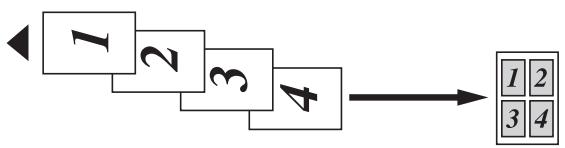
flowchart
graph TD
    A["1"] --> B["2"]
    B --> C["3"]
    C --> D["4"]
    D --> E["1 2 3 4"]
4in1 (Landscape)
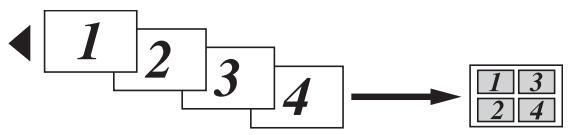
flowchart
graph TD
    A["1"] --> B["2"]
    B --> C["3"]
    C --> D["4"]
    D --> E["1 3\n2 4"]
If you are copying from the scanner glass, place the document face down in the direction shown below:
■ 2in1 (Portrait)

flowchart
graph LR
    A["Input Block 1"] --> B["Output Box 1"]
    C["Input Block 2"] --> B["Output Box 2"]
■ 2in1 (Landscape)

flowchart
graph LR
    A["1"] --> B["2"]
    C["..."] --> B
    B --> D["1"]
    B --> E["2"]
4in1 (Portrait)

flowchart
graph LR
    A["Step 1"] --> B["Step 2"]
    B --> C["Step 3"]
    C --> D["Step 4"]
    D --> E["Output Box 1 2 3 4"]
4in1 (Landscape)

flowchart
graph LR
    A["Step 1"] --> B["Step 2"]
    B --> C["Step 3"]
    C --> D["Step 4"]
    D --> E["Output Box 1 3"]
    D --> F["Output Box 2 4"]
1to2

flowchart
graph LR
    A["Input Block 1"] --> B["Output Box 1"]
    C["Input Block 2"] --> B["Output Box 2"]
■ Poster (2x1)
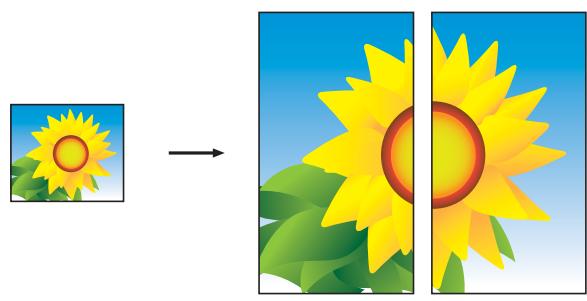
natural_image
Illustration of a sunflower with green leaves, showing a transformation from a single flower image to a split view (no text or symbols)■ Poster (2x2)
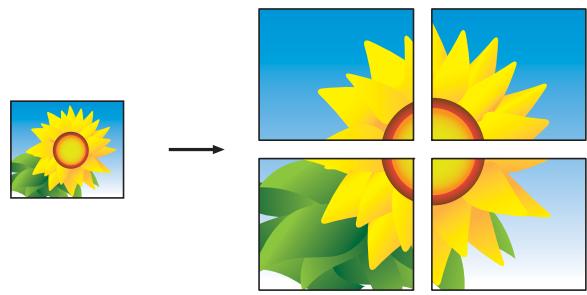
natural_image
Illustration of a sunflower with green leaves under a blue sky, showing four different views (no text or symbols)■ Poster (3x3)
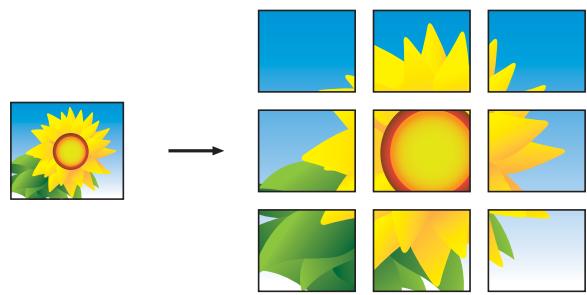
natural_image
Illustration of a sunflower with green leaves, transforming into a grid of 3D blocks showing different shapes (no text or symbols)NOTE
The poster copies have overlapping portions so that you can easily paste them together.
2 in 1 ID Copy (Page Layout)
You can copy both sides of your identification card onto one page, keeping the original card size. Make sure the paper size is set to A4 or Letter.
NOTE
You can copy an identification card to the extent permitted under applicable laws. (See Product Safety Guide: Unlawful use of copying equipment.)
1 Place your identification card face down near the left corner of the scanner glass as shown in the illustration.
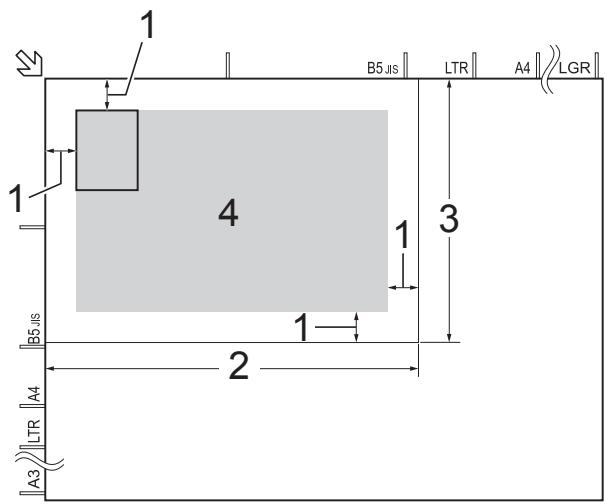
1 3 mm or greater (top, left)
2 210 mm
3 148 mm
4 scannable area
2 Press (Copy).
3 Enter the number of copies you want.
4 Press Options.
5 Swipe up or down, or press ▲ or ▼ to display Page Layout.
6 Press Page Layout.
7 Swipe up or down, or press ▲ or ▼ to display 2in1(ID).
8 Press 2in1(ID).
9 Read and confirm the displayed list of settings you have chosen, and then press OK.
10 Press Mono Start or Colour Start. The machine starts scanning one side of the identification card.
11 After the machine has scanned the first side, press Yes. Turn over the identification card and press OK to scan the other side.
NOTE
- ADF High Speed Mode, Book Copy, Sort, 2-sided Copy, Thin Paper Copy, Ink Save Mode, Enlarge/Reduce, Watermark Copy and Remove Background Colour are not available with 2in1(ID).
- You can only make one colour copy at a time.
Sorting copies using the ADF
You can sort multiple copies. Your copies will be in the order 123, 123, 123, and so on.
1 Load your document.
2 Press (Copy).
3 Enter the number of copies you want.
4 Press Options.
5 Swipe up or down, or press ▲ or ▼ to display Stack/Sort.
6 Press Stack/Sort.
7 Press Sort.
8 Read and confirm the displayed list of settings you have chosen, and then press OK.
9 If you do not want to change additional settings, press Mono Start or Colour Start.
NOTE
Fit to Page, Page Layout and Book Copy are not available with Sort.
Adjusting Density
You can adjust the copy density to make copies darker or lighter.
1 Load your document.
2 Press (Copy).
3 Enter the number of copies you want.
4 Press Options.
5 Swipe up or down, or press ▲ or ▼ to display Density.
6 Press Density.
7 Press the level of density you want, from Light to Dark.
8 Read and confirm the displayed list of settings you have chosen, and then press OK.
9 If you do not want to change additional settings, press Mono Start or Colour Start.
Ink Save Mode
Ink Save Mode can help you save ink. The machine prints the colours lighter and emphasises the outlines of the images as shown below:
The amount of ink saved will vary depending on the document.
Ink Save Mode: Off
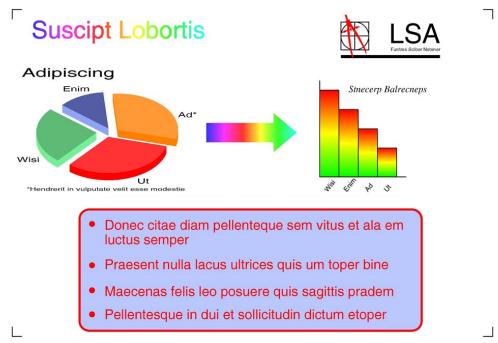
bar
Suscript Lobortis | Category | Value | |---|---| | Donec citae diam pellenteque sem vitus et ala em luctus semper | Paesent nulla lacus ultrices quis um toper bine | Maecenas felis leo posuere quis sagittis pradem | Pellentesque in dui et sollicitudin dictum etoperInk Save Mode: On
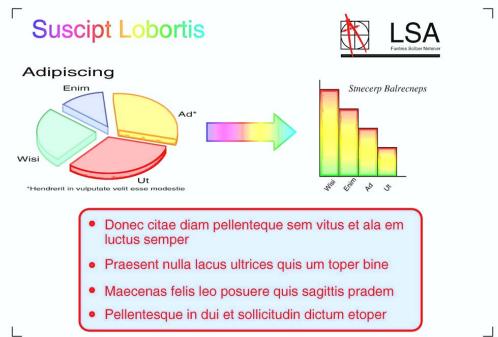
bar
Suscript Lobortis | Category | Value | |---|---| | Donec citae diam pellenteque sem vitus et ala em luctus semper | | | | | | | | | | | | | | | | | | | | | | | | | | | | | | | | | | | | | | | | | | | | | | | | | | | Smeccrp Balcrecneps LSA Futitas Bolor Naline Enim Wisi Ad* Hendrent in vulputale viti esse modestis Smeccrp Balcrecneps Wisi Enim Ad Ct Plellentesque in dui et sollicitudin dictum etoper(The above screens are used in ISO/IEC 24712.)
1 Load your document.
2 Press (Copy).
3 Enter the number of copies you want.
4 Press Options.
5 Swipe up or down, or press ▲ or ▼ to display Advanced Settings.
6 Press Advanced Settings.
7 Swipe up or down, or press ▲ or ▼ to display Ink Save Mode.
8 Press Ink Save Mode.
9 Read and confirm the displayed list of settings you have chosen, and then press OK.
10 If you do not want to change any additional settings, press Mono Start or Colour Start.
NOTE
- ADF High Speed Mode, Book Copy, Thin Paper Copy, Auto Deskew, Page Layout, Watermark Copy and Remove Background Colour are not available with Ink Save Mode.
- Ink Save Mode may make your printouts look different from your original document.
Thin Paper Copy
If your document is a 2-sided Copy on thin paper, choose Thin Paper Copy so the print on the other side does not bleed through.
1 Load your document.
2 Press (Copy).
3 Enter the number of copies you want.
4 Press Options.
5 Swipe up or down, or press ▲ or ▼ to display Advanced Settings.
6 Press Advanced Settings.
7 Swipe up or down, or press ▲ or ▼ to display Thin Paper Copy.
8 Press Thin Paper Copy.
9 Read and confirm the displayed list of settings you have chosen, and then press OK.
10 Press Mono Start or Colour Start.
NOTE
ADF High Speed Mode, Fit to Page, Page Layout, Auto Deskew, Ink Save Mode, Book Copy, Watermark Copy and Remove Background Colour are not available with Thin Paper Copy.
Auto Deskew
If your scanned copy is skewed, your machine can correct the data.
This setting is only available when using the scanner glass.
1 Load your document.
2 Press (Copy).
3 Enter the number of copies you want.
4 Press Options.
5 Swipe up or down, or press ▲ or ▼ to display Auto Deskew.
6 Press Auto Deskew.
7 Press Auto (or Off).
8 If you do not want to change additional settings, press OK, and then press Mono Start or Colour Start.
NOTE
- 1to2, Poster, Ink Save Mode, Thin Paper Copy, Book Copy, Watermark Copy, Remove Background Colour, ADF High Speed Mode, 2-sided→2-sided and 2+-sided→1+-sided of 2-sided Copy are not available with Auto Deskew.
- You cannot use this setting with Ledger, A3 or paper smaller than 64 mm × 91 mm.
- This setting is only available for paper that is rectangular or square.
- Auto Deskew is only available if the document is skewed by less than 3 degrees.
- Auto Deskew may not work correctly if your document is too thick.
Book Copy
Book Copy corrects dark borders and skew when copying from the scanner glass. Your machine can correct the data.
1 Load your document.
2 Press (Copy).
3 Enter the number of copies you want.
4 Press Options.
5 Swipe up or down, or press ▲ or ▼ to display Advanced Settings.
6 Press Advanced Settings.
7 Swipe up or down, or press ▲ or ▼ to display Book Copy.
8 Press Book Copy.
9 Read and confirm the displayed list of settings you have chosen, and then press OK.
10 If you do not want to change additional settings, press Mono Start or Colour Start.
NOTE
ADF High Speed Mode, Page Layout, Sort, 2-sided Copy, Auto Deskew, Ink Save Mode, Fit to Page, Thin Paper Copy, Watermark Copy and Remove Background Colour are not available with Book Copy.
Watermark Copy
You can copy your document and include a watermark, select one from the list of template watermarks.
NOTE
ADF High Speed Mode, Fit to Page, Page Layout, Auto Deskew, Thin Paper Copy, Ink Save Mode, Book Copy and Remove Background Colour are not available with Watermark Copy.
Using a template
1 Load your document.
2 Press (Copy).
3 Enter the number of copies you want.
4 Press Options.
5 Swipe up or down, or press ▲ or ▼ to display Advanced Settings.
6 Press Advanced Settings.
7 Swipe up or down, or press ▲ or ▼ to display Watermark Copy.
8 Press Watermark Copy.
9 Change the watermark settings by pressing the options displayed on the Touchscreen as required. (For more information, see Watermark Copy Settings on page 47.) Press OK.
10 Press OK to confirm the watermark.
11 Press Mono Start or Colour Start.
Watermark Copy Settings
| Option1 | Option2 | Option3 |
| Watermark Copy | Text | CONFIDENTIAL* |
| DRAFT | ||
| COPY | ||
| IMPORTANT | ||
| URGENT | ||
| Position | A | |
| B | ||
| C | ||
| D | ||
| E* | ||
| F | ||
| G | ||
| H | ||
| I | ||
| Pattern | ||
| Size | Small | |
| Medium* | ||
| Large | ||
| Angle | -90° | |
| -45°* | ||
| 0° | ||
| 45° | ||
| 90° | ||
| Transparency | -2 | |
| -1 | ||
| 0* | ||
| +1 | ||
| +2 | ||
| Colour | Black* | |
| Green | ||
| Blue | ||
| Purple | ||
| Red | ||
| Orange | ||
| Yellow | ||
| The default settings are shown in Bold with an asterisk. | ||
Remove Background Colour
You can remove the background colour of the document when copying. This can save ink and help you read the document clearly.
NOTE
This function is for use only when making colour copies. The background colour is automatically removed for all monochrome copies.
1 Load your document.
2 Press (Copy).
3 Enter the number of copies you want.
4 Press Options.
5 Swipe up or down, or press ▲ or ▼ to display Advanced Settings.
6 Press Advanced Settings.
7 Swipe up or down, or press ▲ or ▼ to display
Remove Background Colour.
8 Press Remove Background Colour.
9 Press Low, Medium or High.
10 Press OK.
11 Press Colour Start.
NOTE
ADF High Speed Mode, Fit to Page, Page Layout, Auto Deskew, Ink Save Mode, Thin Paper Copy, Book Copy and Watermark Copy are not available with Remove Background Colour.
2-sided copying
You can reduce the amount of paper used for copies by copying on both sides of the paper.
We recommend you load your document in the ADF for 2-sided copying.
NOTE
- You can copy 2-sided documents up to A3 or Ledger size using the ADF.
- You can use only A4, A5, A3, Letter, Legal or Ledger size plain paper.
1 Load your document. If you want to copy a 2-sided document, load your document in the ADF.
2 Press (Copy).
3 Enter the number of copies you want.
4 Press Options.
5 If you want to sort multiple copies, swipe up or down, or press ▲ or ▼ to display Stack/Sort.
6 Press Stack/Sort.
7 Press Sort.
8 Swipe up or down, or press ▲ or ▼ to display 2-sided Copy.
9 Press 2-sided Copy.
10 Swipe up or down, or press ▲ or ▼ to display the 2-sided copy type you want, and press 2-sided→2-sided, 1-sided→2-sided Long Edge Flip, 2-sided→1-sided Long Edge Flip, 1-sided→2-sided Short Edge Flip, 2-sided→1-sided Short Edge Flip, (or Off).
(See 2-sided copying type on page 49.)
11 Review your settings on the Touchscreen, and then press OK.
12 Press Mono Start or Colour Start. If you placed the document in the ADF, the machine scans the pages and starts printing.
If you are using the scanner glass, go to step 13.
13 The Touchscreen shows:
Turn over the document (or Flip the book), then press [Scan]. When you finish, press [Complete].
Place the next page on the scanner glass and press Scan. Press OK. The machine starts printing.
14 If you pressed Sort for multiple copies, repeat step 13 for each page. After all the pages have been scanned, press Complete. The machine starts printing.
DO NOT touch the printed page until it is ejected the second time. The machine will print the first side and eject the paper and then pull the paper in to print the second side.
NOTE
- If you get a paper jam, press Advanced after step ⑨, and then press one of the jam prevention settings: 2-sided 1 or 2-sided 2.
2-sided 1 uses a longer print time for the ink to dry.
2-sided 2 uses a longer print time and will also print in lighter colors.
- 2in1(ID), Poster, Book Copy and Fit to Page are not available with 2-sided Copy.
- 1to2 and Auto Deskew are not available with 2-sided→2-sided and 2+-sided→1+ sided.
2-sided copying type
■ 1 sided → 2 sided
(Long edge flip)
Portrait
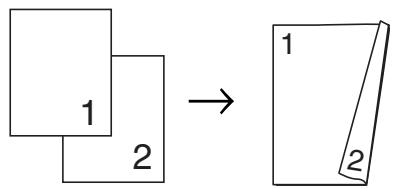
Landscape
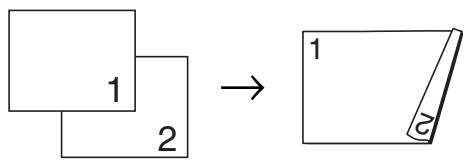
(Short edge flip)
Portrait
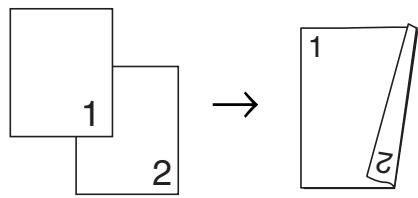
Landscape
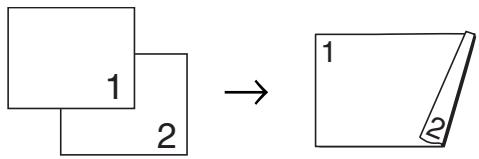
■ 2 sided → 2 sided
Portrait
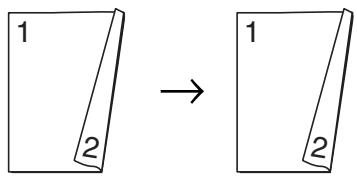
Landscape
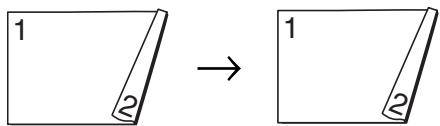
■ 2 sided → 1 sided
(Long edge flip)
Portrait
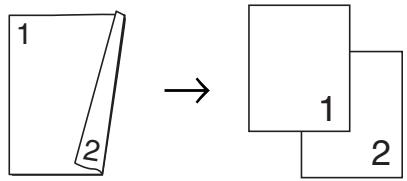
flowchart
graph TD
    A["2D Rectangle with side labels 1 and 2"] --> B["2D Square with internal structure 1 and 2"]
Landscape
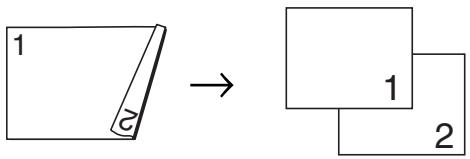
(Short edge flip)
Portrait
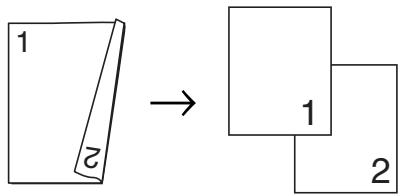
Landscape
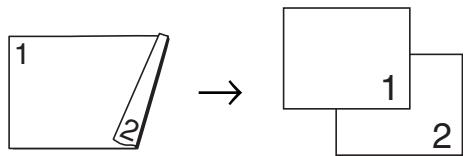
Saving copy options as a Shortcut
You can store the copy options you use frequently by saving them as a Shortcut.
1 Press (Copy).
2 Press Options.
3 Swipe up or down, or press ▲ or ▼ to display ADF High Speed Mode, Quality, Paper Type, Paper Size, Tray Select, Enlarge/Reduce, Density, Stack/Sort, Page Layout, Layout Format, Auto Deskew, 2-sided Copy or Advanced Settings, and then press the setting you want to change. Then press the new option you want.
Repeat this step for each setting you want to change.
4 When you have finished choosing new options, press Save as Shortcut.
5 Read and confirm the displayed list of options you have chosen for the Shortcut, and then press OK.
6 Enter a name for the Shortcut using the keyboard on the Touchscreen. (For help entering letters, see Basic User's Guide: Entering Text.) Press OK.
7 Press OK to save your Shortcut.
A3 Copy Shortcuts
A3 Copy Shortcut
You can copy your document in A3 or Ledger size paper with a format such as Note style. Also you can make 2 in 1, enlarged and reduced copies.
A3
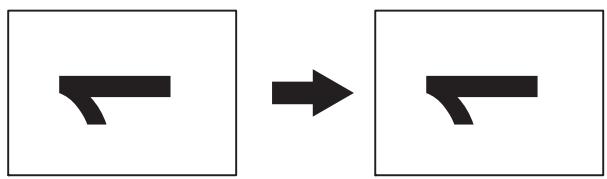
flowchart
graph LR
    A["Left Arrow"] --> B["Right Arrow"]
A3 2in1
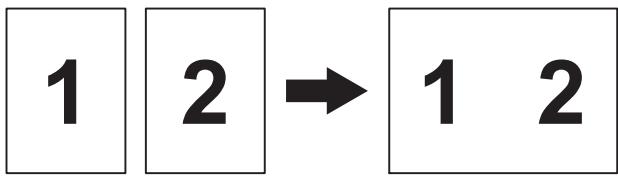
flowchart
graph LR
    A["1"] --> B["2"]
    B --> C["1 2"]
A4 + Note(L)

flowchart
graph LR
    A["1"] --> B["1"]
A4 + Note(P)
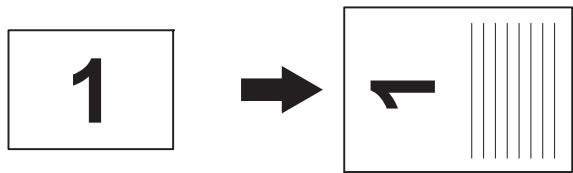
flowchart
graph LR
    A["1"] --> B["←"]
    B --> C["Grid of vertical lines"]
A4 + Grid
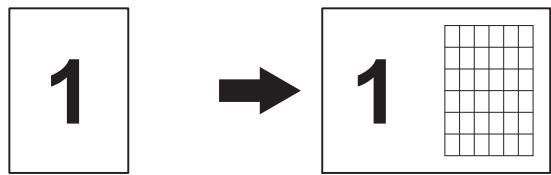
flowchart
graph LR
    A["1"] --> B["1"]
A4 + Blank
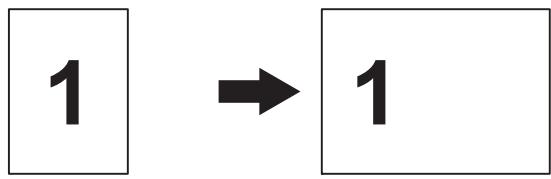
flowchart
graph LR
    A["1"] --> B["1"]
A4 Centre
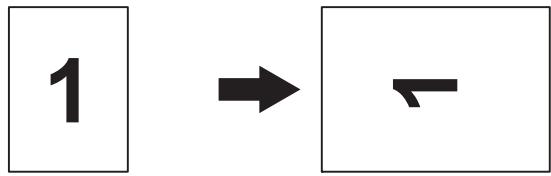
flowchart
graph LR
    A["1"] --> B["←"]
A4 → A3
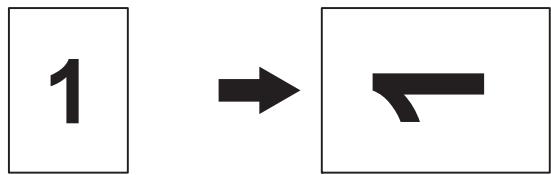
flowchart
graph LR
    A["1"] --> B["→"]
    B --> C["←"]
A3 → A4
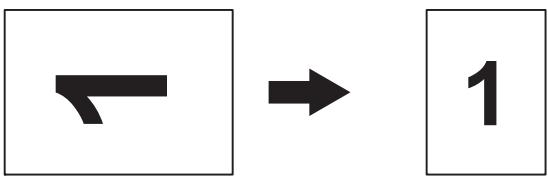
flowchart
graph LR
    A[" "] --> B["1"]
NOTE
- You can use only A3 or Ledger size plain paper, with the exception that you must use A4 or Letter size plain paper when choosing A3 → A4.
- If you are producing multiple colour copies, A3 2in1, A4 + Note(L), A4 + Note(P), A4 + Grid and A4 + Blank are not available.
- (P) means Portrait and (L) means Landscape.
- You can enlarge a copy only when using A4 → A3. Also, you can reduce a copy only when using A3 → A4.
1 Load your document.
2 If the displayed screen is either Home or Shortcut, swipe left or right, or press ◀ or ▶ to display the More screen.
3 Press A3 Copy Shortcuts.
4 If information appears on the Touchscreen, read it and then press OK to confirm it.
Load Ledger or A3 size paper according to the on-screen instructions.
5 Swipe left or right to display A3 2in1,
A3, A4 → A3, A3 → A4,
A4 + Note(L), A4 + Note(P),
A4 + Grid, A4 + Blank or
A4 Centre, and then press the option
you want.
Press OK.
6 Enter the number of copies you want.
7 Do one of the following:
If you want to change more settings, go to step 8.
If you do not want to change more settings, go to step 12.
8 Press Options.
9 Press the setting you want to change.
10 Press your new option.
Repeat steps ⑨ and ⑩ to change other settings as needed.
11 Press OK when you have finished changing the options.
12 Press Mono Start or Colour Start.
If you are using the scanner glass when choosing A3 2in1, go to step ⑬.
13 After the machine has scanned the page, press Yes to scan the next page.
Chapter 7
14 Place the next page on the scanner glass. Press OK to scan the page.
Repeat steps 13 and 14 for each page of the layout.
15 After all the pages have been scanned, press No to finish.
8
Printing photos from a memory card or USB Flash drive
PhotoCapture Center™ operations
Memory cards, USB Flash drives and folder structures
Your machine is designed to be compatible with modern digital camera image files, memory cards and USB Flash drives; however, please read the bullet points to avoid errors:
■ The image file extension must be .JPG (other image file extensions like .JPEG, .TIF, .GIF and so on will not be recognized).
■ Direct PhotoCapture Center™ printing must be performed separately from PhotoCapture Center™ operations using the PC. (Simultaneous operation is not available.)
■ The machine can read up to 999 files ^1 on a memory card or USB Flash drive.
1 The folder inside memory cards or USB Flash drives is also counted.
■ The DPOF file on the memory cards must be in a valid DPOF format. (See DPOF printing on page 59.)
Please be aware of the following:
- When printing an index or image, the PhotoCapture Center™ will print all the valid images, even if one or more images have been corrupted. Corrupted images will not be printed.
■ (Memory card users)
Your machine is designed to read memory cards that have been formatted by a digital camera.
When a digital camera formats a memory card, it creates a special folder into which it copies image data. If you need to modify the image data stored on a memory card with your PC, we recommend that you do not modify the folder structure created by the digital camera. When saving new or modified image files to the memory card, we also recommend you use the same folder your digital camera uses. If the data is not saved to the same folder, the machine may not be able to read the file or print the image.
■ (USB Flash drive users)
This machine supports USB Flash drives that have been formatted by Windows ^® .
Movie printing
You can print images from movie files that are stored on a memory card or USB Flash drive.
Movie files are automatically split by duration into 9 parts, and placed in 3 rows so you can see and print the scenes.
NOTE
- You cannot choose a particular movie scene.
- You can use AVI or MOV movie file formats (Motion JPEG only). However, if an AVI file size is 1 GB or more (the shooting time is about 30 minutes) or a MOV file size is 2 GB or more (the shooting time is about 60 minutes), these files cannot be printed.
- If the data for a divided scene is corrupted, the part for that scene will be blank.
Print Images
Print Index (Thumbnails)
The PhotoCapture Center ^™ assigns numbers for images (such as No.1, No.2, No.3, and so on).
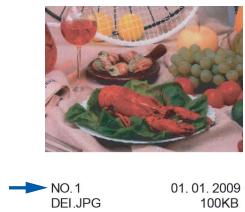
natural_image
Plated dish of crayfish with grapes and fruit in background (no visible text or symbols)The PhotoCapture Center™ uses these numbers to identify each picture. You can print a thumbnail page to show all the pictures on the memory card or USB Flash drive.
NOTE
Only file names that are 20 characters or less will be printed correctly on the index sheet.
1 Open the media slot cover.
2 Put the memory card or USB Flash drive in the correct slot.
3 Press Photo.
4 Swipe left or right to display
Index Print.
5 Press Index Print. Press OK.
6 Press Print Index Sheet.
7 Do one of the following:
■ Press Print Settings to change the paper type or the paper size you are using.
Go to step 8.
■ If you do not want to change the paper settings, press Start.
8 Press Paper Type.
9 Press Plain Paper, Inkjet Paper, Brother BP71 or Other Glossy.
10 Press Paper Size.
11 Press A4 or Letter.
12 Press OK.
13 Press Start to print.
Printing Photos
Before you can print an individual image, you have to know the image number.
1 Open the media slot cover.
2 Put the memory card or USB Flash drive in the correct slot.
3 Press Photo.
4 Print the Index. (See Print Index (Thumbnails) on page 54.)
5 Swipe left or right to display
Index Print.
6 Press Index Print.
Press OK.
7 Press
Print Photos Using Index No.
8 Enter the image number that you want to print from the thumbnails printed on the Index page.
After you have chosen the image numbers, press OK.
NOTE
- You can enter the numbers at one time by using a comma or a hyphen. For example, Enter 1,3,6 to print images No.1, No.3 and No.6. Enter 1-5 to print images No.1 to No.5.
- You can enter up to 12 characters (including commas and hyphens) for the image numbers you want to print.
9 Enter the number of copies you want by using the dial pad on the Touchpanel.
10 Do one of the following:
■ Press Print Settings to change the print settings. (See PhotoCapture Center™ print settings on page 60.)
■ If you do not want to change any settings, press Start to print.
Enhance Photos
You can edit and add effects to your photos and view them on the Touchscreen before printing.
NOTE
The Enhance Photos feature is supported by technology from Reallusion,
Inc. REALLUSION
1 Open the media slot cover.
2 Put the memory card or USB Flash drive in the correct slot.
3 Press Photo.
4 Swipe left or right to display
Enhance Photos.
5 Press Enhance Photos. Press OK.
NOTE
- Eight thumbnails are displayed at a time with the current page number and total number of pages listed above the thumbnails.
- Swipe left or right, or press ◀ or ▶ repeatedly to select each page of photos, or hold down to scroll through all pages of photos.
6 Press a photo from the thumbnails.
7 Press Enhance, Crop or Enhance and Crop.
8 Do one of the following:
■ If you chose Enhance or Enhance and Crop, go to step ⑨.
■ If you chose Crop, go to step 10.
9 Press the effect you wish to add. Press OK. Do one of the following:
■ If you chose Enhance in step ⑧, go to step ⑪.
■ If you chose Enhance and Crop in step 8, go to step 10.
NOTE
- There are ten ways you can add effects to your photo.
 | (Auto Correct)The machine decides the suitable effect for your photo. |
  | (Enhance Skin)Best used for adjusting portrait photographs. It adjusts human skin colour. Press ◀ or ▶ to adjust the level of contrast. |
 | (Enhance Scenery)Best used for adjusting landscape photographs. It highlights green and blue areas in your photo. Press ◀ or ▶ to adjust the level of contrast. |
  | (Remove Red-Eye)The machine will attempt to remove red-eye from your photo. If red-eye detection fails, you can press Try Again to re-detect. |
| (Night Scene)Night Scene is best used for adjusting night view photographs to make them more vivid. Press ◀ or ▶ to adjust the level of contrast. |
 | (Fill Light)Fill Light is best used for adjusting photographs against the light. Press ▲ or ▶ to adjust the level of contrast. |
 | (Whiteboard)Whiteboard is best used for adjusting photographs. It detects letters on a whiteboard in your photo and makes them more legible. |
 | (Monochrome)You can convert your photo to monochrome. |
 | (Sepia)You can convert the colour of your photo to sepia. |
 | (Auto Correct & Remove Red-Eye)The machine decides the suitable effects for your photo. It will also attempt to remove red-eye from your photo. |
- There are some cases when red-eye may not be removed.
- When the face is too small in the image.
- When the face is turning too far up, down, left or right.
- Press Cancel to return to the list of effects.
- If your photo is very small or has irregular proportions, you may not be able to crop or enhance it. The Touchscreen will display Image Too Small or Image Too Long.
10 Adjust the red frame around your photo. The part inside of the red frame will be printed.
■ Press + or - to enlarge or reduce the frame size.
■ Press ▲, ▼, ◀ or ▶ to move the position of the frame.
■ Press to rotate the frame.
Press OK when you have finished adjusting the frame setting.
Press OK to confirm.
NOTE
If your photo is very small or has irregular proportions, you may not be able to crop or enhance it. The Touchscreen will display Image Too Small or Image Too Long.
11 Enter the number of copies you want, either by pressing + or - or using the dial pad on the Touchpanel. Press OK.
12 Do one of the following.
■ Press Print Settings to change the print settings. (See PhotoCapture Center™ print settings on page 60.)
■ If you do not want to change any settings, press Start to print.
ID photo print
You can select a photo stored in a memory card or USB Flash drive and print ID photos for your resume, passport and so on. You can print four ID photos on one sheet of paper.
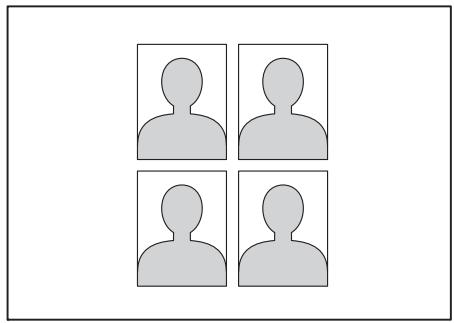
natural_image
Four identical gray silhouette icons arranged in a 2x2 grid (no text or symbols)NOTE
Just one photo will be printed when you choose 2x2inch or 50x70mm (2x2.75inch) in ID Photo Size, and 10x15cm in Paper Size.
1 Open the media slot cover.
2 Put the memory card or USB Flash drive in the correct slot.
3 Press Photo.
4 Swipe left or right to display ID Photo Print.
5 Press ID Photo Print. Press OK.
6 Swipe left or right, or press ◀ or ▶ to display each photo. When the photo you want is displayed, press it.
7 Swipe up or down, or press ▲ or ▼ to display 25x36mm, 35x45mm, 36x51mm, 45x45mm, 45x55mm, 35x48mm, 50x70mm (2x2.75inch) or 2x2inch, and then press the option you want to set as the photo size.
8 Confirm the image displayed on the Touchscreen.
Rotate the image if necessary by
pressing

NOTE
The trimming function is not available.
9 Press OK.
10 Do one of the following:
■ Press Print Settings to change the print settings. Go to step 11.
■ If you do not want to change any settings, press Start to print.
11 Do one of the following:
■ To change the print quality, press Print Quality.
Press Normal or Photo.
■ To change the paper type, press Paper Type.
Press Plain Paper, Inkjet Paper, Brother BP71 or Other Glossy that you want to set.
■ To change the paper size, press Paper Size.
Press 10x15cm, 13x18cm, A4 or Letter that you want to set.
■ To add enhancement effects, press Photo Enhance.
Press Auto Correct, Remove Red-Eye, Auto Correct & Remove Red-Eye or Off that you want to set.
12 When you have finished changing settings, press OK.
13 Press Start.
Slide Show
You can view all your photos on the Touchscreen using Slide Show. You can also choose a photo during the operation.
1 Open the media slot cover.
2 Put the memory card or USB Flash drive in the correct slot.
3 Press Photo.
4 Swipe left or right to display Slide Show.
5 Press Slide Show. Press OK.
6 Do one of the following:
If you want to change the length of time the Touchscreen shows each photo, press Show Each Photo for. Swipe up or down, or press ▲ or ▼ to display 3Secs, 10Secs, 30Secs, 1Min or 5Mins, and then press the option you want to set.
■ If you want to change the effect, press Effect.
Press Slide In, Fade In, Zoom In or Off.
■ If you do not want to change the settings, press Start.
7 Press to finish Slide Show.
Printing a photo during a Slide Show
1 To print an image during a slide show, press the image when it appears on the Touchscreen.
2 Enter the number of copies you want using the dial pad on the Touchpanel.
3 Do one of the following:
■ Press Print Settings to change the print settings.
(See PhotoCapture Center™ print settings on page 60.)
■ If you do not want to change any settings, press Start to print.
DPOF printing
DPOF stands for Digital Print Order Format.
Major digital camera manufacturers (Canon Inc., Eastman Kodak Company, FUJIFILM Corporation, Panasonic Corporation and Sony Corporation) created this standard to make it easier to print images from a digital camera.
If your digital camera supports DPOF printing, you will be able to choose the images and the number of copies you want to print on the display of the digital camera.
When a memory card containing DPOF information is put into your machine, you can print the chosen image easily.
1 Open the media slot cover.
2 Put the memory card or USB Flash drive in the correct slot.
3 Press DPOF.
4 Do one of the following:
■ Press Print Settings to change the print settings. (See PhotoCapture Center™ print settings on page 60.)
■ If you do not want to change any settings, press Start to print.
NOTE
A DPOF File error can occur if the print order that was created on the camera has been corrupted. Delete and recreate the print order using your camera to correct this problem. For instructions on how to delete or recreate the print order, refer to your camera manufacturer's support website or accompanying documentation.
PhotoCapture Center™ print settings
You can change the print settings temporarily for the next print job.
The machine returns to its default settings after being idle for 1 minute.
NOTE
You can save the print settings you use most often by setting them as the default settings. (See Setting your changes as a new default on page 66.)
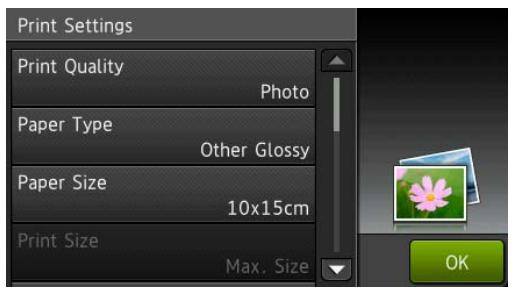
Print Quality
1 Open the media slot cover.
2 Put the memory card or USB Flash drive in the correct slot.
3 Press Photo.
4 Swipe left or right to display
View Photos.
5 Press View Photos.
Press OK.
6 Swipe left or right, or press ◀ or ▶ to display each photo. When the photo you want is displayed, press it, and then press OK.
7 Press OK.
8 Press Print Settings.
9 Swipe up or down, or press ▲ or ▼ to display Print Quality.
10 Press Print Quality.
11 Press Normal or Photo.
12 If you do not want to change additional settings, press ← or OK.
Press Start to print.
NOTE
If you choose Inkjet Paper in Paper Type, you can only choose Photo.
Paper options
Paper Type
1 Open the media slot cover.
2 Put the memory card or USB Flash drive in the correct slot.
3 Press Photo.
4 Swipe left or right to display
View Photos.
5 Press View Photos.
Press OK.
6 Swipe left or right, or press ◀ or ▶ to display each photo. When the photo you want is displayed, press it, and then press OK.
7 Press OK.
8 Press Print Settings.
9 Swipe up or down, or press ▲ or ▼ to display Paper Type.
10 Press Paper Type.
11 Press Plain Paper, Inkjet Paper, Brother BP71 or Other Glossy.
12 If you do not want to change additional
settings, press ↩ or OK.
Press Start to print.
Paper Size and Print Size
1 Open the media slot cover.
2 Put the memory card or USB Flash drive in the correct slot.
3 Press Photo.
4 Swipe left or right to display
View Photos.
5 Press View Photos.
Press OK.
6 Swipe left or right, or press ◀ or ▶ to display each photo. When the photo you want is displayed, press it, and then press OK.
7 Press OK.
8 Press Print Settings.
9 Swipe up or down, or press ▲ or ▼ to display Paper Size.
10 Press Paper Size.
11 Swipe up or down, or press ▲ or ▼ to display 10x15cm, 13x18cm, A4, A3, Letter or Ledger.
Press the option you want to set. Do one of the following:
■ If you chose A4 or Letter, go to step 12.
If you chose 10x15cm, 13x18cm, A3 or Ledger, go to step 13.
12 Press Print Size. Swipe up or down, or press ▲ or ▼ to display the options in the following table, and then press the option you want to set.
| Example: Printed position for A4 size paper | ||
| 18x10cm | 29x13cm | 310x15cm |
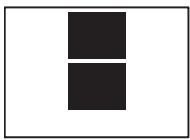 | 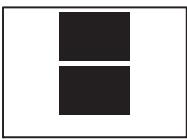 | 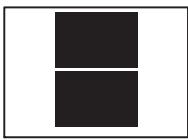 |
| 413x18cm | 515x20cm | 6Max. Size |
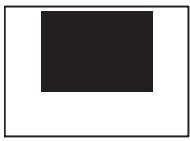 |  |  |
13 If you do not want to change additional settings, press ← or OK. Press Start to print.
Auto Correct
Auto Correct is available for most photos. The machine decides the suitable effect for your photo.
1 Open the media slot cover.
2 Put the memory card or USB Flash drive in the correct slot.
3 Press Photo.
4 Swipe left or right to display
View Photos.
5 Press View Photos.
Press OK.
6 Swipe left or right, or press ◀ or ▶ to display each photo. When the photo you want is displayed, press it, and then press OK.
7 Press OK.
8 Press Print Settings.
9 Swipe up or down, or press ▲ or ▼ to display Auto Correct.
10 Press Auto Correct.
11 Press On (or Off).
12 If you do not want to change additional settings, press ← or OK. Press Start to print.
Adjusting Brightness, Contrast and Colour
Brightness
1 Open the media slot cover.
2 Put the memory card or USB Flash drive in the correct slot.
3 Press Photo.
4 Swipe left or right to display
View Photos.
5 Press View Photos.
Press OK.
6 Swipe left or right, or press ◀ or ▶ to display each photo. When the photo you want is displayed, press it, and then press OK.
7 Press OK.
8 Press Print Settings.
9 Swipe up or down, or press ▲ or ▼ to display Brightness.
10 Press Brightness.
11 Adjust the level of brightness by pressing it on the Touchscreen.
12 If you do not want to change additional settings, press ← or OK.
Press Start to print.
Contrast
You can choose the contrast setting. Increasing the contrast will make an image look sharper and more vivid.
1 Open the media slot cover.
2 Put the memory card or USB Flash drive in the correct slot.
3 Press Photo.
4 Swipe left or right to display
View Photos.
5 Press View Photos.
Press OK.
6 Swipe left or right, or press ◀ or ▶ to display each photo. When the photo you want is displayed, press it, and then press OK.
7 Press OK.
8 Press Print Settings.
9 Swipe up or down, or press ▲ or ▼ to display Contrast.
10 Press Contrast.
11 Adjust the level of contrast by pressing it on the Touchscreen.
12 If you do not want to change additional settings, press ← or OK.
Press Start to print.
Colour Enhancement
You can turn on the colour enhancement feature to print more vivid images. Printing time will be slower with this feature and also, depending on the image you are printing, it may use more ink.
1 Open the media slot cover.
2 Put the memory card or USB Flash drive in the correct slot.
3 Press Photo.
4 Swipe left or right to display
View Photos.
5 Press View Photos. Press OK.
6 Swipe left or right, or press ◀ or ▶ to display each photo. When the photo you want is displayed, press it, and then press OK.
7 Press OK.
8 Press Print Settings.
9 Swipe up or down, or press ▲ or ▼ to display Colour Enhance.
10 Press Colour Enhance.
11 Do one of the following:
If you want to customize the White Balance, Sharpness or Colour Density, press Colour Enhance, and then press On. Go to step 12.
If you do not want to customize, press Colour Enhance, and then press Off. Press ←. Go to step 15.
12 Press White Balance, Sharpness or Colour Density.
13 Press ◀ or ▶ to adjust the degree of the setting.
Press OK.
14 Do one of the following:
If you want to customize another colour enhancement, repeat steps 12 and 13.
Press ↩.
If you want to change other settings, press → to display the print setting menu and press the setting you want to change. (See PhotoCapture Center™ print settings on page 60.)
15 If you do not want to change additional settings, press ← or OK.
Press Start to print.
NOTE
- White Balance
This setting adjusts the hue of the white areas of an image. Lighting, camera settings and other influences will affect the appearance of white. The white areas of a picture may be slightly pink, yellow or some other colour. By using this setting, you can correct that effect and bring the white areas back to pure white.
- Sharpness
This setting enhances the detail of an image, similar to adjusting the fine focus on a camera. If the image is not in true focus and you cannot see the fine details of the picture, then adjust the sharpness.
- Colour Density
This setting adjusts the total amount of colour in the image. You can increase or decrease the amount of colour in an image to improve a washed-out or weak picture.
Cropping
If your photo is too long or too wide to fit the available space on your chosen layout, part of the image will be cropped.
The default setting is On. If you want to print the whole image, change this setting to Off. If you set Cropping to Off, also set Borderless to Off. (See Borderless printing on page 65.)
1 Open the media slot cover.
2 Put the memory card or USB Flash drive in the correct slot.
3 Press Photo.
4 Swipe left or right to display View Photos.
5 Press View Photos. Press OK.
6 Swipe left or right, or press ◀ or ▶ to display each photo. When the photo you want is displayed, press it, and then press OK.
7 Press OK.
8 Press Print Settings.
9 Swipe up or down, or press ▲ or ▼ to display Cropping.
10 Press Cropping.
11 Press Off (or On).
12 If you do not want to change additional settings, press ← or OK. Press Start to print.
Cropping: On
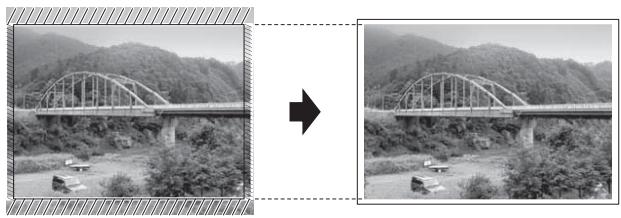
natural_image
Black-and-white photo showing a bridge over a river with forested hills in the background, no visible text or symbols.Cropping: Off
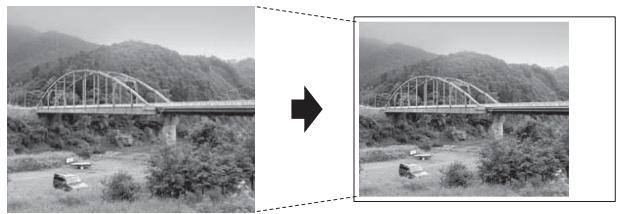
natural_image
Black-and-white photo showing a bridge over a river with forested hills in the background, no visible text or symbols.Borderless printing
This feature expands the printable area to the edges of the paper. Printing time will be slightly slower.
1 Open the media slot cover.
2 Put the memory card or USB Flash drive in the correct slot.
3 Press Photo.
4 Swipe left or right to display
View Photos.
5 Press View Photos.
Press OK.
6 Swipe left or right, or press ◀ or ▶ to display each photo. When the photo you want is displayed, press it, and then press OK.
7 Press OK.
8 Press Print Settings.
9 Swipe up or down, or press ▲ or ▼ to display Borderless.
10 Press Borderless.
11 Press Off (or On).
12 If you do not want to change additional settings, press ← or OK. Press Start to print.
Date Print
You can print the date if it is already in your photo's data. The date will be printed on the lower-right corner. If the data doesn't have the date information, you cannot use this function.
1 Open the media slot cover.
2 Put the memory card or USB Flash drive in the correct slot.
3 Press Photo.
4 Swipe left or right to display
View Photos.
5 Press View Photos. Press OK.
6 Swipe left or right, or press ◀ or ▶ to display each photo. When the photo you want is displayed, press it, and then press OK.
7 Press OK.
8 Press Print Settings.
9 Swipe up or down, or press ▲ or ▼ to display Date Print.
10 Press Date Print.
11 Press On (or Off).
12 If you do not want to change additional settings, press ← or OK.
Press Start to print.
NOTE
The DPOF setting on your camera must be turned off to use the Date Print feature.
Setting your changes as a new default
You can save the print settings you use most often—such as Print Quality,
Paper Type, Paper Size, Print Size, Auto Correct, Brightness, Contrast, Colour Enhance, Cropping,
Borderless and Date Print—by setting them as the default settings. These settings will remain until you change them again.
1 Open the media slot cover.
2 Put the memory card or USB Flash drive in the correct slot.
3 Press Photo.
4 Swipe left or right to display
View Photos.
5 Press View Photos. Press OK.
6 Swipe left or right, or press ◀ or ▶ to display each photo. When the photo you want is displayed, press it, and then press OK.
7 Press OK.
8 Press Print Settings.
9 Press your new setting.
Repeat this step for each setting you want to change.
10 After changing the last setting, swipe up or down, or press ▲ or ▼ to display
Set New Default.
11 Press Set New Default.
12 The Touchscreen asks you to confirm the change to the new default settings. Press Yes to confirm.
13 Press
Restoring all settings to the factory default
You can restore the PhotoCapture settings you have changed—such as
Print Quality, Paper Type, Paper Size, Print Size, Auto Correct, Brightness, Contrast, Colour Enhance, Cropping, Borderless and Date Print—to the factory default.
1 Open the media slot cover.
2 Put the memory card or USB Flash drive in the correct slot.
3 Press Photo.
4 Swipe left or right to display
View Photos.
5 Press View Photos. Press OK.
6 Swipe left or right, or press ◀ or ▶ to display each photo. When the photo you want is displayed, press it, and then press OK.
7 Press OK.
8 Press Print Settings.
9 Swipe up or down, or press ▲ or ▼ to display Factory Reset.
10 Press Factory Reset.
11 The Touchscreen asks you to confirm to change back to the factory default. Press Yes to confirm.
12 Press
Scan to a memory card or USB Flash drive
Auto Crop
You can scan multiple documents placed on the scanner glass. An individual document can be previewed on the Touchscreen before you save it. When you choose Auto Crop, the machine will scan each document and create separate files. For example, if you place four documents on the scanner glass, the machine will scan and create four separate files. If you want to create a four-page file, choose PDF or TIFF for File Type.
(If you choose JPEG, the four documents are created as four separate files.)
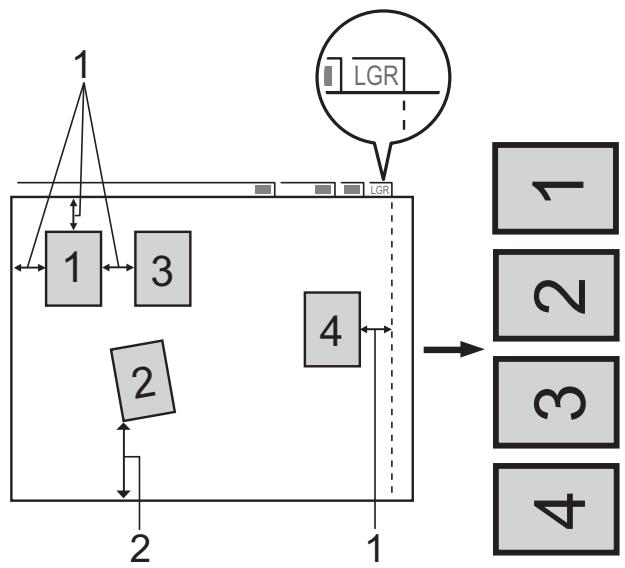
flowchart
graph TD
    A["1"] --> B["1"]
    B --> C["3"]
    C --> D["2"]
    D --> E["4"]
    E --> F["1"]
    G["LGR"] --> H["1"]
    I["2"] --> J["3"]
    K["4"] --> L["1"]
1 10 mm or greater (top, left, right)
2 20 mm or greater (bottom)
NOTE
Auto Crop is supported by technology from Reallusion, Inc.

REALLUSION
1 Open the media slot cover.
2 Put the memory card or USB Flash drive in the correct slot.
3 Press Scan to Media.
4 Load your document.
5 Press Options.
6 Swipe up or down, or press ▲ or ▼ to display Auto Crop.
7 Press Auto Crop.
8 Press On.
9 Press OK.
10 If you do not want to change additional settings, press Start to start scanning.
11 The number of the scanned documents appears on the Touchscreen. Press OK to confirm.
12 Press ◀ or ▶ to preview the data for each document.
13 Press Save All to save the data.
3 Press Scan to Media.
4 Load your document.
5 Press Options.
6 Swipe up or down, or press ▲ or ▼ to display Auto Crop.
7 Press Auto Crop.
8 Press On.
9 Press OK.
10 If you do not want to change additional settings, press Start to start scanning.
11 The number of the scanned documents appears on the Touchscreen. Press OK to confirm.
12 Press ◀ or ▶ to preview the data for each document.
13 Press Save All to save the data.
NOTE
- Auto Crop is available for paper with 90-degree angles at all four corners. If one of the angles is not square, Auto Crop cannot detect the document.
- If your document is too long or wide, this setting does not work correctly. The document has to meet the following specification: up to 270 × 420 mm.
If the ratio between the height and width of the document is more than 1 to 8, this setting does not work correctly.
- You must place the documents away from the edges of the scanner glass as shown in the illustration.
- You must place the documents at least 10 mm apart from each other.
- Auto Crop adjusts the skew of the document on the scanner glass, but if your document is skewed more than 10 degrees, this setting will not work.
- The ADF must be empty to use Auto Crop.
- The Auto Crop feature is available for up to a maximum of 32 documents, depending on the documents' sizes.
- ADF High Speed Mode, 2-sided Scan, Scan Long Paper and Skip Blank Page are not available with Auto Crop.
IMPORTANT
DO NOT take out the memory card or USB Flash drive while the machine is reading or writing to the memory card or USB Flash drive to avoid damaging the card, USB Flash drive, or the data stored on them.
How to set a new default
You can save the Scan to Media settings (ADF High Speed Mode, Scan Type, Resolution, File Type, Scan Size, Scan Long Paper, Auto Crop, Skip Blank Page and Remove Background Colour) you use most often by setting them as the default settings. These settings will remain until you change them again.
1 Open the media slot cover.
2 Put the memory card or USB Flash drive in the correct slot.
3 Press Scan to Media.
4 Press Options.
5 Swipe up or down, or press ▲ or ▼ to display ADF High Speed Mode, Scan Type, Resolution, File Type, Scan Size, Scan Long Paper, Auto Crop, Skip Blank Page or Remove Background Colour, and then press the setting you want to change. Then press the option you want to set.
Repeat this step for each setting you want to change.
6 After you have finished choosing your preferred settings, swipe up or down, or press ▲ or ▼ to display Set New Default.
7 Press Set New Default.
8 The Touchscreen asks you to confirm the change to the new default settings. Press Yes to confirm.
9 Press
How to reset to the factory default
You can restore all the Scan to Media settings that you have changed—such as
ADF High Speed Mode, Scan Type, Resolution, File Type, Scan Size, Scan Long Paper, Auto Crop, Skip Blank Page, and Remove Background Colour—back to the factory default.
1 Open the media slot cover.
2 Put the memory card or USB Flash drive in the correct slot.
3 Press Scan to Media.
4 Press Options.
5 Swipe up or down, or press ▲ or ▼ to display Factory Reset.
6 Press Factory Reset.
7 The Touchscreen asks you to confirm to change back to the factory default. Press Yes to confirm.
8 Press
Saving scan options as a Shortcut
You can store the scan options you use frequently by saving them as a Shortcut. This section introduces how to add a Shortcut for Scan to Media.
1 Open the media slot cover.
2 Put the memory card or USB Flash drive in the correct slot.
3 Press Scan to Media.
4 Press Options.
5 Swipe up or down, or press ▲ or ▼ to display ADF High Speed Mode, 2-sided Scan, Scan Type, Resolution, File Type, Scan Size, Scan Long Paper, File Name, Auto Crop, Skip Blank Page or Remove Background Colour, and then press the setting you want to change. Then press the option you want to set.
Repeat this step for each setting you want to change.
6 When you have finished choosing new options, press OK.
7 Press Save as Shortcut.
8 Confirm the displayed list of settings you have chosen for the Shortcut, and then press OK.
9 Enter a name for the Shortcut using the keyboard on the Touchscreen. (For help entering letters, see Basic User's Guide: Entering Text.) Press OK.
10 Press OK to save your Shortcut.
Printing photos directly from a PictBridge camera

Your Brother machine supports the PictBridge standard, allowing you to connect to and print photos directly from any PictBridge compatible digital camera.
If your camera is using the USB Mass Storage standard, you can also print photos from a digital camera without PictBridge. (See Printing photos directly from a digital camera (without PictBridge) on page 72.)
PictBridge requirements
To avoid errors, remember the following points:
■ The machine and the digital camera must be connected using a suitable USB cable.
■ The image file extension must be .JPG (other image file extensions like .JPEG, .TIF, .GIF and so on will not be recognized).
■ PhotoCapture Center™ operations are not available when using the PictBridge feature.
Setting your digital camera
Make sure your camera is in PictBridge mode. The following PictBridge settings may be available from the LCD of your PictBridge compatible camera.
Depending on your camera, some of these settings may not be available.
| Camera Menu Selections | Options |
| Paper Size | A3, A4, Ledger, Letter, 10 × 15 cm,Printer Settings(Default setting) ^2 |
| Paper Type | Plain Paper, Glossy Paper, Inkjet Paper, Printer Settings(Default setting) ^2 |
| Layout | Borderless: On,Borderless: Off,Printer Settings(Default setting) ^2 |
| DPOF Setting ^1 | - |
| Print Quality | Normal, Fine,Printer Settings(Default setting) ^2 |
| Colour Enhancement | On, Off,Printer Settings(Default setting) ^2 |
| Date Print | On, Off,Printer Settings(Default setting) ^2 |
1 See DPOF printing on page 72 for more details.
2 If your camera is set to use the Printer Settings (Default setting), the machine will print your photo using the following settings.
| Settings | Options |
| Paper Size | 10 × 15 cm |
| Paper Type | Glossy Paper |
| Layout | Borderless: On |
| Print Quality | Fine |
| Colour Enhancement | Off |
| Date Print | Off |
■ When your camera does not have any menu selections, these settings are also used.
■ The name and availability of each setting depends on your camera's specifications.
Please refer to the documentation supplied with your camera for more detailed information on changing PictBridge settings.
Printing Images
NOTE
Remove any memory card or USB Flash drive from the machine before connecting a digital camera.
1 Open the media slot cover.
2 Make sure that your camera is turned off. Connect your camera to the USB direct interface (1) on the machine using the USB cable.
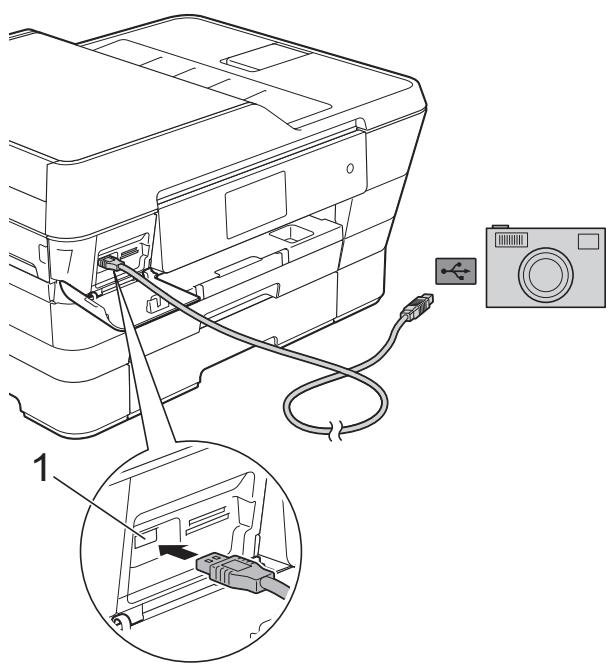
1 USB direct interface
3 Turn on the camera.
When the machine has recognized the camera, the Touchscreen shows
Camera is connected.
4 Choose the photo you want to print following the instructions from your camera.
When the machine starts printing a photo, the Touchscreen will show
Printing.
IMPORTANT
To prevent damage to your machine, do not connect any device other than a digital camera or USB Flash drive to the USB direct interface.
DPOF printing
DPOF stands for Digital Print Order Format.
Major digital camera manufacturers (Canon Inc., Eastman Kodak Company, FUJIFILM Corporation, Panasonic Corporation and Sony Corporation) created this standard to make it easier to print images from a digital camera.
If your digital camera supports DPOF printing, you can choose the images and number of copies you want to print from the camera's display.
NOTE
A DPOF File error can occur if the print order that was created on the camera has been corrupted. Delete and recreate the print order using your camera to correct this problem. For instructions on how to delete or recreate the print order, refer to your camera manufacturer's support website or accompanying documentation.
Printing photos directly from a digital camera (without PictBridge)
If your camera supports the USB Mass Storage standard, you can connect your camera in storage mode. This enables you to print photos from your camera.
(If you would like to print photos in PictBridge mode, see Printing photos directly from a PictBridge camera on page 70.)
NOTE
The name, availability and operation differ among digital cameras. Please refer to the documentation supplied with your camera for detailed information, such as how to switch from PictBridge mode to USB mass storage mode.
Printing Images
NOTE
Remove any memory card or USB Flash drive from the machine before connecting a digital camera.
1 Open the media slot cover.
2 Make sure that your camera is turned off. Connect your camera to the USB direct interface (1) on the machine using the USB cable.
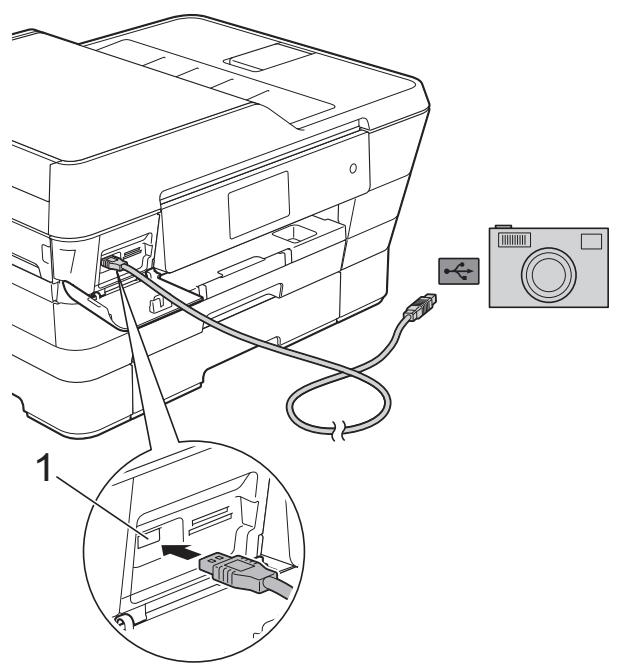
1 USB direct interface
3 Turn on the camera.
4 Follow the steps in Print Images on page 54.
IMPORTANT
To prevent damage to your machine, do not connect any device other than a digital camera or USB Flash drive to the USB direct interface.
A
Routine maintenance
Cleaning and checking the machine
Cleaning the outside of the machine
Clean the Touchscreen as follows:
IMPORTANT
- Press and hold down ⏻ to turn the machine off. The Touchscreen will show Shutting Down for a few seconds before the power goes off.
- DO NOT use any type of liquid cleaners (including ethanol).
1 Clean the Touchscreen with a soft, dry, lint-free cloth.
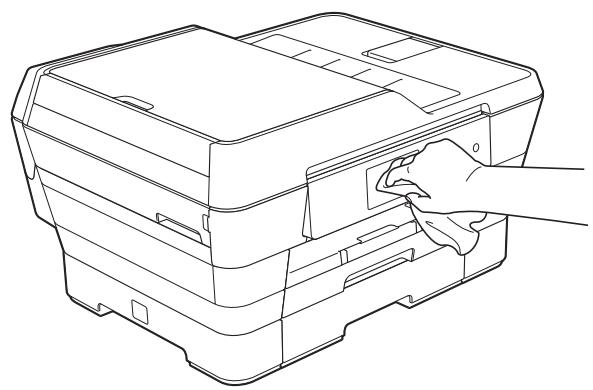
natural_image
Line drawing of a printer case with a hand inserting a clip (no text or symbols)Clean the outside of the machine as follows:
IMPORTANT
- Use neutral detergents. Cleaning with volatile liquids, such as thinner or benzine, will damage the outside surface of the machine.
- DO NOT use cleaning materials that contain ammonia.
- DO NOT use isopropyl alcohol to remove dirt from the control panel. It may crack the panel.
1 Pull the paper tray #1 (1) and then tray #2 (2) completely out of the machine.
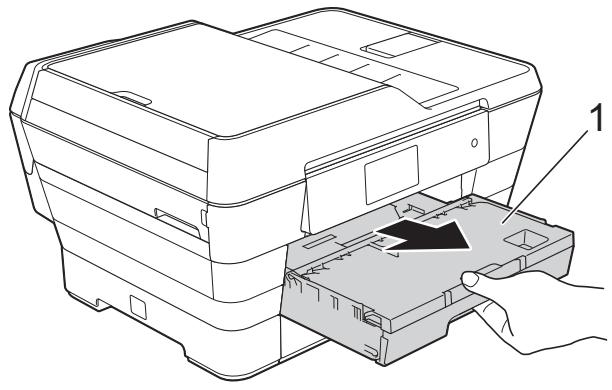
natural_image
Line drawing of a printer with a clamped cover and handle, showing internal components (no text or symbols)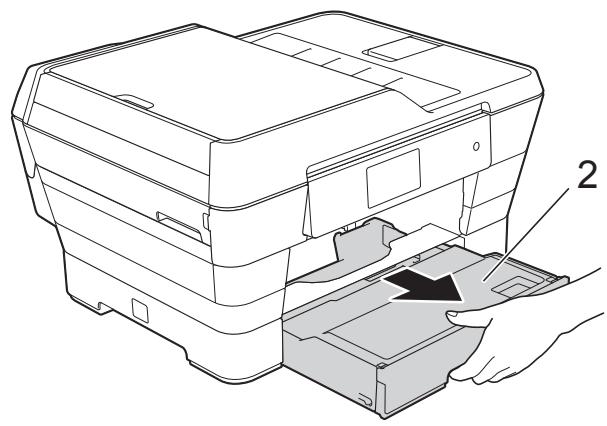
natural_image
Line drawing of a printer with a hand inserting a card into the case (no text or symbols)2 Wipe the outside of the machine with a soft, dry, lint-free cloth to remove dust.
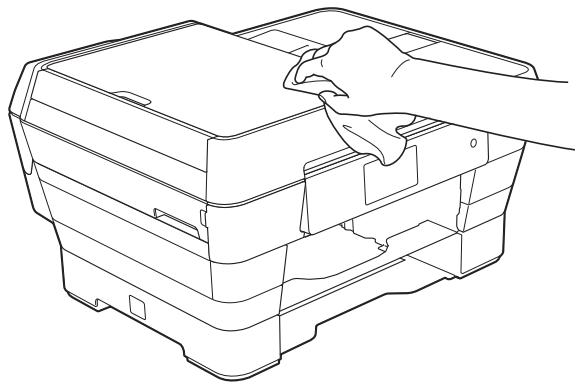
natural_image
Line drawing of a hand placing a component into a container (no text or symbols)3 Lift the output paper tray cover and remove anything that is stuck inside the paper tray.
4 Wipe the inside and outside of the paper tray with a soft, dry, lint-free cloth to remove dust.
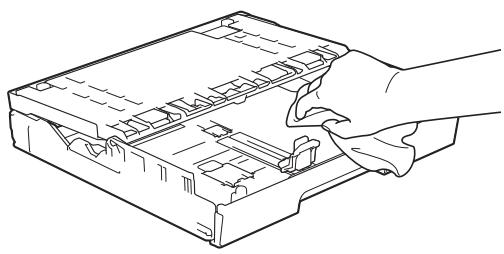
natural_image
Line drawing of a hand inserting or adjusting a device into a rectangular box (no text or symbols)5 Close the output paper tray cover and put the paper tray firmly back in the machine.
Cleaning the machine's printer platen

WARNING

Be sure to unplug the machine from the electrical socket before cleaning the printer platen to avoid an electrical shock.
1 Using both hands, use the finger holds on each side of the machine to lift the scanner cover into the open position.
2 Clean the machine's printer platen (1) and the area around it, wiping off any scattered ink with a soft, dry, lint-free cloth.
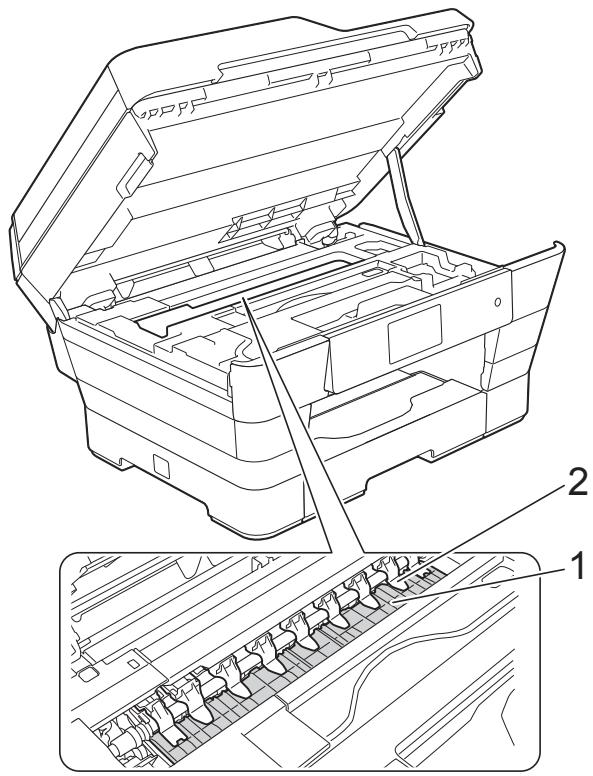
IMPORTANT
DO NOT bend or apply too much pressure on the nine tabs (2). They could be damaged.
3 Gently close the scanner cover using the finger holds on each side.
CAUTION
Be careful not to pinch your fingers when you close the scanner cover.
Always use the finger holds provided on each side of the scanner cover when opening and closing it.
4 Re-connect the power cord.
Cleaning the paper feed rollers
If the paper feed rollers are stained with ink, it may cause paper feed problems.
1 Unplug the machine from the electrical socket. Pull the paper tray (1) completely out of the machine.
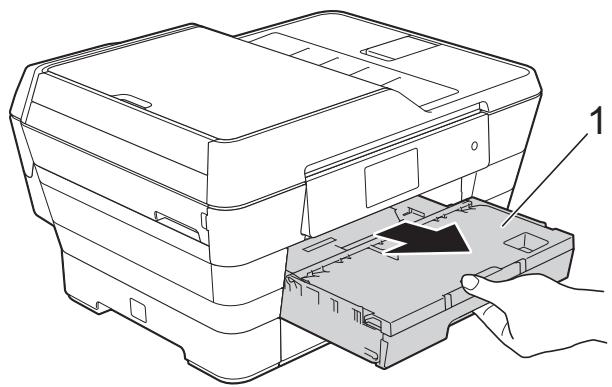
natural_image
Line drawing of a printer with an open base and internal components, no text or symbols presentNOTE
If the paper support flap is open, close it, and then close the paper support.
2 Clean the front side of the Paper Feed Rollers (1) with a soft lint-free cloth slightly moistened with water, using a side-to-side motion.
After cleaning, wipe the rollers with a soft, dry, lint-free cloth to remove all moisture.
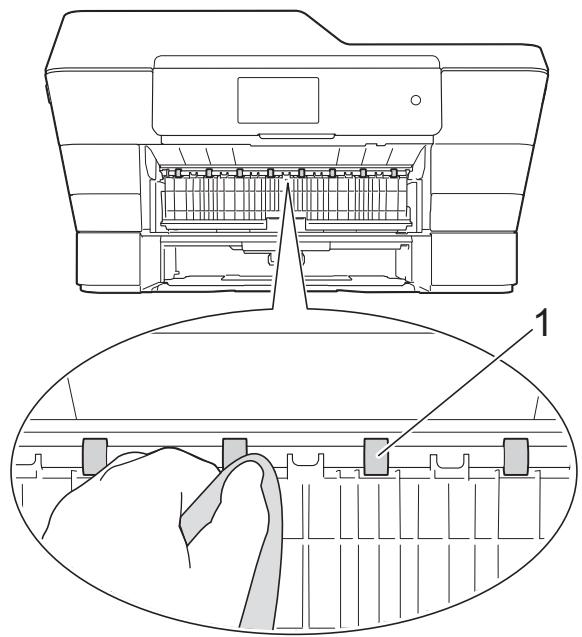
natural_image
Technical line drawing of a printer internal structure with a close-up view showing the base panel and handle (no text or symbols)3 Lift the green Jam Clear Flap (2), and then clean the back side of the Paper Feed Rollers (1) with a soft lint-free cloth slightly moistened with water.
After cleaning, wipe the rollers with a soft, dry, lint-free cloth to remove all moisture.
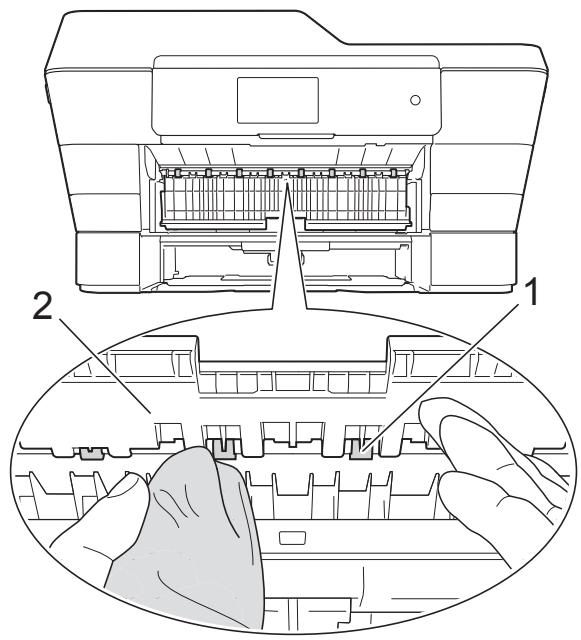
4 Put the paper tray firmly back in the machine.
5 Re-connect the power cord.
NOTE
Do not use the machine again until the rollers are completely dry. Using the machine before the rollers are dry may cause paper feed problems.
Cleaning the paper pick-up rollers
1 Unplug the machine from the electrical socket.
2 Pull the paper tray completely out of the machine.
NOTE
If the machine has been feeding multiple pages when there are only a few sheets of paper left in the tray, clean the Base Pad (1) with a soft, lint-free cloth slightly moistened with water.
After cleaning, wipe the pad with a soft, dry, lint-free cloth to remove all moisture.
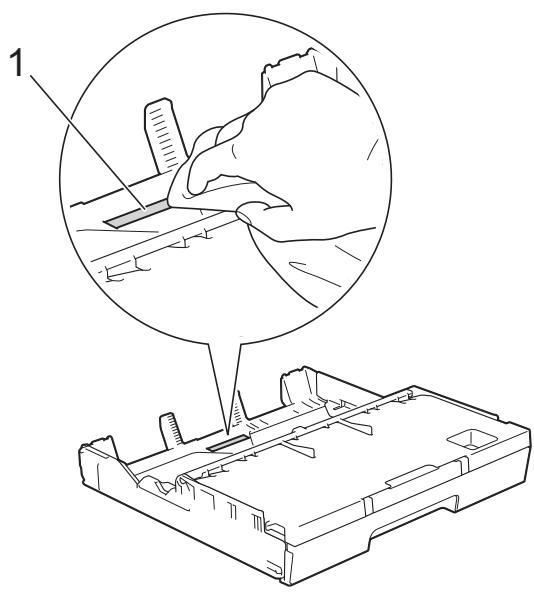
3 Lift the green Jam Clear Flap (1), and then clean the Paper Pick-up Rollers (2) with a soft lint-free cloth slightly moistened with water.
Slowly turn the rollers so that the whole surface is cleaned.
After cleaning, wipe the rollers with a soft, dry, lint-free cloth to remove all moisture.
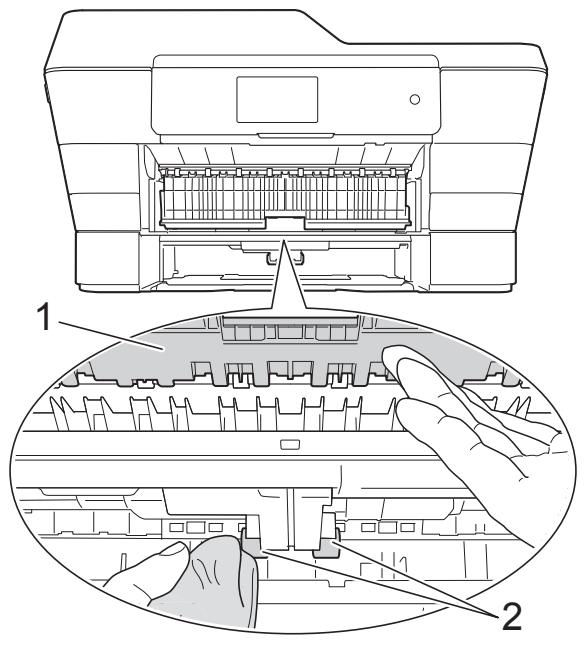
4 Put the paper tray firmly back in the machine.
5 Re-connect the power cord.
Cleaning the paper pick-up rollers for paper tray #2
1 Unplug the machine from the AC power outlet. Pull tray #2 completely out of the machine.
NOTE
If the paper support flap is open, close it, and then close the paper support.
2 Clean the paper pick-up rollers for tray #2 (1) with a soft lint-free cloth moistened with water. Slowly turn the rollers so that the whole surface is cleaned.
After cleaning, wipe the rollers with a soft, dry, lint-free cloth to remove all moisture.
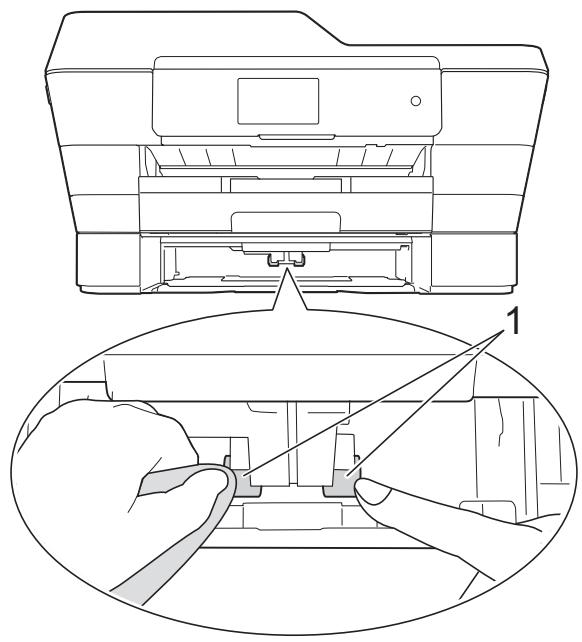
natural_image
Technical line drawing showing a printer front view and a close-up of hands operating the printer (no text or symbols present)3 Put tray #2 firmly back in the machine.
4 Re-connect the power cord.
Checking the ink volume
Although an ink volume icon appears on the Touchscreen, you can use the ink menu to see a large graph showing the ink that is left in each cartridge.
1 Press
NOTE
You can also press

and Ink.
2 Press Ink Volume. The Touchscreen shows the ink volume.
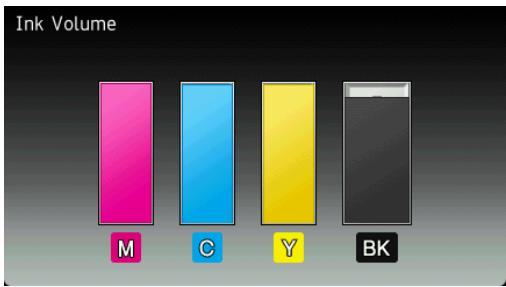
NOTE
When the ink cartridge is near the end of its life or having a problem, one of the following icons is displayed.
| ### | The ink level is low. |
| ### | The ink cartridge is empty. |
| ### | There is a problem with the ink cartridge. |
3 Press
NOTE
You can check the ink volume from your computer.
(See Software and Network User's Guide.)
Packing and shipping the machine
When you transport the machine, use the packing materials that came with your machine. Follow the instructions below to correctly package your machine. Damage caused to your machine during transit may not be covered by your warranty.
The machine should be adequately insured with the carrier.
IMPORTANT
It is important to allow the machine to "park" the print head after a print job. Listen carefully to the machine before unplugging it to make sure that all mechanical noises have stopped and the print head is in the right corner as shown in the illustration. Not allowing the machine to finish this process may lead to print problems and possible damage to the print head.
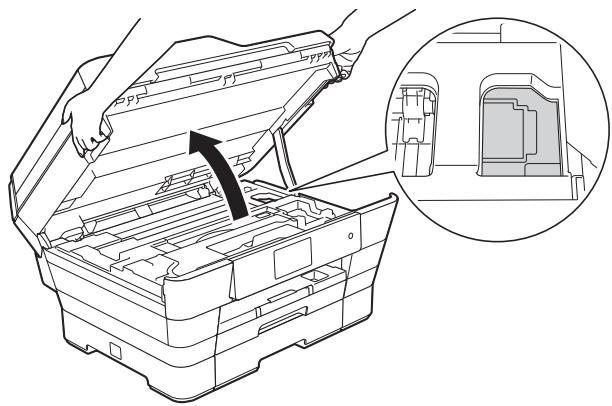
natural_image
Line drawing of a mechanical device with an open lid and internal compartments, showing a hand inserting a component (no text or symbols present)1 Unplug the machine from the electrical socket.
2 Using both hands, use the finger holds on each side of the machine to lift the scanner cover into the open position. Then unplug the machine from the telephone wall socket and take the telephone line cord out of the machine.
3 Unplug the interface cable from the machine, if it is connected.
4 Remove the orange protective part from its storage place inside right corner of the machine.
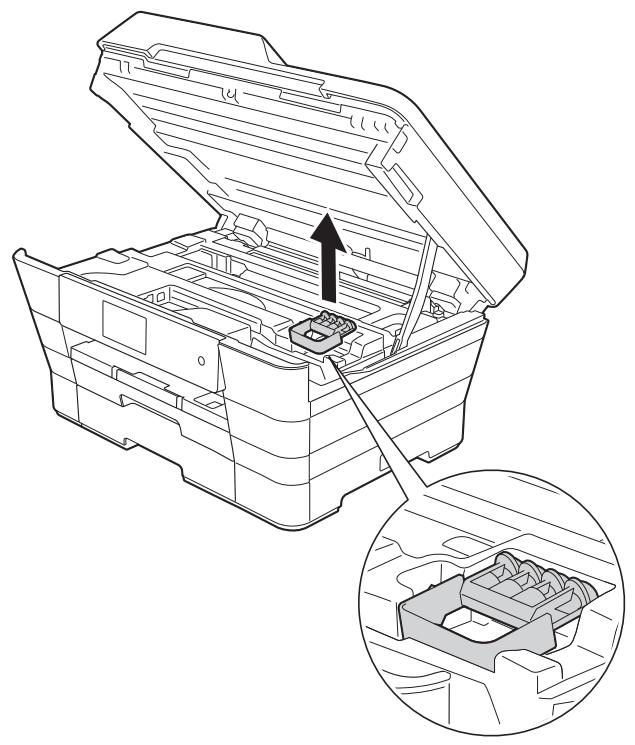
natural_image
Technical line drawing of an open mechanical housing with a highlighted internal component (no text or symbols)5 Gently close the scanner cover using the finger holds on each side.
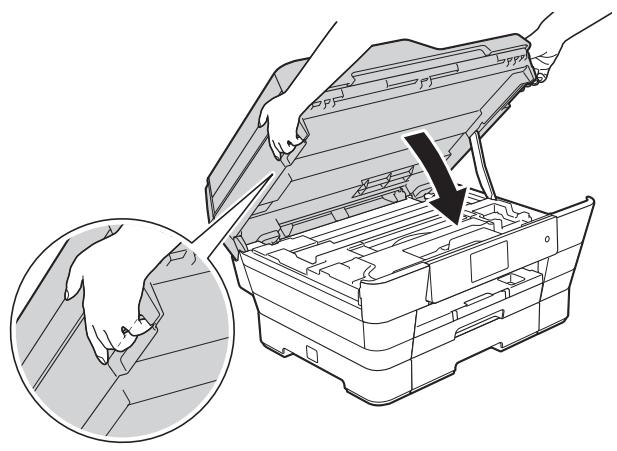
natural_image
Illustration of hands installing or adjusting a mechanical device into a container, with an inset showing hand positioning (no text or symbols)CAUTION
Be careful not to pinch your fingers when you close the scanner cover.
Always use the finger holds provided on each side of the scanner cover when opening and closing it.
6 Open the ink cartridge cover.
7 Remove all four ink cartridges. Press the ink release lever above each cartridge to release it. (See Basic User's Guide: Replacing the ink cartridges.)
8 Install the orange protective part, and then close the ink cartridge cover.
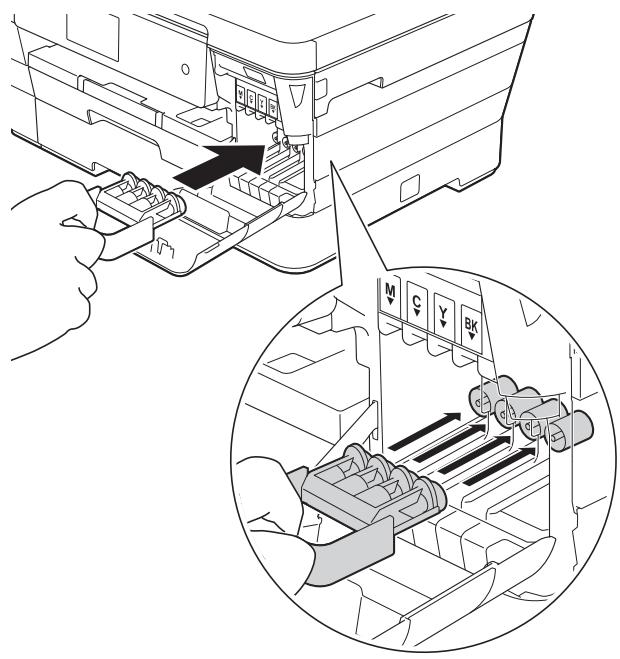
IMPORTANT
- Make sure the plastic tab on the left side of the orange protective part (1) locks securely into place (2).
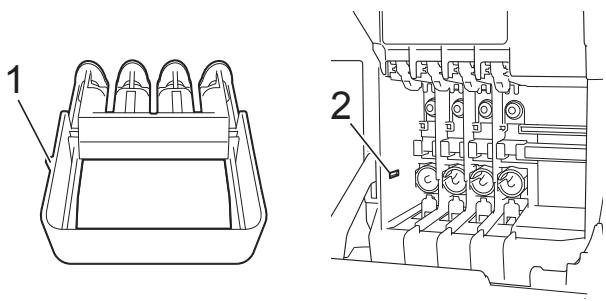
- If you cannot find the orange protective part, ship the machine without it. DO NOT install the ink cartridges as an alternative before shipping.
9 Wrap the machine in the bag.
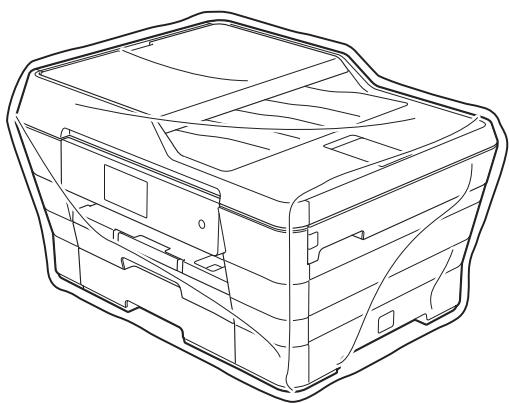
natural_image
Line drawing of a mechanical housing or enclosure with internal compartments and mounting brackets (no text or symbols)10 Pack the machine and the printed materials in the original carton with the original packing material as shown below.
Do not pack the used ink cartridges in the carton.
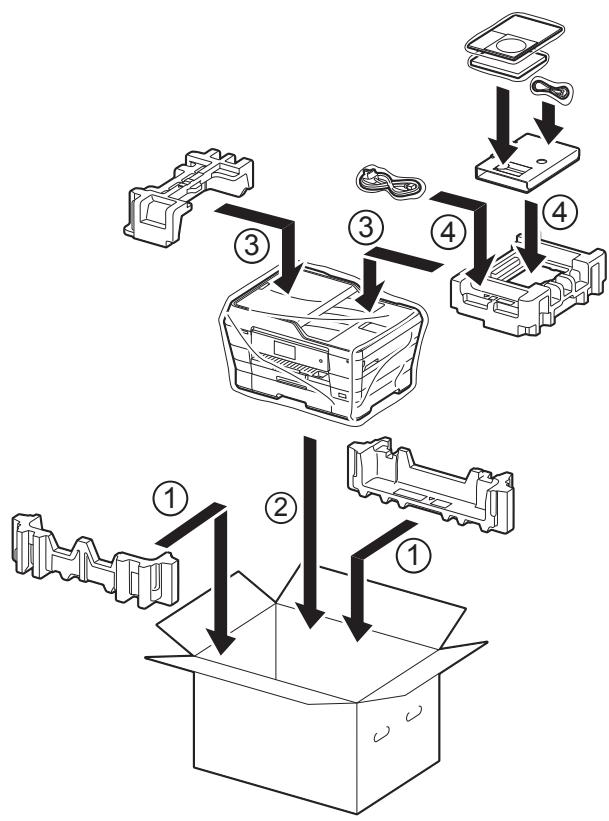
flowchart
graph TD
    A["1: Base Box"] --> B["2: Internal Component"]
    B --> C["3: Box Cover"]
    C --> D["4: Display Panel"]
    D --> E["5: External Component"]
    style A fill:#f9f,stroke:#333
    style B fill:#ccf,stroke:#333
    style C fill:#cfc,stroke:#333
    style D fill:#fcc,stroke:#333
    style E fill:#cff,stroke:#333
11 Close the carton and tape it shut.
B
Glossary
This is a comprehensive list of features and terms that appear in Brother manuals. Availability of these features depends on the model you purchased.
3.7"(93.4 mm) Touchscreen LCD and Touchpanel
The Touchscreen LCD (Liquid Crystal Display) on the machine shows interactive messages and prompts for using the machine. You can operate the Touchscreen by pressing or swiping on the screen. The Touchpanel, on the right side of the Touchscreen LCD, illuminates its LEDs when they are available for the current operation.
Address Book
Names and numbers you have stored for easy dialling.
Address Book List
A listing of names and numbers stored in the Address Book memory, in alphabetical order.
ADF (automatic document feeder)
The document can be placed in the ADF and scanned one page at a time automatically.
Auto Reduction
Reduces the size of incoming faxes.
Automatic fax transmission
Sending a fax without picking up the handset of an external telephone.
Automatic Redial
A feature that enables your machine to redial the last fax number after five minutes if the fax did not go through because the line was busy.
Backup Print
Your machine prints a copy of every fax that is received and stored in its memory. This is a safety feature so you will not lose messages during a power failure.
Batch Transmission
(Monochrome faxes only) As a cost-saving feature, all delayed faxes to the same fax number can be sent as one transmission.
Beep Volume
Volume setting for the beep when you press the Touchscreen or Touchpanel, make an error.
Brightness
Changing the Brightness makes the whole image lighter or darker.
Broadcasting
The ability to send the same fax message to more than one location.
Caller ID
A service purchased from the telephone company that lets you see the number (or name) of the party calling you.
CNG tones
The special tones (beeps) sent by fax machines during automatic transmission to tell the receiving machine that a fax machine is calling.
Coding method
Method of coding the information contained in the document. All fax machines must use a minimum standard of Modified Huffman (MH). Your machine is capable of greater compression methods, Modified Read (MR), Modified Modified Read (MMR) and JPEG, if the receiving machine has the same capability.
Colour Enhancement
Adjusts the colour in the image for better print quality by improving sharpness, white balance and colour density.
Communication error (Comm. Error)
An error during fax sending or receiving, usually caused by line noise or static.
Compatibility group
The ability of one fax unit to communicate with another. Compatibility is assured between ITU-T Groups.
Contrast
Setting to compensate for dark or light documents, by making faxes or copies of dark documents lighter and light documents darker.
Delayed Fax
Sends your fax at a specified time later.
Density
Changing the Density makes the whole image lighter or darker.
Dual Access
Your machine can scan outgoing faxes or scheduled jobs into the memory at the same time it is sending a fax from memory, receiving or printing an incoming fax.
ECM (Error Correction Mode)
Detects errors during fax transmission and resends the pages of the fax that had an error.
Extension telephone
A telephone using the same line as your fax but plugged into a separate wall socket.
External telephone
A TAD (telephone answering device) or telephone that is connected to your machine.
F/T Ring Time
The length of time that the Brother machine rings (when the Receive Mode setting is Fax/Tel) to notify you to pick up a voice call that it answered.
Fax Detect
Enables your machine to respond to CNG tones if you interrupt a fax call by answering it.
Fax Forwarding
Sends a fax received into the memory to another pre-programmed fax number.
Fax Journal
Lists information about the last 200 incoming and outgoing faxes. TX means Transmit. RX means Receive.
Fax Storage
You can store received faxes in memory.
Fax tones
The signals sent by sending and receiving fax machines while communicating information.
Fax/Tel
You can receive faxes and telephone calls. Do not use this mode if you are using a telephone answering device (TAD).
Fine resolution
Resolution is 203 × 196 dpi. It is used for small print and graphs.
Greyscale
The shades of grey available for copying, scanning and faxing photographs.
Group number
A combination of Address Book numbers that are stored in Address Book for Broadcasting.
Innobella™
Innobella™ is a range of genuine consumables offered by Brother. For best quality results, Brother recommends Innobella™ ink and paper.
Journal Period
The pre-programmed time period between automatically printed Fax Journal reports. You can print the Fax Journal report on demand without interrupting the cycle.
Manual fax
When you lift the handset of your external telephone you can hear the receiving fax machine answer before you press Fax Start to begin sending the fax.
Memory Receive
Receives faxes into the machine's memory when the machine is out of paper.
OCR (optical character recognition)
Nuance™ PaperPort™ 12SE or Presto! PageManager software application converts an image of text to text you can edit.
Overseas Mode
Makes temporary changes to the fax tones to accommodate noise and static on overseas telephone lines.
Pause
Allows you to place a 3.5 second delay in the dialling sequence while you are dialling using the dial pad or while you are storing Address Book numbers. Press Pause on the Touchscreen as many times as needed for longer pauses.
PhotoCapture Center™
Allows you to print digital photos from your digital camera at high resolution for photo quality printing.
Photo resolution (Mono only)
A resolution setting that uses varying shades of grey for the best representation of photographs.
PictBridge
Allows you to print photos directly from your digital camera at high resolution for photo quality printing.
Polling
The process of a fax machine calling another fax machine to retrieve waiting fax messages.
Pulse
A form of rotary dialling on a telephone line.
Real Time Transmission
When the memory is full, you can send faxes in real time.
Remaining jobs
You can check which jobs are waiting in memory and cancel jobs individually.
Remote Access Code
Your own four-digit code (---*) that allows you to call and access your machine from a remote location.
Remote Activation Code
Press this code (* 5 1) when you answer a fax call on an extension or external telephone.
Remote Deactivation Code
(For Fax/Tel mode only)
When the machine answers a voice call, it pseudo/double-rings. You can pick up at an extension telephone by pressing this code (# 5 1).
Remote Retrieval Access
The ability to access your machine remotely from a touch-tone telephone.
Resolution
The number of vertical and horizontal lines per inch. (See Standard resolution, Fine resolution, Super Fine resolution and Photo resolution.)
Ring Delay
The number of rings before the machine answers in Fax Only and Fax/Tel modes.
Ring Volume
Volume setting for the machine's ring.
Scanning
The process of sending an electronic image of a paper document to your computer.
Scan to Media
You can scan a monochrome or colour document onto a memory card or USB Flash drive. Monochrome images will be in the TIFF or PDF file format and colour images may be in the PDF or JPEG file format.
Search
An alphabetical electronic listing of stored Address Book and Group numbers.
Settings Tables
At-a-glance instructions that show all the settings and options that are available for setting up your machine.
Standard resolution
203 × 98 dpi (monochrome).
203 × 196 dpi (colour). It is used for regular sized text and the quickest transmission.
Station ID
The stored information that appears on the top of faxed pages. It includes the sender's name and fax number.
Super Fine resolution (Mono only)
203 × 392 dpi. Best for very small print and line art.
TAD (telephone answering device)
You can connect an external TAD to your machine.
Temporary settings
You can choose certain options for each fax transmission and copy without changing the default settings.
Tone
A form of dialling on the telephone line used for touch-tone telephones.
Transmission
The process of sending faxes over the phone lines from your machine to the receiving fax machine.
User Settings
A printed report that shows the current settings of the machine.
WLAN Report
A printed report that shows the result of the WLAN Connection.
XMIT Report (Transmission Verification Report)
A listing for each fax sent, that shows its date, time and number.
Numerics
2 in 1 ID Copy 42
2-sided copy ....48 fax ....12
A
Access codes, storing and dialling .....31
Address Book Broadcasting ....13 deleting Groups ....34 using Groups ....13
Group dial changing ....33 setting up Groups for Broadcasting ...33 setting up from Caller ID history ....32 setting up from outgoing calls ....32
Apple Macintosh See Software and Network User's Guide.
B
Broadcasting ....13 setting up Groups for ....33
C
Caller ID Caller ID History report ....36
Cancelling Fax Forwarding .... 21, 24 Fax Storage .... 21 jobs awaiting redial .... 17
Cleaning paper feed rollers ....76 printer platen ....75
ControlCenter See Software and Network User's Guide.
Copy 2 in 1 ID ....42 2-sided ....48 A3 shortcut ....50 book ....46 density ....43 enlarge/reduce ....38
ink save mode .... 44 page layout (N in 1) .... 39 poster .... 39 quality .... 37 remove background colour .... 47 sort (ADF only) .... 43 thin paper .... 45 using ADF .... 43 Watermark .... 46 using a template .... 46
D
Dialling access codes and credit card numbers .... 31 Groups (Broadcasting) .... 13 restricting dialling .... 6
Direct printing from a non-PictBridge camera .... 72 from a PictBridge camera .... 70
Dual Access 13
F
Fax codes changing ....23 Remote Access Code ....23
Fax Forwarding changing remotely ....24, 25 programming a number ....20 Fax Storage ....21 printing from memory ....21 turning off ....21 turning on ....21
Fax, from PC See Software and Network User's Guide.
Fax, stand-alone receiving at end of conversation ..... 26 Fax Forwarding ..... 24 into the memory ..... 26 out of paper reception ..... 26 printing from memory ..... 21 reducing to fit on paper ..... 26 retrieving from a remote site ..... 24, 25
sending 8
2-sided 12
at end of conversation 13
Broadcasting 13
cancelling from memory 17
contrast 9
delayed batch transmission .....17
delayed fax 16
from memory (Dual Access) .....13
manual 12
overseas 16
Real Time Transmission 15
Resolution 9
return to factory default ..... 11
set new default ....10
Function Lock 3
G
Groups for Broadcasting ....33
|
ID Copy 42
Ink cartridges checking ink volume ....79
L
LCD (Liquid Crystal Display) Dim Timer ....2
M
Macintosh See Software and Network User's Guide.
Manual transmission ....12
Memory Storage 1
Movie printing 54
N
Network Printing See Software and Network User's Guide.
Scanning See Software and Network User's Guide.
Nuance™ PaperPort™ 12SE See Software and Network User's Guide. Also see Help in the PaperPort™ 12SE application.
P
Packing and shipping the machine ..... 79
PhotoCapture Center™ Adding Effect .... 55 DPOF printing .... 59 from PC See Software and Network User's Guide.
ID photo 57
Photo Effects Auto Correct ....55, 56 Crop ....55, 56, 57 Enhance Scenery ....55, 56 Enhance Skin ....55, 56 Fill Light ....55, 56 Monochrome ....55, 56 Night Scene ....55, 56 Remove Red-Eye ....55, 56 Sepia ....55, 56 Whiteboard ....55, 56
Print settings Borderless ....65 Brightness ....62 Colour enhancement ....63 Contrast ....63 Cropping ....64 Date Print ....65 Paper Size and Print Size ....61 Paper Type ....60 Quality ....60 Return to factory default ....66 rotate ....57, 58 Set new default ....66
Printing index 54 photos 55
Scan to Media auto crop ....67 memory card ....67 USB Flash drive ....67 Slide-Show ....58
PictBridge 70 DPOF Printing 72 Power failure 1
Presto! PageManager
See Software and Network User's Guide.
Also see Help in the Presto! PageManager application.
fax from memory 21
report 36
Printing
See Software and Network User's Guide.
R
Reducing
copies 38
incoming faxes 26
Remote Retrieval 23
commands 24
getting your faxes 25
Remote Access Code 23
Remote Setup
See Software and Network User's Guide.
Reports 35
Address Book 36
Caller ID 36
Caller ID History Report 36
Fax Journal 36
Journal Period 35
how to print 36
Network Configuration 36
Transmission Verification 35, 36
User Settings 36
WLAN Report 36
Resolution
setting for next fax 9
Restricted users ....5
S
Scanning
See Software and Network User's Guide.
Security
Secure function lock
administrator password ....4
restricted users 5
Shipping the machine 79
Sleep Mode 2
T
Troubleshooting
checking ink volume 79
W
Windows®
See Software and Network User's Guide.
Wireless Network
See Quick Setup Guide and Software and Network User's Guide.
brother®
Visit us on the World Wide Web
http://www.brother.com/
This machine is approved for use in the country of purchase only. Local Brother companies or their dealers will only support machines purchased in their own countries.
- Advanced User's Guide
- User's Guides and where do I find them?
- Table of Contents
- General setup 1
- Security features 3
- Sending a fax 8
- Receiving a fax
- Dialling and storing numbers
- Printing reports
- Making copies
- Printing photos from a memory card or USB Flash drive 53
- Printing photos from a camera 70
- A Routine maintenance 74
- B Glossary 82
- C Index 86
- General setup
- Memory Storage
- Automatic Daylight Saving Time
- Sleep Mode
- Touchscreen LCD
- Setting the Dim Timer for the backlight
- 2
- Security features
- Secure Function Lock 2.0
- NOTE
- Before you begin to use Secure Function Lock 2.0
- Setting and changing the Administrator Password
- Setting the administrator password
- Changing the administrator password
- Setting up restricted users
- Turning Secure Function Lock on/off
- Turning Secure Function Lock on
- Turning Secure Function Lock off
- Switching users
- Changing to the Public mode
- Restricting dialling
- Dial pad restriction
- Address Book restriction
- Shortcut restriction
- LDAP Server restriction
- 3
- Sending a fax
- Additional sending options
- Sending faxes using multiple settings
- Stop faxing
- Contrast
- Changing fax resolution
- Setting your changes as a new default
- Restoring fax options to the factory default
- Saving fax options as a Shortcut
- Additional sending operations
- Sending a 2-sided fax from the ADF (Automatic Document Feeder)
- Sending a fax manually
- Sending a fax at the end of a conversation
- Dual Access (Monochrome only)
- Broadcasting (Monochrome only)
- Before you begin the broadcast
- How to broadcast a fax
- Faxing from the ADF
- Faxing from the scanner glass
- Cancelling a Broadcast in progress
- Real Time Transmission
- Overseas Mode
- Delayed Faxing (Monochrome only)
- Delayed Batch Transmission (Monochrome only)
- Checking and cancelling waiting jobs
- Polling
- Polled Transmit (Monochrome only)
- Setup for polled transmit
- Setup for polled transmit with secure code
- 4
- Receiving a fax
- Memory Receive (Monochrome only)
- Fax Forwarding
- IMPORTANT
- Fax Storage
- Printing a fax from the memory
- Turning off Memory Receive operations
- Changing Memory Receive operations
- If all the received faxes have already been printed
- If unprinted faxes remain in the memory
- Remote Retrieval
- Setting a Remote Access Code
- Using your Remote Access Code
- Remote Fax commands
- Retrieving fax messages
- Changing your Fax Forwarding number
- Additional receiving operations
- Out of Paper Reception
- Printing a reduced incoming fax
- Receiving a fax at the end of a conversation
- Polling receive
- Setup to receive polling
- Setup to receive polling with secure code
- Setup to receive delayed polling
- Sequential polling (Monochrome only)
- Cancelling a Sequential Polling Job
- 5
- Dialling and storing numbers
- Voice operations
- BT Call Sign (U.K. only)
- Additional dialling operations
- Combining Address Book numbers
- Additional ways to store numbers
- Storing Address Book numbers from the Outgoing Call history
- Storing Address Book numbers from the Caller ID history
- Setting up Groups for Broadcasting
- Changing a Group name
- Deleting a Group
- Adding or Deleting a number in a Group
- 6
- Printing reports
- Fax reports
- Transmission Verification Report
- Fax Journal (activity report)
- Reports
- How to print a report
- 7
- Making copies
- Copy options
- Stop copying
- Improving copy speed and quality
- Enlarging or reducing copies
- Making N in 1 copies or a poster (Page Layout)
- in 1 ID Copy (Page Layout)
- Sorting copies using the ADF
- Adjusting Density
- Ink Save Mode
- Thin Paper Copy
- Auto Deskew
- Book Copy
- Watermark Copy
- Using a template
- Remove Background Colour
- 2-sided copying
- 2-sided copying type
- ■ 1 sided → 2 sided
- (Short edge flip)
- ■ 2 sided → 2 sided
- ■ 2 sided → 1 sided
- Saving copy options as a Shortcut
- A3 Copy Shortcuts
- A3 Copy Shortcut
- Chapter 7
- 8
- Printing photos from a memory card or USB Flash drive
- PhotoCapture Center™ operations
- Memory cards, USB Flash drives and folder structures
- Movie printing
- Print Images
- Print Index (Thumbnails)
- Printing Photos
- Enhance Photos
- ID photo print
- Slide Show
- Printing a photo during a Slide Show
- DPOF printing
- PhotoCapture Center™ print settings
- Print Quality
- Paper options
- Paper Type
- Paper Size and Print Size
- Auto Correct
- Adjusting Brightness, Contrast and Colour
- Brightness
- Colour Enhancement
- - White Balance
- - Sharpness
- - Colour Density
- Cropping
- Borderless printing
- Date Print
- Restoring all settings to the factory default
- Scan to a memory card or USB Flash drive
- Auto Crop
- REALLUSION
- How to set a new default
- How to reset to the factory default
- Saving scan options as a Shortcut
- Printing photos directly from a PictBridge camera
- PictBridge requirements
- Setting your digital camera
- Printing Images
- USB direct interface
- Printing photos directly from a digital camera (without PictBridge)
- A
- Routine maintenance
- Cleaning and checking the machine
- Cleaning the outside of the machine
- Cleaning the machine's printer platen
- WARNING
- CAUTION
- Cleaning the paper feed rollers
- Cleaning the paper pick-up rollers
- Cleaning the paper pick-up rollers for paper tray #2
- Checking the ink volume
- Press
- Press
- Packing and shipping the machine
- Wrap the machine in the bag.
- Pack the machine and the printed materials in the original carton with the original packing material as shown below.
- Close the carton and tape it shut.
- B
- Glossary
- 3.7"(93.4 mm) Touchscreen LCD and Touchpanel
- Address Book
- Address Book List
- ADF (automatic document feeder)
- Auto Reduction
- Automatic fax transmission
- Automatic Redial
- Backup Print
- Batch Transmission
- Beep Volume
- Broadcasting
- Caller ID
- CNG tones
- Coding method
- Communication error (Comm. Error)
- Compatibility group
- Delayed Fax
- Density
- Dual Access
- ECM (Error Correction Mode)
- Extension telephone
- External telephone
- F/T Ring Time
- Fax Detect
- Fax Journal
- Fax tones
- Fax/Tel
- Fine resolution
- Greyscale
- Group number
- Innobella™
- Journal Period
- Manual fax
- Memory Receive
- OCR (optical character recognition)
- Pause
- PhotoCapture Center™
- Photo resolution (Mono only)
- PictBridge
- Pulse
- Remaining jobs
- Remote Access Code
- Remote Activation Code
- Remote Deactivation Code
- (For Fax/Tel mode only)
- Remote Retrieval Access
- Resolution
- Ring Delay
- Ring Volume
- Scanning
- Scan to Media
- Search
- Settings Tables
- Standard resolution
- Station ID
- Super Fine resolution (Mono only)
- TAD (telephone answering device)
- Temporary settings
- Tone
- Transmission
- User Settings
- WLAN Report
- XMIT Report (Transmission Verification Report)
- Numerics
- C
- D
- F
- G
- |
- L
- M
- N
- P
- R
- S
- T
- W
- brother®
Brand : BROTHER
Model : MFC-J6920DW, MFCJ6920DW
Category : Multifunction Printer