
DCP-375CW - Multifunction Printer BROTHER - Free user manual and instructions
Find the device manual for free DCP-375CW BROTHER in PDF.


| Product type | Inkjet multifunction printer |
| Functions | Print, copy, scan, PhotoCapture |
| Memory | 32 MB |
| Display | LCD 16 characters x 1 line |
| Power supply | AC 220-240 V, 50/60 Hz |
| Power consumption (standby) | 5 W |
| Power consumption (operating) | 21 W |
| Weight | 7.1 kg |
| Dimensions (approx.) | 390 x 405 x 180 mm |
| Paper tray capacity | Up to 100 sheets (80 g/m²) |
| Supported paper sizes | A4, A5, A6, Letter, Legal, Envelopes (COM-10, DL, C5, Monarch), Photo 10x15 cm, etc. |
| Print speed (black) | Up to 33 ppm (draft) |
| Print speed (color) | Up to 27 ppm (draft) |
| Max. print resolution | 6000 x 1200 dpi |
| Max. copy resolution | 1200 x 1200 dpi (black), 600 x 1200 dpi (color) |
| Optical scan resolution | 1200 x 2400 dpi |
| Connectivity | USB 2.0, Ethernet 10/100, Wi-Fi 802.11b/g |
| Ink cartridges | 4 separate colors: Black, Cyan, Magenta, Yellow (LC980) |
| Black cartridge yield | Approx. 300 pages (ISO/IEC 24711) |
| Color cartridge yield | Approx. 260 pages (ISO/IEC 24711) |
| PhotoCapture support | Memory Stick, Memory Stick PRO, SD/SDHC, xD-Picture Card, USB Flash |
| Network security | WEP 64/128 bits, WPA-PSK (TKIP/AES), WPA2-PSK (AES) |
| Supported operating systems | Windows 2000/XP/Vista/7, Windows Server 2003/2008, Mac OS X 10.3.9 - 10.5.x |
Frequently Asked Questions - DCP-375CW BROTHER
User questions about DCP-375CW BROTHER
0 question about this device. Answer the ones you know or ask your own.
Ask a new question about this device
Download the instructions for your Multifunction Printer in PDF format for free! Find your manual DCP-375CW - BROTHER and take your electronic device back in hand. On this page are published all the documents necessary for the use of your device. DCP-375CW by BROTHER.
USER MANUAL DCP-375CW BROTHER
If you need to call Customer Service
Please complete the following information for future reference:
Model Number: DCP-193C, DCP-195C, DCP-197C, DCP-365CN, DCP-373CW, DCP-375CW and DCP-377CW (Circle your model number)
Serial Number: 1
Date of Purchase:
Place of Purchase:
1 The serial number is on the back of the unit. Retain this User's Guide with your sales receipt as a permanent record of your purchase, in the event of theft, fire or warranty service.
Register your product on-line at
http://www.brother.com/registration/
By registering your product with Brother, you will be recorded as the original owner of the product. Your registration with Brother:
may serve as confirmation of the purchase date of your product should you lose your receipt; and
may support an insurance claim by you in the event of product loss covered by insurance.
Compilation and Publication Notice
Under the supervision of Brother Industries Ltd., this manual has been compiled and published, covering the latest product descriptions and specifications.
The contents of this manual and the specifications of this product are subject to change without notice.
Brother reserves the right to make changes without notice in the specifications and materials contained herein and shall not be responsible for any damages (including consequential) caused by reliance on the materials presented, including but not limited to typographical and other errors relating to the publication.
EC Declaration of Conformity
brother
EC Declaration of Conformity
Manufacturer
Brother Industries, Ltd.
15-1, Naeshiro-cho, Mizuho-ku, Nagoya 467-8561, Japan
Plant
Brother Industries (Shenzhen) Ltd.
G02414-1, Baochangli Bonded Transportation Industrial Park,
Baolong Industrial Estate, Longgang District, Shenzhen 518116, Gung Dong, China
Herewith declare that:
Products description : Copier Printer
Model Name : DCP-193C, DCP-195C, DCP-197C, DCP-365CN
are in conformity with provisions of the Directives applied : Low Voltage Directive
2006/95/EC and the Electromagnetic Compatibility Directive 2004/108/EC.
Products description : Copier Printer
Model Name : DCP-373CW, DCP-375CW, DCP-377CW
are in conformity with provisions of the R & TTE Directive (1999/5/EC) and we declare
compliance with the following standards :
Standards applied :
Harmonized: Safety EN60950-1:2006
EMC EN55022: 2006 +A1: 2007 Class B
EN55024:1998+A1:2001+A2:2003
EN61000-3-2: 2006
EN61000-3-3: 1995 +A1: 2001 +A2:2005
Radio EN301 489-1 V1.8.1
EN301 489-17 V1.3.2
EN300 328 V1.7.1
※ Radio applies to DCP-373CW, DCP-375CW, DCP-377CW only.
Year in which CE marking was first affixed: 2009
Issued by
:BrotherIndustries,Ltd.
Date
: 25th June, 2009
Place
: Nagoya, Japan
Signature

Junji Shiota
General Manager
Quality Management Dept.
Table of Contents
Section I General
1 General Information 2
Using the documentation 2
Symbols and conventions used in the documentation 2
Accessing the Software User's Guide and Network User's Guide 3
Viewing Documentation 3
Accessing Brother Support (Windows®) 5
Control panel overview 6
Warning LED indications 7
2 Loading paper and documents 8
Loading paper and other print media. 8
Loading envelopes and postcards 10
Removing small printouts from the machine 11
Printable area 12
Acceptable paper and other print media 13
Recommended print media 13
Handling and using print media 14
Choosing the right print media 15
Loading documents 17
Using the scanner glass 17
Scannable area 18
3 General Setup 19
LCD display 19
Changing LCD language 19
Changing the LCD contrast 19
Sleep Mode 19
Printing Reports 20
How to print a report 20
Section II Copy
4 Making copies
22
How to copy 22
Making a single copy 22
Making multiple copies 22
Stop copying 22
Copy options 22
Changing copy speed and quality 23
Enlarging or reducing the image copied 24
Making N in 1 copies or a poster (Page Layout) 25
Adjusting Brightness and Contrast 26
Paper options 27
Section III Direct Printing
5 Printing photos from a memory card or USB Flash memory drive
30
PhotoCapture Center™ Operations 30
Printing from a memory card or USB Flash memory drive without a PC.....30
Scanning to a memory card or USB Flash memory drive without a PC .........30
Using PhotoCapture CenterTM from your computer 30
Using memory card or USB Flash memory drive 30
Memory cards, USB Flash memory drive and folder structures 31
Getting started 32
How to print from a memory card or USB Flash memory drive 33
Print Index (Thumbs nails) 33
Printing Photos 34
DPOF printing 35
PhotoCapture CenterTM print settings 36
Print quality 36
Paper Options 36
Colour Enhancement 37
39
Borderless printing 40
Date Print 40
Scan to a memory card or USB Flash memory drive 40
Changing the image quality 41
Changing the monochrome file format 41
Changing the colour file format 41
Understanding the Error Messages 42
6 Printing photos from a camera (DCP-193C, DCP-195C, DCP-197C, DCP-365CN only) 43
Printing photos directly from a PictBridge camera 43
PictBridge requirements 43
Setting your digital camera 43
Printing Images 44
DPOF printing 44
Printing photos directly from a digital camera (without PictBridge) 45
Printing Images 45
Understanding the Error Messages 46
Section IV Software
7 Software and Network features 48
Section V Appendixes
A Safety and Legal 50
Choosing a location 50
To use the machine safely. 51
Important safety instructions. 55
IMPORTANT - For your safety 56
LAN connection 56
Radio interference 56
EU Directive 2002/96/EC and EN50419. 57
International ENERGY STAR® Qualification Statement. 57
Legal limitations for copying 58
Trademarks 59
B Troubleshooting and Routine Maintenance 60
Troubleshooting 60
If you are having difficulty with your machine 60
Error and Routine Maintenance messages 65
Printer jam or paper jam 69
Routine maintenance 71
Replacing the ink cartridges 71
Cleaning the outside of the machine 73
Cleaning the scanner glass 74
Cleaning the machine's printer platen 74
Cleaning the paper pick-up rollers 75
Cleaning the print head 75
Checking the print quality 76
Checking the print alignment 77
Checking the ink volume 77
Machine Information 78
Checking the serial number 78
Reset functions 78
How to reset the machine 78
Packing and shipping the machine 79
C Menu and Features 81
On-screen programming 81
Menu table 81
Memory storage 81
Menu keys 81
Menu Table 83
D Specifications 93
General 93
Print media. 95
Copy 96
PhotoCapture CenterTM 97
PictBridge (DCP-193C, DCP-195C, DCP-197C and DCP-365CN only) 98
Scanner 99
Printer 100
Interfaces 101
Computer requirements 102
Consumable items 103
Network (LAN) (DCP-365CN, DCP-373CW, DCP-375CW and DCP-377CW only) 104
Wireless one-push configuration (DCP-373CW/375CW/377CW) 105
E Index 106

General
General Information 2
Loading paper and documents 8
General Setup 19
1
General Information
Using the documentation
Thank you for buying a Brother machine! Reading the documentation will help you make the most of your machine.
Symbols and conventions used in the documentation
The following symbols and conventions are used throughout the documentation.
Bold
Bold typeface identifies specific buttons on the machine's control panel, or on the computer screen.
Italics
Italicized typeface emphasizes an important point or refers you to a related topic.
Courier New
Text in Courier New font identifies messages on the LCD of the machine.

WARNING
Warnings tell you what to do to prevent possible personal injury.

CAUTION
Cautions specify procedures you must follow or avoid to prevent possible minor injuries.

IMPORTANT
IMPORTANT describes procedures you must follow or avoid to prevent possible machine problems or damage to other objects.

Electrical Hazard icons alert you to a possible electrical shock.

Hot Surface icons warn you not to touch machine parts that are hot.

Notes tell you how you should respond to a situation that may arise or give tips about how the current operation works with other features.
Accessing the Software User's Guide and Network User's Guide

Note
Network User's Guide is only available for DCP-365CN, DCP-373CW, DCP-375CW and DCP-377CW.
This User's Guide does not contain all the information about the machine such as how to use the advanced features of the Printer, Scanner and Network. When you are ready to learn detailed information about these operations, read Software User's Guide and Network User's Guide that are on the CD-ROM.
Viewing Documentation
Viewing Documentation (Windows®)
To view the documentation, from the Start menu, point to Brother, DCP-XXXX (where XXXX is your model number) from the programs group, and then choose User's Guides in HTML format.
If you have not installed the software, you can find the documentation by following the instructions below:

Turn on your PC. Insert the Brother CD-ROM into your CD-ROM drive.

Note
If the Brother screen does not appear automatically, go to My Computer (Computer), double-click the CD-ROM icon, and then double-click start.exe.

If the model name screen appears, click your model name.
3 If the language screen appears, click your language. The CD-ROM top menu will appear.
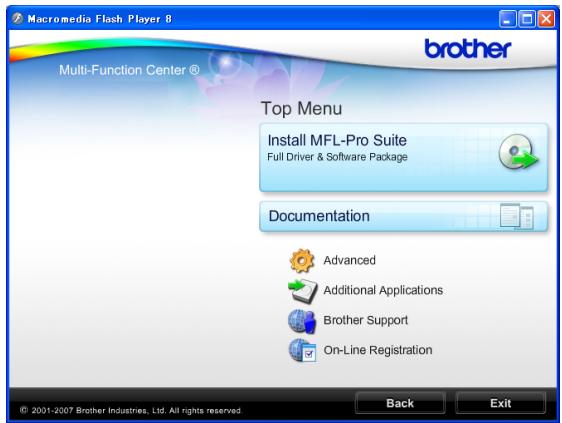
4 Click Documentation.
5 Click the documentation you want to read.
HTML documents:
Software User's Guide and Network User's Guide in HTML format.
This format is recommended for viewing on your computer.
PDF documents:
User's Guide for stand-alone operations, Software User's Guide and Network User's Guide in PDF format.
This format is recommended for printing the manuals. Click to go to the Brother Solutions Center, where you can view or download the PDF documents. (Internet access and PDF Reader software are required.)
How to find Scanning instructions
There are several ways you can scan documents. You can find the instructions as follows:
Software User's Guide
Scanning
(Windows® 2000 Professional/ Windows® XP and Windows Vista®)
ControlCenter3
(Windows® 2000 Professional/ Windows® XP and Windows Vista®)
Network Scanning
(Windows® 2000 Professional/ Windows® XP and Windows Vista®)
ScanSoft™ PaperPort™ 11SE with OCR How-to-Guide
The complete ScanSoft™ PaperPort™ 11SE with OCR How-to-Guides can be viewed from the Help Selection in the ScanSoft™ PaperPort™ 11SE application.
How to find Network setup instructions (DCP-373CW, DCP-375CW and DCP-377CW only)
Your machine can be connected to a wireless or wired network. You can find basic setup instructions in the Quick Setup Guide. If your wireless access point supports SecureEasySetupTM, Wi-Fi Protected Setup or AOSSTM, follow the steps in the Quick Setup Guide. For more information about network setup please see the Network User's Guide.
Viewing Documentation (Macintosh)
Turn on your Macintosh. Insert the Brother CD-ROM into your CD-ROM drive. The following window will appear.
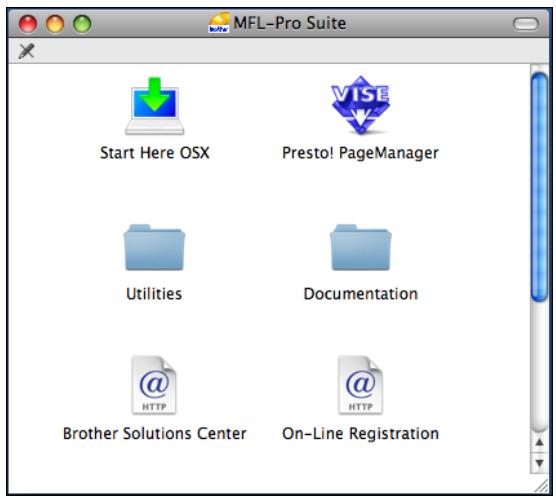
Double-click the Documentation icon.
3 Double-click your language folder.
Double-click top.html to view Software User's Guide and Network User's Guide in HTML format.
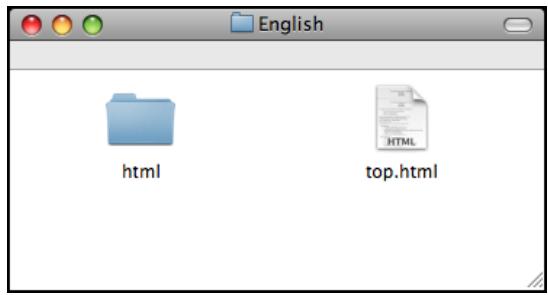
5 Click the documentation you want to read.
Software User's Guide
Network User's Guide
How to find Scanning instructions
There are several ways you can scan documents. You can find the instructions as follows:
Software User's Guide
Scanning
(Mac OS X 10.3.9 - 10.5.x)
ControlCenter2
(Mac OS X 10.3.9 - 10.5.x)
Network Scanning
(Mac OS X 10.3.9 - 10.5.x)
Presto! PageManager User's Guide
- Instructions for scanning directly from Presto! PageManager. The complete Presto! PageManager User's Guide can be viewed from the Help selection in the Presto! PageManager application.
How to find Network setup instructions (DCP-373CW, DCP-375CW and DCP-377CW only)
Your machine can be connected to a wireless or wired network. You can find basic setup instructions in the Quick Setup Guide. If your wireless access point supports SecureEasySetup™, Wi-Fi Protected Setup or AOSS™, follow the steps in the Quick Setup Guide. For more information about network setup please see the Network User's Guide.
Accessing Brother Support (Windows®)
You can find all the contacts you will need, such as Web support (Brother Solutions Center) and on the Brother CD-ROM.
■ Click Brother Support on the top menu. The following screen will appear:
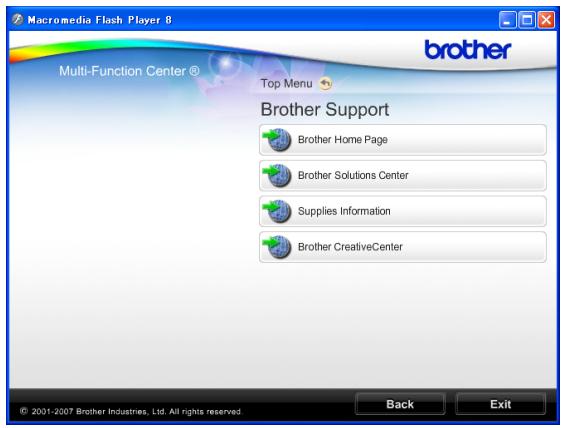
To access our website (http://www.brother.com), click Brother Home Page.
For the latest news and product support information (http://solutions.brother.com), click Brother Solutions Center.
To visit our website for original Brother supplies (http://www.brother.com/original/), click Supplies Information.
To access the Brother CreativeCenter (http://www.brother.com/creativecenter/) for FREE photo projects and printable downloads, click Brother CreativeCenter.
To return to the top menu, click Back or if you have finished, click Exit.
Control panel overview
The DCP-193C, DCP-195C, DCP-197C, DCP-365CN, DCP-373CW, DCP-375CW and DCP-377CW have the same control panel keys.
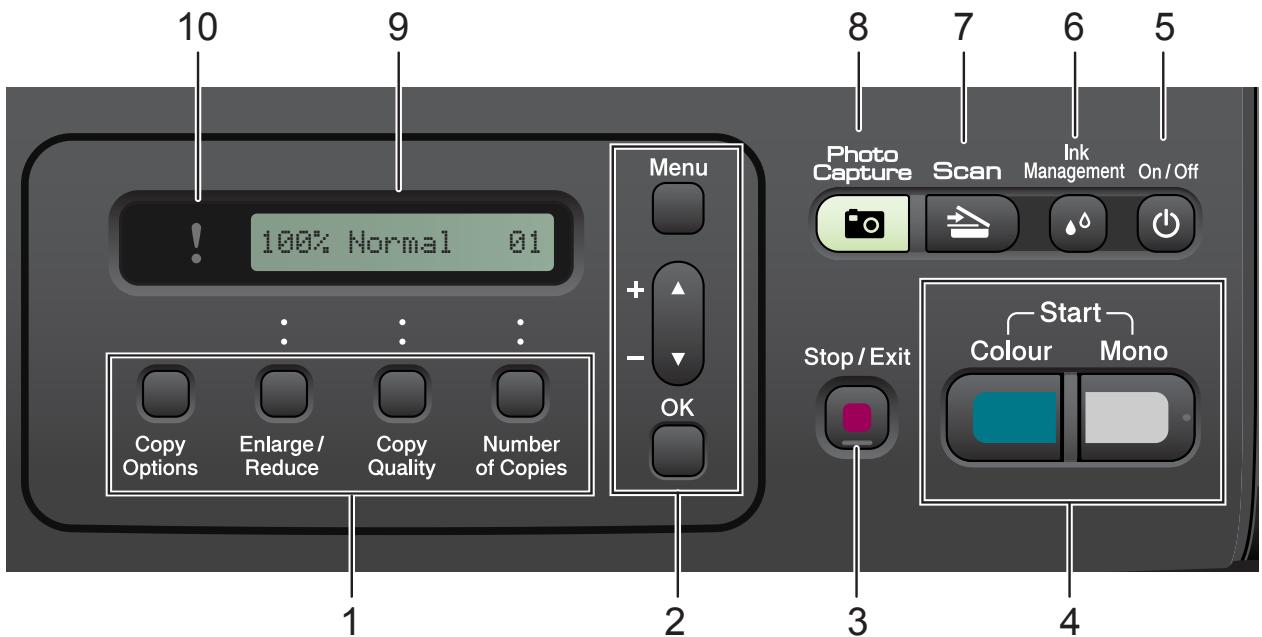
1 Copy keys:
Lets you temporarily change the copy settings when in copy mode.
Copy Options
You can quickly and easily select temporary settings for copying.
Enlarge/Reduce
Lets you enlarge or reduce copies depending on the ratio you select.
Copy Quality
Use this key to temporarily change the quality of your copies.
Number of Copies
Use this key to make multiple copies.
2 Menu keys:
Menu
Lets you access the main menu.
+or-
Press to scroll through the menus and options.
OK
Lets you select a setting.
3 Stop/Exit
Stops an operation or exits from a menu.
4 Start keys:
Mono Start
Lets you start making copies in monochrome. Also lets you start a scanning operation (in colour or mono, depending on the scanning setting in the ControlCenter software).
Colour Start
Lets you start making copies in full colour. Also lets you start a scanning operation (in colour or mono, depending on the scanning setting in the ControlCenter software).
5 On/Off
You can turn the machine on and off. If you turn the machine off, it will still periodically clean the print head to maintain print quality. To maintain print quality, prolong print head life, and provide the best ink cartridge economy, you should keep your machine connected to the power at all times.
6 Ink Management
Lets you clean the print head, check the print quality, and check the available ink volume.
7 Scan
Lets you access Scan mode.
8 Photo Capture
Lets you access the PhotoCapture CenterTM mode.
9 LCD (liquid crystal display)
Displays messages on the LCD to help you set up and use your machine.
10! Warning LED
Blinks in orange when the LCD displays an error or an important status message.

Note
Most of the illustrations in this User's Guide show the DCP-375CW.
Warning LED indications
The Warning LED (Light Emitting Diode) is a light that shows the DCP status. The LCD shows the current machine status when the machine is idle.
| LED | DCP status | Description |
| Off | Ready | The DCP is ready for use. |
| Orange | Cover open | The cover is open. Close the cover. (See Error and Routine Maintenance messages on page 65.) |
| Cannot print | Replace the ink cartridge with a new one. (See Replacing the ink cartridges on page 71.) | |
| Paper error | Put paper in the tray or clear the paper jam. Check the LCD message. (See Troubleshooting and Routine Maintenance on page 60.) | |
| Other messages | Check the LCD message. (See Error and Routine Maintenance messages on page 65.) |
2
Loading paper and documents
Loading paper and other print media
Pull the paper tray out of the machine.
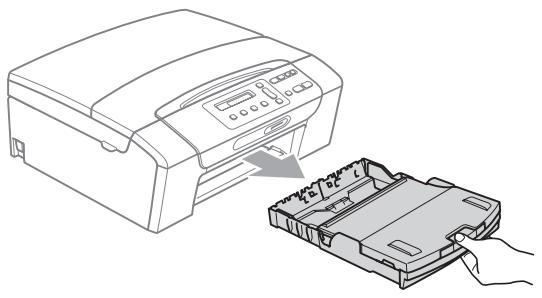
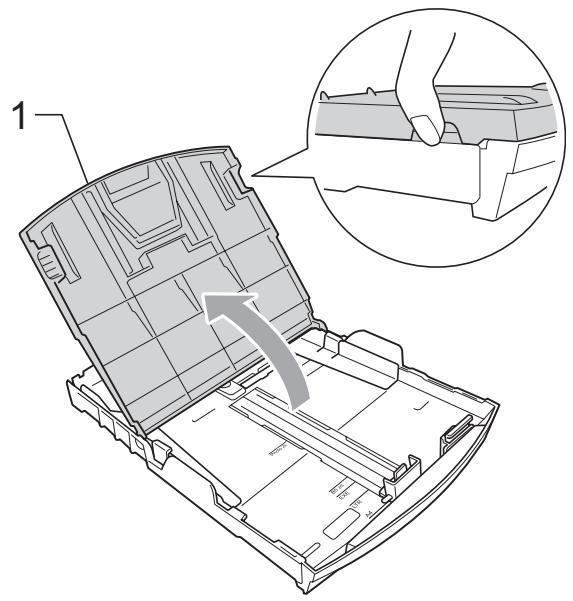
2 Lift the output paper tray cover (1).
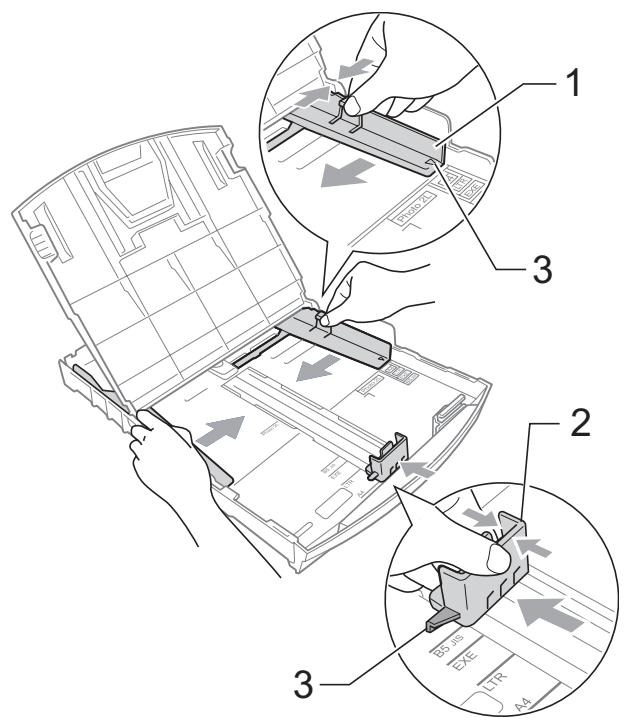
3 With both hands, gently press and slide the paper side guides (1) and then the paper length guide (2) to fit the paper size. Make sure that the triangular marks (3) on the paper side guides (1) and paper length guide (2) line up with the marks for the paper size you are using.
Note
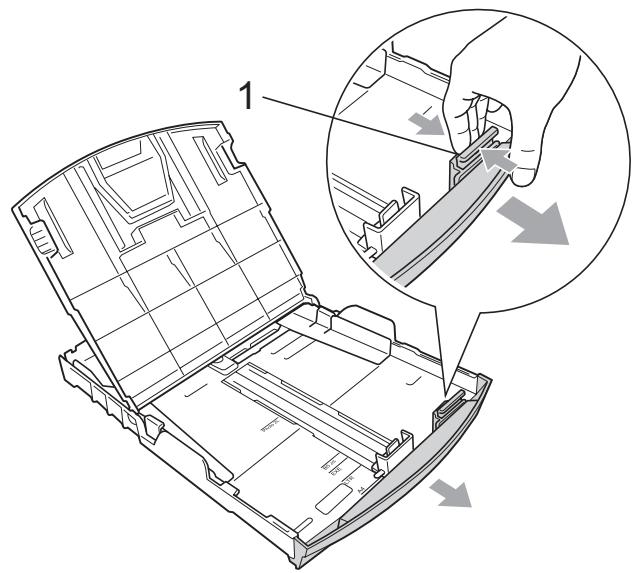
When you use Legal size paper, press and hold the universal guide release button (1) as you slide out the front of the paper tray.
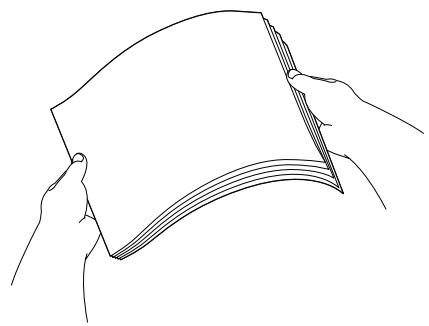
Fan the stack of paper well to avoid paper jams and misfeeds.
IMPORTANT
Always make sure that the paper is not curled.
Gently put the paper into the paper tray print side down and top edge in first. Check that the paper is flat in the tray.
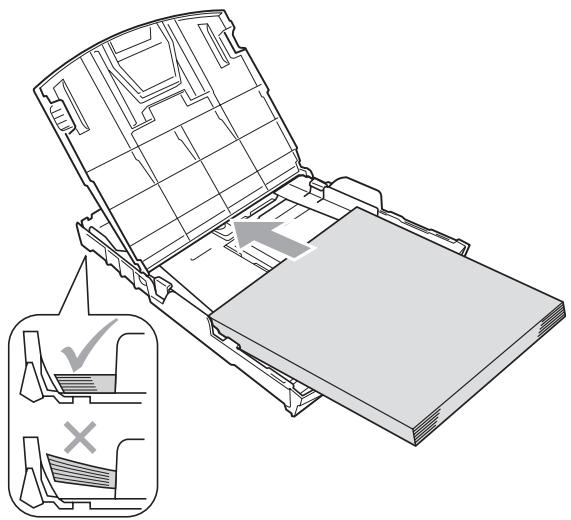
IMPORTANT
Be careful that you do not push the paper in too far; it may lift at the back of the tray and cause feed problems.
Gently adjust the paper side guides (1) to fit the paper using both hands. Make sure the paper side guides touch the sides of the paper.
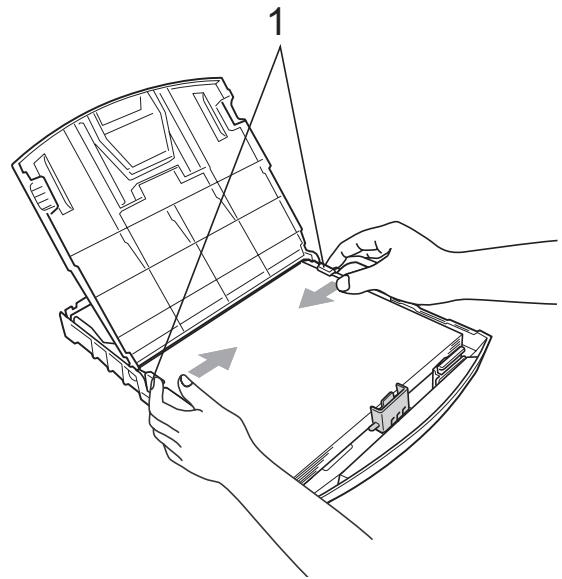
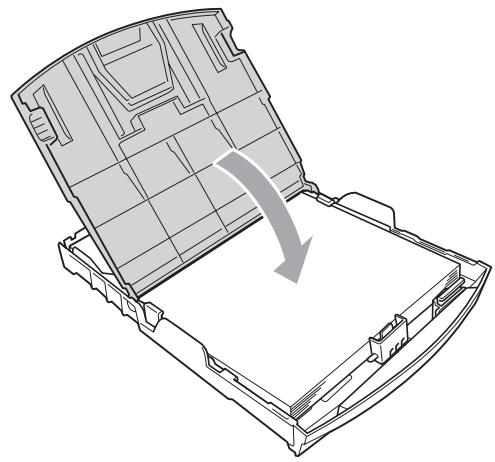
7 Close the output paper tray cover.
Slowly push the paper tray completely into the machine.
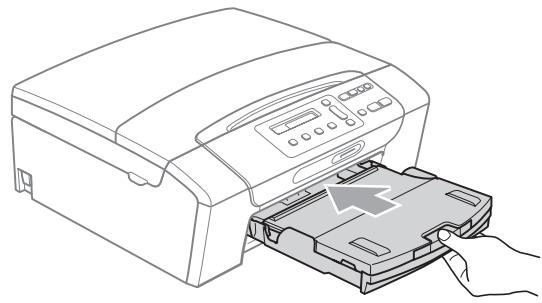

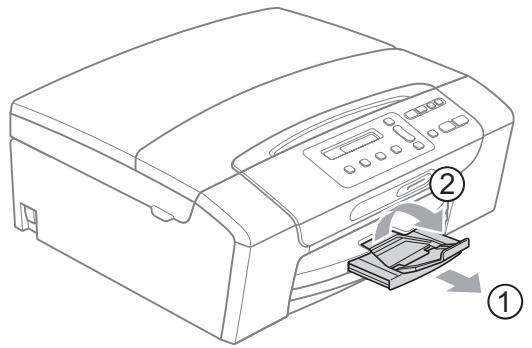
While holding the paper tray in place, pull out the paper support (①) until it clicks and unfold the paper support flap (②).
IMPORTANT
DO NOT use the paper support flap for Legal size paper.
Loading envelopes and postcards
About envelopes
Use envelopes that weigh between 80 to 95g / m^2
Some envelopes need margin settings to be set in the application. Make sure you do a test print first before printing many envelopes.
IMPORTANT
DO NOT use any of the following types of envelopes, as they will cause paper feed problems:
- If they are of a baggy construction.
- That are embossed (have raised writing on them).
- That have clasps or staples.
- That are pre-printed on the inside.

Glue
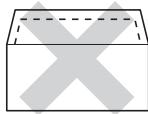
Double flap
Occasionally you may experience paper feed problems caused by the thickness, size and flap shape of the envelopes you are using.
Loading envelopes and postcards
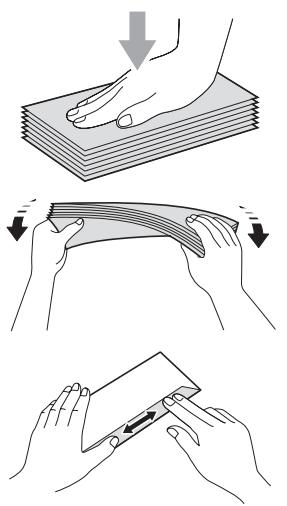
Before loading, press the corners and sides of envelopes or postcards to make them as flat as possible.

Note
If envelopes or postcards are 'double-feeding', put one envelope or postcard in the paper tray at a time.
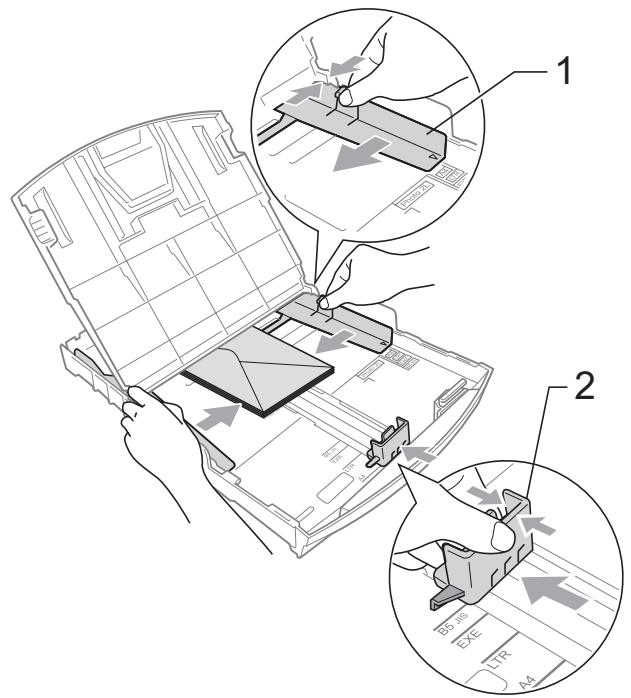
Put envelopes or postcards into the paper tray with the side to be printed on face down, and the shortest edge in first as shown in the illustration. With both hands, gently press and slide the paper side guides (1) and paper length guide (2) to fit the size of the envelopes or postcards.
If you have problems printing on envelopes with the flap on the short edge, try the following:
1 Open the envelope flap.
Put the envelope into the paper tray with the address side down and the flap positioned as shown in the illustration.
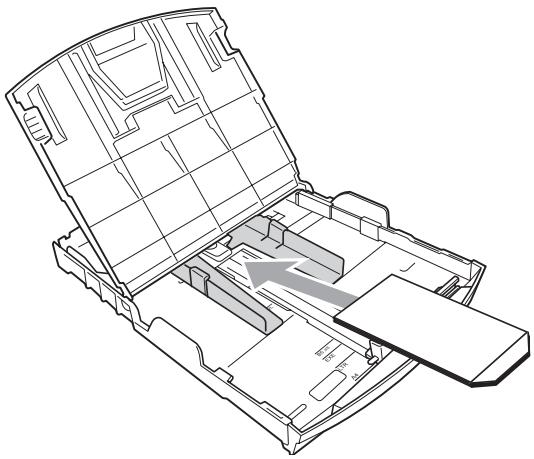
3 Adjust the size and margin in your application.
Removing small printouts from the machine
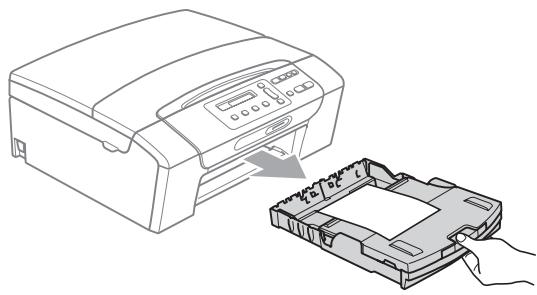
When the machine ejects small paper onto the output paper tray you may not be able to reach it. Make sure printing has finished, and then pull the tray completely out of the machine.
Printable area
The printable area depends on the settings in the application you are using. The figures below show the unprintable areas on cut sheet paper and envelopes. The machine can print in the shaded areas of cut sheet paper when the Borderless print feature is available and turned on. (See Printing for Windows® or Printing and Faxing for Macintosh in the Software User's Guide on the CD-ROM.)
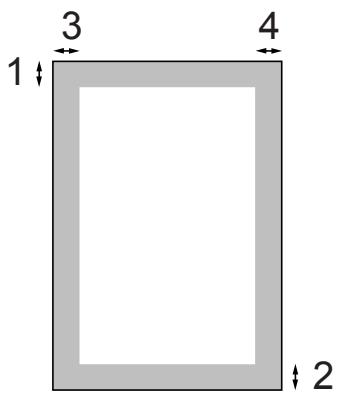
Cut Sheet Paper
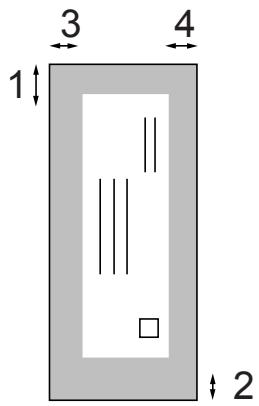
Envelopes
| Top (1) | Bottom (2) | Left (3) | Right (4) | |
| Cut Sheet | 3 mm | 3 mm | 3 mm | 3 mm |
| Envelopes | 12 mm | 24 mm | 3 mm | 3 mm |

Note
The Borderless feature is not available for envelopes.
Acceptable paper and other print media
The print quality can be affected by the type of paper you use in the machine.
To get the best print quality for the settings you have chosen, always set the Paper Type to match the type of paper you load.
You can use plain paper, inkjet paper (coated paper), glossy paper, transparencies and envelopes.
We recommend testing various paper types before buying large quantities.
For best results, use the Brother paper.
- When you print on inkjet paper (coated paper), transparencies and photo paper, be sure to choose the correct print media in the 'Basic' tab of the printer driver or in the Paper Type setting of the menu. (See Paper Type on page 27.)
- When you print on Brother Photo paper, load one extra sheet of the same photo paper in the paper tray. An extra sheet has been included in the paper package for this purpose.
- When you use transparencies or photo paper, remove each sheet at once to prevent smudging or paper jams.
- Avoid touching the printed surface of the paper immediately after printing; the surface may not be completely dry and may stain your fingers.
Recommended print media
To get the best print quality, we suggest using Brother paper. (See the table below.)
If Brother paper is not available in your country, we recommend testing various papers before purchasing large quantities.
We recommend using '3M Transparency Film' when you print on transparencies.
Brother paper
| Paper Type | Item |
| A4 Plain | BP60PA |
| A4 Glossy Photo | BP71GA4 |
| A4 Inkjet (Matte) | BP60MA |
| 10 × 15 cm Glossy Photo | BP71GP |
Handling and using print media
- Store paper in its original packaging, and keep it sealed. Keep the paper flat and away from moisture, direct sunlight and heat.
- Avoid touching the shiny (coated) side of photo paper. Load photo paper with the shiny side facing down.
- Avoid touching either side of transparencies because they absorb water and perspiration easily, and this may cause decreased output quality. Transparencies designed for laser printers/copiers may stain your next document. Use only transparencies recommended for inkjet printing.
IMPORTANT
DO NOT use the following kinds of paper:
- Damaged, curled, wrinkled, or irregularly shaped paper

1 2 mm or greater curve may cause jams to occur.
- Extremely shiny or highly textured paper
- Paper that cannot be arranged uniformly when stacked
- Paper made with a short grain
Paper capacity of the output paper tray cover
Up to 50 sheets of 20 lb Letter or 80g / m^2 A4 paper.
Transparencies and photo paper must be picked up from the output paper tray cover one page at a time to avoid smudging.
Choosing the right print media
Paper type and size for each operation
| Paper Type | Paper Size | Usage | |||
| Copy | Photo Capture | Printer | |||
| Cut Sheet | Letter | 215.9 × 279.4 mm (8 1/2 × 11 in.) | Yes | Yes | Yes |
| A4 | 210 × 297 mm (8.3 × 11.7 in.) | Yes | Yes | Yes | |
| Legal | 215.9 × 355.6 mm (8 1/2 × 14 in.) | Yes | - | Yes | |
| Executive | 184 × 267 mm (7 1/4 × 10 1/2 in.) | - | - | Yes | |
| JIS B5 | 182 × 257 mm (7.2 × 10.1 in.) | - | - | Yes | |
| A5 | 148 × 210 mm (5.8 × 8.3 in.) | Yes | - | Yes | |
| A6 | 105 × 148 mm (4.1 × 5.8 in.) | - | - | Yes | |
| Cards | Photo | 10 × 15 cm (4 × 6 in.) | Yes | Yes | Yes |
| Photo 2L | 13 × 18 cm (5 × 7 in.) | - | Yes | Yes | |
| Index Card | 127 × 203 mm (5 × 8 in.) | - | - | Yes | |
| Postcard 1 | 100 × 148 mm (3.9 × 5.8 in.) | - | - | Yes | |
| Postcard 2 (Double) | 148 × 200 mm (5.8 × 7.9 in.) | - | - | Yes | |
| Envelopes | C5 Envelope | 162 × 229 mm (6.4 × 9 in.) | - | - | Yes |
| DL Envelope | 110 × 220 mm (4.3 × 8.7 in.) | - | - | Yes | |
| COM-10 | 105 × 241 mm (4 1/8 × 9 1/2 in.) | - | - | Yes | |
| Monarch | 98 × 191 mm (3 7/8 × 7 1/2 in.) | - | - | Yes | |
| JE4 Envelope | 105 × 235 mm (4.1 × 9.3 in.) | - | - | Yes | |
| Transparencies | Letter | 215.9 × 279.4 mm (8 1/2 × 11 in.) | Yes | - | Yes |
| A4 | 210 × 297 mm (8.3 × 11.7 in.) | Yes | - | Yes | |
| Legal | 215.9 × 355.6 mm (8 1/2 × 14 in.) | Yes | - | Yes | |
| A5 | 148 × 210 mm (5.8 × 8.3 in.) | Yes | - | Yes | |
Paper weight, thickness and capacity
| Paper Type | Weight | Thickness | No. of sheets | |
| Cut Sheet | Plain Paper | 64 to 120 g/m2 | 0.08 to 0.15 mm | 1001 |
| Inkjet Paper | 64 to 200 g/m2 | 0.08 to 0.25 mm | 20 | |
| Glossy Paper | Up to 220 g/m2 | Up to 0.25 mm | 202 | |
| Cards | Photo Card | Up to 220 g/m2 | Up to 0.25 mm | 202 |
| Index Card | Up to 120 g/m2 | Up to 0.15 mm | 30 | |
| Postcard | Up to 200 g/m2 | Up to 0.25 mm | 30 | |
| Envelopes | 75 to 95 g/m2 | Up to 0.52 mm | 10 | |
| Transparencies | - | - | 10 | |
1 Up to 100 sheets of 80g / m^2 paper.
2 BP71 260 g/m² paper is especially designed for Brother inkjet machines.
Loading documents
You can make copies and scan from the scanner glass.
Using the scanner glass
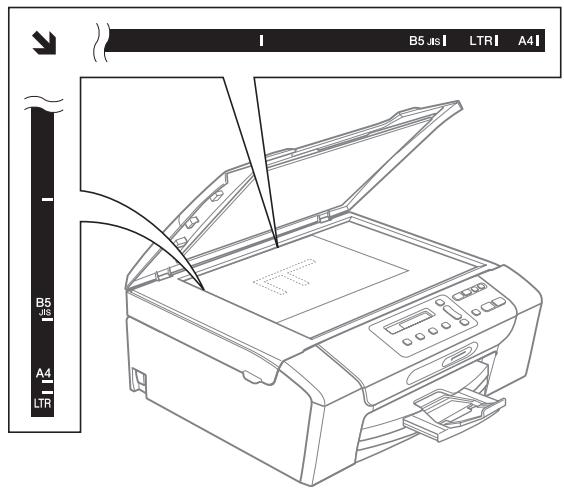
You can use the scanner glass to copy or scan pages of a book or one page at a time.
Document Sizes Supported
Length: Up to 297 mm
Width: Up to 215.9 mm
Weight: Up to 2 kg
How to load documents
1 Lift the document cover.
Using the document guidelines on the left and top, place the document face down in the upper left corner of the scanner glass.
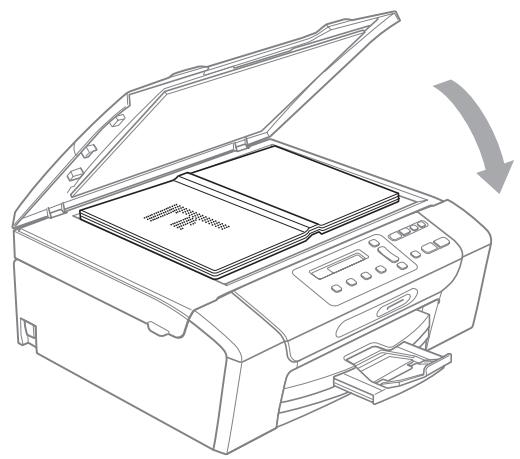
3 Close the document cover.
IMPORTANT
If you are scanning a book or thick document, DO NOT slam the cover or press on it.
Scannable area
The scannable area depends on the settings in the application you are using. The figures below show unscannable areas.
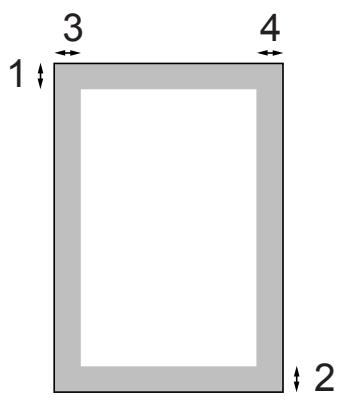
| Usage | Document Size | Top (1) Bottom (2) | Left (3) Right (4) |
| Copy | Letter | 3 mm | 3 mm |
| A4 | 3 mm | 3 mm | |
| Scan | Letter | 3 mm | 3 mm |
| A4 | 3 mm | 3 mm |
3
General Setup
LCD display
Changing LCD language
You can change the LCD language.
Press Menu.
Press or to choose 0. Initial Setup. Press OK.
Press ▲ or ▼ to choose 0. Local Language. Press OK.
Press ▲ or ▼ to choose your language. Press OK.
5 Press Stop/Exit.
Changing the LCD contrast
You can adjust the LCD contrast for a sharper and more vivid display. If you are having difficulty reading the LCD, try changing the contrast setting.
Press Menu.
Press ▲ or ▼ to choose 0. Initial Setup. Press OK.
Press ▲ or ▼ to choose 2. LCD Contrast. Press OK.
4 Press or to choose Light or Dark. Press OK.
Press Stop/Exit.
Sleep Mode
You can choose how long the machine must be idle (from 1 to 60 minutes) before it goes into sleep mode. The timer will restart if any operation is carried out on the machine.
Press Menu.
Press ▲ or ▼ to choose 0. Initial Setup. Press OK.
Press or to choose 3. Sleep Mode. Press OK.
Press or to choose 1 Min, 2 Mins, 3 Mins, 5 Mins, 10 Mins, 30 Mins or 60 Mins, which is the length of time the machine is idle before entering sleep mode. Press OK.
Press Stop/Exit.
Printing Reports
The following reports are available:
Help List
A help list showing how to program your machine.
■User Settings
Lists your settings.
Network Config
(DCP-365CN, DCP-373CW, DCP-375CW and DCP-377CW only)
Lists your Network settings.
How to print a report
Press Menu.
2 (DCP-193C, DCP-195C and DCP-197C)
Press ▲ or ▼ to choose
3.Print Reports.
Press OK.
(DCP-365CN, DCP-373CW,
DCP-375CW and DCP-377CW
Press ▲ or ▼ to choose
4.Print Reports.
Press OK.
Press or to choose the report you want.
Press OK.
4 Press Mono Start.
Press Stop/Exit.
Copy
Making copies
4
Making copies
How to copy
You can use your machine as a copier, making up to 99 copies at a time.
Making a single copy
1 Load your document.
(See Loading documents on page 17.)
Press Mono Start or Colour Start.
Making multiple copies
You can make up to 99 copies in one print run.
1 Load your document.
(See Loading documents on page 17.)
Press Number of Copies repeatedly until the number of copies you want appears (up to 99).
Or press or to change the number of copies.
Press Mono Start or Colour Start.
Stop copying
To stop copying, press Stop/Exit.
Copy options
When you want to quickly change the copy settings temporarily for the next copy, use the temporary Copy keys. You can use different combinations.

Copy Options

Enlarge/ Reduce

Copy Quality

Number of Copies
The machine returns to its default settings 1 minute after it finishes copying.
Note
You can save some of the copy settings you use most often by setting them as default. You can find instructions on how to do this in the section for each feature.
Changing copy speed and quality
You can select from a range of quality settings. The default setting is Normal.
To temporarily change the quality setting, follow the instructions below:
| Press Copy Quality | Normal | Normal is the recommended mode for ordinary print outs. This produces good copy quality with good copy speed. |
| Fast | Fast copy speed and lowest ink consumption. Use to save time printing documents to be proof-read, large documents or many copies. | |
| Best | Use best mode to copy precise images such as photographs. This provides the highest resolution and the slowest speed. |
1 Load your document.
Press Copy Quality repeatedly to choose Normal, Fast or Best.
Press Mono Start or Colour Start.
To change the default setting, follow the instructions below:
Press Menu.
Press or to choose 1. Copy. Press OK.
Press ▲ or ▼ to choose 3. Quality. Press OK.
4 Press or to choose Normal, Fast or Best. Press OK.
5 Press Stop/Exit.
Enlarging or reducing the image copied
You can choose an enlargement or reduction ratio. If you choose Fit to Page, your machine will adjust the size automatically to the paper size you set.
| Press Enlarge/ Reduce | Fit to Page |
| Custom (25-400%) | |
| 198% 10x15cm→A4 | |
| 186%10x15cm→LTR | |
| 142% A5→A4 | |
| 100% | |
| 97% LTR→A4 | |
| 93% A4→LTR | |
| 83% | |
| 69% A4→A5 | |
| 47% A4→10x15cm |
To enlarge or reduce the next copy follow the instructions below:
1 Load your document.
Press Enlarge/Reduce.
3 Do one of the following:
Press or to choose the enlargement or reduction ratio you want. Press OK.
Press ▲ or ▼ to choose Custom (25-400%). Press OK. Press ▲ or ▼ repeatedly to enter an enlargement or reduction ratio from 25% to 400%. Press OK.
Press Mono Start or Colour Start.
Note
- Page Layout Options are not available with Enlarge/Reduce.
- Fit to Page does not work properly when the document on the scanner glass is skewed more than 3 degrees. Using the document guidelines on the left and top, place your document in the upper left hand corner, with the document face down on the scanner glass.
Making N in 1 copies or a poster (Page Layout)
The N in 1 copy feature can help you save paper by letting you copy two or four pages onto one printed page.
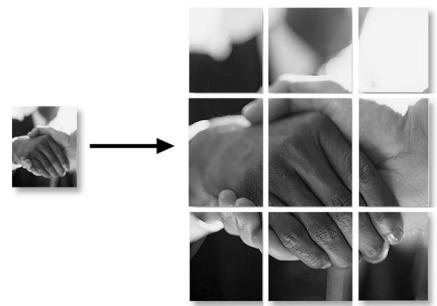
You can also produce a poster. When you use the poster feature your machine divides your document into sections, then enlarges the sections so you can assemble them into a poster.
IMPORTANT
- Make sure paper size is set to Letter or A4.
- You cannot use the Enlarge/Reduce settings with the N in 1 and Poster features.
- N in 1 colour copies are not available.
- (P) means Portrait and (L) means Landscape.
- You can only make one poster copy at a time.
| Press Copy Options and then ▲ or ▼ to choose Page Layout | Off(1 in 1) |
| 2 in 1 (P) | |
| 2 in 1 (L) | |
| 4 in 1 (P) | |
| 4 in 1 (L) | |
| Poster(3 x 3) |
1 Load your document.
2 Enter the number of copies you want.
Press Copy Options and or to choose Page Layout. Press OK.
4 Press or to choose 2 in 1 (P), 2 in 1 (L), 4 in 1 (P), 4 in 1 (L), Poster(3 x 3) or Off(1 in 1). Press OK.
Press Mono Start to scan the document. You can also press Colour Start if you are using the Poster layout.
6 After the machine scans the page, press (Yes) to scan the next page. Next Page?
Yes No
7 Place the next page on the scanner glass. Press OK.
Set Next Page
Then Press OK
Repeat steps 6 and 7 for each page of the layout.
9 After all the pages have been scanned, press (No) to finish.
Note
If glossy paper is selected as the paper type setting for N in 1 copies, the images will be printed as if plain paper had been selected.
If you are copying from the scanner glass, place your document face down in the direction shown below:
2 in 1 (P)

2 in 1 (L)

4 in 1 (P)

4 in 1 (L)

Poster (3× 3)
You can make a poster size copy of a photograph.
Adjusting Brightness and Contrast
Brightness
To temporarily change the brightness setting, follow the instruction below:
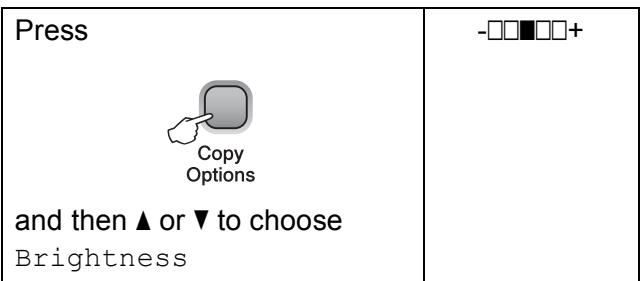
1 Load your document.
2 Enter the number of copies you want.
Press Copy Options and or to choose Brightness. Press OK.

4 Press or to make a lighter or darker copy. Press OK.
Press Mono Start or Colour Start.
To change the default setting, follow the instructions below:
Press Menu.
Press or to choose 1. Copy. Press OK.
Press ▲ or ▼ to choose 4. Brightness. Press OK.
4 Press or to make a lighter or darker copy. Press OK.
5 Press Stop/Exit.
Contrast
Adjust the contrast to help an image look sharper and more vivid.
Press Menu.
Press or to choose 1. Copy. Press OK.
Press ▲ or ▼ to choose 5. Contrast. Press OK.
Press or to increase or decrease the contrast. Press OK.
5 Press Stop/Exit.
Paper options
Paper Type
If you are copying on special paper, be sure to select the type of paper you are using so you will get the best print quality.
| Press Copy Options and then ▲ or ▼ to choose Paper Type | Plain Paper |
| Inkjet Paper | |
| Brother BP71 | |
| Other Glossy | |
| Transparency |
1 Load your document.
2 Enter the number of copies you want.
Press Copy Options and or to choose Paper Type. Press OK.
Press or to choose the type of paper you are using. Press OK.
Press Mono Start or Colour Start. To change the default setting, follow the instructions below:
Press Menu.
Press or to choose 1. Copy. Press OK.
Press ▲ or ▼ to choose 1. Paper Type. Press OK.
Press ▲ or ▼ to choose Plain Paper, Inkjet Paper, Brother BP71, Other Glossy or Transparency. Press OK.
5 Press Stop/Exit.
Paper Size
If you are copying other than A4 size, you will need to change the paper size setting. You can copy on Letter, Legal, A4, A5 or Photo 10 × 15 cm paper.
| Press Copy Options and then ▲ or ▼ to choose Paper Size | Letter |
| Legal | |
| A4 | |
| A5 | |
| 10 (W) x 15 (H) cm |
1 Load your document.
2 Enter the number of copies you want.
Press Copy Options and or to choose Paper Size. Press OK.
Press or to choose the size of paper you are using. Press OK.
Press Mono Start or Colour Start.
To change the default setting, follow the instructions below:
Press Menu.
Press or to choose 1. Copy. Press OK.
Press ▲ or ▼ to choose 2. Paper Size. Press OK.
4 Press or to choose the paper size you are using, Letter, Legal, A4, A5 or 10× 15cm Press OK.
Press Stop/Exit.

Direct Printing
Printing photos from a memory card or USB Flash memory drive 30
Printing photos from a camera (DCP-193C, DCP-195C, DCP-197C, DCP-365CN only) 43
5
Printing photos from a memory card or USB Flash memory drive
PhotoCapture Center™ Operations

Note
The DCP-373CW, DCP-375CW and DCP-377CW only support memory cards.
Printing from a memory card or USB Flash memory drive without a PC
Even if your machine is not connected to your computer, you can print photos directly from digital camera media or a USB Flash memory drive. (See How to print from a memory card or USB Flash memory drive on page 33.)
Scanning to a memory card or USB Flash memory drive without a PC
You can scan documents and save them directly to a memory card or USB Flash memory drive. (See Scan to a memory card or USB Flash memory drive on page 40.)
Using PhotoCapture Center™ from your computer
You can access a memory card or USB Flash memory drive that is inserted in front of the machine from your computer.
(See PhotoCapture Center™ for Windows® or PhotoCapture Center™ for Macintosh in the Software User's Guide on the CD-ROM.)
Using memory card or USB Flash memory drive
Your Brother machine has media drives (slots) for use with the following popular digital camera media: Memory Stick™, Memory Stick PRO™, SD, SDHC, xD-Picture Card™ and USB Flash memory drive.

Memory Stick™
Memory Stick PRO™
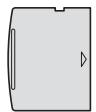
xD-Picture CardTM

SD, SDHC
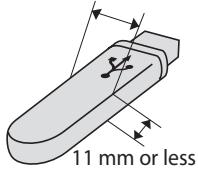
22 mm or less
USB Flash memory drive
miniSD™ can be used with a miniSD™ adapter.
- microSD™ can be used with a microSD™ adapter.
Memory Stick Duo™ can be used with a Memory Stick Duo™ adapter.
Memory Stick PRO Duo™ can be used with a Memory Stick PRO Duo™ adapter.
Memory Stick Micro™ (M2™) can be used with a Memory Stick Micro™ (M2™) adapter.
Adapters are not included with the machine. Contact a third party supplier for adapters.
This product supports xD-Picture Card™ Type M / Type M^+ /Type H (Large Capacity).
■ IBM Microdrive™ is not compatible with the machine.
The PhotoCapture Center™ feature lets you print digital photos from your digital camera at high resolution to get photo quality printing.
Memory cards, USB Flash memory drive and folder structures
Your machine is designed to be compatible with modern digital camera image files, memory cards or USB Flash memory drive; however, please read the points below to avoid errors:
The image file extension must be.JPG (other image file extensions like .JPEG, .TIF, .GIF and so on will not be recognized).
- Direct PhotoCapture Center™ printing without using a PC must be performed separately from PhotoCapture Center™ operations using the PC. (Simultaneous operation is not available.)
The machine can read up to 999 files on a memory card or USB Flash memory drive.
The DPOF file on the memory cards must be in a valid DPOF format. (See DPOF printing on page 35.)
Please be aware of the following:
- When printing an index or image, the PhotoCapture Center™ will print all valid images, even if one or more images have been corrupted. Corrupted images will not be printed.
(Memory card users)
Your machine is designed to read memory cards that have been formatted by a digital camera.
When a digital camera formats a memory card it creates a special folder into which it copies image data. If you need to modify the image data stored on a memory card with your PC, we recommend that you do not modify the folder structure created by the digital camera. When saving new or modified image files to the memory card we also recommend you use the same folder your digital camera uses. If the data is not saved to the same folder, the machine may not be able to read the file or print the image.
(USB Flash memory drive users)
This machine supports USB Flash memory drives that have been formatted by Windows®.
Getting started
Firmly put a memory card or USB Flash memory drive into the correct slot.
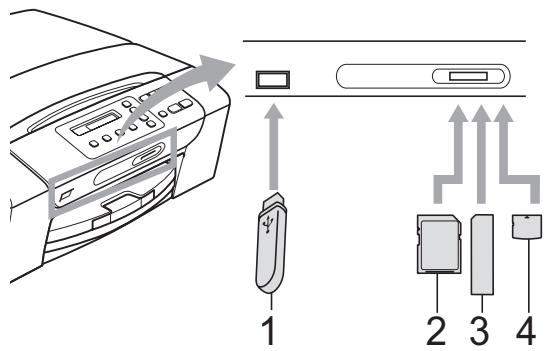
1 USB Flash memory drive
2 SD, SDHC
3 Memory Stick™, Memory Stick PRO™
4 xD-Picture CardTM
IMPORTANT
The USB direct interface supports only a USB Flash memory drive, a PictBridge compatible camera, or a digital camera that uses the USB mass storage standard. Any other USB devices are not supported.
Photo Capture key indications:

- Photo Capture light is on, the memory card or USB Flash memory drive is correctly inserted.
-
Photo Capture light is off, the memory card or USB Flash memory drive is not correctly inserted.
-
Photo Capture light is blinking, the memory card or USB Flash memory drive is being read or written to.
IMPORTANT
DO NOT unplug the power cord or remove the memory card or USB Flash memory drive from the media drive (slot) or USB direct interface while the machine is reading or writing to the memory card or USB Flash memory drive (the Photo Capture key is blinking). You will lose your data or damage the card.
The machine can only read one device at a time.
How to print from a memory card or USB Flash memory drive
Before printing a photo you must first print a thumbnail index to choose the number of the photo you want to print. Follow the instructions below to start printing directly from your memory card or USB Flash memory drive:
1 Make sure you have put the memory card or USB Flash memory drive in the correct slot. For example, the LCD will show the following message:
M.Stick Active
Press (Photo Capture).
For DPOF printing, see DPOF printing on page 35.
Press or to choose Print Index and then press OK.
4 Press Colour Start to start printing the index sheet. Make a note of the image number you want to print. See Print Index (Thunnails) on page 33.
5 To print images press or to choose Print Images in 3 and then press OK. (See Printing Photos on page 34.)
6 Enter the image number and press OK.
7 Press Colour Start to start printing.
Print Index (Thunnails)
The PhotoCapture Center™ assigns numbers for images (such as NO.1, NO.2, NO.3, and so on).
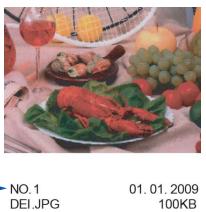
The PhotoCapture Center™ uses these numbers to identify each picture. You can print a thumbnail page to show all the pictures on the memory card or USB Flash memory drive.
Note
Only file names that are 8 characters or less will be printed correctly on the index sheet.
1 Make sure you have put the memory card or USB Flash memory drive in the correct slot.
Press (Photo Capture).
Press or to choose Print Index. Press OK.
Press ▲ or ▼ to choose 6 Images/Line or 5 Images/Line. Press OK.

6 Images/Line
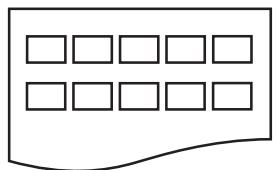
5 Images/Line
Print time for 5 Images/Line will be slower than 6 Images/Line, but the quality is better.
Press ▲ or ▼ to choose the type of paper you are using, Plain Paper, Inkjet Paper, Brother BP71 or Other Glossy. Press OK.
Press ▲ or ▼ to choose the paper size you are using, A4 or Letter. Press OK.
6 Press Colour Start to print.
Printing Photos
Before you can print an individual image, you have to know the image number.
Make sure you have put the memory card or USB Flash memory drive in the correct slot.
2 Print the index first. (See Print Index (Thumbsils) on page 33.)
Press (Photo Capture).
Press ▲ or ▼ to choose Print Images. Press OK.
Note
If your memory card or USB Flash memory drive contains valid DPOF information, the LCD will show DPOF Print:Yes.(See DPOF printing on page 35.)
Press repeatedly to enter the image number that you want to print from the thumbnail index.
After you have chosen the image numbers, press OK.
No.:1,3,6
Note
- Press to decrease the image number.
- You can enter a range of numbers at one time by using the Copy Options key for a hyphen. (For example, enter 1, Copy Options, 5 to print images No.1 to No.5.)
- You can enter up to 11 characters (including commas) for the image numbers you want to print.
After you have selected the images you want to print, press OK to select your settings.
If you have already chosen your settings, press Colour Start.
Press ▲ or ▼ to choose the type of paper you are using, Plain Paper, Inkjet Paper, Brother BP71 or Other Glossy. Press OK.
7 Press or to choose the paper size you are using, Letter, A4, 10x15cm or 13x18cm. Press OK.
If you selected Letter or A4, go to step ⑧.
If you selected another size, go to step 9.
If you have finished choosing settings, press Colour Start.
Press or to choose the print size (8 x 10cm, 9 x 13cm, 10 x 15cm, 13 x 18cm, 15 x 20cm or Max. Size). Press OK.
9 Do one of the following: To choose the number of copies go to step 10. If you do not want to change any settings, press Colour Start.
Press or to enter the number of copies you want. Press OK.
11 Press Colour Start to print.
The printing positions when using A4 paper are shown below.
| 1 8 x 10cm | 2 9 x 13cm | 3 10 x 15cm |
| 4 13 x 18cm | 5 15 x 20cm | 6 Max. Size |
DPOF printing
DPOF stands for Digital Print Order Format.
Major digital camera manufacturers (Canon Inc., Eastman Kodak Company, FUJIFILM Corporation, Panasonic Corporation and Sony Corporation) created this standard to make it easier to print images from a digital camera.
If your digital camera supports DPOF printing, you will be able to choose on the digital camera display the images and number of copies you want to print.
When a memory card containing DPOF information is put into your machine, you can print the chosen image easily.
1 Firmly insert the memory card into the correct slot.
M.Stick Active
Press (Photo Capture).
Press ▲ or ▼ to choose Print Images. Press OK.
3 If there is a DPOF file on the card, the LCD will show:
DPOF Print:Yes
4 Press or to choose
DPOF Print:Yes.
Press OK.
Press or to choose the type of paper you are using, Plain Paper,
Inkjet Paper, Brother BP71 or Other Glossy.
Press OK.
Press ▲ or ▼ to choose the paper size you are using, Letter, A4, 10x15cm or 13x18cm.
Press OK.
If you selected Letter or A4, go to step ⑦.
If you selected another size, go to step ⑧.
If you have finished choosing settings, press Colour Start.
7 Press or to choose the print size
(8 x 10cm, 9 x 13cm, 10 x 15cm, 13 x 18cm, 15 x 20cm or Max. Size).
Press OK.
Press Colour Start to print.

Note
A DPOF File error can occur if the print order that was created on the camera has been corrupted. Delete and recreate the print order using your camera to correct this problem. For instructions on how to delete or recreate the print order, refer to your camera manufacturer's support website or accompanying documentation.
PhotoCapture Center™ print settings
These settings will remain until you change them again.
Print quality
Press Menu.
Press or to choose
2.PhotoCapture.
Press OK.
Press or to choose
1.Print Quality.
Press OK.
4 Press or to choose Normal or
Photo.
Press OK.
5 Press Stop/Exit.
Paper Options
Paper Type
Press Menu.
Press or to choose
2.PhotoCapture.
Press OK.
Press ▲ or ▼ to choose 2. Paper Type.
Press OK.
Press ▲ or ▼ to choose Plain Paper,
Inkjet Paper, Brother BP71 or Other Glossy.
Press OK.
5 Press Stop/Exit.
Paper Size
Press Menu.
Press or to choose
2.PhotoCapture.
Press OK.
Press ▲ or ▼ to choose 3. Paper Size. Press OK.
Press or to choose the paper size you are using, Letter, A4, 10x15cm or 13x18cm.
Press OK.
Press Stop/Exit.
Print Size
This setting is available only when you select Letter or A4 in the paper size setting.
Press Menu.
Press or to choose
2.PhotoCapture.
Press OK.
Press or to choose 4.Print Size. Press OK.
Press or to choose the print size you are using, (8 x 10cm, 9 x 13cm,
10 x 15cm, 13 x 18cm, 15 x 20cm
or Max. Size).
Press OK.
Press Stop/Exit.
Colour Enhancement
You can turn on the colour enhancement feature to print more vivid images.
Brightness
Press Menu.
Press or to choose
2.PhotoCapture.
Press OK.
Press or to choose
5.Color Enhance.
Press OK.
4 Press or to choose On (or Off).
Press OK.
If you choose Off , then go to step ⑦.
Press or to choose 1.Brightness.
Press OK.
Press or to make a lighter or darker print.
Press OK.
7 Press Stop/Exit.
Contrast
You can select the contrast setting. More contrast will make an image look sharper and more vivid.
Press Menu.
Press or to choose
2.PhotoCapture.
Press OK.
Press or to choose
5.Color Enhance.
Press OK.
Press or to choose On (or Off). Press OK.
If you choose Off, then go to step ⑦.
Press ▲ or ▼ to choose 2. Contrast. Press OK.
Press ▲ or ▼ to increase or decrease the contrast. Press OK.
7 Press Stop/Exit.
White Balance
You can adjust the white areas of an image and bring them back to pure white.
Press Menu.
Press ▲ or ▼ to choose 2. PhotoCapture. Press OK.
Press ▲ or ▼ to choose 5.Color Enhance. Press OK.
Press or to choose on (or Off). Press OK.
If you choose Off, then go to step ⑦.
Press ▲ or ▼ to choose 3. White Balance. Press OK.
6 Press or to adjust the degree of the balance. Press OK.
7 Press Stop/Exit.
Sharpness
You can enhance the focus of an image by adjusting the sharpness.
Press Menu.
Press ▲ or ▼ to choose 2. PhotoCapture. Press OK.
Press ▲ or ▼ to choose 5.Color Enhance. Press OK.
4 Press or to choose On (or Off). Press OK. If you choose Off, then go to step 7.
Press ▲ or ▼ to choose 4. Sharpness. Press OK.
Press or to increase or decrease the sharpness. Press OK.
7 Press Stop/Exit.
Colour Density
You can adjust the total amount of colour in the image to improve a washed out or weak picture.
Press Menu.
Press ▲ or ▼ to choose 2. PhotoCapture. Press OK.
Press ▲ or ▼ to choose 5.Color Enhance. Press OK.
4 Press or to choose On (or Off). Press OK. If you choose Off, then go to step 7.
Press ▲ or ▼ to choose 5.Color Density. Press OK.
Press ▲ or ▼ to increase or decrease the amount of colour. Press OK.
7 Press Stop/Exit.

Note
Choosing White Balance, Sharpness, or Colour Density will make printing time slower.
Cropping
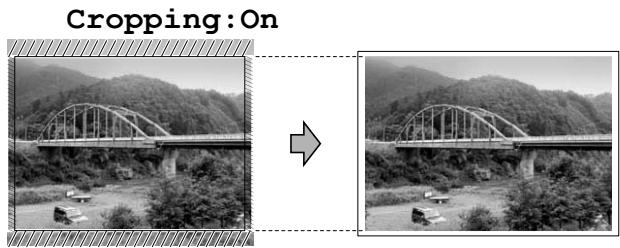
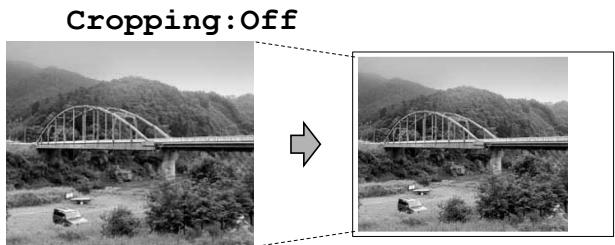
If your photo is too long or wide to fit the available space on your chosen layout, part of the image will be automatically cropped.
The default setting is on. If you want to print the whole image, turn this setting to Off.
If you are also using the Borderless setting, turn Borderless to Off. (See Borderless printing on page 40.)
Press Menu.
Press ▲ or ▼ to choose 2. PhotoCapture. Press OK.
Press or to choose 6. Cropping. Press OK.
4 Press or to choose Off (or On). Press OK.
5 Press Stop/Exit.
Borderless printing
This feature expands the printable area to the edges of the paper. Printing time will be slightly slower.
Press Menu.
Press ▲ or ▼ to choose 2. PhotoCapture. Press OK.
Press or to choose 7. Borderless. Press OK.
Press or to choose Off (or On). Press OK.
Press Stop/Exit.
Date Print
You can print the date if it is already in the data on your photo. The date will be printed on the lower right corner. If the data doesn't have the date information, you cannot use this function.
Press Menu.
Press ▲ or ▼ to choose 2. PhotoCapture. Press OK.
Press or to choose 8. Date Print. Press OK.
Press or to choose On (or Off). Press OK.
Press Stop/Exit.

The DPOF setting on your camera must be turned off to use the Date Print feature.
Scan to a memory card or USB Flash memory drive
You can scan monochrome and colour documents into a memory card or USB Flash memory drive. Monochrome documents will be stored in PDF (.PDF) or TIFF (.TIF) file formats. Colour documents may be stored in PDF (.PDF) or JPEG (.JPG) file formats. The default setting is Color 150 dpi and the default file format is PDF. The machine automatically creates file names based on the current date. (For details, see the Quick Setup Guide.) For example, the fifth image scanned on July 1, 2009 would be named 01070905.PDF. You can change the colour and quality.
| Quality | Selectable File Format |
| Color 150 dpi | JPEG / PDF |
| Color 300 dpi | JPEG / PDF |
| Color 600 dpi | JPEG / PDF |
| B/W 200x100 dpi | TIFF / PDF |
| B/W 200 dpi | TIFF / PDF |
1 Make sure you have put the memory card or USB Flash memory drive in the correct slot.
IMPORTANT DO NOT take out the memory card or USB Flash memory drive while Photo Capture is blinking to avoid damaging the card, USB Flash memory drive or data stored on them.
2 Load your document.
Press (Scan).
4 Press or to choose
Scan to Media.
Do one of the following:
To change the quality press OK and go to step ⑤.
To start scanning press Mono Start or Colour Start.
Press or to choose the quality, and then press OK.
Do one of the following:
To change the file type, go to step 6.
To start scanning press Mono Start or Colour Start.
Press or to choose the file type and then press OK.
Press Mono Start or Colour Start.
Changing the image quality
Press Menu.
Press or to choose
2.PhotoCapture.
Press OK.
Press or to choose
- Scan to Media.
Press OK.
4 Press or to choose 1. Quality.
Press OK.
Press ▲ or ▼ to choose
Color 150 dpi, Color 300 dpi,
Color 600 dpi,B/W 200x100 dpi
or B/W 200 dpi.
Press OK.
6 Press Stop/Exit.
Changing the monochrome file format
Press Menu.
Press or to choose
2.PhotoCapture.
Press OK.
Press or to choose
- Scan to Media.
Press OK.
4 Press or to choose
2.B/W File Type.
Press OK.
Press or to chooseTIFForPDF.
Press OK.
6 Press Stop/Exit.
Changing the colour file format
Press Menu.
Press or to choose
2.PhotoCapture.
Press OK.
Press or to choose
0. Scan to Media.
Press OK.
4 Press or to choose
3.ColorFile Type.
Press OK.
Press or to choose PDF or JPEG.
Press OK.
6 Press Stop/Exit.
Understanding the Error Messages
Once you are familiar with the types of errors that can occur while you are using PhotoCapture Center™, you can easily identify and troubleshoot any problems.
Hub is Unusable.
This message will appear if a Hub or USB Flash memory drive with a Hub has been put into the USB direct interface.
Media Error
This message will appear if you put in a memory card that is either bad or not formatted, or when there is a problem with the media drive. To clear this error, take out the memory card.
No File
This message will appear if you try to access a memory card or USB Flash memory drive in the drive (slot) that does not contain a .JPG file.
Out of Memory
This message will appear if you are working with images that are too large for the machine's memory.
Media is Full.
This message will appear if you are trying to save more than 999 files in a memory card or USB Flash memory drive.
Unusable Device
This message will appear if a USB device or USB Flash memory drive that is not supported has been connected to the USB direct interface (For more information, visit us at http://solutions.brother.com.). This message can also appear if you connect a broken device to the USB direct interface.
Printing photos directly from a PictBridge camera

Your Brother machine supports the PictBridge standard, allowing you to connect to and print photos directly from any PictBridge compatible digital camera.
If your camera is using the USB Mass Storage standard, you can also print photos from a digital camera without PictBridge. See Printing photos directly from a digital camera (without PictBridge) on page 45.
PictBridge requirements
To avoid errors, remember the following points:
The machine and the digital camera must be connected using a suitable USB cable.
The image file extension must be.JPG (other image file extensions like.JPG, .TIF, .GIF and so on will not be recognized).
PhotoCapture Center™ operations are not available when using the PictBridge feature.
Setting your digital camera
Make sure your camera is in PictBridge mode. The following PictBridge settings may be available from the LCD of your PictBridge compatible camera.
Depending on your camera some of these settings may not be available.
| Camera Menu Selections | Options |
| Paper Size | Letter, A4, 10×15 cm, Printer Settings (Default setting)² |
| Paper Type | Plain Paper, Glossy Paper, Inkjet Paper, Printer Settings (Default setting)² |
| Layout | Borderless: On, Borderless: Off, Printer Settings (Default setting)² |
| DPOF setting¹ | - |
| Print Quality | Normal, Fine, Printer Settings (Default setting)² |
| Colour Enhancement | On, Off, Printer Settings (Default setting)² |
| Date Print | On, Off, Printer Settings (Default setting)² |
See DPOF printing on page 44 for more details.
2 If your camera is set to use the Printer Settings (Default setting), the machine will print your photo using the following settings.
| Settings | Options |
| Paper Size | 10×15 cm |
| Paper Type | Glossy Paper |
| Layout | Borderless: On |
| Print Quality | Fine |
| Colour Enhancement | Off |
| Date Print | Off |
- When your camera does not have any menu selections, this setting is also used.
The names and availability of each setting depends on the specification of your camera.
Please refer to the documentation supplied with your camera for more detailed information on changing PictBridge settings.
Printing Images

Note
Remove any memory cards or USB Flash memory drive from the machine before connecting a digital camera.

Make sure that your camera is turned off. Connect your camera to the USB direct interface (1) on the machine using the USB cable.
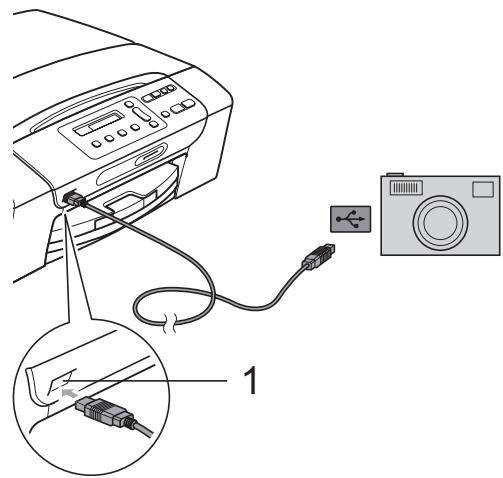
1 USB direct interface
Turn on the camera.
When the machine has recognized the camera, the LCD shows the following message:
Camera Connected
Choose the photo you want to print following the instructions from your camera.
When the machine starts printing a photo, the LCD will show Printing.
IMPORTANT
To prevent damage to your machine, do not connect any device other than a digital camera or USB Flash memory drive to the USB direct interface.
DPOF printing
DPOF stands for Digital Print Order Format.
Major digital camera manufacturers (Canon Inc., Eastman Kodak Company, FUJIFILM Corporation, Matsushita Electric Industrial Co. Ltd. and Sony Corporation) created this standard to make it easier to print images from a digital camera.
If your digital camera supports DPOF printing, you will be able to choose on the digital camera display the images and number of copies you want to print.

Note
A DPOF File error can occur if the print order that was created on the camera has been corrupted. Delete and recreate the print order using your camera to correct this problem. For instructions on how to delete or recreate the print order, refer to your camera manufacturer's support website or accompanying documentation.
Printing photos directly from a digital camera (without PictBridge)
If your camera supports the USB Mass Storage standard, you can connect your camera in storage mode. This enables you to print photos from your camera.
If you would like to print photos in PictBridge mode, see Printing photos directly from a PictBridge camera on page 43.

Note
The name, availability and operation differ among digital cameras. Please refer to the documentation supplied with your camera for detailed information, such as how to switch from PictBridge mode to USB mass storage mode.
Printing Images

Note
Remove any memory cards or USB Flash memory drive from the machine before connecting the digital camera.

Connect your camera to the USB direct interface (1) on the machine using the USB cable.
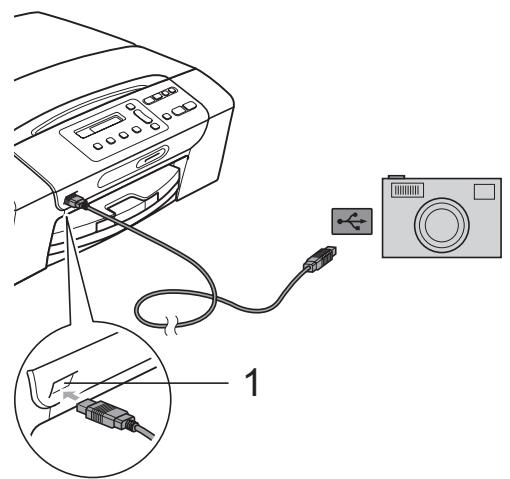
1 USB direct interface

Turn on the camera.

Follow the steps in Printing Photos on page 34.

IMPORTANT
To prevent damages to your machine, do not connect any device other than a digital camera or USB Flash memory drive to the USB direct interface.
Understanding the Error Messages
Once you are familiar with the types of errors that can occur while you are using a digital camera, you can easily identify and troubleshoot any problems.
Out of Memory
This message will appear if you are working with images that are too large for the machine's memory.
Unusable Device
This message will appear if you connect a camera which is not using the USB Mass storage standard. This message can also appear if you connect a broken device to the USB direct interface.
For more detailed solutions see Error and Routine Maintenance messages on page 65.

Software
Software and Network features
7
Software and Network features

Note
Network User's Guide is only available for DCP-365CN, DCP-373CW, DCP-375CW and DCP-377CW.
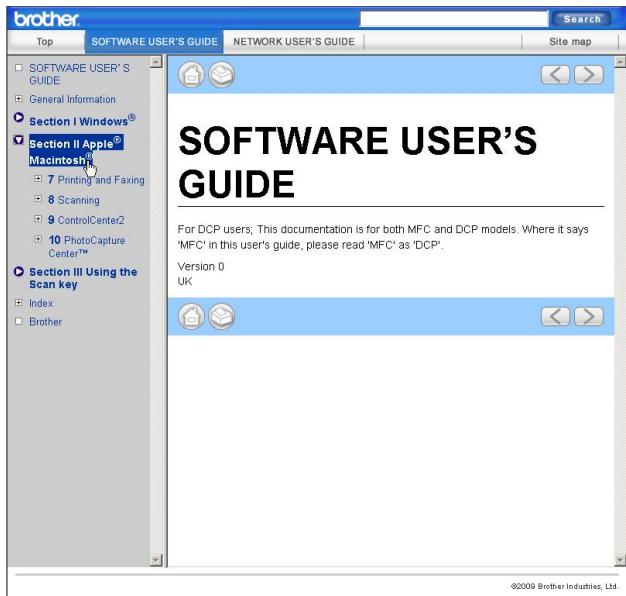
The CD-ROM includes the Software User's Guide and Network User's Guide for features available when connected to a computer (for example, printing and scanning). The guide has easy to use links that, when clicked, will take you directly to a particular section.
You can find information on these features:
■ Printing
Scanning
ControlCenter3 (Windows®)
ControlCenter2 (Macintosh)
PhotoCapture CenterTM
Network Printing
Network Scanning
Wired and Wireless Network
How to read the HTML User's Guide
This is a quick reference to use the HTML User's Guide.
For Windows®

Note
If you have not installed the software, see Viewing Documentation on page 3.
From the Start menu, point to Brother, DCP-XXXX (where XXXX is your model number) from the programs group, then click User's Guides in HTML format.
2 Click SOFTWARE USER'S GUIDE (or NETWORK USER'SGUIDE) from the top menu.
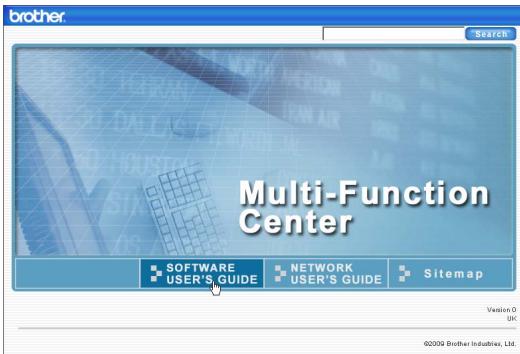
3 Click the heading you would like to view from the list at the left of the window.
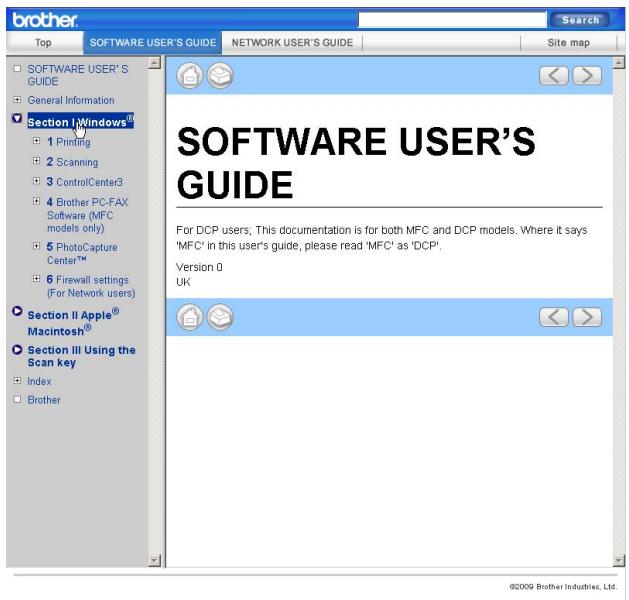
For Macintosh
Make sure your Macintosh is turned on. Insert the Brother CD-ROM into your CD-ROM drive.
Double-click the Documentation icon.
3 Double-click your language folder, and then double-click top.html.
4 Click SOFTWARE USER'S GUIDE (or NETWORK USER'SGUIDE) in the top menu, and then click the heading you would like to read from the list at the left of the window.

Appendixes
Safety and Legal 50
Troubleshooting and Routine Maintenance 60
Menu and Features 81
Specifications 93
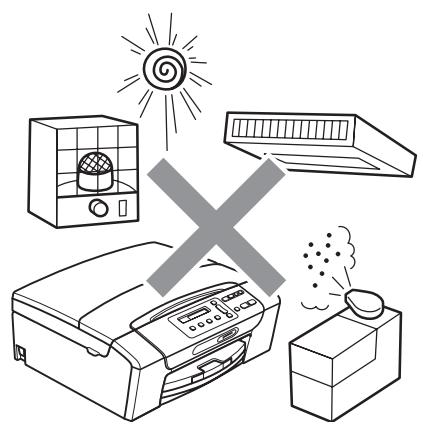
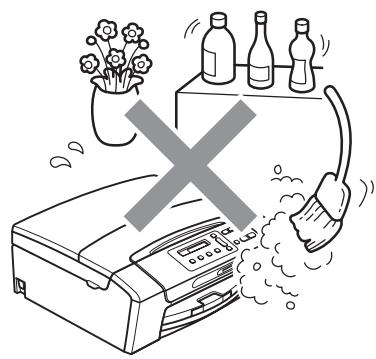
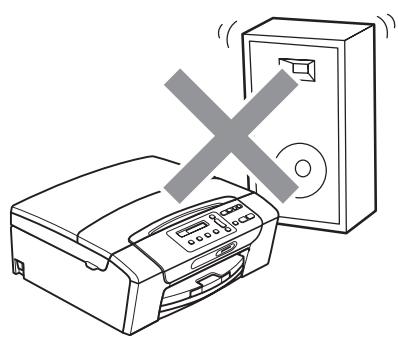
Choosing a location
Put your machine on a flat, stable surface that is free of vibration and shocks, such as a desk. Put the machine near a standard, grounded electrical socket. Choose a location where the temperature remains between 10^ and 35^ .

WARNING
DO NOT put the machine near heaters, air conditioners, refrigerators, medical equipment, chemicals or water.
DO NOT connect your machine to electrical sockets on the same circuit as large appliances or other equipment that might disrupt the power supply.

CAUTION
- Avoid placing your machine in a high-traffic area.
- Avoid placing your machine on a carpet.
- DO NOT expose the machine to direct sunlight, excessive heat, moisture, or dust.
- DO NOT connect your machine to electrical sockets controlled by wall switches or automatic timers.
- Disruption of power can wipe out information in the machine's memory.
- DO NOT tip the machine, or place it on any tilted surface. Doing this may cause ink spillage and internal damage to your machine.
To use the machine safely
Please keep these instructions for later reference and read them before attempting any maintenance.

WARNING

There are high voltage electrodes inside the machine. Before you clean the inside of the machine, make sure you have unplugged the power cord from the electrical socket. Doing this will prevent an electrical shock.
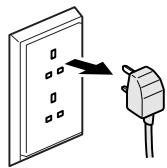

DO NOT handle the plug with wet hands. Doing this might cause an electrical shock.


DO NOT pull in the middle of the power cord. Doing this might cause an electrical shock.

DO NOT use flammable substances, any type of spray, liquid or aerosol cleaners to clean the inside or outside of the machine. Doing this may cause a fire or electrical shock.

If the machine becomes hot, releases smoke, or generates any strong smells, immediately unplug the machine from the electrical socket. Call your Brother dealer or Brother Customer Service.

If metal objects, water or other liquids get inside the machine, immediately unplug the machine from the electrical socket. Call your Brother dealer or Brother Customer Service.

This product must be installed near an electrical socket that is easily accessible. In case of an emergency, you must unplug the power cord from the electrical socket to shut off the power completely.

This product should be connected to an AC power source within the range indicated on the rating label. DO NOT connect it to a DC power source or inverter. If you are not sure, contact a qualified electrician.

Always make sure the plug is fully inserted.

DO NOT use the machine if the power cord is frayed or damaged, doing so may cause a fire.
CAUTION

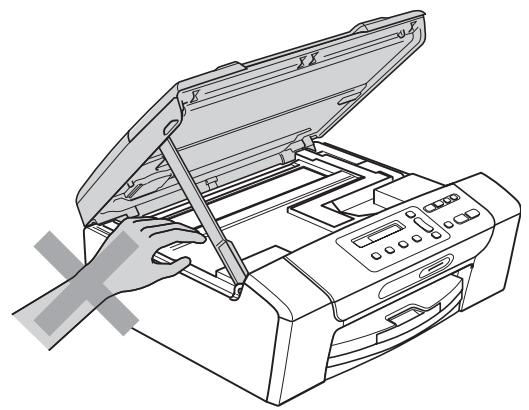
DO NOT put your hands on the edge of the machine under the scanner cover. Doing this may cause injury.

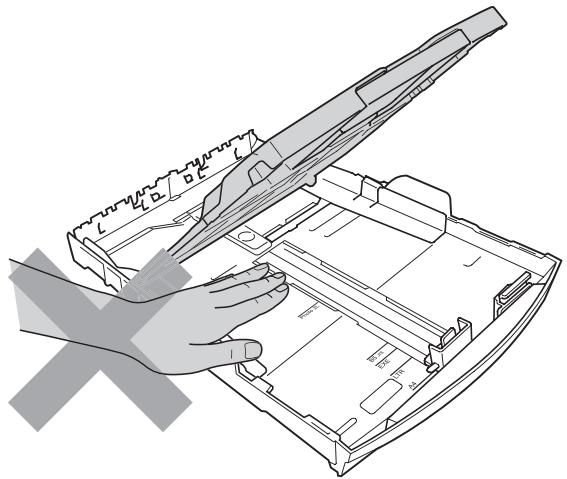
DO NOT put your hands on the edge of the paper tray cover under the paper tray cover. Doing this may cause injury.

DO NOT touch the area shaded in the illustration. Doing this may cause injury.
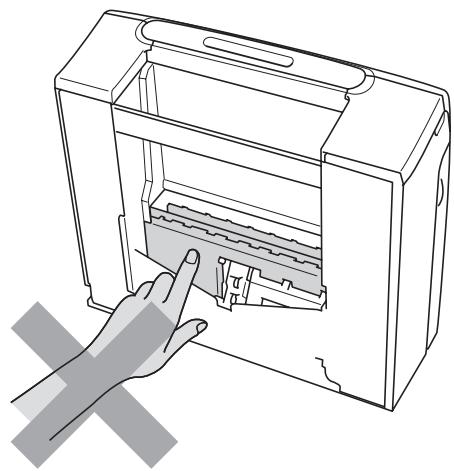

When moving the machine you must lift it from the base, by placing a hand at each side of the unit as shown in the illustration. DO NOT carry the machine by holding the scanner cover or the Jam Clear Cover.
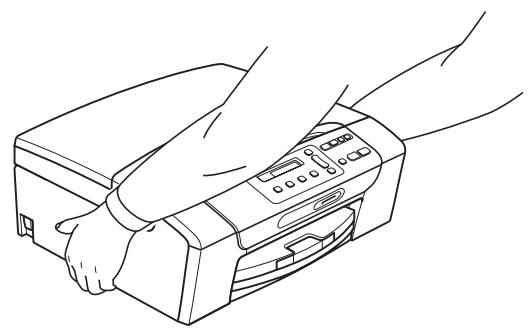
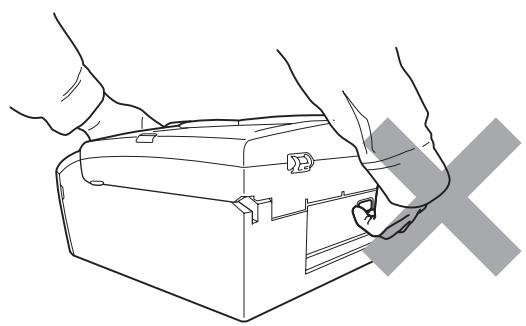
Lightning and power surges can damage this product! We recommend that you use a quality surge protection device on the AC power line or unplug the cord during a lightning storm.
Important safety instructions
1 Read all of these instructions.
2 Save them for later reference.
3 Follow all warnings and instructions marked on the product.
4 DO NOT use this product near water.
5 DO NOT place this product on an unstable cart, stand, or table. The product may fall, causing serious damage to the product.
6 Slots and openings in the cabinet and the back or bottom are provided for ventilation. To ensure reliable operation of the product and to protect it from overheating, these openings must not be blocked or covered. The openings should never be blocked by placing the product on a bed, sofa, rug, or other similar surface. This product should never be placed near or over a radiator or heater. This product should never be placed in a built-in installation unless adequate ventilation is provided.
7 Use only the power cord supplied with this machine.
8 This product is equipped with a 3-wire grounded plug, a plug having a third (grounded) pin. This plug will only fit into a grounded power outlet. This is a safety feature. If you are unable to insert the plug into the outlet, call your electrician to replace your obsolete outlet. DO NOT defeat the purpose of the grounded plug.
9 DO NOT allow anything to rest on the power cord. DO NOT place this product where people can walk on the cord.
10 DO NOT place anything in front of the machine that will block printing. DO NOT place anything in the path of printing.
11 Wait until pages have exited the machine before picking them up.
12 Unplug this product from the power socket and refer all servicing to Brother Authorized Service Personnel under the following conditions:
If liquid has been spilled into the product.
If the product has been exposed to rain or water.
If the product does not operate normally when the operating instructions are followed, adjust only those controls that are covered by the operating instructions. Incorrect adjustment of other controls may result in damage and will often require extensive work by a qualified technician to restore the product to normal operation.
If the product has been dropped or the casing has been damaged.
If the product exhibits a distinct change in performance, indicating a need for service.
13 To protect your product against power surges, we recommend the use of a power protection device (Surge Protector).
14 To reduce the risk of fire, electric shock and injury to people, note the following:
- DO NOT use this product near appliances that use water, a swimming pool or in a wet basement.
DO NOT attempt to operate the machine during an electrical storm or gas leak.
IMPORTANT - For your safety
To ensure safe operation, the supplied three-pin plug must be inserted only into a standard three-pin electrical socket that is effectively grounded through the normal household wiring.
The fact that the equipment operates satisfactorily does not imply that the power is grounded and that the installation is completely safe. For your safety, if in any doubt about the effective grounding of the power, consult a qualified electrician.
Important - Wiring information (U.K. only)
If you need to replace the plug fuse, fit a fuse that is approved by ASTA to BS1362 with the same rating as the original fuse.
Always replace the fuse cover. Never use a plug that does not have a cover.
Warning - This machine must be earthed.
The wires in the mains lead are coloured in line with the following code:
Green and Yellow: Earth
Blue: Neutral
■ Brown: Live
If in any doubt, call a qualified electrician.
LAN connection
CAUTION
DO NOT connect this product to a LAN connection that is subject to over-voltages.
Radio interference
This product complies with EN55022 (CISPR Publication 22)/Class B. When connecting the machine to a computer, ensure that you use a USB cable which does not exceed 2 metres in length.
EU Directive 2002/96/EC and EN50419

European Union Only
This equipment is marked with the above recycling symbol. It means that at the end of the life of the equipment you must dispose of it separately at an appropriate collection point and not place it in the normal domestic unsorted waste stream. This will benefit the environment for all. (European Union only)
International ENERGY STAR® Qualification Statement
The purpose of the International ENERGY STAR® Program is to promote the development and popularization of energy-efficient office equipment.
As an ENERGY STAR® Partner, Brother Industries, Ltd. has determined that this product meets the ENERGY STAR® specifications for energy efficiency.

Legal limitations for copying
It is an offence to make reproductions of certain items or documents with the intent to commit fraud. This memorandum is intended to be a guide rather than a complete list. We suggest you check with relevant legal authorities if in doubt about a particular item or document.
The following are examples of documents which may not be copied:
Money
Bonds or other certificates of indebtedness
Certificates of Deposit
■ Armed Forces Service or Draft papers
Passports
Postage Stamps (cancelled or uncancelled)
Immigration Papers
■ Welfare documents
- Cheques or Drafts drawn by Governmental Agencies
■ Identification Documents, badges or insignias
Copyrighted works cannot be copied. Sections of a copyrighted work can be copied for 'fair dealing'. Multiple copies would indicate improper use.
Works of art should be considered the equivalent of copyrighted works.
Licenses and Certificates of Title to motor vehicles may not be copied under certain state/provincial laws.
Trademarks
The Brother logo is a registered trademark of Brother Industries, Ltd.
Brother is a registered trademark of Brother Industries, Ltd.
Multi-Function Link is a registered trademark of Brother International Corporation.
Windows Vista is either a registered trademark or a trademark of Microsoft Corporation in the United States and other countries.
Microsoft, Windows and Windows Server are registered trademarks of Microsoft Corporation in the U.S. and/or other countries.
Macintosh and TrueType are registered trademarks of Apple Inc.
Nuance, the Nuance logo, PaperPort and ScanSoft are trademarks or registered trademarks of Nuance Communications, Inc. or its affiliates in the United States and/or other countries.
Microdrive is a trademark of International Business Machines Corporation.
Memory Stick is a trademark of Sony Corporation.
xD-Picture Card is a trademark of FUJIFILM Corporation, Toshiba Corporation and Olympus Optical Co. Ltd.
Memory Stick PRO, Memory Stick PRO Duo, Memory Stick Duo, MagicGate Memory Stick, Memory Stick Micro and M2 are trademarks of Sony Corporation.
PictBridge is a trademark.
BROADCAST, SecureEasySetup and the SecureEasySetup logo are trademarks or registered trademarks of Broadcom Corporation in the United States and/or other countries.
AOSS is a trademark of Buffalo Inc.
Wi-Fi, WPA, WPA2 and Wi-Fi Protected Setup are either trademarks or registered trademarks of Wi-Fi Alliance in the United States and/or other countries.
Intel, and Pentium are trademarks of Intel Corporation in the U.S. and other countries.
AMD is a trademark of Advanced Micro Devices, Inc.
FaceFilter Studio is a trademark of Reallusion, Inc.
All other trademarks are the property of their respective owners.
Troubleshooting
If you think there is a problem with your machine, check the chart below and follow the troubleshooting tips.
Most problems can be easily resolved by yourself. If you need additional help, the Brother Solutions Center offers the latest FAQs and troubleshooting tips. Visit us at http://solutions.brother.com.
If you are having difficulty with your machine
Printing
| Difficulty | Suggestions |
| No printout | Check the interface cable or wireless connection on both the machine and your computer. (See the Quick Setup Guide.) |
| Make sure the machine is plugged in and not turned off. | |
| Check to see if the LCD is showing an error message. (See Error and Routine Maintenance messages on page 65.) | |
| One or more ink cartridges have reached the end of their life. (See Replacing the ink cartridges on page 71.) | |
| If the LCD shows Cannot Print and Replace XX Ink (where XX is an abbreviation of the colour), see Replacing the ink cartridges on page 71. | |
| Check that the correct printer driver has been installed and chosen. | |
| Make sure the machine is online. Click Start and then Printers and Faxes. Choose Brother DCP-XXXX (where XXXX is your model name), and make sure that ‘Use Printer Offline’ is unchecked. | |
| When you choose the Print Odd Pages and Print Even Pages settings, you may see a printing error message on your computer, as the machine pauses during the printing process. The error message will disappear after the machine re-starts printing. | |
| Printing using the Print Page Setting can take more time than usual, so the computer may display a time out error. If the machine's LCD shows Printing, your data will be printed after a few moments. | |
| Poor print quality | Check the print quality. (See Checking the print quality on page 76.) |
| Make sure that the Printer Driver or Paper Type setting in the menu matches the type of paper you are using. (See Printing for Windows® or Printing and Faxing for Macintosh in the Software User's Guide on the CD-ROM.) | |
| Make sure that your ink cartridges are fresh. The following may cause ink to clog:■ The expiration date written on the cartridge package has passed. (Brother Original cartridges stay usable for up to two years if kept in their original packaging.)■ The ink cartridge has been in your machine for over six months.■ The ink cartridge may not have been stored correctly before use. | |
| Make sure you are using Brother Original Innobella™ ink. | |
| Try using the recommended types of paper. (See Acceptable paper and other print media on page 13.) | |
| The recommended environment for your machine is between 20°C to 33°C. | |
| White horizontal lines appear in text or graphics. | Clean the print head. (See Cleaning the print head on page 75.) |
| Make sure you are using Brother Original Innobella™ ink. | |
| Try using the recommended types of paper. (See Acceptable paper and other print media on page 13.) | |
| The machine prints blank pages. | Clean the print head. (See Cleaning the print head on page 75.) |
| Make sure you are using Brother Original Innobella™ ink. | |
| Characters and lines are stacked. | Check the printing alignment. (See Checking the print alignment on page 77.) |
| Printed text or images are skewed. | Make sure the paper is loaded properly in the paper tray and the paper side guides are adjusted correctly. (See Loading paper and other print media on page 8.) |
| Make sure the Jam Clear Cover is closed properly. | |
| Smudged stain at the top centre of the printed page. | Make sure the paper is not too thick or curled. (See Acceptable paper and other print media on page 13.) |
| Smudged stain at the right or left corner of the printed page. | Make sure the paper is not curled when you print on the back side of the paper with the Print Odd Pages and Print Even Pages settings. |
| Printing appears dirty or ink seems to run. | Make sure you are using the recommended types of paper. (See Acceptable paper and other print media on page 13.) Don't handle the paper until the ink is dry. |
| Make sure you are using Brother Original Innobella™ ink. | |
| If you are using photo paper, make sure that you have set the correct paper type. If you are printing a photo from your PC, set the Media Type in the Basic tab of the printer driver. | |
| Stains appear on the reverse side or at the bottom of the page. | Make sure the printer platen is not dirty with ink. (See Cleaning the machine's printer platen on page 74.) |
| Make sure you are using Brother Original Innobella™ ink. | |
| Make sure you are using the paper support flap. (See Loading paper and other print media on page 8.) | |
| The machine prints dense lines on the page. | Check Reverse Order in the Basic tab of the printer driver. |
| The printouts are wrinkled. | In the printer driver Advanced tab, click Colour Settings, and uncheck Bi-Directional Printing for Windows® or Bi-Directional Printing for Macintosh. |
| Make sure you are using Brother Original Innobella™ ink. | |
| Cannot perform ‘2 in 1’ or ‘4 in 1’ printing. | Check that the paper size setting in the application and in the printer driver are the same. |
| Print speed is too slow. | Try changing the printer driver setting. The highest resolution needs longer data processing, sending and printing time. Try the other quality settings in the printer driver Basic tab. Also, click Colour Settings, and make sure you uncheck Colour Enhancement. |
| Turn off the borderless feature. Borderless printing is slower than normal printing. (See Printing for Windows® or Printing and Faxing for Macintosh in the Software User's Guide on the CD-ROM.) | |
| Colour Enhancement is not working correctly. | If the image data is not full colour in your application (such as 256 colour), Colour Enhancement will not work. Use at least 24 bit colour data with the Colour Enhancement feature. |
| Photo paper does not feed properly. | When you print on Brother photo paper, make sure you always load one additional sheet of photo paper first before loading the paper you want to print on. |
| Clean the paper pick-up roller. (See Cleaning the paper pick-up rollers on page 75.) | |
| Machine feeds multiple pages. | Make sure the paper is loaded correctly in the paper tray. (See Loading paper and other print media on page 8.) |
| Check that more than two types of paper are not loaded in the paper tray at any one time. | |
| There is a paper jam. | See Printer jam or paper jam on page 69. Make sure the paper length guide is adjusted to the paper size. Do not extend the paper tray when you load A5 or smaller size paper. |
| Printed pages are not stacked neatly. | Make sure you are using the paper support flap. (See Loading paper and other print media on page 8.) |
| Machine does not print from Adobe® Illustrator®. | Try to reduce the print resolution. (See Printing for Windows® or Printing and Faxing for Macintosh in the Software User's Guide on the CD-ROM.) |
Copying Difficulties
| Difficulty | Suggestions |
| Vertical streaks appear on copies. | If you see vertical streaks on copies, clean the scanner. (See Cleaning the scanner glass on page 74.) |
| Fit to Page does not work properly. | Make sure your source document is not skewed. Reposition the document and try again. |
Scanning Difficulties
| Difficulty | Suggestions |
| TWAIN/WIA errors appear when starting to scan. | Make sure the Brother TWAIN/WIA driver is chosen as the primary source. In PaperPort™ 11SE with OCR, click File, Scan or Get Photo and click Select to choose the Brother TWAIN/WIA driver. |
| OCR does not work. | Try increasing the scanner resolution. |
| Fit to Page does not work properly. | Make sure the document is not skewed on the scanner glass. |
Software Difficulties
| Difficulty | Suggestions |
| Cannot install software or print. | Run the Repair MFL-Pro Suite program on the CD-ROM. This program will repair and reinstall the software. |
| ‘Device Busy’ | Make sure the machine is not showing an error message on the LCD. |
| Cannot print images from FaceFilter Studio. | To use FaceFilter Studio, you must install the FaceFilter Studio application from the CD-ROM supplied with your machine. To install FaceFilter Studio see the Quick Setup Guide. Also, before you start FaceFilter Studio for the first time, you must make sure your Brother machine is turned on and connected to your computer. This will allow you to access all the functions of FaceFilter Studio. |
PhotoCapture Center™ Difficulties
| Difficulty | Suggestions |
| Removable Disk does not work correctly. | 1 Have you installed the Windows® 2000 update? If not, do the following: 1) Unplug the USB cable. 2) Install the Windows® 2000 update using one of the following methods. ■ Install MFL-Pro Suite from the CD-ROM. (See the Quick Setup Guide.) ■ Download the latest service pack from the Microsoft Web site. 3) Wait about 1 minute after you restart the PC, and then connect the USB cable. |
| 2 Take out the memory card or USB Flash memory drive and put it back in again. | |
| 3 If you have tried ‘Eject’ from within Windows®, take out the memory card or USB Flash memory drive before you continue. | |
| 4 If an error message appears when you try to eject the memory card or USB Flash memory drive, it means the card is being accessed. Wait a while and then try again. | |
| 5 If all of the above do not work, turn off your PC and machine, and then turn them on again. (You will have to unplug the power cord of the machine to turn it off.) | |
| Cannot access Removable Disk from Desktop icon. | Make sure that you have correctly inserted the memory card or USB Flash memory drive. |
| Part of my photo is missing when printed. | Make sure that Borderless Printing and Cropping are turned off. (See Borderless printing on page 40 and Cropping on page 39.) |
Network Difficulties
| Difficulty | Suggestions |
| Cannot print over the Network. | Make sure that your machine is powered on and is online and in Ready mode. Print a Network Configuration list (see Printing Reports on page 20.) and check the current Network settings printed in this list. Reconnect the LAN cable to the hub to verify that the cabling and network connections are good. If possible, try connecting the machine to a different port on your hub using a different cable. If the connections are good, the machine shows LAN Active for 2 seconds. (If you are having Network problems, see the Network User's Guide for more information.) |
| The network scanning feature does not work. | (Windows® users only) Firewall settings on your PC may be rejecting the necessary network connection. Follow the instructions below to configure the Firewall. If you are using personal Firewall software, see the User's Guide for your software or contact the software manufacturer. For Windows® XP SP2 and Windows Vista® users, see Firewall settings in the Software User's Guide on the CD-ROM. For Windows® XP SP1 users, please visit the Brother Solutions Center. (http://solutions.brother.com) |
| Your computer cannot find your machine. | <Windows® users> Firewall settings on your PC may be rejecting the necessary network connection. For detail, see the instruction above. <Macintosh users> Re-select your machine in the Device Selector application located in Macintosh HD/Library/Printers/Brother/Utilities/DeviceSelector or from the model list in ControlCenter2. |
Error and Routine Maintenance messages
As with any sophisticated office product, errors may occur. If this happens, your machine identifies the error and shows an error message. The most common error and maintenance messages are shown below.
You can correct most errors and routine maintenance messages by yourself. If you need more help, the Brother Solutions Center offers latest FAQs and troubleshooting tips.
Visit us at http://solutions.brother.com.
| Error Message | Cause | Action |
| B&W Print Only Replace X Ink | One or more of the colour ink cartridges have reached the end of their life. While this message appears on the LCD, each operation works in the following way: ■ Printing If you click Greyscale in the Advanced tab of the printer driver you can use the machine as a monochrome printer for approximately four weeks depending on the number of pages you print. ■ Copying If the paper type is set to Plain Paper or Inkjet Paper you can make copies in monochrome. If the paper type is set to Other Glossy,Brother BP71 or Transparency, the machine will stop all print operations. If you unplug the machine, or take out the ink cartridge, you cannot use the machine until you change to a new ink cartridge. (See Replacing the ink cartridges on page 71.) | Replace the ink cartridges. (See Replacing the ink cartridges on page 71.) |
| Cannot Detect | You installed a new ink too fast and machine did not detect it. | Take out the new ink cartridge and reinstall it slowly until it clicks. |
| If you are using non Brother Original Ink the machine may not detect the ink cartridge. | Replace the cartridge with a Brother Original Ink Cartridge. If the error remains, contact your Brother dealer. | |
| An ink cartridge is not installed correctly. | Take out the new ink cartridge and re-install it slowly until it clicks. (See Replacing the ink cartridges on page 71.) | |
| Cannot Print Replace XX Ink | One or more of the ink cartridges have reached the end of their life. The machine will stop all print operations. | Replace the ink cartridges. (See Replacing the ink cartridges on page 71.) |
| Cover is Open | The scanner cover is not closed completely. | Lift the scanner cover and then close it again. |
| Clean Unable XX | The machine has a mechanical problem. —OR— A foreign object such as a clip or ripped paper is in the machine. | Open the scanner cover and look inside the machine for any foreign objects. If the error message continues, disconnect the machine from the power source for several minutes and then reconnect it. |
| Close Ink Cover | The ink cartridge cover is not completely closed. | Firmly close the ink cartridge cover until it clicks. |
| Data Remaining | Print data is left in the machine's memory. | Press Stop/Exit. The machine will cancel the job and clear it from the memory. Try to print again. |
| High Temperature | The print head is too warm. | Allow the machine to cool down. |
| Hub is Unusable. | A Hub or USB Flash memory drive with a Hub has been connected to the USB direct interface. | A Hub or USB Flash memory drive with a Hub are not supported. Unplug the device from the USB direct interface. |
| Init Unable XX | The machine has a mechanical problem. —OR— A foreign object such as a clip or ripped paper is in the machine. | Open the scanner cover and look inside the machine for any foreign objects. If the error message continues, disconnect the machine from the power source for several minutes and then reconnect it. |
| Ink Low Black Ink Low Yellow Ink Low Cyan Ink Low Magenta | One or more of the ink cartridges are running out of ink. | Order a new ink cartridge. You can continue printing until the LCD shows Cannot Print. |
| Low Temperature | The print head is too cold. | Allow the machine to warm up. |
| Media Error | The memory card is either corrupted, incorrectly formatted, or there is a problem with the memory card. | Put the card firmly into the slot again to make sure it is in the correct position. If the error remains, check the media drive (slot) of the machine by putting in another media card that you know is working. |
| Media is Full. | The memory card or USB Flash memory drive you are using already contains 999 files. | Your machine can only save to your memory card or USB Flash memory drive if it contains less than 999 files. Try deleting unused files to free some space and try again. |
| No Cartridge | An ink cartridge is not installed correctly. | Take out the new ink cartridge and re-install it slowly until it clicks. (See Replacing the ink cartridges on page 71.) |
| No File | The memory card or USB Flash memory drive in the media drive does not contain a.JPG file. | Put the correct memory card or USB Flash memory drive into the slot again. |
| No Paper Fed | The machine is out of paper or paper is not properly loaded in the paper tray, or the Jam Clean Cover is not closed properly. | Do one of the following: ■ Refill the paper in the paper tray, and then press Mono Start or Colour Start. ■ Remove the paper and load it again and then press Mono Start or Colour Start. (See Loading paper and other print media on page 8.) |
| The paper is jammed in the machine. | Remove the jammed paper by following the steps in Printer jam or paper jam on page 69. | |
| Out of Memory | The machine's memory is full. | When copy operation is in progress, press Stop/Exit and wait until the other operations in progress finish and then try again. |
| The memory card or USB Flash memory drive you are using does not have enough free space to scan the documents. | Delete unused files from your memory card or USB Flash memory drive to make some free space and then try again. | |
| Paper Jam | Paper is jammed in the machine. | Open the Jam Clear Cover (at the back of the machine) and pull out the jammed paper by following the steps in Printer jam or paper jam on page 69. |
| Make sure the paper length guide is adjusted to the correct paper size. | ||
| Print Unable XX | The machine has a mechanical problem. —OR— A foreign object such as a clip or ripped paper is in the machine. | Open the scanner cover and look inside the machine for any foreign objects. If the error message continues, disconnect the machine from the power source for several minutes and then reconnect it. |
| Scan Unable XX | The machine has a mechanical problem. —OR— A foreign object such as a clip or ripped paper is in the machine. | Open the scanner cover and look inside the machine for any foreign objects. If the error message continues, disconnect the machine from the power source for several minutes and then reconnect it. |
| Unusable Device Disconnect device from front connector. Turn the machine off & on by pressing On/Off button on control panel. | A broken device has been connected to the USB direct interface. | Unplug the device from the USB direct interface, then press On/Off to turn the machine off then on again. |
| Unusable Device Please Disconnect USB Device. | A USB device or USB Flash memory drive that is not supported has been connected to the USB direct interface. (For more information, visit us at http://solutions.brother.com.) | Unplug the device from the USB direct interface. |
| Wrong Paper Size | Paper is not the correct size. | Check that the Paper Size setting matches the size of paper in the tray. Load the correct size of paper, and then press Mono Start or Colour Start. (See Paper Size on page 28.) |
Printer jam or paper jam
Take out the jammed paper depending on where it is jammed in the machine.
Pull the paper tray (1) out of the machine.
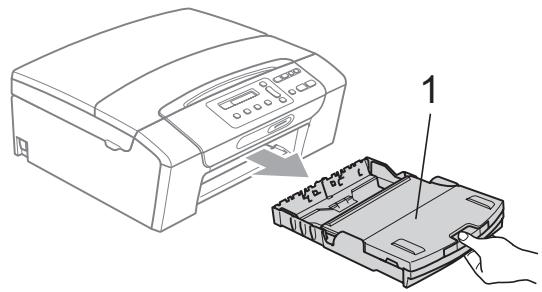
Pull out the jammed paper (1) and press Stop/Exit.
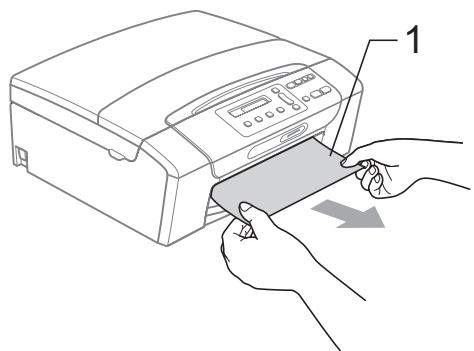
3 Reset the machine by lifting the scanner cover from the front of the machine and then close it.
If you cannot remove the jammed paper from the front of the machine, or the error message still appears on the LCD after you have removed the jammed paper, please go to the next step.
4 Open the Jam Clear Cover (1) at the back of the machine. Pull the jammed paper out of the machine.
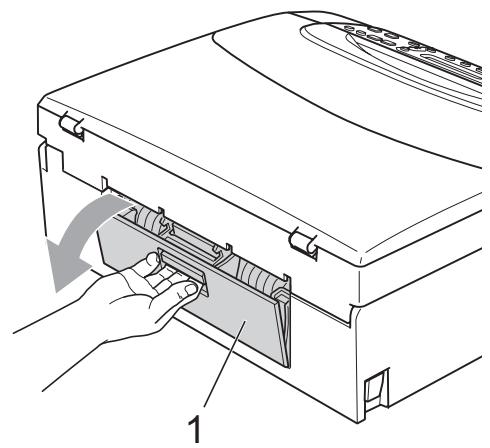
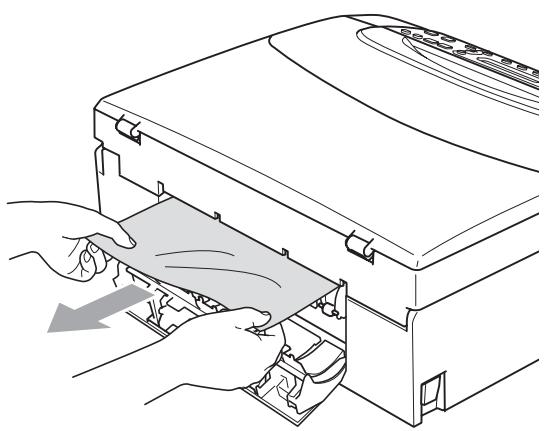
5 Close the Jam Clear Cover. Make sure the cover is closed properly.
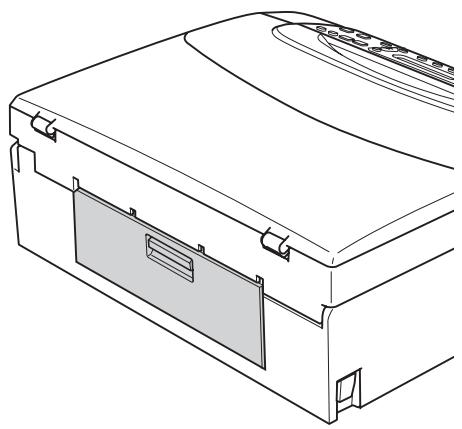
Using both hands, use the plastic tabs on both sides of the machine to lift the scanner cover (1) until it locks securely in the open position. Make sure that there is no jammed paper left inside the machine. Check both ends of the print carriage.
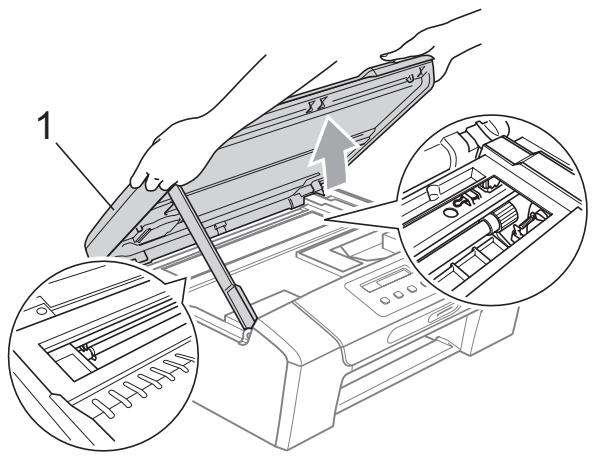
IMPORTANT
- If the paper is jammed under the print head, unplug the machine from the power source, and then move the print head to take out the paper.
- If the print head is at the right corner as shown in the illustration, you cannot move the print head. Hold down Stop/Exit until the print head moves to the middle. Then unplug the machine from the power source, and take out the paper.
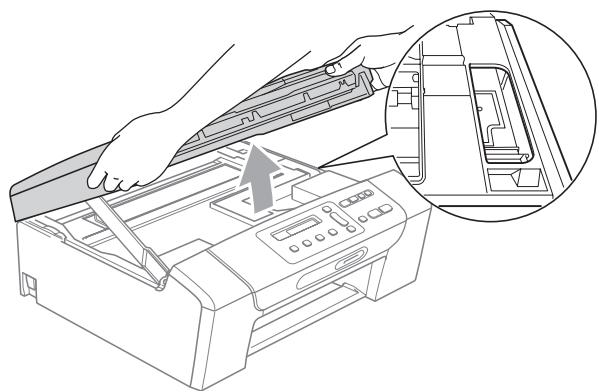
- If ink gets on your skin or clothing immediately wash it off with soap or detergent.
7 Lift the scanner cover to release the lock (①). Gently push the scanner cover support down (②) and close the scanner cover (③) using both hands.
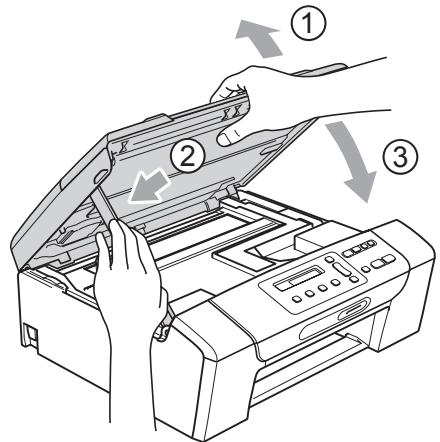
Slowly push the paper tray completely into the machine.
While holding the paper tray in place, pull out the paper support (①) until it clicks and unfold the paper support flap (②).
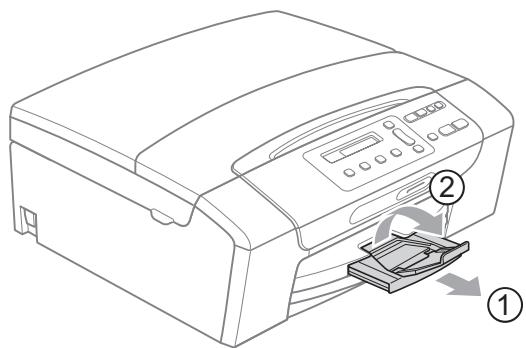
IMPORTANT
DO NOT use the paper support flap for Legal paper.
Routine maintenance
Replacing the ink cartridges
Your machine is equipped with an ink dot counter. The ink dot counter automatically monitors the level of ink in each of the 4 cartridges. When the machine detects an ink cartridge is running out of ink, the machine will tell you with a message on the LCD.
The LCD will tell you which ink cartridge is low or needs replacing. Be sure to follow the LCD prompts to replace the ink cartridges in the correct order.
Even though the machine tells you to replace an ink cartridge, there will be a small amount of ink left in the ink cartridge. It is necessary to keep some ink in the ink cartridge to prevent air from drying out and damaging the print head assembly.
IMPORTANT
Brother multifunction machines are designed to work with ink of a particular specification and will work to a level of optimum performance and reliability when used with genuine Brother Original ink cartridges. Brother cannot guarantee this optimum performance and reliability if ink or ink cartridges of other specifications are used. Brother does not therefore recommend the use of cartridges other than genuine Brother Original cartridges or the refilling of used cartridges with ink from other sources. If damage is caused to the print head or other parts of this machine as a result of using other brands of ink or ink cartridges, any repairs required as a result may not be covered by the warranty.
1 Open the ink cartridge cover. If one or more ink cartridges have reached the end of their life, the LCD shows B&W Print Only or Cannot Print.
Press the lock release lever as shown to release the cartridge indicated on the LCD. Remove the cartridge from the machine.
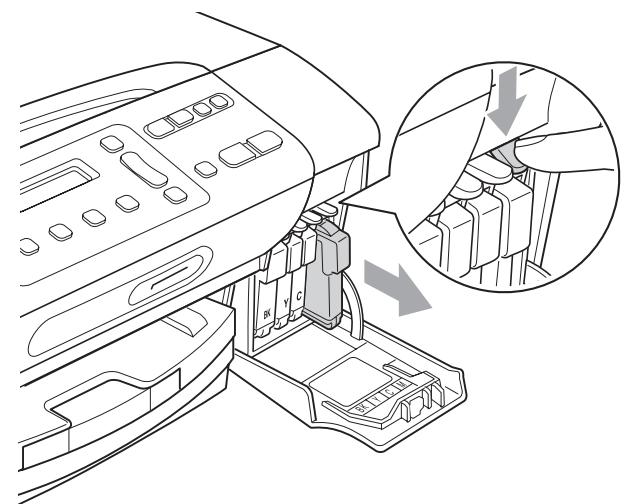
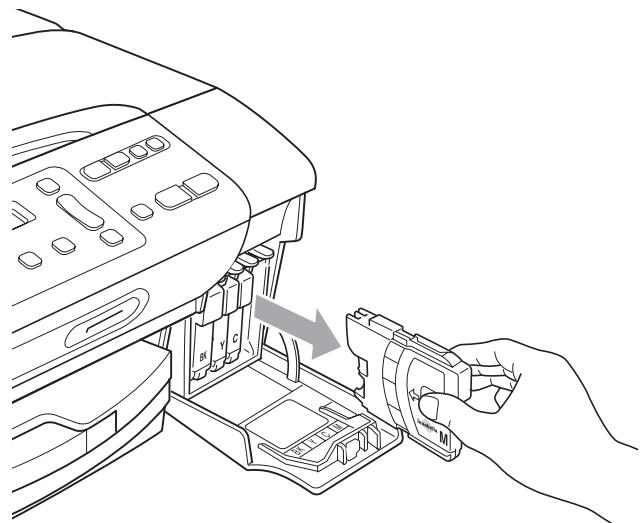
3 Open the new ink cartridge bag for the colour shown on the LCD, and then take out the ink cartridge.
Turn the green knob on the protective yellow cap clockwise until it clicks as to release the seal vacuum, then remove the cap (1).
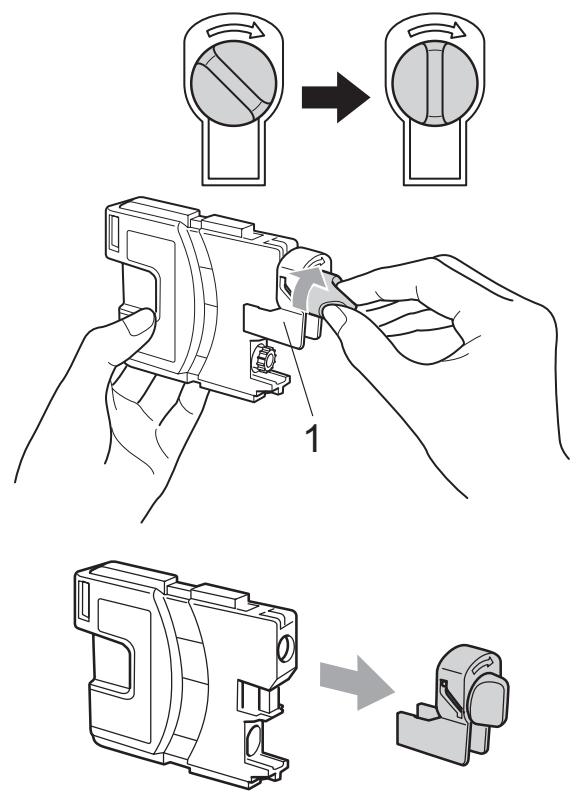
Each colour has its own correct position. Insert the ink cartridge in the direction of the arrow on the label.
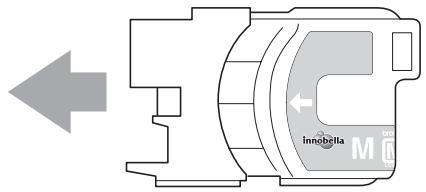
Gently push the ink cartridge until it clicks, and then close the ink cartridge cover.
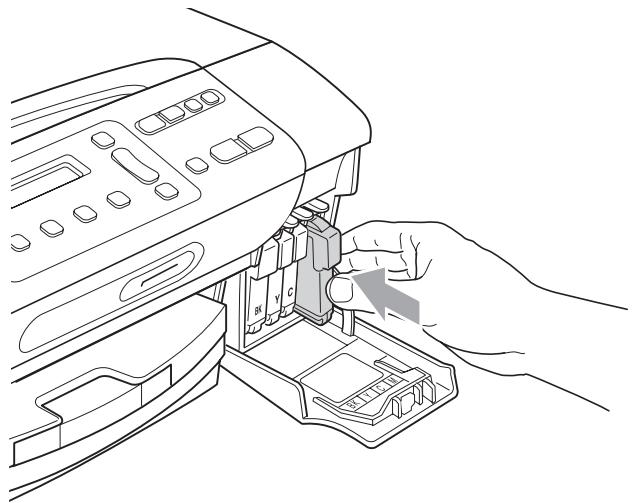
The machine will automatically reset the ink dot counter.
Note
- If you replaced an ink cartridge, for example Black, the LCD may ask you to verify that it was a brand new one (Did You Change Black?). For each new cartridge you installed, press (Yes) to automatically reset the ink dot counter for that colour. If the ink cartridge you installed is not a brand new one, be sure to press (No).
- If the LCD shows No Cartridge or Cannot Detect after you install the ink cartridge, check that the ink cartridges are installed correctly.
CAUTION
If ink gets in your eyes, wash them out with water at once and call a doctor if you are concerned.
IMPORTANT
- DO NOT take out ink cartridges if you do not need to replace them. If you do so, it may reduce the ink quantity and the machine will not know the quantity of ink left in the cartridge.
DO NOT touch the cartridge insertion slots. If you do so, the ink may stain your skin. - If ink gets on your skin or clothing immediately wash it off with soap or detergent.
- If you mix the colours by installing an ink cartridge in the wrong position, clean the print head several times after correcting the cartridge installation.
- Once you open an ink cartridge, install it in the machine and use it up within six months of installation. Use unopened ink cartridges by the expiration date written on the cartridge package.
- DO NOT dismantle or tamper with the ink cartridge, this can cause the ink to leak out of the cartridge.
Cleaning the outside of the machine
IMPORTANT
- Use neutral detergents. Cleaning with volatile liquids such as thinner or benzine will damage the outside surface of the machine.
DO NOT use cleaning materials that contain ammonia.
DO NOT use isopropyl alcohol to remove dirt from the control panel. It may crack the panel.
Clean the outside of the machine as follows:
Pull the paper tray (1) completely out of the machine.
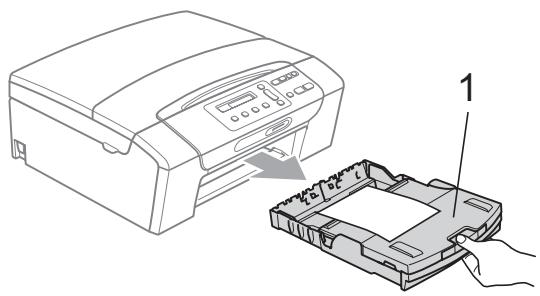
Wipe the outside of the machine with a soft cloth to remove dust.
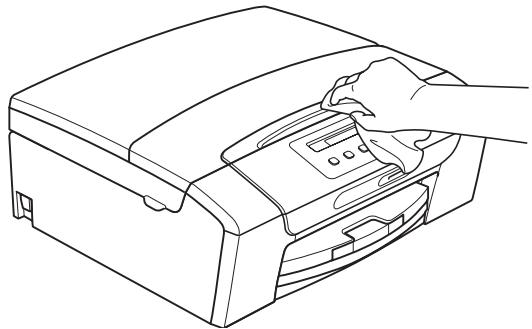
3 Lift the output paper tray cover and remove anything that is stuck inside the paper tray.
Wipe the inside and outside of the paper tray with a soft cloth to remove dust.
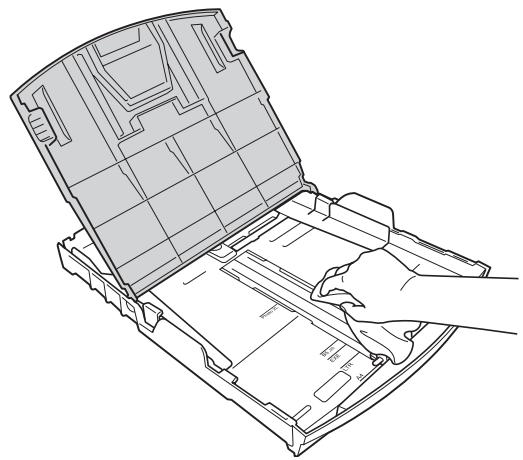
5 Close the output paper tray cover and slowly push the paper tray completely into the machine.
Cleaning the scanner glass
1 Lift the document cover (1). Clean the scanner glass (2) and white plastic (3) with a soft lint-free cloth moistened with a non-flammable glass cleaner.
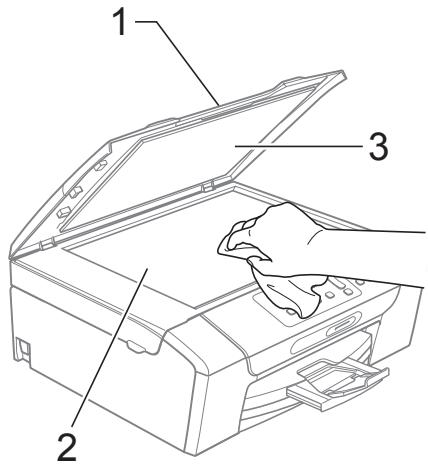
Cleaning the machine's printer platen
CAUTION
Be sure to unplug the machine from the electrical socket before cleaning the printer platen (1).
1 Lift the scanner cover until it locks securely into the open position.
Clean the machine's printer platen (1) and the area around it, wiping off any scattered ink with a soft, dry, lint-free cloth.
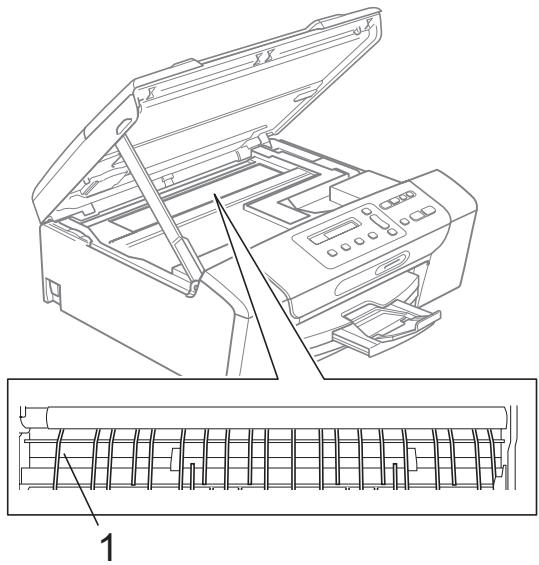
Cleaning the paper pick-up rollers
Pull the paper tray completely out of the machine.
2 Unplug the machine from the electrical socket and open the Jam Clear Cover (1) at the back of the machine.
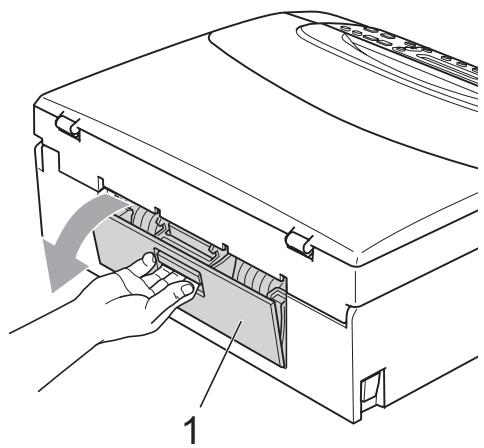
3 Clean the Paper Pick-up Roller (1) with isopropyl alcohol on a cotton swab.
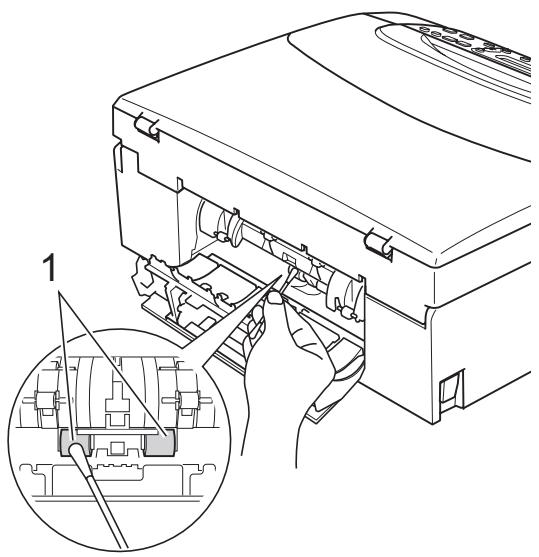
4 Close the Jam Clear Cover. Make sure the cover is closed correctly.
Put the paper tray firmly back in the machine.
6 Re-connect the power cord.
Cleaning the print head
To maintain good print quality, the machine will automatically clean the print head when needed. You can start the cleaning process manually if there is a print quality problem.
Clean the print head and ink cartridges if you get a horizontal line or blank text in the text or graphics on your printed pages. You can clean Black only, three colours at a time (Cyan/Yellow/Magenta), or all four colours at once.
Cleaning the print head consumes ink. Cleaning too often uses ink unnecessarily.
IMPORTANT
DO NOT touch the print head. Touching the print head may cause permanent damage and may void the print head's warranty.
Press Ink Management.
Press or to choose Cleaning. Press OK.
3 Press or to choose Black, Color or All. Press OK. The machine cleans the print head. When cleaning is finished, the machine will go back to standby mode automatically.
Note
If you clean the print head at least five times and the print has not improved, try installing a new Genuine Brother Original Innobella™ ink cartridge for each problem colour. Try cleaning the print head again up to five more times. If the print has not improved call your Brother dealer.
Checking the print quality
If faded or streaked colours and text appear on your output, some of the nozzles may be clogged. You can check this by printing the Print Quality Check Sheet and looking at the nozzle check pattern.
Press Ink Management.
Press ▲ or ▼ to choose Test Print. Press OK.
Press ▲ or ▼ to choose Print Quality. Press OK.
Press Colour Start. The machine begins printing the Print Quality Check Sheet.
5 Check the quality of the four colour blocks on the sheet.
The LCD asks you if the quality of the four colours are OK. Is Quality OK?
A Yes No
7 Do one of the following:
If all lines are clear and visible, press to choose Yes, and go to step 11.
If you can see missing short lines as shown below, press to choose No.
OK Poor


The LCD asks you if the print quality is OK for black and three colours.
Black OK?
Yes No
Press (Yes) or (No).
The LCD asks you if you want to start cleaning.
Start Cleaning?
Yes No
Press (Yes).
The machine starts cleaning the print head.
10 After cleaning is finished, press Colour Start.
The machine starts printing the Print Quality Check Sheet again and then return to step ⑤.
11 Press Stop/Exit.
If you repeat this procedure at least five times and the print quality is still poor, replace the ink cartridge for the clogged colour.
After replacing the ink cartridge, check the print quality. If the problem still exists, repeat the cleaning and test print procedures at least five times for the new ink cartridge. If ink is still missing, call your Brother dealer.
IMPORTANT
DO NOT touch the print head. Touching the print head may cause permanent damage and may void the print head's warranty.

Note
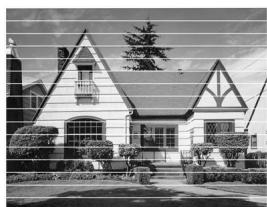
When a print head nozzle is clogged the printed sample looks like this.
After the print head nozzle is cleaned, the horizontal lines are gone.
Checking the print alignment
You may need to adjust the print alignment after transporting the machine, if your printed text becomes blurred or images become faded.
Press Ink Management.
Press ▲ or ▼ to choose Test Print. Press OK.
Press or to choose Alignment. Press OK.
Press Mono Start or Colour Start. The machine starts printing the Alignment Check Sheet.
Is Alignment OK?
Yes No
5 Check the 600 dpi and 1200 dpi test prints to see if number 5 most closely matches number 0.
If the number 5 samples of both the 600 dpi and 1200 dpi test prints are the best matches, press (Yes) to finish Alignment Check, and go to step 8.
If another test print number is a better match for either 600 dpi or 1200 dpi, press (No) to choose it.
For 600 dpi, press or to select the number of the test print that most closely matches the number 0 sample (1-8).
600dpi Adjust
Select Best #5
Press OK.
For 1200 dpi, press or to select the number of the test print that most closely matches the number 0 sample (1-8).
1200dpi Adjust
Select Best #5
Press OK.
Press Stop/Exit.
Checking the ink volume
You can check the ink that is left in the cartridge.
Press Ink Management.
Press ▲ or ▼ to choose Ink Volume. Press OK. The LCD shows the ink volume.
EK: -□□+
Press or to choose the colour you want to check.
4 Press Stop/Exit.
Note
You can check the ink volume from your computer. (See Printing for Windows® or Printing and Faxing for Macintosh in the Software User's Guide on the CD-ROM.)
Machine Information
Checking the serial number
You can see the machine's serial number on the LCD.
Press Menu.
2 (DCP-193C, DCP-195C and DCP-197C)
Press ▲ or ▼ to choose
4.Machine Info.
Press OK.
DCP-365CN, DCP-373CW,
DCP-375CW and DCP-377CW
Press or to choose
5.Machine Info.
Press OK.
Press or to choose 1. Serial No.
Press OK.
xxxxxx
4 Press Stop/Exit.
Reset functions
The following reset functions are available:
1 Network (DCP-365CN, DCP-373CW, DCP-375CW and DCP-377CW only)
You can reset the print server back to its default factory settings such as the password and IP address information.
2 All Settings
You can reset all the machine settings back to the settings that were set at the factory.
Brother strongly recommends you use this operation when you dispose of the machine.

Note
Unplug the interface cable before you choose Network or All Settings.
How to reset the machine
Press Menu.
Press or to choose
- Initial Setup.
Press OK.
Press or to choose 4. Reset.
4 (DCP-365CN, DCP-373CW,
DCP-375CW and DCP-377CW only)
Press or to choose the reset function you want to use.
Press OK.
Press ▲ or ▼ to choose ▲ Reset or
Press to confirm.
Packing and shipping the machine
When you transport the machine, use the packing materials that came with your machine. Follow the instructions below to properly pack your machine. Damage caused to your machine during transit is not covered by your warranty.
IMPORTANT
It is important to allow the machine to 'park' the print head after a print job. Listen carefully to the machine before unplugging it to make sure that all mechanical noise has stopped. Not allowing the machine to finish this parking process may lead to print problems and possible damage to the print head.
1 Open the ink cartridge cover.
Press the lock release lever to release the ink cartridge and take out all the ink cartridges. (See Replacing the ink cartridges on page 71.)
3 Install the green protective part and then close the ink cartridge cover.
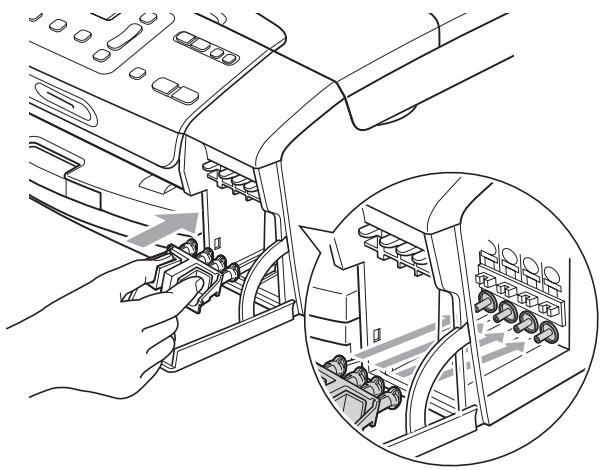
IMPORTANT
- Make sure that the plastic tabs on both sides of the green protective part (1) have securely clicked into place (2).
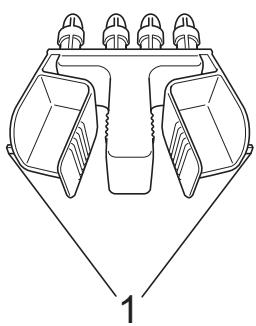
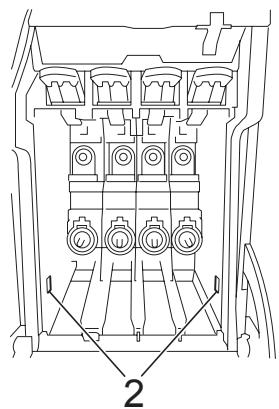
- If you are not able to find the green protective part, DO NOT remove the ink cartridges before shipping. It is essential that the machine be shipped with either the green protective part or the ink cartridges in position. Shipping without them will cause damage to your machine and may void your warranty.
4 Unplug the machine from the electrical socket.
Using both hands, use the plastic tabs on both sides of the machine to lift the scanner cover until it locks securely into the open position. Then unplug the interface cable from the machine, if it is connected.
6 Lift the scanner cover (①) to release the lock. Gently push the scanner cover support down (②) and close the scanner cover (③).
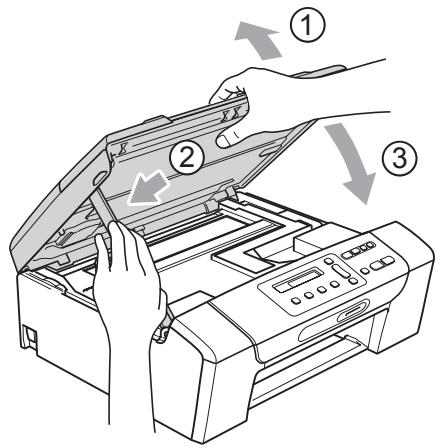
7 Wrap the machine in the bag.
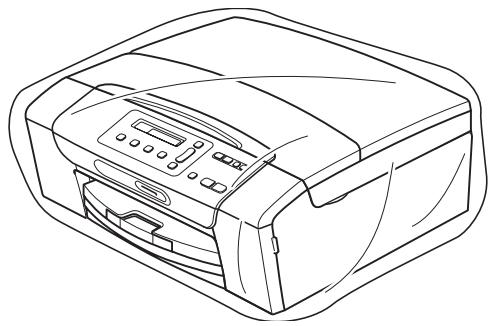
Pack the machine and the printed materials in the original carton with the original packing material as shown below. Do not pack the used ink cartridges in the carton.
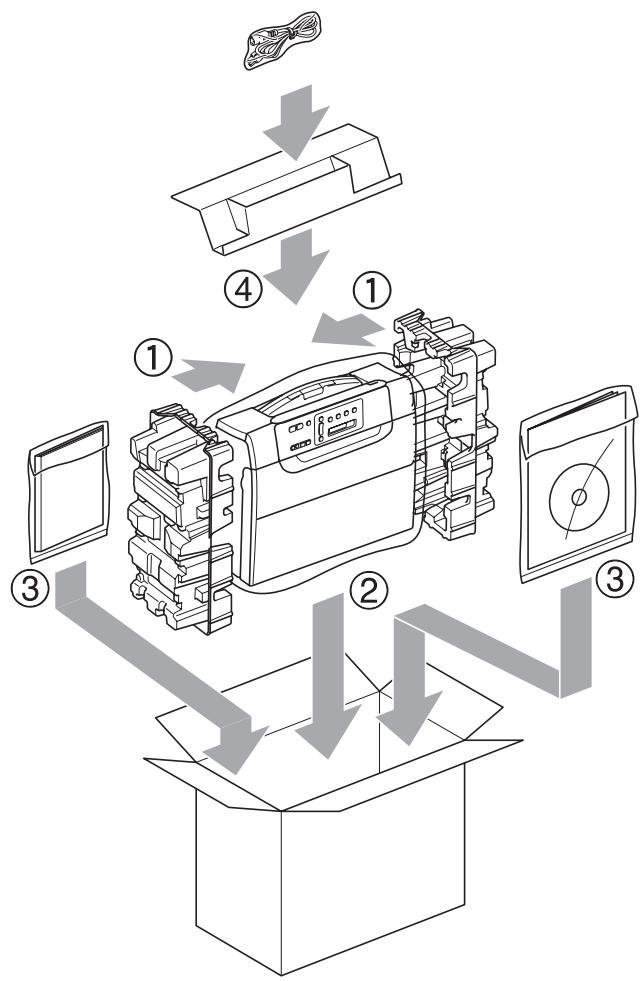
9 Close the carton and tape it shut.
On-screen programming
Your machine is designed to be easy to operate with LCD on-screen programming using the menu keys. User-friendly programming helps you take full advantage of all the menu selections your machine has to offer.
Since your programming is done on the LCD, we have created step-by-step on-screen instructions to help you program your machine. All you need to do is follow the instructions as they guide you through the menu selections and programming options.
Menu table
You can program your machine by using the menu table that begins on page 83. These pages list the menu selections and options.
Memory storage
Your menu settings are stored permanently, and in the event of a power failure will not be lost. Temporary settings (for example, Contrast) will be lost.
Menu keys
| Menu + ▲ - ▼ OK Stop/Exit | |
| Menu | Access the menu. |
| + ▲ - ▼ | Scroll through the current menu level. |
| OK | Go to the next menu level. Accept an option. |
| Stop/Exit | Exit the menu or stop the current operation. |
To access the menu mode:
Press Menu.
Choose an option. You can scroll more quickly through each menu level by pressing or for the direction you want.
- Copy
- PhotoCapture
- Network
4.Print Reports
5.Machine Info. - Initial Setup
Press OK when that option appears on the LCD.
The LCD will then show the next menu level.
Press or to scroll to your next menu selection.
Press OK. When you finish setting an option, the LCD shows Accepted.
6 Press Stop/Exit.
Menu Table
The menu table will help you understand the menu selections and options that are found in the machine's programs. The factory settings are shown in Bold with an asterisk.

| Main Menu | Submenu | Menu Selections | Options | Descriptions | Page |
| 1.Copy | 1.Paper Type | — | Plain Paper* Inkjet Paper Brother BP71 Other Glossy Transparency | Sets the type of paper in the paper tray. | 27 |
| 2.Paper Size | — | Letter Legal A4* A5 10x15cm | Sets the size of the paper in the paper tray. | 28 | |
| 3.Quality | — | Best Normal* Fast | Chooses the copy resolution for your type of document. | 23 | |
| 4.Brightness | — | -□□□□+ -□□□□+ -□□□□+* -□□□□+ -□□□□+ | Adjusts the brightness for copies. | 26 | |
| 5.Contrast | — | -□□□□+ -□□□□+ -□□□□+* -□□□□+ -□□□□+ | Adjusts the contrast for copies. | 27 | |
| The factory settings are shown in Bold with an asterisk. | |||||
| 2. PhotoCapture | 1.Print Quality | — | Normal Photo* | Selects the print quality. | 36 |
| 2.Paper Type | — | Plain Paper Inkjet Paper Brother BP71 Other Glossy* | Selects the paper type. | 36 | |
| 3.Paper Size | — | Letter A4 10 x 15cm* 13 x 18cm | Selects the paper size. | 37 | |
| 4.Print Size | — | 8 x 10cm 9 x 13cm 10 x 15cm 13 x 18cm 15 x 20cm Max. Size* | Selects the print size. (Appears when A4 or Letter is selected in the Paper Size menu.) | 37 | |
| The factory settings are shown in Bold with an asterisk. | |||||
| 2. PhotoCapture(Continued) | 5.Color Enhance | Enhance:OnEnhance:Off* | 1.Brightness-□□□□+□□□□+□□□□+*□□□□+□□□□+ | Adjusts the brightness. | 37 |
| 2.Contrast-□□□□+□□□□+□□□□+*□□□□+□□□□+ | Adjusts the contrast. | 37 | |||
| 3 Whites Balance-□□□□+□□□□+□□□□+*□□□□+□□□□+ | Adjusts the hue of the white areas. | 38 | |||
| 4.Sharpsness-□□□□+□□□□+□□□□+*□□□□+□□□□+ | Enhances the detail of the image. | 38 | |||
| 5.Color Density-□□□□+□□□□+□□□□+*□□□□+□□□□+ | Adjusts the total amount of colour in the image. | 39 | |||
| 6.Cropping | - | On*Off | Crops the image around the margin to fit the paper size or print size. Turn this feature off if you want to print whole images or prevent unwanted cropping. | 39 | |
| The factory settings are shown in Bold with an asterisk. | |||||
| 2. PhotoCapture (Continued) | 7. Borderless | — | On* Off | Expands the printable area to fit the edges of the paper. | 40 |
| 8. Date Print | — | On off* | Prints the date on your photo. | 40 | |
| 0. Scan to Media | 1. Quality | B/W 200x100 dpi B/W 200 dpi Color 150 dpi* Color 300 dpi Color 600 dpi | Selects the Scan resolution for your type of document. | 40 | |
| 2. B/W File Type | TIFF* PDF | Selects the default file format for black and white scanning. | |||
| 3. ColorFile Type | PDF* JPEG | Selects the default file format for colour scanning. | |||
| The factory settings are shown in Bold with an asterisk. | |||||
Network menu (DCP-365CN, DCP-373CW, DCP-375CW, DCP-377CW only)
| Level1 | Level2 | Level3 | Level4 | Options | Descriptions |
| 3.Network | 1.Wired LAN | 1.TCP/IP | 1.BOOT Method | Auto*StaticRARPBOOTPDHCP | Chooses theBOOT methodthat best suitsyour needs. |
| 2.IP Address | [000-255].[000-255].[000-255].[000-255] | Enter the IPaddress. | |||
| 3.Subnet Mask | [000-255].[000-255].[000-255].[000-255] | Enter the Subnetmask. | |||
| 4.Gateway | [000-255].[000-255].[000-255].[000-255] | Enter the Gatewayaddress. | |||
| 5 Node Name | BRNXXXXXXXXXXXXXX | You can see thecurrent Node name. | |||
| 6.WINS Config | Auto*Static | Chooses theWINSconfigurationmode. | |||
| 7.WINS Server | (Primary)000.000.000.000 (Secondary)000.000.000.000 | Specifies the IPaddress of theprimary orsecondaryserver. | |||
| 8.DNS Server | (Primary)000.000.000.000 (Secondary)000.000.000.000 | Specifies the IPaddress of theprimary orsecondaryserver. | |||
| 9.APIPA | On*Off | Automaticallyallocates the IPaddress from thelink-local addressrange. | |||
| See Network User's Guide on the CD-ROM. | |||||
| The factory settings are shown in Bold with an asterisk. | |||||
| 3. Network (Continued) | 1. Wired LAN (Continued) | 2. Ethernet | — | Auto* 100B-FD 100B-HD 10B-FD 10B-HD | Chooses the Ethernet link mode. |
| 3. MAC Address | — | — | You can see your machine's MAC address from the control panel. | ||
| See Network User's Guide on the CD-ROM. | |||||
| The factory settings are shown in Bold with an asterisk. | |||||
| 3. Network(Continued) | 2. WLAN | 1. TCP/IP | 1. BOOT Method | Auto*StaticRARPBOOTPDHCP | Chooses theBOOT method that best suits your needs. |
| 2. IP Address | [000-255].[000-255].[000-255].[000-255] | Enter the IP address. | |||
| 3. Subnet Mask | [000-255].[000-255].[000-255].[000-255] | Enter the Subnet mask. | |||
| 4. Gateway | [000-255].[000-255].[000-255].[000-255] | Enter the Gateway address. | |||
| 5. Node Name | BRWXXXXXXXXXX | You can see the current Node name. | |||
| 6. WINS Config | Auto*Static | Chooses the WINS configuration mode. | |||
| 7. WINS Server | (Primary)000.000.000.000 (Secondary)000.000.000.000 | Specifies the IP address of the primary or secondary server. | |||
| 8. DNS Server | (Primary)000.000.000.000 (Secondary)000.000.000.000 | Specifies the IP address of the primary or secondary server. | |||
| 9. APIPA | On*Off | Automatically allocates the IP address from the link-local address range. | |||
| See Network User's Guide on the CD-ROM. | |||||
| The factory settings are shown in Bold with an asterisk. | |||||
| 3. Network(Continued) | 2. WLAN(Continued) | 2. Setup Wizard | — | — | You can configure your print server. |
| 3. SES/WPS/AOSS | — | — | You can easily configure your wireless network settings using the one-button push method. | ||
| 4. WPS w/ PIN Code | — | — | You can easily configure your wireless network settings using WPS with a PIN code. | ||
| 5. WLAN Status | 1. Status | — | You can see the current wireless network status. | ||
| 2. Signal | — | You can see the current wireless network signal strength. | |||
| 3. SSID | — | You can see the current SSID. | |||
| 4. Comm. Mode | — | You can see the current Communication Mode. | |||
| 6. MAC Address | — | — | You can see your machine's MAC address from the control panel. | ||
| 3. Network I/F | — | Wired LAN*WLAN | — | You can choose the network connection type. | |
| 0. Network Reset | — | — | — | Restores all wired and wireless network settings to the factory default. | |
| See Network User's Guide on the CD-ROM. | |||||
| The factory settings are shown in Bold with an asterisk. | |||||
| Main Menu | Submenu | Menu Selections | Options | Descriptions | Page |
| 3.Print Reports (DCP-193C, DCP-195C, DCP-197C) 4.Print Reports (DCP-365CN, DCP-373CW, DCP-375CW, DCP-377CW) | 1.Help List | — | — | You can print these lists and report. | 20 |
| 2.User Settings | — | — | |||
| 3NETWORK Config (DCP-365CN, DCP-373CW, DCP-375CW, DCP-377CW) | — | — | Lists your Network settings. | 20 | |
| 4.Machine Info. (DCP-193C, DCP-195C, DCP-197C) 5.Machine Info. (DCP-365CN, DCP-373CW, DCP-375CW, DCP-377CW) | 1.SeraiL No. | — | — | Lets you check the serial number of your machine. | 78 |
| The factory settings are shown in Bold with an asterisk. | |||||

| Main Menu | Submenu | Menu Selections | Options | Descriptions | Page |
| 0. Initial Setup | 1. Date&Time | — | — | Puts the date and time on your machine. | See Quick Setup Guide. |
| 2. LCD Contrast | — | Light Dark* | Adjusts the contrast of the LCD. | 19 | |
| 3. Sleep Mode | — | 1 Min 2 Mins 3 Mins 5 Mins* 10 Mins 30 Mins 60 Mins | You can choose how long the machine must be idle before it goes into sleep mode. | 19 | |
| 4. Reset | 1. Network (DCP-365CN, DCP-373CW, DCP-375CW, DCP-377CW) | — | Reset the print server back to its factory default settings, such as the password and IP address information. | 78 | |
| 1. All Settings (DCP-193C, DCP-195C, DCP-197C) 2. All Settings (DCP-365CN, DCP-373CW, DCP-375CW, DCP-377CW) | — | Reset all the machine's settings back to the settings that were set at the factory. | 78 | ||
| 0. Local Language (For UK and Ireland) | — | English* French German Dutch Italian | Allows you to change the LCD language for your country. | 19 | |
| The factory settings are shown in Bold with an asterisk. | |||||
General
Printer Type Inkjet
Print Method Black: Piezo with 94 × 1 nozzle
Colour: Piezo with 94 × 3 nozzles
Memory Capacity 32 MB
LCD (Liquid Crystal Display) 16 characters × 1 line
Power Source AC 220 to 240 V 50/60 Hz
Power Consumption DCP-193C, DCP-195C, DCP-197C
Off Mode: Average 0.5 W
Sleep Mode: Average 1.5 W
Standby: Average 3.5 W
Operating: Average 18 W
DCP-365CN
Off Mode: Average 0.5 W
Sleep Mode: Average 3 W
Standby: Average 5 W
Operating: Average 20 W
DCP-373CW, DCP-375CW, DCP-377CW
Off Mode: Average 0.5 W
Sleep Mode: Average 3 W
Standby: Average 5 W
Operating: Average 21 W
Dimensions
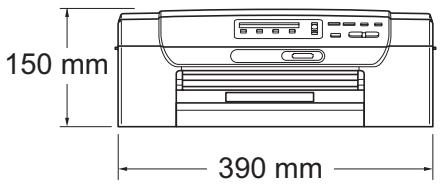
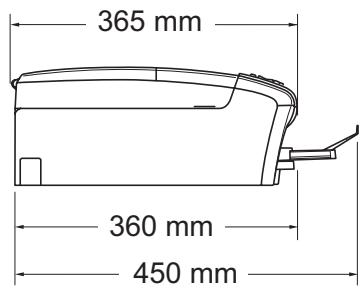
Weight
7.1kg
Noise
Operating: LPAM = 50 dB or less
Noise per ISO 9296
Operating: LWAd = 62.1 dB (A) (Mono)
LwAd = 53.7 dB (A) (Colour)
Office equipment with LwAd >63.0 dB (A) is not suitable for use in rooms where people do primarily intellectual work. Such equipment should be placed in separate rooms because of the noise emission.
Temperature
Operating: 10 - 35^ C
Best Print Quality: 20 - 33^
Humidity
Operating: 20 - 80% (without condensation)
Best Print Quality: 20 - 80% (without condensation)
Print media
Paper Input
Paper Tray
Paper type:
Plain paper, inkjet paper (coated paper), glossy paper ^1 , transparency ^1 2 and envelopes
Paper size:
Letter, Legal, Executive, A4, A5, A6, JIS B5, envelopes (commercial No.10, DL, C5, Monarch, JE4),
Photo 10 × 15 cm, Photo 2L 13 × 18 cm,
Index card and Postcard 3
Width: 98 mm - 215.9 mm
Length: 148 mm - 355.6 mm
For more details, see Paper weight, thickness and capacity on page 16.
Maximum paper tray capacity:
Approx. 100 sheets of 80 g/m^2 plain paper
Paper Output
Up to 50 sheets of A4 plain paper (face up print delivery to the output paper tray)
1 For glossy paper or transparencies, we recommend removing printed pages from the output paper tray immediately after they exit the machine to avoid smudging.
2 Use only transparencies recommended for inkjet printing.
3 See Paper type and size for each operation on page 15.
Copy
Colour/Monochrome
Document Size
Multiple Copies
Enlarge/Reduce
Resolution
Yes/Yes
Scanner Glass Width: Max. 215.9 mm
Scanner Glass Length: Max. 297 mm
Stacks up to 99 pages
25% to 400% (in increments of 1%)
(Monochrome)
Scans up to 1200 × 1200 dpi
Prints up to 1200 × 1200 dpi
(Colour)
Scans up to 600 × 1200 dpi
Prints up to 600 × 1200 dpi
PhotoCapture Center™

Note
The DCP-373CW, DCP-375CW and DCP-377CW only support memory cards.
| Compatible Media1 | Memory StickTM |
| Memory Stick PROTM | |
| Memory Stick MicroTM (M2TM) with adapter | |
| Memory Stick DuoTM with adapter | |
| SD2 | |
| SDHC3 | |
| microSD with adapter | |
| miniSD with adapter | |
| xD-Picture CardTM4 | |
| USB Flash memory drive5 | |
| Resolution | Up to 1200 × 2400 dpi |
| File Extension | DPOF, Exif DCF |
| (Media Format) | Photo Print: JPEG6 |
| (Image Format) | Scan to Media: JPEG, PDF (Colour) |
| TIFF, PDF (Monochrome) | |
| Number of Files | Up to 999 files in the memory card |
| (The folder inside memory cards or USB Flash memory drive is also counted.) | |
| Folder | File must be in the 4th folder level of the memory card or USB Flash memory drive. |
| Borderless | Letter, A4, Photo 10×15 cm, Photo 2L (13×18 cm)7 |
1 Memory cards, adapters and USB Flash memory drive are not included.
2 16 MB to 2 GB
3 4 GB to 16 GB
4 xD-Picture Card™ Conventional Card from 16 MB to 512 MB
xD-Picture CardTM Type M from 256 MB to 2 GB
xD-Picture Card™ Type M+ 1 GB and 2 GB
xD-Picture CardTM Type H from 256 MB to 2 GB
5 USB 2.0 standard
USB Mass Storage Class from 16 MB to 32 GB
Support format: FAT12/FAT16/FAT32
Progressive JPEG format is not supported.
7 See Paper type and size for each operation on page 15.
PictBridge (DCP-193C, DCP-195C, DCP-197C and DCP-365CN only)
Compatibility
Supports the Camera & Imaging Products Association PictBridge standard CIPA DC-001.
Interface
Visit http://www.cipa.jp/pictbridge for more information.
PictBridge (USB) Port
Scanner
| Colour/Monochrome | Yes/Yes |
| TWAIN Compliant | Yes (Windows® 2000 Professional/Windows® XP/ Windows® XP Professional x64 Edition/Windows Vista®) |
| Mac OS X 10.3.9 - 10.4.x - 10.5.x¹ | |
| WIA Compliant | Yes (Windows® XP²/Windows Vista®) |
| Colour Depth | 36 bit colour Processing (Input) |
| 24 bit colour Processing (Output) | |
| (Actual Input: 30 bit colour/Actual Output: 24 bit colour)³ | |
| Resolution | Up to 19200 × 19200 dpi (interpolated)³ |
| Up to 1200 × 2400 dpi (optical) (Scanner Glass) | |
| Scanning Speed | Monochrome: Up to 3.44 sec. |
| Colour: Up to 4.83 sec. | |
| (A4 size in 100 × 100 dpi) | |
| Document Size | Scanner Glass Width: Max. 215.9 mm |
| Scanner Glass Length: Max. 297 mm | |
| Scanning Width | Up to 210 mm |
| Greyscale | 256 levels |
1 For the latest driver updates for the Mac OS X you are using, visit http://solutions.brother.com.
2 Windows® XP in this User's Guide includes Windows® XP Home Edition, Windows® XP Professional, and Windows® XP Professional x64 Edition.
3 Maximum 1200 × 1200 dpi scanning when using the WIA Driver for Windows XP, and Windows Vista (resolution up to 19200 × 19200 dpi can be selected by using the Brother scanner utility)
Printer
| Printer Driver | Windows® 2000 Professional/Windows® XP/ Windows® XP Professional x64 Edition/Windows Vista®/ Windows Server® 2003 1/ Windows Server® 2003 x64 Edition 1/ Windows Server® 2008 1 driver supporting Brother Native Compression mode Mac OS X 10.3.9 - 10.4.x - 10.5.x 2: Brother Ink driver |
| Resolution | Up to 1200 × 6000 dpi |
| 1200 × 2400 dpi | |
| 1200 × 1200 dpi | |
| 600 × 1200 dpi | |
| 600 × 600 dpi | |
| 600 × 300 dpi | |
| 450 × 150 dpi (Mono) | |
| 600 × 150 dpi (Colour) | |
| Print Speed | Monochrome: Up to 33 pages/minute 3 |
| Colour: Up to 27 pages/minute 3 | |
| Printing Width | 204 mm (210 mm) 4 (A4 size) |
| Borderless | Letter, A4, A6, Photo (10×15 cm), Index Card, Photo 2L (13×18 cm), Postcard 1 5 |
1 Print only via network.
2 For the latest driver updates for the Mac OS X you are using, visit http://solutions.brother.com.
3 Based on Brother standard pattern. A4 size in draft mode.
4 When Borderless feature is set to On.
5 See Paper type and size for each operation on page 15.
Interfaces
USB 12
A USB 2.0 interface cable that is no longer than 2m
LAN cable
Ethernet UTP cable category 5 or greater
(DCP-365CN, DCP-373CW,
DCP-375CW and
DCP-377CW)
Wireless LAN
(DCP-373CW, DCP-375CW
and DCP-377CW)
Your machine supports IEEE 802.11b/g wireless communication with your wireless LAN using Infrastructure mode or a wireless
Peer-to-Peer connection in Ad-hoc Mode.
1 Your machine has a Full-speed USB 2.0 interface. This interface is compatible with Hi-Speed USB 2.0; however, the maximum data transfer rate will be 12 Mbits/s. The machine can also be connected to a computer that has a USB 1.1 interface.
2 Third party USB ports are not supported.
3 See Network (LAN) (DCP-365CN, DCP-373CW, DCP-375CW and DCP-377CW only) on page 104 and the Network User's Guide for detailed network specifications.
Computer requirements
| SUPPORTED OPERATING SYSTEMS AND SOFTWARE FUNCTIONS | ||||||||
| Computer Platform & Operating System Version | Supported PC Software Functions | PC Interface | Processor Minimum Speed | Minimum RAM | Recommended RAM | Hard Disk Space to install | ||
| For Drivers | For Applications | |||||||
| Windows®Operating System1 | Windows®2000 Professional4 | Printing, Scanning, Removable Disk5 | USB, 10/100 Base-TX (Ethernet), (DCP-365CN/373CW/375CW/377CW) Wireless 802.11b/g (DCP-373CW/375CW/377CW) | Intel® Pentium® II or equivalent | 64 MB | 256 MB | 110 MB | 340 MB |
| Windows®XP Home2 4 Windows®XP Professional2 4 | 128 MB | 110 MB | 340 MB | |||||
| Windows®XP Professional x64 Edition2 | 64-bit (Intel®64 or AMD64) supported CPU | 256 MB | 512 MB | 110 MB | 340 MB | |||
| Windows Vista®2 | Intel® Pentium® 4 or equivalent 64-bit (Intel®64 or AMD64) supported CPU | 512 MB | 1 GB | 600 MB | 530 MB | |||
| Windows Server®2003 (print only via network) | Printing | 10/100 Base-TX (Ethernet), (DCP-365CN/373CW/375CW/377CW) Wireless 802.11b/g (DCP-373CW/375CW/377CW) | Intel® Pentium® III or equivalent | 256 MB | 512 MB | 50 MB | N/A | |
| Windows Server®2003 x64 Edition (print only via network) | 64-bit (Intel®64 or AMD64) supported CPU | |||||||
| Windows Server®2008 (print only via network) | Intel® Pentium® 4 or equivalent 64-bit (Intel®64 or AMD64) supported CPU | 512 MB | 2 GB | |||||
| Macintosh Operating System | Mac OS X 10.3.9 - 10.4.3 | Printing, Scanning, Removable Disk5 | USB3, 10/100 Base-TX (Ethernet), (DCP-365CN/373CW/375CW/377CW) Wireless 802.11b/g (DCP-373CW/375CW/377CW) | PowerPC G4/G5 PowerPC G3 350MHz | 128 MB | 256 MB | 80 MB | 400 MB |
| Mac OS X 10.4.4 - 10.5.x | PowerPC G4/G5 Intel® Core™ Processor | 512 MB | 1 GB | |||||
| Conditions:1 Microsoft® Internet Explorer® 5.5 or greater.2 For WIA, 1200 × 1200 resolution. Brother Scanner Utility enables to enhance up to 19200 × 19200 dpi.3 Third party USB ports are not supported.4 PaperPortTM 11SE supports Microsoft® SP4 or higher for Windows® 2000 and SP2 or higher for XP.5 Removable disk is a function of PhotoCapture CenterTM. | For the latest driver updates, visit http://solutions.brother.com. All trademarks, brand and product names are property of their respective companies. | |||||||
Consumable items
Ink
Service Life of Ink Cartridge
The machine uses individual Black, Yellow, Cyan and Magenta ink cartridges that are separate from the print head assembly.
The first time you install a set of ink cartridges the machine will use an amount of ink to fill the ink delivery tubes for high quality printouts. This process will only happen once. After this process is complete the cartridges provided with your machine will have a lower yield than standard cartridges (65%). With all following ink cartridges you can print the specified number of pages.
Replacement Ink cartridge
| Black (LC980BK) | Yellow (LC980Y) | Cyan (LC980C) | Magenta (LC980M) |
Black - Approximately 300 pages
Yellow, Cyan and Magenta - Approximately 260 pages
For more information about the replacement consumables, visit us at http://www.brother.com/pageyield.
1 Approx. cartridge yield is declared in accordance with ISO/IEC 24711.
What is InnobellaTM?
Innobella™ is a range of genuine consumables offered by Brother. The name "Innobella™" derives from the words "Innovation" and "Bella" (meaning "Beautiful" in Italian) and is a representation of the "innovative" technology providing you with "beautiful" and "long lasting" print results.
When you print photo images, Brother recommends Innobella™ glossy photo paper (BP71 series) for high quality. Brilliant prints are made easier with Innobella™ ink and paper.

Network (LAN) (DCP-365CN, DCP-373CW, DCP-375CW and DCP-377CW only)
| LAN | You can connect your machine to a network for Network Printing, Network Scanning and access photos from PhotoCapture CenterTM 1. Also included is Brother BRAdmin Light 2 Network Management software. | |
| Support for | Windows® 2000 Professional/Windows® XP/Windows® XP Professional x64 Edition/Windows Vista®/ Windows Server® 2003 3/Windows Server® 2003 x64 Edition 3/ Windows Server® 2008 3 Mac OS X 10.3.9 - 10.4.x - 10.5.x 4 Ethernet 10/100 BASE-TX Auto Negotiation (Wired LAN) (DCP-373CW/375CW/377CW) IEEE 802.11 b/g (Wireless LAN) | |
| Protocols | TCP/IP for IPv4: | ARP, RARP, BOOTP, DHCP, APIA (Auto IP), NetBIOS/WINS, LPR/LPD, Custom Raw Port/Port9100, DNS Resolver, mDNS, LLMNR responder, FTP Server, TELNET, SNMPv1, TFTP, Scanner Port, LLTD responder, Web Services (printing) |
| Network Security | SSID/ESSID, 128 (104) / 64 (40) bit WEP, WPA2-PSK (AES), WPA-PSK (TKIP/AES) | |
| Setup Support Utility (DCP-373CW, DCP-375CW and DCP-377CW) | SecureEasySetupTM | Yes (simple setup with your SecureEasySetupTM-capable access point/rodter) |
| AOSSTM | Yes (simple setup with your AOSSTM-capable access point/rodter) | |
| WPS | Yes (simple setup with your Wi-Fi Protected Setup-capable access point/rodter) | |
See the Computer Requirements chart on page 102.
If you require more advanced printer management, use the latest Brother BRAdmin Professional utility version that is available as a download from http://solutions.brother.com.
3 Print only via network.
4 For the latest driver updates for the Mac OS X you are using, visit http://solutions.brother.com.
Wireless one-push configuration (DCP-373CW/375CW/377CW)
If your wireless access point supports either SecureEasySetup ^TM , Wi-Fi Protected Setup (PBC ^1 ) or AOSS ^TM , you can configure the machine easily without a computer. By pushing a button on the wireless LAN router / access point and the machine, you can set up the wireless network and security settings. See the user's guide for your wireless LAN router / access point for instructions on how to access one-push mode.
1 Push Button Configuration

Note
Routers or access points that support SecureEasySetup™, Wi-Fi Protected Setup or AOSS™ have the symbols shown below.


E
Index
A
Apple Macintosh
See Software User's Guide on the
CD-ROM.
C
Cleaning
paper pick-up roller 75
print head 75
primer platen 74
scanner 74
Consumable items 103
Control panel overview 6
ControlCenter
See Software User's Guide on the
CD-ROM.
Copy
Copy Quality key 23
Enlarge/Reduce 24
keys 22
multiple 22
paper 27
single 22
temporary settings 22
using scanner glass 17
Copy Options key (copying)
Paper Size 28
Paper Type 27
Copy Quality key 22
E
Envelopes 10, 15, 16
Error messages on LCD 65
B&W Print Only 65
Cannot Detect 65
Cannot Print 66
Init.Unable 66
Ink Low 66
No Cartridges 66
No Paper Fed 67
Out of Memory 67
Print Unable 67
Scan Unable 67
Unable to Clean 66
G
Greyscale 99
H
Help
LCD messages 81
using menu keys 81
Menu Table 81
1
Ink cartridges
checking ink volume 77
ink dot counter 71
replacing 71
InnobellaTM 103
J
Jams
paper 69
L
LCD (liquid crystal display) 81
Contrast 19
Help List 20
Language 19
M
Macintosh
See Software User's Guide on the
CD-ROM.
Maintenance, routine
replacing ink cartridges 71
Memory Storage 81
Menu Table 81
Mode, entering
PhotoCapture 7
Scan 6
N
Network
Printing
See Network User's Guide on the
CD-ROM.
Scanning
See Software User's Guide on the
CD-ROM.
0
Out of Memory message 67
P
Packing and shipping the machine 79
Paper 13,95
capacity 16
loading 8
size 15
type 15
PaperPort™ 11SE with OCR
See Software User's Guide on the
CD-ROM and PaperPort™ 11SE with OCR
How-to-Guides.
PhotoCapture CenterTM
Borderless 40
Cropping 39
Date Print 40
DPOF printing 35
from PC
See Software User's Guide on the
CD-ROM.
Memory Stick PRO™ 30
Memory StickTM 30
Print settings
Brightness 37
Colour density 39
Contrast 37
Paper type & size 36, 37
Print quality 36
Quality 36
Sharpness 38
White Balance 38
Printing images 34
Printing Index 33
Scan to Media 40
SD 30
SDHC 30
specifications 97
xD-Picture CardTM 30
PictBridge
DPOF Printing 44
Presto! PageManager
See Help in Presto! PageManager
application.
area 12
difficulties 60
drivers 100
improving quality 75, 76
paper jams 69
reports 20
resolution 100
specifications 100
Printing
on small paper 11
Programming your machine 81
R
Reducing
copies 24
Reports
Help List 20
how to print 20
Network Configuration 20
User Settings 20
Resolution
copy 96
print 100
scan 99
S
Safety Instructions 55
Scanner glass
cleaning 74
using 17
Scanning
See Software User's Guide on the
CD-ROM.
Serial Number
how to find .See inside front cover
Shipping the machine 79
Sleep Mode 19
T
Temporary copy settings 22
Transparencies 16, 95
Troubleshooting 60
checking ink volume 77
error messages on LCD 65
if you are having difficulty copying 62
Network 64
PhotoCapture CenterTM 63
printing 60
scanning 62
software 63
paper jam 69
print quality 75, 76
W
Windows®
See Software User's Guide on the
CD-ROM.
Wireless Network
See Quick Setup Guide and Network
User's Guide on the CD-ROM.
brother
Visit us on the World Wide Web http://www.brother.com
This machine is approved for use in the country of purchase only. Local Brother companies or their dealers will only support machines purchased in their own countries.