USER MANUAL DCP-8250DN BROTHER
Advanced User's Guide
DCP-8250DN
User's Guides and where do I find them?
| Which Guide? | What's in it? | Where is it? |
| Product Safety Guide | Read this Guide first. Please read the Safety Instructions before you set up your machine. See this Guide for trademarks and legal limitations. | Printed / In the box |
| Quick Setup Guide | Follow the instructions for setting up your machine and installing the drivers and software for the operating system and connection type you are using. | Printed / In the box |
| Basic User's Guide | Learn the basic Copy, Scan and Direct Print operations and how to replace consumables. See troubleshooting tips. | PDF file / Installer CD-ROM / In the box |
| Advanced User's Guide | Learn more advanced operations: Copy, security features, printing reports and performing routine maintenance. | PDF file / Installer CD-ROM / In the box |
| Software User's Guide | Follow these instructions for Printing, Scanning, Network Scanning and using the Brother ControlCenter utility. | PDF file / Installer CD-ROM / In the box |
| Network User's Guide | This Guide provides useful information about wired network settings and security settings using the Brother machine. You can also find supported protocol information for your machine and detailed troubleshooting tips. | PDF file / Installer CD-ROM / In the box |
| Google Cloud Print Guide | This Guide provides details on how to configure your Brother machine to a Google account and use Google Cloud Print services for printing over the Internet from devices using Gmail™ for mobile, GOOGLE DOCSTM for mobile and applications for the Chrome OS. | PDF file / Brother Solutions Center2 |
| Mobile Print/Scan Guide for Brother iPrint&Scan | This Guide provides useful information about printing JPEG and PDF1 files from your mobile device and scanning from your Brother machine to your mobile device when connected on a Wi-Fi network. | PDF file / Brother Solutions Center2 |
| Web Connect Guide | This Guide provides details about how to configure and use your Brother machine to scan, load and view images and files on certain websites that provide these services. | PDF file / Brother Solutions Center2 |
1 PDF printing is not supported on Windows® Phone.
2 Visit us at http://solutions.brother.com/.
Table of Contents
1 General Setup 1
Memory storage. 1
Automatic Daylight Saving Time 1
Ecology features 2
Toner Save 2
Sleep Time 2
Deep Sleep mode 3
Power Down mode 3
Quiet mode feature 4
Quiet mode 4
LCD screen 4
Setting the backlight brightness. 4
Setting the Dim Timer for the backlight 4
2 Security features 5
Secure Function Lock 2.0 5
Setting and changing the Administrator Password 6
Setting up and changing the Public user mode 7
Setting up and changing restricted users 7
Turning Secure Function Lock on/off 9
Switching Users 10
Setting Lock. 11
Setting up the password 11
Changing your Setting Lock password 12
Turning Setting Lock on/off. 12
3 Using Address Book 13
Additional ways to store numbers. 13
Setting up Groups for Broadcasting 13
Options for Setting Up Groups 15
Changing Group E-mail addresses 16
Deleting Group numbers 17
4 Printing reports 18
Reports 18
How to print a report 18
5 Making copies
19
Copy settings 19
Stop copying 19
Improving copy quality 19
Enlarging or reducing the image copied 20
Duplex (2-sided) Copying 21
Tray selection 22
Adjusting Brightness and Contrast 22
Sorting copies 23
Making N in 1 copies (page layout) 23
2 in 1 ID Copy 25
Setting your changes as the new default 26
Restoring all copy settings to the factory settings 26
Setting your favourites 26
A Routine maintenance
28
Cleaning and checking the machine 28
Checking the Page Counters 29
Checking the remaining life of parts 29
Replacing periodic maintenance parts 30
Packing and shipping the machine 31
B Options
34
Optional paper tray (LT-5400) 34
Memory board 34
SO-DIMM Types 34
Installing extra memory 35
C Glossary
37
D Index
38
1 General Setup
Memory storage
Your menu settings are stored permanently, and in the event of a power failure will not be lost. Temporary settings (for example, Contrast) will be lost. Also, during a power failure the machine will retain the date and time for up to 60 hours.
Automatic Daylight Saving Time
You can set the machine to change automatically for Daylight Saving Time. It will set itself forward one hour in the Spring, and back one hour in the Autumn.
Press Menu.
Press or to display Initial Setup. Press Initial Setup.
3 Press Date&Time.
4 Press Auto Daylight.
Press On or Off.
6 Press Stop/Exit.
Ecology features
Toner Save
You can save toner using this feature. When you set Toner Save to On, prints appear lighter. The default setting is Off.
Press Menu.
Press or to display General Setup. Press General Setup.
Press ▲ or ▼ to display Ecology. Press Ecology.
4 Press Toner Save.
5 Press on or off.
6 Press Stop/Exit.

Note
We do not recommend Toner Save for printing Photo or Greyscale images.
Sleep Time
The Sleep mode setting can reduce power consumption. When the machine is in Sleep mode (Power Save mode) it acts as though it is turned off. The machine will wake up and start printing when it receives a print job.
You can choose how long the machine must be idle before it goes into Sleep mode.
The timer will restart if any operation is carried out on the machine, such as receiving a print job or making a copy. The default setting is 3 minutes.
When the machine goes into Sleep mode, the LCD backlight turns off.
Press Menu.
Press or to display General Setup. Press General Setup.
Press ▲ or ▼ to display Ecology. Press Ecology.
4 Press Sleep Time.
Using the dial pad on the Touchscreen, enter the length of time (0-90 minutes) the machine will remain idle before entering Sleep mode. Press OK.
6 Press Stop/Exit.
Deep Sleep mode
If the machine is in Sleep mode and does not receive any jobs for a certain length of time, the machine will go into Deep Sleep mode automatically. Deep Sleep mode uses less power than Sleep mode. The machine will wake up when it receives a print job.
When the machine is in Deep Sleep mode, the LCD backlight is Off and the Home key is dimmed.
If the machine has secure print data it will not enter Deep Sleep mode.
Power Down mode
If the machine is in Deep Sleep mode for 4 hours, it will then go into Power Down mode automatically and the Home key will illuminate pale green. Power Down mode is the lowest power consumption mode, which achieves a power consumption of approximately 0.45 W. To wake up the machine, press the Touchscreen.
You can enable or disable the Power Down mode feature by following these steps:
Press Menu.
Press or to display General Setup. Press General Setup.
Press or to display Ecology Press Ecology.
4 Press Auto Powerdown.
Press On or Off.
6 Press Stop/Exit

The machine does not go into Power Down mode when the machine is connected to a wired network or has secure print data in the memory.
Quiet mode feature
Quiet mode
The Quiet mode setting can reduce noise while printing. When Quiet Mode is turned on, the print speed becomes slower. The default setting is Off.
Press Menu.
Press or to display General Setup. Press General Setup.
Press or to display Quiet Mode. Press Quiet Mode.
4 Press on or Off.
5 Press Stop/Exit.
LCD screen
Setting the backlight brightness
You can adjust the brightness of the LCD backlight. If you are having difficulty reading the LCD, try changing the brightness setting.
1 Press Menu.
Press or to display General Setup. Press General Setup.
Press or to display LCD Settings. Press LCD Settings.
4 Press Backlight.
5 Press Light, Med or Dark.
6 Press Stop/Exit.
Setting the Dim Timer for the backlight
You can set how long the LCD backlight stays on after you go back to the Ready screen.
1 Press Menu.
Press or to display General Setup. Press General Setup.
3 Press or to display LCD Settings. Press LCD Settings.
4 Press Dim Timer.
5 Press 10 Secs, 20 Secs, 30 Secs or Off.
6 Press Stop/Exit.
2
Security features
Secure Function Lock 2.0
Secure Function Lock lets you restrict Public access to the following machine functions:
Copy
Scan
Direct Print
Print2
Page Limit
Web Connect
1 Scan includes scan jobs sent via Brother iPrint&Scan.
2 Print includes print jobs via Google Cloud Print and Brother iPrint&Scan.
3 Page Limit is configured using Web Based Management.
This feature also prevents users from changing the default settings of the machine by limiting access to the user-defined Menu settings.
Before using the security features you must first enter an administrator password.
Access to restricted operations can be enabled by creating a restricted user. Restricted users must enter a password to use the machine.
Make a careful note of your password. If you forget it, you will have to reset the password stored in the machine. For information about how to reset the password call Brother Customer Service.

Note
- Secure Function Lock can be set manually at the control panel, or by using Web Based Management or BRAdmin Professional 3 (Windows® only). We recommend using Web Based Management or BRAdmin Professional 3 (Windows® only) to configure this feature. Network User's Guide
- Only administrators can set limitations and make changes for each user.
Setting and changing the Administrator Password
Setting up the password
The password you set in these steps is for the administrator. This password is used to set up users and to turn the Secure Function Lock on or off. (See Setting up and changing restricted users page 7 and Turning Secure Function Lock on/off page 9.)

Note
Make a careful note of the administrator password. If you enter the wrong password, the LCD will show Wrong Password. Re-enter the correct password. If you forget it, please call your Brother dealer for service.
Press Menu.
Press or to display General Setup. Press General Setup.
3 Press or to display Security. Press Security.
4 Press Function Lock.
5 Enter a four-digit number for the password by pressing the buttons on the Touchscreen. Press OK.
6 Re-enter the password when the LCD shows Verify:. Press OK.
7 Press Stop/Exit.
Changing the password
1 Press Menu.
Press or to display General Setup. Press General Setup.
3 Press or to display Security. Press Security.
4 Press Function Lock.
5 Press Set Password.
6 Enter the registered four-digit password by pressing the buttons on the Touchscreen. Press OK.
7 Enter a four-digit number for the new password by pressing the buttons on the Touchscreen. Press OK.
Re-enter the password when the LCD shows Verify:. Press OK.
9 Press Stop/Exit.
Setting up and changing the Public user mode
Public user mode restricts the functions that are available for Public users. Public users do not need to enter a password to access the features made available through this setting. You can set up one Public user.
Press Menu.
Press or to display General Setup. Press General Setup.
Press or to display Security. Press Security.
4 Press Function Lock.
5 Press Setup ID.
6 Enter the administrator password by pressing the buttons on the Touchscreen. Press OK.
Press ▲ or ▼ to display Public. Press Public.
8 Do one of the following:
To set up the Public user, press Enable or Disable for each operation, as follows: Press Copy. Then press Enable or Disable. After you have set Copy, repeat these steps for Scan, Direct Print, Print and Web Connect.
To change the Public user settings, press or to display the setting you want to change. Press the setting and press Enable or Disable. Repeat this step until you finish changing settings.
9 Press Stop/Exit.
Setting up and changing restricted users
You can set up users with a password and restrict the functions that are available to them. You can set up more advanced restrictions, such as by page count or PC user login name, through Web Based Management or BRAdmin Professional 3 (Windows® only). Network User's Guide) You can set up to 25 restricted users.
Setting up restricted users
Press Menu.
Press or to display General Setup. Press General Setup.
Press or to display Security. Press Security.
4 Press Function Lock.
Press Setup ID.
6 Enter the four-digit administrator password by pressing the buttons on the Touchscreen. Press OK.
7 Press or to display UserXX. Press UserXX.
8 Enter the user name by pressing the buttons on the Touchscreen. Basic User's Guide: Entering text) Press OK.
9 Enter a four-digit user password by pressing the buttons on the Touchscreen. Press OK.
To set up a restricted user, press Enable or Disable for each operation, as follows: Press Copy. Then press Enable or Disable. After you have set Copy, repeat these steps for Scan, Direct Print, Print and Web Connect.
Press and repeat steps 7 to 10 to enter each additional user and password.
12 Press Stop/Exit.

Note
You cannot use the same name as another user's name.
Changing user name, password or settings for restricted users
1 Press Menu.
Press or to display General Setup. Press General Setup.
Press or to display Security. Press Security.
4 Press Function Lock.
5 Press Setup ID.
6 Enter the four-digit administrator password by pressing the buttons on the Touchscreen. Press OK.
Press or to display the existing restricted user you want to change. Press the user name.
Press Change. To change the user name, enter a new user name by pressing the buttons on the Touchscreen. Basic User's Guide: Entering text) Press OK.
To change the password, enter a new four-digit user password by pressing the buttons on the Touchscreen. Press OK.
To change a restricted user's settings, press or to display the setting you want to change. Press the setting and then press Enable or Disable. Repeat this step until you are finished making changes.
11 Press Stop/Exit.
Note
You cannot use the same name as another user's name.
Reset existing restricted users
Press Menu.
Press or to display General Setup. Press General Setup.
3 Press or to display Security. Press Security.
4 Press Function Lock.
Press Setup ID.
6 Enter the four-digit administrator password by pressing the buttons on the Touchscreen. Press OK.
Press or to display the existing restricted user you want to reset. Press the user name.
8 Press Reset.
Press Yes to reset the existing restricted user.
10 Press Stop/Exit.
Turning Secure Function Lock on/off
Turning Secure Function Lock on
Press Menu.
Press or to display General Setup. Press General Setup.
Press or to display Security. Press Security.
4 Press Function Lock.
5 Press Lock Off On.
6 Enter the registered four-digit administrator password by pressing the buttons on the Touchscreen. Press OK.
Turning Secure Function Lock off
Press Public or xxxx (where xxxx is the user's name).
Press Lock On Off.
3 Enter the registered four-digit administrator password by pressing the buttons on the Touchscreen. Press OK.
Note
If you enter the wrong password, the LCD will show Wrong Password. Re-enter the correct password.
Switching Users
This setting allows you to switch between registered restricted users or Public mode when Secure Function Lock is turned on.
Changing to the restricted user mode
Press Public or xxxx (where xxxx is the user's name). Press Change User.
Press or to display your user name.
3 Press your user name.
4 Enter the registered four-digit user password by pressing the buttons on the Touchscreen. Press OK.

Note
- If the current ID is restricted for the function you want to use, Access Denied will appear on the LCD.
- If your ID has page limit restrictions set and has already reached the maximum number of pages, the LCD will show Limit Exceeded when you print data. Contact your administrator to check your Secure Function Lock Settings.
Changing to the Public mode
Press xxxxxx. (where xxxxxx is the user's name.)
Press Go to Public.
Note
- After a restricted user has finished using the machine, it will return to the Public setting within one minute.
- If the function you want to use is restricted for all users, Access Denied will appear on the LCD; The machine will go back to the ready mode and you cannot access the function you want to use.
Setting Lock
Setting Lock lets you set a password to stop other people from accidentally changing your machine settings.
Make a careful note of your password. If you forget it, you will have to reset the passwords stored in the machine. Please call your administrator or Brother Customer Service.
While Setting Lock is On, you cannot access the Menu button or edit the numbers you stored in the Address Book. You can still use the Address Book button to send E-mail messages to previously stored numbers.
Setting up the password
Press Menu.
Press or to display General Setup. Press General Setup.
Press or to display Security. Press Security.
4 Press Setting Lock.
5 Enter a four-digit number for the password by pressing the buttons on the Touchscreen. Press OK.
6 Re-enter the password when the LCD shows Verify:. Press OK.
7 Press Stop/Exit.
Changing your Setting Lock password
1 Press Menu.
Press or to display General Setup. Press General Setup.
3 Press or to display Security. Press Security.
4 Press Setting Lock.
Press Set Password.
6 Enter the registered four-digit password by pressing the buttons on the Touchscreen. Press OK.
7 Enter a four-digit number for the new password by pressing the buttons on the Touchscreen. Press OK.
Re-enter the password when the LCD shows Verify:. Press OK.
9 Press Stop/Exit.
Turning Setting Lock on/off
If you enter the wrong password when following the instructions below, the LCD will show Wrong Password. Re-enter the correct password.
Turning Setting Lock on
Press Menu.
Press or to display General Setup. Press General Setup.
3 Press or to display Security. Press Security.
4 Press Setting Lock.
5 Press Lock Off On.
6 Enter the registered four-digit administrator password by pressing the buttons on the Touchscreen. Press OK.
The LCD will show locks on the Setting Lock and Menu buttons.
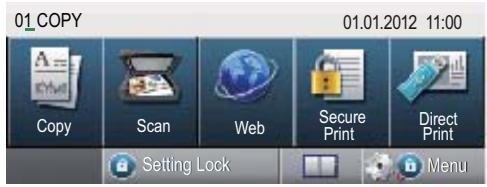
Turning Setting Lock off
1 Press Setting Lock on the LCD.
2 Enter the registered four-digit administrator password by pressing the buttons on the Touchscreen. Press OK.
3
Using Address Book
Additional ways to store numbers
Setting up Groups for Broadcasting
If you often want to send the same scan data to multiple E-mail addresses you can set up a Group.
Groups are stored on a Speed Dial number. Each Group uses up a Speed Dial location. You can then send the E-mail to all the numbers stored in a Group just by entering a Speed Dial number. Press Send a E-mail, and then press Start.
Before you can add numbers to a Group, you need to store them as Speed Dial numbers. You can have up to 20 small Groups, or you can assign up to 331 numbers to one large Group.
For a list of the options available when you set up Group numbers, see the table on page 15.

Press

(Address Book).

Press Edit.

Press Setup Groups (Speed Dial) where you want to store the new Group.

Note
The machine automatically allocates an available Speed Dial number for the new Group.

Do one of the following:
Press OK to accept the displayed Speed Dial number.
Enter a new number using the buttons on the Touchscreen.
Press OK.

Enter the Group name (up to 15 characters) by pressing the buttons on the Touchscreen.
Press A to choose numbers, letters or special characters. Basic User's Guide: Entering text) Press OK.

Do one of the following:
Press OK to accept the displayed Group number.
Enter a new Group number using the buttons on the Touchscreen. Press OK.

To select the Registration Type and the file type, press or to display
E-Mail B&W PDF,
E-Mail B&W TIFF,
E-Mail Color PDF,
E-Mail Color JPEG,
E-Mail Color XPS,
E-Mail Gray PDF,
E-Mail Gray JPEG,
E-Mail Gray XPS.
Press the option you want.

Add Speed Dial numbers to the Group by pressing the check box to display a red check mark.
If you want to list the numbers in alphabetical order, press A.
Press OK.

Note
Speed Dial numbers begin with #.
To choose the scan resolution for the Group number, go to the appropriate next step as shown in the following table.
| Option selected in step ① | Go to step |
| E-Mail B&W PDF | ⑩ |
| E-Mail B&W TIFF |
| E-Mail Color PDF | ⑪ |
| E-Mail Color JPEG |
| E-Mail Color XPS |
| E-Mail Gray PDF | ⑫ |
| E-Mail Gray JPEG |
| E-Mail Gray XPS |
10 Select the resolution from 300 dpi, 200 dpi or 200 x 100 dpi.
If you chose E-Mail B&W PDF, go to step 13.
If you chose E-Mail B&W TIFF, go to step 14.
11 Select the resolution from 100 dpi, 200 dpi,300 dpi,600 dpi or Auto.
If you chose E-Mail Color PDF, go to step 13.
If you chose E-Mail Color JPEG or E-Mail Color XPS, go to step 14.
12 Select the resolution from 100 dpi, 200 dpi, 300 dpi or Auto.
If you chose E-Mail Gray PDF, go to step 13.
If you chose E-Mail Gray JPEG or E-Mail Gray XPS, go to step 14.
13 Select the PDF type from PDF, PDF/A, Secure PDF or Signed PDF that will be used to send E-mail.

If you choose Secure PDF, the machine will ask you to enter a four-digit password using the numbers 0-9 before it starts scanning.
14 Press OK to confirm.
15 Press Stop/Exit.
Options for Setting Up Groups
The following chart shows the additional options for setting up Group numbers.
When you store numbers, the LCD instructs you to choose from the options shown in the following steps.
| Step 1
Enter Group Location | Step 2
Enter Group Name | Step 3
Enter Group Number | Step 4
Select Registration Type
(Dial Type) | Step 5
Add Stored Speed Dial Numbers to the Group | Step 6
Select Resolution | Step 7
Select File Type |
| Speed Dial | (Name)
Press OK | (1 to 20) | E-Mail B&W PDF | E-mail Address | 300 dpi,200 dpi, 200 x 100 dpi | PDF, PDF/A, Secure PDF, Signed PDF |
| E-Mail B&W TIFF | 300 dpi,200 dpi, 200 x 100 dpi | - |
| E-Mail Color PDF | 100 dpi,200 dpi, 300 dpi,600 dpi, Auto | PDF, PDF/A, Secure PDF, Signed PDF |
| E-Mail Color JPEG | 100 dpi,200 dpi, 300 dpi,600 dpi, Auto | - |
| E-Mail Color XPS | 100 dpi,200 dpi, 300 dpi,600 dpi, Auto | - |
| E-Mail Gray PDF | 100 dpi,200 dpi, 300 dpi,Auto | PDF, PDF/A, Secure PDF, Signed PDF |
| E-Mail Gray JPEG | 100 dpi,200 dpi, 300 dpi,Auto | - |
| E-Mail Gray XPS | 100 dpi,200 dpi, 300 dpi,Auto | - |

Note
- PDF/A is a PDF file format intended for long-term archiving. This format contains all the necessary information to be able to reproduce the document after long-term storage.
- Secure PDF is a PDF file format that has been password-protected.
- Signed PDF is a PDF file format that helps prevent data tampering and the impersonation of an author by including a digital certificate within the document. If you choose Signed PDF, you must install a certificate on your machine using Web Based Management.
Choose Signed PDF from Administrator in Web Based Management. (How to install a certificate Network User's Guide)
Changing Group E-mail addresses
You can change a Group that has already been stored.
Changing a Group name, Resolution or PDF type
Press (Address Book).
2 Press Edit.
Press Change.
Press or to display the Group you want to change. Press the Group.
You can change the Group settings:
If you choose Name, enter the name (up to 15 characters) by pressing the buttons on the Touchscreen. Press OK.
If you choose Resolution, press one of the available resolution options displayed on the LCD.
If you choose PDF type, press one of the available file type options displayed on the LCD.
The LCD will display your new setting.

Note
How to change the stored name:
If you want to change a character, press or to position the cursor under the character you want to change, and then press . Re-enter the character.
6 When you are finished making changes to the Group, press OK.
7 Press Stop/Exit.
Adding and deleting addresses in a Group
Press (Address Book).
Press Edit.
Press Change.
Press or to display the Group you want to change. Press the Group.
5 Press Add/Delete.
Press or to display the number you want to add or delete.
7 Press the check box of each number you want to add to check it. Press the check box of each number you want to delete to uncheck it. Press OK to confirm.
Press OK.
9 Press Stop/Exit.
Deleting Group numbers
You can delete a Group number that has already been stored.

Press

(Address Book).

Press Edit.

Press Delete.

Press or to display the Group you want to delete.
Press the check box of the Group you want to delete to check it.
Press OK.

When the LCD shows
Erase This Data?, do one of the following:
To Delete the Group, press Yes.
To exit without deleting the Group, press No.

Press Stop/Exit.
4
Printing reports
Reports
The following reports are available:
1 Journal Report
Prints a list of information about your last 200 outgoing E-mails. (TX: transmit.)
2 User Settings
Prints a list of your current settings.
3 Network Config
Prints a list of your network settings.
4 Drum Dot Print
Prints the drum dot check sheet to troubleshoot a dotted print problem.
How to print a report
Press Menu.
Press or to display Print Reports. Press Print Reports.
Press the report you want to print.
4 Press Start.
5 Press Stop/Exit.
5
Making copies
Copy settings
You can change the copy settings temporarily for the next copy.
Press Copy on the Touchscreen and then press or to scroll through the copy settings. When the setting you want is displayed, press the button.
When you have finished changing settings, press Start.
Stop copying
To stop copying, press Stop/Exit.
Improving copy quality
You can choose from a range of quality settings. The default setting is Auto.
Auto
Auto is the recommended mode for ordinary printouts. Suitable for documents that contain both text and photographs.
Text
Suitable for documents containing mainly text.
Photo
Better copy quality for photographs.
Graph
Suitable for copying receipts.
Press Copy.
2 Load your document.
3 Enter the number of copies you want.
Press or to display Quality. Press Quality.
Press Auto, Text, Photo or Graph.
If you do not want to change additional settings, press Start.
Enlarging or reducing the image copied
To enlarge or reduce the next copy follow the instructions below:
1 Press Copy.
2 Load your document.
3 Enter the number of copies you want.
Press or to display Enlarge/Reduce. Press Enlarge/Redu
Press 100% , Enlarge, Reduce, Auto or Custom (25-400%).
6 Do one of the following:
If you chose Enlarge or Reduce, press the enlargement or reduction ratio button you want.
If you chose Custom (25-400%), enter an enlargement or reduction ratio from 25% to 400%. Press OK.
If you chose 100 % or Auto ^1 , go to step ⑦ .
| 100%* |
| 104% EXE ⇒ LTR |
| 141% A5 ⇒ A4 |
| 200% |
| 50% |
| 70% A4 ⇒ A5 |
| 78% LGL ⇒ LTR |
| 83% LGL ⇒ A4 |
| 85% LTR ⇒ EXE |
| 91% Full Page |
| 94% A4 ⇒ LTR |
| 97% LTR ⇒ A4 |
| Auto1 |
| Custom (25-400%) |
- The factory setting is shown in Bold with an asterisk.
1 Auto sets the machine to calculate the reduction ratio that best fits the size of paper. Auto is only available when using the ADF.
If you do not want to change additional settings, press Start.
Note
Page Layout Options 2in1(P), 2in1(L), 2in1(ID), 4in1(P) and 4in1(L) are not available with Enlarge/Reduce.
Duplex (2-sided) Copying
If you want to use the automatic duplex copy feature, load your document in the ADF.
If you get an Out of Memory message while you are making duplex copies, try installing extra memory. (See Installing extra memory page 35.)
You must choose a 2-sided copy layout from the following options before you can start duplex copying. The layout of your document determines which 2-sided copy layout you should choose.
Portrait
2side-2side
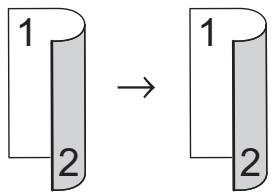
1side-2side Long Edge Flip
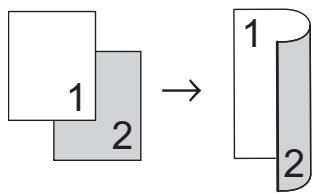
2side-1side Long Edge Flip
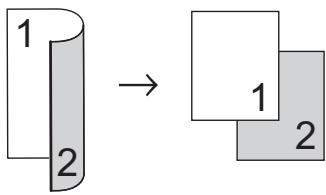
1side-2side Short Edge Flip
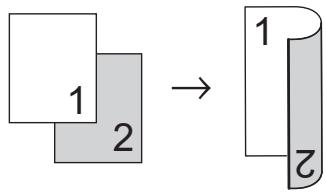
2side-1side Short Edge Flip
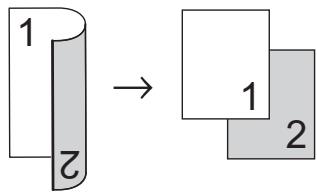
Landscape
2side-2side
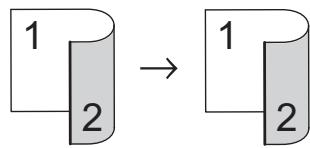
1side-2side Long Edge Flip
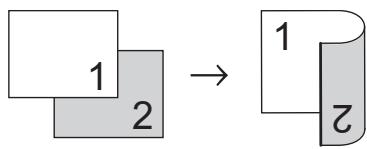
2side-1side Long Edge Flip
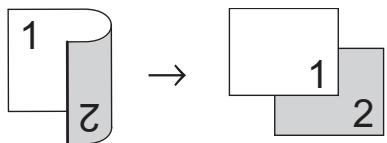
1side-2side Short Edge Flip
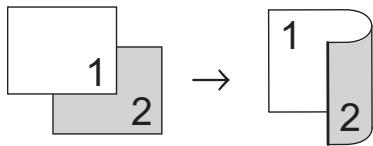
2side-1side Short Edge Flip
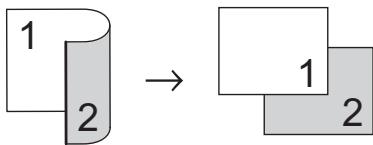
Press Copy.
2 Load your document.
3 Enter the number of copies you want.
Press or to display Duplex Copy. Press Duplex Copy.
Press or to display the following layout options: 2side 2side, 1side 2side LongEdgeFlip, 2side 1side LongEdgeFlip, 1side 2side ShortEdgeFlip, 2side 1side ShortEdgeFlip, Off
Press the option you want.
If you do not want to change additional settings, press Start.
Tray selection
You can temporarily change the Tray Use option for the next copy.
Press Copy.
2 Load your document.
3 Enter the number of copies you want.
Press or to display Tray Use. Press Tray Use.
Press MP>T1, MP>T1>T2 1, T1>MP, T1>T2>MP 1, Tray#1 Only, Tray#2 Only or MP Only.
1 T2 and Tray#2 Only appears only if Tray 2 is installed.
If you do not want to change additional settings, press Start.
Note
To change the default setting for Tray Use Basic User's Guide: Tray Use in Copy mode
Adjusting Brightness and Contrast
Brightness
Adjust the copy brightness to make copies darker or lighter.
1 Press Copy.
2 Load your document.
3 Enter the number of copies you want.
Press or to display Brightness. Press Brightness.
Press to make a darker copy or press to make a lighter copy. Press OK.
If you do not want to change additional settings, press Start.
Contrast
Adjust the contrast to help an image look sharper and more vivid.
1 Press Copy.
2 Load your document.
3 Enter the number of copies you want.
4 Press or to display Contrast. Press Contrast.
Press to decrease the contrast or press to increase the contrast. Press OK.
If you do not want to change additional settings, press Start.
Sorting copies
You can sort multiple copies. Pages will be stacked in the order 1 2 3, 1 2 3, 1 2 3, and so on.
Press Copy.
2 Load your document.
3 Enter the number of copies you want.
4 Press or to display Stack/Sort. Press Stack/Sort.
5 Press Sort.
If you do not want to change additional settings, press Start to scan the page. If you placed the document in the ADF, the machine scans the pages and starts printing.
If you are using the scanner glass, go to step ①.
After the machine scans the page, press Yes to scan the next page.
Put the next page on the scanner glass. Press Start. Repeat steps 7 and 8 for each page of the document.
9 After all the pages have been scanned, press No in step 7 to finish.
Making N in 1 copies (page layout)
You can reduce the amount of paper used when copying by using the N in 1 copy feature. This allows you to copy two or four pages onto one page. If you want to copy both sides of an ID card onto one page, see 2 in 1 ID Copy page 25.
Important
- Please make sure the paper size is set to A4, Letter, Legal or Folio.
- You cannot use the Enlarge/Reduce setting with the N in 1 feature.
- (P) means Portrait and (L) means Landscape.
Press Copy.
2 Load your document.
3 Enter the number of copies you want.
Press or to display Page Layout. Press Page Layout.
Press or to display Off(1in1), 2in1(P), 2in1(L), 2in1(ID) ^1 , 4in1(P) or 4in1(L). Press the button you want.
1 For details about 2in1 (ID), see 2 in 1 ID Copy page 25.
If you do not want to change additional settings, press Start to scan the page. If you placed the document in the ADF, the machine scans the pages and starts printing.
If you are using the scanner glass, go to step 7.
After the machine scans the page, press Yes to scan the next page.
Put the next page on the scanner glass. Press Start.
Repeat steps 7 and 8 for each page of the document.
9 After all the pages have been scanned, press No in step 7 to finish.
If you are copying from the ADF:
Insert your document face up in the direction shown below:
2in1(P)

2in1(L)

4in1(P)

4in1(L)

If you are copying from the scanner glass:
Place your document face down in the direction shown below:
2in1(P)

2in1(L)

4in1(P)

4in1(L)

2 in 1 ID Copy
You can copy both sides of your identification card onto one page, keeping the original card size.

Note
You can copy an identification card to the extent permitted under applicable laws.
(>Product Safety Guide: Unlawful use of copying equipment (MFC and DCP only))
1 Press Copy.
Place your identification card face down at the left corner of the scanner glass.
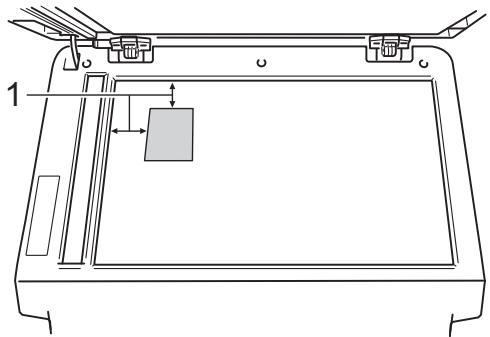
1 4 mm or greater (top, left)
Even if a document is placed in the ADF, the machine scans the data from the scanner glass when in this mode.
3 Enter the number of copies you want.
Press or to display Page Layout. Press Page Layout.
Press or to display 2in1(ID). Press 2in1(ID).
Press Start. After the machine scans the first side of the card, the LCD will display Turn over the ID Card Then Press Start.
Turn over your identification card and place it on the left side of the scanner glass.
Press Start. The machine scans the other side of the card and prints the page.

When 2 in 1 ID Copy is chosen, the machine sets the quality to Photo and the contrast to +2.
Setting your changes as the new default
You can save the copy settings for Quality, Brightness and Contrast you use most often by setting them as the default. These settings will stay until you change them again.
Press Copy.
Press or to choose the setting you want to change, and then press the new option.
Repeat this step for each setting you want to change.
After changing the last setting, press or to display Set New Default.
Press Set New Default.
4 Press Yes.
Press Stop/Exit.
Restoring all copy settings to the factory settings
You can restore all the copy settings you have changed to the factory settings. These settings will stay until you change them again.
Press Copy.
Press or to display
Factory Reset.
Press Factory Reset.
3 Press Yes.
4 Press Stop/Exit.
Setting your favourites
You can store the copy settings that you use most often by setting them as a favourite. You can set up to three favourites.
1 Press Copy.
Choose the copy option and settings you want to store.
3 Press or to display Favorite Settings. Press Favorite Settings.
4 Press Store.
Press the location where you want to store your setting Favorite:1, Favorite:2 or Favorite:3.
6 Do one of the following:
If you want to rename your setting, press × to delete characters. Then enter the new name (up to 12 characters). Press OK.
If you do not want to rename your setting, press OK.
7 Press Stop/Exit.
Retrieving your favourite setting
When you are ready to use one of your favourite set of settings, you can recall it.
1 Press Copy.
Press Favorite.
3 Press the favourite setting you want to retrieve.
4 Press Start.
Rename your favourite setting
After you have stored your favourite setting, you can rename it.
Press Copy.
Press or to display Favorite Settings. Press Favorite Settings.
Press Rename.
4 Press the favourite setting you want to rename.
5 Enter the new name (up to 12 characters).
6 Press OK.
7 Press Stop/Exit.
A
Routine maintenance
Cleaning and checking the machine
Clean the outside and inside of the machine regularly with a dry, lint-free cloth. When you replace the toner cartridge or the drum unit, make sure that you clean the inside of the machine. If printed pages are stained with toner, clean the inside of the machine with a dry, lint-free cloth.

WARNING
#
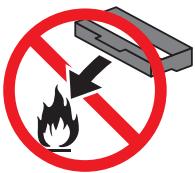
- DO NOT put a toner cartridge or a toner cartridge and drum unit assembly into a fire. It could explode, resulting in injuries.
DO NOT use flammable substances, any type of spray, or an organic solvent/liquid containing alcohol or ammonia to clean the inside or outside of the product. Doing so could cause a fire or electrical shock. Instead, use only a dry, lint-free cloth.
( Product Safety Guide: General precautions)



Important
Use neutral detergents. Cleaning with volatile liquids such as thinner or benzine will damage the surface of the machine.
Checking the Page Counters
You can see the machine's Page Counters for copies, printed pages, reports and lists or a summary total.
Press Menu.
Press or to display Machine Info.. Press Machine Info..
Press Page Counter. The LCD shows number of pages for Total, List, Copy or Print.
4 Press Stop/Exit.
Checking the remaining life of parts
You can see the machine's parts life on the LCD.
Press Menu.
Press or to display Machine Info.. Press Machine Info..
3 Press Parts Life.
Press or to see the approximate remaining parts life of the Drum, Fuser, Laser, PF Kit MP, PF Kit 1 and PF Kit 2^1 . When Tray 2 is installed.
Press Stop/Exit.
Replacing periodic maintenance parts
The periodic maintenance parts will need to be replaced regularly to maintain the print quality. The parts listed below will have to be replaced after printing approximately 50,000 pages ^1 for PF Kit MP and 100,000 pages ^1 for PF Kit 1, PF Kit 2^2 , Fuser and Laser. Please call Brother Customer Service when the following messages appear on the LCD.
| LCD message | Description |
| Replace Parts Fuser Unit | Replace the fuser unit. |
| Replace Parts Laser Unit | Replace the laser unit. |
| Replace Parts PF Kit 1 | Replace the paper feeding kit for the paper tray. |
| Replace Parts PF Kit 22 | Replace the paper feeding kit for the lower tray (option). |
| Replace Parts PF Kit MP | Replace the paper feeding kit for the multi-purpose tray. |
1 A4 or Letter size single-sided pages.
2 When Tray 2 is installed.
Packing and shipping the machine

WARNING
This machine is heavy and weighs more than 17.5kg . To prevent possible injuries at least two people should lift the machine. Be careful not to pinch your fingers when you put the machine down.
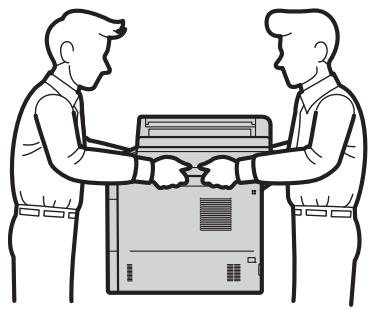
If you use a Lower Tray, DO NOT carry the machine with the Lower Tray as you may be injured or cause damage to the machine because it is not attached to the Lower Tray.

Note
If for any reason you must ship your machine, carefully repack the machine in the original packaging to avoid any damage during transit. The machine should be adequately insured with the carrier.
1 Leave the machine turned on for at least 10 minutes to cool down.
After the machine has cooled down, turn off the machine.
3 Disconnect all the cables, and then unplug the power cord from the electrical socket.
Put the packing material (1) into the carton.
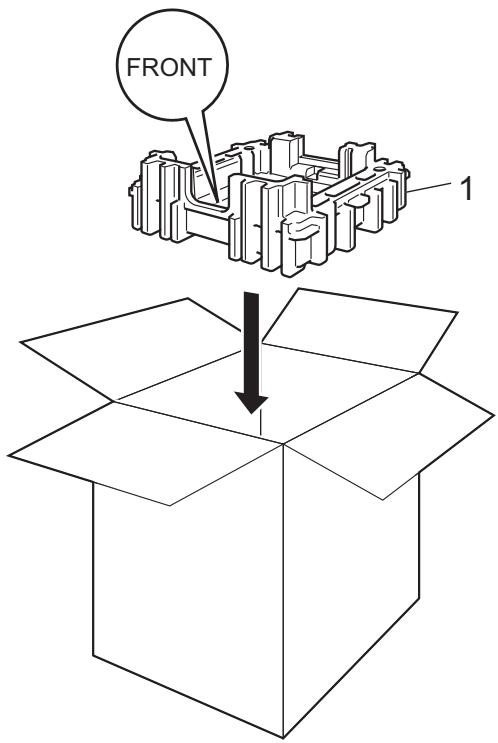
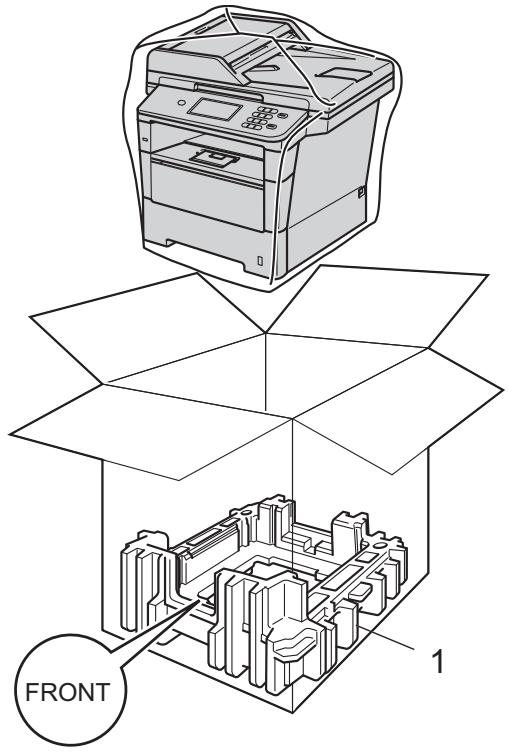
5 Wrap the machine in a plastic bag, then put it on the bottom packing material (1).
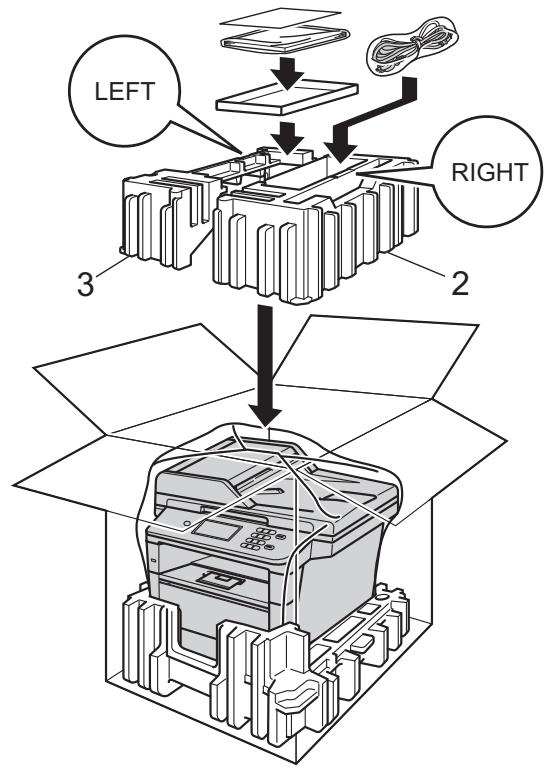
6 Put the packing material piece (2) marked “RIGHT” on the right of the machine. Put the packing material piece (3) marked “LEFT” on the left of the machine. Put the AC power cord and printed materials in the original carton as shown in the illustration.
7 Close the carton and tape it shut.
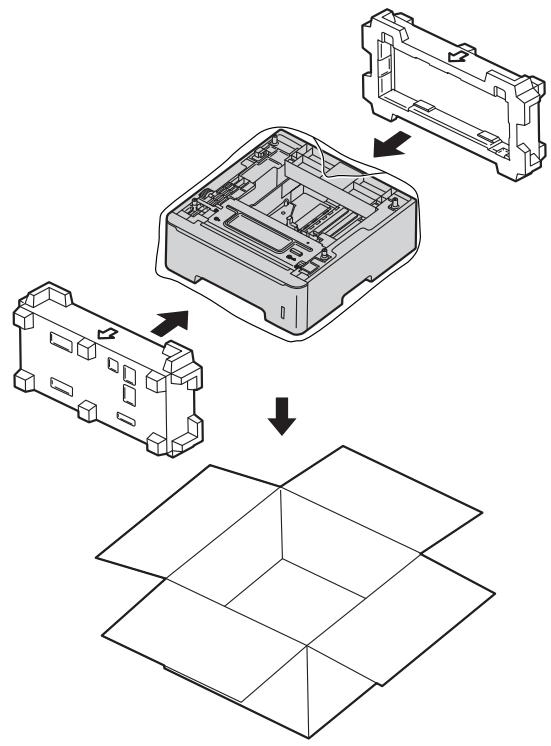
Repack the lower tray as shown in the illustration.
B
Options
Optional paper tray (LT-5400)
An optional lower tray can be installed, and it can hold up to 500 sheets of 80g / m^2 paper.
When an optional tray is installed, the machine can hold up to 1050 sheets of plain paper.
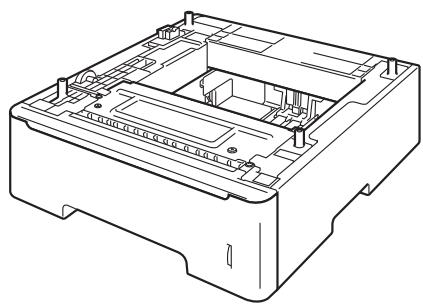
For setup, see the Instructions that we have supplied with the lower tray unit.

WARNING
If you use a Lower Tray, DO NOT carry the machine with the Lower Tray as you may be injured or cause damage to the machine because it is not attached to the Lower Tray.
Memory board
DCP-8250DN has 128 MB of standard memory. The machine has one slot for optional memory expansion. You can increase the memory up to a maximum of 384 MB by installing one SO-DIMM (Small Outline Dual In-line Memory Module).
SO-DIMM Types
You can install the following SO-DIMMs:
256 MB Kingston KTH-LJ2015/256
256 MB Transcend TS256MHP423A

Note
- For more information, visit the Kingston Technology website at http://www.kingston.com/.
For more information, visit the Transcend website at http://www.transcend.com.tw/.
In general, the SO-DIMM must have the following specifications:
| Type | 144-pin and 16-bit output |
| CAS latency | 4 |
| Clock frequency | 267 MHz (533 Mb/S/Pin) or more |
| Capacity | 256 MB |
| Height | 30.0 mm |
| DRAM type | DDR2 SDRAM |

Note
- There might be some SO-DIMMs that will not work with the machine.
- For more information, call the dealer you bought the machine from or Brother Customer Service.
1 Turn off the machine's power switch.
2 Disconnect the interface cable from the machine, and then unplug the power cord from the electrical socket.

Note
Be sure to turn off the machine's power switch before you install or remove the SO-DIMM.
3 Remove the plastic SO-DIMM cover (1).
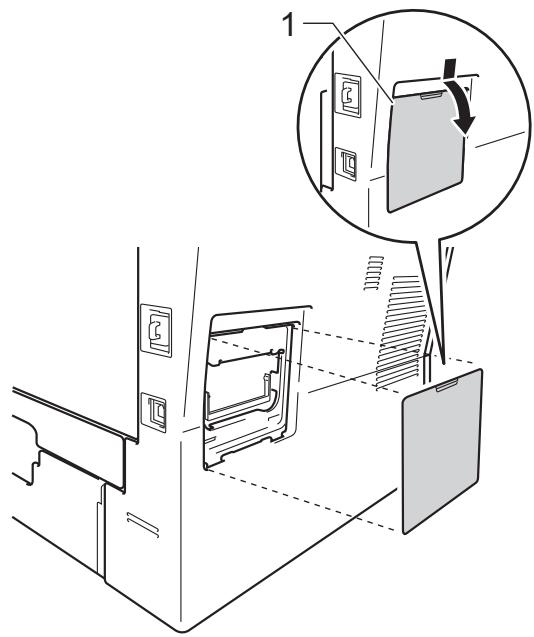
4 Unpack the SO-DIMM and hold it by its edges.
Important
To prevent damage to the machine from static electricity, DO NOT touch the memory chips or the board surface.
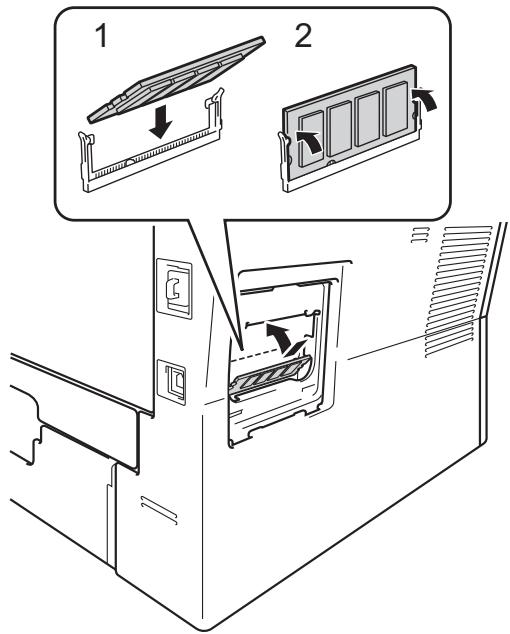
Hold the SO-DIMM by the edges and align the notches in the SO-DIMM with the protrusions in the slot. Insert the SO-DIMM diagonally (1), then tilt it toward the interface board until it clicks into place (2).
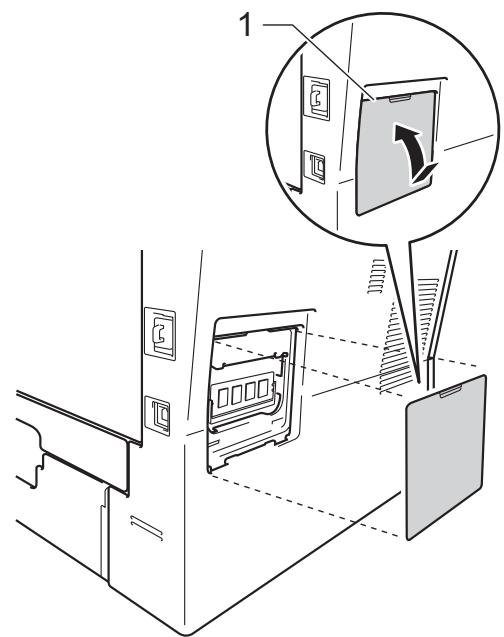
Put the plastic SO-DIMM cover (1) back on.
Plug the machine's power cord back into the electrical socket first, and then connect the interface cable.
Turn on the machine's power switch.

Note
To make sure that you have installed the SO-DIMM correctly, you can print the User Settings List that shows the current RAM SIZE. (See How to print a report
page 18.)
This is a comprehensive list of features and terms that appear in Brother manuals. Availability of these features depends on the model you purchased.
ADF (automatic document feeder)
The document can be placed in the ADF and scanned one page at a time automatically.
Beeper Volume
Volume setting for the beep when you press a key or make an error.
Cancel Job
Cancels a programmed print job and clears it from the machine's memory.
Contrast
Setting to compensate for dark or light documents, by making copies of dark documents lighter and light documents darker.
Fine resolution
Resolution is 203× 196 dpi. It is used for small print and graphs.
Greyscale
The shades of grey available for copying photographs.
Group number
A combination of Speed Dial numbers that are stored in a Speed Dial location for Broadcasting.
LCD (liquid crystal display)
The display screen on the machine that shows interactive messages during On-Screen Programming and shows the date and time when the machine is idle.
Programming mode for changing your machine's settings.
OCR (optical character recognition)
Nuance™ PaperPort™ 12SE or Presto! PageManager software application converts an image of text to text you can edit.
Resolution
The number of vertical and horizontal lines per inch.
Scanning
The process of sending an electronic image of a paper document into your computer.
Search
An electronic, alphabetical listing of stored Speed Dial, Group numbers and LDAP.
Speed Dial
A pre-programmed number for easy dialling.
Temporary settings
You can choose certain copy options without changing the default settings.
User Settings List
A printed report that shows the current settings of the machine.
D
Index
A
Apple Macintosh See Software User's Guide.
B
Broadcasting setting up Groups for 13
C
ControlCenter2 (for Macintosh)
See Software User's Guide.
ControlCenter4 (for Windows®)
See Software User's Guide.
Copy
2 in 1 ID Copy .25
brightness .22
button .19
contrast .22
Enlarge/Reduce .20
N in 1 (page layout) .23
quality .19
sort .23
temporary settings .19
using scanner glass .23
D
Daylight Saving Time 1
Deep Sleep mode .3
Drum unit checking (remaining life) .29
Duplex copy .21
E
Enlarge/Reduce 20
G
Group dial setting up Groups for broadcasting 13
Groups for broadcasting 13
L
LCD (liquid crystal display) backlight brightness 4
M
Machine information checking remaining life of parts 29 page counts 29
Macintosh See Software User's Guide.
Maintenance, routine 28 checking the remaining life of parts 29
Memory adding DIMM (option) 34 installing 35 storage 1
N
N in 1 (page layout) 23
Network
printing See Network User's Guide.
scanning See Software User's Guide.
NuanceTM PaperPortTM 12SE See Software User's Guide. See also Help in the NuanceTM PaperPortTM 12SE application to access How-to-Guides.
P
Page layout (N in 1) 23
Power down mode 3
Power failure 1
Presto! PageManager See Software User's Guide. See also Help in the Presto! PageManager application.
Print reports 18
Printing See Software User's Guide.
Q
Quality
copying 19
Quiet mode 4
R
Reducing
copies 20
Reports 18
how to print 18
Journal Report 18
Network Configuration 18
User Settings 18
Restricted users 7
S
Scanning
See Software User's Guide.
Security
Secure function lock
administrator password 6
Public user mode 7
restricted users 7
Setting lock 11
Sleep mode 2
Sort 23
T
Temporary copy settings 19
Toner Save 2
W
Windows®
See Software User's Guide.
brother®
Visit us on the World Wide Web http://www.brother.com/
This machine is approved for use in the country of purchase only. Local Brother companies or their dealers will only support machines purchased in their own countries.