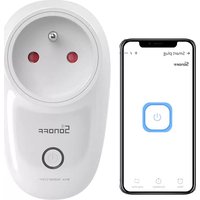
S26R2ZB - Wall socket Sonoff - Free user manual and instructions
Find the device manual for free S26R2ZB Sonoff in PDF.


| Product Type | ZigBee Smart Wall Socket |
| Brand | Sonoff |
| Model | S26R2ZB |
| Input Voltage | 250 V~, 50/60 Hz |
| Maximum Load | 16 A (4000 W) / 16 A (3680 W) / 13 A (3250 W) depending on variant |
| Wireless Protocol | ZigBee 3.0 (IEEE 802.15.4) |
| Compatible App | eWeLink (Android & iOS) |
| Operating Temperature | -10 °C to 40 °C |
| Housing Material | PC V0 (flame retardant) |
| Dimensions | 97.5 × 56 × 35 mm |
| LED Indicators | ZigBee signal (green) and on/off (red) |
| Button | Pairing and manual switch |
| Main Functions | Remote on/off, scheduling, countdown timers, smart scenes, voice control (requires gateway) |
| Gateway Required | Yes, ZigBee gateway (e.g. SONOFF ZigBee, SmartThings, Hue) |
| Device Sharing | Shared control possible via the app |
| Reset | Remove in eWeLink app or long press 5 seconds on button |
| Maintenance and Cleaning | Unplug, clean with a dry cloth, avoid moisture |
| Safety | Indoor use only, do not exceed maximum load |
| Repairability | Contact a professional, no spare parts provided |
| Compatibility | Requires a compatible ZigBee gateway |
Frequently Asked Questions - S26R2ZB Sonoff
User questions about S26R2ZB Sonoff
0 question about this device. Answer the ones you know or ask your own.
Ask a new question about this device
Download the instructions for your Wall socket in PDF format for free! Find your manual S26R2ZB - Sonoff and take your electronic device back in hand. On this page are published all the documents necessary for the use of your device. S26R2ZB by Sonoff.
USER MANUAL S26R2ZB Sonoff
natural_image
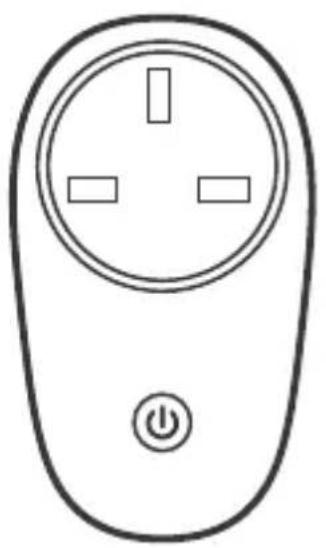
Simple line drawing of a remote control switch with three pins and an electrical button (no text or symbols)TPG(UK)
natural_image
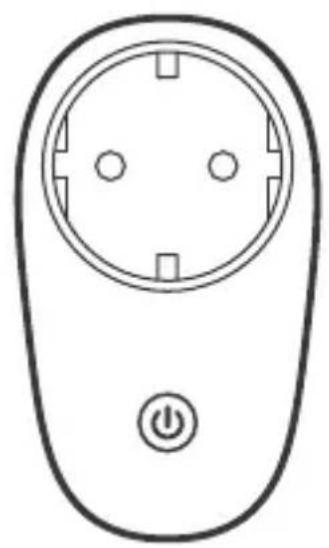
Line drawing of a remote control switch with power button (no text or symbols)TPF(DE)
natural_image
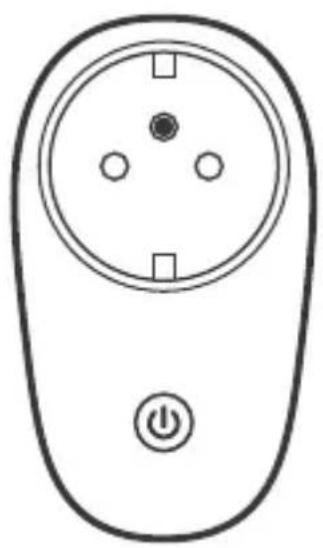
Line drawing of a remote control panel with three pins and an open button (no text or symbols)TPE(FR)
ZigBee Smart Plug
· 中文 1-4
· Deutsch ---- 9-12
• Français---- 17-20
· Русский язык----25-29
- English---- 5-8
- Español----13-16
• Italiano---- 21-24
• Português----30-33
natural_image
Line drawing of a wall-mounted electrical outlet with a power button and indicator light (no text or symbols)natural_image
Simple line drawing of a plug-in socket with a hand pressing a button (no text or symbols)恢复出厂设置
The device can be operated intelligently via working with the SONOFF ZigBee Bridge to communicate with other devices.
The device can work with other gateways supporting ZigBee 3.0 wireless protocol. Detailed information is in accordance with the final product.
Operating Instruction
1. Download APP

Android™ & iOS
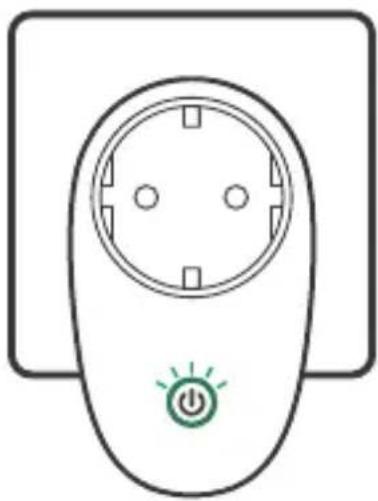
2. Power on
natural_image
Simple line drawing of a power outlet with a green power button and indicator light (no text or symbols)After powering on, the device will enter the pairing mode during the first use and the Zigbee LED signal indicator flashes.
3. Add sub-devices
Connect the SONOFF ZigBee Bridge before adding the sub-device.
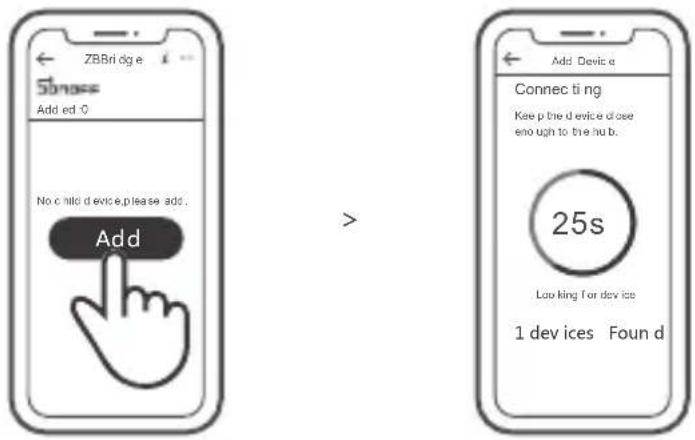
Access eWeLink APP, select the Bridge that you want to connect, and tap "Add" to add a sub-device, and be patient until the pairing completes.
If the addition failed, move the sub-device closer to the Bridge and try again.
SONOFF ZigBee Bridge supports connecting multiple sub-devices at the same time.
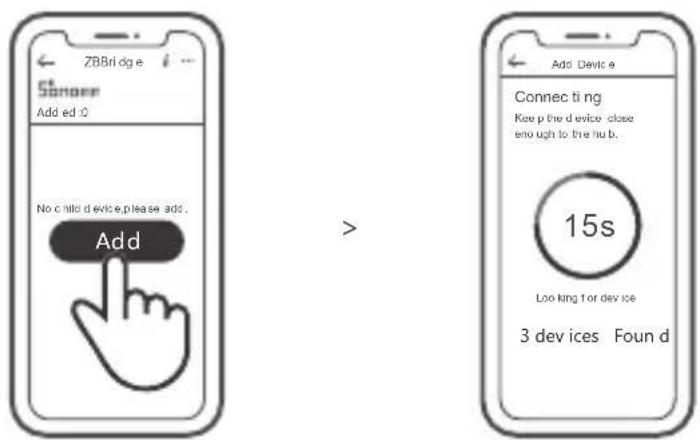
Power the Bridge on, set the sub-device to the pairing mode. Then access the Bridge page in the eWeLink APP to tap "Add", and be patient until the pairing completes.
More APP application platforms and gateway recommendations

SmartThings

Amazon Alexa

Hue
This device supports the following gateways besides SONOFF ZigBee:
| Echo Studio |
| Echo (4th Gen) |
| Echo Plus (model: ZE39KL) |
| 2nd Gen Echo Show (model: DW84JL) |
| 2nd Gen Echo Plus (model: L9D29R) |
| Samsung SmartThings hub |
| Philips Hue Smart Hub |
Gateway adding instruction:
- Refer to the gateway user manual to download the matched APP and get it paired.
- Set ZBMINI to the pairing mode.
- Add ZBMINI according to the prompt of APP. Please select eWeLink or SONOFF when adding.
If the addition failed, move the sub-device closer to the Bridge and try again.
Specifications
| Model | S26R2ZBTPF, S26R2ZBTPE, S26R2ZBTPG |
| Input | 250V~, 50/60Hz |
| Max. load | S26R2ZBTPF: 4000W/16AS26R2ZBTPE: 3680W (230V)/16AS26R2ZBTPG: 3250W/13A |
| ZigBee | IEEE 802.15.4 |
| Operating systems | Android & iOS |
| Working temperature | -10°C~40°C |
| Material | PC V0 |
| Dimension | 97.5x56x35mm |
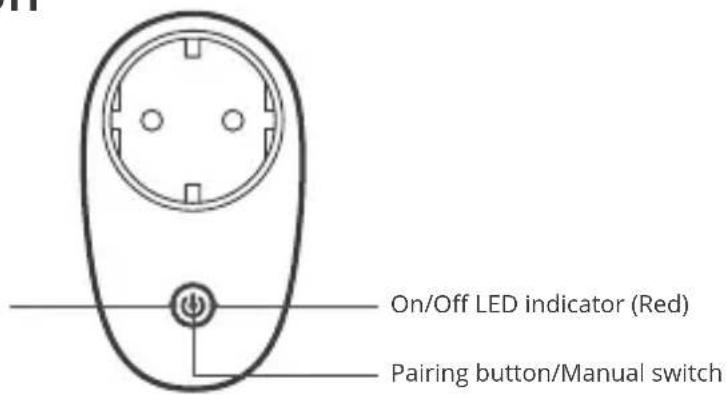
Product Introduction
ZigBee LED signal indicator (Green)
Features
The is a smart device with ZigBee wireless communication protocol that allows you to remotely turn on, schedule on/off and set smart scenes to trrigger other devices, etc.
Remote Control Single/Countdown Timing Voice Control


Share Control

Smart Scene

Camera Binding
Above functions are determined by the connected ZigBee Hub.
Switch Network
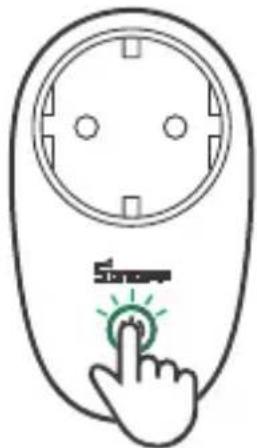
If you need to change the network, long press the pairing button for 5s until the ZigBee LED signal indicator flashes and release, then the device enters pairing mode and you can pair again.
natural_image
Simple line drawing of a plug with a circular socket and a finger pressing a button (no text or symbols)Factory Reset
Deleting the device on the eWeLink app indicates you restore it to factory setting.
natural_image
Simple line drawing of a remote control panel with a power button and indicator light (no text or symbols)If the addition failed, move the sub-device closer to the Bridge and try again.
Technische Daten
| Modell | S26R2ZBTPF, S26R2ZBTPE, S26R2ZBTPG |
| Eingang | 250V~, 50/60Hz |
| Max. last | S26R2ZBTPF: 4000W/16AS26R2ZBTPE: 3680W (230V)/16AS26R2ZBTPG: 3250W/13A |
| ZigBee | IEEE 802.15.4 |
| Betriebssysteme | Android & iOS |
| Arbeitstemperatur | -10°C~40°C |
| Materialien | PC V0 |
| Abmessungen | 97.5x56x35mm |
Produktvorstellung
natural_image
Simple line drawing of a remote control panel with a power button (no text or symbols)natural_image
Simple line drawing of a plug-in socket with a finger pressing the button (no text or symbols)natural_image
Simple line drawing of a power outlet with a green power button and square buttons (no text or symbols)natural_image
Pure electrical circuit lines without any symbolsnatural_image
Simple line drawing of a remote control panel with a hand pressing a button (no text or symbols)natural_image
Simple line drawing of a power outlet with a green power button and square buttons (no text or symbols)| Echo Studio |
| Echo (4th Gen) |
| Echo Plus (model: ZE39KL) |
| 2nd Gen Echo Show (model: DW84JL) |
| 2nd Gen Echo Plus (model: L9D29R) |
| Samsung SmartThings hub |
| Philips Hue Smart Hub |
natural_image
Simple line drawing of a remote control panel with a power button (no text or symbols)natural_image
Simple line drawing of a plug-in socket with a finger pressing the button (no text or symbols)natural_image
Simple line drawing of a power outlet with a green power button and square buttons (no text or symbols)natural_image
Simple line drawing of a remote control panel with a power button (no text or symbols)natural_image
Simple line drawing of a plug-in socket with a finger pressing the button (no text or symbols)natural_image
Simple line drawing of a power outlet with a green power button and square buttons (no text or symbols)natural_image
Simple line drawing of a wall socket with a power button at the bottom (no text or symbols)natural_image
Simple line drawing of a plug socket and a hand cursor clicking a button (no text or symbols)natural_image
Simple line drawing of a remote control panel with a power button and indicator light (no text or symbols)natural_image
Simple line drawing of a remote control socket with a power button (no text or symbols)natural_image
Simple line drawing of a plug-in socket with a hand pressing a button (no text or symbols)Hereby, Shenzhen Sonoff Technologies Co., Ltd. declares that the radio equipment type S26R2ZBTPF, S26R2ZBTPE, S26R2ZBTPG is in compliance with Directive 2014/53/EU. The full text of the EU declaration of conformity is available at the following internet address:
https://sonoff.tech/usermanuals

Shenzhen Sonoff Technologies Co., Ltd.
1001, BLDG8, Lianhua Industrial Park, shenzhen, GD, China
ZIP code: 518000
MADE IN CHINA
- ZigBee Smart Plug
- 恢复出厂设置
- Operating Instruction
- Download APP
- Power on
- Add sub-devices
- SONOFF ZigBee Bridge supports connecting multiple sub-devices at the same time.
- More APP application platforms and gateway recommendations
- Gateway adding instruction:
- Product Introduction
- Features
- Switch Network
- Factory Reset
- Produktvorstellung
Brand : Sonoff
Model : S26R2ZB
Category : Wall socket