
UX10G5 - Graphic tablet Getac - Free user manual and instructions
Find the device manual for free UX10G5 Getac in PDF.


| Product type | Rugged tablet |
| Brand | Getac |
| Model | UX10G5 |
| Display | 10.1 inches, touchscreen, 1920 x 1200 resolution (estimated) |
| Dimensions (approx.) | 280 x 191 x 23 mm (estimated) |
| Weight (approx.) | 1.5 kg (estimated) |
| Power supply | 65-100 W AC adapter (USB Power Delivery), rechargeable lithium-ion battery |
| Main features | Multi-touch touchscreen, front and rear cameras (optional), fingerprint reader (optional), barcode reader (optional), HF RFID (optional), USB 3.2 Gen 2 ports, USB-C Thunderbolt 4, RJ45, RS-232, microSD card reader, docking connector |
| Connectivity | Wi-Fi, Bluetooth, optional 4G/5G via micro-SIM card, internal antennas |
| Operating system | Windows (Pro/Enterprise depending on version) |
| Operating temperatures | -15 °C to 55 °C (according to product specifications) |
| Maintenance and cleaning | Use a soft, lint-free cloth; do not clean while powered on; avoid abrasive products |
| Security | Kensington security lock, battery lock, security notch, Windows RE recovery software |
| Spare parts and repairability | Battery, stylus, AC adapter, power cable, fasteners; battery and coin cell (CR2016) replaceable by authorized service center |
| General information | Compliant with ENERGY STAR, RoHS, WEEE, Directive 2014/53/EU; indoor use for 5 GHz band |
Frequently Asked Questions - UX10G5 Getac
User questions about UX10G5 Getac
0 question about this device. Answer the ones you know or ask your own.
Ask a new question about this device
Download the instructions for your Graphic tablet in PDF format for free! Find your manual UX10G5 - Getac and take your electronic device back in hand. On this page are published all the documents necessary for the use of your device. UX10G5 by Getac.
USER MANUAL UX10G5 Getac
Getac Technology Corporation
English....1
Deutsch 10
Español....18
Français 26
Italiano 34
Русский....42
简体中文 50
繁體中文 57
NOTE: The information in this manual is subject to change without notice. Depending on the specific model you purchased, the look of your model may not exactly match the graphics shown in this document.
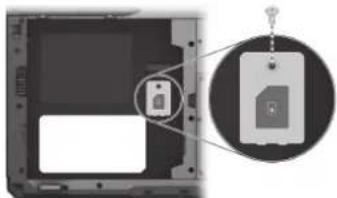
Installing the Micro-SIM Card (Optional)
- Remove one screw to detach the small metal plate that covers the micro-SIM card socket.
natural_image
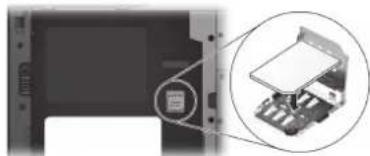
Diagram showing a computer chassis with an attached floppy disk and a magnified inset highlighting the disk (no text or symbols present)- Slide the socket cover toward the unlocked direction ( ) and open the cover.
- Noting the orientation, put down the micro-SIM card on the socket.
natural_image
Close-up of a computer monitor with an attached card and a close-up of a circuit board (no visible text or symbols)- Close the cover and slide it back to the locked position (☐).
- Replace the metal plate and secure it in place with the screw previously removed.
Installing the Battery Pack
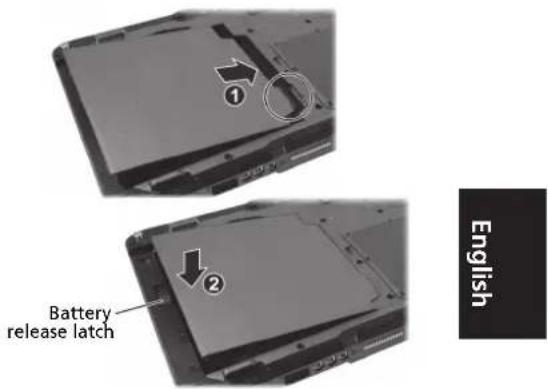
- With the battery pack correctly oriented, attach its connector side to the battery compartment at an angle (①) and then press down the other side (②). The battery release latch should automatically engage.
- Slide the security lock to the locked position (☐).
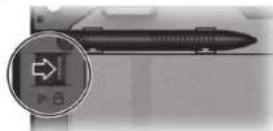
CAUTION: Make sure the lock is correctly locked, not revealing the underneath red part.
Connecting to AC Power and Starting Up
You must use AC power when starting up the Tablet PC for the very first time.
- Connect the AC adapter as shown below.
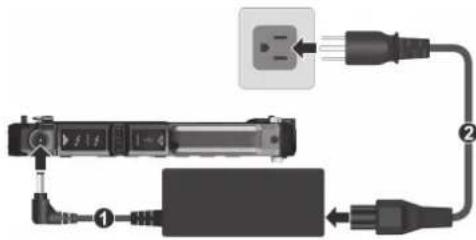
NOTE: The power cord type varies with countries.
- Press the power button (⏻) to start up.
- When turning on your Tablet PC for the very first time, you will be guided through a setup process.
Tap the touchscreen with your finger to communicate with the Tablet PC.
Identifying Hardware Components
Front Components
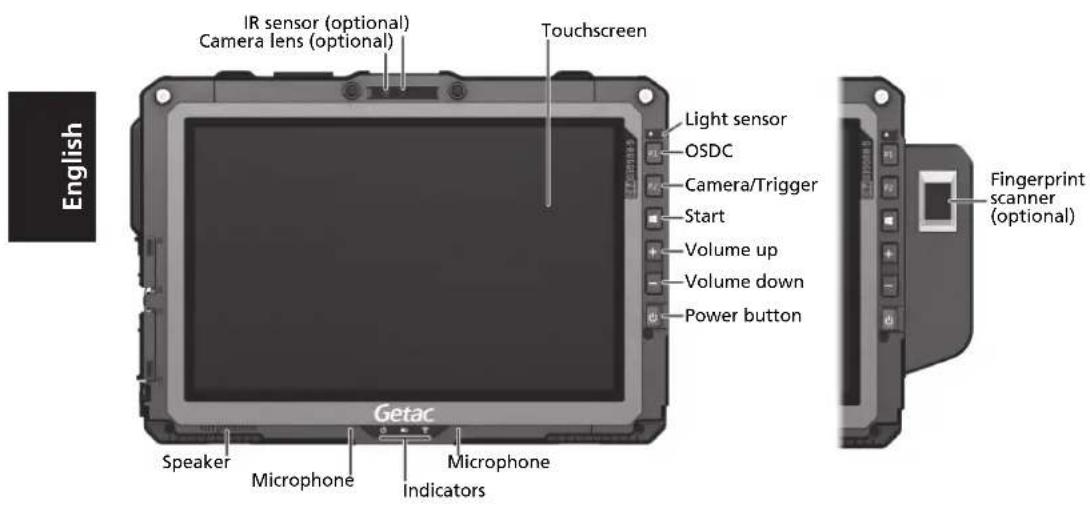
Top Component
Select models have one of the below components.
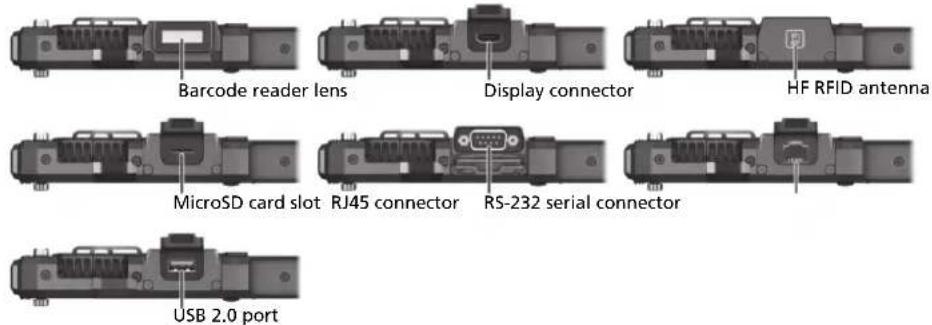
Bottom Components
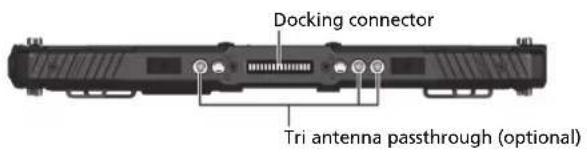
Left and Right Components
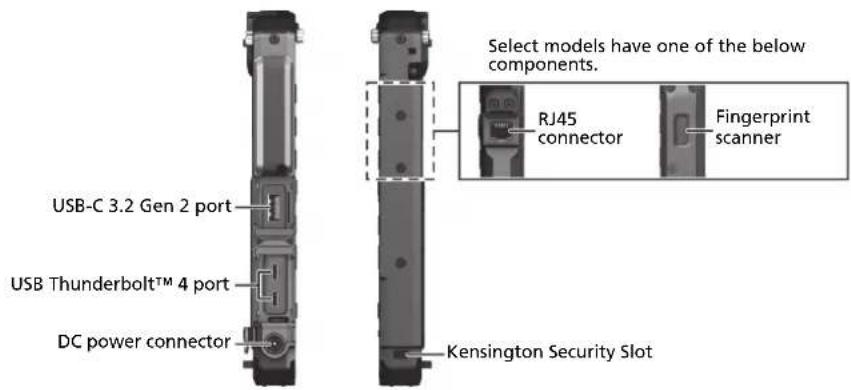
English
Rear Components
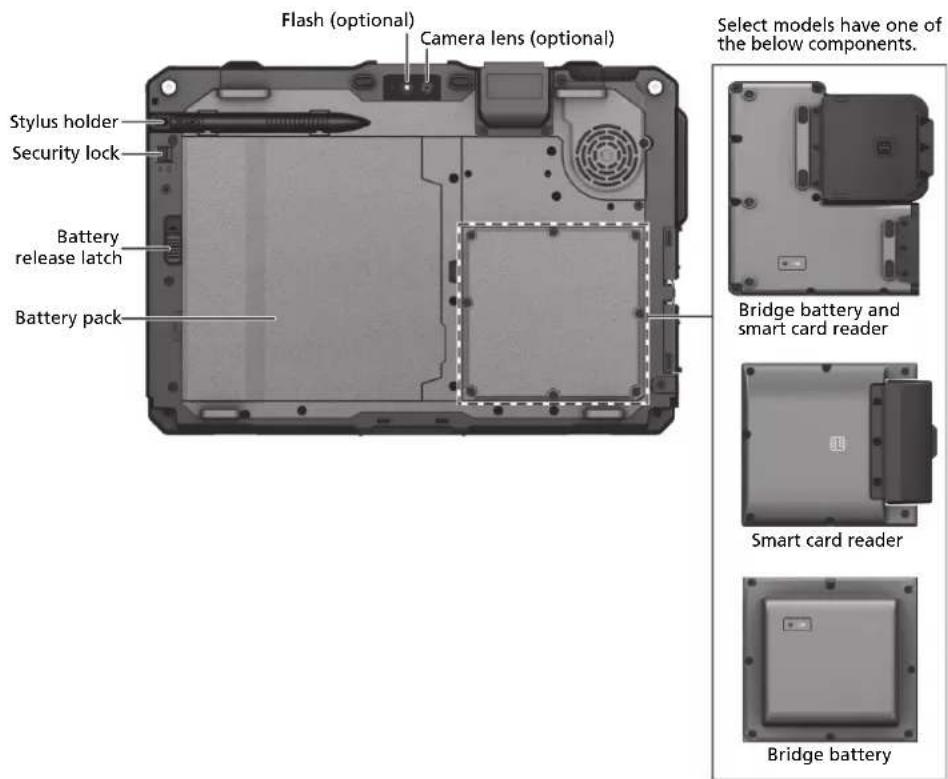
System Recovery
Using Windows RE
Windows has a recovery environment (Windows RE) that provides recovery, repair, and troubleshooting tools. The tools are referred to as Advanced Startup Options. You can access these options by selecting Start → Settings → System → Recovery. (See Microsoft website for more information.)
NOTE: If you are in a situation where your computer won't boot into Windows, you can access the Advanced Startup Options by running the BIOS Setup Utility and selecting Advanced → Windows RE.
Using Recovery Partition
When necessary, you can restore your Windows system to the factory default state by using the "recovery partition" feature. (Refer to the User Manual for detailed information.)
More Information
For complete information of the product, refer to the User Manual (in PDF format) on your Windows desktop. You can download the latest manual and drivers by accessing the Getac website at https://support.getac.com/Portal/Page/809
Taking Care of the Tablet PC
Location Guidelines
- For optimal performance, use the Tablet PC where the recommended temperature is within -15 °C (5 °F) \~ 55 °C (131 °F) – actual operating temperature depending on product specifications.
- Avoid placing the Tablet PC in a location subject to high humidity, extreme temperatures, mechanical vibration, or heavy dust. Using in extreme environments for long periods can result in product deterioration and a shortened product life.
- Operating in an environment with metallic dust is not allowed.
- Place the Tablet PC on a flat and steady surface. A strong impact by dropping or hitting may damage the Tablet PC.
-
Do not cover or block any ventilation openings on the Tablet PC. For example, do not place the Tablet PC on a bed, sofa, rug, or other similar surface. Otherwise, overheating may occur that results in damage to the Tablet PC.
-
As the Tablet PC can become very hot during operation, keep it away from objects that are vulnerable to heat.
- Keep the Tablet PC at least 13 cm (5 inches) away from electrical appliances that can generate a strong magnetic field such as a TV, refrigerator, motor, or a large audio speaker.
- Avoid moving the Tablet PC abruptly from a cold to a warm place. A temperature difference of more than 10 °C (18 °F) may cause condensation inside the unit, which may damage the storage media.
General Guidelines
- Do not place heavy objects on top of the Tablet PC as this may damage the display.
- Do not move the Tablet PC simply by grasping the display screen.
- To avoid damaging the screen, do not touch it with any sharp object.
- LCD image sticking occurs when a fixed pattern is displayed on the screen for a prolonged period of time. You can avoid the problem by limiting the amount of static content on the display. It is recommended that you use a screen saver or turn off the display when it is not in use.
- To maximize the life of the backlight in the display, allow the backlight to automatically turn off as a result of power management.
Cleaning Guidelines
- Never clean the Tablet PC with its power on.
- Use a soft, lint-free cloth to wipe the exterior surfaces of the Tablet PC.
- If water or liquid is split onto the Tablet PC, wipe it dry and clean when possible. Do not leave the Tablet PC wet when you can dry it.
- If the Tablet PC gets wet where the temperature is 0 °C (32 °F) or below, freeze damage may occur. Make sure to dry the wet Tablet PC.
Battery Pack Guidelines
- To charge the battery, connect the power adapter to the Tablet PC and an electrical outlet. The Battery Indicator on the Tablet PC glows amber to indicate charging is in progress. When the battery is fully charged, the Battery Indicator glows green.
- Recharge the battery pack when it is nearly discharged. When recharging, make sure that the battery pack is fully charged. Doing so may avoid harm to the battery pack.
- The battery pack is a consumable product and the following conditions will shorten its life: – when frequently charging the battery
- when using, charging, or storing the battery in high temperature condition
- To avoid hastening the deterioration of the battery pack thereby prolonging its useful life, minimize the number of times you charge it so as not to frequently increase its internal temperature.
- Charge the battery pack between 10°C \~ 30°C (50°F \~ 86°F) temperature range. A higher environment temperature will cause the battery pack's temperature to rise. Avoid charging the battery pack inside a closed vehicle and in hot weather condition. Also, charging will not start if the battery pack is not within the allowed temperature range.
- It is recommended that you do not charge the battery pack more than once a day.
- It is recommended that you charge the battery pack with the Tablet PC's power off.
- To maintain the battery pack's operating efficiency when removed from the Tablet PC, store it in a cool dark place and with 30% \~ 40% charge remaining.
- Important guidelines When installing or removing the battery pack take note of the following:
- avoid installing or removing the battery pack when the Tablet PC is in Sleep mode. Abruptly removing the battery pack may cause loss of data or the Tablet PC may become unstable.
- avoid touching the battery pack terminals or damage may occur, causing improper operation to it or the Tablet PC. The Tablet PC's input voltage and surrounding temperature will directly affect the charge and discharge time:
- charging time will be prolonged when the Tablet PC is turned on. To shorten the charging time, it is recommended that you place the Tablet PC in Sleep or hibernation mode.
- a low temperature will prolong the charging time as well as hasten the discharge time.
- When using battery power in an extremely low temperature environment, you may experience shortened operating time and incorrect battery level reading. This phenomenon comes from the chemical characteristics of batteries. The appropriate operating temperature for the battery is -10^ 50^ (14°F \~ 122°F).
- Do not leave the battery pack in storage for more than six months without recharging it.
Touchscreen Guidelines
- Use the finger or the included stylus on the display. Using a sharp or metallic object may cause scratches and damage the display, thereby causing errors.
- Use a soft cloth to remove dirt on the display. The touchscreen surface has a special protective coating that prevents dirt from sticking to it. Not using a soft cloth may cause damage to the special protective coating on the touchscreen surface.
- Turn off the Tablet PC power when cleaning the display. Cleaning with the power on may cause improper operation.
- Do not use excessive force on the display. Avoid placing objects on top of the display as this may cause the glass to break thereby damaging the display.
- In low and high temperatures (below 5 °C / 41 °F and above 60 °C / 140 °F), the touchscreen may have a slower response time or register the touch in the wrong location. It will go back to normal after returning to room temperature.
- When there is a noticeable discrepancy in the placement of the stylus on the screen and the indicated position of the onscreen pointer, use the calibration utility to recalibrate the touchscreen display.
Safety Notices
About the Battery
If the battery is mishandled, it may cause fire, smoke or an explosion and the battery's functionality will be seriously damaged. The safety instructions listed below must be followed.
Danger
- Do not immerse the battery with liquid such as water, sea water or soda.
- Do not charge/discharge or place the battery in high-temperature (more than 80°C/176°F) locations, such as near a fire, heater, in a car in direct sunlight, etc.
- Do not use unauthorized chargers.
- Do not force a reverse-charge or a reverse-connection.
- Do not connect the battery with AC plug (outlet) or car plugs.
- Do not adapt the battery to unspecified applications.
- Do not short circuit the battery.
-
Do not drop or subject the battery to impacts.
-
Do not penetrate with a nail or strike with a hammer.
- Do not directly solder the battery.
- Do not disassemble the battery.
- Keep the battery away from an extremely low air pressure environment as it may result in an explosion or the leakage of flammable liquid or gas.
Warning
- Keep the battery away from infants.
- Stop using the battery if there are noticeable abnormalities such as abnormal smell, heat, deformities, or discoloration.
- Stop charging if the charging process cannot be finished.
- In case of a leaking battery, keep the battery away from flames and do not touch it.
- Pack the battery tightly during transport.
Caution
- Do not use the battery where static electricity (more than 100V) exists that might damage the protection circuit of the battery.
- When children are using the system, parents or adults must ensure that they are using the system and battery correctly.
- Keep the battery away from flammable materials during charging and discharging.
- In case lead wires or metal objects come out from the battery, you must seal and insulate them completely.
Caution Texts Concerning Lithium Batteries
ATTENTION: Danger of explosion if battery is incorrectly replaced. Replace only with the same or equivalent type recommended by the equipment manufacturer. Discard used batteries according to manufacturer's instructions.
Caution Texts Concerning Coin Batteries

WARNING

- INGESTION HAZARD: This product contains a button cell or coin battery.
- DEATH or serious injury can occur if ingested.
- A swallowed button cell or coin battery can cause Internal Chemical Burns in as little as 2 hours.
- KEEP new and used batteries OUT OF REACH of CHILDREN.
-
Seek immediate medical attention if a battery is suspected to be swallowed or inserted inside any part of the body.
-
The coin battery is not user replaceable. It must be replaced by Getac authorized service centers.
- Remove and immediately recycle or dispose of used batteries according to local regulations and keep away from children. Do NOT dispose of batteries in household trash or incinerate.
- Even used batteries may cause severe injury or death.
- Call a local poison control center for treatment information.
- Battery type: CR2016
• Nominal battery voltage: 3 V - Non-rechargeable batteries are not to be recharged.
- Do not force discharge, recharge, disassemble, heat above 60 °C (140 °F), or incinerate. Doing so may result in injury due to venting, leakage or explosion resulting in chemical burns.
- Ensure the batteries are installed correctly according to polarity (+ and -).
- Do not mix old and new batteries, different brands or types of batteries, such as alkaline, carbon-zinc, or rechargeable batteries.
- Remove and immediately recycle or dispose of batteries from equipment not used for an extended period of time according to local regulations.
- Always completely secure the battery compartment. If the battery compartment does not close securely, stop using the product, remove the batteries, and keep them away from children.
About the AC Adapter
- Use only the AC adapter supplied with your Tablet PC. Use of another type of AC adapter will result in malfunction and/or danger.
- If a ground/earth pin attachment plug on the AC power cord is provided, always plug the cord into a grounded/earthed outlet. Do not disable ground/earth pin of the plug/cord.
- Do not use the adapter in a high moisture environment. Never touch the adapter when your hands or feet are wet.
- Allow adequate ventilation around the adapter when using it to operate the device or charge the battery. Do not cover the AC adapter with paper or other objects that will reduce cooling. Do not use the AC adapter while it is inside a carrying case.
- Connect the adapter to a proper power source. The voltage requirements are found on the product case and/or packaging.
- Do not use the adapter if the cord becomes damaged.
- Do not attempt to service the unit. There are no serviceable parts inside. Replace the unit if it is damaged or exposed to excess moisture.
Heat Related Concerns
Your device may become very warm during normal use. It complies with the user-accessible surface temperature limits defined by the International Standards for Safety. Still, sustained contact with warm surfaces for long periods of time may cause discomfort or injury. To reduce potential heat-related concerns, follow these guidelines:
- Keep your device and its power adapter in a well-ventilated area when in use or charging. Allow for adequate air circulation under and around the device.
- Use common sense to avoid situations where your skin is in contact with your device or its power adapter when it's operating or connected to a power source. For example, don't sleep with your device or its power adapter, or place it under a blanket or pillow, and avoid contact between your body and your device when the power adapter is connected to a power source. Take special care if you
have a physical condition that affects your ability to detect heat against the body.
- If your device is used for long periods, its surface can become very warm. While the temperature may not feel hot to the touch, if you maintain physical contact with the device for a long time, for example if you rest the device on your lap, your skin might suffer a low-heat injury.
- If your device is on your lap and gets uncomfortably warm, remove it from your lap and place it on a stable work surface.
- Never place your device or power adapter on furniture or any other surface that might be marred by exposure to heat since the base of your device and the surface of the power adapter may increase in temperature during normal use.
Regulatory Information
USA

Federal Communications Commission Radio Frequency Interference Statement
NOTE:
This equipment has been tested and found to comply with the limits for a Class B digital device pursuant to Part 15 of the FCC Rules. These limits are designed to provide reasonable protection against harmful interference in a residential installation. This equipment generates, uses, and can radiate radio frequency energy and, if not installed and used in accordance with the instructions, may cause harmful interference to radio communications. However, there is no guarantee that interference will not occur in a particular installation. If this equipment does cause harmful interference to radio or television reception, which can be determined by turning the equipment off and on, the user is encouraged to try to correct the interference by one or more of the following measures:
- Reorient or relocate the receiving antenna.
- Increase the separation between the equipment and receiver.
- Connect the equipment into an outlet on a circuit different from that to which the receiver is connected.
- Consult the dealer or an experienced radio/TV technician for help.
Any changes or modifications not expressly approved by the manufacturer could void the user's authority to operate the equipment.
Please note:
The use of a non-shielded interface cable with this equipment is prohibited.
This device complies with Part 15 of the FCC Rules. Operation is subject to the following two conditions:
(1) This device may not cause harmful interference.
(2) This device must accept any interference received, including interference that may cause undesired operation.
| Company name | Getac Inc. |
| Address | 15495 Sand Canyon Rd., Suite 350 Irvine, CA 92618 USA |
| Phone +1-949-68 | 81-2900 |
California Perchlorate Material Notice
Perchlorate material - special handling may apply. See:
http://www.dtsc.ca.gov/hazardouswaste/perchlorate/
This product's real-time clock battery or coin cell battery may contain perchlorate and may require special handling when recycled or disposed of in California.
Canada
Canadian ICES-003
CAN ICES-3(B)/NMB-3(B)
This device contains licence-exempt transmitter(s)/receiver(s) that comply with Innovation, Science and Economic Development Canada's licence-exempt RSS(s). Operation is subject to the following two conditions: (1) This device may not cause interference. (2) This device must accept any interference, including interference that may cause undesired operation of the device.
The device could automatically discontinue transmission in case of absence of information to transmit, or operational failure. Note that this is not intended to prohibit transmission of control or signaling information or the use of repetitive codes where required by the technology.
The device for operation in the band 5150–5250 MHz is only for indoor use to reduce the potential for harmful interference to co-channel mobile satellite systems.
Getac hereby declares that this product complies with the EU Directive 2014/53/EU. The full text of the EU declaration of confor-
mity is available at:
https://support.getac.com/Portal/Page/809
The device is restricted to indoor use only when operating in the 5150 to 5350 MHz frequency range.
| Company name | Getac Technology GmbH. |
| Address | Kanzlerstrasse 440472 Dusseldorf, Germany |
| Phone +49 (0) 21 | 1-984819-0 |
EU RoHS
Getac products meet the requirements of Directive 2011/65/EU on the restriction of the use of certain hazardous substances in electrical and electronic equipment. For more information about RoHS, go to:
https://www.getac.com/us/environment/
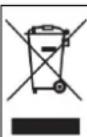
Waste Electrical and Electronic Equipment (WEEE) This symbol means that according to local laws and regulations your product shall be disposed of separately from household waste. When this product reaches its end of life, take it to a collection point designated by local authorities. Proper recycling of your product will protect human health and the environment.
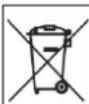
Battery Directive — Information for Users In the European Union, this label indicates that the batteries in this product should be collected separately and not be disposed of with household waste. Substances in batteries can have a potential impact on health and environment and you have a role in recycling waste batteries thus contributing to the protection, preservation, and improvement of the quality of the environment.
UK CA
Restriction or Requirement in the UK: 5150 to 5350 MHz indoor-use only.
| Company name | Getac UK Ltd. |
| Address | Getac House, Stafford Park 12, Telford, Shropshire, TF3 3BJ, UK |
| Phone +44 (0) 1952-207-222 | |
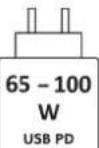
About USB Power Delivery
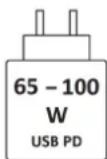
Wattage for charging: Minimum 65 W Maximum 100 W
ENERGY STAR

ENERGY STAR
ENERGY STAR® is a government program that offers businesses and consumers energy-efficient solutions, making it easy to save money while protecting the environment for future generations.
Please reference ENERGY STAR® related information from http://www.energystar.gov.
As an ENERGY STAR® Partner, Getac Technology Corporation has determined that this product meets the ENERGY STAR® guidelines for energy efficiency.
All Getac products with ENERGY STAR® logo comply with the ENERGY STAR® standard, and the power management feature is enabled by default. Getac's ENERGY STAR® qualified products are listed on the EPA website. https://www.energystar.gov/products
Erste Schritte
natural_image
Laptop case with a floppy disk and an inset image showing a floppy disk (no text or symbols visible)natural_image
Close-up of a device component with an inset close-up showing internal components (no visible text or symbols)https://support.getac.com/Portal/Page/846
https://www.getac.com/us/environment/
https://www.energystar.gov/products
Comenzar
Desembalaje
natural_image
Diagram showing a computer chassis with an open rear panel and a close-up of a card slot, no text or symbols present.natural_image
Close-up of a device with an inset showing a close-up of a component (no visible text or symbols)https://support.getac.com/Portal/Page/866
https://www.getac.com/us/environment/
natural_image
Diagram showing a device inside a chassis with an inset close-up of its internal components (no text or symbols visible)natural_image
Close-up of a computer monitor with an attached card and a magnified inset showing internal components (no text or symbols visible)https://support.getac.com/Portal/Page/879
https://www.getac.com/us/environment/
https://www.energystar.gov/products

FR
natural_image
Diagram showing a computer case with an attached floppy disk and its magnified view highlighting the disk (no text or symbols present)natural_image
Close-up of a computer monitor showing a card slot and an inset close-up of a circuit board (no text or symbols visible)https://www.energystar.gov/products
natural_image
Diagram showing a computer chassis with an attached floppy disk and a magnified inset highlighting the disk (no text or symbols present)natural_image
Close-up of a computer monitor with an inset close-up showing internal components (no visible text or symbols)https://www.energystar.gov/products
O USB Power Delivery
natural_image
Diagram showing a device inside a chassis with an inset highlighting a specific card (no text or symbols present)natural_image
Diagram showing a device with a card slot and an inset close-up of its internal components (no text or symbols visible)- 盖上盖子并推回锁定()位置。
安装电池组
注:电源线的类型因国别而异。
https://support.getac.com → 驱动及文件下载
平时维护
地点准则
https://www.energystar.gov/products
UX10G5
平板電腦
操作指南
繁體中文
57
開始使用
装箱清單
natural_image
Diagram showing a device inside a chassis with an inset close-up of its internal components (no text or symbols visible)natural_image
Close-up of a computer monitor with an attached electronic device showing internal components (no visible text or symbols)註:電源線的類型因國別而異。
- Installing the Micro-SIM Card (Optional)
- Installing the Battery Pack
- Connecting to AC Power and Starting Up
- Identifying Hardware Components
- Top Component
- System Recovery
- Using Windows RE
- Using Recovery Partition
- More Information
- Taking Care of the Tablet PC
- Location Guidelines
- General Guidelines
- Cleaning Guidelines
- Battery Pack Guidelines
- Touchscreen Guidelines
- Safety Notices
- About the Battery
- Danger
- Warning
- Caution
- Caution Texts Concerning Lithium Batteries
- Caution Texts Concerning Coin Batteries
- About the AC Adapter
- Heat Related Concerns
- Regulatory Information
- USA
- Federal Communications Commission Radio Frequency Interference Statement
- NOTE:
- Please note:
- California Perchlorate Material Notice
- Canada
- Canadian ICES-003
- CAN ICES-3(B)/NMB-3(B)
- EU RoHS
- UK CA
- About USB Power Delivery
- ENERGY STAR
- Erste Schritte
- Comenzar
- Desembalaje
- FR
- O USB Power Delivery
- 安装电池组
- 平时维护
- 地点准则
- UX10G5
- 平板電腦
- 操作指南
- 開始使用
Brand : Getac
Model : UX10G5
Category : Graphic tablet