
COOLPIX 600 - Digital Camera NIKON - Free user manual and instructions
Find the device manual for free COOLPIX 600 NIKON in PDF.


User questions about COOLPIX 600 NIKON
0 question about this device. Answer the ones you know or ask your own.
Ask a new question about this device
Download the instructions for your Digital Camera in PDF format for free! Find your manual COOLPIX 600 - NIKON and take your electronic device back in hand. On this page are published all the documents necessary for the use of your device. COOLPIX 600 by NIKON.
USER MANUAL COOLPIX 600 NIKON
Thank you and congratulations
on your purchase of this state of the art Nikon Digital Camera. This product has been manufactured and tested to Nikon's highest standards to give you the best in performance and reliability. Save this operating instruction manual as an operating and information guide.
Date of Purchase
Dealer Purchased From
Dealer Address
Dealer Phone No.
Model No.
Serial No.
Unpack your Digital Camera
Please confirm that the following items are packed in the Digital Camera box. They are provided to help you use or set up your Digital Camera.
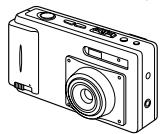
1pc. Digital Camera (COOLPIX 600)
1pc. Dedicated Ni-Cd Battery Pack

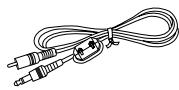
1pc. Video Cable (EG-60)
1 pc. Lithium Battery

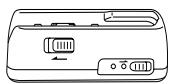
1pc. Digital Camera Station (DS-60)
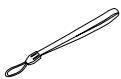
1pc. Hand Strap (AH-E600)
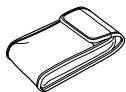
1pc. Soft Carrying Case (CS-E600)
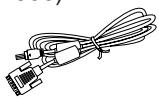
1pc. PC Connection Cable for Windows (SC-E600)
1 pc. CD-ROM of Nikon View 600 Software for Windows 95 and Macintosh

1 pc. CD-ROM of Adobe® PhotoDeluxe™ 2.0

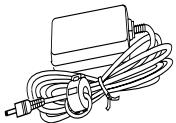
1pc. AC Adaptor (EH-60)
1pc. Detachable Speedlight (SB-E600)

1pc. PC Connection Cable Adaptor for Macintosh (SC-E600M)

1 pc. 8 MB
CompactFlash Card (EC-8CF)

Microsoft, Windows, and Windows 95 are registered trademarks of Microsoft in the United States and other countries.
Macintosh is a registered trademark of Apple Computer Incorporated.
CompactFlash is a trademark of SanDisk Corporation.
All product/brand names are trademarks or registered trademarks of the respective holders.
Note: This equipment has been tested and found to comply with the limits for a Class B digital device, pursuant to Part 15 of the FCC Rules. These limits are designed to provide reasonable protection against harmful interference in a residential installation. This equipment generates, uses and can radiate radio frequency energy and, if not installed and used in accordance with the instructions, may cause harmful interference to radio communications. However, there is no guarantee that interference will not occur in a particular installation. If this equipment does cause harmful interference to radio or television reception, which can be determined by turning the equipment off and on, the user is encouraged to try to correct the interference by one or more of the following measures:
-- Reorient or relocate the receiving antenna.
-- Increase the separation between the equipment and receiver.
- Connect the equipment into an outlet on a circuit different from that to which the receiver is connected.
-- Consult the dealer or an experienced radio/TV technician for help.
FCC Warning: To assure continued FCC compliance, use only the provided shielded interface cable with ferrite cores when connecting digital camera station to computer. Also, any unauthorized changes or modifications to this equipment could void the user's authority to operate.
Notice for customers in Canada
CAUTION
This class B digital apparatus meets all requirements of the Canadian interference Causing Equipment regulations.
ATTENTION
- TO AVOID SHOCK HAZARD ... Your Digital Camera and power supply should not be exposed to rain or moisture. Do not connect the power supply or operate your Digital Camera if it gets wet. Your Digital Camera has been designed for outdoor use, however it is not designed to sustain direct exposure to water, rain, sleet, snow, sand, dust, or a direct splashing from a pool or even a cup of coffee. This action could permanently damage the internal parts of your Digital Camera. Do not attempt to disassemble this unit. There are no user serviceable parts inside. Unplug your Digital Camera from the power supply and have it serviced.
DO NOT AIM YOUR DIGITAL CAMERA AT THE SUN OR OTHER BRIGHT OBJECTS.
DO NOT EXPOSE YOUR DIGITAL CAMERA TO EXTENDED HIGH TEMPERATURE ... Such as, in direct sunlight, inside a closed car, next to a heater, etc... This action could permanently damage the internal parts of your Digital Camera. - AVOID SUDDEN CHANGES IN TEMPERATURE ... If the unit is suddenly moved from a cold place to a warm place, moisture may form inside the unit.
- DO NOT LEAVE YOUR DIGITAL CAMERA OR THE POWER SUPPLY TURND ON WHEN NOT IN USE.
- STORAGE OF YOUR DIGITAL CAMERA ... Store and handle your Digital Camera in a manner that will not subject it to unnecessary movement (avoid shaking and striking). Your Digital Camera contains a sensitive pick-up device which could be damaged by improper handling or storage.
CARE
- TO CLEAN YOUR DIGITAL CAMERA ... Do not use strong or abrasive detergents when cleaning your Digital Camera body.
- TO PROTECT THE LENS ... Do not touch the surface of the lens with your hand. Use a commercial Digital Camera lens solution and lens paper when cleaning the lens. Improper cleaning can scratch the lens coating.
- TO PROTECT THE FINISH OF YOUR DIGITAL CAMERA ... Before handling your Digital Camera, make sure your hands and face are free from any chemical products, such as suntan lotion, as it may damage the finish.
Table of Contents
Things You Should Know 2
Information 3
Index of Controls 5
Attaching the Hand Strap/Soft Carrying Case 7
Power Supply 8
Setting the Clock 11
Using the Speedlight 12
Adjusting LCD Viewfinder Brightness 14
Adjusting the Iris Manually 15
On Screen Display (OSD) 16
CompactFlash Card 17
Capturing Images 18
Capturing Close-up Images (macro) 21
Playing Back Captured Images 22
To Delete Specific Images 27
To Delete All Image Pages 28
Viewing Images on Your TV Screen 29
Transferring Your Images (VCR) 30
Inserting the PCMCIA Adapter 31
Transferring Your Images (Windows 95) 32
Transferring Your Images (Macintosh) 35
Before Requesting Service 37
Specifications 38
Index 39
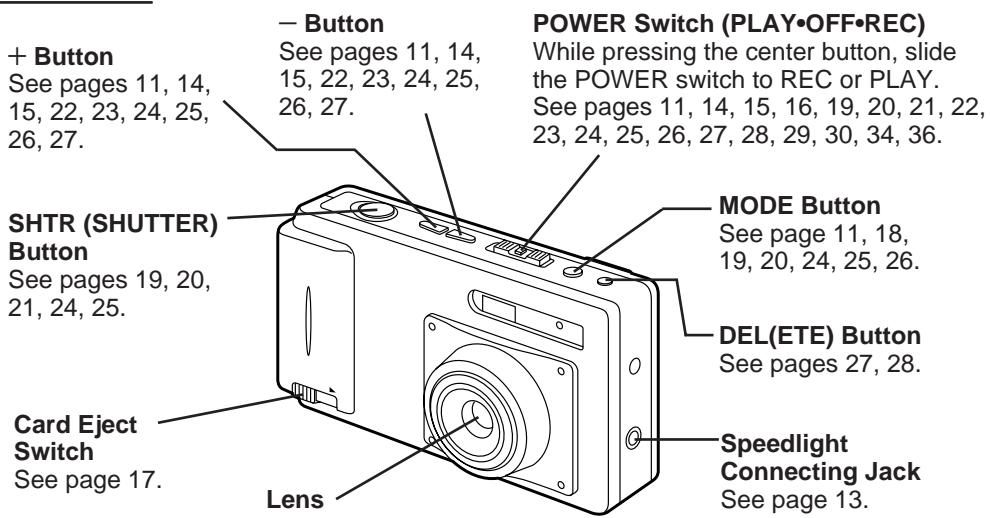
Front View
Rear View
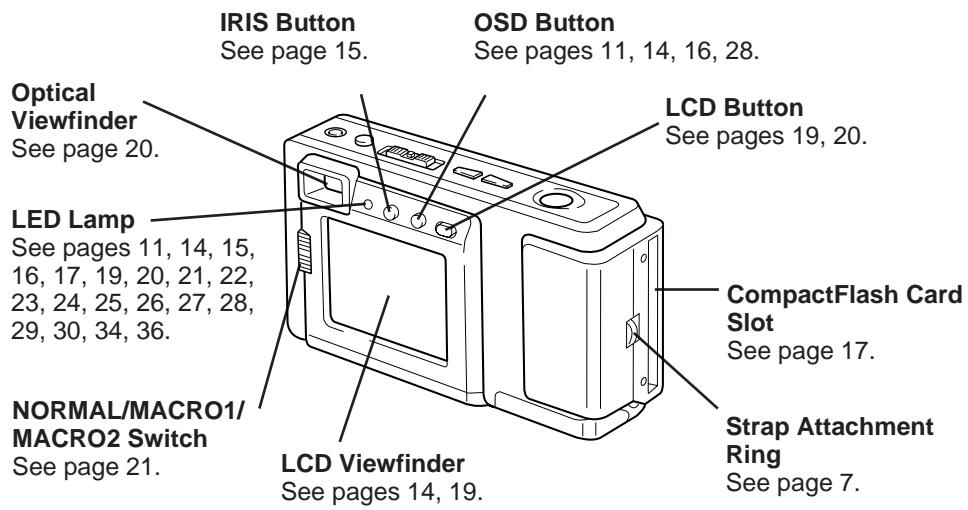
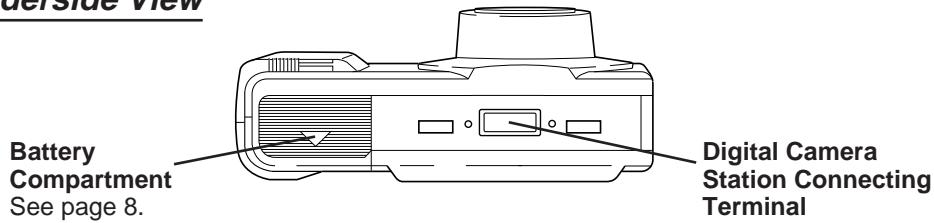
Underside View
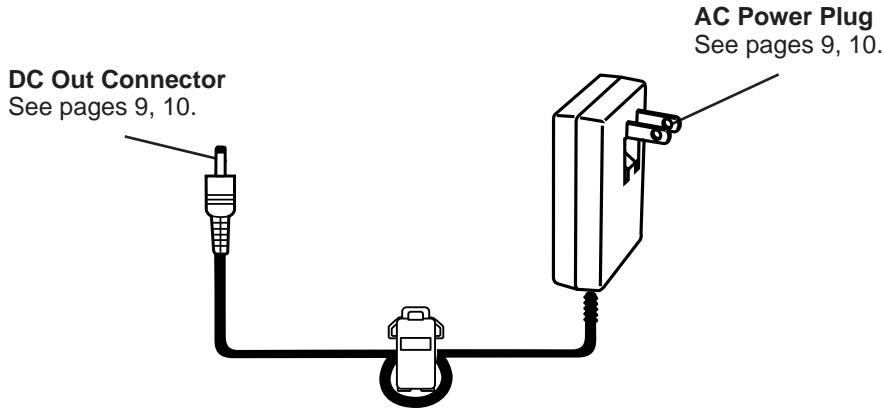
AC Adaptor
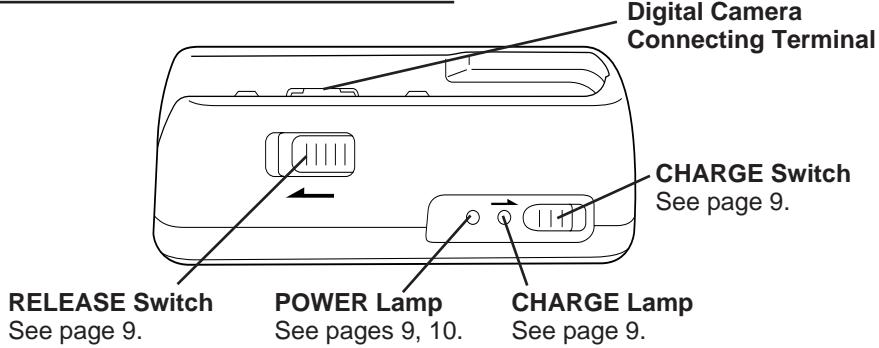
Digital Camera Station (Front View)
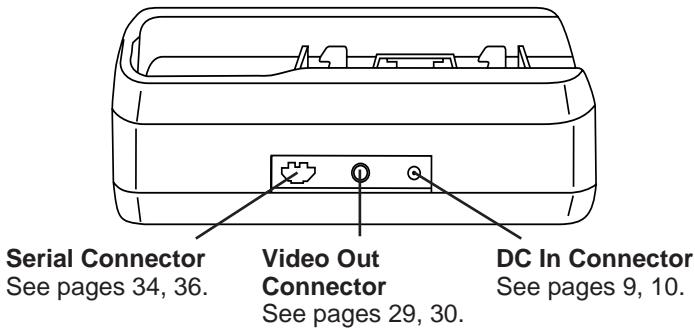
Digital Camera Station (Rear View)
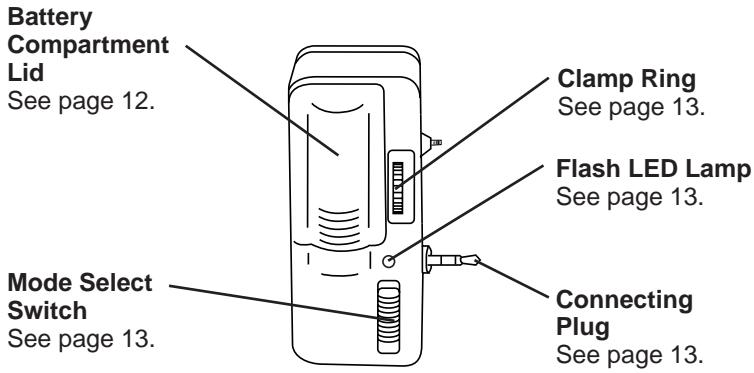
Detachable Speedlight
Attaching the Hand Strap/Soft Carrying Case
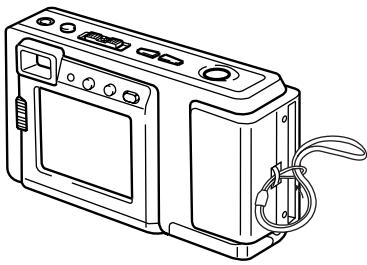
Thread the Hand Strap through the Strap Attachment ring as shown.
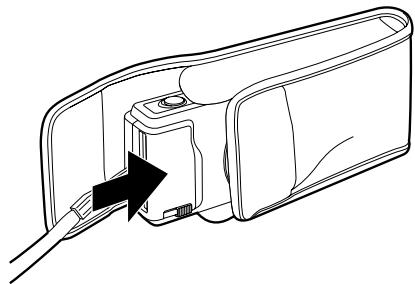
Keep the Digital Camera in the Soft Carrying Case as shown when not in use.

You may thread the hand strap through the hole in the Soft Carrying Case.
Loading the Ni-Cd Battery Pack
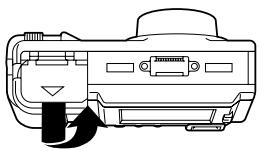
Underside
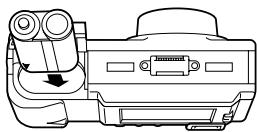
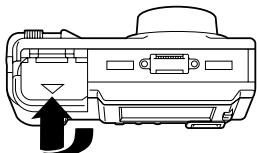
1 Slide the Battery Compartment lid in the direction of the arrow and swing it open.
2 Install the Battery Pack with the arrow mark at the bottom and facing the rear of the Digital Camera.
3 Swing the Battery Compartment lid down and slide it shut.
- Charge the Battery Pack fully before operation (see page 9).
WARNING! Do not dispose of in fire, put in backwards, disassemble, or short circuit; otherwise battery may leak or burst, causing possible personal injury.
Battery Pack Notes
Caution:
- Charge only with specified charger.
- The Battery can be charged within a temperature range of 32^ ( 0^ ) and 104^ ( 40^ ).
- The Battery Pack may be warm after charging or just after use. This is normal.
- Do not use an insufficiently charged or worn out Battery Pack.
Safety precautions:
- Do not get the Battery Pack or AA alkaline batteries near, or dispose of in fire.
- Do not directly connect (short circuit) the positive (+) and negative (-) terminals.
- Never attempt to disassemble or reassemble the Battery Pack.
To avoid damage to the Battery Pack:
- Do not drop or jar the Battery Pack.
- Use the Battery Pack with specified units only.
To insure longer Battery Pack life:
- While not in use, remove the Battery Pack from the Digital Camera and store in a dark, cool, dry place.
- Keep the Battery Pack terminals clean.
CAUTION
Discharge the remaining voltage of the Battery Pack completely before charging. This is vital to maintain battery life and the operation time due to characteristics of the battery.
Do not remove the Digital Camera while charging is in progress.
U.S.A. CONSUMERS:
ATTENTION:
The product you have purchased is powered by a nickel cadmium battery which is recyclable. At the end of its useful life, under various state and local laws, it is illegal to dispose of this battery into your municipal waste stream. Please call 1-800-8-BATTERY for information on how to recycle this battery.
Charging the Battery Pack
Install the Battery Pack (see page 8.)
Charge the Battery Pack fully before operation.
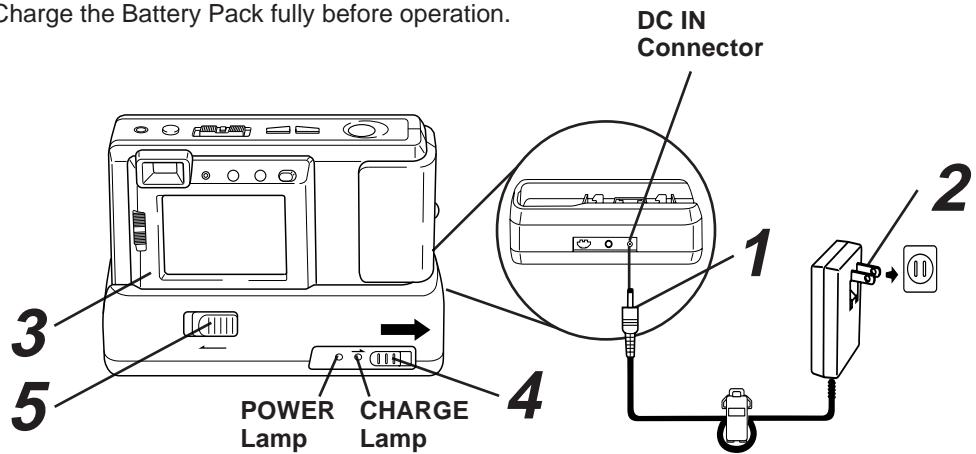
1 Connect DC OUT on the AC Adaptor to DC IN on the Digital Camera Station until it locks with a click.
2 Plug the AC Adaptor into an AC outlet.
The POWER Lamp lights up.
3 Insert the Digital Camera into the Digital Camera Station until it locks.
4 Slide the CHARGE switch. The CHARGE Lamp lights orange, and then changes to green when charging is done (just under 2.5 hours).
-
A red CHARGE Lamp indicates a charge malfunction. Remove the Digital Camera and repeat steps 3 and 4. If the CHARGE Lamp is still red, send the unit in for service.
Slide the RELEASE switch to release the Digital Camera from the Digital Camera Station. -
With a fully charged Battery Pack, you will have a maximum of about 50 minutes ^1 of continuous playback (77^ / 25^) .
1 When playback 1 image every 60 seconds. -
The useful operation time of the Battery will gradually decrease after repeated use and recharging. The Battery is no longer serviceable if the operation time is very short, even after a sufficient charge.
Instead of the supplied Battery Pack, you can also use AA type Lithium batteries*2, Ni-Cd (high density type) or nickel-hydride batteries available on the market.
*2 In places where the temperature is 50^(10^) and below, the battery's characteristic use time is shortened. A exclusive nickel-cadmium battery pack is recommended in lower temperatures. - For emergency use you can install 2 alkaline batteries. But, due to power consumption and shorter operation life of alkaline batteries compared to the supplied rechargeable battery pack, it is strongly recommended that only the Optical Viewfinder (turn off the LCD Viewfinder) be used to capture images when using alkaline batteries.
- If you are not going to use the Digital Camera for an extended period of time, remove the Battery Pack from the Digital Camera.
AC Adaptor
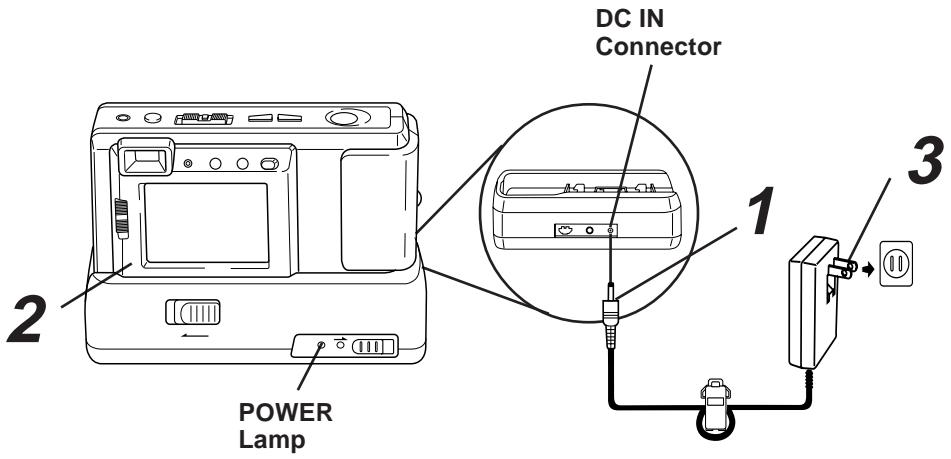
1 Connect DC OUT on the AC Adaptor to DC IN on the Digital Camera Station until it locks with a click.
2 Insert the Digital Camera into the Digital Camera Station until it locks.
3 Plug the AC Adaptor into an AC outlet.
The POWER Lamp lights up.
Note:
- While not in use, unplug the AC Adaptor from the AC outlet.
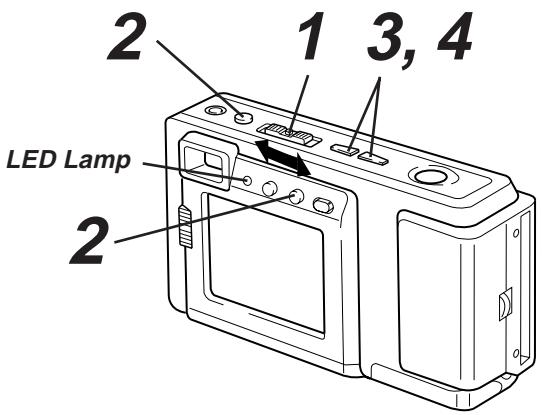
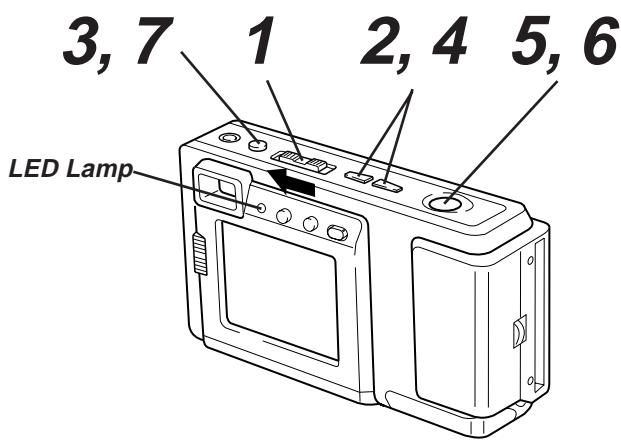
1 Set the POWER switch to REC or PLAY.
The LED Lamp lights up.
2 Press OSD and MODE at the same time to display the clock set screen.
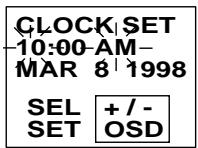
3 Press (+) or (-) to select the correct hour, then press OSD to set.
4 Repeat step 3 to select and set the correct minute, month, date, and year.
- Double check all items before setting the year.
Note:
To make corrections, repeat steps 2-4.
- The clock will continue to operate about 8 hours after the battery has been removed. If you need to reset the clock, repeat steps 2-4.
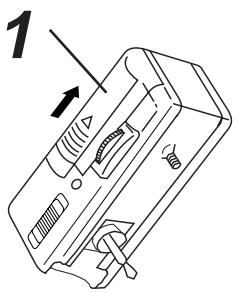
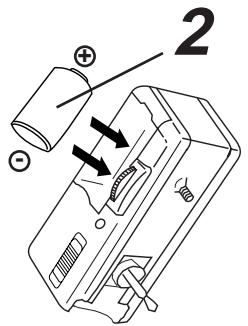
Install the battery
1 Open the Battery Compartment lid by sliding it in the direction of the arrow, as shown above.
2 Install the battery as indicated inside the Battery Compartment.
- Do not reverse the battery polarities (-) and (+) . Incorrect use may shorten battery life, causing the battery to become hot, leak or explode.
Make sure the battery is firmly in place to avoid a loose connection.
Remove the battery
Pull up the string in the battery compartment and remove the battery.
CAUTION
Replace with CR2 Lithium batteries only. Use of another battery may present a risk of fire or explosion. Caution-battery may explode if mistreated.
Fire and burn hazard. Do not recharge, disassemble, or dispose of in fire.
Keep battery out of reach of children.
Danger of explosion if battery is incorrectly inserted. Dispose of used battery promptly.
When disposing of the used Lithium Battery be sure to insulate the battery polarities (+) and (-) by covering with cellophane tape.
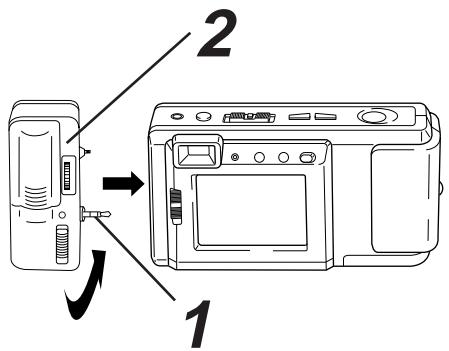
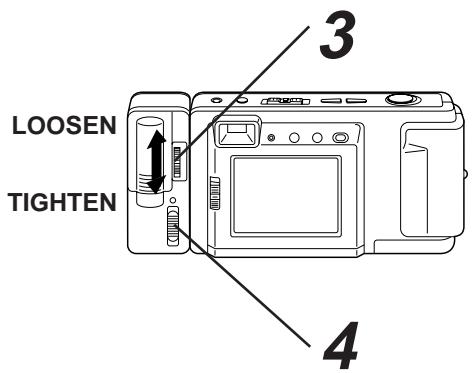
Attaching the Speedlight
1 Pull up on the connecting plug from its retracted position as shown above.
2 Connect to the digital camera connecting jack.
3 Rotate thumbwheel to secure the speedlight.
- Be sure to set the Digital Camera and the speedlight unit to OFF before attaching or removing the speedlight.
Using the Speedlight
4 Slide the MODE Select Switch to one of the following positions to use the speedlight.
- AUTO The speedlight automatically lights depending on lighting conditions.
The speedlight will light whenever you capture an image. - OFF The speedlight will not light even when you capture an image.
NOTE:
- Please set the MODE Select Switch to OFF when taking Macro shots (see page 21).
- The LED Lamp on the speedlight unit lights when speedlight is charged and ready.
- The effective range of the speedlight is roughly 3.3 feet (1m) to 8.2 feet (2.5m).
- If you are using the speedlight in very bright areas, the image background may become dark.
While not in use, remove the battery from the speedlight. - Remove the speedlight when not in use.
- Never handle the speedlight if your hands are wet. This may result in electric shock or damage to the speedlight.
- Do not use the speedlight close to people's faces as it may be harmful to the eyes. Especially when capturing images of infants or small children, keep at least 3.3 feet (1m) away.
Adjusting LCD Viewfinder Brightness
You may want to brighten or darken the LCD (Liquid Crystal Display) Viewfinder for easier viewing. This adjustment will not affect the captured image brightness.
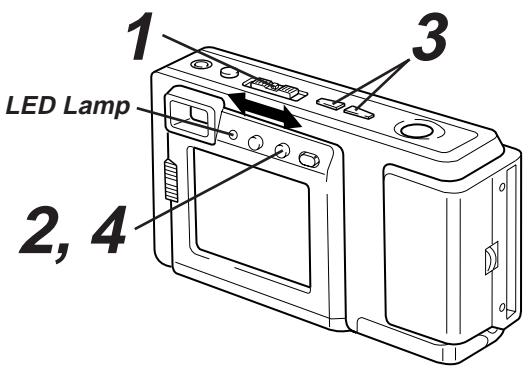
1 Set the POWER switch to REC or PLAY.
The LED Lamp lights up.
2 Press OSD repeatedly until the BRIGHT adjustment screen appears.
BRIGHT
-□□□■□□□+
Press (+) or (-) to change the brightness of the LCD Viewfinder; (+) for brighter, (-) for darker.
- The normal screen will reappear if either (+) or (-) is not pressed within 5 seconds.
4 Press OSD once to exit the BRIGHT adjustment screen.
Note:
- The BRIGHT adjustment will be reset to the original setting when the Digital Camera is turned off.
Normally, the camera adjusts the exposure automatically. However, when the background is extremely bright, or when the subject is backlit, you can compensate by adjusting the Iris manually.
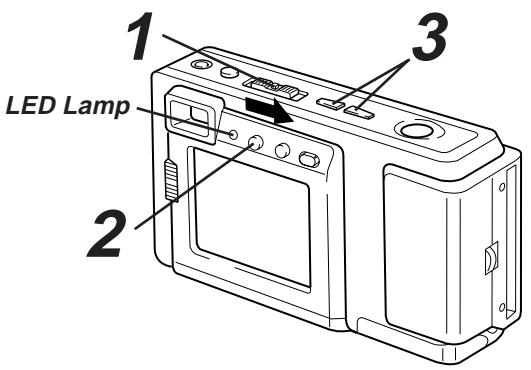
1 Set the POWER switch to REC.
The LED Lamp lights up.
2 Press IRIS Button to display the IRIS screen.
IRIS
-□□□□□+
Press (+) or (-) to change the IRIS; Press (+) to increase the brightness, Press (-) to decrease the brightness.
- The IRIS screen disappears about 5 seconds after the adjustment.
Note:
- There are 7 brightness compensation levels ranging from -3 to +3 .
- A blue sky may appear somewhat whiter when the brightness is increased.
- The brightness cannot be adequately compensated for in extreme backlight conditions.
- The original exposure is automatically restored when the power is turned off.
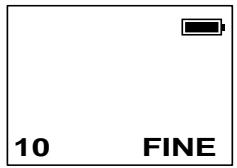
The indications displayed on the LCD screen will tell you the operation status of the Digital Camera.
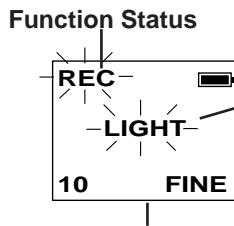
REC Mode
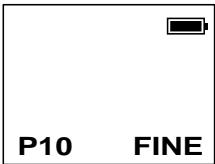
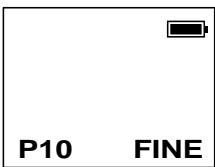
Image Pages left in memory and Image Resolution selected; FINE (Fine), NORMAL (Normal), ZOOM (Zoom), WIDE (Wide), or MULTI (Multi).
Low Light Warning
"LIGHT" will appear when the light level is inadequate. In this case, more light should be provided or use speedlight (See page 13) to achieve better picture quality and color.
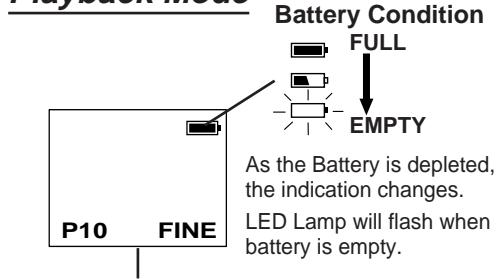
Playback Mode
Displayed Image Page and its Image Resolution FINE (Fine), NORMAL (Normal), or WIDE (Wide).
- If the image is captured in ZOOM mode, the displayed Image Resolution will be NORMAL.
- If the image is captured in MULTI mode, the displayed Image Resolution will be FINE.
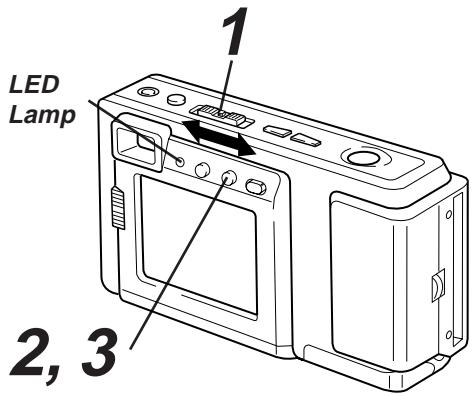
To Cancel the OSD
1 Set the POWER switch to REC or PLAY.
The LED Lamp lights up.
2 Press OSD repeatedly until the On Screen Display disappears.
3 To resume the On Screen Display, press OSD until it reappears.
- Only Warning indications and REC indication will be displayed on the LCD Viewfinder if the OSD is cancelled.
- The OSD feature will be in on mode each time the Digital Camera is powered on.
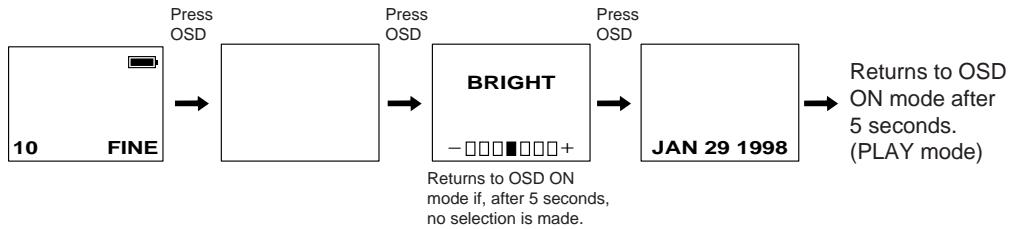
On Screen Display Order
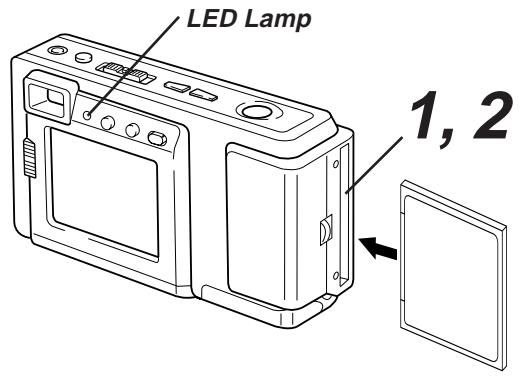
Inserting the CompactFlash Card.
- The captured images will be stored on this CompactFlash Card.
- Be sure to insert the CompactFlash Card before using the camera.
1 Insert the CompactFlash Card into the slot in the direction of the arrow mark and so that the arrow mark side of the card faces the front (lens Side) of the Digital Camera.
2 Push the card fully into the CompactFlash Card Slot.
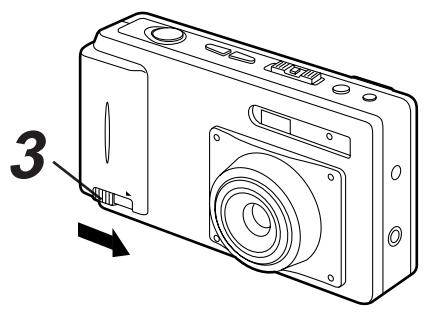
Removing the CompactFlash Card.
3 Slide the CARD EJECT Switch, so the Card pops out. (Be careful not to drop the card.)
-
We recommend using the Nikon CompactFlash Card with this camera; EC-8CF 8MB (included), or EC-4CF 4MB, EC-10CF 10MB, EC-24CF 24MB (optional). Other cards may not perform to specifications.
-
Do not, under any circumstances, eject the card immediately after pressing the Shutter Button (during recording of an image) or while deleting (when PLEASE WAIT is displayed). This could damage the format of the card and make it unusable.
- Make sure that you do not insert the card in the wrong direction.
- When the card does not eject after pressing the CARD EJECT Switch, push the card fully into the slot again and then press the CARD EJECT Switch firmly.
- To avoid dropping the card, do not push the CARD EJECT Switch when the card slot is facing downward.
- NO CF CARD will appear on the LCD Viewfinder and the LED Lamp will flash when the CompactFlash Card is not inserted.
- CF CARD ERROR will appear on the LCD Viewfinder and the LED Lamp will flash if the CompactFlash Card is defective.
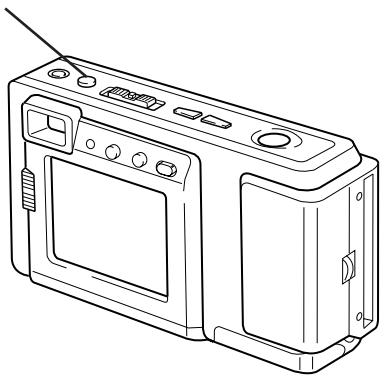
MODE Button
To Select the Recording Mode
You can select the recording mode by pressing the MODE switch.
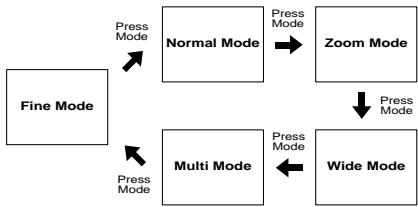
- The recording mode can be switched anytime by pressing MODE.
Fine Mode
- Image resolution is 1,024 X 768.
- Approx. 30 images can be stored with supplied 8 MB CompactFlash Card.
Normal Mode
- Image resolution is 512 × 384 .
- Approx. 100 images can be stored with supplied 8 MB CompactFlash Card.
Zoom Mode
- Using Zoom mode magnifies the image to twice its normal size.
- Image resolution is 512 X 384.
- Approx. 100 images can be stored with supplied 8 MB CompactFlash Card.
Note :
Picture quality of images captured in ZOOM mode are less than those captured in NORMAL mode.
Wide Mode
- Image resolution is 1,136 X 640.
- Approx. 30 images can be stored with supplied 8 MB CompactFlash Card.

Multi Mode
- Pressing SHUTTER in Multi mode allows you to capture an image every 0.3 seconds to create a series of nine shots. The images are displayed in order from the upper left corner on the screen.
- Image resolution is 1,024 X 768.
- Approx. 30 images can be stored with supplied 8 MB CompactFlash Card.
| A | B | C |
| D | E | F |
| G | H | I |
Note :
If SHUTTER is held down and then released, the images may not be displayed in the order shown above.
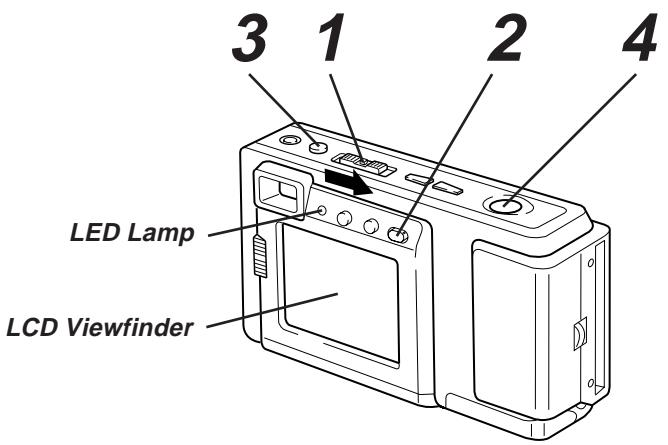
Using LCD Viewfinder
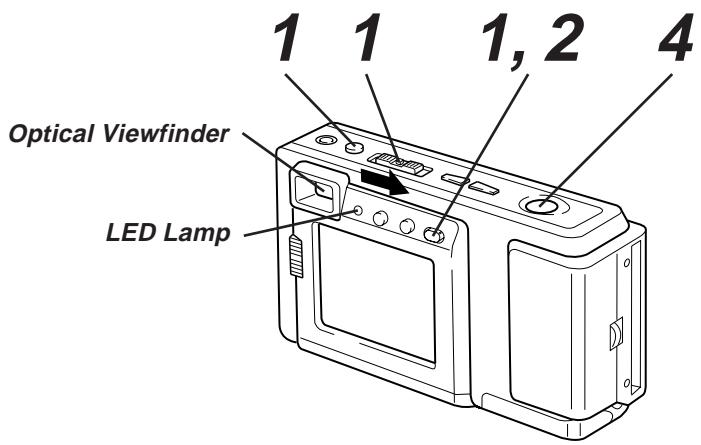
1 Set the POWER switch to REC.
Make sure you slide the POWER switch fully to the REC position.
The LED Lamp lights up.
2 Make sure the LCD Viewfinder is on. Press the LCD button if the LCD Viewfinder is off.
3 Press MODE to select the recording mode. (See page 18.)
4 Press SHTR (SHUTTER) to capture the image displayed on the Viewfinder.
- Press SHTR(SHUTTER) down halfway to lock Auto Focus.
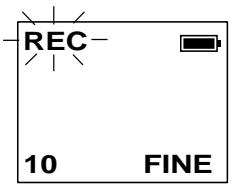
- REC on the LCD Viewfinder and LED Lamp will flash while the Digital Camera processes the image. You may capture another image as soon as REC and LED Lamp stops flashing.
Using Optical Viewfinder
1 Repeat step 1 and 3 on the previous page.
Press the LCD button to turn off the LCD Viewfinder.
If you press the OSD or MODE button, the LCD monitor will turn on.
3 Frame the image you want to capture within the recording area guide marks on the Optical Viewfinder.
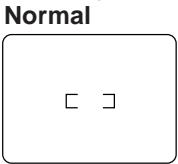
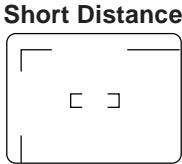
- Please use the Short Distance frame when capturing images within 3.3 feet (1 m) of subject.
Focus will be adjusted automatically in the center mark area.
4 Press SHTR (SHUTTER) to capture the image.
LED Lamp will flash while the Digital Camera processes the image. You may capture another image as soon as LED Lamp stops flashing.
Using the Optical Viewfinder will prolong battery life.
Notes for LCD and Optical Viewfinder use:
- The number of image pages left in the selected mode is displayed on the LCD Viewfinder. When no memory remains, 0 and LED Lamp will flash. To capture other images, you will first need to delete some images from memory (see pages 27, 28).
- The Digital Camera is focused automatically. For close-ups, see page 21.
- If, after the POWER switch has been set to REC or PLAY, no buttons are pressed for one minute in REC mode or two minutes in PLAY mode, the LCD will turn off automatically to conserve power. To resume operation, press SHTR (SHUTTER), or set the POWER switch to OFF, and then to REC.
- Avoid covering the lens with your fingers when capturing images.
- Do not subject the LCD Viewfinder to pressure or shock.
- Hold the Digital Camera as steady as possible when capturing an image.
The active LCD Viewfinder image will have a slightly degraded appearance when compared to a captured or transferred image. This is normal.
You can capture images of plants, insects, photo album pictures, and so on.
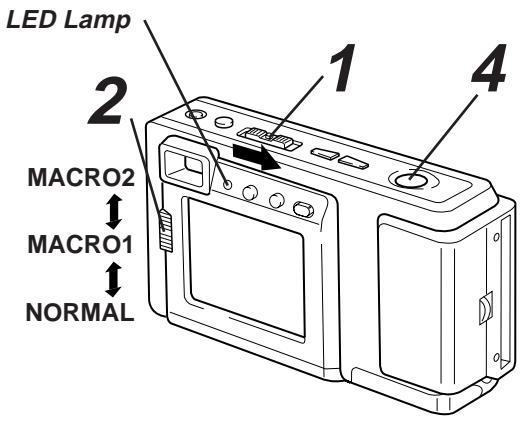
1 Set the POWER switch to REC.
The LED Lamp lights up.
2 Set the NORMAL/MACRO1/MACRO2 switch to MACRO1 or MACRO2.
- LCD Viewfinder will turn on automatically.
3 Bring the Digital Camera up to the subject [as close as approximately 10.6 inches (27cm) away in MACRO1 or 5.5 inches (14cm) away in MACRO2].
4 Press SHTR (SHUTTER) when the subject is in focus.
- The LED Lamp will flash while the Digital Camera processes the image.
- The flash will not light when the unit is in MACRO mode.
- You may have to move the Digital Camera closer or further away from the subject for proper focus
- When finished with this feature, be sure to return the NORMAL/MACRO1/MACRO2 switch to NORMAL.
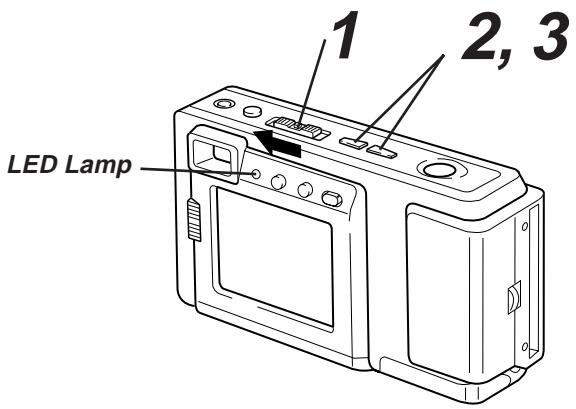
ManualPlayback
1 Set the POWER switch to PLAY.
The LED Lamp lights up.
- Turn off the LCD monitor when not in use by pressing the LCD button. To turn the monitor back on, press the LCD button again.
- If you press the DEL, OSD, or MODE button while in Play mode, the LCD monitor will automatically turn on as a warning.
2 Press (+) or (-) repeatedly, [(+) for ascending order, and (-) for descending order] to change the displayed image on the LCD Viewfinder.
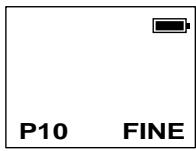
- The image page number and resolution mode are displayed at the bottom of the screen.
If there are no images in memory, a blue back screen will be displayed.
3 Hold down (+) or (-) , [(+) for ascending order, and (-) for descending order] to change the displayed image on the LCD Viewfinder by fast page advance.
Page number is changed continuously while (+) or (-) button is held down.
- Selected page is displayed when button is released.
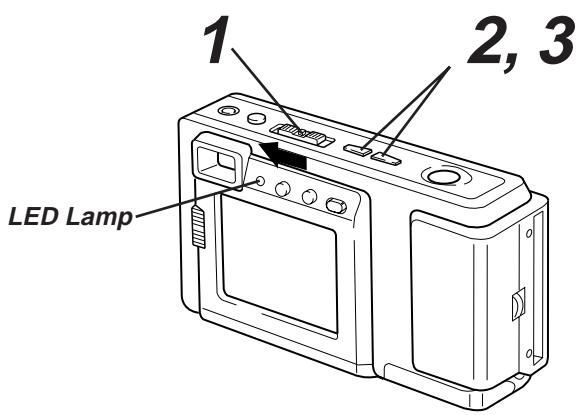
Auto Playback
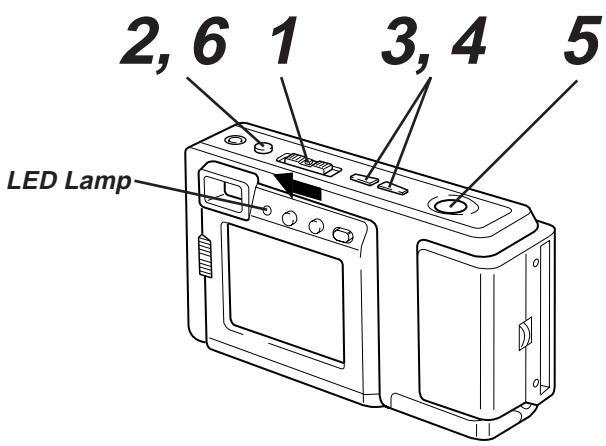
1 Set the POWER switch to PLAY.
The LED Lamp lights up.
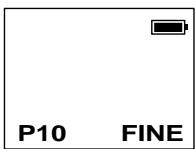
2 Hold down (+) and (-) at the same time to place the Digital Camera in Auto Playback mode.
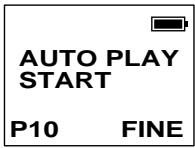
- "AUTO PLAY START" will be displayed.
- Auto Play displays images in ascending order only.
Each image will remain on the LCD Viewfinder for three seconds after it is fully displayed. - Auto Play will continue to loop through the images until you cancel this feature.
3 Press (+) or (-) again to cancel Auto Playback mode.
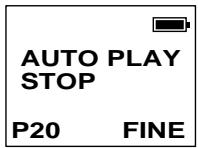
- "AUTO PLAY STOP" will be displayed.
Multi Image Playback
1 Set the POWER switch to PLAY.
The LED Lamp lights up.
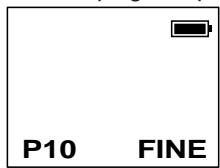
Press the MODE button. A Multi Image Playback screen will appear.
3 Press (+) repeatedly to scroll forward through Multi Image pages (each page contains nine images). When you locate the page containing the image you want, go to step 5. The selected image will be the one displayed on the screen.
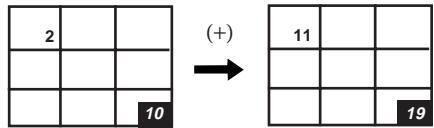
4 Press (-) to move back through the images on the page until the number of the image you want is selected.
The number of the selected image will be inversely displayed.
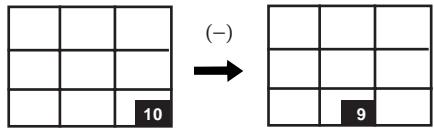
5 Press SHTR (SHUTTER). The image you selected will be the one displayed on the screen.
6 Press MODE to restore the Multi Image Playback screen.
SelectPlaybackMode
Note:
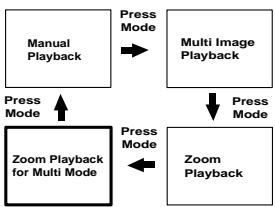
- Press MODE repeatedly to select the desired playback mode as shown below.
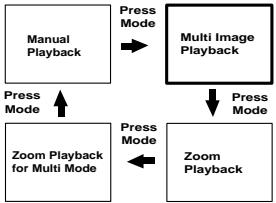
ZoomPlayback
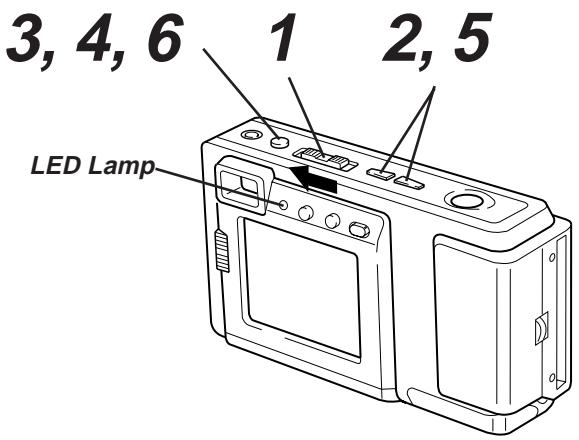
1 Set the POWER switch to PLAY.
The LED Lamp lights up.
Press (+) or (-) to select the image you want to zoom in on.
3 Press MODE twice to enter the Zoom Playback mode.
4 Press (+) or (-) to select the desired Zoom Position.
Changing the Location of the Zoom Area.
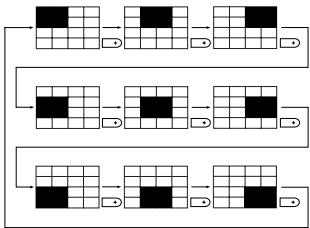
- Pressing (-) moves the zoom area in the opposite direction.
5 Press SHTR (SHUTTER) to zoom in on the selected portion of the image X2. - Press (+) or (-) to change the zooming area.
6 Press SHTR (SHUTTER) to restore the image to its normal size.
7 Press MODE twice to resume the normal screen.
SelectPlaybackMode
Note:
- Press MODE repeatedly to select the desired playback mode as shown below.
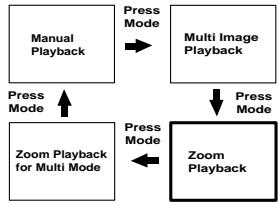
Zoom Playback for Multi Mode
1 Set the POWER switch to PLAY.
The LED Lamp lights up.
Press (+) or (-) to select the Multi Mode Image you want to zoom in on.
- You can also zoom the Normal Mode Image.
3 Press MODE three times to select Zoom Playback for Multi Mode.
4 Then the upper left imagewill be zoom in on.
- The image will be displayed X3 magnification.

5 Press (+) or (-) to select a new image.

6 Press MODE to return to the normal screen.
To SelectPlayback Mode
Note:
- Press MODE repeatedly to select the desired playback mode as shown below.
You can delete unwanted images and increase the remaining image memory.
Warning: Once deleted, images cannot be restored.
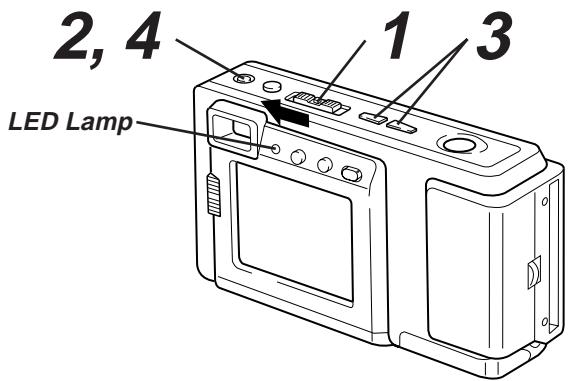
1 Set the POWER switch to PLAY.
The LED Lamp lights up.
2 Press DEL to display the DELETE menu.
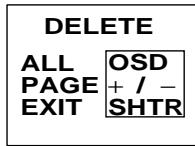
- To exit this menu, press SHTR.
3 Press (+) or (-) to select the image page to be deleted.
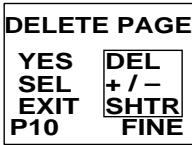
To exit this menu, press SHTR.
4 Press DEL to select YES when the image page you want to delete is displayed.

- Image page numbers are adjusted automatically as images are deleted.
To delete other specific image pages, please repeat steps 2-4.
Important:
While "PLEASE WAIT" is displayed, do not turn off the Digital Camera nor unplug the AC Adaptor because this will cause irreversible damage to the memory, resulting in reduced image storage capacity.
You can delete all images from memory with one easy operation.
Warning: Once deleted, images cannot be restored.
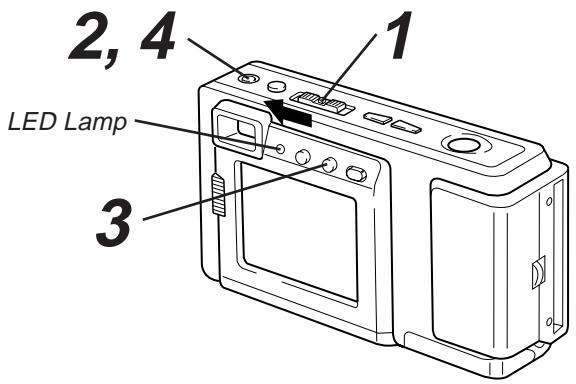
1 Set the POWER switch to PLAY.
The LED Lamp lights up.
2 Press DEL to display the DELETE menu.
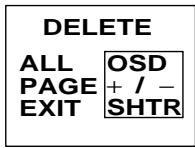
- To exit this menu, press SHTR.
3 Press OSD to select ALL in the DELETE menu.
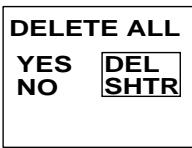
- To exit this menu, press SHTR.
4 Press DEL to select YES in the DELETE ALL menu.

- "PLEASE WAIT" will be displayed on screen as all images are deleted from memory. Deletion is complete when the screen turns solid blue.
Important:
While "PLEASE WAIT" is displayed, do not turn off the Digital Camera nor unplug the AC Adaptor because this will cause irreversible damage to the memory, resulting in reduced image storage capacity.
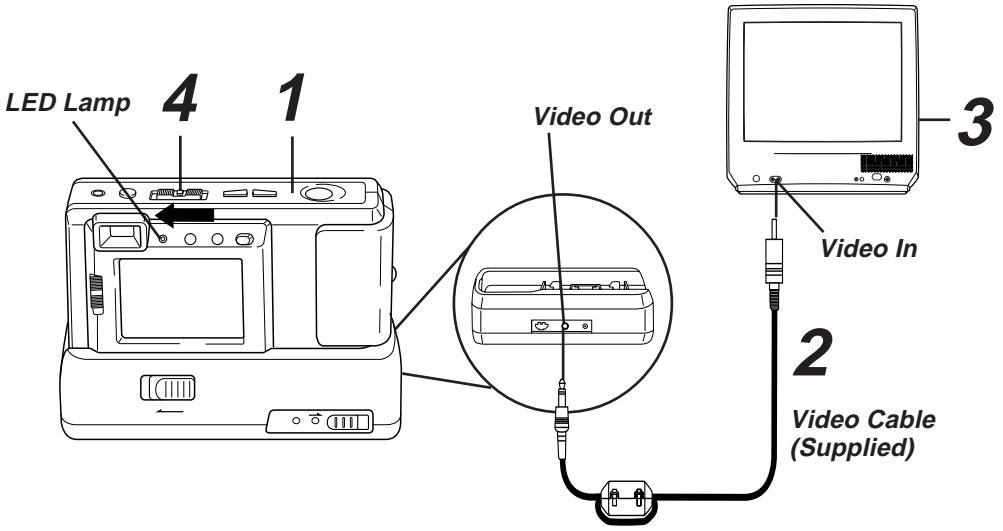
1 Insert the Digital Camera into the Digital Camera Station until it locks.
2 Connect the Digital Camera Station to your TV using the Video cable (supplied) as shown.
3 Turn on your TV and select its video input mode.
4 Set the Digital Camera POWER switch to PLAY. You may select manual or auto playback as described on pages 22 and 23.
The LED Lamp lights up.
Note:
- For extended periods of use, it is recommended to use the AC Adaptor for a power source.
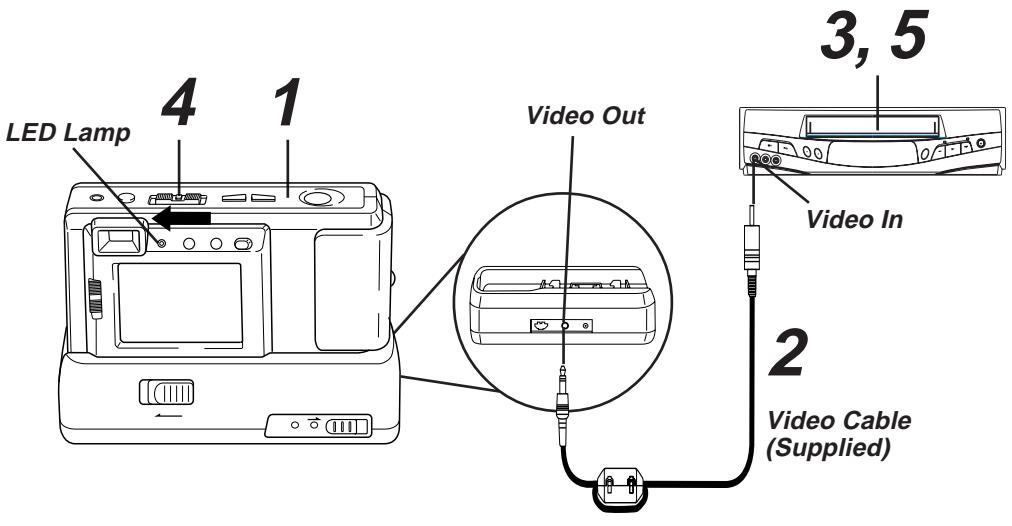
1 Insert the Digital Camera into the Digital Camera Station until it locks.
2 Connect the Digital Camera Station to your VCR using the Video cable (supplied) as shown.
3Turn on your VCR and select its line input mode.
4 Set the Digital Camera POWER switch to PLAY. You may select manual or auto playback as described on pages 22 and 23.
The LED Lamp lights up.
5 Start a recording of the desired images. (Refer to your VCR manual.)
Note:
- For extended periods of use, it is recommended to use the AC Adaptor for a power source.
If you are using a computer with a PCMCIA type II slot, you can insert the CompactFlash Card into a PCMCIA adapter (not included).
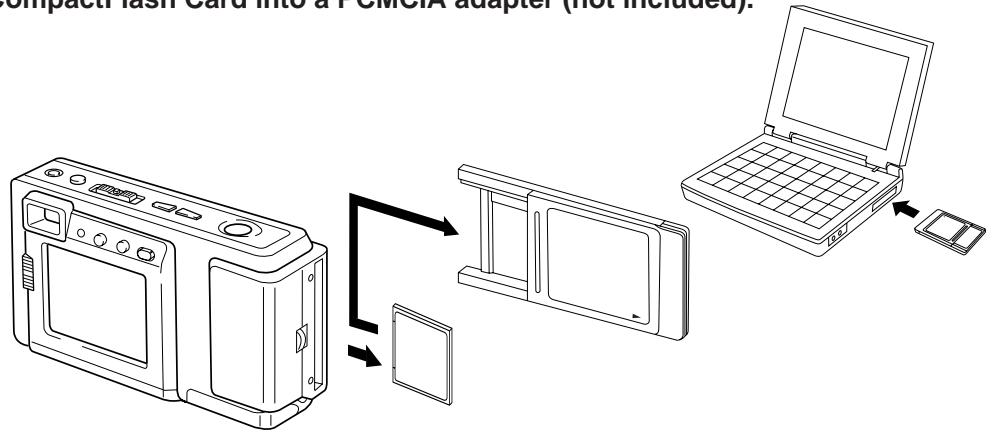
Inserting the CompactFlash Card
- The adapter should be inserted when your computer is in the power on mode.
1 Remove the CompactFlash Card from the camera. (See page 17.)
Hold the CompactFlash Card so that the arrow side faces up and points toward the PCMCIA Adapter. Securely insert the card into the PCMCIA Adapter slot as far as it will go.
Hold the PCMCIA Adapter so that the arrow side points toward the PCMCIA type II slot of your computer. Securely insert the PCMCIA Adapter as far as it will go.
Depending on the computer, it may be necessary to turn the PCMCIA Adapter upside down in order to insert the card.
Removing the CompactFlash Card
1 Remove the PCMCIA Adapter from the computer.
2 Pull the CompactFlash Card out of the PCMCIA adapter.
Note
Do not remove the PCMCIA Adapter from the computer while the computer is working or while image data is being transferred between the CompactFlash Card and the computer (including operation such as opening and storing images), this will cause irreversible damage to the memory.
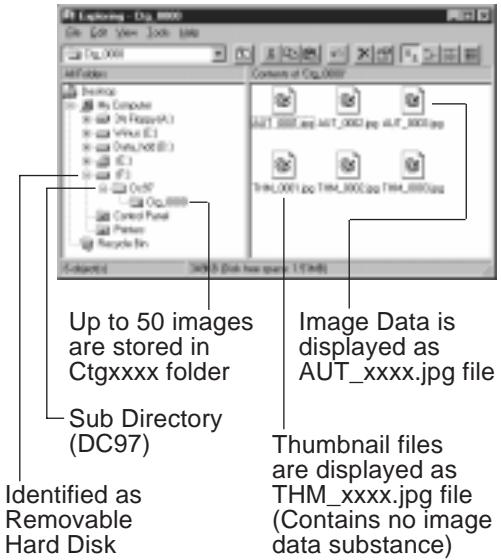
If Windows 95 Explorer is opened
System Requirements:
- IBM PC/AT or compatible.
- Windows 95.
- 386SX CPU or higher. (486 recommended.)
RAM: 16 MB on-board memory. -
10 MB available hard disk space.
-
256 Color monitor or full color recommended (24bit per pixel or 16.7M color).
- CD-ROM drive (for installation).
- RS-232C serial port (D-Sub 9-pin). An adaptor is required for a D-Sub 25-pin.
- Mouse or other pointing device.
NikonView 600 Driver Installation
1 Turn on the PC (Personal Computer) and start up Windows.
2 Insert this disk into the CD-ROM drive.
3 Click the "Start" button and then click "Run".
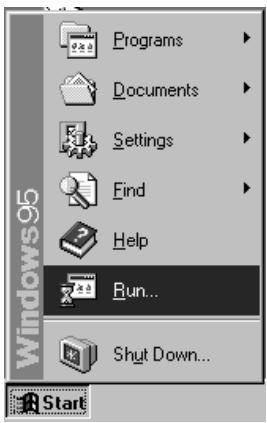
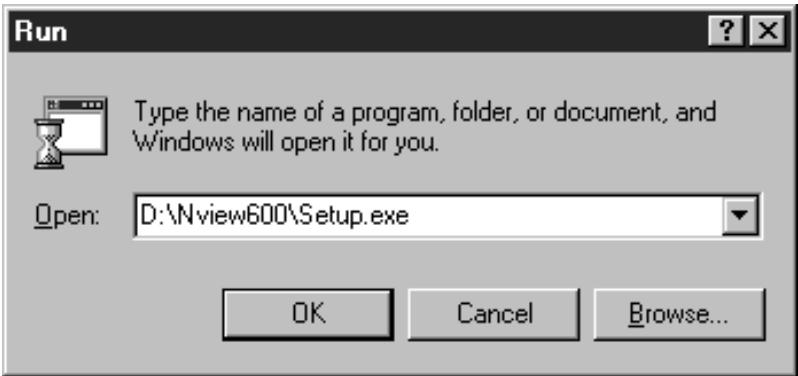
4Type in "D:\Nview600\Setup.exe" and then click OK.
Note: "D" Denotes the CD-ROM drive designation.
5 Follow the instructions as they appear on your PC screen.
Plug-in Driver for Adobe® PhotoDeluxe™ 2.0 Installation
- The Plug-in Driver, when installed, allows your camera to communicate directly with PhotoDeluxe 2.0.
Note:
- Please install Adobe PhotoDeluxe 2.0 before installing this driver.
- For information on Adobe Photo Deluxe, please call 206-628-5724
Web Site: http://www.adobe.com/supportservice/custsupport/main.html
1 Turn on the PC (Personal Computer) and start up Windows.
2 Insert this disk into the CD-ROM drive.
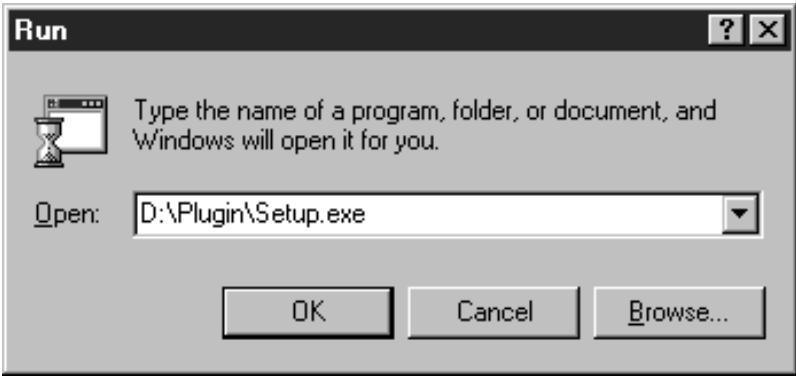
3 Click the "Start" button and then click "Run".
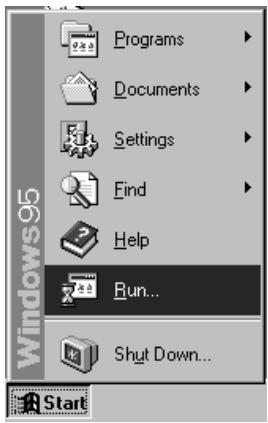
4Type in "D:\Plugin\Setup.exe" and click "OK".
Note: "D" Denotes the CD-ROM drive designation.
When installation is completed, start up PhotoDeluxe2.0 and follow the instructions on how to transmit images.
Adobe and PhotoDeluxe are trademarks of Adobe Systems Incorporated.
Connection
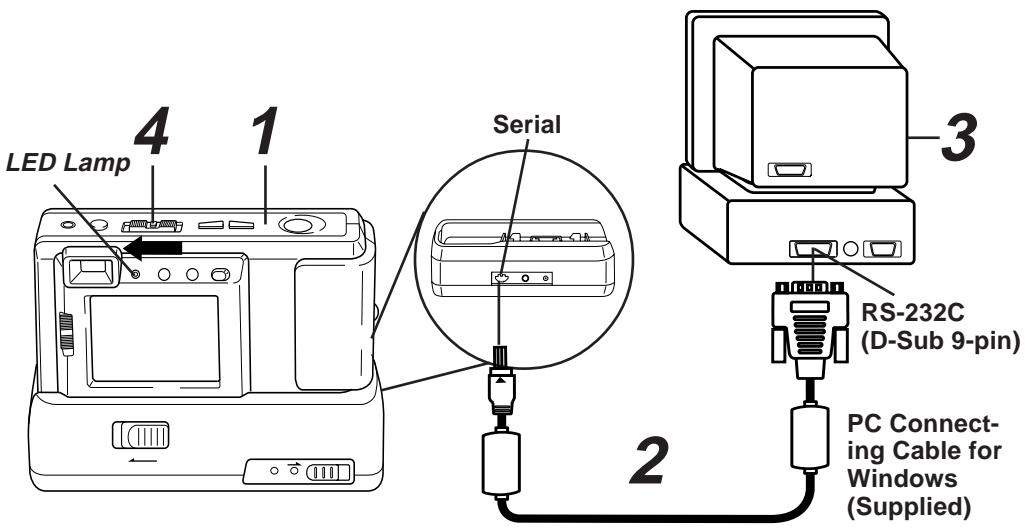
1 Insert the Digital Camera into the Digital Camera Station until it locks.
2 Connect the Digital Camera Station to your PC (Windows) using the PC connecting cable (supplied) with the arrow mark facing downward.
3Turn on your PC.
4 Set the Digital Camera POWER switch to PLAY.
The LED Lamp lights up.
Note:
- For extended periods of use, it is recommended to use the AC Adaptor as a power source.
- While the PC communicates with the Digital Camera, the Digital Camera cannot be operated.
Running the Application
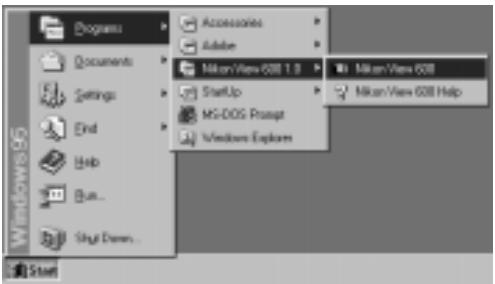
5 Select Programs/Nikon View 600 1.0/ Nikon View 600 from the Start Menu.
6 Please read the Help information fully before operating the application.
System Requirements:
- System 7.1 or later.
- 68030 CPU or higher, or Power Macintosh.
16 MB of RAM.
10MB available hard disk space.
NikonView 600 Driver Installation
1 Turn on the Macintosh.
2 Insert this disk into the CD-ROM drive.
3 Double click the CD-ROM icon.
4 Read the "Read Me" file.
5 Drag the "Nikon View 600" Folder where you want to copy.
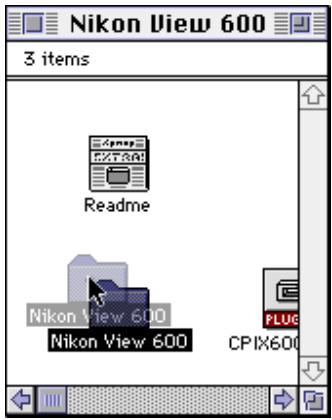
- 256 Color monitor or full color recommended (24bit per pixel or 16.7M color).
- CD-ROM drive (for installation).
- Modem port or printer port (RS-422).
- Mouse or other pointing device.
Plug-in Driver for Adobe® PhotoDeluxe™ 2.0 Installation
- The Plug-in Driver, when installed, allows your camera to communicate directly with PhotoDeluxe 2.0.
Note:
- Please install Adobe PhotoDeluxe 2.0 before installing this driver.
- For information on Adobe PhotoDeluxe, please call 206-628-5724 Web Site: http://www.adobe.com. supportservice/ custsupport/main.html
1 Turn on the Macintosh.
1 Pull on the Macintosh. 2 Insert this disk into the CD-ROM drive. 3 Double click the CD-ROM icon.
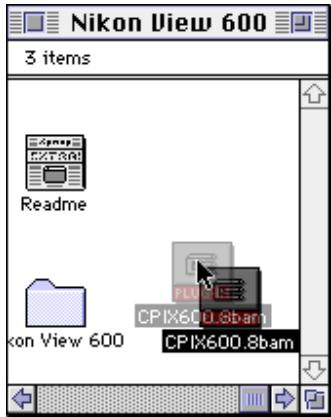
4 Drag the "CPIX600.8bam" file to the "Plug-ins" folder of Photo Deluxe.
When installation is completed, start up PhotoDeluxe 2.0 and follow the instructions on how to transmit images.
Connection
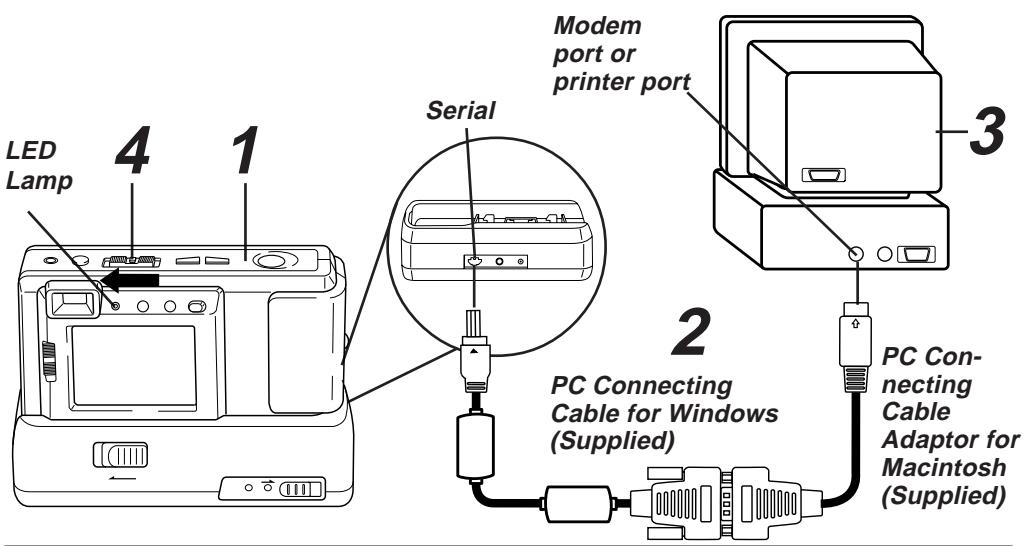
1 Insert the Digital Camera into the Digital Camera Station until it locks.
2 Connect the Digital Camera Station to your PC (Macintosh) using the PC connecting cable (supplied) and PC Connecting Cable Adaptor for Macintosh (supplied) with the arrow mark facing downward.
3Turn on your PC (Macintosh).
4 Set the Digital Camera POWER switch to PLAY.
The LED Lamp lights up.
Running the Application
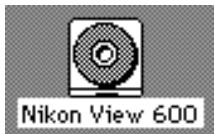
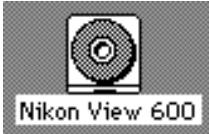
5 Double click the Nikon View 600 icon.

Nikon View 600
6 Please read the Help file fully before operating the application.
Note:
- For extended periods of use, it is recommended to use the AC Adaptor as a power source.
- While the PC communicates with the Digital Camera, the Digital Camera cannot be operated.
If you have a problem with your Digital Camera, it may be something you can correct yourself.
Check the list below for symptoms and corrections.
| Symptom | Correction | |
| Cannot charge the Battery Pack. | ·Make sure the rechargeable Ni-Cd Battery Pack is inserted. (p. 8) ·Make sure all necessary connections are correct and tight. (p. 9) | |
| No power. | ·Battery Pack is worn out. (p. 8) ·Make sure polarities are aligned properly. (p. 8) ·Make sure the rechargeable Ni-Cd Battery Pack is fully charged. (p. 9) | |
| Power shuts off automatically. | ·Auto shut off feature is on. Press SHTR (SHUTTER), or set the POWER switch to OFF and then set to REC. (p. 20) | |
| Cannot capture the image. | ·CompactFlash Card is not inserted. (p. 17) ·Make sure the POWER switch is set to REC. (p. 19) ·No memory. Delete some images before capturing images. (pp. 27, 28) | |
| LCD Viewfinder image is too bright or dark. | ·Make sure the LCD Viewfinder brightness setting is adjusted. (p. 14) | |
| Indication or image on the LCD Viewfinder is not focused. | ·Make sure the NORMAL/MACRO1/MACRO2 switch is properly set. (p. 21) | |
| Cannot playback. | ·CompactFlash Card is not inserted. (p. 17) ·There are no images in the memory. (p. 22) ·Make sure the POWER switch is set to PLAY. (p. 22) | |
| Auto Playback feature can not be performed. | ·There is only one image in the memory. | |
| No picture on the TV (if connected). | ·Make sure all necessary connections are correct and tight. (p. 29) ·Make sure the TV is set to video input mode. (p. 29) | |
| CCD | 1/2.7 inch (9.3 mm) 1.08 million CCD (Approx. 800,000 pixels Usage) | |
| Lens | f=5.0 mm (equivalent to a 36 mm lens on a 35 mm still camera.)/F2.8 | |
| Focus | Auto Focus with 2 Macro Position | |
| Shooting Distance | Normal: 19.7 inch (0.5m)-∞/Macro: 5.5 inch (14cm)/10.6 inch (27cm) (approx) | |
| Iris | F2.8/F11 | |
| Shutter Speed | 1/4-1/2,000 sec. | |
| White Balance | Auto White Balance (AWB) | |
| LCD Viewfinder | 2 inch (50.8 mm) Po-Si TFT Color Liquid Crystal Display | |
| Storage Media | CompactFlash (CF) Card (8 MB) | |
| Image Size | 1,024 × 768 pixels (Fine, Multi mode) | |
| 512 × 384 pixels (Normal, Zoom mode) | ||
| 1,136 × 640 pixels (Wide mode) | ||
| Storage Capacity | Approx. 30 images (Fine, Multi, Wide mode) | |
| Approx. 100 images (Normal, Zoom mode) | ||
| Compression Format | JPEG (4:2:2, Exif) | |
| Interface | Serial (via Digital Camera Station) | |
| Video Output | NTSC Composite (via Digital Camera Station) | |
| Power Supply | Rechargeable Ni-Cd Battery / 2 AA Alkaline Battery *1 /2 AA Lithium Battery *2 / 2 AA Ni-Cd Battery /2 AA nickel-hydride Battery / AC Adaptor | |
| *1 For emergency use only and when taking pictures with LCD Viewfinder turned off. | ||
| *2 In places where the temperature is 50°F(10°C) and below, the battery's characteristic use time is shortened.A exclusive nickel-cadmium battery pack is recommended in lower temperatures. | ||
| Power Consumption | Digital Camera | 2.4V DC, 1.3A (Ni-Cd Battery)3V DC, 1.1A (Alkaline Battery) |
| AC Adaptor | Input: 120V AC 60Hz 7W | |
| Digital Camera Station | 3V DC, 1.3A | |
| Operating Temperature | 32 – 104 °F/0 – 40 °C | |
| Operating Humidity | 10 % – 75 % | |
| Weight | Digital Camera | 7.4 oz approx./210g approx. |
| AC Adaptor | 5.3 oz approx./150 g approx. | |
| Digital Camera Station | 3.9 oz approx./110 g approx. | |
| Detachable Speedlight | 1.0 oz approx./30 g approx. | |
| Dimensions | Digital Camera | 4.3 (W) × 2.4 (H) × 1.8 (D) inch109.5 (W) × 60 (H) × 44.5 (D) mm |
| AC Adaptor | 2.0 (W) × 2.8 (H) × 0.8 (D) inch50 (W) × 72 (H) × 20 (D) mm | |
| Digital Camera Station | 4.7 (W) × 1.3 (H) × 1.9 (D) inch120 (W) × 33.5 (H) × 49.5 (D) mm | |
| Detachable Speedlight | 1.0 (W) × 2.4 (H) × 1.1 (D) inch25 (W) × 60 (H) × 29 (D) mm | |
A
AC Adaptor 2,6,9,10
Auto Playback 23
Auto Power Off 20
B
Battery Pack 2,8,9,38 Battery Remaining Indication 16 Brightness (LCD Viewfinder) 14
C
Capturing Close-up Images (macro) 21
Capturing Images 18, 19, 20
Charging Battery Pack 9
CompactFlash Card 2, 17, 31
D
Detachable Flash 2,7,12,13
H
HandStrap 2,7
1
Iris 15
L
LIGHT Indication 16
M
MODE (Image Resolution) 18
0
On Screen Display (OSD) 16
OSD Off Mode 16
P
Playback 22, 23, 24, 25, 26
POWER Lamp (Digital Camera Station) 9, 10
S
Setting the Clock 11
Soft Carrying Case 2, 7
Specifications 38
Symptom/Correction 37
T
Transferring Images 30, 32, 33, 34, 35, 36
V
Video Cable 2, 29, 30