
COOLPIX S610C - Digital Camera NIKON - Free user manual and instructions
Find the device manual for free COOLPIX S610C NIKON in PDF.


User questions about COOLPIX S610C NIKON
0 question about this device. Answer the ones you know or ask your own.
Ask a new question about this device
Download the instructions for your Digital Camera in PDF format for free! Find your manual COOLPIX S610C - NIKON and take your electronic device back in hand. On this page are published all the documents necessary for the use of your device. COOLPIX S610C by NIKON.
USER MANUAL COOLPIX S610C NIKON
COOLPIX S610/S610c User's Manual
text_image
Nikon COOLPIX
text_image
Nikon COOLPIXTrademark Information
- Microsoft and Windows Vista are either registered trademarks or trademarks of Microsoft Corporation in the United States and/or other countries.
• Macintosh, Mac OS, and QuickTime are trademarks of Apple Inc. - Adobe and Acrobat are registered trademarks of Adobe Systems Inc.
- The SD logo is a trademark of the SD Card Association.
- PictBridge is a trademark.
- All other trade names mentioned in this manual or the other documentation provided with your Nikon product are trademarks or registered trademarks of their respective holders.
Introduction
First Steps

Basic Photography and Playback: Auto Mode

Shooting Suited for the Scene

Focusing on a Moving Subject in Active Child Mode

Automatic Shooting of a Smiling Face

More on Playback

Movies

Voice Recordings
Connecting to Televisions, Computers, and Printers
Shooting, Playback, and Setup Menus
Technical Notes
For Your Safety
To prevent damage to your Nikon product or injury to yourself or to others, read the following safety precautions in their entirety before using this equipment. Keep these safety instructions where all those who use the product will read them. The consequences that could result from failure to observe the precautions listed in this section are indicated by the following symbol:

This icon marks warnings, information that should be read before using this Nikon product to prevent possible injury.
WARNINGS

Turn off in the Event of Malfunction
Should you notice smoke or an unusual smell coming from the camera or AC adapter, unplug the AC adapter and remove the battery immediately, taking care to avoid burns. Continued operation could result in injury. After removing or disconnecting the power source, take the equipment to a Nikon-authorized service representative for inspection.

Do not Disassemble
Touching the internal parts of the camera or AC adapter could result in injury. Repairs should be performed only by qualified technicians. Should the camera or AC adapter break open as the result of a fall or other accident, take the product to a Nikon-authorized service representative for inspection, after unplugging the product and/or removing the battery.

Do not use the Camera or AC Adapter in the Presence of Flammable Gas
Do not use electronic equipment in the presence of flammable gas, as this could result in explosion or fire.

Handle the Camera Strap with Care
Never place the strap around the neck of an infant or child.

Keep out of Reach of Children
Particular care should be taken to prevent infants from putting the battery or other small parts into their mouths.

Observe the following precautions when handling the battery
The battery may leak or explode if improperly handled. Observe the following precautions when handling the battery for use in this product:
- Before replacing the battery, turn the product off. If you are using the AC adapter, be sure it is unplugged.
- Use only a Rechargeable Li-ion Battery EN-EL12 (supplied). Charge the battery by inserting it into a Battery Charger MH-65 (supplied only with the COOLPIX S610), or by inserting it into the camera and connecting the AC Adapter EH-63 (supplied only with the COOLPIX S610c).
- When inserting the battery, do not attempt to insert it upside down or backwards.
- Do not short or disassemble the battery or attempt to remove or break the battery insulation or casing.
- Do not expose the battery to flame or to excessive heat.
- Do not immerse in or expose to water.
- Replace the terminal cover when transporting the battery. Do not transport or store with metal objects such as necklaces or hairpins.
- The battery is prone to leakage when fully discharged. To avoid damage to the product, be sure to remove the battery when no charge remains.
- Discontinue use immediately should you notice any change in the battery, such as discoloration or deformation.
- If liquid from the damaged battery comes in contact with clothing or skin, rinse immediately with plenty of water.

Observe the following precautions when handling the battery charger/AC adapter
- Do not use with travel converters or adapters designed to convert from one voltage to another or with DC-to-AC inverters. Failure to observe this precaution could damage the product or cause overheating or fire.
- Keep dry. Failure to observe this precaution could result in fire or electric shock.
- Dust on or near the metal parts of the plug should be removed with a dry cloth. Continued use could result in fire.
- Do not handle the power cable or go near the battery charger/AC adapter during lightning storms. Failure to observe this precaution could result in electric shock.
- Do not damage, modify, forcibly tug or bend the power cable, place it under heavy objects, or expose it to heat or flame. Should the insulation be damaged and the wires become exposed, take it to a Nikon-authorized service representative for inspection. Failure to observe these precautions could result in fire or electric shock.
- Do not handle the plug or battery charger/AC adapter with wet hands. Failure to observe this precaution could result in electric shock.
Use appropriate cables
When connecting cables to the input and output jacks, use only the cables provided or sold by Nikon for the purpose, to maintain compliance with product regulations.
⚠️ Handle moving parts with care
Be careful that your fingers or other objects are not pinched by the lens cover or other moving parts.
CD-ROMs
The CD-ROMs supplied with this device should not be played back on audio CD equipment. Playing CD-ROMs on an audio CD player could cause hearing loss or damage the equipment.
⚠️ Observe caution when using the flash
Using the flash close to your subject's eyes could cause temporary visual impairment. Particular care should be observed if photographing infants, when the flash should be no less than one meter (39 in.) from the subject.
Do not operate the flash with the flash window touching a person or object
Failure to observe this precaution could result in burns or fire.
Avoid contact with liquid crystal
Should the monitor break, care should be taken to avoid injury caused by broken glass and to prevent liquid crystal from the monitor touching the skin or entering the eyes or mouth.
Notice for Customers in the U.S.A.
Federal Communications Commission (FCC) Radio Frequency Interference Statement
This equipment has been tested and found to comply with the limits for a Class B digital device, pursuant to Part 15 of the FCC rules. These limits are designed to provide reasonable protection against harmful interference in a residential installation. This equipment generates, uses, and can radiate radio frequency energy and, if not installed and used in accordance with the instructions, may cause harmful interference to radio communications. However, there is no guarantee that interference will not occur in a particular installation. If this equipment does cause harmful interference to radio or television reception, which can be determined by turning the equipment off and on, the user is encouraged to try to correct the interference by one or more of the following measures:
- Reorient or relocate the receiving antenna.
- Increase the separation between the equipment and receiver.
- Connect the equipment into an outlet on a circuit different from that to which the receiver is connected.
- Consult the dealer or an experienced radio/television technician for help.

Nikon
COOLPIX S610/S610c
CAUTIONS
Modifications
The FCC requires the user to be notified that any changes or modifications made to this device that are not expressly approved by Nikon Corporation may void the user's authority to operate the equipment.
Interface Cables
Use the interface cables sold or provided by Nikon for your equipment. Using other interface cables may exceed the limits of Class B Part 15 of the FCC rules.
Notice for customers in the State of California
WARNING: Handling the cord on this product will expose you to lead, a chemical known to the State of California to cause birth defects or other reproductive harm. Wash hands after handling.
Nikon Inc.,
1300 Walt Whitman Road
Melville, New York 11747-3064
USA
Tel: 631-547-4200
Notice for customers in Canada
CAUTION
This Class B digital apparatus complies with Canadian ICES-003.
ATTENTION
Symbol for Separate Collection in European Countries
This symbol indicates that this product is to be collected separately.
The following apply only to users in European countries:
- This product is designated for separate collection at an appropriate collection point. Do not dispose of as household waste.
- For more information, contact the retailer or the local authorities in charge of waste management.
This symbol on the battery indicates that the battery is to be collected separately. The following apply only to users in European countries:

- This battery is designated for separate collection at an appropriate collection point. Do not dispose of as household waste.
- For more information, contact the retailer or the local authorities in charge of waste management.
Table of Contents
For Your Safety....ii
WARNINGS....ii
Notices ...... v
Introduction ....1
About This Manual .... 1
Information and Precautions....2
Parts of the Camera....4
The Camera Body 4
Attaching the Camera Strap 4
The Monitor....6
Basic Operations....8
The ▶ (shooting/playback) Button....8
The MODE (mode) Button....8
The Rotary Multi Selector....9
The MENU Button....11
Help Displays....11
First Steps....12
Charging the Battery Using the Battery Charger (COOLPIX S610)....12
Inserting the Battery into the Camera....14
Removing the Battery 15
Turning On and Off the Camera....15
Charging the Battery Using the AC Adapter (COOLPIX S610c)....16
Setting Display Language, Date, and Time 18
Inserting Memory Cards 20
Removing Memory Cards....21
Basic Photography and Playback: Auto Mode 22
Step 1 Turn the Camera On and Select 📄 (Auto) Mode ....22
Step 2 Frame a Picture ....24
Step 3 Focus and Shoot....26
Step 4 Viewing and Deleting Pictures ....28
Using the Flash....30
Setting the Flash Mode....30
Taking Pictures with the Self-Timer....32
Macro Mode....33
Exposure Compensation....34
Shooting Suited for the Scene....35
SCENE Shooting in Scene Mode 35
Setting the Scene Mode....35
Features 36
Taking Pictures in Food Mode 41
Taking Pictures for a Panorama 43
SCENE Shooting in the Scene Mode Selected by the Camera (Scene Auto Selector)......45
Taking Pictures in Scene Auto Selector Mode 45
Focusing on a Moving Subject in Active Child Mode 47
Active Child Mode ....47
Automatic Shooting of a Smiling Face 49
Shooting in Smile Mode 49
▶ More on Playback....51
Viewing Multiple Pictures: Thumbnail Playback ....51
Taking a Closer Look: Playback Zoom 52
Editing Pictures....53
Enhancing Brightness and Contrast: D-Lighting....54
Creating a Cropped Copy: Crop 55
Resizing Pictures: Small Picture 56
Voice Memos: Recording and Playback....57
Viewing Pictures by Date 58
果 Movies 61
Recording Movies 61
The Movie Menu....62
Selecting Movie Options....62
Autofocus Mode 62
Movie Playback....63
Deleting Movie Files....63
Voice Recordings....64
Making Voice Recordings....64
Playing Voice Recordings....66
Deleting Sound Files....67
Copying Voice Recordings....68
Connecting to Televisions, Computers, and Printers 69
Connecting to a TV....69
Connecting to a Computer....70
Before Connecting the Camera....70
Transferring Pictures from a Camera to a Computer 71
Connecting to a Printer....74
Connecting the Camera and Printer....75
Printing Pictures One at a Time 76
Printing Multiple Pictures 77
Creating a DPOF Print Order: Print Set....80
Shooting, Playback, and Setup Menus 82
Shooting Options: The Shooting Menu 82
Displaying the Shooting Menu....82
Image Mode 83
WB White Balance....85
Metering 87
Continuous 88
ISO ISO Sensitivity....89
Color Options....89
[+] AF Area Mode....90
Autofocus Mode 93
Functions that Cannot Be Applied Simultaneously....94
Playback Options: The Playback Menu 95
Displaying the Playback Menu....95
Slide Show 97
Delete 98
On Protect 98
Rotate Image....99
Copy 100
Basic Camera Setup: The Setup Menu.... 101
Displaying the Setup Menu....102
MENU Menus....102
Welcome Screen....103
Date....104
Monitor Settings 107
DATE Date Imprint....108
VR Vibration Reduction....109
Motion Detection....110
ED AF Assist 110
Digital Zoom 111
Sound Settings 111
Auto Off 112
IN Format Memory/Format Card....112
Language 113
Video Mode 113
C Reset All 113
Ver. Firmware Version 115
Technical Notes....116
Optional Accessories 116
Approved Memory Cards 116
Image/Sound File and Folder Names 117
Caring for the Camera 118
Cleaning 120
Storage 120
Error Messages....121
Troubleshooting....125
Specifications 130
Supported Standards 133
Index 134
About This Manual
Thank you for your purchase of a Nikon COOLPIX S610/S610c digital camera. This manual was written to help you enjoy taking pictures with your Nikon digital camera. Read this manual thoroughly before use, and keep it where all those who use the product will read it.
Symbols and Conventions
To make it easier to find the information you need, the following symbols and conventions are used:

This icon marks cautions, information that should be read before use to prevent damage to the camera.

This icon marks tips, additional information that may be helpful when using the camera.

This icon marks notes, information that should be read before using the camera.

This icon indicates that more information is available elsewhere in this manual or in the Quick Start Guide.
Notations
- A Secure Digital (SD) memory card is referred to as a "memory card."
- The setting at the time of purchase is referred to as the "default setting."
- The names of menu items displayed in the camera monitor, and the names of buttons or messages displayed in a computer monitor are indicated in bold text.
Screen Samples
In this manual, images are sometimes omitted from monitor display samples so that monitor indicators can be more clearly shown.
Illustrations and Screen Display
- In this manual, the COOLPIX S610 digital camera is used for illustrative purposes. Illustrations for both the COOLPIX S610 and the COOLPIX S610c are provided when necessary.
- Illustrations and text displays shown in this manual may differ from actual display.

Memory Cards
Pictures taken with this camera can be stored in the camera's internal memory or on removable memory cards. If a memory card is inserted, all new pictures will be stored on the memory card and delete, playback, and format operations will apply only to the pictures on the memory card. The memory card must be removed before the internal memory can be formatted or used to store pictures to, or delete, or view pictures.
Information and Precautions
Life-Long Learning
As part of Nikon's "Life-Long Learning" commitment to ongoing product support and education, continually updated information is available online at the following sites:
- For users in the U.S.A.: http://www.nikonusa.com/
- For users in Europe and Africa: http://www.europe-nikon.com/support/
- For users in Asia, Oceania, and the Middle East: http://www.nikon-asia.com/
Visit these sites to keep up-to-date with the latest product information, tips, answers to frequently asked questions (FAQs), and general advice on digital imaging and photography. Additional information may be available from the Nikon representative in your area. See the URL below for contact information:
http://imaging.nikon.com/
Use Only Nikon Brand Electronic Accessories
Nikon COOLPIX cameras are designed to the highest standards and include complex electronic circuitry. Only Nikon brand electronic accessories (including battery chargers, batteries and AC adapters) certified by Nikon specifically for use with this Nikon digital camera are engineered and proven to operate within the operational and safety requirements of this electronic circuitry.
THE USE OF NON-NIKON ELECTRONIC ACCESSORIES COULD DAMAGE THE CAMERA AND MAY VOID YOUR NIKON WARRANTY.
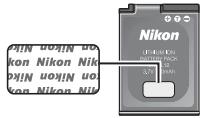
The use of third-party rechargeable Li-ion batteries not bearing the Nikon holographic seal could interfere with normal operation of the camera or result in the batteries overheating, igniting, rupturing, or leaking.
For more information about Nikon brand accessories, contact a local authorized Nikon dealer.
Holographic seal:
Identifies this device as an authentic Nikon product.
text_image
UOK!N uOK!N uOK kon Nikon Nik OK!N uOK!N uOK kon Nikon Nik Nikon 17-40 KIN BOTTLE ROCK 3.7 V 10000 NikonRechargeable Li-ion
Battery EN-EL12
Before Taking Important Pictures
Before taking pictures on important occasions (such as at weddings or before taking the camera on a trip), take a test shot to ensure that the camera is functioning normally. Nikon will not be held liable for damages or lost profits that may result from product malfunction.
About the Manuals
- No part of the manuals included with this product may be reproduced, transmitted, transcribed, stored in a retrieval system, or translated into any language in any form, by any means, without Nikon's prior written permission.
- Nikon reserves the right to change the specifications of the hardware and software described in these manuals at any time and without prior notice.
- Nikon will not be held liable for any damages resulting from the use of this product.
- While every effort was made to ensure that the information in these manuals is accurate and complete, we would appreciate it were you to bring any errors or omissions to the attention of the Nikon representative in your area (address provided separately).
Notice Concerning Prohibition of Copying or Reproduction
Note that simply being in possession of material that was digitally copied or reproduced by means of a scanner, digital camera or other device may be punishable by law.
- Items prohibited by law from being copied or reproduced
Do not copy or reproduce paper money, coins, securities, government bonds or local government bonds, even if such copies or reproductions are stamped "Sample".
The copying or reproduction of paper money, coins, or securities which are circulated in a foreign country is prohibited.
Unless the prior permission of the government was obtained, the copying or reproduction of unused postage stamps or post cards issued by the government is prohibited.
The copying or reproduction of stamps issued by the government and of certified documents stipulated by law is prohibited.
- Cautions on certain copies and reproductions
The government has issued cautions on copies or reproductions of securities issued by private companies (shares, bills, checks, gift certificates, etc.), commuter passes or coupon tickets, except when a minimum of necessary copies are to be provided for business use by a company. Also, do not copy or reproduce passports issued by the government, licenses issued by public agencies and private groups, ID cards and tickets, such as passes and meal coupons.
- Comply with copyright notices
The copying or reproduction of copyrighted creative works such as books, music, paintings, woodcut prints, maps, drawings, movies and photographs is governed by national and international copyright laws. Do not use this product for the purpose of making illegal copies or to infringe copyright laws.
Disposing of Data Storage Devices
Please note that deleting images or formatting data storage devices such as memory cards or built-in camera memory does not completely erase the original image data. Deleted files can sometimes be recovered from discarded storage devices using commercially available software, potentially resulting in the malicious use of personal image data. Ensuring the privacy of such data is the user's responsibility.
Before discarding a data storage device or transferring ownership to another person, erase all data using commercial deletion software, or format the device and then completely refill it with images containing no private information (for example, pictures of empty sky). Be sure to also replace any pictures selected for the welcome screen (33 103). Care should be taken to avoid injury or damage to property when physically destroying data storage devices.
If you are using the COOLPIX S610c, reset the wireless LAN settings stored in the camera. For more information, see page 23 and 37 of the Wireless LAN Connection Guide.
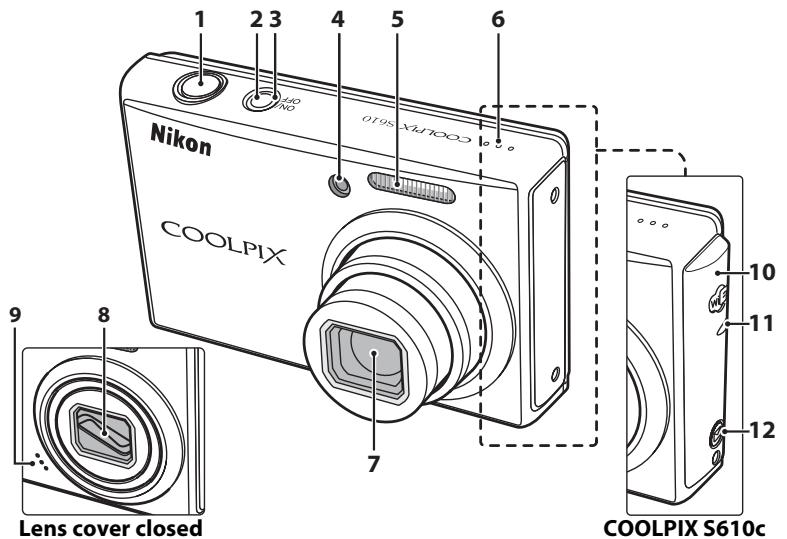
The Camera Body
text_image
Nikon COOLPIX COOLPIX S610 Lens cover closed 7 9 8 1 2 3 4 5 6 10 11 12 COOLPIX S610c1 Shutter-release button....26
2 Power switch....15
3 Power-on lamp....22, 112
4 Self-timer lamp 32
AF-assist illuminator....27, 110
5 Built-in flash 30
6 Speaker 57, 63, 66
7 Lens....118, 130
8 Lens cover
9 Built-in microphone....57, 61, 64
COOLPIX S610c only
10 Antenna ....50 of the Wireless LAN Connection Guide
11 Wireless LAN LED .... 50 of the Wireless LAN Connection Guide
12 📎 (Picture Mail) button ....44 of the Wireless LAN Connection Guide
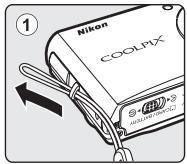
Attaching the Camera Strap
text_image
Nikon COOLPX 1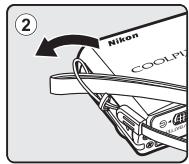
text_image
Nikon COOLPT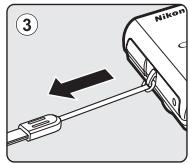
text_image
Nikon ③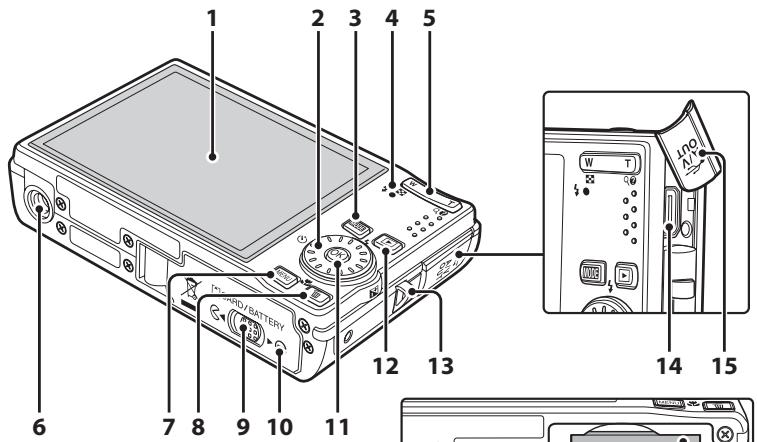
text_image
1 2 3 4 5 6 7 8 9 10 11 12 13 CARD/BATTERY W T NO N/A 14 15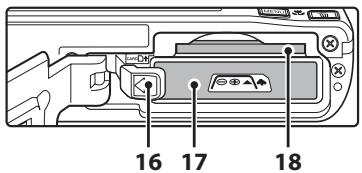
text_image
16 17 181 Monitor....6
2 Rotary multi selector 9
3 MODE (mode) button....8
4 Indicator lamp....64
Flash lamp....31
Zoom buttons....24
W (wide) 24
T (tele)....24
(thymbnail playback)......51
Q ( playback zoom)......52
( help )....11
6 Tripod socket
7 MENU button....11, 82, 95
8 (delete) button 28, 29, 57, 63
9 Cover latch....14, 20
10 Battery-chamber/
memory card slot cover .... 14, 20
11 OK (apply selection) button 9
12 ▶ (shooting/playback) button .....8, 28
13 Eyelet for camera strap 4
14 Multi connector....69, 71, 75
15 Connector cover
16 Battery latch....14, 15
17 Battery chamber....14
18 Memory card slot....20
The Monitor
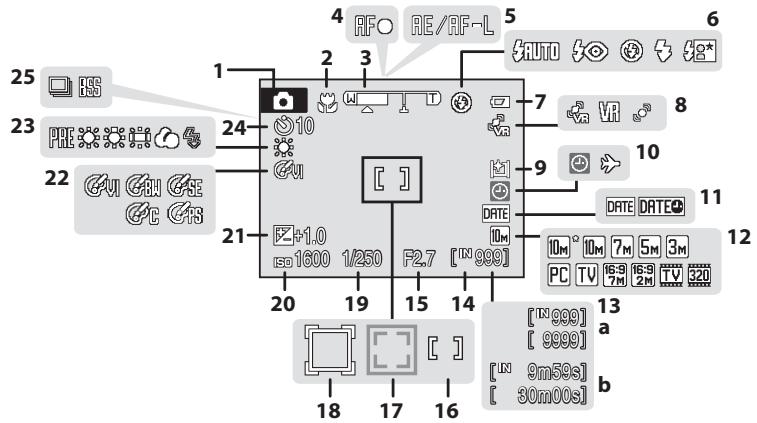
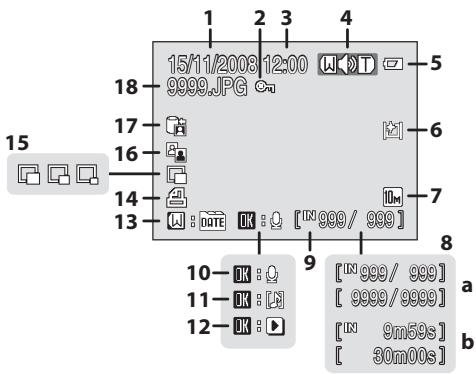
The following indicators may appear in the monitor during shooting and playback (actual display varies with current camera settings).
The indicators and photo info displayed during shooting and playback will turn off after a few seconds (107).
Shooting
text_image
25 23 22 21 20 19 18 17 16 4 RF○ RE/AF-L 5 AUTO 6 24 10 AI 7 8 10 9 DATE 11 10M 10M 7M 5M 3M PC TV 16:9 16:9 16:9 320 [10 9m59s] [9m00s] a b1 Shooting mode* 22, 35, 45, 47, 49, 61
2 Macro mode....33
3 Zoom indicator....24, 33
4 Focus indicator 26
5 AE/AF-L indicator 44
6 Flash mode....30
7 Battery level indicator....22
8 Vibration reduction/
Motion detection icon......23, 109, 110
9 Monitor brightness boost indicator .... 23
10 "Date not set" indicator.... 121
Time zone indicator.... 104
11 Date imprint 108
12 Image mode....83
Movie option....62
(a) Number of exposures remaining (still pictures)....22
(b) Movie length....61
14 Internal memory indicator......23
15 Aperture 26
16 Focus area....26,90
17 Focus area (Face Priority) .....49, 90
18 Focus area (Active child)....47
19 Shutter speed 26
20 ISO sensitivity 31,89
21 Exposure compensation value ....34
22 Color options 89
23 White balance mode....85
24 Self-timer indicator 32
25 Continuous shooting mode......88
Playback
text_image
15/11/2003 12:00 9999.JPG 18 17 16 14 13 10 11 12 1 2 3 4 5 6 7 8 9 [IN 999/ 999] [ IN 999/ 999] [ IN 9m50s] [ IN 30m00s]1 Date of recording....18
2 Protect icon....98
3 Time of recording....18
4 Volume indicator....57, 63, 66
5 Battery level indicator....22
6 Monitor brightness boost indicator .... 23
7 Image mode* 83
Movie option* 63
(a) Current frame number/total number of frames....28
(b) Movie length 63
9 Internal memory indicator......28
10 Voice memo recording guide ....57
11 Voice memo playback guide ....57
12 Movie playback indicator 63
13 List by date guide....58
14 Print-order icon....80
15 Small picture....55, 56
16 D-Lighting icon....54
Picture Bank pictures icon
(COOLPIX S610c only)
....48 of the Wireless LAN Connection Guide
18 File number and type 117
The ▶ (shooting/playback) Button
text_image
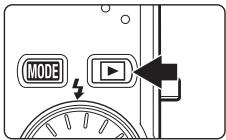
MODEPress the ▶ button once in shooting mode to enter playback mode; press again to switch back to shooting mode.
If the camera is turned off, hold down the ▶ button to turn the camera on in playback mode (💡 28).
Holding down the ▶ button when the camera is on sets monitor brightness to the maximum level. Hold down the ▶ button again to change back to the original brightness. The 📋 icon will be displayed in the monitor when monitor brightness is set to the maximum level.
The MODE (mode) Button
flowchart
graph TD
    A["MODE"] --> B["Play Button"]
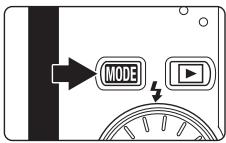
Use the MODE button to choose the shooting, playback, or setup mode.
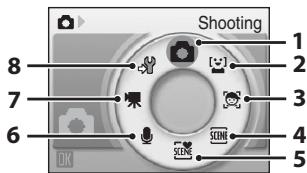
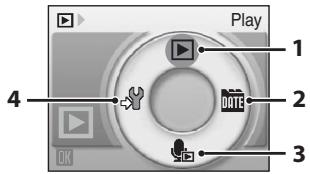
- Press the MODE button during shooting to display the shooting-mode selection menu, or during playback to display the playback-mode selection menu.
- Press the ▶ button to switch between the mode selection menu for shooting mode and playback mode.
- Use the rotary multi selector to choose the desired mode from the shooting-mode or playback-mode selection menu (9).
Shooting-mode Selection Menu
text_image
Shooting 8 7 6 OK 1 2 3 4 51 Auto mode 22
2 Smile mode....49
3 Active child mode......47
4 Scene mode....35
5 Scene auto selector 45
6 Voice recording mode 64
7 Movie mode 61
8 Setup mode....101
Playback-mode Selection Menu
COOLPIX S610
text_image
Play 1 2 3 4COOLPIX S610c
text_image
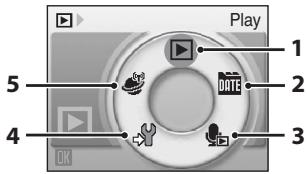
Play 1 2 3 4 51 Playback mode 28
2 List by date mode 58
3 Sound file playback mode......66
4 Setup mode....101
Picture Bank mode
5 (COOLPIX S610c only)
....47 of the Wireless LAN Connection Guide
The Rotary Multi Selector
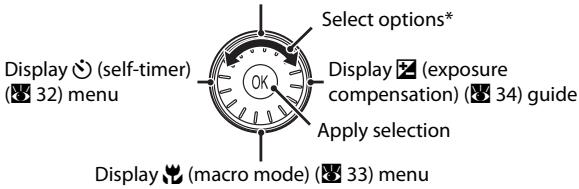
This section describes standard uses of the rotary multi selector to select modes, select menu options, and to apply selection.
For Shooting
Display ↘ (flash mode) (💡 30) menu
text_image
Display ⚙ (self-timer) (32) menu Select options* Display ⚙ (exposure compensation) (34) guide Apply selection Display ⚙ (macro mode) (33) menu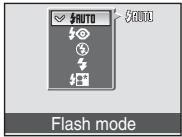
text_image
AUTO S400 Flash mode* Items can also be selected by pressing the rotary multi selector up or down.
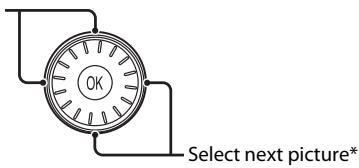
For Playback
Select previous picture*
text_image
OK Select next picture*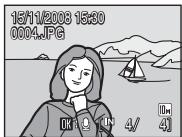
text_image
15/11/2008 15:30 0004.JPG* Subsequent or previous pictures can also be selected by rotating the rotary multi selector.
For the Menu Screen
Return display to the previous screen
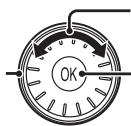
text_image
OKSelect options ^1
Apply selection (advance display to the next screen) ^2
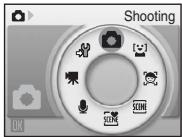
text_image
Shooting OK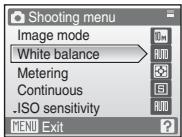
text_image
Shooting menu Image mode White balance Metering Continuous .ISO sensitivity MENU Exit1 Items can also be selected by pressing the rotary multi selector up or down. Pressing right or left in shooting/playback-mode selection menu (8) or icons menu (102) will choose the items.
^2 Pressing right in text menus (102) advances display to the next screen.

Note on the Rotary Multi Selector
In this manual, up, down, left, and right presses of the rotary multi selector may be indicated with ▲,

The MENU Button
Press the MENU button to display the menu for the selected mode. Use the rotary multi selector to navigate the menus (10). Press the MENU button again to exit the menu.
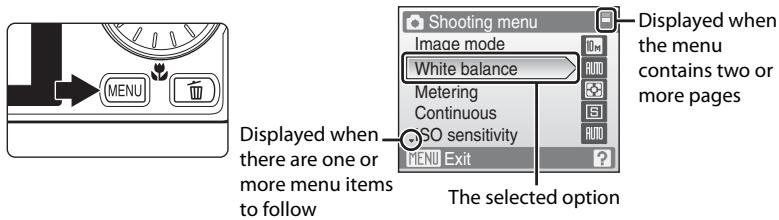
text_image
Shooting menu Image mode White balance Metering Continuous ISO sensitivity MENU Exit Displayed when the menu contains two or more pages Displayed when there are one or more menu items to follow The selected option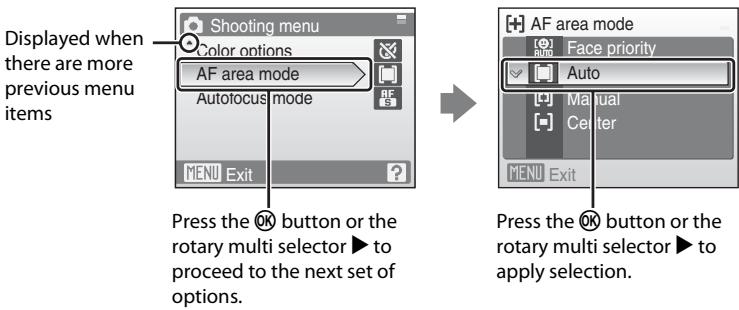
text_image
Displayed when there are more previous menu items Shooting menu Color options AF area mode Autofocus mode MENU Exit Press the OK button or the rotary multi selector ▶ to proceed to the next set of options. AF area mode Face priority Auto Manual Center MENU Exit Press the OK button or the rotary multi selector ▶ to apply selection.Help Displays
Press the T (✗) button when ☐ is displayed at the lower right of the menu screen to view a description of the currently selected menu option.
To return to the original menu, press the T ( ? ) button again.
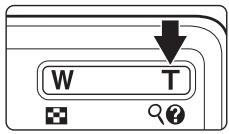
text_image
W T ?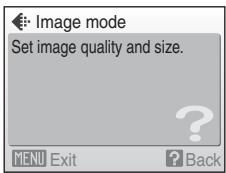
text_image
Image mode Set image quality and size.Charging the Battery Using the Battery Charger (COOLPIX S610)
If you are using the COOLPIX S610, charge the Rechargeable Li-ion Battery EN-EL12 (supplied) using the Battery Charger MH-65 (supplied).
- If you are using the COOLPIX S610c, the Battery Charger MH-65 is not supplied with the camera. Insert the battery into the camera and charge it by connecting the AC adapter. Proceed to "Inserting the Battery into the Camera" (14) and "Charging the Battery Using the AC Adapter (COOLPIX S610c)" (16).
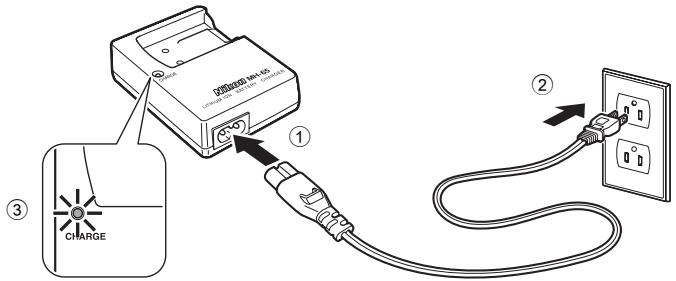
1 Connect the power cable.
Connect the power cable to the battery charger ① and insert the wall plug into a power outlet ②. The CHARGE lamp will light to show that the charger is on ③.
text_image
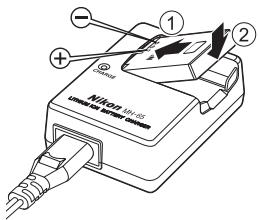
① ② ③ CHARGE2 Charge the battery.
Insert the battery into the battery charger. Slide the battery forward ① and then press down until it locks into place ②.
text_image
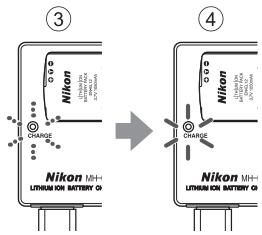
NVIDIA 15-20 NVIDIA 15-20CHARGE lamp starts blinking ③ when battery is inserted. Charging is complete when lamp stops blinking ④.
About 150 minutes are required to charge a fully exhausted battery.
text_image
③ Nikon LUNION OI SBTBRY OI → ④ Nikon LUNION OI SBTBRY OIThe following chart explains CHARGE lamp status.
| CHARGE lamp | Description |
| Blinks | Battery charging. |
| On | Battery fully charged. |
| Flickers | The battery is not inserted correctly. Remove the battery and reinsert it into the battery charger so that the battery is lying flat.• Charge the battery indoors with an ambient temperature of 5 °C to 35 °C (41 °F to 95 °F) before use.• The battery is faulty. Unplug the charger immediately and stop charging the battery. Bring the battery and charger to a Nikon-authorized service representative for inspection. |
3 Unplug the charger.
Remove the battery and unplug the charger.

Notes on the Battery Charger
- The supplied battery charger is for use only with a Rechargeable Li-ion Battery EN-EL12. Do not use with incompatible batteries.
- Be sure to read and follow the warnings for the battery charger on page iii before using the battery charger.
- Be sure to read the section, "The Battery" (119), thoroughly before use.

Notes on AC Power Supply
- To power the camera continuously for extended periods, use the AC Adapter EH-63 (available separately from Nikon) (8: 116). Do not, under any circumstances, use another make or model of AC adapter. Failure to observe this precaution could result in overheating or in damage to the camera.
- If you are using the COOLPIX S610, the battery cannot be charged by inserting it into the camera and connecting the AC adapter. The AC adapter and the supplied audio/video cable or USB cable cannot be used at the same time.
Inserting the Battery into the Camera
Insert a Rechargeable Li-ion Battery EN-EL12 (supplied) into the camera.
- Charge the battery before the first use or when the battery is running low. For more information about charging the battery, see "Charging the Battery Using the Battery Charger (COOLPIX S610)" (12) if you are using the COOLPIX S610, or "Charging the Battery Using the AC Adapter (COOLPIX S610c)" (16) if you are using the COOLPIX S610c.
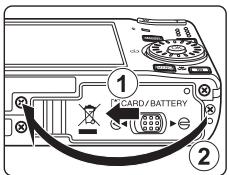
1 Open the battery-chamber/memory card slot cover.
Slide the cover latch to the ⬆ position ①.
text_image
1 2 CARD/BATTERY2 Insert the battery.
Confirm that the positive (+) and negative (−) terminals are oriented correctly as described on the label at the entrance of the battery chamber, and insert the battery.
Use the battery to push the orange battery latch in the direction indicated by the arrow ① and fully insert the battery ②. When the battery is fully inserted, the battery latch will lock it in place.
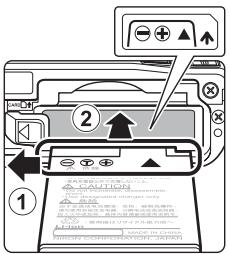
text_image
Diagram showing printer operation steps with labeled arrows and a document previewInserting the Battery
Inserting the battery upside down or backwards could damage the camera. Be sure to check the battery is in the correct orientation.
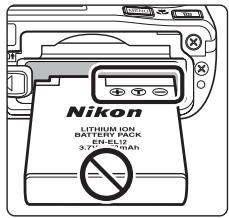
text_image
Nikon LITHIUM ION BATTERY PACK EN-EL12 3.7" EN-12 NA3 Close the battery-chamber/memory card slot cover.
Slide the cover latch to the ▶ ∈ position ②.
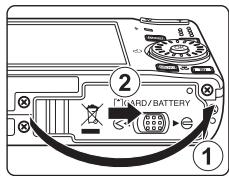
text_image
2 KARD/BATTERY 1Removing the Battery
Turn the camera off and confirm that the power-on lamp and the monitor are off before opening the battery-chamber/memory card slot cover. To eject the battery, open the battery-chamber/memory card slot cover and slide the battery latch in the direction shown ①. The battery can then be removed by hand ②.
- Note that the battery may become hot during use; observe due caution when removing the battery.
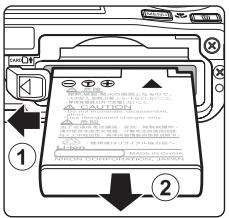
text_image
① ②Turning On and Off the Camera
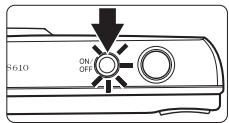
To turn on the camera, press the power switch. The power-on lamp (green) will light for a moment and the monitor will turn on. To turn off the camera, press the power switch again.
When the camera turns off, both the power-on lamp and monitor will turn off.
text_image
S610 ON/OFF- If the camera is turned off, hold down the ▶ button to turn the camera on in playback mode (💡 28).

Note on the Battery
- Be sure to read and follow the warnings for the battery on page iii and the section, "The Battery" (119), before using the battery.
- If the battery will not be used for an extended period, recharge it at least once every six months and run it flat before returning it to storage.

Auto Power Off in Shooting Mode (Standby Mode)
If no operations are performed for about five seconds in shooting mode, the monitor will dim to save power. Using any of the camera controls will reactivate the display. If no operations are performed for about a minute (default setting), the monitor will turn off automatically and the camera will enter standby mode. If no operations are performed for another three minutes, the camera will turn off automatically (the auto off function).
If the monitor is off in standby mode, press the power switch or the shutter-release button to reactivate it.
- The time allowed to elapse before the camera enters standby mode can be changed from the Auto off option (112) in the setup menu (112).
- When monitor brightness is set to the maximum level by pressing the ▶ button (23), the monitor will not dim, even if no operations are performed.
Charging the Battery Using the AC Adapter (COOLPIX S610c)
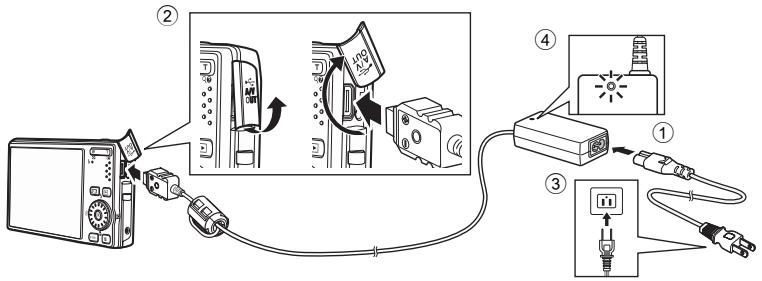
If you are using the COOLPIX S610c, insert a Rechargeable Li-ion Battery EN-EL12 (supplied) into the camera and charge the battery by connecting the AC Adapter EH-63 (supplied).
text_image
Diagram showing cable connection steps with labeled components and directional arrows indicating process flow1 Connect the power cable and AC adapter ①.
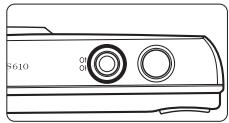
2 Confirm that the power-on lamp and the monitor are off.
Do not turn the camera on. The battery cannot be charged when the camera is on.
natural_image
Line drawing of a device casing with two circular ports and a label 'S610' (no text or symbols on the diagram itself)3 Connect the AC adapter to the camera's multi connector ②.
The multi connector should be fully inserted.
4 Plug the power cable into an outlet ③.
The AC adapter power-on lamp will light ④.
Charging the Battery After Setting the Camera's Clock
When the camera's built-in clock has not been set, the battery begins charging when the AC adapter is connected. Once the clock is set and the AC adapter is connected, the Picture Bank start-up screen will be displayed and the camera will attempt to upload pictures to the my Picturetown server. Press the Ⓧ button to cancel picture upload and charge the battery. Picture Bank can be set so that it does not start automatically when the AC adapter is connected. See the Wireless LAN Connection Guide for more information about Picture Bank.
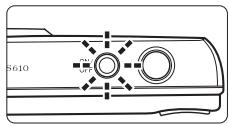
5 The battery begins charging.
The power-on lamp (orange) will blink, and the battery will start charging.
The power-on lamp (orange) stops blinking when charging is complete.
A fully exhausted battery will recharge in about 150 minutes.
text_image
S610 OFFThe following chart explains power-on lamp status of the COOLPIX S610c while the AC adapter is connected.
| Power-on lamp | Description |
| Blinks (orange) | Battery charging. |
| On (orange) | Battery fully charged. |
| Off/Blinks (green)/ On (green) | The camera is on. Turn the camera off when charging. |
| Flickers (orange) | Charge the battery indoors with an ambient temperature of 5 °C to 35 °C (41 °F to 95 °F) before use.If the lamp flickers rapidly, the AC adapter is not correctly connected or there is a problem with the battery.Reconnect the AC adapter or replace the battery. |
6 Disconnect the camera and AC adapter when charging is complete.
Turn the camera off.
Disconnect the AC adapter from the camera's multi connector and unplug the power cable from the power outlet.

Note on the AC Adapter
- Be sure to read and follow the warning for the AC adapter on page ii.
- Be sure to read the section, "The Battery" (119), thoroughly before use.
- Do not, under any circumstances, use another make or model of AC adapter. Failure to observe this precaution could result in overheating or in damage to the camera.
- Do not connect the power cable supplied with the AC Adapter EH-63 to any other device.

The AC Adapter EH-63
The AC Adapter EH-63 (supplied) can:
- When the camera is turned on, power the camera from a power outlet.
- If you are using the COOLPIX S610c, the battery inserted into the camera is charged when the camera is turned off with the AC adapter connected.
- If you are using the COOLPIX S610, the AC Adapter EH-63 is not supplied with the camera. Furthermore, the battery cannot be charged while it is inserted into the camera.
- The AC adapter and the supplied audio/video cable or USB cable cannot be used at the same time.

The Battery Charger MH-65
If you are using the COOLPIX S610c, the Battery Charger MH-65 (116), for charging a Rechargeable Li-ion Battery EN-EL12, is available separately.
Setting Display Language, Date, and Time
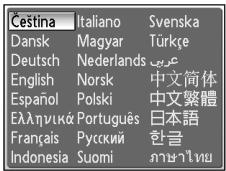
A language-selection dialog is displayed the first time the camera is turned on.
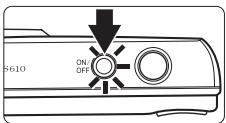
1 Press the power switch to turn on the camera.
The power-on lamp (green) will light for a moment and the monitor will turn on.
text_image
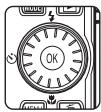
S610 ON/OFF2 Use the rotary multi selector to choose the desired language and press the Ⓞ button.
For information about using the rotary multi selector, see "The Rotary Multi Selector" (9).
text_image
Čeština Italiano Svenska Dansk Magyar Türkçe Deutsch Nederlands English Norsk 中文简体 Español Polski 中文繁體 Ελληνικά Português 日本語 Français Русский 한글 Indonesia Suomi3 Choose Yes and press the Ⓞ button.
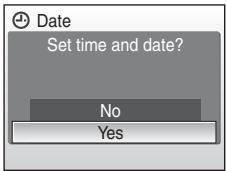
If No is selected, the date and time will not be set.
text_image
Date Set time and date? No Yes4 Press the rotary multi selector ◀ or ▶ to select your home time zone (106) and press the Ⓞ button.
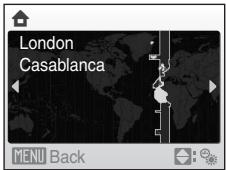
text_image
London Casablanca MENU Back
Daylight Saving Time
If daylight saving time is in effect, press the rotary multi selector ▲ in the time zone selection screen displayed in step 4 to turn on the daylight saving time option.
When the daylight saving time option is enabled, ⚙ is displayed at the top of the monitor. To turn off the daylight saving time option, press ▼.
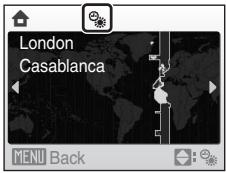
text_image
London Casablanca MENU Back5 Edit the date.
Rotate the rotary multi selector, or press ▲ or ▼, to edit the highlighted item.
Press ▶ to move the highlight in the following order. D (day) → M (month) → Y (year) → hour → minute → DMY (the order in which the day, month, and year are displayed)
Press ◀ to return to the previous item.
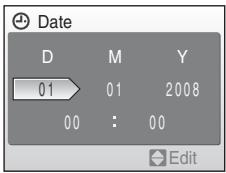
text_image
Date D M Y 01 01 2008 00 : 00 Edit6 Choose the order in which the day, month, and year are displayed and press the Ⓞ button or the rotary multi selector ▶.
The settings are applied and monitor display exits to shooting mode.
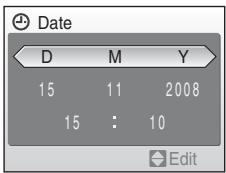
text_image
Date D M Y 15 11 2008 15 : 10 EditChanging the Date and Time
- Select Date from the Date item (104) in the setup menu (101) to change the current date and time and follow the procedure described in step 5 above.
- Select Time zone from the Date item in the setup menu to change the time zone and daylight saving time settings (104).
Inserting Memory Cards
Image, sound, and movie files are stored in the camera's internal memory (approx. 45 MB) or on removable memory cards (available separately) (8 116).
If a memory card is inserted in the camera, data are automatically stored on the memory card and data recorded to the memory card can be played back, deleted, or transferred. Remove the memory card to store data in the internal memory, or play back, delete, or transfer data from the internal memory.
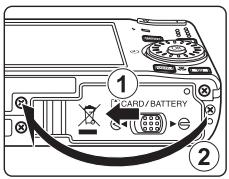
1 Confirm the power-on lamp and the monitor are off and open the battery-chamber/memory card slot cover.
Be sure to turn off the camera before opening the battery-chamber/memory card slot cover.
text_image
① CARD/BATTERY ②2 Insert the memory card.
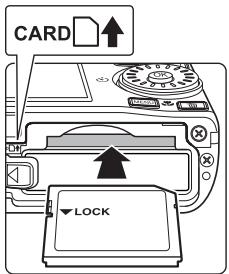
Slide the memory card in correctly until it clicks into place.
Close the battery-chamber/memory card slot cover.
text_image
CARD LOCKInserting Memory Cards
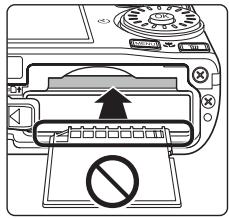
Inserting the memory card upside down or backwards could damage the camera or the memory card. Make sure that the memory card is correctly oriented.
natural_image
Diagram of a printer with an arrow indicating press release, no text or symbols presentRemoving Memory Cards
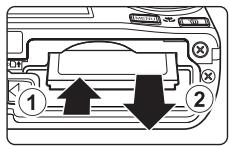
Before removing memory cards, turn the camera off and confirm that the power-on lamp and the monitor are off. Open the battery-chamber/memory card slot cover and press the card in ① to partially eject the card ②. The card can then be removed by hand.
text_image
Diagram of a device with labeled arrows indicating process steps, showing directional arrows and numbered components.
Formatting Memory Cards
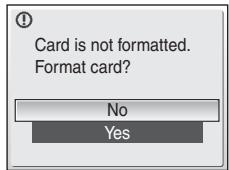
If the message at right is displayed, the memory card must be formatted before use (112). Note that formatting permanently deletes all pictures and other data on the memory card. Be sure to make copies of any pictures you wish to keep before formatting the memory card. Use the rotary multi selector to choose Yes and press the OK button. A confirmation dialog will be displayed. To start formatting, choose Format and press the OK button.
text_image
Card is not formatted. Format card? No Yes- Do not turn the camera off or open the battery-chamber/memory card slot cover until formatting is complete.
- The first time you insert the memory cards used in other devices into this camera, be sure to format them with this camera (112).

The Write Protect Switch
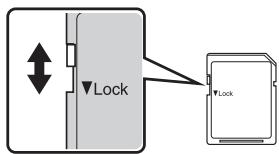
Memory cards are equipped with a write protect switch. When this switch is in the "lock" position, data cannot be written to, or deleted from, the memory card. If the switch is in the "lock" position, unlock it by sliding the switch to the "write" position to record or delete pictures, or to format the memory card.
- Be sure that the memory card's write protect switch is in the "write" position when transmitting pictures from the memory
card to the my Picturetown server using the wireless LAN function built into the COOLPIX S610c.
Write protect switch
flowchart
graph TD
    A["Lock"] --> B["Lock"]
    style A fill:#f9f,stroke:#333
    style B fill:#ccf,stroke:#333

Memory Cards
- Use only Secure Digital memory cards.
- Do not perform the following during formatting, while data are being written to or deleted from the memory card, or during data transfer to a computer. Failure to observe this precaution could result in the loss of data or in damage to the camera or memory card:
- Eject the memory card
- Remove the battery
- Turn off the camera
- Disconnect the AC adapter
- Do not use a computer to format the memory card.
- Do not disassemble or modify.
- Do not drop, bend, or expose to water or strong physical shocks.
- Do not touch the metal terminals with your fingers or metal objects.
- Do not affix labels or stickers to the memory card.
- Do not leave in direct sunlight, closed vehicles, or areas exposed to high temperatures.
- Do not expose to humidity, dust, or to corrosive gases.
Step 1 Turn the Camera On and Select 📄 (Auto) Mode
This section describes how to take pictures in (auto) mode, an automatic, "point-and-shoot" mode recommended for first-time users of digital cameras.
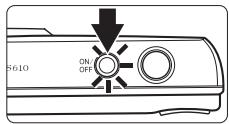
1 Press the power switch to turn on the camera.
The power-on lamp (green) will light for a moment and the monitor will turn on. The lens will also extend.
Proceed to step 4 when 📄 is displayed.
text_image
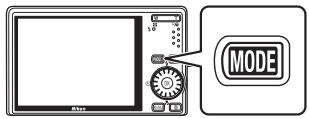
5610 ON/OFF2 Press the MODE button.
text_image
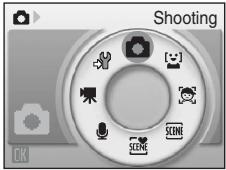
MODE3 Use the rotary multi selector to choose 📄 and press the Ⓞ button.
The camera enters (auto) mode.
text_image
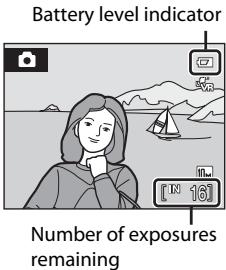
Shooting OK4 Check the battery level and number of exposures remaining in the monitor.
Battery level
| Monitor | Description |
| NO INDICATOR | Battery fully charged. |
| Battery low; prepare to charge or replace the battery. | |
| Battery exhausted. | Cannot shoot. Recharge or replace with a fully charged battery. |
text_image
Battery level indicator Number of exposures remainingNumber of Exposures Remaining
The number of pictures that can be stored depends on the capacity of the internal memory or memory card and image mode setting (84).
Indicators Displayed in 📄 (Auto) Mode
text_image
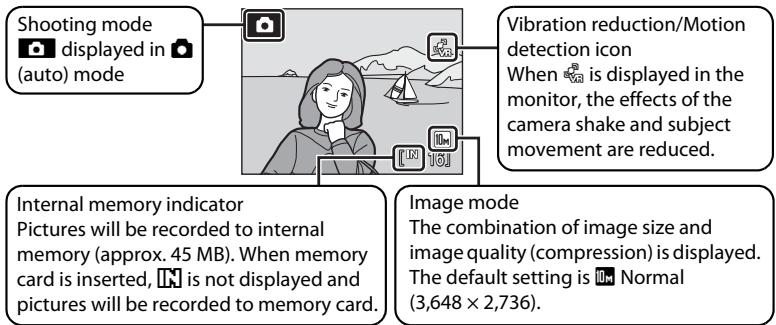
Shooting mode displayed in (auto) mode Vibration reduction/Motion detection icon When 📞 is displayed in the monitor, the effects of the camera shake and subject movement are reduced. Internal memory indicator Pictures will be recorded to internal memory (approx. 45 MB). When memory card is inserted, Ⓞ is not displayed and pictures will be recorded to memory card. Image mode The combination of image size and image quality (compression) is displayed. The default setting is Ⓝ Normal (3,648 × 2,736).The indicators and photo info displayed during shooting and playback will turn off after a few seconds (107). When the monitor has turned off in standby mode to save power, press the power switch or the shutter-release button to reactivate it (112).
Monitor Brightness Boost
If it is difficult to see the monitor display when shooting outdoors, holding down the ▶ button while the power is on to switch monitor brightness to the maximum setting. Hold down the ▶ button again to change back to the original brightness. The 📐 icon will be displayed in the monitor when the brightness setting is set to the maximum by pressing the ▶ button.
Functions Available in (Auto) Mode
In (auto) mode, macro mode (33) and exposure compensation (34) can be applied and pictures can be taken using the flash mode (30) and self-timer (32). Pressing the MENU button in (auto) mode allows you to specify settings for all shooting menu items (82).
Vibration Reduction and Motion Detection Icons
The Vibration reduction option effectively reduces blur, caused by slight hand movement known as camera shake, that commonly occurs when shooting with zoom applied or at slow shutter speeds.
The Motion detection option detects camera shake and subject movement with shooting, and increases the shutter speed to reduce their effects. Motion detection does not function when recording movies.
The Vibration reduction/Motion detection icons indicate the following:
- 📄: The setup menu's (101) Vibration reduction option (109) is set to On, and the Motion detection option (110) is set to Auto (default settings).
- VR: The Vibration reduction option is set to On, and the Motion detection option is set to Off.
- 📋: The Motion detection option is set to Auto, and the Vibration reduction option is set to Off.
- Off: Both the Vibration reduction and Motion detection options are set to Off.
- Set Vibration reduction to Off when using a tripod to stabilize the camera during shooting.
Step 2 Frame a Picture
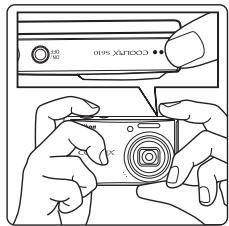
1 Ready the camera.
Hold the camera steadily in both hands, keeping your fingers and other objects away from the lens, flash, AF-assist illuminator, microphone, and speaker.
2 Frame the picture.
Position the main subject near the center of the monitor.
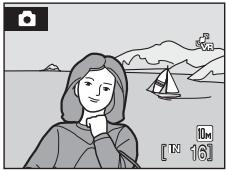
natural_image
Illustration of a person by the sea with a sailboat and mountains in the background (no text or symbols)Using the Zoom
Use the zoom buttons to activate optical zoom. Press the T button to zoom in so that the subject fills a larger area of the frame, or the W button to zoom out, increasing the area visible in the frame.
A zoom indicator is displayed at the top of the monitor when the zoom button is pressed.
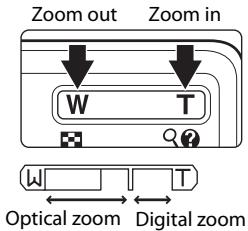
text_image
Zoom out Zoom in W T Optical zoom Digital zoomDigital Zoom
When the camera is zoomed in to the maximum optical zoom position, holding down the T button triggers digital zoom. The subject is magnified up to 4× the maximum optical zoom ratio.
When digital zoom is in effect, the focus area will not be displayed and the camera will focus on the subject in the center focus area.
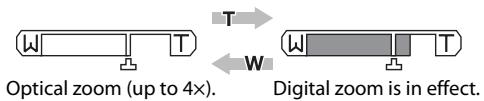
text_image
Optical zoom (up to 4x). Digital zoom is in effect.
Digital Zoom and Interpolation
Unlike optical zoom, digital zoom uses a digital imaging process known as interpolation to magnify images, resulting in slight deterioration of picture quality.
Interpolation is applied at zoom positions beyond 📁. When zoom is increased beyond the 🔊 position, interpolation is initiated and the zoom indicator turns yellow to indicate that interpolation is being applied. The position of 🔊 moves to the right as image size decreases, allowing for confirmation of the zoom positions at which shooting without interpolation is possible at the current image mode setting.
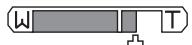
When an image size is small
Step 3 Focus and Shoot
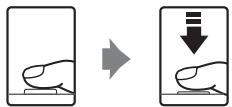
1 Press the shutter-release button halfway.
Camera automatically selects the focus area (one of nine) containing the subject closest to the camera. When the subject is in focus, the active focus area glows green.
text_image
Diagram showing a hand pressing down on a device, with an arrow indicating the process.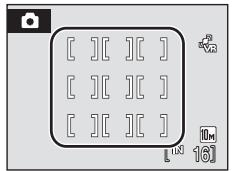
text_image
[ ][ ][ ][ ][ ][ ][ ][ ][ ][ ][ ][ ][ ][ ][ ][ ][ ][ ][ ][ ][ ][ ][ ][ ][ ][ ][ ][ ][ ][ ][ ][ ][ ][ ][ ][ ][ ][ ][ ][ ][ ][ ][ ][ ][ ][ ][ ][ ][ ][ ][ ][ ][ ][ ][ ][ ][ ][ ][ ][ ][ ][ ][ ][ ][ ][ ][ ][ ][ ][ ][ ][ ][ ][ ][ ][ ][ ][ ][ ][ ][ ][ ][ ][ ][ ][ ][ ][ ][ ][ ][ ][ ][ ][ ][ ][ ][ ][ ][ ][ ][ ]
text_image
1/250 R2.7 Shutter Speed ApertureWhen digital zoom is in effect, the focus area is not displayed. When the camera focuses on the subject in the center of the monitor, the focus indicator (6) will glow green.
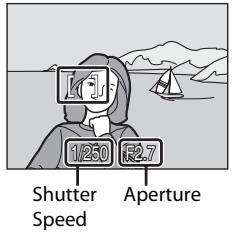
Press the shutter-release button halfway to display the shutter speed and aperture.
Focus and exposure remain locked while the shutter-release button is pressed halfway.
When the camera is unable to focus, while the shutter-release button is pressed halfway, the focus area or focus indicator blinks red. Change the composition and try again.
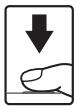
2 Press the shutter-release button the rest of the way down.
The shutter will be released, and the picture will be recorded to the memory card or internal memory.

During Recording
While pictures are being recorded, the number of exposures remaining display will blink. Do not open the battery-chamber/memory card slot cover while pictures are being recorded. Cutting power or removing the memory card in these circumstances could result in loss of data or in damage to the camera or card.

Autofocus
Autofocus may not perform as expected in the following situations. In some rare cases, the subject may not be in focus despite the fact that the active focus area, or focus indicator, glows green:
- Subject is very dark
- Objects of sharply differing brightness are included in the scene (e.g., the sun is behind the subject and is in deep shadow)
- No contrast between the subject and surroundings (e.g., when the subject is standing in front of a white wall, wearing a white shirt)
- Several objects are at different distances from the camera (e.g., the subject is inside a cage)
- Subject is moving rapidly
In the situations noted above, try pressing the shutter-release button halfway to refocus several times, or focus on another subject and use focus lock (8 91). When using focus lock, be sure that the distance between the camera and the subject with which focus was locked is the same as that for the actual subject.

Shutter-Release Button
The camera features a two-stage shutter-release button. To set focus and exposure, press the shutter-release button halfway, stopping when you feel resistance. Focus and exposure lock while the shutter-release button is held in this position. To release the shutter and take a picture, press the shutter-release button the rest of the way down.
Do not use force when pressing the shutter-release button, as this may result in camera shake and blurred pictures.
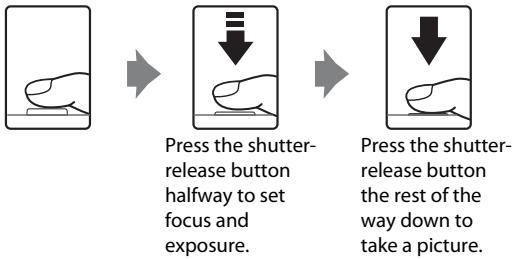
Press the shutter-release button halfway to set focus and exposure.
Press the shutter-release button the rest of the way down to take a picture.

AF-assist Illuminator and Flash
If the subject is poorly lit, the AF-assist illuminator (110) may light by pressing the shutter-release button halfway, or the flash (30) may fire by pressing the shutter-release button all the way down.
Step 4 Viewing and Deleting Pictures
Viewing Pictures (Playback Mode)
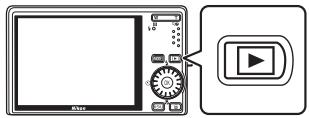
Press the ▶ button.
The last picture taken will be displayed in full-frame playback mode.
Rotate the rotary multi selector, or press ▲, ▼, ◀, or ▶, to view additional pictures (9).
text_image
Diagram showing a device with a screen, control knob, and playback button connected to a play buttonPictures may be displayed briefly at low resolution while being read from the memory card or internal memory.
Press the ▶ button to switch to shooting mode.
When IN is displayed, pictures stored in the internal memory will be displayed. When memory card is inserted, IN is not displayed and pictures stored on the memory card will be displayed.
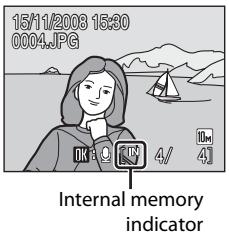
text_image
15/11/2009 15:30 0004.JPG Internal memory indicatorDeleting Pictures
1 Press the 📋 button to delete the picture currently displayed in the monitor.
text_image
Diagram showing a device with a 10° display and a trash bin icon, likely illustrating a waste sorting or sorting process.2 Use the rotary multi selector to select Yes and press the OK button.
To exit without deleting the picture, select No and press the OK button.
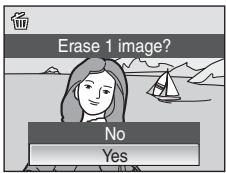
text_image
Erase 1 image? No Yes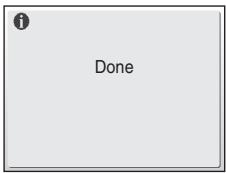
text_image
Done
Options Available in Playback Mode
The following options are available in full-frame playback mode.
| Option | Use | Description | |
| Playback zoom | T (Q) | Press the T (Q) button to enlarge view of picture currently displayed, up to about 10x. Press the OK button to return to full-frame playback mode. | 52 |
| View thumbnails | W (☐) | Press the W (☐) button to display 9, 16, or 25 picture thumbnails. | 51 |
| Record/play voice memo | Press the OK button to record or play back voice memos up to 20 seconds in length. | 57 | |
| Switch to shooting mode | Press the ▶ button to switch to the shooting mode selected in the shooting-mode selection menu. | 28 |

Pressing the ▶ Button to Turn On the Camera
- When the camera is off, holding down the ▶ button will turn the camera on in playback mode. The lens will not extend.
- If the camera is turned off in voice recording mode (64) or sound file playback mode (66), pressing the ▶ button will turn the camera on in sound file playback mode.

Viewing Pictures
- Pictures stored in the internal memory can only be viewed if no memory card is inserted.
- When pictures in which a face was detected during shooting (92) are displayed in full-frame playback, the pictures may be automatically rotated for playback display, depending upon the orientation of the detected face.
- When the monitor has turned off in standby mode to save power, press the power switch or the shutter-release button to reactivate it (112).

Deleting the Last Picture Taken
In shooting mode, press the ⏻ button to delete the last picture taken.
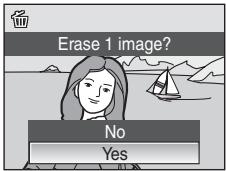
text_image
Erase 1 image? No Yes
Deleting Multiple Pictures
Multiple pictures can be deleted by selecting Delete (98) from the playback menu (95) or the list by mode menu (60).
Using the Flash
The flash has a range of about 0.5–8.0 m (1.6–26.2 ft.) when the camera is zoomed out all the way. With maximum optical zoom applied, the range is about 0.5–3.5 m (1.6–11.4 ft.) (when ISO sensitivity is set to Auto). The following flash modes are available.
\$AUTO
Auto
Flash fires automatically when lighting is poor.
50
Auto with red-eye reduction
Reduces "red-eye" in portraits (31).
③
Off
Flash will not fire even when lighting is poor.
↓
Fill flash
Flash fires when a picture is taken. Use to "fill-in" (illuminate) shadows and backlit subjects.
5
Slow sync
AUTO (auto) is combined with slow shutter speed.
Flash illuminates main subject; slow shutter speeds are used to capture background at night or under dim light.
Setting the Flash Mode
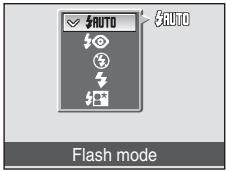
1 Press ↓ (flash mode).
The flash mode menu is displayed.
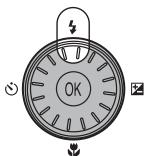
text_image
OK2 Use the rotary multi selector to choose the desired flash mode and press the Ⓞ button.
The icon for the selected flash mode is displayed at the top of the monitor.
AUTO will disappear after a few seconds, regardless of the Photo info option (💡 107).
If a setting is not applied by pressing the Ⓑ button within a few seconds, the selection will be cancelled.
text_image
AUTO AUTO Flash mode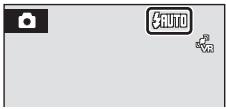
text_image
AUTO VR
Shooting When Lighting is Poor and the Flash is Disabled (⑤)
- Use of a tripod is recommended to stabilize the camera during shooting and avoid the effects of camera shake. Turn vibration reduction (109) off when using a tripod.
- The ISO indicator is displayed when the camera automatically increases sensitivity. Pictures taken when ISO is displayed may be slightly mottled.
- When ISO is displayed and higher sensitivity is applied, noise reduction may be automatically applied as pictures taken are recorded; results in increased recording times.

Note on Using the Flash
When using the flash, reflections from dust particles in the air may appear as bright spots in pictures. To reduce these reflections, set the flash mode to Ⓧ (Off).

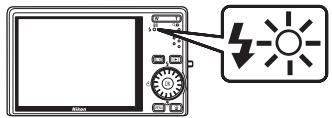
The Flash Lamp
The flash lamp indicates flash status when the shutter-release button is pressed halfway.
- On: Flash will fire when picture is taken.
- Blinks: Flash charging. Wait a few seconds and try again.
- Off: Flash will not fire when picture is taken.
text_image
Diagram showing a device labeled 'Miao' connected to a light bulb icon with lightning symbol, likely illustrating a weather or lighting system.If the battery is low, the monitor display will turn off, and remain off, until the flash is fully charged.

The Flash Mode Setting
The default flash mode setting varies with shooting mode.
• (auto) mode: AUTO Auto
• SCENE (scene): varies with the selected scene mode (36)
- scene (scene auto selector): AUTO Auto. The camera selects the flash mode depending upon the selected scene mode it has automatically selected (45).
• (active child): Off
• [smile]: AUTO Auto
The flash mode setting applied in (auto) mode is stored in the camera's memory even after the camera is turned off, and reapplied the next time (auto) mode is selected.

Red-Eye Reduction
This camera uses advanced red-eye reduction ("In-Camera Red-Eye Fix"). The flash fires repeatedly at low intensity before the main flash, reducing red-eye. The camera then analyzes the picture; if red-eye is detected, the affected area will be processed to further reduce red-eye before the picture is saved. Note that because there is a slight lag between the shutter-release button being pressed and the picture being shot, this mode is not recommended when a quick shutter response is required. The time before the next picture can be shot also increases slightly. Advanced red-eye reduction may not produce the desired results in all situations. In extremely rare instances, areas not subject to red-eye may be affected by advanced red-eye reduction processing; in these cases, choose another mode and try again.
Taking Pictures with the Self-Timer
The camera is equipped with a ten-second and two-second timer for self-portraits. When using the self-timer, use of a tripod is recommended. Turn vibration reduction (109) off when using a tripod.
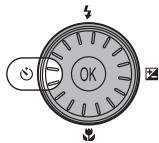
1 Press ⚙ (self-timer).
The self-timer menu is displayed.
text_image
OK2 Use the rotary multi selector to choose 10s or 2s and press the Ⓞ button.
10s (ten seconds): suited for important occasions (such as weddings)
2s (two seconds): suited for preventing camera shake
The mode selected for self-timer is displayed.
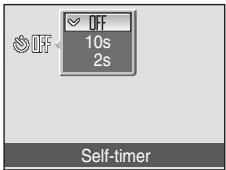
text_image
OFF 10s 2s Self-timerIf a setting is not applied by pressing the Ⓞ button within a few seconds, the selection will be cancelled.
3 Frame the picture and press the shutter-release button halfway.
Focus and exposure will be set.

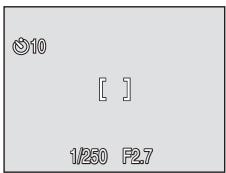
text_image
Ø10 [ ] 1/250 F2.74 Press the shutter-release button the rest of the way down.
The self-timer starts and the number of seconds remaining until the shutter is released is displayed in the monitor. The self-timer lamp will blink. The lamp stops blinking one second before the picture is taken and remains lit until the shutter is released.
When the shutter is released, the self-timer turns off.
To stop the timer before a picture is taken, press the shutter-release button again.

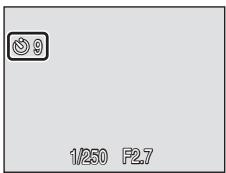
text_image
9 1/250 F2.7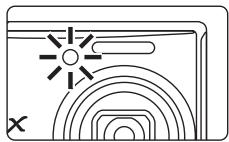
natural_image
Simple line drawing of a sun and concentric circles with a cross mark, no text or symbols presentMacro Mode
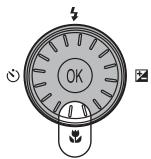
Macro mode is used for taking pictures of objects as close as 3 cm (1.2 in.). Note that the flash may be unable to light entire subject at distances of less than 50 cm (1 ft. 8 in.).
1 Press ⚪ (macro mode).
The macro mode menu is displayed.
text_image
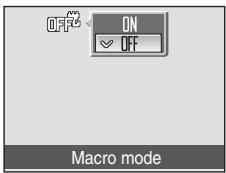
OK2 Use the rotary multi selector to choose ON and press the Ⓞ button.
The macro mode icon (💡) is displayed.
If a setting is not applied by pressing the ⓄK button within a few seconds, the selection will be cancelled.
text_image
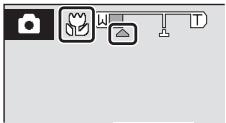
OFF ON OFF Macro mode3 Press the T (Q) button or the W (☐) button to frame the picture.
The camera can focus at a distance of 3 cm (1.2 in.) at the zoom position at which 🌐 and the zoom indicator glow green (the zoom indicator is before ⬆).
text_image
Camera menu interface with camera icon, flower icons, and control buttonsMacro Mode
- If macro mode is turned on in scene modes indicated below, Autofocus mode (93) will be automatically set to Full-time AF.
- Beach/snow
- Close-up (the macro mode setting is fixed at ON)
- Food (the macro mode setting is fixed at ON)
- Museum
- Copy
- Panorama assist
- In Full-time AF, the camera automatically focuses continuously until focus and exposure are locked by pressing the shutter-release button halfway.
The Macro Mode Setting
The macro mode setting applied in (auto) mode is stored in the camera's memory even after the camera is turned off, and reapplied the next time (auto) mode is selected.
Exposure Compensation
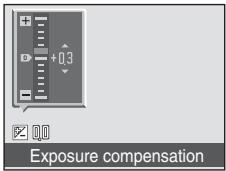
Exposure compensation is used to alter exposure from the value suggested by the camera to make pictures brighter or darker.
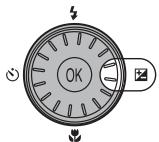
1 Press ☒ (exposure compensation).
The exposure compensation guide is displayed.
text_image
OK2 Use the rotary multi selector to adjust exposure and press the ⓄK button.
- When the subject is too dark: adjust the exposure compensation to “+” side.
- When the subject is too bright: adjust the exposure compensation to “−” side.
- Exposure compensation can be set to values between -2.0 and +2.0 EV.
- If a setting is not applied by pressing the OK button within a few seconds, the selection will be cancelled.
text_image
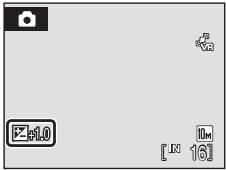
Exposure compensation3 The setting is applied.
The value is displayed with the ☑ icon in the monitor.
text_image
Z:1.0 [ N 16 ]Exposure Compensation Value
The exposure compensation value applied in (auto) mode is stored in the camera's memory even after the camera is turned off, and reapplied the next time (auto) mode is selected.
Using Exposure Compensation
The camera tends to lower exposure when the frame is dominated by brightly lit objects and to increase exposure when the frame is mostly dark. Positive compensation may therefore be required to capture the brilliancy of very bright objects that fill the frame (for example, sunlit expanses of water, sand, or snow) or when the background is much brighter than the main subject. Negative compensation may be called for when large areas of the frame contain very dark objects (for example, a swath of dark green leaves) or when the background is much darker than the main subject.
Shooting in Scene Mode
Camera settings are automatically optimized for the selected subject type. The following scene modes are available.
| Portrait | Party/indoor | Night landscape | Fireworks show |
| Landscape | Beach/snow | Close-up | Copy |
| Sports | Sunset | Food | Backlight |
| Night portrait | Dusk/dawn | Museum | Panorama assist |
Setting the Scene Mode
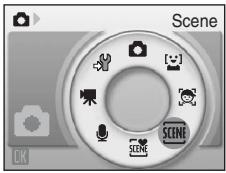
1 Enter scene mode by pressing the MODE button in shooting mode, selecting SCNE (use the rotary multi selector), and then pressing the OK button.
text_image
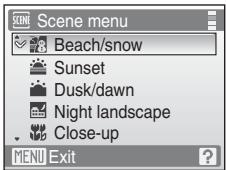
Scene OK2 Press the MENU button to display the scene menu screen, and choose the desired scene and press the Ⓞ button.
text_image
Scene menu Beach/snow Sunset Dusk/dawn Night landscape Close-up MENU Exit3 Frame the subject and take the picture.

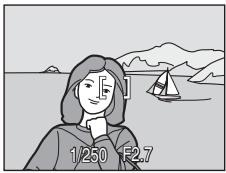
natural_image
Illustration of a person with short hair facing a lakeside with a sailboat and mountains in the background (no text or symbols)Image Mode
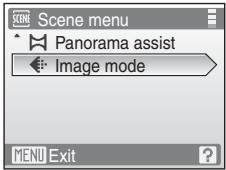
Image mode (83) can be set in the scene menu. Changes made to the image mode setting apply to all shooting modes (except those available from the movie menu).
text_image
Scene menu Panorama assist Image mode MENU ExitFeatures

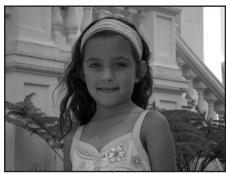
Portrait

Use this mode for portraits in which the main subject stands out clearly. Portrait subjects exhibit smooth, natural-looking skin tones.
- The camera detects and focuses on a face looking toward the camera (Shooting with Face Priority→ 92).
- If the camera detects multiple faces, the camera focuses on the face closest to the camera.
- If no face is recognized, the camera will focus on the subject in center of frame.
• Digital zoom is not available.
natural_image
Black-and-white photo of a young girl wearing a headband and floral dress, standing in front of a classical building (no visible text or symbols)| Off* | Off | 0.0* |
* Other settings can be selected.

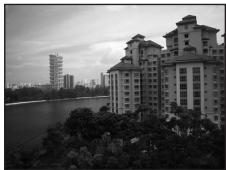
Landscape

Use this mode for vivid landscapes and cityscapes.
- Camera focuses at infinity. When the shutter-release button is pressed halfway, the focus area or focus indicator (6) always lights green; however, focus may not be set for near subjects, while the camera focuses at infinity.
- The AF-assist illuminator does not light, regardless of the AF assist setting (110).
natural_image
Black-and-white exterior view of a modern residential building complex beside a river, with distant high-rise buildings in the background (no visible text or signage)| Off* | Off | 0.0* |
* Other settings can be selected.

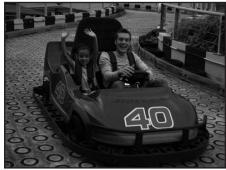
Sports
Use this mode for dynamic action shots that freeze the action in a single shot and record motion in a series of pictures.
- The camera focuses continuously until focus is locked by pressing the shutter-release button halfway.
- While the shutter-release button is held down, pictures are
natural_image
Two people driving a race car with number 40, surrounded by patterned flooring (no visible text or symbols)taken at rate of up to about 1.0 frames per second (fps) when image mode is set to Normal (3648). Shooting ends when the shutter-release button is released, or ten shots have been taken with the shutter-release button held down.
- The maximum frame rate with continuous shooting may vary depending upon the current image mode setting and the memory card used.
- The AF-assist illuminator does not light, regardless of the AF assist setting (110).
| Off | Off | 0.0* |
* Other settings can be selected.
NR: Pictures taken in scene modes utilizing NR may be processed to reduce noise and therefore take longer to record.

Icons Used for Descriptions
The following icons are used for descriptions in this section: ↓, flash mode (☐ 30); ⏻, self-timer
(32); ♦, macro mode (33); Ⓥ, exposure compensation (34).

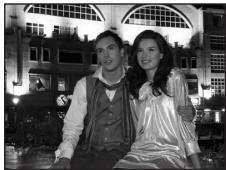
Night portrait


Use this mode to achieve a natural balance between the main subject and background lighting in portraits taken at night.
- The camera detects and focuses on a face looking toward the camera (Shooting with Face Priority→ 92).
- If the camera detects multiple faces, the camera focuses on the face closest to the camera.
• Digital zoom is not available.
- If no face is recognized, the camera will focus on the subject in center of frame.
natural_image
Black-and-white photo of two people posing together in front of an arched building (no visible text or symbols)| Off2 | Off | 0.02 |
^1 Fill flash with slow sync and red-eye reduction.
^2 Other settings can be selected.

Party/indoor

Captures the effects of candlelight and other indoor background lighting.
- Camera focuses on subject in center of frame.
- Hold the camera steadily as pictures are easily affected by camera shake. When shooting under low lighting, use of a tripod is recommended. Set Vibration reduction (109) to Off when using a tripod.
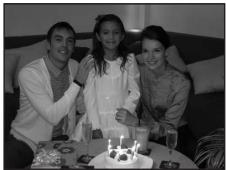
natural_image
Three people gathered around a birthday cake, smiling at the camera (no visible text or symbols)| Off2 | Off | 0.02 |
^1 Fill flash with slow sync and red-eye reduction. Other settings can be selected.
^2 Other settings can be selected.

Beach/snow

Captures the brightness of such subjects as snowfields, beaches, or sunlit expanses of water.
- Camera focuses on subject in center of frame.
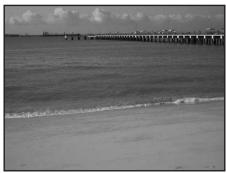
natural_image
Black-and-white beach scene with a long pier extending into the distance and waves on the shore (no visible text or symbols)| AUTO* | Off* | Off* | 0.0* |
* Other settings can be selected.
☐: For those scene modes with ☐, use of a tripod is recommended. Set Vibration reduction (☒ 109) to Off when using a tripod.
NR: Pictures taken in scene modes utilizing NR may be processed to reduce noise and therefore take longer to record.

Sunset

Preserves the deep hues seen in sunsets and sunrises.
- Camera focuses at infinity. When the shutter-release button is pressed halfway, the focus area or focus indicator (6) always lights green; however, focus may not be set for near subjects, while the camera focuses at infinity.
- The AF-assist illuminator does not light, regardless of the AF assist setting (110).
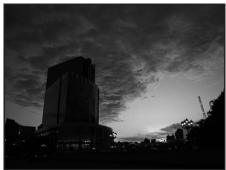
natural_image
Silhouette of a modern high-rise building at dusk with cloudy sky (no visible text or signage)| Off* | Off | 0.0* |
* Other settings can be selected.

Dusk/dawn

Preserves the colors seen in the weak natural light before sunrise or after sunset.
- Camera focuses at infinity. When the shutter-release button is pressed halfway, the focus area or focus indicator (6) always lights green; however, focus may not be set for near subjects, while the camera focuses at infinity.
- The AF-assist illuminator does not light, regardless of the AF assist setting (110).
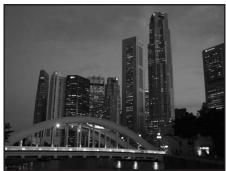
natural_image
Nighttime cityscape featuring a modern arched bridge and high-rise buildings (no visible text or signage)| Off* | Off | 0.0* |
* Other settings can be selected.

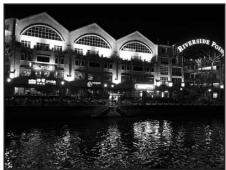
Night landscape

Slow shutter speeds are used to produce stunning night landscapes.
- Camera focuses at infinity. When the shutter-release button is pressed halfway, the focus area or focus indicator (6) always lights green; however, focus may not be set for near subjects, while the camera focuses at infinity.
natural_image
Nighttime exterior view of a modern building with arched windows and illuminated signage, reflected in water (no readable text or symbols)- The AF-assist illuminator does not light, regardless of the AF assist setting (110).
| Off* | Off | 0.0* |
* Other settings can be selected.
☐: For those scene modes with ☐, use of a tripod is recommended. Set Vibration reduction (☒ 109) to Off when using a tripod.
NR: Pictures taken in scene modes utilizing NR may be processed to reduce noise and therefore take longer to record.

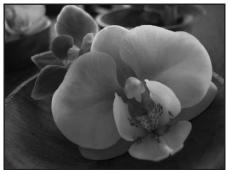
Close-up

Photograph flowers, insects, and other small objects at close range.
- Macro mode (33) will be turned on and the camera automatically zooms to the position at the closest distance at which the camera can focus.
- The camera can focus at distances as close as 3 cm (1.2 in.) at the wide-angle zoom position at which glows green (the zoom indicator is before ▲). The closest distance at which the camera can focus varies depending upon zoom position.
- AF area mode is set to Manual (90). Press the OK button to choose the focus area in which focus is acquired.
- The camera focuses continuously until focus is locked by pressing the shutter-release button halfway.
- As pictures are easily affected by camera shake, check the Vibration reduction (109) and Motion detection (110) settings and hold the camera steadily.
natural_image
Close-up black-and-white photo of a blooming flower with visible petals and stamens (no text or symbols)| Off* | On | 0.0* |
* Other settings can be selected. Note that when shooting with the flash, the flash may be unable to light entire subject at distances of less than 50 cm (1 ft. 8 in.)
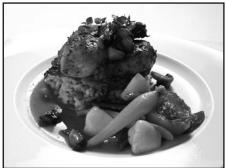
Food

Use when taking pictures of food. See "Taking Pictures in Food Mode" (41) for details.
- AF area mode is set to Manual (8 90). Press the OK button to choose the focus area in which focus is acquired.
natural_image
Black-and-white photo of a plated dish featuring meat, vegetables, and sauce (no visible text or symbols)| Off* | On | 0.0* |
* Other settings can be selected.
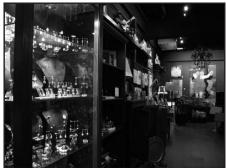
Museum
Use indoors where flash photography is prohibited (for example, in museums and art galleries) or in other settings in which you do not want to use the flash.
- Camera focuses on subject in center of frame.
- BSS (Best Shot Selector) (88) is used when shooting.
- As pictures are easily affected by camera shake, check the Vibration reduction (109) and Motion detection (110) settings and hold the camera steadily.
- The AF-assist illuminator does not light, regardless of the AF assist setting (110).
natural_image
Interior of a dimly lit bar with shelves, bottles, and a counter (no visible text or signage)| Off* | Off* | 0.0* |
* Other settings can be selected.
NR: Pictures taken in scene modes utilizing NR may be processed to reduce noise and therefore take longer to record.

Fireworks show

Slow shutter speeds are used to capture the expanding burst of light from a firework.
- Camera focuses at infinity. When the shutter-release button is pressed halfway, the focus indicator (26) glows green; however, focus may not be set for near subjects, while the camera focuses at infinity.
- Motion detection (110) is set to Off.
- The AF-assist illuminator does not light, regardless of the AF assist setting (110).
natural_image
Black and white photo of a cluster of spiky, pointed structures against a dark background (no text or symbols)| Off | Off | 0.0 |

Copy

Provides clear pictures of text or drawings on a white board or in print.
- Camera focuses on subject in center of frame.
- Use macro mode (33) to focus at short ranges.
- Colored text and drawings may not show up well.
text_image
Sheet music with multiple staves and piano keyboard shortcuts, showing musical notation and dynamics| Off* | Off* | 0.0* |
* Other settings can be selected.

Backlight
Use when light is coming from behind your subject, throwing features or details in shadow. The flash fires automatically to "fill in" (illuminate) shadows.
- Camera focuses on subject in center of frame.
natural_image
Black-and-white portrait of a smiling woman with shoulder-length hair, wearing a ruffled top, indoors near curtains (no text or symbols visible)| Off* | Off | 0.0* |
* Other settings can be selected.
For those scene modes with 📁, use of a tripod is recommended. Set Vibration reduction (109) to Off when using a tripod.
NR: Pictures taken in scene modes utilizing NR may be processed to reduce noise and therefore take longer to record.
Panorama assist


natural_image
Black-and-white panoramic view of a coastal city skyline with high-rise buildings and waterfront cranes under cloudy skies (no visible text or signage)Use when taking a series of pictures that will later be joined to form a single panorama using the supplied Panorama Maker software. See "Taking Pictures for a Panorama" (43) for details.
| Off* | Off* | 0.0* |
* Other settings can be selected.
Taking Pictures in Food Mode
Use this mode to take pictures of food.
1 Use the rotary multi selector to choose 🎨 Food in the scene menu and press the Ⓞ button (💡 35).
Macro mode (33) will be turned on and the camera automatically zooms to the position at the closest distance at which the camera can focus.
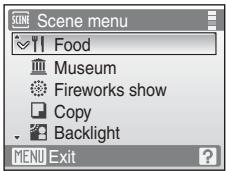
text_image
Scene menu Food Museum Fireworks show Copy Backlight MENU Exit2 Press the rotary multi selector ▲ or ▼ to choose white balance.
- Press ▲ to increase the amount of red, or ▼ to increase the amount of blue.
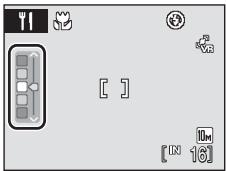
text_image
[ ] [ IN 16 ]3 Frame the picture.
- The camera can focus at distances as close as 3 cm (1.2 in.) at the wide-angle zoom position at which 🌐 and the zoom indicator glow green (the zoom indicator is before △). The closest distance at which the camera can focus varies depending upon zoom position.
- As pictures are easily affected by camera shake, check the Vibration reduction (109) setting and hold the camera steadily.
- AF area mode is set to Manual (90). Press the OK button to move the focus area. Press the rotary multi selector ▲, ▼, ◀, or ▶ to select a focus area and press the OK button again to activate the selected focus area.
- Self-timer (32) and exposure compensation (34) settings can be adjusted while the focus area is locked.
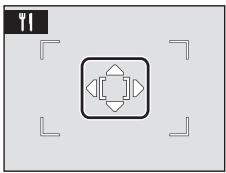
natural_image
Pure diagram of a symmetrical geometric shape with four arrows, no text or symbols present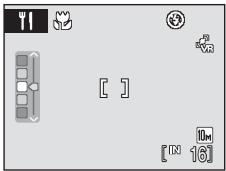
text_image
Game interface screenshot showing menu bar, icons, and status bar with numeric values4 Press the shutter-release button to take the picture.
- Focus is locked when the shutter-release button is pressed halfway, and a picture is taken when the shutter-release button is pressed the rest of the way down.
- When the camera is unable to focus, the focus area blinks red. Change the composition and press the shutter-release button halfway again.
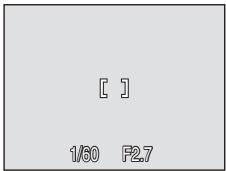
text_image
[ ] 1/60 F2.7Notes on Food Mode
Flash mode is disabled. Macro mode setting (33) is fixed at ON.
White Balance Setting in Food Mode
- Increasing the amount of red or blue will decrease illumination effects.
- Changing white balance in food mode will not affect white balance in the shooting menu (85).
- The white balance setting applied in food mode is stored in the camera's memory even after the camera is turned off, and reapplied the next time food mode is selected.
Taking Pictures for a Panorama
The camera focuses on the subject in the center of frame. Use a tripod for best results. Set Vibration reduction (109) to Off when using a tripod to stabilize the camera during shooting.
1 Use the rotary multi selector to choose 🖱 Panorama assist in the scene menu and press the Ⓞ button (35).
- The (D) icon is displayed to show the direction in which pictures will be joined.
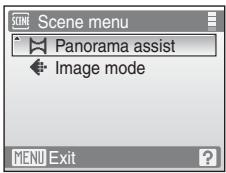
text_image
Scene menu Panorama assist Image mode MENU Exit2 Use the rotary multi selector to choose the direction and press the Ⓞ button.
- Select how pictures will be joined together in the completed panorama; right (▶), left (◀), up (△) or down (▽). - The yellow panorama direction icon (▶▶) will move to the direction pressed and press the Ⓧ button to choose the direction. A white panorama direction icon chosen direction.
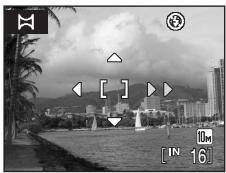
natural_image
Black-and-white coastal cityscape with palm trees, water, and buildings under cloudy sky (no visible text or symbols)- Apply flash mode (30), self-timer (32), macro mode (33) and exposure compensation (34) settings with this step, if necessary. - Press the OK button to reselect the direction.
3 Shoot the first picture.
- The picture taken will be displayed in 1/3 of the monitor.
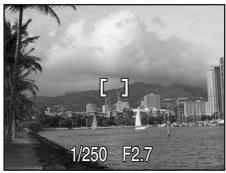
natural_image
Black-and-white beach scene with palm trees, waterfalls, and distant hills under cloudy sky (no text or symbols)4 Shoot the second picture.
- Compose the next picture so that it overlaps the first picture.
- Repeat until you have taken the necessary number of pictures to complete the scene.
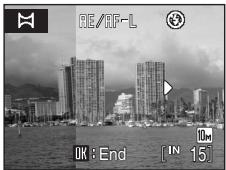
text_image
RE/RF-L OK : End [ IN 15 ]5 Press the Ⓞ button when shooting is completed.
The camera returns to step 2.
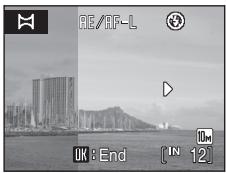
text_image
RE/AF-L OK: End [IN 12]Panorama Assist
Flash mode, self-timer, macro mode and exposure compensation settings cannot be adjusted after the first picture is taken. Pictures cannot be deleted, nor can zoom or image mode setting (83) be adjusted until the series is finalized.
The panorama series is terminated if the camera enters standby mode with the auto off function (112) during shooting. Setting the time allowed to elapse before the auto off function is enabled to a longer setting is recommended.
The AE/AF-L Indicator
RE/RF-L is displayed to indicate that white balance, exposure, and focus have been locked at the values set with the first shot. All pictures taken in a panorama series have the same focus, exposure, and white-balance settings.
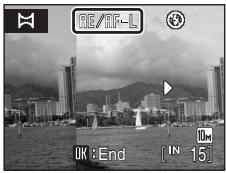
text_image
GE/AF-L OK : End [ IN 10m 15 ]Image File Names and Folder Names
Files are stored in folders named with a folder number followed by "P_" plus a three-digit sequence number for pictures taken using panorama assist (e.g., "101P_001"). File numbers will be assigned automatically starting with "0001".
Panorama Maker
Install Panorama Maker from the supplied Software Suite CD-ROM. Transfer pictures to a computer (70) and use Panorama Maker (73) to join them in a single panorama.
Shooting in the Scene Mode Selected by the Camera (Scene Auto Selector)
By simply framing a picture, the camera automatically selects the optimum scene mode for simpler shooting.
When the camera is aimed at a subject in scene auto selector mode, the camera automatically selects one of the following scene modes:
- Auto (22)
- Portrait (36)
- Landscape (36)
• Night portrait (37)
• Night landscape (38)
- Close-up (39)
- Backlight (40)
For more information regarding details of these scene modes, see the reference pages indicated above.
Taking Pictures in Scene Auto Selector Mode
1 Enter scene auto selector mode by pressing the MODE button in shooting mode, selecting 📊 (use the rotary multi selector), and then pressing the Ⓞ button.
The camera enters scene auto selector mode.
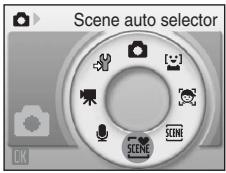
text_image
Scene auto selector OK2 Frame the subject and take the picture.
When the camera automatically selects a scene mode, the shooting mode icon changes to that for the scene mode currently enabled.
SCINE: Auto
Night landscape
: Portrait
: Close-up
: Landscape
Backlight
Night portrait
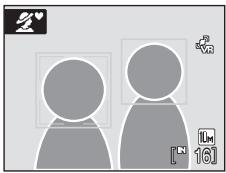
natural_image
Two stylized human figures with camera frames and a small icon, no text or symbols presentPress the shutter-release button halfway to set focus and exposure.
Press the shutter-release button the rest of the way down to take the picture.

Notes on Scene Auto Selector Mode
Depending upon shooting conditions, the camera may not select the desired scene mode. Should this occur, switch to 📄 (auto) mode (22) or select the desired scene mode manually (35).

Flash Mode in Scene Auto Selector Mode
AUTO (Auto) (default setting) and ⚙ (Off) flash mode settings can be applied (30).
- When AUTO (Auto) is applied, the camera automatically selects the optimum flash mode setting for the scene mode it has selected.
- When ⚙ (Off) is applied, the flash does not fire, regardless of shooting conditions.

Functions Restricted in Scene Auto Selector Mode
- When the MENU button is pressed in scene auto selector mode, only the Image mode menu is displayed. Changes made to the image mode setting in this mode apply to all shooting modes (except those available from the movie menu).
• Digital zoom is not available. - The macro mode button on the rotary multi selector (💡 9, 33) is disabled.
- The AF area mode setting (90) is set to Auto in (Close-up) mode.
Active Child Mode
Use this mode to shoot moving subjects. Once the subject has been selected, the focus area will automatically follow the subject.
1 Enter active child mode by pressing the MODE button in shooting mode, selecting 🎨 (use the rotary multi selector), and then pressing the OK button.
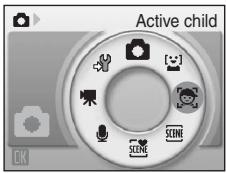
text_image
Active child OK- A white border is displayed in the center of the monitor.
- Flash mode (30) is set to (Off) (the setting can be changed).
2 Select a subject.
- Frame the subject in the center of the border and press the Ⓞ button.
- The subject is selected and will be framed by a yellow double border. - When the camera is unable to focus on the subject, the single border will glow red. Change the composition and try again.
- Once the selected subject is not visible on the monitor, the double border will disappear and the selection will be cancelled. Select the subject again.
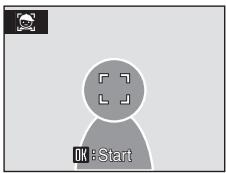
text_image
OK : Start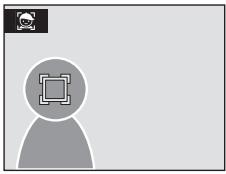
natural_image
Simple gray icon of a person with a camera frame symbol, no text or labels present3 Press the shutter-release button halfway.
- The camera focuses on the focus area framed by the double border. The double border will glow green and focus will be locked.
- When the camera is unable to focus, the double border will blink. Press the shutter-release button halfway again and focus.
- If the shutter-release button is pressed halfway while the double border is not displayed, the camera focuses on the subject at the center of the frame.
4 Press the shutter-release button the rest of the way down.
- The picture will be recorded to the memory card or internal memory.
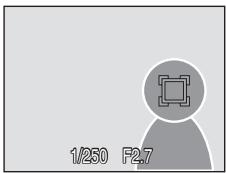
text_image
1/250 F2.7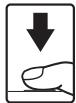

Active Child Mode
- Do not adjust flash mode and exposure compensation settings after selecting the subject. If any setting is adjusted after selection of the subject, the selection of the subject will be cancelled.
Deleting pictures, adjusting zoom or image mode settings Ⓤ 83) will also cancel the selection of the subject. - In some situations, such as when the subject is moving rapidly, the camera may be unable to track the selected subject.
- In some rare cases shooting subjects with which autofocus may not perform as expected (27), the subject may not be in focus despite the fact that the double border glows green. Should this occur, switch to (auto) mode and set AF area mode to Manual or Center, refocus on another subject positioned at the same distance from the camera as the actual portrait subject, and use focus lock (91).

Functions Available in Active Child Mode
• Digital zoom is not available.
- Flash mode (30) and exposure compensation (34) settings can be adjusted.
- When the MENU button is pressed in active child mode, only the Image mode menu (83) is displayed. Changes made to the image mode setting in this mode apply to all shooting modes (except those available from the movie menu).
Shooting in Smile Mode
The camera detects a smiling face to shoot the face automatically.
1 Enter smile mode by pressing the MODE button in shooting mode, selecting [+] (use the rotary multi selector), and then pressing the OK button.

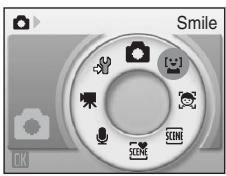
text_image
Smile OK2 Frame a picture.
- Point the camera at the subject.
- When the camera detects a face looking toward the camera, the focus area containing the face will be displayed with a yellow double border. The camera focuses on the face framed by the double border. The double border will glow green and focus will be locked.
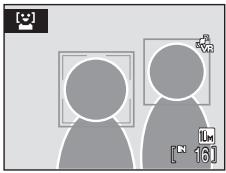
natural_image
Two stylized human figures facing each other with a camera icon, no text or symbols present- When the camera detects more than one face, the closest face is framed by a double border and the others by single borders. Up to three faces can be detected.
3 The shutter is automatically released.
- If the camera detects that the face framed by the double border is smiling, the shutter is automatically released.
- When the shutter is released, automatic shooting, with which the camera detects a smiling face and releases the shutter automatically, will be performed repeatedly.
- When the camera detects a face, the self-timer lamp (4) blinks. Immediately after the shutter is released with detection of a smiling face, the self-timer lamp flickers.
4 Exit smile mode by pressing the MODE button.
- Switch to another shooting mode.
- The camera will stop shooting if the internal memory or memory card becomes full.
Smile Mode
The auto off function (112) will be activated and the camera will turn off if no operations are performed in any of the following situations in smile mode.
- The camera is unable to detect one or more faces.
- The camera has detected one or more faces, but is unable to detect a smiling face.

Face Priority and Smiling Face Detection Features
When the camera is pointed at a face looking toward the camera in smile mode, the face is automatically recognized and the smiling face of the recognized one is detected.
- In some shooting conditions, Face priority will not take effect and smiling face cannot be detected.
- See "Shooting with Face Priority" (92) for more information about Face Priority.

Operation of the Shutter-Release Button
Press the shutter-release button to take pictures.
- When a face is detected, the focus is locked to the detected face.
- If no face is detected, the camera focuses on the subject in center of frame.

Functions Available in Smile Mode
- Flash mode (30) and exposure compensation (34) settings can be adjusted.
• Digital zoom is not available. - When the MENU button is pressed in smile mode, only the Image mode menu (83) is displayed. Changes made to the image mode setting in this mode apply to all shooting modes (except those available from the movie menu).

More Information
For more information about shooting subjects with which autofocus may not perform as expected, see "Autofocus" (27).
Viewing Multiple Pictures: Thumbnail Playback
Press the W (☐) button in full-frame playback mode (☐ 28) to display pictures in "contact sheets" of thumbnail images.
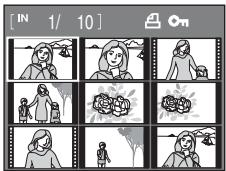
text_image
[IN 1/10]The following operations can be performed while thumbnails are displayed.
| To | Use | Description | |
| Choose pictures |  | Rotate the rotary multi selector, or press ◀, ▶, ▲, or ▼, to choose pictures. | 9 |
| Increase number of picture thumbnails displayed |  | Press the W (☐) button to increase number of picture thumbnails displayed: 9 → 16 → 25 | - |
| Decrease number of picture thumbnails displayed |  | Press the T (R) button to decrease number of picture thumbnails displayed: 25 → 16 → 9 | |
| Return to full-frame playback | Press the OK button. | 28 | |
| Switch to shooting mode | Press the ▶ button to return to the last shooting mode selected. | 28 |

Thumbnail Playback Mode Display
When print set (80) and protected pictures (98) are selected in thumbnail playback mode, the icon shown at right is displayed with them. Movies are displayed as film frames in all thumbnail playback modes.
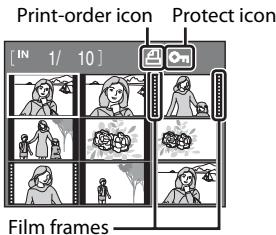
text_image
Print-order icon Protect icon [ IN 1/ 10 ] Film framesTaking a Closer Look: Playback Zoom
Pressing the T (Q) button during full-frame playback mode (28) zooms the current picture, with the center of the picture displayed in the monitor.
The guide at lower right shows which portion of the picture is enlarged.
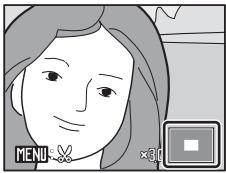
natural_image
Illustration of a person's face with short hair and neutral expression, no text or symbols presentThe following operations can be performed while pictures are zoomed in.
| To | Use | Description | |
| Zoom in | T (Q) | Zoom increases each time the T (Q) button is pressed, to a maximum of 10x. | - |
| Zoom out | W (☒) | Zoom decreases each time the W (☒) button is pressed. When the magnification ratio reaches 1x, the display returns to full-frame playback mode. | - |
| Move the display area |  | Press the rotary multi selector ▲, ▼, ◀, or ► to move the display area to other areas of the picture. | 9 |
| Return to full-frame playback | OK | Press the OK button. | 28 |
| Crop picture | MENU | Press the MENU button to crop current picture to contain only the portion visible in the monitor. | 55 |
| Switch to shooting mode | ▶ | Press the ► button to return to the last shooting mode selected. | 28 |
Pictures Taken Using the Face-Priority Function
When zooming in ( playback zoom) on a picture taken using the face-priority function, the picture will be enlarged with the face detected with shooting at the center of the monitor.
- If more than one face was detected, the picture will be enlarged with the face on which focus was acquired at the center of the monitor. Press the
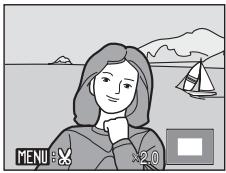
natural_image
Illustration of a woman with a thought bubble, standing by a lakeside with a sailboat and mountains in the background (no text or symbols)rotary multi selector ▲, ▼, ◀, or ▶ to display other faces that were detected.
- When the T(Q) or W(☐) button is pressed to adjust the zoom ratio, the center of the picture (normal playback zoom display), rather than the face, is displayed at the center of the monitor.
Editing Pictures
Use this camera to edit pictures in-camera and store them as separate files (117).
| Editing function | Description |
| D-Lighting (54) | Create a copy of the current picture with enhanced brightness and contrast, brightening dark portions of the picture. |
| Crop (55) | Enlarge the image or refine the composition and create a copy containing only the portion visible in the monitor. |
| Small picture (56) | Create a small copy of pictures suitable for use on web pages or as e-mail attachments. |

Picture Editing
- Pictures taken at an image mode setting of 16:9 (3584) or 16:9 (1920) (83) cannot be edited.
- This camera's editing functions cannot be used for pictures taken with another make or model of camera.
- If a copy created using this camera is viewed on another make or model of camera, the picture may not be displayed or may not be transferred to a computer.
- Editing functions are not available when there is not enough free space in the internal memory or on the memory card.

Restrictions on Picture Editing
(√: available, –: not available)
| 2nd editing | |||
| 1st editing | D-Lighting | Crop | Small picture |
| D-Lighting | - | √ | √ |
| Crop | - | - | - |
| Small picture | - | - | - |
- Pictures cannot be edited twice with the same editing function.
- The D-Lighting should be done first while the restricted use of combination exists.

Original Pictures and Edited Copies
- Copies created with editing functions are not deleted if the original pictures are deleted. The original pictures are not deleted if copies created with editing functions are deleted.
- Edited copies are stored with the same recording date and time as the original.
- Edited copies are not marked for printing (80) or protecting (98) as the original.
Enhancing Brightness and Contrast: D-Lighting
D-Lighting can be used to create copies with enhanced brightness and contrast, brightening dark portions of a picture. Enhanced copies are stored as separate files.
1 Select the desired picture from full-frame (28) or thumbnail (51) playback mode and press the MENU button.
The playback menu will be shown.
text_image
MENU 面2 Use the rotary multi selector to choose D-Lighting and press the Ⓞ button.
The original version will be shown on the left and the edited version will be shown on the right.
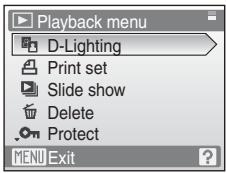
text_image
Playback menu D-Lighting Print set Slide show Delete Protect MENU Exit3 Choose OK and press the Ⓞ button.
A new copy with enhanced brightness and contrast is created.
To cancel D-Lighting, choose Cancel and press the Ⓞ button.
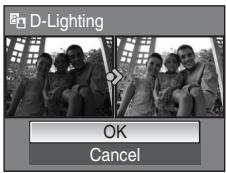
text_image
D-Lighting OK CancelD-Lighting copies can be recognized by the 📁 icon displayed during playback.
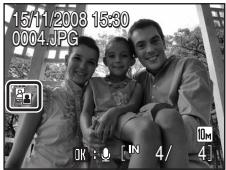
text_image
15/11/2008 15:30 0004.JPG OK : IN 4/4
More Information
See "Image/Sound File and Folder Names" (117) for more information.
Creating a Cropped Copy: Crop
Create a copy containing only the portion visible in the monitor when MENU: V is displayed with playback zoom (52) enabled. Cropped copies are stored as separate files.
1 Press the T(Q) button in full-frame playback mode to zoom in on the image.
To crop a picture displayed in "tall" (portrait) orientation, zoom in on the picture until the black bars displayed on the both sides of the monitor disappear. The cropped picture will be displayed in landscape orientation.
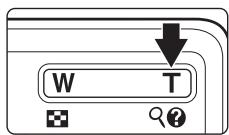
text_image
W T ?To crop the picture in its current "tall" (portrait) orientation, first, use the Rotate image option (99) to rotate the picture so that it is displayed in landscape orientation. Next, enlarge the picture for cropping, crop the picture, and then rotate the cropped picture back to "tall" (portrait) orientation.
2 Refine copy composition.
Press the zoom buttons, the T (Q) or W (☑) button, to adjust the zoom ratio.
Press the rotary multi selector ▲, ▼, ◀, or ▶ to scroll the picture until only the portion you want to copy is visible in the monitor.
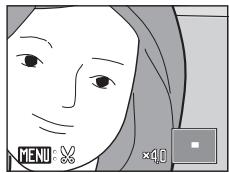
natural_image
Illustration of a person's face with visible eyes and hair, no text or symbols present3 Press the MENU button.
text_image
MENU 面4 Use the rotary multi selector to choose Yes and press the Ⓞ button.
A new picture, containing only the portion visible in the monitor, is created.
To cancel creating a cropped copy, choose No and press the OK button.
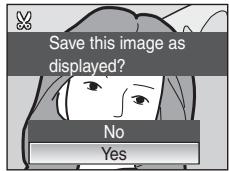
text_image
Save this image as displayed? No YesImage Size
As the area to be saved is reduced, the image size (pixels) of the cropped copy is also reduced. When the size of the cropped copy is 320 × 240 or 160 × 120 , the small picture icon ☐ or ☐ is displayed on the left of the screen in full-frame playback mode.
More Information
See "Image/Sound File and Folder Names" (117) for more information.
Resizing Pictures: Small Picture
Create a small copy of the current picture. Small copies are stored as JPEG files with a compression ratio of 1:16. The following sizes are available.
| Option | Description |
| 640×480 | Suited to television playback. |
| 320×240 | Suited to display on web pages. |
| 160×120 | Suitable for e-mail attachments. |
1 Select the desired picture from full-frame (28) or thumbnail (51) playback mode and press the MENU button.
The playback menu is displayed.
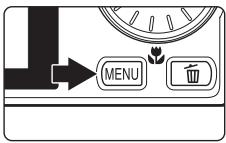
text_image
MENU 面2 Use the rotary multi selector to choose Small pic. and press the Ⓞ button.
To cancel creating a small copy and return to shooting mode, press the MENU button.
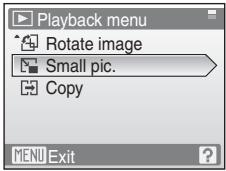
text_image
Playback menu Rotate image Small pic. Copy MENU Exit3 Choose the desired copy size and press the Ⓞ button.
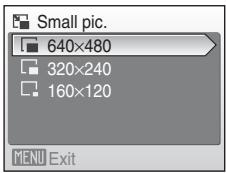
text_image
Small pic. 640×480 320×240 160×120 MENU Exit4 Choose Yes and press the Ⓞ button.
A new, smaller copy is created.
To cancel creating a small copy, choose No and press the OK button.
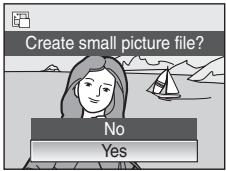
text_image
Create small picture file? No YesMore Information
Voice Memos: Recording and Playback
Use the camera's built-in microphone to record voice memos for pictures marked with OK in full-frame playback mode (28).

text_image
15/11/2003 15:30 0004.JPGRecording Voice Memos
A voice memo, up to 20 seconds in length, will be recorded while the OK button is hold down.
- Do not touch the built-in microphone during recording.
- During recording, REC and [N] blink in the monitor display.

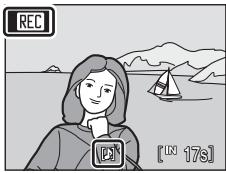
natural_image
Illustration of a woman with a sailboat on the water, no text or symbols presentPlaying Voice Memos
Press the OK button while a picture with a voice memo attached is displayed in full-frame playback mode to play voice memo. Playback ends when the voice memo ends or the OK button is pressed again.
- Pictures with voice memos can be recognized by the OK : [icon.
- Use the zoom buttons, the T or W button, to adjust playback volume.
Deleting Voice Memos
Select a picture with a voice memo attached and press the 📄 button. Use the rotary multi selector to choose [▶] and press the ⏻ button. Only the voice memo will be deleted.
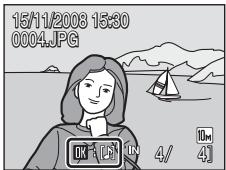
text_image
15/11/2008 15:30 0004.JPG
Voice Memos
- When a picture with a voice memo attached is deleted, both the picture and its voice memo are deleted.
- If a voice memo already exists for the current picture, a new voice memo cannot be recorded. To modify the existing voice memo, delete only the existing voice memo and then record a new voice memo.
- This camera cannot be used to attach voice memos to pictures taken with another make or model of camera.
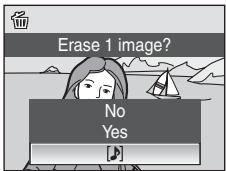
text_image
Erase 1 image? No Yes
More Information
See "Image/Sound File and Folder Names" (117) for more information.
Viewing Pictures by Date
In list by date mode, pictures taken on a specified date can be displayed. In full-frame playback mode, just as with playback mode, picture display can be enlarged, pictures can be edited, voice memos can be recorded or played back, and movies can be played back. When the MENU button is pressed, the list by date menu is displayed, and all pictures taken on a specified date can be selected for deletion, printing, and protection.
Selecting a Date in List by Date Mode
1 Enter list by date mode by pressing the MODE button in playback mode, selecting minute (use the rotary multi selector), and then pressing the OK button.
Dates for which pictures exist will be listed.
COOLPIX S610
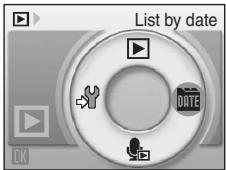
text_image
List by date OKCOOLPIX S610c
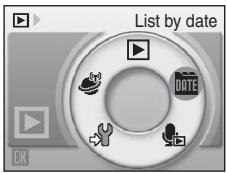
text_image
List by date OK2 Choose the desired date and press the Ⓞ button.
Camera lists up to 29 dates. If pictures exist for more than 29 dates, all pictures recorded earlier than most recent 29 dates will be listed together as Others.
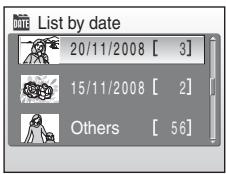
text_image
List by date 20/11/2008 [ 3] 15/11/2008 [ 2] Others [ 56 ]The first picture for that date will be displayed full-frame playback mode.
Press the W button in full-frame playback mode to return to the date list.
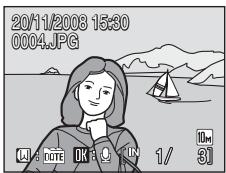
text_image
20/11/2008 15:30 0004.JPGUsing List by Date Mode
The following operations are possible from the date selection screen.
| To | Use | Description | |
| Select date |  | Rotate the rotary multi selector, or press ▲ or ▼, to select a date. | 9 |
| Switch to full-frame playback | Press the OK button to display the first picture taken on the selected date. Press the W button in full-frame playback to return to the date selection screen. | 29 | |
| Delete picture | Press the 📋 button after selecting a date, and a confirmation dialog will be displayed. Choose Yes and press the OK button to delete all pictures taken on the selected date. | 28 | |
| View list by date menu | Press the MENU button to display the list by date menu. | 60 | |
| View playback mode menu | Press the MODE button to display the playback-mode selection menu. | 8 | |
| Switch to shooting mode | Press the ▶ button to return to the last shooting mode selected. | 28 |
ate Mode
List by Date Menus
Press the MENU button in list by date mode to display the following menus for only the pictures taken on the specified date.
| D-Lighting* | 54 |
| Print set | 80 |
| Slide show | 97 |
| Delete | 98 |
| Protect | 98 |
| Rotate image* | 99 |
| Small picture* | 56 |
* During full-frame playback mode only
When the MENU button is pressed in the date selection screen (58), options can be applied to all pictures taken on the same date, or all pictures taken on the same date can be deleted. To apply options to individual pictures, or to select individual pictures for deletion, display a picture full-frame and press the MENU button.

Print Set
When print marking already exists for pictures taken on dates other than that specified, a confirmation dialog Save print marking for other dates? will be displayed. Select Yes to add the new print marking to the existing marking. Select No to remove the existing print marking and leave only the new marking.
Recording Movies
To shoot movies with sound recorded via the built-in microphone, select shooting mode and follow the steps below.
1 Enter movie mode by pressing the MODE button in shooting mode, selecting ⚫ (use the rotary multi selector), and then pressing the Ⓞ button.
Exposure count display shows maximum total length of movie that can be recorded.
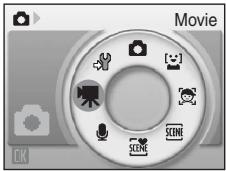
text_image
Movie OK2 Press the shutter-release button all the way down to start recording.
The camera focuses on the subject in center of frame.
A progress bar at the bottom of the monitor shows the amount of recording time remaining.

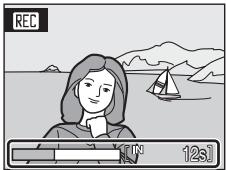
text_image
REC 12sTo end recording, press the shutter-release button all the way down a second time.
Recording stops automatically when the internal memory or memory card becomes full, recording time reaches 30 minutes, or movie file size reaches 2 GB.
V Shooting Movies
- Flash mode (30), self-timer (32), and exposure compensation (34) cannot be applied or changed. Macro mode (33) is available.
- Macro mode setting cannot be applied or changed while movies are being recorded. Apply or change setting as necessary before movie recording begins.
- Optical zoom cannot be adjusted once movie recording begins. Digital zoom cannot be applied before movie recording begins. However, digital zoom (up to 2×) can be applied while movies are being recorded.
Notes on Recording Movies
When the movie has been fully recorded to the internal memory or memory card, the monitor display will revert to the normal shooting mode display. Do not open the battery-chamber/memory card slot cover while movies are being recorded. Turning the camera off or removing the memory card while movies are being recorded could result in loss of data or in damage to the camera or card.
Changing Movie Settings
Movie options and autofocus mode settings can be changed in the movie menu (62).
The Movie Menu
Movie options and Autofocus mode (62) settings can be changed in the movie menu.
Press the MENU button in movie mode to display the movie menu and use the rotary multi selector to modify and apply settings.

Selecting Movie Options
The movie menu offers the options shown below.
| Option | Image size and frame rate |
| TV movie 640 (default setting) | Image size: 640 × 480 pixelsFrame rate: 30 frames per second |
| Small size 320 | Image size: 320 × 240 pixelsFrame rate: 30 frames per second |

Movie Options and Maximum Movie Length
| Option | Internal memory (approx. 45 MB) | Memory card (256 MB) |
| TV movie 640 (default setting) | 32 s | Approx. 2 min 50 s |
| Small size 320 | 1 min 22 s | Approx. 7 min 14 s |
* All figures are approximate. The maximum recording time may vary with make of memory card. This camera can record movies up to 30 minutes in length or a file size of up to 2 GB. The amount of recording time remaining (up to 30 minutes or 2 GB) is displayed during recording.

More Information
See "Image/Sound File and Folder Names" (117) for more information.

Autofocus Mode
Choose how the camera focuses in movie mode.
| Option | Description |
| Single AF (default setting) | Camera focuses when shutter-release button is pressed halfway and locks at this position during shooting. |
| Full-time AF | Camera focuses continuously until focus is acquired and locked. To prevent sound of camera focusing from interfering with recording, use of Single AF is recommended. |
Movie Playback
In full-frame playback mode (28), movies are recognized by the movie mode icons. To play a movie, display it in full-frame playback mode and press the OK button.
Use the zoom buttons, the T or W button, to adjust playback volume.
Playback controls appear at the top of the monitor. Press the rotary multi selector ◀ or ▶ to choose a control, then press the ⓄK button to perform the selected operation. The following operations are available.
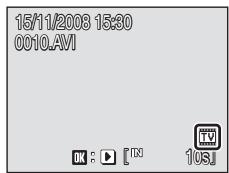
text_image
15/11/2008 15:30 0010.AVI OK : ▶ [TM] 10s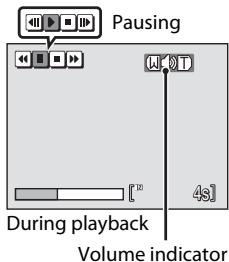
text_image
Pausing During playback Volume indicator| To | Select | Description | |
| Rewind | Rewind movie. Playback resumes when the OK button is released. | ||
| Advance | Advance movie. Playback resumes when the OK button is released. | ||
| Pause | Pause playback.The following operations can be performed while playback is paused. | ||
| Rewind movie by one frame. Rewind continues while the OK button is pressed. | |||
| Advance movie by one frame. Advance continues while the OK button is pressed. | |||
| Resume playback. | |||
| End | End playback and return to full-frame playback. | ||
Deleting Movie Files
Press the 📋 button when displayed in full-frame playback mode (28) or when selected in thumbnail (51) playback mode. A confirmation dialog is displayed. Select Yes and press the OK button to delete the movie, or select No to exit without deleting the movie.
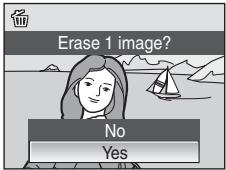
text_image
Erase 1 image? No YesMaking Voice Recordings
Audio voice recordings can be recorded over the built-in microphone and played back over the built-in speaker.
1 Enter voice recording mode by pressing the MODE button in shooting mode, selecting ⏻ (use the rotary multi selector), and then pressing the OK button.
The length of recording that can be made will be displayed.
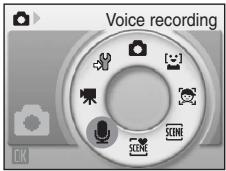
text_image
Voice recording OK2 Press the shutter-release button all the way down to start recording.
The indicator lamp lights during recording.
If no operations are performed for about 30 seconds after voice recording begins, the camera's auto off function is enabled and the monitor turns off.
See "Operations During Recording" (65) for more information.
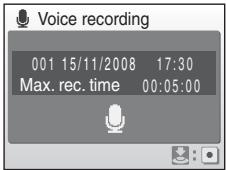
text_image
Voice recording 001 15/11/2008 17:30 Max. rec. time 00:05:003 Press the shutter-release button all the way down a second time to end recording.
Recording will end automatically if the internal memory or memory card becomes full, or after 120 minutes of recording on the memory card.

More Information
Operations During Recording
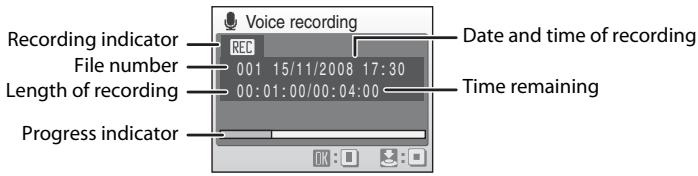
text_image
Recording indicator File number Length of recording Progress indicator Voice recording Date and time of recording 001 15/11/2008 17:30 00:01:00/00:04:00 Time remaining| To | Press | Description |
| Reactivate the monitor | [beaced] | If the monitor has turned off, press the ▶ button to reactivate. |
| Pause/resume recording | [beened] | Press once to pause recording; indicator lamp will blink. |
| End recording |  | Press the shutter-release button all the way down a second time to end recording. |

Voice Recordings
The files transferred to a computer can be played back using QuickTime or any other WAV-compatible audio player.

More Information
Playing Voice Recordings
1 Enter sound file playback mode by pressing the MODE button in playback mode, selecting 📄 (use the rotary multi selector), and then pressing the OK button.
Voice recordings can also be played back by pressing the ▶ button in voice recording mode (64) to display the sound file selection screen.
COOLPIX S610
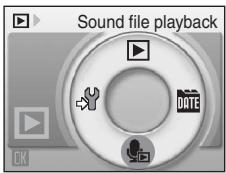
text_image
Sound file playback OKCOOLPIX S610c
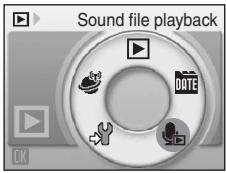
text_image
Sound file playback DATE2 Choose the desired sound file and press the Ⓞ button.
The selected sound file will be played back.
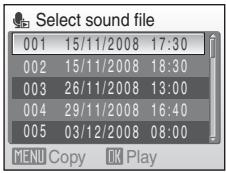
text_image
Select sound file 001 15/11/2008 17:30 002 15/11/2008 18:30 003 26/11/2008 13:00 004 29/11/2008 16:40 005 03/12/2008 08:00 MENU Copy OK PlayOperations During Playback
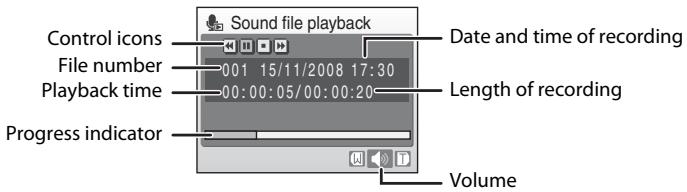
text_image
Control icons File number Playback time Progress indicator Sound file playback 001 15/11/2008 17:30 00:00:05/00:00:20 Date and time of recording Length of recording VolumeUse the zoom buttons, the T or W button, to adjust playback volume.
Playback controls appear at the top of the monitor. Press the rotary multi selector ◀ or ▶ to choose a control, then press the ⓄK button to perform the selected operation. The following operations are available.
| To | Press | Description |
| Rewind | Rewind voice recording. Playback resumes when the OK button is released. | |
| Advance | Advance voice recording. Playback resumes when the OK button is released. | |
| Pause | Pause playback.Resume playback that has been paused. | |
| End | End playback and return to the sound file selection screen. |
Deleting Sound Files
Press the 📋 button during playback or after selecting a sound file from the sound file selection screen. A confirmation dialog is displayed. To delete the file, select Yes and press the Ⓧ button. To exit without deleting the sound file, select No.
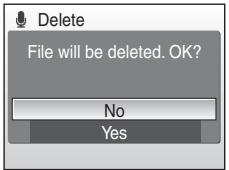
text_image
Delete File will be deleted. OK? No YesCopying Voice Recordings
Copy voice recordings between the internal memory and a memory card. This option is available only when a memory card is inserted.
1 Display the sound file selection screen shown in step 2 on page 66 and press the MENU button.
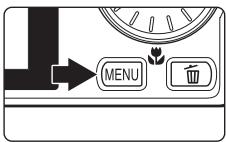
text_image
MENU2 Use the rotary multi selector to choose the option and press the Ⓞ button.
IN → 📋: Copy recordings from internal memory to memory card
→ IN: Copy recordings from memory card to internal memory
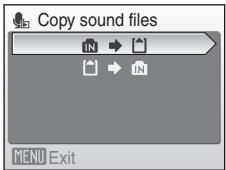
text_image
Copy sound files IN → IN MENU Exit3 Choose the copy option and press the Ⓞ button.
Selected files: Proceed to step 4
Copy all files: Proceed to step 5
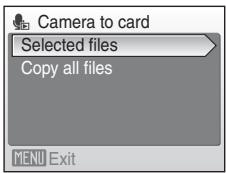
text_image
Camera to card Selected files Copy all files MENU Exit4 Choose the desired file.
Press the rotary multi selector ▶ to select the file (√). Press the rotary multi selector ▶ again to cancel the selection.
- Multiple files can be selected.
- Press the OK button to finalize file selection.
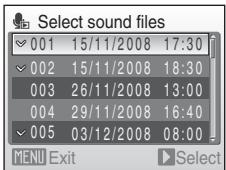
text_image
Select sound files 001 15/11/2008 17:30 002 15/11/2008 18:30 003 26/11/2008 13:00 004 29/11/2008 16:40 005 03/12/2008 08:00 MENU Exit Select5 When a confirmation dialog is displayed, choose Yes and press the OK button.
Copying starts.
Voice Recordings
This camera may be unable to copy sound files created with another make or model of camera.
No sound file. Message
If there are no sound files stored on the memory card when 📄 is selected (66, step1), the message, No sound file., will be displayed. Press the MENU button to display the copy sound files screen, and copy the sound files stored in the camera's internal memory to the memory card.
Connecting to a TV
Connect the camera to a television using the supplied audio/video cable to play back pictures on the television.
1 Turn off the camera.
natural_image
Technical line drawing of a device component with two circular features (no text or symbols)2 Connect the camera to the TV using the supplied audio/video cable.
Connect the yellow plug to the video-in jack on the TV, and the white plug to the audio-in jack.
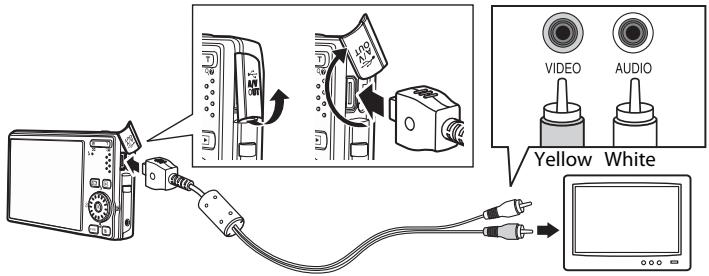
text_image
Diagram showing audio recording setup with device, cable, and screen, labeled with video and audio buttons3 Tune the television to the video channel.
See the documentation provided with your television for details.
4 Hold down the ▶ button to turn on the camera.
The camera enters playback mode, and pictures recorded to the internal memory, or memory card, will be displayed on the television.
While connected to the TV, the camera monitor will remain off.
text_image
MODEConnecting an Audio/Video Cable
When connecting the audio/video cable, be sure that the camera connector is oriented correctly. Do not use force when connecting the audio/video cable to the camera. When disconnecting the audio/video cable, do not pull the connector at an angle.
Video Mode
Be sure that the camera's video mode setting conforms to the standard used by your television. The video mode setting is an option set in the setup menu (101)>Video mode (113).
Connecting to a Computer
Use the supplied USB cable to connect the camera to a computer, and copy (transfer) pictures to a computer with the supplied Nikon Transfer software.
Before Connecting the Camera
Install the Software
Before connecting the camera to a computer, software, including Nikon Transfer and Panorama Maker for creating panorama images, must be installed from the supplied Software Suite CD. For more information on installing the software, refer to the Quick Start Guide.
Operating Systems Compatible with the Camera
Windows
Preinstalled versions of 32-bit Windows Vista Service Pack 1 (Home Basic/Home Premium/Business/Enterprise/Ultimate editions), Windows XP Service Pack 3 (Home Edition/Professional)
Macintosh
Mac OS X (version 10.3.9, 10.4.11, 10.5.3)
Refer to the Nikon website for the latest information on operating system compatibility.

Note on Power Source
When connecting the camera to a computer or printer, use a fully charged battery to prevent the camera from turning off unexpectedly.

If You Are Using Windows 2000 Professional
- Do not connect the camera to the computer.
- Use a card reader or similar device to transfer pictures stored on the memory card to the computer (73).
- If the camera has been connected to the computer, the Found New Hardware Wizard dialog is displayed. Select Cancel to close the dialog and disconnect the camera from the computer.
Transferring Pictures from a Camera to a Computer
1 Start the computer to which Nikon Transfer was installed.
2 Turn off the camera.
3 Connect the camera to the computer using the supplied USB cable.
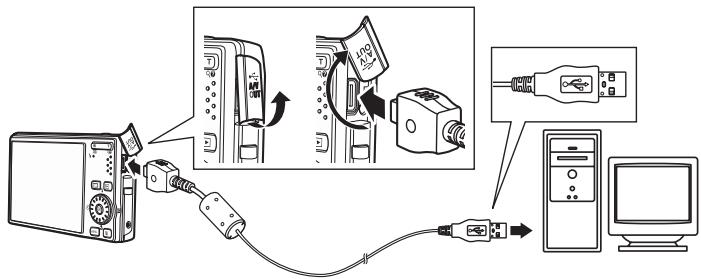
flowchart
graph TD
    A["Computer"] -->|USB cable to USB port| B["Switch"]
    B --> C["USB cable to USB port"]
    C --> D["USB cable to USB port"]
    D --> E["Computer"]
4 Turn on the camera.
The power-on lamp will light.
Windows Vista
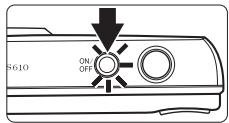
text_image
S610 ON/OFFWhen the AutoPlay dialog is displayed, click Copy pictures to a folder on my computer using Nikon
Transfer. Nikon Transfer will start. To bypass this dialog in the future, check Always do this for this device:
Windows XP
When the action selection dialog is displayed, select Nikon Transfer Copy pictures to a folder on my computer, and click OK. Nikon Transfer will start. To bypass this dialog in the future, check Always use this program for this action..
Mac OS X
Nikon Transfer will start automatically if Yes was selected in the Auto-Launch setting dialog when Nikon Transfer was first installed.
Connecting the USB Cable
- When connecting the USB cable, be sure that the connectors are oriented correctly. Do not use force when connecting the USB cable. When disconnecting the USB cable, do not pull the connector at an angle.
- Connection may not be recognized when the camera is connected to a computer via a USB hub.
5 Transfer pictures when Nikon Transfer has finished loading.
Click Start Transfer in Nikon Transfer. At the default setting, all pictures are transferred to the computer.
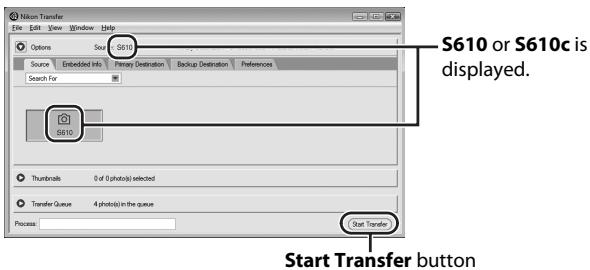
text_image
S610 or S610c is displayed. Start Transfer buttonAt the Nikon Transfer default setting, the folder to which pictures are transferred is automatically opened when transfer is complete.
If ViewNX has been installed, ViewNX will start automatically and transferred pictures can be viewed.
For more information on using Nikon Transfer, refer to help information contained in Nikon Transfer.
6 Disconnect the camera when transfer is complete.
Turn the camera off and disconnect the USB cable.

Using a Card Reader
The pictures stored on the memory card inserted into a card reader or similar device can also be transferred to the computer using Nikon Transfer.
- If the memory card has a capacity greater than 2 GB, or is SDHC-compliant, the intended device must support these features of the memory card.
- At the Nikon Transfer default settings, Nikon Transfer will start automatically when a memory card is inserted into the card reader or similar device. See step 5 of "Transferring Pictures from a Camera to a Computer" (72).
- To transfer pictures stored in the camera's internal memory to the computer, the pictures must first be copied to a memory card using the camera (68, 100).

Using Standard OS Operations to Open Image/Sound Files
- Navigate to the folder on the computer's hard disk to which pictures were saved and open a picture in the viewer supplied with your operating system.
- Sound files copied to the computer can be played back using QuickTime or any other WAV-compatible audio player.

Panorama Creation with Panorama Maker
- Use a series of pictures taken using the Panorama assist option in scene mode (43) to create a single panorama photo with Panorama Maker.
- Panorama Maker can be installed to a computer using the supplied Software Suite CD. After installation is complete, follow the procedure described below to start Panorama Maker. Windows
Open All Programs (Programs under Windows 2000) from the Start menu>ArcSoft Panorama Maker 4>Panorama Maker 4. Macintosh
Open Applications by selecting Applications from the Go menu, and double-click the Panorama Maker 4 icon.
- For more information on using Panorama Maker, refer to the on-screen instructions and help information contained in Panorama Maker.

Image File Names and Folder Names
See "Image File Names and Folder Names" (44) and "Image/Sound File and Folder Names" (117) for more information.
Connecting to a Printer
Users of PictBridge-compatible (133) printers can connect the camera directly to the printer and print pictures without using a computer.
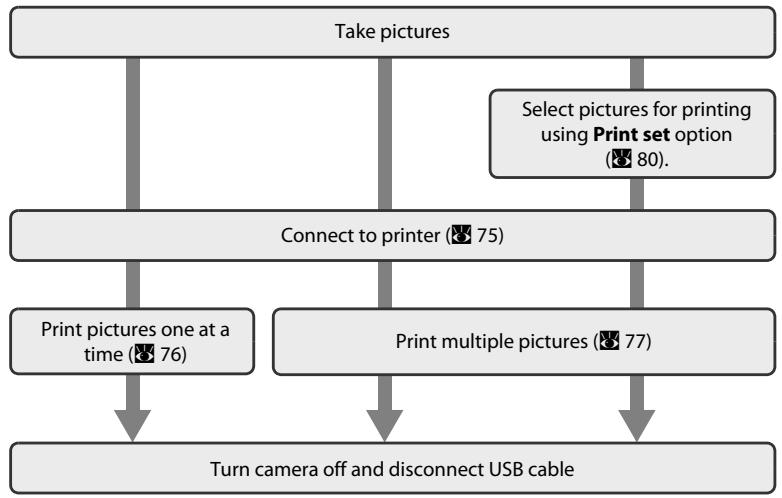
flowchart
graph TD
    A["Take pictures"] --> B["Connect to printer (75)"]
    B --> C["Print pictures one at a time (76)"]
    B --> D["Print multiple pictures (77)"]
    C --> E["Turn camera off and disconnect USB cable"]
    D --> E
    F["Select pictures for printing using Print set option (80)."] --> A

Note on Power Source
When connecting the camera to a printer, use a fully charged battery to prevent the camera from turning off unexpectedly.

Printing Pictures
In addition to printing pictures transferred to a computer from your personal printer and printing over a direct camera-to-printer connection, the following options are also available for printing pictures:
- Insert a memory card into a DPOF-compatible printer's card slot
• Take a memory card to a digital photo lab
For printing using these methods, specify the pictures and the number of prints each using your camera's print set menu (80).
Connecting the Camera and Printer
1 Turn off the camera.
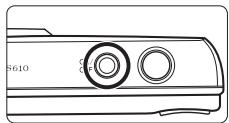
text_image
S610 C F2 Turn on the printer.
Check printer settings.
3 Connect the camera to the printer using the supplied USB cable.
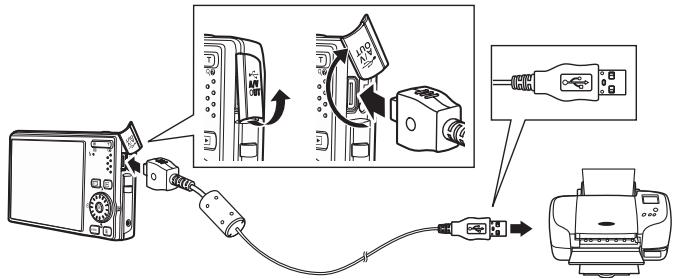
text_image
Diagram showing connection between a power supply unit and an output device, with labeled components and wiring instructions.4 Turn on the camera.
When connected correctly, the PictBridge start-up screen ① will be displayed in the camera monitor. Then the print selection screen will be displayed ②.
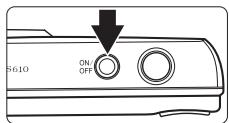
text_image
S610 ON/ OFF①

text_image
PictBridge②

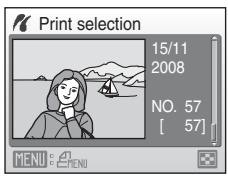
text_image
Print selection 15/11 2008 NO. 57 [ 57] MENU: MENUConnecting the USB Cable
When connecting the USB cable, be sure that the connectors are oriented correctly. Do not use force when connecting the USB cable. When disconnecting the USB cable, do not pull the connector at an angle.
Printing Pictures One at a Time
After connecting the camera to the printer correctly (75), print pictures by following the procedure below.
1 Use the rotary multi selector to choose the desired picture and press the Ⓞ button.
Press the W (☐) button to display 12 thumbnails, and the T (Q) button to switch back to full-frame playback.
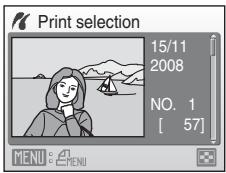
text_image
Print selection 15/11 2008 NO. 1 [ 57] MENU: MENU2 Choose Copies and press the Ⓞ button.
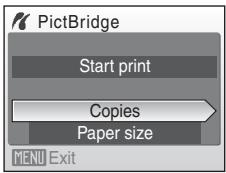
text_image
PictBridge Start print Copies Paper size MENU Exit3 Choose the number of copies (up to nine) and press the Ⓞ button.
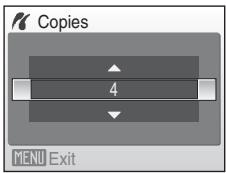
text_image
Copies 4 MENU Exit4 Choose Paper size and press the Ⓞ button.
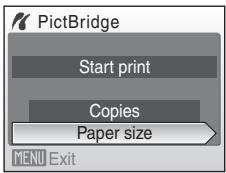
text_image
PictBridge Start print Copies Paper size MENU Exit5 Choose the desired paper size and press the Ⓞ button.
To specify paper size using printer settings, choose Default in the paper size menu.
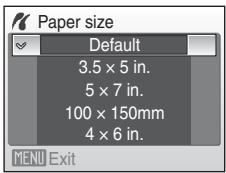
text_image
Paper size Default 3.5 × 5 in. 5 × 7 in. 100 × 150mm 4 × 6 in. MENU Exit6 Choose Start print and press the Ⓞ button.
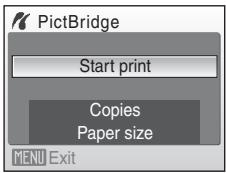
text_image
PictBridge Start print Copies Paper size MENU Exit7 Printing starts.
Monitor display returns to that shown in step 1 when printing is complete.
To cancel before all copies have been printed, press the Ⓞ button.
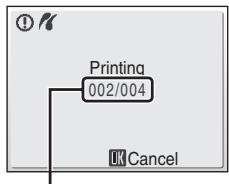
text_image
① # Printing 002/004 UK CancelCurrent print/ total number of prints
Printing Multiple Pictures
After connecting the camera to the printer correctly (75), print pictures by following the procedure below.
1 When the print selection screen is displayed, press the MENU button.
The print menu is displayed.
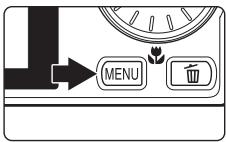
text_image
MENU 面2 Use the rotary multi selector to choose Paper size and press the Ⓞ button.
To exit the print menu, press the MENU button.
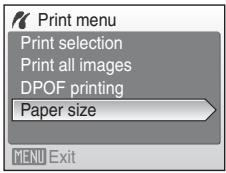
text_image
Print menu Print selection Print all images DPOF printing Paper size MENU Exit3 Choose the desired paper size and press the Ⓞ button.
To specify paper size using printer settings, choose Default in the paper size menu.
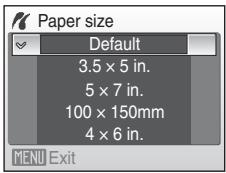
text_image
Paper size Default 3.5 x 5 in. 5 x 7 in. 100 x 150mm 4 x 6 in. MENU Exit4 Choose Print selection, Print all images or DPOF printing and press the Ⓞ button.
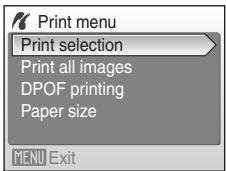
text_image
Print menu Print selection Print all images DPOF printing Paper size MENU ExitPrint selection
Choose the pictures (up to 99) and number of copies (up to nine) of each.
Rotate the rotary multi selector, or press ◀ or ▶, to select pictures, and press ▲ or ▼ to set the number of copies for each.
Pictures selected for printing can be recognized by the check mark (♥) and the numeral indicating the number of copies to be printed. A check mark is not displayed with pictures for
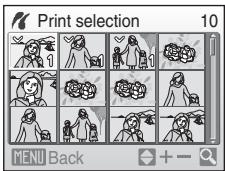
text_image
Print selection 10 MENU Backwhich no copies have been specified and these pictures will not be printed.
Press the T (Q) button to switch to full-frame playback.
Press the W (☐) button to switch back to thumbnail display.
Press the OK button when setting is complete.
To print, choose Start print from the menu displayed and shown at right, and press the OK button.
Choose Cancel and press the Ⓞ button to return to the print menu.
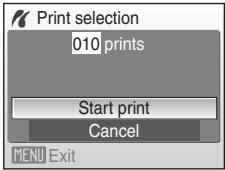
text_image
Print selection 010 prints Start print Cancel MENU ExitPrint all images
All pictures stored in the internal memory, or on the memory card, are printed one at a time. To print, choose Start print from the menu displayed and shown at right, and press the OK button. Choose Cancel and press the OK button to return to the print menu.
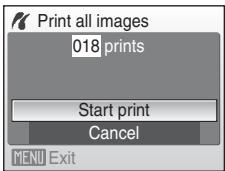
text_image
Print all images 018 prints Start print Cancel MENU ExitDPOF printing
Print pictures for which a print order was created in Print set (80). To print, choose Start print from the menu displayed and shown at right, and press the OK button. Choose Cancel and press the OK button to return to the print menu.
To view the current print order, choose View images and press the Ⓞ button. To print pictures, press the Ⓞ button again.
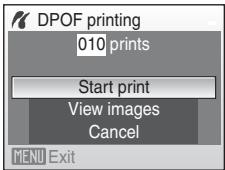
text_image
DPOF printing 010 prints Start print View images Cancel MENU Exit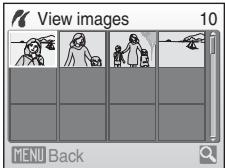
text_image
View images 10 MENU Back5 Printing starts.
Monitor display returns to the print menu (step 2) when printing is complete.
To cancel before all copies have been printed, press the Ⓞ button.
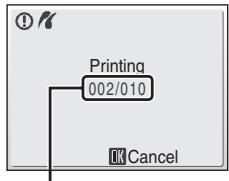
text_image
! # Printing 002/010 OK CancelCurrent print/ total number of prints
Paper Size
The camera supports the following paper sizes: Default (the default paper size for the current printer), 3.5 × 5 in., 5 × 7 in., 100 × 150 mm, 4 × 6 in., 8 × 10 in., Letter, A3, and A4. Only sizes supported by the current printer will be displayed.
Creating a DPOF Print Order: Print Set
The Print set option in the playback menu is used to create digital "print orders" for printing on DPOF-compatible devices (133).
When the camera is connected to a PictBridge-compatible printer, pictures can be printed from the printer according to the DPOF print order you have created for pictures on the memory card. If the memory card is removed from the camera, you can create the DPOF print order for pictures in the internal memory and print pictures according to the DPOF print order.
1 Press the MENU button in playback mode.
The playback menu is displayed.
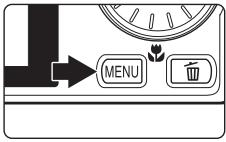
text_image
MENU 面2 Use the rotary multi selector to choose Print set and press the Ⓞ button.
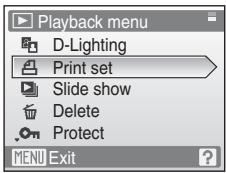
text_image
Playback menu D-Lighting Print set Slide show Delete Protect MENU Exit3 Choose Select images and press the ⓄK button.
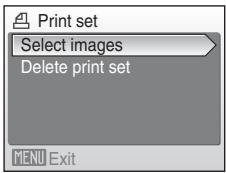
text_image
Print set Select images Delete print set MENU Exit4 Choose the pictures (up to 99) and number of copies (up to nine) of each.
Rotate the rotary multi selector, or press ◀ or ▶, to select pictures, and press ▲ or ▼ to set the number of copies for each.
Pictures selected for printing can be recognized by the check mark (√) icon and the numeral indicating the number of copies to be printed. A check mark is not
displayed with pictures for which no copies have been specified and these pictures will not be printed.
Press the T (Q) button to switch to full-frame playback.
Press the W (☐) button to switch back to thumbnail display.
Press the OK button when setting is complete.
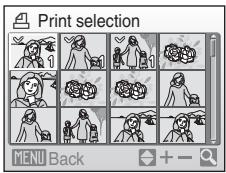
text_image
Print selection MENU Back5 Choose whether or not to also print shooting date and photo information.
Choose Date and press the OK button to print date of recording on all pictures in the print order.
Choose Info and press the OK button to print photo information (shutter speed and aperture) on all pictures in the print order.
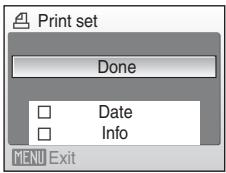
text_image
Print set Done Date Info MENU ExitChoose Done and press the OK button to complete the print order and exit.
Pictures selected for printing are recognized by the 📁 icon displayed with playback.
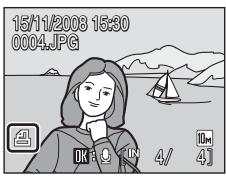
text_image
15/11/2008 15:30 0004.JPGNotes on Printing Shooting Date and Photo Information
When the Date and Info options are enabled in the Print set menu, shooting date and photo information are printed on pictures when a DPOF-compatible (8) 133 printer which supports printing of shooting date and photo information is used.
- Photo information cannot be printed when the camera is connected directly to a printer, via the supplied USB cable, for DPOF printing (79).
- Date and Info are reset each time the print set menu is displayed.

Deleting All Print Orders
Choose Delete print set in step 3 and press the Ⓞ button. Print orders for all pictures will be deleted.

Note on the Print Set Date Option
The date and time printed on pictures with DPOF printing when Date in the print set menu is enabled, are those recorded with the picture as it was taken. Date and time printed using this option are not affected when the camera's date and time setting are changed from the setup menu after pictures are recorded.
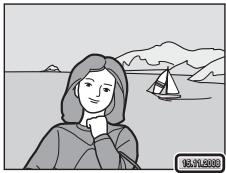
natural_image
Illustration of a woman with short hair standing by the sea, distant hills and sailboat in background (no text or symbols)Date Imprint
When date and time of recording are imprinted on pictures using the Date Imprint option (108) in the setup menu, pictures with the date and time imprinted on them can be printed from printers that do not support printing of the date and time on pictures. Only the Date Imprint date and time on pictures will be printed, even if Print set is enabled with Date selected in the print set screen.
Shooting Options: The Shooting Menu
The shooting menu of 📄 (auto) mode contains the following options.
| Image mode* | 83 | |
| Choose image size and quality. | ||
| WB | White balance | 85 |
| Match white balance to the light source. | ||
| Metering | 87 | |
| Choose how the camera meters exposure. | ||
| Continuous | 88 | |
| Change settings for Continuous or BSS (best shot selector). | ||
| ISO | ISO sensitivity | 89 |
| Control camera's sensitivity to light. | ||
| Color options | 89 | |
| Apply color effects to pictures as they are recorded. | ||
| [+] | AF area mode | 90 |
| Choose where the camera focuses. | ||
| <> | Autofocus mode | 93 |
| Choose how the camera focuses. |
* The Image mode setting is also available from other shooting menus (except the movie menu).
Displaying the Shooting Menu
Enter 📄 (auto) mode by pressing the MODE button in shooting mode and then selecting 📄 (auto). Press the MENU button to display the shooting menu.

flowchart
graph LR
    A["Shooting"] --> B["OK"]
    B --> C["MENU"]
    C --> D["Shooting menu"]
- Use the rotary multi selector to choose and apply settings (9).
- To return to the shooting mode from the shooting menu, press the MENU button.
Functions that Cannot Be Applied Simultaneously
Some functions cannot be enabled in conjunction with others (94).

Image Mode
Choose an image mode, which is the combination of image size and image quality (compression), according to how you plan to use the picture and the capacity of the internal memory or memory card. The larger the image, the larger the size at which it can be printed or displayed without becoming noticeably “grainy,” limiting the number of pictures that can be recorded.
| Option | Size (pixels) | Description | |
| 10M | High (3648★) | 3,648 × 2,736 | Highest quality, suitable for enlargements or high-quality prints. The compression ratio is approximately 1:4. |
| 10W | Normal (3648)(default setting) | 3,648 × 2,736 | Best choice in most situations. The compression ratio is approximately 1:8. |
| 7K | Normal (3072) | 3,072 × 2,304 | |
| 5M | Normal (2592) | 2,592 × 1,944 | |
| 3M | Normal (2048) | 2,048 × 1,536 | Smaller size allows more pictures to be stored. The compression ratio is approximately 1:8. |
| PC | PC screen (1024) | 1,024 × 768 | Suited to display on computer monitor. The compression ratio is approximately 1:8. |
| TV | TV screen (640) | 640 × 480 | Suited to full-screen display on a television or distribution by e-mail or the web. The compression ratio is approximately 1:8. |
| 16:9(3584) | 3,584 × 2,016 | Pictures with an aspect ratio of 16:9 can be taken. The compression ratio for both image sizes is approximately 1:8. | |
| 16:9(1920) | 1,920 × 1,080 | ||
The icon for the current setting is displayed in the monitor in shooting and playback modes (6, 7).

Image Mode
Changes made to the image mode setting apply to all shooting modes (except those available from the movie menu).

The Number of Exposures Remaining
The following table lists the approximate number of pictures that can be stored in internal memory and on a 256 MB memory card. Note that the number of pictures that can be stored will differ depending on the composition of the picture (due to JPEG compression). In addition, this number may differ depending on the make of memory card, even if the capacity for the memory card is the same.
| Setting | Internal memory (approx. 45 MB) | Memory card ^1 (256 MB) | Print size ^2 (cm/in.) | |
| 10M | High (3648★) | 9 | 50 | 31 × 23/12.2 × 9 |
| 10M | Normal (3648) | 16 | 90 | 31 × 23/12.2 × 9 |
| 7M | Normal (3072) | 22 | 120 | 26 × 19.5/10.2 × 7.6 |
| 5M | Normal (2592) | 31 | 170 | 22 × 16.5/8.6 × 6.4 |
| 3M | Normal (2048) | 49 | 270 | 17 × 13/6.7 × 5.1 |
| PC | PC screen (1024) | 159 | 850 | 9 × 7/3.5 × 2.7 |
| TV | TV screen (640) | 319 | 1700 | 5 × 4/1.9 × 1.5 |
| 16S7M | 16:9 (3584) | 22 | 120 | 30 × 17/11.8 × 6.6 |
| 16S7M | 16:9 (1920) | 73 | 400 | 16 × 9/6.3 × 3.5 |
^1 If the number of exposures remaining is 10,000 or more, the number of exposure remaining display shows 9999.
^2 Print size at an output resolution of 300 dpi. Print sizes are calculated by dividing the number of pixels by printer resolution (dpi) and multiplying by 2.54 cm (1 in.). However, at the same image size, pictures printed at higher resolutions will print smaller than the size indicated, and those printed at lower resolutions will print larger than the size indicated.
WB White Balance
The color of light reflected from an object varies with the color of the light source. The human brain is able to adapt to changes in the color of the light source, with the result that white objects appear white whether seen in the shade, direct sunlight, or under incandescent lighting. Digital cameras can mimic this adjustment by processing images according to the color of the light source. This is known as "white balance." For natural coloration, choose a white balance setting that matches the light source before shooting. Although the default setting, Auto, can be used under most types of lighting, you can apply the white balance setting suited to a particular light source to achieve more accurate results.
| AUTO | Auto (default setting) |
| White balance automatically adjusted to suit lighting conditions. Best choice in most situations. | |
| PRE | Preset manual |
| Neutral-colored object used as reference to set white balance under unusual lighting conditions, see “Preset Manual” (86) for details. | |
| ※ | Daylight |
| White balance adjusted for direct sunlight. | |
| ※ | Incandescent |
| Use under incandescent lighting. | |
| ※ | Fluorescent |
| Use under most types of fluorescent lighting. | |
| ○ | Cloudy |
| Use when shooting under overcast skies. | |
| ∅ | Flash |
| Use with the flash. |
The effects of the selected option can be previewed in the monitor. At settings other than Auto, the icon for the current setting is displayed in the monitor (6).
Preset Manual
Preset manual is used with mixed lighting or to compensate for light sources with a strong color cast (for example, to make pictures taken under a lamp with a red shade look as though they had been taken under white light).
1 Place a white or gray reference object under the lighting that will be used during shooting.
2 Use the rotary multi selector to choose PRE Preset manual in the white balance menu, and press the Ⓞ button.
The camera zooms in.
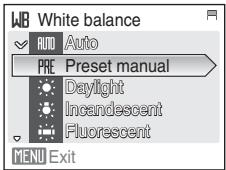
text_image
WB White balance AUTO Auto PRE Preset manual Daylight Incandescent Fluorescent MENU Exit3 Choose Measure.
To apply the most recently measured value for preset manual, choose Cancel and press the OK button.
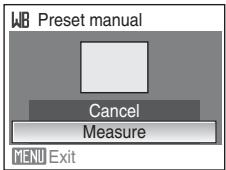
text_image
WB Preset manual Cancel Measure MENU Exit4 Frame the reference object.
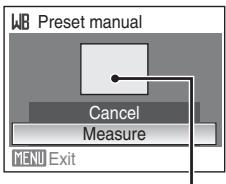
text_image
WB Preset manual Cancel Measure MENU ExitReference object frame
5 Press the Ⓞ button to measure the white balance value.
The shutter is released and the new white-balance value is set.
No pictures are recorded.

Note on Preset Manual
Regardless of the flash mode selected, the flash will not fire when the OK button is pressed in step 5. Therefore, the camera cannot measure a value for preset manual for when the flash is used.

Metering
Choose how the camera meters exposure.

Matrix (default setting)
Camera sets exposure for entire frame. Recommended in most situations.

Center-weighted
Camera meters entire frame but assigns greatest weight to subject in center of frame. Classic meter for portraits; preserves background details while letting lighting conditions at center of frame determine exposure. Can be used with focus lock (89) to meter off-center subjects.

Note on Metering
When digital zoom is in effect, Metering is set to Center-weighted, and the metered area is not displayed in the monitor.

Metering Area
The active metering area is displayed in the monitor when Center-weighted is selected.
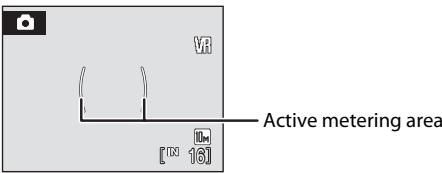
text_image
Active metering area [16] 16
Continuous
Change settings to Continuous or Best Shot Selector (BSS). Flash will be switched off when Continuous or BSS is selected. Focus, exposure, and white balance are fixed at the values for the first picture in each series.

Single (default setting)
One picture is taken each time shutter-release button is pressed.

Continuous
While the shutter-release button is held down, pictures are taken at rate of up to about 1.0 frames per second (fps) when image mode is set to 📄 Normal (3648). Shooting ends when the shutter-release button is released, or ten shots have been taken with the shutter-release button held down.

BSS
BSS is recommended for shooting under low lighting without the flash, with the camera zoomed in, or in other situations in which camera shake is likely to blur pictures. The camera takes up to ten pictures while the shutter-release button is held down. The sharpest picture (picture with the most detail) in the series is automatically selected and saved.
At settings other than Single, the indicator for the current setting is displayed in the monitor (6).

Note on Continuous Shooting
The maximum frame rate with continuous shooting may vary, depending upon the current image mode setting and the memory card used.

Note on Best Shot Selector
BSS may not produce the desired results if the subject moves or the composition changes while the shutter-release button is pressed all the way down.
ISO ISO Sensitivity
Sensitivity is a measure of how quickly the camera reacts to light. The higher the sensitivity, the less light needed to make an exposure. Although a high ISO rating is suited for taking pictures of subjects in action or in poor lighting, high sensitivity is often associated with “noise” -randomly spaced, brightly colored pixels concentrated in dark parts of the image.
Auto (default setting)
Sensitivity is ISO 100 under normal conditions; when lighting is poor, the camera compensates by raising sensitivity to a maximum of ISO 1600.
100, 200, 400, 800, 1600, 3200
Sensitivity will be locked at the specified value.
When ISO sensitivity is locked, Motion detection (110) does not function even when Auto is selected for Motion detection.
At settings other than Auto, the current setting is displayed in the monitor (6). If Auto is selected and the sensitivity is raised above an ISO 100, the ISO icon will be displayed (31).
Color Options
Make colors more vivid or record pictures in monochrome.

Standard color (default setting)
Use for pictures exhibiting natural color.

Vivid color
Use to achieve a vivid, "photoprint" effect.

Black-and-white
Record pictures in black-and-white.

Sepia
Record pictures in sepia tones.

Cyanotype
Record pictures in cyan-blue monochrome.

Pastel
Change to a pastel shade.
At settings other than Standard color, the icon for the current setting is displayed in the monitor (6). Monitor color tones also change depending upon the setting.
[+] AF Area Mode
Use this option to determine where the camera focuses.
When digital zoom is in effect, the camera will focus on the subject in the center focus area regardless of the applied AF area mode option.
![NIKON COOLPIX S610C - [+] AF Area Mode - 1](/content/2025/01/73242/images/e92f8542c9b3dd9e4182a8f79fe3544f231086b74e139505273c260cdf8b45b7.jpg)
Face priority
The camera automatically detects and focuses on a face looking toward the camera (Shooting with Face Priority → Ⓧ 92). If the camera detects multiple faces, the camera focuses on the face closest to the camera.
When shooting pictures of subjects other than people, or framing a subject with which no face is recognized, AF area mode will be set to Auto. The camera chooses the focus area (one of nine)
containing the subject closest to the camera and focuses on the subject.
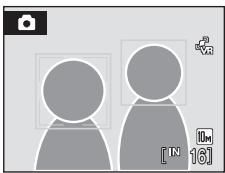
natural_image
Two stylized human figures with camera frames, no text or symbols present
Auto (default setting)
Camera automatically selects the focus area (one of nine) containing the subject closest to the camera. Press the shutter-release button halfway to activate the focus area. When the shutter-release button is pressed halfway, the focus area selected by the camera will be displayed in the monitor.
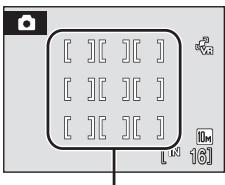
text_image
[ ][ ][ ][ ][ ][ ][ ][ ][ ][ ][ ][ ][ ][ ][ ][ ][ ][ ][ ][ ][ ][ ][ ][ ][ ][ ][ ][ ][ ][ ][ ][ ][ ][ ][ ][ ][ ][ ][ ][ ][ ][ ][ ][ ][ ][ ][ ][ ][ ][ ][ ][ ][ ][ ][ ][ ][ ][ ][ ][ ][ ][ ][ ][ ][ ][ ][ ][ ][ ][ ][ ][ ][ ][ ][ ][ ][ ][ ][ ][ ][ ][ ][ ][ ][ ][ ][ ][ ][ ][ ][ ][ ][ ][ ][ ][ ][ ][ ][ ][ ][ ]Focus areas

Manual
This option is suited to situations in which the intended subject is relatively still and not positioned in the center of the frame.
Press the rotary multi selector ▲, ▼, ◀ or ▶ to select one of 99 focus areas displayed in the monitor's focus-area selection screen, and shoot. To end focus-area selection and adjust the flash mode, macro mode, self-timer and exposure compensation settings, press the OK button. To return to the focus-area selection screen, press the OK button.
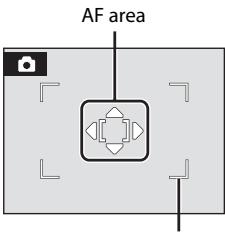
text_image
AF areaSelectable focus areas
[■] Center
Camera focuses on subject in center of frame.
Center focus area is always used.
![NIKON COOLPIX S610C - [■] Center - 1](/content/2025/01/73242/images/57d42d27089f4d980d6463a2675be503a6f0bdea306357b6506c891e1b0e5fd8.jpg)
text_image
[ ] [.N 16]AF area
![NIKON COOLPIX S610C - [■] Center - 2](/content/2025/01/73242/images/8c7e2e414aa8ae1f28441f5988c3cccf6f7fc87bdc8b551a0e51a849f67624b5.jpg)
Focus Lock
To focus on off-center subjects when Center is selected for AF area mode, use focus lock as described below.
1 Position the subject in the center of the frame.
2 Press the shutter-release button halfway.
- Confirm that the focus area indicator is green.
- Focus and exposure are locked.
3 Continue holding down the shutter-release button halfway and recompose the picture.
- Be sure that the distance between the camera and the subject does not change.
4 Press the shutter-release button the rest of the way down to shoot.
natural_image
Illustration of a person by the sea with a sailboat and mountains in the background (no text or symbols)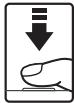
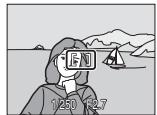
natural_image
Illustration of a person using a VR headset with a boat and mountains in the background (no text or symbols)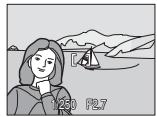
natural_image
Illustration of a woman by the sea with a sailboat and mountains in the background (no text or symbols)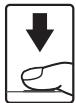

More Information
Shooting with Face Priority
The face-priority function is activated when Face priority is selected for AF area mode (90), when shooting in Portrait (36) or Night portrait (37) scene mode, when shooting in scene auto selector mode (45), or when shooting in smile mode (49).
The camera automatically detects and focuses on a face looking toward the camera.
1 Frame a picture.
When the camera detects a face looking toward the camera, that face will be framed by a yellow double border.
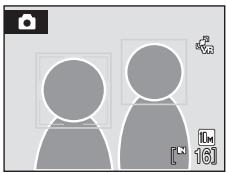
natural_image
Two stylized human figures with camera frames and a small icon, no text or symbols presentWhen the camera detects more than one face, operation varies, depending upon the shooting mode, as follows.
| Shooting mode | Faces framed by a double border | The number of faces to be recognized |
| (auto) mode(Face priority) | The face closest to the camera* The other faces are framed by a single border. | Up to 12 |
| Scene mode: Portrait, Night portrait | ||
| Smile mode | The face closest to the center of the frame* The other faces are framed by a single border. | Up to 3 |
2 Press the shutter-release button halfway.
The camera focuses on the face framed by the double border. The double border will glow green and focus will be locked.
When the camera is unable to focus, the double border will blink. Press the shutter-release button halfway again and focus.
Press the shutter-release button the rest of the way down to take the picture.
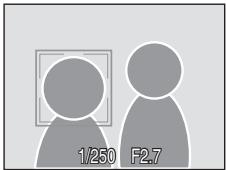
natural_image
Two stylized human figures with a framed picture in the background (no text or symbols)You don't need to press the shutter-release button halfway in smile mode. If the camera detects the smiling face, the shutter is automatically released (49).

Notes on Face Priority
- When Face priority is selected for AF area mode, the setting will automatically switch to Auto if no face is detected when the shutter-release button is pressed halfway.
- If no face is detected when the shutter-release button is pressed halfway in Portrait or Night portrait scene mode, or smile mode, the camera will focus on the subject in the center focus area.
- The camera may be unable to detect faces in the following situations:
- When faces are partially hidden by sunglasses or other obstructions
- When faces take up too much or too little of the frame
- When the subject is not looking directly at the camera
- The camera's ability to detect faces depends on a variety of factors, including whether or not the subject is facing the camera.
- In some rare cases shooting subjects with which autofocus may not perform as expected (27), the subject may not be in focus despite the fact that the double border glows green. Should this occur, switch to (auto) mode and set AF area mode to Manual or Center, refocus on another subject positioned at the same distance from the camera as the actual portrait subject, and use focus lock (91).
- When pictures in which a face was detected during shooting are played back, the pictures will be automatically rotated for playback display, according to the orientation of the face detected.

Autofocus Mode
Choose how the camera focuses.

Single AF (default setting)
Camera focuses when the shutter-release button is pressed halfway.

Full-time AF
Camera adjusts focus continuously until the shutter-release button is pressed halfway. Use with moving subjects.

Notes on Autofocus Mode
Autofocus mode will be automatically fixed at Single AF when Face priority is selected for AF area mode (90).
Functions that Cannot Be Applied Simultaneously
Restrictions apply to the following settings in 📄 (auto) mode.
Flash mode
Flash mode is automatically set to Ⓧ (Off) and cannot be adjusted when Continuous or BSS is selected for the Continuous setting. Selecting Single for Continuous restores the last flash mode setting applied.
Self-timer
If self-timer is on, only one picture will be taken when the shutter is released, regardless of settings selected for the Continuous setting. The last Continuous setting applied is restored when picture is taken or self-timer is turned off.
White balance and Color options
White balance is automatically set to Auto and cannot be adjusted when Black-and-white, Sepia, or Cyanotype is selected for Color options. Selecting Standard color, Vivid color, or Pastel restores the last White balance setting applied.
Autofocus mode
Autofocus mode is automatically set to Single AF and cannot be adjusted when Face priority is selected for AF area mode. The last autofocus mode setting applied is restored when any setting other than Face priority is selected for AF area mode.
Playback Options: The Playback Menu
The playback menu contains the following options.
| D-Lighting | 54 |
| Enhances brightness and contrast in dark portions of pictures. | |
| Print set | 80 |
| Select pictures to print and the number of copies for each. | |
| Slide show | 97 |
| View pictures stored in the internal memory or on a memory card in an automatic slide show. | |
| Delete | 98 |
| Delete all or selected pictures. | |
| Protect | 98 |
| Protect selected pictures from accidental deletion. | |
| Rotate image | 99 |
| Change the orientation of an existing picture. | |
| Small pic. | 56 |
| Create a small copy of the current picture. | |
| Copy | 100 |
Copy files between memory card and internal memory.
Displaying the Playback Menu
Enter the playback mode by pressing the ▶ button. Display the playback menu by pressing the MENU button.
text_image
MODE
text_image
MENU
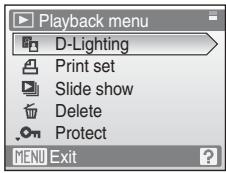
text_image
Playback menu D-Lighting Print set Slide show Delete Protect MENU Exit- Use the rotary multi selector to choose and apply settings. (9)
- To exit the playback menu, press the MENU button.
Selecting Pictures
The picture selection screen, as shown at right, will be displayed with the following menus:
- Playback menu: Print set>Select images (80)
Delete>Erase selected images
Protect (98)
Rotate image (99)
Copy>Selected images (100) - Setup menu: Welcome screen (103)

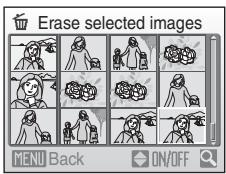
text_image
Erase selected images MENU Back ON/OFFFollow the procedure described below to select pictures.
1 Rotate the rotary multi selector, or press ◀ or ▶, to choose the desired picture.
Only one picture can be selected for Rotate image and Welcome screen. Proceed to step 3.
Press the T(Q) button to switch to full-frame playback.
Press the W (☐) button to switch back to thumbnail display.
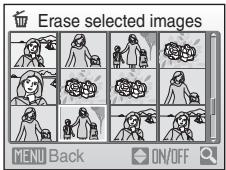
text_image
Erase selected images MENU Back ON/OFF2 Press ▲ or ▼ to select ON or OFF (or the number of copies).
When ON is selected, a check mark (☑) is displayed in the current picture. Repeat steps 1 and 2 to select additional pictures.
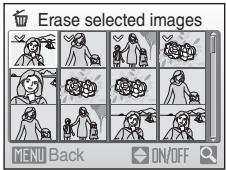
text_image
Erase selected images MENU Back ON/OFF3 Press the Ⓞ button to apply picture selection.

Slide Show
Play back pictures, stored in the internal memory or on a memory card, one by one in an automated "slide show".
1 Use the rotary multi selector to choose Start and press the Ⓞ button.
To change the interval between pictures, choose Frame intvl, select the desired interval time, and press the Ⓞ button before choosing Start.
To repeat the slide show automatically, enable Loop and press the Ⓞ button before choosing Start. The check mark (√) will be added to the loop option when enabled.
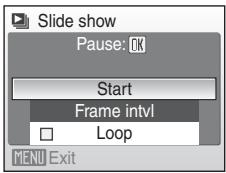
text_image
Slide show Pause: OK Start Frame intvl Loop MENU Exit2 The slide show begins.
While the slide show is in progress, the following operations can be performed:
- Press the rotary multi selector ▶ to view pictures in the order recorded, or ◀ to view pictures in reverse order. Press and hold ▶ to fast forward, or ◀ to rewind.
- Press the OK button to pause the slide show.
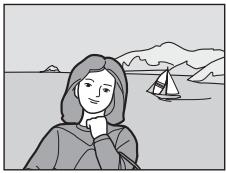
natural_image
Illustration of a woman with short hair looking at a sailboat on water, mountains in background (no text or symbols)3 Choose End or Restart.
When the slide show ends or is paused, choose End and press the OK button to return to the playback menu, or choose Restart to play the slide show again.
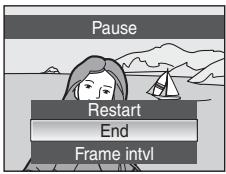
text_image
Pause Restart End Frame intvl
Notes on Slide Show
• Movies are not included in slide shows.
- Slide shows play for a maximum of 30 minutes, even when Loop is selected (112).

Delete
Delete selected pictures or all pictures.
Erase selected images
Delete selected pictures (96).
Erase all images
Delete all pictures.

Notes on Deletion
- Once deleted, pictures cannot be recovered. Transfer important images to a computer before deletion.
- Pictures marked with the Ⓞ icon are protected and cannot be deleted.

Deleting Picture Bank Images (For Users of the COOLPIX S610c)
Select the Picture Bank images option (51 of the Wireless LAN Connection Guide) from the Delete item in list by date menu to delete only those pictures, taken on the specified date, that have already been uploaded to the my Picturetown server.

Protect
Protect selected pictures from accidental deletion (Selecting Pictures → 96). Note, however, that formatting the camera's internal memory or the memory card will permanently erase protected files (112).
Protected pictures are recognized by the Ⓞ icon (7, 51) in playback mode.

Rotate Image
Change the orientation of pictures played back in the camera's monitor after shooting.
Pictures can be rotated 90^ clockwise or counterclockwise. Pictures that were recorded in the portrait (vertical) orientation can be rotated up to 180^ in either direction.
Select a picture in the picture selection screen (96), and press the OK button to display the Rotate image screen.
Press the rotary multi selector ◀ or ▶ to rotate the picture 90°.
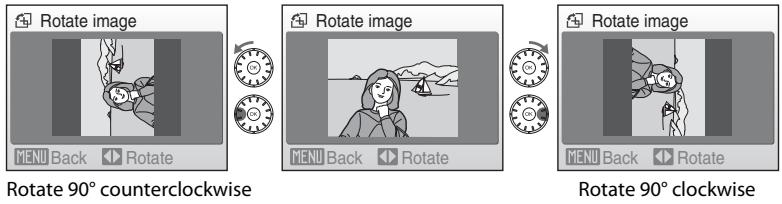
Press the OK button to set the orientation displayed, and save the orientation data with the picture.
Copy
Copy pictures between the internal memory and a memory card.
1 Use the rotary multi selector to select an option from the copy screen and press the OK button.
IN→: Copy pictures from internal memory to memory card.
→ IN: Copy pictures from memory card to internal memory.
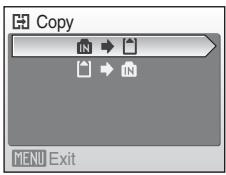
text_image
Copy IN → IN MENU Exit2 Select a copy option and press the Ⓞ button.
Selected images: Copy pictures selected from the picture selection screen (96).
All images: Copy all pictures.
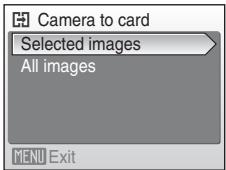
text_image
Camera to card Selected images All images MENU ExitNotes on Copying Pictures
- JPEG-, AVI-, and WAV-format files can be copied. Files recorded in any other format cannot be copied.
- If voice memos (57) are attached to pictures selected for copying, voice memos are copied with the pictures.
- Sound files recorded in voice recording mode (64) can be copied using the Copy sound files option (68) in sound file playback mode.
- Pictures recorded with another make or model of camera or that have been modified on a computer cannot be copied.
- Edited copies have the same protection marking (98) as the original, but are not marked for printing (80).
Memory contains no images. Message
If there are no pictures stored on the memory card when playback mode is applied, the message, Memory contains no images., will be displayed. Press the MENU button to display the copy option screen, and copy the pictures stored in the camera's internal memory to the memory card.
More Information
Basic Camera Setup: The Setup Menu
The setup menu contains the following options.
| Menus | 102 | |
| Choose how menus are displayed. | ||
| Welcome screen | 103 | |
| Select screen displayed when camera is turned on. | ||
| Date | 104 | |
| Set camera clock and choose home and destination time zones. | ||
| Monitor settings | 107 | |
| Adjust monitor brightness and choose display style. | ||
| Date imprint | 108 | |
| Imprint date or date counter on pictures. | ||
| Vibration reduction | 109 | |
| Choose whether or not vibration reduction is enabled. | ||
| Motion detection | 110 | |
| Adjust the motion detection setting to reduce the effects of camera shake and subject movement when shooting still pictures. | ||
| AF assist | 110 | |
| Enable or disable AF assist illumination. | ||
| Digital zoom | 111 | |
| Enable or disable digital zoom. | ||
| Sound settings | 111 | |
| Adjust sound settings. | ||
| Auto off | 112 | |
| Set time before camera enters standby mode. | ||
| Format memory/Format card | 112 | |
| Format internal memory or memory card. | ||
| Language | 113 | |
| Choose language used for camera monitor display. | ||
| Video mode | 113 | |
| Adjust settings necessary for connection to TV. | ||
| Reset all | 113 | |
| Restore camera settings to default values. | ||
| Wireless settings (COOLPIX S610c only) | ||
| Adjust settings for wireless LAN features. See the Wireless LAN Connection Guide for more information. | ||
| Firmware version | 115 | |
| Display camera firmware version. |
Displaying the Setup Menu
First, display the shooting-mode or playback-mode selection menu by pressing the MODE button. Then select ⚙️ (use the rotary multi selector), press the OK button.
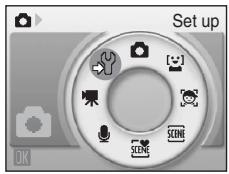
text_image
Set up OK


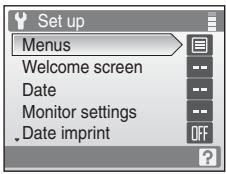
text_image
Set up Menus Welcome screen Date Monitor settings Date imprint- Use the rotary multi selector to choose and apply settings. (9)
- To exit the setup menu, press the MODE button and choose any mode other than setup mode.

Menus
Select a format for menu display.
Text (default setting)
Menus are displayed in list format.
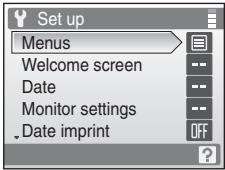
text_image
Set up Menus Welcome screen Date Monitor settings Date imprintIcons
All menu items can be displayed in a single page.
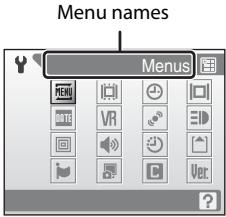
text_image
Menu names MenusCOOLPIX S610
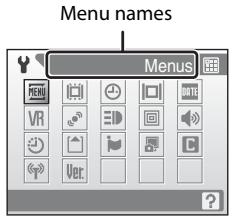
text_image
Menu names MenuCOOLPIX S610c

Welcome Screen
You can select the welcome screen to be displayed when the camera is turned on.
None (default setting)
Welcome screen is not displayed.
COOLPIX
Displays a welcome screen.
Select an image
Select a picture in the internal memory or on the memory card for the welcome screen. Choose a picture in the picture selection screen (96), and press the OK button.
As the selected image is stored in the camera, the image will appear in the welcome screen even if the original picture is deleted.
Pictures taken at an image mode setting (83) of 16:9 16:9 (3584) or 16:9 16:9
(1920), and copies created at a size of 320 × 240 or smaller using the crop (55) or small picture (56) function, cannot be used.

Date
Set the camera clock and choose home and travel destination time zones.
Date
Set camera clock to current date and time.
Use the following controls to set the date and time.
- ◀ and ▶: highlight a different item (day, month, year, and the order in which day, month, and year are displayed)
- ▲ and ▼: edit the highlighted item
- The OK button: apply the setting
Time zone
(home time zone) can be specified and daylight saving enabled or disabled from Time zone options. When ➤ (travel destination) is selected, the time difference (106) is automatically calculated and the date and time in the selected region are recorded. Useful when travelling.
Setting Travel Destination Time Zone
1 Use the rotary multi selector to choose Time zone and press the Ⓞ button.
The time zone menu is displayed.
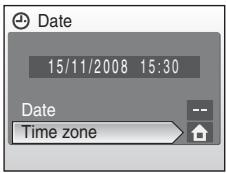
text_image
Date 15/11/2008 15:30 Date Time zone2 Choose ➤ Travel destination and press the Ⓞ button.
The date and time displayed on the monitor changes according to the region currently selected.
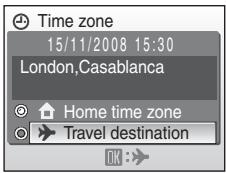
text_image
Time zone 15/11/2008 15:30 London,Casablanca Home time zone Travel destination3 Press▶.
The time zone selection screen is displayed.
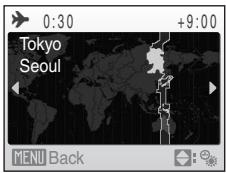
text_image
Tokyo Seoul 0:30 +9:00 MENU Back4 Press ◀ or ▶ to choose the travel destination time zone.
If the daylight saving time is in effect, press ▲ to turn on the daylight saving time option. When the option is enabled, ⚙ is displayed at the top of the monitor, and the time is advanced one hour.
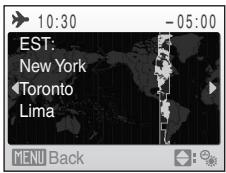
text_image
10:30 - 05:00 EST: New York Toronto Lima MENU BackTo turn off the daylight saving time option, press ▼.
Press the OK button to choose the travel destination time zone.
While the travel destination time zone is selected, the ➕ icon will be displayed in the monitor when the camera is in shooting mode.

The Clock Battery
The clock battery charges when the main battery is installed or an AC adapter is connected, and can provide several days of backup power after about 10 hours of charging.

Home Time Zone
- To switch to the home time zone, choose ⚠ Home time zone in step 2 and press the Ⓞ button.
- To change the home time zone, choose ⚠ Home time zone in step 2 and perform step 3 and 4, to set the home time zone.

Daylight Saving Time
When daylight saving time starts or ends, turn the daylight saving time option on or off from the time zone selection screen displayed in step 4.

Time Zones (18)
The camera supports the time zones listed below. For time differences not listed below, set the camera clock to local time.
| UTC +/- | Location |
| -11 | Midway, Samoa |
| -10 | Hawaii, Tahiti |
| -9 | Alaska, Anchorage |
| -8 | PST (PDT): Los Angeles, Seattle, Vancouver |
| -7 | MST (MDT): Denver, Phoenix, La Paz |
| -6 | CST (CDT): Chicago, Houston, Mexico City |
| -5 | EST (EDT): New York, Toronto, Lima |
| -4 | Caracas, Manaus |
| -3 | Buenos Aires, Sao Paulo |
| -2 | Fernando de Noronha |
| -1 | Azores |
| ±0 | London, Casablanca |
| UTC +/- | Location |
| +1 | Madrid, Paris, Berlin |
| +2 | Athens, Helsinki, Ankara |
| +3 | Moscow, Nairobi, Riyadh, Kuwait, Manama |
| +4 | Abu Dhabi, Dubai |
| +5 | Islamabad, Karachi |
| +5.5 | New Delhi |
| +6 | Colombo, Dhaka |
| +7 | Bangkok, Jakarta |
| +8 | Beijing, Hong Kong, Singapore |
| +9 | Tokyo, Seoul |
| +10 | Sydney, Guam |
| +11 | New Caledonia |
| +12 | Auckland, Fiji |
Monitor Settings
Choose whether or not to display information in the monitor, and set the monitor brightness.
Photo info
Choose information displayed in the monitor during shooting and playback mode.
Brightness
Choose from five settings for monitor brightness. The default setting is 3.
When monitor brightness boost (23) is activated, the monitor brightness is set to 5 and cannot be changed.
Photo Info
The following display options are available.
See "The Monitor" (6) for information on indicators in the monitor.
| Shooting mode | Playback mode | |
| Show info | 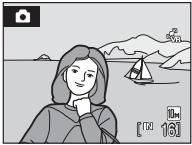 | 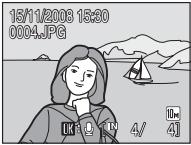 |
| Auto info (default setting) | The current settings or operation guide is displayed as in Show info above. After a few seconds, display will be the same as Hide info. | |
| Hide info |  |  |

Date Imprint
Date and time of recording can be imprinted on pictures. This information can be printed even from printers that do not support printing of date and time (81).
Off (default setting)
Date and time are not imprinted on pictures.
Date
Date is imprinted on the bottom right corner of pictures taken while this option is in effect.
Date and time
Date and time are imprinted on the bottom right corner of pictures taken while this option is in effect.
At settings other than Off, the icon for the current setting is displayed in the monitor during shooting (6).

Date Imprint
- Imprinted dates form a permanent part of image data and cannot be deleted.
- Dates imprinted at an image mode setting (83) of TV TV screen (640) may be difficult to read. Choose PC PC screen (1024) or larger when using date imprint.
- The date is recorded using the format selected in the setup menu's Date item (18, 104).
- The date cannot be imprinted on movies or on pictures taken in Panorama assist scene mode (41).

Date Imprint and Print Set
When printing from DPOF-compatible printers which support printing of shooting date and photo information, the date and information can be printed on pictures without date and time imprinted on them, using options in the Print set menu (80).
VR Vibration Reduction
Vibration reduction effectively corrects blur, caused by slight hand movement known as camera shake, that commonly occurs when shooting with zoom applied or at slow shutter speeds. Vibration reduction can be used in all shooting modes.
Set Vibration reduction to Off when using a tripod to stabilize the camera during shooting.
When vibration reduction is enabled, the current setting is displayed during shooting (when Off is selected, an icon for the current setting is not displayed) (6, 23).
On (default setting)
Vibration reduction is enabled when taking pictures and recording movies. Camera detects and factors out panning movements when reducing camera shake. When camera is panned horizontally, for example, vibration reduction reduces only vertical shake. If camera is panned vertically, vibration reduction affects only horizontal shake.
Off
Vibration reduction is not enabled.

Notes on Vibration Reduction
- Vibration reduction may take a few seconds to activate after the power is turned on, or the camera enters shooting mode from playback mode. Wait until the display stabilizes before shooting.
- Due to characteristics of the vibration reduction function, images displayed in the camera's monitor immediately after shooting may appear blurry.
- Vibration reduction may be unable to completely eliminate the effects of camera shake in some situations.
• VR stands for vibration reduction.

Motion Detection
Enable motion detection to reduce the effects of camera shake and subject movement when shooting still pictures.
When motion detection is enabled, the current setting is displayed in the monitor during shooting (6, 23).
Auto (default setting)
When camera detects the movement of the subject or camera shake, the shutter speed will be increased for reducing the effects of them.
However, motion detection does not function in the following situations.
- When the flash fires
- When any setting other than Auto is selected for ISO sensitivity (89) in (auto) mode
- When shooting in Night portrait (37), Fireworks show (40), or Backlight (40) scene mode
Off
Motion detection is not enabled.

Notes on Motion Detection
- Motion detection may be unable to completely reduce the camera shake and subject movement in some situations.
- Motion detection may not function if the subject exhibits significant movement or is too dark.
- The pictures taken may become somewhat grainy.

AF Assist
Enable or disable AF-assist illumination.
Auto (default setting)
AF-assist illumination will be used to assist the focus operation when the subject is poorly lit. The illuminator has a range of about 3.0 m (9 ft. 10 in.) at the maximum wide-angle position and about 1.5 m (4 ft. 11 in.) at the maximum telephoto position. Note that for some scene modes, AF-assist illumination turns off automatically (36).
Off
Disable this function. The camera may be unable to focus if lighting is poor.

Digital Zoom
Enable or disable digital zoom.
On (default setting)
When the camera is zoomed in to the maximum optical zoom position, holding down the T (Q) button triggers digital zoom (25).
Off
Digital zoom will not be activated (except when shooting a movie).

Notes on Digital Zoom
-
When digital zoom is in effect, AF area mode is set to Center (90).
• Digital zoom cannot be used in the following situations. -
When Portrait or Night portrait is selected in scene mode
- When scene auto selector mode is selected
- When active child mode is selected
- When smile mode is selected
- Before movie recording begins (however, digital zoom of up to 2× can be applied while movies are being recorded).
- When digital zoom is in effect, Metering is set to Center-weighted.

Sound Settings
Adjust the following sound settings.
Button sound
Turn button sound On (default setting) or Off. When On (default setting) is selected, beep will sound once when operations are completed successfully, twice when the camera acquires focus on the subject, and three times when error is detected. Start-up sound will also play when the camera is turned on.
Shutter sound
Choose shutter sound from On (default setting) or Off.

Auto Off
If no operations are performed for the selected length of time, the monitor will turn off and the camera enters standby mode (15) to reduce drain on the batteries. The power-on lamp blinks in standby mode. If no operations are performed for another three minutes, the camera will turn off automatically.
Choose the time allowed to elapse before the camera enters standby mode if no operations are performed from 30 s, 1 min (default setting), 5 min, and 30 min.

Canceling Standby Mode
Cancel standby mode and reactivate the monitor by pressing the power switch or the shutter-release button.

Notes on Auto Off
Regardless of the option selected, the monitor will remain on as follows.
- When 30 s or 1 min is selected for Auto off and menus are displayed: three minutes
- During slide show playback: up to 30 minutes
- When the AC adapter is connected: 30 minutes

Format Memory/☐ Format Card
Use this option to format the internal memory or a memory card.
Formatting the Internal Memory
To format the internal memory, remove the memory card from the camera.
The Format memory option appears in the setup menu.
Formatting a Memory Card
When the memory card is inserted in the camera, the Format card option appears in the setup menu.
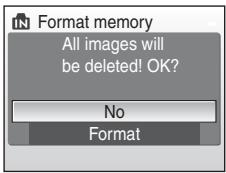
text_image
Format memory All images will be deleted! OK? No Format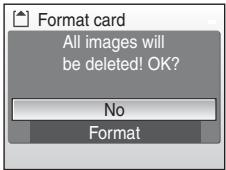
text_image
Format card All images will be deleted! OK? No Format
Formatting Internal Memory and Memory Cards
- Formatting the internal memory or memory cards permanently deletes all data. Be sure to transfer important pictures to a computer before formatting.
- Do not turn the camera off, disconnect the AC adapter, or open the battery-chamber/memory card slot cover during formatting.
- The first time you insert the memory cards used in other devices into this camera, be sure to format them with this camera.

Language
Choose one of 24 languages for display of camera menus and messages.
| Čeština | Czech |
| Dansk | Danish |
| Deutsch | German |
| English | (default setting) |
| Español | Spanish |
| Ελληνικά | Greek |
| Français | French |
| Indonesia | Indonesian |
| Italiano | Italian |
| Magyar | Hungarian |
| Nederlands | Dutch |
| Norsk | Norwegian |
| Polski | Polish |
| Português | Portuguese |
| Русский | Russian |
| Suomi | Finnish |
| Svenska | Swedish |
| Türkçe | Turkish |
| عربي | Arabic |
| 中文简体 | Simplified Chinese |
| 中文繁體 | Traditional Chinese |
| 日本語 | Japanese |
| 한글 | Korean |
| ภาษาไทย | Thai |

Video Mode
Adjust settings for connection to TV.
Choose from NTSC and PAL.

Reset All
When Reset is selected, the camera's settings will be restored to their default values.
Pop-up menu
| Option | Default value |
| Flash mode (30) | Auto |
| Self-timer (32) | Off |
| Macro mode (33) | Off |
| Exposure compensation (34) | 0.0 |
Scene mode
| Option | Default value |
| Scene mode (35) | Portrait |
| White balance in Food mode (41) | Center |
Movie menu
| Option | Default value |
| Movie options (62) | TV movie 640 |
| Autofocus mode (62) | Single AF |
Shooting menu
| Option | Default value |
| Image mode (83) | Normal (3648) |
| White balance (85) | Auto |
| Metering (87) | Matrix |
| Continuous (88) | Single |
| ISO sensitivity (89) | Auto |
| Color options (89) | Standard color |
| AF area mode (90) | Auto |
| Autofocus mode (93) | Single AF |
Setup menu
| Option | Default value |
| Menus (102) | Text |
| Welcome screen (103) | None |
| Photo info (107) | Auto info |
| Brightness (107) | 3 |
| Date imprint (108) | Off |
| Vibration reduction (109) | On |
| Motion detection (110) | Auto |
| AF assist (110) | Auto |
| Digital zoom (111) | On |
| Button sound (111) | On |
| Shutter sound (111) | On |
| Auto off (112) | 1 min |
Others
| Option | Default value |
| Paper size (76, 77) | Default |
| Slide show (97) | 3 s |
| Monitor brightness boost (23) | Off |
- Choosing Reset all also clears the current file number (117) from the memory. Numbering will continue from the lowest number available. To reset file numbering to "0001", delete all pictures (98) before selecting Reset all.
- The following menu settings will remain unaffected when menus are reset with Reset all.
Shooting menu: Preset manual data (86) acquired for White balance Setup menu: Date (104), Language (113), and Video mode (113)
Ver. Firmware Version
View the current camera firmware version.
See the Wireless LAN Connection Guide for more information on the camera's MAC address displayed with the COOLPIX S610c.
COOLPIX S610
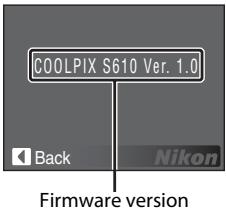
text_image
COOLPIX S610 Ver. 1.0 Back Nikon Firmware versionCOOLPIX S610c
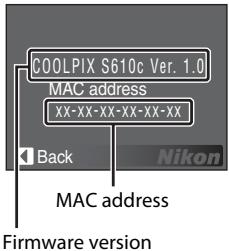
text_image
COOLPIX S610c Ver. 1.0 MAC address XX-XX-XX-XX-XX-XX Back Nikon MAC address Firmware versionOptional Accessories
| Rechargeable battery | Rechargeable Li-ion Battery EN-EL12 |
| Battery charger | Battery Charger MH-65 |
| AC adapter | AC Adapter EH-63 |
| USB cable | USB Cable UC-E13 |
| A/V Cable | Audio/Video Cable EG-CP15 |
Approved Memory Cards
The following Secure Digital (SD) memory cards have been tested and approved for use in this camera. All cards of the designated make and capacity can be used, regardless of speed.
| SanDisk | 128 MB, 256 MB, 512 MB, 1 GB, 2 GB ^1 , 4 GB ^2 , 8 GB ^2 |
| TOSHIBA | 128 MB, 256 MB, 512 MB, 1 GB, 2 GB ^1 , 4 GB ^2 , 8 GB ^2 |
| Panasonic | 128 MB, 256 MB, 512 MB, 1 GB, 2 GB ^1 , 4 GB ^2 , 8 GB ^2 |
^1 If the memory card will be used with a card reader or similar device, check that device supports 2 GB cards.
2 SDHC-compliant. If the memory card will be used with a card reader or similar device, check that device supports SDHC.
Operation is not guaranteed with other makes of card. Contact the manufacturer for details on the above cards.
Image/Sound File and Folder Names
Pictures, movies, voice memos, and voice recordings are assigned file names as follows.
DSCN0001.JPG
| Identifier(not shown on camera monitor) | Extension(signifies the file type) | ||
| Original still pictures (voice memo attachment included), movies, voice memos, voice recordings | DSCN | ||
| Cropped copies (voice memo attachment included) | RSCN | ||
| Small copies (voice memo attachment included) | SSCN | File number(assigned automatically in ascending order, starting with "0001") | |
| D-Lighting copies (voice memo attachment included) | FSCN | ||
- Files are stored in folders named with a folder number followed by a five-character identifier: "SOUND" (normal quality sound) for voice recordings (e.g., "101SOUND"; 64), and "NIKON" for all other pictures (e.g., "100NIKON"). When the number of files within a folder reaches 9999, a new folder will be created. File numbers will be assigned automatically starting with "0001".
- Voice memo file names have the same identifier and file number as the picture to which the voice memo is attached.
- Files copied using Copy>Selected images or Copy sound files>Selected files are copied to the current folder, where they are assigned new file numbers in ascending order starting from the largest file number in memory. Copy>All images and Copy sound files>Copy all files copy all folders from the source medium; file names do not change but new folder numbers are assigned in ascending order starting from the largest folder number on the destination medium (68, 100).
- A single folder can hold up to 200 pictures; if the current folder already contains 200 pictures, a new folder, named by adding one to the current folder name, will be created the next time a picture is taken. If the current folder is numbered 999 and contains 200 pictures, or a picture is numbered 9999, no further pictures can be taken until the internal memory or memory card is formatted (112), or a new memory card is inserted.
Caring for the Camera
To ensure continued enjoyment of this Nikon product, observe the following precautions when using or storing the device.

Keep Dry
The device will be damaged if immersed in water or subjected to high humidity.

Do Not Drop
The product may malfunction if subjected to strong shock or vibration.

Handle the Lens and all Moving Parts with Care
Do not apply force to the lens, lens cover, monitor, memory card slot or battery chamber. These parts are easily damaged. Applying force to the lens cover could result in camera malfunction or damage to the lens. Should the monitor break, care should be taken to avoid injury caused by broken glass and to prevent the liquid crystal from the display touching the skin or entering the eyes or mouth.

Do Not Point the Lens at Strong Light Sources for Extended Periods
Avoid pointing the lens at the sun or other strong light sources for extended periods when using or storing the camera. Intense light may cause deterioration of the image sensor, producing a white blur effect in photographs.

Keep Away from Strong Magnetic Fields
Do not use or store this device in the vicinity of equipment that generates strong electromagnetic radiation or magnetic fields. Strong static charges or the magnetic fields produced by equipment such as radio transmitters could interfere with the monitor, damage data stored on the memory card, or affect the product's internal circuitry.

Avoid Sudden Changes in Temperature
Sudden changes in temperature, such as when entering or leaving a heated building on a cold day, can cause condensation to form inside the device. To prevent condensation, place the device in a carrying case or a plastic bag before exposing it to sudden changes in temperature.

Turn the Product Off Before Removing or Disconnecting the Power Source
Do not remove the battery while the product is on, or while images are being recorded or deleted. Forcibly cutting power in these circumstances could result in loss of data or in damage to product memory or internal circuitry.

The Battery
- Check the battery level when taking the camera out, and charge the battery if necessary (☑ 12, 16). Do not continue charging once the battery is fully charged, as this will result in reduced battery performance. If possible, carry a fully-charged spare battery when taking pictures on important occasions.
- Do not use the battery at ambient temperatures below 0^ (32°F) or above 40^ (104°F).
- Charge the battery indoors with an ambient temperature of 5^ to 35^ (41°F to 95°F) before use.
- Charging the battery using the Battery Charger MH-65:
Charge capacity may be reduced at battery temperatures of 0 °C to 10 °C ( 32 °F to 50 °F ) or 45 °C to 60 °C ( 113 °F to 140 °F ).
The battery will not charge if its temperature is below 0 °C ( 32 °F ) or above 60 °C ( 140 °F ).
- Charging the battery by connecting the AC Adapter EH-63 to the COOLPIX S610c:
Charging time may be increased at battery temperatures of 0 °C to 10 °C (32 °F to 50 °F).
Charge capacity may be reduced at battery temperatures of 45 °C to 60 °C (113 °F to 140 °F).
The battery will not charge if its temperature is below 0 °C (32 °F) or above 60 °C (140 °F).
- Note that the battery may become hot during use; wait for the battery to cool before charging. Failure to observe these precautions could damage the battery, impair its performance or prevent it from charging normally.
- On cold days, the capacity of batteries tends to decrease. Be sure that the battery is fully charged before heading outside to take pictures in cold weather. Keep spare batteries in a warm place and exchange as necessary. Once warmed, a cold battery may recover some of its charge.
- Dirt on the battery terminals can prevent the camera from functioning. Should the battery terminals become dirty, wipe them off with a clean, dry cloth before use.
- When the battery is not in use, remove it from the camera or battery charger and replace the terminal cover. The camera and battery charger draw minute amounts of current even when off; if left in place, the battery could be drained to the point that it no longer functions. Turning the camera on or off while the battery is exhausted can result in reduced battery life.
- Recharge it at least once every six months and run it flat before returning it to storage.
- If the battery will not be used for an extended period, store it in a cool (15 °C to 25 °C / 59 °F to 77 °F), dry place.
- Replace the battery when it no longer holds a charge. Used batteries are a valuable resource. Please recycle used batteries in accordance with local regulations.
Cleaning
| Lens | Avoid touching glass parts with your fingers. Remove dust or lint with a blower (typically a small device with a rubber bulb attached to one end that is pumped to produce a stream of air out the other end). To remove fingerprints or other stains that cannot be removed with a blower, wipe the lens with a soft cloth, using a spiral motion that starts at the center of the lens and working toward the edges. If this fails, clean the lens using a cloth lightly dampened with commercial lens cleaner. |
| Monitor | Remove dust or lint with a blower. To remove fingerprints and other stains, clean the monitor with a soft, dry cloth, being careful not to apply pressure. |
| Body | Use a blower to remove dust, dirt or sand then wipe gently with a soft, dry cloth. After using the camera at the beach or seaside, wipe off any sand or salt with a dry cloth lightly dampened with fresh water, then dry thoroughly. Note that foreign matter inside the camera could cause damage not covered by the warranty. |
Do not use alcohol, thinner, or other volatile chemicals.
Storage
Turn the camera off when not in use. Check that the power-on lamp is off before putting the camera away. Remove the battery if the camera will not be used for an extended period. Do not store the camera with naptha or camphor moth balls, or in any of the following locations:
- Next to equipment that produces strong electromagnetic fields, such as televisions or radios
- Exposed to temperatures below -10^ (14°F) or above 50^ (122°F)
- Poorly ventilated or subject to humidities of over 60%
To prevent mold or mildew, take the camera out of storage at least once a month. Turn the camera on and release the shutter a few times before putting the camera away again.

Notes on the Monitor
- The monitor may contain a few pixels that are always lit or that do not light. This is a characteristic common to all TFT LCD displays, and does not indicate a malfunction. Images recorded using the product will not be affected.
- When framing bright subjects, vertical comet-like streaks that whiten toward either end may appear in the display. This phenomenon, known as “smear,” does not appear in the final photograph and does not indicate a malfunction. Some smear may appear in movies.
- Images in the monitor may be difficult to see under bright lighting.
- The monitor is lit by an LED backlight. Should the monitor begin to dim or flicker, contact your Nikon-authorized service representative.
Error Messages
The following table lists the error messages and other warnings displayed in the monitor, as well as the solutions for dealing with them.
For Users of the COOLPIX S610c
See the Wireless LAN Connection Guide for error messages that may be displayed with use of the wireless LAN feature.
* See the documentation provided with your printer for further guidance and information.
| Display | Problem | Solution | |
| ( blinks) | Clock not set. | Set clock. | 104 |
| Battery running low. | Prepare to charge or change battery. | 12, 16 | |
| Battery exhausted. | Battery exhausted. | Charge or change battery. | 12, 16 |
| Battery temperature high | Battery temperature is high. | Turn off camera, and allow battery to cool down before resuming use. After five seconds, this message will disappear, the monitor will turn off, and the power-on lamp will blink rapidly. After the lamp blinks for three minutes, the camera will turn off automatically, but you can also press the power switch to turn it off manually. | 15 |
| RF● (● blinks red) | Camera cannot focus. | Refocus. | 26, 27 |
| Please wait for the camera to finish recording. | Camera cannot perform other operations until recording is complete. | Wait until message clears from display automatically when recording is complete. | 27 |
| Memory card is write protected. | Write-protect switch is in “lock” position. | Slide write-protect to “write” position. | 21 |
| 1This card cannot be used. | Error accessing memory card. | Use approved card.Check that connectors are clean.Confirm that memory card is correctly inserted. | 1162020 |
| 1This card cannot be read. | |||
| 1Card is not formatted.Format card?NoYes | Memory card has not been formatted for use in this camera. | Choose Yes and press 0Kto format card, or turn camera off and replace card. | 21 |
| 1Out of memory. | Memory card is full. | Choose smaller image size.Delete pictures or sound files.Insert new memory card.Remove memory card and use internal memory. | 8328, 63, 672021 |
| 1Image cannot be saved. | Error occurred while recording picture. | Format internal memory or memory card. | 112 |
| Camera has run out of file numbers. | Insert new memory card.Format internal memory or memory card. | 20112 | |
| Picture cannot be used for welcome screen. | Choose a picture taken at any image mode setting other than 16:9 (3584)and 16:9 (1920), or a small picture or cropped copy of 640×480 pixels or larger. | 55, 56, 83 | |
| There is insufficient space to save a copy. | Delete pictures from destination. | 98 | |
| 1Sound file cannot be saved. | Camera has run out of file numbers. | Insert new memory card.Format internal memory or memory card. | 20112 |
| iImage cannot be modified. | Cannot edit selected picture. | Select picture that supports D-Lighting, crop, or small picture.Movies cannot be edited. | 53- |
| iCannot record movie. | Time out error while recording movie. | Choose memory card with faster write speed. | 116 |
| iMemory contains no images. | No pictures or sound file in the internal memory or memory card.Memory card does not contain pictures or sound file. | -To copy picture or sound file from internal memory to memory card, press theMENUbutton. The copy option screen or copy sound file screen will be displayed. | -100, 68 |
| iNo sound file. | |||
| iFile contains no image data. | File not created with this camera. | View file on computer or other device. | - |
| iThis file cannot be played back. | |||
| iAll images are hidden. | Date and time are not set for pictures to be displayed by list by date mode. | - | - |
| iThis image cannot be deleted. | Picture is protected. | Disable protection. | 98 |
| iTravel destination is in the current time zone. | Destination in same time zone as home. | - | 106 |
| Lens errori | Lens error. | Turn camera off and then on again. If error persists, contact retailer or Nikon representative. | 22 |
| iCommunications error | USB cable disconnected during printing. | Turn camera off and reconnect cable. | 75 |
| System error1 | Error has occurred in camera's internal circuitry. | Turn camera off, remove and reinsert battery, and turn camera on. If error persists, contact retailer or Nikon representative. | 14, 22 |
| 1/9Printer error: Check printer status. | Running out of ink or printer error. | Check printer. After checking the ink or solving the problem, selectResumeand press theOKbutton to resume printing.* | - |
| 1/9Printer error: check paper | Specified size of paper is not loaded in printer. | Load the specified paper, selectResume, and press theOKbutton to resume printing.* | - |
| 1/9Printer error: paper jam | Paper has jammed in the printer. | Eject the jammed paper, selectResume, and press theOKbutton to resume printing.* | - |
| 1/9Printer error: out of paper | No paper is loaded in printer. | Load the specified paper, selectResume, and press theOKbutton to resume printing.* | - |
| 1/9Printer error: check ink | Ink error. | Check ink, selectResume, and press theOKbutton to resume printing.* | - |
| 1/9Printer error: out of ink | Ink cartridge is empty. | Replace ink, selectResume, and press theOKbutton to resume printing.* | - |
| 1/9Printer error: file corrupt | An error caused by the image file has occurred. | SelectCanceland press theOKbutton to cancel printing. | - |
Troubleshooting
If the camera fails to function as expected, check the list of common problems below before consulting your retailer or Nikon representative. Refer to the page numbers in the right-most column for more information.
For Users of the COOLPIX S610c
See the Wireless LAN Connection Guide for information on troubleshooting wireless LAN problems.
Display, Settings and Power Supply
| Problem | Cause/Solution | |
| Monitor is blank | Camera is off.Battery is exhausted.Standby mode for saving power: press the shutter-release button halfway.When flash lamp blinks red, wait until flash has charged turn and computer are connected via USB cable.Camera and TV are connected via audio/video cable. | 222215, 27317069 |
| Monitor is hard to read | Adjust monitor brightness.Monitor is dirty. Clean monitor.Monitor has dimmed to save power. Monitor brightens when controls are used.Use monitor brightness boost. | 1071201523 |
| Camera turns off without warning | Battery is low.Camera has turned off automatically to save power.Battery is cold. | 22112119 |
| Date and time of recording are not correct | Pictures recorded before clock has been set, and “Date not set” indicator blinks during shooting, will have time stamp of “00/00/0000 00:00”; movies and voice recordings will be dated “01/01/2008 00:00.”Check camera clock regularly against more accurate timepieces and reset as required. | 18104 |
| No indicators displayed in monitor | Hide info is selected for Photo info.Select Show info. | 107 |
| Date imprint not available | Camera clock has not been set. | 18, 104 |
| Date not appearing on pictures even when Date imprint is enabled | The date is not imprinted on movies or on pictures taken in Panorama assist scene mode. | 61, 108 |
| Camera settings reset | Backup battery is exhausted; all settings were restored to their default values. | 105 |
| Monitor turns off, and the power-on lamp blinks rapidly. | Battery temperature is high. Turn off camera, and allow battery to cool down before resuming use. After the lamp blinks for three minutes, the camera will turn off automatically, but you can also press the power switch to turn it off manually. | 15 |
Electronically Controlled Cameras
In extremely rare instances, unusual characters may appear in the monitor and the camera may stop functioning. In most cases, this phenomenon is caused by a strong external static charge. Turn the camera off, remove and replace the battery, and then turn the camera on again. In the event of continued malfunction, contact your retailer or Nikon representative. Note that disconnecting the power source as described above may result in the loss of any data not recorded to internal memory or the memory card at the time the problem occurred. Data already recorded will not be affected.
Shooting
| Problem | Cause/Solution | |
| No picture taken when shutter-release button is pressed | When camera is in playback mode, press the ▶ button.When menus are displayed, press the MENU button.Battery is exhausted.When flash lamp blinks, flash is charging. | 28112231 |
| Camera cannot focus | The intended subject is one with which autofocus does not perform well.Set AF assist in the setup menu to Auto.Focus error. Turn camera off and then on again. | 2711015 |
| Pictures are blurred | Use flash.Use vibration reduction or motion detection.UseBSS.Use tripod and self-timer. | 30109, 1108832 |
| Bright specks appear in pictures taken with flash | Flash is reflecting off particles in air. Turn flash off. | 31 |
| Flash does not fire | Flash is off.Some scene modes that cannot turn on flash are selected.mode is selected.Continuousor BSSis selected forContinuousin shooting menu. | 30356188 |
| Optical zoom cannot be used | Optical zoom cannot be used while recording movies. | 61 |
| Digital zoom cannot be used | Digital zoomis set toOffin the setup menu.Digital zoom is not available in the following situations:- when shooting inPortraitor Nightportraitscene mode- when shooting in scene auto selector mode- when shooting in active child mode- when shooting in smile mode- before movie recording begins | 11136, 3745474961 |
| No sound when the shutter is released | Offis selected forSound settings>Shutter soundin setup menu.Continuousor BSSis selected forContinuousin shooting menu.(Sportsscene mode) orIII(Museumscene mode) is selected.mode is selected.The speaker is obstructed. | 1118836, 39614, 24 |
| AF-assist illuminator does not light | Offis selected for AF assist option in camera setup menu.AF-assist illuminator turns off automatically in some modes. | 11036-40 |
| Pictures appear smeared | Lens is dirty. Clean lens. | 120 |
| Colors are unnatural | White balance does not match light source. | 85 |
| Randomly spaced bright pixels ("noise") appear in image | Shutter speed too slow or ISO sensitivity is high. Noise can be reduced by: Using flash Specifying a lower ISO sensitivity setting Using a scene mode which has noise reduction ability | 308936 |
| Pictures are too dark (underexposed) | Flash is off. Flash window is blocked. Subject is beyond flash range. Adjust exposure compensation. Raise the ISO sensitivity. Subject is backlit. Select 📋 (Backlight scene mode) or use fill flash. | 302430348930, 40 |
| Pictures are too bright (overexposed) | Adjust exposure compensation. | 34 |
| Unexpected results when flash mode is set to ⏻ (auto with red-eye reduction) | When ⏻ (auto with red-eye reduction) or "fill flash with slow sync and red-eye reduction" of the Night portrait scene mode is applied during shooting, In-Camera Red-Eye Fix may, in very rare cases, be applied to areas not affected by red-eye. Set a flash mode other than ⏻ (auto with red-eye reduction) and select a scene mode other than Night portrait, then shoot. | 30, 37 |
Playback
| Problem | Cause/Solution | |
| File cannot be played back | File has been overwritten or renamed by computer or another make or model of camera. | - |
| Cannot zoom in on picture | Playback zoom cannot be used with movies, small pictures, or cropped copies smaller than 320 × 240 pixels. | - |
| Cannot record voice memo | Voice memos cannot be appended to movies. Voice memos cannot be appended to pictures taken by other cameras, and voice memos attached to the images using other cameras cannot be played back. | 6357 |
| Cannot use D-Lighting, crop, or small picture options | These options cannot be used with movies.Choose a picture taken at any image mode setting other than 16:9 (3584) and 16:9 (1920).Select picture that supports D-Lighting, crop, or small picture.Pictures taken with another make or model of camera cannot be edited.Other cameras may be unable to play back, or transfer to a computer, pictures edited with this camera. | 6383535353 |
| Pictures not displayed on television | Choose correct video mode.Memory card contains no pictures. Replace memory card. Remove memory card to play back pictures from internal memory. | 11320 |
| Nikon Transfer does not start when camera is connected | Camera is off.Battery is exhausted.USB cable is not correctly connected.If your computer is running Windows 2000 Professional, camera cannot be connected to the computer.Camera is not recognized by the computer.Computer is not set to launch Nikon Transfer automatically.For more information on Nikon Transfer, refer to help information contained in Nikon Transfer. | 22227070-- |
| Pictures to be printed are not displayed | Memory card contains no pictures. Replace memory card. Remove memory card to print pictures from internal memory. | 20 |
| Cannot select paper size with camera | Paper size cannot be selected from the camera if the printer does not support the paper sizes used by the camera or the printer automatically selects the page size. Use the printer to select page size. | 76, 77 |
Nikon COOLPIX S610/S610c Digital Camera
| Type | Compact digital camera |
| Effective pixels | 10.0 million |
| Image sensor | ^1/_2.33 -in. CCD; total pixels: approx. 10.34 million |
| Lens | 4× optical zoom, NIKKOR lens |
| Focal length | 5-20mm (equivalent with 35mm [135] format picture angle: 28-112mm) |
| f/-number | f/2.7–5.8 |
| Construction | 7 elements in 6 groups |
| Digital zoom | Up to 4× (equivalent with 35mm [135] format picture angle: approx. 448mm) |
| Vibration reduction | Lens shift |
| Autofocus (AF) | Contrast-detect AF |
| Focus range (from lens) | [W]: 50 cm (1 ft. 8 in.) to∞[T]: 60 cm (2 ft.) to∞Macro mode: 3 cm (1.2 in.) to∞(when the zoom indicator is before ▲) |
| Focus-area selection | Auto (9-area automatic selection), face priority, manual with 99 focus areas, center |
| Monitor | 3-in., Approx. 230k-dot, TFT LCD with anti-reflection coating and 5-level brightness adjustment (equipped with monitor brightness boost function) |
| Frame coverage(shooting mode) | Approx. 100 % horizontal and 100 % vertical |
| Frame coverage( playback mode) | Approx. 100 % horizontal and 100 % vertical |
| Storage | |
| Media | Internal memory (approx. 45 MB)SD (Secure Digital) memory cards |
| File system | DCF, Exif 2.2, and DPOF compliant |
| File formats | Compressed: JPEG-Baseline compliantMovies: AVISound files: WAV |
| Image size (pixels) | 3,648 × 2,736High (3648★)/Normal (3648)3,072 × 2,304Normal (3072)2,592 × 1,944Normal (2592)2,048 × 1,536Normal (2048)1,024 × 768PC screen (1024)640 × 480TV screen (640)3,584 × 2,01616:9 (3584)1,920 × 1,08016:9 (1920) |
| ISO sensitivity(Standard output sensitivity) | ISO 100, 200, 400, 800, 1600, 3200Auto (auto gain from ISO 100 to 1600) |
| Exposure | |
| Metering | 224-segment matrix, center-weighted |
| Exposure control | Programmed auto exposure with motion detection and exposure compensation (-2.0 to +2.0 EV in steps of ^1/_3 EV) |
| Range (ISO 100) | [W]: -1.0 to +15.5 EV[T]: 1.2 to 17.7 EV |
| Shutter | Mechanical and charge-coupled electronic shutter |
| Speed | ^1/_1500-1 s, 4 s (Fireworks show scene mode) |
| Aperture | Electronically-controlled ND filter (-2 AV) selection |
| Range | 2 steps (f/2.7 and f/5.4 [W]) |
| Self-timer | Can be selected from 10 and 2 seconds duration |
| Built-in flash | |
| Range (approx.) (ISO sensitivity: Auto) | [W]: 0.5 to 8.0 m (1.6 to 26.2 ft.)[T]: 0.5 to 3.5 m (1.6 to 11.4 ft.) |
| Flash control | TTL auto flash with monitor preflashes |
| Interface | Hi-Speed USB |
| Data transfer protocol | MTP, PTP |
| Video output | Can be selected from NTSC and PAL |
| I/O terminal | Multi connector |
| Supported languages | Arabic, Chinese (Simplified and Traditional), Czech, Danish, Dutch, English, Finnish, French, German, Greek, Hungarian, Indonesian, Italian, Japanese, Korean, Norwegian, Polish, Portuguese, Russian, Spanish, Swedish, Thai, Turkish |
| Power sources | One EN-EL12 Rechargeable Li-ion Battery (supplied)AC Adapter EH-63 |
| Battery life* | Approx. 290 shots (EN-EL12) |
| Dimensions (W × H × D) | COOLPIX S610: Approx. 94 × 57 × 22.5 mm (3.7 × 2.2 × 0.9 in.) (excluding projections)COOLPIX S610c: Approx. 96.5 × 57 × 22.5 mm (3.8 × 2.2 × 0.9 in.) (excluding projections) |
| Weight | COOLPIX S610: Approx. 125 g (4.4 oz) (without battery and SD memory card)COOLPIX S610c: Approx. 130 g (4.6 oz) (without battery and SD memory card) |
| Operating environment | |
| Temperature | 0 to 40 °C (32 to 104 °F) |
| Humidity | Less than 85 % (no condensation) |
| Wireless (COOLPIX S610c only) | |
| Standards | IEEE 802.11b/g (standard wireless LAN protocol), ARIB STD-T66 (standard for low power data communications systems) |
| Communications protocols | IEEE 802.11g: OFDMIEEE 802.11b: DSSS |
| Operating frequency | 2412–2462 MHz (11 channels) |
| Data rates | IEEE 802.11g: 6, 9, 12, 18, 24, 36, 48, and 54 MbpsIEEE 802.11b: 1, 2, 5.5, and 11 Mbps |
| Security | TKIP, 128/64-bit (104/40-bit) WEP, AES |
| Access protocols | Infrastructure |
- Unless otherwise stated, all figures are for a camera with a fully-charged Rechargeable Li-ion Battery EN-EL12 operated at an ambient temperature of 25 °C ( 77 °F ).
* Based on Camera and Imaging Products Association (CIPA) standards for measuring the life of camera batteries. Measured at 23 °C (73 °F); zoom adjusted with each shot, flash fired with every other shot, image mode set to ☐ Normal (3648). Battery life may vary depending on shooting interval and length of time menus and images are displayed.
Rechargeable Li-ion Battery EN-EL12
| Type | Rechargeable lithium-ion battery |
| Rated capacity | DC 3.7 V, 1050 mAh |
| Operating temperature | 0 to 40 °C (32 to 104 °F) |
| Dimensions (W × H × D) | Approx. 32 × 43.8 × 7.9 mm (1.3 × 1.7 × 0.3 in.) |
| Weight | Approx. 22.5 g (0.8 oz) (excluding terminal cover) |
Battery Charger MH-65 (supplied with the COOLPIX S610)
| Rated input | AC 100-240 V, 50/60 Hz, 0.08-0.05 A |
| Rated capacity | 8-12 VA |
| Rated output | DC 4.2 V, 0.7 A |
| Supported batteries | Nikon Rechargeable Li-ion Battery EN-EL12 |
| Charging time | Approx. 150 minutes when battery is fully discharged |
| Operating temperature | 0 to 40 °C (32 to 104 °F) |
| Dimensions(W × H × D) | Approx. 58 × 27.5 × 80 mm (2.3 × 1.1 × 3.1 in.) (excluding projections) |
| Length of power cable | Approx. 1.8 m (6 ft.) |
| Weight | Approx. 70 g (2.5 oz) (excluding power cable) |
AC Adapter EH-63 (supplied with the COOLPIX S610c)
| Rated input | AC 100–240 V, 50/60 Hz, 0.18–0.1 A |
| Rated capacity | 18–22 VA |
| Rated output | DC 4.8 V, 1.5 A |
| Operating temperature | 0 to 40 °C (32 to 104 °F) |
| Dimensions(W × H × D) | Approx. 41 × 23.5 × 79 mm (1.6 × 0.9 × 3.1 in)(excluding projections) |
| Length of connection cord | Approx. 1.7 m (5 ft. 7 in.) |
| Length of power cable | Approx. 1.8 m (6 ft.) |
| Weight | Approx. 110 g (3.9 oz) (excluding power cable) |

Specifications
Nikon will not be held liable for any errors this manual may contain. The appearance of this product and its specifications are subject to change without notice.
Supported Standards
- DCF: Design Rule for Camera File System is a standard widely used in the digital camera industry to ensure compatibility among different makes of camera.
- DPOF: Digital Print Order Format is an industry-wide standard that allows pictures to be printed from print orders stored on the memory card.
- Exif version 2.2: This camera supports Exif (Exchangeable Image File Format for Digital Still Cameras) version 2.2, a standard that allows information stored with photographs to be used for optimal color reproduction when images are output from Exif-compliant printers.
- PictBridge: A standard developed cooperatively by the digital camera and printer industries, allowing photographs to be output directly to a printer without connecting the camera to a computer.
- Wi-Fi Protected Setup (WPS): A standard that simplifies home connection and security of wireless devices.
Symbols
(auto) mode 22
Smile mode 49
Active child mode 47
SCENE Scene mode 35
SCENE Scene auto selector 45
Voice recording mode 64
Sound file playback mode 66
果 Movie mode 61
Setup mode 101
DATE List by date mode 58
T (tele) 24
W (wide) 24
Playback zoom 52
Thumbnail playback 51
? Help 11
OK (apply selection) button 5, 9
(delete) button 5, 28, 29, 57, 63
▶ (shooting/playback) button 5, 8, 28
Self-timer 9, 32
Flash mode 9, 30
Macro mode 9, 33
MENU (menu) button 5, 11
MODE (mode) button 5, 8
(exposure compensation) 34
AE/AF-L 44
D-Lighting 54
A
Accessories 116
Active child 39
AF area 26
AF area mode 90
AF assist 110
Audio/video cable 69
Auto off 112
Auto-focus mode 62
AVI 117
AV-out connect 69
B
Backlight (☐) 40
Backlit subjects 30, 40
Battery 14
Battery charger 12, 116
Battery level indicator 121
Battery-chamber/memory card slot cover 5
Beach/snow (8) 37
Best shot selector 39
Blur 127
Brightness 107
C
Cable connector 5, 70, 75
Center-weighted 87
Cleaning
Body 120
Lens 120
Monitor 120
Close-up ( ) 39
Color options 89, 94
Computer 70–73, 113
copying pictures to 70–73
Continuous 88
Copy 100
Copy (☐) 40
Crop 55
Cyanotype 89
D
Date 18–19, 104, 108
printing 81
Date imprint 108
Daylight saving time 104
Delete 98
Digital print order format 80–81
Digital zoom 111
D-Lighting 54
DSCN 117
Dusk/dawn (💡) 38
E
Sound file playback mode 66
E-mail 83
Error messages 121–124
Exposure compensation 34
Extension 117
F
Face priority 90
shooting 92
File names 117
Fill flash 30
Fireworks show (💡) 40
Firmware version 115
Flash 30, 113
lamp 5, 31
mode 30
Flash mode 94
Focus 6, 26
area 6, 26
face priority 92
Focus lock 91
Folder names 117
Food 41
Format 21, 112
Framing 24
FSCN 117
Full-time AF 93
!
Image mode 35, 83
Internal memory 6–7, 20, 84, 112
capacity 84
formatting 112
ISO sensitivity 89
J
JPEG 130
JPG 117
L
Landscape (☑) 36
Language 18, 113
Lens 4, 120
M
Macro mode 33
Matrix 87
Memory card 6–7, 20, 84, 116
approved 116
capacity of 84
formatting 112
Inserting and removing 20
slot 20
Menus 102
Metering 87
Monitor 5, 6–7, 22, 107, 120
brightness 107
indicators in 6–7
Monitor brightness boost 23
Monitor settings 107
Motion detection 110
Movie menu 62
Movie mode 61
Movie options 62
small size 62
TV movie 62
Movies 61, 63
deleting 63
playback 63
recording 61
Museum (Ⅲ) 39
N
Night landscape (图标) 38
Nikon Transfer 70, 71
P
Panorama assist (M) 41, 43
Party/indoor (✗) 37
Pastel 89
PictBridge 74–80
Playback 28, 51–56
menu 95–100
thumbnail 51
zoom 52
Playback menu 95–100
Playback-mode selection menu 9
Power switch 4
Power-on lamp 4, 22
Print set 80, 95
Print size 84
Protect 98
R
Red-eye reduction 31
Reset all 113
Rotary multi selector 5, 9
Rotate image 99
S
Scene auto selector 45
Self-timer 32, 94
Self-timer lamp 4, 32
Setup menu 101–115
Index
Shooting menu 82–89
Shooting-mode selection menu 8
Shutter-release button 4
Single AF 93
Slide show 97
Small picture 56
Smear 120
Sound settings 111
Sports (💡) 36
SSCN 117
Strap, Camera 4
Sunset (💡) 38
Support information 2
T
Television 69
connecting to 69
Thumbnail playback 51
Time differences 106
Time zone 18–19, 104, 106
Transfer 71
Tripod 5
U
USB cable 70, 71, 75
V
Vibration reduction 109
Video mode 69, 113
Voice memos 57
Voice recordings
Copying 68
Making 64
Playing 66
Volume 63, 67
W
Welcome screen 101
White balance 85, 94
preset 86
Z
Zoom 24
buttons 5
indicator 6
playback 52
No reproduction in any form of this manual, in whole or in part (except for brief quotation in critical articles or reviews), may be made without written authorization from NIKON CORPORATION.
C €