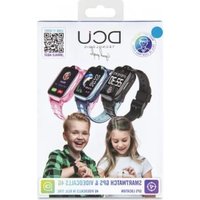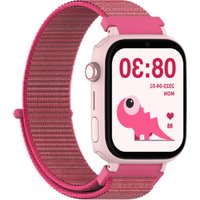
Kids Pro - Smartwatch DCU - Free user manual and instructions
Find the device manual for free Kids Pro DCU in PDF.


User questions about Kids Pro DCU
0 question about this device. Answer the ones you know or ask your own.
Ask a new question about this device
Download the instructions for your Smartwatch in PDF format for free! Find your manual Kids Pro - DCU and take your electronic device back in hand. On this page are published all the documents necessary for the use of your device. Kids Pro by DCU.
USER MANUAL Kids Pro DCU
text_image
QR code image with blue border, containing machine-readable data for scanningtext_image
QR code image containing encoded data, no visible human-readable textThank you very much for purchasing this watch, the DCU team has been working hard to offer you a comfortable, beautiful and functional watch.
If you have any questions that this manual cannot solve, we will be happy to assist you, you can write to info@dcutec.com and in less than 24 hours we will answer you.
We wish you enjoy it!
If you want to know a little more, go to www.dcutec.com or visit our Instagram profile @dcutecnologic. Sometimes we do raffles.
Device maintenance
Remember the following tips to keep your Smartwatch in good condition:
- This device uses 5V 1A for charging. It is strictly prohibited to use charging power supply higher than 5V, maximum allowable 5V/2.4A.
- If you are not going to use the watch for a period of time longer than 1 month, make sure that the battery is not completely discharged, please charge it periodically.
- Clean the watch regularly, especially the inner side and the metal charging contacts, and keep it dry.
- Adjust the watch strap to ensure air circulation.
- Do not overuse skin care products or perfumes on the wrist where the watch is worn.
- Please stop using the watch in case of skin allergy or any discomfort.

REMARK: The product is waterproof with IP67 level, which means it is resistant to sweat and splashes of water and if it accidentally falls into water, it only has resistance up to 1 meter for a maximum of 30 minutes (do not immerse in salt water or chemical liquids).

Do not use in a hot shower/bath or in a sauna, the vapours may enter the sphere and damage the peripheral components. Water damage is out of the scope of the warranty.
Please read the manual carefully before using the device. Pictures and products in the manual for reference only.
1. Before starting
- Charge the smartwatch to 100% before first use. Use the supplied cable with a standard 5V 2A max. charger. Do not use fast charging chargers, do not use USB ports on computers.
- You must purchase a 4G LTE SIM card compatible with Smartwatches, it must be a new number line (duplicate SIM cards are not allowed) can ask for your dealer if have any questions. (Please turn off the smartwatch before insert the SIM Card)
WARNING: If your SIM card has a PIN code, before installing it on your smartwatch, install it on a mobile phone and disable the PIN code.
- SIM card is necessary to activate data flow, GPRS and caller display functions. If you do not use a SIM card, you can continue using your smartwatch, but some functions will be limited.
- Download the APP SeTracker2 in your smartphone and pair your smartwatch using the provided QR code.
2. Install the SIM card.
- Make sure that the device is off the power.
- Take off the SIM card protective cover.
- Insert the SIM card into the slot and make sure that the card's chip part is on the up side Then put the protective cover.
3. Switch on and off
Switch on :
If the smartwatch is off the power, long press the power button to turn on.
Shut down :
1: Enter the settings, choose the power off option.
2: When the device is crashed, you can use remote shut down on the APP SeTracker2.
3: When there is not a SIM card, 2 seconds long press the power button to turn off the device.
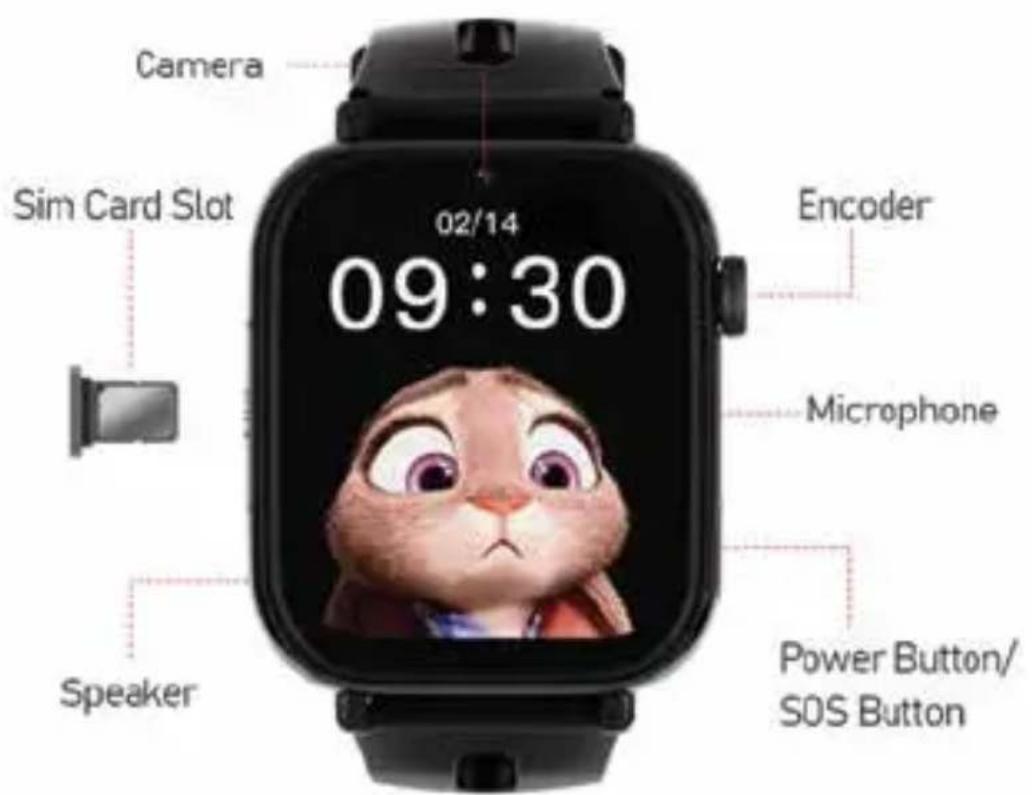
4. Functional area diagram
text_image
Camera Sim Card Slot 02/14 09:30 Encoder Microphone Speaker Power Button/ SOS Button5. Download the APP
5.1 Download
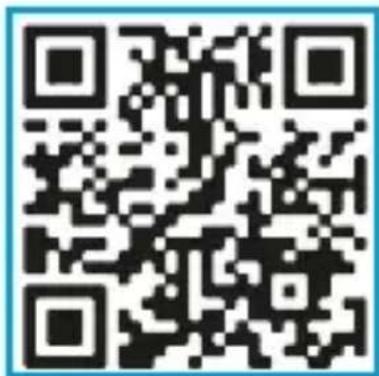
Download and install the SeTracker2 mobile application on your Smartphone: scan the QR code, download the application or search for "SeTracker2" in the iOS application store or the Android Play Store
text_image
QR code image with blue border, containing machine-readable data for scanningENG
5.2 Register and login in.
Creating a user account and login: follow the steps in the APP to register and login in, select the language and location.
Attention: Use the parent email to sign up.
5.3 Pair with the device.
After registration, to pair the APP with the Smartwatch, scan the QR code that will be found on the smartwatch: Setup > QR Code > RegCode
Please note: the registration code is a 15-digit QR code, not the barcode
After you have paired the Smartwatch, you will enter to the main interface of the APP.
Tip: After your account is linked to the Smartwatch, you will be the administrator, if other phones or accounts wish to be linked to the watch, the account you're using will receive a notification request for authorization.
PLEASE NOTE THAT: with the same email you can only create one account in the APP, but you can connect more than 1 watch to the account and the same watch can be associated with several accounts (father, mother, etc.).
6. General Functions
- Location: GPS +AGPS+ LBS +WIFI Location real time on Map.
- Trace: Find the trace in APP.
- Safety area: Set fence (safety area) in the device (Max 3 fences), And notify you in APP when watch wearer reach or out of the appointed area.
- Weather: Automatically update the weather of local region. In primary page just slide from the bottom of screen to enter the weather quickly.
- Contact: Setting up maximum 15 members of your friends or relative in APP.
- Dial interface: Dial interface is supported. You can turn on or off this function in switch settings of APP.
- SOS: 3 emergency contacts can be set. Press the SOS BUTTON (The button on some models is the power button) for 5 more seconds and it will make an emergency call to the appointed contacts in turns. If there is no one answering, it will continue to dial twice in turns and stop.
ENG
- Message notification: Notify you when the device turns on or off the SOS function in SMS. (The fees of SMS are calculated according to your local carrier)
- Alarms: Set 3 alarm clocks
- Camera: take photos or videos
- Magic camera with filters
- Gallery: Save photos and videos taken with the watch, you can also delete them or upload photos to the application.
- Remote Camera: In the app go to "Remote Photo" option to remotely control the watch and take a photo, it will be uploaded to the app.
- Micro chat: Real-time chat between device and app. The app can send 15s text messages or voice messages to the device. And the device can read/listen to messages and send voice and text messages.
• Video call: Make a video call with the linked account. - Do Not Disturb mode: Set up to 4 time periods. This will block all calls and maintain silent mode for the designated period of time.
- Settings: Change screen layout, Volume (medium, ringtone, alarms, on and off), Brightness, Date and time, Bedtime, VoLTE switch (improves data speed in communications), Languages, Power off, About device (Model, Version, IMEI)
- AppStore to download Apps like WhatsApp, Instagram, etc.
- Math game
- Stopwatch
- Calculator
- Step counter
- Agenda and calendar
- Music player
- Voice recorder
- Members: Show the account of family members who is bind with the device.
- Scenarios: 3 modes (Normal, Battery saving, Follow), the default is Normal mode.
- Love heart: You can set this in the APP. And the Love heart can be only shown on the interface of watch.
- Remote shut down: Remote shutting down order to the watch when it is power on.
- Remote restart: Send a remote restarting message to the watch. And restart the device.
7. Main functions of the APP SeTracker2
On the main interface you can access to the main functions
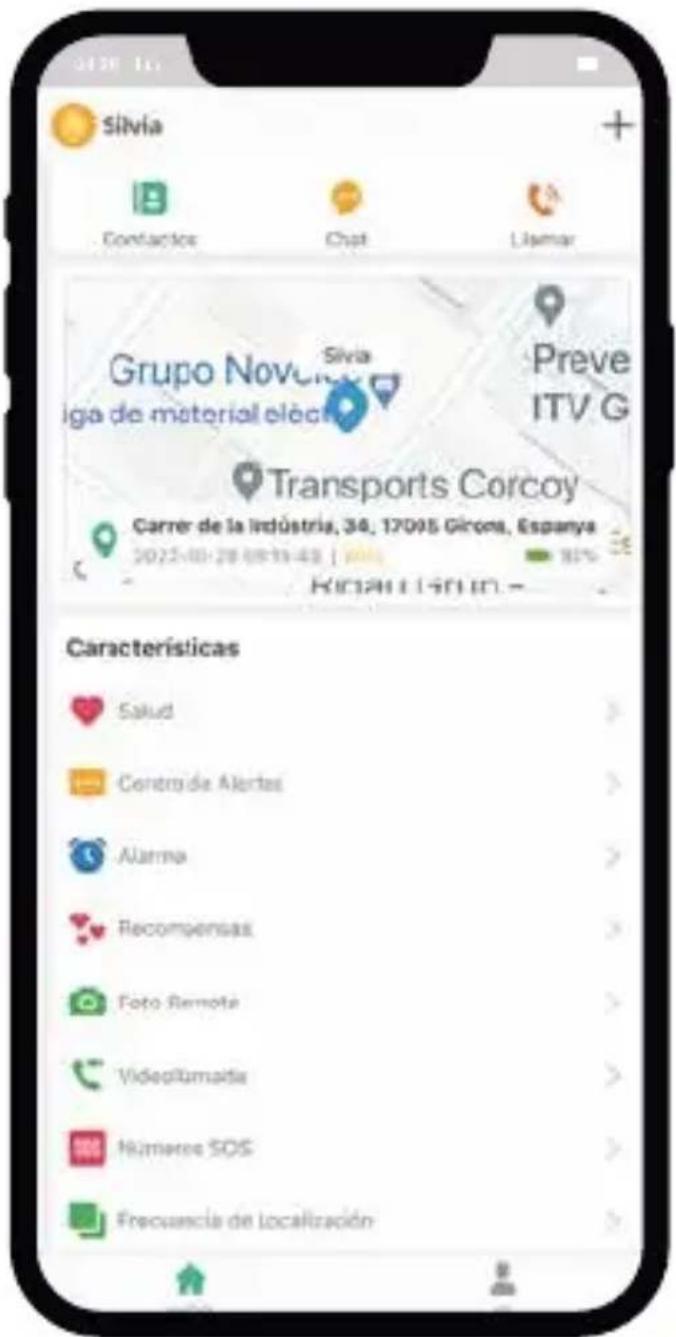
7.1 Location and history: access to the map to see the location in real time. Click the positioning icon to get the current location.
text_image
Silvia Contactos Chat Llamar Grupo Novice Sivia iga de material elec Preve ITV G Transports Corcoy Carrer de la Industria, 34, 17095 Girona, Espanya 2022-08-28 08:15:43 | 10% Características Salud Centrode Alertas Alarma Recompensas Foto Remote Videotumada Número SOS Frecuencia de Localización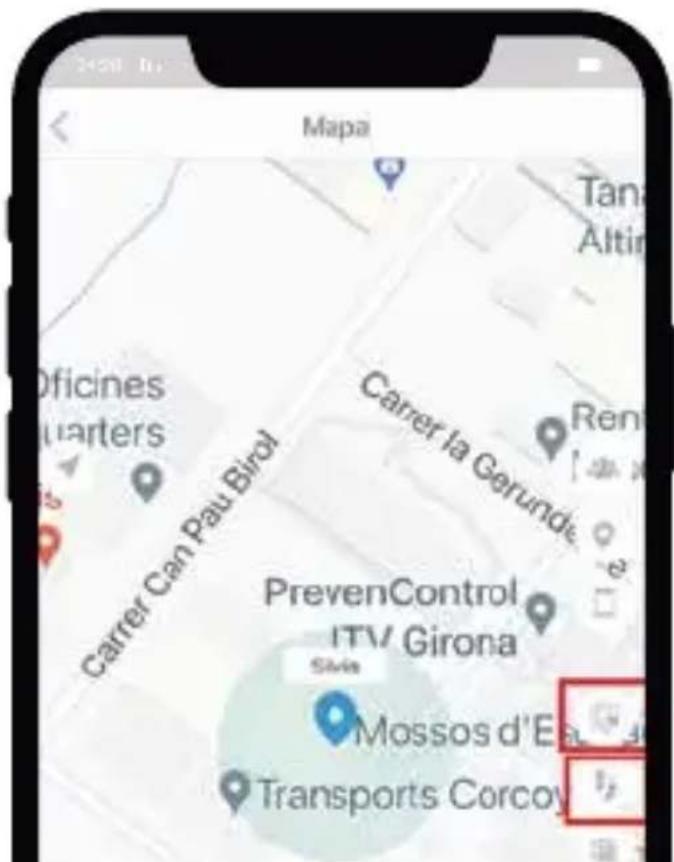
text_image
Mapa Tana Altin Oficines quarters Carrer Can Pau Birol Carrer la Gerundie Ren PrevenControl ITV Girona Sivis Mossos d'Et. Transports CorcoyClick on the "Location History" icon 1 on the right side to view the history of locations within a time interval.
Click on the "Security area" icon: from this option you can define a security area of at least 200m and up to 2km. You will receive an alarm when your Smartwatch exits this area.
7.2 From the main screen of the APP, "HOME", you can access the different functions and configure the various parameters of the Smartwatch:

text_image
Contactos Chat LlamarENG
- Phonebook: you can set up to 15 phone numbers, these 15 numbers can be dialed with the Smartwatch and make two-way calls.
- Voice chat. Enter to listen/send voice messages and send them to your Smartwatch. You can create new voice message with a minimum of 3 seconds and a maximum of 15 seconds.
- Calls: Make voice calls to the connected device
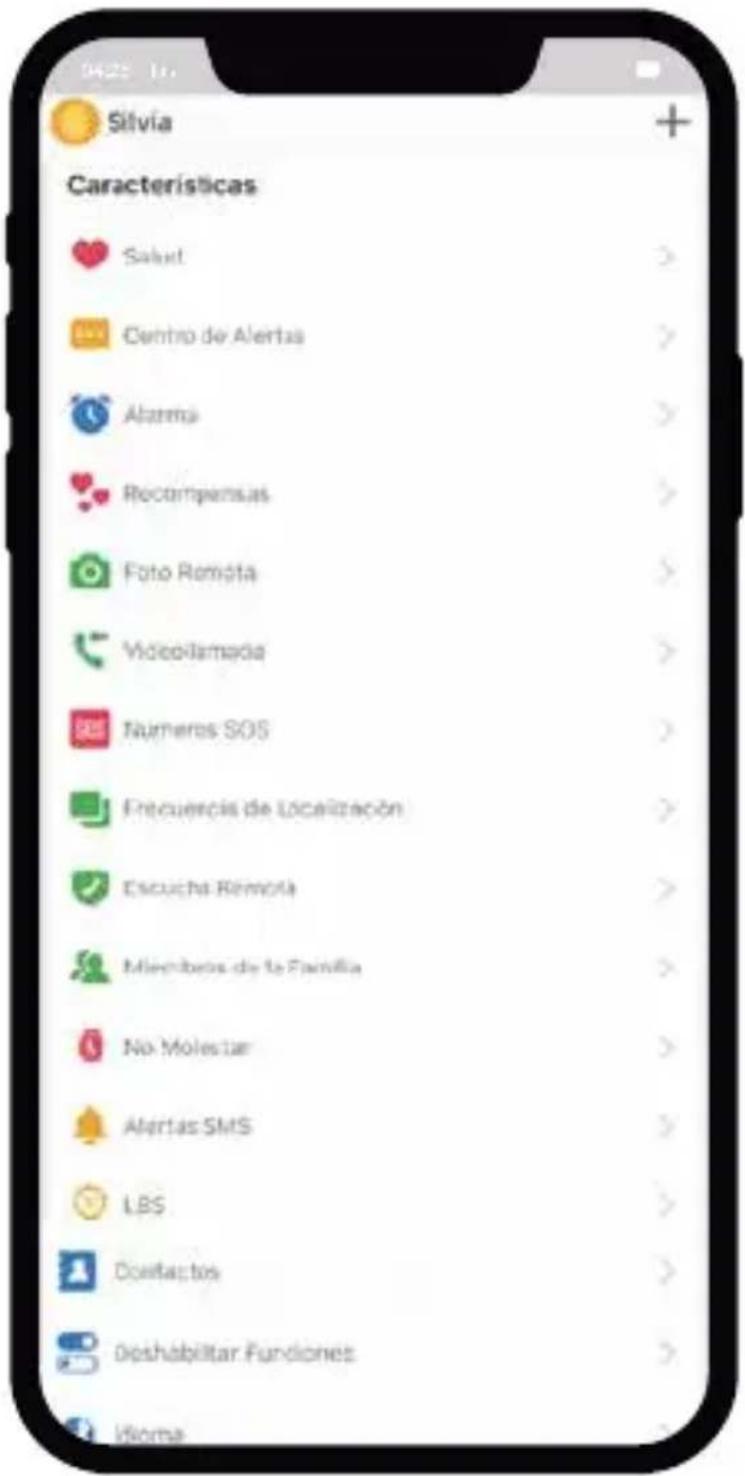
- Health: information about daily steps, calories and sleep information
- Alert messages. Displays emergency messages, safe zone and low battery alert.
- Alarm clock: you can set up 3 alarms.
- Love rewards: You can send heart-shaped love rewards that will be displayed on your child's Smartwatch.
- Remote camera: From this option you can view the photos taken from the Smartwatch and also take a picture remotely from the application to see an image of what is around the smartwatch.
- Agenda: you can enter, for example, the school agenda
- Video call: starts a new video call with your kid's smartwatch
- SOS Number Settings - Up to three numbers can be configured from APP. Press and hold the SOS button on the Smartwatch for 5s in case of an emergency, a call will be made to the first number automatically, if the call isn't answered, the smartwatch will dial the next number.
- Modes to update the location:
There are 3 work modes for updating the location. The battery life of the Smartwatch depends on the mode of operation. - The refresh interval is every 10 minutes
- The refresh interval is every hour
- Sleep mode: get manual location
- Sounds: set silence or sounds on the watch
- Listen Monitor (sound guardian): Enter the parents' phone number. The Smartwatch can call the configured numbers, the Smartwatch can't hear the sound around the mobile phone, only the mobile phones can hear the sound around the Smartwatch.
- Family members: displays the administrator account and linked accounts.
- Don't disturb mode: You can set different time slots where the smartwatch will not ring or be used.
- Alert SMS settings: You can configure the phone where you want to receive the SMS and enable/disable alert SMS by low battery and SOS button.
- LBS: enable/disable LBS positioning
- Find device: Activate this option to search your watch. The device beeps for 1 minute.
ENG
- Contacts: add 15 contacts
- Restrict smartwatch functions: You can enable/disable smartwatch's functions like smartwatch keyboard function and GPS positioning.
- Language: select your language
- Setting the time zone
- Receive SMS from the smartwatch: recover in the APP the SMS that the smartwatch receives
- Reject unknown calls: if you activate this option, only the phone numbers that you added to the smartwatch contacts will be able to call the smartwatch, other number will be rejected. If there is an unknown call, a message will be sent to the main phone number.
- WiFi Smartwatch Settings: connect the smartwatch to a WiFi network
- 12h/24h time display settings
- APPStore: install/update the APPs available on the smartwatch
- Remote Power On/Off - The Smartwatch can be turned off or on remotely from this option.
- Factory Reset
- Remote factory reset
7.3 "Me" interface
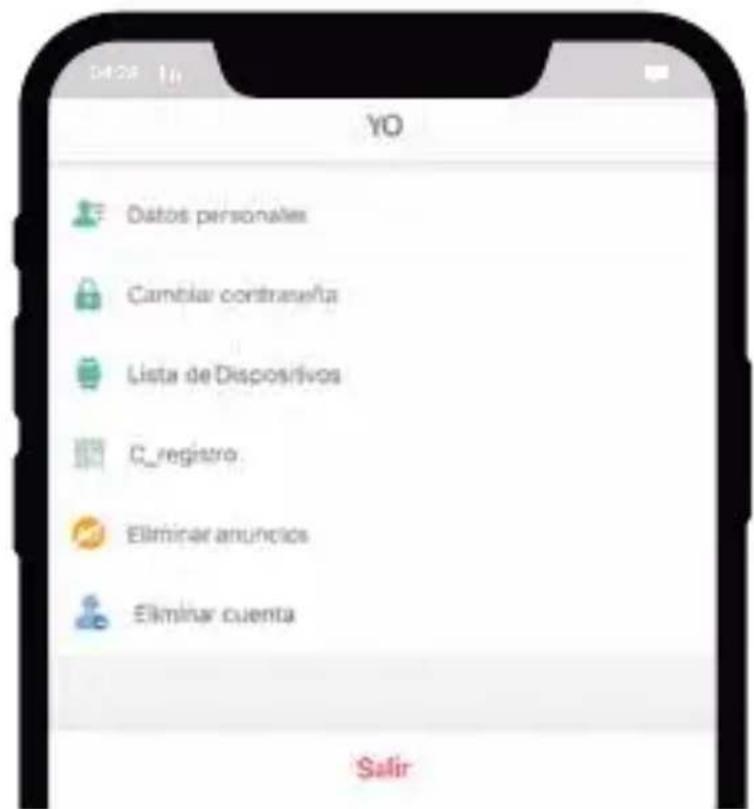
- Personal information: Edit your account information: email and phone number associated with the Smartwatch.
- Modify Password: You can change your account login password.
- Device List - You can view the devices associated with the APP. If the ID listed doesn't match to the Smartwatch ID, the smartwatch can't be connected to the APP.
• Sign out - Exit the current account
8. Main functions of the Smartwatch
8.1 SOS Emergency Alarm
Press the SOS side button on the Smartwatch for 5 seconds, the Smartwatch will call the 3 SOS numbers configured from the APP. A call will be made to the first number automatically, if you don't answer the call, the Smartwatch will dial the next number and it will continue to dial until it makes two rounds. At the same time, the Smartwatch will send an SMS notification to the APP.
8.2 Low battery alarm
When the battery is less than 20%, an alarm will be activated and the Smartwatch will send a warning message to the phone number configured from the APP via SMS.
8.3 Remote On/Off
The Smartwatch can be remotely turned off or on by the application.
8.4 Answer and hang up a call
Press the green Smartwatch icon to answer the call.
Press the red Smartwatch icon to hang up the call.
8.5 Camera: Take pictures and videos
8. 6 Steps: to activate the pedometer go to the Setracker2 APP, in the Health option, click on the gear icon and enable the switch
8.7 APP Store: you can download new APPs available for the smartwatch such as Whatsapp, Instagram, etc. or update already installed APPs
8.8 Music player. Listen to music previously installed from a PC
9.Problems fixing
If the device cannot connect to the server in your first time of using, and on the APP shows the device is out of line. Please check the following conditions:
1) You have disabled the PIN code of the SIM card by placing it in a mobile phone before
2) Your SIM card is 4G and network is normal or not.
3) Data flow service is turned on and normal or not.
4) If there is still not working, please contact with DCU Tecnologic for more details and help.
5) If you cannot register, there are 2 problems usual:
- The code of device does not exist or it has registered before, under this condition you must contact with DCU Tecnologic for help.
- Account has registered before. Under this condition, you just change this account is OK.
DCU Tecnologic customer service
Live web chat: www.dcutec.com
Email: info@dcutec.com
Telephone: +34 972244105
REGISTER YOUR WATCH ON OUR WEBSITE TO ACCESS THE WARRANTY (scan the QR code below).
text_image
QR code image containing encoded data, no visible human-readable texttext_image
QR code image with blue border, containing machine-readable data for scanningCAT
text_image
QR code image containing encoded data, no visible human-readable texttext_image
QR code image with blue border, containing machine-readable data for scanningService client DCU Tecnologic
Chat Web en direct: www.dcutec.com
Email: info@dcutec.com
Téléphone: +34 972244105
ENREGISTREZ VOTRE MONTRE SUR NOTRE SITE INTERNET POUR ACCÉDER À LA GARANTIE (scannez le QR code ci-dessous).
text_image
QR code image containing encoded data, no visible human-readable texttext_image
QR code image with blue border, containing machine-readable data for scanningPORT
text_image
QR code image containing encoded data, no visible human-readable textDCU
TECNOLOGIC
Good People

Any questions about our products:
www.dcutec.com
C/ Industria, 34
Designed in BCN / Made in PRC / B55166847