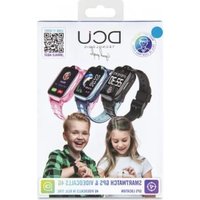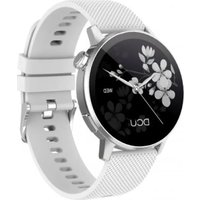
GEOTRACK - Smartwatch DCU - Free user manual and instructions
Find the device manual for free GEOTRACK DCU in PDF.


User questions about GEOTRACK DCU
0 question about this device. Answer the ones you know or ask your own.
Ask a new question about this device
Download the instructions for your Smartwatch in PDF format for free! Find your manual GEOTRACK - DCU and take your electronic device back in hand. On this page are published all the documents necessary for the use of your device. GEOTRACK by DCU.
USER MANUAL GEOTRACK DCU
Smartwatch GPS GEOTRACK S
iOS - Android
34157086 / 34157087 / 34157088
text_image
QR code image containing encoded data, no visible human-readable textManual de usuario 3
User manual 18
Manual d'usuari 33
Mode d'emploi 48
text_image
Diagram of a smartwatch with labeled parts, showing sensor placement and red directional arrows indicating motion or signal flow.ESP
2. CÓMO CARGAR TU RELOJ INTELIGENTE
natural_image
Line drawing of a smartwatch with attached strap and connector (no text or symbols)text_image
QR code image containing encoded data, no visible human-readable textESP
text_image
Illustration showing four different hand gestures on a wristwatch, illustrating time-based movement or navigation.ESP
5. MENÚ PRINCIPAL
- Accesos directos
text_image
MON 27 AM $ 100% 09:30
text_image
No Notificationflowchart
graph LR
    A["Call Records"] --> B["No call record"]
text_image
Triathlon None Trail running 102 kcal Marathoa None Hiking None Running 102 kcal Walking None Climbing None Swimming 102 kcal Cycling Noneflowchart
graph LR
    A["Hiking None"] --> B["Running Set Goal > 100% Goal"]
    B --> C["Start 16.5%"]
    C --> D["Select Routes Running 1.8km"]
    D --> E["Running Set Goal > 100% Goal"]
    E --> F["Start 16.5%"]
    F --> G["Select Routes Running 1.8km"]
    G --> H["Running Delete Cancel"]
    H --> I["OK"]
ESP
flowchart
graph LR
    A["Distance"] --> B["4 Km"]
    C["Calories"] --> D["5 Km"]
    E["None"] --> F["6 Km"]
    B --> G["Time Min"]
    D --> G
    G --> H["100 Kcal"]
    H --> I["200 Kcal"]
    I --> J["300 Kcal"]
    J --> K["10.0 lm Achieve the goal"]
flowchart
graph LR
    A["Heart Rate"] --> B["Blood Oxygen"]
    B --> C["Stress"]
    C --> D["Weather"]
    D --> E["Measuring..."]
    E --> F["086 bpm: 120 + 050"]
    F --> G["Ranking heart rate: 078 bpm: Aug 1st Feb 1 Day, 060 pm"]
    G --> H["Keep still with the watch laring up"]
flowchart
graph LR
    A["Heart Rate"] --> B["Blood Oxygen"]
    B --> C["Stress"]
    C --> D["Weather"]
    D --> E["Measuring..."]
    E --> F["98%"]
    F --> G["+98% - +96%"]
    G --> H["Severe Hypothesis"]
    H --> I["Low"]
    H --> J["Normal"]
    I --> K["keep still with the watch facing up"]
    J --> K
ESP
flowchart
graph LR
    A["Exercise"] --> B["Sedentary"]
    B --> C["Camera"]
    D["Exercise History"] --> E["Camera Icon"]
    F["Please connect tcp"] --> G["Phone icon with 'No'"]
text_image
Aarm Sleep Notifications Music Lemon tree Lemon treeESP
text_image
Breathing Voice Assistant Altitude Compass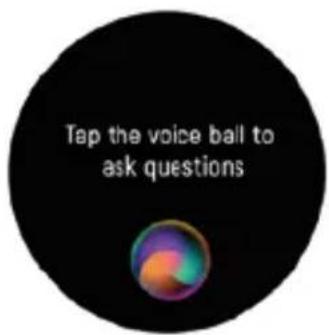
text_image
Tap the voice ball to ask questions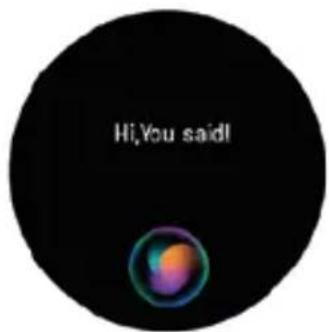
text_image
Hi,You said!text_image
Breathing Voice Assistant Altitude Compass 215° SW There may be magnetic interference nearby, please follow the steps below to calibrate the compasstext_image
World Clock Settings 15:50 Local time GMT+8:00 08:50 London GMT+01:00 03:50 New York GMT-04:00 Please connect the APP to synchronize the time, and add the world time in the APPESP
- Configuración
flowchart
graph TD
    A["Settings"] --> B["Find my phone"]
    B --> C["Brightness"]
    B --> D["Screen On"]
    B --> E["Watch Faces"]
    C <--> F["Always On Display"]
    D <--> G["Menu Style"]
    D <--> H["DNO Mode"]
    D <--> I["Power Saving"]
    F <--> J["Notification Bar"]
    G <--> K["Language"]
    H <--> L["Reset call history"]
    I <--> M["Vibration Interest"]
    J <--> N["Calculator"]
    K <--> O["Restart"]
    L <--> P["Reset"]
    M <--> Q["Power Off"]
    R["System"] --> S["Audio Setup"]
    R --> T["Notifications"]
    R --> U["Health Monitor"]
    V["Switches"] --> W["Downloaded and connect"]
    W --> X["SOS"]
    W --> Y["Card style"]
    Z["PC Mode"] --> AA["End"]

text_image
QR code image containing encoded data, no visible human-readable textENG
Thank you very much for purchasing this watch, the DCU team has been working hard to offer you a comfortable, beautiful and functional watch.
If you have any questions that this manual cannot solve, we will be happy to assist you, you can write to info@dcutec.com and in less than 24 hours we will answer you.
We wish you enjoy it!
If you want to know a little more, go to www.dcutec.com or visit our Instagram profile @dcutecnologic. Sometimes we do giveaways.
Device maintenance
Remember the following tips to keep your Smartwatch in good condition:
- This device uses 5V 2A for charging. It is strictly prohibited to use charging power supply higher than 5V, maximum allowable 5V/2.4A.
- If you are not going to use the smartwatch for a period of time longer than 1 month, make sure that the battery is not completely discharged, please charge it periodically.
- Clean the smartwatch regularly, especially the back side and the metal charging contacts, and keep it dry.
- Adjust the smartwatch strap to ensure air circulation.
- Do not overuse skin care products or perfumes on the wrist where the watch is worn.
- Please stop using the watch in case of skin allergy or any discomfort.

Remark: The product is splashproof with IP67 level, which means that it can be immersed in water at depths of up to 1 meter for a maximum of 30 minutes (do not immerse in salt water).

Do not use in a hot shower/bath or in a sauna, the vapours may enter the sphere and damage the peripheral components. Water damage is out of the scope of the warranty.

Damages caused by water are outside the scope of the guarantee because we cannot verify if the tightness of the product has been tampered with or affected by small blows that have reduced its resistance
ENG
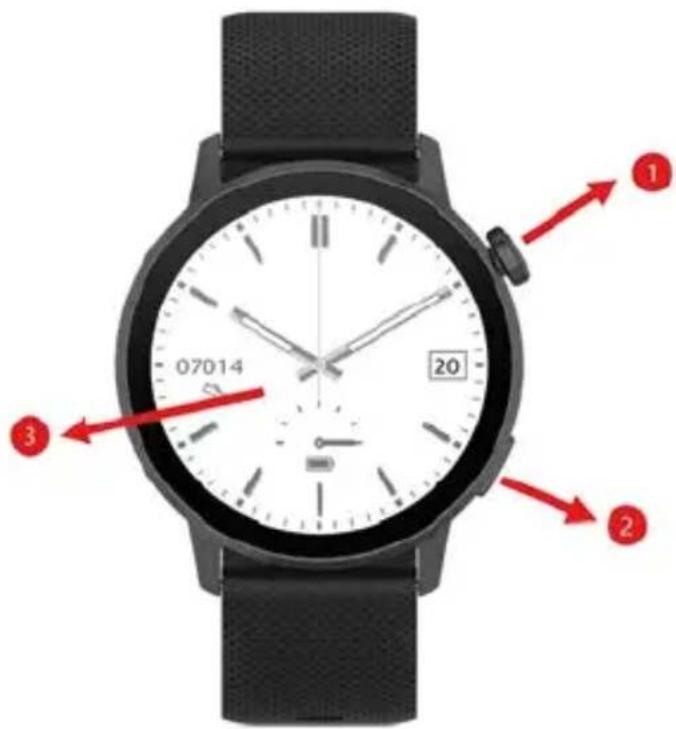
1. FRONT & BACK VIEW
- Side button: long press and hold the side button to power on and power off, short press the side button to return to watch interface or let display off/on, and rotate side button to switch watch face
- Side button: long press/short press the side button to enter Exercise
- Touch screen: Shows watch data, swipe or touch the screen to select the functions
- Heart rate sensor
- Blood Oxygen sensor
text_image
07014 20 1 2 3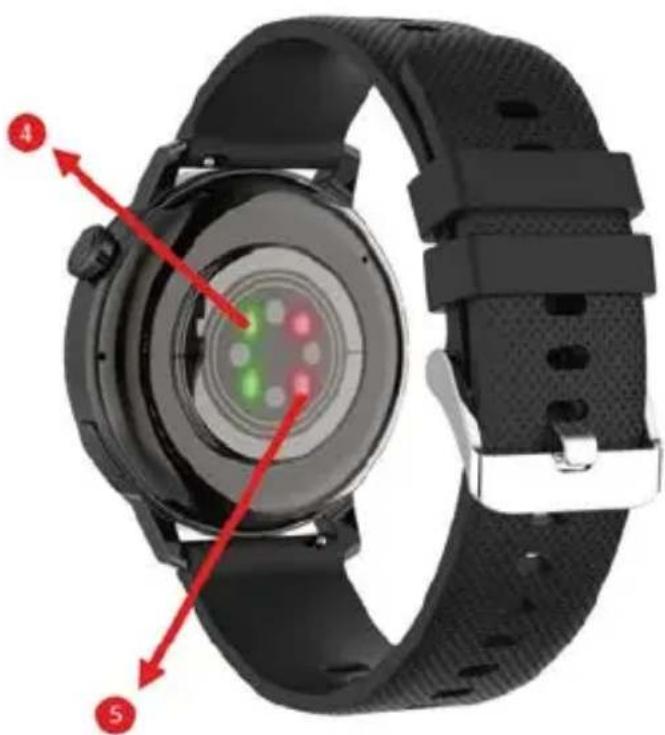
text_image
Diagram of a smartwatch with labeled parts, showing sensor placement and red directional arrows indicating motion or signal flow.ENG
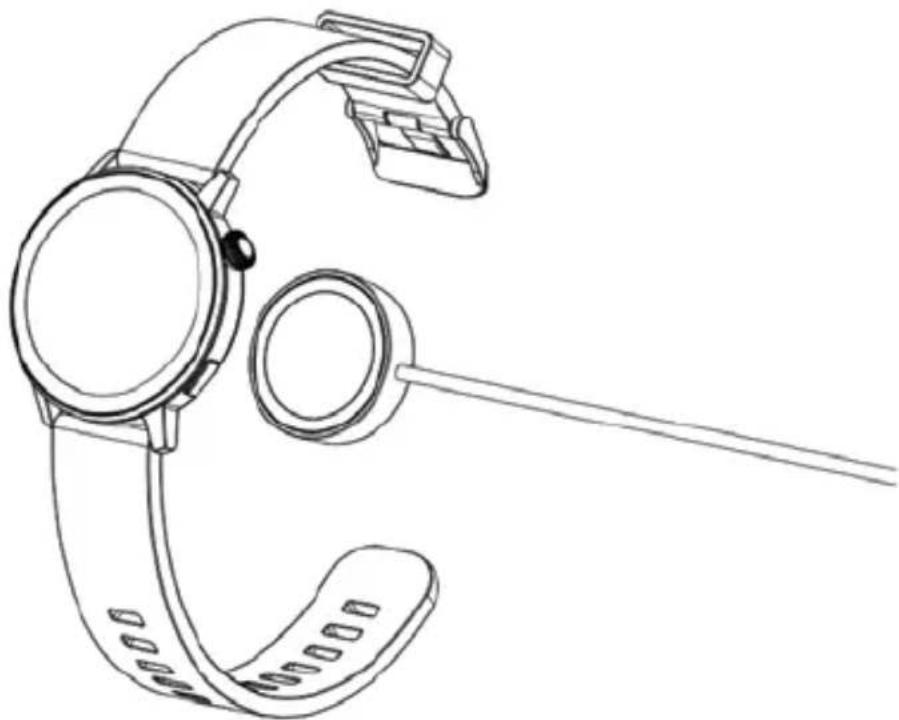
2. CHARGING YOUR SMART WATCH
- Before using your Smartwatch for the first time, make sure it is fully charged.
- The Smartwatch will take approximately 2.5 hours to fully charge. Once a power charger is plugged in the Smartwatch will charge automatically.
- Place the Smartwatch on the charging base and plug the other end of the user cable into a power source (USB wall charger 5V/2.4A maximum).
natural_image
Line drawing of a smartwatch with attached strap and connector (no text or symbols)3. INSTALL, CONNECT OR DISCONNECT THE APP
- Before downloading the "Smart DCU" app, please make sure that it is compatible with your smartphone. The app works with iOS 12.0 or above and Android 8.0 or above.
- Search for the "Smart DCU" app in the App Store or Google Play or scan the following QR code to install.

text_image
SMART DCU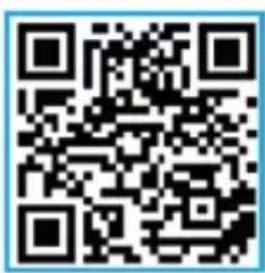
text_image
QR code image containing encoded data, no visible human-readable textENG
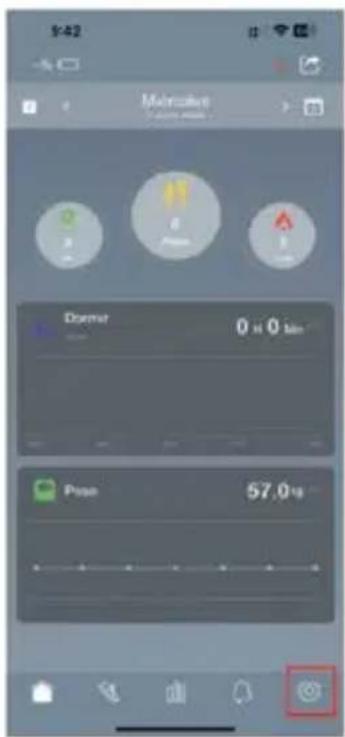
- Turn on Bluetooth on your smartphone, open the "Smart DCU" app and set your profile. Then tap "Connect Smartwatch" in settings and choose your smartwatch to connect.
- To disconnect your smartwatch, please go to the app settings and tap "Forget This Smartwatch". For iPhone, you also need to go to "Bluetooth" in your iPhone Settings to "Forget This Device".
text_image
1:42 Motorbike 0 0 0 Doome 0 x 0 km Pose 57.0 kg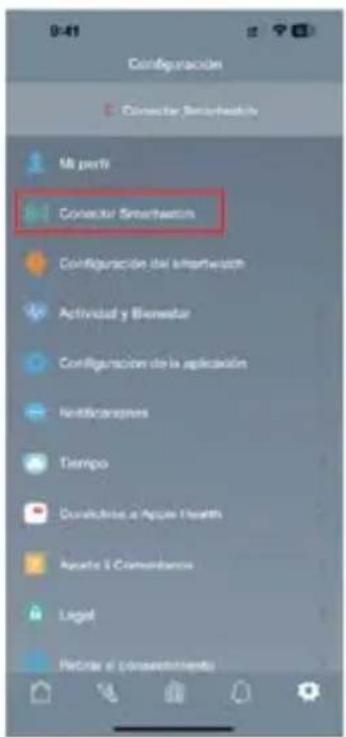
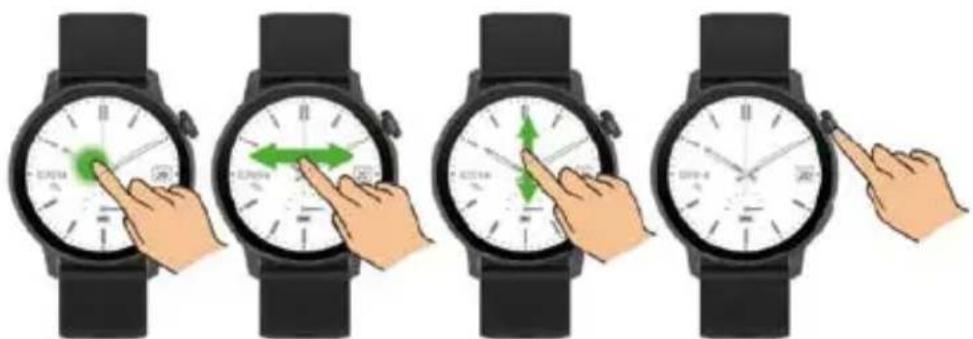
Hold the side button for 3 seconds to turn on the Smartwatch. Swipe up/down or left/right to see more options.
text_image
Illustration showing four different hand gestures on a wristwatch, illustrating time-based movement or navigation.ENG
5. MAIN MENU
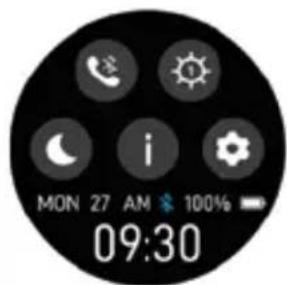
- Shortcuts
text_image
MON 27 AM 100% 09:30
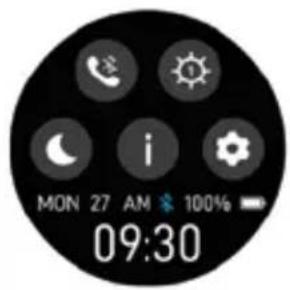
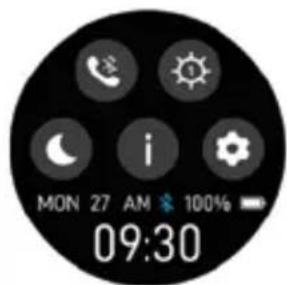
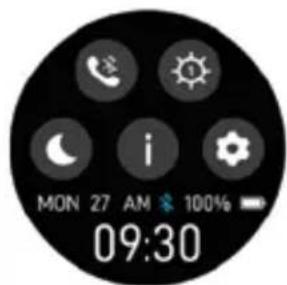
This icon is the call 5.4 Bluetooth connection switch, click this icon to connect the watch 5.4 Bluetooth on your phone system Bluetooth. Then, the watch can answer calls and play music.

Screen brightness, you can tap the brightness icon to adjust (up/down) the screen brightness.

Sleep mode.

About, to find the Name and Bluetooth MAC address and software version of your Smartwatch.

Settings.
text_image
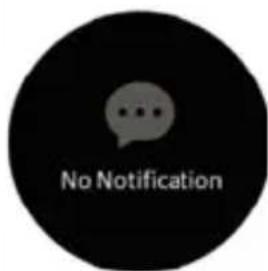
No Notification- Notifications: Swipe up on the watch interface to view notifications such as text messages, QQ, WeChat, WhatsApp, Facebook, Twitter, etc.
text_image
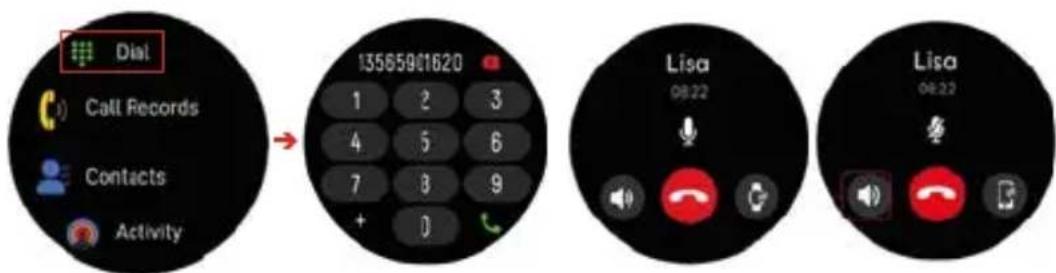
Dial Call Records Contacts Activity 13565901620 1 2 3 4 5 6 7 8 9 + 0 Lisa 08:22 Lisa 08:22- Dial: After pairing the phone with the watch's call Bluetooth, tap this icon to make a call

Click speaker icon will display swipe the screen to increase or decrease the volume

Call mute

Watch answer

Answering from phone
ENG
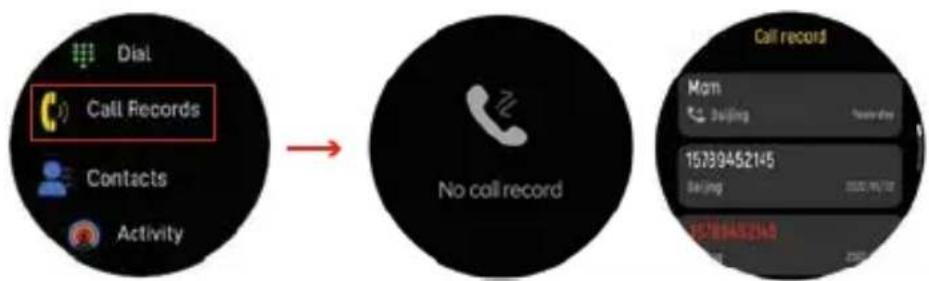
- Call records: Click this icon to see recent call history.
flowchart
graph LR
    A["Call Records"] --> B["No call record"]
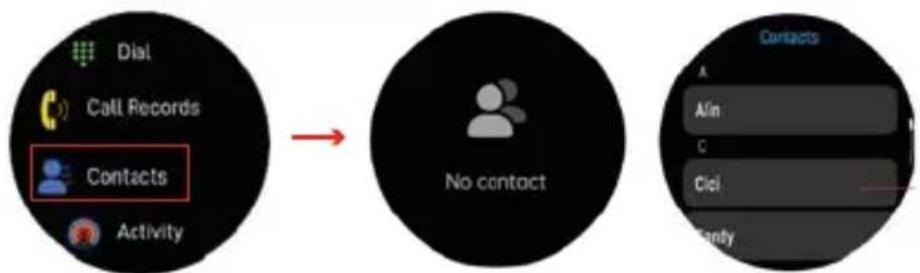
- Contacts: connected the "Smart DCU" APP and open, then go to "Sync Contacts" in Smartwatch Settings on phone App. and add contact information in your contacts, which will be displayed on the smartwatch after saving.
flowchart
graph LR
    A["Dial"] --> B["Call Records"]
    B --> C["Contacts"]
    C --> D["Activity"]
    E["No contact"] --> F["Contacts"]
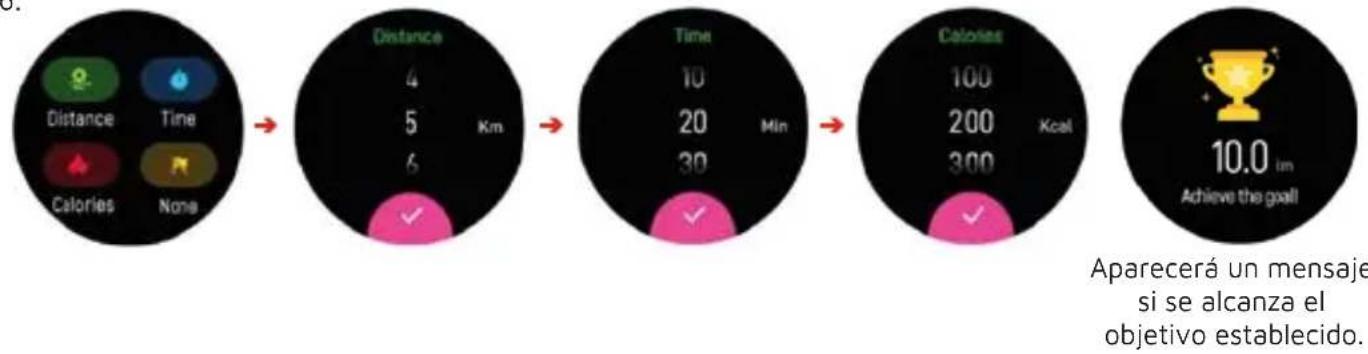
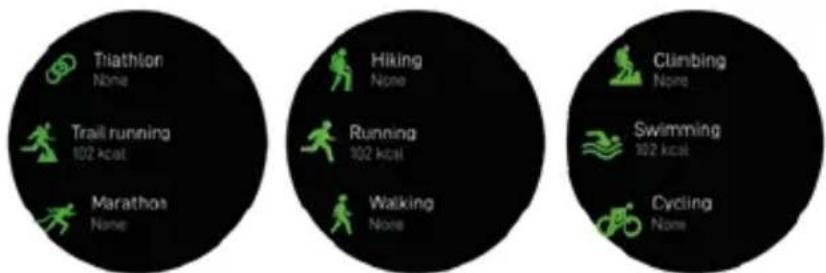
- Multi-sport modes: Tap Sports icon to enter the multi-sport modes. If you want to end the sports, slide from left to right on screen and tap the " 🔥 " icon to finish your sports and save the sports data.
pie
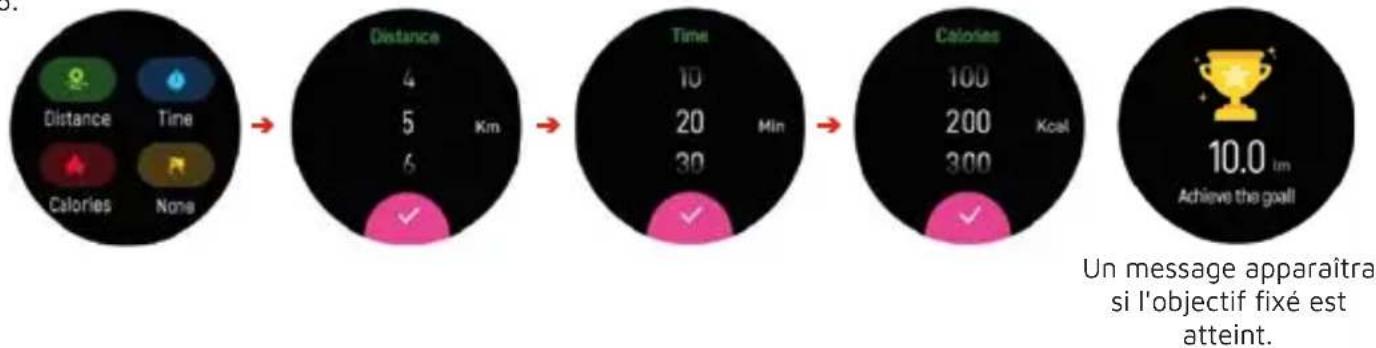
| Activity | Value | | :--- | :--- | | Triathlon | None | | Trail running | 102 kcal | | Marathon | None | | Hiking | None | | Running | 102 kcal | | Walking | None | | Climbing | None | | Swimming | 102 kcal | | Cycling | None |Click this icon to set the sport goal.

flowchart
graph LR
    A["Hiking None"] --> B["Running Set Goal > 100km"]
    C["Running 102 km"] --> D["Start"]
    E["Walking None"] --> F["Select Routes Running Users >"]
    G["GPS"] --> H["Start"]
    I["GPS"] --> J["Select Routes Running Users >"]
    K["Start"] --> L["Running Set Goal > 100km"]
    M["Start"] --> N["Select Routes Running Users >"]
    O["Start"] --> P["Running Set Goal > 100km"]
    Q["Start"] --> R["Select Routes Running Users >"]
    S["Delete"] --> T["Cancel"]
    U["OK"] --> V["Running Breakdown"]
ENG

flowchart
graph LR
    A["Distance"] --> B["Time"]
    B --> C["Calories"]
    C --> D["10.0 km Achieve the goal"]

    subgraph Time
        E["4"] --> F["5 Km"]
        G["6"] --> H["√"]
        I["10"] --> J["20 Min"]
        K["30"] --> L["√"]
    end

    subgraph Calories
        M["100"] --> N["200 Kcal"]
        O["300"] --> P["√"]
    end
A reminder will pop up if your sport data is achieved your goal set.
- Heart rate monitor, tap this icon to monitor your current heart rate. To exit the heart rate monitor, Swipe the screen from left to right, or press the side button

flowchart
graph LR
    A["Heart Rate"] --> B["Blood Oxygen"]
    B --> C["Stress"]
    C --> D["Weather"]
    D --> E["Measuring..."]
    E --> F["086 bpm: 120 - 050"]
    F --> G["Planting heart rate: 078 bpm: 060 bpm"]
    G --> H["Keep still with the watch lining up"]
- Blood Oxygen monitor, tap this icon to monitor your current Blood Oxygen monitor. To exit the Blood Oxygen monitor, Swipe the screen from left to right, or press the side button

flowchart
graph LR
    A["Heart Rate\nBlood Oxygen\nStress\nWeather"] --> B["Measuring..."]
    B --> C["98%\n98% + 96%"]
    C --> D["Severe hypoxia\n< 70%\n70%-80%\nLow\n90%-99%\nNormal"]
    D --> E["keep anti with the watch facing up"]
ENG
- Stress monitor, click this icon to monitor your current pressure monitor. To exit the Stress monitor, Swipe the screen from left to right, or press the side button
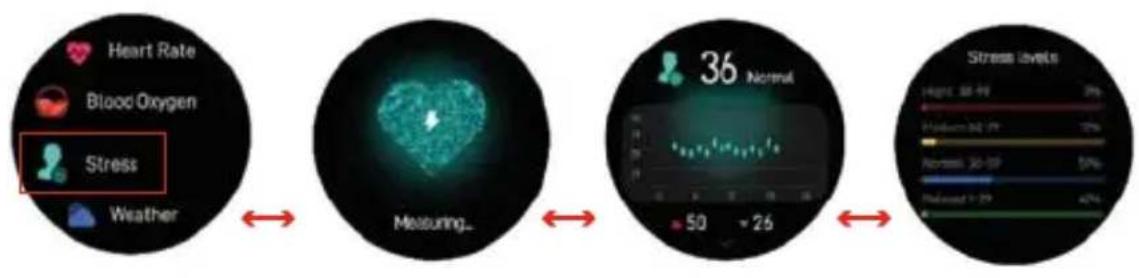
flowchart
graph LR
    A["Heart Rate"] --> B["Blood Oxygen"]
    B --> C["Stress"]
    C --> D["Weather"]
    D --> E["Measuring..."]
    E --> F["36 Normal"]
    F --> G["Stress levels"]
- Weather: Display the weather when the smartwatch connected to Smart DCU APP.
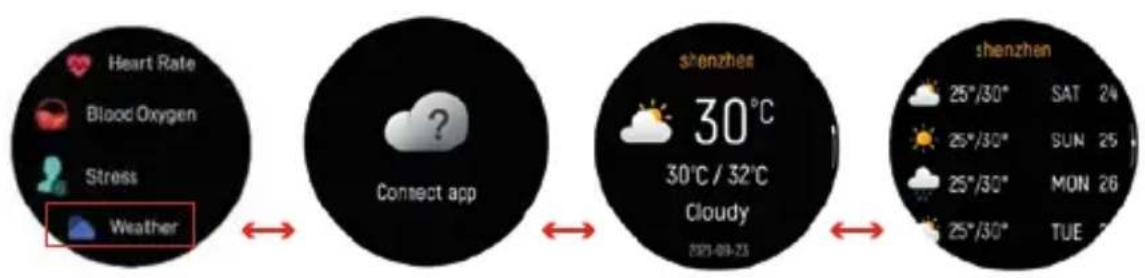
flowchart
graph LR
    A["Heart Rate"] --> B["Connect app"]
    B --> C["shenzhen"]
    C --> D["25°/30° SAT 24"]
    C --> E["25°/30° SUN 25"]
    C --> F["25°/30° MON 26"]
    C --> G["25°/30° TUE 27"]
- Sedentary reminder, set the time intervals (minutes) from the Smart DCU APP, start time and end time. You can turn on or off sedentary reminder. Slide from left to right on the screen to exit
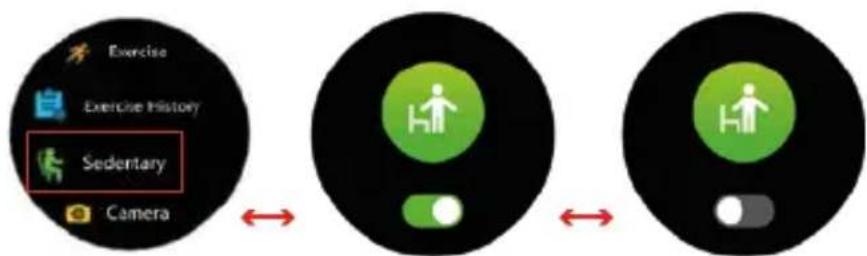
flowchart
graph LR
    A["Exercise"] --> B["Exercise History"]
    B --> C["Sedentary"]
    C --> D["Camera"]
    style A fill:#f9f,stroke:#333
    style B fill:#ccf,stroke:#333
    style C fill:#cfc,stroke:#333
    style D fill:#fcc,stroke:#333
ENG
- Camera Shutter: take pictures remotely from your smart watch.
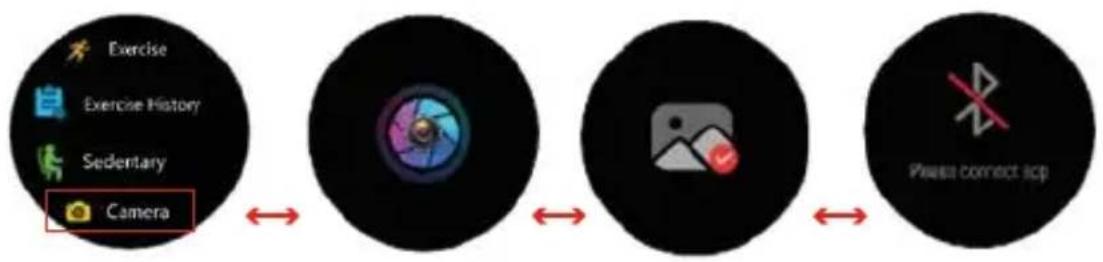
flowchart
graph LR
    A["Exercise"] --> B["Exercise History"]
    B --> C["Sedentary"]
    C --> D["Camera"]
    D --> E["Please connect Icp"]
- Sleep monitor, monitor your sleep between 9:00 p.m. and 9:00 a.m. automatically.

flowchart
graph LR
    A["Alarm"] --> B["Sleep"]
    B --> C["Notifications"]
    C --> D["Music"]
    D --> E["No data"]
    E --> F["07 H 45 M\nGoal 8h 30m"]
    F --> G["23:05\n04:15\n02:30"]
    G --> H["7-day sleep data"]
- Music control, click the music icon to enter the music playback control interface. You can select previous/next song, and play/pause music. You can control to increase and decrease the volume, and you can tap the icon to switch the output sound on the watch or on the phone. To exit the music playback controls, swipe left to right to last watch interface.
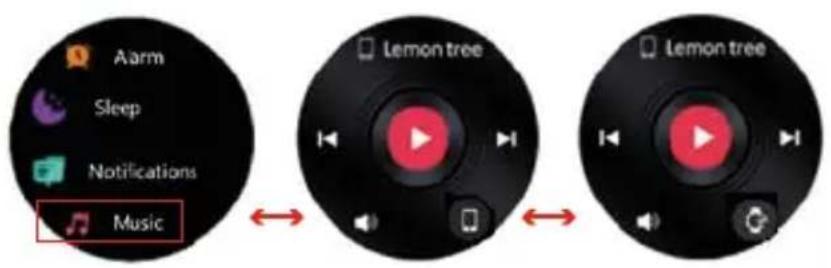
flowchart
graph LR
    A["Arm"] --> B["Music"]
    C["Sleep"] --> B
    D["Notifications"] --> B
    E["Lemon tree"] --> F["Music"]
    G["Lemon tree"] --> H["Music"]
ENG
- Voice Assistant, Connected the watch's call Bluetooth assistant to use voice control

and then wake up the phone's voice
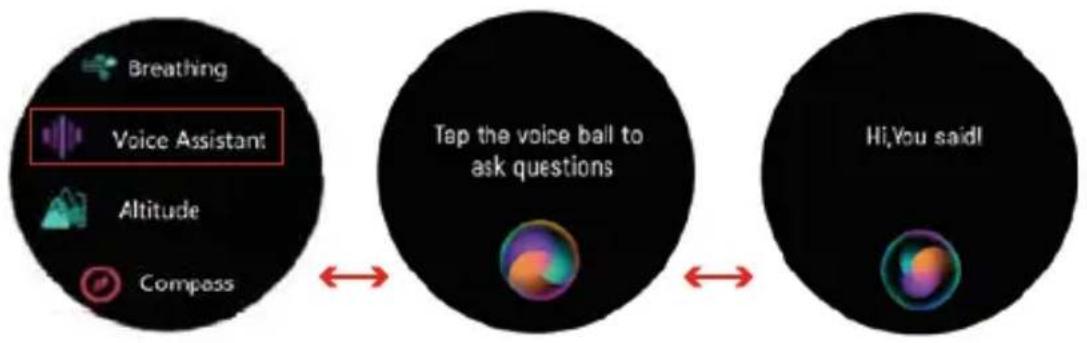
flowchart
graph LR
    A["Breathing"] --> B["Voice Assistant"]
    C["Altitude"] --> D["Compass"]
    E["Tap the voice ball to ask questions"] --> F["Hi,You said!"]
- Altitude, the watch's altitude barometer automatically measures the altitude and barometric pressure of the current position, and records the day's measurement data with a waveform chart. Swipe the screen up or down to toggle between viewing the current air pressure and altitude. Click Calibrate on the altimeter interface to manually calibrate the current altitude.
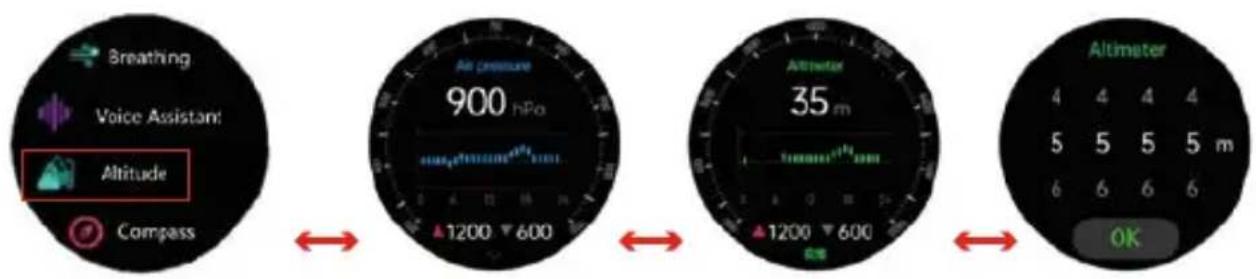
text_image
Breathing Voice Assistant! Altitude Compass Air Pressure 900 hPa 1200 600 Altimeter 35 m 1200 600 Altimeter 4 4 4 4 5 5 5 5 m 6 6 6 6 OKENG
- Compass, orient yourself in the way.
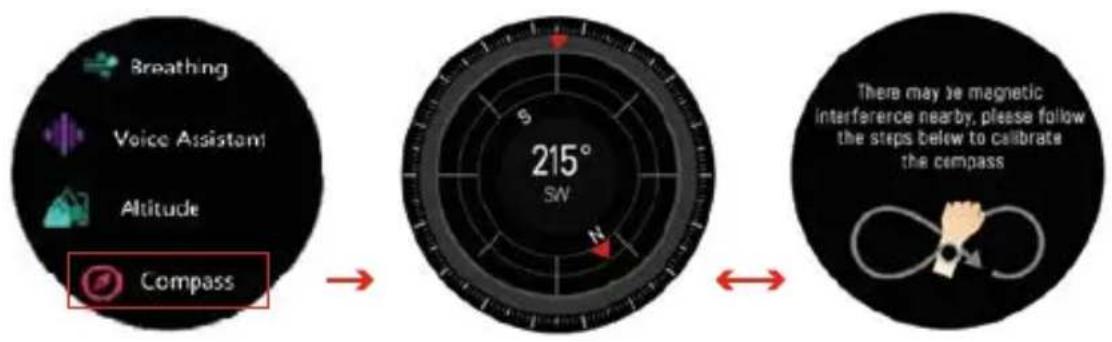
text_image
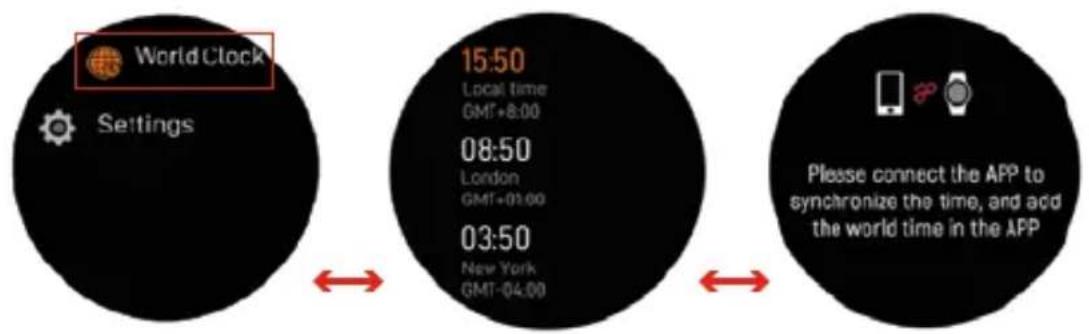
Breathing Voice Assistant Altitude Compass 215° SW There may be magnetic interference nearby, please follow the steps below to calibrate the compass- World Clock: Connect to the App to add World Clock to the SmartWatch
text_image
World Clock Settings 15:50 Local time GMT+8:00 08:50 London GMT+01:00 03:50 New York GMT-04:00 Please connect the APP to synchronize the time, and add the world time in the APPENG
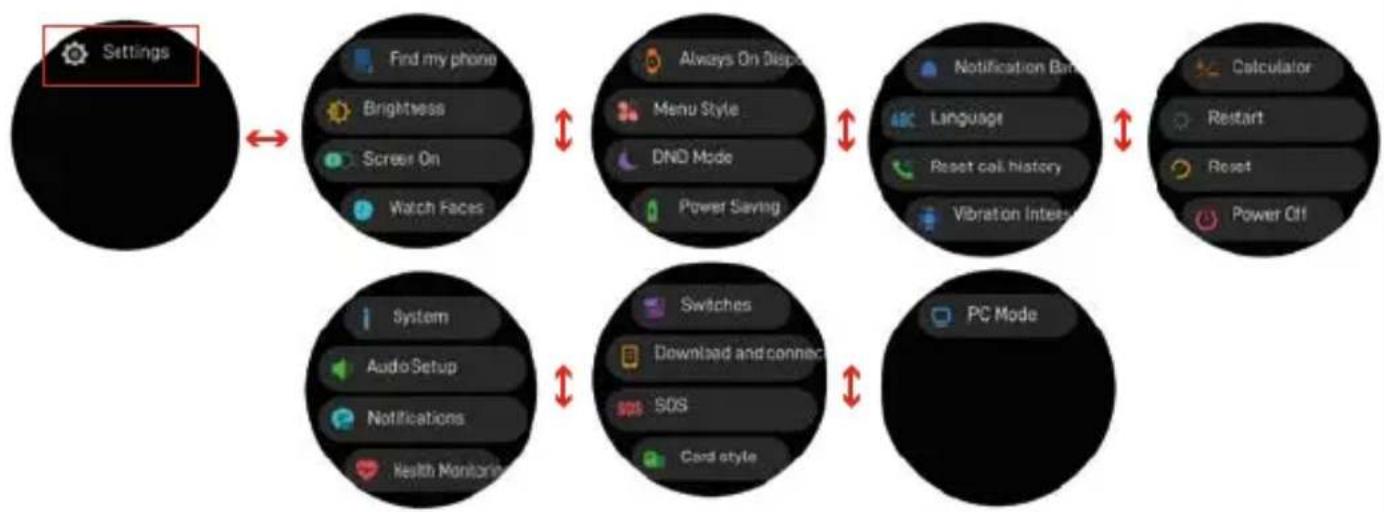
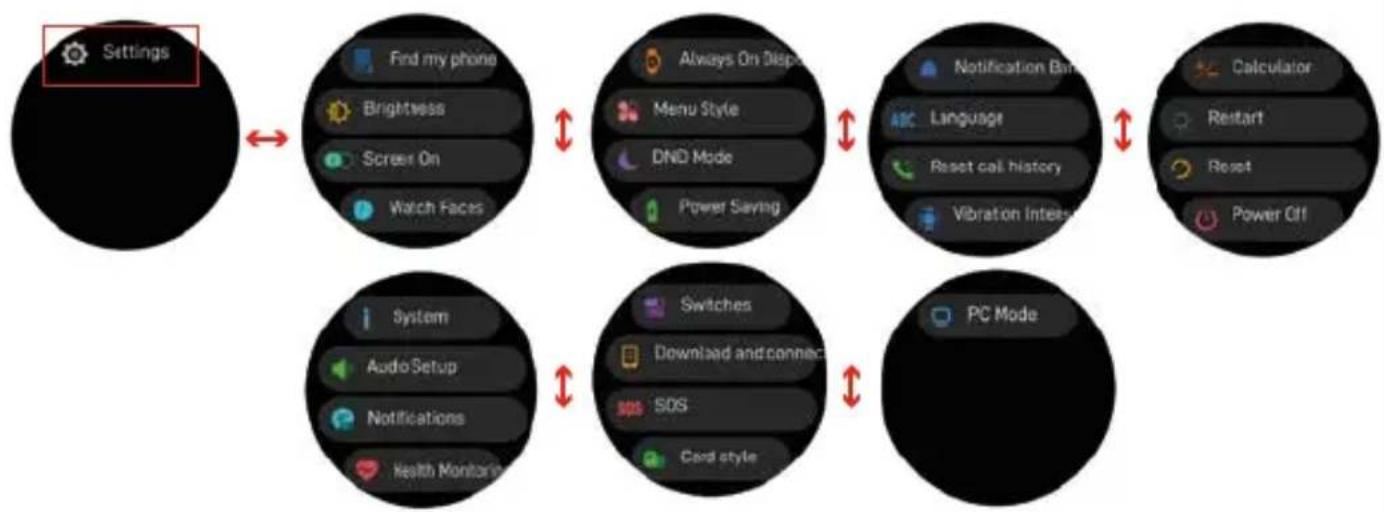
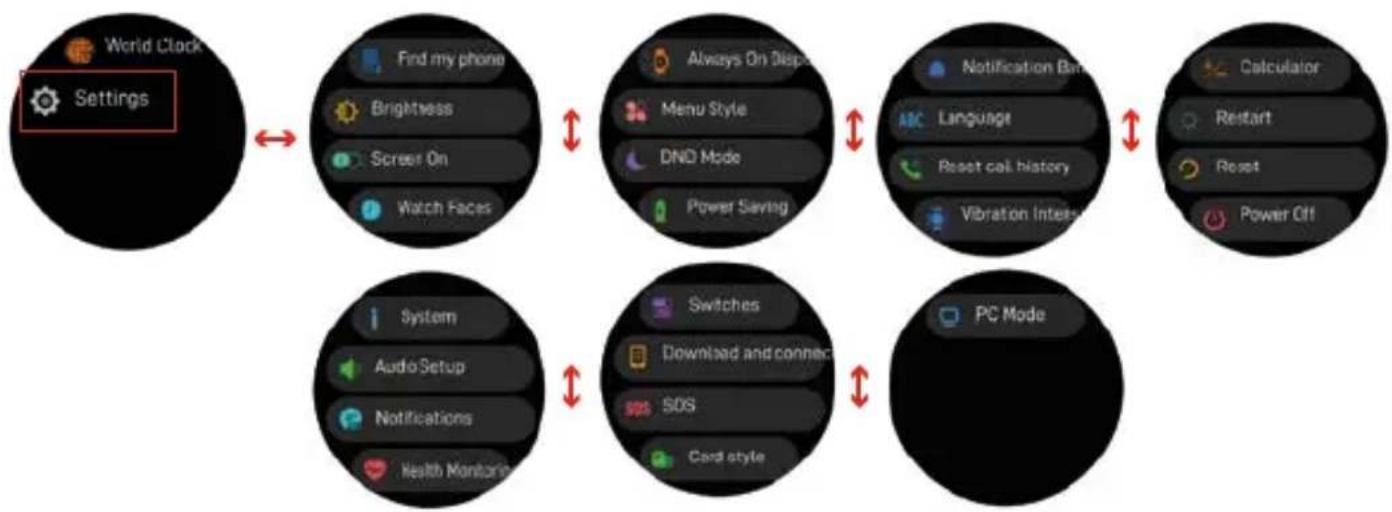
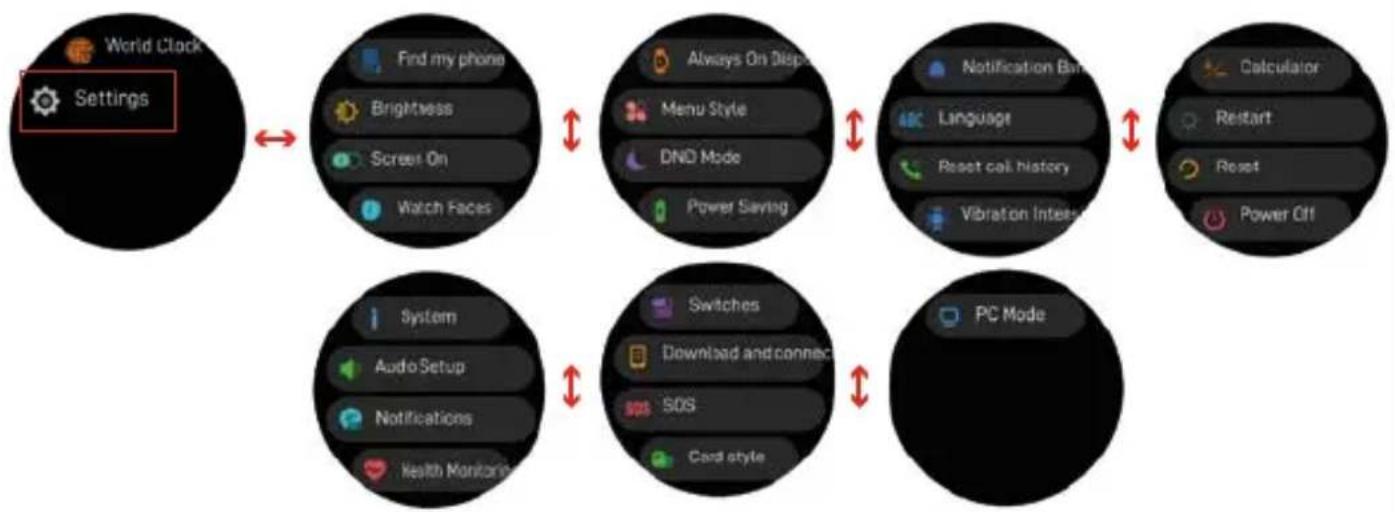
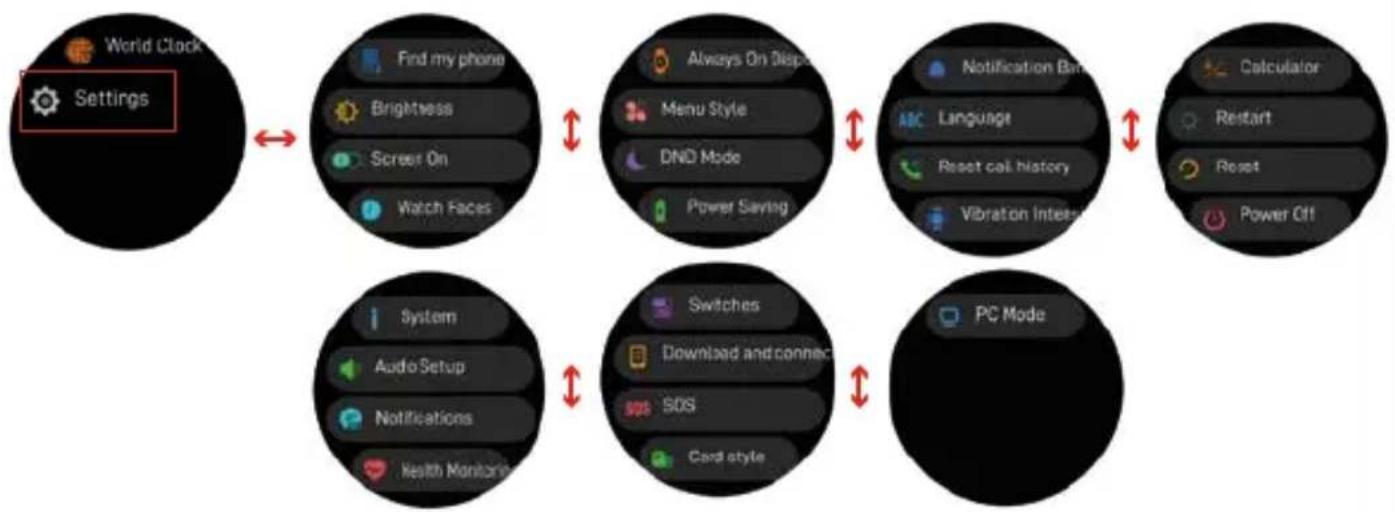
- Settings
flowchart
graph TD
    A["Settings"] --> B["Find my phone"]
    B --> C["Brightness"]
    B --> D["Screen On"]
    B --> E["Watch Faces"]
    C --> F["Always On Disp"]
    D --> G["Menu Style"]
    D --> H["DND Mode"]
    E --> I["Power Saving"]
    F --> J["Notification Bar"]
    G --> K["Language"]
    H --> L["Reset call history"]
    I --> M["Vibration Internt"]
    J --> N["Calculator"]
    K --> O["Restart"]
    L --> P["Reset"]
    M --> Q["Power Off"]
    N --> R["System"]
    O --> S["Audio Setup"]
    P --> T["Notifications"]
    Q --> U["Health Monitor"]
    R --> V["Switches"]
    S --> W["Download and connect"]
    T --> X["SOS"]
    U --> Y["Card style"]
    V --> Z["PC Mode"]
    W --> Z
    X --> Z
    Y --> Z

Find my phone, find your smartphone.

Brightness, you can tap the Brightness icon to adjust (up/down) the screen brightness.

Screen On, you can choose the display duration of different time, the longest is 200s.

Dial switch, tap "Dial" to sliding left and right to choose your favourite dial;

Always On Display, tap this icon display to turn on Always on Mode screen when screen off.

Menu Style, you can choose List view and Grid view.

DND Mode, you can choose turn on "All day" or "Schedule" mode, when turn on "All day" is turned on in sleep mode, the Wake-Up screen feature is turned off and it does not remind all reminders except the alarm. When turn on "Schedule" then you can set the start time and end time.
ENG

Power saving, turn on this function, the screen brightness will be reduced and turn off the raised hand to light the screen, turn off all reminders except the alarm, turn off the dial and 24-hour heart rate blood oxygen, and turn the motor vibration weak.

Notifications, you can set the message push display method, Reminders can pop up at the top or bottom of the dial.
Language, you can select the corresponding regional language switching, and the corresponding language of the watch can also be switched on the app.

Reset call history, click "OFF" to clear contacts and call history.

Vibration intensity, this function adjusts the intensity of motor vibration, Click "Soft" or "Strength" to choose the vibration intensity

Calculator, Click Enter and enter the value to calculate.

Restart, Restart your smartwatch.

Reset, after clicking this icon, all data on the watch will be cleared.

Power Off, turn off your Smartwatch.

System, to find the MAC address and software version of your Smartwatch.

Audio setup, this function can control the switch of the call Bluetooth and the output of the audio.
Information notification, this function controls the type of messages your watch receives.

Health monitoring, this function can control the 24-hour heart rate and blood oxygen.
Switches, this function can control the switch of sedentary, drinking water and raising the hand to light up the screen.

SOS, This feature allows the watch to sound an alarm and call your emergency contacts.
ENG
PRECAUTIONS:
- Avoid subjecting the smartwatch to strong impacts, extreme heat and/or sun exposure.
- Please do not disassemble, repair or modify the smartwatch by yourself.
- This device uses 5V 1A for charging. It is strictly prohibited to use charging power supply higher than 5V, maximum allowable 5V/2.4A.
- The operating environment of this device is 0^ 45^ . Do not bring it close to extreme sources of heat.
- When the smartwatch is wet, dry it with a soft cloth before charging, otherwise it will corrode the charging contacts and cause charging failure.
- Do not bring the smartwatch near chemicals such as gasoline, cleaning solvents, propanol, alcohol, insect repellent, or perfume.
- Please do not use this device in high voltage and high magnetism environment
- If you have sensitive skin or wear the smartwatch too tight, you may feel uncomfortable.
- Wipe beads of sweat from your wrist from time to time, as the strap may be exposed to soap, sweat, allergens or pollutants for a long time, which can cause itchy skin.
- If you use it frequently, it is recommended to clean the smartwatch every week. Clean with a damp cloth and remove oil or dust with a mild soap. It is not recommended to use the smartwatch with hot water. Water vapour could enter to the sphere and damage the components.
WARNING:
This product is not a medical device. The Smartwatches and their applications should not be used for the diagnosis, treatment or prevention of disease or illness. To change your exercise and sleep habits, be sure to consult a qualified medical professional to avoid serious injury.
Our company reserves the right to modify and improve any of the functions described in this manual without prior notice. At the same time, the company reserves the right to continuously update the contents of the product. All contents are subject to the actual product.
ENG
WARRANTY:
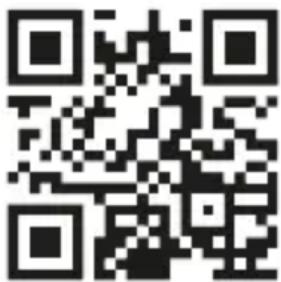
- The warranty covers quality problems caused by manufacturing, materials or design within the first 3 years of purchase and battery and charger problems within the first 6 months. REGISTER YOUR SMARTWATCH ON OUR WEBSITE TO ACCESS THE WARRANTY (scan the QR code below).
- The guarantee does not cover damage caused by misuse of the product or by the following cases:
1). Disassemble or reassemble the product.
2). Damage caused by falls
3). Any man-made damage or misuse (such as: getting water into the dial, external force causing it to break, scratch damage to peripheral components, etc.)
4) Damages caused by water are outside the scope of the guarantee because we cannot verify if the tightness of the product has been tampered with or affected by small blows that have reduced its resistance.
-
When requesting the warranty, you must provide the purchase receipt with the place and date of purchase.
-
If you have problems using the product, please don't hesitate to contact our customer service:
DCU Tecnologic customer service
(scan the QR code below).
text_image
QR code image containing encoded data, no visible human-readable textCAT
text_image
Diagram of a smartwatch with labeled parts, showing sensor placement and color-coded sensor interfaceCAT
2. COM CARREGAR EL TEU RELLOTGE INTEL·LIGENT
natural_image
Line drawing of a smartwatch with strap and head strap (no text or symbols)3. INSTAL·LAR, CONNECTAR O DESCONNECTAR L'APLICACIÓ
text_image
QR code image containing encoded data, no visible human-readable textCAT
text_image
9:42 Motorcycle 0 1 2 3 Door 0 x 0 min Press 57.0 us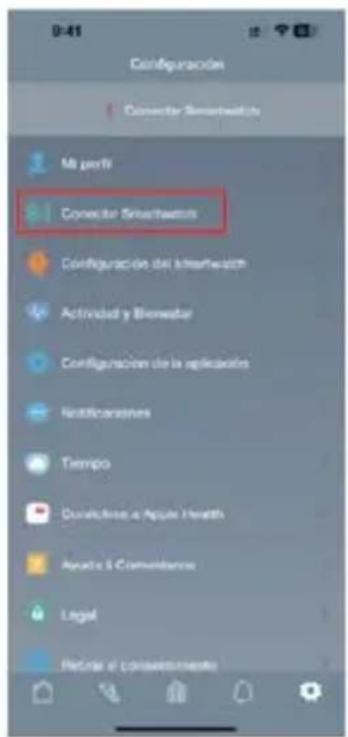
text_image
Illustration showing four different hand gestures on a wristwatch, illustrating time-based movement or navigation.CAT
5. MENÚ PRINCIPAL
- Accessos directes
text_image
MON 27 AM $ 100% 09:30
text_image
No Notificationflowchart
graph LR
    A["Call Records"] --> B["No call record"]
pie
| Activity | Value | |---|---| | Triathlon | None | | Trail running | 102 kcal | | Marathon | None | | Hiking | None | | Running | 102 kcal | | Walking | None | | Climbing | None | | Swimming | 102 kcal | | Cycling | None |flowchart
graph LR
    A["Hiking None"] --> B["Running 102 km/h"]
    B --> C["Walking None"]
    D["Start"] --> E["Select Routes Running 1km/h"]
    E --> F["Running 102km/h"]
    F --> G["Start"]
    G --> H["Select Routes Running 1km/h"]
    H --> I["Running 102km/h"]
    I --> J["Delete"]
    I --> K["Cancel"]
    J --> L["OK"]
CAT

flowchart
graph LR
    A["Distance"] --> B["Time"]
    B --> C["Calories"]
    C --> D["None"]
    D --> E["10.0 km Achieve the goal"]

    subgraph Time
        F["4 km"] --> G["5 km"]
        H["6 km"] --> I["✓"]
        J["10 Min"] --> K["20 Min"]
        L["30 Min"] --> M["✓"]
    end

    subgraph Calories
        N["100 Kcal"] --> O["200 Kcal"]
        P["300 Kcal"] --> Q["✓"]
    end
flowchart
graph LR
    A["Heart Rate"] --> B["Blood Oxygen"]
    B --> C["Stress"]
    C --> D["Weather"]
    D --> E["Measuring..."]
    E --> F["98%"]
    F --> G["Severe hypoxia: <70%, 70%-80%, Low, 90%-99%, Normal"]
    G --> H["keep still with the watch facing up"]
CAT
flowchart
graph LR
    A["Exercise"] --> B["Sedentary"]
    C["Exercise History"] --> B
    D["Camera"] --> B
    B --> E["Person Interaction Icon"]
    E --> F["Person Off Switch Icon"]
    F --> G["Rightward Shift Icon"]
CAT
flowchart
graph LR
    A["Alarm"] --> B["Sleep"]
    B --> C["Notifications"]
    C --> D["Music"]
    D --> E["No data"]
    E --> F["07 H 45 M\nGoal 8h 30m"]
    F --> G["23:05\n04:15\n02:30"]
    G --> H["7-day sleep data"]
    H --> I["07/08\n07H30M\n07/07\n00H00M\n07/06\n04H30M\n07/05\n07H30M\n07/04\n07H30M"]
text_image
Aarm Sleep Notifications Music Lemon tree Lemon treeCAT
text_image
Breathing Voice Assistant Altitude Compass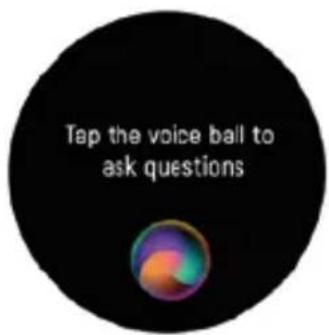
text_image
Tap the voice ball to ask questions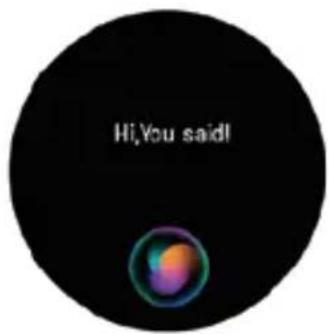
text_image
Hi,You said!text_image
Breathing Voice Assistant Altitude Compass 215° SW There may be magnetic interference nearby, please follow the steps below to calibrate the compasstext_image
World Clock Settings 15:50 Local time GMT+8:00 08:50 London GMT+01:00 03:50 New York GMT-04:00 Please connect the APP to synchronize the time, and add the world time in the APPCAT
- Configuració
flowchart
graph TD
    A["World Clock Settings"] --> B["Find my phone"]
    B --> C["Brightness"]
    B --> D["Screen On"]
    B --> E["Watch Faces"]
    C --> F["Always On Disp"]
    D --> G["DNO Mode"]
    E --> H["Power Saving"]
    F --> I["Notification Bar"]
    G --> J["Language"]
    H --> K["Reset call history"]
    H --> L["Vibration Interim"]
    I --> M["Calculator"]
    J --> N["Restart"]
    K --> O["Reset"]
    L --> P["Power Off"]
    Q["System"] --> R["Audio Setup"]
    R --> S["Notifications"]
    S --> T["Health Monitor"]
    U["Switches"] --> V["Downloaded and connect"]
    V --> W["SOS"]
    W --> X["Card style"]
    Y["PC Mode"] --> Z["End"]

text_image
QR code image containing encoded data, no visible human-readable textFRA
text_image
Diagram of a smartwatch with labeled parts, showing sensor placement and red directional arrows indicating motion or movement.FRA
2. COMMENT RECHARGER VOTRE MONTRE INTELLIGENTE
natural_image
Line drawing of a smartwatch with strap and head strap (no text or symbols)3. INSTALLEZ, CONNECTEZ OU DÉCONNECTEZ L'APPLICATION
text_image
QR code image containing encoded data, no visible human-readable textFRA
text_image
1:42 Motorcycle 0 0 0 Dormer 0 x 0 min Page 57.0 kg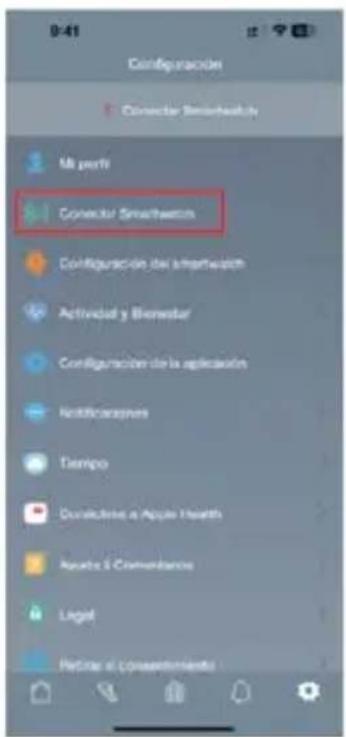
text_image
Illustration showing four different hand gestures on a wristwatch, illustrating time-based movement or navigation.FRA
5. MENÚ PRINCIPAL
- Raccourcis
text_image
MON 27 AM $ 100% 09:30
text_image
No Notificationpie
| Activity | Value | |---|---| | Triathlon | None | | Trail running | 102 kcal | | Marathon | None | | Hiking | None | | Running | 102 kcal | | Walking | None | | Climbing | None | | Swimming | 102 kcal | | Cycling | None |flowchart
graph LR
    A["Hiking None"] --> B["Running Set Goal 102Accr"]
    B --> C["Start 16.5%"]
    C --> D["Select Routes Running User"]
    D --> E["Running Set Goal 103Accr"]
    E --> F["Start 16.5%"]
    F --> G["Select Routes Running User"]
    G --> H["Running Delete Cancel"]
    H --> I["OK"]
FRA
flowchart
graph LR
    A["Distance"] --> B["Time"]
    B --> C["Calories"]
    C --> D["None"]
    D --> E["Distance"]
    E --> F["4"]
    F --> G["5 Km"]
    G --> H["6 Km"]
    H --> I["Time"]
    I --> J["10 Min"]
    J --> K["20 Min"]
    K --> L["30 Min"]
    L --> M["Calories"]
    M --> N["100 Kcal"]
    N --> O["200 Kcal"]
    O --> P["300 Kcal"]
    P --> Q["Achieve the goal"]
flowchart
graph LR
    A["Heart Rate"] --> B["Blood Oxygen"]
    B --> C["Stress"]
    C --> D["Weather"]
    D --> E["Measuring..."]
    E --> F["086 bpm"]
    F --> G["+120 - 050"]
    G --> H["Routing heat rate"]
    H --> I["078 bpm"]
    I --> J["Keep still with the watch tacing up"]
flowchart
graph LR
    A["Heart Rate"] --> B["Blood Oxygen"]
    B --> C["Stress"]
    C --> D["Weather"]
    D --> E["Measuring..."]
    E --> F["98%"]
    F --> G["+ 98% + - 96%"]
    G --> H["Severe Hypothesis"]
    H --> I["Low: 7%–80%, Normal: 90%–99%"]
    I --> J["keep still with the watch facing up"]
FRA
flowchart
graph LR
    A["Exercise"] --> B["Sedentary"]
    B --> C["Camera"]
    D["Exercise History"] --> E["Camera Icon"]
    F["Please connect tcp"] --> G["Phone icon with 'No' signal"]
text_image
Breathing Voice Assistant Altitude Compass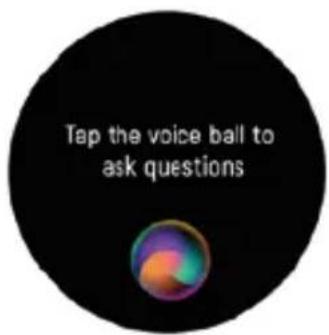
text_image
Tap the voice ball to ask questions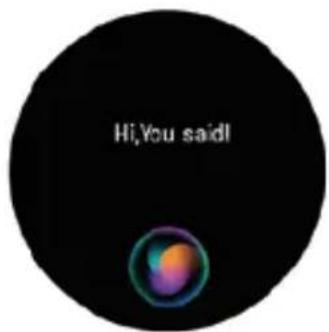
text_image
Hi,You said!text_image
Breathing Voice Assistant Altitude Compass 215° SW There may be magnetic interference nearby, please follow the steps below to calibrate the compasstext_image
World Clock Settings 15:50 Local time GMT+8:00 08:50 London GMT+01:00 03:50 New York GMT-04:00 Please connect the APP to synchronize the time, and add the world time in the APPFRA
- Configuration
flowchart
graph TD
    A["World Clock Settings"] --> B["Find my phone"]
    B --> C["Brightness"]
    B --> D["Screen On"]
    B --> E["Watch Faces"]
    C <--> F["Always On Disp"]
    D <--> G["DND Mode"]
    E <--> H["Power Saving"]
    F <--> I["Notification Bars"]
    G <--> J["Language"]
    H <--> K["Reset call history"]
    I <--> L["Vibration Interms"]
    J <--> M["Calculator"]
    K <--> N["Restart"]
    L <--> O["Reset"]
    M <--> P["Power Off"]
    Q["System"] --> R["Audio Setup"]
    R --> S["Notifications"]
    S --> T["Health Monitor"]
    U["Switches"] --> V["Download and connect"]
    V --> W["SOS"]
    W --> X["Card style"]
    Y["PC Mode"] --> Z["End"]

Service client DCU Tecnologic
text_image
QR code image containing encoded data, no visible human-readable textPORT
text_image
Diagram of a smartwatch with labeled parts, showing sensor placement and red directional arrows indicating motion or movement.PORT
2. COMO CARREGAR O SEU RELÓGIO INTELIGENTE
natural_image
Line drawing of a smartwatch with strap and head strap (no text or symbols)text_image
Illustration showing four different hand gestures on a wristwatch, illustrating time-based movement or navigation.PORT
5. MENU PRINCIPAL
- Atalhos

text_image
MON 27 AM 100% 09:30
text_image
No Notificationpie
| Activity | Value | |---|---| | Triathlon | None | | Trail running | 102 kcal | | Marathon | None | | Hiking | None | | Running | 102 kcal | | Walking | None | | Climbing | None | | Swimming | 102 kcal | | Cycling | None |Clique neste ícone para definir a meta desportiva.

flowchart
graph LR
    A["Hiking None"] --> B["Running Set Goal > 100%"]
    C["Running 102 kcal"] --> D["Start"]
    E["Walking None"] --> F["Select Routes Running Users >"]
    B --> G["GPS"]
    D --> H["Start"]
    F --> I["Select Routes Running Users >"]
    G --> J["GPS"]
    H --> K["Start"]
    I --> L["Select Routes Running Users >"]
    J --> M["Running"]
    K --> N["Delete"]
    L --> O["Cancel"]
    M --> P["OK"]
PORT

flowchart
graph LR
    A["Distance"] --> B["Time"]
    B --> C["Calories"]
    C --> D["Achieve the goal"]

    subgraph Time
        E["4 km"] --> F["5 km"]
        G["10 Min"] --> H["20 Min"]
        I["30 Min"] --> J["30 Min"]
    end

    subgraph Calories
        K["100 Kcal"] --> L["200 Kcal"]
        M["300 Kcal"] --> N["300 Kcal"]
    end

    subgraph Goal
        O["10.0 lm"] --> P["Achieve the goal"]
    end
flowchart
graph LR
    A["Heart Rate"] --> B["Blood Oxygen"]
    B --> C["Stress"]
    C --> D["Weather"]
    D --> E["Measuring..."]
    E --> F["086 bpm"]
    F --> G["+120 - 050"]
    G --> H["Resting heart rate"]
    H --> I["078 bpm"]
    I --> J["060 bpm"]
    J --> K["Keep still with the watch being up"]
flowchart
graph LR
    A["Heart Rate"] --> B["Blood Oxygen"]
    B --> C["Stress"]
    C --> D["Weather"]
    D --> E["Measuring..."]
    E --> F["98%"]
    F --> G["Severe typhrosis: <70%, 70%-80%, Low, 90%-99% Normal"]
    G --> H["keep until with the watch facing up"]
PORT
text_image
Breathing Voice Assistant Altitude Compass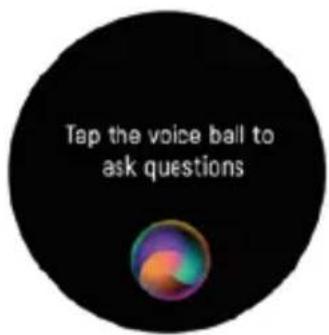
text_image
Tap the voice ball to ask questions
text_image
Hi,You said!text_image
Breathing Voice Assistant Altitude Compass 215° SW There may be magnetic interference nearby, please follow the steps below to calibrate the compasstext_image
World Clock Settings 15:50 Local time GMT+8:00 08:50 London GMT+01:00 03:50 New York GMT-04:00 Please connect the APP to synchronize the time, and add the world time in the APPPORT
- Configuração
flowchart
graph TD
    A["World Clock Settings"] --> B["Find my phone"]
    B --> C["Brightness"]
    B --> D["Screen On"]
    B --> E["Watch Faces"]
    C <--> F["Always On Disp"]
    D <--> G["Menu Style"]
    D <--> H["DND Mode"]
    E <--> I["Power Saving"]
    F <--> J["Notification Bars"]
    G <--> K["Language"]
    H <--> L["Reset call history"]
    I <--> M["Vibration Interms"]
    J <--> N["Calculator"]
    K <--> O["Restart"]
    L <--> P["Reset"]
    M <--> Q["Power Off"]
    R["System"] --> S["Audio Setup"]
    S --> T["Notifications"]
    T --> U["Health Monitor"]
    V["Switches"] --> W["Downloaded and connect"]
    W --> X["SOS"]
    W --> Y["SDS"]
    W --> Z["Card style"]
    AA["PC Mode"] --> AB
text_image
QR code image containing encoded data, no visible human-readable textAny questions about our products:
www.dcutec.com
C/ Industria, 34
Designed in BCN / Made in PRC / B55166847

CE
RoHS
DCU
TECNOLOGIC
Good People