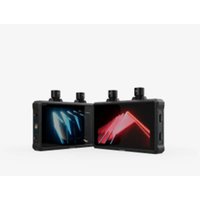
Mars M1 Enhanced - Monitor Hollyland - Free user manual and instructions
Find the device manual for free Mars M1 Enhanced Hollyland in PDF.


| Product Type | Wireless Monitor / HD Video Transceiver |
| Brand | Hollyland |
| Model | Mars M1 Enhanced |
| Screen Size | 5.5 inches |
| Screen Resolution | 1920 x 1080 pixels |
| Brightness | 1000 nits |
| Contrast Ratio | 1000:1 |
| Net Weight | Approx. 400 g (without antennas) |
| Dimensions (L x W x H) | 152 x 96 x 40 mm (without antennas) |
| Power Supply | DC input 7-16 V 2.5 A; NP-F battery 6.8-8.4 V |
| Power Consumption | < 16 W (transmitter) / < 13.6 W (receiver) |
| Transmission Latency | Approx. 0.08 s |
| Wireless Range | Up to 150 m in open field |
| Frequency Band | 5.1 - 5.8 GHz |
| Video Codec | H.264, 12 Mbit/s bitrate |
| Interfaces | HDMI (input/output), SDI (input), USB-C, 3.5 mm headphone jack, RP-SMA antennas |
| Key Features | Transmitter/receiver modes, monitoring via HollyView app, analysis tools (waveform, vectorscope, histogram, zebra pattern, false color, focus assist, format marking, crosshatch, zoom, anamorphic de-squeeze), 3D LUT import |
| Maintenance and Cleaning | Clean with a soft dry cloth. Avoid liquids and abrasive products. |
| Safety | Do not expose to heat sources. Use a 12 V 2.5 A minimum adapter. Avoid moisture. |
| Spare Parts and Accessories | Antennas, OTG adapter, screen protector, handle, wrist strap, D-tap cable, case (depending on configuration) |
| Repairability | Contact Hollyland support for any repairs or after-sales service. |
Frequently Asked Questions - Mars M1 Enhanced Hollyland
User questions about Mars M1 Enhanced Hollyland
0 question about this device. Answer the ones you know or ask your own.
Ask a new question about this device
Download the instructions for your Monitor in PDF format for free! Find your manual Mars M1 Enhanced - Hollyland and take your electronic device back in hand. On this page are published all the documents necessary for the use of your device. Mars M1 Enhanced by Hollyland.
USER MANUAL Mars M1 Enhanced Hollyland
Thank you for purchasing the Hollyland Mars M1 Enhanced which can operate as a wireless monitor or an HD video transmission device. It adopts the latest image encoding and decoding technology and 5G wireless transmission technology. The Mars M1 Enhanced is a versatile solution for a wide range of applications, such as promotional video production, micro movie production, short video production, and TVC shooting.
Key Features
- Integrated wireless video transmission and monitoring solution
- Switchable transmitter and receiver modes
● 1 TX + 1 RX and 1 TX + 2 RX operating modes
● Line-of-sight (LOS) transmission range of up to 450ft (150m)
● Monitoring on mobile phones through the HollyView app - Ultra-low transmission latency of 0.08s, meeting professional film and television production requirements
- 5.1–5.8GHz frequency bands, supporting frequency configurations in different countries and regions
● Dynamic frequency selection (DFS) feature
● Video playback and automatic trigger recording capabilities - Custom 3D lookup table (LUT) import via a USB flash drive
- Extended battery life when working as a monitor with video transmission Wi-Fi disabled
- Professional data analysis tools (Luma waveform, RGB waveform, vectorscope, and histogram)
- Multiple auxiliary monitoring functions (Zebra pattern, focus assist, false color, aspect mark, anamorphic desqueeze, zoom-in, center mark, and crosshatch)
- Compatibility with the Mars family of products — Mars 300 Pro, Mars 400S Pro, Mars 4K, and Mars M1
Note: The LOS range of up to 450ft (150m) and transmission latency of 0.08s provided above are based on laboratory testing results.
Item List
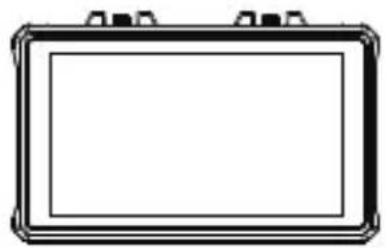
natural_image
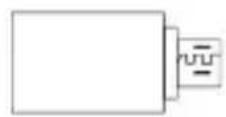
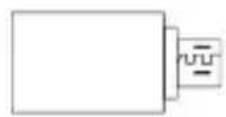
Simple line drawing of a rectangular frame with no text or symbolsMonitor OTG Adapter
Capsule Antenna
Tempered Glass Screen
Protector
natural_image
Simple diagram with horizontal and vertical lines inside a rectangle (no text or symbols)
Warranty CardQuickRagkiing List Card
Note: The item list varies by product configuration.
Item List
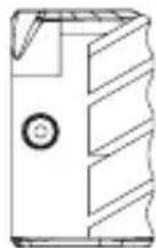
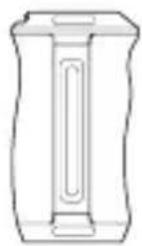
natural_image
Line drawing of a cabinet or enclosure with no visible text, numbers, or symbolsRosewood Handle T-shaped Handle
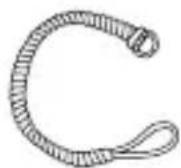
Wrist Strap
Storage Case

natural_image
Simple line drawing of a rectangular frame with a support base (no text or symbols)Monitor Hood (with Bracket)
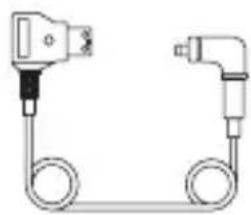
natural_image
Pure electrical circuit lines without any symbolsD-Tap to Locking DC CableShoulder Sti
Note: The item list varies by product configuration.
Interface Description
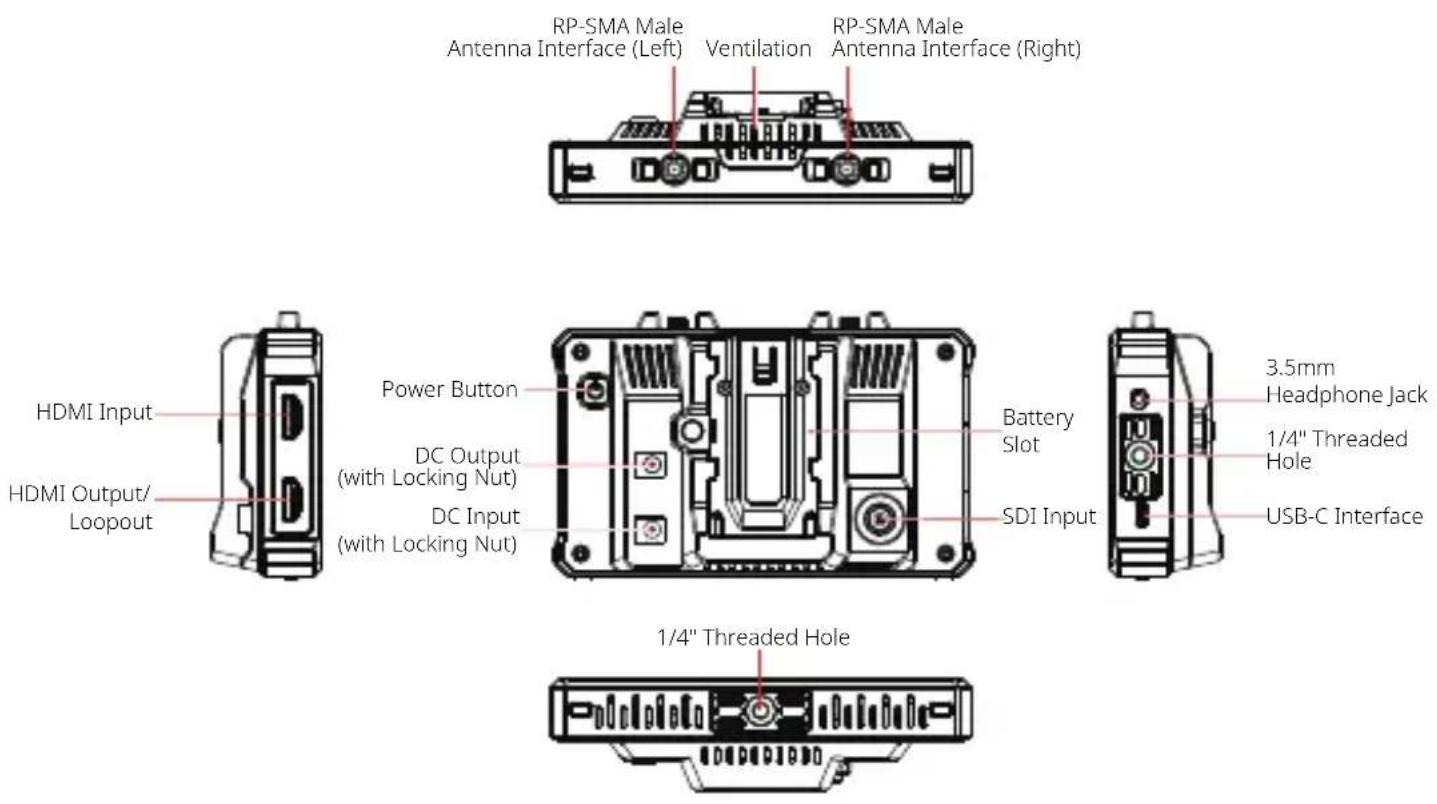
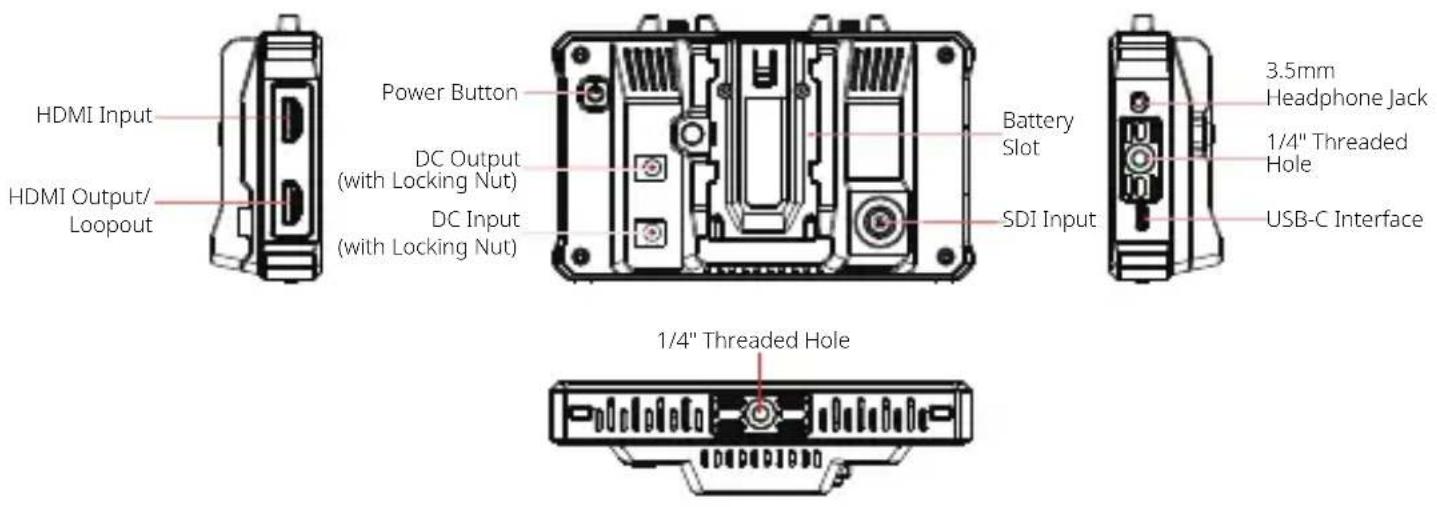
Touchscreen Description
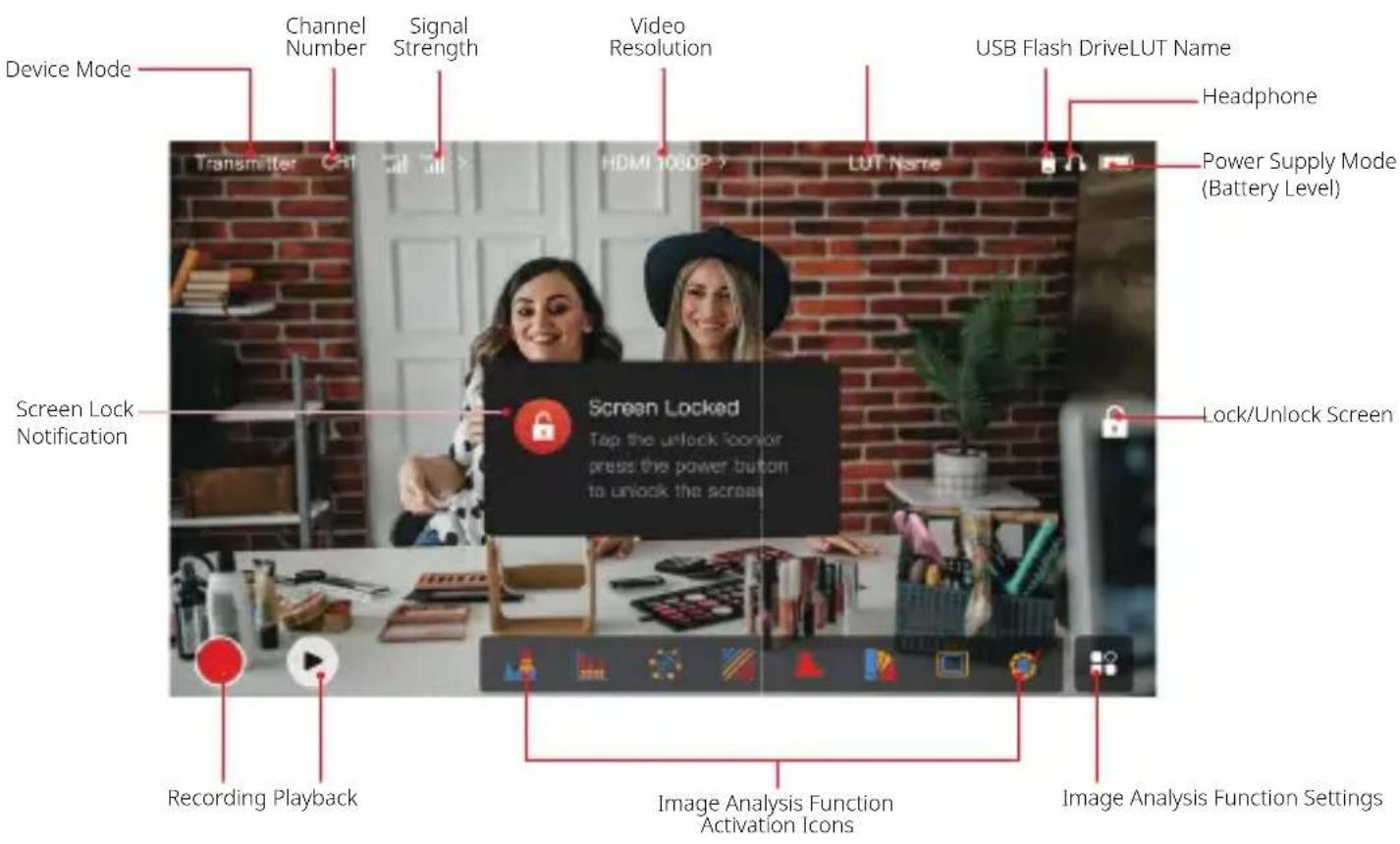
Touchscreen Description
Settings Interfaces
Wireless Information Display Area Video Resolution Diaplay Area External Device Connection Diaplay Area
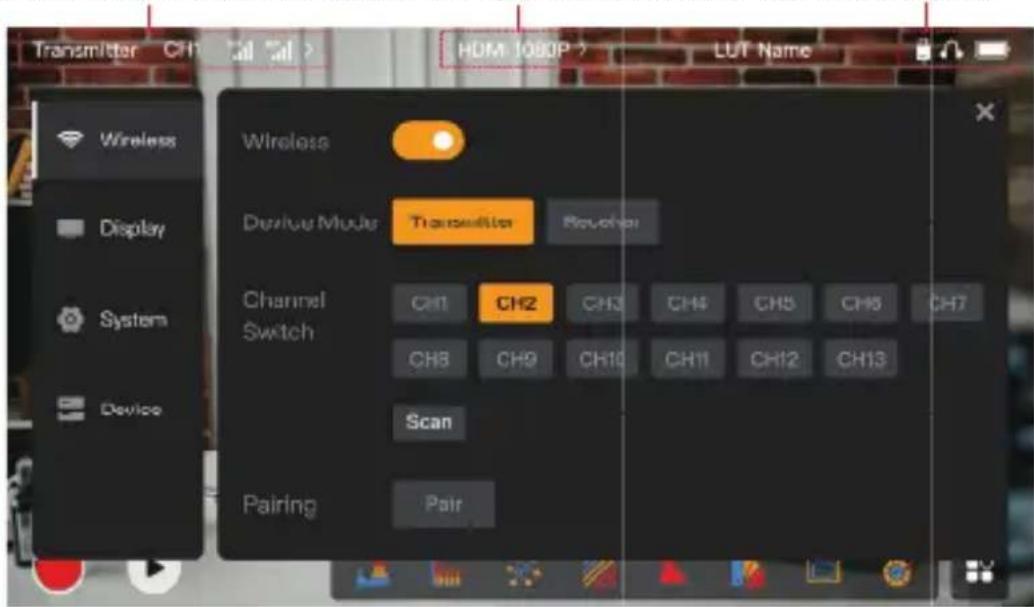
Wireless: Tap on the wireless information display area to enter the wireless settings interface when the top information bar is displayed.
Display: Tap on the video resolution display area to enter the display settings interface when the top information bar is displayed.
System: Tap on the external device connection display area to enter the system settings interface when the top information bar is displayed.
Device: Tap on the Device area (on the left) to enter the device information interface.
Note: After entering a settings interface, you can tap any other settings icon on the left to enter the corresponding settings interface.
Touchscreen Description
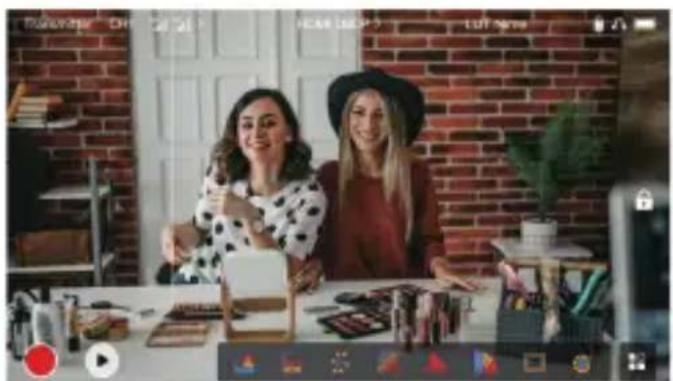
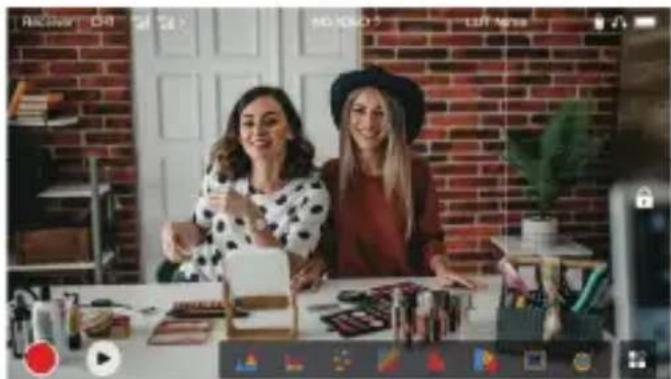
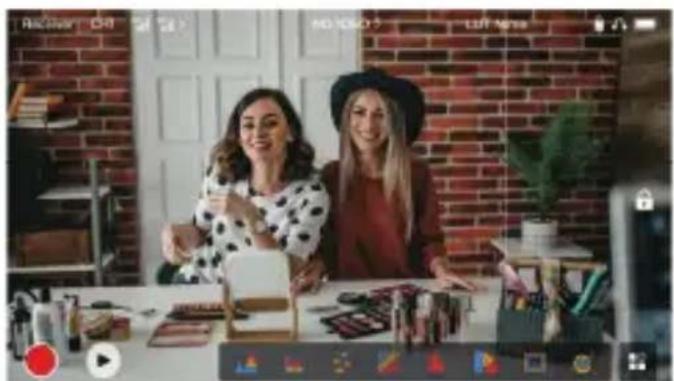
1. Status Display in Transmitter Mode
- When the device is disconnected from a receiver, X is displayed at the signal strength display area on the left of the top information bar.
- When the device is connected to a receiver, the connected receiver number and the signal strength are displayed at the signal strength display area on the left of the top information bar.
- When the device is connected to a video source, the video resolution is displayed in the middle of the top information bar. When there is no input video source connected, NO VIDEO is displayed instead.
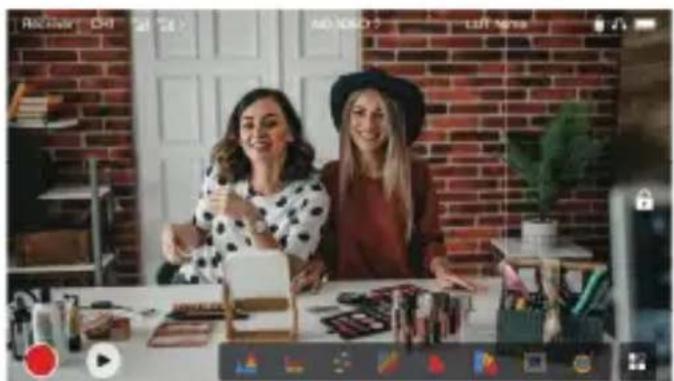
2. Status Display in Receiver Mode
- When the device is disconnected from a transmitter, X is displayed at the signal strength display area on the left of the top information bar and NO VIDEO is displayed in the middle of the top information bar.
- When the device is connected to a transmitter, the device number and the signal strength are displayed at the signal strength display area on the left of the top information bar.
- When the connected transmitter is connected to a video source, the video resolution is displayed in the middle of the top information bar.
natural_image
Two women posing at a counter in a brick-walled room with product displays and a camera interface (no readable text or symbols)Touchscreen Description
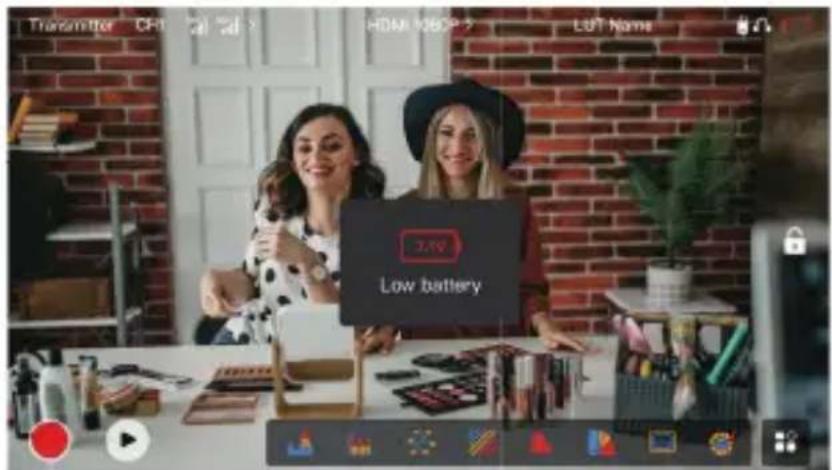
3. Low Battery Notification
- When the battery level is low, a low battery notification is displayed and the battery icon turns red.
Function Description
Waveform
Displays the horizontal representation of exposure levels in an image, clearly showing overexposed and underexposed areas in the image.
Vectorscope
Displays the overall range of color hue and saturation in an image.
Focus Assist
Paints a highlight around in-focus edges with colored lines (red, green, blue, yellow, white, or black), enabling very fast and accurate focusing.
Aspect Mark
Defines the aspect ratio of an image by cropping certain parts on the corners of the image. The transparency ranges from 0 to 100. The aspect mark function supports the following aspect ratios: 16:9, 16:10, 4:3, 1:1, 1.85:1, and 2.35:1. You can also customize the aspect ratio as needed.
Image Flip
Allows you to flip an image to meet your needs of operation.
Zoom-in
Supports 2x and 4x zoom-in. You can swipe across the screen to change the area to be zoomed in.
Volume Column
Displays the volume level of a video.
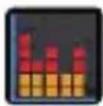
Histogram
Displays the proportion information of exposure levels in an image, clearly showing the overall exposure balance of the image.
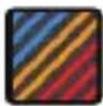
Zebra Pattern
Displays a stripe pattern over a specific brightness range (IRE) on an image. You can customize the upper IRE value and the lower IRE value as needed.
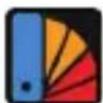
False Color
Assigns different colors to areas of different brightness in an image to get quick exposure readings.
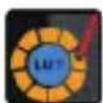
LUT
Allows you to preview the color processing result during shooting by importing LUTs via a USB flash drive.
Crosshatch
Overlays a geometric grid pattern over an image with customizable rows and columns to display the image in nine grids, sixteen grids, or twenty-five grids.
Anamorphic Desqueeze
Restores footage to its original aspect ratio, allowing you to correctly view images when using anamorphic lenses.
Button Description
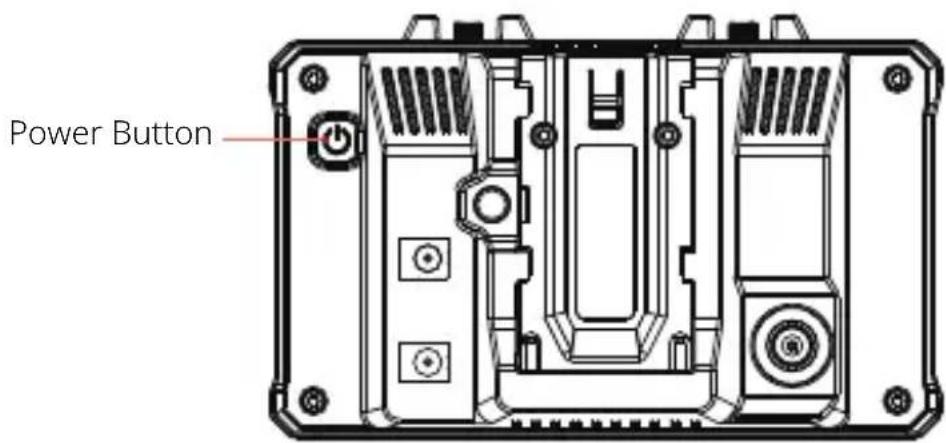
Power Button
ON: Press the power button to turn on the device (when the device is connected to a power source).
OFF: Press and hold the power button for 3 seconds to turn off the device.
Lock Screen: Press the power button to lock the screen (when the device is turned on).
Unlock Screen: Press the power button to unlock the screen (when the screen is locked).
Settings Description
1. Wireless Settings
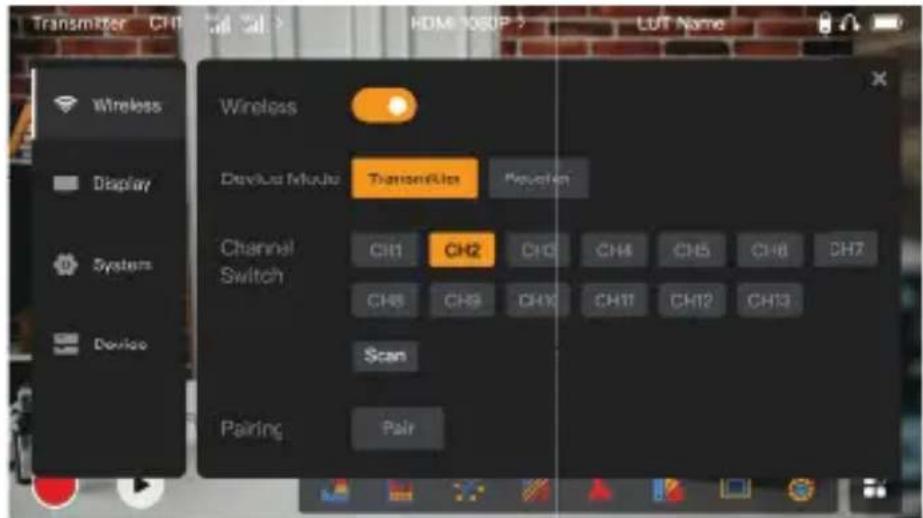
Wireless
- This function is only available in transmitter mode. If it is disabled, video transmission Wi-Fi will be disabled, which will extend battery life.
- If this function is disabled, the device (in transmitter mode) cannot be paired with a receiver. To pair with a receiver, enable this function and wait until the channel number is displayed in the upper left corner before pairing.
Device Mode
- You can switch between transmitter and receiver modes as needed.
Channel Switch
- Tap a channel number in the channel list to select a channel.
Settings Description
- For China: Wi-Fi connection on channels CH5 to CH10 is not supported on some mobile phones. Please use other available channels.
- For Japan: Wi-Fi connection on channels CH3 to CH8 is not supported on some mobile phones. Please use other available channels.
- For the United States and Europe: Wi-Fi connection on channels CH1 to CH8 is supported on mobile phones.
- For other countries and regions: Please refer to the local wireless regulations and select the channels supported in China, Japan, the United States, or Europe accordingly.
Scan
- This function is only available in receiver mode. It scans the Wi-Fi signal strength in the environment. In the channel scan result, the yellow bar indicates the channel currently used by the device, the green bar indicates low-interference channels, and the red bar indicates strong-interference channels. You are advised to use the channels indicated by the green bar.
- To switch channels, simply tap the corresponding bar in the channel scan result.
Pairing
- You can perform pairing after the device is turned on and the channel number is displayed.
- 1 TX + 1 RX pairing: Start pairing on both the transmitter and the receiver at the same time.
- 1 TX + 2 RX pairing: After pairing the transmitter with receiver 1, pair the transmitter with receiver 2. The transmitter cannot be paired with two receivers at the same time.
Settings Description
2. Display Settings
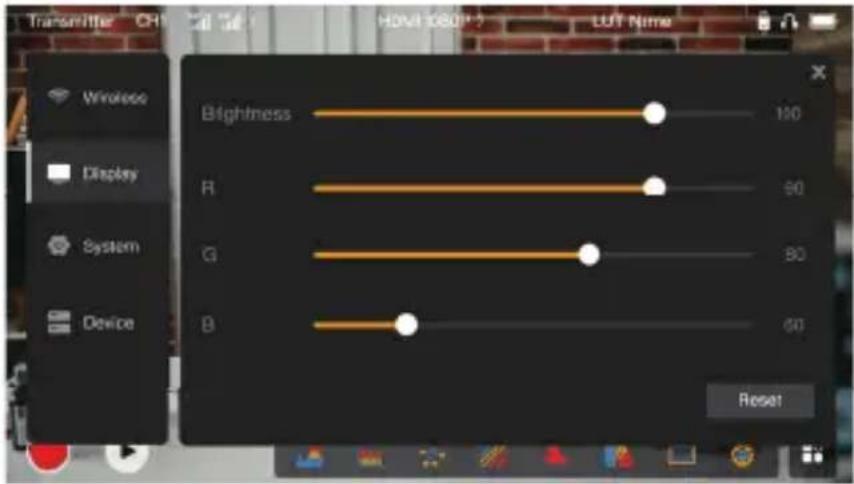
Brightness
- Adjust the brightness of the screen backlight in the range of 0 to 100.
- The default value is 100.
R
- Adjust the red gain of the screen in the range of 50 to 100.
- The default value is 100.
G
- Adjust the green gain of the screen in the range of 50 to 100.
- The default value is 100.
Settings Description
B
- Adjust the blue gain of the screen in the range of 50 to 100.
- The default value is 100.
Reset
Reset all the parameters on the display settings interface to their default values.
3. System Settings
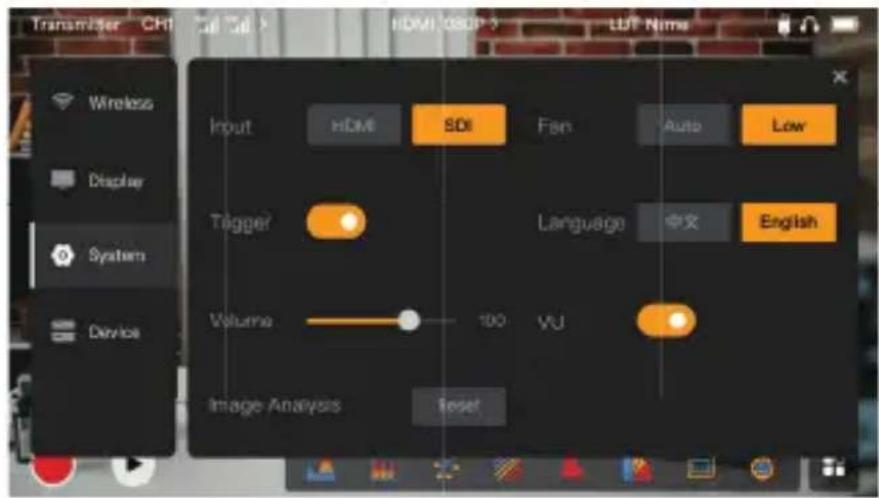
Input
- Tap either HDMI or SDI to manually switch the signal input mode.
Settings Description
Trigger
- This function is enabled by default, indicating that the recording function of the device is controlled by the camera trigger information.
Volume
- Adjust the output volume for headphone monitoring in the range of 0 to 100.
- The default value is 50.
Image Analysis
- Tap Reset to reset all the parameters of the image analysis functions to their default values.
Fan
- Switch the fan mode between Auto and Low.
- The default value is Low.
Language
- Switch the device language between Chinese and English.
VU
- Enable or disable this function to display the VU meter or not.
- This function is disabled by default.
Settings Description
4. Device Information
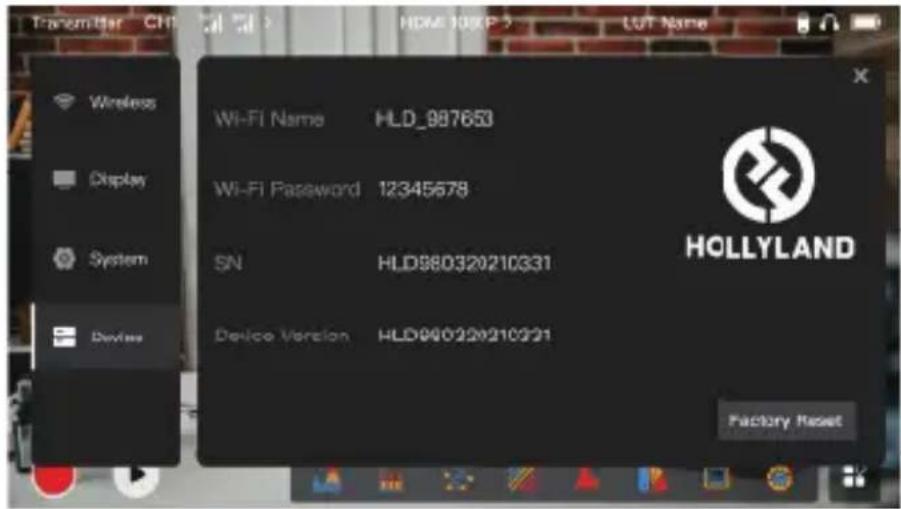
Device Info
- In transmitter mode, the Wi-Fi name and password of the device are displayed. In receiver mode, the Wi-Fi name of the connected transmitter are displayed.
● The serial number (SN) and version information of the device are also displayed. - The version information of the new firmware (if available) on the USB flash drive is also displayed.
- Tap Factory Reset to reset all the device parameters to their default values.
Device Upgrade
- Copy the upgrade file to a USB flash drive.
- Turn on the device, attach the USB flash drive to the OTG adapter, and connect the OTG adapter to the device via the USB-C interface.
Settings Description
-
Tap OK in the dialog box that is displayed, or tap System Upgrade and then tap OK.
-
The upgrade is complete when the device restarts automatically.
Note:
a. Do not power off the device during the upgrade process.
b. Please use a USB flash drive formatted as FAT32 or NTFS.
c. Please ensure that the wireless transmission function is enabled during the upgrade process.
Monitoring Through the HollyView App
- Installation and Connection
- Installation: For Android systems, download the HollyView app from Hollyland's official website or the app store. For iOS systems, download the app from the App Store.
2. Automatic Connection:
The app automatically scans and connects to the device. Then, you can start monitoring on the main interface of the app.
Manual Connection:
Manually connect to the device by entering the device ID number. Then, you can start monitoring on the main interface of the app.
Specifications
| Device Mode Transmitter mode Receiver mode | ||
| Video Input Interface | HDMI 1.4b IN (Type-A female)3G-SDI IN (BNC female) | / |
| Video Output Interface | HDMI 1.4b LOOPOUT(Type-A female) | HDMI 1.4b OUT(Type-A female) |
| Antenna Interface Two RP-SMA male interfaces Two RP-SMA male interfaces | ||
| Power Input Interface | DC IN (2.0mm core socket) DC IN (2.0mm core socket) | |
| Power Output Interface | DC OUT (2.0mm core socket) DC OUT (2.0mm core socket) | |
| Headphone Jack 3.5mm 3.5mm | ||
| Upgrade Interface USB-C (USB-2.0 OTG) USB-C (USB-2.0 OTG) | ||
| Screen Size 5.5" touchscreen 5.5" touchscreen | ||
| Screen Resolution 1920x1080 pixels 1920x1080 pixels | ||
| Pixel Density 403 PPI 403 PPI | ||
| Aspect Ratio | 16:9 | 16:9 |
| Screen Brightness 1,000 nits | 1,000 nits | |
| Contrast Ratio | 1000:1 | 1000:1 |
| Power Input Voltage | DC IN: 7-16V 2.5A(nominal 12V)NP-F battery: 6.8V-8.4V | DC IN: 7-16V 2.5A(nominal 12V)NP-F battery: 6.8V-8.4V |
| DC Output Voltage | 8.4V±5% | 8.4V±5% |
| Power Consumption | <16W | <13.6W |
| Net Weight | Approx. 400g (14.1oz) with external antennas excluded | Approx. 400g (14.1oz) with external antennas excluded |
Specifications
| Dimensions | (L x W x H): 152mm x 96mm x 40mm (5.98" x 3.78" x 1.57") with external antennas excluded | (L x W x H): 152mm x 96mm x 40mm (5.98" x 3.78" x 1.57") with external antennas excluded |
| Input Video Resolution | HDMI IN: / | |
| 720p50/59.94/60 Hz / | ||
| 1080i50/59.94/60 Hz / | ||
| 1080p23.98/24/25/29.97/30/50/59.94/60 Hz | / | |
| 3840x2160p23.98/24/25/29.97/30 Hz / | ||
| 4096x2160p23.98/24/25/29.97/30 Hz / | ||
| SDI IN: / | ||
| 720p50/59.94/60 Hz / | ||
| 1080i50/59.94/60 Hz / | ||
| 1080p23.98/24/25/29.97/30 / | ||
| 1080p50/59.94/60 Hz (3G-SDI level A) / | ||
| 1080p50/59.94/60 Hz (3G-SDI level B) / | ||
| Output Video Resolution | HDMI LOOPOUT (HDMI IN) HDMI OUT: | |
| 720p50/59.94/60 Hz 720p50/59.94/60 Hz | ||
| 1080i50/59.94/60 Hz 1080i50/59.94/60 Hz | ||
| 1080p23.98/24/25/29.97/30/50/59.94/60 Hz | 1080p23.98/24/25/29.97/30/50/59.94/60 Hz |
Specifications
| Output Video Resolution | 3840x2160p23.98/24/25/29.97/30 Hz | 1080p50/59.94/60 Hz |
| 4096x2160p23.98/24/25/29.97/30 Hz | 1080p50/59.94/60 Hz | |
| HDMI LOOPOUT (SDI IN) HDMI OUT: | ||
| 720p50/59.94/60 Hz 720p50/59.94/60 Hz | ||
| 1080i50/59.94/60 Hz 1080i50/59.94/60 Hz | ||
| 1080p23.98/24/25/29.97/30/50/59.94/60 Hz | 1080p23.98/24/25/29.97/30/50/59.94/60 Hz | |
| Note: When the device (in receiver mode) is connected to the Mars 4K transmitter, if the HDMI input video resolution of the Mars 4K transmitter is 3840x2160p24/25/30 Hz, the HDMI output video resolution of the device is 1920x1080p24/25/30 Hz. | ||
| Display Latency | <0.05s (test data when 1080p60 signals are transmitted in a laboratory environment. The display latency varies by video resolution.) | / |
| Operating Frequency | 5.1GHz-5.8GHz | |
| Codec Technology H.264 | ||
| Bit Rate 12Mbps | ||
| TX Power 21+/-1.5dBm≤ | ||
| Transmission Latency | Approx. 0.08s (test data when 1080p60 signals are transmitted in a laboratory environment) | |
Specifications
| LOS Range | Up to 450ft (150m) (test data in an unobstructed outdoor environment free of interference) |
| Bandwidth 20MHz | |
| Audio Format Eight audio channels for the HDMI 1.4b | |
| Operating Temperature | -10°C to 60°C (14°F to 140°F) |
| Storage Temperature | -40°C to 60°C (-40°F to 140°F) |
Note: The operating frequency and TX power vary by country and region. In some countries and regions, the 5.1GHz, 5.2GHz, and 5.8GHz frequency bands are prohibited, or the 5.1GHz and 5.2GHz frequency bands are only allowed for indoor use. Please refer to local laws and regulations for more information.
Safety Precautions
1. Image Retention
- Avoid displaying an image or text on the screen for an extended period. Otherwise, the risk of image or text burn-in may occur and then result in image retention on the screen.
2. Upgrade Failure
- Ensure that the upgrade file is stored in the root directory of the USB flash drive.
- Check whether the USB flash drive is properly attached to the OTG adapter.
- Ensure that the USB flash drive is formatted as FAT32 or NTFS.
- Check whether the wireless transmission function is enabled.
3. App Connection
- If the device Wi-Fi cannot be found on the mobile phone, please use a non-DFS channel.
4. Power Adapter Selection
- To ensure that the device can provide a stable power supply to the camera via the DC OUT interface during normal operation, please use a 12V power adapter with 2.5A or higher specifications.
Note:
Do not place the product near or inside heating devices (including but not limited to microwave ovens, induction cookers, electric ovens, electric heaters, pressure cookers, water heaters, and gas stoves) to prevent the device from overheating and exploding.
Support
If you encounter any problems in using the product or need any help, please contact Hollyland Support Team via the following ways:
Hollyland User Group
f HollylandTech
HollylandTech
HollylandTech
support@hollyland.com
www.hollyland.com
Statement:
All copyrights belong to Shenzhen Hollyland Technology Co., Ltd. Without the written approval of Shenzhen Hollyland Technology Co., Ltd., no organization or individual may copy or reproduce part or all of any written or illustrative content and disseminate it in any form.
Trademark Statement:
All the trademarks are owned by Shenzhen Hollyland Technology Co., Ltd.
Note:
Due to product version upgrades or other reasons, this Quick Guide will be updated from time to time. Unless otherwise agreed, this document is provided as a guide for use only. All representations, information, and recommendations in this document do not constitute warranties of any kind, express, or implied.
Introduction
natural_image
Simple line drawing of a rectangular frame with no text or symbols
natural_image
Simple diagram with horizontal and vertical lines inside a rectangle (no text or symbols)
natural_image
Line drawing of a cabinet or enclosure with no visible text, numbers, or symbolsnatural_image
Simple line drawing of a rectangular frame with two side supports (no text or symbols)natural_image
Pure electrical circuit lines without any symbolsnatural_image
Technical line drawing of a mechanical component with no visible text or symbols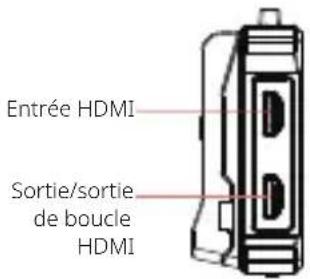
natural_image
Technical line drawing of an internal electronic device casing with ports and connectors (no text or symbols)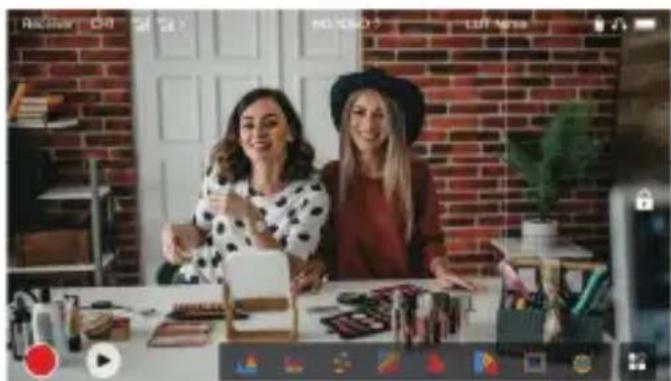
FR-8
Hollyland User Group
HollylandTech
HollylandTech
HollylandTech
support@hollyland.com
www.hollyland.com
Déclaration :
natural_image
Simple line drawing of a rectangular frame with no text or symbolsMonitor OTG-Adapter
Kapselantenne
natural_image
Simple diagram with horizontal and vertical lines inside a rectangle (no text or symbols)
Garantiekarte Kurza Paleklisten-Karte
natural_image
Line drawing of a cabinet or enclosure with no visible text, numbers, or symbolsnatural_image
Simple line drawing of a rectangular frame with a flat base (no text or symbols)natural_image
Two types of electrical connectors with coiled wires, no text or symbols visiblenatural_image
Technical line drawing of a mechanical component with no visible text or symbols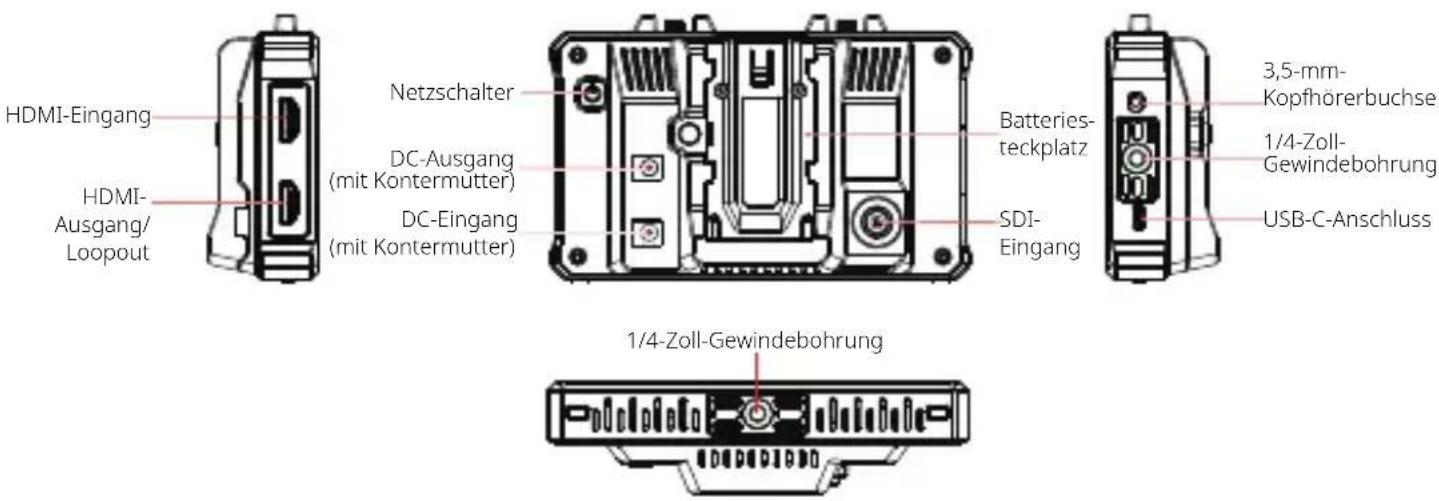
natural_image
Two women posing in a studio with brick walls and cosmetic products on the table (no visible text or symbols)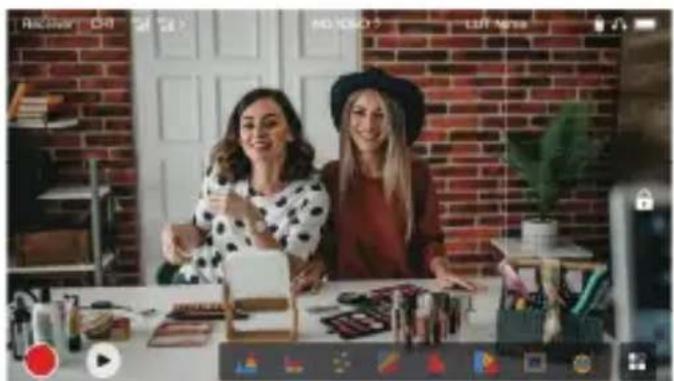
Hollyland User Group
HollylandTech
HollylandTech
HollylandTech
support@hollyland.com
www.hollyland.com
Erklärung:
natural_image
Simple line drawing of a rectangular frame with no text or symbols
natural_image
Simple diagram with horizontal and vertical lines inside a rectangle (no text or symbols)natural_image
Line drawing of a cabinet or enclosure with no visible text, numbers, or symbolsImpugnatura in palissandro
natural_image
Simple line drawing of a rectangular frame with a flat base (no text or symbols)natural_image
Pure electrical circuit lines without any symbolsnatural_image
Technical line drawing of a mechanical assembly with no visible text or symbols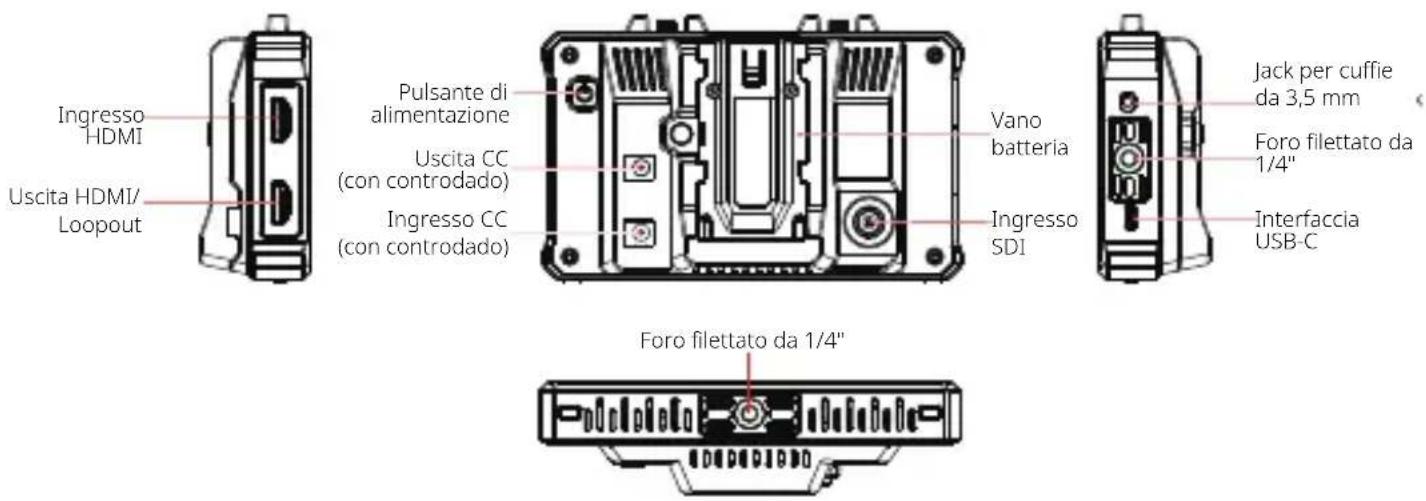
natural_image
Technical line drawing of a device rear panel with internal components and mounting holes (no text or symbols)Hollyland User Group
f HollylandTech
HollylandTech
HollylandTech
support@hollyland.com
www.hollyland.com
Dichiarazione:
natural_image
Simple line drawing of a rectangular frame with no text or symbols
natural_image
Simple diagram with horizontal and vertical lines inside a rectangle (no text or symbols)Guía rápida
Tarjeta de
garantía
natural_image
Line drawing of a cabinet or enclosure with no visible text, numbers, or symbolsMango de palisandro Mango en forma de T
natural_image
Simple line drawing of a rectangular frame with a flat base (no text or symbols)natural_image
Pure electrical circuit lines without any symbolsnatural_image
Technical line drawing of a mechanical assembly with no visible text or symbols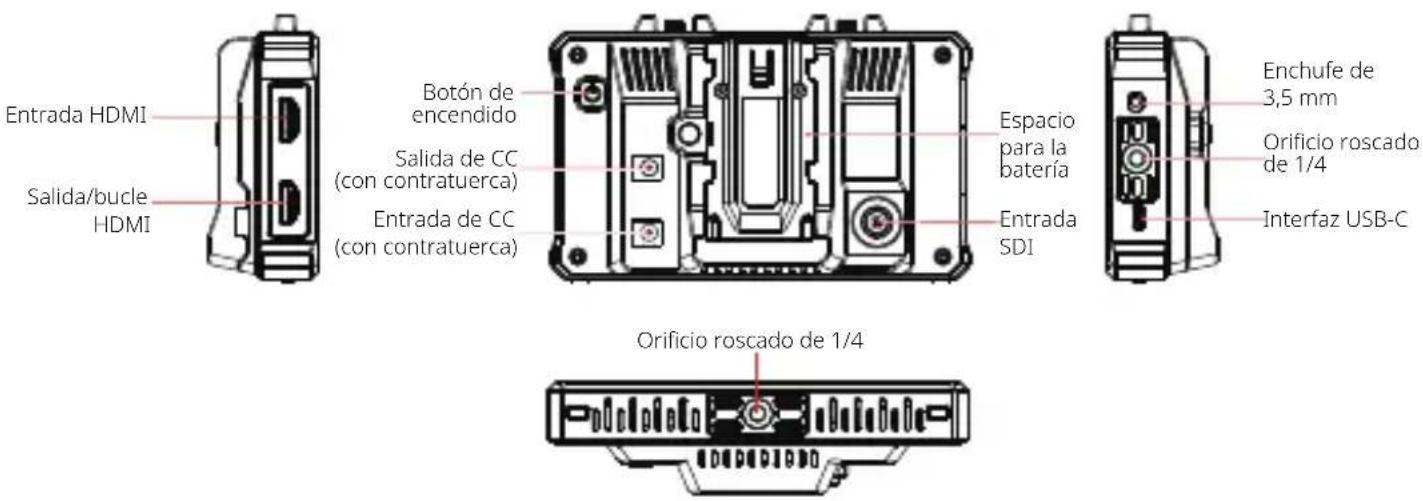
Botón de encendido
natural_image
Two women in a studio setting with brick walls, wooden furniture, and digital interface elements (no readable text or symbols)Hollyland User Group
f HollylandTech
HollylandTech
HollylandTech
support@hollyland.com
www.hollyland.com
Declaración:
natural_image
Simple line drawing of a rectangular frame with no text or symbols
Monitor Adaptador OTGAntena em cápsula
Protetor tela vidro
temperado
natural_image
Simple diagram with horizontal and vertical lines inside a rectangle (no text or symbols)Guia rápido
Cartão de
garantia
natural_image
Line drawing of a cabinet or enclosure with no visible text, numbers, or symbolsnatural_image
Simple line drawing of a rectangular frame with a flat base (no text or symbols)natural_image
Pure electrical circuit lines without any symbols2. Visor de status no modo de receptor
Descrição da função
Forma de Onda
Hollyland User Group
HollylandTech
HollylandTech
HollylandTech
support@hollyland.com
www.hollyland.com
Declaração:
- Key Features
- Item List
- Interface Description
- Touchscreen Description
- Settings Interfaces
- Status Display in Transmitter Mode
- Status Display in Receiver Mode
- Low Battery Notification
- Function Description
- Waveform
- Vectorscope
- Focus Assist
- Aspect Mark
- Image Flip
- Zoom-in
- Volume Column
- Histogram
- Zebra Pattern
- False Color
- LUT
- Crosshatch
- Anamorphic Desqueeze
- Button Description
- Power Button
- Settings Description
- Wireless Settings
- Wireless
- Device Mode
- Channel Switch
- Scan
- Pairing
- Display Settings
- Brightness
- B
- Reset
- System Settings
- Input
- Trigger
- Volume
- Image Analysis
- Fan
- Language
- VU
- Device Information
- Device Info
- Device Upgrade
- Note:
- Monitoring Through the HollyView App
- - Installation and Connection
- Automatic Connection:
- Manual Connection:
- Specifications
- Safety Precautions
- Image Retention
- Upgrade Failure
- App Connection
- Power Adapter Selection
- Support
- Statement:
- Trademark Statement:
- Introduction
- Déclaration :
- Erklärung:
- Dichiarazione:
- Declaración:
- Visor de status no modo de receptor
- Descrição da função
- Forma de Onda
- Declaração:
Brand : Hollyland
Model : Mars M1 Enhanced
Category : Monitor