C2G41604 - Router C2G - Free user manual and instructions
Find the device manual for free C2G41604 C2G in PDF.


| Product Type | 4-Port HDMI Switch |
| Brand | C2G |
| Model | C2G41604 |
| Video Standards | HDMI 2.0, HDCP 2.2 |
| Maximum Resolution | 4K@60Hz 4:4:4 8-bit |
| HDR | HDR10, Dolby Vision, HLG, HDR10+ |
| Inputs | 4 x HDMI |
| Output | 1 x HDMI (power 5V/150mA) |
| Control | Front panel button, IR remote, RS232, automatic switching |
| Power | DC 12V, 1A |
| Included Accessories | Power adapter (US, UK, EU, AU plugs), IR remote, IR extension cable, 3-pin Phoenix connector, mounting brackets, manual |
| RS232 Port | Yes, settings: 9600 baud, 8 bits, no parity, 1 stop bit |
| Automatic Switching | Yes, 5V detection |
| IR Remote | Yes, NEC 38kHz code |
| Maintenance | Clean with a dry cloth |
| Safety | Do not open, avoid liquids, unplug during storms |
| Warranty | Manufacturer warranty, contact customer service |
| Repairability | No user-serviceable parts |
Frequently Asked Questions - C2G41604 C2G
User questions about C2G41604 C2G
0 question about this device. Answer the ones you know or ask your own.
Ask a new question about this device
Download the instructions for your Router in PDF format for free! Find your manual C2G41604 - C2G and take your electronic device back in hand. On this page are published all the documents necessary for the use of your device. C2G41604 by C2G.
USER MANUAL C2G41604 C2G
TABLE OF CONTENTS (US)
Product Overview....2
Features 3
Package Contents.... 3
Application Diagram....3
Control of the Switcher 4
Automatic Switch Control 5
RS232 Control 5
API Command Set....6
API Command Set Continued 7
API Command Set Continued 8
Troubleshooting 9
Notes......10
Safety and C2G Warranty.... 11
TABLE DES MATIÈRES (FR)
Ensemble de commandes API (suite)....17
Ensemble de commandes API (suite)....18
Dépannage....19
Remarques....20
| 1 | Power LED On/Off: The device is powered on/off. |
| 2 | HDMI IN LEDOn: The HDMI source is selected.Off: The HDMI source is not selected. |
| 3 | HDMI OUT LEDOn: The HDMI OUT has active signal output.Off: The HDMI OUT has no active signal output. |
| 4 | SWITCH ButtonPress to cycle through active sources. Inactive source will not be selectable. |
REAR PANEL
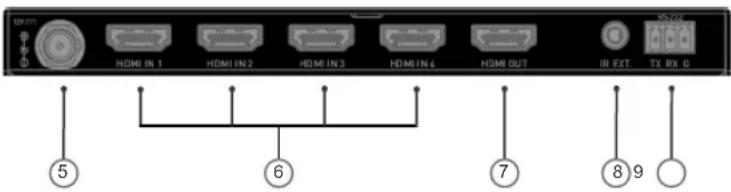
REAR PANEL DESCRIPTION
| 5 DC 12V Connect the power supply provided. | |
| 6 HDMI IN (1-4) Connect to HDMI sources using HDMI cables. | |
| 7 HDMI OUT | Connect to an HDMI display. (HDMI OUT port can supply power of 5V/150mA.) |
| 8 IR EXT. | IR extension port. Connect to the IR extension cable provided. |
| 9 RS232 | Connect to a RS232 enabled device such as a control system for RS232 serial control. |
4-Port HDMI Switch - 4K 60Hz
(US)
FEATURES
• HDMI 2.0 with 4K@60 4:4:4 8-bit and HDCP 2.2 compliant
• Supports HDR, include HDR10, Dolby Vision, HLG and HDR 10+
- Supports front panel button control, IR remote control, RS232 serial control and automatic switching control options
- Compact size and easy-to-install
- HDMI output can supply 150mA current to power AOC cable
APPLICATION DIAGRAM
Note: Before wiring, disconnect the power from all devices.
PACKAGE CONTENTS
- 1 x Switcher
• 1 x Power Adapter (DC 12V 1A) with US, UK, EU and AU Pins - 1 x IR Remote
• 1 x IR Extension Cable
• 1 x Phoenix Male Connector (3.5mm, 3 Pins) - 2 x Mounting Bracket (with screws)
- 1 x Manual
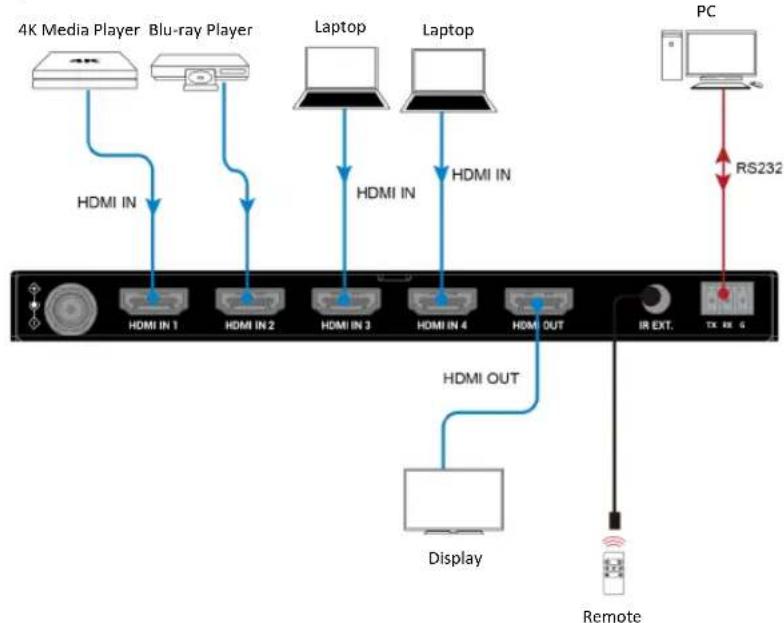
flowchart
graph TD
    A["4K Media Player"] -->|HDMI IN| B["Blu-ray Player"]
    C["Laptop"] -->|HDMI IN| D["Laptop"]
    E["PC"] -->|RS232| F["PC"]
    B -->|HDMI IN 1| G["HDMI IN 1"]
    B -->|HDMI IN 2| H["HDMI IN 2"]
    B -->|HDMI IN 3| I["HDMI IN 3"]
    B -->|HDMI IN 4| J["HDMI IN 4"]
    B -->|HDMI OUT| K["HDMI OUT"]
    L["Display"] --> M["Remote"]
    N["IR EXT."] --> O["TX RE 6"]
4-Port HDMI Switch - 4K 60Hz
(US)
CONTROL OF THE SWITCHER
You can choose to control the switcher through the Front panel button, IR remote, automatic switching function or RS232 (API Commands) control.
FRONT PANEL BUTTON CONTROL

Press the switch button to cycle through multiple active sources
IR REMOTE CONTROL
The Switcher can be controlled by the IR remote provided. Point the remote directly at the IR extension cable connected to the "IR Ext." port and switch to the desired input source.
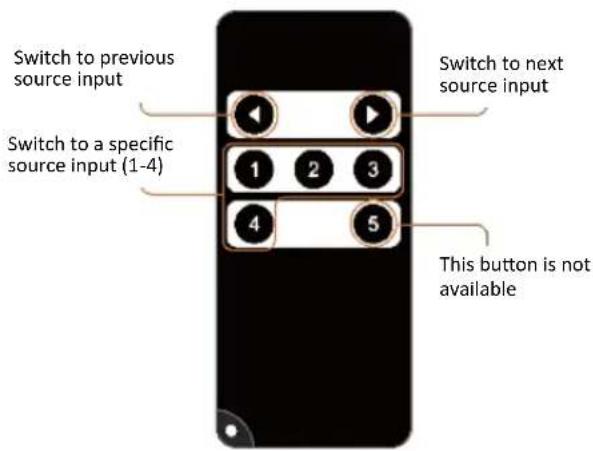
| Button | IR Codes | Description |
| 0x02 0x0a | Switch to next active source input (Cycle 1→4). | |
| 0x02 0x08 | Switch to previous active source input (Cycle 4→1). | |
| 1 | 0x02 0x04 | Switch to source input 1. |
| 2 | 0x02 0x05 | Switch to source input 2. |
| 3 | 0x02 0x06 | Switch to source input 3. |
| 4 | 0x02 0x0c | Switch to source input 4. |
| 5 | N/A | Not available. |
Note:
Since the encoding format for IR codes above is NEC (38KHz), please ensure any third-party device used to IR control the switcher supports NEC (38KHz).
4-Port HDMI Switch - 4K 60Hz
(US)
AUTOMATIC SWITCH CONTROL
The switcher supports automatic switching and allows you to control it without staying near it or using the IR remote. The automatic switching function can be set to on/off through API commands.
When the switcher is powered on, automatic switching will function as follows:
- When HDMI sources are inserted, the switcher will switch to the latest connected source for output display.
- When the HDMI source selected is removed, the switcher will switch to the active source with top priority for output display (Priority: input 1 > input 2 > input 3 > input 4).
Note: Automatic Switching function can only detect 5V of the input source device. If the selected HDMI source in standby mode provides a continuous 5V power output, the Automatic Switching function will not work, i.e. the switcher will not switch the input to other active sources. In this case, please turn off the standby source device selected or remove it from the switcher.
RS232 CONTROL
Advanced users may also choose to control the device through the RS232 port. A professional RS232 serial interface software may be needed as well.
Before executing the API command, please ensure the RS232 interface and the control PC are configured correctly.
RS232 DEFAULT SETTING
| Parameters Value | |
| Baud Rate 9600 bps | |
| Data bits 8 bits | |
| Parity None | |
| Stop bits 1 bit | |
| Flow control None |
4-Port HDMI Switch - 4K 60Hz
(US)
API COMMAND SET
Take Command SET SW in out
- [SET SW] denotes command key words, case insensitive.
- [in out] denotes parameters, case insensitive; incorrect parameters number will not be recognized.
denotes a carriage return or a line feed; all commands must be ended up with a carriage return or a line feed.
| No. | Description | Command | Example |
| Normal switch case | |||
| 1 | Set Auto Switch Function to on/off | Command:SET AUTOSW_FNprm<LF>Return:AUTOSW_FN prm<LF>Parameter:prm = {on, off}Description:When the prm is on, Auto Switch Function is in active status. When the prm is off, Auto Switch Function is in inactive status. | Command:SET AUTOSW_FN on<LF>Return:AUTOSW_FN on<LF>Description:Set Auto Switch Function is in active status. |
| No. | Description | Command | Example |
| Normal switch case | |||
| 2 | Get Auto Switch Function on/off Status | Command:GET AUTOSW_FN<LF>Return:AUTOSW_FN prm<LF>Parameter:prm = {on, off}Description:Get Auto Switch Function is in active status or inactive status. | Command:GET AUTOSW_FN<LF>Return:AUTOSW_FN on<LF>Description:Get Auto Switch mode is in active status or inactive status. The result is in active status. |
API COMMAND SET CONTINUED
| No. | Description | Command | Example |
| 3 | Switch Input for Output | Command:SET SWin<LF>Return:SW in<LF>Parameter:in = {in1, in2, in3, in4,next,prev}; // next connect source:previous connect sourceDescription:SW is short for Switch.Switch one input source for one output sink. | Command:SET SWin1<LF>Return:SW in1<LF>Description:Switch in1 for out |
| 4 | Get which input mapping to the indicate Output | Command:GET MP<LF>Return:Mp in<LF>Parameter:in = {in1, in2, in3, in4};Description:MP is short for mapping.Get which input mapping to the indicate Output. | Command:GETMP<LF>Return:MP in1<LF>Description:Get which input mapping to out |
| No. | Description | Command | Example |
| 5 | Get input connect status in a certain input | Command:GET INPUT_Cprm1<LF>Return:INPUT_C prm1prm2<CR>Parameter:prm1 = {in1, in2,..., in4}prm2 = {connect, disconnect}Description:Get input connect status in a certain input. INPUT_C is short for Input connect. | Command:GET INPUT_Cin1<LF>Return:INPUT_C in1connect<CR>Description:in1 connected |
API COMMAND SET CONTINUED
| No. | Description | Command | Example |
| 6 | Get input connect status in all inputs | Command:GET INPUT_Call<LF>Return:INPUT_C prm1prm2<CR>INPUT_C prm1prm2<CR>...INPUT_C prm1prm2<LF>Parameter:prm1 = {in1, in2,..., in4}prm2 = {connect, disconnect}Description:Get input connect status in all inputs | Command:GET INPUT_Call<LF>Return:INPUT_C in1connect<CR>INPUT_C in2connect<CR>...INPUT_C in4connect<CR>Description:Get all input connection |
| Update info | |||
| 7 | Get firmware version | Command:GET VERReturn:VER prmParameter:prm = {...}//according to actual firmware versionDescription:Get selected target firmware version | Command:GET VERReturn:VER 1.4Description:Get firmware version |
| No. | Description | Command Example | |
| 8 | Upgrade module | Command:UPG [prm]Return:UPG [prm]Parameter:prm= {xxx}Description:Upgrade module | Command:UPGReturn:UPGDescription:upgrade module |
4-Port HDMI Switch - 4K 60Hz
(US)
TROUBLESHOOTING
1. No Power
- Ensure the power is on.
- Ensure you use the power adapter provided in the package.
2. No Picture or Video Flash
- Ensure all devices are on and all cables are connected properly. Ensure all the cable lengths are within the maximum distance.
- Ensure all the LED indicators are normal.
- When connecting source to display directly, ensure they are working properly.
- Ensure the selected HDMI source is working normally instead of in standby status.
- Ensure the input resolution is supported by the device.
3. Auto Switching Disabled
- To enable auto switching, ensure the HDMI source input is able to supply DC 5V power.
4-Port HDMI Switch - 4K 60Hz
(US)
NOTES
4-Port HDMI Switch - 4K 60Hz
(US)
IMPORTANT SAFETY INFORMATION
Do not plug the unit in any outlet that does not have enough current to allow the device to function. Refer to the specifications in this manual for power level of the unit.
Liquid: If this unit or it's corresponding power adapter has had liquid spilled on or in it, do not attempt to use the unit. Do not attempt to use this product in an outdoor environment as elements such as rain, snow, hail, etc. can damage the product.
In case of a storm, it is recommended that you unplug this device from the outlet.
Avoid placing this product next to objects that produce heat such as portable heaters, space heaters, or heating ducts.
THERE ARE NO USER SERVICEABLE PARTS. Do not attempt to open this product and expose the internal circuitry. If you feel that the product is defective, unplug the unit and refer to the warranty information section of this manual.
C2G WARRANTY
At C2G we want you to be totally confident in your purchase. That is why we offer a warranty on this device. If you experience problems due to workmanship or material defect for the duration of this warranty, we will repair or replace this device.
To request a Return Merchandise Authorization (RMA) number, contact customer service at 800-293-4970 or www.c2g.com.
COMMUTATEUR HDMI 4 PORTS - 4K 60Hz
(FR)
APERÇU DU PRODUIT
PANNEAU AVANT
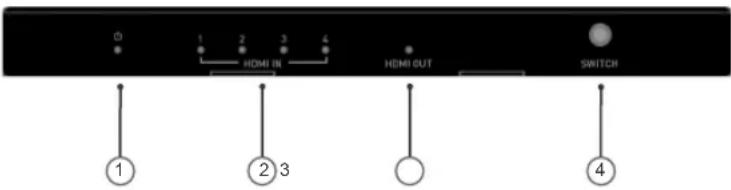
SCHÉMA D'APPLICATION
Note: This device complies with part 15 of the FCC Rules. Operation is subject to the following two conditions:
(1) This device may not cause harmful interference, and
(2) This device must accept any interference received, including interference that may cause undesired operation.
FCC Statement - §15.105(b):
"This equipment has been tested and found to comply with the limits for a Class B digital device, pursuant to part 15 of the FCC Rules. These limits are designed to provide reasonable protection against harmful interference in a residential installation. This equipment generates, uses and can radiate radio frequency energy and, if not installed and used in accordance with the instructions, may cause harmful interference to radio communications. However, there is no guarantee that interference will not occur in a particular installation. If this equipment does cause harmful interference to radio or television reception, which can be determined by turning the equipment off and on, the user is encouraged to try to correct the interference by one or more of the following measures:
● Reorient or relocate the receiving antenna.
- Increase the separation between the equipment and receiver.
- Connect the equipment into an outlet on a circuit different from that to which the receiver is connected.
- Consult the dealer or an experienced radio/TV technician for help.
FCC Caution - §15.21:
"Changes or modifications not expressly approved by the party responsible for compliance could void the user's authority to operate the equipment."

© 2021 Legrand All Rights Reserved rev.07/21 Manual_C2G41604
C2G®
A brand of legrand
6500 Poe Avenue
Dayton, OH 45414
Phone 800.293.4970
www.c2g.com


- TABLE OF CONTENTS (US)
- TABLE DES MATIÈRES (FR)
- REAR PANEL
- 4-Port HDMI Switch - 4K 60Hz
- (US)
- FEATURES
- APPLICATION DIAGRAM
- PACKAGE CONTENTS
- CONTROL OF THE SWITCHER
- FRONT PANEL BUTTON CONTROL
- IR REMOTE CONTROL
- Note:
- AUTOMATIC SWITCH CONTROL
- RS232 CONTROL
- API COMMAND SET
- TROUBLESHOOTING
- No Power
- No Picture or Video Flash
- Auto Switching Disabled
- NOTES
- IMPORTANT SAFETY INFORMATION
- C2G WARRANTY
- COMMUTATEUR HDMI 4 PORTS - 4K 60Hz
- (FR)
- APERÇU DU PRODUIT
- PANNEAU AVANT
- SCHÉMA D'APPLICATION
- FCC Statement - §15.105(b):
- FCC Caution - §15.21:
- C2G®
Brand : C2G
Model : C2G41604
Category : Router