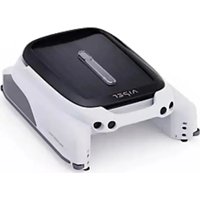
Surfer M1 - Robot vacuum Aiper - Free user manual and instructions
Find the device manual for free Surfer M1 Aiper in PDF.


User questions about Surfer M1 Aiper
0 question about this device. Answer the ones you know or ask your own.
Ask a new question about this device
Download the instructions for your Robot vacuum in PDF format for free! Find your manual Surfer M1 - Aiper and take your electronic device back in hand. On this page are published all the documents necessary for the use of your device. Surfer M1 by Aiper.
USER MANUAL Surfer M1 Aiper
— bring vacation home —
ROBOTIC POOL SKIMMER User Manual
Aiper Surfer S1/M1
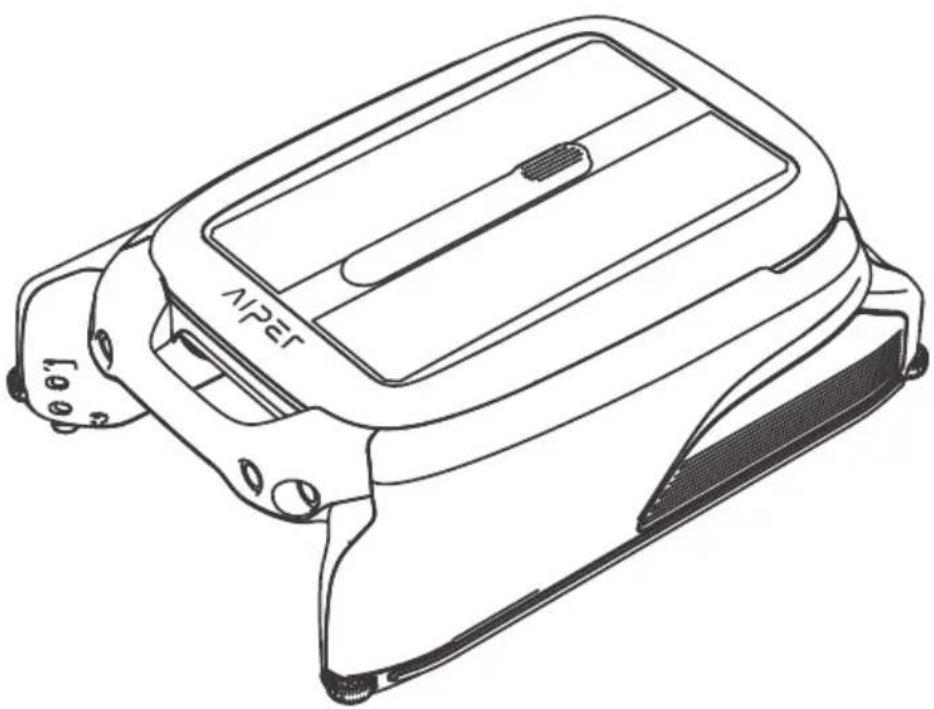
natural_image
Line drawing of a smartwatch device with no visible text or symbols on the bodyCONTENTS
English 1-22
Français 23-43
Español----44-64
FCC Statement
This device complies with Part 15 of the FCC Rules. Operation is subject to the following two conditions: (1) This device may not cause harmful interference, and (2) this device must accept any interference received, including interference that may cause undesired operation.
Warning: Changes or modifications not expressly approved by the party responsible for compliance could void the user's authority to operate the equipment.
Note: This equipment has been tested and found to comply with the limits for a Class B digital device, pursuant to Part 15 of the FCC Rules. These limits are designed to provide reasonable protection against harmful interference in a residential installation.
This equipment generates, uses, and can radiate radio frequency energy and, if not installed and used in accordance with the instructions, may cause harmful interference to radio communications. However, there is no guarantee that interference will not occur in a particular installation. If this equipment does cause harmful interference to radio or television reception, which can be determined by turning the equipment off and on, the user is encouraged to try to correct the interference by one or more of the following measures:
(1) Reorient or relocate the receiving antenna.
(2) Increase the separation between the equipment and receiver.
(4) Consult the dealer or an experienced radio / TV technician for help.
(3) Connect the equipment into an outlet on a circuit different from that to which the receiver is connected.
Radiation Exposure Statement:
- This equipment complies with FCC radiation exposure limits set forth for an uncontrolled environment.
- This equipment should be installed and operated with minimum distance 20cm between the radiator & your body.
IC Statement
This device complies with Industry Canada license - ICES-003. Operation is subject to the following two conditions: (1) This device may not cause interference, and (2) This device must accept any interference, including interference that may cause undesired operation of the device.
Radiation Exposure Statement:
- This equipment complies with IC radiation exposure limits set forth for an uncontrolled environment.
- This equipment should be installed and operated with minimum distance 20cm between the radiator & your body.
Importer. Aiper Intelligent, LLC.
Address: 13851 Ramona Ave, Chino, CA 91710, USA.
US Toll-Free: 1-866-850-0666
AU Toll-Free: +61(180)049-7023
Thank you for choosing Aiper.
You've now joined a family of millions who have already put their trust in Aiper to take care of their pools and are enjoying the convenience of a pristinely clean pool.
This user manual will help you maintain your Aiper Pool Skimmer and ensure it performs at its maximum efficiency for years to come. Please take a few minutes to read through this manual.
If you have any questions, please visit our website at www.aiper.com and contact our customer service team for assistance or more information.
Aiper Customer Service:
US Toll-Free: 1-866-850-0666
AU Toll-Free: +61(180)049-7023
Email: service@aiper.com
Facebook: @AiperOfficial
Scan for Video Guide
Scan the QR
Code to Access
Customer Support
natural_image
Line drawing of a mechanical device with no visible text or symbolsEnglish
CONTENTS
Important Safety Precautions ---- 4
-
Structure ---- 6
-
Specifications & Working Conditions ---- 8
-
Operations 9
-
App and Network Configuration ---- 12
-
Operating Instructions---- 15
-
Maintenance & Storage 17
-
Troubleshooting Solutions ---- 21
-
Packing List---- 22
-
Warranty 22
⚠️ Important Safety Precautions
Please read this manual carefully and use your Aiper device in accordance with the manual instructions. Aiper is not liable for any losses or injuries caused by improper use of this device.
For your safety and optimal performance of this device, please read and follow the following suggestions.
- Do not operate your Aiper device while people or animals are in the pool.
- Turn the device off while not in use or while performing maintenance.
- Do not allow children to ride the device under any circumstances. Please supervise children when they are around an operational Aiper.
- Use only authorized Aiper power adapters.
- The adapter cord should only be replaced by a qualified electrician or Aiper Customer Care.
- It's suggested to plug the power adapter into a power strip or surge protector and not directly into an electrical outlet.
- Ensure your device is powered off and the charging port is dry before via adapter charging. While charging, your Aiper should be kept in a cool, well-ventilated area. Do not cover your Aiper while charging, as this may cause components to overheat.
- Please store the machine indoors or in a cool place when not in use.
- Do not run your Aiper out of the water as it may lead to over-heating.
- Only certified professionals should disassemble the sealed driving kit of your Aiper.
- Do not operate the device and pool filter simultaneously.
-
Watch your steps and maintain balance when working near the poolside.
-
Do not drop, pierce the shell, or intentionally damage the device in any way, as this may void your warranty.
- When putting your device into the water, the front of the machine must face upwards and should never be placed upside down or thrown into the swimming pool.
- Do not charge the device while the charging port is wet.
- Do not use your Aiper device and another pool skimmer simultaneously.
- Do not wash the solar panel using a pressure washer as this may damage the panel.
- When the device is running, do not put your hands into any part of the device as this may result in injury.
Please read this user manual carefully before operating the device.
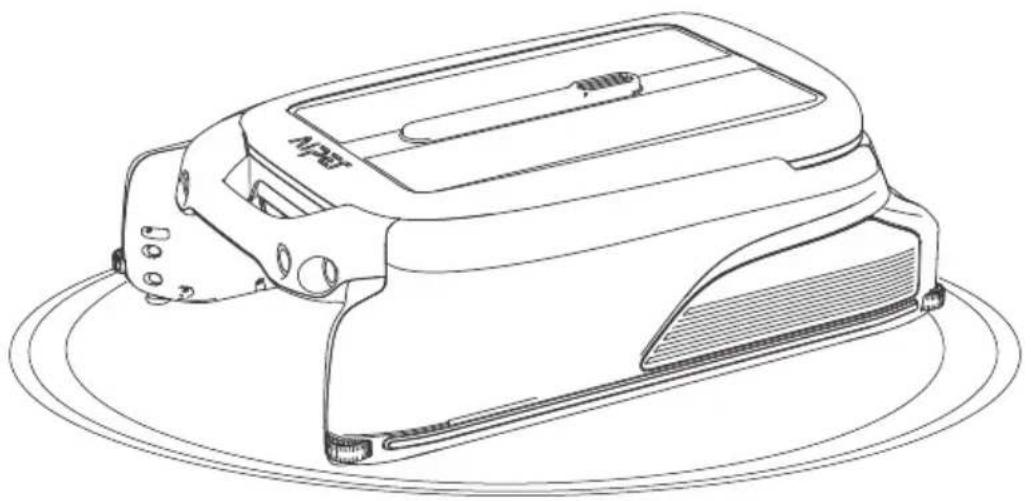
1. Structure
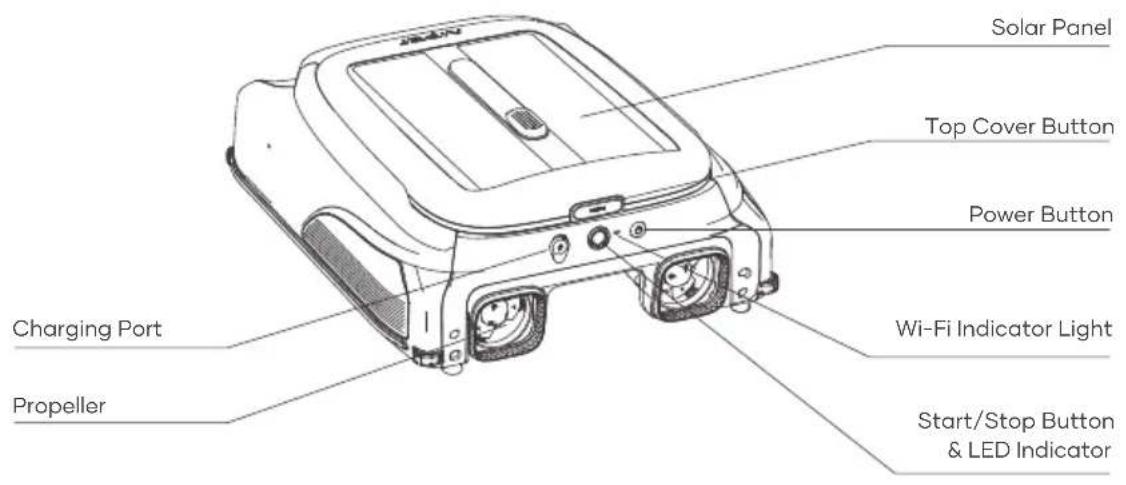
text_image
Solar Panel Top Cover Button Power Button Charging Port Propeller Wi-Fi Indicator Light Start/Stop Button & LED Indicator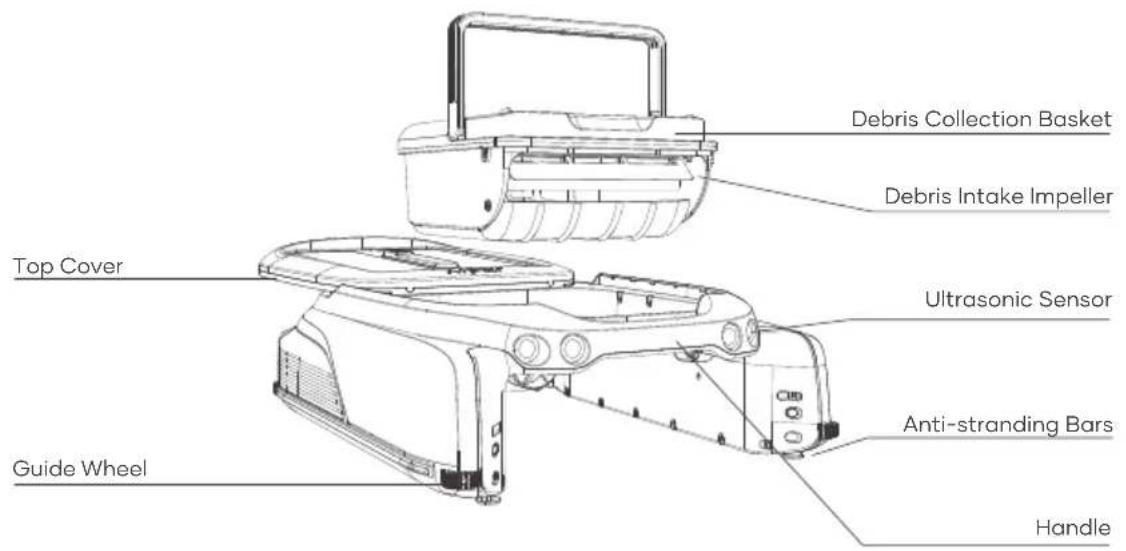
text_image
Debris Collection Basket Debris Intake Impeller Top Cover Ultrasonic Sensor Guide Wheel Anti-stranding Bars Handle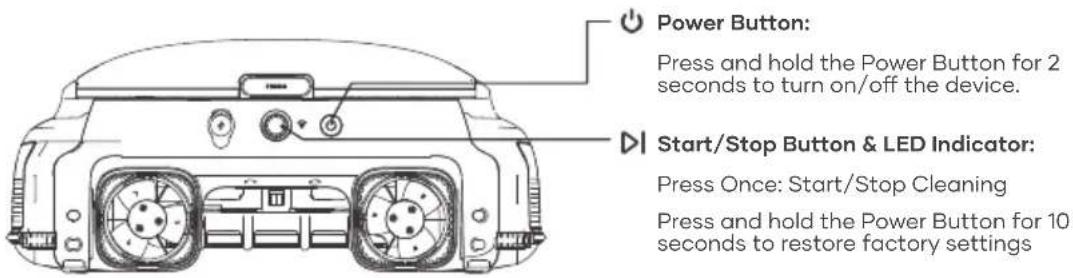
text_image
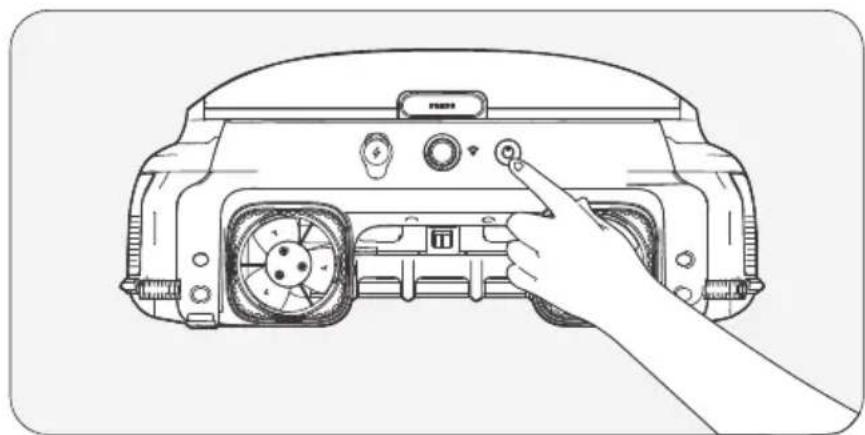
Power Button: Press and hold the Power Button for 2 seconds to turn on/off the device. Start/Stop Button & LED Indicator: Press Once: Start/Stop Cleaning Press and hold the Power Button for 10 seconds to restore factory settingsLED Indicator:
| LED IndicatorStatus | Meaning | |
| Working | Solid Blue Light | The device is operating normally and charging through the solar panel. |
| Blue Light Flashing Slowly | The device is operating normally but not charging through the solar panel. | |
| Solid Yellow Lights | Low battery. The device is operating intermittently and is charging via the solar panel. | |
| Yellow Light Flashing Slowly | Low battery. The device is operating intermittently but is not charging via the solar panel. | |
| Flashing Red Light | A fault has occurred (see the Troubleshooting Solutions for details). | |
| Light Off | Powered off. | |
| Adapter Charging | Solid Blue Light | The battery is fully charged. |
| Pulsing Blue Light | Charging in progress, battery level above 30%. | |
| Pulsing Yellow Light | Charging in progress, battery level below 30%. | |
| Pulsing Red Light | Charging in progress. The battery level is too low for the device to operate. |
Wi-Fi Indicator Light:
| MeaningWi-Fi Light Status | |
| Flashing Blue Light | Starting network configuration / network configuration in progress. |
| Solid BLue Light | Network connected. |
| Off | Network not connected. |
2. Specifications & Working Conditions
- Pool Size: This device works in most household pools, with exception to infinity pools and pools made of glass.
- Charger Input: 100-240V,50/60Hz,1A
- Charger Output: 12.6V/1.8A
- Charging Time: 4 Hours
- Battery Life: Up to 10 Hours
- IP Grade: IPX7 Waterproof
- Battery Pack: 4000mAh
- Wather Depth: Above 7 Inches
- Frequency Range: 2412\~2484 MHZ
- Maximum Radio Frequency Emission Power: 20.5dBm
CAUTION:
Your Aiper Pool Skimmer is best used in the water conditions detailed below.
• Temperature: 50-95°F (10-35°C)
- pH Value: 7.0-7.4
• Chlorine: Maximum 4 ppm
• NaCl: Maximum 6500 ppm
3. Operations
A. Using the Anti-stranding Bars
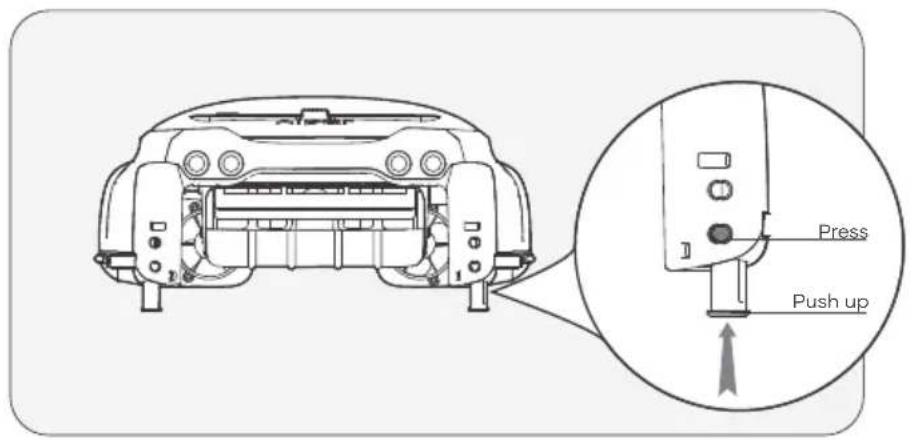
- When to use: If there are shallow stairs or other structures in your pool, the skimmer may become stuck on these obstacles. You can adjust the built-in anti-stranding bars to prevent this.
- How to Use: Press the upper button on the bar housing and pull down the bars. Adjust them in pairs - both front and/or both rear to keep the device balanced. To return the bars to their housing, press the associated button and press up on the bars until they lock into place.
Large picture of anti-grounding bar
text_image
Press Push upB. Charging
There are two charging methods available:
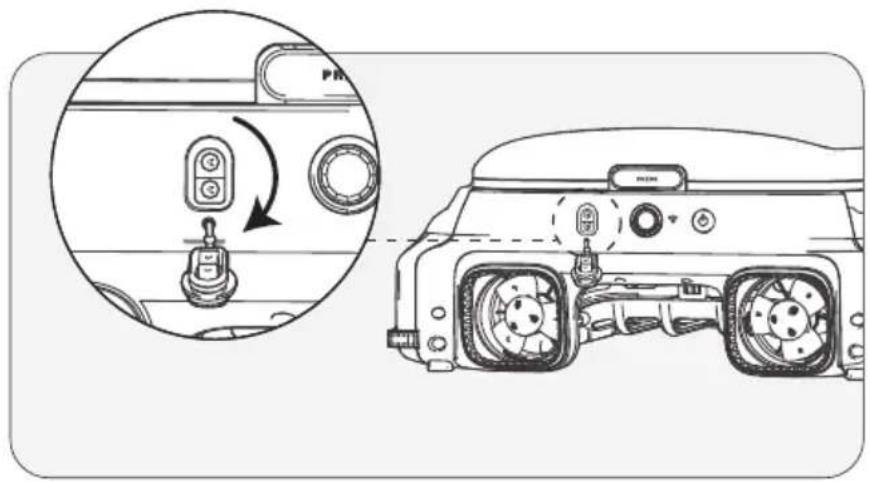
1) Solar Charging: After turning on the device, place it in sunlight and the device will automatically charge.
2) Charging by adaptor: Without sufficient sunlight, your devices solar panel may not be efficient for charging. Charging port on device allows you to always be in control of your clean and gives you an alternative charging method.
Notes:
- If the device does not power on when pressing and holding the Power Button for 2 seconds upon first use, please charge it with the DC Adapter first.
- DC Adapter charging: The device will automatically turn on while using this method and will be turned off while unplug the adapter.
- Once fully charged or before use, disconnect the power adapter and close the charging port cover to prevent water from entering the device.
natural_image
Diagram of a car interior showing the front and rear views of the engine compartment with control knobs and fan blades (no text or labels present)C. On/Off
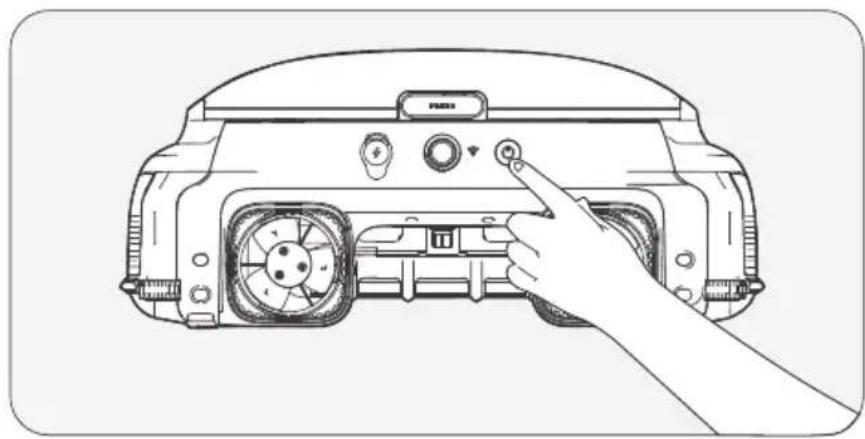
• Power On: Press and hold the Power Button for 2 seconds.
• Power Off: Press and hold the Power Button for 2 seconds.
- When On: When in adequate sunlight, the solar panel will charge the device and the device will enter Standby Mode.
- Turning Off the Device: Will disconnect the device from the network and the solar panel will cease charging your device.
⚠️ Please place the machine on a level surface before powering on
- The LED light will flash quickly upon startup. Wait until the LED light stays on steadily before submerging the machine in water.
natural_image
Line drawing of a car front panel with a hand pointing to the control panel (no text or symbols)4. App and Network Configuration
- To remotely view and control your device using the Aiper App, please ensure the device in range with sufficient network coverage, otherwise remote access may be unavailable.
- App control is optional and requires network configuration for access. Device can be operated for pool cleaning without app connectivity.
A. Download the Aiper App
Download or update the "Aiper" app from the App Store or Google Play Store.
B. Network Configuration
1) The Aiper App is compatible with the following smart devices:
- Apple (iOS) Version 12 and up – iPhone, iPad.
- Android Version 8.0 and up operating systems.
2) Ensure that your smart device (phone/tablet) has been connected to your home/pool Wi-Fi network.
3) Ensure your smart device (phone/tablet) Bluetooth has been enabled.
4) Ensure your router supports 2.4Ghz Wi-Fi frequency.
5) Keep your phone close to the machine (within 20 feet) for better connection with device.
C. Create an Account
1) When using the Aiper App for the first time, tap the "Sign In" button on the login page to create an account.
2) Select your region, enter your email, and tap "Continue" to proceed.
3) Follow the page prompts to enter the verification code in the email and set your account password.
4) Tap "Confirm" and agree to the User Agreement and Privacy Agreement to complete account creation.
D. Log in to the App
1) Tap the "Log in" button on the home page to log in to your account.
2) Enter your email and password, and then tap "Log in" to log in to the Aiper app.
E. Add Device/ Configure Network
Choose any of the following network configuration methods:
1) Adding via Bluetooth
- Tap the "Add" button in the device list to add and link the device and start network configuration.
- Follow the app prompts to complete Bluetooth pairing, and then start network configuration.
2) Adding via Code
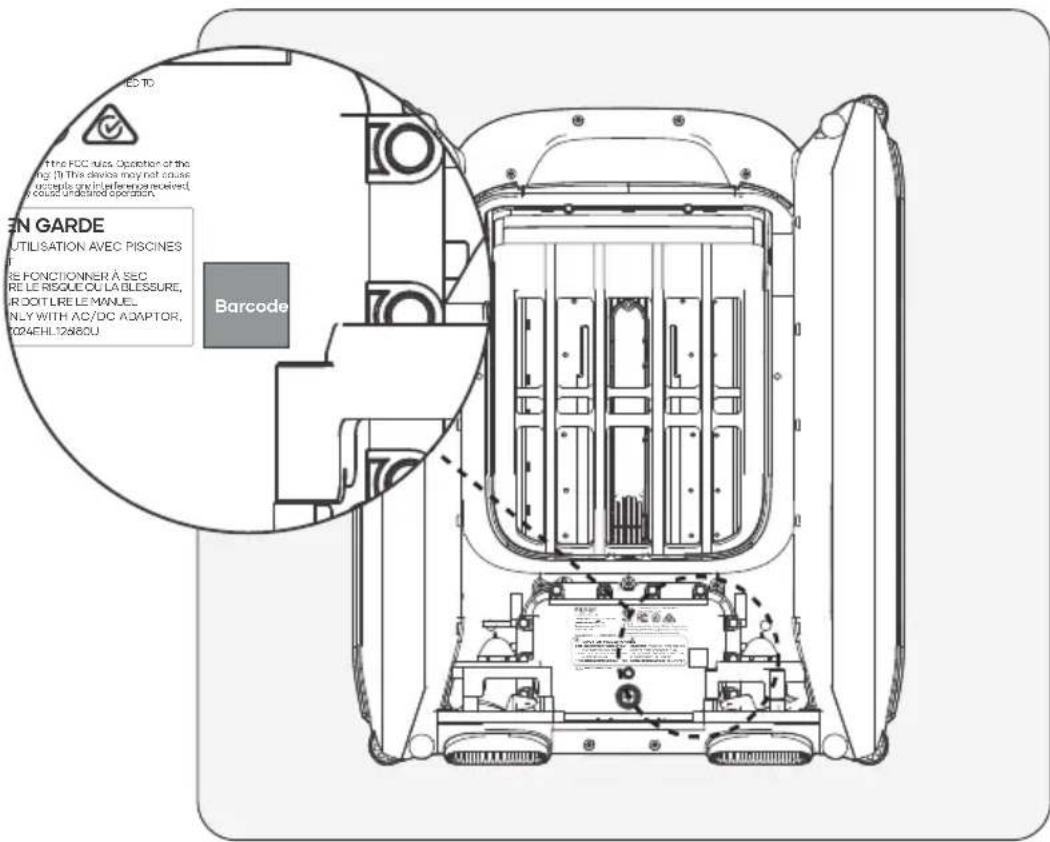
- If your phone cannot detect the Bluetooth signal of the device and you fail to add the device via Bluetooth, you can add its Wi-Fi by scanning its barcode.
text_image
EN GARDE UTILISATION AVEC PISCINES RE FONCTIONNER À SEC RE LE RISQUE OU LA BLESSURE, R OOIT LRE LE MANUEL. NLY WITH AC/DC ADAPTOR, T024EHL12a80U.- Tap "Add via Code" to start configuring your device to the network via the code.
- Follow the prompts to scan the barcode on the device.
- Tap "Set Now" and connect to the device's Wi-Fi in the system settings following the app prompts.
• After successful connection, tap Next to start network configuration.
3) Manual Configuration
- Manual Configuration must be completed within 10 minutes of device startup. Otherwise the system will need to be restarted.
- If you fail to add the device via the QR code, you can manually select the device type to add the device's Wi-Fi.
- Tap to select the device type.
- Select the corresponding device model and tap 'Add'.
- Tap "Set Now" and connect to the device's Wi-Fi in the system settings following the app prompts.
- Follow the prompts to complete Bluetooth pairing, and then start network configuration.
App Troubleshooting
| "Device not found" | The APP cannot establish connection with the device. | - Ensure the device is turned on.- Ensure the connection is not pending. If the LED indicator is flashing, reset the devices Wi-Fi.- The device is too far away from your router. Adjust your router's position or install a Wi-Fi extender at home to ensure Wi-Fi coverage for the device. |
| "Network configuration failed" | - Incorrect Wi-Fi password.- Wi-Fi is 5GHz.- Wi-Fi network signal is too weak. | - The device is too far away from your router. Adjust your router's position or install a Wi-Fi extender at home to ensure Wi-Fi coverage for the device. |
5. Operating Instructions
A. Automatic Cleaning Mode
When the device is on, press the Start/Stop button once on the device or in the app to Start/Stop automatic cleaning mode. In the Automatic Cleaning mode, the device operates automatically and will be charged by the solar panel on sunny days.
- By default, the device operates in the automatic cleaning mode.
natural_image
Line drawing of a car front panel with a hand pointing to the control panel (no text or symbols)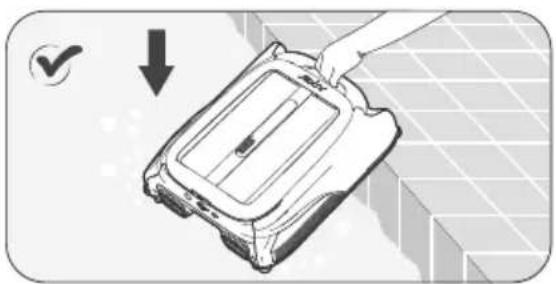
natural_image
Illustration of a hand holding a device with a checkmark and downward arrow, no text or symbols present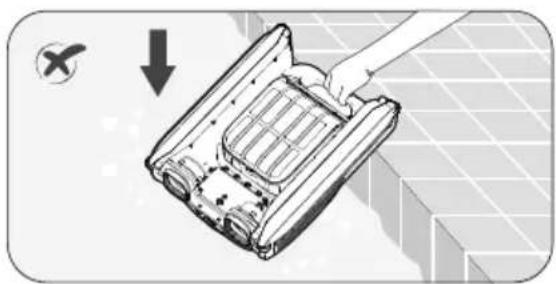
natural_image
Diagram of a mechanical component with a hand holding a handle, showing internal structure and a checkmark (no text or symbols)To remove the device from the water, you can use the Aiper App to manually pilot the device to the edge of your pool for pickup or wait until the device reaches the edge of the pool and lift it out by the handle.
C. Remote Mode (only supports operation within the Aiper App)
You can use the Remote Mode in the Aiper App to manually pilot the device to move forward, backward, left, and right. If, in Remote Mode, the device idles for three minutes, it will revert to its previous mode.
D. Intermittent Mode
When the battery level is low, the LED Indicator will turn yellow. The device will operate intermittently and continue working once the battery level recovers.
- Important Information About Intermittent Mode: If sunlight is weak and the solar charging rate falls below the device's power usage rate, it will automatically shut down due to insufficient power. However, there's no need for manual intervention.
The device will recharge itself using the solar panel once the sun is out again the next day and will resume operation automatically.
E. Detect Water Temperature (only available in the Aiper App)
When the device is connected to your smart device, users may access their pools water temperature within theApp.
F. Restore Factory Settings
To restore factory settings, press and hold the Power button for 10 seconds. This action will clear all data from the device, including network configurations and cleaning records.
6. Maintenance & Storage
Clean out the debris collection basket every 2-3 days to keep the device running at high efficiency.
A. Cleaning the Debris Collection Basket
1) Grasp the handle of the device to lift it out of the pool, placing it on a flat surface.
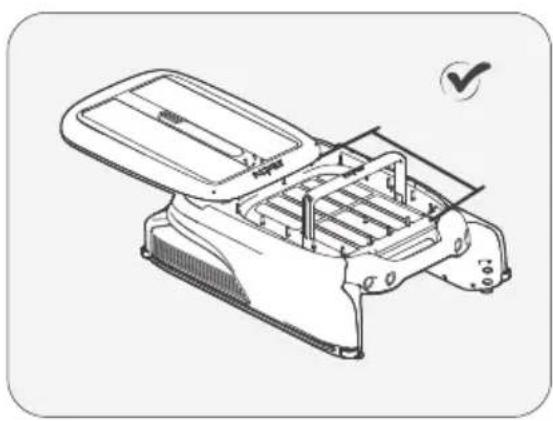
Hold the device's handle with one hand (to prevent injury during operation), press the button on the solar panel cover with the other hand, and push the solar panel cover back.
- Pull the cover to the back end, otherwise it will affect the removal of the debris bin.
- The handle of the debris collection basket will pop up automatically. Please do not bring your head too close to avoid being hit by the pop-up handle.
natural_image
Technical line drawing of a mechanical device with internal compartments and a checkmark indicating inspection (no text or symbols present)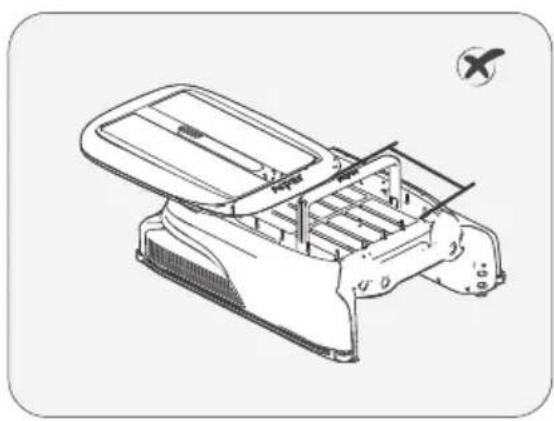
natural_image
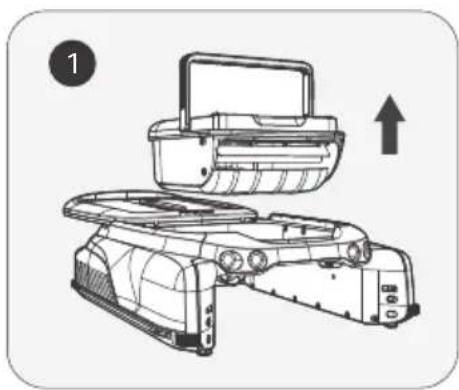
Technical line drawing of a mechanical device with internal compartments and mounting brackets (no text or symbols)2) Lift the handle of the debris collection basket to remove it from the device. Empty the bin and use a high-pressure water gun or hose to rinse the debris debris collection basketbin until completely clean.
natural_image
Technical line drawing of a mechanical device with an upward arrow indicating motion (no text or symbols present)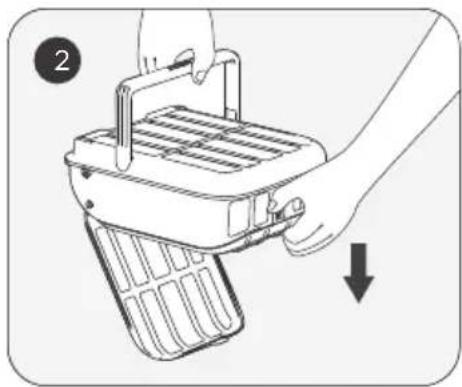
natural_image
Illustration of a hand holding a portable device with a rack and handle, showing a downward arrow (no text or symbols)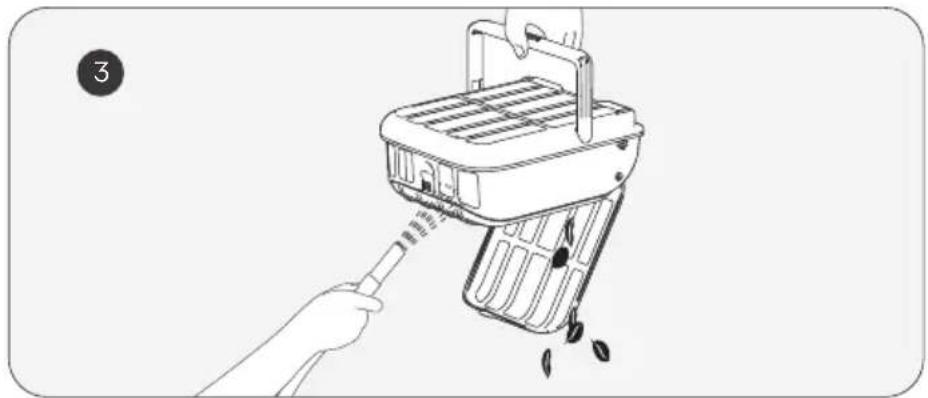
natural_image
Line drawing of a hand using a tool to clean or exhaust food from a portable kitchen appliance (no text or symbols)3) Put the debris collection basket back into the device and push the top cover back to its original position. Ensure the cover is pushed into place to prevent it from slipping when lifting.
Please note that the handle on the cover of the debris collection basket will automatically return to its original position with the top cover in place.
B. Cleaning the Solar Panel
You may see some white residue on the solar panel, which are chemicals and minerals from your pools water. Rinse the residue on the solar panel with clean water and wipe it clean with a soft, dry cloth.
WARNING: Do not use a high-pressure washer or any tool to scrape the solar panel as this may damage the device and void your warranty.
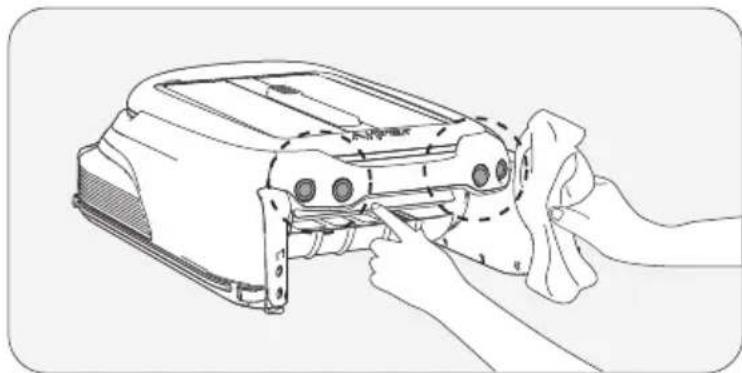
C. Cleaning the Ultrasonic Sensor
Please use a soft, dry cloth to clean the ultrasonic sensor to prevent it from being obstructed by dirt.
natural_image
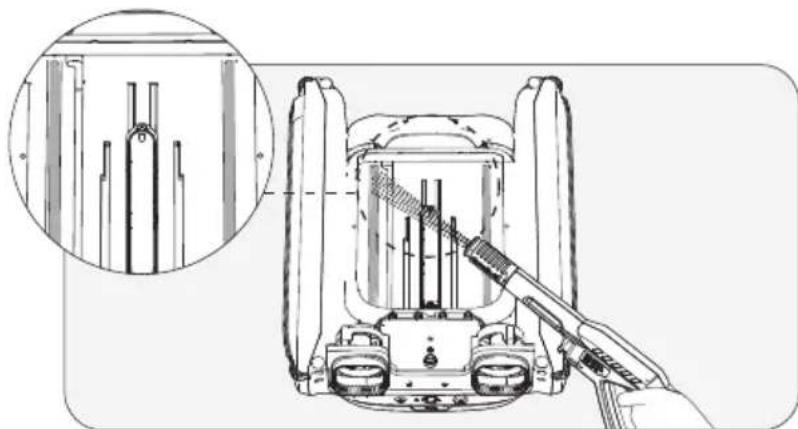
Line drawing of a robotic device being cleaned with a cloth, showing hands interacting with the component (no text or symbols present)D. Cleaning the Slide Rails
When the top cover is hard to slide, there might be dirt or debris in the slide rail. Please flip the device over carefully and rinse the slide rail with a high-pressure water gun.
natural_image
Technical line drawing of a mechanical assembly with a magnified inset showing internal components (no text or symbols)E. Storing Your Device
When winter comes or when the skimmer has not been used for more than a month, you can use the following methods to storing your device:
1). Ensure the device is not in low battery mode (LED Indicator shows a solidblue light).
2). Press and hold the Power Button for 2 seconds to turn it off.
3). Clean the device with a dry cloth.
4). Store in a cool, dry, indoor area away from high temperatures.
5). Fully charge the device before next use.
6). In order to better extend the life of the machine, you can use the DC Adapter to charge the machine once every 2 month.
7. Troubleshooting Solutions
Note: The solar panel can only operate to charge the device when the device is turned on.
When the device malfunctions, a red LED indicator light on the device will flash with the buzzer alarming, and the app will display the fault. You can attempt to troubleshoot the fault following the instructions in the FAQ or the prompts in the Aiper App or contact after-sales service.
8. Packing List
| NO. | Name | Model | QTY(pc) |
| 1 | Skimmer | Aiper Surfer S1/M1 | 1 |
| 2 | Charger | / | 1 |
| 3 | User Manual | / | 1 |
| 4 | Debris Collection Basket | / | 1 |
9. Warranty
This product has passed quality control and safety test conducted by our technicians.
- This product comes with a 24-month warranty that covers your item's battery and motor from the date of purchase.
- This warranty is voided if the product has been altered, misused, or has been repaired by unauthorized persons.
- This warranty extends only to manufacturing defects and does not cover damage resulting from the mishandling of the product by the owner.
- The order number or record of purchase must be presented at the request of any repair claim during the warranty period.
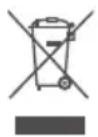
This symbol indicates that this product shall not be treated as household waste. Instead it shall be handed over to the applicable collection point for the recycling of electrical and electronic equipment.
natural_image
Line drawing of a mechanical device with no visible text or symbolsFrançais
SOMMAIRE
natural_image
Technical line drawing of a car front view showing steering wheel, dashboard, and air vent (no text or symbols)text_image
Diagram showing a device's internal components with an inset view highlighting the switch mechanism.C. Marche/Arrêt
natural_image
Line drawing of a car front panel with a hand pointing to the control panel (no text or symbols)natural_image
Line drawing of a car front panel with a hand pointing to the control panel (no text or symbols)natural_image
Illustration of a hand holding a device with a checkmark and downward arrow, no text or symbols present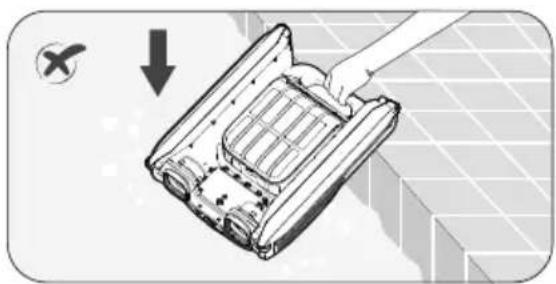
natural_image
Illustration of a hand holding a cleaning or cleaning device with a checkmark and arrow indicating action (no text or symbols present)natural_image
Technical line drawing of a mechanical device with open lid and internal compartments (no text or symbols)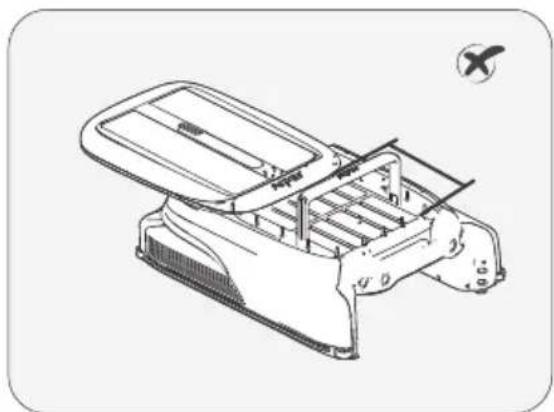
natural_image
Technical line drawing of a mechanical device with internal compartments and mounting holes (no text or symbols)natural_image
Technical line drawing of a mechanical device with an upward arrow indicating motion (no text or symbols present)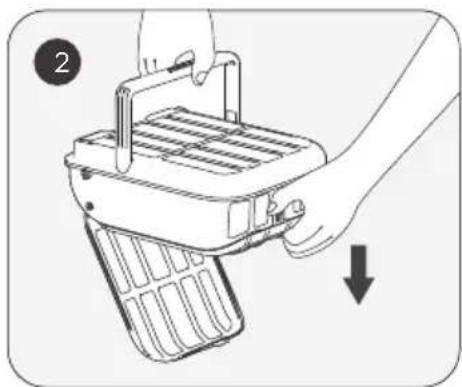
natural_image
Illustration of a hand holding a device with a downward arrow indicating motion (no text or symbols)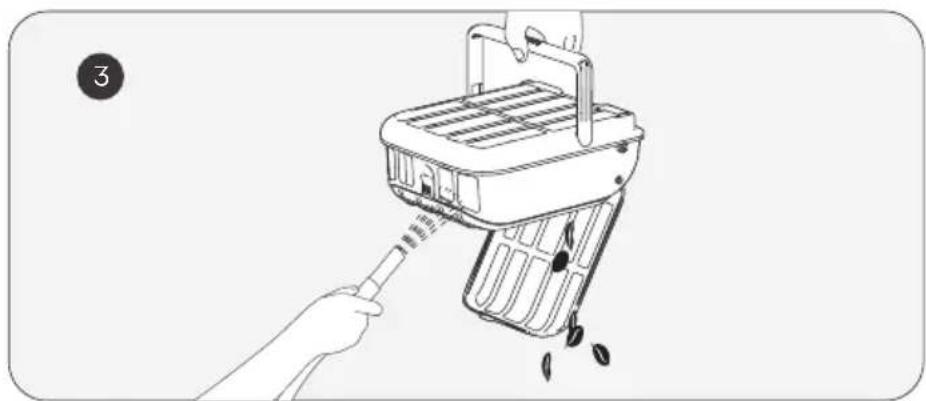
natural_image
Line drawing of a hand using a tool to lift or drag a small container with seeds, no text or symbols presentnatural_image
Line drawing of a hand cleaning a device with a cloth (no text or symbols)natural_image
Technical line drawing of a mechanical assembly with a magnified inset showing internal components (no text or symbols)AU Toll-Free: +61(180)049-7023
Email: service@aiper.com
Facebook: @AiperOfficial
natural_image
Line drawing of a mechanical device with no visible text or symbolsEspañol
CONTENIDOS
natural_image
Technical line drawing of a car front view showing dashboard, steering wheel, and air vent (no text or symbols)natural_image
Diagram of a car interior showing the dashboard and rear-mounted air vent (no text or symbols present)natural_image
Line drawing of a car front panel with a hand pointing to the control panel (no text or symbols)natural_image
Line drawing of a car front panel with a hand pointing to the control panel (no text or symbols)natural_image
Illustration of a hand holding a device with a checkmark and downward arrow, no text or symbols present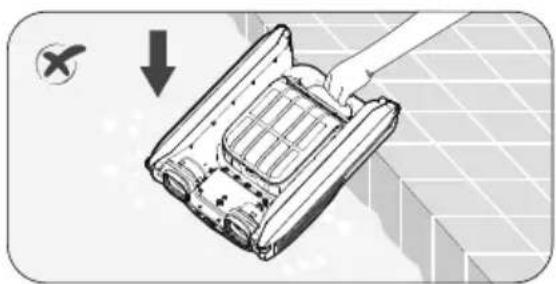
natural_image
Diagram of a mechanical device with a hand holding a tray, showing internal components and a downward arrow (no text or symbols)natural_image
Technical line drawing of a mechanical device with internal compartments and a checkmark indicating inspection (no text or symbols present)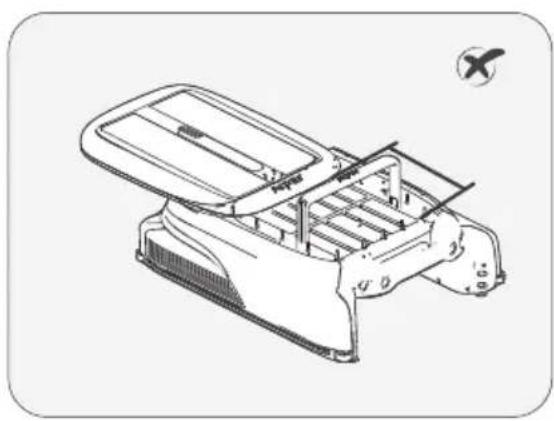
natural_image
Technical line drawing of a mechanical device with internal compartments and mounting brackets (no text or symbols)natural_image
Technical line drawing of a mechanical device with an open lid and upward arrow indicator (no text or symbols)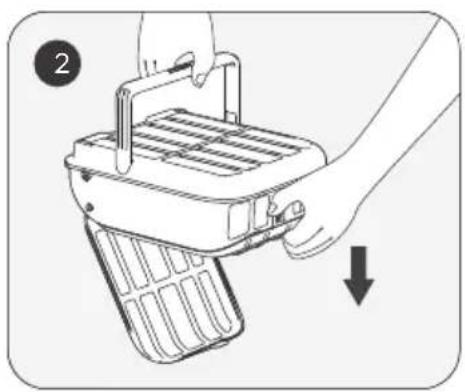
natural_image
Illustration of a hand holding a small electronic device with a handle and internal grid structure, no text or symbols present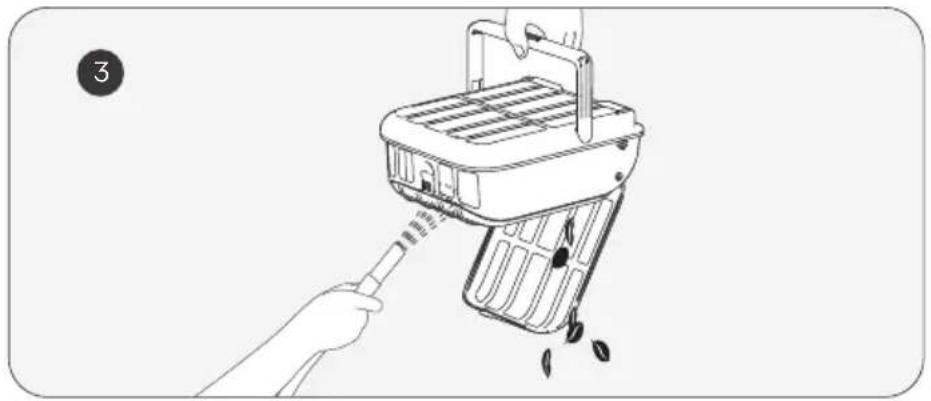
natural_image
Illustration of a hand using a tool to clean or exhaust a small appliance (no text or symbols visible)natural_image
Line drawing of a robotic device being cleaned with a cloth, showing hands interacting with the component (no text or symbols present)natural_image
Technical line drawing of a mechanical device with a magnified inset showing internal components (no text or symbols)— bring vacation home —