Wi-Fi Combo Kit - Camera GOPRO - Free user manual and instructions
Find the device manual for free Wi-Fi Combo Kit GOPRO in PDF.


User questions about Wi-Fi Combo Kit GOPRO
0 question about this device. Answer the ones you know or ask your own.
Ask a new question about this device
Download the instructions for your Camera in PDF format for free! Find your manual Wi-Fi Combo Kit - GOPRO and take your electronic device back in hand. On this page are published all the documents necessary for the use of your device. Wi-Fi Combo Kit by GOPRO.
USER MANUAL Wi-Fi Combo Kit GOPRO
User ManUal + Warranty Info
GoPro
Be a HERO.

IMPORTANT: Before using your Wi-Fi BacPac™ and Wi-Fi Remote, you will need to download product updates at: gopro.com/update
natural_image
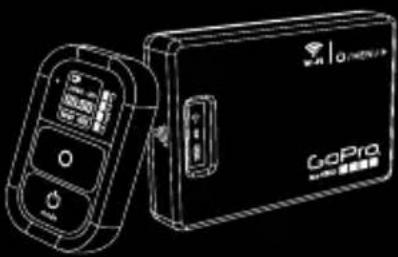
Line drawing of two electronic devices, one with a remote control and the other a GoPro card (no text or symbols visible)Wi-Fi Remote + Wi-Fi BacPac
Congratulations
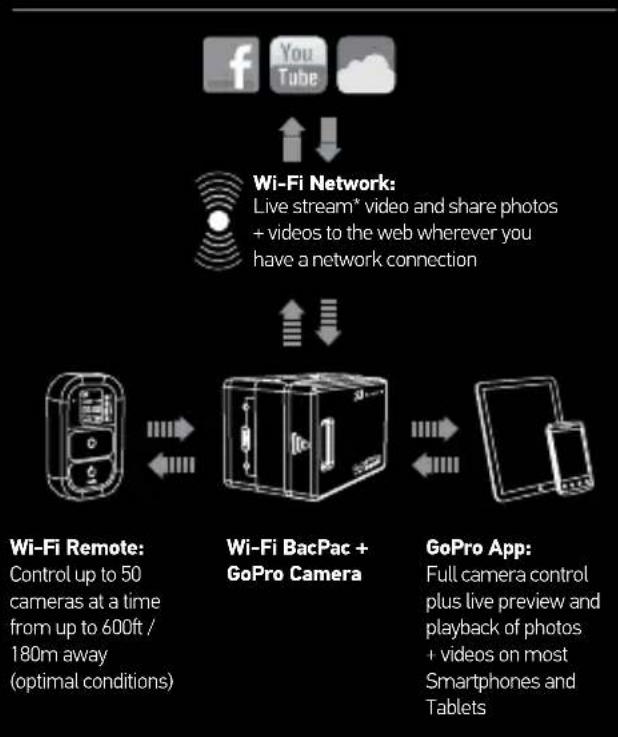
on your purchase of the Wi-Fi BacPac ^™ + Wi-Fi Remote Combo Kit. Now you can Wi-Fi enable your GoPro camera and control it with your Wi-Fi Remote, Smartphone or Tablet. You can also live stream* video and share photos + videos to the web wherever you have a network connection.
flowchart
graph TD
    A["Facebook"] --> B["Wi-Fi Network"]
    C["YouTube"] --> B
    D["Cloud"] --> B
    B --> E["Wi-Fi Remote: Control up to 50 cameras at a time from up to 600ft / 180m away (optimal conditions)"]
    B --> F["Wi-Fi BacPac + GoPro Camera"]
    B --> G["GoPro App: Full camera control plus live preview and playback of photos + videos on most Smartphones and Tablets"]
* Live streaming, video + photo sharing to the web and Bluetooth will be available with a future downloadable product update at: gopro.com/update
Table of Contents
| Wi-Fi BacPac |
| Features 10Battery + Charging 11Assembly 12Powering Camera ON/OFF 13 |
| Wi-Fi Remote |
| Features 16Battery + Charging 17Camera Control 18Ways to Wear 19 |
| Connecting |
| CONNECT HD HERO2:Wi-Fi Remote 22Smartphone/Tablet 24Wi-Fi Network 26CONNECT ORIGINAL HD HERO:Wi-Fi Remote 27 |
| Safety Instructions 30 |
| Limited Warranty 32 |
Wi-Fi BacPac
- FEATURES
• BATTERY + CHARGING
• ASSEMBLY
• POWERING CAMERA ON/OFF
wi-Fi bacPac: Features
text_image
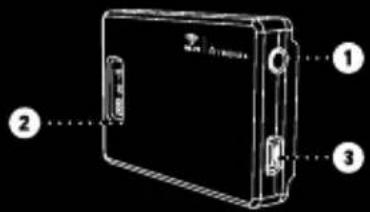
Diagram of a device with labeled parts, showing front, side, and top views with numbered annotations.① Wi-Fi BacPac POWER/MENU Button.
| ACTION RESULT | |
| Short Button PressWhen BacPac is powered OFF | Powers ON the Wi-FiBacPac |
| Short Button PressWhen BacPac is powered ON | Shortcuts HD HERO2 toWi-Fi menu. Not supportedon original HD HERO. |
| Long Press Powers OFF | the Wi-FiBacPac |
2 Status Screen (indicates battery level and connection status of Wi-Fi, Battery and Bluetooth).
3 USB Port (cable included).
wi-Fi bacPac: Battery + Charging
We recommend charging your Wi-Fi BacPac for one hour before using it the first time, however no damage will occur if you don't. To charge the Wi-Fi BacPac, connect it to a computer or USB power supply with the included USB cable.
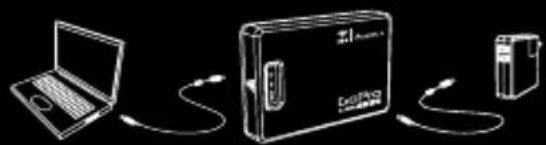
text_image
Diagram showing three connected devices: a laptop, a device labeled 'Cable' with cable routing, and a battery.Checking Battery Level
When the Wi-Fi BacPac is not attached to a camera, you can check it's battery level on the Status Screen by pressing the POWER/MENU button. The display will turn on for 5 seconds to show battery power level. The Wi-Fi BacPac will not power ON unless it is attached to a GoPro camera.
Wi-Fi BacPac Battery Life
When the Wi-Fi BacPac's battery runs out it will pull power from the camera's battery. This extends the life of your Wi-Fi BacPac but will drain your camera's battery over time.
Wi-Fi BacPac: Assembly
ATTACHING THE WI-FI BACPAC TO A GOPRO CAMERA:
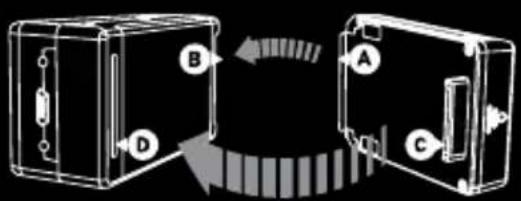
text_image
Diagram showing two connected devices labeled A and B with components D, illustrating a mechanical or electrical assembly.- Slide the hooked end of the Wi-Fi BacPac (A) into the groove on the right side of the camera body (B).
- Push the Wi-Fi BacPac connector (C) into the HERO Port (D) on the back of the camera.
- Power ON the Wi-Fi BacPac by pressing the POWER/MENU button.
Wi-Fi BacPac: Camera ON/OFF
In addition to wirelessly connecting your camera to the Wi-Fi Remote, Smartphones, Tablets and Networks, the Wi-Fi BacPac makes it possible to turn cameras ON/OFF with these devices.
To do this the Wi-Fi BacPac must be powered ON even when your camera is powered OFF.
Wi-Fi BacPac Battery Life
To learn how long your Wi-Fi BacPac battery will last while powered ON in idle mode waiting to turn your camera ON, visit gopro.com/support
When the Wi-Fi BacPac's battery runs out it will pull power from the camera's battery. This extends the life of your Wi-Fi BacPac but will drain your camera's battery over time.
Wi-Fi Remote
- FEATURES
• BATTERY + CHARGING
• CAMERA CONTROL - WAYS TO WEAR
Wi-Fi Remote: Features

The Wi-Fi Remote is waterproof to 10 / 3m.
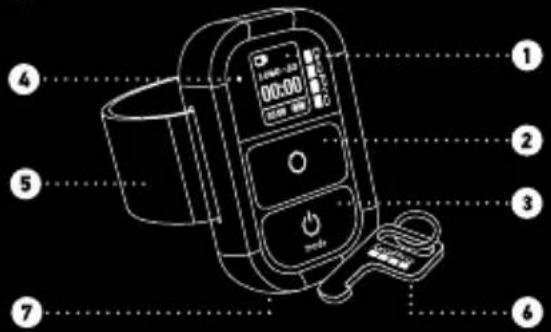
text_image
Diagram of a blood glucose meter with labeled parts including digital display, power button, and control unit- LCD Display
- SHUTTER/SELECT Button
- POWER/MODE Button
- Status LED
- Removable Attachment Strap
- Removable Attachment Key + Key Ring
- Charging Port / Attachment Key Slot
Wi-Fi Remote: Battery + Charging
We recommend charging your Wi-Fi Remote for one hour before using it the first time, however no damage will occur if you don't. To charge the Wi-Fi Remote, connect it to a computer or USB power supply with the included USB cable.
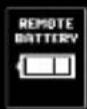
The LCD Screen displays the Wi-Fi Remote's battery level while the Wi-Fi Remote is powering ON or charging.
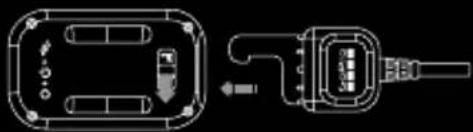
To charge: Plug charging cable into charging slot until it clicks.
natural_image
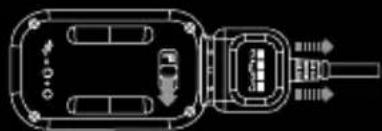
Pure electrical circuit lines without any symbolsTo remove charger: Slide and hold the latch lever in the direction of the arrow, then remove the charging cable.
natural_image
Technical line drawing of a mechanical or electrical component with no visible text or symbolsNote: This slot is used for the charging cable and the attachment key.
Wi-Fi Remote: Camera Controls
You will have different Wi-Fi Remote on-screen camera controls if you are connected to more than one camera at a time.
Wi-Fi Remote Connected To One Camera
Your Wi-Fi Remote Screen will match exactly what appears on your HD HERO2 camera

Wi-Fi Remote Connected to Multiple Cameras
When you cycle through the modes on the Wi-Fi Remote Screen, you will see:
DEFAULT MODES
Wi-Fi Remote Default Start- up Modes Sets all cameras to their default power-up modes


Video Mode Sets all cameras to video mode
Photo Mode Sets all cameras to photo mode
Burst Mode Sets all cameras to burst mode
Time-lapse mode
Sets all cameras to time-lapse mode
Wi-Fi Remote: Ways to Wear
ATTACHMENT STRAP:
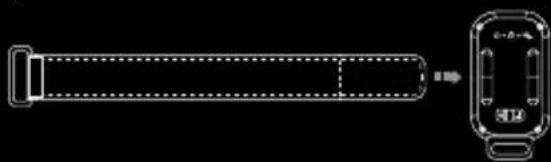
The Attachment Strap attaches to your wrist, backpack straps, poles, bike frames and more. To attach the Wi-Fi Remote to the Attachment Strap:
- Thread the Attachment Strap through the slots on the bottom of your Wi-Fi Remote.
natural_image
Technical line drawing of a cylindrical object with dotted outline and side view, no text or symbols present- Position Wi-Fi Remote along the strap until positioned as shown below.
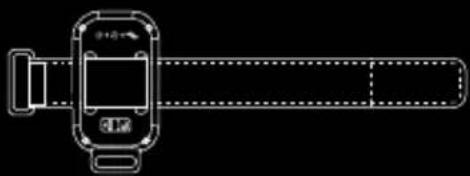
natural_image
Line drawing of a smartwatch with a screen and wrist (no text or symbols)Wi-Fi Remote: Ways to Wear
ATTACHMENT KEY:
The Attachment Key makes it easy to attach the Wi-Fi Remote to your car keys, lanyards, straps, zippers and more.
To insert the Attachment Key:
- Insert the Attachment Key into key slot until it clicks.
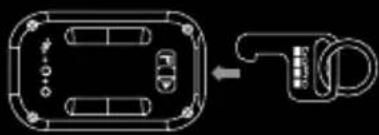
natural_image
Pure diagram of a device outline with no text, numbers, or symbolsTo remove the Attachment Key:
- Slide and hold the latch lever in the direction of the arrow, then remove the key.
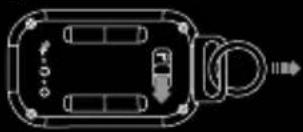
natural_image
Top-down schematic of a vehicle or device layout with no visible text, numbers, or symbolsConnecting
Wirelessly connect your GoPro camera to a Wi-Fi Remote, Smartphone, Tablet or Wi-Fi Network.
CONNECT HD HERO2:
- Wi-Fi Remote
- Smartphone/Tablet
- Wi-Fi Network
With the Wi-Fi BacPac attached to an HD HERO2 camera, you can wirelessly connect, one-at-a-time, to a Wi-Fi Remote, Smartphone, Tablet or Wi-Fi Network. The Wi-Fi Remote gives you control of up to 50 GoPro cameras simultaneously.
Your Wi-Fi BacPac and Wi-Fi Remote arrive pre-connected in the Wi-Fi Combo Kit. Follow the steps below only to connect additional HD HERO2 cameras with Wi-Fi BacPac's to your Wi-Fi Remote or to a new Wi-Fi Remote.
- Put your HD HERO2 into Connection Mode:
| a. Make sure your Wi-Fi BacPac is attached to your HD HERO2 camera and both are powered ON. | |
| b. Short press the POWER/MENU button on the Wi-Fi BacPac to enter into the HD HERO2 Wi-Fi Menu Screen. |  |
| c. Press SHUTTER/SELECT to enter into the Wi-Fi Connection Menu. | |
| d. Using the POWER/MODE button, highlight New WiFi RC. Then press SHUTTER/SELECT. |  |
| e. The Wi-Fi connection animation will appear indicating that the Wi-Fi BacPac is searching for a connection. Press SHUTTER/SELECT at any time to cancel. |  |
| f. Proceed to next step. |
Connecting: HD HERO2 + Remote
- Put your Wi-Fi Remote into Connection Mode:
| a. Ensure the remote is powered OFF | |
| b. On the Wi-Fi Remote, hold down the SHUTTER/ SELECT button while powering it ON. | |
| c. Release the SHUTTER/SELECT button when you see the connecting screen on the Wi-Fi Remote. | 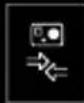 |
| 3. If the connection is successfully made, you will see the following screen on both camera and remote | 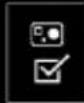 |
| A er, you will be asked if you would like to connect to additional cameras, press the SHUTTER/SELECT button to select YES, then repeat step one above. Otherwise select NO. | 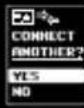 |
| 4. If connection was not successful, you will see this screen. Please repeat the steps above. |  |
| TIP: | The Wi-Fi Remote can control up to 50 GoPro Cameras (Original HD HERO and later) at a time from up to 600 / 180m away. |
1_ComboKit_UM_ENG-FRA_RevA.indd 24-25 3/22/12 12:53 PM
HD HERO2 + Network
Original H
+ Wi-Fi Remote
You can connect your HD HERO2 to a Wi-Fi network or Hotspot to live stream, share photos + videos and control multiple at a time using the GoPro App*.
Follow the steps below to connect your HD HERO2 and Wi-Fi BacPac to a Wi-Fi Network for the first time:
- Connect your HD HERO2 and Wi-Fi BacPac to your Smartphone or Tablet. See steps in the HD HERO2 + Smartphone / Tablet section for instructions on how to do this.
- Using the GoPro App, follow the instructions provided on gopro.com/support to complete the Network setup.
* Live streaming, video + photo sharing to the web and Bluetooth will be available with a future downloadable product update at: gopro.com/update
With the Wi-Fi BacPac attached to an Original HD HERO camera, you can wirelessly connect to the Wi-Fi Remote. The Wi-Fi Remote gives you control of up to 50 cameras at a time from a range of up to 600ft/180m.
Your Wi-Fi BacPac and Wi-Fi Remote arrive pre-connected in the Wi-Fi Combo Kit. Follow the steps below only if you want to connect additional Original HD HERO cameras or connect with a new Wi-Fi Remote.
Connecting your Wi-Fi Remote to additional Original HD HERO cameras:
- Place your Original HD HERO with Wi-Fi BacPac into Connection Mode:
| a. Make sure your Wi-Fi BacPac is attached to your GoPro camera and powered ON. | |
| b. Enter the HD HERO camera settings using the POWER/MODE button. Press SHUTTER/SELECT to enter the Settings Menu. | SEL |
| c. Toggle to the Wi-Fi Menu using the POWER/MODE button. Press SHUTTER/SELECT to enter into the Wi-Fi menu. | LFI |
Connecting: Original HD HERO + Wi-Fi Remote
| d. Select REMOTE using the SHUTTER/SELECT button. |  |
| e. If connection is successful, you will see the successful connection screen. |  |
| f. If connection fails, restart the process. |  |
| 2. Place your Wi-Fi Remote into Connection Mode: | |
| a. Ensure the remote is powered OFF. | |
| b. On the Wi-Fi Remote, hold down the SHUTTER/ SELECT button while powering it ON. | |
| c. Release the SHUTTER/SELECT button when you see the connecting screen on the Wi-Fi Remote. |  |
| 3. If the connection is successfully made, you will see the following screen on both camera and remote. |  |
Connecting: Original HD HERO + Wi-Fi Remote
| After, you will be asked if you would like to connect to another GoPro camera. To pair with additional cameras, use the SHUTTER/SELECT button to select YES, then repeat step one above. Otherwise select NO. | 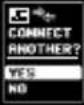 |
| 4. If connection was not successful, you will see this screen. Please repeat the steps above. |  |
Safety Information
WARNING: Failure to follow these safety instructions could result in fire, electric shock, or other injury or damage to the Wi-Fi BacPac, Wi-Fi Remote, or other property.
HANDLING
The Wi-Fi BacPac and Wi-Fi Remote contain sensitive components. Do not drop, disassemble, open, crush, bend, deform, puncture, shred, microwave, incinerate, paint, or insert foreign objects into either product. Do not use the Wi-Fi BacPac or Wi-Fi Remote if it has been damaged—for example, if the product is cracked, punctured, or damaged by water.
KEEPING THE WI-FI REMOTE'S LCD CLEAN
Clean LCD screen immediately if it comes into contact with any contaminants that may cause stains, such as ink, dyes, makeup, dirt, food, oils, and lotions. To clean the LCD, use a soft, slightly damp, lint-free cloth. Avoid getting moisture in openings. Don't use window cleaners, household cleaners, aerosol sprays, solvents, alcohol, ammonia, or abrasives to clean LCD.
AVOIDING WATER AND WET ENVIRONMENTS WHEN THE WI-FI BACPAC IS NOT IN HOUSING
When not protected in the waterhousing, do not use the Wi-Fi BacPac in rain, or near washbasins or other wet locations. Take care not to spill any food or liquid on the Wi-Fi BacPac. In case the Wi-Fi BacPac gets wet, turn off and unplug from camera before cleaning, and allow it to dry thoroughly before using again. Do not attempt to dry the Wi-Fi BacPac with an external heat source, such as a microwave oven or hair dryer. Damage to the Wi-Fi BacPac caused by contact with liquid is not covered under the warranty.
30 31
Safety Information
WATER RESISTANCE
Do not submerge the Wi-Fi Remote in more than 10ft / 3m of water. Do not attempt to dry the Wi-Fi Remote with an external heat source, such as a microwave oven or hair dryer. Damage to the Wi-Fi Remote caused by excessive water pressure is not covered under warranty.
USING CONNECTORS AND PORTS
Never force a connector into a port. Check for obstructions on the port. If the connector and port don't join with reasonable ease, they probably don't match. Make sure that the connector matches the port and that you have positioned the connector correctly in relation to the port.
KEEPING THE WI-FI BACPAC AND WI-FI REMOTE WITHIN ACCEPTABLE TEMPERATURES
The Wi-Fi BacPac and Wi-Fi Remote are designed to be operated in temperatures between 0°C and 40°C and stored in temperatures between 0°C and 70°C. Extreme temperatures may temporarily affect battery life, or affect the functionality of the Wi-Fi BacPac and Wi-Fi Remote. Avoid dramatic changes in temperature or humidity when using the Wi-Fi BacPac and/or Wi-Fi Remote as condensation may form on or within the products. When you're using the Wi-Fi BacPac, Wi-Fi Remote or charging the battery, it is normal for the product to get warm. The exterior of the products functions as a cooling surface that transfers heat from inside the unit to the cooler air outside.
This device complies with part 15 of the FCC Rules. Operation is subject to the following two conditions: (1) This device may not cause harmful interference, and (2) this device must accept any interference received, including interference that may cause undesired operation.
This equipment has been tested and found to comply with the limits for a Class B digital device, pursuant to part 15 of the FCC Rules. These limits are designed to provide reasonable protection against harmful interference in a residential installation. This equipment generates, uses and can radiate radio frequency energy and, if not installed and used in accordance with the instructions, may cause harmful interference to radio communications. However, there is no guarantee that interference will not occur in a particular installation. If this equipment does cause harmful interference to radio or television reception, which can be determined by turning the equipment off and on, the user is encouraged to try to correct the interference by one or more of the following measures:
- Reorient or relocate the receiving antenna.
- Increase the separation between the equipment and receiver.
- Connect the equipment into an outlet on a circuit different from that to which the receiver is connected.
- Consult the dealer or an experienced radio/TV technician for help
Under Industry Canada regulations, this radio transmitter may only operate using an antenna of a type and maximum (or lesser) gain approved for the transmitter by Industry Canada. To reduce potential radio interference to other users, the antenna type and its gain should be so chosen that the equivalent isotropically radiated power (e.i.r.p.) is not more than that necessary for successful communication.
For more advanced information and demo videos,
visit: gopro.com/support
Wi-Fi Combo Kit
INFORMATIONS SUR LA GARANTIE
GoPro
Be a HERO.

natural_image
Line drawing of two electronic devices, one with a remote control and the other a GoPro card (no text or symbols visible)Wi-Fi Remote + Wi-Fi BacPac
Félicitations
1_ComboKit_UM_ENG-FRA_RevA.indd 42-43 3/22/12 12:53 PM
text_image
Diagram of a device with labeled parts, showing front, side, and top views with numbered annotations.1 Bouton POWER /MENU du Wi-Fi BacPac.
natural_image
Illustration of a laptop connected to a device via cable, next to a battery (no text or symbols)natural_image
Pure electrical circuit lines without any symbolsnatural_image
Top-down schematic of a vehicle or connector assembly (no text or symbols visible)natural_image
Technical line drawing of a cylindrical object with dotted lines and a separate inset showing internal components (no text or symbols)natural_image
Technical line drawing of a mechanical device with no visible text or symbolsnatural_image
Pure electrical circuit lines without any symbolsnatural_image
Pure electrical circuit lines without any symbolsConnexion
Learn about more GoPro products at: gopro.com
130-00802-000 reVa

Please Recycle