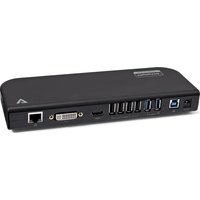
UDDS2 - Dongle V7 - Free user manual and instructions
Find the device manual for free UDDS2 V7 in PDF.


| Product type | Universal docking station |
| Brand | V7 |
| Model | UDDS2 |
| Video connectors | 1x HDMI, 1x DVI (with DVI to VGA adapter included) |
| USB connectors | 2x USB 3.2 Gen 1, 4x USB 2.0 |
| Network | Gigabit Ethernet (RJ45) 10/100/1000 Mbps |
| Audio | 3.5 mm headphone jack, 3.5 mm microphone jack |
| Maximum video resolution | Single display: 2K (2048 x 1152); Dual display: 2K |
| Power | Input 100-240 V AC, output 12 V / 2 A |
| Operating temperature | 0 to 35 °C |
| Storage temperature | -10 to 70 °C |
| Certifications | CE, FCC, RoHS |
| Package contents | Docking station, 12 V power adapter, DVI to VGA adapter, USB 3.2 Gen 1 cable, quick start guide |
| Maintenance | Clean with a dry cloth |
| Safety | Follow safety instructions: use only the supplied power supply, avoid moisture, do not disassemble |
Frequently Asked Questions - UDDS2 V7
User questions about UDDS2 V7
0 question about this device. Answer the ones you know or ask your own.
Ask a new question about this device
Download the instructions for your Dongle in PDF format for free! Find your manual UDDS2 - V7 and take your electronic device back in hand. On this page are published all the documents necessary for the use of your device. UDDS2 by V7.
USER MANUAL UDDS2 V7
natural_image
Front view of a network switch device showing ports and connectors (no text or labels)INTRO
Copyright
This document contains proprietary information protected by copyright. All rights reserved. No part of this manual may be reproduced by any mechanical, electronic or other means, in any form, without prior written permission of the manufacturer.
Trademarks
All trademarks and registered trademarks are the property of their respective owners or companies.
Package Contents
• USB 3.2 Gen 1 universal docking station
- 12V power adapter
- DVI to VGA adapter
- USB 3.2 Gen 1 cable
- Quick start guide
IMPORTANT
- Check www.v7world.com for the latest downloads for this product
- Confirm that you are connecting the Docking Station with the supplied USB cable to the fastest USB port available on your computer (USB-C or USB 3.2 Gen 1 or greater)
- Confirm you are using the power supply that came with your docking station
- Confirm all of your cables and devices are working properly by using them directly connected to your computer
- Confirm you are using the latest software from DisplayLink: www.displaylink.com/downloads
- Confirm you are using the latest software and drivers from the manufacturer of the computer including Chipset Drivers, Firmware Updates, Bios, etc.
- Confirm your computer's operating system power saving mode setting is not set to turn off USB connectivity. This can results in USB input devices being ignored during sleep mode so you can't wake up your computer.
- Other troubleshooting: support.displaylink.com
Still having trouble?
Contact our customer service team at www.v7world.com
OVERVIEW
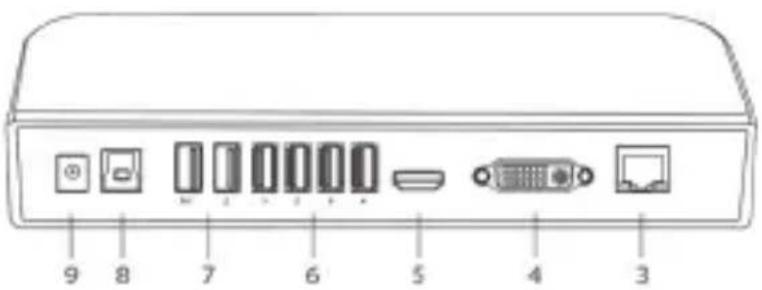
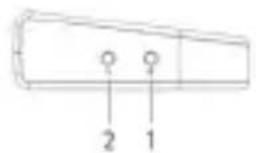
- Headphone Output
- Micophone Input
- Gigabit LAN: Connect an Ethernet cable to Gigabit LAN port for high speed interface
- DVI: Connect DVI monitor with maximum resolution 2048 x 1152.
- HDMI: Connect HDMI monitor with maximum resolution 2048 x 1152.
- 4 x USB 2.0 ports fulfill all USB 2.0 devices s
- 2 x USB 3.2 Gen 1 compatible devices, backward compatible with USB 2.0 and 1.1 devices.
- USB 3.2 Gen 1 IN: Connect the Universal Docking Station to an available USB 3.2 Gen 1 port on the Laptop, PC or others.
- DC Power Jack: for DC Power Adapter plug in to the Universal Docking Station.
SPECIFICATION
| Connectors HDMI 1.4 x1 | DVI x12x USBA 3.2 Gen14x USB A 2.0RJ45 EthernetAudio/Microphone jack |
| Video Resolution Single Display: 2KDual Display: 2K | |
| Ethernet Speed 10/100/1000 Mbps | |
| Audio 3.5 mm TRS | |
| Input Voltage 100-240V AC | |
| Output Voltage 12V/2.00A | |
| Operating Temperature 0 to 35 C | |
| Storage Temperature -10 to 70 C | |
| Safety & Compliance CE, FCC, ROHS | |
Product Safety Instructions:
Read this guide for important safety and health information and for regulatory information.
Warning: Failure to properly set up, use, and care for this product can increase the risk of serious injury or death, or damage to the device or devices. Read this instruction and keep all printed manuals, instruction for future references. This Product Safety Instructions includes important information about many V7 products. Refer to sections that apply to the feature of your device.
AC Powered Devices: These precautions apply to all products that plug into a standard wall power outlet. Failure to take the following precautions can result in serious injury or death from electric shock or fire or in damage to the device.
To select an appropriate power source for your device:
- Use only the power supply unit and AC power cord that came with your device or that you received from an authorized repair center.
- Confirm that your electrical outlet provides the type of power indicated on the power supply unit (in terms of voltage [V] and frequency [Hz]). If you are not sure of the type of power supplied to your home, consult qualified electrician.
- Do not use non-standard power sources, such as generators or inverters, even if the voltage and frequency appear acceptable. Only use AC power provided by a standard wall outlet.
- Do not overload your wall outlet, extension cord, power strip, or other electrical receptacle. Confirm that they are rated to handle the total current (in Amps [A]) drawn by the device (indicated on the power supply unit) and any other devices that are on the same circuit.
• To prevent damaging the power cords and power supply: - Protect the power cords from being walked on.
- Protect cords from being pinched or sharply bent, particularly where they connect to the power outlet, the power supply unit, and the device.
- Do no jerk, knot, sharply bend, or otherwise abuse the power cords.
- Do not expose the power cords to sources of heat.
- Keep children and pets away from the power cords. Do not allow them to bite or chew on them.
- When disconnecting the power cord, pull the plug – do not pull on the cord.
- Unplug this power cord during lightning storms or when unused for a long period of time.
If a power cord or power supply becomes damaged in any way, stop using it immediately. Unplug your device during lightning storms or when unused for long periods of time. For devices with an AC power cord that connects to the power supply or the equipment itself, always connect the power cord accordingly to the following instructions:
- Plug the AC power cord into the power supply unit or the equipment itself until it stops.
- Plug the other end of the AC power cord into the wall outlet.
Do not attempt repairs. Do not attempt to take apart, disassemble, service, or modify the hardware device or power supply. Doing so could present risk of electronic shock or other hazard. Any evidence of any attempt to dissemble and/or modify the device, including peeling, puncturing, or removal of any of the labels, will void the Limited Warranty.
Do not abuse the device: Do not immerse the device to any liquid or expose to moisture. Clean only with dry cloth. Do not use the device outside the specified operating temperature range of 5^ C ( 41^ F) to 35^ C ( 95^ F). If the device is exposed to environment outside of its prescribed operation, turn off the device and allow the temperature to stabilize within the specified operating range before using the device.
▼SEVEN
UDDS2
natural_image
Front view of a network switch device showing ports and connectors (no text or labels)EINFÜHRUNG
Copyright
natural_image
Front view diagram of a network device rear panel with ports and connectors (no text or labels)INTRODUCCIÓN
Copyright
natural_image
Front view of a network switch device showing ports and connectors (no text or labels)INTRODUCTION
Droit d'auteur
natural_image
Front view of a network switch device showing ports and connectors (no text or labels)INTRODUZIONE
Copyright
Brand : V7
Model : UDDS2
Category : Dongle