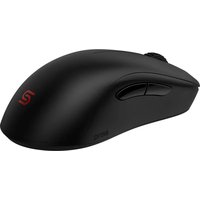
Zowie U2 - Mouse BENQ - Free user manual and instructions
Find the device manual for free Zowie U2 BENQ in PDF.


| Brand | BenQ |
| Model | Zowie U2 |
| Product type | Wireless gaming mouse |
| Dimensions (approx.) | 120 x 64 x 38 mm |
| Weight (approx.) | 68 g |
| Connectivity | 2.4G RF wireless and USB wired |
| Wired connection | USB Type-A to Type-C (2 m cable) |
| Power supply | Rechargeable battery, charge ≈ 2 hours |
| DPI settings | 400 / 800 / 1000 / 1200 / 1600 / 3200 DPI |
| USB report rate | 125 / 500 / 1000 Hz |
| Number of buttons | 7 programmable buttons |
| Switch | 1 switch for power off and two receivers |
| Lift-off distance (LOD) | Adjustable: low, medium, high |
| Click response time | Fast or normal |
| Motion sync | Enable / disable |
| Receiver LED indicator | Steady white (standby), dim white (normal), blinking orange (weak signal) |
| Maintenance and cleaning | Clean with a soft, dry cloth |
| Spare parts and repairability | Not applicable |
| General information | User manual available in PDF |
Frequently Asked Questions - Zowie U2 BENQ
User questions about Zowie U2 BENQ
0 question about this device. Answer the ones you know or ask your own.
Ask a new question about this device
Download the instructions for your Mouse in PDF format for free! Find your manual Zowie U2 - BENQ and take your electronic device back in hand. On this page are published all the documents necessary for the use of your device. Zowie U2 by BENQ.
USER MANUAL Zowie U2 BENQ
Package contents

Mouse

Enhanced wireless receiver

USB wireless receiver

USB adapter

Spare skatez

USB cable User guide Regulatory statements


Warranty card

Report rate switch button (7)
125 Hz 500 Hz 1000 Hz

Bottom view
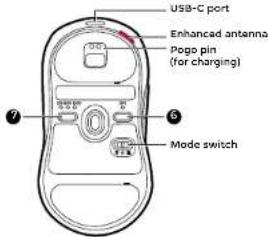
DPI switch button (6)
400 dpi
- BBD API
- 1000 dpi
1200 dpi
1000 dpi
3200 dpi
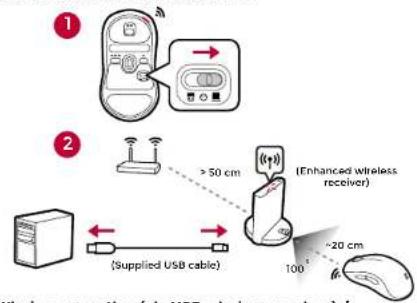
Wireless operation (via enhanced wireless receiver) / 無線操作模式(透過增強型無線接收器)
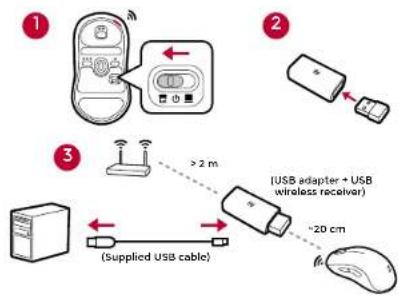
Wireless operation (via USB wireless receiver) / 無線操作模式(透過 USB 無線接收器)
flowchart
graph TD
    A["1: USB adapter + USB wireless receiver"] --> B["2: USB adapter + USB wireless receiver"]
    B --> C["3: (supplied USB cable)"]
    C --> D["4: USB adapter + USB wireless receiver"]
    style A fill:#f9f,stroke:#333
    style B fill:#ccf,stroke:#333
    style C fill:#cfc,stroke:#333
    style D fill:#fcc,stroke:#333
A Charging by enhanced wireless receiver
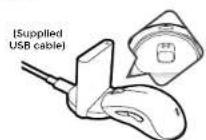
B Charging by USB-C
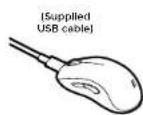
Product support / 產品支援

zowle.beng.com > 5upport
English
Specifications
- No driver needed.
- Connection:
- Wireless: 2.4G RF
- Wired: USB (Auto switch to wired mode when USB cable is connected)
- DPI (Dots per inch) settings: 400/800/1000/1200/1600/3200 dpi
- Adjustable USB report rate: 125/500/1000 Hz
- Connector: USB type-A on a PC; USB type-C on a device
- Buttons: 7 buttons
- Switch:1 (switch for power off and two receivers)
- Cable: USB type-A to USB type-C (2 meters/6.6 feet)
- Battery charging: approximately 2 hours
Changing DPI setting
Press the DPI switch (labeled 6) to switch to a desired DPI setting.
Adjusting USB report rate
Press the report rate switch (labeled 7) to switch to a desired report rate setting.
Changing the Lift Off Distance (LOD) of your mouse
You might want to change the LOD to work with your mouse pad properly.
Wireless mode: Power off the mouse first. Press and hold the following combination keys together and power on the mouse at the same time.
Wired mode: Power off and disconnect the mouse first. Press and hold the following combination keys together and re-connect the mouse at the same time.
- For a lower LOD: buttons 4 + 1
- For a medium LOD: buttons 5 + 1
- For a higher LOD: buttons 4 + 1 + 2
Changing click response time
You can change click response time as desired.
Wireless mode: Power off the mouse first. Press and hold the following key and power on the mouse at the same time.
Wired mode: Power off and disconnect the mouse first. Press and hold the following key and reconnect the mouse at the same time.
- Fast response time: 4
• Normal response time: 5
Enabling Motion Sync
• Motion Sync on: 4 + 3
- Motion Sync off: 5 + 3
LED indicator on Enhanced Wireless Receiver
Solid white: In sleep mode
Dim white: In normal operation
Flashing amber: Weak signal. Move the mouse within the effective range to improve signal strength.
Français
Spécifications
Appreciation is the source of a positive economic indicator.
繁體中文
規格
- 免驅動程式。
- 連接:
· 無線:2.4G RF

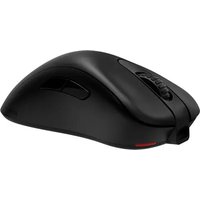
Brand : BENQ
Model : Zowie U2
Category : Mouse