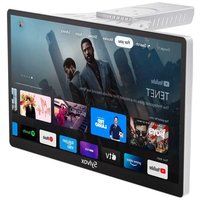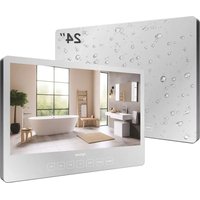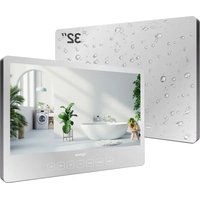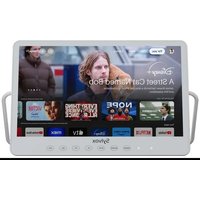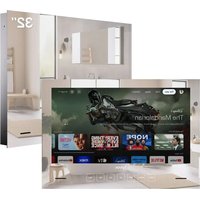
BT32A2KHGB - TV SYLVOX - Free user manual and instructions
Find the device manual for free BT32A2KHGB SYLVOX in PDF.


| Product Type | LED Smart TV |
| Brand | SYLVOX |
| Model | BT32A2KHGB |
| Screen Size | 32 inches (81 cm) |
| Resolution | Full HD 1920 x 1080 pixels |
| Screen Type | LED |
| Operating System | Google TV (Android TV) |
| Connectivity | 2 x HDMI (one with ARC), USB, Ethernet RJ45, Wi-Fi, Bluetooth, optical output, audio R/L output |
| Power Supply | DC 12V adapter, 6A (max 58W) |
| Power Consumption | 58 W (max), standby < 0.5 W (estimated) |
| Audio | 2 speakers of 5W each (10W total) |
| Remote Control | Bluetooth with microphone, AAA batteries (2 included) |
| Main Features | Netflix, YouTube, Disney+, Prime Video, Google Assistant, built-in Chromecast |
| Dimensions (without stand) | Approximately 75.9 x 52.8 x 5.7 cm (29.9 x 20.8 x 2.2 inches) |
| Weight | Approximately 6 kg (estimated) |
| Material | Plastic and metal (frame) |
| Included Accessories | Remote control, 2 AAA batteries, wall mount, screws, screwdriver, user guide |
| Maintenance | Clean with a soft, dry cloth. Do not use solvents or abrasive products. |
| Safety | Ventilation: leave 5 cm of free space. Do not expose to moisture, do not block openings, unplug during thunderstorms or prolonged inactivity. |
| Operating Temperature | 0°C to 40°C |
| Warranty | 12 months |
| General Information | Designed for weatherproof installation (outdoor use with proper installation). Compatible with VESA wall mount (size not specified). |
| Repairability | Spare parts available via after-sales service (remote control, batteries, mount). Repair by a certified technician recommended. |
| Standards | FCC Part 15, compliant with RF exposure limits |
Frequently Asked Questions - BT32A2KHGB SYLVOX
User questions about BT32A2KHGB SYLVOX
0 question about this device. Answer the ones you know or ask your own.
Ask a new question about this device
Download the instructions for your TV in PDF format for free! Find your manual BT32A2KHGB - SYLVOX and take your electronic device back in hand. On this page are published all the documents necessary for the use of your device. BT32A2KHGB by SYLVOX.
USER MANUAL BT32A2KHGB SYLVOX
natural_image
Black and white photo of a large wave crashing against the sea, labeled 'Sylvok' in the corner (no other text or symbols)USER'S MANUAL
Note: TV Installation instructions (detailed on page 5)
Note: The product and illustrations in this user's manual is only for explanation purposes and may vary depending on model.
USER'S MANUAL
MANUEL DE L'UTILISATEUR
MANUAL DE USUARIO
General Information
To avoid damaging the television set please observe the following safety instructions during setup and use.
| Cleaning the television set | Before cleaning, disconnect the television set. Use only a soft damp cloth or a special cleaning product for flat-screens. |
| LED Display | Too much pressure on the screen can damage the television set. |
| Heat/damp/humidity | The television set should not be exposed to high temperatures (radiators, open fire).The television set should not be used in areas with high humidity. |
| Condensation | If moved from a cool area to one with a higher temperature, the television set should be left for at least an hour before plugging it in. A rapid change of temperature can lead to the formation of condensation in the television set itself. This can lead to damage if the television set is in use. |
| Air Circulation | To prevent overheating of the television set the ventilation slots at the rear should always be clear. |
| Small Objects | It is important to ensure that no small objects or liquids enter the television set. They can cause damage or even fire. |
| Crushing | Take care to avoid crushing fingers or other objects when turning the television set in any direction. |
| Electric Supply | Use the television set only with the voltage indicated in the specifications.Ensure that there is easy access to the plug and that the television set can always be disconnected from the electricity supply.Do not disconnect the television set by pulling the power cable.Always take hold of the plug. The power cable must not be kinked or placed over sharp edges. |
| Moving the Television Set | When moving the television set, hold only the casing. |
| Repairs/Accessories | Repairs and servicing must be undertaken only by authorised and trained personnel. |
| In accordance with the Batteries Regulation, batteries are to be disposed of only in containers provided for this purpose. |
text_image
CAUTION RISK OF ELECTRIC SHOCK DO NOT OPENIn extreme weather (storms, lightning) and long inactivity periods (going on holiday) disconnect the TV set from the mains. The mains plug is used to disconnect TV set from the mains and therefore it must remain readily operable. If the TV set is not disconnected electrically from the mains, the device will still draw power for all situations even if the TV is in standby mode or switched off.
IMPORTANT - Please read these instructions fully before installing oroperating WARNING: Never let people (including children) with reduced physical, sensory or mental capabilities or lack of experience and/or knowledge use electrical devices unsupervised.
• For ventilation purposes, leave at least 5cm of free space around the TV.
- The ventilation should not be impeded by covering or blocking the ventilation openings with items, such as newspapers, table-cloths, curtains, etc.
• The power cord plug should be easily accessible. Do not place the TV, furniture, etc. on
the power cord. A damaged power cord/plug can cause fire or give you an electric shock.
- Handle the power cord by the plug, do not unplug the TV by pulling the power cord. Never touch the power cord/plug with wet hands as this could cause a short circuit or electric shock. Never make a knot in the power cord or tie it with other cords. When damaged it must be replaced, this should only be done by qualified personnel.
- Do not expose the TV to dripping or splashing of liquids and do not place objects filled with
- liquids, such as vases, cups, etc. on or over the TV (e.g., on shelves above the unit).
• Do not do not place open flames such as lit candles on the top of or near the TV
- Do not place any heat sources such as electric heaters, radiators, etc. near the TV set.
- Do not place the TV on the floor and inclined surfaces.
To avoid danger of suffocation, keep plastic bags out of the reach of the babies, children
• and domestic animals.
- Do not dispose of the batteries in fire or with hazardous or flammable materials.
Warning: Batteries must not be exposed to excessive heat such as sunshine, fire or the like.
- If you think batteries might have been swallowed or placed inside any part of the body, seek immediate medical attention.
WALL MOUNTING WARNINGS
Read the instructions before mounting your TV.
Do not install the TV on an inclined.
Use the specified wall mounting screws and other accessories.
Tighten the wall mounting screws firmly to prevent the TV from fall.
Do not over-tighten the screws.
A television set may fall, causing serious personal injury or death. Many injuries, particularly to children, can be avoided by taking simple precautions such, Educating children about the dangers of climbing on furniture to reach the television set or its controls.
Accessories
Please make sure the following items are included with your TV. If any items are missing, Please contact us.
text_image
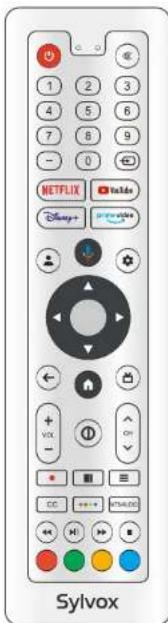
1 2 3 4 5 6 7 8 9 - 0 NETFLIX YouTube Disney+ online video + - VOL - OY - CC +++ - HTML/2D Sylvax
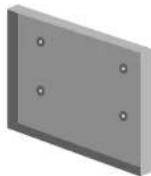
BracketTelevision
User's manual
Warranty Card
natural_image
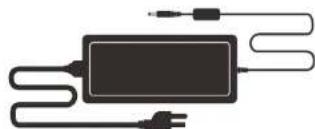
Pure electrical circuit lines without any symbolsAdapter
Remote Control
Screwdriver

Batteries (AAA x 2)
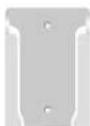
Remote control base
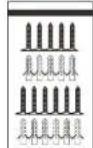
Screw * 11
Content
SPECIFICATION 1
OVERVIEW 2-3
SUPPORTING SIGNALS 4
TV INSTALLATION MANUAL 5
24" TV SIZES 6
32" TV SIZES 7
GENERAL DESCRIPTION 8
REMOTE-CONTROL UNIT 9
TV OPERATION 10-25
HOME SCREEN 14
INPUT SOURCE 14
DASHBOARD 16
CHANNELS & INPUTS 16
DISPLAY & SOUND 17-18
NETWORK & INTERNET 19
ACCOUNTS & SIGN-IN 20
PRIVACY 21
APPS 22
SYSTEM 22-24
REMOTES & ACCESSORIES 25
READ BEFORE USING APPS 26
TROUBLESHOOTING 27-29
WARRANTY POLICY 30-31
Specification
| Model | BT24A2KHGB | BT32A2KHGB |
| Display Size | 24" | 32" |
| Display Screen Type | LED | |
| Power adaptor | DC 12V ≡4A | DC 12V ≡6A |
| The maximum resolution | 1920 X 1080 | |
| Power Consumption(Max) | 30W | 58W |
| Sound output(Max) | 2 x 5W | |
| Image control | Fine digital control | |
| Display screen type | Color active matrix LED display | |
| TV receive system | NTSC System, ATSC System | |
| Frequency range | Antenna: 2-69; Cable: 1~135 (Analog: 1-125, Digital: 1-135) | |
| Video IN | NTSC3.58 | |
| Antenna input impedance | 75Ω (Unbalance) | |
| Product Dimensions (Include base bracket) | 23.35 x 6.24 x inch 1 1.85 29 | 89 x 20.77 x inch 2.24 |
| Operation environment temperature | 0°C-40°C | |
Note:
Design and specification modification maybe made at any time without prior notice, all data and dimensions are approximations.
Overview
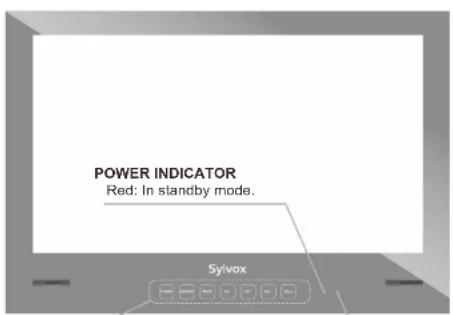
text_image
POWER INDICATOR Red: In standby mode. SylvoxREMOTE CONTROL SENSOR
POWER: Press this button to turn the TV on or off.
SOURCE: Press to open the input source list.
MUTE: Press this button to cut off the sound of the TV set temporarily, press again to resume.
CH-/+: Press to change channels.
In the on-screen menu, use the CH +/- buttons as up/down arrow buttons.
VOL-/+ : Press to increase or decrease the volume.
In the on-screen menu, use the VOL +/- buttons as left/right arrow buttons.
Overview
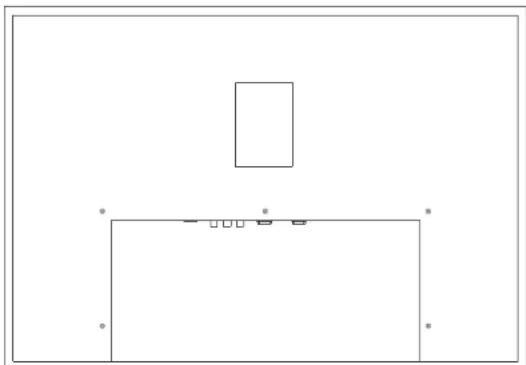
natural_image
Simple line drawing of a rectangular frame with a small rectangle above it, no text or symbols present.
- USB 2/1
Connecting for USB signal.
- RF
Connected to external antenna to receive the ATV/DTV program in ATV/DTV mode.
- HDMI 2(ARC)
Connecting for HDMI.
- HDMI 1
Connecting for HDMI.
- R/L OUT
Connect to the audio output jacks on your amplifier/home theater.
- OPTICAL OUT
Digital audio output.
- RJ45
Ethernet connection for.
- DC 12V
Supporting Signals
PRESET MODE (HDMI)
| Resolution | V.Freq.(Hz) | H.Freq.(KHz) | |
| 1 | 640x480 | 59.94 | 31.469 |
| 2 | 720x480 | 59.94 | 31.469 |
| 3 | 720x576p | 50 | 31.25 |
| 4 | 800x600 | 60 | 37.9 |
| 5 | 1280x720p | 60 | 45 |
| 6 | 1920x1080i | 60 | 33.75 |
| 7 | 1920x1080p | 60 | 67.5 |
TV Installation Manual
Installation instructions
PLEASE NOTE: installation of your TV should be carried out by a technical competent person and confirm to all relevant regulations. If in any doubt please contact us or a qualified electrician. Your warranty will be void if any problems are due to incorrect installation/ poor sealing of the unit.
- Ensure that you get the correct viewing position when installing your mounting plate. Once you have got the correct position check that there are no hazards around the area of installation, for example, cables or pipes.
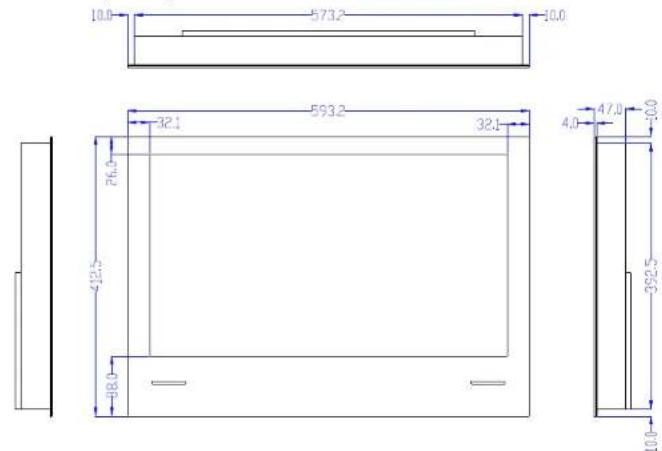
- Please use our Mounting plate TV sizes (TV Size detailed on page 6-7) below to cut out a recess in the wall and the size of the hole should not exceed the size of the TV.
- Unscrew the plate at the back of the TV and connect all required wire connection from the wall, through the square cable hole to the TV, then screw back the plate securely ensure all the connected wires are going through the square cabling hole are not pinched or broken.
- Fix your mounting plate into place with the screws provided.
- Once you have checked that the TV is functioning correctly and all cables are fitted, apply unbro-ken bead of silicon to the inside of the TV bezel at least 5mm thick.
-
Please ensure the bezel is firmly sealed to the wall surface to complete the waterproof properties of the installation. If it is not sealed correctly this will void your warranty.
-
Make a hole in the wall, and the size of the hole should not exceed the size of the Television
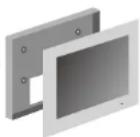
(Please refer to pages 6-7 for TV size details) (Please leave enough space for the cables) - Position the mounting plate
- Fit the waterproof television

Screw hole
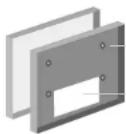
Cable hole
Bracket(Unit:mm)
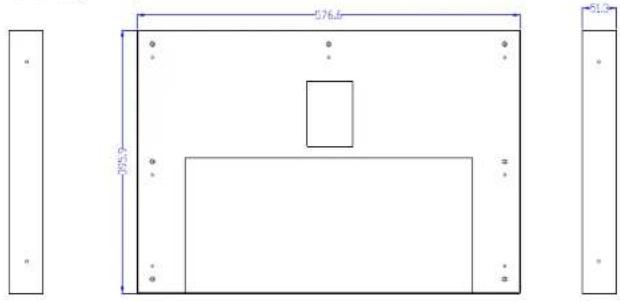
text_image
576.0 305.0 51.0Television(Unit:mm)
text_image
10.0 573.2 10.0 32.1 593.2 32.1 4.0 47.0 -10.0 -692.5 10.0 422.5 48.032" TV sizes24" TV sizes
Bracket(Unit:mm)
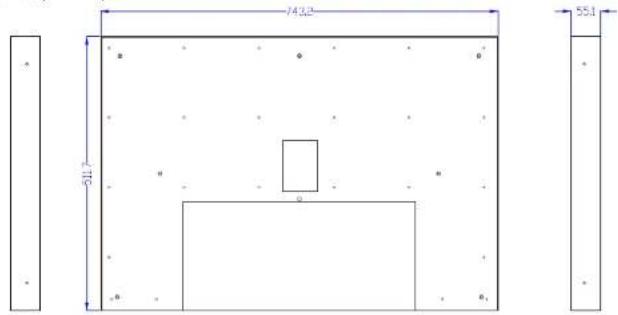
text_image
743.2 551 511.7Television(Unit:mm)

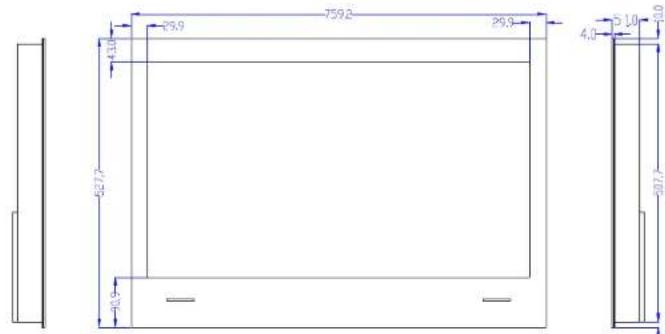
text_image
25.9 759.2 26.9 4.0 621.7 40.9 51.0 207.7General Description
-
POWER: Tum the TV on and off.
-
MUTE: Press this button to cut off the sound of the TV set temporarily, press again to resume.
-
Digital Buttons(0-9, -): Directly select channel with digital buttons.
-
INPUT: Press to open the input source list.
-
NETFLIX: If network connects, press this key to view NETFLIX directly.
-
YouTube: If network connects, press this key to view YouTube.
-
Disney+: If network connects, press this key to view Disney+.
-
Prime Video: If network connects, press this key to view Prime Video.
-
Profile: Switch profile.
-
Google Assistant: Open Google Assistant
-
Settings: Access the settings (direct or through the dashboard in GTV) from any place in the system.
-
Arrow buttons ▲▼◀▶: Use to select on-screen menu items and change menu values.
-
OK: Confirms selection
-
BACK: Return to the previous menu.
-
Guide: Open Live TV EPG
-
HOME: Display the HOME page.
-
VOL+/- : Press these buttons to adjust the volume
-
CH : Press these buttons to change channel A/V upward or downward.
-
INFO: Press to display the channel information
-
● : In DTV mode, press ● button to record the TV program.
-
APPS: Press to display the app list.
-
LIST: Press to display the channel list.
-
CC: Display CC function menu in TV/AV mode
-
Button: Press to open virtual keyboard in DTV source.
-
MTS/AUDIO: In USB mode, press this button to switch audio track when movie is playing. In TV mode, press this button to switch MTS or Audio Language.
-
DIGITAL MEDIA PLAYER CONTROL BUTTON: Include backward, forward, play/pause, stop in USB mode.
-
COLOR BUTTONS: It's used in the APPS
TV Operation
- Please connect the TV to the power supply, and the indicator light will be red after power-on. Press the (power) button on the remote control or TV to turn on the TV.
- You need to pair the remote control with the TV first. After the code is successful, you can use the Operate the Bluetooth remote control of the TV.
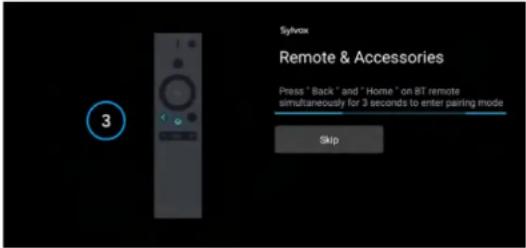
text_image
Sylvox Remote & Accessories Press "Back" and "Home" on BT remote simultaneously for 3 seconds to enter pairing mode Skip- Press ▲/▼ to select the system language and press OK to confirm the language.
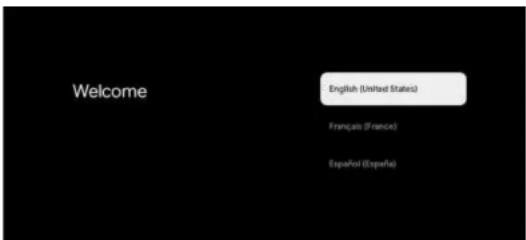
text_image
Welcome English (United States) Français (France) Españé/Pol (Españé)- Press ▲/▼ to set up Google TV which need to sign in google account for Google service, or basic TV which not need to sign in google account.
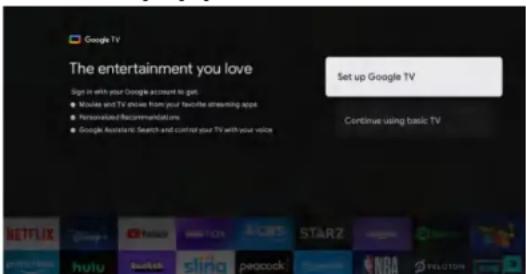
text_image
Google TV The entertainment you love Sign in with your Google account to get: Movies and TV shows from your favorite streaming app Personalized Recommendations Google Assistant Search and control your TV with your voice Set up Google TV Continue using basic TV NETFLIX hulu sulink sling peacock STARZ HOOA FELICUM- Scan setup code to download Google home app on your phone to set up or press ▲/▼ to set up on TV.
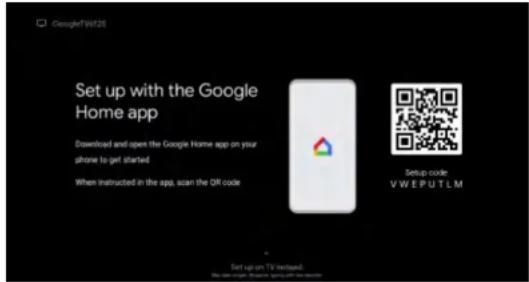
text_image
Set up with the Google Home app Downloaded and opened the Google Home app on your phone to get started When instructed in the app, scan the QR code Setup code VWEPUTLM Set up on TV instead. My own view. However, you can use the app.- Press ▲/▼ to select the wifi to connect, press OK and enter the password to confirm the connection is successful.
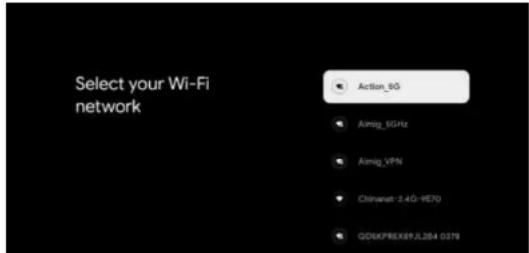
text_image
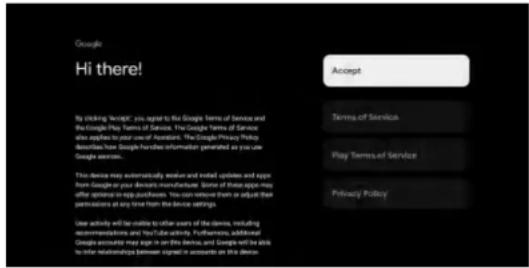
Select your Wi-Fi network Action_8G Airig_SGHz Airig_VPN China: 2.4G-9E70 QD6KPRSX8FJL284 0378- By accepting the Google Terms of Service to improve the product experience, select "Accept" to accept this condition.
text_image
Google Hi there! By clicking "script," you agree to the Google Terms of Service and the Google Play Terms of Service. The Google Terms of Service also applies to your use of Assistant. The Google Privacy Policy describes how Google furthest information generated as you can Google services. This device may automatically resolve and update updates and app from Google or your drivers manufacturer. Some of these apps may offer optional app quickaccess. You can remove them or adjust their permissions at any time from the device settings. User activity will be reliable to other years of the device, including recommendations and YouTube activity. Furthermore, additional Google accounts may again in this device, and Google will be able to order relationships between signed it accounts on this device.B. Sel your location.
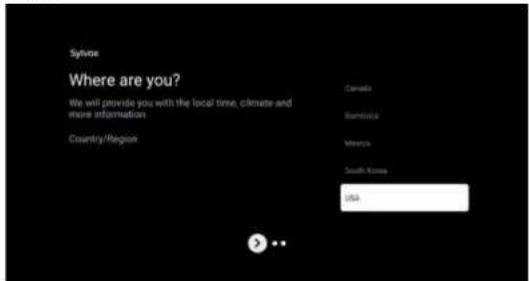
text_image
Synovix Where are you? We will provide you with the local time, climate and more information. Country/Region Canada Argentina Mexico South Korea USA >- Set your Time Zone
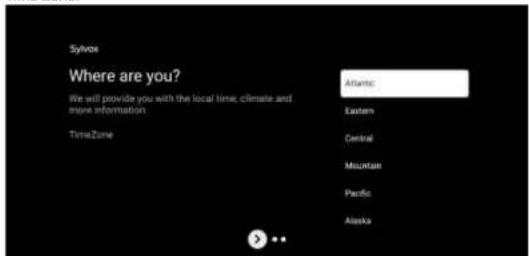
text_image
Synox Where are you? We will provide you with the local time; climate and more information. TimeZone Atlantic Eastern Central Mountain Pacific Alaska- Set your Daylight Saving
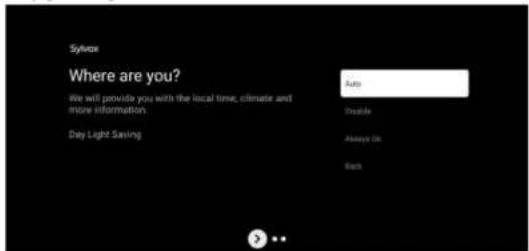
text_image
Sylvax Where are you? We will provide you with the local time, climate and more information Sub Inside Day Light Saving Always Use Back- Set the Tuner mode, You can also choose to skip first.
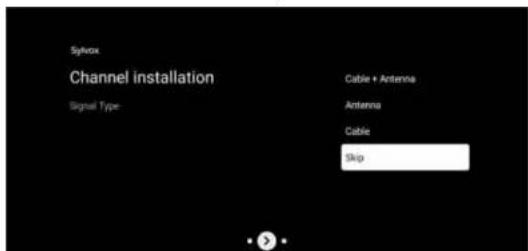
text_image
Sylvox Channel installation Signal Type: Cable • Antenna Antenna Cable Skip- Please double check your Settings, After confirming OK, you can use it.
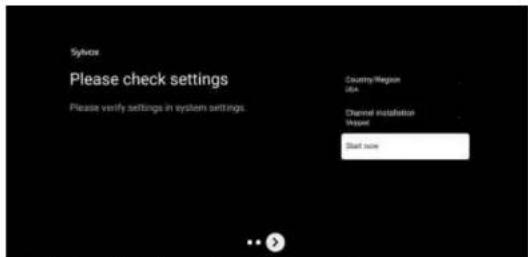
text_image
Sylvax Please check settings Please verify settings in system settings. Country/Region Region Channel installation Version Start size※ The content displayed in the image depends on your region.
HOME SCREEN
After completing the wizard Settings, you can watch TV and go to the home screen.
①
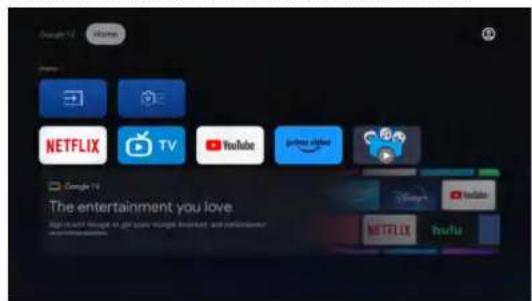
text_image
Google TV Home Search NETFLIX TV YouTube prive internet Google TV The entertainment you love Sign in all thought to get ways though information and content Get your website.- Open Google Assistant or start a text search.
- Among the applications installed on the TV, the icons for the favourite applications are shown inside here. (Favourite applications can be added/ deleted/changed its order by users.)
■ Inputs: Icon to select an input source.
Settings: Various settings can be configured here. For details on the settings, see the next explanation.
INPUT SOURCE
In the HOME interface, press ▲/▼/◄/► to select the "Inputs" icon, press OK to open the input source list, then press up to highlight an input and press OK to switch.
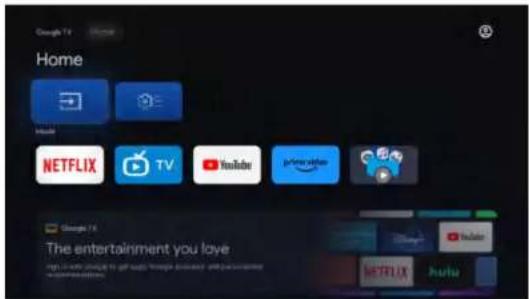
text_image
Google TV Home Home Hindi NETFLIX TV YouTube Instagram The entertainment you love http://www.hindi.org/163.com/163.com/163.com/163.com/163.com/163.com/163.com/163.com/163.com/163.com/163.com/163.com/163.com/163.com/163.com/163.com/163.com/163.com/163.com/163.com/163Under live TV, press the SOURCE button to display the list of input sources. You can select the desired source.
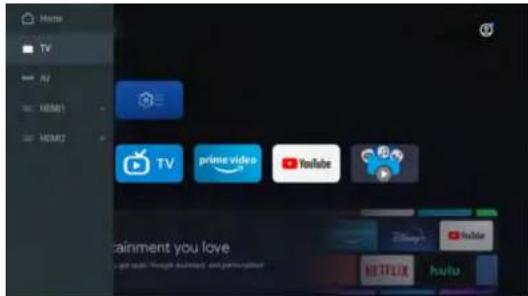
text_image
Home TV home HDMI HDMI TV prime video YouTube HUA HUA HUA HUA HUA HUA HUA HUA HUA HUA HUA HUA HUA HUA HUA HUA HUA HUA HUA HUA HUA HUA HUA HUA HUA HUA HUA HUA HUA HUA HUA HUA HUA HUANAVIGATING THE ON-SCREEN MENU
- In the HOME interface, press the ▶ key to select the icon of the circular settings menu, press OK to confirm.
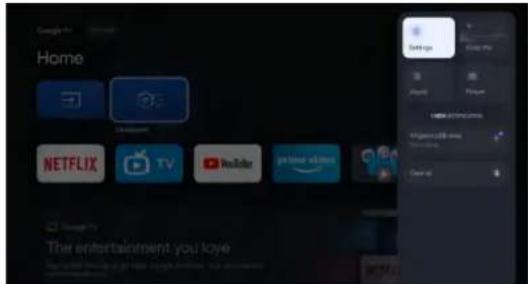
text_image
Google TV Home Settings App Store Internet Explorer Vigemini 68.00 Download NETFLIX TV YouTube primer video Change By The entertainment you love-
Press ▲/▼ button to select what you want set.
-
Press OK to enter setting.
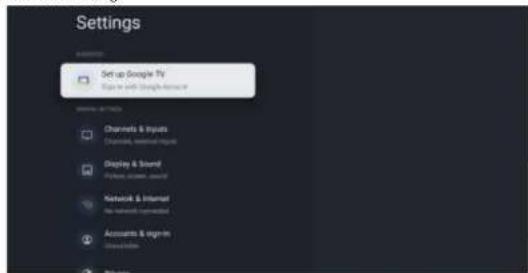
text_image
Settings Setup Google Fly Sign-in with Google Firearm Options to Play Channels & Inputs Channels, internal inputs Display & Sound Playoff, sound, sound Network & Internet Net network rendered Accounts & Sign-in DisplacementDashboard
The Google TV dashboard provides a single location for users to access, settings, notifications, picture settings and more. To open the panel, please press DASHBOARD on your remote from the Google TV home screen.
-
Press to display the Home menu.
-
From the Google TV home screen, please press to display the DASHBOARD.
-
Use ▲▼◀▶ to select the desired menu and an item, then press OK.
Channels & Inputs
To set Channels and Inputs
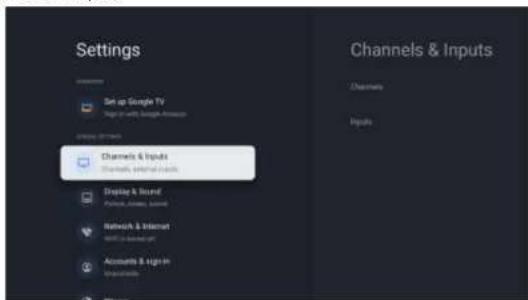
text_image
Settings Set up Google TV Sign up with Google Internet Channels & Inputs Channels & Internet Display & Sound Picture, Camera, Sound Network & Internet Web: 2000-2005 Accounts & Sign In Organisations Channels & Inputs Channels InputsAdd channels
To add for the first time or additional channels, please follow the steps below:
1 Go to Settings > Channels & Inputs > Channels
2 Select your signal type
3 Select Channel Scan to start channel installation.
Inputs
Consumer Electronic Control (CEC) - This allows you to operate the linked functions between our brand devices with CEC feature and this unit. We do not guarantee 100% interoperability with other brands of CEC compliant devices.
Display & Sound
To set Picture and Sound
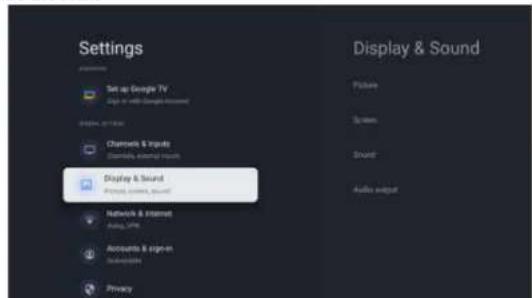
text_image
Settings Set up Google TV Sign or add Google Account Channels & Images Channels & external views Display & Sound Physical content, sound Network & Internet Audio, PDF Accounts & sign-on Self-equalies Privacy Display & Sound Picture Systems Sound Audio outputPicture
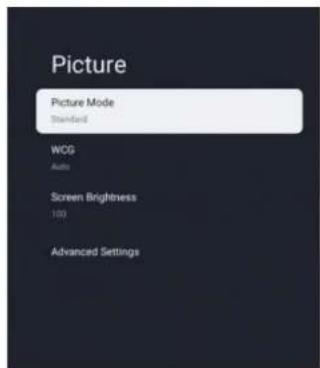
text_image
Picture Picture Mode Standard WCG Auto Screen Brightness 100 Advanced SettingsPicture Mode
Standard: For normal TV viewing.
Movie: Deep picture settings for a cinematic experience.
ECO: Eco TV settings for low power consumption.
Vivid: Enhanced picture contrast and sharpness for viewing in a well-lit room.
Sports: Brilliant picture settings for high action.
Game: Optimized for PCs and game consoles.
Screen Brightness
Adjusts the LED brightness to affect the overall brilliant color.
Advanced Settings
For more detailed picture settings, go to Advanced Settings, where you find settings for Color Temperature, Noise Reduction And Picture Reset etc.
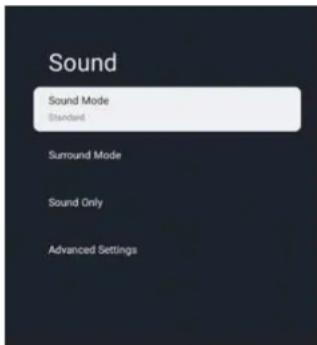
text_image
Sound Sound Mode Standard Surround Mode Sound Only Advanced SettingsSound Mode
The following sound settings can be configured. Depending on the format of the broadcasting, some sound settings are not available.
Standard: For normal TV viewing.
Movie: Powerful sound settings for a cinematic experience.
Music: Optimized for music playback
News: Set the anchor's voice at a comfortable volume.
News. Set the anchor's voice at a comfortable vol Personal: The customized settings you preferred
Personal: The customized settings you preferred.
Audio output
Output Device: TV Speaker/SPDIF/Optical/HDMI-ARC
Digital Output: Auto/Bypass/PCM/ Dolby Digital Plus/ Dolby Digital
Digital Output Delay
The on-screen picture and the sound from an amplifier via the digital audio (SPDIF) output jack are synchronized by delaying .the output from the connection.
The higher values will increase the digital audio (SPDIF) output delay.
Network & Internet
Setup network connection settings in order to use apps or network upgrade functions. To set Network & Internet.
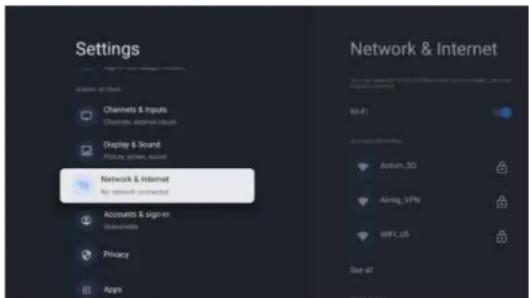
text_image
Settings Channels & inputs Channels, internal inputs Display & Stand Picture screen, screen Network & Internet No network connected Accounts & Sign-in Unavailable Privacy Apps Network & Internet WiFi Airbus, 3G Aling, VPN WIFI-US See allWi-Fi setting
- Confirm that Wi-Fi is turned on and you're connected to the correct network.
- If not, locate the network you'd like to connect to and select it to connect. Enter the password if required.
- Open one of your apps.
- Play your video, music, or game again.
Note(s)
If you still have issues, turn the Wi-Fi option off and on again.
Use your Mobile/Tablet hotspot
Automatically adjusts video quality to use less mobile data.
- Data Saver reduces your data usage on mobile connections, increasing watch time by up to 3x.
- Data usage and alerts help you monitor your data usage while watching TV.
Scanning always available
Let Google's location service and other apps scan for networks, even when Wi-Fi is off.
Ethernet
Proxy settings: Set Proxy manually.
IP settings: Configure the IP setting for your network connection.
Accounts & sign-in
You can manage to add or remove your Google account and kids profile account.
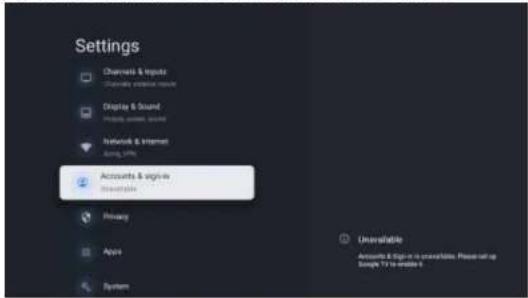
text_image
Settings Channels & Inputs Channels & Inputs Report Display & Sound Picture, sound, audio Network & Internet Audio, music Accounts & Sign-in Sign-in Primary Apple System Unavailable Accounts & Sign-in is unavailable. Please call up Sample TV to create itGoogle Account
Google TV profiles let everyone in your home enjoy their own personalized space with their Google Account. With a personalized profile, you'll get TV show and movie recommendations just for you, easy access to your personal watchlist and help from your Google Assistant.
Add Google account
You can add more than one account on your Google TV so you can sign in to services with multiple accounts. Your media and activity sync across devices that your Google Account is signed in to.
Add a Kid
Set up a kids profile on Google TV to choose which apps your kids can use, and to set up bedtime reminders and screen time limits.
* Kids profiles may not be available in some regions or on some devices.
Privacy
This section is privacy settings of your TV, Google account and applications.
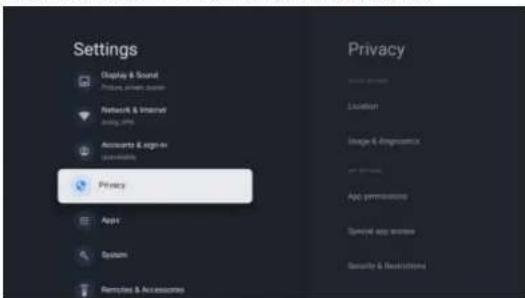
text_image
Settings Display & Sound Picture & Internet Network & Internet Accounta & Signee Accessories Privacy Apps System Remodels & Accessories Privacy Location Image & Diagnostics App permissions Special app access Security & RestrictionsLocation
- Google may collect location data periodically and use this data in an anonymous way to improve location accuracy and location-based services.
Usage & diagnostics
- Automatically send diagnostic information to Google, like crash reports and usage data from your device, apps, and Chromecast built-in. you can adjust these permissions at any time from device settings. Learn more at g.co/tv/diagnostics.
Ads
- Manage your afs settings, such as resetting your advertising ID.
Google Assistant
You can ask questions and complete tasks on your Google TV with Google Assistant. Google Assistant comes installed on your Google TV device. You can turn it on when you first set up your device, or you can turn it on later.
Payment & Purchases
- Manage your account and purchases through the Play Store app on your mobile device, or by following these links in a Web browser:
• Payment methods g.co/ManageWalle
• Order history g.co/Play/Order
• Subscriptions g.co/Play/Subscriptions
Security & Restrictions
- Your device and personal data are more vulnerable to attack by apps from unknown sources. You agree that you are solely responsible for any damage to your device or loss of data that may result from using these apps.
Apps
This section is apps settings, such as checking details and permissions
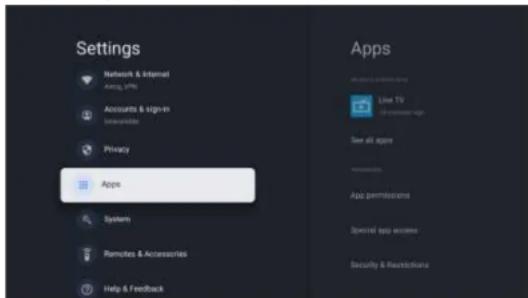
text_image
Settings Network & Internal Login, WiFi Accounts & sign-in Internet Privacy Apps System Remotes & Accessories Help & Feedback Apps Live TV Off-Accession Sign See all apps App permissions Special app access Security & RevisionsSystem
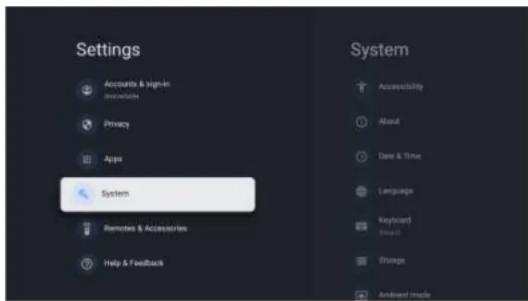
text_image
Settings Accounts & Sign-in Accessories Privacy Apps System Remotes & Accessories Help & Feedback System Accessibility About Date & Time Languages Keyboard Board Storage About ModeAccessibility
You can use a screen reader, closed captions, Switch Access, and more to make your Google TV device more accessible.
- Press a (HOME) and use ▲▼◀▶ to select Settings then press OK.
- Use ▲▼ to select System, then press OK.
- Use ▲▼ to select Accessibility, then press OK.
- Adjust the following items.
Turn on closed captions
Your caption preferences might not apply to certain apps.
- From the Google TV home screen, in the top right, go to the user profile icon and select
Settings.
- Select System > Accessibility
- Select Captions.
- Turn on Display to show captions. Then choose your options.
You can choose the size, font, color, background and other characteristics of the caption text.
Turn on high contrast text
- From the Google TV home screen, in the top right, go to the user profile icon and select Settings.
- Select System > Accessibility.
- Turn on High contrast text (Experimental).
Text to speech
Text to speech output settings.
To set On/Off of this function, select and set TalkBack.
Use accessibility shortcuts
Accessibility shortcuts are a quick way to turn on accessibility features. To use accessibility shortcuts, you first need to turn them on.
To turn on accessibility shortcuts:
- From the Google TV home screen, in the top right, go to the user profile icon and select Settings.
- Select System > Accessibility.
- Select Accessibility shortcut > Enable accessibility shortcut.
- By default, the shortcut turns on TalkBack. To change what's included in the shortcut, choose Shortcut service.
- Choose an option and select OK.
To use the shortcut: On your remote, press and hold the back arrow and down buttons at the same time for 3 seconds.
TalkBack
TalkBack is the Google screen reader included on Android devices. TalkBack gives you spoken feedback so that you can use your device without looking at the screen.
Change screen reader settings
- From the Google TV home screen, scroll up to the top navigation bar.
- Select Profile Settings > Dashboard > Settings.
- Select System > Accessibility.
- Under "Services," select TalkBack > Configuration.
- Change settings for speech volume, verbosity (such as keyboard echo and usage hints).
and spoken passwords.
Note(s)
To find more options and settings for TalkBack, such as speech rate and intonation, in the Accessibility menu, select Text to speech.
Use a screen reader
- From the Google TV home screen, scroll up to the top navigation bar.
- Select Profile Settings > Dashboard > Settings.
- Select System > Accessibility
- Under "Services," select TalkBack > Enable > OK.
Turn on Switch Access
- From the Google TV home screen, in the top right, go to the user profile icon and select Settings.
- Select System > Accessibility.
- Under "Services," select Switch Access > Enable > OK.
About
You can check system update and TV registration information.
Reset
This will restore your device to default settings and erase all data, accounts, files, and downloaded apps.
Date & Time
Automatic date & time
Use network-provided time or off
If it is set to off, please manually set the date and time.
Set time zone
Select your time zone
Use 24-hour format
Set the time to display in a 12 or 24-hour format
Language
You can set the language for the on-screen display.
-
Use ▲▼ to select Language, then press OK.
-
Use ▲▼ to select English (Canada), English (United States), Español or Français then press OK.
Keyboard
Perform the keyboard setting.
Storage
Internal shared storage
Removeable storage
Ambient mode (Digital Photo Frame)
Google TV lets you set your TV to scroll through Google Photos
when you're not watching anything.
Power & Energy
Power on behavior
Select the screen to start when powering on the TV.
Cast
Cast to Google TV
You can cast content from phones, tablets, or laptops to your
Google TV
Restart
It just makes the TV turn off and again on. Your all settings will be kept. If you want to delete all settings of the TV, please do factory reset. Settings > System > About > Reset > Factory reset
* This will restore your device to default settings and erase all data, accounts, files, and downloaded apps.
Remotes & Accessories
You can connect several Bluetooth devices, like headphones or game controllers, to your Google TV. You can only connect one audio device at a time.
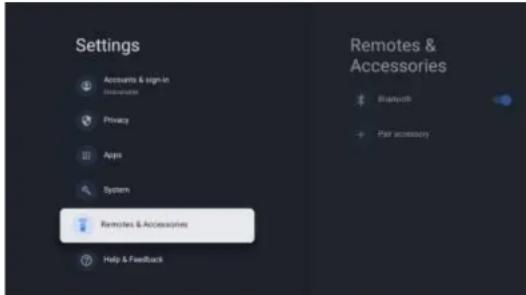
text_image
Settings Accounts & sign-in Accessories Privacy Apps System Remotes & Accessories Help & Feedback Remotes & Accessories Bluetooth Pair accessoryPair a Bluetooth device
- From the Google TV home screen, in the top right, go to the profile picture or initial and select Settings > Remote &Accessories > Pair accessory
- Make sure your device is in pairing mode or is visible to other devices.
- Identify the device you want to pair from the list and select it.
- On the Bluetooth pairing request screen, select Pair
Note(s)
Accessories that have been paired with your device appear in the Remote& Accessories section of Settings. You can also rename or forget devices.
Reconnect a paired device
- From the Google TV home screen, in the top right, go to the profile icon and select Settings > Remote & Accessories
- Under "ACCESSORIES" choose your device.
- Select Connect.
Fix problems with connecting
Bluetooth devices
If your Bluetooth device won't connect, it could be an issue with the Bluetooth device or your TV.
Troubleshoot connection issues
- Turn off your Bluetooth device and then turn it back on. After your device is reset, try to pair it again.
- If you have multiple devices paired with your TV, disconnect the ones you're not using.
- Unplug your TV for 10 seconds and then plug it back in. When your TV is on, try to pair it again.
- Check if your Bluetooth device connects to other devices, such as a phone or tablet.
A. If your device connects to other devices: Reset your Google TV device to factory settings.
B. If your device doesn't connect to other devices: Check that your Bluetooth device has up-to-date software or get help from the device's manufacturer.
Read Before Using Apps
(*Terms & Conditions Apply)
- Due to the product characteristics featured on the Apps store, as well as limitations in available content, certain featured applications, and services may not be available on all devices or in all territories. Some Apps featured may also require additional peripheral device or membership fees. Services and content availability are subject to change without prior notice.
- Manufacture takes no legal responsibility whatsoever for any interruption of App services caused by the service provider for any reason.
- An unstable Internet connection may cause delays or interruptions. In addition, applications may terminate automatically depending on the network environment.
- Applications services and updates may become unavailable.
- Application content is subject to change by the services provider without prior notice.
- Specific services may differ with the version of the application installed on the TV.
- An application's functionally may change in future version of the application.
- Depending on the third party service provider/s policies, certain applications may not support multitasking.
- The response to remote commands and the resulting on screen display may be delayed while a webpage is loading.
- The copy and paste operations are not supported.
- The web browsing speed will differs with the network environment.
- Depending on the types of video/audio codecs supported, it might not be possible to play certain video and audio files while playing content.
- Apps store have certain limitation, it consist many inbuilt apps for various needs of user but user doesn't have facility to add other apps from any other media.
Troubleshooting
If you have any problem, check the couter measures for each symptom listed below. The following symptoms may have been, caused by inaporopriate adjustment rather than actual malfunction of the unit. If the trouble pens sts, contact the Customer Care Centre, see back page for contact details.
| Symptoms | Possible solutions |
| No power | Please check the power cord plugged in and that the power outlet works.Unplug the power cord and plug it in after 60 seconds and restart the TV. |
| No picture | Please check antenna connection.Station may be experiencing problems, please tune to another station.Please adjust the settings of contrast and brightness. |
| Good picture but no sound | Please increase the volume.Please check TV is under mute mode, press MUTE button on the remote control.Please check sound settings.If external devices are being used, check their volumes are not set too low or turned off.If using AVI or Component inputs, please make sure cables are connected properly and not loose.If using DVI to HDMI cable, a separate audio cable is required.Make sure a headphone jack >s not connected. |
| Good sound but abnormal color or no picture | Please check antenna connection and antenna condition. If using Component input, please check Component connections, incorrect or loose connections may cause colour problems or cause the screen to be blank. |
| No response to remote control | Batteries of remote control may have exhausted, if necessary, please change the batteries.Clean the remote control lens. The distance between LED TV and remote control should be within 8m, within recommended operating angle and path is free of obstructions. |
| Colored dots may be present on the screen | Although the LED screen is made with high-precision technology and 99.99% or mere of the pixels are effective, black dots may appear or bright points of light (red, blue, or green) may appear constantly on the LED screen. This is a structural property of the LED screen and not a malfunction. |
| Picture is breaking up | Keep the TV away from noisy electrical sources such as cars, hair dryers, welders, and all optional equipment.Electrical atmospheric interference such as local or distant lightning storms may cause picture to break up.When installing optional equipment, leave some space between the optional equipment and the TV.Check the antenna and connection.Keep the antenna away from any power or input/output cables. |
| After Auto Tuning only some channels are available | Check your area is covered by Digital Video Broadcasts.Try re-tuning or manually tuning missing channels.Check that you are using the correct antenna type. |
| Channel cannot be selected | Check if the channel has been blocked in the main menu settings. |
| USB not playing | Please check connecting USB cable and power supply is connected.Hard drive has not been formatted. Please make sure USB disk is compatible and the multimedia data formats are supported. Only support FAT32 format for the USB disk. |
| Picture is distorted, macroblock, small block, dots, pixelization, etc | Compression of video contents may cause distortion especially on fast moving pictures such as sports and action movies. |
| Noise from speaker | Check cable connections, make sure a video cable is not connectedto an audio input.Low signal level may cause sound distortion. |
| TV turns off automatically | Check if the Off Timer is set to On in the Setup menu.Sleep Timer may have been enabled.If there is no signal for about 10 minutes from an input, the TV will turn off. |
| TV turns on automatically | Check if the On Timer is set to On in the Setup menu. |
| Picture is not shown in full screen | Black bars on each side will be shown on HD channels when displaying SD (4:3) contents.Black bars on Top & Bottom will be shown on movies that have aspect ratios different from your TV.Adjust picture size option on your external device or TV to full screen. |
WARNING
Never place a television set in an unstable location. A television set may fall, causing serious
personal injury or death. Many injuries, particularly to children, can be avoided by taking simple precautions such as:
- Using cabinets or stands recommended by the manufacturer of the television set.
- Only using furniture that can safety support the television set.
- Ensuring the television set is not overhanging the edge of the supporting furniture.
- Not placing the television set on tall furniture (for example, cupboards or bookcases) without
anchoring both the furniture and the television set to a suitable support
- Not placing the television set on cloth or other materials that may be located between the television
set and supporting furniture.
- Educating children about the dangers of climbing on furniture to reach the television set or its
controls
If your existing television set is being retained and relocated, the same considerations as above
should be applied.
The plug or appliance coupler is used as the disconnect device, the disconnect device shall remain readily operable.
FCC Warning
This device complies with part 15 of the FCC rules. Operation is subject to the following two conditions: (1) this device may not cause harmful interference, and (2) this device must accept any interference received, including interference that may cause undesired operation.
Changes or modifications not expressly approved by the party responsible for compliance could void the user's authority to operate the equipment.
NOTE: This equipment has been tested and found to comply with the limits for a Class B digital device, pursuant to part 15 of the FCC Rules. These limits are designed to provide reasonable protection against harmful interference in a residential installation. This equipment generates uses and can radiate radio frequency energy and, if not installed and used in accordance with the instructions, may cause harmful interference to radio communications. However, there is no guarantee that interference will not occur in a particular installation. If this equipment does cause harmful interference to radio or television reception, which can be determined by turning the equipment off and on, the user is encouraged to try to correct the interference by one or more of the following measures:
Reorient or relocate the receiving antenna.
Increase the separation between the equipment and receiver.
Connect the equipment into an outlet on a circuit different from that to which the
receiver is connected.
Consult the dealer or an experienced radio/TV technician for help.
Radiation Exposure Statement
This equipment complies with FCC radiation exposure limits set forth for an uncontrolled
environment. This equipment should be installed and operated with minimum distance 20cm between the radiator and your body.
Warranty
Thank you for purchasing this Sylvox product. We are glad to offer 12 months free warranty for you. If you have any questions, please contact us via our after-sales email or website for assistance.
Customer Service Support:
Pre-sale: support@sylvoxtv.com
After-sale: service@sylvoxtv.com
Marketing: marketing@sylvoxtv.com
Website: www.sylvoxtv.com
Service Hotline: +1(866)979-5869 (Monday-Friday, 9:00AM-5:00PM EST)
Warranty Policy
(1) When returning an item, please note the following:
- Only items purchased directly from www.sylvoxtv.com and authorized resellers can be returned, such as Amazon, Walmart, Newegg, Wayfair, Aliexpress, etc.
- We will not accept any return requests for products purchased from unauthorized third-party suppliers.
- Customer must contact the original vendor with your order ID or purchase proof and the detail of the product issue at service@sylvoxtv.com to request a return/refund/repair/replace before returning products. Sylvox will provide you with the shipping label in the mail.
- Sylvox are responsible for all return shipping costs for quality problem.
- If there is no reason to return the product after installation and use, Sylvox shall have the right to charge restocking fees of 20% of the product value. (Only accept applications for no reason return within 7 days after arrival, and freight costs are the responsibility of the customer)
- Ensure that the item(s) you are returning is repackaged in the original condition with all the documentation and accessories that came with it.
- If the returned product is not in original packaging: artificial damage causes to affect the second sale, such as its appearance being damaged, the lack of accessories, etc., we will deduct the corresponding expenses according to the situation.
- We will handle your request once getting your returning item.
(2) How to return a product for a refund? (30 days money-back guarantee)
To return an item to Sylvox, Please contact the Sylvox team at service@sylvoxtv.com to submit an after-sales application, we will provide you with the shipping label In the mail. Please include your original order number or order proof in the email and ensure that the item is returned within 30 days. No refunds will be issued until the item is received in its original packaging (with its documentation and accessories).
(3) Refunds
Once we receive and verify the condition of your product, a refund is initiated. The way your refund is processed depends on your original payment method. For credit or debit cards, refunds will be back to the card-issuing bank within 7-10 business days of receipt of the returned item. Please contact the card-issuing bank with questions about when the credit will be posted to your account.
(4) What does the warranty not cover?
(a) The wrong way of use and improper repair by the user caused the failure or damage.
(b) Failure or damage caused by transportation, moving, and falling after purchase.
(c) Other unavoidable external factors cause failure and damage.
(d) Improper use of the equipment caused by water or other solution of damage.
(e) Failure caused by a lightning strike or other electric system reaso
(f) Damage caused by using power supply other than specified voltage.
Warranty Period:
* Sylvox repairs the TV free of charge under the condition of the normal use of the instruction manual within 12 months.
* Sylvox warrants that this product conforms to the manufacturer's specifications and will be free of defects in material and workmanship should any defect occur.
* Sylvox will correct the defect subject to the following conditions:
(a) Any defects caused or repairs required as a result of the abusive operation, negligence, accident, shipment damages, improper delivery and installation, application, and use for which this product was not intended as set forth in the user's manual or other applicable Product documentation.
(b) Any defects caused or repairs required as a result of any product that has been tampered with, modified, adjusted, or repaired by any person other than Sylvox, a Sylvox authorized service provider or a Sylvox authorized service center or dealer.
(c) Any replacement of accessories, glassware, consumable or peripheral items required through normal use of the Product, including but not limited to, earphones, remote controls, batteries, etc.
(d) Any cosmetic damage to the Product surface or exterior, Including but not limited to that which has been defaced or caused through normal wear and tear, improper shipping and handling, or the use of chemical cleaning agents.
(e) Any defects caused or repairs required as a result of damage caused by any external or environmental conditions, including but not limited to, the use of incorrect voltage, fluctuations or surges in transmission line/power line voltage, liquid spillage, or acts of nature or God.
(f) Warranty claims for Products returned with the altered, illegible, or missing model, factory serial number, and UL markings.
(g) Any Products used for rental, business, or commercial purposes.
(h) Any installation, consumer instruction, delivery, setup, adjustment, and/or programming charges.
(i) A Product that is not installed following installation instructions is included with the Product.
(j) Any signal reception problems (including antenna-related problems), images "burnt" into the screen, signal noise or echo, interference or other signal transmission or delivery problems, availability of third-party provided services or content (including, without limitation, image, audio or video content).
No other entity other than Sylvox is authorized to extend, enlarge or transfer this warranty on behalf of Sylvox.
The express warranties in this limited warranty are, in lieu of and, except to the extent prohibited by applicable law, Sylvox disclaims all other warranties and conditions, express or implied, whether arising by law, statute, by course of dealing, or usage of trade, including, without limitation, implied warranties or conditions of all claims, whether based in contract, negligence, strict liability or otherwise. Some states do not allow the exclusion or limitation of incidental or consequential damages, so the above limitation or exclusion may not apply to you.
For any questions, feel free to contact us via service@sylvoxtv.com at any time!
Sylvox
Salle de bains TV
natural_image
Black-and-white photo of a large wave crashing against the sea, with no visible text or symbols.Français
natural_image
Pure electrical circuit lines without any symbolsAdaptateur
natural_image
Simple line drawing of a rectangular frame with a small rectangle above it, no text or symbols present.
- USB2/1
USB d'entrée.
- RF
text_image
Sylvox Remote & Accessories Press "Back" and "Home" on BIT remote simultaneously for 3 seconds to enter pairing mode Skiptext_image
Sybox Channel installation Signal Type Cable + Antenna Antenna Cable Skiptext_image
Syvox Please check settings Please verify settings in system settings. Country/Region USA Channel installation Impact Start nownatural_image
Black and white photo of a large wave crashing against the sea, with no visible text or symbols.natural_image
Pure electrical circuit lines without any symbolsAdaptador
Control Remoto Destornillador

Baterías (AAA x 2)
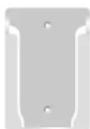
Base de Control Remoto
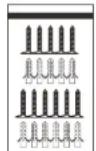
Tornillos. * 11
Contenido
ESPECIFICACIONES 77
natural_image
Simple line drawing of a rectangular frame with a small rectangle above it, no text or symbols present.
text_image
Sylvox Remote & Accessories Press "Back" and "Home" on BIT remote simultaneously for 3 seconds to enter pairing mode SkipTurn on closed captions
(d) Any aesthetic damage to the surface or exterior of the product, including but not limited to damage caused by deformations or caused by normal wear, improper shipping and handling, or the use of chemical cleaning agents.