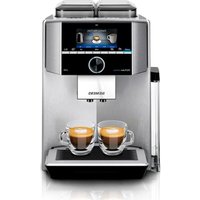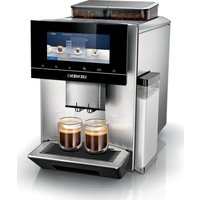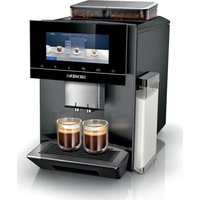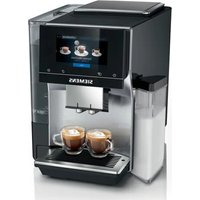
TQ903RZ3 - Coffee machine SIEMENS - Free user manual and instructions
Find the device manual for free TQ903RZ3 SIEMENS in PDF.


User questions about TQ903RZ3 SIEMENS
0 question about this device. Answer the ones you know or ask your own.
Ask a new question about this device
Download the instructions for your Coffee machine in PDF format for free! Find your manual TQ903RZ3 - SIEMENS and take your electronic device back in hand. On this page are published all the documents necessary for the use of your device. TQ903RZ3 by SIEMENS.
USER MANUAL TQ903RZ3 SIEMENS
natural_image
Simple white line drawing of a stylized yin-yang symbol on dark background (no text or symbols)EN Information for Use 8
natural_image
Illustration of a water dispenser with a blue screen showing a black arrow, no text or symbols present4
text_image
Diagram showing two steps of a refrigerant system: adding air conditioner to a wall-mounted unit and reducing the air conditioner.5
text_image
Diagram showing a printer's internal processing step with labeled arrows and a zoomed-in view of the device's internal structure.6
text_image
CLICK7
text_image
Diagram showing a printer with labeled parts and directional arrows indicating process flow8
text_image
Diagram showing two steps of a water dispenser with blue boxes, indicating a process from left to right.9
text_image
Diagram showing a refrigerator interior with labeled parts and directional arrows indicating movement or assembly.10
natural_image
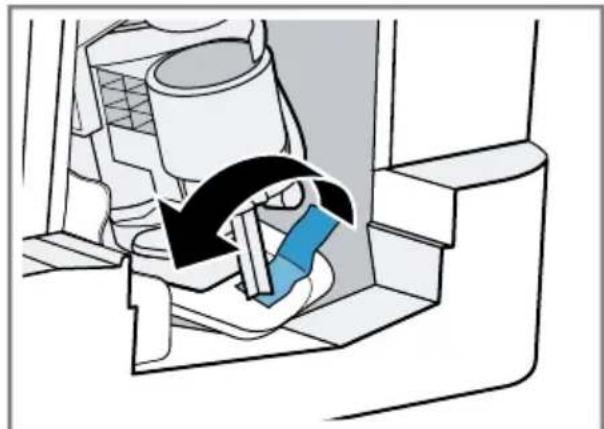
Diagram of a mechanical device with a blue component being inserted, showing a curved arrow indicating motion (no text or symbols present)The image is too blurry to recognize any text content.
text_image
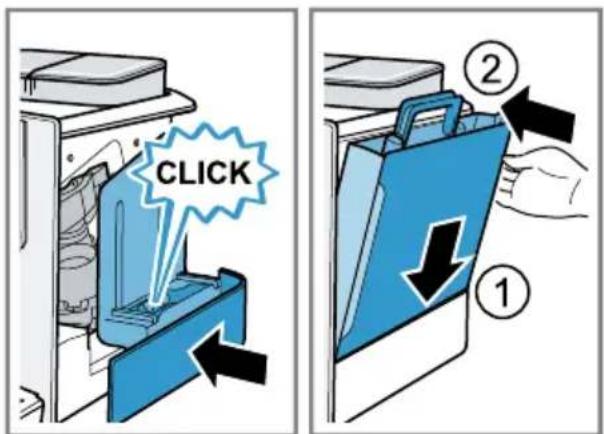
CLICK ① ②12
text_image
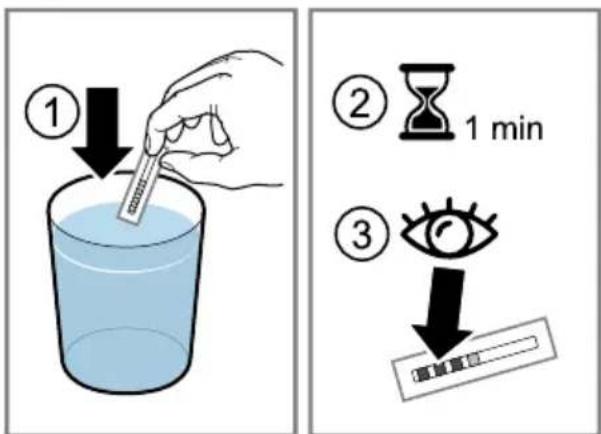
Illustration showing a hand using a stick to test liquid in a beaker, with three steps: adding 1 minute time to an eye.13
text_image
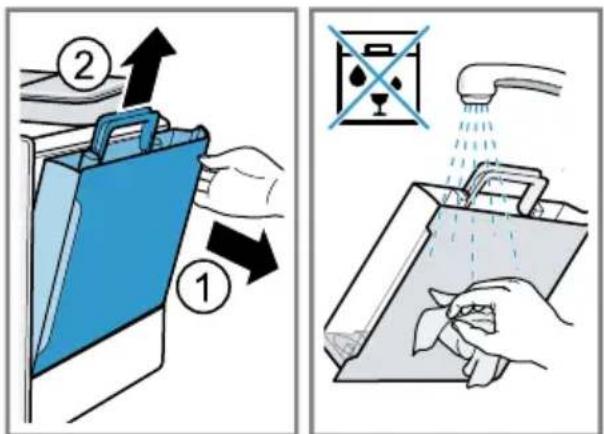
Illustration showing two steps of cleaning a blue briefcase: adding an arrow to handle the bag, and removing a bucket into a water dispenser.14
text_image
① ② pressThe image is too blurry to recognize any text content.
text_image
Technical diagram showing mechanical assembly and component layout with labeled parts and directional arrows16
text_image
Illustration showing two steps of a water filter device: first to clean water from a drain, second to removing it from a bag.The image is too blurry to recognize any text content.
natural_image
Illustration of a mechanical device with a blue tray and black arrow indicating compression or lifting process (no text or symbols)18
text_image
Diagram showing two steps of a refrigerant system: adding a component to a wall-mounted unit and reducing the air gap.19
text_image
Diagram illustrating a mechanical assembly process with numbered steps and directional arrows indicating motion or movement.20
natural_image
Technical diagram of a mechanical assembly with housing and motor components, showing directional arrows (no text or labels)21
text_image
Diagram illustrating a spray gun system with labeled components and a checkmark indicating inspection or cleaning.22
flowchart
graph TD
    A["Vehicle Component"] --> B{Suspension}
    B -->|Yes| C["Car Suspension"]
    B -->|No| D["Car Suspension"]
    C --> E["Car Suspension"]
    D --> F["Car Suspension"]
    E --> G{Suspension}
    F --> G
    G -->|Yes| H["Checkmark"]
    G -->|No| I["End"]
m = 311
natural_image
Diagram showing a mechanical component with arrows indicating assembly or movement, and a close-up of a blue component inside a housing (no text or symbols present)24
text_image
Diagram showing a blue appliance with internal components and directional arrows labeled ① and ②, likely illustrating a mechanical or fluid system setup.25
text_image
press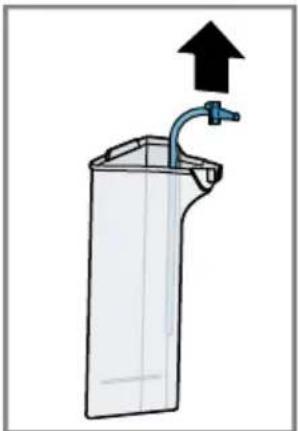
natural_image
Simple line drawing of a container with a faucet and an upward arrow, no text or symbols present.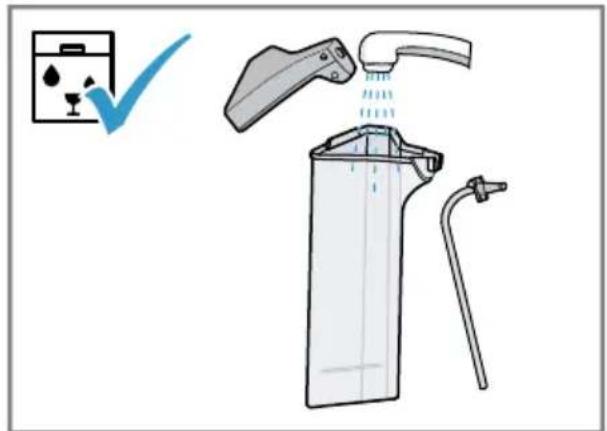
text_image
Diagram illustrating a cleaning or cleaning process with labeled components and a checkmark indicating inspection.26
natural_image
Simple line drawing of a container with a faucet and arrow indicating downward motion (no text or symbols)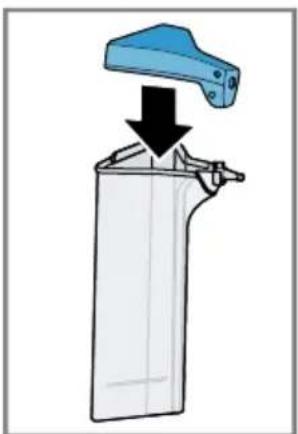
natural_image
Illustration of a blue-handled tool pressing down on a cylindrical container (no text or symbols)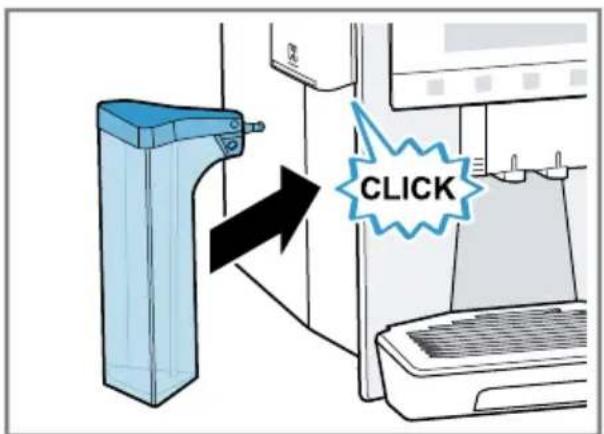
text_image
CLICK28
natural_image
Diagram of a mechanical clamp or bracket with an upward arrow indicating force or direction (no text or symbols present)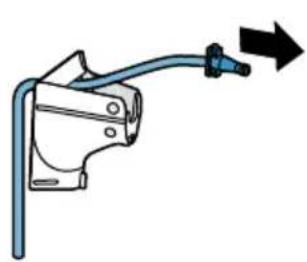
natural_image
Diagram of a mechanical clamp or bracket with a blue cable and directional arrow (no text or symbols)
text_image
Diagram illustrating a water tap cleaning procedure with labeled components and a checkmark indicating inspection.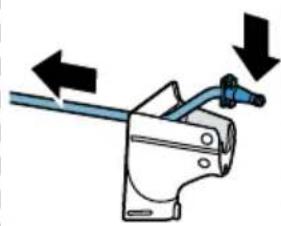
natural_image
Diagram of a mechanical lever with arrows indicating direction (no text or symbols)30
text_image
CLICK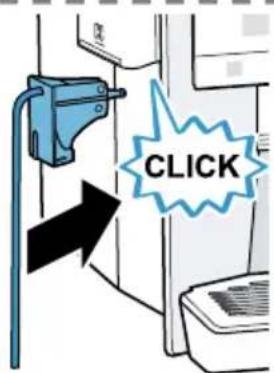
text_image
CLICK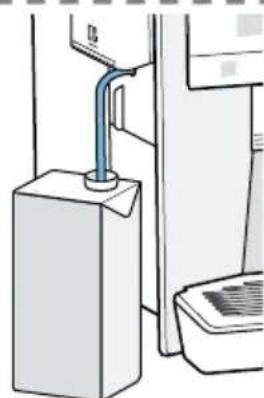
natural_image
Diagram of a water heater system with a blue pipe and control panel (no text or symbols)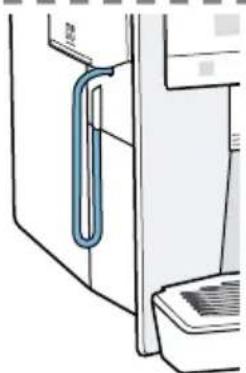
natural_image
Diagram of a door with a blue U-shaped pipe inserted, showing internal structure (no text or symbols)32
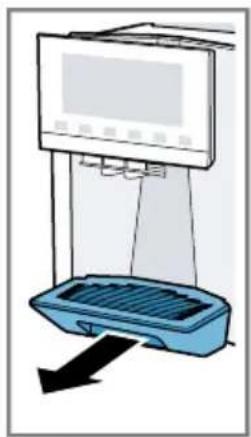
natural_image
Illustration of a water purifier with a blue base and black arrow indicating airflow direction (no text or symbols)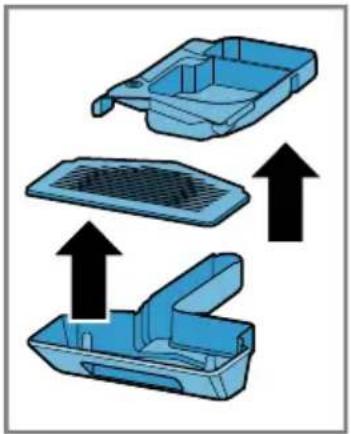
natural_image
Three blue plastic components with upward arrows indicating flow or movement, no text or symbols present.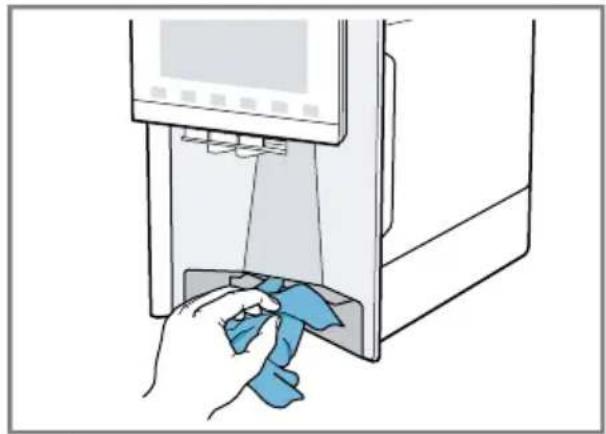
natural_image
Illustration of a hand cleaning a blue cloth inside a washing machine (no text or symbols)34
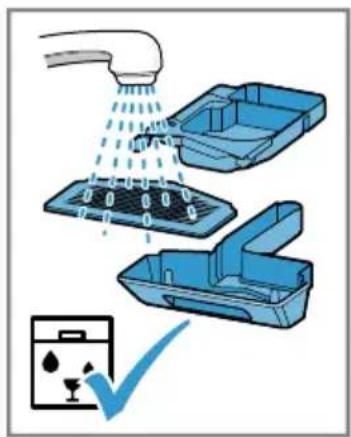
text_image
Diagram illustrating a water spray procedure with labeled components and a checkmark indicating inspection or cleaning.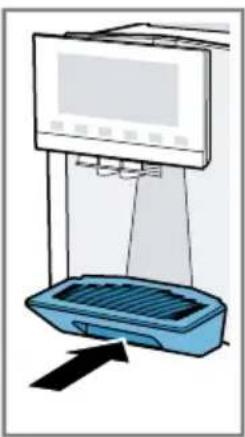
natural_image
Illustration of a water dispenser with a blue tray and control panel (no text or symbols)36

Further information and explanations are available online:
text_image
QR code image containing encoded data, no visible human-readable textTable of contents
1 Safety.... 10
1.1 General information...... 10
1.2 Intended use..... 10
1.3 Restriction on user group..... 10
1.4 Safety information.... 10
2 Environmental protection and saving energy.... 14
2.1 Disposing of packaging ..... 14
2.2 Tips for saving energy...... 14
3 Installation and connection..... 14
3.1 Scope of delivery.... 14
3.2 Installing and connecting the appliance.... 14
4 Familiarising yourself with your appliance.... 15
4.1 Appliance 15
4.2 Control panel.... 15
5 Accessories.... 16
6 Before using for the first time .. 17
6.1 Preparing and cleaning the appliance.... 17
6.2 Checking the water hardness.... 17
6.3 Water filter 18
6.4 Performing initial start-up ..... 18
6.5 General information.... 18
7 Basic operation ...... 19
7.1 Switching the appliance on or off 19
7.2 Dispensing beverages ..... 19
7.3 doubleShot and tripleShot..... 20
7.4 Dispensing a coffee drink with milk.... 20
7.5 baristaMode or comfort- Mode 21
7.6 Dispensing two cups at once.. 21
7.7 Saving favourite beverage..... 21
7.8 Using electronic grinding level adjustment eGrinder ..... 21
7.9 Using beanIdent System ^1 ...... 22
8 Childproof lock.... 22
8.1 Activating the child-proof lock.... 22
8.2 Deactivating the childproof lock.... 22
9 Cup heater ^1 22
9.1 Activating and deactivating the cup heater ^1 22
10 Personalisation 22
10.1 Create first profile.... 23
10.1 Create first profile.... 23
10.2 Create other profiles...... 23
10.3 Edit profile 23
10.4 Delete profile 23
10.5 Sort profiles 23
10.6 Add beverage to a profile ..... 23
10.7 Add a beverage from Classic or coffeeWorld to the profile.... 23
10.8 Create profile from Classic or coffeeWorld.... 24
10.9 Edit beverage in profile ..... 24
10.10 Delete beverage in profile... 24
11 Home Connect 24
11.1 Setting up the Home Connect app 25
11.2 Setting up Home Connect..... 25
11.3 Home Connect settings...... 25
11.4 Remote diagnostics ..... 26
11.5 Data protection.... 26
12 Basic settings.... 26
12.1 Changing the basic set-
tings.... 26
12.2 Overview of the basic settings.... 26
13 Automatic cleaning and de-scaling 28
13.1 Using automatic cleaning and descaling.... 29
14 Cleaning and servicing...... 29
14.1 Dishwasher-safe components.... 29
14.2 Cleaning agent 30
14.3 Cleaning the appliance ..... 30
14.4 Cleaning the drip tray and coffee dregs container ..... 31
14.5 Cleaning the milk container .. 31
14.6 Cleaning the water tank ..... 31
14.7 Service programmes...... 31
15 Troubleshooting.... 33
16 Transportation, storage and disposal 38
16.1 Activating frost protection ..... 38
16.2 Disposing of old appliance ... 38
17 Customer Service.... 38
17.1 Product number (E-Nr.), production number (FD) and consecutive numbering (Z-Nr.) 38
18 Technical specifications...... 39
18.1 Information regarding Free and Open Source Software... 39
19 Declaration of Conformity ..... 39

1 Safety
Observe the following safety instructions.
1.1 General information
- Read this instruction manual carefully.
- Keep the instruction manual and the product information safe for future reference or for the next owner.
■ Do not connect the appliance if it has been damaged in transit.
1.2 Intended use
Only use this appliance:
■ for preparing hot drinks.
■ in private households and in enclosed spaces in a domestic environment.
■ up to an altitude of max. 2000 m above sea level.
1.3 Restriction on user group
This appliance may be used by children aged 8 or over and by people who have reduced physical, sensory or mental abilities or inadequate experience and/or knowledge, provided that they are supervised or have been instructed on how to use the appliance safely and have understood the resulting dangers.
Do not let children play with the appliance.
Children must not perform cleaning or user maintenance unless they are at least 8 years old and are being supervised.
Keep children under the age of 8 years away from the appliance and power cable.
1.4 Safety information
⚠ WARNING – Risk of suffocation!
Children may put packaging material over their heads or wrap themselves up in it and suffocate.
- Keep packaging material away from children.
- Do not let children play with packaging material.
Children may breathe in or swallow small parts, causing them to suffocate.
- Keep small parts away from children.
▶ Do not let children play with small parts.
⚠ WARNING – Risk of electric shock!
Incorrect installation is dangerous.
- Connect and operate the appliance only in accordance with the specifications on the rating plate.
- Connect the appliance to a power supply with alternating current only via a properly installed socket with earthing.
- The protective conductor system of the domestic electrical installation must be properly installed.
If the appliance or the power cord is damaged, this is dangerous.
▶ Never operate a damaged appliance.
▶ Never operate an appliance with a cracked or fractured surface.
▶ Never pull on the power cord to unplug the appliance. Always unplug the appliance at the mains.
▶ If the appliance or the power cord is damaged, immediately unplug the power cord or switch off the fuse in the fuse box.
▶ Call customer services. → Page 38
Improper repairs are dangerous.
- Repairs to the appliance should only be carried out by trained specialist staff.
▶ Only use genuine spare parts when repairing the appliance.
If the power cord of this appliance is damaged, it must be replaced by the manufacturer, the manufacturer's Customer Service or a similarly qualified person in order to prevent any risk.
An ingress of moisture can cause an electric shock.
▶ Never immerse the appliance or the power cord in water.
- Liquids must not be spilled on the appliance plug connection.
▶ Only use the appliance in enclosed spaces.
▶ Never expose the appliance to intense heat or humidity.
- Do not use steam- or high-pressure cleaners to clean the appliance.
⚠ WARNING – Risk of fire!
The appliance will become hot.
▶ Ventilate the appliance adequately.
▶ Never operate the appliance in a cabinet.
It is dangerous to use an extended power cord and non-approved adapters.
- Do not use extension cables or multiple socket strips.
- Only use adapters and power cords approved by the manufacturer.
- If the power cord is too short and a longer one is not available, please contact an electrician to have the domestic installation adapted.
⚠ WARNING – Risk of burns!
Some parts of the appliance become very hot.
▶ Never touch hot appliance parts.
▶ After use, allow hot appliance parts to cool down before touching.
⚠ WARNING – Risk of scalding!
Freshly prepared drinks are very hot.
Leave drinks to cool down if necessary.
- Do not let escaping liquids or steam come into contact with your skin.
A remote start via the Home Connect app while the appliance is unattended may cause scalding to third parties.
- Do not reach under the coffee outlet during the dispensing of drinks.
- Keep other persons, in particular children, away from the appliance.
⚠ WARNING – Risk of injury!
Improper use of the appliance may endanger the user.
- To avoid injuries, only use the appliance for its intended purpose.
Trapped fingers when closing the appliance door.
▶ Be careful of your fingers when closing the appliance door.
The grinder rotates.
▶ Never reach into the grinder.
⚠ WARNING – Danger: Magnetism!
The appliance contains permanent magnets. These may affect electronic implants, e.g. pacemakers or insulin pumps.
▶ People with electronic implants must stand at least 10 cm away from the appliance.
- This minimum distance of 10 cm must also be observed for the water tank when removed.
⚠ WARNING – Risk of harm to health!
Soiling on the appliance may be harmful to health.
- To ensure hygiene, follow the cleaning instructions for the appliance.
2 Environmental protection and saving energy
2.1 Disposing of packaging
The packaging materials are environmentally compatible and can be recycled.
- Sort the individual components by type and dispose of them separately.
2.2 Tips for saving energy
If you follow these instructions, your appliance will use less energy.
Set the interval for automatic switch-off to the smallest value.
√ If the appliance is not being used, it will switch itself off earlier.
→ "Basic settings", Page 26
Do not interrupt the dispensing process prematurely.
√ The amount of water or milk that is heated is used optimally.
Descale the appliance regularly.
√ Limescale deposits increase the appliance's energy consumption.
3 Installation and connection
3.1 Scope of delivery
After unpacking all parts, check for any damage in transit and completeness of the delivery.
Note: Different accessories are enclosed depending on the appliance model. This accessory is shown in a frame with a dashed line.
→ Fig. 1
| A | Fully automatic coffee machine |
| B | Milk container |
| C | Milk tube |
| D | Adapter for milk containers1 |
| E | User manual |
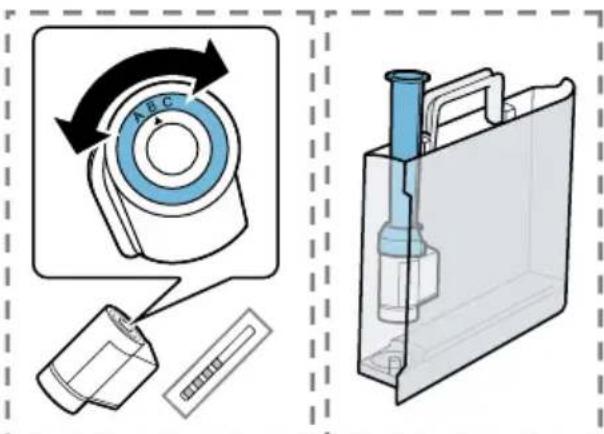
| F | Insertion aid for water filter |
| G | Cartridge Calc |
| H | Cartridge Clean |
| I | Water filter |
| J | Water hardness testing strip |
| K | Microfibre cloth |
^1 Depending on the appliance specifications
3.2 Installing and connecting the appliance
ATTENTION!
Risk of damage to the appliance. If the appliance is not started up correctly, it may be damaged.
-
Use the appliance in frost-free rooms only.
▶ If the appliance has been transported or stored below 0 °C, wait 3 hours at room temperature before starting it up.
▶ After plugging in, always wait approx. 5 seconds. -
Place the appliance on a level, water-resistant surface that is capable of bearing its weight.
-
Using the mains plug, connect the appliance to an earthed socket that has been correctly installed.
4 Familiarising yourself with your appliance
4.1 Appliance
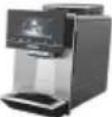
You can find an overview of the parts of your appliance here.
Notes
■ Individual details and colours may differ, depending on the appliance model.
■ The operating instructions describe two product variants:
- Appliance has a bean container.
- Appliance has two bean containers.
→ Fig. 2
| 1 | Milk container |
| 2 | Touch fields |
| 3 | Cartridge compartment |
| 4 | Cover of cartridge compartment |
| 5 | Cup heater ^1 |
| 6 | Bean container ^1 |
| 7 | Aroma lid ^1 |
| 8 | Bean container LED display ^1 |
| 9 | Rating plate |
| 10 | Touch display |
| 11 | Brewing chamber door |
| 12 | Water tank |
^1 Depending on the appliance specifications
| 13 | Milk system |
| 14 | Beverage outlet cover |
| 15 | Drip tray |
^1 Depending on the appliance specifications
4.2 Control panel
You can use the control panel to configure all functions of your appliance and to obtain information about the operating status.
→ Fig. 3
| 1 | Touch display |
| 2 | Touch fields |
Touch display
The touch display functions both as a display and a control element.
Main menu
| Profiles Select saved beverages with personal settings. | |
| Classic Select standard beverages. | |
| coffee-World | Select basic beverages which can be extended in conjunction with Home Connect. |
Beverage parameters
| Strength | |
| Quantity | |
| Share of milk | |
| Grinding level | |
| Contact time | |
| Temperature | |
| 1 | Depending on the appliance specifications |
| EQ. | Bean type selected1 |
| Select bean container1. | |
| 1 Depending on the appliance specifications | |
Tip: You can find other beverage settings in the basic settings.
Indicator
| comfort barista | Appliance is in baristaMode or comfortMode. |
| Cup warmer is switched on. | |
| aromaBoost | |
| Appliance is connected to Home Connect. | |
| Appliance is not connected to Home Connect. | |
| Appliance is not connected to the server. | |
| Descaling is necessary and will be carried out shortly. |
| Obtain a new descal-ing cartridge or clean-ing cartridge and insert without delay. | |
| Please run descaling programme urgently! Appliance will shortly be locked. | |
| "Demo mode" is activ-ated. |
Touch fields
Here you can find an overview of the symbols that are always visible.
| Switch the appliance on or off. | |
| Barista Comfort | Select baristaMode or comfortMode. |
| Dispense two cups. | |
| Save favourite beverage. | |
| Open or close the service programmes. | |
| Open or exit the settings. |
5 Accessories
Use original accessories. These have been made especially for your appliance.
| Accessories Retail Customer service | ||
| Cleaning cartridge TZ800Z1 00312356 | ||
| Descaling cartridge TZ800Z2 00312357 | ||
| Cartridge combi-pack TZ800Z3 00312358 | ||
| Water filter TZ70003 00575491 | ||
| Water filter pack of 3 TZ70033A - | ||
| Microfibre cloth - 00460770 | ||
| Care set TZ80004A | TZ80004B | 0031210500312106 |
Accessories Retail Customer service
Adapter for milk containers TZ70001 17006005
6 Before using for the first time
Prepare the appliance for use.
6.1 Preparing and cleaning the appliance
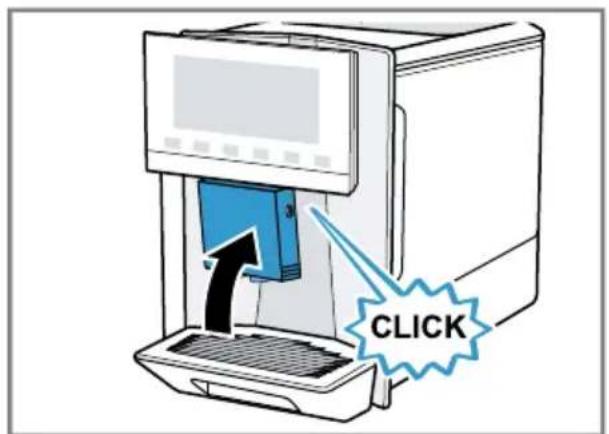
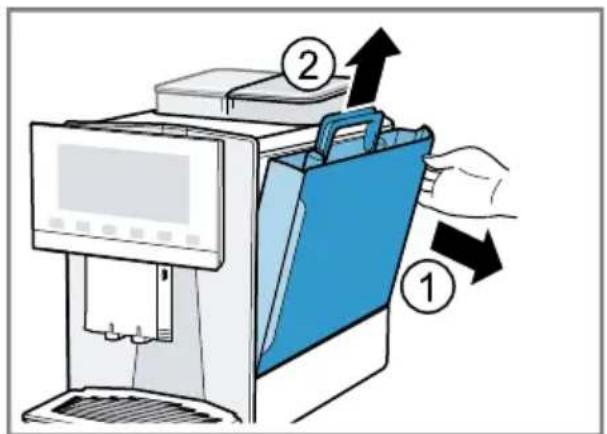
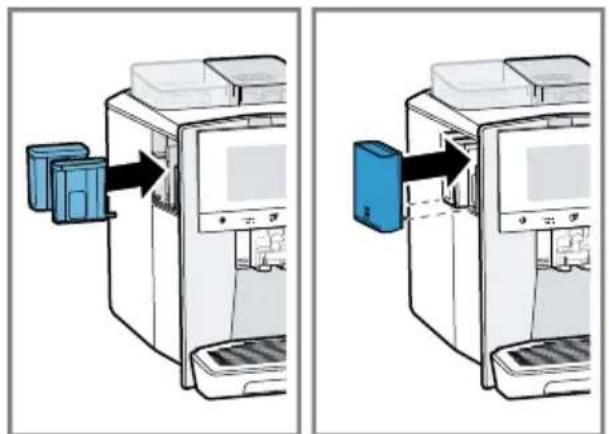
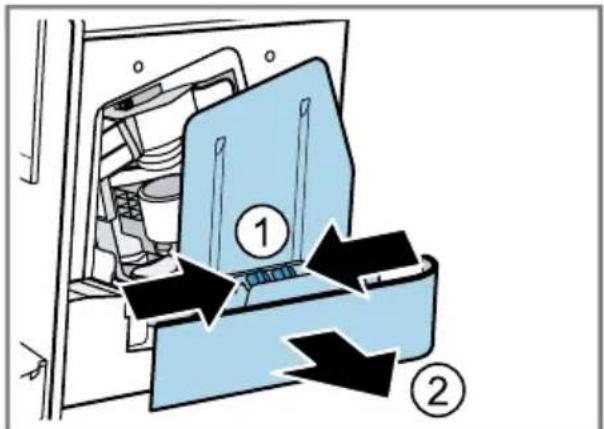
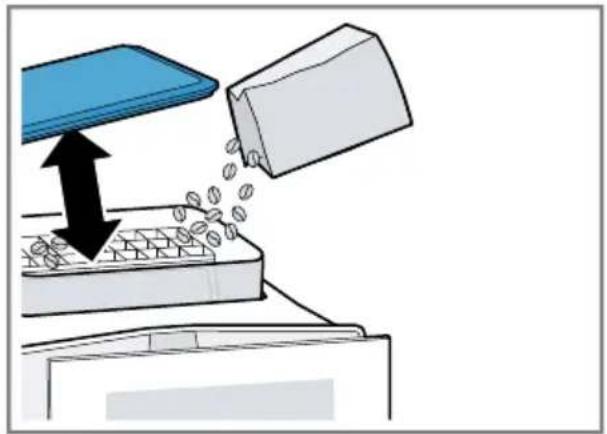
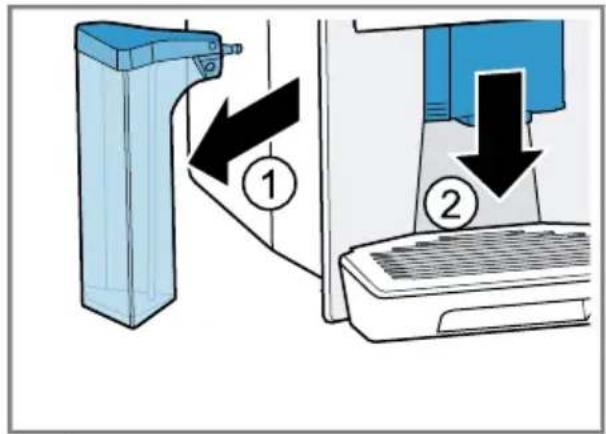
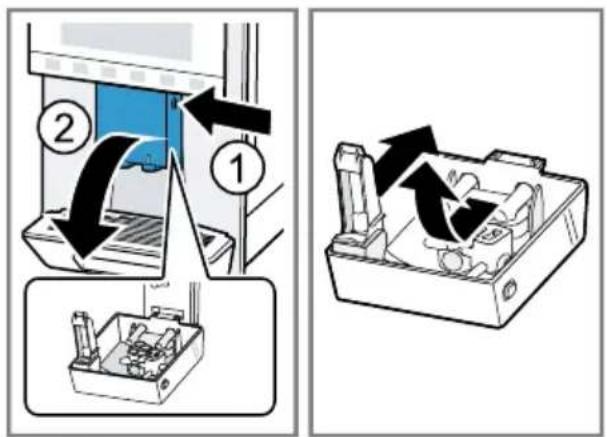
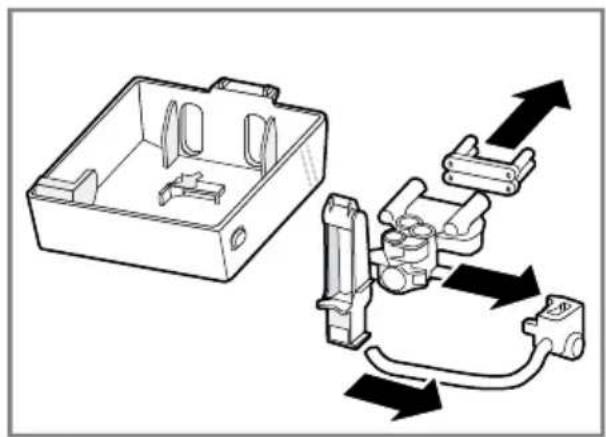
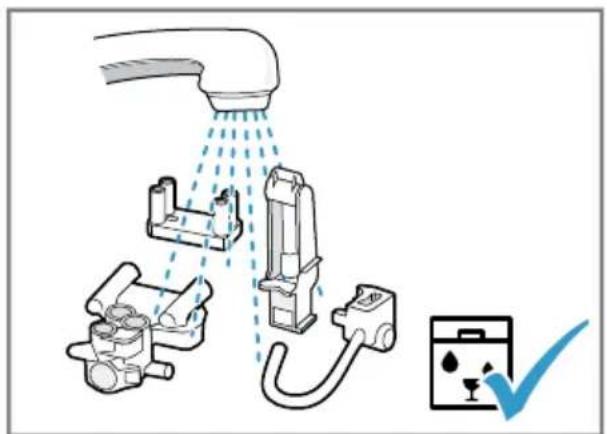
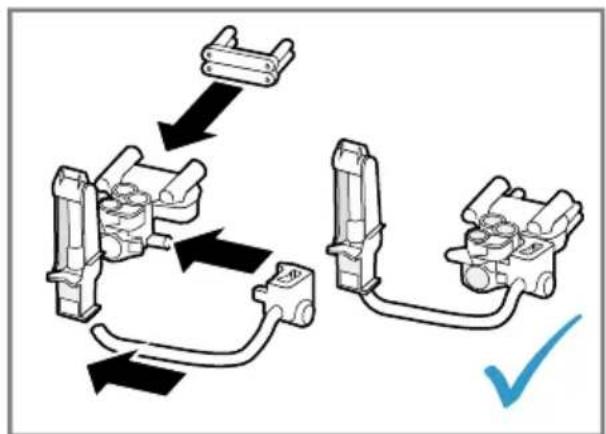
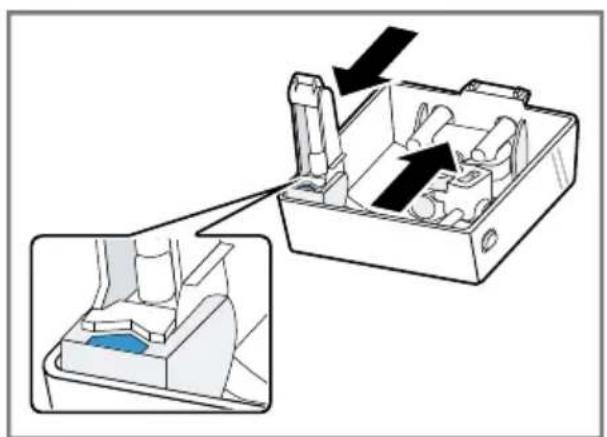
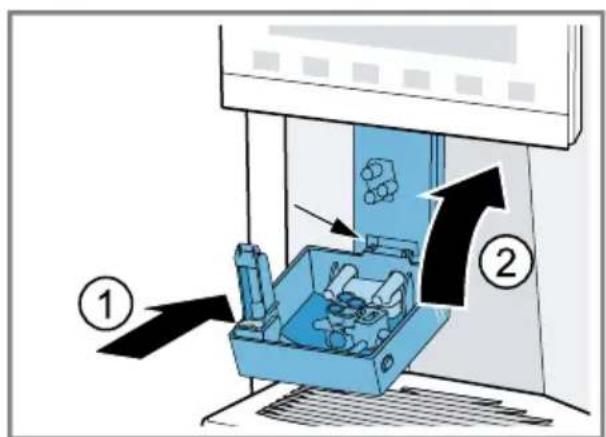
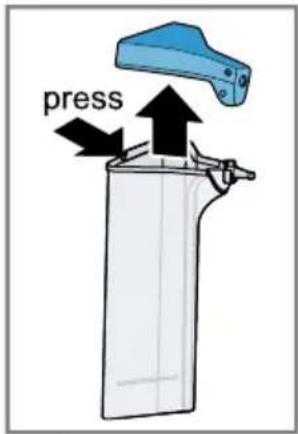
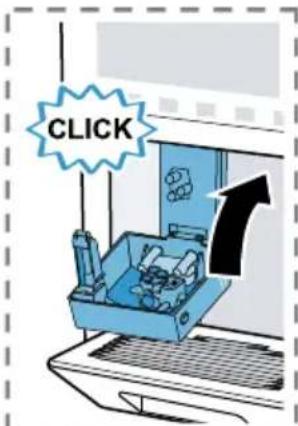
Remove the protective foils and clean the appliance and individual parts. Follow the illustrated instructions at the beginning of this manual.
ATTENTION!
Unsuitable beans can block the grinder.
- Only use pure, roasted bean mixes that are suitable for use in fully automatic coffee or espresso machines.
- Do not use glazed coffee beans.
- Do not use caramelised coffee beans.
- Do not use coffee beans that have been treated with additives containing sugar.
▶ Do not add instant coffee.
→ Fig. 4 - 33
Notes
■ Fill the water tank each day with fresh, cold, non-carbonated water.
■ If you have the product variant with 2 bean containers, you can add 2 different types of coffee. The LED of the active bean container lights up.
■ The appliance memorises the bean container last selected for each drink. You can change this default setting.
→ "Basic settings", Page 26
Tip: To keep the coffee beans at their best, store them in a sealed container in a cool place.
You can keep the coffee beans in the bean container for several days without them losing their aroma.
6.2 Checking the water hardness
It is important to set the water hardness correctly so that your appliance indicates in good time that it needs descaling. You can use the enclosed test strip to check the water hardness or ask your local water company.
- Briefly dip the test strip in fresh tap water.
- Allow the water to drain off the test strip.
- Read the water hardness off the test strip after 1 minute.
The table shows allocation of the levels to the different degrees of water hardness:
| Level | German degrees in °dH | Total hard-ness in mmol/l |
| 1 | 1-7 < 1.3 | |
| 2 | 8-14 1.3-2.5 | |
| 3 | 15-21 2.5-3.8 | |
| 4^1 | 22-30 > 3.8 | |
| ^1 Factory setting | ||
Note: Please use the test strip even if you have a water softening system installed as they generate different water hardnesses.
en Before using for the first time
Tips
■ You can change the settings at any time.
→ "Basic settings", Page 26
■ If the water hardness exceeds 21 °dH (3.8 mmol/l), you can fill the water tank with prefiltered water to reduce limescale deposits.
6.3 Water filter
You can use a water filter to minimise limescale deposits and reduce impurities in the water.
Inserting the water filter
ATTENTION!
Possible damage to the appliance due to limescale build-up.
-
Change the water filter in good time.
▶ Change the water filter after 2 months at the latest.
▶ Observe the display messages. -
Press
-
Press "INTENZA filter" and follow the instructions on the display.
Changing or removing the water filter
You can also operate your appliance without a water filter.
- Press
- Press "INTENZA filter".
- Press "Replace" or "Remove" and follow the instructions on the display.
Tips
■ You should also change your water filter for reasons of hygiene.
■ With a water filter you need to de-scale your appliance less frequently.
■ If you use a water filter, your coffee will be more flavoursome.
■ If your appliance has not been used for a long time, for example if you were on holiday, you should rinse the water filter before use by dispensing a cup of hot water.
■ The water filter can be purchased from retailers or customer service. → "Accessories", Page 16
6.4 Performing initial start-up
After connecting the appliance to the power supply, configure the settings for initial start-up. Initial start-up only appears when switching on for the first time.
- Press to switch the appliance on.
- Follow the instructions on the display.
√ The display will guide you through the programme.
Notes
■ If you want to set up Home Connect now, follow the instructions in the Home Connect app.
→ "Setting up Home Connect", Page 25
■ If "Demo mode" is selected, only the displays will work. You cannot dispense a beverage or run a programme.
6.5 General information
Please bear this information in mind so that you can get the best out of your appliance.
Notes
- Your appliance will only work if you insert both cartridges.
■ The appliance has been programmed at the factory with standard settings for optimum operation.
■ The grinder has been factory-set for optimum operation. If coffee is only dispensed drop by drop or is too thin and with too little crema, you can set the grinding level.
→ "Using electronic grinding level adjustment eGrinder", Page 21
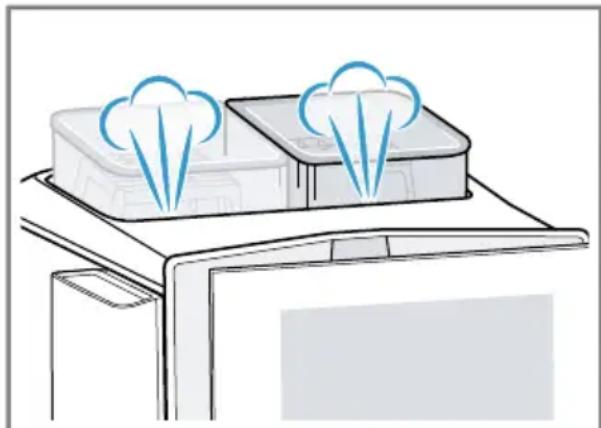
■ During operation water droplets may form at the ventilation slits and on the lid of the tablet compartment.
■ If you do not perform any actions on the appliance for a certain period, it will switch off automatically. You can change the duration in the basic settings.
■ For technical reasons steam can escape from the appliance.
natural_image
Illustration of a kitchen appliance with two cloud-shaped appliances above a counter (no text or symbols)■ The first beverage will not yet have its full aroma if:
- You are using the appliance for the first time.
- You have not used the appliance for a long time.
Do not drink the beverage.
Tip: You will get a stable, fine-pored crema after you have started up your appliance and dispensed a few cups.
7 Basic operation
7.1 Switching the appliance on or off
▶ Press ⏻
When the appliance switches on, the display shows the logo. When the appliance is switched on or off, it will rinse automatically. The appliance will not rinse if the appliance is still warm when switched on or if no beverage was dispensed before it was switched off.
7.2 Dispensing beverages
Find out how to prepare a drink of your choice.
WARNING
Risk of scalding!
Freshly prepared drinks are very hot.
- Leave drinks to cool down if necessary.
- Do not let escaping liquids or steam come into contact with your skin.
Notes
■ With a number of settings your coffee is prepared in several steps. Wait until the process is fully completed.
■ If you are dispensing a beverage with milk, always connect the milk container filled with milk or the milk adapter to a milk carton.
- You can only insert or remove the beverage outlet if the milk container or milk adapter is not connected.
■ The milk container is specially designed for this appliance. Only use the milk container for storing milk in the refrigerator and in the house.
en Basic operation
■ If the milk system has not been cleaned, small amounts of milk may escape when hot water is dispensed.
7.3 doubleShot and tripleShot
Your appliance grinds the coffee two or three times.
To ensure that only pleasant-tasting and easily digestible aromatic substances are released, coffee beans are freshly ground and brewed again by the appliance.
The longer coffee brews, the more bitter substances and undesirable aromas are released. These bitter substances and undesirable aromas affect the taste and digestibility of coffee.
Note: The functions "doubleShot" and "tripleShot" depend on the beverage, the beverage strength and the beverage size selected.
7.4 Dispensing a coffee drink with milk
An example explains how to make a latte macchiato.
WARNING
Risk of burns!
The milk system can become extremely hot.
▶ Never touch the milk system when it is hot.
- Allow the hot milk system to cool down before touching it.
Requirements
■ The appliance is switched on and the water tank and bean container have been filled.
■ The milk container or milk adapter is connected.
■ The milk container is filled with milk or the milk adapter hose is immersed in milk.
- Place a glass underneath the beverage outlet.
- Press Barista and select "baristaMode".
- Press "Classic".
- Select the beverage symbol for latte macchiato.
- Press the beverage symbol and set the beverage parameters.
- To set the strength press the segments.
- To set the per-cup quantity □ press the segments.
- To set the milk ratio press the segments.
- To set the grinding level press the segments. → "Using electronic grinding level adjustment eGrinder", Page 21
- To set the contact time ,press the segments.
- To set the brewing temperature 8, press the segments.
- To change the bean container ^1 , press [s]
-
Press "Start" and wait until the process is complete.
-
To completely stop dispensing the beverage, press "Stop".
- To only stop the current dispensing step, press "Skip".
Notes
■ If you do not change any settings for approx. 30 seconds, the appliance will exit settings mode.
■ The appliance saves the settings automatically.
■ To reset all beverage parameters, press "Reset".
Tips
- You can also pre-heat cups before dispensing using hot water or the cup heater ^1 .
■ The appliance variant with 2 bean containers allows you to switch containers ^1 while dispensing a beverage if the bean container is empty. Dispensing will then continue with the full bean container.
■ You can also use plant-based alternatives to milk, e.g. soya milk.
■ The quality of the milk froth depends on the type of milk or plant-based alternative used.
7.5 baristaMode or comfort-Mode
You can select the mode. When selecting "baristaMode", more setting options are available for the individual beverages, e.g. contact time.
7.6 Dispensing two cups at once
Depending on your beverage, you can make 2 cups at the same time.
Note: If the "doubleShot" or "tripleShot" function is active, the function for dispensing two cups at once is not possible.
- Press the symbol for the required beverage.
2. Press
√ The display shows the setting.
3. Place two cups on the left and right underneath the beverage outlet.
4. Press "Start".
The beverage is prepared in 2 steps. The beans are ground in 2 grinding operations.
√ The beverage is brewed and then runs into the cups.
5. Wait until the process is complete.
7.7 Saving favourite beverage
You can directly save a favourite beverage that you frequently dispense.
- Press the symbol for the required beverage.
- Press the beverage symbol and set the beverage parameters.
- To save, press ☆ for 3 seconds.
Tips
■ To display and start your favourite beverage at any time, briefly press ☆.
■ You can save a new favourite beverage at any time.
Note: If you save a new favourite beverage, this will replace your existing favourite.
7.8 Using electronic grinding level adjustment eGrinder
Your appliance has an adjustable grinder, which you can use to customise the grinding level of the coffee beans in "baristaMode".
-
Press Barista and select "baristaMode".
-
Press the symbol for the required beverage.
en Childproof lock
- Press and set the grinding level.
Note: The appliance variant with 2 bean containers allows you to set the grinding level for each bean container separately.
Tips
■ You can set the basic grinding level for the "comfortMode" in the beverage settings.
In "comfortMode" you can also use the "aromaBoost" function for small beverages, e.g. espresso. With "aromaBoost" the grinding level is set slightly finer than the basic grinding level selected.
■ If the coffee is only dispensed drop by drop, set a coarser grinding level.
If the coffee is too thin with too little crema, set a finer grinding level.
7.9 Using beanIdent System ^1
You can set your appliance to the type of coffee bean you are using.
- Press ⚙️
- Select "Beverage settings".
- Select "beanIdent System".
- Select the type of coffee.
8 Childproof lock
You can lock the appliance, to protect children against scalding and burns.
8.1 Activating the child-proof lock
Requirement: The appliance is switched on.
- Press and hold ⚙ for at least 3 seconds.
√ The childproof lock is activated.
8.2 Deactivating the child-proof lock
- Press and hold ⚙ for at least 3 seconds.
√ The childproof lock is deactivated.
9 Cup heater ^1
You can use the cup heater to pre-heat your cups.
9.1 Activating and deactivating the cup heater ^1
WARNING
Risk of burns!
The cup heater ^1 can become very hot.
▶ Never touch the cup heater ^1 while hot.
- Allow the hot cup heater ^1 to cool down before touching it.
Tip: Place the cups with their base on the cup heater to warm them to optimum effect ^1 .
- You can activate or deactivate the cup heater ^1 in the basic settings.
10 Personalisation
Save beverages in your personal profile.
A profile contains preferred beverages with personal settings. To exit the settings, press ←.
Tip: You can change the settings at any time.
10.1 Create first profile
- Press "Profiles".
- Press "Create profile".
- Enter a profile name, e.g. Tom.
- Press "Save".
- Select a background picture.
- Press "Next".
- Press + Add beverage".
- Select a beverage and press "Select".
- Set the beverage parameters and press "Save".
10.Enter a beverage name and press "Save".
10.2 Create other profiles
- Press "Profiles".
- Press "Profiles" at the bottom of the display.
- Press + Add profile".
- Enter a profile name.
- Press "Save".
- Select a background picture.
- Press "Next".
- Press + Add beverage".
- Select a beverage and press "Select".
- Set the beverage parameters and press "Save".
11.Enter a beverage name and press "Save".
Note: The profile used last is always shown in the profiles. If several profiles have been created, press "Profiles" at the bottom of the display to create new profiles or edit existing ones.
10.3 Edit profile
-
Press "Profiles".
-
Press "Profiles" at the bottom of the display.
- Press "Edit profiles".
- Press the required profile.
- Change the profile name and press "Save".
- Select the required background picture and press "Next".
10.4 Delete profile
- Press "Profiles".
- Press "Profiles" at the bottom of the display.
- Press "Delete profile".
- Press the required profile.
- Press "Delete".
10.5 Sort profiles
- Press ⚙
- Press "Personalisation".
- Press "Profile sequence".
- Sort the profiles.
10.6 Add beverage to a profile
- Press "Profiles".
- Press "Profiles" at the bottom of the display.
- Press the required profile.
- Press + Add beverage".
- Select a beverage and press "Select".
- Set the beverage parameters and press "Save".
- Enter a beverage name and press "Save".
10.7 Add a beverage from Classic or coffeeWorld to the profile
- Select a beverage from "Classic" or "coffeeWorld".
en Home Connect
- Set the beverage parameters.
- Press "Save in profile".
- Select the required profile.
- Enter a name for the beverage.
- Press "Save".
√ The beverage is now saved in the profile.
10.8 Create profile from Classic or coffeeWorld
- Select a beverage from "Classic" or "coffeeWorld".
- Set the beverage parameters.
- Press "Save in profile".
- Press + Add profile".
- Enter a profile name.
- Press "Save".
- Select a background picture.
- Press "Next".
- Enter a beverage name and press "Save".
√ The profile and beverage are now saved.
10.9 Edit beverage in profile
- Press "Profiles".
- Press "Profiles" at the bottom of the display.
- Press the required profile.
- Select a beverage.
- Set the beverage parameters.
- Press "Save".
- Press "Overwrite".
- Start the beverage or use ← to return to the menu.
10.10 Delete beverage in profile
-
Press "Profiles".
-
Press "Profiles" at the bottom of the display.
- Select and press the profile.
- Press the beverage.
- Press "Delete".
11 Home Connect
This appliance is network-capable. Connecting your appliance to a mobile device lets you control its functions via the Home Connect app, adjust its basic settings and monitor its operating status. The Home Connect services are not available in every country. The availability of the Home Connect function depends on the availability of Home Connect services in your country. You can find information about this at: www.home-connect.com. To be able to use Home Connect, you must first set up the connection to the WLAN home network (Wi-Fi ^1 ) and to the Home Connect app.
The Home Connect app guides you through the entire login process. Follow the instructions in the Home Connect app to configure the settings.
Tip: Please also follow the instructions in the Home Connect app.
Notes
■ Please note the safety precautions in this instruction manual and make sure that they are also observed when operating the appliance via the Home Connect app.
→ "Safety", Page 10
■ Operating the appliance on the appliance itself always takes priority. During this time it is not possible to operate the appliance using the Home Connect app.
11.1 Setting up the Home Connect app
- Install the Home Connect app on your mobile device.
- Start the Home Connect app and set up access for Home Connect. The Home Connect app guides you through the entire login process.
11.2 Setting up Home Connect
Requirements
■ The Home Connect app has been installed on your mobile device.
■ The appliance is receiving signals from the WLAN home network (Wi-Fi) at its installation location.
- Open the Home Connect app and scan the following QR code.
text_image
QR code image containing encoded data, no visible human-readable text- Follow the instructions in the Home Connect app.
11.3 Home Connect settings
Adapt Home Connect to your needs. You can find the Home Connect settings in the basic settings for your appliance. Which settings the display shows will depend on whether Home Connect has been set up and whether the appliance is connected to your home network.
Overview of the Home Connect settings
You can find an overview of the Home Connect settings and network settings here.
| Basic setting Selection Description | ||
| WiFi connection On | Off | Switch off the wireless module during long absences or to save energy. Note: In networked standby mode your appliance requires max. 2 W. |
| Remote start On | Off | Switch remote start on the appliance on and off. Note: With the Home Connect app only switch-off is possible. |
| Add mobile device | - Connect the appliance to the "Home Connect" app or additional accounts. | |
| Network information | - Display network information and appli-ance information. | |
| Delete network settings | - Note: You cannot operate your appli-ance via the "Home Connect" app without a network connection. | |
Basic setting Selection Description
Software update - Note: This setting is only available with a software update.
11.4 Remote diagnostics
Customer Service can use Remote Diagnostics to access your appliance if you contact them, have your appliance connected to the Home Connect server and if Remote Diagnostics is available in the country in which you are using the appliance.
Tip: For further information and details about the availability of Remote Diagnostics in your country, please visit the service/support section of your local website: www.home-connect.com.
11.5 Data protection
Please see the information on data protection.
The first time your appliance is registered on a home network connected to the Internet, your appliance will transmit the following types of data to the Home Connect server (initial registration):
■ Unique appliance identification (consisting of appliance codes as well as the MAC address of the Wi-Fi communication module installed).
■ Security certificate of the Wi-Fi communication module (to ensure a secure data connection).
■ The current software and hardware version of your appliance.
■ Status of any previous reset to factory settings.
This initial registration prepares the Home Connect functions for use and is only required when you want to use the Home Connect functions for the first time.
Note: Please note that the Home Connect functions can only be utilised with the Home Connect app. Information on data protection can be retrieved in the Home Connect app.
12 Basic settings
You can configure the basic settings for your appliance to meet your needs and call up additional functions.
12.1 Changing the basic settings
- Press ⚙️
√ The display shows the list of basic settings.
2. Change the required basic setting.
√ The appliance saves the basic setting automatically.
3. To exit the basic settings, press ←
12.2 Overview of the basic settings
You can find an overview of the basic settings here.
| Basic setting Selection Use | ||
| Beverage setting Bean container Set allocation of the bean containers. | ||
| eGrinder Electronic grinding level adjustmentSet the basic grinding level in "comfortMode". | ||
| beanIdent System Select the type of beans used.→ "Using beanIdent System ", Page 22 | ||
| Milk sequence Select the sequence for milk and coffee. | ||
| Latte macchiato pause Select the pause between milk and coffee. | ||
| Brewing temperature Set the brewing temperature. | ||
| Resetting beverage parameters Reset the beverage settings. | ||
| Appliance setting Cup heater1 | Switch the cup heater1on or off. | |
| Automatic switch-off Set the time after which the appliance switches off. | ||
| Start time for automatic descaling (autoCalc) Set the time the descaling programme starts. | ||
| Descaling settings Switch "Intensive use" on or off. | ||
| Display brightness Set the brightness in steps. | ||
| Sounds ■ Switch sounds on and off.■ Set the volume. | ||
| Water hardness Set the water hardness. | ||
| Time Set the current time. | ||
| Date Set the current date. | ||
| Language Set the language. | ||
| Factory settings Reset the appliance to the factory settings. | ||
| 1 Depending on the appliance specifications | ||
| Basic setting Selection Use | ||
| Personalisation Start category Set the menu display | after switching on, e.g. "Classic". | |
| Profile sequence Set the sequence of profiles. | ||
| Beverage sequence in profile | Set the sequence of beverages in the profile. | |
| Home Connect Information about Home Connect | → "Setting up Home Connect", Page 25 | |
| Appliance information Beverage counter Display the number of beverages dispensed. | ||
| Cleaning information Time until the water filter should next be changed or a service programme started. | ||
| Version information Display network information and appliance information. | ||
| Licence information Display FOSS licence text. | ||
| Mode Mode for demo purposes | Switch "Demo mode" on or off. | |
| Quick guide to user interface | Get to know the appliance settings. | |
| Customer service Find QR code and coun-try-specific Customer service. | ||
| ^1 Depending on the appliance specifications | ||
Tip: You can also use the quick-selection buttons on the display to set functions, e.g. activate child-proof lock, at the start of the setting options.
13 Automatic cleaning and descaling
Your appliance is cleaned and de-scaled automatically.
Automatic cleaning and descaling prevents soiling of the brewing unit and hoses and the deposit of limescale in the system early on. Your appliance cleans and descales itself at short intervals with a low concentration.
Number of beverages until descaling is necessary:
| Water hardness setting | Available beverages, depending on their size approx. |
| 1 100 | |
| 2 | 53 |
| 3 | 40 |
| 4 | 33 |
Notes
■ To maintain all appliance functions, leave the cleaning cartridge and the descaling cartridge in the appliance. If you take the cartridges out without being prompted to do so, liquid may escape. Remove any liquid that escapes immediately. When changing the cartridges, use the relevant service programme.
→ "Overview of service programmes", Page 31
- Your appliance will tell you when a cleaning or a descaling process is due or when you need to change the cartridges.
■ The cleaning programme is activated when the appliance is switched off.
■ You can specify the start time for the descaling process.
→ "Overview of the basic settings", Page 26
■ To ensure good milk froth quality, your appliance tells you when intensive cleaning of the milk system is necessary, depending on the usage level. The display will guide you through the programme.
13.1 Using automatic cleaning and descaling
Requirement: The cleaning cartridge and the descaling cartridge are inserted.
- Set the current time.
- Set the start time of the descaling programme.
You can also start both programmes manually.
→ "Using the service programmes", Page 31 - Insert the cartridges in the appliance.
Only ever store unused cartridges in the original sealed packaging.
14 Cleaning and servicing
To keep your appliance working efficiently for a long time, it is important to clean and maintain it carefully.
14.1 Dishwasher-safe components
Here you can find an overview of the components you can clean in the dishwasher.
ATTENTION!
Some components are sensitive to heat and may be damaged if they are cleaned in a dishwasher.
- Follow the operating instructions of the dishwasher.
- Only clean dishwasher-safe components in the dishwasher.
- Only use programmes that do not heat the components above 60 °C.
Suitable:
■ Drip tray
- Drip plate
- Coffee dregs container
■ Milk system with adapter
■ Milk container with lid
■ Red trays of the brewing unit
■ Adapter for milk container ^1
Not suitable:
■ Water tank
■ Aroma lid
■ Brewing unit
■ Cover of brewing unit
■ Beverage dispenser cover
■ Cover of cartridge compartment
^1 Depending on the appliance specifications
14.2 Cleaning agent
Only use suitable cleaning agents.
ATTENTION!
Unsuitable cleaning products may damage the surfaces of the appli-ance.
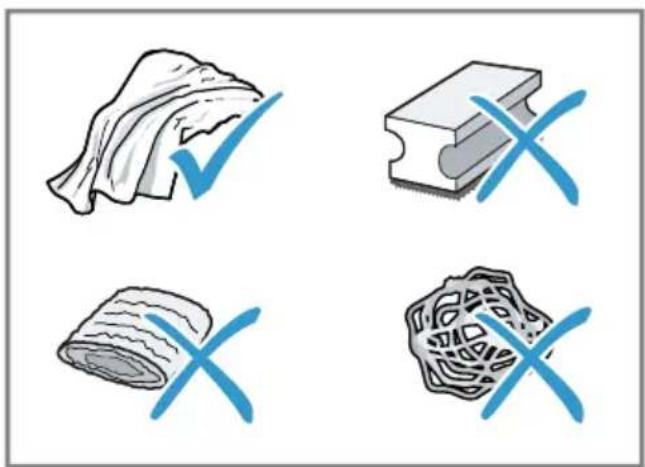
- Do not use harsh or abrasive detergents.
- Do not use cleaning agents containing alcohol or spirits.
- Do not use hard scouring pads or cleaning sponges.
Unsuitable cleaning and descaling agents may damage the appliance.
▶ Only use descaling cartridges and cleaning cartridges specially developed for the appliance.
→ "Accessories", Page 16
natural_image
Four symbolic illustrations: a rolled document, a rectangular block, a rolled cloth, and a textured surface with blue X marks (no text or symbols present)Tips
■ Wash new sponge cloths thoroughly to remove any salt adhering to them. Salt can cause rust film to develop on stainless steel surfaces.
■ Always remove any residues of limescale, coffee, milk and cleaning/descaling solutions immediately to prevent corrosion.
■ Descale the water tank regularly with a suitable standard descaler.
14.3 Cleaning the appliance
WARNING
Risk of electric shock!
An ingress of moisture can cause an electric shock.
▶ Never immerse the appliance or the power cord in water.
- Liquids must not be spilled on the appliance plug connection.
- Do not use steam- or high-pressure cleaners to clean the appliance.
WARNING
Risk of burns!
Some parts of the appliance become very hot.
▶ Never touch hot appliance parts.
▶ After use, allow hot appliance parts to cool down before touching.
- Clean the housing, the high-gloss surfaces and the control panel with the enclosed microfibre cloth.
- Clean the outlet system with a soft, damp cloth after beverages have been dispensed.
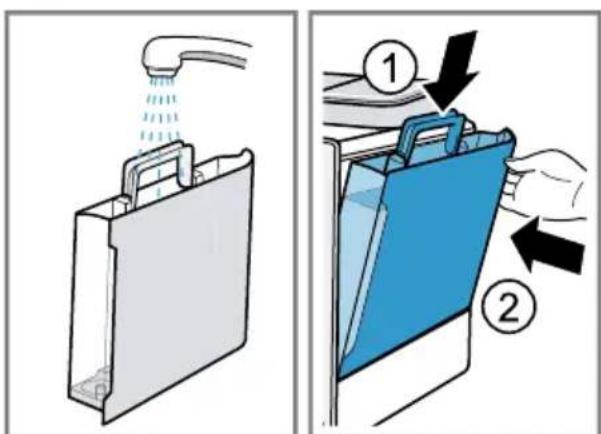
- Rinse the water tank with fresh, clean water.
- If the appliance has not been used for a long time, e.g. after a holiday, clean the entire appliance, including moving parts such as the brewing unit or water tank.
Note: The appliance will rinse itself automatically if you switch it on when it is cold or switch it off after it has dispensed coffee. The system is therefore self-cleaning.
14.4 Cleaning the drip tray and coffee dregs container
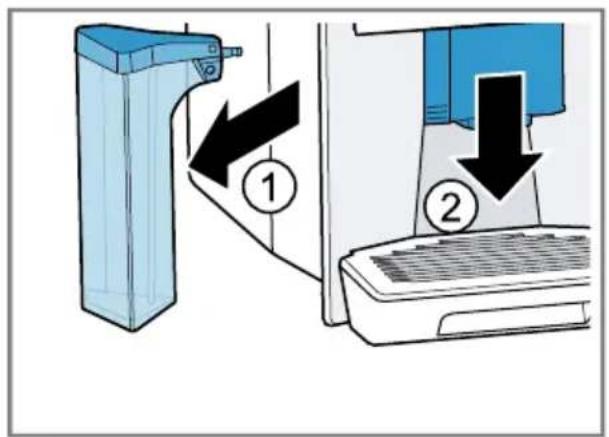
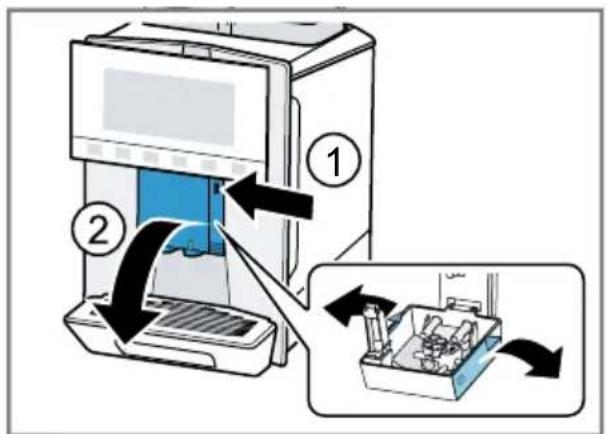
Clean and empty the drip tray and coffee dregs container every day to prevent deposits. Follow the illustrated instructions at the beginning of this manual.
$$ \rightarrow \text {Fig.} \boxed {3 4} - \boxed {3 6} $$
14.5 Cleaning the milk container
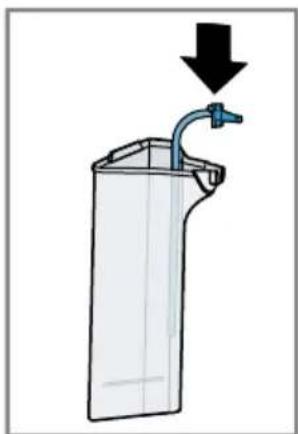
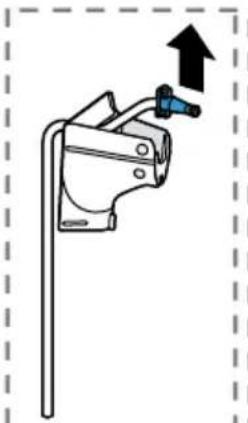
Clean the milk container regularly for hygiene reasons. You can clean the milk container in the dishwasher. Follow the illustrated instructions at the beginning of this manual.
$$ \rightarrow \text {Fig.} \boxed {2 6} - \boxed {2 9} $$
14.6 Cleaning the water tank
- The water tank should be cleaned by hand every day to prevent deposits.
$$ \rightarrow \text { Fig. } 1 4 $$
14.7 Service programmes
Use the service programmes if you insert or remove a water filter or in order to clean your appliance thoroughly. Your appliance will tell you when you need to perform a service programme, e.g. cleaning.
Notes
■ The display indicates the progress of the descaling or cleaning process.
■ If your appliance has been locked, you cannot operate it again until descaling or cleaning has been carried out.
Tip: In addition to the automatic rinsing process, regularly also remove and clean the brewing unit.
Using the service programmes
-
Press
-
Press the symbol for the required programme.
√ The display will guide you through the programme.
Overview of service programmes
You can find an overview of the service programmes here.
Note: The start image shows the remaining number of beverages that can be dispensed until running the programme and the duration.
 | INTENZA filter Insert, replace or remove the water filter. | |
 | Cleaning milk system Rinse the milk system automatically. | |
 | Automatic cleaning (autoClean) in progress ... | Remove residues of coffee from the pipes. |
 | Automatic descaling (autoCalc) | Remove residues of limescale from the pipes. |
 | Cleaning brewing unit The display shows optimum cleaning of the brewing unit step by step. | |
 | Cleaning beverage outlet | The display shows optimum cleaning of the outlet step by step. |
 | Frost protection Drain the pipes to protect the appliance during transport or storage. | |
 | Replacing cleaning cartridge | The display will show the steps involved in replacing the cleaning cartridge. |
 | Replacing descaling cartridge | The display will show the steps involved in replacing the descaling cartridge. |
| Special rinsing If a service programme is interrupted, e.g. due to a power failure, it will rinse itself automatically. The appliance is then ready for use again. | ||
Tip: If you use a water filter, this will prolong the time until you have to run a service programme.
15 Troubleshooting
You can rectify minor faults on your appliance yourself. Read the troubleshooting information before contacting after-sales service. This will avoid unnecessary costs.

WARNING
Risk of electric shock!
Improper repairs are dangerous.
- Repairs to the appliance should only be carried out by trained specialist staff.
▶ Only use genuine spare parts when repairing the appliance. - If the power cord of this appliance is damaged, it must be replaced by the manufacturer, the manufacturer's Customer Service or a similarly qualified person in order to prevent any risk.
Fault Cause and troubleshooting
| Appliance no longer responds. | Appliance has a fault.1.Pull out the mains plug and wait 60 seconds.2.Re-insert the mains plug. |
| Appliance is no longer working. | Cartridges are not inserted or are spent.► Insert the cartridges. |
| Home Connect is not working properly. | Different causes are possible.► Go to www.home-connect.com. |
| Appliance only dispenses water, not coffee. | Empty bean container is not detected by the appliance.► Pour in coffee beans. |
| Coffee shaft on brewing unit is blocked.► Clean the brewing unit. | |
| Coffee beans are too oily and do not fall into the grinder.► Gently tap the bean container.► Change the coffee variety.► Do not use oily beans.► Clean the empty bean container with a damp cloth. | |
| Brewing unit is not inserted properly.1.Check whether the brewing unit is inserted correctly and is securely locked.2.Push the red lever up to the left.3.Insert the brewing unit cover. | |
| Appliance is not dispensing milk froth. | Milk system is soiled.► Clean the milk system in the dishwasher. |
| Fault Cause and troubleshooting | |
| Appliance is not dispensing milk froth. | Milk tube not immersed in milk.► Use more milk.► Check whether the milk tube is immersed in the milk. |
| No milk intake by the milk system. | The milk system is assembled incorrectly.► Assemble the milk system correctly. |
| Order for connecting the milk container and milk system is wrong.► First insert the milk system into the outlet and then the milk container. | |
| Milk tube not immersed in milk.► Use more milk.► Check whether the milk tube is immersed in the milk. | |
| Milk froth is too cold. Milk is too cold.► Use lukewarm milk. | |
| Appliance is not dispensing hot water. | Milk system is soiled.► Clean the milk system in the dishwasher. |
| Milk system cannot be assembled or disassembled. | Order of assembly is wrong.► First connect the milk system and then the milk container. When disassembling, you must first remove the milk container and then the milk system. |
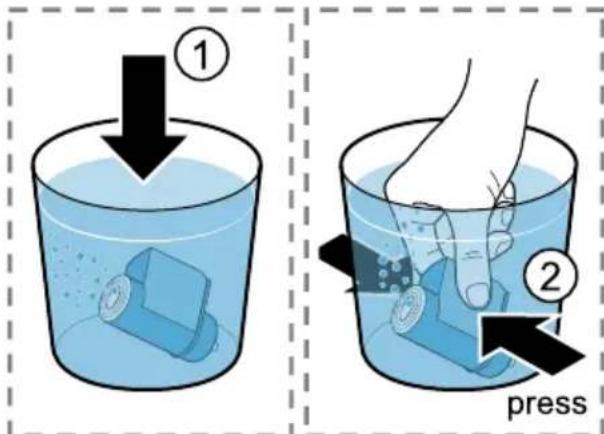
| Appliance is not dispensing drinks. | Air is in the water filter.1. Immerse the water filter in water with the opening facing upwards until no more air bubbles escape.2. Reinsert the filter.► Firmly press the water filter straight down into the tank connection. |
| Residues of limescale remover are blocking the water tank.1. Remove the water tank.2. Clean the water tank thoroughly. | |
| There is dripping water on the inner floor of the appliance. | Drip tray was removed too soon.► Wait a few seconds after the last drink was dispensed before removing the drip tray. |
| Brewing unit cannot be removed. | Locking device cannot be released, brewing unit is jammed.► Switch the appliance off and back on after 3 minutes. |
| Grinder won't start. Appliance is too hot.1. Disconnect the appliance from the mains.2. Wait 1 hour so the appliance can cool down. | |
| Grinder is not grinding any coffee beans despite full bean container. | Coffee beans are too oily and do not fall into the grinder.► Gently tap the bean container.► Change the coffee variety.► Do not use oily beans.► Clean the empty bean container with a damp cloth. |
| Coffee or milk froth quality varies widely. | Build-up of limescale in the appliance.► Descale the appliance. |
| Milk froth quality varies widely. | Milk froth quality depends on the type of milk or plant-based alternative used.► Optimise the result through the selection of the milk or vegetable-based drink type. |
| Coffee is not dispensed or has slowed to a trickle.Set quantity is not reached. | Grinding level is set too fine.► Set a coarser grinding level. |
| Heavy build-up of limescale in the appliance.► Descale the appliance. | |
| Air is in the water filter.1. Immerse the water filter in water with the opening facing upwards until no more air bubbles escape.2. Reinsert the filter. | |
| Appliance is soiled.► Clean the brewing unit.► Descale and clean the appliance. | |
| Coffee has no crema. Type of coffee is not optimal.► Use a coffee variety with a higher proportion of Robusta beans.► Use beans with a darker roast. | |
| Coffee is too acidic. Grinding level is set too coarse.► Adjust the grinder to a finer setting. | |
| Coffee is too acidic. ▶ Use beans with a darker roast. | |
| Coffee is too bitter. Grinding level is set too fine. ▶ Set a coarser grinding level. | |
| Coffee tastes burnt. Grinding level is set too fine. ▶ Set a coarser grinding level. | |
| Coffee grounds are not compact and are too wet. | The grinding level is not set optimally. ▶ Adjust the grinder to a coarser or finer setting. |
| Coffee beans are too oily. ▶ Use a different type of bean. | |
| Display shows Please insert brewing unit. | Cover is wrongly inserted.1. Check whether the brewing unit is inserted correctly and is securely locked.2. Push the red lever up to the left.3. Insert the brewing unit cover. |
| Display shows "Please fill water tank." despite the fact that the water tank is full. | Water tank is wrongly inserted. ▶ Insert the water tank correctly. |
| Carbonated water is in the water tank. ▶ Fill the water tank with fresh tap water. | |
| Float is stuck in the water tank.1. Remove the water tank.2. Clean the water tank thoroughly. | |
| New water filter was not rinsed as per instructions.1. Rinse the water filter according to the instructions.2. Place the water filter into operation. | |
| Air is in the water filter.1. Immerse the water filter in water with the opening facing upwards until no more air bubbles escape.2. Reinsert the filter. | |
| Water filter is old. ▶ Insert a new water filter. | |
| Limescale deposits in the water tank are blocking the system. | |
| Display shows "Please fill water tank." despite the fact that the water tank is full. | 1. Clean the water tank thoroughly.2. Start the descaling programme. |
| Display shows "Please clean the brewing unit and the water tank if necessary.". | Brewing unit is soiled.▸ Clean the brewing unit. |
| Mechanism of brewing unit is stiff.▸ Clean the brewing unit. | |
| Display shows "Incorrect voltage". | There are problems with the power supply.▸ Only operate the appliance at 220 - 240 V. |
| Display shows "Re-start appliance". | Appliance has a fault.1. Pull out the mains plug and wait 60 seconds.2. Re-insert the mains plug. |
| Display very frequently shows "Please run calc'nClean pro-gramme!". | Decalcified water still contains small amounts of lime.1. Insert a new water filter.2. Set the corresponding water hardness. |
| Service programme has not been carried out in its entirety.▸ Start the "Special rinsing" service programme.→ "Service programmes", Page 31 | |
16 Transportation, storage and disposal
16.1 Activating frost protection
Protect your appliance from frost during transport and storage.
ATTENTION!
Residues of liquid in the appliance may damage it during transport or storage.
▶ Empty the pipe system before transport or storage.
- Run the "Frost protection" programme.
- Disconnect the appliance from the power supply.
16.2 Disposing of old appli- ance
Valuable raw materials can be re-used by recycling.
- Unplug the appliance from the mains.
- Cut through the power cord.
- Dispose of the appliance in an environmentally friendly manner. Information about current disposal methods are available from your specialist dealer or local authority.
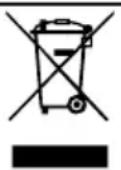
This appliance is labelled in accordance with European Directive 2012/19/EU concerning used electrical and electronic appliances (waste electrical and electronic equipment - WEEE). The guideline determines the framework for the return and recycling
of used appliances as applicable throughout the EU.
17 Customer Service
Function-relevant genuine spare parts according to the corresponding Eco-design Order can be obtained from Customer Service for a period of at least 7 years from the date on which your appliance was placed on the market within the European Economic Area.
Note: Under the terms of the manufacturer's warranty the use of Customer Service is free of charge.
Detailed information on the warranty period and terms of warranty in your country is available from our after-sales service, your retailer or on our website.
If you contact Customer Service, you will require the product number (E-Nr.), the production number (FD) and the consecutive numbering (Z-Nr.) of your appliance.
The contact details for Customer Service can be found in the enclosed Customer Service directory or on our website.
17.1 Product number (E-Nr.), production number (FD) and consecutive numbering (Z-Nr.)
You can find the product number (E-Nr.), the production number (FD) and the consecutive numbering (Z-Nr.) on the appliance's rating plate.
Make a note of your appliance's details and the Customer Service telephone number to find them again quickly.
18 Technical specifications
| Voltage 220- | 240 V ~ |
| Frequency 50 Hz | |
| Connection rating 1500 W | |
| Maximum static pump pressure | 20 bar |
| Maximum capacity of water tank (without filter) | 2,3 l |
| Maximum capacity of bean container | 410 g |
| Maximum capacity of right/left bean con-tainer | 270 g / 280 g |
| Length of the power cable | 100 cm |
| Appliance height 40 cm | |
| Appliance width 32 cm | |
| Appliance depth 47 cm | |
| Weight, empty 12 kg | |
| Type of grinder Ceramic |
18.1 Information regarding Free and Open Source Software
This product includes software components that are licensed by the copyright holders as free or open source software.
The applicable licence information is stored on your home appliance. You can also access the applicable licence information via your
Home Connect app: "Profile -> Legal information -> Licence Information".¹
You can download the licence in-
formation on the brand product website. (Please search on the product website for your appliance model and additional documents). Alternatively, you can request the relevant information from oss-request@bshg.com or BSH Hausgeräte GmbH, Carl-Wery-Str. 34, 81739 Munich, Germany.
The source code will be made available to you on request.
Please send your request to oss-request@bshg.com or BSH Hausgeräte GmbH, Carl-Wery-Str.34, 81739 Munich, Germany.
Subject: „OSSREQUEST“
The cost of performing your request will be charged to you. This offer is valid for three years from the date of purchase or at least as long as we offer support and spare parts for the relevant appliance.
19 Declaration of Con- formity
BSH Hausgeräte GmbH hereby declares that the appliance with Home Connect functionality conforms to the essential requirements and other relevant provisions of Directive 2014/53/EU.
A detailed RED Declaration of Conformity can be found online at siemens-home.bsh-group.com among the additional documents on the product page for your appliance.

en Declaration of Conformity
Hereby, BSH Hausgeräte GmbH declares that the appliance with Home Connect functionality is in compliance with relevant statutory requirements. ^1
A detailed Declaration of Conformity can be found online at siemens-home.bsh-group.com/uk/ among the additional documents on the product page for your appliance. ^1

2.4 GHz band (2400–2483.5 MHz):
Max. 100 mW
5 GHz band (5150–5350 MHz +
5470-5725 MHz): max. 200 mW

BE BG CZ DK DE EE IE EL ES
FR HR IT CY LI LV LT LU HU
MT NL AT PL PT RO SI SK FI
SE NO CH TR IS UK (NI)
5 GHz WLAN (Wi-Fi): For indoor use only.
AL
BA
MD
ME
MK
RS
UK
UA
5 GHz WLAN (Wi-Fi): For indoor use only.
text_image
QR code image containing encoded data, no visible human-readable textTable des matières
1 Sécurité...... 43
→ "Configurer Home Connect", Page 59
natural_image
Illustration of a kitchen appliance with two cloud-shaped appliances above it (no text or symbols)11.2 Configurer Home Connect
Conditions
text_image
QR code image containing encoded data, no visible human-readable textnatural_image
Four symbolic icons: a rolled-up cloth, a rectangular block with X marks, a rolled-up dough, and a textured surface (no text or symbols)Conseils
usagés (waste electrical and electronic equipment - WEEE).
text_image
QR code image containing encoded data, no visible human-readable textInhoudsopgave
1 Veiligheid.... 79
⚠ WAARSCHUWING – Kans op verstikking!
⚠ WAARSCHUWING – Kans op brand!
⚠ WAARSCHUWING – Kans op letsel!
natural_image
Illustration of a kitchen appliance with two plates emitting steam clouds (no text or symbols)7 De Bediening in essen- tie
7.5 baristaMode of comfort-Mode
11.1 Home Connect app in-stellen
text_image
QR code image containing encoded data, no visible human-readable textnatural_image
Four symbolic illustrations: a rolled-up document, a rectangular block with X marks, a rolled-up dough, and a textured bread (no text or symbols present)Tips
text_image
QR code image containing encoded data, no visible human-readable textSpis treści
natural_image
Illustration of a kitchen appliance with two plates and cloud-shaped ventilation systems (no text or symbols)7.3 doubleShot i tripleShot
text_image
QR code image containing encoded data, no visible human-readable textnatural_image
Four symbolic illustrations: a rolled-up document, a rectangular block with X marks, a rolled-up dough, and a textured dough-like object (no text or symbols present)Wskazówki
Pasmo 5 GHz (5150–5350 MHz + 5470–5725 MHz): maks. 200 mW

BE BG CZ DK DE EE IE Is ES
FR HR IT CY LI LV LT LU HU
MT NL AT PL PT RO SI SK FI
SE NO CH TR IS UK (NI)
text_image
QR code image containing encoded data, no visible human-readable textObsah
natural_image
Illustration of a kitchen appliance with two plates and cloud-shaped heat sinks (no text or symbols)7.3 doubleShot a tripleShot
text_image
QR code image containing encoded data, no visible human-readable textnatural_image
Four symbolic illustrations: a rolled-up document, a rectangular block with X marks, a rolled-up dough, and a textured dough-like object (no text or symbols present)Tipy
text_image
QR code image containing encoded data, no visible human-readable textСодержание
7.3 doubleShot и tripleShot.... 193
natural_image
Illustration of a kitchen appliance with two plates emitting steam or smoke (no text or symbols)7.3 doubleShot и tripleShot
text_image
QR code image containing encoded data, no visible human-readable textnatural_image
Four symbolic illustrations: a rolled-up document, a rectangular block with X marks, a rolled-up dough, and a textured food item (no text or symbols present)Рекомендации
pov (waste electrical and electronic equipment - WEEE).
text_image
QR code image containing encoded data, no visible human-readable texttext_image
QR code image containing encoded data, no visible human-readable textBmict
1 Безпека 217
natural_image
Illustration of a kitchen appliance with two plates emitting steam or smoke (no text or symbols)7.3 doubleShot i tripleShot
7.5 baristaMode a60 comfortMode
text_image
QR code image containing encoded data, no visible human-readable textnatural_image
Four symbolic icons: a rolled-up document, a block with X marks, a rolled-up cloth, and a textured object (no text or symbols)Поради
text_image
QR code image containing encoded data, no visible human-readable textInhaltsverzeichnis
1 Sicherheit 253
natural_image
Illustration of a kitchen appliance with two plates and cloud-shaped heat sinks (no text or symbols)text_image
QR code image containing encoded data, no visible human-readable textnatural_image
Four symbolic illustrations: a rolled-up document, a rectangular block with X marks, a rolled-up dough, and a textured bread (no text or symbols present)Tipps
Valid within Great Britain:
Imported to Great Britain by
BSH Home Appliances Ltd.
Grand Union House
Old Wolverton Road
Wolverton, Milton Keynes
MK12 5PT
United Kingdom
BSH Hausgeräte GmbH
Carl-Wery-Straße 34
81739 München, GERMANY
siemens-home.bsh-group.com

8001301254 (040103)
en, fr, nl, pl, cs, ru, uk, de