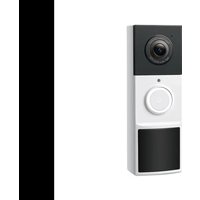
Tapo D210 - Surveillance Camera TP-LINK - Free user manual and instructions
Find the device manual for free Tapo D210 TP-LINK in PDF.


| Product Type | Surveillance camera (video doorbell) |
| Brand | TP-Link |
| Model | Tapo D210 |
| Dimensions | Approximately 5.5 x 2.5 x 1.2 cm |
| Weight | Approximately 150 g (with battery) |
| Power Supply | Built-in rechargeable battery via USB cable (5V/1A) |
| Video Resolution | 2K QHD (2560 x 1440) |
| Night Vision | Yes, infrared up to 10 meters |
| Audio | Two-way with built-in microphone and speaker |
| Motion Detection | Yes, with push alerts on the Tapo app |
| Local Storage | microSD card (up to 256 GB, not included) |
| Connectivity | Wi-Fi 2.4 GHz (IEEE 802.11b/g/n) |
| Protection Rating | IP66 (weather-resistant) |
| Mobile App | Tapo (iOS and Android) |
| Care and Cleaning | Clean with a soft, dry cloth. Do not use abrasive products. |
| Safety | Do not immerse in water. Avoid extreme temperatures. Use the recommended adapter. |
| Spare Parts and Repairability | USB cable, mounting bracket, screws. Repair by a professional only. |
| General Information | 2-year warranty. Compliant with CE directives. For more information, visit tp-link.com. |
Frequently Asked Questions - Tapo D210 TP-LINK
User questions about Tapo D210 TP-LINK
0 question about this device. Answer the ones you know or ask your own.
Ask a new question about this device
Download the instructions for your Surveillance Camera in PDF format for free! Find your manual Tapo D210 - TP-LINK and take your electronic device back in hand. On this page are published all the documents necessary for the use of your device. Tapo D210 by TP-LINK.
USER MANUAL Tapo D210 TP-LINK
for technical support, user guides, warranty, and more information
7106511521 REV1.0.2 © 2024 TP-Link
tp-link | tapo
Quick Start Guide
Tapo Video Doorbell Camera

Setup Video
Scan QR code or visit
https://www.tp-link.com/support/setup-video/
cloud-cameras

*Images may differ from your actual products.
CONTENTS
1 / Mounting
2 / English
4 / Português Brasil
6 / Български
8 / Hrvatski
10 / Čeština
12 / Français
14 / Magyar
16 / Bahasa Indonesia
18 / 日本語
20 / Казакша
22 / 한국어
24 / Español
(Latinoamérica)
26 / Latviešu
28 / Lietuvių
30 / Polski
32 / Română
34 / Русский язык
36 / Srpski jezik/
Српски језик
38 / Slovenčina
40 / Slovenščina
42 / 繁體中文
44 / Türkçe
46 / Українська мова
48 / ไทย
50 / Tiếng Việt
52 / Eesti
55 / العربية
Mount the Doorbell After Setup
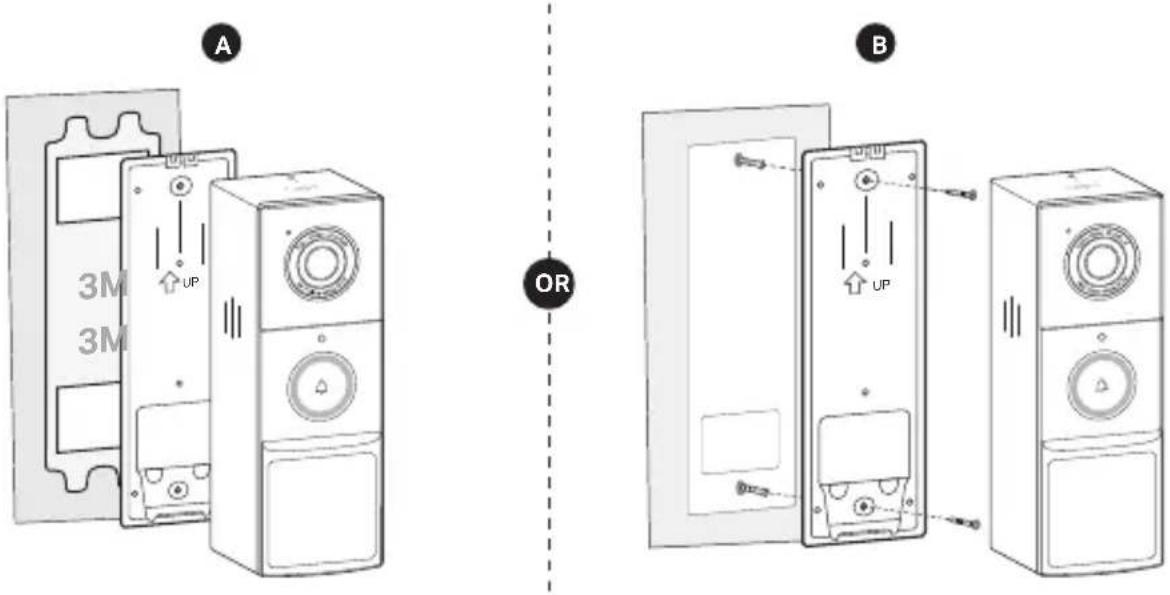
Images may differ from the actual products.
English
Note: Images may differ from the actual products.
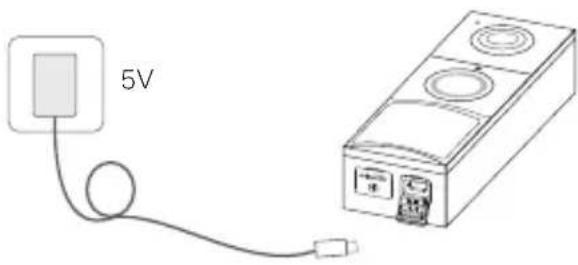
1 Charge the Battery
Plug in the USB cable to charge your doorbell. When you plug in the charger, the LED should blink amber quickly for 3 seconds.
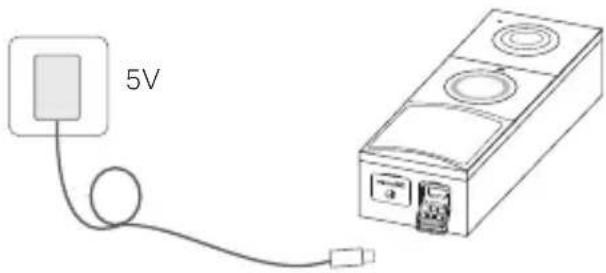
*Check battery status in the Tapo app after setup.
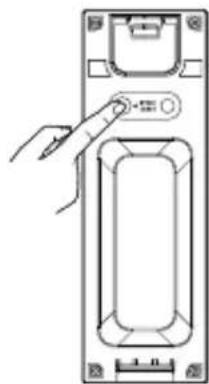
2 Power Up
Press the SYNC/RESET button on the back of the doorbell for 3 seconds to power on the doorbell.
natural_image
Diagram of a hand pressing a button on a device panel (no text or symbols visible)3 Set Up
- Get the Tapo app from the App Store or Google Play.

- Follow the instructions on the Tapo app to set up your doorbell and pair with the chime.
Note: If you didn't pair the chime during the doorbell setup, you can pair it later. For details, visit https://www.tp-link.com/support/faq/3818/.
4 Local Recording
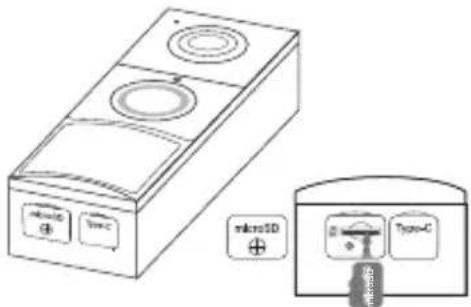
The microSD card slot is at the bottom of the doorbell. Loosen the screws and insert a microSD card. Initialize it on the Tapo app for local recording.
*microSD card not included
Português Brasil
natural_image
Line drawing of a hand pressing a button on a device panel (no text or symbols)Português Brasil
Configuração
Hrvatski
Napomena: slike se mogu razlikovati od stvarnih proizvoda.
1 Punjenje baterije
Priključite USB kabel da biste napunili zvono na vratima. Kada uključite punjač, LED lampica trebala bi brzo treperiti žuto 3 sekunde.
natural_image
Line drawing of a hand pressing a button on a device panel (no text or symbols)3 Postavljanje
Čeština
natural_image
Line drawing of a hand pressing a button on a rectangular device (no text or symbols)3 Nastavení
Français
natural_image
Line drawing of a hand inserting a button into a rectangular device (no text or symbols)3 Installation Enregistrement local
natural_image
Line drawing of a hand pressing a button on a rectangular device (no text or symbols)3 Beállítás
日本語
3 セットアップ
https://www.tp-link.com/support/faq/3818/
4 ローカル録画
Қазақша
natural_image
Line drawing of a hand pressing a button on a device panel (no text or symbols)3 설정하기
natural_image
Line drawing of a hand pressing a button on a device panel (no text or symbols)3 Configuración
natural_image
Line drawing of a hand pressing a button on a device panel (no text or symbols)3 lestatišana
- Lejupielādējiet Tapo lietotni no App store vai Google play.

https://www.tp-link.com/support/faq/3818/.
Lietuvių
natural_image
Line drawing of a door handle with a hand adjusting the lock (no text or symbols)3 Skonfiguruj
https://www.tp-link.com/support/faq/3818/.
natural_image
Line drawing of a door handle with a hand adjusting the lock (no text or symbols)3 Configurare
Русский язык
natural_image
Line drawing of a hand pressing a button on a rectangular device (no text or symbols)natural_image
Diagram of a hand pressing a button on a device panel (no text or symbols visible)3 Podešavanje
- Preuzmite Tapo aplikaciju, iz App prodavnice ili Google Play.
- Pratite uputstva u Tapo aplikaciji za podešavanje zvona i uparivanje sa prijemnikom.
https://www.tp-link.com/support/faq/3818/.
4 Lokalno snimanje
natural_image
Line drawing of a hand pressing a button on a vertical panel (no text or symbols)3 Konfigurácia
natural_image
Line drawing of a hand pressing a button on a device panel (no text or symbols)3 Nastavitev
- Iz Google Play ali App Storea prenesite aplikacijo Tapo.
natural_image
Line drawing of a hand pressing a button on a device panel (no text or symbols)3 設定門鈴
Türkçe
natural_image
Diagram of a hand pressing a button on a device panel (no text or symbols visible)3 Kurulum
natural_image
Line drawing of a hand pressing a button on a device panel (no text or symbols)3 Налаштувати
natural_image
Diagram of a hand pressing a button on a rectangular device panel (no text or symbols visible)3 การติดตั้ง
ไทย
Tiếng Việt
natural_image
Diagram of a hand pressing a button on a device panel (no text or symbols visible)3 Cài đặt
Eesti
natural_image
Line drawing of a hand pressing a button on a device panel (no text or symbols)3 Seadistamine
https://www.tp-link.com/support/faq/3818/.
4 Kohalik salvestamine
الإعداد
3
natural_image
Line drawing of a hand pressing a button on a device panel (no text or symbols)English: Safety Information
- Do not attempt to disassemble, repair, or modify the device. If you need service, please contact us.
- Do not use damaged charger or USB cable to charge the device.
- Do not use any other chargers than those recommended.
- Do not use the device where wireless devices are not allowed.
- Keep the device away from fire or hot environments. DO NOT immerse in water or any other liquid.
- Adapter shall be easily accessible.
CAUTION!
Avoid replacement of a battery with an incorrect type that can defeat a safeguard. Avoid disposal of a battery into fire or a hot oven, or mechanically crushing or cutting of a battery, that can result in an explosion. Do not leave a battery in an extremely high temperature surrounding environment that can result in an explosion or the leakage of flammable liquid or gas; Do not leave a battery subjected to extremely low air pressure that may result in an explosion or the leakage of flammable liquid or gas.
Please read and follow the above safety information when operating the device. We cannot guarantee that no accidents or damage will occur due to improper use of the device. Please use this product with care and operate at your own risk.
| 單元Unit | 限用物質及其化學符號Restricted substances and its chemical symbols | |||||
| 鉛Lead(Pb) | 汞Mercury(Hg) | 鎘Cadmium(Cd) | 六價鉻Hexavalent chromium ( Cr^16 ) | 多溴聯苯Polybrominated biphenyls (PBB) | 多溴二苯醚Polybrominated diphenyl ethers (PBDE) | |
| PCB ○○○ | ○○○ | |||||
| 外殼 ○○○ | ○○○○ | |||||
| 天線 - ○○ | ○○○○○ | |||||
| 塑膠組件 ○○ | ○○○○ | |||||
| 備考 1. “超出 0.1 wt %” 及 “超出 0.01 wt %” 係指限用物質之百分比含量超出百分比含量基準值Note 1: “Exceeding 0.1 wt %” and “exceeding 0.01 wt %” indicate that the percentage content of the restricted substance exceeds the reference percentage value of presence condition.備考 2. “○” 係指該項限用物質之百分比含量未超出百分比含量基準值。Note 2: “○” indicates that the percentage content of the restricted substance does not exceed the percentage of reference value of presence.備考 3. “-” 係指該項限用物質為排除項目。Note 3: The “-” indicates that the restricted substance corresponds to the exemption. | ||||||
TP-Link hereby declares that the device is in compliance with the essential requirements and other relevant provisions of directives 2014/53/EU, 2011/65/EU and (EU)2015/863.
The original EU Declaration of Conformity may be found at https://www.tapo.com/support/ce/.
TP-Link hereby declares that the device is in compliance with the essential requirements and other relevant provisions of the Radio Equipment Regulations 2017.
The original UK Declaration of Conformity may be found at https://www.tapo.com/support/ukca/.
Български:
- Quick Start Guide
- cloud-cameras
- CONTENTS
- English
- Charge the Battery
- Power Up
- Set Up
- Local Recording
- Português Brasil
- Configuração
- Hrvatski
- Punjenje baterije
- Postavljanje
- Čeština
- Nastavení
- Français
- Installation Enregistrement local
- Beállítás
- 日本語
- セットアップ
- ローカル録画
- Қазақша
- 설정하기
- Configuración
- lestatišana
- Lietuvių
- Skonfiguruj
- Configurare
- Русский язык
- Podešavanje
- Lokalno snimanje
- Konfigurácia
- Nastavitev
- 設定門鈴
- Türkçe
- Kurulum
- Налаштувати
- การติดตั้ง
- Tiếng Việt
- Cài đặt
- Eesti
- Seadistamine
- Kohalik salvestamine
- English: Safety Information
- CAUTION!
- Български:
Brand : TP-LINK
Model : Tapo D210
Category : Surveillance Camera