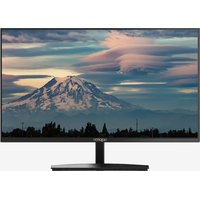
APPM24BV3 - Monitor Approx - Free user manual and instructions
Find the device manual for free APPM24BV3 Approx in PDF.


| Product type | 23.8-inch monitor |
| Screen size | 23.8 inches (diagonal) |
| Resolution | 1920 x 1080 (Full HD) |
| Panel type | Matte VA |
| Refresh rate | 100 Hz |
| Response time | 4 ms |
| Brightness | 230 cd/m² |
| Contrast ratio | 4000:1 |
| Viewing angle | 178° horizontal / 178° vertical |
| Backlight | LED |
| Aspect ratio | 16:9 |
| Video inputs | 1 x HDMI 1.4, 1 x VGA |
| Audio input | 3.5 mm jack |
| Built-in speakers | 2 x 3 W |
| VESA mount compatibility | 75 x 75 mm |
| Power supply | AC/DC adapter 12 V / 3 A (input 100-240 V) |
| Maximum power consumption | 36 W |
| Power consumption in standby | 0.134 W |
| Package contents | Monitor, stand, screws, adapter, HDMI cable, user guide |
| Special features | Blue light filter, reduced flicker |
| Safety | Do not open, use the provided adapter, avoid liquids |
| Recycling | Compliant with WEEE directive 2012/19/EU |
Frequently Asked Questions - APPM24BV3 Approx
User questions about APPM24BV3 Approx
0 question about this device. Answer the ones you know or ask your own.
Ask a new question about this device
Download the instructions for your Monitor in PDF format for free! Find your manual APPM24BV3 - Approx and take your electronic device back in hand. On this page are published all the documents necessary for the use of your device. APPM24BV3 by Approx.
USER MANUAL APPM24BV3 Approx
Read the instructions
before using.
DE
PRODUKTBESCHREIBUNG
Panel: 23,8" Grade A Matt
Typ: VA
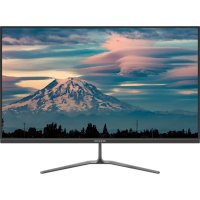
The APPM24BV3 is a 23.8" monitor with FHD resolution, offering an unprecedented combination of an unparalleled experience for eye comfort and image sharpness.
Its 100Hz display is optimised to reduce blue light wave emission and minimise flicker, protecting your eyes so you can spend more time in front of the screen.
This monitor is also suitable for gaming thanks to its 4ms response time for smoother gaming.
PACKAGE CONTENTS
- APPM24BV3
- User Guide
- Base and screws
- Power adapter
- HDMI cable
Note: Make sure that your packaging contains the items described above. If you find any items missing or damaged, please contact the store where you purchased the product.
SAFETY AND MAINTENANCE INSTRUCTIONS
Read this guide before using the device.
Never open the internal electronic parts, danger of electric shock.
Do not push objects of any kind into the unit through the electronic openings as they may touch voltage points and short out parts, resulting in fire or electric shock.
Do not spill any liquid on the unit.
Never throw the product into a source of heat or fire.
Always keep the product at room temperature, maximum 30°C.
Do not drop the product, do not sit on it, do not bend the cable. Danger of breakage.
Always place this device on a stable surface. Otherwise, it may fall and become damaged.
Do not use this product at altitudes above 2000m, please note the operating voltage indicated on the back of the monitor and on the supplied adapter (in this case 12VDC/3A).
Do not connect the power adapter to a power outlet with wet hands, otherwise an electric shock may occur.
Always use the supplied power adapter. Do not use a compatible or damaged one. Doing so may result in electric shock or fire.
When cleaning the device, be sure to unplug the power adapter, use a soft cloth instead of industrial chemicals to clean the device, be sure not to let water enter the device.
Do not disassemble this device without permission.
In the event of a fault, be sure to contact a service person to fix it.
Unauthorized disassembly of this device may result in electric shock or fire. In case of unusual noise from this device, be sure to unplug the power adapter and contact authorized service personnel.
When this device is idle for a long time, be sure to turn off the power. Otherwise, electric shock or fire may result.
Follow local ordinances for product disposal.
MONITOR INPUTS AND OUTPUTS
HDMI input
If your PC has HDMI video output, connect the supplied HDMI cable between the HDMI input of the monitor and the HDMI output of the PC. This input is HDMI version 1.4.
VGA input
If your PC has VGA video output, purchase a VGA cable and connect it between the VGA input of the monitor and the VGA output of the PC.
DC input
Connect the supplied power supply cable to the DC input of the Monitor and plug the adapter into a household electrical outlet. 12V/3A power supply.
3.5mm jack input
This input can only be used if the monitor is connected via a VGA cable, purchase a 3.5mm Jack to 3.5mm Jack (male-male) cable and connect it between the audio output of your PC and the 3.5mm Jack input of the monitor, the PC audio will be played through the rear speakers of the monitor.
KEYPAD FUNCTIONS
Press the power button to turn the monitor on or off.
Note: To access the monitor options you must have a source connected to one of the monitor inputs.
Press the up button to move up through the different menus and modify the values. If you are not in the OSD menu, it allows you to change the brightness of the display.
Press the down button to move down through the different menus and change values. If you are not in the OSD menu, it allows you to change the different types of screen displays.
Press the Menu button to display the OSD menu on the screen. Once inside, it also has the function to accept or access the internal functions.
Press the Auto button to exit the current menu or exit the OSD menu. If you are not in the OSD menu, a crosshair is displayed on the screen.
The OSD menu of the monitor provides various settings for the monitor, such as colour, brightness and contrast, etc.
| IMAGE | BRIGHTNESS | Allows you to adjust brightness levels |
| CONTRAST Adjusts contrast levels | ||
| ECO MODE Allows you to select different presets. | ||
| DCR | Enables or Disables the DCR setting. | |
| COLOR | COLOR TEMPERATURE | Allows you to set different colour options: User, Cool, Normal, Warm, Normal, Warm. |
| RED | Make adjustments with red colours prevailing | |
| GREEN | Make adjustments with green colours prevailing | |
| BLUE | Make adjustments prevailing the blue colours | |
| SIZE AND POSITION | ASPECT RATIO | Allows you to set the screen aspect ratio to 16:9 or 4:3 |
| BLUE FILTER Allows you to enable the blue filter | ||
| CONFIGURATION | LANGUAGE | Allows you to select the language |
| INPUT SIGNAL Allows you to select the image source | ||
| MENU ITEM H | Allows you to adjust the OSD position horizontally | |
| MENU POSITION V | Allows you to adjust the position of the OSD vertically | |
| MENU TIME Allows you to adjust the OSD time | ||
| VOLUME | Allows you to adjust the volume output | |
| RESTORE VALUES | Allows you to adjust the default values | |
| INFORMATION | Displays frequency and resolution | |
TECHNICAL SUPPORT
For more information about the installation of this product, please visit our website www.approx.es or send an email to soporte@approx.es
TECHNICAL SPECIFICATIONS
Panel: 23.8" Grade A Matte
Type: VA
Resolution: FHD 1920*1080
Frequency: 100Hz
Response time: 4ms
Backlight: LED
Viewing angle: H:178° V:178°
Brightness: 230 cd/m2
Contrast: 4000:1
Format: 16:9
Inputs: VGA, HDMI, Jack 3.5mm
Vesa: 75mm x 75mm
Speakers: 2*3W
Power Adapter Specifications
| Name or brand | APPROX IBERIA S.L. |
| Commercial register number | B-91202499 |
| Manufacturer's address | C/Tecnología, 5. Gelves. Sevilla. 41120 |
| Model Identifier | DC-852-1203000V |
| Description Model identifier | AC/DC Adapter for APPM24BV3 |
| Input voltage | 100-240VAC, 0.65A |
| Input AC frequency | 50/60Hz |
| Output voltage | 12VDC |
| Max. output current | 3A |
| Max. output power | 36W |
| Average active efficiency | 88.13% |
| Efficiency at low load (10%) | 88.92% |
| No load power consumption | 0,134W |
RECYCLING
AEE RII-RAEE 5548. In this manual, the crossed-out bin symbol indicates that the product is subject to a European directive, 2012/19/UE, electrical or electronic products, batteries, and accumulators and other accessories necessarily must be subject to selective collection.
At the end of the device's useful life, make use of the recycling containers. This gesture will help reduce health risks and preserve the environment.
Town halls and distributors will provide you with the essential details regarding the recycling of your old device. If this device has an internal battery, it must be removed and deposited separately for proper management.
Please recycle, the packaging of this product is recyclable. The product box is made of cardboard and must be recycled in the blue container or destined for cardboard and the internal protections and bags are made of plastic and must be recycled in the yellow container or destined for plastic. We can help to conserve the planet.

ES
IMPORTADO POR / IMPORTED BY:
APPROX IBERIA S. L. CIF: B-91202499
SOPORTE TÉCNICO / TECHNICAL SUPPORT:
soporte@approx.es
The content of this guide is subject to typographical errors.
MADE IN CHINA

Brand : Approx
Model : APPM24BV3
Category : Monitor