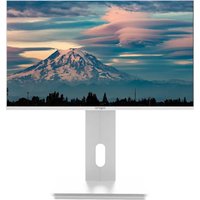
APPM27SW - Monitor Approx - Free user manual and instructions
Find the device manual for free APPM27SW Approx in PDF.


Pick your language and provide your email: we'll send you a specifically translated version.
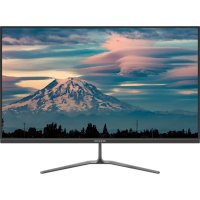
| Product type | Computer monitor |
| Screen size | 27 inches |
| Resolution | 1920 x 1080 pixels (Full HD) |
| Panel type | IPS |
| Aspect ratio | 16:9 |
| Brightness | 250 cd/m² |
| Response time | 5 ms |
| Horizontal viewing angle | 178° |
| Vertical viewing angle | 178° |
| Connectivity | 1x HDMI, 1x VGA, 1x DisplayPort |
| Power supply | Mains 100-240 V AC, 50/60 Hz |
| Power consumption (typical) | 30 W |
| Dimensions with stand (W x H x D) | 615 x 450 x 200 mm |
| Weight with stand | 4.5 kg |
| Tilt adjustment | Yes, from -5° to +15° |
| Special features | Blue light filter, Flicker-free, Game mode |
| Care and cleaning | Use a soft, dry cloth. Do not use chemical cleaners. |
| Safety | Ensure adequate ventilation. Do not block the vents. |
| Spare parts and repairability | Power adapter and HDMI cable included. |
Frequently Asked Questions - APPM27SW Approx
How to connect my APPM27SW monitor to my computer?
Use the supplied HDMI, VGA or DisplayPort cable. Connect one end to the monitor and the other to your PC's graphics card. Then turn on both devices.
What to do if the screen remains black after connection?
Check that the cable is properly inserted. Make sure the computer is turned on and running. Try changing the input source using the monitor's buttons.
How to adjust brightness and contrast?
Use the buttons on the lower bezel of the monitor to access the OSD menu. Navigate to Brightness and Contrast options and adjust as you prefer.
Can I mount the monitor on an articulating arm?
Yes, the monitor is compatible with a VESA 100x100 mm mount. Remove the original stand and screw on the adapter arm (not included).
What is the native resolution of the monitor?
The native resolution is 1920x1080 pixels (Full HD) for optimal image quality. It is recommended to set your computer to this resolution.
How to activate the blue light filter?
Access the OSD menu via the monitor buttons, look for the Blue Light Filter or Low Blue Light option and enable it. This reduces eye strain.
My monitor has dead pixels, what to do?
Check if the defect exceeds ISO standard tolerance (usually 3 to 5 pixels). Contact Approx customer service for possible warranty coverage.
How to clean the screen without damaging it?
Turn off the monitor and unplug it. Use a slightly damp microfiber cloth (clean water) and wipe gently. Never use abrasive products or glass cleaners.
The monitor does not detect my HDMI source, why?
Ensure the HDMI cable is fully inserted. Test with another source or cable. Check that the HDMI input is selected in the monitor's menu.
What to do if the monitor overheats?
Check that the ventilation openings are not blocked. Move the monitor away from any heat source. If the problem persists, contact Approx support.
User questions about APPM27SW Approx
0 question about this device. Answer the ones you know or ask your own.
Ask a new question about this device
No questions yet. Be the first to ask one.
Download the instructions for your Monitor in PDF format for free! Find your manual APPM27SW - Approx and take your electronic device back in hand. On this page are published all the documents necessary for the use of your device. APPM27SW by Approx.
USER MANUAL APPM27SW Approx

Manual assistant
Powered by Anthropic
Waiting for your message
Product information
Brand : Approx
Model : APPM27SW
Category : Monitor