 ManualGo.com
32LN570 - Television LG - Free user manual and instructions
Find the device manual for free 32LN570 LG in PDF.



Download the instructions for your Television in PDF format for free! Find your manual 32LN570 - LG and take your electronic device back in hand. On this page are published all the documents necessary for the use of your device. 32LN570 by LG.
USER MANUAL 32LN570 LG
2. Printing Specification
+ Cover :_ Coated, Snow white paper 150 g/m' + Inside Uncoated, wood-free paper 60 g/m'
4. Printing method Off set
5. Bindery Perfect binding
6. Language ENG/GER/FRE/ITA/SPA/POR/NED/GRK/SLN (9)
7. Number of pages 328
“This part contains Eco-hazardous substances (Pb, Cd, Hg, Cr6+, PBB, PBDE, etc.) within LG standard level, Details should be followed Eco-SCM management standardiL G (56)-A-2524]. Especially, Part should be followed and controlled the following specification.
(1) Eco-hazardous substances test report should be submitted when Part certification test and First Mass Production: (2) Especially, Don't use or contain lead{Pb) and cadmium(Cd) in ink.
3. Origin Notification
LGEAK : Printed in Kazakhstan LGEKR : Printed in Korea LGERS : Printed in Mexico LGEAZ : Printed in Brazil LGEMA : Printed in Poland LGESY : Printed in China LGEEG : Printed in Egypt LGEMX : Printed in Mexico LGETH : Printed in Thailand LGEIL : Printed in India LGEND : Printed in China LGEVN : Printed in Vietnam LGEIN : Printed in Indonesia LGERA : Printed in Russia LGEWR : Printed in Poland
@ LG Life's Good OWNER'S MANUAL LED TV
- LG LED TV applies LCD screen with LED backlights. Please read this manual carefully before operating your set and retain it for future reference. LA62** LN57** LA64** LA66** LA69** LA7A** P/NO : MFL67658602(1303-REVOI) Printed in Korea www.lg.com
SETTING UP THE TV A-3
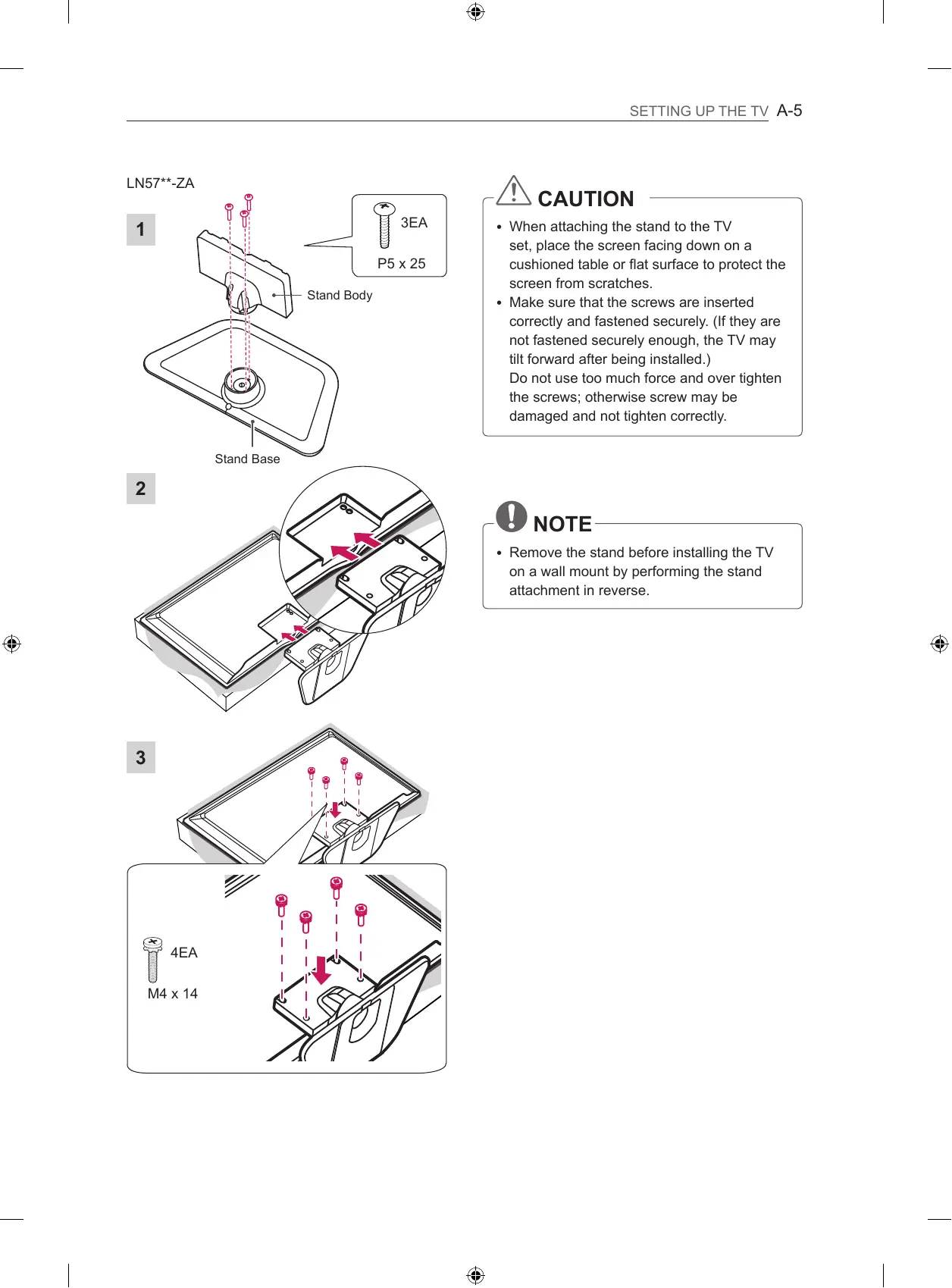
Setting up the TV Image shown may differ from your TV. Attaching the stand LA62**, LA64**, LA66**, LN57**-ZE/ZK (Only LA62**, LN57**-ZE/ZK)
A-4 SETTING UP THE TV
Stand Base Stand Body Îoes P5x25 -L\ CAUTION + When attaching the stand to the TV set, place the screen facing down on a cushioned table or flat surface to protect the screen from scratches. Make sure that the screws are inserted correctly and fastened securely. (If they are not fastened securely enough, the TV may tilt forward after being installed.) Do not use too much force and over tighten the screws; otherwise screw may be damaged and not tighten correctly. -Q noTE + Remove the stand before installing the TV on a wall mount by performing the stand attachment in reverse.
Tidying cables 1 Gather and bind the cables with the Cable Holder and the Cable Management. 2 Fixthe Cable Management firmly to the TV. (Only LA62**, LA64**, LA66**, LN57**-ZE/ZK) > Cable Holder Cable Management (Only LN57**-ZA)
1. Gather and bind the cables with the Cable
Holder. Cable Holder -/\ CAUTION + Do not move the TV by holding the cable holders, as the cable holders may break, and injuries and damage to the TV may occur.
@ LG Life's Good OWNER'S MANUAL LED TV
- LG LED TV applies LCD screen with LED backlights. Please read this manual carefully before operating your set and retain it for future reference. www.lg.com
10 - Viewing 3D Imaging (Only 3D models)
12 Unpacking 15 Separate purchase 16 Parts and buttons 17 Lifting and moving the TV 18 Mounting on a table 20 Mounting on a wall 22 REMOTE CONTROL
24 MAGIC REMOTE CONTROL
FUNCTIONS 25 Registering Magic Remote Control 25 How to use Magic Remote Control 25 Precautions to Take when Using the Magic Remote Control
SETUP 28 SPECIFICATIONS À WARNING + If you ignore the warning message, you may be seriously injured or there is a possibility of accident or death. AN CAUTION + If you ignore the caution message, you may be slightly injured or the product may be damaged. (1) NOTE + The note helps you understand and use the product safely. Please read the note carefully before using the product.
LICENSES Supported licenses may differ by model. For more information about licenses, visit www.1g.com. [D« DOLBY. DIGITAL PLUS DIVX.
| 2.0+Digital Out Manufactured under license from Dolby Laboratories. “Dolby” and the double-D symbol are trademarks of Dolby Laboratories. The terms HDMI and HDMI High-Definition Multimedia interface, and the HDMI logo are trademarks or registered trademarks of HDMI Licensing LLC in the United States and other countries. ABOUT DIVX VIDEO: DivX® is a digital video format created by DivX, LLC, a subsidiary of Rovi Corporation. This is an official DivX Certified® device that plays DivX video. Visit divx.com for more information and software tools to convert your files into DivX video. ABOUT DIVX VIDEO-ON-DEMAND: This DivX Certified® device must be registered in order to play purchased DivX Video-on-Demand (VOD) movies. To obtain your registration code, locate the DivX VOD section in your device setup menu. Go to vod. divx.com for more information on how to complete your registration. “DivX Certified® to play DivX® video up to HD 1080p, including premium content.” “DivX®, DivX Certified® and associated logos are trademarks of Rovi Corporation or its subsidiaries and are used under license." “Covered by one or more of the following U.S. patents : 7,295,673; 7,460,668; 7,515,710; 7,519,274" Manufactured under license under U.S. Patent Nos: 5,956,674; 5,974,380; 6,487,535 & other U.S. and worldwide patents issued & pending. DTS, the Symbol & DTS and the Symbol together are registered trademarks & DTS 2.0+Digital Out is a trademark of DTS, Inc. Product includes software. © DTS, Inc. All Rights Reserved.
OPEN SOURCE SOFTWARE NOTICE
To obtain the source code under GPL, LGPL, MPL and other open source licenses, that is contained in this product, please visit htfp:/opensource.lge.com . In addition to the source code, all referred license terms, warranty disclaimers and copyright notices are available for download. LG Electronics will also provide open source code to you on CD-ROM for a charge covering the cost of performing such distribution (such as the cost of media, shipping and handling) upon email request to opensource@lge.com. This offer is valid for three (3) years from the date on which you purchased the product. HSTION3
SAFETY INSTRUCTIONS SAFETY INSTRUCTIONS Please read these safety precautions carefully before using the product. © À WARNING Do not place the TV and/or remote control in the following environments: - Alocation exposed to direct sunlight An area with high humidity such as a bathroom Near any heat source such as stoves and other devices that produce heat - Near kitchen counters or humidifiers where they can easily be exposed to steam or oil - An area exposed to rain or wind - Near containers of water such as vases Otherwise, this may result in fire, electric shock, malfunction or product deformation. Do not place the product where it might be exposed to dust. This may cause a fire hazard. Mains Plug is the TV connecting/disconnecting device to AC mains electric supply. This plug must remain readily attached and operable when TV is in use. Do not touch the power plug with wet hands. Additionally, if the cord pin is wet or covered with dust, dry the power plug completely or wipe dust off. You may be electrocuted due to excess moisture. Make sure to connect Mains cable to compliant AC mains socket with Grounded earth pin. (Except for devices which are not grounded on earth.) Otherwise possibility you may be electrocuted or injured. Insert power cable plug completely into wall socket otherwise if not secured completely into socket, fire ignition may break out. Ensure the power cord does not come into contact with hot objects such as a heater. This may cause a fire or an electric shock hazard. Do not place a heavy object, or the product itself, on power cables. Otherwise, this may result in fire or electric shock. Bend antenna cable between inside and outside building to prevent rain from flowing in. This may cause water damaged inside the Product and could give an electric shock. When mounting TV onto wall make sure to neatly install and isolate cabling from rear of TV as to not create possibility of electric shock /fire hazard.
SAFETY INSTRUCTIONS 5 Do not plug too many electrical devices into a single multiple electrical outlet. Otherwise, this may result in fire due to over-heating. HSTION3 Do not drop the product or let it fall over when connecting external devices. Otherwise, this may result in injury or damage to the product. Keep the anti-moisture packing material or vinyl packing out of the reach of children. Anti-moisture material is harmful if swallowed. If swallowed by mistake, force the patient to vomit and visit the nearest hospital. Additionally, vinyl packing can cause suffocation. Keep it out of the reach of children. Do not let your children climb or cling onto the TV. Otherwise, the TV may fall over, which may cause serious injury. Dispose of used batteries carefully to ensure that a small child does not consume them. Please seek Doctor- Medical Attention immediately if child consumes batteries. Do not insert any metal objects/conductors (like a metal chopstick/cutlery/ screwdriver) between power cable plug and input Wall Socket while it is connected to the input terminal on the wall. Additionally, do not touch the power cable right after plugging into the wall input terminal. You may be electrocuted. (Depending on model) Do not put or store inflammable substances near the product. There is a danger of combustion/explosion or fire due to careless handling of the inflammable substances. Do not drop metallic objects such as coins, hair pins, chopsticks or wire into the product, or inflammable objects such as paper and matches. Children must pay particular attention. Electrical shock, fire or injury can occur. If a foreign object is dropped into the product, unplug the power cord and contact the service centre. Do not spray water on the product or scrub with an inflammable substance (thinner or benzene). Fire or electric shock accident can occur. Do not allow any impact, shock or any objects to fall into the unit, and do not drop anything onto the screen. You may be injured or the product can be damaged. Never touch this product or antenna during a thunder or lighting storm. You may be electrocuted. Never touch the wall outlet when there is leakage of gas, open the windows and ventilate. It may cause a fire or a burn by a spark.
SAFETY INSTRUCTIONS + Do not disassemble, repair or modify the product at your own discretion. Fire or electric shock accident can occur. Contact the service centre for check, calibration or repair. + Ifany of the following occur, unplug the product immediately and contact your local service centre. - The product has been impacted by shock - The product has been damaged - Foreign objects have entered the product - The product produced smoke or a strange smell This may result in fire or electric shock. + Unplug the TV from AC mains wall socket if you do not intend to use the TV for a long period of time. Accumulated dust can cause fire hazard and insulation deterioration can cause electric leakage/shock/fire. + Apparatus shall not be exposed to dripping or splashing and no objects filled with liquids, such as vases, shall be placed on the apparatus.
SAFETY INSTRUCTIONS 7 À CAUTION 2°. * Install the product where no radio wave occurs. HSTION3 + There should be enough distance between an outside antenna and power lines to keep the former from touching the latter even when the antenna falls. This may cause an electric shock. + Do not install the product on places such as unstable shelves or inclined surfaces. Also avoid places where there is vibration or where the product cannot be fully supported. Otherwise, the product may fall or flip over, which may cause injury or damage to the product. + If you install the TV on a stand, you need to take actions to prevent the product CS from overturning. Otherwise, the product may fall over, which may cause injury. . = to mount the product to a wall, attach VESA standard mounting interface (optional parts) to the back of the product. When you install the set to use the wall mounting bracket (optional parts), fix it carefully so as not to drop. + Only use the attachments / accessories specified by the manufacturer. + When installing the antenna, consult with a qualified service technician. If not installed by a qualified technician, this may create a fire hazard or an electric shock hazard. + We recommend that you maintain a distance of at least 2 to 7 times the diagonal screen size when watching TV. If you watch TV for a long period of time, this may cause blurred vision. N + Only use the specified type of battery. an) This could cause damage to the remote control. A + Do not mix new batteries with old batteries. se) This may cause the batteries to overheat and leak.
+ Batteries should not be exposed to excessive heat.eg keep away from direct Sunlight , open fireplace and electric heaters . + Do not place non-rechargeable batteries in charging device. + Make sure there are no objects between the remote control and its sensor. + Signal from Remote Control can be interrupted due to external/internal lighting eg Sunlight, fluorescent lighting. If this occurs turn off lighting or darken viewing area. + When connecting external devices such as video game consoles, make sure the connecting cables are long enough. Otherwise, the product may fall over, which may cause injury or damage the product.
8 SAFETY INSTRUCTIONS + Do not turn the product On/Off by plugging-in or unplugging the power plug to the wall outlet. (Do not use the power plug for switch.) It may cause mechanical failure or could give an electric shock. HSTION3 + Please follow the installation instructions below to prevent the product from overheating. - The distance between the product and the wall should be more than 10 cm. - Do not install the product in a place with no ventilation (e.g., on a bookshelf or in a cupboard). - Do not install the product on a carpet or cushion. - Make sure the air vent is not blocked by a tablecloth or curtain. Otherwise, this may result in fire. S. — + Take care not to touch the ventilation openings when watching the TV for long Er | periods as the ventilation openings may become hot. This does not affect the operation or performance of the product. + Periodically examine the cord of your appliance, and if its appearance indicates damage or deterioration, unplug it, discontinue use of the appliance, and have the cord replaced with an exact replacement part by an authorized servicer. A, + Prevent dust collecting on the power plug pins or outlet. A) : x Ç This may cause a fire hazard.
+ Protect the power cord from physical or mechanical abuse, such as being twisted, kinked, pinched, closed in a door, or walked upon. Pay particular attention to plugs, wall outlets, and the point where the cord exits the appliance. Do not press strongly upon the panel with a hand or sharp object such as nail, pencil or pen, or make a scratch on it, as it may cause damage to screen. Avoid touching the screen or holding your finger(s) against it for long periods of time. Doing so may produce some temporary or permanent distortion/damage to screen. When cleaning the product and its components, unplug the power first and wipe it with a soft cloth. Applying excessive force may cause scratches or discolouration. Do not spray with water or wipe with a wet cloth. Never use glass cleaner, car or industrial shiner, abrasives or wax, benzene, alcohol etc., which can damage the product and its panel. Otherwise, this may result in fire, electric shock or product damage (deformation, corrosion or breakage). + As long as this unit is connected to the AC wall outlet, it is not disconnected from the AC power source even if you turn off this unit by SWITCH. + When unplugging the cable, grab the plug and unplug it, by pulling at the plug. Don't pull at the cord to unplug the power cord from the power board, as this could be hazardous. + When moving the product, make sure you turn the power off first. Then, unplug the power cables, antenna cables and all connecting cables. The TV set or power cord may be damaged, which may create a fire hazard or cause electric shock.
SAFETY INSTRUCTIONS 9 When moving or unpacking the product, work in pairs because the product is heavy. Otherwise, this may result in injury. HSTION3 Contact the service centre once a year to clean the internal parts of the product. Accumulated dust can cause mechanical failure. Refer all servicing to qualified service personnel. Servicing is required when the apparatus has been damaged in any way, such as power supply cord or plug is damaged, liquid has been spilled or objects have fallen into the apparatus, the apparatus has been exposed to rain or moisture, does not operate normally, or has been dropped. Gr + lfthe product feels cold to the touch, there may be a small “flicker” when it is turned D: : on. This is normal, there is nothing wrong with product. FE à + The panel is a high technology display product with resolution of two million to six j million pixels. You may see tiny black dots and/or brightly coloured dots (red, blue = or green) at a size of 1 ppm on the panel. This does not indicate a malfunction and === does not affect the performance and reliability of the product. This phenomenon also occurs in third-party products and is not subject to exchange or refund. You may find different brightness and color of the panel depending on your viewing position(left/right/top/down). This phenomenon occurs due to the characteristic of the panel. It is not related with the product performance, and it is not malfunction. + Displaying a still image (e.g., broadcasting channel logo, on-screen menu, scene from a video game) for a prolonged time may cause damage to the screen, resulting in retention of the image, which is known as image sticking. The warranty does not cover the product for image sticking. Avoid displaying a fixed image on your television's screen for a prolonged period (2 or more hours for LCD, 1 or more hours for Plasma). Also, if you watch the TV at a ratio of 4:3 for a long time, image sticking may occur on the borders of the panel. This phenomenon also occurs in third-party products and is not subject to exchange or refund. Generated Sound “Cracking” noise: A cracking noise that occurs when watching or turning off the TV is generated by plastic thermal contraction due to tempera-ture and humidity. This noise is common for products where thermal deformation is required. Electrical circuit humming/panel buzzing: A low level noise is generated from a high-speed switching circuit, which supplies a large amount of current to operate a product. It varies depending on the product. This generated sound does not affect the performance and reliability of the product.
HSTION3 10 SAFETY INSTRUCTIONS Viewing 3D Imaging (Only 3D models) FN WARNING Viewing Environment + Viewing Time - When watching 3D contents, take 5 - 15 minute breaks every hour. Viewing 3D contents for a long period of time may cause headache, dizziness, fatigue or eye strain. Those that have a photosensitive seizure or chronic illness + Some users may experience a seizure or other abnormal symptoms when they are exposed to a flashing light or particular pattern from 3D contents. Do not watch 3D videos if you feel nausea, are pregnant and/ or have a chronic illness such as epilepsy, cardiac disorder, or blood pressure disease, etc. 3D Contents are not recommended to those who suffer from stereo blindness or stereo anomaly. Double images or discomfort in viewing may be experienced. If you have strabismus (cross-eyed), amblyopia (weak eyesight) or astigmatism, you may have trouble sensing depth and easily feel fatigue due to double images. It is advised to take frequent breaks than the average adult. If your eyesight varies between your right and left eye, revise your eyesight prior to watching 3D contents. Symptoms which require discontinuation or refraining from watching 3D contents + Do not watch 3D contents when you feel fatigue from lack of sleep, overwork or drinking. + When these symptoms are experienced, stop using/watching 3D contents and get enough rest until the symptom subsides. - Consult your doctor when the symptoms persist. Symptoms may include headache, eyeball pain, dizziness, nausea, palpitation, blurriness, discomfort, double image, visual inconvenience or fatigue.
SAFETY INSTRUCTIONS 11 ÂÀ CAUTION HSTION3 Viewing Environment + Viewing Distance - Maintain a distance of at least twice the screen diagonal length when watching 3D contents. If you feel discomfort in viewing 3D contents, move further away from the TV. Viewing Age +_Infants/Children - Usage/ Viewing 3D contents for children under the age of 5 are prohibited. - Children under the age of 10 may overreact and become overly excited because their vision is in development (for example: trying to touch the screen or trying to jump into it. Special monitoring and extra attention is required for children watching 3D contents. - Children have greater binocular disparity of 3D presentations than adults because the distance between the eyes is shorter than that of adults. Therefore they will perceive more stereoscopic depth compared to adults for the same 3D image. + Teenagers - Teenagers under the age of 19 may react with sensitivity due to stimulation from light in 3D contents. Advise them to refrain from watching 3D contens for a long time when they are tired. + Elderly - The elderly may perceive less 3D effect compared to the young. Do not sit closer to the TV than the recommended distance. Cautions when using the 3D glasses + Make sure to use LG 3D glasses. Otherwise, you may not be able to view 3D videos properly. + Do not use 3D glasses instead of your normal glasses, sunglasses or protective goggles. + Using modified 3D glasses may cause eye strain or image distortion. + Do not keep your 3D glasses in extremely high or low temperatures. lt will cause deformation. + The 3D glasses are fragile and are easily scratched. Always use a soft, clean piece of cloth when wiping the lenses. Do not scratch the lenses of the 3D glasses with sharp objects or clean/wipe them with chemicals.
(1 NOTE + Image shown may differ from your TV. Your TV's OSD (On Screen Display) may differ slightly from that shown in this manual. The available menus and options may differ from the input source or product model that you are using. New features may be added to this TV in the future. The TV can be placed in standby mode in order to reduce the power consumption. And the TV should be turned off if it will not be watched for some time, as this will reduce energy consumption. The energy consumed during use can be significantly reduced if the level of brightness of the picture is reduced, and this will reduce the overall running cost. INSTALLATION PROCEDURE Open the package and make sure all the accessories are included. Attach the stand to the TV set. Connect an external device to the TV set. Make sure the network connection is available. You can use the TV network functions only when the network connection is made.
ASSEMBLING AND PREPARING
B & N = Unpacking Check your product box for the following items. lf there are any missing accessories, contact the local dealer where you purchased your product. The illustrations in this manual may differ from the actual product and item. -L\ CAUTION + Do not use any unapproved items to ensure the safety and product life span. + Any damage or injuries caused by using unapproved items are not covered by the warranty. + Some models have a thin film attached on to the screen and this must not be removed. 6 NOTE + The items supplied with your product may vary depending on the model. + Product specifications or contents of this manual may be changed without prior notice due to upgrade of product functions. + For an optimal connection, HDMI cables and USB devices should have bezels less than 10 mm thick and 18 mm width. Use an extension cable that supports USB 2.0 if the USB cable or USB memory stick does not fit into your TV's USB port.
Remote control and batteries (AAA) (Only LA62**, LA64**, LN570*, LN575*, LN577*) (See p. 22, 23) Magic Remote Control, Batteries (AA) (Only LA66"*, LAG9"*, LA74*, LN578*) (See p. 24) Owner’s manual Wi-Fi Dongle (Depending on model) Cinema 3D Glasses The number of 3D glasses may differ depending on the model or country. (Depending on model) Dual play glasses (Depending on model) Stand Screws 3 EA, P5 x 25 (Only LN57**-ZA) (See p.A-5)
Separate purchase (Depending on model) Separate purchase items can be changed or modified for quality improvement without any notification. Contact your dealer to buy these items. These devices only work with certain models. HSTION3 AG-.F**DP AG-F** AN-MR400 Dual play glasses Cinema 3D Glasses Magic Remote AN-WF100 AN-VC4** LG Audio device Wi-Fi Dongle Video call camera ve LA62**, LAG4**, Compati CRE LAG6**, LAG9*", LA74*" AG-F**DP . Dual play glasses (Depending on model) AG-F* Cinema 3D Glasses AN-MR400 Magic Remote AN-WF100 . Wi-Fi Dongle (Depending on model) AN-VC4** Video call camera LOAmIDERIES (Depending on model) ° Tag O! N . sg on (Depending on model) The model name or design may be changed depending on the upgrade of product functions, manufacturer's circumstances or policies.
LN57**-ZE/ZK Screen Screen Buttons Speakers Speakers L Remote control sensor LG Logo Light (Only LA64**, LAG6**) Remote control sensor L Power Indicator (Only LA62**, LN57**-ZE/ZK) LG Logo Light Ctype: 60LA74** Dtype: LN57**-ZA Screen FE = Screen Butons Speakers 77 à Remote control sensor Remote control sensor LG Logo Light Power Indicator Button Description AY Scrolls through the saved programmes. +— Adjusts the volume level. v Selects the highlighted menu option or confirms an input. S Accesses the main menu, or saves your input and exits the menus. a Changes the input source. o Turns the power on or off. -@ NoTE + You can set the LG Logo Light to on or off by selecting OPTION in the main menus.(Depending on model)
Lifting and moving the TV Please note the following advice to prevent the TV from being scratched or damaged and for safe transportation regardiess of its type and size. /\ CAUTION + Avoid touching the screen at all times, as this may result in damage to the screen. + Itis recommended to move the TV in the box or packing material that the TV originally came in. + Before moving or lifting the TV, disconnect the power cord and all cables. + When holding the TV, the screen should face away from you to avoid damage.
+ Hold the top and bottom of the TV frame firmly. Make sure not to hold the transparent part, speaker, or speaker grill area. LE = LE: + When transporting a large TV, there should be at least 2 people. When transporting the TV by hand, hold the TV as shown in the following illustration. When transporting the TV, do not expose the TV to jolts or excessive vibration. When transporting the TV, keep the TV upright, never turn the TV on its side or tilt towards the left or right. Do not apply excessive pressure to cause flexing /bending of frame chassis as it may damage screen. HSTION3
Mounting on a table 1 Lift and tit the TV into its upright position on a table. - Leave a 10 cm (minimum) space from the wall for proper ventilation. 2 Connect the power cord to a wall outlet. /\ CAUTION + Do not place the TV near or on sources of heat, as this may result in fire or other damage. Using the Kensington security system (This feature is not available for all models.) + Image shown may differ from your TV. The Kensington security system connector is located at the rear of the TV. For more information of installation and using, refer to the manual provided with the Kensington security system or visit http://www.kensington.com. Connect the Kensington security system cable between the TV and a table. Securing the TV to a table Fix the TV to a table to prevent from tilting forward, damage, and potential injury. To secure the TV to a table, insert and tighten the supplied screw on the rear of the stand. (Only 32/39/42/47/50/60LN57**-ZA) (Only 32/39/42/47/50LN57**-ZE/ZK, 32/39/42/47/50LA62**, 32/42/47/50LA64**, 32/42/47/50LA66**) 2 EA, P4x8 Ton 47ISOLN57**-ZE/ZK, 47/50LA62**, 47ISOLA64**,47/50LA66**) 2EA, M4 x 8 (Only 32/39/42LN57*-ZE/ZK, 32/39/42LA62**, 32/42LA64**, 82/42LA66*)
1. Connect the Desk-mount Cables to the
Stand Base using the Bracket Screws. 2.Fix the Desk-mount Cables to a table using the Desk-mount Screws.
3. Once the TV is fixed, move the table close to
the wall. Children may go in, causing injuries. -À WARNING + To prevent TV from falling over, the TV should be securely attached to the floor/ wall per installation instructions. Tipping, shaking, or rocking the TV may cause injury. Swivel 10 degrees to the left or right and adjust the angle of the TV to suit your view. (Only 42/47LA69**, 42/47LA74**) Swivel 8 degrees to the left or right and adjust the angle of the TV to suit your view. (Only 55LA69**, 55/60LA74**)
F/\ CAUTION —— /\ cauTION + When adjusting the angle adof the product, watch out for your fingers. » Personal injury may occur if hands or fingers are pinched. If the product is tilted too much, it, may fall, causing damage or injury. + Make sure that children do not climb on or hang on the TV. @ Nore + Use a platform or cabinet that is strong and large enough to support the TV securely. + Brackets, bolts and ropes are not provided. You can obtain additional accessories from your local dealer. <Rear> <Front> Securing the TV to a wall Mounting on a wall (This feature is not available for all models.) Attach an optional wall mount bracket at the rear of the TV carefully and install the wall mount bracket on a solid wall perpendicular to the floor. When you attach the TV to other building materials, please contact qualified personnel. LG recommends that wall mounting be performed by a qualified professional installer. 1 Insert and tighten the eye-bolts, or TV brackets and bolts on the back of the TV. - lfthere are bolts inserted at the eye-bolts position, remove the bolts first. 2 Mount the wall brackets with the bolts to the wall. Match the location of the wall bracket and the eye-bolts on the rear of the TV. 3 Connect the eye-bolts and wall brackets tightly with a sturdy rope. Make sure to keep the rope horizontal with the flat surface.
Make sure to use screws and wall mount bracket that meet the VESA standard. Standard dimensions for the wall mount kits are described in the following table. Separate purchase(Wall Mounting Bracket) Model 32LA62** 39/42LA62** 32LN57* 32LA64** 32LA66** 39/42LN57** VESA (A xB) 1200 x 100 200 x 200 Standard screw_ |M4 M6 Number of screws |4 4 Wall mount LSW130B LSW230B bracket , Model 47/50/55/60LA62** 42/47/50/55/60LA64** 42/47/50/55LA66** 42/47/55LA69** 42/47/55/60LA74** 47/50/55/60LN57** VESA(AXE) [400 x 400 Standard screw_ |M6 Number of screws |4 Wall mount LSW430B bracket -L\ CAUTION + Disconnect the power first, and then move or install the TV. Otherwise electric shock may occur. If you install the TV on a ceiling or slanted wall, it may fall and result in severe injury. Use an authorised LG wall mount and contact the local dealer or qualified personnel. Do not over tighten the screws as this may cause damage to the TV and void your warranty. Use the screws and wall mounts that meet the VESA standard. Any damages or injuries by misuse or using an improper accessory are not covered by the warranty. 6 NOTE + Use the screws that are listed on the VESA standard screw specifications. The wall mount kit includes an installation manual and necessary parts. The wall mount bracket is not provided. You can obtain additional accessories from your local dealer. The length of screws may differ depending on the wall mount. Make sure to use the proper length. For more information, refer to the manual supplied with the wall mount. When attaching a third-party wall mounting bracket to the TV, insert the wall mount inner spacers into the TV wall mount holes to move your TV in vertical angle. Please make sure not to use the spacers for LG wall mounting bracket. (Only LA64**) Wall Mount Inner Spacer HSTION3
HSTION3 22 REMOTE CONTROL REMOTE CONTROL The descriptions in this manual are based on the buttons on the remote control. Please read this manual carefully and use the TV correctly. To replace batteries, open the battery cover, replace batteries (1.5 V AAA) matching the @ and © ends to the label inside the compartment, and close the battery cover. To remove the batteries, perform the installation actions in reverse.
A CAUTION + Do not mix old and new batteries, as this may damage the remote control. Make sure to point the remote control toward the remote control sensor on the TV. (Only LN570*, LN575*, LN577:) sumne RATIO NP &/ TV/RAD Selects Radio, TV and DTV programme. SUBTITLE Recalls your preferred subititle in digital mode. Q. MENU Accesses the quick menus. GUIDE Shows programme guide. @ RATIO Resizes an image. + INPUT Changes the input source. 112113) (5)(6) LIST Accesses the saved programme list. Q.VIEW Returns to the previously viewed programme. FAV Accesses your favourite programme list. APP/* Select the MHP TV menu source. (Only Italy.) (Depending on model) PAGE Moves to the previous or next screen. TELETEXT BUTTONS These buttons are used for teletext. INFO Views the information of the current programme and screen. € SMART Accesses the Smart Home menus. MY APPS Shows the list of Apps. Navigation buttons (up/down/leftright) Scrolls through menus or options. OK © Selects menus or options and confirms your input. # BACK Returns to the previous level. EXIT Clears on-screen displays and return to TV viewing. SETTINGS Accesses the main menus. REC e Start to record and display record menu. LIVE TV Return to LIVE TV. Control buttons (1, », Il, 4, ») Controls the Premium contents, Time Machine or Smart Share menus or the SIMPLINK compatible devices (USB or SIMPLINK or Time Machine). @ Colour buttons These access special functions in some menus. (@: Red, @: Green, C2: Yellow, @: Blue)
—no>v— (User Guide) Sees user-guide. © RATIO Resizes an image. + INPUT Changes the input source. &/ TV/RAD Selects Radio, TV and DTV programme. LIST Accesses the saved programme list. LI (Space) Opens an empty space on the screen keyboard. Q.VIEW Returns to the previously viewed programme. FAV Accesses your favourite programme list. 3D Used for viewing 3D video. = PAGE — Moves to the previous or next screen. INFO Views the information of the current programme and screen. € SMART Accesses the Smart Home menus. Y APPS Shows the list of Apps. Navigation buttons (up/down/leftright) Scrolls through menus or options. OK © Selects menus or options and confirms your input. + BACK Returns to the previous level. GUIDE Shows programme guide. EXIT Clears on-screen displays and return to TV viewing. Colour buttons These access special functions in some menus. (@æ: Red, @: Green, C2: Yellow, @: Blue) A TELETEXT BUTTONS These buttons are used for teletext. SUBTITLE Recalls your preferred subtile in digital mode. Q. MENU Accesses the quick menus. LIVE TV Return to LIVE TV. Control buttons (li, , Il, 4, +) Controls the Premium contents, Time Machine or Smart Share menus or the SIMPLINK compatible devices (USB or SIMPLINK or Time Machine). REC e Start to record and display record menu. SETTINGS Accesses the main menus. AD Sywitches the Audio Description On or Off. APP/+ Select the MHP TV menu source. (Only Italy.) (Depending on model) HSTION3
ea] This item is not included for all models. When the message “Magic Remote Control battery is low. Change the battery.” is / D displayed, replace the battery. { To replace batteries, open the battery cover, replace batteries (1.5 V AA) matching NN Æ and © ends to the label inside the compartment, and close the battery cover. Be = sure to point the remote control toward the remote control sensor on the TV. To remove the batteries, perform the installation actions in reverse. Z\ cauTIoN [. Do not mix old and new batteries, as this may damage the remote control. (Only LAG6**, LAG9**, LA74**, LN578*) Pointer (RF transmitter) © (POWER) s Turns the TV on or off. ion buttons (up/down/ + BACK l leftright) Returns to the previous level. ———{"?# Scrolls through menus or op- | Back tions. & Wheel(OK) \ @ SMART Selects menus or options and confirms your input. Scrolls through the saved programmes. If you press the navigation button while moving the pointer on the screen, the pointer disappears, and the Magic Remote Control works as a regular remote control. To display the pointer again, shake the Magic Remote Control from side to side.
Used for viewing 3D video. (Depending on model) Voice recognition(Depending on model) Network connection is required to use the voice recognition function. Accesses the Smart Home menus. Ÿ Voice recognition (Depending on model) 1Q.MENU Accesses the quick menus. Accesses the Universal Control. +2- Adjusts the volume level. APv Scrolls through the saved programmes or channels. x MUTE Mutes all sounds. The recognition rate may vary depending on the user's characteristics (voice, pronunciation, intonation and speed) and the environment (noise and TV volume).
1. Press the Voice recognition button.
2. Speak when the voice display window appears on the left of the TV screen.
+ The voice recognition may fail when you speak too fast or too slow. + Use the Magic remote control no further than 10 cm from your face.
Registering Magic Remote Control Itis necessary to ‘pair’ (register) the magic remote control to your TV before it will work. How to register the Magic Remote Control 1 To register automatically, turn the TV on and press the Wheel(OK) button. When registration is completed, the completion message appears on the screen. 2 If registration fails, turn the TV off and back on, then press the Wheel(OK) button to complete registration.
mm) 1-1 Brierinto rte rest. into. If you press Wheel(OK) on the Magic Remote Control, the following screen © | appears. Shows information about the current programme and screen. How to re-register the Magic Remote Control s 1 Press and hold the BACKS BACK and SMART& buttons eo together for 5 seconds to reset, then register it by following “How to register the Magic Remote Control” above. 2 To re-register the Magic Remote Control, press and hold the BACK® button for 5 seconds toward the TV. When registration is completed, the completion message appears on the screen. SMART How to use Magic Remote Control 1 Ifthe pointer disappears, move SZ the Magic Remote Control 7 slightly to left or right. Then, it Will automatically appear on the screen. » [fthe pointer has not been used for a certain period of time, it will disappear. 2 You can move the pointer by aiming the Pointer Receiver of the Magic Remote Control at your TV then move it left, right, up or down. » [fthe pointer does not work properly, leave the Magic Remote Control for 10 seconds then use it again. @ | You can select More Menu. Precautions to Take when Using the Magic Remote Control Use the Magic Remote Control within the maximum communication distance (10 m). Using the Magic Remote Control beyond this distance, or with an object obstructing it, may cause a communication failure. A communication failure may occur due to nearby devices. Electrical devices such as a microwave oven or wireless LAN product may cause interference, as these use the same bandwidth (2.4 GHz) as the Magic Remote Control. The Magic Remote Control may be damaged or may malfunction if it is dropped or receives a heavy impact. Take care not to bump into nearby furniture or other people when using the Magic Remote Control. Manufacturer and installer cannot provide service related to human safety as the applicable wireless device has possibility of electric wave interference. Itis recommended that an Access Point (AP) be located more than 1 m away from the TV. Ifthe AP is installed closer than 1 m, the Magic Remote Control may not perform as expected due to frequency interference. HSTION3
User Guide allows you to more easily access the detailed TV information. 1 Press the SMART @ button to access the Smart Home menu. 2 Select User Guide and press Wheel(OK). User Guide (1 NOTE + You can also access the User Guide by pressing C\(User Guide) in the remote control.(Only LA62**, LA64**)
Touse input device To settime opens LOST oc FA Htanoifurtn QD hémaor @ Shows the current watching programme or input source screen. @ Alows to select the category you want. Allows to select the item you want. You can use A/Vto move between pages.
Allows to browse the description of the function you want from the index.
Provides the detailed information on the functions of LG Smart TV when the Internet is connected. (It may not be available depending on the country/language.) @ Shows the description of the selected menu. You can use A/Vto move between pages. @ Moves to the selected menu directly from the User Guide.
MAINTENANCE / TROUBLESHOOTING 27 MAINTENANCE Cleaning your TV Clean your TV regularly to keep the best performance and to extend the product lifespan. À CAUTION + Make sure to turn the power off and disconnect the power cord and all other cables first. + When the TV is left unattended and unused for a long time, disconnect the power cord from the wall outlet to prevent possible damage from lightning or power surges. Screen, frame, cabinet and stand + To remove dust or light dirt, wipe the surface with a dry, clean, and soft cloth. + To remove major dirt, wipe the surface with a soft cloth dampened in clean water or a diluted mild detergent. Then wipe immediately with a dry cloth. /\ CAUTION Avoid touching the screen at all times, as this may result in damage to the screen. Do not push, rub, or hit the screen surface with your fingernail or a sharp object, as this may result in scratches and image distortions. Do not use any chemicals as this may damage the product. Do not spray liquid onto the surface. |f water enters the TV, it may result in fire, electric shock, or malfunction. Power cord Remove the accumulated dust or dirt on the power cord regularly. TROUBLESHOOTING Problem Solution Cannot control the TV with the remote control. Check the remote control sensor on the product and try again. Check if there is any obstacle between the product and the remote control. Check if the batteries are still working and properly installed ( @ to ®, © to ©). Check if the product is turned on. No image display and no soun + Check if the power cord is connected to a wall outlet. produced. + Check if there is a problem in the wall outlet by connecting other products. The TV turns off + Check the power control settings. The power supply may be interrupted. suddenly. + Check if the Auto sleep feature is activated in the Time settings. If there is no signal while the TV is on, the TV will turn off automatically after 15 minutes of inactivity. When connecting to the PC (HDMI DVI), ‘No signal or ‘Invalid Format’ is displayed. Turn the TV off/on using the remote control. Reconnect the HDMI cable. Restart the PC with the TV on. HSTION3
To obtain the external control device setup information, please visit www.{g.com SPECIFICATIONS (Only LA66**, LA69**, LA74**, LN578*) Wireless LAN module (TWFM-B006D) specification Standard IEEE802.11a/b/g/n Frequency Range 2400 to 2483.5 MHz 5150 to 5250 MHz 5725 to 5850 MHZ (for Non EU) Output Power 802.11a: 11 dBm 802.11b: 14 dBm 802.11g: 10.5 dBm (Max) 802.11n - 2 4GHz: 11 dBm 802.11n - 5GHz: 12.5 dBm Bluetooth module (BM-LDS401) specification Standard Bluetooth Version 3.0 Frequency Range 2400 -— 2483.5 MHz Output Power (Max.) 10 dBm or lower C€0197© + Because band channel used by the country could be different, the user can not change or adjust the operating frequency and this product is set for the regional frequency table.
Wireless LAN module(TWFM-B006D) specification Standard 1EEE802.11a/b/g/n 2400 to 2483.5 MHz Frequency Range 5150 to 5250 MHz 5725 to 5850 MHz (for Non EU) 802.11a: 11 dBm 802.11b: 14 dBm 802.11g: 10.5 dBm 802.11n - 2.4GHz: 11 dBm 802.11n - 5GHz: 12.5 dBm Output Power (Max.) + Because band channel used by the country could be different, the user can not change or adjust the operating frequency and this product is set for the regional frequency table. C€0197© HSTION3
28 BEDIENING EXTERN APPARAAT
AG-F**DP Fuan& Dual play AN-WF100 Wi-Fi Dongle
B-4 MAKING CONNECTIONS
MAKING CONNECTIONS B-7
=== 25 WHITE RED Ç sara DVI | (Not Provided)
2 = =: DVD)/ Blu-Ray / HD Cable Box / PC English Transmits the digital video signal from an external device to the TV. Connect the external device and the TV with the DVI-HDMI cable as shown. To transmit an audio signal, connect an audio cable. Choose any HDMI input port to connect. lt does not matter which port you use. [1 NOTE + Depending on the graphics card, DOS mode may not work if a HDMI to DVI Cable is in use. + When using the HDMI/DVI cable, only Single link is supported.
+ AVGAOYQ HE TV KGPTA YPAPIKWV, N
ent x [£ 2 ÎE |2 Provided) Ü El (o) ul pu) @ œ PR PB Y LAUDIO+ ) © © DVD / Blu-Ray / HD Cable Box English Transmits analog video and audio signals from an external device to the TV. Connect the external device and the TV with a component cable as shown. @ ore + If cables are not installed correctly, it could cause this image to display in black and white or with distorted colours.
B-10 MAKING CONNECTIONS
Composite connection
É Ë GI © (“Not Provided) ——.|
Digital Audio System / Sound Bar(Only 42/ATLA669*) English You may use an optional external audio system instead of the built-in speaker. Digital optical audio connection Transmits a digital audio signal from the TV to an external device. Connect the external device and the TV with the optical audio cable as shown. [1 NOTE + Do not look into the optical output port. Looking at the laser beam may damage your vision. + Audio with ACP (Audio Copy Protection) function may block digital audio output.
Ê = .? English View the encrypted (pay) services in digital TV mode. This feature is not available in all countries. @nore + Check if the CI module is inserted into the PCMCIA card slot in the right direction. If the module is not inserted properly, this can cause damage to the TV and the PCMCIA card slot. Ifthe TV does not display any video and audio when CI+ CAM is connected, please contact to the Terrestrial/Cable/Satellite Service Operator.
Slovensëina Prenaëa video in avdio signale iz zunanje naprave na televizor. Povezite zunanjo napravo in televizor z evro scart kablom, kot je prikazano na naslednji sliki. Vrsta izhoda AV1 Trenutni (TVizhod') naëin vhoda Digitalna TV Digitalna TV Analogna TV, AV Komponentni Analogna TV HDMI 1 TV Out: Izhod za analogne in digitalne televizijske signale. (1 OPOMBA + Kabel Euro Scart mora biti signalno zaëüiten. + Pri gledanju digitalne televizije v 3D-naëinu je mogoëe po kablu SCART oddajati le 2D-izhodne signale. (samo 3D-modeli) English Connect various external devices to the TV and switch input modes to select an external device. For more information of external device's connection, refer to the manual provided with each device. Available external devices are: HD receivers, DVD players, VCRSs, audio systems, USB storage devices, PC, gaming devices, and other external devices. -@ NoTE + The external device connection may differ from the model. Connect external devices to the TV regardiess of the order of the TV port. If you record a TV program on a DVD recorder or VCR, make sure to connect the TV signal input cable to the TV through a DVD recorder or VCR. For more information of recording, refer to the manual provided with the connected device. Refer to the external equipment's manual for operating instructions. If you connect a gaming device to the TV, use the cable supplied with the gaming device. In PC mode, there may be noise associated with the resolution, vertical pattern, contrast or brightness. If noise is present, change the PC output to another resolution, change the refresh rate to another rate or adjust the brightness and contrast on the PICTURE menu until the picture is clear. In PC mode, some resolution settings may not work properly depending on the graphics card.
B-32 MAKING CONNECTIONS
55LA740S-ZB 60LA740S-ZB ANNE OR
6743/67.5 | 59.94/60 | * : . Component port connecting information Component ports on the TV Y | Ps | Pa Y Ps Pr Video output ports Y B-Y | RY on DVD player Y Cb Cr Y | Pb [Pr Signal Component 480i/576i [e} 480p/576p o 720p/1080i [e} 1080p (50 Hz / 60 Hz only) Except for 32LN57*U/ 32LN57*R/ 32LN57*7
SPECIFICATIONS B-41 3D supported mode + Video, which is input as below media contents is switched into the 3D screen automatically. + The method for 3D digital broadcast may differ depending on the signal environment. If video is not switched automatically into 3D, manually convert the settings to view 3D images. 3D supported mode automatically p Horizontal Vertical 3 Input Signal Frequency (kHz) | Frequency (Hz) Playable 3D video format Top & Bottom, g4o x 480 |_ 1469/3175 Side by Side(Ha), Side by Side(Full)
62.938 / 63 Frame Packing, Line Alternative
31.469/ 31.5 59.94 / 60 Top & Bottom, 480p ° © Side by Side(Half), Side by Side(Full)
62.938 / 63 Frame Packing, Line Alternative
3125 Top & Bottom, 576p : 50 Side by Side(Half), Side by Side(Full)
62.5 Frame Packing, Line Alternative
37.50 50 Top & Bottom,
44.96 / 45 59.94 / 60 Side by Side(Half), Side by Side(Full)
80.917 00 50.04 7 60 Frame Packing, Line Alternative
28.125 25 Side by Side(Half), Side by Side(Full)
33.72 / 33.75 29.976 / 30
1080p 43.94 / 54 23.97 / 24
56.25 25 Frame Packing, Line Alternative
ATV(CVBS/SCART) SD - -
2D to 3D, Side by Side(Half), Component HD / SD - - Top & Bottom 1024X768 48.36 1360X768 47.71 60 2D to 3D, Side by Side(Half), Top & Bottom, HDMI-PC 1920X1080 67.5 Checker Board, Frame Sequential, Row Interleaving, Column Interleaving 2D to 3D, Side by Side(Half), Others : L Top & Bottom 480P 31.5 60 2D to 3D, Side by Side(Half), 576P 31.25 50 Top & Bottom, Checker Board, Frame Sequential, Row 720 37.5 50 Interleaving, Column p 45 60 Interleaving 1080: 28.12 50 2D to 3D, Side by Sied(Half), ! 33.75 60 Top & Bottom HDMI-DTV 27 24 2D to 3D, Side by Side(Half),
28.12 25 Top & Bottom,Checker Board,
Row Interleaving, Column
33.75 30 Interleaving
56.25 50 2D to 3D, Side by Side(Half),
Top & Bottom, Checker Board, Frame Sequential, Row
67.5 60 Interleaving, Column
Interleaving Under 704x480 - - 2D to 3D Over 704x480 2D to 3D, Side by Side(Half), interlaced : L Top & Bottom 2D to 3D, Side by Side(Half), USB ,DLNA Over 704x480 L 50 / 60 Top & Bottom,Checker Board, (Movie) progressive Rovw Interleaving, Column Interleaving, Frame Sequential 2D to 3D, Side by Side(Half), Over 704x480 L others Te & Bottom,Checker Board, progressive ow Interleaving, Column Interleaving USB, DLNA Under 320x240 - - ——. ee mn Photo: o 3D, Side by Side(Half), (Fit) Over 320x240 - - Top & Boom 1024X768p - 30/60 2D to 3D, Side by Side(Half), 1280x720 - 30/60 Miracast/Widi EP Top & Bottom 1920X1080p - 30/60 Others - - 2D to 3D