
G3v - Controller Gamesir - Free user manual and instructions
Find the device manual for free G3v Gamesir in PDF.


| Product type | Wireless game controller |
| Brand | Gamesir |
| Model | G3v |
| Compatible platforms | Android (4.0+), Windows, PlayStation 3 |
| Working modes | Android normal, Mouse simulation, PS3 |
| Connection types | Bluetooth, 2.4 GHz, Wired (USB) |
| Product dimensions | 160 x 104 x 59 mm |
| Net weight | 180 g |
| Battery capacity | 800 mAh |
| Charging time | 2 to 3 hours |
| Charging voltage | 3.7 V ~ 5.2 V DC |
| Charging current | 1 A ~ 2 A |
| Operating distance | Up to 7 m |
| Operating temperature | -20°C to 65°C |
| Operating humidity | 20 % ~ 80 % |
| Main functions | Adjustable vibration, programmable turbo, mouse simulation, auto reconnection, reset |
| Maintenance and cleaning | Clean with a soft, dry cloth. Avoid water, liquids, and high temperatures. |
| Safety | Built-in battery: do not expose to fire, do not disassemble. Use under adult supervision for children. |
| Spare parts and repairability | No detachable parts. Do not repair yourself; contact after-sales service. |
| Box contents | 1 controller, 1 2.4 GHz dongle, 1 USB cable, 1 user manual |
Frequently Asked Questions - G3v Gamesir
User questions about G3v Gamesir
0 question about this device. Answer the ones you know or ask your own.
Ask a new question about this device
Download the instructions for your Controller in PDF format for free! Find your manual G3v - Gamesir and take your electronic device back in hand. On this page are published all the documents necessary for the use of your device. G3v by Gamesir.
USER MANUAL G3v Gamesir
GameSir Game controller luxury Edition (33v) is connected by Bluetooth, 2.4GHz and wired, it applies to Android devices (above 4.0 version), Windows PC, and PlayStation3 consoles. This Game controller can identify all the devices automatically, no need driver installation, button mapping setting, or root.
× Product Specification
| Product Name | GameSir Gamepad | Model No. | GameSir-GDv |
| Working Platforms | Android / Windows / P83 | Working Temp. | -20 °C ~ 65°C |
| Working Humidity | 20 ~ 80% | ||
| Working Modes | Android Standard / Mouse Simulation / P83 | Connection Types | Bluetooth / 2.4GHz / Wired |
| Charging Voltage | 3.7V ~ 5.2V | Charging Time | 2 ~ 3H |
| Charging Current | 1A ~ 2A | Working Distance | Approx. 7m |
| Gift Box Size | 64*172*208mm | Battery Capacity | 600mA |
| Product Size | 160*104*58mm | Net Weight | 188g |
Product Overview
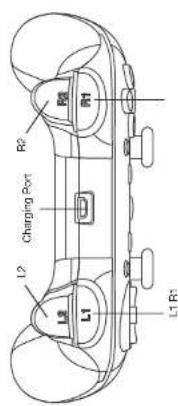
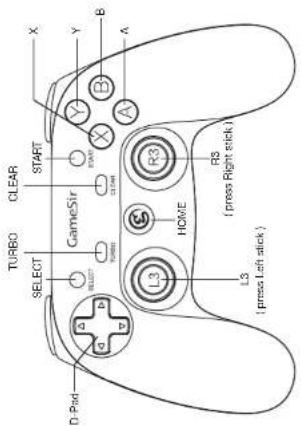
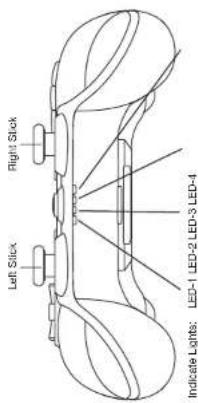
Product Function
Power On/Off
1.PowerOn:PressHOME button for 2 seconds to start.
2. Power Off Press HOME button for 5 seconds to power off.
Power LED Indicator
LED 1-LED 4 lights: more than 75% battery power left
LED 1-LED 3 lights: 50%-75% battery power left
LED 1-LED 2 lights: 25% - 50% battery power left
Only LED 1 light: 10% - 25% battery power left.
LED 1 shining: less than 10% battery power left.
Charging Indication
1. Charge through charging cable
When connect the charging cable, the LED lights from Number 1 to Number 4 will lights in turns, the four lights keep on when it is fully charged.
2. Charge under sleeping mode
When connect the charging cable, the Game controller wakes up and enters current mode, no signal receiving after 1 minute. LED lights from number 5 to 4 will light in turn. Four LED lights keep on when it is fully charged.
Sleeping Function
- The Game controller enters sleep state after 2-minute disconnection.
- The Game controller enters sleep state after 5-minute no action.
Vibration Intensity adjustment
Press Clear + Up/down button of the D-Pad to choose the increase/decrease the vibration intensity.
Vibration frequency adjustment
Press Clear + Left/Right button of the D-Pad to choose the higher/lower vibration frequency
Exchange the position of left joystick and D-Pad
Press Clear+L3 to exchange the position of left joystick and D-Pad.
× Game Controller Connection
Android Platform (Android phone/Android tablet)
1. Connection Method
a. Open the Bluetooth on Android device.
b. Press A + HOME button for 2 seconds to turn on the Game controller
c. The "Home" button indicator light will turn green and flashes.
cl. One signal will be found on your screen: "GameSir-G3v"
c. Connect with "GameSir-G3v" on the Bluetooth management interfaces of the Android device.
f. When "Home" button light keeps on in green, the Game contraller is connected successfully.
2. Enter or Exit Mouse Simulation Mode (Only being available in HID mode)
Mouse Simulation Mode enables the Game controller to work as mouse. Left joystick simulates mouse move, A button simulates the left mouse click, B button simulates the right mouse click.
a. Enter mouse mode: When Game controller is connected, press SELECT+ X button to enter Mouse Simulation Mode, "Home" button keeps on in white.
b. Exil mouse mode: Press SELECT X button to exit the Mouse Simulation Mode, "Home" button keeps on in green.
3. Android mode only
Press B + HOME button simultaneously for 2 seconds to start the Game Controller. The difference between the "A-Home" start way and "B+Home" start way is that there is no Mouse Simulation Mode in "B+Home" start mode.
Smart TV/TV Box - Connection Method
a. Plug dongle into the USB port of your device.
b. Press A + HOME button simultaneously for 2 seconds to start the Game controller
e. The "Home" button light flashes in green.
d. When "Home button" light keeps on in green, the Game controller is connected successfully.
PC Platform (X-Input mode) - Connection Method
a. Plug dongle into the USB port of your
b. Press X + HOME button simultaneously for 2 seconds to start the Game controller
c.TheHomebuttonlightflashesinwhite.
d. When Home button light keeps on in white, the Game controller is connected successfully.
PlayStation3 Platform - Connection Method
a. Plug dongle into the USB port of PS3.
b. Press "Turbo Home" button simultaneously for 2 seconds to start the game controller.
c. "Home" button will flashes in blue.
d. When "Home" button keeps on in blue, it means that the games controller has been connected to PS3 successfully.
Auto Reconnection
When device Bluetooth is on and Game controller is off
Press HOME button for 2 seconds to start Game controller, the Game controller will be reconnected to the device automatically.
When device Bluetooth is off and Game controller is on
Turn on the Bluetooth of the device, the Game controller will be reconnected automatically.
When device Bluetooth is off and Game controller is off
Turn on the Bluetooth an device, Press HOME button for 2 seconds to start the Game controller; the Game controller will be reconnected to the devices automatically.
When device is connected by dongle and the Game controller is off.
Press Home button for 2 seconds to start Game controller, the Game controller will reconnect with device automatically.
Package Content
1' GameSir Gamespad
1'USBCharging Cable
1°2.4GHz Dongqi
1*User Manual
Wired Connection Method
Press HOME button for 2 seconds to start the gamepad, connect the gamepad with the device by USB cable. (Note: This wired connection requests OTG function of the Android device; USB Wired connection is not supported with iOS platform.)
TURBO Function Introduction
TURBO is semi-automatic, it creates one or more continuous button press.
Setting up the Turbo button
Press one or more bullons, (Including ABXY L1/L2 button), and then press the "TURBO" button once, the corresponding function is set up successfully.
Clear TURBO
Press Clear button separately, and then release it, you can remove all the Turbo function you have set up.
Function
TURBO is used more in shooting games. Your fingers would easily get tired if you continuously press the same button (shooting button). With the TURBO, you can continuously shoot by holding the shooting button.
Possible Problems
Why the Game controller can not be identified on computer?
- Make sure your computer has been working
- Need to install X360 Game controller software for systems below Windows XP (including XP)
Why the Game controller does not work in games?
- The game does not support Game controller
- Set the Game controller mode into the game before using
Why the Game controller does not vibrate?
- The game does not support vibration.
- Vibration function is not open in game setting.
Others
- When the Game controller can not be turned on, it may be because of running out of battery, please use USB cable to charge the Game controller .
- When the Game controller was crashed or disconnected, please keep the device at effective distance, or reconnect.
- Factory settings reset: There is a small hole at the back of Game controller, press the hole by using a needle to reset the factory settings.

Attention
- Avoid strong vibration, da not disassemble, refi cr repair on your own.
- Do not keep in humid, high temperature or scot places.
- Keep away from water or other liquid, as they may affect the performance of Game controller.
- Keep away from fire, the built-in battery has the danger of explosion.
- Charging voltage is USB 3.7-3.5V DC supply (normal Android smart phone charging power can be used)
- Children should use this production under adult's supervision.
- Please contact the distributor or our after-sale service staff if you have any quality problem or suggestion. Contact details can be found on the package.
- G3y can't be connected on Windows PC by Bluetooth, but by the 2.4GHz USB dongle or USB cable.

Produktsvorstellung
Deutsch
Customer Support Center
If you come across any issue with this product, please do not hesitate to contact GameSite's customer service by email: csggameir.hk or visit our official Facebook Page, We will try our best to solve your problem within 24 hours.

https://www.facebook.com/myGamesir.
If you want to get more information, please visit our website.
http://www.gameir.nk
- × Product Specification
- Product Overview
- Product Function
- Power On/Off
- Power LED Indicator
- Charging Indication
- Charge through charging cable
- Charge under sleeping mode
- Sleeping Function
- Vibration Intensity adjustment
- Vibration frequency adjustment
- Exchange the position of left joystick and D-Pad
- × Game Controller Connection
- Android Platform (Android phone/Android tablet)
- Connection Method
- Enter or Exit Mouse Simulation Mode (Only being available in HID mode)
- Android mode only
- Smart TV/TV Box - Connection Method
- PC Platform (X-Input mode) - Connection Method
- PlayStation3 Platform - Connection Method
- Auto Reconnection
- When device Bluetooth is on and Game controller is off
- When device Bluetooth is off and Game controller is on
- When device Bluetooth is off and Game controller is off
- When device is connected by dongle and the Game controller is off.
- Package Content
- Wired Connection Method
- TURBO Function Introduction
- Setting up the Turbo button
- Clear TURBO
- Function
- Possible Problems
- Why the Game controller can not be identified on computer?
- Why the Game controller does not work in games?
- Why the Game controller does not vibrate?
- Others
- Attention
- Produktsvorstellung
- Deutsch
- Customer Support Center
Brand : Gamesir
Model : G3v
Category : Controller