 ManualGo.com
DP471T - DVD player LG - Free user manual and instructions
Find the device manual for free DP471T LG in PDF.


Download the instructions for your DVD player in PDF format for free! Find your manual DP471T - LG and take your electronic device back in hand. On this page are published all the documents necessary for the use of your device. DP471T by LG.
USER MANUAL DP471T LG
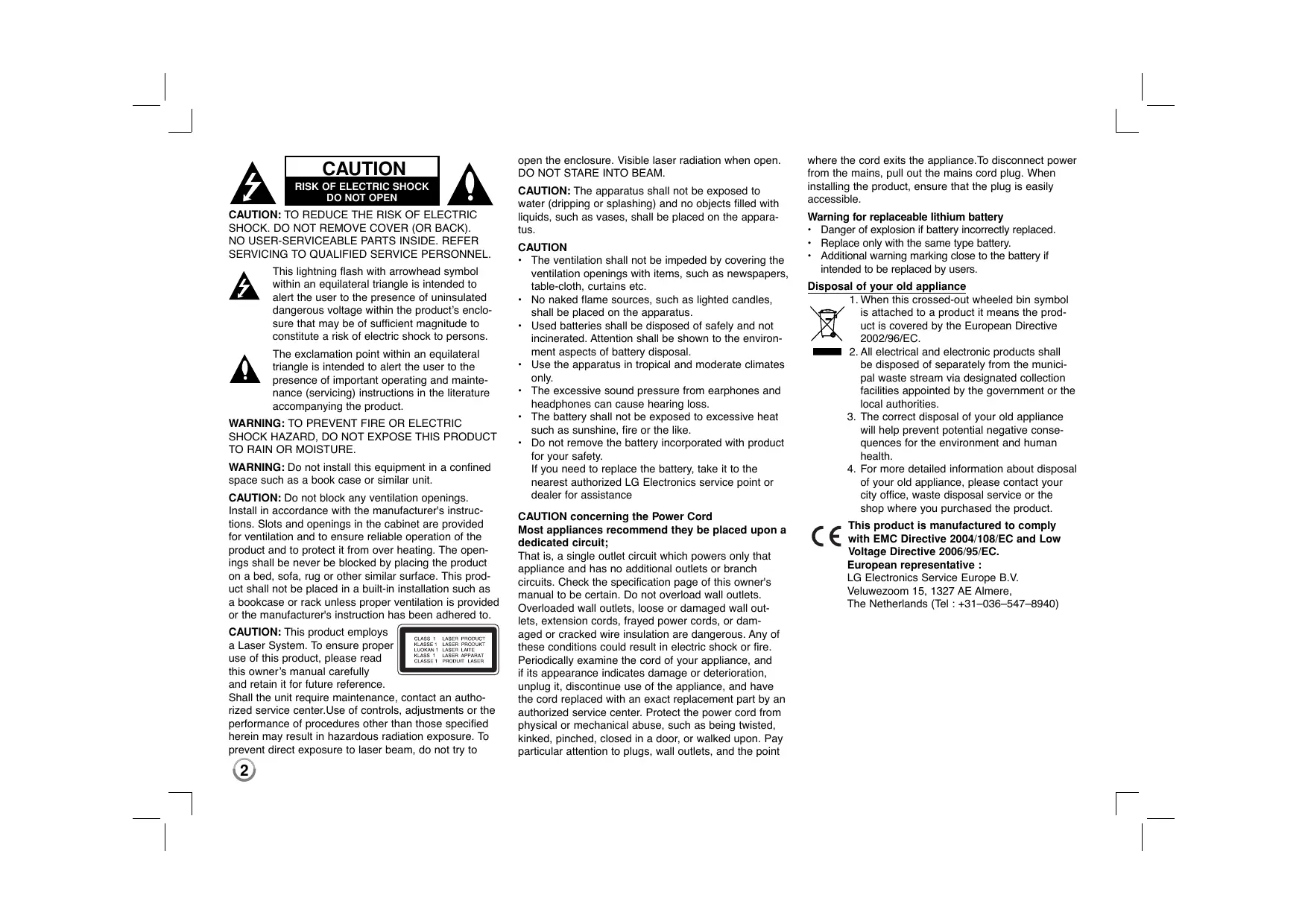
SERVICING TO QUALIFIED SERVICE PERSONNEL. This lighining flash with arrowhead symbol within an equilateral triangle is intended to alert the user to the presence of uninsulated dangerous voltage within the product's enclo- sure that may be of sufficient magnitude to constitute a risk of electric Shock to persons. The exclamation point within an equilateral triangle is intended to alert the user to the presence of important operating and mainte- nance (servicing) instructions in the literature accompanying the product
WARNING: TO PREVENT FIRE OR ELECTRIC
SHOCK HAZARD, DO NOT EXPOSE THIS PRODUCT TO RAIN OR MOISTURE.
WARNING: Do not install this equipment in a confined
space such as a book case or similar unit. CAUTION: Do not block any ventilation openings. Install in accordance with the manufacturer's instruc- tions. Slots and openings in the cabinet are provided for ventilation and to ensure reliable operation of the product and to protect it from over heating. The open- ings shall be never be blocked by placing the product on a bed, sofa, rug or other similar surface. This prod- uct shall not be placed in a built-in installation such as a bookcase or rack unless proper ventilation is provided or the manufacturer's instruction has been adhered to. CAUTION: This product employs a Laser System. To ensure proper use of this product, please read this owners manual carefully and retain it for future reference. Shall the unit require maintenance, contact an autho- rized service center.Use of controls, adjustments or the performance of procedures other than those specified herein may result in hazardous radiation exposure. To prevent direct exposure to laser beam, do not try to
open the enclosure. Visible laser radiation when open. DO NOT STARE INTO BEAM. CAUTION: The apparatus shall not be exposed to water (dripping or splashing) and no objects filed with liquids, such as vases, shall be placed on the appara- tus. CAUTION +__ The ventilation shall not be impeded by covering the ventilation openings with items, such as newspapers, table-cloth, curtains etc. No naked flame sources, such as lighted candles, shall be placed on the apparatus. Used batteries shall be disposed of safely and not incinerated. Attention shall be shown to the environ- ment aspects of battery disposal Use the apparatus in tropical and moderate climates on. The excessive sound pressure from earphones and headphones can cause hearing loss. The battery shall not be exposed to excessive heat such as sunshine, fire or the like. Do not remove the battery incorporated with product for your safety. If you need to replace the battery, take it to the nearest authorized LG Electronics service point or dealer for assistance CAUTION concerning the Power Cord Most appliances recommend they be placed upon a dedicated circuit; That is, a single outlet circuit which powers only that appliance and has no additional outlets or branch circuits. Check the specification page of this owners manual to be certain. Do not overload wall outlets. Overloaded wall outlets, loose or damaged wall out- lets, extension cords, frayed power cords, or dam- aged or cracked wire insulation are dangerous. Any of these conditions could result in electric shock or fire. Periodically examine the cord of your appliance, and if its appearance indicates damage or deterioration, unplug it, discontinue use of the appliance, and have the cord replaced with an exact replacement part by an authorized service center. Protect the power cord from physical or mechanical abuse, such as being twisted, kinked, pinched, closed in a door, or walked upon. Pay particular attention to plugs, wall outlets, and the point where the cord exits the appliance. To disconnect power from the mains, pull out the mains cord plug. When installing the product, ensure that the plug is easily accessible.
Warning for replaceable lithium battery + Danger of explosion if battery incorrectly replaced. + Additional warning marking close to the battery if intended to be replaced by users. When this crossed-out wheeled bin symbol D is attached to a product it means the prod- 2002/96/EC. mm 2. Al electrical and electronic products shall pal waste stream via designated collection facilities appointed by the government or the . The correct disposal of your old appliance will help prevent potential negative conse- health. For more detailed information about disposal city office, waste disposal service or the shop where you purchased the product with EMC Directive 2004/108/EC and Low Voltage Directive 2006/95/EC. LG Electronics Service Europe B.V. Veluwezoom 15, 1327 AE Almere, + Replace only with the same type battery. Disposal of your old appliance uct is covered by the European Directive be disposed of separately from the munici- local authorities. quences for the environment and human of your old appliance, please contact your ce This product is manufactured to comply European representative : The Netherlands (Tel : +31-036-547-8940)
‘Types of Playable Disc: Rechargeable battery Main Unit. Remote Coniroi Power connections Hooking up the unit Revolving the LCD panel Selecting the operation mc Adjust the settings Displaying Disc Infon Playing a Disc. Playing a DivX movie file. Lisiening to Music Disc or files. Viewing photo files: USB Direct Recordin LELECRELECT Contents Language Codes. Area Codes ‘Troubleshooting . Specifications DVD-VIDEO: Discs such as movies that can be purchased or rented. DVD-R: Video mode and finalized only < DVD-RW: VR mode, Video mode and finalized only DVD4R: Video mode only DVD+RW: Video mode only Audio CD: Music CDs or CD-R/CD-RW in music CD format that can be purchased. This unit plays DVD:R/RW and CD-R/RW that contains audio titles, DivX, MP3, WMA and/or JPEG files. Some DVD:RW/DVD4R or CD-RW/CD-R can- not be played on this unit due to the recording quality or physical condition of the disc, or the characteristics of the recording device and authoring software. About the © Symbol Display #6 * may appear on your TV display during operation and indicates that the function explained in this owner's manual is not available on that disc. Regional Codes This unit has a regional code printed on the rear of the unit. This unit can play only DVD discs labeled same as the rear of the unit or “ALL”. Most DVD discs have a globe with one or more numbers in it cleariy visible on the cover. This number must match your unit's regional code or the disc cannot play. If you try to play a DVD with a different regional code from your player, the message “Check Regional Code” appears on the TV screen. Copyrights itis forbidden by law to copy, broadcast, show, broadcast via cable, play in public, or rent copyrighted material without permission. This product features the copy protection function developed by Macrovision. Copy protection sig- nals are recorded on some discs. When recording and playing the pictures of these discs picture noise will appear. This product incorporates copyright protection technology that is protected by U.S. patents and other intellectual property rights. Use of this copyright protection technology must be authorized by Macrovision, and is intended for home and other limited viewing uses only unless otherwise authorized by Macrovision. Reverse engineering or disas- sembly is prohibited. Rechargeable battery It internal rechargeable battery provides you with the freedom to pass it around and play the files without the power cord. The internal rechargeable battery will start charging only when the AC adapt- er is connected to a power outlet. Operating time on battery: approximately 2 hours and 30 minutes. The operating time on battery may vary depending on the battery status, operational status and environment conditions and the maximum playing time is approximately 3 hours. The battery indicator wil turn red while charging. Once the charging is com- plete, the indicator will be tumed off. When the remaining time of the battery power is under a few seconds, “{\ Check Battery” will appear on the screen. Charging Time on Battery + Fast Battery Charge Mode (When the power switch is located OFF): Less than 3 hours. + Slow Battery Charge Mode (When the power switch is located ON): More than 8 hours. Power switch
Main Unit LCD screen Function buttons + DISPLAY LCD ON/OFF: Accesses On- Screen Display. To turn off the LCD press and hold DISPLAY for about 2 seconds and to turn on the LCD, press DISPLAY again. + SETUP: Accesses or exits the setup menu. COLOR/BRIGHT*: Displays the Brightness or Colour menu for LCD display. + MENU: Accesses the DVD menu. To adjust the colour or brightness of the LCD display, press COLOR/ BRIGHT repeatedly on the main unit to display the Brightness or Colour menu then use 4 / » to adjust the value. Press ENTER to confirm the adjustment. Menu control buttons + + A Y (leftright/up/down): Selects an item in the menu. + ENTER: Confirms menu selection. Remote sensor: Point the remote control here. To control the unit using the remote control, do not fold the LCD panel down. Speakers Disc lid Battery charge and power indicator +_ The indicator turns red in charging and it will be tumed off when the charging is complete. (Refer to page 3 for details.) +_ The indicator turns green when the unit is turned on. E OPEN: Opens the disc lid using the slide open switch. © USB Port: Connect a USB Flash Drive. Playback control buttons + D (Play) / H (Pause): Starts playback and pauses playback tem- porarily, press again to exit pause mode. M (Stop): Stops playback. MODE: Switches an operation mode in the complete stop mode. (DVB-T, DAB, Disc) << (Skip): Searches backward* or returns to the beginning of current chapters/ tracks files or goes to the previous chapters/ tracks} files. >> (Skip): Searches forward' or goes to next chapters/ tracks) files. Press and hold button for about two seconds. G/1 (Power switch): Turn the unit ON or OFF. Note: To operate this unit, the power switch must be located ON. _… VOL (Volume): Adjusts the vol- ume level of the built-in speaker and earphones. @ (Earphones): Connect earphones here. AV OUT: Connect to a TV with video and audio input. I DC 9V IN: Connect the AC adapter or automotive adapter. DVBT: Connect the external antenna or RF cable hub.
Remote Control Note: To operate this unit with remote control, the power switch must be located ON. (Refer to 4 page)
PAUSE Puy Srôe POWER (D): Switches the unit ON or OFF. AUDIO (02): Selects an audio language or audio channel. SUBTITLE (C): Selects a subtile language. ANGLE (EX): Selects a DVD camera angle, if available. SKIP (H« / »b1): Goes to next or previous chap- terhtrackile. SCAN (4/»>): Searches backward or forward. TEXT: Switches between teletext mode and normal TV viewing. CH (+/-) : Scans up or down through memorized channels in DVB-T or DAB mode. MENU: Accesses the DVD menu. CH LIST : Displays the channel list. AY <>: Navigates the menus. FAV. (#/-) : Tunes to your favorite channels. ENTER (© ): Confirms menu selection. RETURN (4°): Press to move backwards in the menu or exit the menu. DISPLAY: Accesses or exits On-Screen Display. PAUSE/STEP auses playback temporarily/ press repeatedly for frame-by-frame playback. PLAY (B-}: Starts playback. STOP (1): Stops playback. Numerical buttons: Selects numbered options in a menu. PROG.: Enters the program edit mode. CLEAR: Removes a track number on the Program List. MODE: Switches an operation mode (DVB-T, DAB or Disc). REPEAT: Repeats a chapter, track, title or all. A-B: Repeats a section. SETUP : Accesses or exits the setup menu. MARKER : Marks any point during playback. SEARCH : Displays [Marker Search] menu. RANDOM: Plays tracks in random order. TITLE: Access the disc's title menu. Color buttons : Use when tuned to a teletext pro- gram of a digital broadcast. The function of each button will be described on-screen, and changes depending on the screen being displayed. INDEX (E1) / ZOOM: Moves to Index screen or page 100 in the teletext mode. Enlarges video image in disc mode. MIX (2) : Displays the teletext pages superim- posed on the TV picture. SURROUND Press repeatedly to apply the various sound effects. (Refer to 12 page) Pinch the battery holder clip together then pull the tab to remove the battery holder. Insert the battery with the + facing in the same direction as the + on the battery holder. Replace the battery holder with battery into the Remote Control unit making sure that it is fully inserted. +_Replace Remote Control unit battery with 3V micro lithium cells such as CR. 2025 or its equiv- alent. Dispose of battery safety in accordance with local laws. Do not dispose of in fire.
Warning : The battery used in this device may
present a fire or chemical burn hazard if mis- treated. Do not recharge, disassemble, inciner- ate, or heat above 100 °C (212 °F). Replace the battery with Matsushita Elec. Ind. Co., Ltd. (Panasonic), part no. CR. 2025 only. Use of another battery may present a risk of fire or explosion. Dispose of used batteries. Keep batteries away from children. Do not disas- semble or dispose of in fire.
Power connections Connecting the AC Adapter Connect the supplied AC Adapter from the unit to a power socket. Right side of the unit Plug into a power source. Plug into the “DC 9V IN” jack.
- The actual set may differ from the drawing. AC adapter +_ This AC adapter operates on 100-240V- 0.5A 50/60Hz. + Contact an electrical parts distributor for assistance in selecting a suitable AC plug adapter or AC cord set. Manufactured by I-MAG ELECTRONICS(DONG GUAN) CO. LTD Connect the Automotive adapter This unit and its automotive adapter are designed for use in vehicles that have 8.5-15 voit, negative ground electrical systems. This is standard for most vehicles. If your vehicle has a different type of electrical system, the DC power system cannot be used. Right side of the unit Plug into the car's cigarette lighter socket. Plug into the “DC 9V IN" jack. Automotive adapter This automotive adapter operates on DC 8.5-15V. Contact an electrical parts distributor for assistance in selecting a suitable automotive adapter. Manufactured by GRAND POWER ELECTRONIC TECHNOLOGY (SHENZHEN) CO. LTD. Caution To prevent electrical shock and possible damage to your unit or vehicle, always unplug the automotive adapter from the cigarette lighter socket before you remove the plug from your unit. A 1.5 amp. 250V fuse for protection is installed in the automotive adapter. + While the engine is being started, disconnect the automotive adapter from the car's cigarette lighter socket. Do not operate your unit when the car battery is discharged. Peak current from the car generator may cause the DC fuse to blow. I the vehicle's supply voltage drops below approximately 10 volts, your unit may not work properly. + Do not leave your unit in a place where the temperature exceeds 70°C (158F), or the pick-up device may be damaged. Examples include: - Inside a car with the windows closed and in direct sunshine. - Near a heating appliance.
Hooking up the unit Audio and Video Connections to your TV Connect the AV OUT jack on the unit to the corresponding input jacks on your TV as shown below. Right side of the unit Plug into the “AV OUT" jack. AudioWVideo Cable {not supplied) Audio/Video Adapter Connecting the Antenna Connect the TV antenna to the DVBT jack on the unit after selecting one between @ and © as shown below. ©: Connect an indoor antenna cable using supplied RF cable hub. ©: Connect a supplied external antenna. Antenna Antenna SZ SZ Cable TV Wall Jack Flat Wire (800 ohm) fl 300/75 ohm fu Adaptor on °R Not supplied) external antenna
General about digital broadcast Picture and sound Digital TV is a transmission technology that replaces the traditional analogue technique. This means that several TV channels, radio channels and other digital services can be transmitted on the same space as just one channel took up before. As a consumer you get access to many more channels and services than before at the same time as they are received with perfect picture and audio quality. Coverage Before buying this product it is anticipated that you have made sure that there are digital transmissions covering your region. Antenna / Signal source Depending on the reception your unit may be connected to a simple indoor antenna or to an existing outdoor antenna system. lf you live in a flat you should make sure that the digital terrestrial signals are distributed to your wall antenna outlet. If you have your own antenna system you must make sure that it is equipped with antennes, filter and/or amplifier that can handle those frequencies that the digital channels are transmitted on. Cable-TV Please observe that this unit is not designed for the reception of regular digital cable-TV signals (QAM-signal). Despite this, operators of smaller cable networks may have chosen to distribute the digital terrestrial signals (COFDM-signal) in the network. In this case this unit may well be used. Check with your landlord if you are insecure about what type of TV-signal that is provided in the wall antenna outlet. Revolving the LCD panel You can revolve the LCD panel of the unit clockwise a maximum of 180 degrees for use. You can also operate the unit after revolving the LCD panel 180 degrees and folding it back down.
To revolve the LCD panel, place the unit on a stable and even surface such as on a table. Push the LCD panel up and then li it into a vertical position. Revolve the LCD panel clockwise slowly 180 degrees. If you need, fold the LCD panel after revolving it. To revolve the LCD panel to its original position, open the LCD panel to a verti- cal position. Revolve the LCD panel counter clockwise slowly 180 degrees. + When finished using the unit, return the LCD panel to its original position. + Do not leave the LCD panel in the face-up position, or sudden shocks may damage it. Selecting the operation mode You must select one of the operating modes before operating. Press MODE repeatedly to change the mode among DVB-T, DAB or Disc. Disc: You should select the Disc mode before using playback functions or disc setup setting. DVB-T: You should select the DVB-T mode before watching TV channel or using TV setup setting. DAB: You should select the DAB mode before listening to the radio or using radio setup setting.
Adjust the settings 1 Select the disc mode: MODE 2 Display setup menu: SETUP 3 Select a desired option on the first level: AY 4 Move to second level: > 5 Select a desired option on the second level: | a w 6 Move to third level: > 7 Change the setting: A Y/ ENTER Adjust the settings - more you can do When you turn on for the first time (optional) The menu for a language selection will appear when you turn on the unit for the first time. You must select a language to use the unit. Use AY 4 > to select a language then press ENTER and the confirm menu will appear. Use 4 > to select [ENTER] then press ENTER. Adjust the language settings DM Menu Language - Select a language for the Setup menu and on-screen dis- play. Disc Audio/Subtitle/Menu — Select a language for the Disc Audio/Subtitle/ Menu. [Original]: Refers to the original language in which the disc was recorded. [Other]: To select another language, press number buttons then ENTER to enter the corresponding 4-digit number according to the language code list. (see page 18) If you make a mistake while entering number, press CLEAR to delete numbers then correct it. LOff] (for Disc Subtitle): Turn off Subtitle. Adjust the display settings Ml TV Aspect — Select which screen aspect to use based on the shape of your TV screen. [4:3]: Select when a standard 4:3 TV is connected. [16:9]: Select when a 16:9 wide TV is connected. Display Mode — If you selected 4:3, you'll need to define how you would like widescreen programs and films to be displayed on your TV screen. [Letterbox]: This displays a widescreen picture with black bands at the top and bottom of the screen. {Panscan]: This fills the entire 4:3 screen, cropping the picture as necessary. Adjust the audio settings ME DRC (Dynamic Range Control) — Make the sound clear when the volume is turmed down (Dolby Digital only). Set to [On] for this effect. Vocal — Set to [On] only when a multi-channel karaoke DVD is playing. The karaoke channels on the disc mix into normal stereo sound. Adjust the lock settings Bei You must set the [Area Code] option to use the lock options. Select [Area Code] option then press ». Enter a 4-digit password then press ENTER. Enter it again then press ENTER to verify. lf you make a mistake while entering number, press CLEAR then correct it. If you forget your password you can reset it. First, remove the disc in the unit. Display setup menu then input the 6-digit number “210499” and the password will be cleared. Rating — Select a rating level. The lower the level, the stricter the rating. Select [Unlock] to deactivate the rating. Password — Sets or changes the password for lock settings. [New]: Enter a new 4-digits password using the numerical buttons then press ENTER. Enter the password again to confirm. [Change]: Enter the new password twice after entering the current password. Area Code — Select a code for a geographic area as the playback rating level. This determines which area's standards are used to rate DVDs controlled by the parental lock. (See page 18)
Adjust the others settings IEX REC Bitrate — You can choose a bit rate for USB direct recording. Higher bit rate gives the better sound quality but uses more space on the USB Flash Drive. For USB direct recording, see page 14. DivX(R) VOD — We provide you with the DivX® VOD (Video On Demand) regis- tration code that allows you to rent and purchase videos using the DivX® VOD service. For more information, visit www.divx.com/vod. Press ENTER when [Select] icon is highlighted and you can view the registra- tion code of the unit. All the downloaded videos from DivX® VOD can oniy be played back on this unit. Displaying Disc Information 1 Select the disc mode: MODE 2 Press DISPLAY during playback: DISPLAY 3 Select an item: AY 4 Adjust the Display menu settings: <» / ENTER 5 Exitthe menu: DISPLAY Displaying Disc Information - more you can do You can select an item by pressing AY and change or select the setting by pressing 4 » or using the numbered buttons (0-9). Ge us Current chapter number/total number of chapters Elapsed playing time Current title numberhotal number of titles. Selected audio language or channel CM Sciected subtitle Selected angle/total number of angles Symbol Used in this Manual A section whose title has one of the following symbols are applicable only to the disc or file represented by the symbol. ALL All discs and files GD Audio CDs DVD DVD and finalized DVD+R/RW CB WMaiies DivX files WMA files
Playing a Disc Frame-by-Frame playback Press PAUSE/STEP (Il) repeatedly to play Frame-by-Frame playback. Playing repeatedly L . Press REPEAT repeatedly to select an fem to be repeated. The current tie, 1 Select the disc mode: MODE chapter or track will be played back repeatedly. To return to normal playback, 2 Open the disc - press REPEAT repeatedly to select [Off]. 3 Insert a disc: - Fast forward or fast reverse LPS ] TT Press SCAN (44 or >) 0 play fast fonward or fast reverse during playback. 4 _ Close the disc lid: : You can change the various playback speed by pressing SCAN (44 or b>) 5 Start playback: D PLAY repeatediy. Press PLAY ( B) to continue play at normal speed.
_ - DVD, DIVX: 4444 + 446 + 444€ 44/2 > DD DEEE > DEEE
6 Adjust the volume: VOLUME - ACD, WMA, MP3: 4x8 + 444 + 442 / 12 > bxd à DxE 7 To stop playback: HSTOP _) Repeating a specific portion (A-B) CACD ] Playing a Disc - more you can do Stops the playback Press STOP (M) to stop playback, the unit records the stopped point depending on the disc. “ HR ” appears on the screen briefly. Press PLAY ( B-) to resume playback from the scene point). lf you press STOP (M) again or unload the M” appears on the screen), the unit will clear the stopped point. esume Stop, M =Complete Stop) The resume point may be cleared when a button is pressed. (for example: POWER, OPEN, etc) Playing a DVD that has a menu Most DVD now have menus which load first before the film begins to play. You can navigate these menus using AY 4 or number button to highlight an option. Press ENTER to select. Playing a DVD VR disc This unit will play DVD-RW disc that is recorded using the Video Recording (VR) format. When you insert a disc DVD VR disc, the menu will appear on the screen. Use AY to select a title then press PLAY ( B-). To display DVD-VR menu, press MENU or TITLE. Some DVD-VR disc are made with CPRM data by DVD RECORDER. The unit does not support these kinds of discs. Skip to the next/previous chapter/track/file Press SKIP (æ»1l) to move to the next chapter/trackfile. Press SKIP (H&«) to return to the beginning of the current chapter/track/file. Press SKIP (H&«) twice briefly to step back to the previous chapter/trackffile. Pause a playback Press PAUSE/STEP (Il) to pause playback. Press PLAY ( B-) to continue playback. Press A-B at the beginning of the portion you wish to repeat and again at the end of the portion. Your selected portion will be repeated continually. To return to normal playback, press A-B to select [Off]. Selecting a subtitle language During playback, press SUBTITLE (©) repeatediy to select a desired subtitle language. Watching from a different angle ifthe angle indicator appears on the screen for a moment, you can select a dif- ferent camera angle by pressing ANGLE (2x ) repeatediy. Hearing a different audio During playback, press AUDIO (@) repeatediy to switch between the available audio languages, channels or encoding methods. Slow down the playing speed While the playback is paused, press SCAN (>) to slow down forward play- back. You can change the various playback speed by pressing SCAN (>) repeatedly to play in slow motion. Press PLAY { B) to continue play at normal speed. Watching an enlarged video image During playback or pause mode, press ZOOM repeatediy to select zoom mode. You can move through the zoomed picture using AV4 > buttons. Press CLEAR to exit. (100% > 200% > 300% > 400% > 100%)
Viewing the title menu Press TITLE to display the disc's title menu, if available. Viewing the DVD menu Press MENU to display the disc menu, if available. Starting play from selected time Searches for the starting point of entered time code. Press DISPLAY then select clock icon. Enter a time then press ENTER. For example, to find a scene at 1 hours, 10 minutes, and 20 seconds, enter "11020" and press ENTER. If you enter the wrong number, press CLEAR to enter again. Playing in random order QD LMPS ] During playback or in stop mode, press RANDOM for playback in random order. Press RANDOM again to return to normal playback. Mark a scene on a disc You can mark a position on a disc to retum to at the place. Simply press MARKER at the desired position. The marker icon will appear on-screen briefly. Repeat to place up to nine markers. Also you can recall or clear the positions. Press SEARCH and [Marker Search] menu will appear. Use 4 or » to select a desired marker on the menu, then press ENTER to recall it or CLEAR to clear it. Last Scene Memory CAO ] This unit memorizes last scene from the last disc that is viewed. The last scene remains in memory even if you remove the disc from the player or switch of the unit. If you load a disc that has the scene memorized, the scene is automati- cally recalled. Screen Saver The screen saver appears when you leave the unit in Stop mode for about five minutes. If the Screen Saver is displayed for five minutes, the unit automatically turn itself off. Surround You can enjoy the surround sound simply by selecting one of the pre-pro- gramed sound field according to the program you want to listen to. Each time you press SURROUND, the sound mode is changed as follows. Normal —+ Concert —+ Hall — Arena Mixed disc or USB Flash Drive — DivX, MP3/WMA and JPEG When playing a disc or USB Flash Drive contained with DivX, MP3WMA and JPEG filles together, you can select which menu of files you would like to play by pressing TITLE.
Playing a DivX movie file
1. Select the disc mode: MODE
2 Open the disc lid: - 3 Insert a disc: - 4 Close the disc lid: - 5 Select a movie file from the menu: A Y, MENU To go directly to file and play, enter the file num- ber using the numbered buttons (0-9). 6 Start playback: D PLAY 7 To stop playback: = STOP Playing a DivX movie file - more you can do Changing the character set to display DivX® subtitle correctly Press and hold SUBTITLE for 3 seconds during playback. The language code will appear. Press 4 > to select another language code until the subitle is dis- played properly and then press ENTER. DivX file requirement DivX file compatibility with this player is limited as follows: Available resolution size: 720x576 (W x H) pixel. +_ The file names of DivX and subtitle are limited to 45 characters. DivX file extensions: “avi”, “mpg", mpeg" Playable DivX subtitle: SubRip (.srt / .txt), SAMI (.smi), SubStation Alpha (.ssa/.txt), MicroDVD (.sub/.txt), VobSub (sub), SubViewer 2.0 (.sub/.txt), TMPlayer (.txt), DVD Subtitle System (txt) Playable Codec format: “DIVX3.xx", “DIVX4.xe", “DIVXS.xx", “MP43", “aix” + Only the playback function is supported with DivX 6.0 in the unit. Playable Audio format: “Dolby Digital”, “PCM”, ‘MP3", “WMA” Sampling frequency: within 8 - 48 kHz (MP3), within 32 - 48 kHz (WMA) Bit rate: within 32 - 320 kbps (MP3), within 32 - 192 kbps (WMA), less than 4Mbps (DivX file) + CD-R/RW, DVD4R/RW Format: ISO 9660 Maximum Files/Folders: Less than 600 (total number of files and folders)
Listening to Music Disc or files BUTTON Viewing photo files Listening to Music Disc or files - more you can
Creating your own program You can play the contents of a disc in he order you want by arranging the order of the musics on the disc. To add a music(s) on the program list, press PROG. to enter the program edit mode (@_ mark appears on the menu). Select a desired music on the [List] then press ENTER to add the music to the program list. Select a music from the program list then press ENTER to start programmed playback. To clear a music from the program list, select the music you want to clear then press CLEAR in program edit mode. To clear all music from the program list, select [Clear all] then press ENTER in program edit mode. The program is cleared when the disc is removed or the unit is turned off. Displaying file information (ID3 TAG) While playing a MP3 file containing file information, you can display he informa- tion by pressing DISPLAY repeatedly. If the file does not have ID3-Tag informa- tion, [NO ID3 TAG] appears on the screen. MP3/WMA music file requirement MPS3MWMA compatbiity with this unit is Tmited as follows +_ File extensions: “mp3”, “wma” Sampling frequency: within 8 - 48 kHz (MP3), within 32 - 48kHz (WMA) Bit rate: within 32 - 320kbps (MP3), within 32 - 192kbps (WMA) CD-R/RW, DVD2R/RW Format: ISO 9660 Maximum Files/Folders: Less than 600 (total number of files and folders) 1 Select the disc mode: MODE 1 Select the disc mode: MODE 2 Openthe disc lid: - 2 Open the disc lid: - 3 _Inserta disc: - 3 Insert a disc: - 4 Close the disc lid: - 4 Close the disc li - Select a music from the menu: Select a photo file on the menu: 5 10 go directly to trackile and play, enterthe | À y MENU 5 To go directly to file and play, enter the file A Y, MENU tracW/file number using the numbered buttons ; number using the numbered buttons (0-9). (0-2). Display the selected file in full screen: : 6 Photo information displays on the screen. If D PLAY 6 Start playback: play D PLAY you want to hide it, press RETURN (4) 7 To stop playback: m STOP 7 To return to the menu: M STOP Viewing photo files - more you can do Viewing photo files as a slide show Use AV D 10 PIOPGNE (ER) icon Men press ENTER 10 SANT STE SRON YOU — Righiight (ER) icon then press To star slide show. You can change slide show speed using 4 à when (Br ) icon is highlighted. Skip to the next/previous photo Press SRIP (4 or 1) to view the previous/next photo in fu screen. Rotate a photo Use AY to rotate he photo in full screen counter clockwise or clockwise while viewing a photo in full screen. Pause a slide show Press ï My to pause a side show. Press T the slide show. Listening to music during slide show You can listen to music during slide show, f the disc contain music and photo files together. Use AY 4 > to highlight (EF) icon then press ENTER to start slide show. Watching an enlarged photo image While viewing a photo in full screen, press ZOOM repeatediy to select zoom mode. You can move through the zoomed photo using AV4 > buttons. Press CLEAR to exit. Photo file requirement JPEG file compatibility with Inis units limited as follows: + File extensions: “jpg” + Photo size: Less than 2MB recommended + CD-R/RW, DVD4R/RW Format: ISO 9660 + Maximum Files/Folders: Less than 600 (total number of files and folders)
USB Direct Recording Connect a USB Flash Drive to the unit before recording. Set [REC Bitrate] option as required. (Refer to 10 page) BUTTON protected material, including qe making of unauthorized ci "ot ne EN gomputer programs. fe, bron infringement copyrignis and constitute a criminal offence.
Be responsible Respect copyrights 1 Select the disc mode: MODE n a Using a USB Flash Drive 2 Insert an Audio CD: - Select a track: You can play MP3/WMA/JPEG/DivX files in the USB Flash Drive with version ï 1.1, 2.0. To go directly to track and play, enter the : 3 track number using the numbered buttons | À Y: MENU (0-9). 4 Start recording: © AUDIO 1 Select the disc mode: MODE . Connect a USB Flash Drive to the USB port on 5 To stop recording: M STOP 2 he unit: Recordable mode 3 Display [#? USB] on the screen: - You can record a desired track or all of the tracks in Audio CD to USB Flash à Press the RETURN(/) button to switch the Drive. : 4 RETURN USB operateing mode. + For track recording: Press AUDIO in play, pause or resume stop mode. Select a Îlle: + For disc recording: Press AUDIO in complete stop mode. x lec: directly to file and pl h sil + For program list recording: In stop mode, press AUDIO after selecting a track 5 To go directly to file and play, enter the tracKfile | A V, MENU on the program list. number using the numbered buttons (0-9). Notes a USB direct Recording 6 Playthe file: D PLAY The recording is available only for Audio CD tracks. a +_1f you use this function, the “CD_REC folder will be created automatically in 7 __Remove the USB Flash Drive: : the USB Flash Driver then the music file(s) is saved in it. If you remove USB Flash Drive or turn off the while recording, it can make a malfunction. the remaining space on the USB Flash Drive is insufficient, the recording is not available. To increase the free space, delete files in it using your PC. CD-G disc and Audio CDs encoded in DTS cannot be recorded. External HDD, Multi Card reader, Multi Partition USB, Locked device and MP3 player is not supported. Use AUDIO to select a desired recording speed. Recording speed - X1 Track: While normal speed recording, you can listen to the music. - X4 Track: While 4X speed recording, you can not listen to the music. + Recording format: MP3 file + Encoding Bitrate: 128kbps / 160kbps / 192kbps / 256kbps / 320kbps + Maximum Files/Floders: Less than 600 (total number of files and folders) Notes a USB Flash Drive + You can switch between [DISC] and [USB] mode using RETURN (#3) but- ton. Do not extract the USB device in operating. We recommend that you back up your important files in the USB Flash Drive to protect against accidental loss. If you use a USB extension cable or USB HUB, the USB device might not be recognized. Music files (MP3/WMA), photo files (JPEG) and DivX files can be played. For details of operations on each files, refer to relevant pages. Maximum FilesIUSB Flash Drive: Less than 600 (total number of fes and olders) The USB function of this unit does not support all kinds of USB devices. Digital camera and mobile phone are not supported.
n : Channel Class — This option allows you to set the favorite channel. Adjust the DVB-T or DAB settings Use A Y select the a channel and press ENTER to set the favorite class on | each channel. (shows Fav icon on top of the screen) 1 Select the DVB-T or DAB mode: MODE When the first time to turn on the unit, the “First time installation” menu will appear. Select [YES] and press ENTER for auto channel scanning. (see “Auto Scan” below for details) 2 Display DVB-T or DAB setup menu: SETUP 3 Select a desired option on the first level: AY 4 Move to the second level: > 5 Select a desired option on the second level: | À y 6 Move to the third level: > Channel Edit — This option allows you to edit the channels. : [Add]: This option allows you to add a new channel. Use A Y to select the 7 Change the setting: A Y/ ENTER channel and press ENTER to add the selected channel. 8 Go back to the previous level: « [Select]: This option allows you to delete or move the preset channels. To move the location of the preset channel, use A Y 4 à to highlight the channel you want to move on the [Move] column and press ENTER. ñ 1 Use A Y to move the selected channel to the desired position and then Adjust the DVB-T or DAB settings - more you press ENTER to complete move. p can do To delete a preset channel, use À Y 4 à to highlight the channel you want to delete on the [Delete] column and press ENTER. The & marked channel will not be displayed on the channel list. Press ENTER again to clear the & mark. Adjust the programmed channels |»? Auto Scan — This option automatically scans and sets the available channels. Currently selected mode (TV or Radio) will not be changed after the Auto channel scanning. [Country]: Use 4 » select a country where you operate this unit. [Auto Scan]: Use Y 4 à to select [Yes] then press ENTER to start the channel scanning. TV Channel / Radio Channel — Displays the TV or Radio channel list. Use » to select the [Select] then press ENTER to display the channel list. You can also display the channel list pressing CH LIST while in DVB-T or DAB mode. While displaying channel list, press 4 à to display favorite channel list (See page 16).
Aspect Ratio — Selects the aspects ratio of the connected TV. {4:3 PS]: Select this when connecting to a standard 4:3 screen TV and pre- fer the wide picture on the entire screen cuts off the portions that do not fit. [48 LB]: Select this when connecting to a standard 4:3 screen TV and prefer the wide picture with bands on the upper and lower portions of the screen. [16:9]: Select this when connecting to a wide-screen TV. Adjust the time settings ©? Set the channel that broadcasts a clock signal and the clock will be set auto- maticall. If the clock that has automatically set is different with your local clock, you can adjust time using [Time Offset] option (For example, when summer time is started in local area.). Press à to select [Time Offset] option. Press À Y to select a value then press ENTER (Off, +/-30 min, +/-60 min, +/-90 min, +/-120 min). Select “Of” if the clock that has automatically set is identified with your local clock. Adjust the lock settings Adjust the others settings _ BEA OTA (Over the Air) — Your unit is able to keep the built-in digital tuner up to date with the latest software. The unit does it automatically at regular interval. While the unit is in updating, there may have a disruption in reception for a fewr hours. The reception should retum to normal after the update is complete. This unit must be plugged into AC power to receive updates. Do not unplug your unit while an update is in progress. [ON] : Updates the software when this unit is turned on. LOFF] : Select this if you do not want to do not use this function. Default Setting — You can reset the unit to its original factory settings. Press ENTER while [Select] option is selected. Select [Yes] on the pop-up message to return to the default setting. Displaying the channel information In DVE-T or DAB mode, press DISPLAY to display the information such as channel number, station name and time displayed on-screen. If you press DISPLAY twice, the signal strength and quality will appear on the screen. Changing the Channel To access the Change Pin, Channel Lock, Parental Guidance options, you must enter the 4-digit password. If you have not yet entered a password you are prompted to do so. Enter a 4-digit password. Enter it again to verity. If you make a mistake while entering number, press CLEAR to delete numbers. If you forget your password, you can reset it. Display the SETUP menu. Input ‘210499 and press ENTER. The password has now been cleared. Change Pin — Changes the password. Enter the new password twice after entering the current password. Channel Lock —You can lock certain unsuitable channels to prevent children from accessing them, use À Y to select a channel you want to lock and then press ENTER to lock the channel. 1f you want to watch a locked channel. You should input the password. Parental Guidance — Blocks TV programs that you or your family may not wish to watch, based on the rating scheme set. Select a rating then press ENTER. [8 Years] - [18 Years]: Rating [3 Years] has the most restrictions and rating [18 Years] is the least restrictive. [Blocking Off]: Permits all programs. Use CH - /+ on the remote control to change the channel in memory to select a channel directly. Changing the Channel with Channel list You can display channel list using the CH LIST button and switch into other channel on the channel list. In DVE-T or DAB mode, press CH LIST to display the channel list. Select your desired channel using the A Y and press ENTER to change another channel. You can switch the channel list to All or Favorite by pressing 4 >.
Viewing a Teletext service Teletext is a free broadcasting service by some TV stations which gives up-to- the-minute information on news, weather, television programs, share prices and many other topics. The unit gives you access to teletext which is greatly improved in various aspects such as text and graphics. This teletext can be accessed by special teletext services and specific services which broadcast teletext. In DVB-T mode, use numbered (0-9) buttons or CH - / + on the remote control to change the channel which broadcast teletext. Press TEXT to access on the teletext. Follow the indications on teletext and move onto the next or previous step by pressing color (Red or Green) or A Y buttons. Press TEXT or RETURN (4) to turn the teletext off and return to TV viewing Selecting teletext page Enter the desired page number as a three digit number with the numbered buttons. If during selection you press a wrong number, you must complete the three digit number and then enter the correct page number again. Use Red/Green buttons to move up and down pages Special Teletext Functions MIX button — Displays the teletext pages superimposed on the TV picture. To switch the TV picture off press this button again. INDEX/ZOOM button — The teletext pages are colour coded along the bottom of the screen and are selected by pressing the corresponding coloured button.
Troubleshooting Cause No power. The power cord is disconnected. Correction Plug the power cord into the wall outlet securely. The battery is discharged. Recharge the battery. The power is on, but the unit does No disc is inserted. Insert a disc. the audio cable is not set to receive the signal from the unit. not work. No picture. The TV is not set to receive the | Select the appropriate video input signal from the unit. mode on the TV. The video cable is not connected | Connect the video cable securely. securely. The channel is not found or Check your antenna connection. stored. No sound. The equipment connected with | Select the correct input mode of the audio amplifier. The volume is set to minimum. Use the volume controller to adjust the volume. The AUDIO options are set to the wrong position. Set the AUDIO settings to the correct position. The unit does An unplayable disc is inserted. Insert a playable disc. (Check the control does not | at the remote sensor on the unit. not start play disc type and regional code.) back. The rating level is set. Change the rating level. The remote The remote control is not pointed | Point the remote control at the remote sensor of the unit. Work ProPerlY. | The remote control is too far from the unit. Operate the remote control closer to the unit. Specifications General Power requirements DC av Power consumption 12W External Dimensions 202 x 41 x 168 mm (W x H x D) Net Weight (Approx.) 0.78kg Operating temperature: 5 °C to 40 °C Operating humidity 5 % to 90 % Laser Semiconductor laser TV system DVB-T Standard Compliant Signal system PAL Connectors Audio/Video Output 93.5mm mini jack x 1 - Video: 1.0 V (p-p), 75 Q, sync negative - Audio: 1.5 Vrms (1 KHz, O dB) Earphone terminal 03.5mm stereo mini jack x 2 USB IN 4 pin (USB 2.0 / 1.1 standard) ANTENNA IN Antenna input, 75 Q Liquid Crystal Display Panel size 7 inches wide (diagonal) Projection system R.G.B. stripe Driving system TFT active matrix Resolution 480 x 234 (WQVGA) Accessories Audio/Video adapter AC Adapter (IMO9OWU-150B) Automotive Adapter (Cu-2993) External antenna RF cable hub Remote Control Battery for Remote Control (Lithium Battery) Carrying Bag Headrest Mounting Bracket Designs and specifications are subject to change without prior notice.
Enjoying in a car with the Headrest Mounting Bracket You can enjoy video in the back seat attaching the unit to the back of the front seat. Warnings + The driver must not operate this unit while the vehicle is moving. Do not operate this unit where it can be viewed by the driver. Driver operation or viewing of this unit while the vehicle is moving will cause distraction which may result in serious accident and personal injury or property damage. Do not attach or detach while driving, and do not attach in the following locations, otherwise it may result in injury or trafic accidents: — anywhere other than the back of the seat — in a location that interferes with the drivers view or operation of the car in a location that interferes with the operation of an airbag — in a location that interferes with the driving instruments. Depending on the type of headrest, you may not be able to attach the bracket. S © oO
22 cm less Headrest Mounting Bracket Installation Fixing Screw Fixes the unit on the bracket. Tilt Fixing Screw Fixes a tit angle of the bracket. Horizontal Fixing Screw Fixes a horizontal angle of the bracket. Release knob Press both knobs to release the bracket body from the cradle. Headrest Mounting Cradle Separate the headrest. {Refer to your car's user guide.) Install the headrest mount cradle as shown in the figure. Note: If you may not be able to install the headrest cradie because of the pipe thickness of your headrest, extend the headrest cra- dle loosing its screws and install it. Put the unit on the bracket and fix it using the fixing screw. Fit the bracket body fixed the unit to the cra- die. æ Adjust the horizontal and tit angle of the bracket and enjoy the unit.