ManualGo.com
DVX173 - DVD player LG - Free user manual and instructions
Find the device manual for free DVX173 LG in PDF.


Download the instructions for your DVD player in PDF format for free! Find your manual DVX173 - LG and take your electronic device back in hand. On this page are published all the documents necessary for the use of your device. DVX173 by LG.
USER MANUAL DVX173 LG
DVD PLAYER OWNER'S MANUAL MODEL DVX173 Beforeconnecting,operatingoradjustingthisproduct,pleasereadthisinstructionbookletcarefullyandcompletely. DV173EZ_HA5NLLB_ENG2This lightning flashwitharrowhead symbol withinan equilateral triangle isintendedtoalerttheusertothepresenceofuninsulated dangerous voltage withinthe product's enclosurethatmaybeofsufficient magnitude toconstituteariskof electricshocktopersons.Theexclamation point withinan equilateral triangle isintendedtoalerttheusertothepresenceof important operating andmaintenance (servicing) instructionsintheliterature accompanying the product. CAUTION:Donotblockanyventilation openings. Installinaccordancewiththemanufacturer'sinstructions.Slotsand openings inthecabinetare provided forventilationandtoensurereliable operation ofthe product andto protect itfromover heating. The openings shouldbeneverbeblocked
placed upon dedicated circuit; That is, single outlet circuit which powers only that appliance and has additional outlets branch circuits. Check the specification page
not overload wall outlets. Overloaded wall outlets, loose damaged wall outlets, extension cords, frayed power cords, damaged cracked wire insulation are dangerous. Any
these conditions could result
electric shock fire. Periodically examine the cord
its appearance indicates damage deterioration, unplug it, discontinue use
the appliance, and have the cord replaced with exact replacement part
authorized servicer. Protect the power cord from physical mechanical abuse, such being twisted, kinked, pinched, closed
door, walked upon. Pay particular attention
plugs, wall outlets, and the point where the cord exits the appliance.
disconnect power from the mains, pull out the mains cord plug. When installing the product, ensure that the plug
InstallationandSetup.
.8-13 SettingupthePlayer....................8 DVDPlayerConnections.................8 Video and Audio Connections Your
Audio Connection Optional Equipment
SampleFreq.(Frequency).
B.L.E. (Black Level Expansion)
Track from Program List
Erasing the Complete Program List
mayappearonyourTV display during operation andindicatesthatthefunction explained inthisowner'smanualisnotavailableonthat specific DVDvideodisc. Symbol Used
this Manual Note:Indicates special notesand operating features. Tip: Indicates tips andhintsfor making thetaskeasier.Asectionwhosetitlehasoneofthe following symbols applicable only tothedisc represented
Discs Handling DiscsDonottouchthe playback sideofthedisc.Holdthedisc the edges sothat fingerprints donot get onthesurface.Neverstickpaperor tape onthedisc. Storing DiscsAfter playing, storethediscinitscase.Donotexposethedisctodirect sunlight orsourcesofheatandneverleaveitina parked car exposed todirect sunlight. Cleaning Discs Fingerprints anddustonthedisccancausepoor picture quality andsounddistortion.Before playing, cleanthediscwithacleancloth. Wipe thediscfromthecenterout.Donotuse strong solventssuchas alcohol, benzine, thinner, commercially available cleaners, oranti-staticsprayintendedforolder vinyl records. DivX WMA MP3 ACD VCD DVD ALL Introduction5 Types
Playable Discs DVD (8cm/12cmdisc) VideoCD (VCD/SVCD) (8cm/12cmdisc) AudioCD (8cm/12cmdisc) addition, thisunit plays DVD±R/RWandCD-R/RWthatcontainsaudio titles, DivX, MP3, WMA, and/orJPEGfiles. Notes: Depending ontheconditionsofthe recording equipment ortheCD-R/RW (or DVD±R/RW) disc itself, someCD-R/RW (or DVD±R/RW) discscannotbe played ontheunit.?Donotuse irregularly shaped CDs (e.g., heart- shaped octagonal) since they may resultinmalfunctions.?ThisDVD player requires discsand recordings tomeetcertaintechnicalstandardsinordertoachieve optimal playback quality. Pre-recordedDVDsare automatically settothesestandards.Thereare many different types ofrecordablediscformats (including CD-R containing MP3orWMA files) andthese require certain pre-existing conditions (see above) toensure compatible playback. Customers should note that permission
required inorder downloadMP3/WMA files and music from the Internet. Our company has right
grant such permission. Permission should always sought from the copyright owner. Regional Code Thisunithasa regional code printed ontherearoftheunit.Thisunitcan play only DVDdiscslabelledsameastherearoftheunitor"ALL". Notes Regional Codes ?MostDVDdiscshavea globe withoneormorenumbersinit clearly visibleonthecover.Thisnumbermustmatch your DVD player's regional codeorthedisccannot play. ?If you try play aDVDwithadifferent regional codefrom your player, the message "Check Regional Code" appears ontheTVscreen. Notes Copyrights: Itisforbidden lawto copy, broadcast, show, broadcastvia cable, play public, orrent copyrighted materialwithout permission. This product featuresthe copy protection function developed
Macrovision. Copy protection signals arerecordedonsomediscs.When recording and playing the pictures ofthesediscs picture noisewill appear. This product incorporates copyright protection technology thatis protected
PROGRESSIVESCANPICTURE PROBLEMS,
(STOP) Stops playback.
SKIP Returnsto beginning ofcurrent chapter ortrackor
previous chapter ortrack. SKIP Gotonext chapter ortrack.
(OPEN CLOSE) Opens orclosesthedisc tray.
the Player ThepictureandsoundofanearbyTV,VCR,orradiomaybedistortedduringplayback.Ifthis occurs, positiontheplayerawayfromtheTV,VCR,orradio,or turn offtheunitafterremovingthedisc. DVD Player Connections DependingonyourTVandotherequipmenttherearevariouswaysyoucan connect theplayer.Pleaserefer themanualsofyourTV, stereo systemorotherdevicesasnecessaryforadditionalconnectioninformation. Video and Audio Connections Your
MakesuretheDVDplayerisconnecteddirectly theTVand not
PROGRESSIVE SCAN INPUT RearofTVRearofDVD player AVC SCART INPUT Installation and Setup Caution:You must set theTVOutputSelectoptiononthesetupmenu useCOMPONENTVIDEOOUT/PROGRESSIVESCANjackorSCART'sRGBsignal.(Refer page11.)9 Audio Connection
Iftheaudio formatofthedigital output doesnotmatchthecapabilitiesofyour receiver, thereceiverproduces
pressing v/Vand change orselectthe setting
pressing b/B.Title (Track)
Currenttitle (or track). number/totalnumberoftitles (or tracks). Chapter
Current chapter number/totalnumberof chapters. Time
Elapsed playing time.Audio Selectedaudio language orchannel.Subtitle Selectedsubtitle. Angle
Selected angle/total numberof angles. Sound Selectedsoundmode. Note: Ifnobuttonis pressed forafew seconds, theon-screen display disappears. Initial Settings
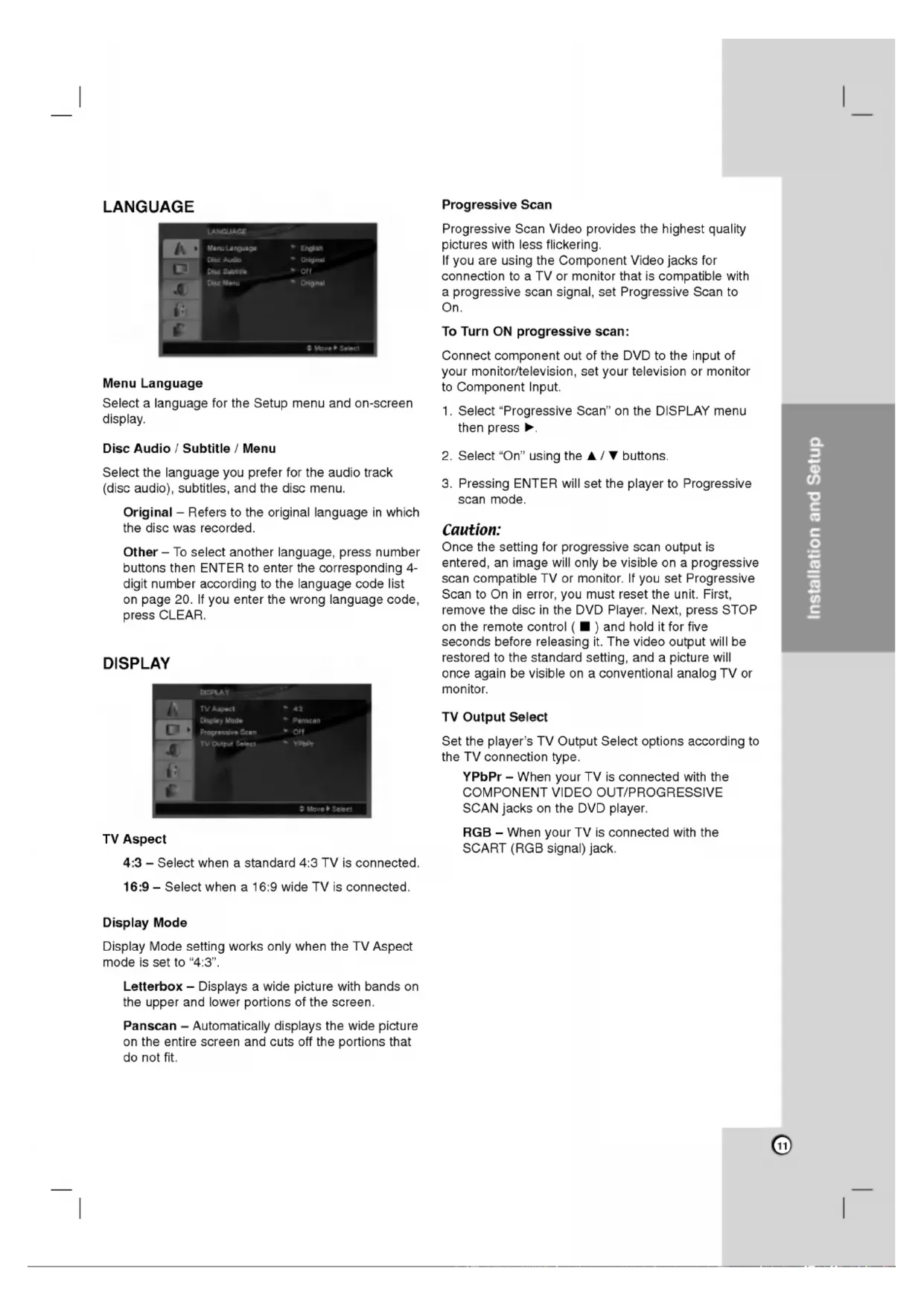
SUR.11 Installation and Setup LANGUAGE Menu Language Select language for the Setup menu and on-screen display. Disc Audio
Menu Select the language you prefer for the audio track (disc audio), subtitles, and the disc menu. Original Refers the original language
which the disc was recorded. Other
you enter the wrong language code, press CLEAR. DISPLAY
Select when a16:9 wide
connected. Display Mode Display Mode setting works only when the
Displays wide picture with bands the upper and lower portions
Automatically displays the wide picture the entire screen and cuts off the portions that
not fit. Progressive Scan Progressive Scan Video provides the highest quality pictures with less flickering.
you are using the Component Video jacks for connection toa
compatible with progressive scan signal, set Progressive Scan On.
progressive scan: Connect component out
your monitor/television, set your television monitor Component Input. Select "Progressive Scan" the DISPLAY menu then press
Select "On" using the
buttons. Pressing ENTER will set the player Progressive scan mode. Caution: Once the setting for progressive scan output
entered, image will only
you set Progressive Scan
for five seconds before releasing it. The video output will
restored the standard setting, and picture will once again
Output Select Set the player's
Output Select options according the
connected with the COMPONENT VIDEO OUT/PROGRESSIVE SCAN jacks the DVD player. RGB
connected with the SCART (RGB signal) jack.12 AUDIO Each DVD disc has variety
audio output options. Set the player's AUDIO options according the type
MPEG Bitstream Select "Bitstream"
you connect this DVD player's DIGITAL OUT jack toan amplifier other equipment with Dolby Digital, DTS MPEG decoder. PCM (for Dolby Digital
automatically downmixed two-channel PCM audio. Off (for DTS):
you select "Off", the DTS signal
not output through the DIGITAL OUT jack. Sample Freq. (Frequency)
your receiver amplifier
handling kHz signals, select kHz. When this choice
made, this unit automatically converts any kHz signals to48 kHz your system can decode them.
your receiver amplifier
handling kHz signals, select kHz. Check the documentation for your amplifier verify its capabilities. Dynamic Range Control (DRC) With the DVD format, you can hear program's soundtrack
the mostaccurate and realistic presentation possible. However, you may wish compress the dynamic range
the audio output (the difference between the loudest sounds and the quietest ones). This allows you listen toa movie ata lower volume without losing clarity
for this effect. Vocal Set
playing. The karaoke channels the disc mix into normal stereo sound. LOCK (Parental Control) Rating Blocks playback
rated DVDs based their content. Not all discs are rated. Select "Rating" the LOCK menu then press
access the LOCK options, you must input the password you have created.
you have not yet entered password, you are prompted
you make mistake before pressing ENTER, press CLEAR. Select rating from 1to8 using the
buttons. Rating 1-8: Rating one (1) has the most restrictions and rating eight (8)
the least restrictive. Unlock:
you select unlock, parental control
not active and the disc plays
you forget your password
you forget your password, you can clear
cleared.13 Installation and Setup Area Code Enter the code
the area whose standards were used torate the DVD video disc, based the list page Select "Area Code" the LOCK menu then press
Follow step 2as shown previous page (Rating). Select the first character using
and select the second character using
buttons. Press ENTER confirm your Area code selection. OTHERS PBC Set Playback Control (PBC)
Off. On: Video CDs with PBC are played according the PBC. Off: Video CDs with PBC are played the same way Audio CDs. Auto Play You canset
the DVD player soa DVD disc automatically starts playing whenever the DVD
setto On, this DVD player will search for title that has the longest playback time and then play back the title automatically. Note: The Auto Play function may not work for some DVDs. B.L.E. (Black Level Expansion)
playback pictures. Set your preference and monitor's ability. On: Expanded grey scale.
IRE cut off) Off: Standard grey scale. (7.5 IRE cut off) Note: The B.L.E. function works NTSC system only. DivX(R) VOD
Demand) registration code that allows you torent and purchase videos using the DivX VOD service. For more information, visit www.divx.com/vod. Select "DivX(R) VOD" option then press
selected and the registration code will appear. Use the registration code purchase orrent the videos from DivX VOD service www.divx.com/vod. Follow the instructions and download the video ontoa disc for playback this unit. Press ENTER exit. Note: All the downloaded videos from DivX VOD can only
played back this unit.14 Operations General features Buttons Operations (OPEN CLOSE) Opens orclosesthedisc tray. (PAUSE) During playback, pressX pause playback. PressX repeatedly
play Frame-by-Frame. SKIP
During playback, pressSKIP
the next chapter/track
the beginning ofthe current chapter/track. PressSKIP.twice briefly
step back the previous chapter/track. SCAN
During playback, pressSCAN
steps Video CD, MP3, AudioCD
steps Whilethe playback paused, pressSCANM repeatedly
steps, forward only). REPEAT During playback, pressREPEAT repeatedly
enlarge thevideo image
selectadesired angle. (SUBTITLE) During playback, pressSUBTITLE repeatedly
selectadesiredsubtitle language. (AUDIO) During playback, pressAUDIO repeatedly
hearadifferentaudio language oraudiotrack.Discs15 Notes general features:
once during Repeat Chapter (Track) playback, the repeat playback cancels. Zoom may not work onsome DVDs. When you are playing DVD disc contains scenes recorded different camera angles, the angle indicator will blink the
screen during scenes recorded different angles asan indication that angle switching
the current track. Additional features
surround effect that simulates multi- channel audio from twostereo speakers (instead
the five+ speakers normally required for multi-channel audio from home theater system). Press DISPLAY during playback. Use
Surround effect, select "Normal". Press AUDIO during playback. "3D SUR." appears the menuscreen.2. returnto normal playback, press AUDIO repeatedly until "3D SUR." disappears from the menuscreen. Time Search
start playing any chosen time the disc: Press DISPLAY during playback. Press
Vto select the time clock icon and
appears. Input the required start time
hours, minutes, and seconds from left right.
you enter the wrong numbers, press CLEAR toremove the numbers you entered. Then input the correct numbers. Press ENTER confirm. Playback starts from the selected time. Marker Search
nine memorized points.
entera marker, press MARKER the desired point the disc. The Marker icon appears the
screen briefly. Repeat toenter
Recall Clear Marked Scene During disc playback, press SEARCH. The marker search menu appears the screen.2. Within seconds, press
select marker number that you wantto recall clear. Press ENTER and playback starts from the marked scene. Or, Press CLEAR and the marker number
erased from the list. You can play any marker
inputting its number the marker search menu. Last Scene Memory This player memorizes last scene from the last disc that
viewed. The last scene remains
you remove the disc from the player switch off the player.
you load disc that has the scene memorized, the scene
automatically recalled. Note: This player does not memorize the scene
you switch off the player before commencing play the disc. Screen Saver The screensaver appears when you leave the DVD player
Stop mode for about five minutes.
displayed for five minutes, the DVD Player automatically turns itself off. System Select You must select the appropriate system mode for your
the display window, press and hold PAUSE/STEP for more than seconds
able select system (PAL, NTSC, AUTO).16 Playing
During STOPmode,pressPROGRAMandthemarkwillappear.Note:PressPROGRAM again
place additionaltracksonthelist. Selectthetrackyou want
start playing onthe "Program" list. PressPLAYorENTER
start. Playback begins intheorderinwhichyou programmed thetracks. Playback stopsafterallofthe tracksonthe "Program" listhave played once. Toresumenormal playback from programmed playback, selectatrackonthelistandthenpressPLAY. Repeat Programmed TracksPressREPEAT selectadesiredrepeatmode. Track:repeatsthe current track All:repeatsallthetrackson programmed list.
Off(No display): does not play repeatedly. Note:Ifyoupress>once during Repeat Track playback, therepeat playback cancels. Erasing aTrackfrom "Program" List
During STOPmode,pressPROGRAMandthemarkwillappear. UsevVbBtoselectthetrackthatyouwish erasefromthe Program list. PressCLEAR. Repeat step 1~3
MP3/WMAdisc compatibility withthis player islimitedasfollows:
Sampling frequency: within
The player cannot readanMP3/WMAfilethathasafileextensionotherthan ".mp3" /".wma". CD-R physical formatshouldbeISO
thePHOTOmenuwhile watching pictures, pressSTOP. Tips:
Ifyouareinafilelistand want
the previous Folder list, use
selectthe option you want
oncewhile viewing picture
advance the next previous file.Zoom During watching pictures, pressZOOM
enlarge thevideo image
steps). Youcanmove through thezoomed picture using bBvVbuttons.Torotate picture Press
during showing picture
readthedisc's contents. Ifyoudo not seeanon-screen display afterseveral minutes, someofthefilesmaybe too large
Ifyouareinafilelistand want
the previous Folder list, usethe
The picture may not displayed properly whileDivX playback. SetyourTV system
play, thesubtitlemay not displayed properly. Noticefor displaying theDivXsubtitleIfthesubtitledoes not display properly during playback, pressandholdSUBTITLEabout3secondsthenpress
Ifthenumberofthe screen frameisover30 per second, thisunit may not operate normally.
Depending onyourTV,someorallbuttonsmay not functionontheTV,evenafter entering the correct manufacturercode. Ifyou enter anewcodenumber,thecodenumber previously enteredwillbeerased. Whenyou replace thebatteriesofthe remote, thecodenumberyouhave set maybe reset
thedefault setting. Setthe appropriate codenumber again. Maintenance and Service Refer theinformationinthis chapter before contacting aservicetechnician. Handling the Unit When shipping theunitPleasesavethe original shipping carton and packing materials.Ifyouneed
ship theunit,formaximum protection, re-pack theunitasitwas originally packed
the factory. Keeping theexteriorsurfacesclean
input your desired language forthe following initial settings: Disc Audio, Disc Subtitle, DiscMenu.21 Symptom
on, but the DVD player does not work.
sound. The DVD player does notstart playback. The remote control does not work properly. Possible Cause The power cord
notsetto receive DVD signal output. The video cable
not connected securely. The equipment connected with the audio cable
notsetto receive DVD signal output. The power
the equipment connected with the audio cable
turned off. The AUDIO options aresetto the wrong position.
inserted. The rating level
set.? The remote control
not pointed the remotesensor on the DVD player. The remote control
too far from the DVD player. Correction Plug the power cord into the wall outlet securely. Insert disc. (Check the disc indicator
lit.) Select the appropriate video input mode the TV. Connect the video cable securely. Select the correct input mode
the audio receiver you can listen the sound from the DVD player. Turn the equipment connected with the audio cable. Set the AUDIO option the correct position, then turnon the DVD player again
pressing POWER. Insert playable disc. (Check the disc type and regional code.) Change the rating level. Point the remote control the remotesensor
the DVD player. Operate the remote control closer the DVD player. Troubleshooting Specifications General Power requirements:
Dimensions (Approx.): 430x35x242mm(17x1.4x9.5inches) (WxHxD)withoutfoot Weight (Approx.):
(ANALOG OUT connectors only) Harmonic distortion: Less than 0.02% Dynamic range: More than
(DVD/CD) Accessories: Video cable (1), Audio cable (1), Remote control (1), Batteries (2) Note: Design and specifications are subject change prior notice. P/NO.
(PLAY) Demarrelalecture.
Progressive Scan: Reliez
Song, Artist, Album, Comment, Genre
codage GMC, appeles normalement 1-point, 2-point