ManualGo.com
DV8621P - DVD player LG - Free user manual and instructions
Find the device manual for free DV8621P LG in PDF.


Download the instructions for your DVD player in PDF format for free! Find your manual DV8621P - LG and take your electronic device back in hand. On this page are published all the documents necessary for the use of your device. DV8621P by LG.
USER MANUAL DV8621P LG
Macrovision. Copy protection signals arerecordedonsomediscs.When recording and playing the pictures ofthesediscsona VCR, picture noisewillappear.This product incorporates copyright protection technology thatis protected
thesoftwaremanufacturer,some play- backfeaturesoftheunit may notbeavailableorotherfunctions may beadded.Referalsototheinstructions supplied withtheDVDsandVideoCDs.SomeDVDsmadeforbusiness purpos- may notbe played ontheunit. Regional codeoftheDVD player andDVDsThisDVD player designed andmanufacturedfor playback region "4"encodedDVDsoftware.The region codeonthelabelsofsomeDVDdiscsindicateswhichtypeof player can play thosediscs.Thisunitcan play only DVDdiscslabeled"4"or"ALL".If you tryto play any otherdiscs,the message "Check Regional Code"will appear ontheTVscreen.SomeDVDdiscs may nothavea region codelabeleven though their playback prohibited
arealimits. Disc-related terms Title (DVD only) Themainfilmcontentor accompanying featurecontentoradditionalfeature content, ormusicalbum.Eachtitleis assigned atitlereferencenumber enabling you tolocateit easily. Chapter (DVD only) Sectionsofa picture oramusical piece thataresmallerthantitles.Atitle is composed ofoneorseveral chap- ters.Each chapter assigned chapter number, enabling you tolocatethe chapter you want. Depending onthedisc, chapters may notberecorded.Track (Video CDandaudioCD only) Sectionsofa picture oramusical piece onavideoCDoranaudioCD.Eachtrackis assigned atracknumber, enabling you tolocatethetrack you want.SceneOnavideoCDwithPBC (Playback control) functions, moving pictures andstill pictures aredividedintosec-tionscalled"Scenes".Eachsceneis displayed inthemenuscreenand assigned ascenenumber, enabling you tolocatethescene you want.Asceneis composed ofoneorseveraltracks. Types
video CDs TherearetwotypesofvideoCDs:VideoCDs equipped withPBC (Version 2.0) PBC (Playback control) functionsallow you tointeractwiththesystemvia menus, searchfunctions,orother typical computer-like operations. Moreover,still pictures high resolutioncanbe played they areincludedinthedisc.VideoCDsnot equipped withPBC (Version 1.1) Operated inthesame way asaudioCDs,thesediscsallow playback ofvideo pictures aswellassound,but they arenot equipped withPBC. INTRODUCTION Before Use (Continued) PrecautionsHandlingtheunitWhenshippingtheunitTheoriginalshipping carton andpackingmaterials come inhandy.Formaximumprotection,re-packtheunit
was originallypacked thefactory.Whensetting theunitThepictureandsoundof nearby TV, VCR,
radio may bedistortedduringplayback.Inthis case, positiontheunit away fromthe TV, VCR,
turn offtheunitafterremovingthedisc.TokeeptheexteriorsurfacescleanDo not use volatileliquids,such insecticide spray, near theunit.Do not leaverubber plasticproductsin contact withtheunitfor longperiodoftime.Theywillleavemarks thesurface.CleaningtheunitTocleanthecabinetUse
soft, drycloth.Ifthesurfaces are extremelydirty, use
worn, thepicturequalitywillbe poor. Regularinspectionandmaintenance are recommendedafter every 1,000 hoursof use. (Thisdepends theoperatingenvironment.)For details, please contact your nearest dealer.Notes DiscsHandlingdiscsDo not touchtheplaybacksideofthedisc.Holdthediscbytheedges thatfingerprintswill not get
thesurface.Do not stick paper
leaveitin parked car exposed direct sun- light, there may
considerable temperature increaseinsidethe car. CleaningdiscsFingerprintsanddust thedisc can cause poor pic- ture qualityandsounddistortion.Beforeplaying,cleanthediscwith cleancloth.Wipethediscfromthe cen- ter out. not use strong solventssuch
alcohol, benzine, thinner, commerciallyavailable cleaners,
REPEAT Repeat chapter, track, title, all. A-B Repeat sequence. RANDOM Plays tracksinrandomorder.
the remote control, and insert two batteries (size AAA) with and aligned correctly.
not mix old and new batteries and never mix different types
Makeoneofthe following connections, depending onthe capabilities ofyour existing equipment. Video connection
ConnecttheLeftand Right AUDIOOUT jacks oftheDVD Player totheaudio left/right jacks ontheTV (A) using theaudiocables. Progressive Scan (ColorStreamPro) connection Ifyourtelevisionisa high-definition "digital ready" television, youmaytake advantage oftheDVD Player's progressive scan output forthe highest videoresolution possible. IfyourTVdoesnot accept the Progressive Scanfor-mat,the picture willappearscrambledifyou try Progressive ScanontheDVD Player.
your amplifier, receiver,
the cor- responding jack
coaxial audiocable. Youwillneed activatethe player's digital output. (See "Digital Audio Output"
page 13). DigitalMulti-channelsoundA digital multi-channelconnection provides thebestsound quality. Forthisyouneed multi-channelAudio/Videoreceiverthat supports one
yourDVD Player (MPEG
thefrontofthereceiver.Caution:Due theDTS Licensing agreement, the digital output willbeinDTS digital out whenDTSaudio stream isselected.Notes Iftheaudioformatofthe digital output does not matchthe capabilities ofyour receiver, thereceiverwill produce
sound all. SixChannel Digital SurroundSoundvia digital con- nection can only beobtainedifyourreceiveris equipped with
Digital Multi-channeldecoder.--To see theaudioformatofthe current DVDinthe on- screen display, pressAUDIO.
Amplifier (Receiver) RearofDVD player AXO
the desired title number. Shows the current chapter number and total number
the desired chapter number. Shows the elapsed playing time, and searches the point
the elapsed time directly. Shows the current audio soundtrack language, encoding method, and channel number, and changes the setting. Shows the current subtitles language, and changes the setting. Shows the current angle number and total number
the desired track number. Shows the elapsed playing time (Display only) Shows the audio channel, and changes the audio channel. Shows the current sound mode, and changes the setting. Selection Method 1/2,or Numbers ENTER
The original language set for the disc
selected. Other :To select another language, press number buttons
enter the corresponding 4-digit number according
the lan- guage code list
Aspect Menu Language Progressive Scan Disc Audio English Italian Spanish French German Dutch Disc Subtitle Disc Menu Rating Country Code
Aspect Menu Language Progressive Scan Digital Audio Output Others Disc Audio Original English Dutch Hungarian German Italian Polish French Spanish Other-------- Disc Subtitle Disc Menu Rating Country Code
Aspect Menu Language Progressive Scan Digital Audio Output Others Disc Audio Original English Dutch Hungarian German Italian Polish French Spanish Other--------Before Operation (Continued) Sound Digital Audio Output EachDVDdischasa variety ofaudiooutput options. Setthe player's Digital Audio Output according tothetypeofaudiosystem you use.DOLBYDIGITAL/PCM:Select"DOLBYDIGITAL/PCM"if you connectedtheDVD Player's DIGITALOUT jack toa Dolby Digital decoder (or amplifier orother equip- mentwitha Dolby Digital decoder). Stream/PCM:Select"Stream/PCM"if you connectedtheDVD Player's DIGITALOUT jack toan amplifier orother equipment withaDTSdecoder, Dolby Digital decoderorMPEGdecoder.PCM:Selectwhenconnectedtoa2-channel digital stereo amplifier. TheDVD player outputssoundsinthePCM2chformatwhen you play aDVDvideodiscrecordedonthe Dolby Digital, MPEG1,orMPEG2 recording system. Sample Frequency change the Sample Frequency setting, firstselectthedesired Digital Audio Output asindicatedasabove.If your receiveror amplifier isNOT capable handling 96KHz signals, select48KHz.Whenthischoiceismade,thisunitwill automatically convert any 96KHz sig- nalsto48KHzso your systemcandecodethem.If your receiveror amplifier capable handling 96KHz signals, select96KHz.Whenthischoiceismade,thisunitwill pass eachtypeof signal through without any further processing. Others TheDRC,Vocal,PBCandAuto Play settings canbe changed. Press3/4toselectthedesireditemand press ENTER.The setting oftheselecteditemis changed betweenOnandOff. Dynamic Range Control (DRC) WiththeDVDformat, you canheara program's sound-trackinthemostaccurateandrealistic presentation possible, thanksto digital audio technology. However, you may wishto compress the dynamic range oftheaudiooutput (the differencebetweentheloudestsoundsandthe quietest ones). Then, you may listentoamovieatalowervolumewithout losing clarity ofsound. SetDRCtoOnforthiseffect.VocalSetVocaltoOn only whenamulti-channelkaraokeDVDis playing. Thekaraokechannelsonthediscwillmixintonormalstereosound.PBCSet Playback Control (PBC) toOnorOff. On: Video CDs with PBC are played according
the PBC. Off: Video CDs with PBC are played the same way
activated. Off: Auto Play function
and alternatively, moresuitablescenesareavail-ableforselectiononsomediscs. Ratings are country-dependent. TheParentalControlfeatureallowsyoutopreventdiscsfrom being played
yourchildrenortohavecertaindiscs played withalternativescenes. Select "Rating" onthe Setup menu using the3/4buttons. While "Rating" isselected,press
mistake before pressing ENTER, press CLEAR and enter 4-digit security password again.
using the3/4but-tons.One (1) hastheleast playback restrictions. Eight (8) hasthemost playback restrictions.Unlock:Ifyouselect Unlock, Parental Control not active.Thediscwill play infull. Ratings
Some discscontain scenes not suitableforchildren.Ifyou set
rating forthe play- er,alldisc scenes withthe same rating
lowerwillbe played. Higher rated scenes will not played unless alternative scene isavailable thedisc.Thealternative must havethe same rating
suitablealternativeis found, play- backwillstop.You must enter the 4-digit password
Unlock ChangeOperation with DVD and Video
Playing DVD and Video
PressSCANmorMduringplayback. The player will now
General Features (continued) StillPictureand Frame-by-Frame playback 1PressPAUSE/STEPduringplayback.Theplayerwill now
intoPAUSEmode.2You can advancethepictureframe-by-frame by press- ingPAUSE/STEPrepeatedly the remote control.SlowMotion1PressPAUSE/STEP(X)duringplayback.Therecorderwill now
stop mode.The"RANDOM" appears
theTV screen. 2To return
normalplayback, press RANDOMagain.The"NORMAL" appears
use theRandomfunction.See page Repeat DVDVideoDiscs RepeatChapter/Title/Off1To repeat thecurrentlyplayingchapter, press REPEAT. The Repeat Chapter icon appears
screen. 2To repeat thetitlecurrentlyplaying, press REPEAT secondtime. The Repeat Title icon appears
screen. 3To xitRepeat mode, press REPEAT thirdtime. The Repeat Off icon appears
screen. VideoCDs RepeatTrack/All/Off1To repeat thetrackcurrentlyplaying, press REPEAT. The Repeat Track icon appears
screen. 2To repeat thedisccurrentlyplaying, press REPEAT secondtime. The Repeat All icon appears
screen. 3To xitRepeat mode, press REPEAT thirdtime. The Repeat Off icon appears
screen. NoteOn VideoCDwith PBC, you must set PBC Off the setup menu
your chosenstartingpoint.
screen, and the repeat sequence begins ("AsB" appears the display window). 3Tocancelthe sequence, press A-B.TimeSearchTheTimeSearchfunctionallows you
any chosentime thedisc.1PressDISPLAYduringplayback.The on-screen dis-play appears
the screen. The Time Search box shows the elapsed playing time
you enter the wrong numbers, press CLEAR
remove the numbers you entered. Then enter the correct numbers. 4Within10 seconds, press ENTER confirmthe start time. Playback starts from the selected time
invalid time, playback will continue from the current point. 3DSurroundThisunit can produce 3DSurround effect, whichsimulatesmulti-channelaudioplaybackfrom two conventional stereo speakers,insteadofthefive
more speakersnormallyrequired listen multi-channelaudiofrom hometheater system. 1PressDISPLAYduringplayback.2Use
selectthesoundoption. The sound option will
Surround effect, select "NORM".
you press ZOOM repeatedly, the magnification level increases
the current title has menu, the menu will appear the screen. Otherwise, the disc menu may appear.
and MP3/WMA Disc Playing Audio
directlyto any track, enterthetracknumberusingthenumberedbuttons(0-9)duringplayback. Repeat Track/All/Off 1To repeat thetrackcurrentlyplaying, press REPEAT. The Repeat icon and "TRACK" appears
sec- ondtime. The Repeat icon and "ALL" appears
the menu screen. 3TocancelRepeat mode, press REPEAT thirdtime. The Repeat icon and "OFF" appears
the menu screen. Search 1PressSCANm Mduringplayback. The player will now
MX2, MX4, MX8(forward). Search speed and direction are indicated
sequence. 1Duringdiscplayback, press A-Bat your chosenstart-ingpoint. The Repeat icon and
the menu screen, and the sequence begins
play repeatedly. 3To xitthe sequence andreturntonormalplay, press A-Bagain. The Repeat icon and "OFF" appears
the menu screen. Surround Thisunit can produce 3DSurround effect, whichsimulatesmulti-channelaudioplaybackfromtwoconventionalstereospeakers,insteadofthefive
Surround effect, select "NORM". Changing theAudio Channel PressAUDIOrepeatedlyduringplaybacktohear differentaudiochannel(STER., LEFT,
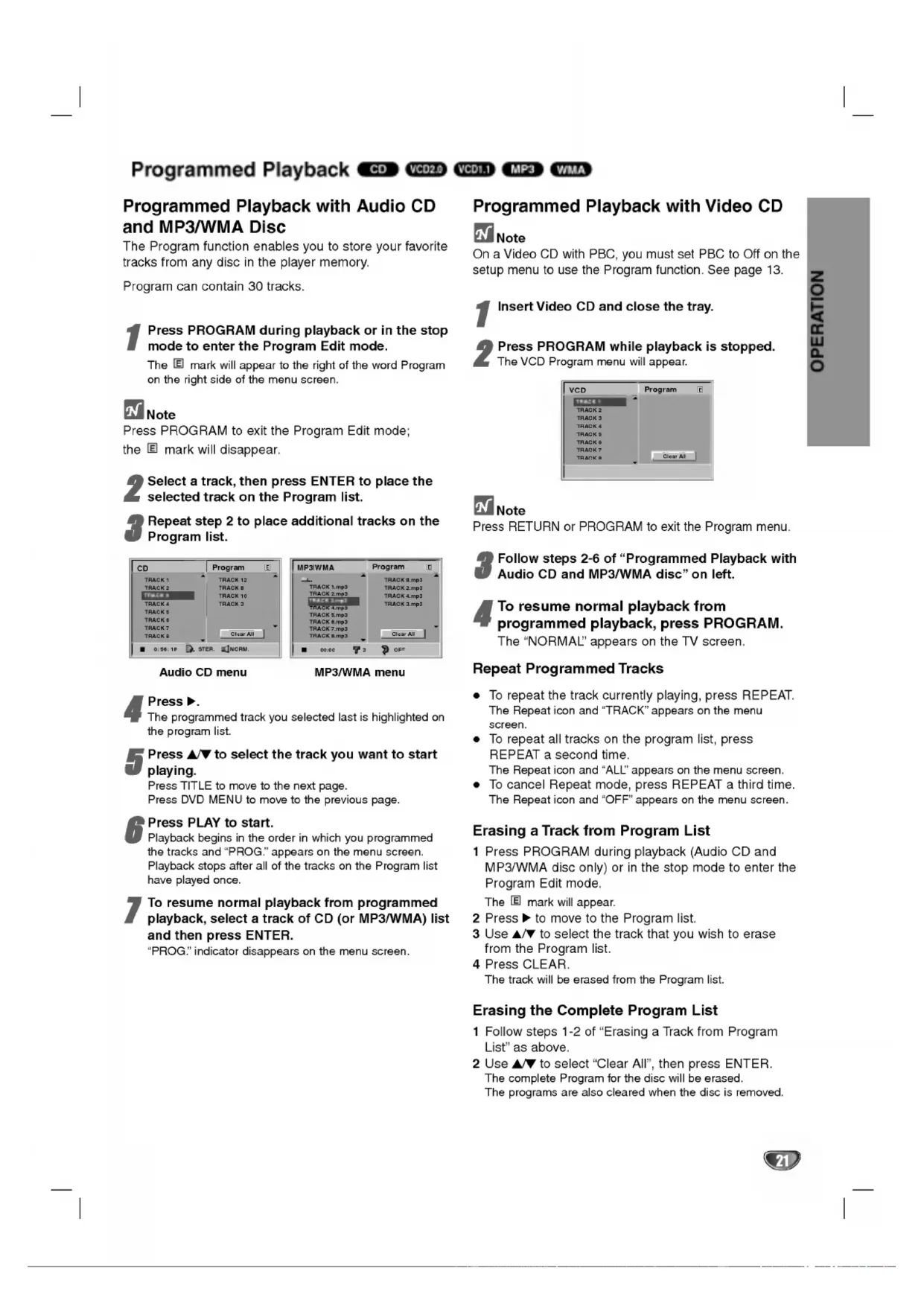
store your favoritetracksfrom any discintheplayer memory. Program can contain tracks. PressPROGRAMduringplayback inthe stop mode
theprogramlist. Press3/4 selectthetrack you want
start playing.PressTITLE
start. Playback begins intheorderinwhichyou programmed thetracksand"PROG."appears the menu screen. Playback stops afterallofthetracks the Program listhave played once.
InsertVideoCDandclosethe tray.
resume normal playback from programmed playback, press PROGRAM. The"NORMAL" appears
theTV screen. Repeat Programmed Tracks repeat thetrackcurrentlyplaying, press REPEAT.The Repeat iconand"TRACK"appears the menu screen. repeat alltracks the program list, press REPEAT secondtime.The Repeat iconand"ALL"appears the menu screen. TocancelRepeat mode, press REPEAT thirdtime.The Repeat iconand"OFF"appears the menu screen. Erasing
Track from Program List
theProgramlist. Use3/4 selectthetrackthat you wish
erase fromtheProgramlist. PressCLEAR.Thetrackwillbe erasedfromthe Program list. Erasing the Complete Program List
MODE1 Ifyou turn offthepower,thevideomodewillbe back initial state (MODE1). Detailed Descriptions for Video Modes MODE1: The source material
determined from disc information. MODE2: Suitable for playing film based content
video based material recorded
the progressive scan method. MODE3: Suitable for playing video based content with compar- atively little motion. NoteThevideomodesettingonlyworkswhentheProgressiveScanmodeis set
thedefaultsetting.Settheappropriatecodenumberagain. System SelectYou must selecttheappropriate system modeforyourTV system. IfNODISCappearsinthedisplay window, pressandholdPAUSEonthefrontpanelformorethan seconds beable selecta system (PAL, NTSC, orAUTO). Whentheselected system does not coincidewiththe system ofyour TV, normalcolorpicturemay not bedisplayed.AUTO:SelectwhenDVDplayerisconnectedwithMulti system TV.NTSC:SelectwhenDVDplayerisconnectedwithNTSC-TV.PAL:SelectwhenDVDplayerisconnectedwithPAL-TV. VCD1.1 VCD2.0 DVD VCD1.1
oubleshooting Checkthe following guide forthe possible causeofa problem before contacting service. Symptom Nopower.Thepowerison,buttheDVD player doesnotwork.No picture. Nosound.The playback picture ispoor.TheDVD player doesnotstart playback. Theremotecontroldoesnotwork properly. CauseThepowercordisdisconnected.Nodiscisinserted.TheTVisnotsettoreceiveDVD signal output. Thevideocableisnotconnected securely. TheconnectedTVpoweristurnedoff.The Progressive Scanissetto"On"onthe setup menubutisconnectedtoa standard(analog) television.The equipment connectedwiththeaudiocableisnotsettoreceiveDVD signal output. Theaudiocablesarenotconnected securely. Thepowerofthe equipment connectedwiththeaudiocableisturnedoff.The Digital Audio Output issettothewrong position. Thediscis dirty. Nodiscisinserted.An unplayable discisinserted.Thediscis placed upside down.Thediscisnot placed withinthe guide. Thediscis dirty. The Rating levelisset.Theremotecontrolisnot pointed attheremotesensoroftheDVD player. TheremotecontrolistoofarfromtheDVD player. Thereisanobstacleinthe path oftheremotecontrolandtheDVD player. Thebatteriesintheremotecontrolareexhausted.Correction Plug thepowercordintothewalloutlet securely. Insertadisc. (Check thattheDVDor,audioCDindicatorinthe display windowis lit.) Selectthe appropriate video input modeontheTVsothe picture fromtheDVD player appearsontheTVscreen.Connectthevideocable securely. TurnontheTV.Set Progressive Scanto"Off
Latvian, LettishCodeLanguage Lingala Lithuanian Macedonian Malagasy Malay Malayalam Maltese Maori Marathi Moldavian Mongolian Nauru Nepali Norwegian Oriya Panjabi
Pashto, Pushto Persian Polish Portuguese
- Optical connector 1Audio output (analog audio) 2.0Vrms(1KHz,0dB),600Ω,RCAjack(L,R)x1 Accessory Videocable p. 1
- Audiocable p. 1
- Remotecontrol p. 1
- Batteries Design and specifications are subject change withoutnotice. Manufactured under license from Dolby Laboratories. "Dolby", "Pro Logic", and the double-D symbol are trademarks p. 2
Dolby Laboratories. DTS and DTS Digital Out are registered trademarks
Precautions relatives
SONT PAS COMPLETEMENT COMPATIBLES AVEC CE PRODUIT
lecture. Repetition Plage/Tous/Arret Pour repeter
Systeme signal PAL/NTSC Reponse