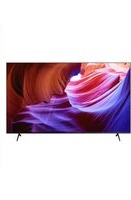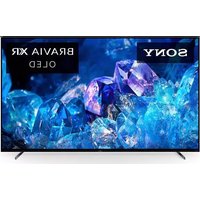
Bravia XR-77A80CK - TV SONY - Free user manual and instructions
Find the device manual for free Bravia XR-77A80CK SONY in PDF.


User questions about Bravia XR-77A80CK SONY
0 question about this device. Answer the ones you know or ask your own.
Ask a new question about this device
Download the instructions for your TV in PDF format for free! Find your manual Bravia XR-77A80CK - SONY and take your electronic device back in hand. On this page are published all the documents necessary for the use of your device. Bravia XR-77A80CK by SONY.
USER MANUAL Bravia XR-77A80CK SONY
natural_image
Illustration of a remote control with a house icon and a question mark, next to a grid of screens (no text or symbols)BRAVIA XR
Reference Guide US
Read this manual before using this product
Sony Customer Support
U.S.A.:
https://www.sony.com/tvsupport
Canada:
https://www.sony.ca/support
United States Canada
1.800.222.SONY 1.877.899.SONY
Call the telephone number that appears on your warranty card/policy.
Please do not return the product to the store.
https://www.sony.ca/support
États-Unis :
https://www.sony.com/tvsupport
Canada États-Unis
1.877.899.SONY 1.800.222.SONY
This TV comes with the following manuals. Please retain the manuals for future reference.
Setup Guide
• TV installation and setup.
Reference Guide (this manual) / Safety Documentation
- Safety information, remote control, troubleshooting, wall-mount installation, specification, etc.
Help Guide (On screen Manual)
- Settings, functions, Internet connection, troubleshooting, etc.
- To open it, press (Input) on the remote control and select [Help]. If [Help] does not exist, select [Edit] and add [Help].
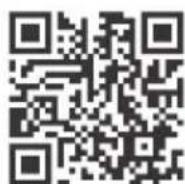
- You can refer to the Help Guide with your smartphone.
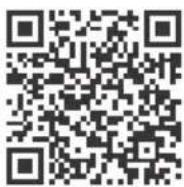
https://rd1.sony.net/help/tv/jusltn1/h_usltn/
IMPORTANT - Read the End User Software License Agreement before using your Sony product. Using your product indicates your acceptance of the End User Software License Agreement. The software license agreement between you and Sony is available online at Sony website (https://www.sony.net/tv-software-licenses/) or on your product screen. Press ✉ (Quick Settings) on the remote control and select [Settings] → [System] → [About] → [Legal information] → [End user license agreement].
Note
- Images and illustrations used in the Setup Guide and this manual are for reference only and may differ from the actual product.
- Setting menus are subject to change without notice due to software updates. For latest information, visit Sony support website.
The 77" class has a 76.7 inch (194.7 cm) viewable image size, the 65" class has a 64.5 inch (163.9 cm) viewable image size and the 55" class has a 54.6 inch (138.8 cm) viewable image size (measured diagonally).
Location of the identification label
Labels for the TV Model No. and Power Supply rating are located on the rear of the TV.
IMPORTANT NOTICE
Owner's Record
The model and serial numbers are located at the side and/or rear of the TV. Record these numbers in the spaces provided below. Refer to them whenever you call upon your Sony dealer regarding this TV.
Model Name
Serial No.
IMPORTANT NOTICE FOR MEXICO
Operation of this equipment is subject to the following two conditions: (1) it is possible that this equipment or device may not cause harmful interference and (2) this equipment or device must accept any interference, including interference that may cause undesired operation.
For information related to the certificate number, refer to the package label and / or product.
Note:
This product uses the following module for wireless functionalities:
Model: DHUR-SY63
Brand: Wistron NeWeb Corporation
Information for the remote control with voice command included with this product:
Model: RMF-TX800U*
Brand: Sony
Note: Uses the following device for wireless functionalities: Model: UE878
Brand: UEI
* To see the model name of the remote control, open the remote control cover and see the label on the remote control.
CAUTION
To prevent electric shock and blade exposure, do not use this AC plug with an extension cord, receptacle or other outlet unless the blades can be fully inserted.
- Operate the TV only on 110 V – 240 V AC (U.S.A./Canada 120 V AC)
Note
- This television includes a QAM demodulator which should allow you to receive unscrambled digital cable television programming via subscription service to a cable service provider. Availability of digital cable television programming in your area depends on the type of programming and signal provided by your cable service provider.
Safety Information
Notice for customers in the United States of America
Supplier's Declaration of Conformity
Trade Name: SONY
Model: XR-77A80K / XR-77A80CK / XR-65A80K /
XR-65A80CK / XR-55A80K / XR-55A80CK
Responsible Party: Sony Electronics Inc.
Address: 16535 Via Esprillo, San Diego, CA 92127 U.S.A.
Telephone Number: 858-942-2230
FCC Related Information
This equipment has been tested and found to comply with the limits for a Class B digital device, pursuant to Part 15 of the FCC Rules. These limits are designed to provide reasonable protection against harmful interference in a residential installation. This equipment generates, uses and can radiate radio frequency energy and, if not installed and used in accordance with the instructions, may cause harmful interference to radio communications. However, there is no guarantee that interference will not occur in a particular installation. If this equipment does cause harmful interference to radio or television reception, which can be determined by turning the equipment off and on, the user is encouraged to try to correct the interference by one or more of the following measures:
• Reorient or relocate the receiving antenna.
- Increase the separation between the equipment and receiver.
- Connect the equipment into an outlet on a circuit different from that to which the receiver is connected.
- Consult the dealer or an experienced radio/TV technician for help.
Pursuant to FCC regulations, you are cautioned that any changes or modifications not expressly approved in this manual could void your authority to operate this equipment.
Safety and Regulatory
FCC regulations restrict operation of this device to indoor use only.
Notice for customers in Canada
This device contains licence-exempt transmitter(s)/receiver(s) that comply with Innovation, Science and Economic Development Canada's licence-exempt RSS(s). Operation is subject to the following two conditions:
(1) This device may not cause interference. (2) This device must accept any interference, including interference that may cause undesired operation of the device.
To prevent radio interference to the licensed service, this device is intended to be operated indoors and away from windows to provide maximum shielding. Equipment (or its transmit antenna) that is installed outdoors is subject to licensing.
High-power radars are allocated as primary users (i.e. priority users) of the bands 5250-5350 MHz and 5650-5850 MHz and that these radars could cause interference and/or damage to LE-LAN devices.
Notice for customers in the United States of America and Canada
This equipment complies with FCC/IC radiation exposure limits set forth for an uncontrolled environment and meets the FCC radio frequency (RF) Exposure Guidelines and RSS-102 of the IC radio frequency (RF) Exposure rules. This equipment should be installed and operated keeping the radiator at least 20 cm or more away from person's body (excluding extremities: hands, wrists, feet and ankles).
This device and its antenna(s) must not be co-located or operating with any other antenna or transmitter except Grant condition.
Compatible Wall-Mount Bracket Information
Use the following Sony Wall-Mount Bracket with your TV model.
| Sony TV Model No. | |
| XR-77A80K / XR-77A80CK /XR-65A80K / XR-65A80CK /XR-55A80K / XR-55A80CK | |
| Sony Wall-Mount Bracket Model No. | SU-WL855*1 |
Use with other Wall-Mount Brackets ^2 may cause instability and could result in property damage or injury.
*1 Only for limited region/country/model.
*2 For instructions on using the Wall-Mount Bracket with your TV please go to https://www.sony.com/am/support for your TV model and download "Wall-Mount Bracket".
To Customers
Sufficient expertise is required for TV installations. Be sure to subcontract the installation to a Sony dealer or licensed contractor and pay adequate attention to safety during the installation.
Before setting up your TV
Some TV models are packaged with a detached Table-Top Stand so you can mount your TV to a wall right away. See "Installing the TV to the Wall" if you want to mount the TV to a wall. If you are not mounting the TV to a wall, you will need to attach the Table-Top Stand (refer to the Setup Guide).
Be sure to consider the following while setting up your TV:
- Disconnect all cables when carrying the TV.
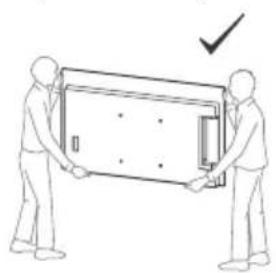
- Two or more persons are needed to transport a large TV set.
- Correct hand placement while carrying the TV is very important for safety and to avoid damage.
natural_image
Two people handling a large rectangular object with a checkmark indicating direction (no text or symbols present)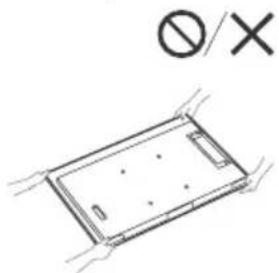
text_image
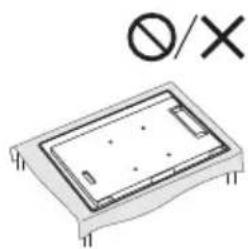
Ø/×- When handling or mounting the TV set, do not lay down the TV (except XR-55A80K / 55A80CK).
natural_image
Technical diagram of a rectangular electronic component with mounting holes and a symbol indicating no text or labels (no readable text or symbols)- Ensure your TV has adequate ventilation, refer to the safety documentation.
- For best picture quality, do not expose the screen to direct illumination or sunlight.
- Avoid installing the TV in a room with reflective wall and floor materials.
- Avoid moving the TV from a cold area to a warm area. Sudden room temperature changes may cause moisture condensation. This may cause the TV to show poor picture and/or poor color. Should this occur, allow moisture to evaporate completely before powering the TV on.
Securing the TV
Sony strongly recommends taking measures to prevent the TV from toppling over. Unsecured TVs may topple and result in property damage, serious bodily injury or even death.
Preventing the TV from Toppling
- Secure the TV to a wall and/or Stand.
- Do not allow children to play or climb on furniture and TV sets.
- Avoid placing or hanging items on the TV.
- Never install the TV on:
- slippery, unstable and/or uneven surfaces.
- furniture that can easily be used as steps, such as a chest of drawers.
• Install the TV where it cannot be pulled, pushed, or knocked over. - Install the TV so that the TV's Table-Top Stand does not protrude out from the Stand (not supplied). If the Table-Top Stand protrudes out from the Stand, it may cause TV set to topple over, fall down, and cause personal injury or damage to the TV.
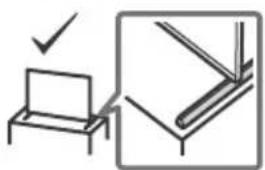
natural_image
Simple line drawing showing a monitor on a table and a close-up of its screen (no text or symbols)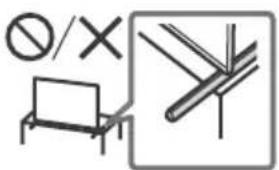
natural_image
Pure electrical circuit lines without any symbols- Route all AC power cords and connecting cables so that they are not accessible to curious children.
Recommended Measures to Secure the TV
Consider the following measures when securing your TV to a Stand (not supplied).
1 Secure the Stand for the TV.
Make sure the Stand can adequately support the weight of the TV. Use two angle braces (not supplied) to secure the Stand. For each angle brace use the appropriate hardware to:
- Attach one side of the angle brace to the wall stud.
- Attach the other side to the Stand.

text_image
Angle brace (not supplied) Stand2 Secure the TV to the Stand.
Use the optional hardware listed as follows (not supplied):
- M6 machine screws (screwed into the TV's rear cover).
- A screw or similar (attach it to the Stand).
- Rope or chain (strong enough to support the weight of the TV). Make sure that there is no excess slack in the rope or chain.
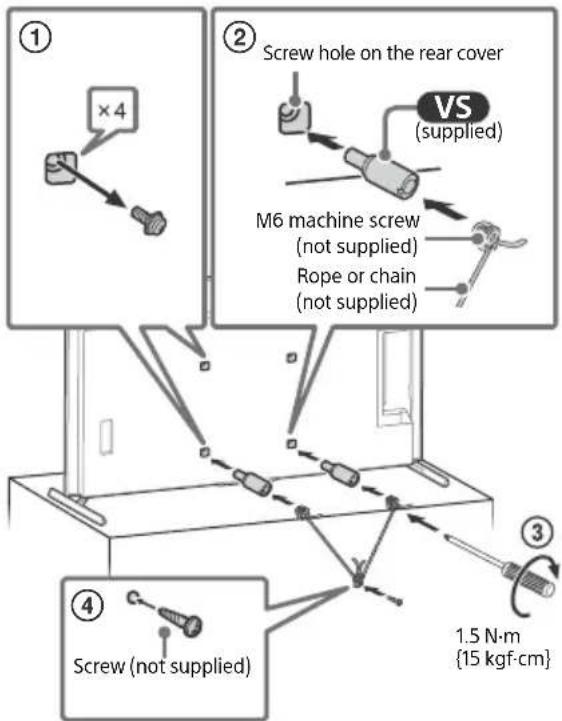
text_image
① ×4 ② Screw hole on the rear cover VS (supplied) M6 machine screw (not supplied) Rope or chain (not supplied) ③ Screw (not supplied) ④ 1.5 N·m {15 kgf·cm}The length of the M6 machine screw differs depending on the rope or chain diameter. Please refer to below illustration.
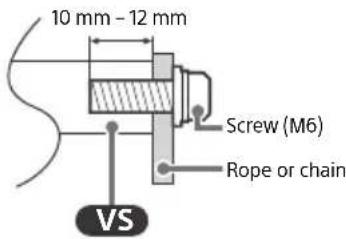
text_image
10 mm - 12 mm Screw (M6) Rope or chain VS3 Anchor the TV to the wall by using bolts, wall anchor and chain (or rope).
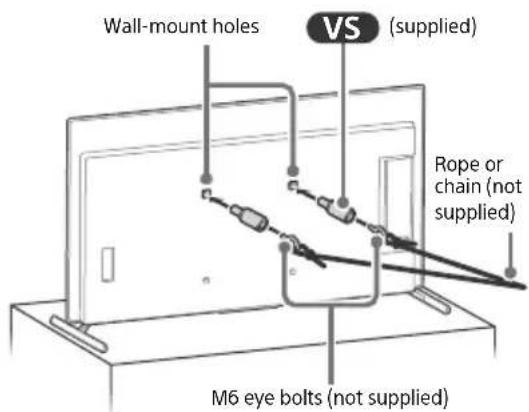
text_image
Wall-mount holes VS (supplied) Rope or chain (not supplied) M6 eye bolts (not supplied)
text_image
Wall-anchor (not supplied)Please refer to below illustration for M6 eye bolt length.
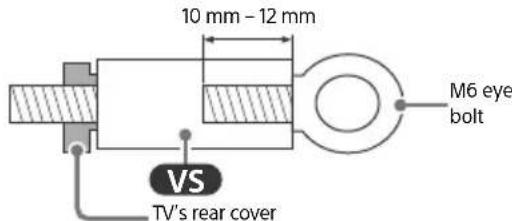
text_image
10 mm - 12 mm VS TV's rear cover M6 eye boltNote
- Your TV is shipped with screws attached to the rear of the TV depending on the TV model. (They are fastened in the screw holes for wall mounting.) Be sure to remove the upper two screws prior to anchoring the TV to a wall.
- Securing the TV to the Stand without securing the TV and the Stand to the wall provides minimum protection against the TV toppling over. For further protection, be sure to follow the three measures recommended.
The BRAVIA® 4K TV Experience
Thank you for choosing Sony! Your new BRAVIA® TV opens the door to the "4K TV Experience". This document will help you get the most out of your TV. Please take a moment to register your TV at:
U.S.A.: https://productregistration.sony.com Canada: https://www.sony.ca/registration
Four Steps to a 4K TV Experience
Set, Source, Sound, and Setup.
1 Set
Now that you have made the best selection in OLED TV technology, be sure to remove all of the accessories from the packaging before setting up your TV.
2 Source
To experience the stunning detail of your BRAVIA TV, you need access to HD programming.
- Upgrade your signal or content source to high-definition (4K) by contacting your HD service provider.
- Bring the astonishing resolution of your Sony 4K Ultra HD TV to life with Sony 4K Ultra HD Blu-ray Player. (The availability depends on region)
- Receive over-the-air HD broadcasts with an HD-quality antenna connected directly to the back of your TV.
Visit https://www.antennaweb.org for more information on antenna selection and setup.
- Discover the wealth of entertainment now available on super-high resolution Blu-ray Disc™ player and other Sony HD equipment.
3 Sound
Complete the high-definition experience with a BRAVIA Sync™ surround sound system or A/V receiver from Sony.
4 Setup
Install your TV and connect your sources. To help assure the highest quality for your HD experience, use Ultra High Speed HDMI (High-Definition Multimedia Interface) cables.
This TV displays all video input signals in a resolution of 3840 dots × 2160 lines.
Note
- For details of supported formats, refer to the "Specifications" in this manual.
- For supported PC formats, refer to the online Help Guide.
Protecting the TV Screen (OLED TV)
Precautions to Protect the Screen from Damage
Image retention
OLED TV's are susceptible to image retention (burn-in) due to the characteristics of the materials used. Image retention may occur if images are displayed in the same location on the screen repeatedly or over extended periods of time. This is not a malfunction of the TV. Avoid displaying images that may cause image retention.
The following are examples of images that may cause image retention:
- Content with black bars either on the top and bottom and/or the left and right sides of the screen. (for example, Letterboxed, 4:3 screen, Standard definition)
• Static images such as photos. - On-screen menus, program guides, channel logos etc.
• Static content from applications. - On-screen tickers, such as those used for news and headlines.
To reduce the risk of image retention:
- Sony recommends that you turn off the TV normally by pressing the power button on the remote control or the TV.
- Fill the screen by changing [Wide mode] to eliminate the black bars. Select [Wide mode] other than [Normal].
- Turn off the OSD (On Screen Display) by pressing 123 (Control menu) button and select [Info], and turn off the menus from connected equipment.
- Avoid displaying static images with bright colors (including white), clocks or logos on any portion of the screen.
- Set the picture settings based on the ambient conditions. The Standard Picture is recommended for home use and when viewing content that often displays the station logos, etc.
The TV has following features to help reduce/prevent image retention.
Panel refresh
A panel refresh will adjust the panel uniformity. Panel refresh can be performed and should only be used when image retention is very noticeable.
Caution:
- The Panel refresh function may affect the panel. Do not perform Panel refresh more than once a year as it may affect the usable life of the panel.
- Panel refresh takes about ten minutes to complete.
- The effectiveness of a panel refresh may vary depending on the image retention condition.
Pixel shift
Automatically moves the image on the screen to prevent image retention.
Other feature
The screen brightness is automatically reduced when displaying still images, clocks, bright colors or logos etc.
Using TV as Part of Audio System
Note
- Before connecting cables, disconnect the AC power cord of both TV and AV receiver.
- Refer to the instruction manual of the Audio system with S-CENTER OUT terminal for detail.
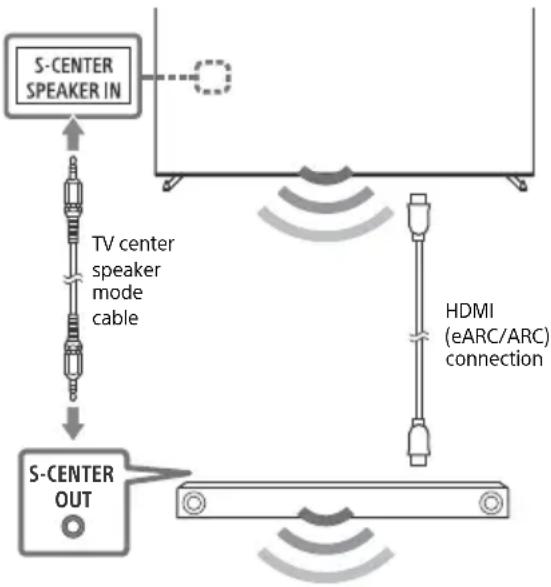
flowchart
graph TD
    A["S-CENTER SPEAKER IN"] --> B["TV center speaker mode cable"]
    B --> C["S-CENTER OUT"]
    C --> D["HDMI (eARC/ARC) connection"]
Remote Control and TV
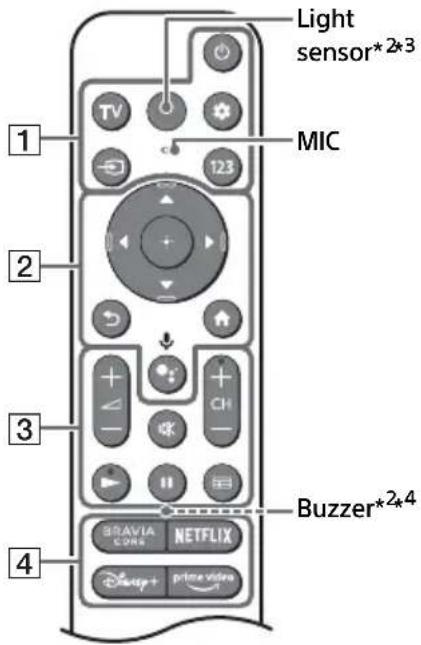
The remote control shape, layout, availability and function of remote control buttons may vary depending on your region/country/TV model/TV settings ^*1 .
text_image
Light sensor*2*3 MIC 1 2 3 4 Buzzer*2*4 BRAVIA CORS NETFLIX Disney+1 (Power)
TV: Display TV channel list or switch to input.
(Quick settings): Display Quick Settings.
→ (Input): Display and select the input source, etc.
123 (Control menu): Display the Control menu.
2 ▲ / ▼ / ◀ / ▶ / ⊕: On screen menu navigation and selection.
(Back)
Home
(Google Assistant) / ↓
(Microphone): Use Google Assistant ^5*6 .
3 +1 - (Volume)
Mute^*7
CH + / - (Channel)
/11
(Guide): Display the digital program guide of TV or Cable/Satellite box*8.
4 App buttons
flowchart
graph TD
    A["Component 5"] --> B["Data Bus"]
    C["Component 6"] --> D["Control Unit"]
    E["Component 7"] --> F["Feedback Loop"]
    G["Component 8"] --> H["Feedback Loop"]
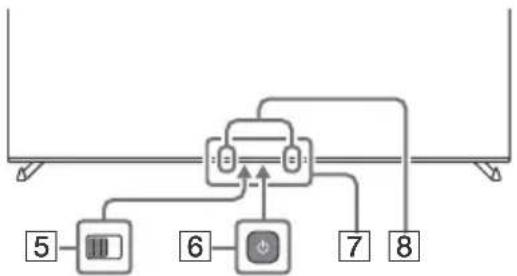
5 BUILT-IN MIC SWITCH: Turn on/off the built-in MIC.
6 ⏻ (Power)
7 Remote Control sensor / Light sensor / LED
Built-in MIC ^569 : To enable the built-in MIC, press the Google Assistant button on the remote control and follow the on-screen instructions.
*1 For other remote control models, refer to the online Help Guide for details.
*2 RMF-TX900U only. To see the model name of the remote control, open the remote control cover and see the label on the remote control.
*3 The remote control backlight will illuminate when the light sensor detects the ambient light is low. Automatic illumination of the backlight can be turned off.
*4 The buzzer will emit a sound when you use the remote finder function. Refer to the online Help Guide for details.
*5 Only for limited region/country/model/language.
*6 Google Assistant requires an Internet connection.
*7 Accessibility shortcut is available by pressing and holding (Mute).
*8 [Cable/Satellite box setup] setting is required.
*9 Power consumption will increase when the built-in MIC is enabled as it is always listening.
For more information, refer to the Help Guide.
Press → (Input) on the remote control and select [Help]. If [Help] does not exist, select [Edit] and add [Help].
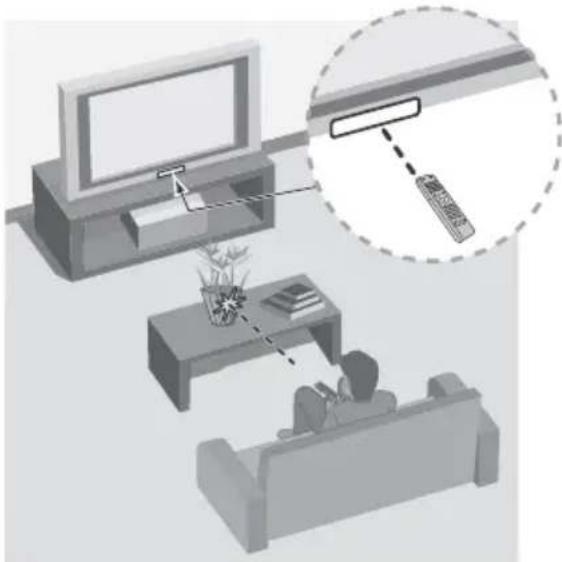
Guidelines for IR Remote Control
- Point your remote control directly at the IR sensor located on your TV.
- Make sure that no objects are blocking the path between the remote control and the IR sensor on your TV.
natural_image
Illustration of a person watching TV on a sofa with a magnified inset showing a remote control interface (no text or symbols)- Fluorescent lamps can interfere with your remote control; try turning off the fluorescent lamps.
- If you are having problems with the remote control, reinsert or replace your batteries and make sure that they are correctly inserted.
Installing the TV to the Wall
Using the optional Wall-Mount Bracket (SU-WL855 only)\* (not supplied)
To Customers:
For product protection and safety reasons, Sony strongly recommends that installation of your TV be performed by Sony dealers or licensed contractors. Do not attempt to install it yourself.
To Sony Dealers and Contractors:
Provide full attention to safety during the installation, periodic maintenance and examination of this product.
Wall-Mount Bracket Installation Information
For instructions on Wall-Mount Bracket installation, see the Installation Information (Wall-Mount Bracket) on the Sony Customer Support website for your TV model at the following address.
https://www.sony.com/am/support
- Follow the instruction guide provided with the Wall-Mount Bracket for your model. Sufficient expertise is required in installing this TV, especially to determine the strength of the wall for withstanding the TV's weight.
- Sony is not liable for any damage or injury caused by mishandling or improper installation.
- The length of the screw for Wall-Mount Bracket differs depending on the Wall-Mount Bracket thickness. Please refer to below illustration.
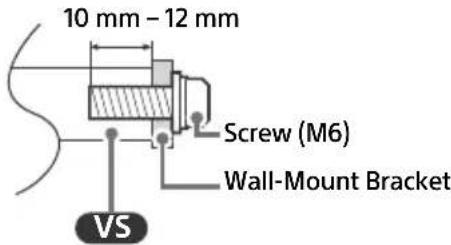
text_image
10 mm - 12 mm Screw (M6) Wall-Mount Bracket VS- Be sure to store the unused screws and Table-Top Stand in a safe place until you are ready to attach the Table-Top Stand. Keep the screws away from small children.
Note
- Read the supplied safety documentation for additional safety information.
* Only for limited region/country/model.
Using the optional Wall-Mount Bracket (Except SU-WL855) (not supplied)
This TV's instruction manual only provides the steps to prepare the TV for Wall-Mount installation before it is installed on the wall.
Your TV can be mounted to a wall using a suitable Wall-Mount Bracket (not supplied). If the Table-Top Stand is attached to the TV, the TV may require detaching the Table-Top Stand; see "Detaching the Table-Top Stand from the TV".
Prepare the TV for the Wall-Mount Bracket before making cable connections.
For product protection and safety reasons, Sony strongly recommends that installation of your TV on the wall be performed by qualified professionals. Do not attempt to install it yourself.
- Follow the instruction guide provided with the Wall-Mount Bracket for your model. Sufficient expertise is required in installing this TV, especially to determine the strength of the wall for withstanding the TV's weight.
- The screws for installing the Wall-Mount Bracket to the TV are not supplied.
- The length of the screw for Wall-Mount Bracket differs depending on the Wall-Mount Bracket thickness. Please refer to below illustration.
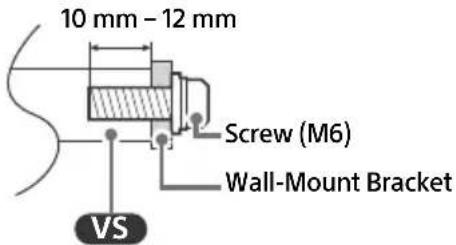
text_image
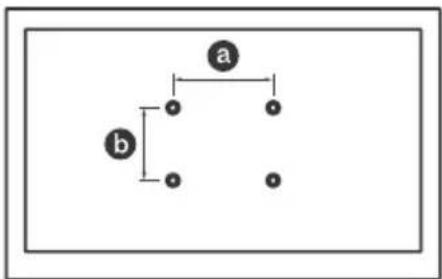
10 mm - 12 mm Screw (M6) Wall-Mount Bracket VS- Refer to the following table for wall-mount hole pattern.
| Model Name | Wall-mount hole pattern |
| a × b | |
| XR-77A80K | 300 × 300 mm |
| XR-77A80CK | |
| XR-65A80K | |
| XR-65A80CK | |
| XR-55A80K | |
| XR-55A80CK |
flowchart
graph TD
    a --> b
    a --> c
    b --> c
    b --> d
    b --> e
- Be sure to store the unused screws and Table-Top Stand in a safe place until you are ready to attach the Table-Top Stand. Keep the screws away from small children.
Note
- Read the supplied safety documentation for additional safety information.
- For more detailed information, visit Sony Customer Support website.*
* Only for limited region/country/model.
1 Remove the screws from the rear of the TV.
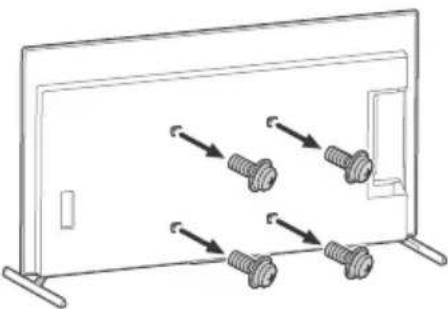
natural_image
Diagram of screw fasteners arranged in a row inside a rectangular frame (no text or symbols)2 Attach the Wall-Mount Attachment (supplied with the TV) to the rear of the TV (to make it parallel with the wall).
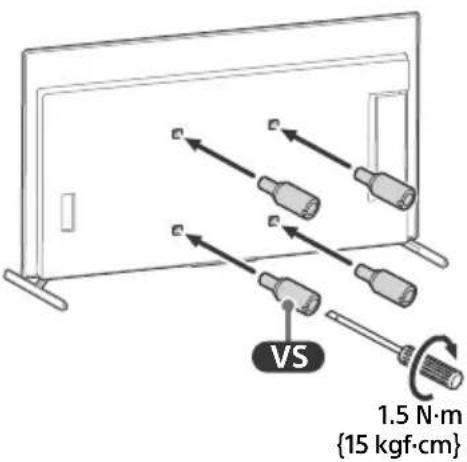
text_image
VS 1.5 N·m {15 kgf·cm}3 Attach the Wall-Mount Bracket (not supplied) using the screws (not supplied).
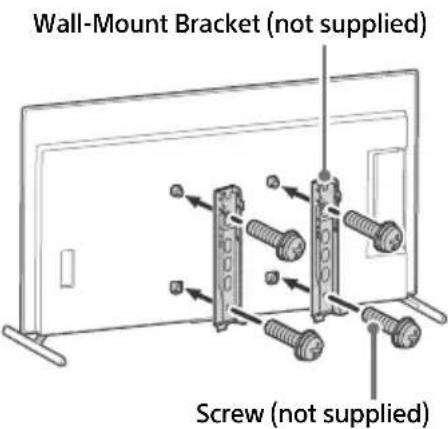
text_image
Wall-Mount Bracket (not supplied) Screw (not supplied)Note
- If using an electric screwdriver, set the torque at approximately 1.5 N·m {15 kgf·cm}.
- Be sure to fasten the Wall-Mount Attachment when attaching them to the TV. Use only a flat head screwdriver to install the Wall-Mount Attachment. Use of another tool might result in over torqueing the Wall-Mount Attachment and damaging the TV.
Detaching the Table-Top Stand from the TV
1 Remove one side of the Table-Top Stand at a time. Firmly hold the Table-Top Stand securely with both hands while the other people lift up the TV.

text_image
Technical diagram illustrating a procedure for installing or adjusting a device, with numbered steps and safety symbols.2 Repeat the previous step and remove the other side of the Table-Top Stand.
Note
- Three or more people are required to detach the Table-Top Stand.
- Be careful not to use excessive force while detaching the Table-Top Stand from the TV as it may cause the TV set to fall resulting in personal injury or physical damage to the TV.
• Take care when handling the Table-Top Stand to prevent damage to the TV.
- Be careful when lifting the TV as the Table-Top Stand is detached, the Table-Top Stand may topple over and cause personal injury.
• Take care when removing the Table-Top Stand from the TV to prevent it from falling over and damaging the surface that the TV is sitting on.
- Do not remove the Table-Top Stand for any reason other than to install corresponding accessories on the TV.
- Be sure the TV is vertical before turning on. To avoid uneven picture uniformity do not power on the TV with the panel facing down.
Optional Camera and Microphone Unit (not supplied) Cable Management
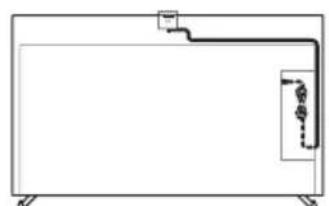
natural_image
Simple line drawing of a rectangular container with a curved pipe and a small inset diagram (no text or symbols)Table-Top Stand position
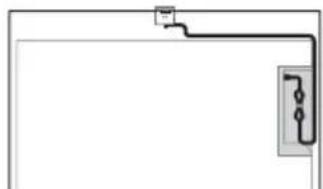
natural_image
Simple line drawing of a rectangular object with a cable and a separate electrical outlet (no text or symbols)Wall-mount position
Troubleshooting
General troubleshooting for issues like: black screen, no sound, frozen picture, TV does not respond, or network is lost, do the following steps.
1 Restart your TV by pressing the power button on the remote control for about five seconds. The TV will restart. If the TV does not recover, try unplugging the AC power cord then press the power button on the TV and release it. Wait for two minutes, and plug in the AC power cord. Or, press the power button on the TV for about 40 seconds until the TV turns off.
2 Refer to the Help menu shown below.
3 Connect your TV to the Internet and perform a software update. Sony recommends you to keep your TV software updated. Software updates provide new features and performance improvements.
4 Visit Sony support website (information provided at the end of this manual).
5 Perform the factory data reset.
When you plug in the TV, the TV may not be able to turn on for a while even if you press the power button on the remote control or the TV.
It takes time to initialize the system. Wait for about one minute, then operate it again.
How to reset the TV to factory settings
WARNING: The reset will clear all of your customized settings including the parental lock setting.
- You can reset the TV to factory settings by selecting [Factory data reset]. How to select [Factory data reset], refer to the online Help Guide.
- To force factory data reset, unplug the AC power cord. Press and hold button on the TV, then plug in the AC power cord.
- For security purposes, be sure to remove all personal and account information before discarding, selling or passing your TV to someone else by: unlinking/unregistering, signing out of and deactivating all network services as well as factory reset the TV.
The remote control does not function.
- Replace the batteries.
The parental lock password has been forgotten.
- Enter 4357 for the PIN and enter the new PIN.
The screen becomes darker while watching TV.
- If the whole image or part of the image remains still, the screen brightness will be gradually reduced to prevent image retention. This is not a malfunction of the TV.
You are concerned about image retention.
If the same image is displayed repeatedly or for long periods of time, image retention may occur. To reduce image retention, we recommend that you turn off the TV normally by pressing the power button on the remote control or the TV.
Note
- Perform Panel refresh only when image retention is particularly noticeable. Avoid performing Panel refresh more than once a year because it may affect the usable life of the panel.
- Images that include clocks, logos and bright colors (including white) easily cause image retention. Avoid displaying these types of images for long periods of time, otherwise image retention may occur.
The message [Panel refresh did not finish...] is displayed.
When i) the TV is turned on or ii) the AC power cord is unplugged during the Panel refresh, the Panel refresh is not completed. Please avoid the above two conditions during the Panel refresh.
![SONY Bravia XR-77A80CK - The message [Panel refresh did not finish...] is displayed. - 1](/content/2026/04/695478/images/62501ce5af685ee3269c7907b9cdb9bea03387be7b041104efeb70445a3cd691.jpg)
For more information on troubleshooting, refer to the Help Guide.
Press (Input) on the remote control and select [Help]. If [Help] does not exist, select [Edit] and add [Help].
Specifications
System
TV system: Depend on your country/area selection/TV model
NTSC: American TV Standard ATSC (8VSB Terrestrial): ATSC compliant 8VSB NEXTGEN TV: ATSC 3.0 compliant (Single tuner) QAM on cable: ANSI/SCTE 07 2000 (Does not include CableCARD functionality)
Channel coverage: Depend on your country/area selection/TV model
Analog terrestrial: 2 – 69 / Digital terrestrial: 2 – 69*1
Analog Cable: 1 – 135 / Digital Cable: 1 – 135
Panel system: OLED (Organic Light Emitting
Diode) Panel
Speaker output
XR-77A80K / 77A80CK: 20 W + 10 W +
10 W + 10 W + 10 W
XR-65A80K / 65A80CK / 55A80K /
55A80CK: 10 W + 10 W + 10 W + 10 W +
10 W
Wireless technology
Protocol IEEE 802.11a/b/g/n/ac
Bluetooth ^® Version 4.2
Input/Output jacks
CABLE/ANTENNA
75 ohm external terminal for RF inputs

/ VIDEO IN / S-CENTER SPEAKER IN
Video/Audio input (mini jack)
S-center speaker input (mini jack)
HDMI IN 1/2/3/4 (HDCP 2.3-compatible)
Video:
4096 × 2160p (60 Hz)^23, 4096 × 2160p
(24 Hz) ^2 , 3840 × 2160p (60 Hz) ^3 , 3840 ×
2160p (24, 30 Hz), 1080p (30, 60,
120 Hz), 1080/24p, 1080i (60 Hz), 720p
(30, 60 Hz), 720/24p, 480p, PC
Formats ^*4
3840 × 2160p (120 Hz) ^35
Audio:
In eARC (Enhanced Audio Return
Channel) mode
Refer to the online Help Guide for details.
Except eARC mode
5.1 channel linear PCM: 32/44.1/48/
88.2/96/176.4/192 kHz 16/20/24 bits,
Dolby Audio, Dolby Atmos, DTS
eARC/ARC (Enhanced Audio Return
Channel/Audio Return Channel) (HDMI IN 3 only)*6
In eARC mode
Refer to the online Help Guide for details.
In ARC mode
Two channel linear PCM: 48 kHz 16 bits, Dolby Audio, Dolby Atmos, DTS

DIGITAL AUDIO OUT (OPTICAL)
Digital optical jack (Two channel linear
PCM: 48 kHz 16 bits, Dolby Audio, DTS)

→1, ⇌ 2
USB port 1 supports High Speed USB
(USB 2.0)
USB port 2 supports Super Speed USB
(USB 3.2 Gen 1)

10BASE-T/100BASE-TX connector
(Depending on the operating environment of the network, connection speed may differ. The communication rate and quality are not guaranteed.)
Home Network supported files and formats ^*4
REMOTE
These jacks are for receiving the external control signal.
Power and others
Power requirements
110V - 240V AC, 50/60Hz (U.S.A./
Canada 120 V AC, 60 Hz)
Power consumption
In use
XR-77A80K / 77A80CK: 581 W
XR-65A80K / 65A80CK: 438 W
XR-55A80K / 55A80CK: 340 W
In standby ^ / 8
Less than 0.5 W with 120 V AC and less
than 0.5 W with 240 V AC
Screen size (measured diagonally) (Approx.)
XR-77A80K / 77A80CK: 194.7 cm /
76.7 inches (77" class)
XR-65A80K / 65A80CK: 163.9 cm /
64.5 inches (65" class)
XR-55A80K / 55A80CK: 138.8 cm /
54.6 inches (55" class)
Display resolution (horizontal × vertical)
(pixels)
3840 × 2160
Output rating
500 mA (for USB 1), 900 mA (for USB 2)
Dimensions (Approx.) (w × h × d) (mm) / (inches)
with stand
Standard position:
XR-77A80K / 77A80CK: 1722*024 × 389 /
67^7/8×40^3/8×15^3/_8
XR-65A80K / 65A80CK: 1448 × 862 × 330 /
57^1/_8×34×13
XR-55A80K / 55A80CK: 1227 × 738 × 330 /
48^3/8×29^1/8×13
Narrow position:
XR-77A80K / 77A80CK: 1722 × 1024 × 389 /
67^7/8×40^3/8×15^3/_8
XR-65A80K / 65A80CK: 1448 × 862 × 330 /
57^1/_8×34×13
XR-55A80K / 55A80CK: 1227 × 738 × 330 /
48^3/8×29^1/8×13
Soundbar position:
XR-77A80K / 77A80CK: 1722 × 1066 × 389 /
67^7/8×42×15^3/8
XR-65A80K / 65A80CK: 1448 × 904 × 330 /
57^1/8×35^5/8×13
XR-55A80K / 55A80CK: 1227 × 780 × 330 /
48^3/8×30^3/4×13
without stand
XR-77A80K / 77A80CK: 1722 × 998 × 54 /
67^7/8×39^3/8×2^1/_4
XR-65A80K / 65A80CK: 1448 × 836 × 53 /
57^1/8×33×2^1/8
XR-55A80K / 55A80CK: 1227 × 712 × 53 /
48^3/8×28^1/8×2^1/_8
wall-mount hole pattern
300 × 300 mm
wall-mount screw size (mm)
M6 (length: see "Installing the TV to the Wall".)
Stand width (Approx.) (mm) / (inches)
Standard position:
XR-77A80K / 77A80CK: 1409 / 55 ^1 /2
XR-65A80K / 65A80CK / 55A80K /
55A80CK: 1184 / 46 ^5 /8
Narrow position:
XR-77A80K / 77A80CK: 619 / 24 ^3 /8
XR-65A80K / 65A80CK / 55A80K /
55A80CK: 847 / 33 ^3 / _8
Soundbar position:
XR-77A80K / 77A80CK: 1409 / 55 ^1 /2
XR-65A80K / 65A80CK / 55A80K /
55A80CK: 1184 / 46 ^5 /8
Mass (Approx.) (kg) / (lb.)
with stand
XR-77A80K / 77A80CK: 37 / 81.5
XR-65A80K / 65A80CK: 24.6 / 54.2
XR-55A80K / 55A80CK: 19.5 / 43
without stand
XR-77A80K / 77A80CK: 34.8 / 76.7
XR-65A80K / 65A80CK: 23 / 50.7
XR-55A80K / 55A80CK: 17.9 / 39.5
Others
Optional accessories
Wall-Mount Bracket: SU-WL855
Camera and Microphone Unit: CMU-BC1
Operating temperature: 0 °C – 40 °C /
32^ - 104^
*1 2 - 36 for NEXTGEN TV scanning range in U.S.A.
*2 When 4096 × 2160p is input and [Wide mode] is set to [Normal], the resolution is displayed as 3840 × 2160p. To display 4096 × 2160p, set [Wide mode] setting to [Full 1] or [Full 2].
*3 Refer to the on screen menu to set [HDMI signal format].
*4 Refer to the online Help Guide for details.
*5 HDMI IN 3 & 4 only. Use the Ultra High Speed HDMI Cable to connect.
*6 Connect your audio system to the HDMI IN 3 to route TV audio to your audio system.
*7 Specified standby power is reached after the TV finishes necessary internal processes.
*8 Standby power consumption will increase when your TV is connected to the network.
Note
- Optional accessories availability depends on countries/region/TV model/stock.
- Design and specifications are subject to change without notice.
- Subscriptions for services and applications may be required and additional terms, conditions and/or charges may apply when using Google Assistant.
Licensing Information
- The terms HDMI, HDMI High-Definition Multimedia Interface, and the HDMI Logo are trademarks or registered trademarks of HDMI Licensing Administrator, Inc.
- Dolby, Dolby Vision, Dolby Atmos, Dolby Audio, and the double-D symbol are trademarks of Dolby Laboratories Licensing Corporation. Manufactured under license from Dolby Laboratories. Confidential unpublished works. Copyright © 1992-2021 Dolby Laboratories. All rights reserved.
- Gracenote, the Gracenote logo and logotype, "Powered by Gracenote" logo are either registered trademarks or trademarks of Gracenote, Inc. in the United States and/or other countries.
- Google, Google TV and related logos are trademarks of Google LLC.
- For DTS patents, see http://patents.dts.com. Manufactured under license from DTS, Inc. DTS, Digital Surround, and the DTS logo are registered trademarks or trademarks of DTS, Inc. in the United States and other countries. © 2020 DTS, Inc. ALL RIGHTS RESERVED.
- Netflix is a registered trademark of Netflix, Inc.
- TUXERA is a registered trademark of Tuxera Inc. in the US and other countries.
- All other trademarks are the property of their respective owners.
text_image
Diagram showing two steps of installing a device: one with checkmark and another with prohibition symbol.natural_image
Pure electrical circuit lines without any symbolsnatural_image
Simple line drawing showing a table and a bracket with a checkmark (no text or symbols)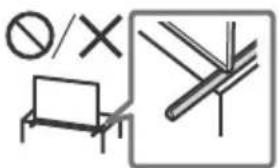
natural_image
Pure electrical circuit lines without any symbolsnatural_image
Illustration of a person watching TV on a sofa with a magnified inset showing a remote control (no text or symbols)natural_image
Diagram of screw fasteners inside a rectangular frame, showing four different positions (no text or symbols)text_image
Technical diagram illustrating a procedure for installing or adjusting a panel, with numbered steps and directional arrows indicating process flow.natural_image
Simple line drawing of a rectangular container with a piping and a small inset diagram (no text or symbols)natural_image
Simple line drawing of a rectangular object with a curved line and a separate electrical outlet (no text or symbols)eARC/ARC (Enhanced Audio Return
Channel/Audio Return Channel) (HDMI IN 3 uniquement) ^*6
En mode eARC
→ DIGITAL AUDIO OUT (OPTICAL)
XR-65A80K / 65A80CK / 55A80K /
55A80CK:1184/46 ^5 /8
Position étroite :
XR-77A80K / 77A80CK : 619 / 24 ^3 /8
XR-65A80K / 65A80CK / 55A80K /
55A80CK:847/33 ^3 /8
XR-65A80K / 65A80CK / 55A80K /
55A80CK:1184/46 ^5 /8
Poids (Environ) (kg) / (lb.)
avec support
XR-77A80K / 77A80CK : 37 / 81,5
XR-65A80K / 65A80CK : 24,6 / 54,2
XR-55A80K / 55A80CK : 19,5 / 43
sans support
XR-77A80K / 77A80CK : 34,8 / 76,7
XR-65A80K / 65A80CK : 23 / 50,7
Parte responsible: Sony Electronics Inc.
natural_image
Technical diagram of a rectangular electronic component with mounting holes and a symbol indicating no text or symbols (no readable text or labels)natural_image
Simple line drawing showing a chair and a bracket with a checkmark (no text or symbols)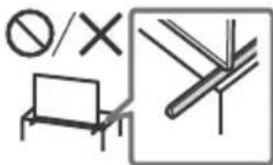
natural_image
Pure electrical circuit lines without any symbolshttps://www.sony-latin.com/registro
natural_image
Illustration of a person watching TV on a sofa with a magnified inset showing a remote control (no text or symbols)https://www.sony.com/am/support
natural_image
Diagram of screw fasteners inside a rectangular frame, showing directional arrows indicating movement (no text or symbols)text_image
Technical diagram illustrating a procedure for installing or adjusting a component, with numbered steps and directional arrows indicating movement.XR-65A80K / 65A80CK / 55A80K /
55A80CK: 10 W + 10 W + 10 W + 10 W + 10 W
→ DIGITAL AUDIO OUT (OPTICAL)
Toma óptica digital (PCM lineal de dos canales: 48 kHz 16 bits, Dolby Audio, DTS)
1, 2
XR-65A80K / 65A80CK / 55A80K /
55A80CK: 1184 / 46 ^5 /8
Posición estrecha:
XR-77A80K / 77A80CK: 619 / 24 ^3 /8
XR-65A80K / 65A80CK / 55A80K /
55A80CK: 847 / 33 ^3 /8
XR-65A80K / 65A80CK / 55A80K /
55A80CK: 1184 / 46 ^5 /8
Peso (Aprox.) (kg) / (lb.)
Con soporte
XR-77A80K / 77A80CK: 37 / 81,5
XR-65A80K / 65A80CK: 24,6 / 54,2
XR-55A80K / 55A80CK: 19,5 / 43
Sin soporte
XR-77A80K / 77A80CK: 34,8 / 76,7
XR-65A80K / 65A80CK: 23 / 50,7
XR-55A80K / 55A80CK: 17,9 / 39,5
Otros
| For Your Convenience | |
| Online Registration: | Be sure to register your TV. |
| United States https://productregistration.sony.comCanada https://www.sony.ca/registration | |
Support Assistance Soporte
https://www.sony.com/tvsupport https://www.sony.ca/support https://esupport.sony.com/ES/LA/